JavaScript and CSS
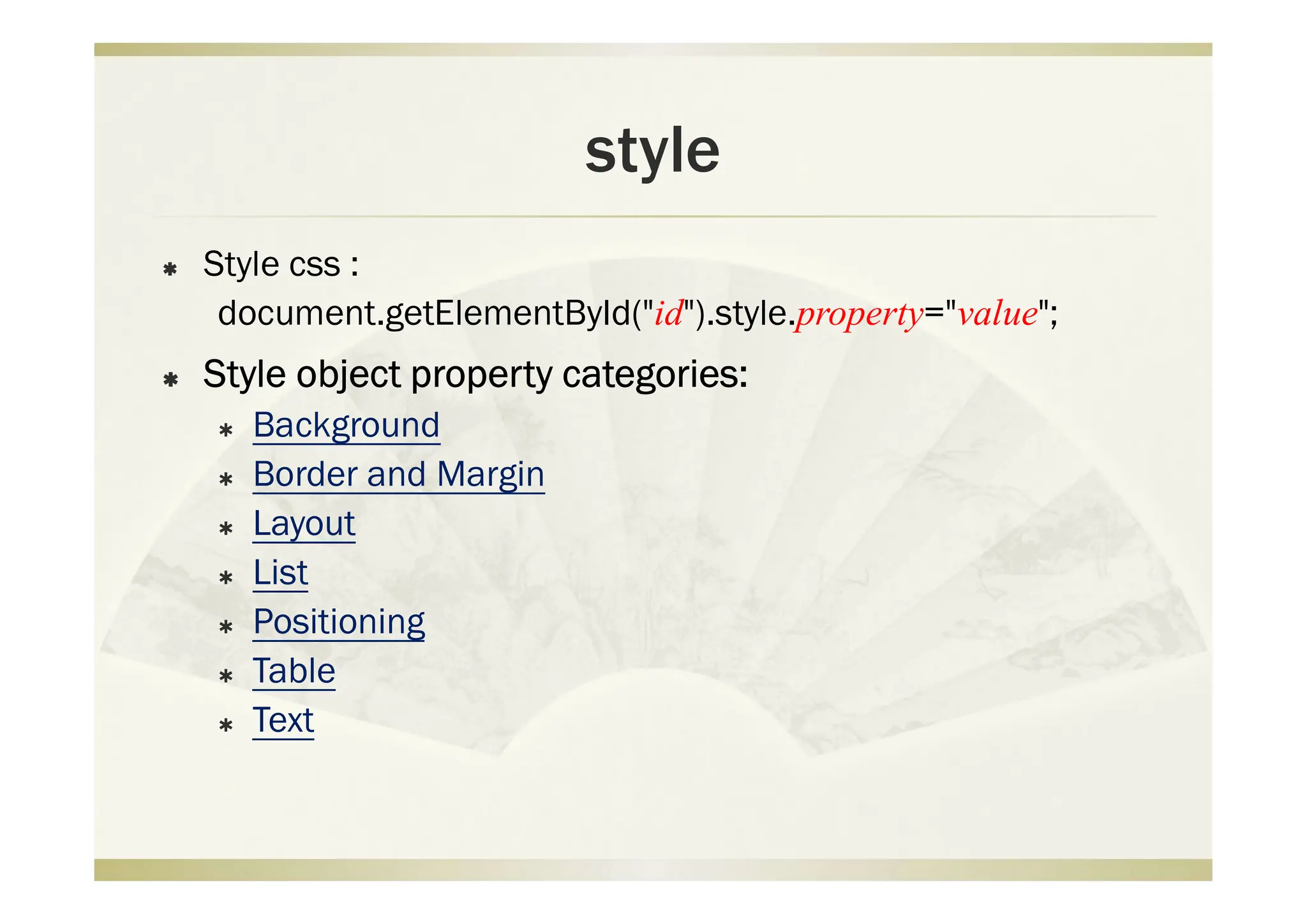
style
 Style css :
document.getElementById("id").style.property="value";
 Style object property categories:
 Background
 Border and Margin
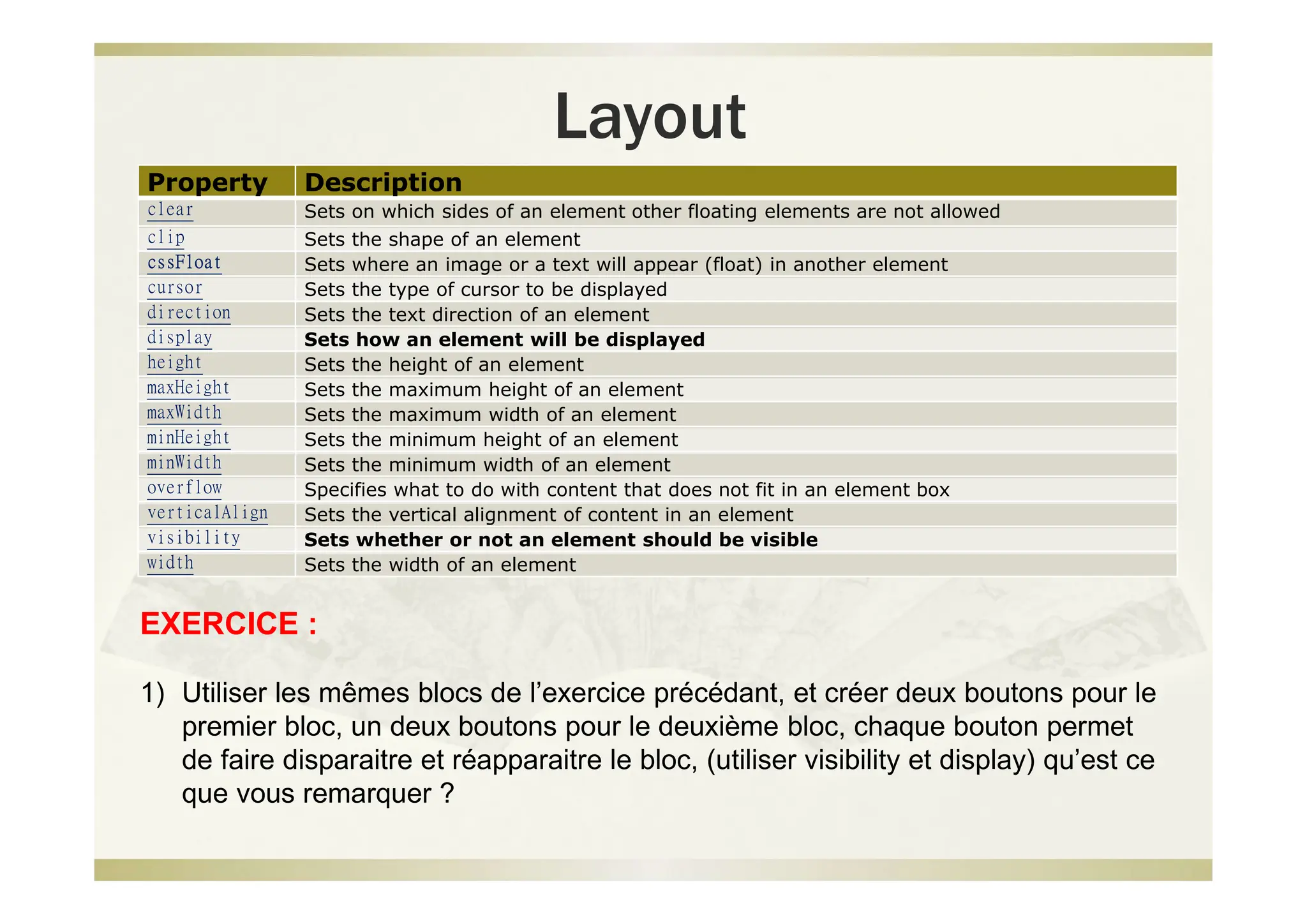
 Layout
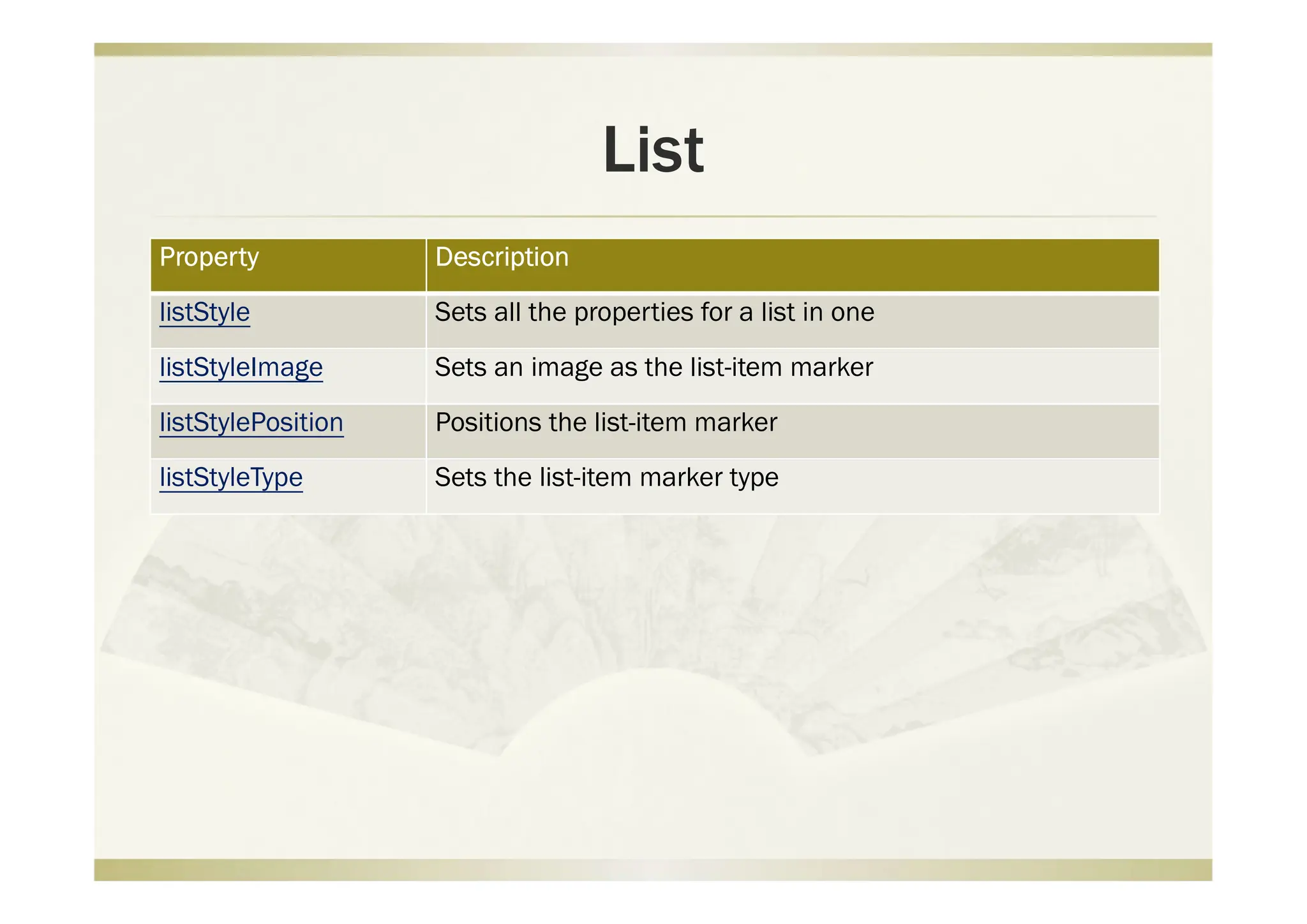
 List
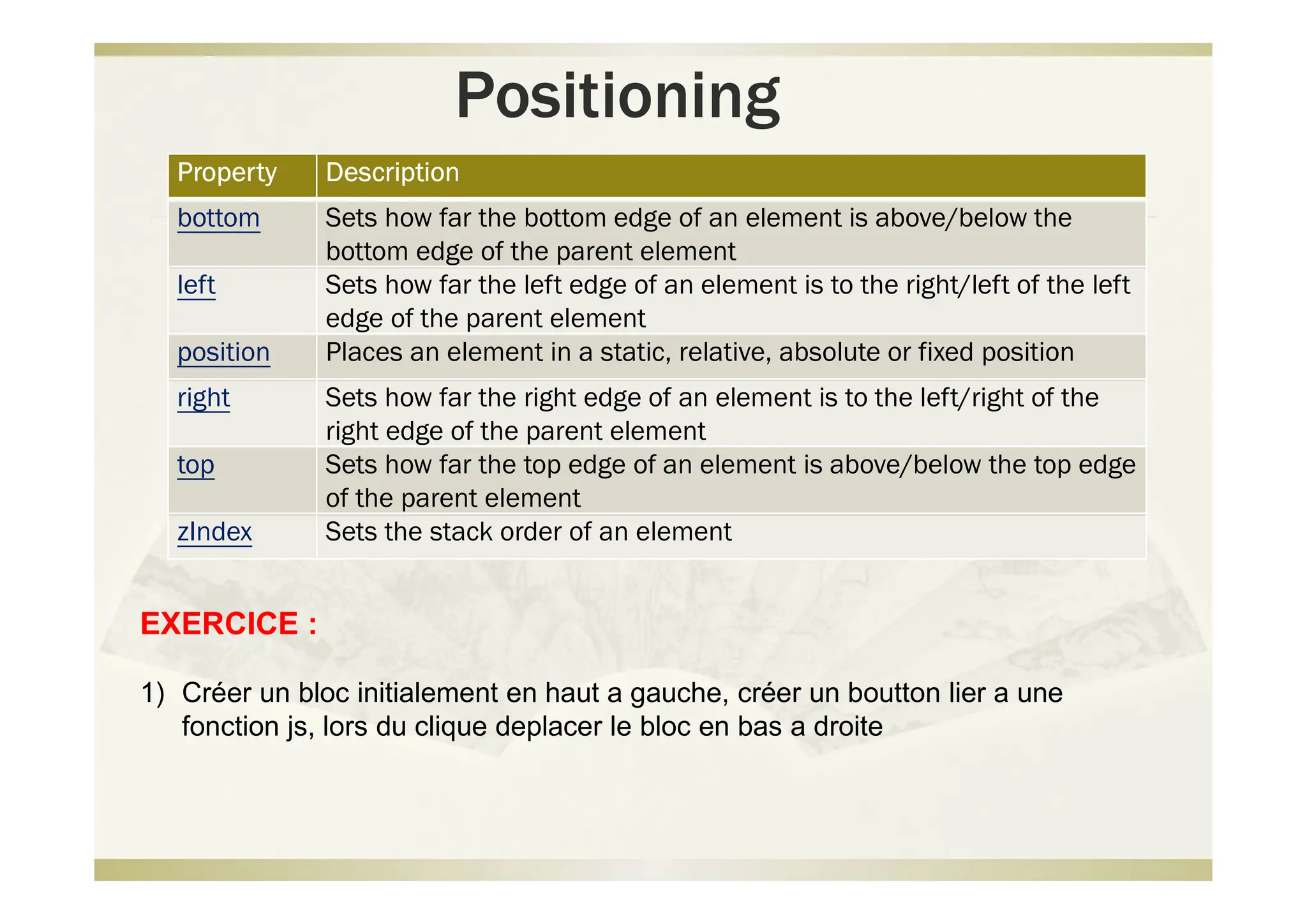
 Positioning
 Table
 Text
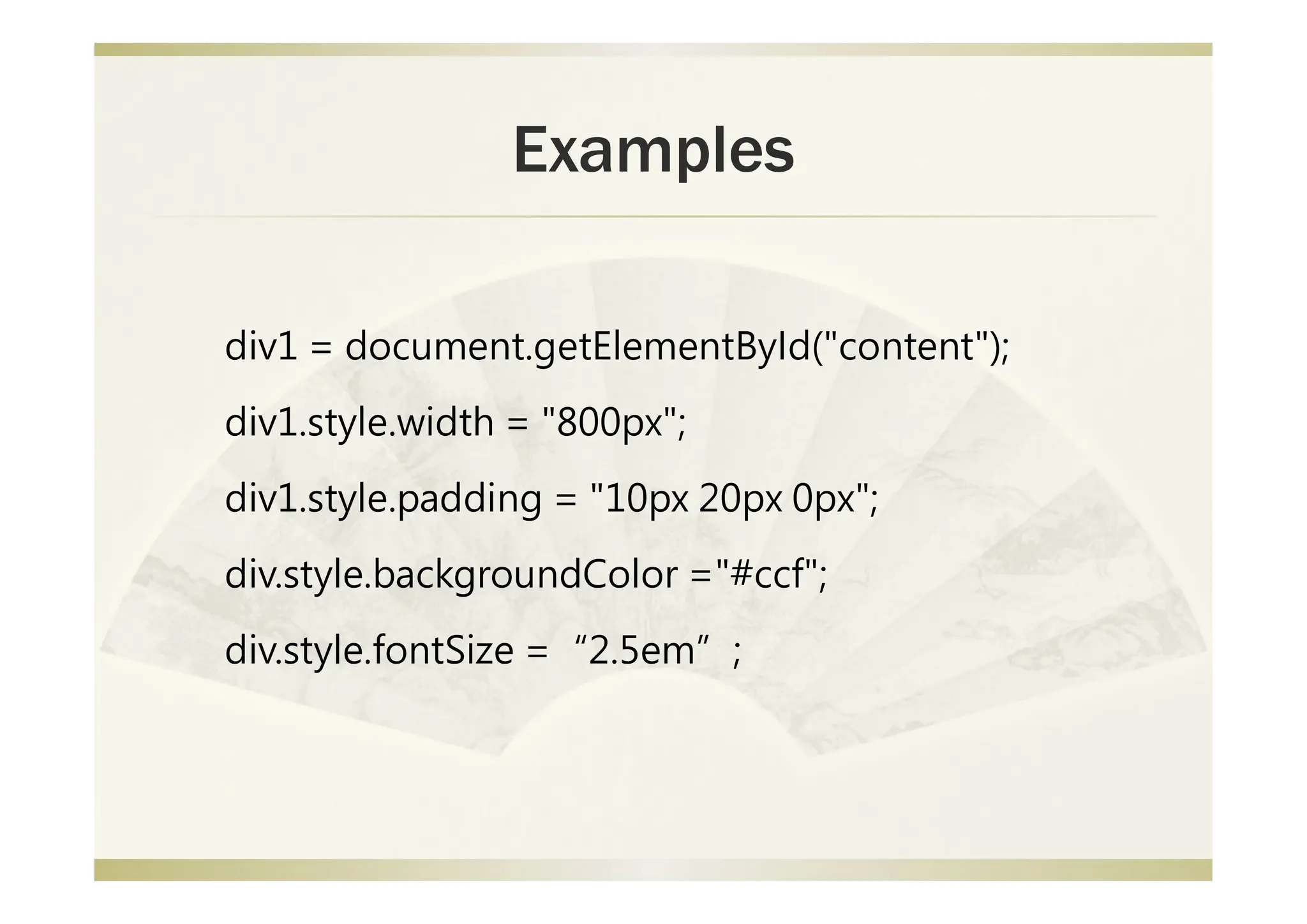
Examples
div1 = document.getElementById("content");
div1.style.width = "800px";
div1.style.padding = "10px 20px 0px";
div.style.backgroundColor ="#ccf";
div.style.fontSize =“2.5em”;
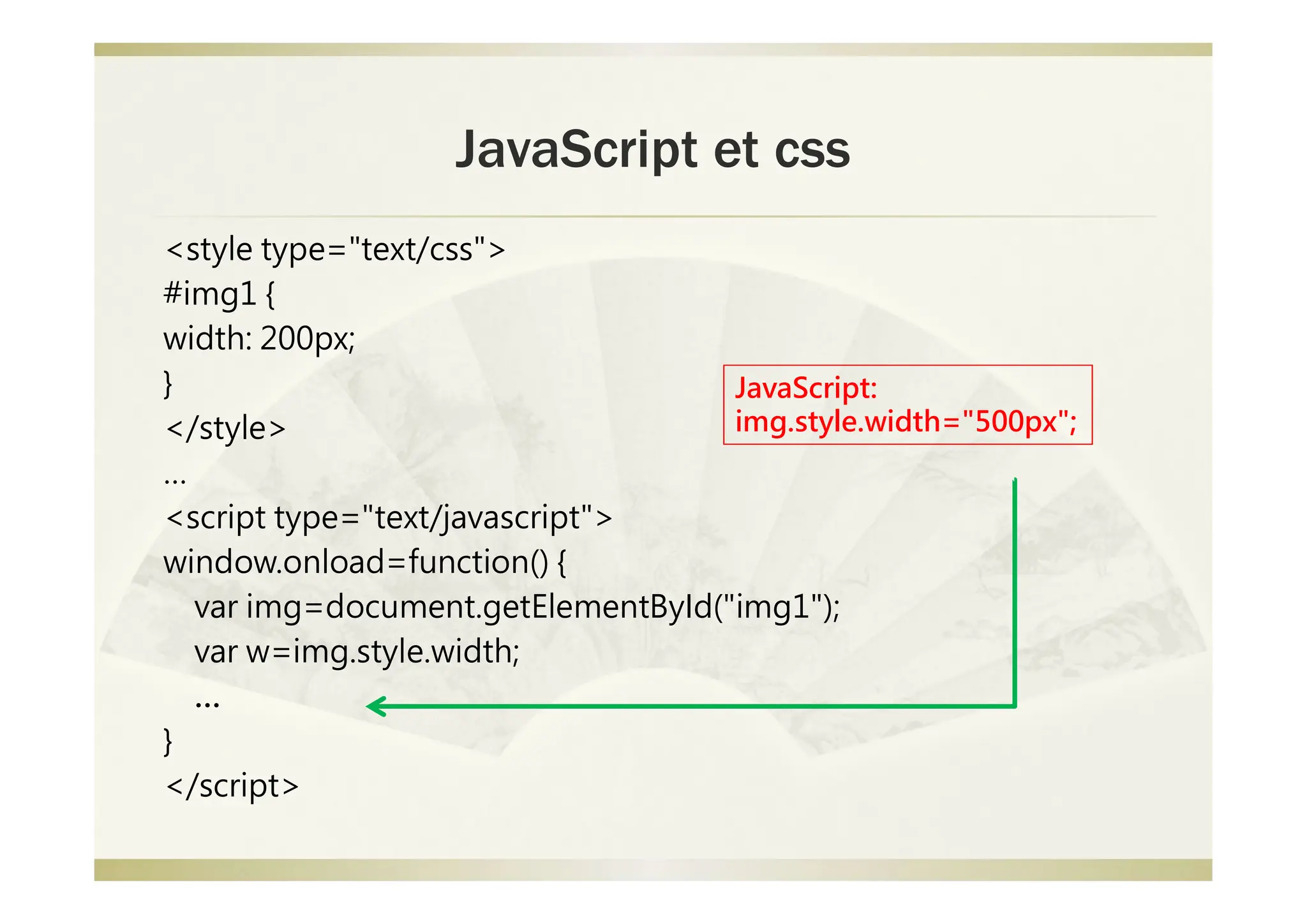
JavaScript et css
<style type="text/css">
#img1 {
width: 200px;
}
</style>
…
<script type="text/javascript">
window.onload=function() {
var img=document.getElementById("img1");
var w=img.style.width;
…
}
</script>
JavaScript:
img.style.width="500px";
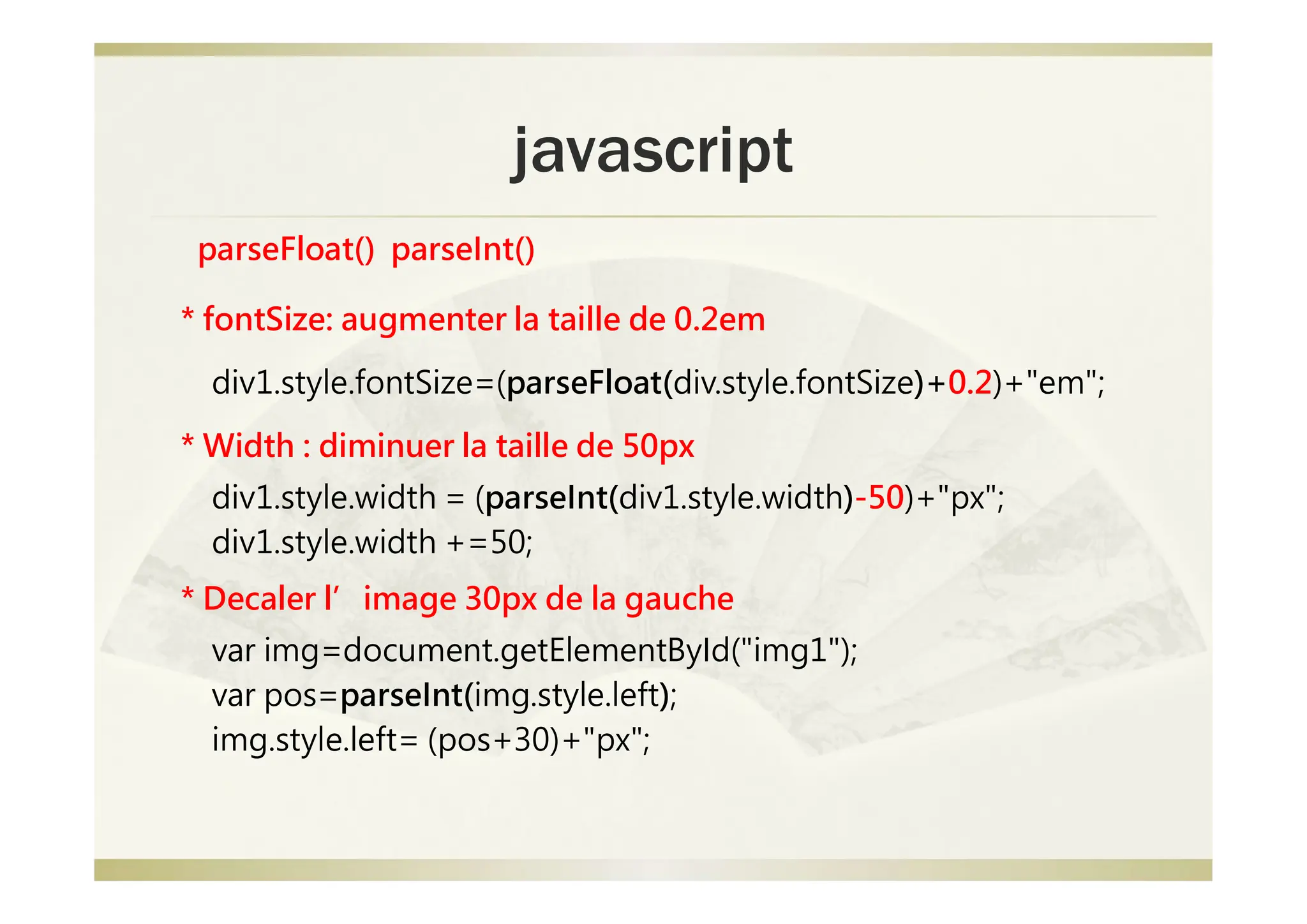
javascript
* fontSize: augmenter la taille de 0.2em
div1.style.fontSize=(parseFloat(div.style.fontSize)+0.2)+"em";
* Width : diminuer la taille de 50px
div1.style.width = (parseInt(div1.style.width)-50)+"px";
div1.style.width +=50;
* Decaler l’image 30px de la gauche
var img=document.getElementById("img1");
var pos=parseInt(img.style.left);
img.style.left= (pos+30)+"px";
parseFloat() parseInt()
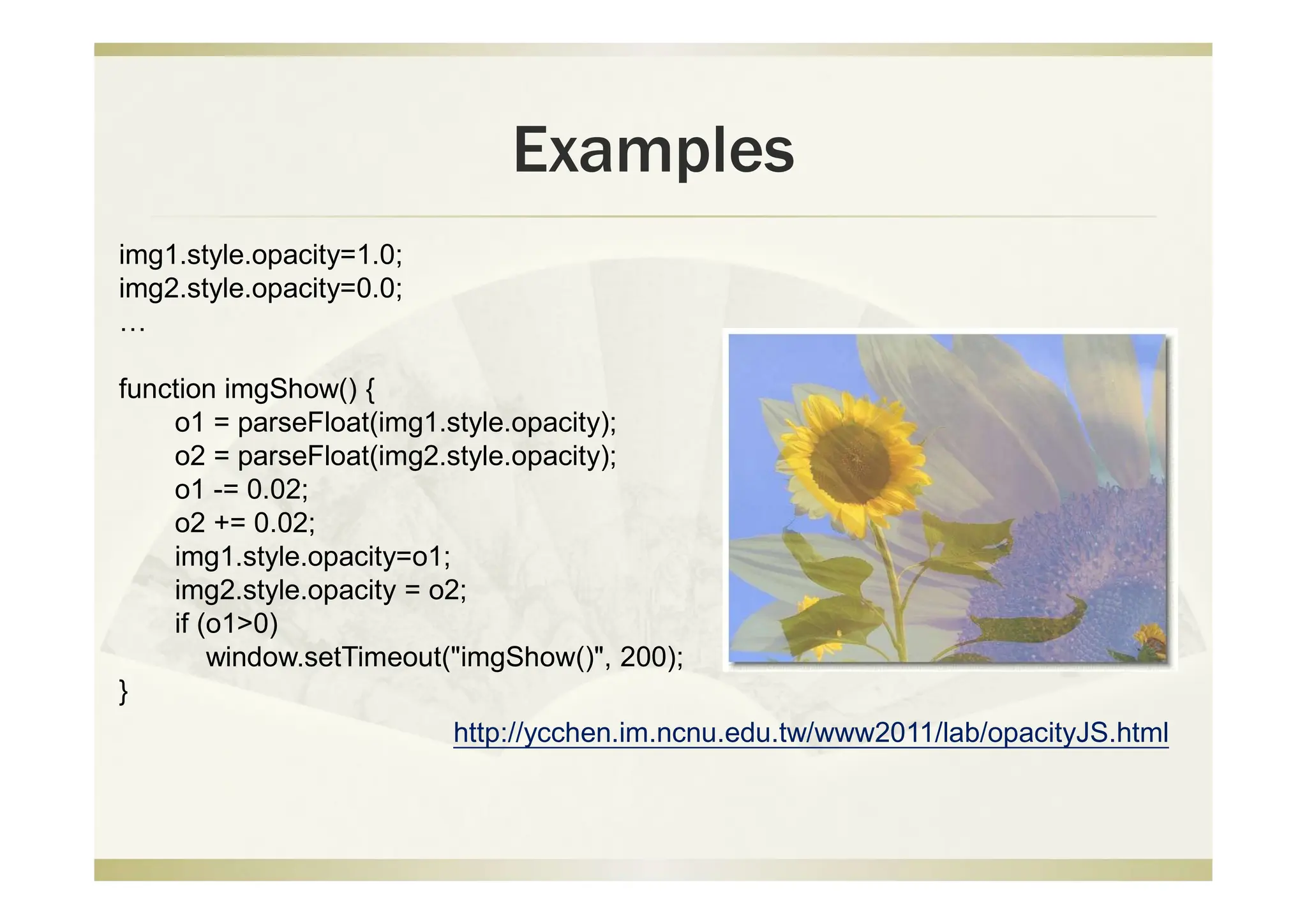
Examples
http://ycchen.im.ncnu.edu.tw/www2011/lab/opacityJS.html
img1.style.opacity=1.0;
img2.style.opacity=0.0;
…
function imgShow() {
o1 = parseFloat(img1.style.opacity);
o2 = parseFloat(img2.style.opacity);
o1 -= 0.02;
o2 += 0.02;
img1.style.opacity=o1;
img2.style.opacity = o2;
if (o1>0)
window.setTimeout("imgShow()", 200);
}
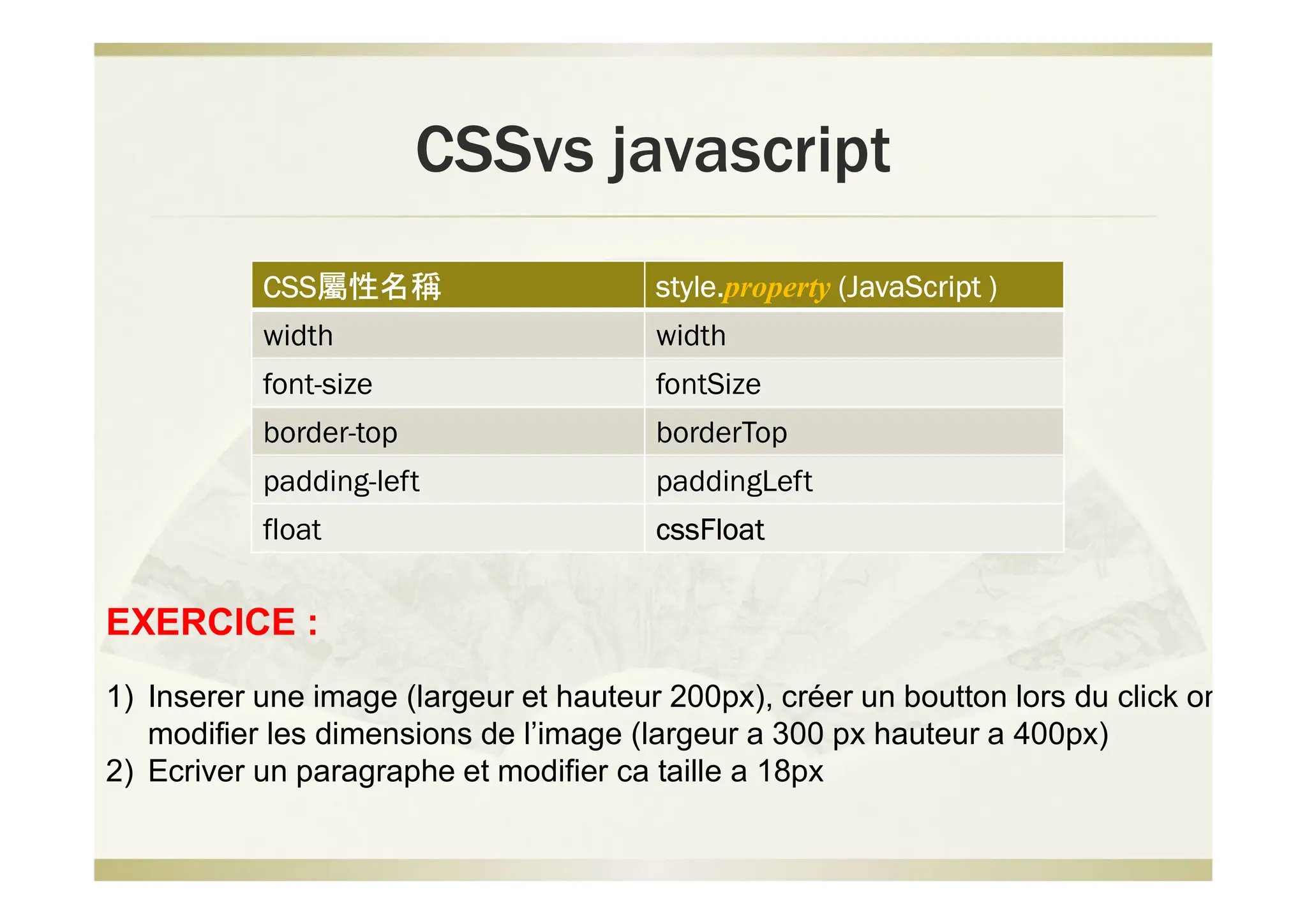
CSSvs javascript
CSS屬性名稱 style.property (JavaScript )
width width
font-size fontSize
border-top borderTop
padding-left paddingLeft
float cssFloat
EXERCICE :
1) Inserer une image (largeur et hauteur 200px), créer un boutton lors du click on
modifier les dimensions de l’image (largeur a 300 px hauteur a 400px)
2) Ecriver un paragraphe et modifier ca taille a 18px
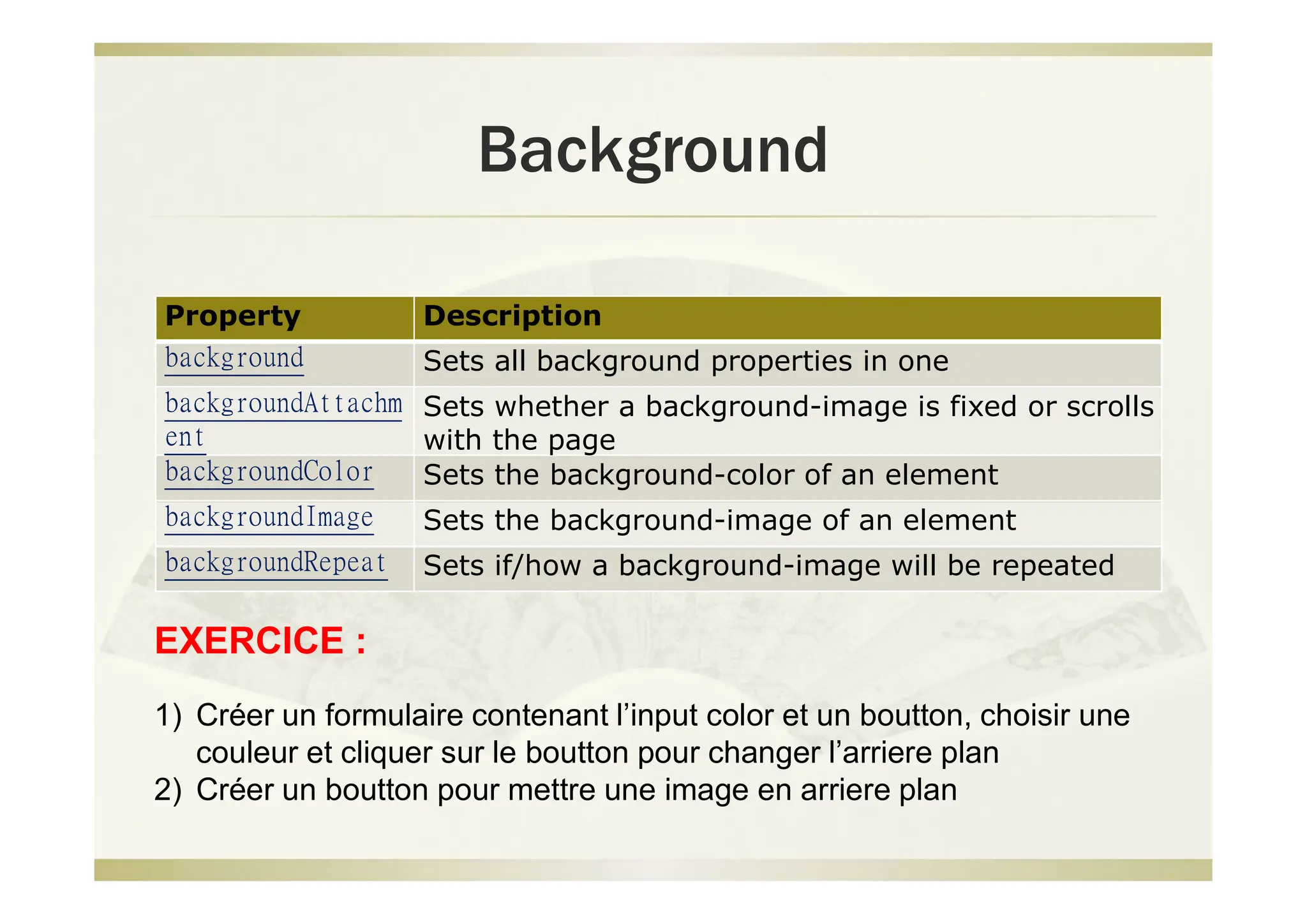
Background
Property Description
background Sets all background properties in one
backgroundAttachm
ent
Sets whether a background-image is fixed or scrolls
with the page
backgroundColor Sets the background-color of an element
backgroundImage Sets the background-image of an element
backgroundRepeat Sets if/how a background-image will be repeated
EXERCICE :
1) Créer un formulaire contenant l’input color et un boutton, choisir une
couleur et cliquer sur le boutton pour changer l’arriere plan
2) Créer un boutton pour mettre une image en arriere plan
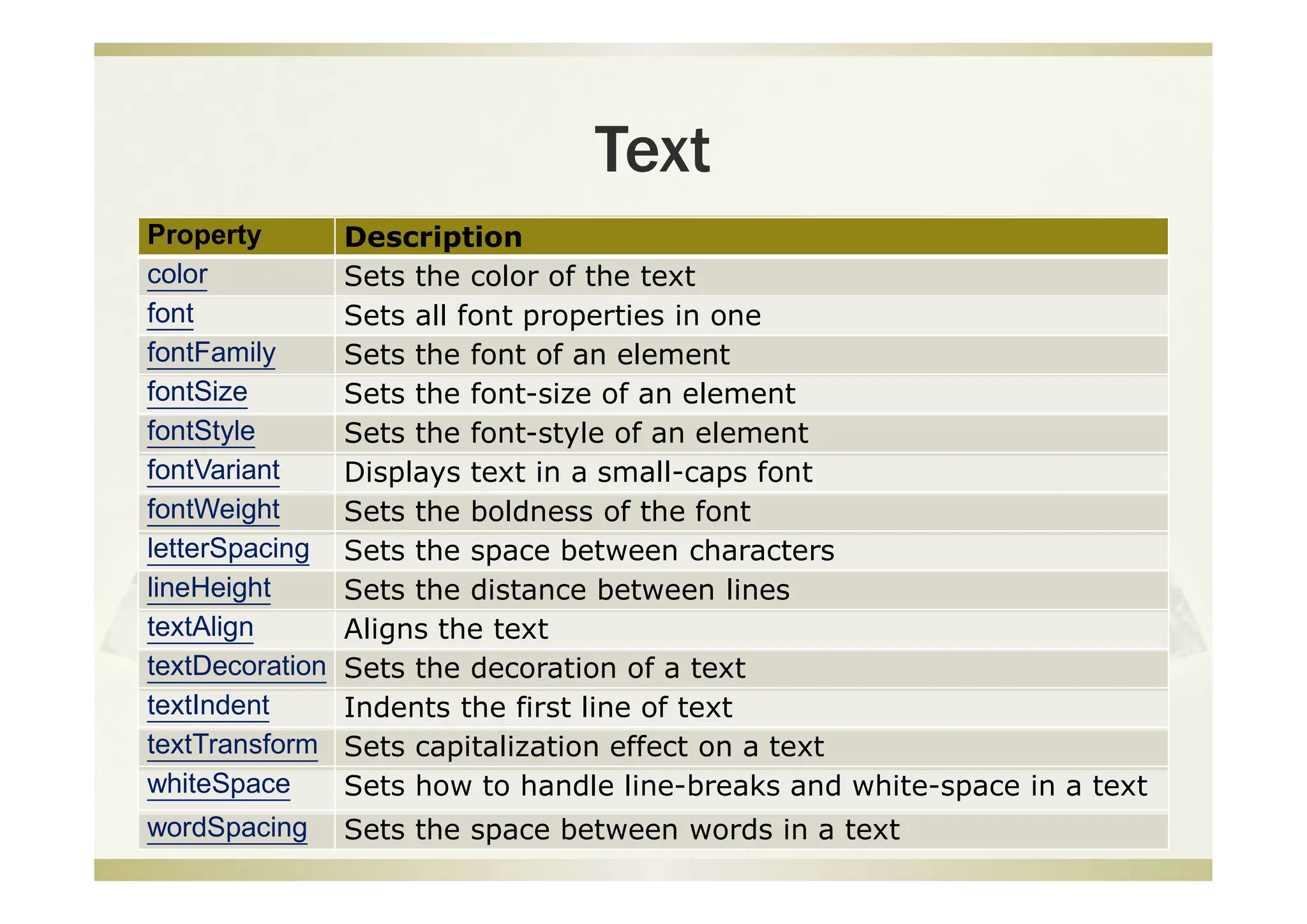
Text
Property Description
color Sets the color of the text
font Sets all font properties in one
fontFamily Sets the font of an element
fontSize Sets the font-size of an element
fontStyle Sets the font-style of an element
fontVariant Displays text in a small-caps font
fontWeight Sets the boldness of the font
letterSpacing Sets the space between characters
lineHeight Sets the distance between lines
textAlign Aligns the text
textDecoration Sets the decoration of a text
textIndent Indents the first line of text
textTransform Sets capitalization effect on a text
whiteSpace Sets how to handle line-breaks and white-space in a text
wordSpacing Sets the space between words in a text
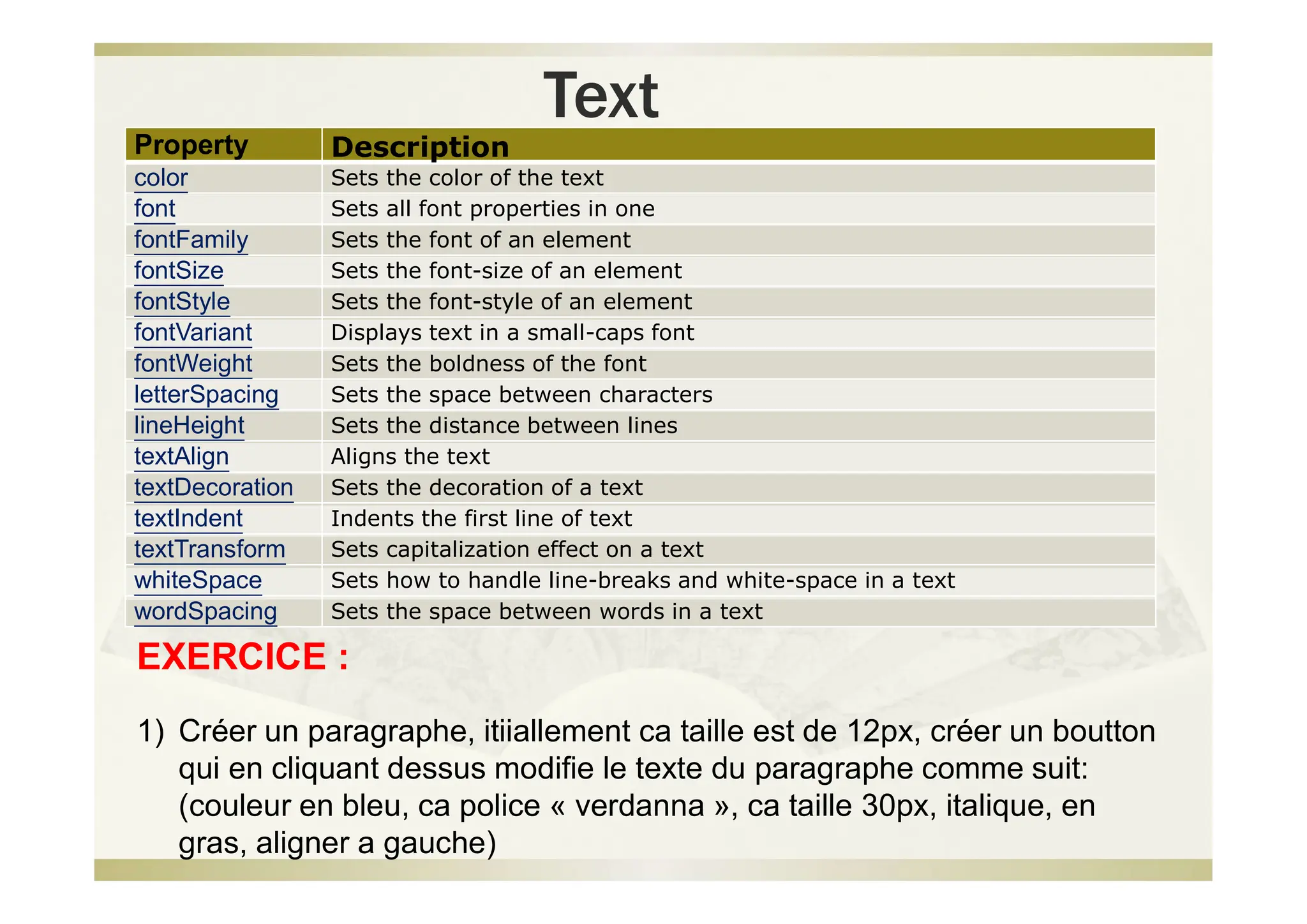
Text
Property Description
color Sets the color of the text
font Sets all font properties in one
fontFamily Sets the font of an element
fontSize Sets the font-size of an element
fontStyle Sets the font-style of an element
fontVariant Displays text in a small-caps font
fontWeight Sets the boldness of the font
letterSpacing Sets the space between characters
lineHeight Sets the distance between lines
textAlign Aligns the text
textDecoration Sets the decoration of a text
textIndent Indents the first line of text
textTransform Sets capitalization effect on a text
whiteSpace Sets how to handle line-breaks and white-space in a text
wordSpacing Sets the space between words in a text
EXERCICE :
1) Créer un paragraphe, itiiallement ca taille est de 12px, créer un boutton
qui en cliquant dessus modifie le texte du paragraphe comme suit:
(couleur en bleu, ca police « verdanna », ca taille 30px, italique, en
gras, aligner a gauche)
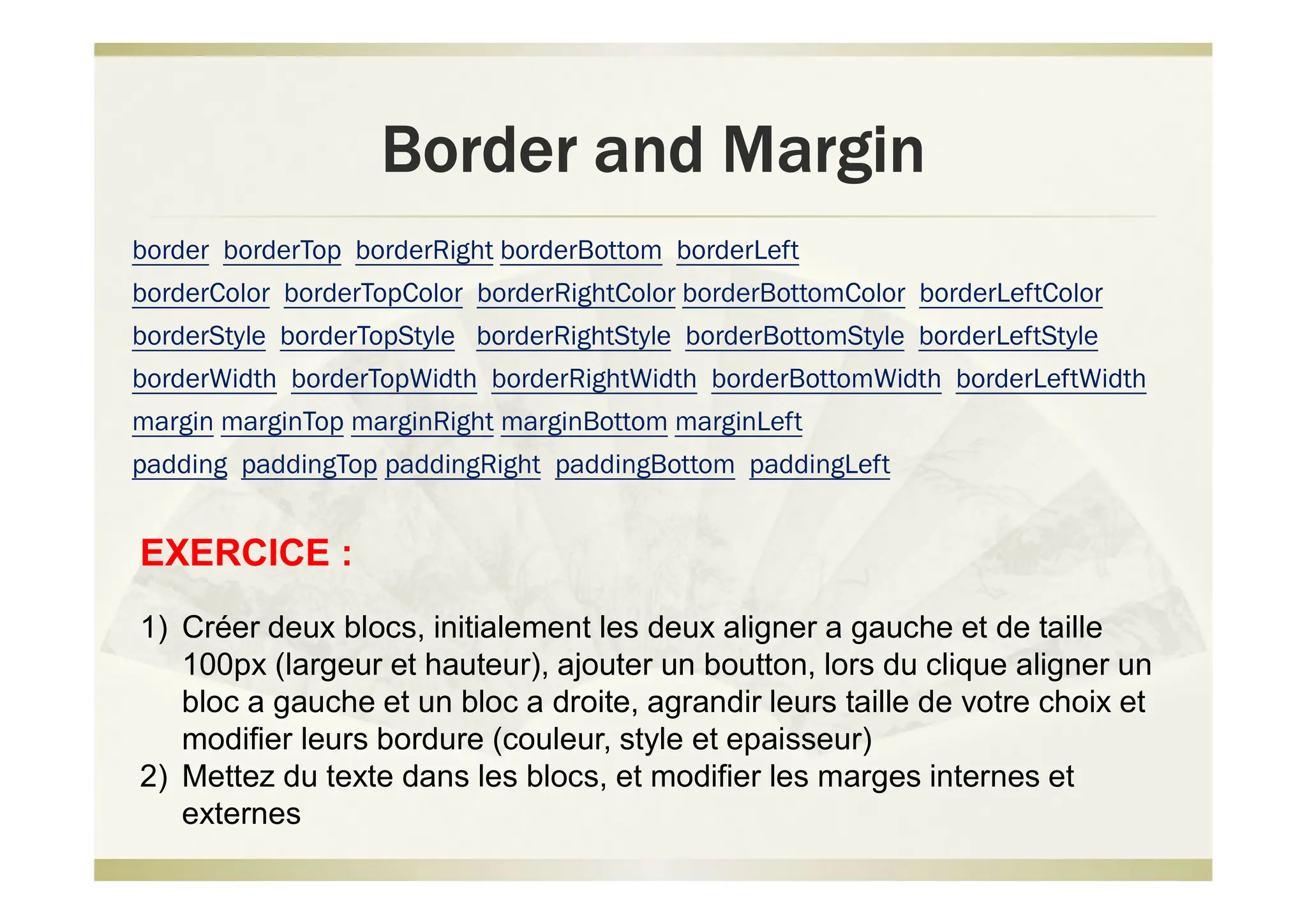
Border and Margin
border borderTop borderRight borderBottom borderLeft
borderColor borderTopColor borderRightColor borderBottomColor borderLeftColor
borderStyle borderTopStyle borderRightStyle borderBottomStyle borderLeftStyle
borderWidth borderTopWidth borderRightWidth borderBottomWidth borderLeftWidth
margin marginTop marginRight marginBottom marginLeft
padding paddingTop paddingRight paddingBottom paddingLeft
EXERCICE :
1) Créer deux blocs, initialement les deux aligner a gauche et de taille
100px (largeur et hauteur), ajouter un boutton, lors du clique aligner un
bloc a gauche et un bloc a droite, agrandir leurs taille de votre choix et
modifier leurs bordure (couleur, style et epaisseur)
2) Mettez du texte dans les blocs, et modifier les marges internes et
externes
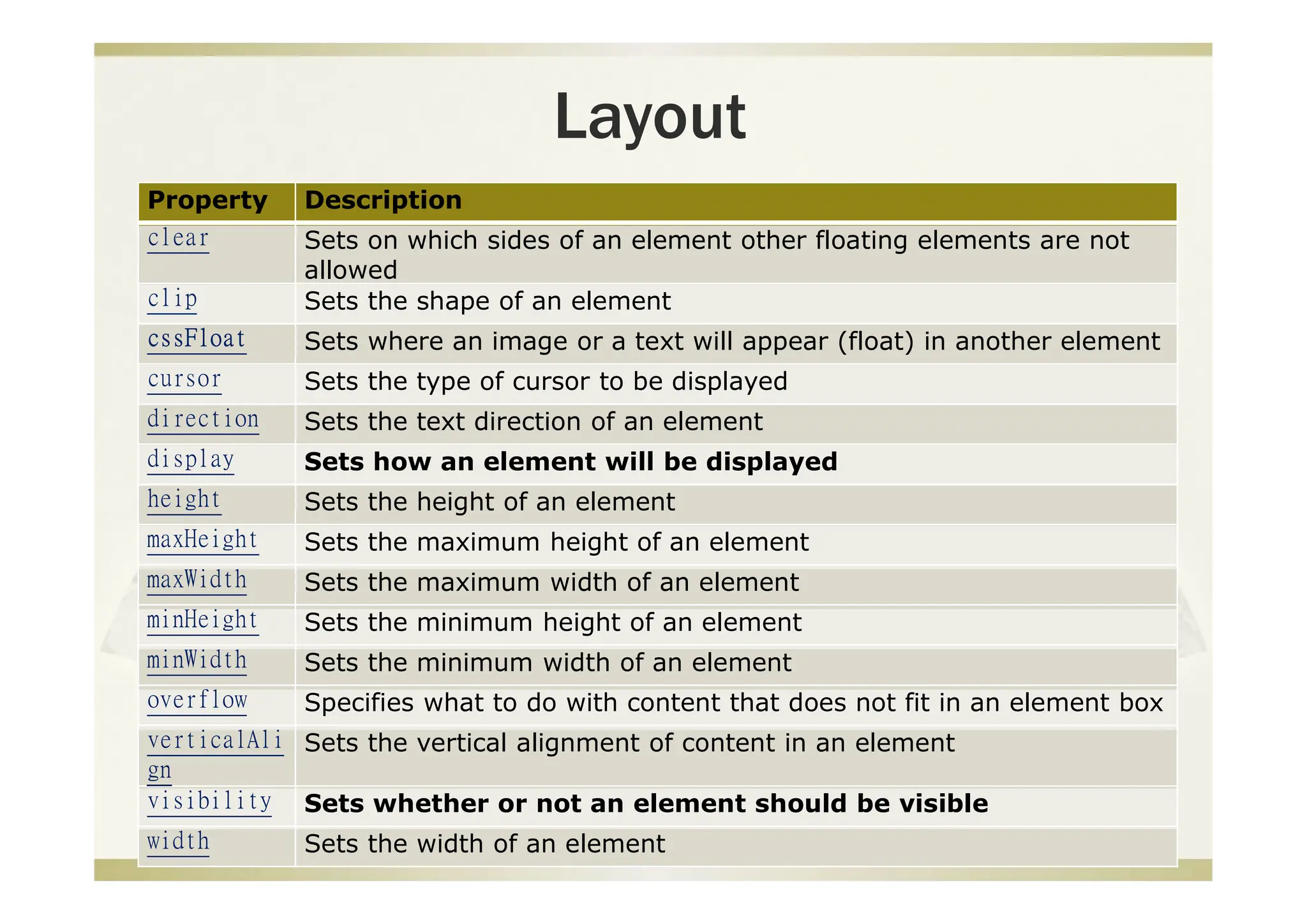
Layout
Property Description
clear Sets on which sides of an element other floating elements are not
allowed
clip Sets the shape of an element
cssFloat Sets where an image or a text will appear (float) in another element
cursor Sets the type of cursor to be displayed
direction Sets the text direction of an element
display Sets how an element will be displayed
height Sets the height of an element
maxHeight Sets the maximum height of an element
maxWidth Sets the maximum width of an element
minHeight Sets the minimum height of an element
minWidth Sets the minimum width of an element
overflow Specifies what to do with content that does not fit in an element box
verticalAli
gn
Sets the vertical alignment of content in an element
visibility Sets whether or not an element should be visible
width Sets the width of an element
Layout
Property Description
clear Sets on which sides of an element other floating elements are not allowed
clip Sets the shape of an element
cssFloat Sets where an image or a text will appear (float) in another element
cursor Sets the type of cursor to be displayed
direction Sets the text direction of an element
display Sets how an element will be displayed
height Sets the height of an element
maxHeight Sets the maximum height of an element
maxWidth Sets the maximum width of an element
minHeight Sets the minimum height of an element
minWidth Sets the minimum width of an element
overflow Specifies what to do with content that does not fit in an element box
verticalAlign Sets the vertical alignment of content in an element
visibility Sets whether or not an element should be visible
width Sets the width of an element
EXERCICE :
1) Utiliser les mêmes blocs de l’exercice précédant, et créer deux boutons pour le
premier bloc, un deux boutons pour le deuxième bloc, chaque bouton permet
de faire disparaitre et réapparaitre le bloc, (utiliser visibility et display) qu’est ce
que vous remarquer ?
List
Property Description
listStyle Sets all the properties for a list in one
listStyleImage Sets an image as the list-item marker
listStylePosition Positions the list-item marker
listStyleType Sets the list-item marker type
Positioning
Property Description
bottom Sets how far the bottom edge of an element is above/below the
bottom edge of the parent element
left Sets how far the left edge of an element is to the right/left of the left
edge of the parent element
position Places an element in a static, relative, absolute or fixed position
right Sets how far the right edge of an element is to the left/right of the
right edge of the parent element
top Sets how far the top edge of an element is above/below the top edge
of the parent element
zIndex Sets the stack order of an element
EXERCICE :
1) Créer un bloc initialement en haut a gauche, créer un boutton lier a une
fonction js, lors du clique deplacer le bloc en bas a droite
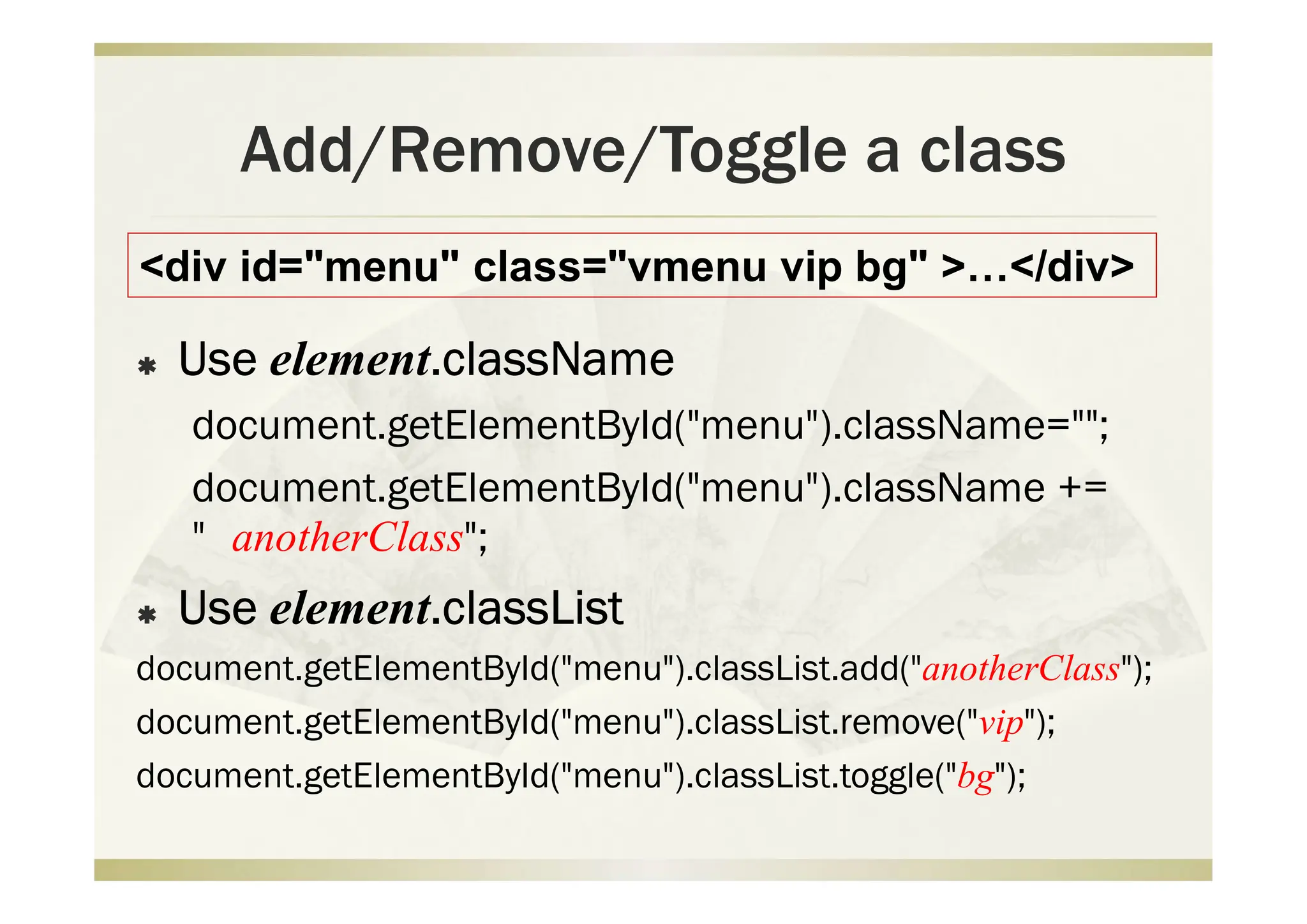
Add/Remove/Toggle a class
 Use element.className
document.getElementById("menu").className="";
document.getElementById("menu").className +=
" anotherClass";
 Use element.classList
document.getElementById("menu").classList.add("anotherClass");
document.getElementById("menu").classList.remove("vip");
document.getElementById("menu").classList.toggle("bg");
<div id="menu" class="vmenu vip bg" >…</div>

javascript web developpement framework web

  • 1.
  • 2.
    style  Style css: document.getElementById("id").style.property="value";  Style object property categories:  Background  Border and Margin  Layout  List  Positioning  Table  Text
  • 3.
    Examples div1 = document.getElementById("content"); div1.style.width= "800px"; div1.style.padding = "10px 20px 0px"; div.style.backgroundColor ="#ccf"; div.style.fontSize =“2.5em”;
  • 4.
    JavaScript et css <styletype="text/css"> #img1 { width: 200px; } </style> … <script type="text/javascript"> window.onload=function() { var img=document.getElementById("img1"); var w=img.style.width; … } </script> JavaScript: img.style.width="500px";
  • 5.
    javascript * fontSize: augmenterla taille de 0.2em div1.style.fontSize=(parseFloat(div.style.fontSize)+0.2)+"em"; * Width : diminuer la taille de 50px div1.style.width = (parseInt(div1.style.width)-50)+"px"; div1.style.width +=50; * Decaler l’image 30px de la gauche var img=document.getElementById("img1"); var pos=parseInt(img.style.left); img.style.left= (pos+30)+"px"; parseFloat() parseInt()
  • 6.
    Examples http://ycchen.im.ncnu.edu.tw/www2011/lab/opacityJS.html img1.style.opacity=1.0; img2.style.opacity=0.0; … function imgShow() { o1= parseFloat(img1.style.opacity); o2 = parseFloat(img2.style.opacity); o1 -= 0.02; o2 += 0.02; img1.style.opacity=o1; img2.style.opacity = o2; if (o1>0) window.setTimeout("imgShow()", 200); }
  • 7.
    CSSvs javascript CSS屬性名稱 style.property(JavaScript ) width width font-size fontSize border-top borderTop padding-left paddingLeft float cssFloat EXERCICE : 1) Inserer une image (largeur et hauteur 200px), créer un boutton lors du click on modifier les dimensions de l’image (largeur a 300 px hauteur a 400px) 2) Ecriver un paragraphe et modifier ca taille a 18px
  • 8.
    Background Property Description background Setsall background properties in one backgroundAttachm ent Sets whether a background-image is fixed or scrolls with the page backgroundColor Sets the background-color of an element backgroundImage Sets the background-image of an element backgroundRepeat Sets if/how a background-image will be repeated EXERCICE : 1) Créer un formulaire contenant l’input color et un boutton, choisir une couleur et cliquer sur le boutton pour changer l’arriere plan 2) Créer un boutton pour mettre une image en arriere plan
  • 9.
    Text Property Description color Setsthe color of the text font Sets all font properties in one fontFamily Sets the font of an element fontSize Sets the font-size of an element fontStyle Sets the font-style of an element fontVariant Displays text in a small-caps font fontWeight Sets the boldness of the font letterSpacing Sets the space between characters lineHeight Sets the distance between lines textAlign Aligns the text textDecoration Sets the decoration of a text textIndent Indents the first line of text textTransform Sets capitalization effect on a text whiteSpace Sets how to handle line-breaks and white-space in a text wordSpacing Sets the space between words in a text
  • 10.
    Text Property Description color Setsthe color of the text font Sets all font properties in one fontFamily Sets the font of an element fontSize Sets the font-size of an element fontStyle Sets the font-style of an element fontVariant Displays text in a small-caps font fontWeight Sets the boldness of the font letterSpacing Sets the space between characters lineHeight Sets the distance between lines textAlign Aligns the text textDecoration Sets the decoration of a text textIndent Indents the first line of text textTransform Sets capitalization effect on a text whiteSpace Sets how to handle line-breaks and white-space in a text wordSpacing Sets the space between words in a text EXERCICE : 1) Créer un paragraphe, itiiallement ca taille est de 12px, créer un boutton qui en cliquant dessus modifie le texte du paragraphe comme suit: (couleur en bleu, ca police « verdanna », ca taille 30px, italique, en gras, aligner a gauche)
  • 11.
    Border and Margin borderborderTop borderRight borderBottom borderLeft borderColor borderTopColor borderRightColor borderBottomColor borderLeftColor borderStyle borderTopStyle borderRightStyle borderBottomStyle borderLeftStyle borderWidth borderTopWidth borderRightWidth borderBottomWidth borderLeftWidth margin marginTop marginRight marginBottom marginLeft padding paddingTop paddingRight paddingBottom paddingLeft EXERCICE : 1) Créer deux blocs, initialement les deux aligner a gauche et de taille 100px (largeur et hauteur), ajouter un boutton, lors du clique aligner un bloc a gauche et un bloc a droite, agrandir leurs taille de votre choix et modifier leurs bordure (couleur, style et epaisseur) 2) Mettez du texte dans les blocs, et modifier les marges internes et externes
  • 12.
    Layout Property Description clear Setson which sides of an element other floating elements are not allowed clip Sets the shape of an element cssFloat Sets where an image or a text will appear (float) in another element cursor Sets the type of cursor to be displayed direction Sets the text direction of an element display Sets how an element will be displayed height Sets the height of an element maxHeight Sets the maximum height of an element maxWidth Sets the maximum width of an element minHeight Sets the minimum height of an element minWidth Sets the minimum width of an element overflow Specifies what to do with content that does not fit in an element box verticalAli gn Sets the vertical alignment of content in an element visibility Sets whether or not an element should be visible width Sets the width of an element
  • 13.
    Layout Property Description clear Setson which sides of an element other floating elements are not allowed clip Sets the shape of an element cssFloat Sets where an image or a text will appear (float) in another element cursor Sets the type of cursor to be displayed direction Sets the text direction of an element display Sets how an element will be displayed height Sets the height of an element maxHeight Sets the maximum height of an element maxWidth Sets the maximum width of an element minHeight Sets the minimum height of an element minWidth Sets the minimum width of an element overflow Specifies what to do with content that does not fit in an element box verticalAlign Sets the vertical alignment of content in an element visibility Sets whether or not an element should be visible width Sets the width of an element EXERCICE : 1) Utiliser les mêmes blocs de l’exercice précédant, et créer deux boutons pour le premier bloc, un deux boutons pour le deuxième bloc, chaque bouton permet de faire disparaitre et réapparaitre le bloc, (utiliser visibility et display) qu’est ce que vous remarquer ?
  • 14.
    List Property Description listStyle Setsall the properties for a list in one listStyleImage Sets an image as the list-item marker listStylePosition Positions the list-item marker listStyleType Sets the list-item marker type
  • 15.
    Positioning Property Description bottom Setshow far the bottom edge of an element is above/below the bottom edge of the parent element left Sets how far the left edge of an element is to the right/left of the left edge of the parent element position Places an element in a static, relative, absolute or fixed position right Sets how far the right edge of an element is to the left/right of the right edge of the parent element top Sets how far the top edge of an element is above/below the top edge of the parent element zIndex Sets the stack order of an element EXERCICE : 1) Créer un bloc initialement en haut a gauche, créer un boutton lier a une fonction js, lors du clique deplacer le bloc en bas a droite
  • 16.
    Add/Remove/Toggle a class Use element.className document.getElementById("menu").className=""; document.getElementById("menu").className += " anotherClass";  Use element.classList document.getElementById("menu").classList.add("anotherClass"); document.getElementById("menu").classList.remove("vip"); document.getElementById("menu").classList.toggle("bg"); <div id="menu" class="vmenu vip bg" >…</div>