Effective Use of
    Powerpoint
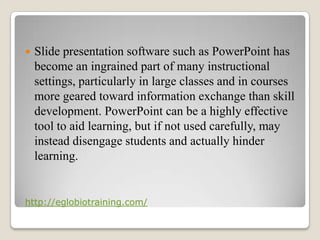
   Slide presentation software such as PowerPoint has
    become an ingrained part of many instructional
    settings, particularly in large classes and in courses
    more geared toward information exchange than skill
    development. PowerPoint can be a highly effective
    tool to aid learning, but if not used carefully, may
    instead disengage students and actually hinder
    learning.


http://eglobiotraining.com/
ADVANTAGES
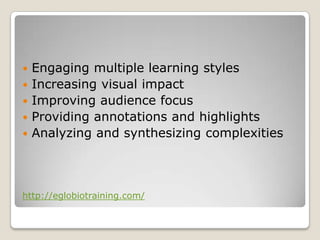
   Engaging multiple learning styles
   Increasing visual impact
   Improving audience focus
   Providing annotations and highlights
   Analyzing and synthesizing complexities


http://eglobiotraining.com/
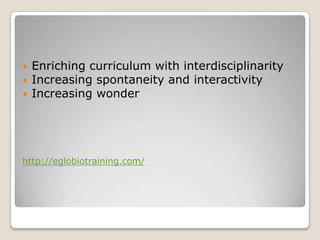
   Enriching curriculum with interdisciplinarity
   Increasing spontaneity and interactivity
   Increasing wonder


http://eglobiotraining.com/
Ten Secrets
For Using PowerPoint
Effectively
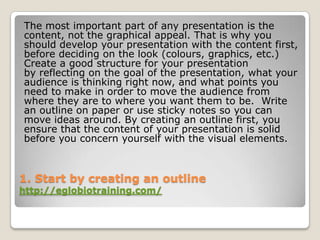
The most important part of any presentation is the
content, not the graphical appeal. That is why you
should develop your presentation with the content first,
before deciding on the look (colours, graphics, etc.)
Create a good structure for your presentation
by reflecting on the goal of the presentation, what your
audience is thinking right now, and what points you
need to make in order to move the audience from
where they are to where you want them to be. Write
an outline on paper or use sticky notes so you can
move ideas around. By creating an outline first, you
ensure that the content of your presentation is solid
before you concern yourself with the visual elements.


1. Start by creating an outline
http://eglobiotraining.com/
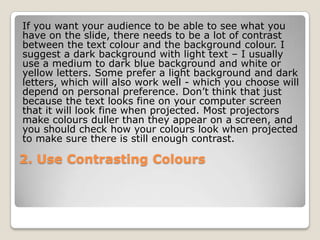
If you want your audience to be able to see what you
have on the slide, there needs to be a lot of contrast
between the text colour and the background colour. I
suggest a dark background with light text – I usually
use a medium to dark blue background and white or
yellow letters. Some prefer a light background and dark
letters, which will also work well - which you choose will
depend on personal preference. Don’t think that just
because the text looks fine on your computer screen
that it will look fine when projected. Most projectors
make colours duller than they appear on a screen, and
you should check how your colours look when projected
to make sure there is still enough contrast.

2. Use Contrasting Colours
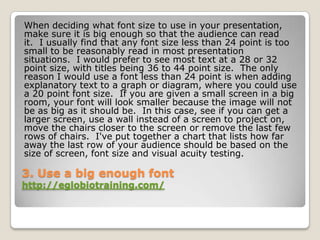
When deciding what font size to use in your presentation,
make sure it is big enough so that the audience can read
it. I usually find that any font size less than 24 point is too
small to be reasonably read in most presentation
situations. I would prefer to see most text at a 28 or 32
point size, with titles being 36 to 44 point size. The only
reason I would use a font less than 24 point is when adding
explanatory text to a graph or diagram, where you could use
a 20 point font size. If you are given a small screen in a big
room, your font will look smaller because the image will not
be as big as it should be. In this case, see if you can get a
larger screen, use a wall instead of a screen to project on,
move the chairs closer to the screen or remove the last few
rows of chairs. I've put together a chart that lists how far
away the last row of your audience should be based on the
size of screen, font size and visual acuity testing.

3. Use a big enough font
http://eglobiotraining.com/
When text comes on the screen, we want the
audience to read the text, then focus back on the
presenter to hear the message. If the text moves
onto the screen in any way – such as flying in,
spiral or zooming – it makes it harder for the
audience members to read since they have to wait
until the text has stopped before they can read it.
This makes the presenter wait longer between
each point and makes the audience members
focus more on the movement than on what is
being said. I suggest the use of the "Appear"
effect, which just makes the text appear and is the
easiest for the audience to read.

4. Stop the moving text
http://eglobiotraining.com/
During a presentation, it is very annoying to have the
pointer (the little arrow) come on the screen while the
presenter is speaking. It causes movement on the
screen and draws the audience attention from the
presenter to the screen. The pointer comes on when
the mouse is moved during the presentation. To
prevent this from happening, after the Slide Show view
has started, press the Ctrl-H key combination. This
prevents mouse movement from showing the pointer. If
you need to bring the pointer on screen after this,
press the A key. If the pointer does appear during your
presentation, resist the urge to press the Escape key –
if you do, it will stop the presentation and drop you
back into the program. Press the A key or Ctrl-H to
make the pointer disappear.

5. Turn the pointer off
http://eglobiotraining.com/
Every two years I ask audiences what annoys them
about bad PowerPoint presentations. The latest survey
confirms that audiences are more fed up than ever with
the overload of text on slides. Instead of using slides
that only contain text, use visuals such as graphs,
diagrams, photos and media clips to engage the
audience. I've developed a five-step method for
creating persuasive visuals in my book The Visual Slide
Revolution. Read the free chapter to see a summary of
the process you can use to create your own persuasive
visuals. Looking for professional photos that don't cost
a lot? Check out istockphoto.com, where I go for great
looking photos at reasonable prices.


6. Use visuals instead of text slides
http://eglobiotraining.com/
The last slide you speak to should not be the last slide
in your presentation file. You should have three
identical copies of your last speaking slide so that if you
accidentally advance one too many times at the end of
your presentation, your audience never knows because
you don’t drop into the program, the slide looks like it
has not changed. After these slides, you should include
some slides that answer questions that you expect to
be asked. These slides will be useful during Q&A
sessions after the presentation. The final slide should
be a blank slide so that if you go through all the other
slides, you have a final backup from dropping into the
program.

7. Have Slides at the End of Your
Presentation
http://eglobiotraining.com/
PowerPoint has a feature that allows you to be able to
move quickly and seamlessly to any slide in your
presentation. To do so, you need to know the slide
numbers. The easiest way to print a list of the slide
numbers and associated slide titles is to go to the
Outline View and collapse the details for each slide
(there is a button on the left side of the screen in this
view that will do this). Then print the view. To jump to
any slide, just enter the slide number on the keyboard
and press the Enter key. This will move you directly to
that slide. This technique is very useful for moving to a
prepared Q&A slide or for skipping parts of your
presentation if time becomes an issue.

8. Be able to Jump to Any Slide
http://eglobiotraining.com/
Sometimes we want the image on the screen to
disappear so that the audience is focused solely on
the presenter. There are two ways to do this. The
first is if you want to blank the screen with a black
image, similar to shutting the projector off (we
used to do this all the time with overhead
projectors by just shutting the projector off). Just
press the B key on the keyboard and the image is
replaced with a black image. Press the B key again
and the image is restored. If you want to use a
white image instead of a black image, press the W
key each time.

9. Blank the screen
http://eglobiotraining.com/
Sometimes it can be valuable to be able to
draw on the screen during your
presentation to illustrate a particular point
or item. This can be done in the following
way. Press the Ctrl-P key combination to
display a pen on the screen. Then, using
the left mouse button, draw on the slide as
you wish. To erase what you have drawn,
press the E key. To hide the pen, press the
A key or the Ctrl-H key combination.
10. Draw on the screen during a
presentation
http://eglobiotraining.com/
Elizabeth Rash provided this sample iterative case study
given to a midsize class. Students are required to come to
class prepared having read online resources, the text, and a
narrated slideshow presentation that accompanies each
module. The classroom is problem-based and interactive,
where students are introduced to a young woman who ages
as the semester progresses and confronts multiple health
issues. Since the nurse practitioner students are being
prepared to interact with patients, some slides require
students to interview another classmate in a micro role-play.
 Problem-based lectures frequently alternate between
   providing information and posing problems to the students,
   which alters the entire character of the presentation.
   Rather than explain and convey information, many slides
   ask questions that are intended to prompt critical thinking
   or discussion.

PowerPoint for Case Studies
http://eglobiotraining.com/
Classroom response systems can improve
students' learning by engaging them actively in
the learning process. Instructors can employ
the systems to gather individual responses
from students or to gather anonymous
feedback. It is possible to use the technology
to give quizzes and tests, to take attendance,
and to quantify class participation. Some of the
systems provide game formats that encourage
debate and team competition. Reports are
typically exported to Excel for upload to the
instructor's grade book.
PowerPoint Interactions: Student Response "Clickers"
http://eglobiotraining.com/
Instructors who do not have sufficient
photocopying opportunities in their departments
may be less likely to use paper worksheets with
their students, especially in large classes.
PowerPoint offers the ability to approximate
worksheets to illustrate processes or to provide
"worked examples" that shows problem-solving
step-by-step. One valuable technique is to first
demonstrate a process or problem on one slide,
then ask students to work on a similar problem
revealed on the next slide, using their own paper
rather than worksheets handed out.

PowerPoint as Worksheet
http://eglobiotraining.com/
   Avoid reading: if your slides contain lengthy text, lecture
    "around" the material rather than reading it directly.
   Dark screen: an effective trick to focus attention on you
    and your words is to temporarily darken the screen, which
    can be accomplished by clicking the "B" button on the
    keyboard. Hitting "B" again will toggle the screen back to
    your presentation.
   Navigate slides smoothly: the left-mouse click advances to
    the next slide, but it's more cumbersome to right-click to
    move back one slide. The keyboard's arrow keys work
    more smoothly to go forward and backward in the
    presentation. Also, if you know the number of a particular
    slide, you can simply type that number, followed by the
    ENTER key, to jump directly to that slide.


Best Practices: Delivery
   <iframe
    src="http://www.slideshare.net/slideshow
    /embed_code/14174873?hostedIn=slides
    hare&page=upload" width="476"
    height="400" frameborder="0"
    marginwidth="0" marginheight="0"
    scrolling="no"></iframe>

Jajaja

  • 1.
  • 2.
    Slide presentation software such as PowerPoint has become an ingrained part of many instructional settings, particularly in large classes and in courses more geared toward information exchange than skill development. PowerPoint can be a highly effective tool to aid learning, but if not used carefully, may instead disengage students and actually hinder learning. http://eglobiotraining.com/
  • 3.
  • 4.
    Engaging multiple learning styles  Increasing visual impact  Improving audience focus  Providing annotations and highlights  Analyzing and synthesizing complexities http://eglobiotraining.com/
  • 5.
    Enriching curriculum with interdisciplinarity  Increasing spontaneity and interactivity  Increasing wonder http://eglobiotraining.com/
  • 6.
    Ten Secrets For UsingPowerPoint Effectively
  • 7.
    The most importantpart of any presentation is the content, not the graphical appeal. That is why you should develop your presentation with the content first, before deciding on the look (colours, graphics, etc.) Create a good structure for your presentation by reflecting on the goal of the presentation, what your audience is thinking right now, and what points you need to make in order to move the audience from where they are to where you want them to be. Write an outline on paper or use sticky notes so you can move ideas around. By creating an outline first, you ensure that the content of your presentation is solid before you concern yourself with the visual elements. 1. Start by creating an outline http://eglobiotraining.com/
  • 8.
    If you wantyour audience to be able to see what you have on the slide, there needs to be a lot of contrast between the text colour and the background colour. I suggest a dark background with light text – I usually use a medium to dark blue background and white or yellow letters. Some prefer a light background and dark letters, which will also work well - which you choose will depend on personal preference. Don’t think that just because the text looks fine on your computer screen that it will look fine when projected. Most projectors make colours duller than they appear on a screen, and you should check how your colours look when projected to make sure there is still enough contrast. 2. Use Contrasting Colours
  • 9.
    When deciding whatfont size to use in your presentation, make sure it is big enough so that the audience can read it. I usually find that any font size less than 24 point is too small to be reasonably read in most presentation situations. I would prefer to see most text at a 28 or 32 point size, with titles being 36 to 44 point size. The only reason I would use a font less than 24 point is when adding explanatory text to a graph or diagram, where you could use a 20 point font size. If you are given a small screen in a big room, your font will look smaller because the image will not be as big as it should be. In this case, see if you can get a larger screen, use a wall instead of a screen to project on, move the chairs closer to the screen or remove the last few rows of chairs. I've put together a chart that lists how far away the last row of your audience should be based on the size of screen, font size and visual acuity testing. 3. Use a big enough font http://eglobiotraining.com/
  • 10.
    When text comeson the screen, we want the audience to read the text, then focus back on the presenter to hear the message. If the text moves onto the screen in any way – such as flying in, spiral or zooming – it makes it harder for the audience members to read since they have to wait until the text has stopped before they can read it. This makes the presenter wait longer between each point and makes the audience members focus more on the movement than on what is being said. I suggest the use of the "Appear" effect, which just makes the text appear and is the easiest for the audience to read. 4. Stop the moving text http://eglobiotraining.com/
  • 11.
    During a presentation,it is very annoying to have the pointer (the little arrow) come on the screen while the presenter is speaking. It causes movement on the screen and draws the audience attention from the presenter to the screen. The pointer comes on when the mouse is moved during the presentation. To prevent this from happening, after the Slide Show view has started, press the Ctrl-H key combination. This prevents mouse movement from showing the pointer. If you need to bring the pointer on screen after this, press the A key. If the pointer does appear during your presentation, resist the urge to press the Escape key – if you do, it will stop the presentation and drop you back into the program. Press the A key or Ctrl-H to make the pointer disappear. 5. Turn the pointer off http://eglobiotraining.com/
  • 12.
    Every two yearsI ask audiences what annoys them about bad PowerPoint presentations. The latest survey confirms that audiences are more fed up than ever with the overload of text on slides. Instead of using slides that only contain text, use visuals such as graphs, diagrams, photos and media clips to engage the audience. I've developed a five-step method for creating persuasive visuals in my book The Visual Slide Revolution. Read the free chapter to see a summary of the process you can use to create your own persuasive visuals. Looking for professional photos that don't cost a lot? Check out istockphoto.com, where I go for great looking photos at reasonable prices. 6. Use visuals instead of text slides http://eglobiotraining.com/
  • 13.
    The last slideyou speak to should not be the last slide in your presentation file. You should have three identical copies of your last speaking slide so that if you accidentally advance one too many times at the end of your presentation, your audience never knows because you don’t drop into the program, the slide looks like it has not changed. After these slides, you should include some slides that answer questions that you expect to be asked. These slides will be useful during Q&A sessions after the presentation. The final slide should be a blank slide so that if you go through all the other slides, you have a final backup from dropping into the program. 7. Have Slides at the End of Your Presentation http://eglobiotraining.com/
  • 14.
    PowerPoint has afeature that allows you to be able to move quickly and seamlessly to any slide in your presentation. To do so, you need to know the slide numbers. The easiest way to print a list of the slide numbers and associated slide titles is to go to the Outline View and collapse the details for each slide (there is a button on the left side of the screen in this view that will do this). Then print the view. To jump to any slide, just enter the slide number on the keyboard and press the Enter key. This will move you directly to that slide. This technique is very useful for moving to a prepared Q&A slide or for skipping parts of your presentation if time becomes an issue. 8. Be able to Jump to Any Slide http://eglobiotraining.com/
  • 15.
    Sometimes we wantthe image on the screen to disappear so that the audience is focused solely on the presenter. There are two ways to do this. The first is if you want to blank the screen with a black image, similar to shutting the projector off (we used to do this all the time with overhead projectors by just shutting the projector off). Just press the B key on the keyboard and the image is replaced with a black image. Press the B key again and the image is restored. If you want to use a white image instead of a black image, press the W key each time. 9. Blank the screen http://eglobiotraining.com/
  • 16.
    Sometimes it canbe valuable to be able to draw on the screen during your presentation to illustrate a particular point or item. This can be done in the following way. Press the Ctrl-P key combination to display a pen on the screen. Then, using the left mouse button, draw on the slide as you wish. To erase what you have drawn, press the E key. To hide the pen, press the A key or the Ctrl-H key combination. 10. Draw on the screen during a presentation http://eglobiotraining.com/
  • 17.
    Elizabeth Rash providedthis sample iterative case study given to a midsize class. Students are required to come to class prepared having read online resources, the text, and a narrated slideshow presentation that accompanies each module. The classroom is problem-based and interactive, where students are introduced to a young woman who ages as the semester progresses and confronts multiple health issues. Since the nurse practitioner students are being prepared to interact with patients, some slides require students to interview another classmate in a micro role-play.  Problem-based lectures frequently alternate between providing information and posing problems to the students, which alters the entire character of the presentation. Rather than explain and convey information, many slides ask questions that are intended to prompt critical thinking or discussion. PowerPoint for Case Studies http://eglobiotraining.com/
  • 18.
    Classroom response systemscan improve students' learning by engaging them actively in the learning process. Instructors can employ the systems to gather individual responses from students or to gather anonymous feedback. It is possible to use the technology to give quizzes and tests, to take attendance, and to quantify class participation. Some of the systems provide game formats that encourage debate and team competition. Reports are typically exported to Excel for upload to the instructor's grade book. PowerPoint Interactions: Student Response "Clickers" http://eglobiotraining.com/
  • 19.
    Instructors who donot have sufficient photocopying opportunities in their departments may be less likely to use paper worksheets with their students, especially in large classes. PowerPoint offers the ability to approximate worksheets to illustrate processes or to provide "worked examples" that shows problem-solving step-by-step. One valuable technique is to first demonstrate a process or problem on one slide, then ask students to work on a similar problem revealed on the next slide, using their own paper rather than worksheets handed out. PowerPoint as Worksheet http://eglobiotraining.com/
  • 20.
    Avoid reading: if your slides contain lengthy text, lecture "around" the material rather than reading it directly.  Dark screen: an effective trick to focus attention on you and your words is to temporarily darken the screen, which can be accomplished by clicking the "B" button on the keyboard. Hitting "B" again will toggle the screen back to your presentation.  Navigate slides smoothly: the left-mouse click advances to the next slide, but it's more cumbersome to right-click to move back one slide. The keyboard's arrow keys work more smoothly to go forward and backward in the presentation. Also, if you know the number of a particular slide, you can simply type that number, followed by the ENTER key, to jump directly to that slide. Best Practices: Delivery
  • 21.
    <iframe src="http://www.slideshare.net/slideshow /embed_code/14174873?hostedIn=slides hare&page=upload" width="476" height="400" frameborder="0" marginwidth="0" marginheight="0" scrolling="no"></iframe>