Introduction to Unity
A BEGINNER’S TUTORIAL FOR UNITY AND VR
Overview
 Unity
 Creating a Project
 Interface
 Navigation
 Customizing Windows
 Asset Store
 Adding Objects to Scene
 Scene Management
 Prefabs
 VR Setup
 SteamVR Plugin
 Adding Headset
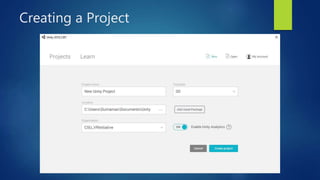
Creating a Project
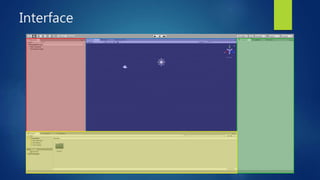
Interface
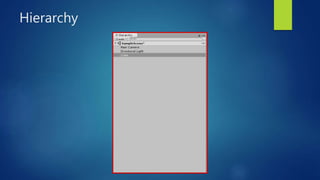
Hierarchy
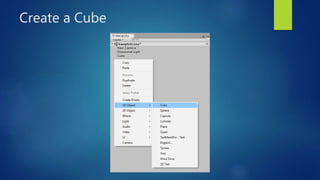
Create a Cube
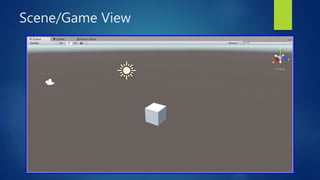
Scene/Game View
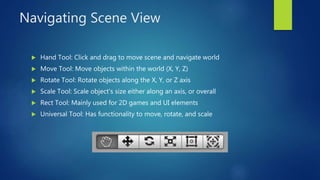
Navigating Scene View
 Hand Tool: Click and drag to move scene and navigate world
 Move Tool: Move objects within the world (X, Y, Z)
 Rotate Tool: Rotate objects along the X, Y, or Z axis
 Scale Tool: Scale object’s size either along an axis, or overall
 Rect Tool: Mainly used for 2D games and UI elements
 Universal Tool: Has functionality to move, rotate, and scale
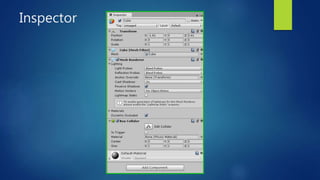
Inspector
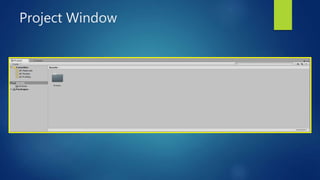
Project Window
Moving Windows to make Custom
Layouts
 Demo in Unity
 Scale window size
 Change window locations
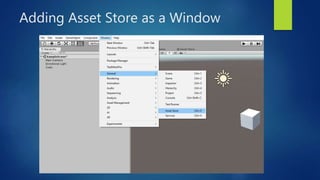
Adding Asset Store as a Window
Importing Assets from Store
 Demo in Unity
 Navigate to Props
 Sort by FREE assets
 Find asset pack (Low Poly Survival Essentials)
 Download/Import pack
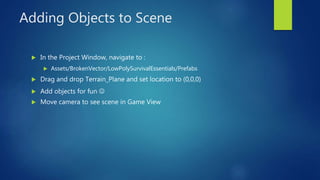
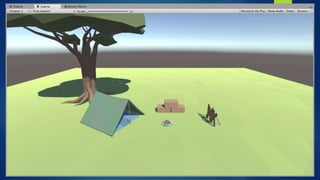
Adding Objects to Scene
 In the Project Window, navigate to :
 Assets/BrokenVector/LowPolySurvivalEssentials/Prefabs
 Drag and drop Terrain_Plane and set location to (0,0,0)
 Add objects for fun 
 Move camera to see scene in Game View
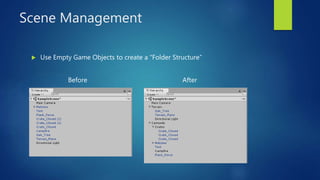
Scene Management
 Use Empty Game Objects to create a “Folder Structure”
Before After
Using Prefabs
 Prefabs are a valuable resource to use in developing your scene
 A prefab is an object or a group of objects that can be saved for easy use
and manipulation
 Demo in Unity
Questions?
 Interface
 Navigation
 Asset Store
 Adding Objects
 Scene Management
 Anything Else?
Setting up VR in Unity
 Go to the Asset Store and search for “SteamVR Plugin”
 Download and Import
 Click “Accept All” to ensure setting are correct for VR
Adding Headset to Scene
 Navigate to: Assets/SteamVR/Prefabs
 Drag and drop “[CameraRig]” into the project
 Delete “Main Camera” from the scene (we only need 1 camera)
 Assuming everything works correctly, you are done!
Next steps for VR
 We have covered the basics, but there others things
you may want to learn before diving in more:
 Using the Vive in Unity:
 https://circuitstream.com/intro-vr-development-unity-htc-vive/
 Google: “vive unity tutorial” – Second Result
 More about scripting, scene setup, and designing functionality:
 https://unity3d.com/learn/tutorials/s/roll-ball-tutorial
 Google: “unity roll a ball” – First Result
VR Questions?

Introduction-to-Unity.ppt

  • 1.
    Introduction to Unity ABEGINNER’S TUTORIAL FOR UNITY AND VR
  • 2.
    Overview  Unity  Creatinga Project  Interface  Navigation  Customizing Windows  Asset Store  Adding Objects to Scene  Scene Management  Prefabs  VR Setup  SteamVR Plugin  Adding Headset
  • 3.
  • 4.
  • 5.
  • 6.
  • 7.
  • 8.
    Navigating Scene View Hand Tool: Click and drag to move scene and navigate world  Move Tool: Move objects within the world (X, Y, Z)  Rotate Tool: Rotate objects along the X, Y, or Z axis  Scale Tool: Scale object’s size either along an axis, or overall  Rect Tool: Mainly used for 2D games and UI elements  Universal Tool: Has functionality to move, rotate, and scale
  • 9.
  • 10.
  • 11.
    Moving Windows tomake Custom Layouts  Demo in Unity  Scale window size  Change window locations
  • 12.
    Adding Asset Storeas a Window
  • 13.
    Importing Assets fromStore  Demo in Unity  Navigate to Props  Sort by FREE assets  Find asset pack (Low Poly Survival Essentials)  Download/Import pack
  • 14.
    Adding Objects toScene  In the Project Window, navigate to :  Assets/BrokenVector/LowPolySurvivalEssentials/Prefabs  Drag and drop Terrain_Plane and set location to (0,0,0)  Add objects for fun   Move camera to see scene in Game View
  • 16.
    Scene Management  UseEmpty Game Objects to create a “Folder Structure” Before After
  • 17.
    Using Prefabs  Prefabsare a valuable resource to use in developing your scene  A prefab is an object or a group of objects that can be saved for easy use and manipulation  Demo in Unity
  • 18.
    Questions?  Interface  Navigation Asset Store  Adding Objects  Scene Management  Anything Else?
  • 19.
    Setting up VRin Unity  Go to the Asset Store and search for “SteamVR Plugin”  Download and Import  Click “Accept All” to ensure setting are correct for VR
  • 20.
    Adding Headset toScene  Navigate to: Assets/SteamVR/Prefabs  Drag and drop “[CameraRig]” into the project  Delete “Main Camera” from the scene (we only need 1 camera)  Assuming everything works correctly, you are done!
  • 21.
    Next steps forVR  We have covered the basics, but there others things you may want to learn before diving in more:  Using the Vive in Unity:  https://circuitstream.com/intro-vr-development-unity-htc-vive/  Google: “vive unity tutorial” – Second Result  More about scripting, scene setup, and designing functionality:  https://unity3d.com/learn/tutorials/s/roll-ball-tutorial  Google: “unity roll a ball” – First Result
  • 22.

Editor's Notes

  • #12 Show how to: Scale Window size Drag and drop windows
  • #14 Show how to: Navigate to Props Sort by FREE assets Find asset pack Download/Import pack