Tawar w Ghayar
Introduction to programming
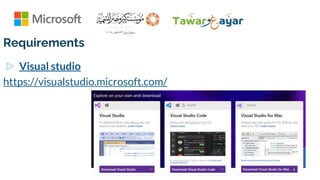
Requirements
▷ Visual studio
https://visualstudio.microsoft.com/
Step 1 - Make sure your computer is ready for Visual Studio
▷ Before you begin installing Visual Studio:
▷ Check the system requirements. These requirements help you know whether your
computer supports Visual Studio 2019.
▷ Apply the latest Windows updates. These updates ensure that your computer has
both the latest security updates and the required system components for Visual
Studio.
▷ Reboot. The reboot ensures that any pending installs or updates don't hinder the
Visual Studio install.
▷ Free up space. Remove unneeded files and applications from your %SystemDrive% by,
for example, running the Disk Cleanup app.
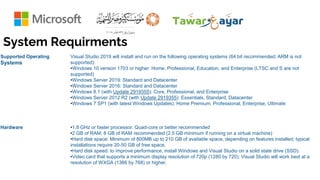
System Requirments
Supported Operating
Systems
Visual Studio 2019 will install and run on the following operating systems (64 bit recommended; ARM is not
supported):
•Windows 10 version 1703 or higher: Home, Professional, Education, and Enterprise (LTSC and S are not
supported)
•Windows Server 2019: Standard and Datacenter
•Windows Server 2016: Standard and Datacenter
•Windows 8.1 (with Update 2919355): Core, Professional, and Enterprise
•Windows Server 2012 R2 (with Update 2919355): Essentials, Standard, Datacenter
•Windows 7 SP1 (with latest Windows Updates): Home Premium, Professional, Enterprise, Ultimate
Hardware •1.8 GHz or faster processor. Quad-core or better recommended
•2 GB of RAM; 8 GB of RAM recommended (2.5 GB minimum if running on a virtual machine)
•Hard disk space: Minimum of 800MB up to 210 GB of available space, depending on features installed; typical
installations require 20-50 GB of free space.
•Hard disk speed: to improve performance, install Windows and Visual Studio on a solid state drive (SSD).
•Video card that supports a minimum display resolution of 720p (1280 by 720); Visual Studio will work best at a
resolution of WXGA (1366 by 768) or higher.
Step 2 - Download Visual Studio
▷ Next, download the Visual Studio bootstrapper file.
▷ To do so, choose the following button, choose the edition of
Visual Studio that you want, choose Save, and then
choose Open folder.
▷ Download Visual Studio.
Step 3 - Install the Visual Studio installer
▷ Run the bootstrapper file to install the Visual Studio Installer. This new
lightweight installer includes everything you need to both install and
customize Visual Studio.
▷ From your Downloads folder, double-click the bootstrapper that matches or
is similar to one of the following files:
▷ vs_community.exe for Visual Studio Community
▷ vs_professional.exe for Visual Studio Professional
▷ vs_enterprise.exe for Visual Studio Enterprise
▷ If you receive a User Account Control notice, choose Yes.
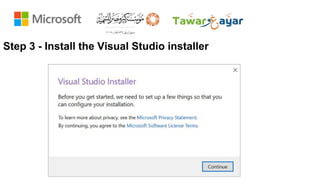
▷ We'll ask you to acknowledge the Microsoft License Terms and the Microsoft
Privacy Statement. Choose Continue.
▷ License Terms and Privacy Statement
Step 3 - Install the Visual Studio installer
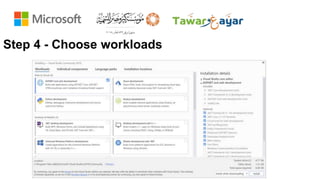
Step 4 - Choose workloads
▷ After the installer is installed, you can use it to customize your installation by selecting the feature
sets—or workloads—that you want. Here's how.
▷ Find the workload you want in the Visual Studio Installer.
▷ Visual Studio 2019: Install a workload
For example, choose the "ASP.NET and web development" workload. It comes with the default core editor,
which includes basic code editing support for over 20 languages, the ability to open and edit code from any
folder without requiring a project, and integrated source code control.
▷ After you choose the workload(s) you want, choose Install.
▷ Next, status screens appear that show the progress of your Visual Studio installation.
Step 4 - Choose workloads
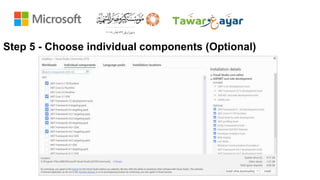
Step 5 - Choose individual components (Optional)
▷ If you don't want to use the Workloads feature to customize
your Visual Studio installation, or you want to add more
components than a workload installs, you can do so by installing
or adding individual components from the Individual
components tab. Choose what you want, and then follow the
prompts.
Step 5 - Choose individual components (Optional)
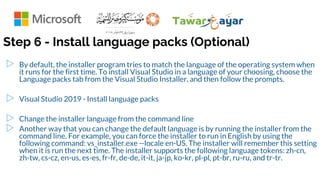
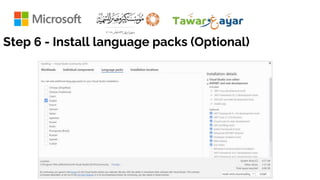
Step 6 - Install language packs (Optional)
▷ By default, the installer program tries to match the language of the operating system when
it runs for the first time. To install Visual Studio in a language of your choosing, choose the
Language packs tab from the Visual Studio Installer, and then follow the prompts.
▷ Visual Studio 2019 - Install language packs
▷ Change the installer language from the command line
▷ Another way that you can change the default language is by running the installer from the
command line. For example, you can force the installer to run in English by using the
following command: vs_installer.exe --locale en-US. The installer will remember this setting
when it is run the next time. The installer supports the following language tokens: zh-cn,
zh-tw, cs-cz, en-us, es-es, fr-fr, de-de, it-it, ja-jp, ko-kr, pl-pl, pt-br, ru-ru, and tr-tr.
Step 6 - Install language packs (Optional)
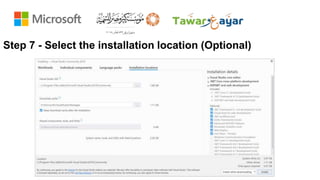
Step 7 - Select the installation location (Optional)
▷ You can reduce the installation footprint of Visual Studio on
your system drive. You can choose to move the download cache,
shared components, SDKs, and tools to different drives, and
keep Visual Studio on the drive that runs it the fastest.
Step 7 - Select the installation location (Optional)
Outlines
▷ Fundamentals.
▷ Variables and Data types.
▷ Structure Programming.
○ Conditional Code.
○ Struct.
○ Functions.
▷ project.
Introduction to c#
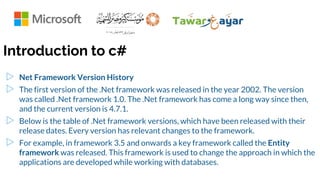
▷ Net Framework Version History
▷ The first version of the .Net framework was released in the year 2002. The version
was called .Net framework 1.0. The .Net framework has come a long way since then,
and the current version is 4.7.1.
▷ Below is the table of .Net framework versions, which have been released with their
release dates. Every version has relevant changes to the framework.
▷ For example, in framework 3.5 and onwards a key framework called the Entity
framework was released. This framework is used to change the approach in which the
applications are developed while working with databases.
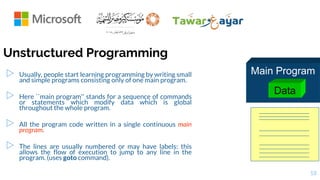
Unstructured Programming
▷ Usually, people start learning programming by writing small
and simple programs consisting only of one main program.
▷ Here ``main program'' stands for a sequence of commands
or statements which modify data which is global
throughout the whole program.
▷ All the program code written in a single continuous main
program.
▷ The lines are usually numbered or may have labels: this
allows the flow of execution to jump to any line in the
program. (uses goto command).
Main Program
Data
18
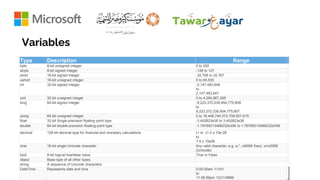
Variables
Type Description Range
byte 8-bit unsigned integer 0 to 255
sbyte 8-bit signed integer -128 to 127
short 16-bit signed integer -32,768 to 32,767
ushort 16-bit unsigned integer 0 to 65,535
int 32-bit signed integer -2,147,483,648
to
2,147,483,647
uint 32-bit unsigned integer 0 to 4,294,967,295
long 64-bit signed integer -9,223,372,036,854,775,808
to
9,223,372,036,854,775,807
ulong 64-bit unsigned integer 0 to 18,446,744,073,709,551,615
float 32-bit Single-precision floating point type -3.402823e38 to 3.402823e38
double 64-bit double-precision floating point type -1.79769313486232e308 to 1.79769313486232e308
decimal 128-bit decimal type for financial and monetary calculations (+ or -)1.0 x 10e-28
to
7.9 x 10e28
char 16-bit single Unicode character Any valid character, e.g. a,*, x0058 (hex), oru0058
(Unicode)
bool 8-bit logical true/false value True or False
object Base type of all other types.
string A sequence of Unicode characters
DateTime Represents date and time 0:00:00am 1/1/01
to
11:59:59pm 12/31/9999
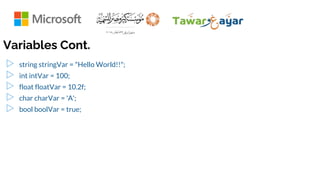
Variables Cont.
▷ string stringVar = "Hello World!!";
▷ int intVar = 100;
▷ float floatVar = 10.2f;
▷ char charVar = 'A';
▷ bool boolVar = true;
Variables Cont.
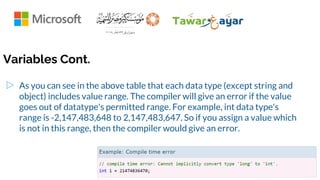
▷ As you can see in the above table that each data type (except string and
object) includes value range. The compiler will give an error if the value
goes out of datatype's permitted range. For example, int data type's
range is -2,147,483,648 to 2,147,483,647. So if you assign a value which
is not in this range, then the compiler would give an error.
Variables Cont.
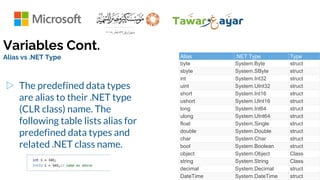
Alias vs .NET Type
▷ The predefined data types
are alias to their .NET type
(CLR class) name. The
following table lists alias for
predefined data types and
related .NET class name.
Alias .NET Type Type
byte System.Byte struct
sbyte System.SByte struct
int System.Int32 struct
uint System.UInt32 struct
short System.Int16 struct
ushort System.UInt16 struct
long System.Int64 struct
ulong System.UInt64 struct
float System.Single struct
double System.Double struct
char System.Char struct
bool System.Boolean struct
object System.Object Class
string System.String Class
decimal System.Decimal struct
DateTime System.DateTime struct
Variables Cont.
Conversions
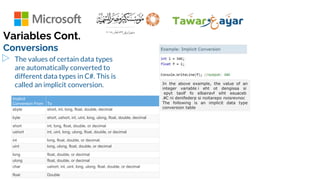
▷ The values of certain data types
are automatically converted to
different data types in C#. This is
called an implicit conversion. In the above example, the value of an
integer variable i eht ot dengissa si
epyt taolf fo elbairavf siht esuaceb
C ni denifederp si noitarepo noisrevnoc
#
.
The following is an implicit data type
conversion table
Implicit
Conversion From To
sbyte short, int, long, float, double, decimal
byte short, ushort, int, uint, long, ulong, float, double, decimal
short int, long, float, double, or decimal
ushort int, uint, long, ulong, float, double, or decimal
int long, float, double, or decimal.
uint long, ulong, float, double, or decimal
long float, double, or decimal
ulong float, double, or decimal
char ushort, int, uint, long, ulong, float, double, or decimal
float Double
Assignment (=)
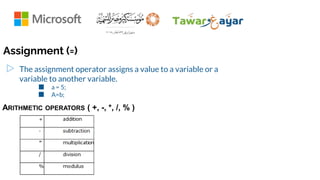
▷ The assignment operator assigns a value to a variable or a
variable to another variable.
■ a = 5;
■ A=b;
ARITHMETIC OPERATORS ( +, -, *, /, % )
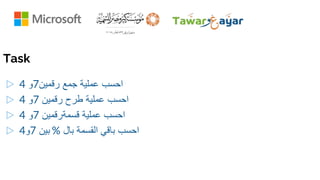
Task
▷ ‫رقمين‬ ‫جمع‬ ‫عملية‬ ‫احسب‬
7
‫و‬
4
▷ ‫رقمين‬ ‫طرح‬ ‫عملية‬ ‫احسب‬
7
‫و‬
4
▷ ‫قسمةرقمين‬ ‫عملية‬ ‫احسب‬
7
‫و‬
4
▷ ‫بال‬ ‫القسمة‬ ‫باقي‬ ‫احسب‬
%
‫بين‬
7
‫و‬
4
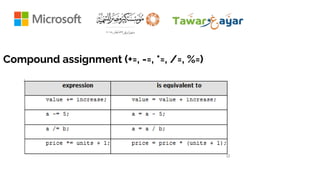
Compound assignment (+=, -=, *=, /=, %=)
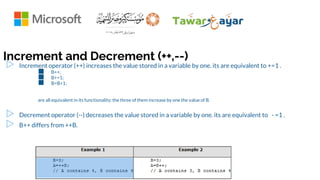
Increment and Decrement (++,--)
▷ Increment operator (++) increases the value stored in a variable by one. its are equivalent to +=1 .
■ B++;
■ B+=1;
■ B=B+1;
are all equivalent in its functionality: the three of them increase by one the value of B.
▷ Decrement operator (--) decreases the value stored in a variable by one. its are equivalent to - =1 .
▷ B++ differs from ++B.
IF Conditions
1. If Statement
2. Multiple conditions in an If statement
3. If … else statement
4. Switch Statement
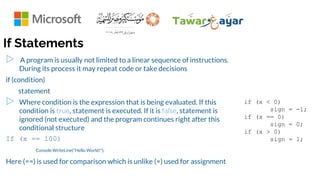
If Statements
▷ A program is usually not limited to a linear sequence of instructions.
During its process it may repeat code or take decisions
if (condition)
statement
▷ Where condition is the expression that is being evaluated. If this
condition is true, statement is executed. If it is false, statement is
ignored (not executed) and the program continues right after this
conditional structure
If (x == 100)
Console.WriteLine("Hello World!");
Here (==) is used for comparison which is unlike (=) used for assignment
if (x < 0)
sign = -1;
if (x == 0)
sign = 0;
if (x > 0)
sign = 1;
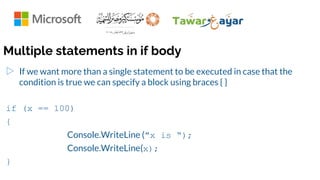
Multiple statements in if body
▷ If we want more than a single statement to be executed in case that the
condition is true we can specify a block using braces { }
if (x == 100)
{
Console.WriteLine ("x is “);
Console.WriteLine(x);
}
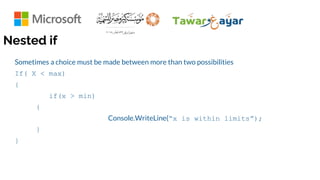
Nested if
Sometimes a choice must be made between more than two possibilities
If( X < max)
{
if(x > min)
{
Console.WriteLine(“x is within limits”);
}
}
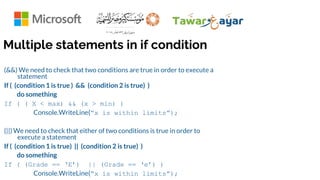
Multiple statements in if condition
(&&) We need to check that two conditions are true in order to execute a
statement
If ( (condition 1 is true ) && (condition 2 is true) )
do something
If ( ( X < max) && (x > min) )
Console.WriteLine(“x is within limits”);
(||) We need to check that either of two conditions is true in order to
execute a statement
If ( (condition 1 is true) || (condition 2 is true) )
do something
If ( (Grade == ‘E’) || (Grade == ‘e’) )
Console.WriteLine(“x is within limits”);
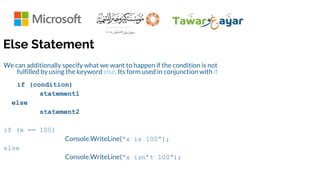
Else Statement
We can additionally specify what we want to happen if the condition is not
fulfilled by using the keyword else. Its form used in conjunction with if
if (condition)
statement1
else
statement2
if (x == 100)
Console.WriteLine(“x is 100”);
else
Console.WriteLine(“x isn’t 100”);
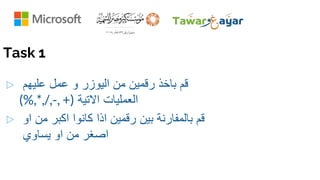
Task 1
▷ ‫عليهم‬ ‫عمل‬ ‫و‬ ‫اليوزر‬ ‫من‬ ‫رقمين‬ ‫باخذ‬ ‫قم‬
‫االتية‬ ‫العمليات‬
+(
,
-
,
/
,
*
,
)%
▷ ‫او‬ ‫من‬ ‫اكبر‬ ‫كانوا‬ ‫اذا‬ ‫رقمين‬ ‫بين‬ ‫بالمفارنة‬ ‫قم‬
‫يساوي‬ ‫او‬ ‫من‬ ‫اصغر‬
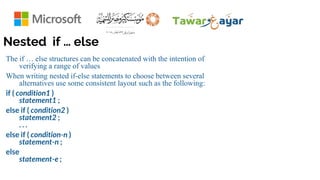
Nested if … else
The if … else structures can be concatenated with the intention of
verifying a range of values
When writing nested if-else statements to choose between several
alternatives use some consistent layout such as the following:
if ( condition1 )
statement1 ;
else if ( condition2 )
statement2 ;
. . .
else if ( condition-n )
statement-n ;
else
statement-e ;
▷ Write a program to calculate student grade
A student get Excellent if his/her mark is
greater than 85, Very Good if greater than
75, Good if greater than 65, Pass if greater
than 55, otherwise it’s Weak
36
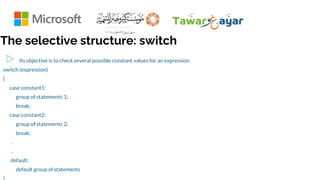
The selective structure: switch
▷ Its objective is to check several possible constant values for an expression
switch (expression)
{
case constant1:
group of statements 1;
break;
case constant2:
group of statements 2;
break;
.
.
default:
default group of statements
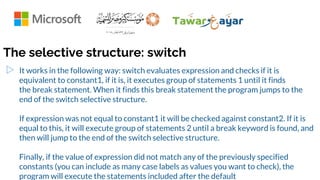
The selective structure: switch
▷ It works in the following way: switch evaluates expression and checks if it is
equivalent to constant1, if it is, it executes group of statements 1 until it finds
the break statement. When it finds this break statement the program jumps to the
end of the switch selective structure.
If expression was not equal to constant1 it will be checked against constant2. If it is
equal to this, it will execute group of statements 2 until a break keyword is found, and
then will jump to the end of the switch selective structure.
Finally, if the value of expression did not match any of the previously specified
constants (you can include as many case labels as values you want to check), the
program will execute the statements included after the default
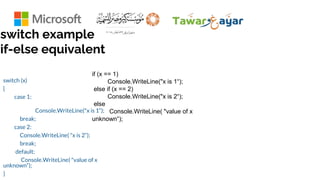
switch example
if-else equivalent
switch (x)
{
case 1:
Console.WriteLine("x is 1“);
break;
case 2:
Console.WriteLine( "x is 2“);
break;
default:
Console.WriteLine( "value of x
unknown“);
}
if (x == 1)
Console.WriteLine("x is 1“);
else if (x == 2)
Console.WriteLine("x is 2“);
else
Console.WriteLine( "value of x
unknown“);
The selective structure: switch
▷ if we did not include a break statement after the first group for case one, the program
will not automatically jump to the end of the switch selective block and it would
continue executing the rest of statements until it reaches either a break instruction or
the end of the switch selective block. This makes it unnecessary to include braces {
} surrounding the statements for each of the cases, and it can also be useful to execute
the same block of instructions for different possible values for the expression being
evaluated
Loops
▷ In most software, the statements in the program may need to
repeat for many times.
▷ Loop is a control structure that repeats a group of steps in a
program.
■ Loop body stands for the repeated statements
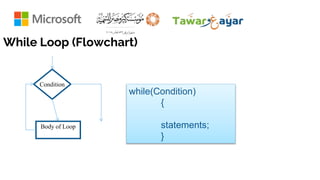
While Loop (Flowchart)
Condition
Body of Loop
while(Condition)
{
statements;
}
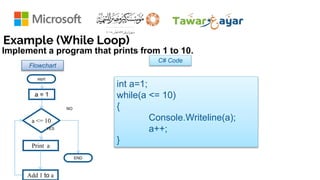
Example (While Loop)
Flowchart
C# Code
int a=1;
while(a <= 10)
{
Console.Writeline(a);
a++;
}
a <= 10
Print a
Add 1 to a
a = 1
YES
NO
END
Implement a program that prints from 1 to 10.
start
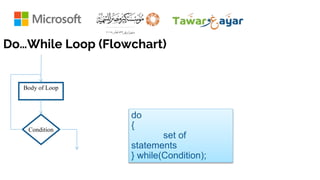
Do…While Loop (Flowchart)
Condition
Body of Loop
do
{
set of
statements
} while(Condition);
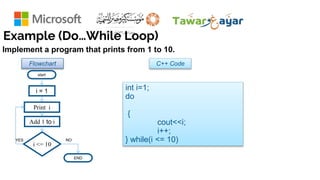
Example (Do…While Loop)
Flowchart C++ Code
Print i
Add 1 to i
i = 1
YES NO
END
Implement a program that prints from 1 to 10.
start
int i=1;
do
{
cout<<i;
i++;
} while(i <= 10)
i <= 10
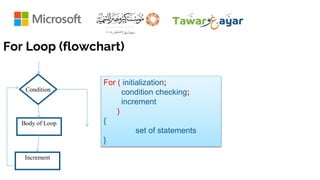
For Loop (flowchart)
Condition
Body of Loop
Increment
For ( initialization;
condition checking;
increment
)
{
set of statements
}
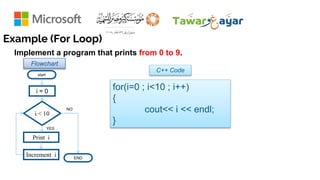
Example (For Loop)
Flowchart
C++ Code
Implement a program that prints from 0 to 9.
for(i=0 ; i<10 ; i++)
{
cout<< i << endl;
}
i < 10
Print i
Increment i
i = 0
YES
NO
END
start
Task
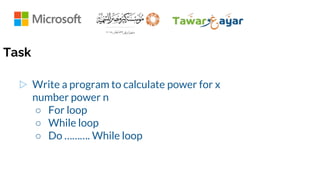
▷ Write a program to calculate power for x
number power n
○ For loop
○ While loop
○ Do ………. While loop
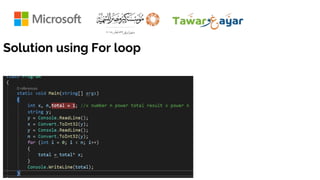
Solution using For loop
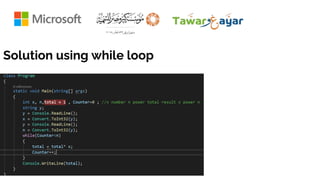
Solution using while loop
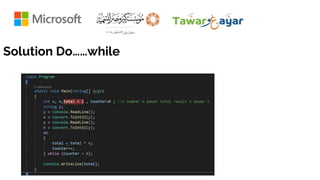
Solution Do……while
▷ Break
■ The break statement provides way for terminating the
loop to terminate early.
▷ Continue
■ The continue statement provides a convenient way to
jump back to the top of a loop earlier than normal, which
can be used to bypass the remainder of the loop for an
iteration
Break and continue
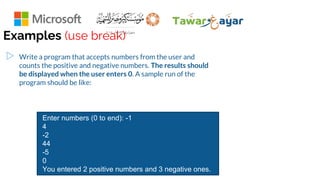
▷ Write a program that accepts numbers from the user and
counts the positive and negative numbers. The results should
be displayed when the user enters 0. A sample run of the
program should be like:
Examples (use break)
Enter numbers (0 to end): -1
4
-2
44
-5
0
You entered 2 positive numbers and 3 negative ones.
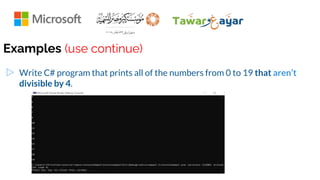
▷ Write C# program that prints all of the numbers from 0 to 19 that aren’t
divisible by 4.
Examples (use continue)
Task
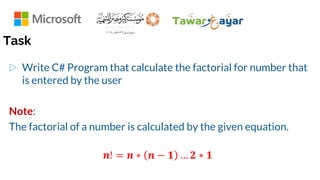
▷ Write C# Program that calculate the factorial for number that
is entered by the user
Note:
The factorial of a number is calculated by the given equation.
𝒏! = 𝒏 ∗ 𝒏 − 𝟏 … 𝟐 ∗ 𝟏
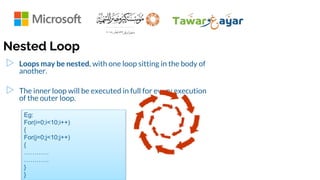
▷ Loops may be nested, with one loop sitting in the body of
another.
▷ The inner loop will be executed in full for every execution
of the outer loop.
Nested Loop
Eg:
For(i=0;i<10;i++)
{
For(j=0;j<10;j++)
{
…………
…………
}
}
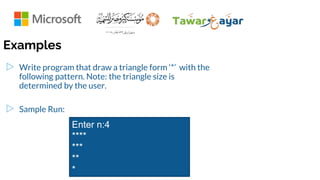
▷ Write program that draw a triangle form ‘*’ with the
following pattern. Note: the triangle size is
determined by the user.
▷ Sample Run:
Examples
Enter n:4
****
***
**
*
Struct
▷ n C#, struct is the value type data type that represents data structures. It
can contain a parameterized constructor, static constructor, constants,
fields, methods, properties, indexers, operators, events, and nested
types.
▷ struct can be used to hold small data values that do not require
inheritance, e.g. coordinate points, key-value pairs, and complex data
structure.
Structure Declaration
▷ A structure is declared using struct keyword. The default
modifier is internal for the struct and its members.
struct Coordinate
{
public int x;
public int y;
}
Coordinate point = new Coordinate();
Console.WriteLine(point.x); //output: 0
Console.WriteLine(point.y); //output: 0
Struct
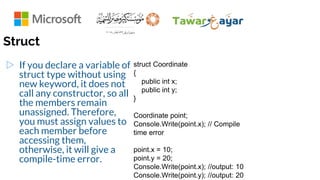
▷ If you declare a variable of
struct type without using
new keyword, it does not
call any constructor, so all
the members remain
unassigned. Therefore,
you must assign values to
each member before
accessing them,
otherwise, it will give a
compile-time error.
struct Coordinate
{
public int x;
public int y;
}
Coordinate point;
Console.Write(point.x); // Compile
time error
point.x = 10;
point.y = 20;
Console.Write(point.x); //output: 10
Console.Write(point.y); //output: 20
Constructors in Structure
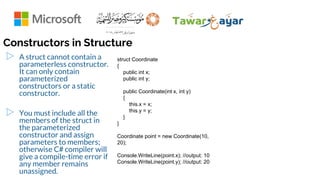
▷ A struct cannot contain a
parameterless constructor.
It can only contain
parameterized
constructors or a static
constructor.
▷ You must include all the
members of the struct in
the parameterized
constructor and assign
parameters to members;
otherwise C# compiler will
give a compile-time error if
any member remains
unassigned.
struct Coordinate
{
public int x;
public int y;
public Coordinate(int x, int y)
{
this.x = x;
this.y = y;
}
}
Coordinate point = new Coordinate(10,
20);
Console.WriteLine(point.x); //output: 10
Console.WriteLine(point.y); //output: 20
Methods and Properties in Structure
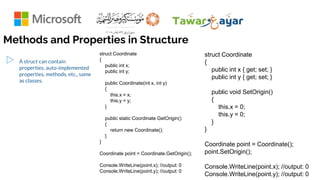
▷ A struct can contain
properties, auto-implemented
properties, methods, etc., same
as classes.
struct Coordinate
{
public int x { get; set; }
public int y { get; set; }
public void SetOrigin()
{
this.x = 0;
this.y = 0;
}
}
Coordinate point = Coordinate();
point.SetOrigin();
Console.WriteLine(point.x); //output: 0
Console.WriteLine(point.y); //output: 0
struct Coordinate
{
public int x;
public int y;
public Coordinate(int x, int y)
{
this.x = x;
this.y = y;
}
public static Coordinate GetOrigin()
{
return new Coordinate();
}
}
Coordinate point = Coordinate.GetOrigin();
Console.WriteLine(point.x); //output: 0
Console.WriteLine(point.y); //output: 0
Functions
▷ A method is a block of code which only runs when it is called.
▷ You can pass data, known as parameters, into a method.
▷ Methods are used to perform certain actions, and they are also known as functions.
▷ Why use methods? To reuse code: define the code once, and use it many times.
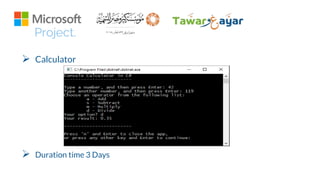
Project.
 Calculator
 Duration time 3 Days
▷ Christian.magdy@cef –eg.org
▷ Deadline ‫الموافق‬ ‫االثنين‬ ‫يوم‬
14
-
11
▷ ‫الساعة‬
12
‫اليل‬ ‫منتصف‬
▷ Subject : G1P1
65
Quote
Yesterday is history Tomorrow is a
mystery today is a gift that is why it
is call present
Thank you 

Introduction To programming.pptx

  • 1.
  • 2.
  • 3.
    Step 1 -Make sure your computer is ready for Visual Studio ▷ Before you begin installing Visual Studio: ▷ Check the system requirements. These requirements help you know whether your computer supports Visual Studio 2019. ▷ Apply the latest Windows updates. These updates ensure that your computer has both the latest security updates and the required system components for Visual Studio. ▷ Reboot. The reboot ensures that any pending installs or updates don't hinder the Visual Studio install. ▷ Free up space. Remove unneeded files and applications from your %SystemDrive% by, for example, running the Disk Cleanup app.
  • 4.
    System Requirments Supported Operating Systems VisualStudio 2019 will install and run on the following operating systems (64 bit recommended; ARM is not supported): •Windows 10 version 1703 or higher: Home, Professional, Education, and Enterprise (LTSC and S are not supported) •Windows Server 2019: Standard and Datacenter •Windows Server 2016: Standard and Datacenter •Windows 8.1 (with Update 2919355): Core, Professional, and Enterprise •Windows Server 2012 R2 (with Update 2919355): Essentials, Standard, Datacenter •Windows 7 SP1 (with latest Windows Updates): Home Premium, Professional, Enterprise, Ultimate Hardware •1.8 GHz or faster processor. Quad-core or better recommended •2 GB of RAM; 8 GB of RAM recommended (2.5 GB minimum if running on a virtual machine) •Hard disk space: Minimum of 800MB up to 210 GB of available space, depending on features installed; typical installations require 20-50 GB of free space. •Hard disk speed: to improve performance, install Windows and Visual Studio on a solid state drive (SSD). •Video card that supports a minimum display resolution of 720p (1280 by 720); Visual Studio will work best at a resolution of WXGA (1366 by 768) or higher.
  • 5.
    Step 2 -Download Visual Studio ▷ Next, download the Visual Studio bootstrapper file. ▷ To do so, choose the following button, choose the edition of Visual Studio that you want, choose Save, and then choose Open folder. ▷ Download Visual Studio.
  • 6.
    Step 3 -Install the Visual Studio installer ▷ Run the bootstrapper file to install the Visual Studio Installer. This new lightweight installer includes everything you need to both install and customize Visual Studio. ▷ From your Downloads folder, double-click the bootstrapper that matches or is similar to one of the following files: ▷ vs_community.exe for Visual Studio Community ▷ vs_professional.exe for Visual Studio Professional ▷ vs_enterprise.exe for Visual Studio Enterprise ▷ If you receive a User Account Control notice, choose Yes. ▷ We'll ask you to acknowledge the Microsoft License Terms and the Microsoft Privacy Statement. Choose Continue. ▷ License Terms and Privacy Statement
  • 7.
    Step 3 -Install the Visual Studio installer
  • 8.
    Step 4 -Choose workloads ▷ After the installer is installed, you can use it to customize your installation by selecting the feature sets—or workloads—that you want. Here's how. ▷ Find the workload you want in the Visual Studio Installer. ▷ Visual Studio 2019: Install a workload For example, choose the "ASP.NET and web development" workload. It comes with the default core editor, which includes basic code editing support for over 20 languages, the ability to open and edit code from any folder without requiring a project, and integrated source code control. ▷ After you choose the workload(s) you want, choose Install. ▷ Next, status screens appear that show the progress of your Visual Studio installation.
  • 9.
    Step 4 -Choose workloads
  • 10.
    Step 5 -Choose individual components (Optional) ▷ If you don't want to use the Workloads feature to customize your Visual Studio installation, or you want to add more components than a workload installs, you can do so by installing or adding individual components from the Individual components tab. Choose what you want, and then follow the prompts.
  • 11.
    Step 5 -Choose individual components (Optional)
  • 12.
    Step 6 -Install language packs (Optional) ▷ By default, the installer program tries to match the language of the operating system when it runs for the first time. To install Visual Studio in a language of your choosing, choose the Language packs tab from the Visual Studio Installer, and then follow the prompts. ▷ Visual Studio 2019 - Install language packs ▷ Change the installer language from the command line ▷ Another way that you can change the default language is by running the installer from the command line. For example, you can force the installer to run in English by using the following command: vs_installer.exe --locale en-US. The installer will remember this setting when it is run the next time. The installer supports the following language tokens: zh-cn, zh-tw, cs-cz, en-us, es-es, fr-fr, de-de, it-it, ja-jp, ko-kr, pl-pl, pt-br, ru-ru, and tr-tr.
  • 13.
    Step 6 -Install language packs (Optional)
  • 14.
    Step 7 -Select the installation location (Optional) ▷ You can reduce the installation footprint of Visual Studio on your system drive. You can choose to move the download cache, shared components, SDKs, and tools to different drives, and keep Visual Studio on the drive that runs it the fastest.
  • 15.
    Step 7 -Select the installation location (Optional)
  • 16.
    Outlines ▷ Fundamentals. ▷ Variablesand Data types. ▷ Structure Programming. ○ Conditional Code. ○ Struct. ○ Functions. ▷ project.
  • 17.
    Introduction to c# ▷Net Framework Version History ▷ The first version of the .Net framework was released in the year 2002. The version was called .Net framework 1.0. The .Net framework has come a long way since then, and the current version is 4.7.1. ▷ Below is the table of .Net framework versions, which have been released with their release dates. Every version has relevant changes to the framework. ▷ For example, in framework 3.5 and onwards a key framework called the Entity framework was released. This framework is used to change the approach in which the applications are developed while working with databases.
  • 18.
    Unstructured Programming ▷ Usually,people start learning programming by writing small and simple programs consisting only of one main program. ▷ Here ``main program'' stands for a sequence of commands or statements which modify data which is global throughout the whole program. ▷ All the program code written in a single continuous main program. ▷ The lines are usually numbered or may have labels: this allows the flow of execution to jump to any line in the program. (uses goto command). Main Program Data 18
  • 19.
    Variables Type Description Range byte8-bit unsigned integer 0 to 255 sbyte 8-bit signed integer -128 to 127 short 16-bit signed integer -32,768 to 32,767 ushort 16-bit unsigned integer 0 to 65,535 int 32-bit signed integer -2,147,483,648 to 2,147,483,647 uint 32-bit unsigned integer 0 to 4,294,967,295 long 64-bit signed integer -9,223,372,036,854,775,808 to 9,223,372,036,854,775,807 ulong 64-bit unsigned integer 0 to 18,446,744,073,709,551,615 float 32-bit Single-precision floating point type -3.402823e38 to 3.402823e38 double 64-bit double-precision floating point type -1.79769313486232e308 to 1.79769313486232e308 decimal 128-bit decimal type for financial and monetary calculations (+ or -)1.0 x 10e-28 to 7.9 x 10e28 char 16-bit single Unicode character Any valid character, e.g. a,*, x0058 (hex), oru0058 (Unicode) bool 8-bit logical true/false value True or False object Base type of all other types. string A sequence of Unicode characters DateTime Represents date and time 0:00:00am 1/1/01 to 11:59:59pm 12/31/9999
  • 20.
    Variables Cont. ▷ stringstringVar = "Hello World!!"; ▷ int intVar = 100; ▷ float floatVar = 10.2f; ▷ char charVar = 'A'; ▷ bool boolVar = true;
  • 21.
    Variables Cont. ▷ Asyou can see in the above table that each data type (except string and object) includes value range. The compiler will give an error if the value goes out of datatype's permitted range. For example, int data type's range is -2,147,483,648 to 2,147,483,647. So if you assign a value which is not in this range, then the compiler would give an error.
  • 22.
    Variables Cont. Alias vs.NET Type ▷ The predefined data types are alias to their .NET type (CLR class) name. The following table lists alias for predefined data types and related .NET class name. Alias .NET Type Type byte System.Byte struct sbyte System.SByte struct int System.Int32 struct uint System.UInt32 struct short System.Int16 struct ushort System.UInt16 struct long System.Int64 struct ulong System.UInt64 struct float System.Single struct double System.Double struct char System.Char struct bool System.Boolean struct object System.Object Class string System.String Class decimal System.Decimal struct DateTime System.DateTime struct
  • 23.
    Variables Cont. Conversions ▷ Thevalues of certain data types are automatically converted to different data types in C#. This is called an implicit conversion. In the above example, the value of an integer variable i eht ot dengissa si epyt taolf fo elbairavf siht esuaceb C ni denifederp si noitarepo noisrevnoc # . The following is an implicit data type conversion table Implicit Conversion From To sbyte short, int, long, float, double, decimal byte short, ushort, int, uint, long, ulong, float, double, decimal short int, long, float, double, or decimal ushort int, uint, long, ulong, float, double, or decimal int long, float, double, or decimal. uint long, ulong, float, double, or decimal long float, double, or decimal ulong float, double, or decimal char ushort, int, uint, long, ulong, float, double, or decimal float Double
  • 24.
    Assignment (=) ▷ Theassignment operator assigns a value to a variable or a variable to another variable. ■ a = 5; ■ A=b; ARITHMETIC OPERATORS ( +, -, *, /, % )
  • 25.
    Task ▷ ‫رقمين‬ ‫جمع‬‫عملية‬ ‫احسب‬ 7 ‫و‬ 4 ▷ ‫رقمين‬ ‫طرح‬ ‫عملية‬ ‫احسب‬ 7 ‫و‬ 4 ▷ ‫قسمةرقمين‬ ‫عملية‬ ‫احسب‬ 7 ‫و‬ 4 ▷ ‫بال‬ ‫القسمة‬ ‫باقي‬ ‫احسب‬ % ‫بين‬ 7 ‫و‬ 4
  • 26.
    Compound assignment (+=,-=, *=, /=, %=)
  • 27.
    Increment and Decrement(++,--) ▷ Increment operator (++) increases the value stored in a variable by one. its are equivalent to +=1 . ■ B++; ■ B+=1; ■ B=B+1; are all equivalent in its functionality: the three of them increase by one the value of B. ▷ Decrement operator (--) decreases the value stored in a variable by one. its are equivalent to - =1 . ▷ B++ differs from ++B.
  • 28.
    IF Conditions 1. IfStatement 2. Multiple conditions in an If statement 3. If … else statement 4. Switch Statement
  • 29.
    If Statements ▷ Aprogram is usually not limited to a linear sequence of instructions. During its process it may repeat code or take decisions if (condition) statement ▷ Where condition is the expression that is being evaluated. If this condition is true, statement is executed. If it is false, statement is ignored (not executed) and the program continues right after this conditional structure If (x == 100) Console.WriteLine("Hello World!"); Here (==) is used for comparison which is unlike (=) used for assignment if (x < 0) sign = -1; if (x == 0) sign = 0; if (x > 0) sign = 1;
  • 30.
    Multiple statements inif body ▷ If we want more than a single statement to be executed in case that the condition is true we can specify a block using braces { } if (x == 100) { Console.WriteLine ("x is “); Console.WriteLine(x); }
  • 31.
    Nested if Sometimes achoice must be made between more than two possibilities If( X < max) { if(x > min) { Console.WriteLine(“x is within limits”); } }
  • 32.
    Multiple statements inif condition (&&) We need to check that two conditions are true in order to execute a statement If ( (condition 1 is true ) && (condition 2 is true) ) do something If ( ( X < max) && (x > min) ) Console.WriteLine(“x is within limits”); (||) We need to check that either of two conditions is true in order to execute a statement If ( (condition 1 is true) || (condition 2 is true) ) do something If ( (Grade == ‘E’) || (Grade == ‘e’) ) Console.WriteLine(“x is within limits”);
  • 33.
    Else Statement We canadditionally specify what we want to happen if the condition is not fulfilled by using the keyword else. Its form used in conjunction with if if (condition) statement1 else statement2 if (x == 100) Console.WriteLine(“x is 100”); else Console.WriteLine(“x isn’t 100”);
  • 34.
    Task 1 ▷ ‫عليهم‬‫عمل‬ ‫و‬ ‫اليوزر‬ ‫من‬ ‫رقمين‬ ‫باخذ‬ ‫قم‬ ‫االتية‬ ‫العمليات‬ +( , - , / , * , )% ▷ ‫او‬ ‫من‬ ‫اكبر‬ ‫كانوا‬ ‫اذا‬ ‫رقمين‬ ‫بين‬ ‫بالمفارنة‬ ‫قم‬ ‫يساوي‬ ‫او‬ ‫من‬ ‫اصغر‬
  • 35.
    Nested if …else The if … else structures can be concatenated with the intention of verifying a range of values When writing nested if-else statements to choose between several alternatives use some consistent layout such as the following: if ( condition1 ) statement1 ; else if ( condition2 ) statement2 ; . . . else if ( condition-n ) statement-n ; else statement-e ;
  • 36.
    ▷ Write aprogram to calculate student grade A student get Excellent if his/her mark is greater than 85, Very Good if greater than 75, Good if greater than 65, Pass if greater than 55, otherwise it’s Weak 36
  • 37.
    The selective structure:switch ▷ Its objective is to check several possible constant values for an expression switch (expression) { case constant1: group of statements 1; break; case constant2: group of statements 2; break; . . default: default group of statements
  • 38.
    The selective structure:switch ▷ It works in the following way: switch evaluates expression and checks if it is equivalent to constant1, if it is, it executes group of statements 1 until it finds the break statement. When it finds this break statement the program jumps to the end of the switch selective structure. If expression was not equal to constant1 it will be checked against constant2. If it is equal to this, it will execute group of statements 2 until a break keyword is found, and then will jump to the end of the switch selective structure. Finally, if the value of expression did not match any of the previously specified constants (you can include as many case labels as values you want to check), the program will execute the statements included after the default
  • 39.
    switch example if-else equivalent switch(x) { case 1: Console.WriteLine("x is 1“); break; case 2: Console.WriteLine( "x is 2“); break; default: Console.WriteLine( "value of x unknown“); } if (x == 1) Console.WriteLine("x is 1“); else if (x == 2) Console.WriteLine("x is 2“); else Console.WriteLine( "value of x unknown“);
  • 40.
    The selective structure:switch ▷ if we did not include a break statement after the first group for case one, the program will not automatically jump to the end of the switch selective block and it would continue executing the rest of statements until it reaches either a break instruction or the end of the switch selective block. This makes it unnecessary to include braces { } surrounding the statements for each of the cases, and it can also be useful to execute the same block of instructions for different possible values for the expression being evaluated
  • 41.
    Loops ▷ In mostsoftware, the statements in the program may need to repeat for many times. ▷ Loop is a control structure that repeats a group of steps in a program. ■ Loop body stands for the repeated statements
  • 42.
    While Loop (Flowchart) Condition Bodyof Loop while(Condition) { statements; }
  • 43.
    Example (While Loop) Flowchart C#Code int a=1; while(a <= 10) { Console.Writeline(a); a++; } a <= 10 Print a Add 1 to a a = 1 YES NO END Implement a program that prints from 1 to 10. start
  • 44.
    Do…While Loop (Flowchart) Condition Bodyof Loop do { set of statements } while(Condition);
  • 45.
    Example (Do…While Loop) FlowchartC++ Code Print i Add 1 to i i = 1 YES NO END Implement a program that prints from 1 to 10. start int i=1; do { cout<<i; i++; } while(i <= 10) i <= 10
  • 46.
    For Loop (flowchart) Condition Bodyof Loop Increment For ( initialization; condition checking; increment ) { set of statements }
  • 47.
    Example (For Loop) Flowchart C++Code Implement a program that prints from 0 to 9. for(i=0 ; i<10 ; i++) { cout<< i << endl; } i < 10 Print i Increment i i = 0 YES NO END start
  • 48.
    Task ▷ Write aprogram to calculate power for x number power n ○ For loop ○ While loop ○ Do ………. While loop
  • 49.
  • 50.
  • 51.
  • 52.
    ▷ Break ■ Thebreak statement provides way for terminating the loop to terminate early. ▷ Continue ■ The continue statement provides a convenient way to jump back to the top of a loop earlier than normal, which can be used to bypass the remainder of the loop for an iteration Break and continue
  • 53.
    ▷ Write aprogram that accepts numbers from the user and counts the positive and negative numbers. The results should be displayed when the user enters 0. A sample run of the program should be like: Examples (use break) Enter numbers (0 to end): -1 4 -2 44 -5 0 You entered 2 positive numbers and 3 negative ones.
  • 54.
    ▷ Write C#program that prints all of the numbers from 0 to 19 that aren’t divisible by 4. Examples (use continue)
  • 55.
    Task ▷ Write C#Program that calculate the factorial for number that is entered by the user Note: The factorial of a number is calculated by the given equation. 𝒏! = 𝒏 ∗ 𝒏 − 𝟏 … 𝟐 ∗ 𝟏
  • 56.
    ▷ Loops maybe nested, with one loop sitting in the body of another. ▷ The inner loop will be executed in full for every execution of the outer loop. Nested Loop Eg: For(i=0;i<10;i++) { For(j=0;j<10;j++) { ………… ………… } }
  • 57.
    ▷ Write programthat draw a triangle form ‘*’ with the following pattern. Note: the triangle size is determined by the user. ▷ Sample Run: Examples Enter n:4 **** *** ** *
  • 58.
    Struct ▷ n C#,struct is the value type data type that represents data structures. It can contain a parameterized constructor, static constructor, constants, fields, methods, properties, indexers, operators, events, and nested types. ▷ struct can be used to hold small data values that do not require inheritance, e.g. coordinate points, key-value pairs, and complex data structure.
  • 59.
    Structure Declaration ▷ Astructure is declared using struct keyword. The default modifier is internal for the struct and its members. struct Coordinate { public int x; public int y; } Coordinate point = new Coordinate(); Console.WriteLine(point.x); //output: 0 Console.WriteLine(point.y); //output: 0
  • 60.
    Struct ▷ If youdeclare a variable of struct type without using new keyword, it does not call any constructor, so all the members remain unassigned. Therefore, you must assign values to each member before accessing them, otherwise, it will give a compile-time error. struct Coordinate { public int x; public int y; } Coordinate point; Console.Write(point.x); // Compile time error point.x = 10; point.y = 20; Console.Write(point.x); //output: 10 Console.Write(point.y); //output: 20
  • 61.
    Constructors in Structure ▷A struct cannot contain a parameterless constructor. It can only contain parameterized constructors or a static constructor. ▷ You must include all the members of the struct in the parameterized constructor and assign parameters to members; otherwise C# compiler will give a compile-time error if any member remains unassigned. struct Coordinate { public int x; public int y; public Coordinate(int x, int y) { this.x = x; this.y = y; } } Coordinate point = new Coordinate(10, 20); Console.WriteLine(point.x); //output: 10 Console.WriteLine(point.y); //output: 20
  • 62.
    Methods and Propertiesin Structure ▷ A struct can contain properties, auto-implemented properties, methods, etc., same as classes. struct Coordinate { public int x { get; set; } public int y { get; set; } public void SetOrigin() { this.x = 0; this.y = 0; } } Coordinate point = Coordinate(); point.SetOrigin(); Console.WriteLine(point.x); //output: 0 Console.WriteLine(point.y); //output: 0 struct Coordinate { public int x; public int y; public Coordinate(int x, int y) { this.x = x; this.y = y; } public static Coordinate GetOrigin() { return new Coordinate(); } } Coordinate point = Coordinate.GetOrigin(); Console.WriteLine(point.x); //output: 0 Console.WriteLine(point.y); //output: 0
  • 63.
    Functions ▷ A methodis a block of code which only runs when it is called. ▷ You can pass data, known as parameters, into a method. ▷ Methods are used to perform certain actions, and they are also known as functions. ▷ Why use methods? To reuse code: define the code once, and use it many times.
  • 64.
  • 65.
    ▷ Christian.magdy@cef –eg.org ▷Deadline ‫الموافق‬ ‫االثنين‬ ‫يوم‬ 14 - 11 ▷ ‫الساعة‬ 12 ‫اليل‬ ‫منتصف‬ ▷ Subject : G1P1 65
  • 66.
    Quote Yesterday is historyTomorrow is a mystery today is a gift that is why it is call present Thank you 