Introduction to Dynamic Web
Content
HTTP
The HyperText Transport Protocol is the set of
rules to allow browsers to retrieve web
documents from servers over the Internet
HTTP - Hypertext Transport
Protocol
The dominant Application Layer Protocol on the Internet
Invented for the Web - to Retrieve HTML, Images, Documents etc
Extended to be data in addition to documents - RSS, Web Services, etc..
Basic Concept - Make a Connection - Request a document - Retrieve the
Document - Close the Connection
http://en.wikipedia.org/wiki/Http
http://www.dr-chuck.com/page1.htm
protocol host document
Robert Cailliau
CERN
http://www.youtube.com/watch?v=x2GylLq59rI
1:17 - 2:19
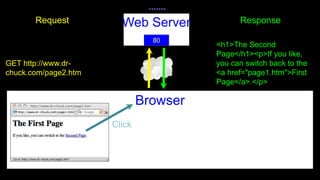
Getting Data From The Server
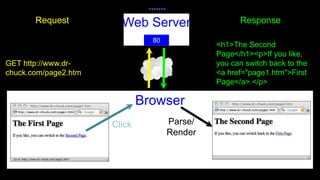
Each the user clicks on an anchor tag with an href= value to switch to a
new page, the browser makes a connection to the web server and issues
a “GET” request - to GET the content of the page at the specified URL
The server returns the HTML document to the Browser which formats and
displays the document to the user.
Browser
Web Server
80
Browser
Web Server
80
Click
Browser
Web Server
GET http://www.dr-
chuck.com/page2.htm
80
Request
Click
Browser
Web Server
GET http://www.dr-
chuck.com/page2.htm
80
Request
Click
Browser
Web Server
GET http://www.dr-
chuck.com/page2.htm
<h1>The Second
Page</h1><p>If you like,
you can switch back to the
<a href="page1.htm">First
Page</a>.</p>
80
Request Response
Click
Browser
Web Server
GET http://www.dr-
chuck.com/page2.htm
<h1>The Second
Page</h1><p>If you like,
you can switch back to the
<a href="page1.htm">First
Page</a>.</p>
80
Request Response
Click Parse/
Render
Making an HTTP request
Connect to the server like www.dr-chuck.com
a "hand shake"
Request a document (or the default document)
GET http://www.dr-chuck.com/page1.htm HTTP/1.0
GET http://www.mlive.com/ann-arbor/ HTTP/1.0
GET http://www.facebook.com HTTP/1.0
Basic Client/Server
Request/Response Sequence
Each step in the request and response sequence is as follows:
1. You enter http://server.com into your browser’s address bar.
2. Your browser looks up the IP address for server.com.
3. Your browser issues a request for the home page at server.com.
4. The request crosses the Internet and arrives at the server.com web
server.
5. The web server, having received the request, looks for the web page
on its hard disk.
6. The web page is retrieved by the server and returned to the browser.
7. Your browser displays the web page
Dynamic Client/Server
Request/Response Sequence
$query
$result
Here are the steps for a dynamic client/server request/response sequence:
1. You enter http://server.com into your browser’s address bar.
2. Your browser looks up the IP address for server.com.
3. Your browser issues a request to that address for the web server’s home page.
4. The request crosses the Internet and arrives at the server.com web server.
5. The web server, having received the request, fetches the home page from its
hard disk.
6. With the home page now in memory, the web server notices that it is a file
incorporating PHP scripting and passes the page to the PHP interpreter.
7. The PHP interpreter executes the PHP code.
8. Some of the PHP contains MySQL statements, which the PHP interpreter now
passes to the MySQL database engine.
9. The MySQL database returns the results of the statements back to the PHP
interpreter.
10. The PHP interpreter returns the results of the executed PHP code, along with the
results from the MySQL database, to the web server. 11. The web server returns the
page to the requesting client, which displays it.
XAMPP Installation
Installing with Windows :
• Go to the XAMPP website, choose XAMPP Windows.
• Choose latest stable version and click the installer file to initiate
download.
• XAMPP for Windows exists in three different flavors:
• Installer : Probably the most comfortable way to install XAMPP.
• ZIP : For purists: XAMPP as ordinary ZIP archive.
• 7zip : For purists with low bandwidth: XAMPP as 7zip archive.
• You can also download XAMPP for Windows
Add-Ons :
• Tomcat Add-On
• Perl Add-On
XAMPP Installation
Installation with the Installer :
• Using the installer version is the easiest way to install XAMPP.
XAMPP Installation
Installation with the Installer :
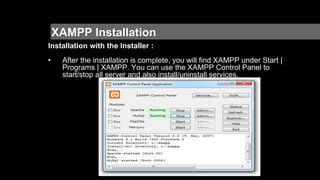
• After the installation is complete, you will find XAMPP under Start |
Programs | XAMPP. You can use the XAMPP Control Panel to
start/stop all server and also install/uninstall services.
XAMPP Installation
Installation with the Installer :
• The XAMPP control panel for start/stop Apache, MySQL, FilaZilla
& Mercury or install these server as services.
XAMPP Installation
Installation without the Installer :
• Unzip the zip archives into the folder of your choice. XAMPP is
extracting to the subdirectory "[Ziel]xampp" below the selected
target directory. Now start the file "setup_xampp.bat", to adjust the
XAMPP configuration to your system.
• If you choose a root directory "C:" as target, you must not start
"setup_xampp.bat".
• If you extract XAMPP in a top level folder like "C:" or "D:", you can
start most servers like Apache or MySQL directly without execution
of the file "setup_xampp.bat".
XAMPP Configuration
Testing XAMPP:
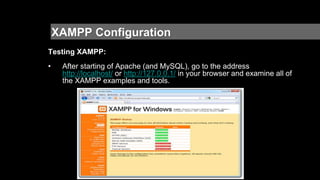
• After starting of Apache (and MySQL), go to the address
http://localhost/ or http://127.0.0.1/ in your browser and examine all of
the XAMPP examples and tools.
Services Started

Introduction to Dynamic Web Design Technology

  • 1.
  • 2.
    HTTP The HyperText TransportProtocol is the set of rules to allow browsers to retrieve web documents from servers over the Internet
  • 3.
    HTTP - HypertextTransport Protocol The dominant Application Layer Protocol on the Internet Invented for the Web - to Retrieve HTML, Images, Documents etc Extended to be data in addition to documents - RSS, Web Services, etc.. Basic Concept - Make a Connection - Request a document - Retrieve the Document - Close the Connection http://en.wikipedia.org/wiki/Http
  • 4.
    http://www.dr-chuck.com/page1.htm protocol host document RobertCailliau CERN http://www.youtube.com/watch?v=x2GylLq59rI 1:17 - 2:19
  • 5.
    Getting Data FromThe Server Each the user clicks on an anchor tag with an href= value to switch to a new page, the browser makes a connection to the web server and issues a “GET” request - to GET the content of the page at the specified URL The server returns the HTML document to the Browser which formats and displays the document to the user.
  • 6.
  • 7.
  • 8.
  • 9.
  • 10.
    Browser Web Server GET http://www.dr- chuck.com/page2.htm <h1>TheSecond Page</h1><p>If you like, you can switch back to the <a href="page1.htm">First Page</a>.</p> 80 Request Response Click
  • 11.
    Browser Web Server GET http://www.dr- chuck.com/page2.htm <h1>TheSecond Page</h1><p>If you like, you can switch back to the <a href="page1.htm">First Page</a>.</p> 80 Request Response Click Parse/ Render
  • 12.
    Making an HTTPrequest Connect to the server like www.dr-chuck.com a "hand shake" Request a document (or the default document) GET http://www.dr-chuck.com/page1.htm HTTP/1.0 GET http://www.mlive.com/ann-arbor/ HTTP/1.0 GET http://www.facebook.com HTTP/1.0
  • 13.
  • 14.
    Each step inthe request and response sequence is as follows: 1. You enter http://server.com into your browser’s address bar. 2. Your browser looks up the IP address for server.com. 3. Your browser issues a request for the home page at server.com. 4. The request crosses the Internet and arrives at the server.com web server. 5. The web server, having received the request, looks for the web page on its hard disk. 6. The web page is retrieved by the server and returned to the browser. 7. Your browser displays the web page
  • 15.
  • 16.
    Here are thesteps for a dynamic client/server request/response sequence: 1. You enter http://server.com into your browser’s address bar. 2. Your browser looks up the IP address for server.com. 3. Your browser issues a request to that address for the web server’s home page. 4. The request crosses the Internet and arrives at the server.com web server. 5. The web server, having received the request, fetches the home page from its hard disk. 6. With the home page now in memory, the web server notices that it is a file incorporating PHP scripting and passes the page to the PHP interpreter. 7. The PHP interpreter executes the PHP code. 8. Some of the PHP contains MySQL statements, which the PHP interpreter now passes to the MySQL database engine. 9. The MySQL database returns the results of the statements back to the PHP interpreter. 10. The PHP interpreter returns the results of the executed PHP code, along with the results from the MySQL database, to the web server. 11. The web server returns the page to the requesting client, which displays it.
  • 17.
    XAMPP Installation Installing withWindows : • Go to the XAMPP website, choose XAMPP Windows. • Choose latest stable version and click the installer file to initiate download. • XAMPP for Windows exists in three different flavors: • Installer : Probably the most comfortable way to install XAMPP. • ZIP : For purists: XAMPP as ordinary ZIP archive. • 7zip : For purists with low bandwidth: XAMPP as 7zip archive. • You can also download XAMPP for Windows Add-Ons : • Tomcat Add-On • Perl Add-On
  • 18.
    XAMPP Installation Installation withthe Installer : • Using the installer version is the easiest way to install XAMPP.
  • 19.
    XAMPP Installation Installation withthe Installer : • After the installation is complete, you will find XAMPP under Start | Programs | XAMPP. You can use the XAMPP Control Panel to start/stop all server and also install/uninstall services.
  • 20.
    XAMPP Installation Installation withthe Installer : • The XAMPP control panel for start/stop Apache, MySQL, FilaZilla & Mercury or install these server as services.
  • 21.
    XAMPP Installation Installation withoutthe Installer : • Unzip the zip archives into the folder of your choice. XAMPP is extracting to the subdirectory "[Ziel]xampp" below the selected target directory. Now start the file "setup_xampp.bat", to adjust the XAMPP configuration to your system. • If you choose a root directory "C:" as target, you must not start "setup_xampp.bat". • If you extract XAMPP in a top level folder like "C:" or "D:", you can start most servers like Apache or MySQL directly without execution of the file "setup_xampp.bat".
  • 22.
    XAMPP Configuration Testing XAMPP: •After starting of Apache (and MySQL), go to the address http://localhost/ or http://127.0.0.1/ in your browser and examine all of the XAMPP examples and tools.
  • 23.