Introduction to
Digital Accessibility
DOREA M. HARDY, M.ED.
Agenda
• What is Accessibility?
• Why it’s Important
• Accessibility and Word
• Accessibility and PDFs
• Conclusion
What is Accessibility?
Definition: Accessible
• Per the U.S. Department of Education:
A person with a disability should be able to...
• Acquire the same information
• Engage in the same interactions
• Enjoy the same services
Accessibility vs. Disability
ACCESSIBILITY
• General requirements for
general population
DISABILITY
• Specific solution for a specific
person
Accessibility vs. Disability (Responsibility)
ACCESSIBILITY
• Responsibility: Everyone
involved in the design,
development or delivery of
electronic or web-based
content.
DISABILITY
• Responsibility: Disability
Services Providers
Accessibility vs. Disability (Examples)
ACCESSIBILITY
• Examples:
• Academic & OnlineCourses
• Clickers & E-Readers
• Electronic Documents
• Library Resources
• Textbooks, etc.
• Websites &Web-based Applications
• Procured Goods & Services
DISABILITY
• Examples:
• NoteTaker
• ExtendedTime for Homework or
Exams
• Sign Language Interpreter
ICT Accessibility
• ICT = Information and CommunicationsTechnology
• Refers to: Electronic & InformationTechnology, such as…
• Academic & OnlineCourses
• Certification Programs
• Classroom & EmergingTechnologies
• Computer Hardware & Software
• Databases
• Dynamic Rich Internet Applications
• E-Commerce
• Electronic Documents &Textbooks
• Information Kiosks
• Library Services
• Multimedia
• Registration Systems
• Websites
• Video &Web Conferencing systems, etc.
Why it’s Important
Laws & Guidelines (in the US)
• Americans with Disabilities Act (ADA)
• Section 503
• Section 504
• Section 508
• Twenty-First Century Communications &Video Accessibility Act
(CVAA)
• Web Content Accessibility Guidelines (WCAG) 2.0 & 2.1
Laws & Guidelines (around the World)
• Digital Accessibility Laws Around the Globe include:
• United NationsTreaties
• Argentina
• Australia & New Zealand
• Brazil
• Canada
• Denmark
• European Union
• Holland (The Netherlands)
• Iceland
• India
• Norway
• Japan
• Philippines
• Sweden
• United Kingdom
• United States
User that Benefit from Accessible Documents
• Blind or visual impaired, low vision, color blind
• Motor disabilities
• Learning disabilities
• Deaf or hard of hearing and require multimedia to be captioned
• Aging Users
• English language learners (ESOL)
Main Features of an Accessible Document
• Document Structure and Navigation
• Document is structured with Headings for navigation
• Lists and tables are appropriately formatted
• Images include alternative text descriptions
• Document can be navigated in a logical reading order
• Color and Contrast are adequate
Accessibility & Word
Built-In Tools
• Headings
• Lists and tables
• Alternative text descriptions
• Meaningful hyperlinks
• Export accessible source documents to other formats (e.g. PDF)
• Accessibility Checker
Using: Word Accessibility Checker
1. On the ribbon, click the
Review tab
2. Click Check Accessibility
3. Review your results.You'll
see a list of errors, warnings,
and tips with how-to-fix
recommendations for each.
Don’t see Accessibility Checker?
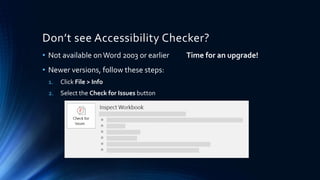
• Not available onWord 2003 or earlier Time for an upgrade!
• Newer versions, follow these steps:
1. Click File > Info
2. Select the Check for Issues button
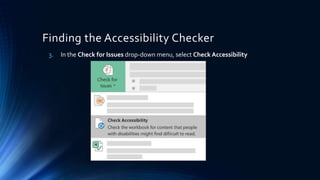
Finding the Accessibility Checker
3. In the Check for Issues drop-down menu, select Check Accessibility
Accessing the Accessibility Checker
4. The AccessibilityChecker task
pane appears next to your content
and shows the inspection results
5. To see information on why and
how to fix an issue, under
Inspection Results, select an
issue. Results appear under
Additional Information, and
you’re directed to the
inaccessible content in your
file.
Accessible Word Docs – Deep Dive
WebAIM
MicrosoftWord
CreatingAccessible Documents
https://webaim.org/techniques/word/
Repairing a Word Doc
DEMONSTRATION
Converting from Word to PDF
• File must be accessible – prior to conversion!
• Need Office 2010 or later
• creates a tagged PDF natively
• Must export correctly
• printing to PDF does not create an accessible file
Save as a tagged PDF from Word
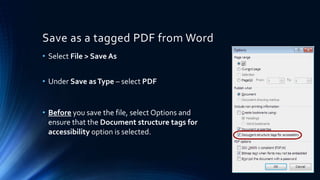
• Select File > Save As
• Under Save asType – select PDF
• Before you save the file, select Options and
ensure that the Document structure tags for
accessibility option is selected.
Converting from Word to PDF
DEMONSTRATION
Accessibility & PDFs
Evaluate, Repair, & Enhance PDFs
• Required:Adobe Acrobat Professional
• Tags
• TouchUp Reading Order
• Set AlternateText
• AccessibilityCheck
• ActionWizard
Creating Accessible PDFs in Acrobat XI
1. Run “Make Accessible” wizard
2. Add/Change tags
3. Check/edit reading order
Additional Information:
• Adobe XI: http://ncdae.org/resources/cheatsheets/pdf/acrobat-xi.pdf
• Additional: http://ncdae.org/resources/cheatsheets/
Video Tutorial
The National Center On Disability And Access To Education
Accessible PDFs – Deep Dive
WebAIM
PDF Accessibility
Converting Documents to PDF
https://webaim.org/techniques/acrobat/converting
PDF Accessibility
DEMONSTRATION
Conclusion

Introduction to Digital Accessibility

  • 1.
  • 2.
    Agenda • What isAccessibility? • Why it’s Important • Accessibility and Word • Accessibility and PDFs • Conclusion
  • 3.
  • 4.
    Definition: Accessible • Perthe U.S. Department of Education: A person with a disability should be able to... • Acquire the same information • Engage in the same interactions • Enjoy the same services
  • 5.
    Accessibility vs. Disability ACCESSIBILITY •General requirements for general population DISABILITY • Specific solution for a specific person
  • 6.
    Accessibility vs. Disability(Responsibility) ACCESSIBILITY • Responsibility: Everyone involved in the design, development or delivery of electronic or web-based content. DISABILITY • Responsibility: Disability Services Providers
  • 7.
    Accessibility vs. Disability(Examples) ACCESSIBILITY • Examples: • Academic & OnlineCourses • Clickers & E-Readers • Electronic Documents • Library Resources • Textbooks, etc. • Websites &Web-based Applications • Procured Goods & Services DISABILITY • Examples: • NoteTaker • ExtendedTime for Homework or Exams • Sign Language Interpreter
  • 8.
    ICT Accessibility • ICT= Information and CommunicationsTechnology • Refers to: Electronic & InformationTechnology, such as… • Academic & OnlineCourses • Certification Programs • Classroom & EmergingTechnologies • Computer Hardware & Software • Databases • Dynamic Rich Internet Applications • E-Commerce • Electronic Documents &Textbooks • Information Kiosks • Library Services • Multimedia • Registration Systems • Websites • Video &Web Conferencing systems, etc.
  • 9.
  • 10.
    Laws & Guidelines(in the US) • Americans with Disabilities Act (ADA) • Section 503 • Section 504 • Section 508 • Twenty-First Century Communications &Video Accessibility Act (CVAA) • Web Content Accessibility Guidelines (WCAG) 2.0 & 2.1
  • 11.
    Laws & Guidelines(around the World) • Digital Accessibility Laws Around the Globe include: • United NationsTreaties • Argentina • Australia & New Zealand • Brazil • Canada • Denmark • European Union • Holland (The Netherlands) • Iceland • India • Norway • Japan • Philippines • Sweden • United Kingdom • United States
  • 12.
    User that Benefitfrom Accessible Documents • Blind or visual impaired, low vision, color blind • Motor disabilities • Learning disabilities • Deaf or hard of hearing and require multimedia to be captioned • Aging Users • English language learners (ESOL)
  • 13.
    Main Features ofan Accessible Document • Document Structure and Navigation • Document is structured with Headings for navigation • Lists and tables are appropriately formatted • Images include alternative text descriptions • Document can be navigated in a logical reading order • Color and Contrast are adequate
  • 14.
  • 15.
    Built-In Tools • Headings •Lists and tables • Alternative text descriptions • Meaningful hyperlinks • Export accessible source documents to other formats (e.g. PDF) • Accessibility Checker
  • 16.
    Using: Word AccessibilityChecker 1. On the ribbon, click the Review tab 2. Click Check Accessibility 3. Review your results.You'll see a list of errors, warnings, and tips with how-to-fix recommendations for each.
  • 17.
    Don’t see AccessibilityChecker? • Not available onWord 2003 or earlier Time for an upgrade! • Newer versions, follow these steps: 1. Click File > Info 2. Select the Check for Issues button
  • 18.
    Finding the AccessibilityChecker 3. In the Check for Issues drop-down menu, select Check Accessibility
  • 19.
    Accessing the AccessibilityChecker 4. The AccessibilityChecker task pane appears next to your content and shows the inspection results 5. To see information on why and how to fix an issue, under Inspection Results, select an issue. Results appear under Additional Information, and you’re directed to the inaccessible content in your file.
  • 20.
    Accessible Word Docs– Deep Dive WebAIM MicrosoftWord CreatingAccessible Documents https://webaim.org/techniques/word/
  • 21.
    Repairing a WordDoc DEMONSTRATION
  • 22.
    Converting from Wordto PDF • File must be accessible – prior to conversion! • Need Office 2010 or later • creates a tagged PDF natively • Must export correctly • printing to PDF does not create an accessible file
  • 23.
    Save as atagged PDF from Word • Select File > Save As • Under Save asType – select PDF • Before you save the file, select Options and ensure that the Document structure tags for accessibility option is selected.
  • 24.
    Converting from Wordto PDF DEMONSTRATION
  • 25.
  • 26.
    Evaluate, Repair, &Enhance PDFs • Required:Adobe Acrobat Professional • Tags • TouchUp Reading Order • Set AlternateText • AccessibilityCheck • ActionWizard
  • 27.
    Creating Accessible PDFsin Acrobat XI 1. Run “Make Accessible” wizard 2. Add/Change tags 3. Check/edit reading order Additional Information: • Adobe XI: http://ncdae.org/resources/cheatsheets/pdf/acrobat-xi.pdf • Additional: http://ncdae.org/resources/cheatsheets/
  • 28.
    Video Tutorial The NationalCenter On Disability And Access To Education
  • 30.
    Accessible PDFs –Deep Dive WebAIM PDF Accessibility Converting Documents to PDF https://webaim.org/techniques/acrobat/converting
  • 31.
  • 32.

Editor's Notes

  • #5 Info at: http://www.amacusg.gatech.edu/wag/Accessibility “Accessible” means a person with a disability is afforded the opportunity to acquire the same information, engage in the same interactions, and enjoy the same services as a person without a disability in an equally effective and equally integrated manner, with substantially equivalent ease of use. The person with a disability must be able to obtain the information as fully, equally and independently as a person without a disability. Although this might not result in identical ease of use compared to that of persons without disabilities, it still must ensure equal opportunity to the educational benefits and opportunities afforded by the technology and equal treatment in the use of such technology.
  • #6 URL: http://www.amacusg.gatech.edu/wag/Accessibility Accessibility General requirements for general population Responsibility: Everyone involved in the design, development or delivery of electronic or web-based content. Examples: Academic and Online Courses (classroom technologies like clickers and e-readers; also electronic documents, library resources, online courses, textbooks, etc.); Websites and Web-based Applications; and Procured Goods and Services. Disability Accommodation Specific solution for a specific person Responsibility: Disability Services Providers Examples: Note Taker, Extended Time for Homework or Exams, Sign Language Interpreter.
  • #7 URL: http://www.amacusg.gatech.edu/wag/Accessibility Accessibility General requirements for general population Responsibility: Everyone involved in the design, development or delivery of electronic or web-based content. Examples: Academic and Online Courses (classroom technologies like clickers and e-readers; also electronic documents, library resources, online courses, textbooks, etc.); Webistes and Web-based Applications; and Procured Goods and Services. Disability Accommodation Specific solution for a specific person Responsibility: Disability Services Providers Examples: Note Taker, Extended Time for Homework or Exams, Sign Language Interpreter.
  • #8 URL: http://www.amacusg.gatech.edu/wag/Accessibility Accessibility General requirements for general population Responsibility: Everyone involved in the design, development or delivery of electronic or web-based content. Examples: Academic and Online Courses (classroom technologies like clickers and e-readers; also electronic documents, library resources, online courses, textbooks, etc.); Webistes and Web-based Applications; and Procured Goods and Services. Disability Accommodation Specific solution for a specific person Responsibility: Disability Services Providers Examples: Note Taker, Extended Time for Homework or Exams, Sign Language Interpreter.
  • #9 URL: http://www.amacusg.gatech.edu/wag/Accessibility Web or ICT Accessibility Information and Communications Technology (ICT) accessibility refers to electronic and information technology including (but not limited to) academic and online courses, certification programs, classroom and emerging technologies, computer hardware and software, databases, dynamic rich internet applications, e-commerce, electronic documents and textbooks, information kiosks, library services, multimedia, registration systems, web-based training modules, websites, video and web conferencing systems, etc.
  • #11 URL http://www.amacusg.gatech.edu/wag/Accessibility Americans with Disabilities Act (ADA) Civil Rights Law U.S. Department of Justice (DoJ), Office of Civil Rights (OCR) Covers places of public accommodation Courts have ruled intent of ADA includes the internet Section 503 Civil Rights Law Rehabilitation Act, as amended U.S. Department of Labor (DoL) Refrain from discrimination in employment, including contractors and subcontractors hired to do work for you Section 504 Civil Rights Law U.S. Department of Education (DoE) Applies to colleges, universities, trade schools No otherwise qualified individual with a disability shall (by reason of his/her disability) be excluded from participation in, denied benefits of, or be subject to discrimination under any program or activity Section 508 Rehabilitation Act Amendments of 1998 U.S. Access Board Electronic, information and communications technology must be equally accessible to people with and without disabilities Section 508 Refresh underway; expected to "incorporate by reference" WCAG 2.0 Twenty-First Century Communications and Video Accessibility Act (CVAA) Telecommunications law Communications Act of 1934, updated for 21st century technologies Federal Communications Commission (FCC) Video previously broadcast on television with closed captions must also be closed captioned when delivered over the internet Web Content Accessibility Guidelines (WCAG) 2.0 International guidelines, best practices World Wide Web Consortium (W3C), Web Accessibility Initiative (WAI) Explains how to make web content more accessible to people with disabilities
  • #12 URL http://www.amacusg.gatech.edu/wag/Accessibility Digital Accessibility Laws Around the Globe, including: UN Treaties Argentina Australia and New Zealand Brazil Canada Denmark European Union Holland (The Netherlands) Iceland India Japan Netherlands (see Holland) Philippines United Kingdom United States
  • #13 Resource: http://accessga.org/wiki/images/b/b0/Creating_Accessible_Documents_pdf.pdf Slide #18
  • #14 Resource: http://accessga.org/wiki/images/b/b0/Creating_Accessible_Documents_pdf.pdf Slide #19
  • #16 URL: http://accessga.org/wiki/images/b/b0/Creating_Accessible_Documents_pdf.pdf Slide # 20
  • #17 URL: https://support.office.com/en-us/article/use-the-accessibility-checker-to-find-accessibility-issues-a16f6de0-2f39-4a2b-8bd8-5ad801426c7f?ui=en-US&rs=en-US&ad=US
  • #18 URL: https://support.office.com/en-us/article/use-the-accessibility-checker-to-find-accessibility-issues-a16f6de0-2f39-4a2b-8bd8-5ad801426c7f?ui=en-US&rs=en-US&ad=US
  • #19 URL: https://support.office.com/en-us/article/use-the-accessibility-checker-to-find-accessibility-issues-a16f6de0-2f39-4a2b-8bd8-5ad801426c7f?ui=en-US&rs=en-US&ad=US
  • #20 URL: https://support.office.com/en-us/article/use-the-accessibility-checker-to-find-accessibility-issues-a16f6de0-2f39-4a2b-8bd8-5ad801426c7f?ui=en-US&rs=en-US&ad=US
  • #23 URL: https://webaim.org/techniques/acrobat/converting#word 1. The file must be accessible. That includes providing alternative text for images, proper headings, appropriate link text, etc. For more information, read our tutorial on Microsoft Word. 2. Office 2000-2003 users must have Acrobat installed, as well as the add-in. Office 2007 users must have either Acrobat or the Microsoft PDF add-in installed. Office 2010 users can create tagged PDF files natively or with the Adobe add-in. 3. The file must be exported correctly. If a file is created by printing to PDF, it will not be correctly tagged.
  • #24 URL: https://webaim.org/techniques/acrobat/converting#word Save as tagged PDF natively Word 2010 allows you to create tagged PDF files without installing Acrobat. If you want to verify the accessibility of the PDF or edit the tags that are created, you will still need Acrobat Professional. To convert to PDF using the Microsoft add-in, Select File > Save As, and under Save as type: select PDF. Before you save the file, select Options and ensure that the Document structure tags for accessibility option is selected.
  • #27 URL: https://webaim.org/techniques/acrobat/acrobat
  • #28 URL: http://ncdae.org/resources/cheatsheets/acrobat-xi.php
  • #29 Creating Accessible PDF documents in Adobe Acrobat XI - https://www.youtube.com/watch?v=HOVORgxHHGo
  • #30 LiveSlide Site https://www.youtube.com/watch?v=HOVORgxHHGo
  • #31 URL: https://webaim.org/techniques/acrobat/converting