Introduction to Branding SharePointK.Mohamed FaizalSharePointPROs.SG20th August 2009email 		kmdfaizal@yahoo.com / kmfaizal@ncs.com.sgIM 		kmfaizal (yahoo)Tech Blog 	 	http://faizal-comeacross.blogspot.com/
AgendaBranding & Design processGathering RequirementsInformation ArchitectureSitemap & Navigation WireframesTools for building the designDevelopmentMaster page vs. theme Demo ThemeMaster Page
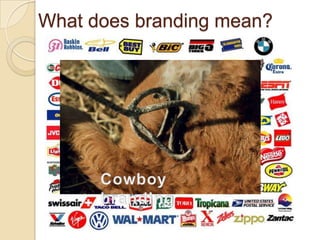
What does branding mean?Cowboy branding
What does branding mean?Branding: The act of building a specific image or identity that people recognize in relation to your companyWebsite Branding: The colors, fonts, logos, and supporting graphics that make up the general look and feel of a corporate website.Branding for SharePoint: Master pages, page layouts, CSS, web parts, XSLT, images, etc.
WSS vs MOSSWindows SharePoint Services v3 or WSS is the free version of SharePointFocused on collaboration with documents and light editing of web pagesMicrosoft Office SharePoint Server 2007 (MOSS) is the licensed version of SharePointIncludes among other capabilities the Publishing FeatureMuch better platform for creating a strongly branded web site
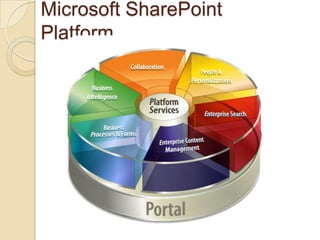
Microsoft SharePoint Platform
When come to SharePoint Design
How far can SharePoint Go?
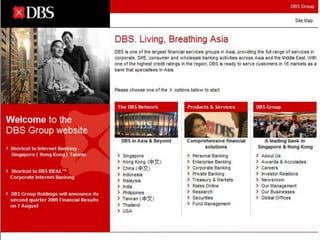
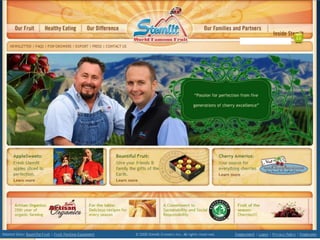
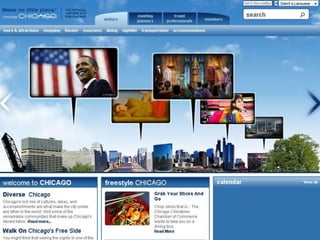
How far can SharePoint Go?100 Best SharePoint Websites http://www.wssdemo.com/Pages/topwebsites.aspx
How far can SharePoint Go?
Branding & Design Process
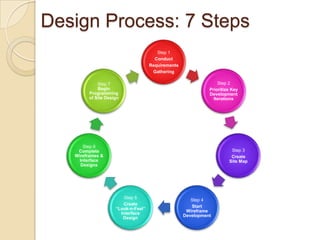
Design Process: 7 Steps
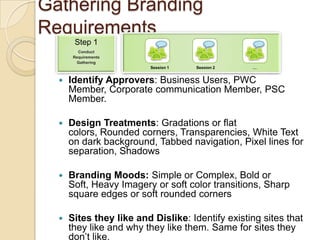
Gathering Branding RequirementsStep 1ConductRequirementsGatheringSession 1Session 2…Identify Approvers: Business Users, PWC Member, Corporate communication Member, PSC Member.Design Treatments: Gradations or flat colors, Rounded corners, Transparencies, White Text on dark background, Tabbed navigation, Pixel lines for separation, ShadowsBranding Moods: Simple or Complex, Bold or Soft, Heavy Imagery or soft color transitions, Sharp square edges or soft rounded cornersSites they like and Dislike: Identify existing sites that they like and why they like them. Same for sites they don’t like.
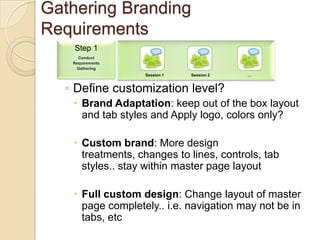
Gathering Branding RequirementsStep 1ConductRequirementsGatheringSession 1Session 2…Define customization level?Brand Adaptation: keep out of the box layout and tab styles and Apply logo, colors only? Custom brand: More design treatments, changes to lines, controls, tab styles.. stay within master page layout Full custom design: Change layout of master page completely.. i.e. navigation may not be in tabs, etc
Gathering Branding RequirementsStep 1ConductRequirementsGatheringSession 1Session 2…Full portal modification: All sites, My Sites, and Administration pageSites only: Themes or alternate style sheetsPage Only: Alternate style sheets, Content editor web part <style></style>)
Gathering Branding RequirementsStep 1ConductRequirementsGatheringSession 1Session 2…Pre-existing Designs and Style GuidesWebsites
Colors
Fonts
Imagery
Layout
Logos
Etc.Gathering Branding RequirementsStep 1ConductRequirementsGatheringSession 1Session 2…Browser RequirementsSite Function: Liquid versus Fix widthWidth: Smallest Size before Scroll. (1024 X 768)Browser Support: IE, Fire Fox, Safari, Opera, Google ChromePrint: Custom style for printing from siteMobile support: View and download content from PDA, Smartphone, Etc.
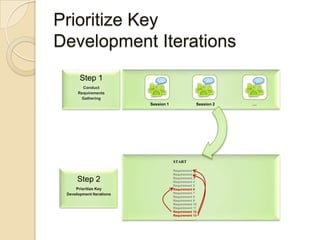
Prioritize KeyDevelopment IterationsStep 1ConductRequirementsGatheringSession 1Session 2…STARTRequirement 1Requirement 2Requirement 3Requirement 4Requirement 5Requirement 6Requirement 7Requirement 8Requirement 9Requirement 10Requirement 11Requirement 12Requirement 13Step 2Prioritize KeyDevelopment Iterations
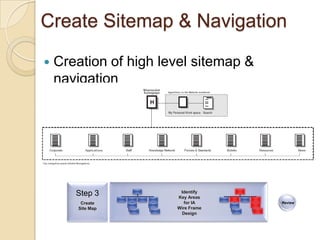
Create Sitemap & NavigationCreation of high level sitemap & navigationReviewStep 3Create Site MapIdentify Key Areas for IAWire FrameDesign
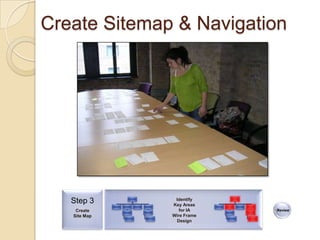
Create Sitemap & NavigationReviewStep 3Create Site MapIdentify Key Areas for IAWire FrameDesign
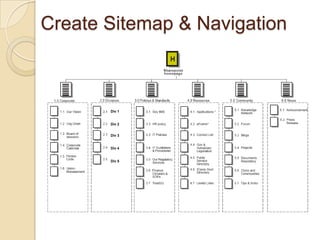
Create Sitemap & NavigationDiv 1Div 2Div 3Div 4Div 5
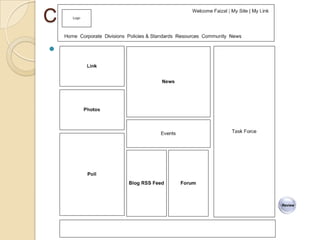
Create WireframesCreation of WireframesReviewStep 4StartWireframeDevelopmentWireframes range from high levelb/w navigation and page sketches to detailedpage layouts.
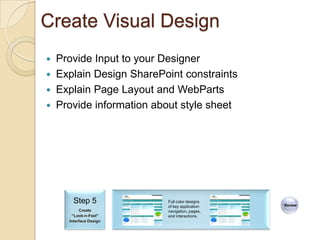
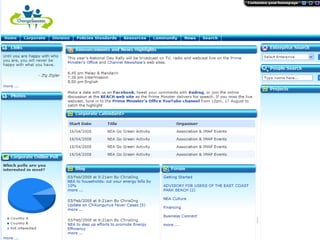
Create Visual DesignProvide Input to your Designer Explain Design SharePoint constraintsExplain Page Layout and WebPartsProvide information about style sheetReviewStep 5Create“Look-n-Feel” Interface DesignFull color designsof key application navigation, pages, and interactions.
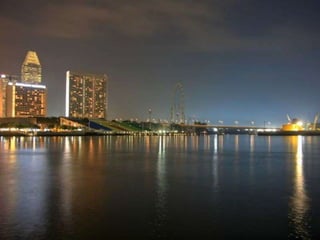
Create Visual DesignColorful background Image Fun factor We want something that's not too 'boxy' & have the wow factor to excite usersWe need to have more energy and be more exciting. Mix all elements of air, water, land, energy in to your design
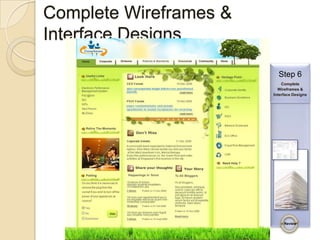
Complete Wireframes & Interface DesignsStep 6Complete Wireframes & Interface DesignsReview
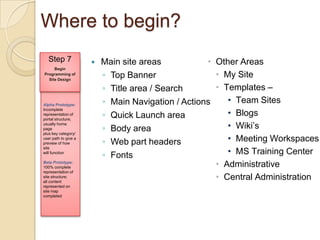
Where to begin?Step 7Begin Programming of Site DesignMain site areasTop BannerTitle area / SearchMain Navigation / ActionsQuick Launch areaBody areaWeb part headersFontsOther Areas
My Site
Templates –
Team Sites
Blogs
Wiki’s
Meeting Workspaces
MS Training Center
Administrative
Central AdministrationAlpha Prototype:Incompleterepresentation ofportal structure;usually home pageplus key category/user path to give apreview of how sitewill functionBeta Prototype:100% completerepresentation of site structure; all contentrepresented onsite map completed
How to begin?
Tools for building the designComplexity
Different type of SharePoint Branding MethodsThemesMaster PagesPage LayoutsSharePoint Page Elements Field Controls, Web Part Zones, Web Parts, etc.Almost everything relies on Cascading Style Sheets
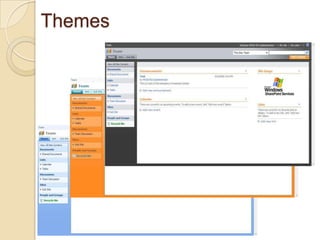
ThemesThink of it as painting the walls You can only change:Background imagesColorsFontsHide certain elementsMake minor movements and size changesThemes can style the Application pages (those with _layouts in the URL)
Themes
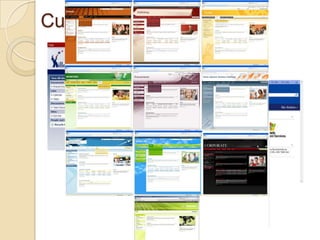
Custom Themes
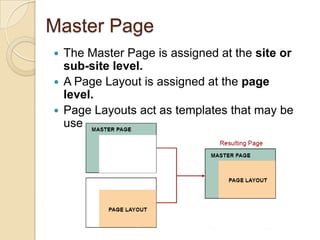
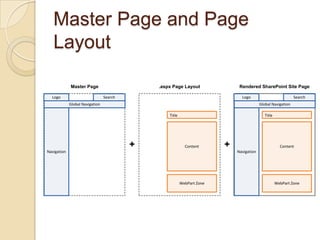
Master PagesMaster pages allow you to change the look and feel for an entire site simply by making changes to a single fileUnlike themes, Master Pages allow full control over the HTML of the pageCan’t have a SharePoint site without it –even if you use a theme!
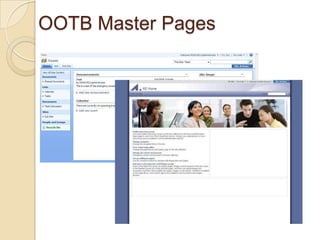
OOTB Master Pages
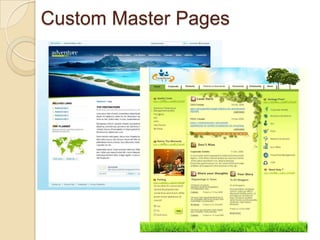
Custom Master Pages
Master Page vs. ThemeWhich option is best for your environment?
Master Page vs. ThemeThemesIf you just want to change colors, fonts, background images then go with a theme. Master PagesIf you want to move elements around on the page or change the HTML you have to go Master Page.
Implementation Method OptionsCustom ThemeCreate a custom theme and apply it to each site.Pros:Easy to applyAbility to have multiple brands within environmentCons:This approach is defined per siteCannot be pushed across all sitesIf modified theme needs to be removed and then reapplied
Why Create a Custom ThemeThe OOTB themes have bright colors that rarely match with corporate brandsCheck out the new MS themes:http://faizal-comeacross.blogspot.com/2009/04/10-sharepoint-themes-for-free.html
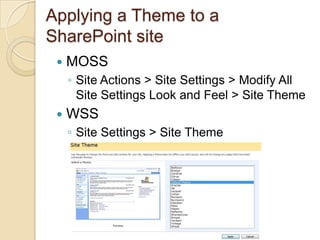
Applying a Theme to a SharePoint siteMOSSSite Actions > Site Settings > Modify All Site Settings Look and Feel > Site ThemeWSSSite Settings > Site Theme
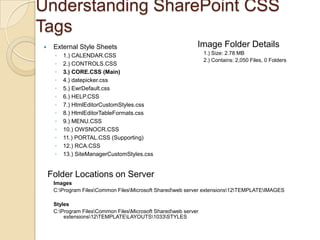
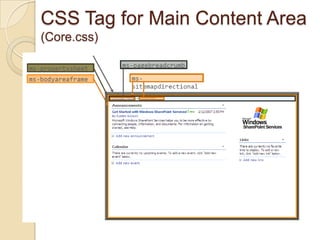
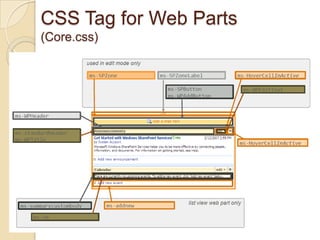
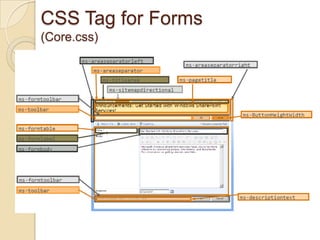
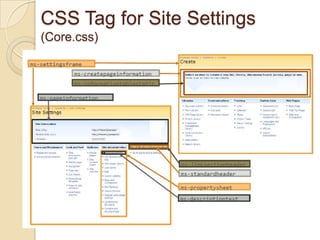
Understanding SharePoint CSS TagsImage Folder Details1.) Size: 2.78 MB2.) Contains: 2,050 Files, 0 FoldersExternal Style Sheets1.) CALENDAR.CSS2.) CONTROLS.CSS3.) CORE.CSS (Main)4.) datepicker.css5.) EwrDefault.css6.) HELP.CSS7.) HtmlEditorCustomStyles.css8.) HtmlEditorTableFormats.css9.) MENU.CSS10.) OWSNOCR.CSS11.) PORTAL.CSS (Supporting)12.) RCA.CSS13.) SiteManagerCustomStyles.cssFolder Locations on ServerImagesC:\Program Files\Common Files\Microsoft Shared\web server extensions\12\TEMPLATE\IMAGESStylesC:\Program Files\Common Files\Microsoft Shared\web server extensions\12\TEMPLATE\LAYOUTS\1033\STYLES
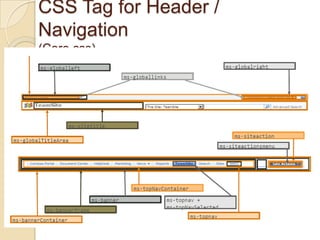
CSS Tag for Header / Navigation (Core.css)
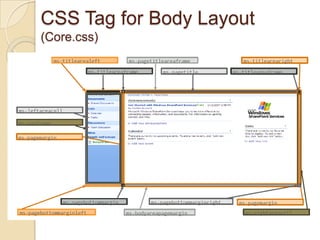
CSS Tag for Body Layout(Core.css)
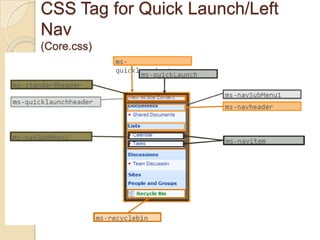
CSS Tag for Quick Launch/Left Nav(Core.css)
CSS Tag for Main Content Area(Core.css)
CSS Tag for Web Parts (Core.css)
CSS Tag for Forms (Core.css)
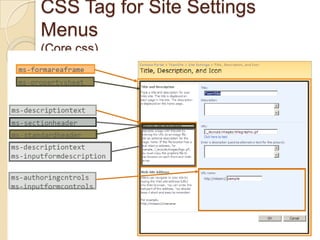
CSS Tag for Site Settings (Core.css)
CSS Tag for Site Settings Menus (Core.css)
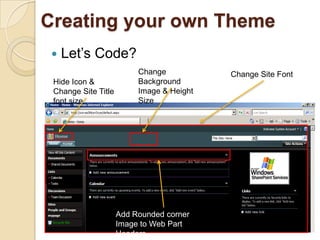
Creating your own ThemeLet’s Code? Change Background Image & Height SizeChange Site Font Hide Icon & Change Site Title font sizeAdd Rounded corner Image to Web Part Headers
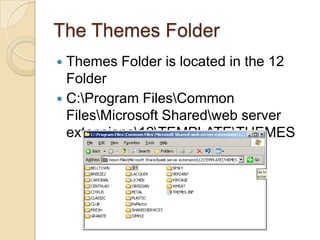
The Themes FolderThemes Folder is located in the 12 FolderC:\Program Files\Common Files\Microsoft Shared\web server extensions\12\TEMPLATE\THEMES
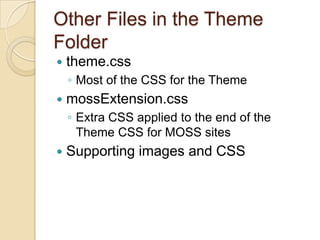
Other Files in the Theme Foldertheme.cssMost of the CSS for the ThememossExtension.cssExtra CSS applied to the end of the Theme CSS for MOSS sitesSupporting images and CSS
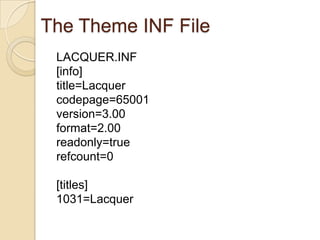
The Theme INF FileLACQUER.INF[info]title=Lacquercodepage=65001version=3.00format=2.00readonly=truerefcount=0[titles]1031=Lacquer
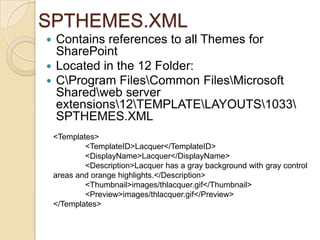
SPTHEMES.XML Contains references to all Themes for SharePointLocated in the 12 Folder:C\Program Files\Common Files\Microsoft Shared\web server extensions\12\TEMPLATE\LAYOUTS\1033\SPTHEMES.XML<Templates>	<TemplateID>Lacquer</TemplateID>	<DisplayName>Lacquer</DisplayName>	<Description>Lacquer has a gray background with gray control areas and orange highlights.</Description>	<Thumbnail>images/thlacquer.gif</Thumbnail>	<Preview>images/thlacquer.gif</Preview></Templates>
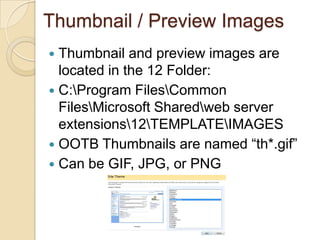
Thumbnail / Preview ImagesThumbnail and preview images are located in the 12 Folder:C:\Program Files\Common Files\Microsoft Shared\web server extensions\12\TEMPLATE\IMAGESOOTB Thumbnails are named “th*.gif”Can be GIF, JPG, or PNG
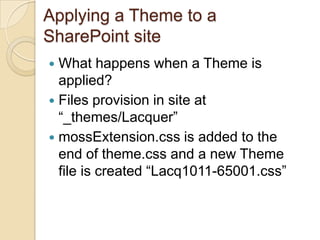
Applying a Theme to a SharePoint siteWhat happens when a Theme is applied?Files provision in site at “_themes/Lacquer”mossExtension.css is added to the end of theme.css and a new Theme file is created “Lacq1011-65001.css”
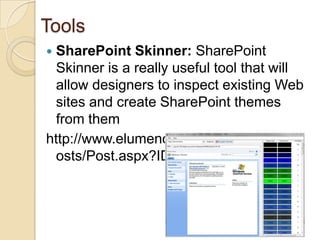
ToolsSharePoint Skinner: SharePoint Skinner is a really useful tool that will allow designers to inspect existing Web sites and create SharePoint themes from themhttp://www.elumenotion.com/Blog/Lists/Posts/Post.aspx?ID=4
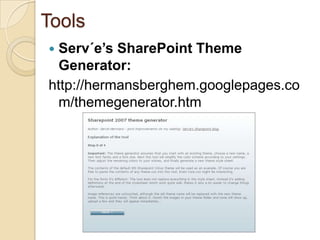
ToolsServ´e’s SharePoint Theme Generator:http://hermansberghem.googlepages.com/themegenerator.htm

Introduction to Branding SharePoint

  • 1.
    Introduction to BrandingSharePointK.Mohamed FaizalSharePointPROs.SG20th August 2009email kmdfaizal@yahoo.com / kmfaizal@ncs.com.sgIM kmfaizal (yahoo)Tech Blog http://faizal-comeacross.blogspot.com/
  • 2.
    AgendaBranding & DesignprocessGathering RequirementsInformation ArchitectureSitemap & Navigation WireframesTools for building the designDevelopmentMaster page vs. theme Demo ThemeMaster Page
  • 3.
    What does brandingmean?Cowboy branding
  • 4.
    What does brandingmean?Branding: The act of building a specific image or identity that people recognize in relation to your companyWebsite Branding: The colors, fonts, logos, and supporting graphics that make up the general look and feel of a corporate website.Branding for SharePoint: Master pages, page layouts, CSS, web parts, XSLT, images, etc.
  • 5.
    WSS vs MOSSWindowsSharePoint Services v3 or WSS is the free version of SharePointFocused on collaboration with documents and light editing of web pagesMicrosoft Office SharePoint Server 2007 (MOSS) is the licensed version of SharePointIncludes among other capabilities the Publishing FeatureMuch better platform for creating a strongly branded web site
  • 6.
  • 7.
    When come toSharePoint Design
  • 8.
    How far canSharePoint Go?
  • 9.
    How far canSharePoint Go?100 Best SharePoint Websites http://www.wssdemo.com/Pages/topwebsites.aspx
  • 10.
    How far canSharePoint Go?
  • 11.
    How far canSharePoint Go?
  • 12.
  • 13.
  • 14.
    Gathering Branding RequirementsStep1ConductRequirementsGatheringSession 1Session 2…Identify Approvers: Business Users, PWC Member, Corporate communication Member, PSC Member.Design Treatments: Gradations or flat colors, Rounded corners, Transparencies, White Text on dark background, Tabbed navigation, Pixel lines for separation, ShadowsBranding Moods: Simple or Complex, Bold or Soft, Heavy Imagery or soft color transitions, Sharp square edges or soft rounded cornersSites they like and Dislike: Identify existing sites that they like and why they like them. Same for sites they don’t like.
  • 15.
    Gathering Branding RequirementsStep1ConductRequirementsGatheringSession 1Session 2…Define customization level?Brand Adaptation: keep out of the box layout and tab styles and Apply logo, colors only? Custom brand: More design treatments, changes to lines, controls, tab styles.. stay within master page layout Full custom design: Change layout of master page completely.. i.e. navigation may not be in tabs, etc
  • 16.
    Gathering Branding RequirementsStep1ConductRequirementsGatheringSession 1Session 2…Full portal modification: All sites, My Sites, and Administration pageSites only: Themes or alternate style sheetsPage Only: Alternate style sheets, Content editor web part <style></style>)
  • 17.
    Gathering Branding RequirementsStep1ConductRequirementsGatheringSession 1Session 2…Pre-existing Designs and Style GuidesWebsites
  • 18.
  • 19.
  • 20.
  • 21.
  • 22.
  • 23.
    Etc.Gathering Branding RequirementsStep1ConductRequirementsGatheringSession 1Session 2…Browser RequirementsSite Function: Liquid versus Fix widthWidth: Smallest Size before Scroll. (1024 X 768)Browser Support: IE, Fire Fox, Safari, Opera, Google ChromePrint: Custom style for printing from siteMobile support: View and download content from PDA, Smartphone, Etc.
  • 24.
    Prioritize KeyDevelopment IterationsStep1ConductRequirementsGatheringSession 1Session 2…STARTRequirement 1Requirement 2Requirement 3Requirement 4Requirement 5Requirement 6Requirement 7Requirement 8Requirement 9Requirement 10Requirement 11Requirement 12Requirement 13Step 2Prioritize KeyDevelopment Iterations
  • 25.
    Create Sitemap &NavigationCreation of high level sitemap & navigationReviewStep 3Create Site MapIdentify Key Areas for IAWire FrameDesign
  • 26.
    Create Sitemap &NavigationReviewStep 3Create Site MapIdentify Key Areas for IAWire FrameDesign
  • 27.
    Create Sitemap &NavigationDiv 1Div 2Div 3Div 4Div 5
  • 28.
    Create WireframesCreation ofWireframesReviewStep 4StartWireframeDevelopmentWireframes range from high levelb/w navigation and page sketches to detailedpage layouts.
  • 29.
    Create Visual DesignProvideInput to your Designer Explain Design SharePoint constraintsExplain Page Layout and WebPartsProvide information about style sheetReviewStep 5Create“Look-n-Feel” Interface DesignFull color designsof key application navigation, pages, and interactions.
  • 31.
    Create Visual DesignColorfulbackground Image Fun factor We want something that's not too 'boxy' & have the wow factor to excite usersWe need to have more energy and be more exciting. Mix all elements of air, water, land, energy in to your design
  • 33.
    Complete Wireframes &Interface DesignsStep 6Complete Wireframes & Interface DesignsReview
  • 35.
    Where to begin?Step7Begin Programming of Site DesignMain site areasTop BannerTitle area / SearchMain Navigation / ActionsQuick Launch areaBody areaWeb part headersFontsOther Areas
  • 36.
  • 37.
  • 38.
  • 39.
  • 40.
  • 41.
  • 42.
  • 43.
  • 44.
    Central AdministrationAlpha Prototype:Incompleterepresentationofportal structure;usually home pageplus key category/user path to give apreview of how sitewill functionBeta Prototype:100% completerepresentation of site structure; all contentrepresented onsite map completed
  • 45.
  • 46.
    Tools for buildingthe designComplexity
  • 47.
    Different type ofSharePoint Branding MethodsThemesMaster PagesPage LayoutsSharePoint Page Elements Field Controls, Web Part Zones, Web Parts, etc.Almost everything relies on Cascading Style Sheets
  • 48.
    ThemesThink of itas painting the walls You can only change:Background imagesColorsFontsHide certain elementsMake minor movements and size changesThemes can style the Application pages (those with _layouts in the URL)
  • 49.
  • 50.
  • 51.
    Master PagesMaster pagesallow you to change the look and feel for an entire site simply by making changes to a single fileUnlike themes, Master Pages allow full control over the HTML of the pageCan’t have a SharePoint site without it –even if you use a theme!
  • 52.
  • 53.
  • 54.
    Master Page vs.ThemeWhich option is best for your environment?
  • 55.
    Master Page vs.ThemeThemesIf you just want to change colors, fonts, background images then go with a theme. Master PagesIf you want to move elements around on the page or change the HTML you have to go Master Page.
  • 56.
    Implementation Method OptionsCustomThemeCreate a custom theme and apply it to each site.Pros:Easy to applyAbility to have multiple brands within environmentCons:This approach is defined per siteCannot be pushed across all sitesIf modified theme needs to be removed and then reapplied
  • 57.
    Why Create aCustom ThemeThe OOTB themes have bright colors that rarely match with corporate brandsCheck out the new MS themes:http://faizal-comeacross.blogspot.com/2009/04/10-sharepoint-themes-for-free.html
  • 58.
    Applying a Themeto a SharePoint siteMOSSSite Actions > Site Settings > Modify All Site Settings Look and Feel > Site ThemeWSSSite Settings > Site Theme
  • 59.
    Understanding SharePoint CSSTagsImage Folder Details1.) Size: 2.78 MB2.) Contains: 2,050 Files, 0 FoldersExternal Style Sheets1.) CALENDAR.CSS2.) CONTROLS.CSS3.) CORE.CSS (Main)4.) datepicker.css5.) EwrDefault.css6.) HELP.CSS7.) HtmlEditorCustomStyles.css8.) HtmlEditorTableFormats.css9.) MENU.CSS10.) OWSNOCR.CSS11.) PORTAL.CSS (Supporting)12.) RCA.CSS13.) SiteManagerCustomStyles.cssFolder Locations on ServerImagesC:\Program Files\Common Files\Microsoft Shared\web server extensions\12\TEMPLATE\IMAGESStylesC:\Program Files\Common Files\Microsoft Shared\web server extensions\12\TEMPLATE\LAYOUTS\1033\STYLES
  • 60.
    CSS Tag forHeader / Navigation (Core.css)
  • 61.
    CSS Tag forBody Layout(Core.css)
  • 62.
    CSS Tag forQuick Launch/Left Nav(Core.css)
  • 63.
    CSS Tag forMain Content Area(Core.css)
  • 64.
    CSS Tag forWeb Parts (Core.css)
  • 65.
    CSS Tag forForms (Core.css)
  • 66.
    CSS Tag forSite Settings (Core.css)
  • 67.
    CSS Tag forSite Settings Menus (Core.css)
  • 68.
    Creating your ownThemeLet’s Code? Change Background Image & Height SizeChange Site Font Hide Icon & Change Site Title font sizeAdd Rounded corner Image to Web Part Headers
  • 69.
    The Themes FolderThemesFolder is located in the 12 FolderC:\Program Files\Common Files\Microsoft Shared\web server extensions\12\TEMPLATE\THEMES
  • 70.
    Other Files inthe Theme Foldertheme.cssMost of the CSS for the ThememossExtension.cssExtra CSS applied to the end of the Theme CSS for MOSS sitesSupporting images and CSS
  • 71.
    The Theme INFFileLACQUER.INF[info]title=Lacquercodepage=65001version=3.00format=2.00readonly=truerefcount=0[titles]1031=Lacquer
  • 72.
    SPTHEMES.XML Contains referencesto all Themes for SharePointLocated in the 12 Folder:C\Program Files\Common Files\Microsoft Shared\web server extensions\12\TEMPLATE\LAYOUTS\1033\SPTHEMES.XML<Templates> <TemplateID>Lacquer</TemplateID> <DisplayName>Lacquer</DisplayName> <Description>Lacquer has a gray background with gray control areas and orange highlights.</Description> <Thumbnail>images/thlacquer.gif</Thumbnail> <Preview>images/thlacquer.gif</Preview></Templates>
  • 73.
    Thumbnail / PreviewImagesThumbnail and preview images are located in the 12 Folder:C:\Program Files\Common Files\Microsoft Shared\web server extensions\12\TEMPLATE\IMAGESOOTB Thumbnails are named “th*.gif”Can be GIF, JPG, or PNG
  • 74.
    Applying a Themeto a SharePoint siteWhat happens when a Theme is applied?Files provision in site at “_themes/Lacquer”mossExtension.css is added to the end of theme.css and a new Theme file is created “Lacq1011-65001.css”
  • 75.
    ToolsSharePoint Skinner: SharePointSkinner is a really useful tool that will allow designers to inspect existing Web sites and create SharePoint themes from themhttp://www.elumenotion.com/Blog/Lists/Posts/Post.aspx?ID=4
  • 76.
    ToolsServ´e’s SharePoint ThemeGenerator:http://hermansberghem.googlepages.com/themegenerator.htm

Editor's Notes

  • #10 I have taken some samples from Ian Morrish’s WSS Demo Top 100 Best Looking Public SharePoint sites. My intention of putting these slides in is to give you a feeling that anything is possible. However, it’s not to say that every sharepoint site should have a wiz and bang effect.It really depends on the user base and how the site is going to be used.You would not want to put a 600px high header in a corporate internal website for 120 thousand users who really just care about getting access to their project documents.
  • #11 It is quite impressive seeing the diversity and complexity on some of these designs.I have heard many times from my clients saying that they don’t want SharePoint to look like SharePoint…Does this mean that Microsoft dropped the ball when it comes to design?
  • #14 The design process can be broken out into 7 different steps. There will be some cases where there will be some overlap but in most cases each step is dependent on the previous steps completion and sign off.Within each one of these steps I have identified some of the roles that help contribute towards them.Within the first step is gathering the system requirements, visual design guidelines, tone, and the creation of the creative brief.In step 2 the requirements are prioritize and identified into development iterations.In step 3 the IA will build out the site mapIn step 4 the IA will create wireframes starting with the high level templates and functional areas.In step 5 the visual designer will produce visual design comps per the requirements of the creative brief.In step 6 the visual designer will take those approved wireframes and combine the visual design into those templates.In step 7 the front end developer will take the final approved visual designs and start building out the CSS, Images, and Master pages to support the design.
  • #15 The first thing you need to think about when trying to identify a new brand is know your audience and who will be doing the approvals. Get them on your schedule for reviews early and often.I have used a few check list approaches to identifying what someone wants their site to look like. I usually approach it from a few different angles.Ask them about design treatments, what kind of mood would be appropriate, and if there are any existing sites out there that they like and don’t like. This will help guide you down a path in the right direction.
  • #16 The next thing that you need to understand is the scope of the design. Is it a brand adaption of their current public site into their internal site?Is it a quick skin of SharePoint but no major overhaul to the master page?Or are they wanting to make SharePoint not look like SharePoint and create a visual design like some of the examples that I showed earlier?
  • #17 The next thing that you need to understand is the depth of the customizationsWill the changes be made for all sites and pages, just within 1 site collection or just within 1 page.Based on scale, it will effect which design implementation will be used.
  • #18 What you will also want to make sure you review is any current styleguides, logos, websites, images, etc.
  • #19 The last type of requirement that you will need to understand is browser support.Will the site be a fixed with or will it expand with different monitor sizes?What is the smallest supported size before scroll bars will be visible?What browsers will be supportedWill there be a need for any extra styling for print requirements?And will the site support mobile devices beyond the in box features of SharePoint
  • #31 I myself like using the top down approach. Start with the main sections of the page and work your way down.If it’s a global implementation make sure you test out all site templates including meeting workspaces and My Site’s.
  • #33 The main tool that you will use to customize your CSS and your master pages is SharePoint Designer. Since it’s free now, you have no excuse.The more complex the change the more you will need to lean towards Visual StudioSome changes can even be made within the UI of SharePoint.
  • #43 Themes are good in certain places, they get applied to individual sites but cannot be distributed globally.
  • #79 IE Developer toolbar is your best friend when building out CSS. It has an option to hover over elements on the page and as you click it shows you the classes and id’s for that element. Firefox also has this option so use the tool you most feel comfortable with.I remember back in the day when I had to view the source of the page to find classes, well no more. Download it and use it, I guarantee you will love it. I did hear that IE8 has this built in but for some reason they stripped out some of its functions…
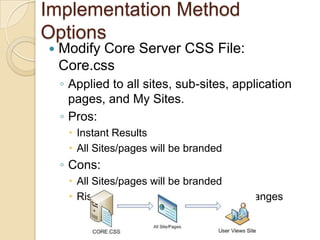
  • #80 I am going to go through these pretty quickly, but I wanted to highlight some of the pro’s and Con’s for different types of implementation methods.By Modifying the core CSS file on the server it’s the quickest and easiest way to brand all sites and pages for a SharePoint farm.A few primary issues is that its farm wide and there is risk’s of it being overridden during migration or service pack updates.
  • #82 By adding a reference to a alternate CSS file within a server side master page such as default.master you will get the global changes but also have the same risks as the previous implementation.
  • #83 If you are creating custom site definitions you could attached a alternate CSS file to those templates.If you do go this route not all system pages will be affected.
  • #84 This is probably the most supported method by Microsoft but it does have its drawbacksWithin each site collection the master page will have to be uploaded and applied. Some system pages with the /_layouts will not have branding applied.
  • #85 The Alternate style sheet method is helpful if you need to make small changes to a sites design But as new sites are created this does not get applied automatically to new sites.
  • #86 The last method has the least footprint on the system. If you add style tags within a content editor you can simply modify the style of the elements on that particular page.
  • #87 Here is a simple diagram that I created explaining the process of feature stapling CSS for visibility on all sites and system pages.
  • #88 This page just shows the list of CSS files, Locations for the CSS and Images on the server, and image folder sizes.