SMU Classification: Restricted
Introduction to Bloomberg
Redzuan Abdullah
Research Librarian, Business
September 2019
SMU Classification: Restricted
What is Bloomberg?
• A financial, news, economic database
• “Real-time” information – 15 min delay for
academic subscribers (that means us)
• Scope
– Global coverage
– Includes news and analyst reports
SMU Classification: Restricted
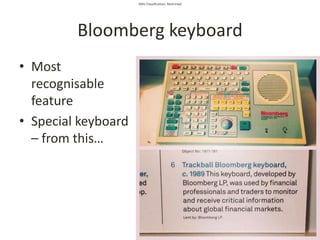
Bloomberg keyboard
• Most
recognisable
feature
• Special keyboard
– from this…
SMU Classification: Restricted
Bloomberg keyboard
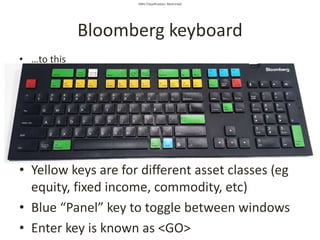
• …to this
• Yellow keys are for different asset classes (eg
equity, fixed income, commodity, etc)
• Blue “Panel” key to toggle between windows
• Enter key is known as <GO>
SMU Classification: Restricted
Where to start?
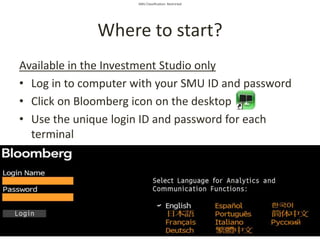
Available in the Investment Studio only
• Log in to computer with your SMU ID and password
• Click on Bloomberg icon on the desktop
• Use the unique login ID and password for each
terminal
SMU Classification: Restricted
Where to start?
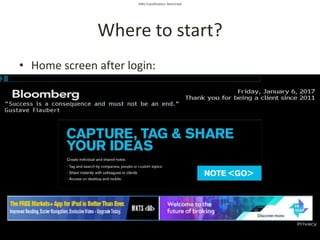
• Home screen after login:
SMU Classification: Restricted
Home Screen
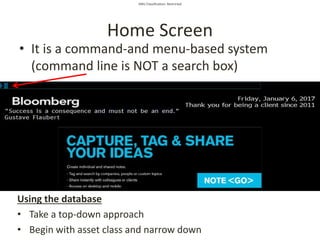
• It is a command-and menu-based system
(command line is NOT a search box)
Using the database
• Take a top-down approach
• Begin with asset class and narrow down
SMU Classification: Restricted
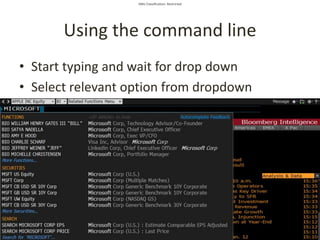
Using the command line
• Start typing and wait for drop down
• Select relevant option from dropdown
SMU Classification: Restricted
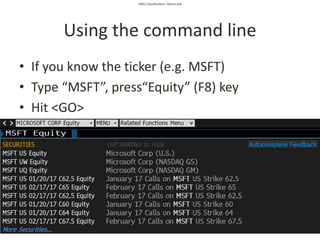
Using the command line
• If you know the ticker (e.g. MSFT)
• Type “MSFT”, press“Equity” (F8) key
• Hit <GO>
SMU Classification: Restricted
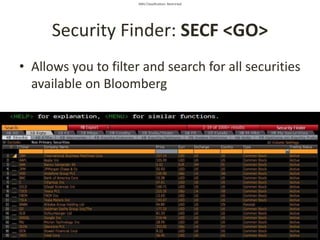
Security Finder: SECF <GO>
• Allows you to filter and search for all securities
available on Bloomberg
SMU Classification: Restricted
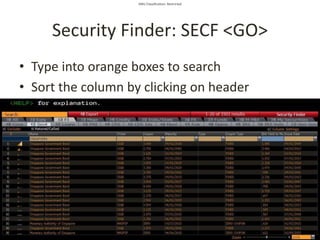
Security Finder: SECF <GO>
• Type into orange boxes to search
• Sort the column by clicking on header
SMU Classification: Restricted
1. FIND COMPANY INFORMATION
SMU Classification: Restricted
Company information
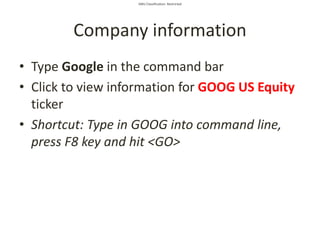
• Type Google in the command bar
• Click to view information for GOOG US Equity
ticker
• Shortcut: Type in GOOG into command line,
press F8 key and hit <GO>
SMU Classification: Restricted
Company information
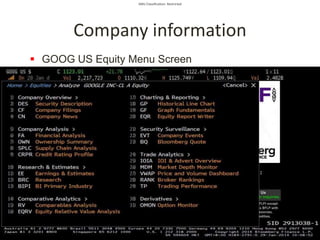
 GOOG US Equity Menu Screen
SMU Classification: Restricted
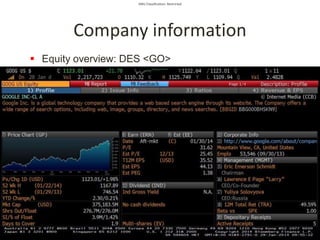
 Equity overview: DES <GO>
Company information
SMU Classification: Restricted
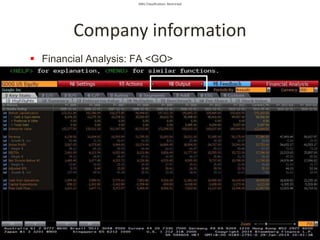
 Financial Analysis: FA <GO>
Company information
SMU Classification: Restricted
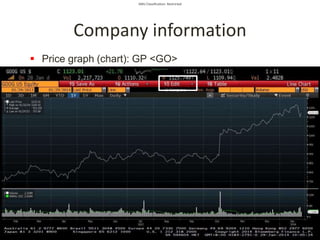
 Price graph (chart): GP <GO>
Company information
SMU Classification: Restricted
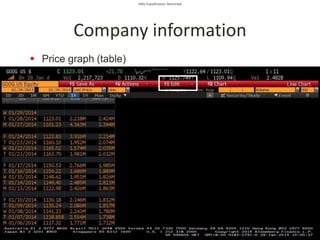
 Price graph (table)
Company information
SMU Classification: Restricted
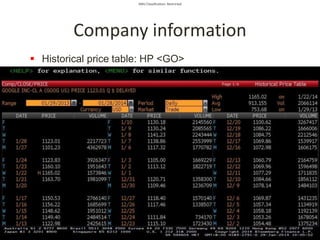
 Historical price table: HP <GO>
Company information
SMU Classification: Restricted
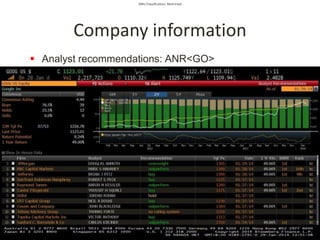
 Analyst recommendations: ANR<GO>
Company information
SMU Classification: Restricted
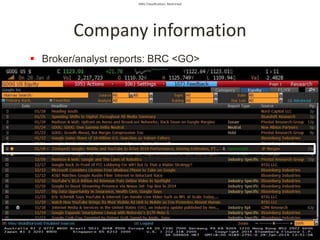
 Broker/analyst reports: BRC <GO>
Company information
SMU Classification: Restricted
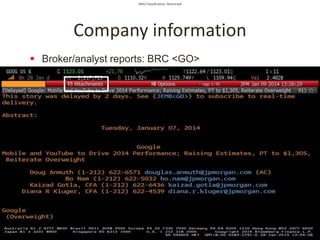
 Broker/analyst reports: BRC <GO>
Company information
SMU Classification: Restricted
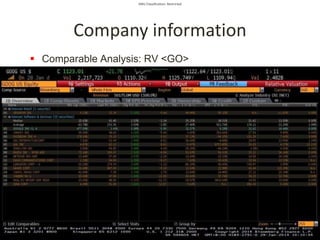
 Comparable Analysis: RV <GO>
Company information
SMU Classification: Restricted
2. FIND INDUSTRY INFORMATION
SMU Classification: Restricted
Industry information
• Go to Bloomberg Intelligence
• Enter BI<GO>
• Select industry and drill down to dashboard
SMU Classification: Restricted
Industry information
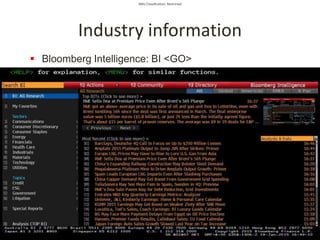
 Bloomberg Intelligence: BI <GO>
SMU Classification: Restricted
Industry information
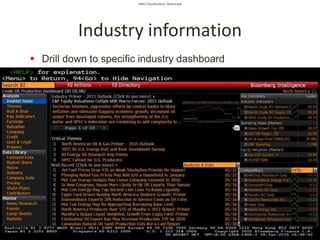
 Drill down to specific industry dashboard
SMU Classification: Restricted
3. EQUITY SCREENING
SMU Classification: Restricted
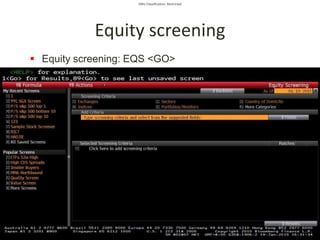
Equity screening
 Equity screening: EQS <GO>
SMU Classification: Restricted
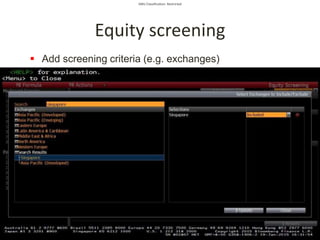
Equity screening
 Add screening criteria (e.g. exchanges)
SMU Classification: Restricted
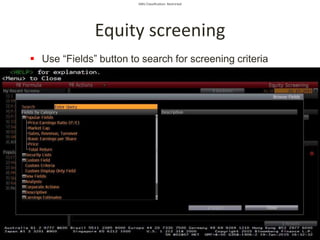
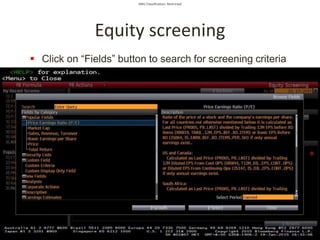
Equity screening
 Use “Fields” button to search for screening criteria
SMU Classification: Restricted
Equity screening
 Click on “Fields” button to search for screening criteria

SMU Classification: Restricted
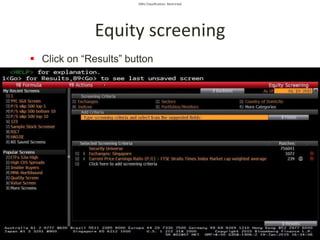
Equity screening
 Click on “Results” button
SMU Classification: Restricted
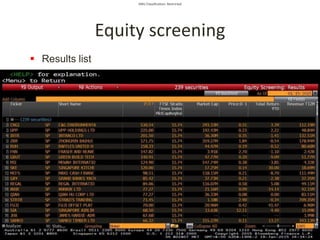
Equity screening
 Results list
SMU Classification: Restricted
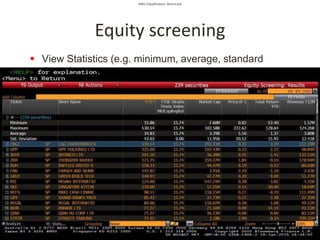
Equity screening
 View Statistics (e.g. minimum, average, standard
deviation)
SMU Classification: Restricted
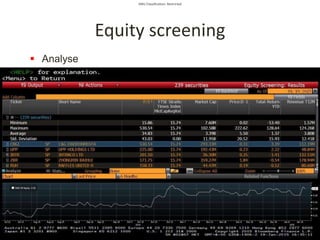
Equity screening
 Analyse
SMU Classification: Restricted
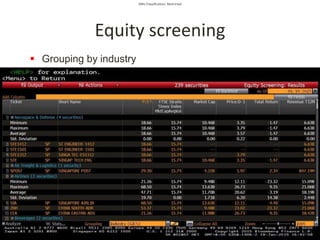
Equity screening
 Grouping by industry
SMU Classification: Restricted
4. BOND SCREENING
SMU Classification: Restricted
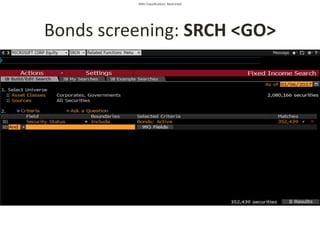
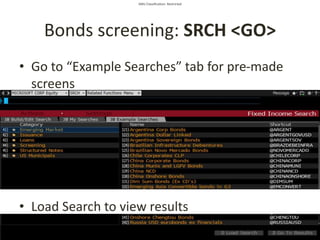
Bonds screening: SRCH <GO>
SMU Classification: Restricted
Bonds screening: SRCH <GO>
• Go to “Example Searches” tab for pre-made
screens
• Load Search to view results
SMU Classification: Restricted
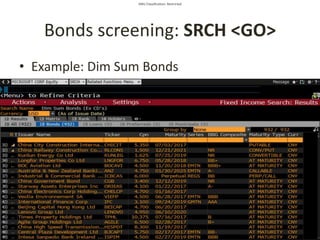
Bonds screening: SRCH <GO>
• Example: Dim Sum Bonds
SMU Classification: Restricted
5. OTHER USEFUL COMMANDS
SMU Classification: Restricted
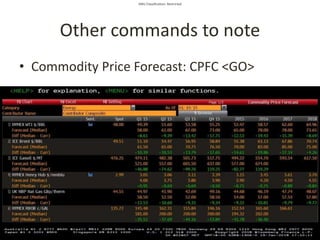
Other commands to note
• Commodity Price Forecast: CPFC <GO>
SMU Classification: Restricted
Other commands to note
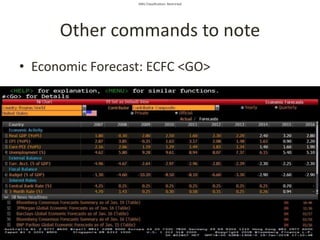
• Economic Forecast: ECFC <GO>
SMU Classification: Restricted
Other commands to note
• Bloomberg Resource Centre Cheatsheets with
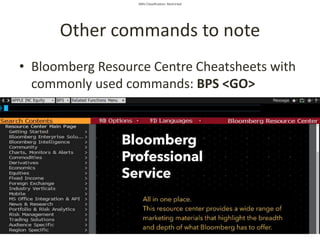
commonly used commands: BPS <GO>
SMU Classification: Restricted
Other commands to note
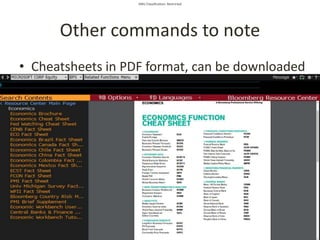
• Cheatsheets in PDF format, can be downloaded
SMU Classification: Restricted
Other commands to note
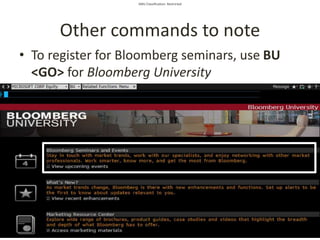
• To register for Bloomberg seminars, use BU
<GO> for Bloomberg University
SMU Classification: Restricted
Other commands to note
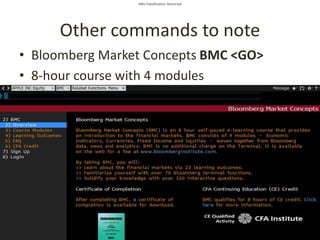
• Bloomberg Market Concepts BMC <GO>
• 8-hour course with 4 modules
SMU Classification: Restricted
• On the terminal: For help, press <HELP> once
for help screen, and <HELP><HELP> or click
on “Live Chat” button to contact helpdesk.
• Research guide:
http://researchguides.smu.edu.sg/bloomberg
• Email: library@smu.edu.sg
• Email: redzuana@smu.edu.sg

Introduction to Bloomberg