www.sanjeetpandey.com
Prepared by – Sanjeet Pandey
Integration of Linked-in using Mule ESB
www.sanjeetpandey.com
Overview
• LinkedIn is a business-oriented social networking service
• LinkedIn was founded in December 2002 and launched on May 5, 2003
• It is mainly used for professional networking
• As of June 2013, LinkedIn reports more than 259 million acquired users in more than 200
countries and territories
2
www.sanjeetpandey.com
Configure LinkedIn
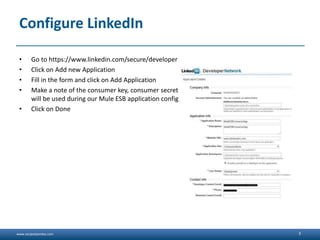
• Go to https://www.linkedin.com/secure/developer
• Click on Add new Application
• Fill in the form and click on Add Application
• Make a note of the consumer key, consumer secret and the OAuth2 Redirect URL as these
will be used during our Mule ESB application configuration
• Click on Done
3
www.sanjeetpandey.com
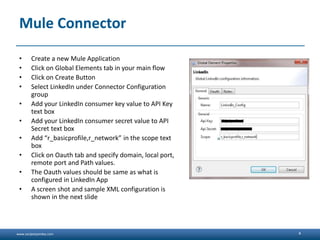
Mule Connector
• Create a new Mule Application
• Click on Global Elements tab in your main flow
• Click on Create Button
• Select LinkedIn under Connector Configuration
group
• Add your LinkedIn consumer key value to API Key
text box
• Add your LinkedIn consumer secret value to API
Secret text box
• Add “r_basicprofile,r_network” in the scope text
box
• Click on Oauth tab and specify domain, local port,
remote port and Path values.
• The Oauth values should be same as what is
configured in LinkedIn App
• A screen shot and sample XML configuration is
shown in the next slide
4
www.sanjeetpandey.com
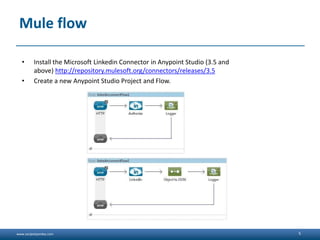
Mule flow
• Install the Microsoft Linkedin Connector in Anypoint Studio (3.5 and
above) http://repository.mulesoft.org/connectors/releases/3.5
• Create a new Anypoint Studio Project and Flow.
5
www.sanjeetpandey.com
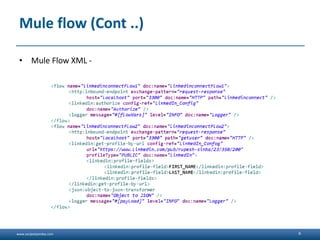
Mule flow (Cont ..)
6
• Mule Flow XML -
www.sanjeetpandey.com
Running Mule Project
• We are now ready to run the project! First, let us test run the application from Studio:
• Right-click on the application in the Package Explorer pane.
• Select Run As > Mule Application:
• Start a browser and go to http://localhost:8081/linkedinConnect
7
www.sanjeetpandey.com 8

Integration of linked in using mule esb

  • 1.
    www.sanjeetpandey.com www.sanjeetpandey.com Prepared by –Sanjeet Pandey Integration of Linked-in using Mule ESB
  • 2.
    www.sanjeetpandey.com Overview • LinkedIn isa business-oriented social networking service • LinkedIn was founded in December 2002 and launched on May 5, 2003 • It is mainly used for professional networking • As of June 2013, LinkedIn reports more than 259 million acquired users in more than 200 countries and territories 2
  • 3.
    www.sanjeetpandey.com Configure LinkedIn • Goto https://www.linkedin.com/secure/developer • Click on Add new Application • Fill in the form and click on Add Application • Make a note of the consumer key, consumer secret and the OAuth2 Redirect URL as these will be used during our Mule ESB application configuration • Click on Done 3
  • 4.
    www.sanjeetpandey.com Mule Connector • Createa new Mule Application • Click on Global Elements tab in your main flow • Click on Create Button • Select LinkedIn under Connector Configuration group • Add your LinkedIn consumer key value to API Key text box • Add your LinkedIn consumer secret value to API Secret text box • Add “r_basicprofile,r_network” in the scope text box • Click on Oauth tab and specify domain, local port, remote port and Path values. • The Oauth values should be same as what is configured in LinkedIn App • A screen shot and sample XML configuration is shown in the next slide 4
  • 5.
    www.sanjeetpandey.com Mule flow • Installthe Microsoft Linkedin Connector in Anypoint Studio (3.5 and above) http://repository.mulesoft.org/connectors/releases/3.5 • Create a new Anypoint Studio Project and Flow. 5
  • 6.
    www.sanjeetpandey.com Mule flow (Cont..) 6 • Mule Flow XML -
  • 7.
    www.sanjeetpandey.com Running Mule Project •We are now ready to run the project! First, let us test run the application from Studio: • Right-click on the application in the Package Explorer pane. • Select Run As > Mule Application: • Start a browser and go to http://localhost:8081/linkedinConnect 7
  • 8.