Installing Tomcat on
Ubuntu Instance
Kamarul Kawnayeen
Preface
In this short tutorial, I will cover how to install tomcat 7 on ubuntu 14.04LTS
instance hosted at AWS. Note that we will use Oracle Jdk instead of OpenJdk.
I’ve already showed how to install Oracle Jdk on ubuntu previously. Please take
a look on this slide for that.
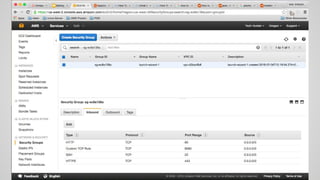
Go to the security group associated with your instance, edit
inbound rules and add port 8080 as Custom TCP Rule
Connect with your ubuntu instance using ssh & then run the
following command
sudo apt-get update
Once you are done with updating, then try --
sudo apt-get install tomcat7
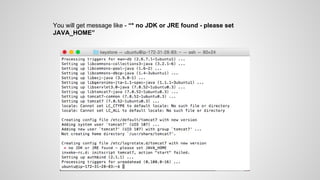
You will get message like - “* no JDK or JRE found - please set
JAVA_HOME”
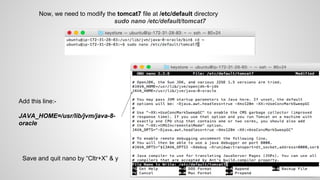
Now, we need to modify the tomcat7 file at /etc/default directory
sudo nano /etc/default/tomcat7
Add this line:-
JAVA_HOME=/usr/lib/jvm/java-8-
oracle
Save and quit nano by “Cltr+X” & y
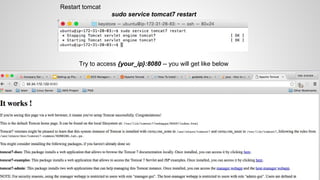
Restart tomcat
sudo service tomcat7 restart
Try to access {your_ip}:8080 -- you will get like below
Now install tomcat admin --
sudo apt-get install tomcat7-admin
To proceed with tomcat admin, we need to create a tomcat user.
For this, open the tomcat-users.xml file at /etc/tomcat7
directory using nano
sudo nano /etc/tomcat7/tomcat-users.xml
At tomcat-users.xml file, within <tomcat-user> node, add the following node
<user username=”{user username}” password=”{your password}” roles=”
manager-gui,admin-gui”>
Save & quit
nano by Cltr-X
& y
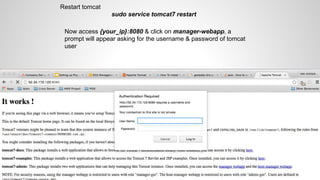
Restart tomcat
sudo service tomcat7 restart
Now access {your_ip}:8080 & click on manager-webapp, a
prompt will appear asking for the username & password of tomcat
user
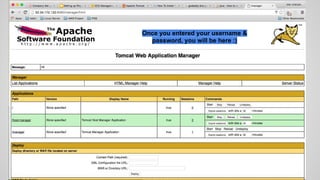
Once you entered your username &
password, you will be here :)

Installing Tomcat on Ubuntu Instance

  • 1.
    Installing Tomcat on UbuntuInstance Kamarul Kawnayeen
  • 2.
    Preface In this shorttutorial, I will cover how to install tomcat 7 on ubuntu 14.04LTS instance hosted at AWS. Note that we will use Oracle Jdk instead of OpenJdk. I’ve already showed how to install Oracle Jdk on ubuntu previously. Please take a look on this slide for that.
  • 3.
    Go to thesecurity group associated with your instance, edit inbound rules and add port 8080 as Custom TCP Rule
  • 5.
    Connect with yourubuntu instance using ssh & then run the following command sudo apt-get update Once you are done with updating, then try -- sudo apt-get install tomcat7
  • 6.
    You will getmessage like - “* no JDK or JRE found - please set JAVA_HOME”
  • 7.
    Now, we needto modify the tomcat7 file at /etc/default directory sudo nano /etc/default/tomcat7 Add this line:- JAVA_HOME=/usr/lib/jvm/java-8- oracle Save and quit nano by “Cltr+X” & y
  • 8.
    Restart tomcat sudo servicetomcat7 restart Try to access {your_ip}:8080 -- you will get like below
  • 9.
    Now install tomcatadmin -- sudo apt-get install tomcat7-admin To proceed with tomcat admin, we need to create a tomcat user. For this, open the tomcat-users.xml file at /etc/tomcat7 directory using nano sudo nano /etc/tomcat7/tomcat-users.xml
  • 10.
    At tomcat-users.xml file,within <tomcat-user> node, add the following node <user username=”{user username}” password=”{your password}” roles=” manager-gui,admin-gui”> Save & quit nano by Cltr-X & y
  • 11.
    Restart tomcat sudo servicetomcat7 restart Now access {your_ip}:8080 & click on manager-webapp, a prompt will appear asking for the username & password of tomcat user
  • 12.
    Once you enteredyour username & password, you will be here :)