INSTALLATION MANUAL
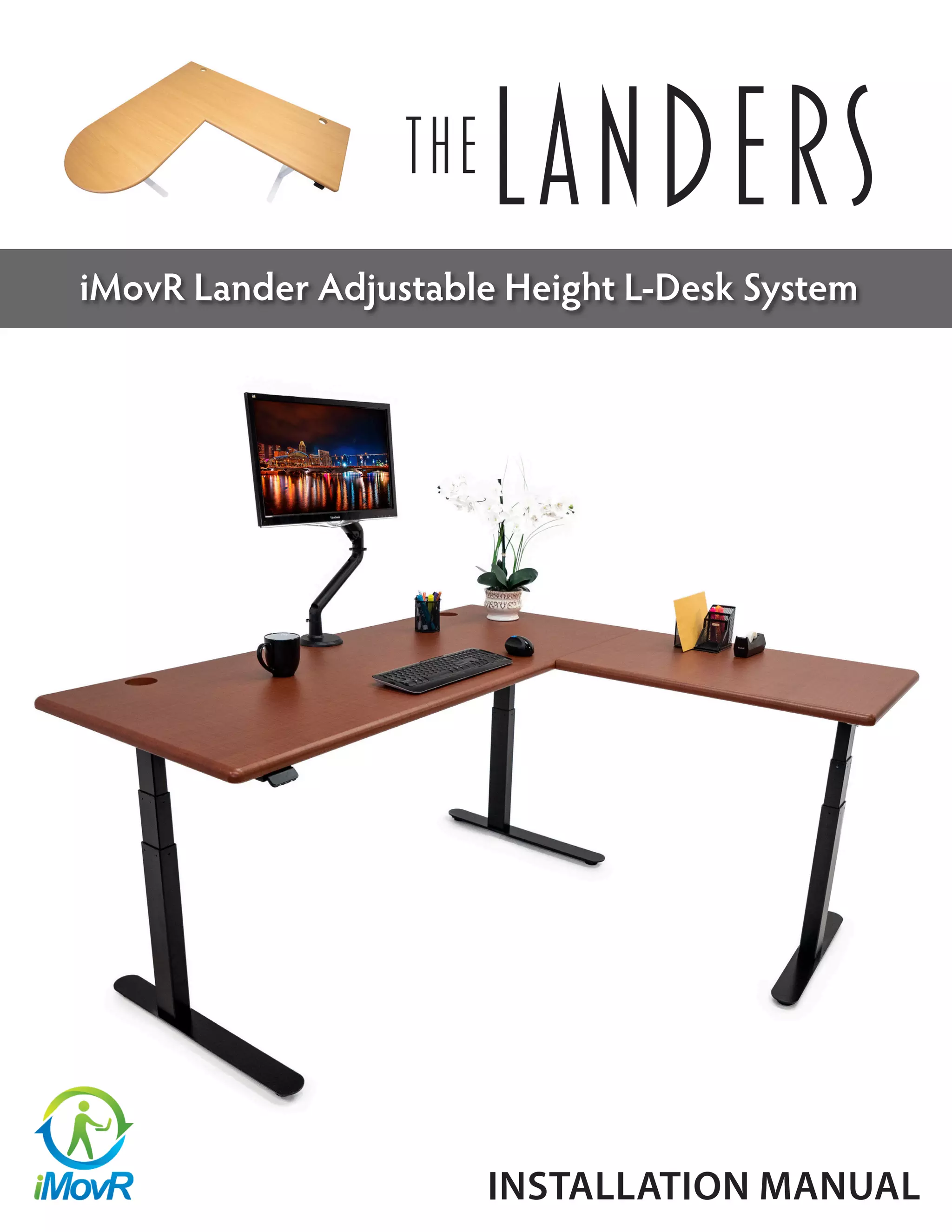
iMovR Lander Adjustable Height L-Desk System
2
BEFORE YOU BEGIN
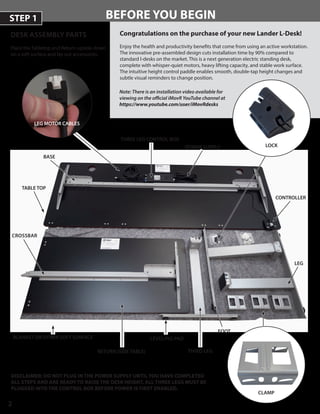
DESK ASSEMBLY PARTS
Place the Tabletop and Return upside-downPlace the Tabletop and Return upside-down
on a soft surface and lay out accessories.on a soft surface and lay out accessories.
Congratulations on the purchase of your new Lander L-Desk!
Enjoy the health and productivity benefits that come from using an active workstation.
The innovative pre-assembled design cuts installation time by 90% compared to
standard l-desks on the market. This is a next generation electric standing desk,
complete with whisper-quiet motors, heavy lifting capacity, and stable work surface.
The intuitive height control paddle enables smooth, double-tap height changes and
subtle visual reminders to change position.
STEP 1
BLANKET OR OTHER SOFT SURFACE
TABLE TOP
LOCK
CLAMP
LEG
CONTROLLER
POWER SUPPLY
LEG MOTOR CABLES
FOOT
LEVELING PAD
Note: There is an installation video available for
viewing on the official iMovR YouTube channel at
https://www.youtube.com/user/iMovRdesks
DISCLAIMER: DO NOT PLUG IN THE POWER SUPPLY UNTIL YOU HAVE COMPLETEDDISCLAIMER: DO NOT PLUG IN THE POWER SUPPLY UNTIL YOU HAVE COMPLETED
ALL STEPS AND ARE READY TO RAISE THE DESK HEIGHT. ALL THREE LEGS MUST BEALL STEPS AND ARE READY TO RAISE THE DESK HEIGHT. ALL THREE LEGS MUST BE
PLUGGED INTO THE CONTROL BOX BEFORE POWER IS FIRST ENABLED.PLUGGED INTO THE CONTROL BOX BEFORE POWER IS FIRST ENABLED.
CROSSBAR
RETURN (SIDE TABLE)
BASE
THREE LEG CONTROL BOX
THIRD LEG
3
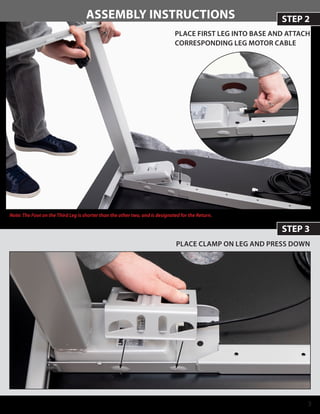
STEP 2ASSEMBLY INSTRUCTIONS
PLACE FIRST LEG INTO BASE AND ATTACH
CORRESPONDING LEG MOTOR CABLE
STEP 3
PLACE CLAMP ON LEG AND PRESS DOWN
Note: The Foot on the Third Leg is shorter than the other two, and is designated for the Return.
4
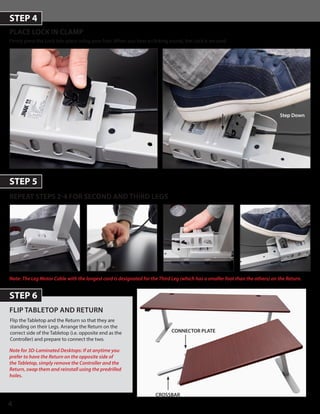
PLACE LOCK IN CLAMP
Firmly press the Lock into place using your foot. When you hear a clicking sound, the Lock is secured.
STEP 4
STEP 5
REPEAT STEPS 2-4 FOR SECOND AND THIRD LEGS
Step Down
Note for 3D-Laminated Desktops: If at anytime you
prefer to have the Return on the opposite side of
the Tabletop, simply remove the Controller and the
Return, swap them and reinstall using the predrilled
holes.
STEP 6
FLIP TABLETOP AND RETURN
CROSSBAR
Note: The Leg Motor Cable with the longest cord is designated for the Third Leg (which has a smaller foot than the others) on the Return.
Flip the Tabletop and the Return so that they are
standing on their Legs. Arrange the Return on the
correct side of the Tabletop (i.e. opposite end as the
Controller) and prepare to connect the two.
CONNECTOR PLATE
5
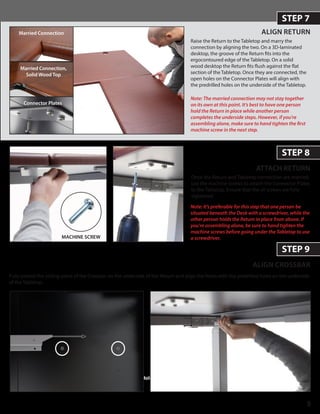
STEP 7
ALIGN RETURN
ATTACH RETURN
STEP 8
ALIGN CROSSBAR
STEP 9
Fully extend the sliding piece of the Crossbar on the underside of the Return and align the holes with the predrilled holes on the underside
of the Tabletop.
Note: The married connection may not stay together
on its own at this point. It’s best to have one person
hold the Return in place while another person
completes the underside steps. However, if you’re
assembling alone, make sure to hand tighten the first
machine screw in the next step.
Hold Return
Married Connection
Connector Plates
Raise the Return to the Tabletop and marry the
connection by aligning the two. On a 3D-laminated
desktop, the groove of the Return fits into the
ergocontoured edge of the Tabletop. On a solid
wood desktop the Return fits flush against the flat
section of the Tabletop. Once they are connected, the
open holes on the Connector Plates will align with
the predrilled holes on the underside of the Tabletop.
Once the Return and Tabletop connection are married,
use the machine screws to attach the Connector Plates
to the Tabletop. Ensure that the all screws are fully
tightened.
Note: It’s preferable for this step that one person be
situated beneath the Desk with a screwdriver, while the
other person holds the Return in place from above. If
you’re assembling alone, be sure to hand tighten the
machine screws before going under the Tabletop to use
a screwdriver.MACHINE SCREW
Married Connection,
Solid Wood Top
6
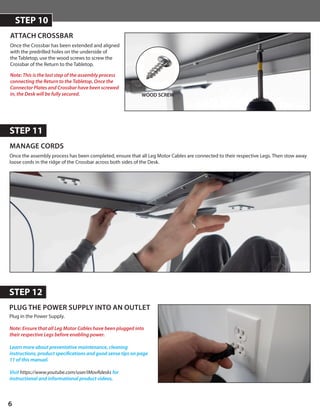
MANAGE CORDS
STEP 11
PLUG THE POWER SUPPLY INTO AN OUTLET
STEP 12
Once the assembly process has been completed, ensure that all Leg Motor Cables are connected to their respective Legs. Then stow away
loose cords in the ridge of the Crossbar across both sides of the Desk.
WOOD SCREW
Note: This is the last step of the assembly process
connecting the Return to the Tabletop. Once the
Connector Plates and Crossbar have been screwed
in, the Desk will be fully secured.
ATTACH CROSSBAR
STEP 10
Once the Crossbar has been extended and aligned
with the predrilled holes on the underside of
the Tabletop, use the wood screws to screw the
Crossbar of the Return to the Tabletop.
Plug in the Power Supply.
Note: Ensure that all Leg Motor Cables have been plugged into
their respective Legs before enabling power.
Learn more about preventative maintenance, cleaning
instructions, product specifications and good sense tips on page
11 of this manual.
Visit https://www.youtube.com/user/iMovRdesks for
instructional and informational product videos.
7
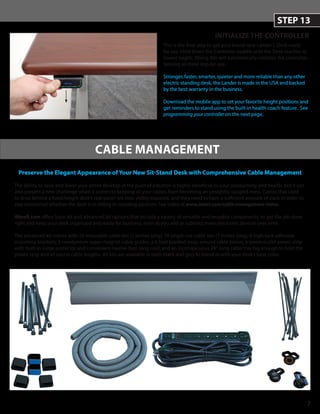
Preserve the Elegant Appearance of Your New Sit-Stand Desk with Comprehensive Cable Management
The ability to raise and lower your entire desktop at the push of a button is highly beneficial to your productivity and health, but it can
also present a new challenge when it comes to keeping all your cables from becoming an unsightly, tangled mess. Cables that used
to drop behind a fixed-height desk’s rear panel are now visibly exposed, and they need to have a sufficient amount of slack in order to
stay connected whether the desk is in sitting or standing position. See video at www.imovr.com/cable-management-video.
iMovR.com offers basic kit and advanced kit options that include a variety of versatile and reusable components, to get the job done
right and keep your desk organized and ready for business, even as you add or subtract more electronic devices over time.
The advanced kit comes with 10 releasable cable ties (5 inches long), 10 single-use cable ties (7 inches long), 6 high-tack adhesive
mounting brackets, 3 neodymium super-magnet cable guides, a 6-foot braided wrap-around cable sleeve, a seven-outlet power strip
with built-in surge protector and convenient twelve-foot-long cord, and an inconspicuous 24”-long cable tray big enough to hold the
power strip and all excess cable lengths. All kits are available in both black and grey to blend in with your desk’s base color.
CABLE MANAGEMENT
INITIALIZE THE CONTROLLER
This is the final step to get your brand new Lander L-Desk ready
for use. Hold down the Controller paddle until the Desk reaches its
lowest heght. Doing this will automatically initialize the controller,
syncing all three legs for use.
Stronger, faster, smarter, quieter and more reliable than any other
electric standing desk, the Lander is made in the USA and backed
by the best warranty in the business.
Download the mobile app to set your favorite height positions and
get reminders to stand using the built-in health coach feature. See
programming your controller on the next page.
STEP 13
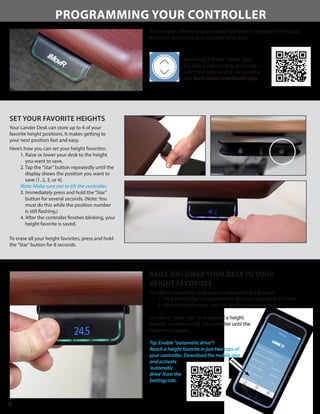
PROGRAMMING YOUR CONTROLLER
Your Lander L-Desk’s intuitive hand controller is designed to help you
transition seamlessly to a sit-stand work style.
8
SET YOUR FAVORITE HEIGHTS
Your Lander Desk can store up to 4 of your
favorite height positions. It makes getting to
your next position fast and easy.
Here’s how you can set your height favorites:
1. Raise or lower your desk to the height
you want to save.
2. Tap the“Star”button repeatedly until the
display shows the position you want to
save (1, 2, 3, or 4).
Note: Make sure not to tilt the controller.
3. Immediately press and hold the“Star”
button for several seconds. (Note: You
must do this while the position number
is still flashing.)
4. After the controller finishes blinking, your
height favorite is saved.
To erase all your height favorites, press and hold
the“Star”button for 8 seconds.
RAISE OR LOWER YOUR DESK TO YOUR
HEIGHT FAVORITES
To raise or lower your desk to your nearest height favorite:
1. Tilt and hold the controller in the direction you want to move.
2. When the desk stops, your height favorite is reached.
To raise or lower your desk beyond a height
favorite, continue to tilt the controller until the
desk moves again.
Tip: Enable “automatic drive”!
Reach a height favorite in just two taps of
your controller. Download the mobile app
and activate
‘automatic
drive’ from the
Settings tab.
Download the free mobile app!
For easy programming, advanced
controller options and instructions:
visit www.imovr.com/lander-app
9
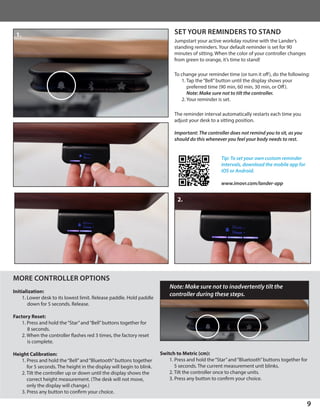
SET YOUR REMINDERS TO STAND
Jumpstart your active workday routine with the Lander’s
standing reminders. Your default reminder is set for 90
minutes of sitting. When the color of your controller changes
from green to orange, it’s time to stand!
To change your reminder time (or turn it off), do the following:
1. Tap the“Bell”button until the display shows your
preferred time (90 min, 60 min, 30 min, or Off).
	 Note: Make sure not to tilt the controller.
2. Your reminder is set.
The reminder interval automatically restarts each time you
adjust your desk to a sitting position.
Important: The controller does not remind you to sit, as you
should do this whenever you feel your body needs to rest.
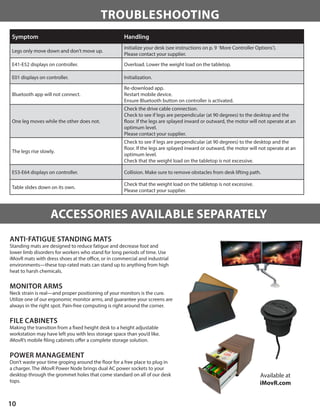
MORE CONTROLLER OPTIONS
Initialization:
1. Lower desk to its lowest limit. Release paddle. Hold paddle
down for 5 seconds. Release.
Factory Reset:
1. Press and hold the“Star”and“Bell”buttons together for
8 seconds.
2. When the controller flashes red 3 times, the factory reset
is complete.
Height Calibration:
1. Press and hold the“Bell”and“Bluetooth”buttons together
for 5 seconds. The height in the display will begin to blink.
2. Tilt the controller up or down until the display shows the
correct height measurement. (The desk will not move,
only the display will change.)
3. Press any button to confirm your choice.
Tip: To set your own custom reminder
intervals, download the mobile app for
iOS or Android.
www.imovr.com/lander-app
Switch to Metric (cm):
1. Press and hold the“Star”and“Bluetooth”buttons together for
5 seconds. The current measurement unit blinks.
2. Tilt the controller once to change units.
3. Press any button to confirm your choice.
Note: Make sure not to inadvertently tilt the
controller during these steps.
1.
2.
TROUBLESHOOTING
Symptom Handling
Legs only move down and don’t move up.
Initialize your desk (see instructions on p. 9 ‘More Controller Options’).
Please contact your supplier.
E41-E52 displays on controller. Overload. Lower the weight load on the tabletop.
E01 displays on controller. Initialization.
Bluetooth app will not connect.
Re-download app.
Restart mobile device.
Ensure Bluetooth button on controller is activated.
One leg moves while the other does not.
Check the drive cable connection.
Check to see if legs are perpendicular (at 90 degrees) to the desktop and the
floor. If the legs are splayed inward or outward, the motor will not operate at an
optimum level.
Please contact your supplier.
The legs rise slowly.
Check to see if legs are perpendicular (at 90 degrees) to the desktop and the
floor. If the legs are splayed inward or outward, the motor will not operate at an
optimum level.
Check that the weight load on the tabletop is not excessive.
E53-E64 displays on controller. Collision. Make sure to remove obstacles from desk lifting path.
Table slides down on its own.
Check that the weight load on the tabletop is not excessive.
Please contact your supplier.
10
ANTI-FATIGUE STANDING MATS
Standing mats are designed to reduce fatigue and decrease foot and
lower limb disorders for workers who stand for long periods of time. Use
iMovR mats with dress shoes at the office, or in commercial and industrial
environments—these top-rated mats can stand up to anything from high
heat to harsh chemicals.
MONITOR ARMS
Neck strain is real—and proper positioning of your monitors is the cure.
Utilize one of our ergonomic monitor arms, and guarantee your screens are
always in the right spot. Pain-free computing is right around the corner.
FILE CABINETS
Making the transition from a fixed height desk to a height adjustable
workstation may have left you with less storage space than you’d like.
iMovR’s mobile filing cabinets offer a complete storage solution.
POWER MANAGEMENT
Don’t waste your time groping around the floor for a free place to plug in
a charger. The iMovR Power Node brings dual AC power sockets to your
desktop through the grommet holes that come standard on all of our desk
tops.
ACCESSORIES AVAILABLE SEPARATELY
Available at
iMovR.com
CLEANING THE BASE
Clean the base frame by wiping it down with a microfiber cloth moistened
with a standard household cleaning solution. Never use solvents or abrasive
or corrosive compounds on the frame. The base should be cleaned at regular
intervals to remove dust and dirt. Inspect for mechanical damage; worn or
broken parts should be replaced.
CLEANING THE DESKTOP
All 3D-laminated iMovR desktops are manufactured with process that results
in an extremely durable surface, similar to what’s often used in hospital
environments. As such, it can stand up to most cleaning solutions without risk
of discoloration or degradation. Anti-bacterial solutions may be used. Always
test new cleaning solutions on a less-seen surface before first using on the
entire desktop.
Solid wood iMovR desktops are then finished with a KCMA-rated waterborne
sealant, both top and bottom, ensuring long life by reducing the effect of
humidity on the wood. This low-VOC finish protects the natural wood from
moisture, chemicals, abrasion and marring. The desktop can be wiped down
with a soft, damp cloth. Clorox wipes can be used to disinfecting the desktop.
Do NOT use alcohol-based cleaners.
EXTENDED NON-USE
Unplug the power cord if you do not intend to use the desk for a long period of
time.
PREVENTATIVE MAINTENANCE, CLEANING,
WARNINGS AND GOOD-SENSE TIPS
PRODUCT SPECIFICATIONS
11
WARNING
The components used are quite
heavy and care should be exercised
when lifting and moving the base
and desk both during assembly
and during use.
Rated Lifting Capacity: 540 lbs.
Height Range:	24.5”–50.5”including top, leveling feet
fully closed, additional 0.5”height adjustment with
levelling feet opened
Average Travel Speed: 1.6”per second
Controller Type: Bluetooth-enabled LCD Touch Paddle
Special Features: Anti-Collision Technology
Tabletop Lamination: Ergo-contoured 3D Lamination	
Tabletop Thickness: 1.125”
Available Sizes:	
Rectangular Desk
Depth: 30”
Width: 65”, 71”, 77”, 83”, 89”
Return Section
Rectangular:
	 24”×35”, 24”×41”, 24”×47”, 24”×53”, 24”×59”,
	 30”×35”, 30”×41”, 30”×47”, 30”×53”, 30”×59”
Peninsula:
	 24”×41”, 24”×47”, 24”×53”, 24”×59”,
	 30”×41”, 30”×47”, 30”×53”, 30”×59”
Solids
Designer White
Northern Cloud
Racing Red
Shark Gray
Black
Specialty
Carbon Fibers
Corten Metal
Fiber Concrete
Studio White Dust
Woodgrains
Light Maple
Almond Cherry
Hayward Cherry
Crossfire Java
Shaker Cherry
Clove Mahogany
Urban Walnut
Obsidian Oak
Reclaimed Wood
Reclaimed Pine Cabin
Reclaimed Warehouse Oak
Soft-Touch Matte Luxe
Luxe Cadet
Luxe Sage
Luxe Teal
3D Laminate Colors:
Solid Wood Species & Stains:
Maple
Natural Maple
Dockside Maple
Midnight Maple
Onyx Maple
Tawny Maple
Burgundy Maple
Leather Maple
Espresso Maple
Whitewash Maple
Sky Maple
Rustic Walnut
Natural Rustic Walnut
Amber Rustic Walnut
Caramel Rustic Walnut
Rustic Cherry
Light Rustic Cherry
Vintage Rustic Cherry
Regent Rustic Cherry
Red Oak
Whitewash Oak
Blond Oak
Tawny Oak
Medium Brown Oak
Garnet Oak
Chestnut Oak
Hickory
Natural Hickory
Golden Hickory
Whitewash Hickory
Red Hickory
Dark Hickory
Quartersawn White Oak
Natural Quartersawn White
Oak
Craftsman Quartersawn
White Oak
Dark Amber Quartersawn
White Oak
Select Cherry
Light Select Cherry
Vintage Select Cherry
Regent Select Cherry
Select Walnut
Natural Select Walnut
Amber Select Walnut
Caramel Select Walnut
WARRANTY
IMovR Contact Information:
Phone: (888) 208-6770 or (425) 999-3550
Fax: (425) 999-3550
E-mail: customercare@iMovR.com
Live Chat: www.iMovR.com
Hours: See iMovR.com/hours
VERSION 02.01.19 IMOVR LANDER L-DESK INSTALLATION MANUAL LD-REX-MANUAL
iMovR warranty coverage includes a lifetime warranty on the steel frame, 10 years on the motors and electronics, and 5 years on the desktop.
THIS WARRANTY only covers defects as specified herein and does not include defects or damages attributable to improper installation, misuse or normal
surface weathering, or defects or damages caused by accidents or fire or other casualty or Acts of God, or any other causes, or occurrences beyond the
manufacturer’s control. The exclusive remedial action provided for the customer hereunder shall be repair, restoration or replacement of the components
as are found to be defective.
TABLE TOP: The replacement of new materials for those as may result in a color variance in comparison to the originally installed laminates due to slight
color or texture changes by laminate manufacturers and is not indicative of a defect. IMovR reserves the right to substitute such laminates as are then
being manufactured and is only obligated to match color and quality with such products as its manufacturing at the time of replacement.
ELECTRIC BASE FRAME: New base frames may have paint defects or scratches on components that are hidden beneath the surface of the desk, which are
normal. Painted components that are normally visible to sitting or standing users after installation of the table top, that arrive in damaged condition, will
be replaced under this warranty if iMovR is notified before the component is installed.
THIS WARRANTY is limited to repair, restoration and/or replacement by iMovR of any defective unit provided the manufacturer: (a) receives a written, faxed
or e-mailed notice of claim under this warranty, including sufficiently high resolution photographs that clearly show the nature of the damage, and (b)
within 30 days after notice of claim, is in receipt of the defective unit at its place of business, unless this requirement is waived by iMovR. The manufacturer
will arrange for retrieval of the defective product via its carrier-of-choice. In some cases the manufacturer may elect not to retrieve the defective
component, and may opt to send a replacement product based only on photographic evidence of warrantied defects. If upon receipt and inspection of
the returned component it is determined that the damage was not due to a manufacturing flaw but rather one of the exempted reasons stated above, the
costs of shipping the units to and from the manufacturer, plus the cost of the replacement component, shall be charged back to the customer.
LIMITATION OF LIABILITY: IT IS UNDERSTOOD AND AGREED THAT MANUFACTURER’S LIABILITY, WHETHER IN CONTRACT, IN TORT UNDER ANY WARRANTY,
IN NEGLIGENCE OR OTHERWISE, SHALL NOT EXCEED THE RETURN OF THE AMOUNT OF PURCHASE PRICE FOR THE DEFECTIVE ITEM PAID BY PURCHASER
AND UNDER NO CIRCUMSTANCES SHALL SELLER BE LIABLE FOR SPECIAL, INDIRECT OR CONSEQUENTIAL DAMAGES. NO ACTION, REGARDLESS OF FORM,
ARISING OUT OF THE TRANSACTIONS UNDER THIS AGREEMENT MAY BE BROUGHT BY THE PURCHASER MORE THAN ONE YEAR AFTER THE CAUSE OF THE
ACTION HAS ACCRUED.
SOME STATES DO NOT ALLOW LIMITATIONS ON HOW LONG AN IMPLIED WARRANTY LASTS, AND SOME STATES DO NOT ALLOW THE EXCLUSION OR
LIMITATION OF INCIDENTAL OR CONSEQUENTIAL DAMAGES, SO THE ABOVE LIMITATIONS OR EXCLUSIONS HEREIN MAY NOT APPLY TO YOU. THIS
WARRANTY GIVES YOU SPECIFIC LEGAL RIGHTS, AND YOU MAY ALSO HAVE OTHER RIGHTS, WHICH VARY, FROM STATE TO STATE. THIS WARRANTY APPLIES
ONLY IN THE U.S. AND CANADA. WARRANTIES OUTSIDE OF THE UNITED STATES MAY VARY. PLEASE CONTACT YOUR LOCAL DEALER FOR DETAILS.
TO OBTAIN warranty repair please contact the iMovR Customer Care Department with the contact information provided below.

iMovR Lander L-Desk User Manual

  • 1.
    INSTALLATION MANUAL iMovR LanderAdjustable Height L-Desk System
  • 2.
    2 BEFORE YOU BEGIN DESKASSEMBLY PARTS Place the Tabletop and Return upside-downPlace the Tabletop and Return upside-down on a soft surface and lay out accessories.on a soft surface and lay out accessories. Congratulations on the purchase of your new Lander L-Desk! Enjoy the health and productivity benefits that come from using an active workstation. The innovative pre-assembled design cuts installation time by 90% compared to standard l-desks on the market. This is a next generation electric standing desk, complete with whisper-quiet motors, heavy lifting capacity, and stable work surface. The intuitive height control paddle enables smooth, double-tap height changes and subtle visual reminders to change position. STEP 1 BLANKET OR OTHER SOFT SURFACE TABLE TOP LOCK CLAMP LEG CONTROLLER POWER SUPPLY LEG MOTOR CABLES FOOT LEVELING PAD Note: There is an installation video available for viewing on the official iMovR YouTube channel at https://www.youtube.com/user/iMovRdesks DISCLAIMER: DO NOT PLUG IN THE POWER SUPPLY UNTIL YOU HAVE COMPLETEDDISCLAIMER: DO NOT PLUG IN THE POWER SUPPLY UNTIL YOU HAVE COMPLETED ALL STEPS AND ARE READY TO RAISE THE DESK HEIGHT. ALL THREE LEGS MUST BEALL STEPS AND ARE READY TO RAISE THE DESK HEIGHT. ALL THREE LEGS MUST BE PLUGGED INTO THE CONTROL BOX BEFORE POWER IS FIRST ENABLED.PLUGGED INTO THE CONTROL BOX BEFORE POWER IS FIRST ENABLED. CROSSBAR RETURN (SIDE TABLE) BASE THREE LEG CONTROL BOX THIRD LEG
  • 3.
    3 STEP 2ASSEMBLY INSTRUCTIONS PLACEFIRST LEG INTO BASE AND ATTACH CORRESPONDING LEG MOTOR CABLE STEP 3 PLACE CLAMP ON LEG AND PRESS DOWN Note: The Foot on the Third Leg is shorter than the other two, and is designated for the Return.
  • 4.
    4 PLACE LOCK INCLAMP Firmly press the Lock into place using your foot. When you hear a clicking sound, the Lock is secured. STEP 4 STEP 5 REPEAT STEPS 2-4 FOR SECOND AND THIRD LEGS Step Down Note for 3D-Laminated Desktops: If at anytime you prefer to have the Return on the opposite side of the Tabletop, simply remove the Controller and the Return, swap them and reinstall using the predrilled holes. STEP 6 FLIP TABLETOP AND RETURN CROSSBAR Note: The Leg Motor Cable with the longest cord is designated for the Third Leg (which has a smaller foot than the others) on the Return. Flip the Tabletop and the Return so that they are standing on their Legs. Arrange the Return on the correct side of the Tabletop (i.e. opposite end as the Controller) and prepare to connect the two. CONNECTOR PLATE
  • 5.
    5 STEP 7 ALIGN RETURN ATTACHRETURN STEP 8 ALIGN CROSSBAR STEP 9 Fully extend the sliding piece of the Crossbar on the underside of the Return and align the holes with the predrilled holes on the underside of the Tabletop. Note: The married connection may not stay together on its own at this point. It’s best to have one person hold the Return in place while another person completes the underside steps. However, if you’re assembling alone, make sure to hand tighten the first machine screw in the next step. Hold Return Married Connection Connector Plates Raise the Return to the Tabletop and marry the connection by aligning the two. On a 3D-laminated desktop, the groove of the Return fits into the ergocontoured edge of the Tabletop. On a solid wood desktop the Return fits flush against the flat section of the Tabletop. Once they are connected, the open holes on the Connector Plates will align with the predrilled holes on the underside of the Tabletop. Once the Return and Tabletop connection are married, use the machine screws to attach the Connector Plates to the Tabletop. Ensure that the all screws are fully tightened. Note: It’s preferable for this step that one person be situated beneath the Desk with a screwdriver, while the other person holds the Return in place from above. If you’re assembling alone, be sure to hand tighten the machine screws before going under the Tabletop to use a screwdriver.MACHINE SCREW Married Connection, Solid Wood Top
  • 6.
    6 MANAGE CORDS STEP 11 PLUGTHE POWER SUPPLY INTO AN OUTLET STEP 12 Once the assembly process has been completed, ensure that all Leg Motor Cables are connected to their respective Legs. Then stow away loose cords in the ridge of the Crossbar across both sides of the Desk. WOOD SCREW Note: This is the last step of the assembly process connecting the Return to the Tabletop. Once the Connector Plates and Crossbar have been screwed in, the Desk will be fully secured. ATTACH CROSSBAR STEP 10 Once the Crossbar has been extended and aligned with the predrilled holes on the underside of the Tabletop, use the wood screws to screw the Crossbar of the Return to the Tabletop. Plug in the Power Supply. Note: Ensure that all Leg Motor Cables have been plugged into their respective Legs before enabling power. Learn more about preventative maintenance, cleaning instructions, product specifications and good sense tips on page 11 of this manual. Visit https://www.youtube.com/user/iMovRdesks for instructional and informational product videos.
  • 7.
    7 Preserve the ElegantAppearance of Your New Sit-Stand Desk with Comprehensive Cable Management The ability to raise and lower your entire desktop at the push of a button is highly beneficial to your productivity and health, but it can also present a new challenge when it comes to keeping all your cables from becoming an unsightly, tangled mess. Cables that used to drop behind a fixed-height desk’s rear panel are now visibly exposed, and they need to have a sufficient amount of slack in order to stay connected whether the desk is in sitting or standing position. See video at www.imovr.com/cable-management-video. iMovR.com offers basic kit and advanced kit options that include a variety of versatile and reusable components, to get the job done right and keep your desk organized and ready for business, even as you add or subtract more electronic devices over time. The advanced kit comes with 10 releasable cable ties (5 inches long), 10 single-use cable ties (7 inches long), 6 high-tack adhesive mounting brackets, 3 neodymium super-magnet cable guides, a 6-foot braided wrap-around cable sleeve, a seven-outlet power strip with built-in surge protector and convenient twelve-foot-long cord, and an inconspicuous 24”-long cable tray big enough to hold the power strip and all excess cable lengths. All kits are available in both black and grey to blend in with your desk’s base color. CABLE MANAGEMENT INITIALIZE THE CONTROLLER This is the final step to get your brand new Lander L-Desk ready for use. Hold down the Controller paddle until the Desk reaches its lowest heght. Doing this will automatically initialize the controller, syncing all three legs for use. Stronger, faster, smarter, quieter and more reliable than any other electric standing desk, the Lander is made in the USA and backed by the best warranty in the business. Download the mobile app to set your favorite height positions and get reminders to stand using the built-in health coach feature. See programming your controller on the next page. STEP 13
  • 8.
    PROGRAMMING YOUR CONTROLLER YourLander L-Desk’s intuitive hand controller is designed to help you transition seamlessly to a sit-stand work style. 8 SET YOUR FAVORITE HEIGHTS Your Lander Desk can store up to 4 of your favorite height positions. It makes getting to your next position fast and easy. Here’s how you can set your height favorites: 1. Raise or lower your desk to the height you want to save. 2. Tap the“Star”button repeatedly until the display shows the position you want to save (1, 2, 3, or 4). Note: Make sure not to tilt the controller. 3. Immediately press and hold the“Star” button for several seconds. (Note: You must do this while the position number is still flashing.) 4. After the controller finishes blinking, your height favorite is saved. To erase all your height favorites, press and hold the“Star”button for 8 seconds. RAISE OR LOWER YOUR DESK TO YOUR HEIGHT FAVORITES To raise or lower your desk to your nearest height favorite: 1. Tilt and hold the controller in the direction you want to move. 2. When the desk stops, your height favorite is reached. To raise or lower your desk beyond a height favorite, continue to tilt the controller until the desk moves again. Tip: Enable “automatic drive”! Reach a height favorite in just two taps of your controller. Download the mobile app and activate ‘automatic drive’ from the Settings tab. Download the free mobile app! For easy programming, advanced controller options and instructions: visit www.imovr.com/lander-app
  • 9.
    9 SET YOUR REMINDERSTO STAND Jumpstart your active workday routine with the Lander’s standing reminders. Your default reminder is set for 90 minutes of sitting. When the color of your controller changes from green to orange, it’s time to stand! To change your reminder time (or turn it off), do the following: 1. Tap the“Bell”button until the display shows your preferred time (90 min, 60 min, 30 min, or Off). Note: Make sure not to tilt the controller. 2. Your reminder is set. The reminder interval automatically restarts each time you adjust your desk to a sitting position. Important: The controller does not remind you to sit, as you should do this whenever you feel your body needs to rest. MORE CONTROLLER OPTIONS Initialization: 1. Lower desk to its lowest limit. Release paddle. Hold paddle down for 5 seconds. Release. Factory Reset: 1. Press and hold the“Star”and“Bell”buttons together for 8 seconds. 2. When the controller flashes red 3 times, the factory reset is complete. Height Calibration: 1. Press and hold the“Bell”and“Bluetooth”buttons together for 5 seconds. The height in the display will begin to blink. 2. Tilt the controller up or down until the display shows the correct height measurement. (The desk will not move, only the display will change.) 3. Press any button to confirm your choice. Tip: To set your own custom reminder intervals, download the mobile app for iOS or Android. www.imovr.com/lander-app Switch to Metric (cm): 1. Press and hold the“Star”and“Bluetooth”buttons together for 5 seconds. The current measurement unit blinks. 2. Tilt the controller once to change units. 3. Press any button to confirm your choice. Note: Make sure not to inadvertently tilt the controller during these steps. 1. 2.
  • 10.
    TROUBLESHOOTING Symptom Handling Legs onlymove down and don’t move up. Initialize your desk (see instructions on p. 9 ‘More Controller Options’). Please contact your supplier. E41-E52 displays on controller. Overload. Lower the weight load on the tabletop. E01 displays on controller. Initialization. Bluetooth app will not connect. Re-download app. Restart mobile device. Ensure Bluetooth button on controller is activated. One leg moves while the other does not. Check the drive cable connection. Check to see if legs are perpendicular (at 90 degrees) to the desktop and the floor. If the legs are splayed inward or outward, the motor will not operate at an optimum level. Please contact your supplier. The legs rise slowly. Check to see if legs are perpendicular (at 90 degrees) to the desktop and the floor. If the legs are splayed inward or outward, the motor will not operate at an optimum level. Check that the weight load on the tabletop is not excessive. E53-E64 displays on controller. Collision. Make sure to remove obstacles from desk lifting path. Table slides down on its own. Check that the weight load on the tabletop is not excessive. Please contact your supplier. 10 ANTI-FATIGUE STANDING MATS Standing mats are designed to reduce fatigue and decrease foot and lower limb disorders for workers who stand for long periods of time. Use iMovR mats with dress shoes at the office, or in commercial and industrial environments—these top-rated mats can stand up to anything from high heat to harsh chemicals. MONITOR ARMS Neck strain is real—and proper positioning of your monitors is the cure. Utilize one of our ergonomic monitor arms, and guarantee your screens are always in the right spot. Pain-free computing is right around the corner. FILE CABINETS Making the transition from a fixed height desk to a height adjustable workstation may have left you with less storage space than you’d like. iMovR’s mobile filing cabinets offer a complete storage solution. POWER MANAGEMENT Don’t waste your time groping around the floor for a free place to plug in a charger. The iMovR Power Node brings dual AC power sockets to your desktop through the grommet holes that come standard on all of our desk tops. ACCESSORIES AVAILABLE SEPARATELY Available at iMovR.com
  • 11.
    CLEANING THE BASE Cleanthe base frame by wiping it down with a microfiber cloth moistened with a standard household cleaning solution. Never use solvents or abrasive or corrosive compounds on the frame. The base should be cleaned at regular intervals to remove dust and dirt. Inspect for mechanical damage; worn or broken parts should be replaced. CLEANING THE DESKTOP All 3D-laminated iMovR desktops are manufactured with process that results in an extremely durable surface, similar to what’s often used in hospital environments. As such, it can stand up to most cleaning solutions without risk of discoloration or degradation. Anti-bacterial solutions may be used. Always test new cleaning solutions on a less-seen surface before first using on the entire desktop. Solid wood iMovR desktops are then finished with a KCMA-rated waterborne sealant, both top and bottom, ensuring long life by reducing the effect of humidity on the wood. This low-VOC finish protects the natural wood from moisture, chemicals, abrasion and marring. The desktop can be wiped down with a soft, damp cloth. Clorox wipes can be used to disinfecting the desktop. Do NOT use alcohol-based cleaners. EXTENDED NON-USE Unplug the power cord if you do not intend to use the desk for a long period of time. PREVENTATIVE MAINTENANCE, CLEANING, WARNINGS AND GOOD-SENSE TIPS PRODUCT SPECIFICATIONS 11 WARNING The components used are quite heavy and care should be exercised when lifting and moving the base and desk both during assembly and during use. Rated Lifting Capacity: 540 lbs. Height Range: 24.5”–50.5”including top, leveling feet fully closed, additional 0.5”height adjustment with levelling feet opened Average Travel Speed: 1.6”per second Controller Type: Bluetooth-enabled LCD Touch Paddle Special Features: Anti-Collision Technology Tabletop Lamination: Ergo-contoured 3D Lamination Tabletop Thickness: 1.125” Available Sizes: Rectangular Desk Depth: 30” Width: 65”, 71”, 77”, 83”, 89” Return Section Rectangular: 24”×35”, 24”×41”, 24”×47”, 24”×53”, 24”×59”, 30”×35”, 30”×41”, 30”×47”, 30”×53”, 30”×59” Peninsula: 24”×41”, 24”×47”, 24”×53”, 24”×59”, 30”×41”, 30”×47”, 30”×53”, 30”×59” Solids Designer White Northern Cloud Racing Red Shark Gray Black Specialty Carbon Fibers Corten Metal Fiber Concrete Studio White Dust Woodgrains Light Maple Almond Cherry Hayward Cherry Crossfire Java Shaker Cherry Clove Mahogany Urban Walnut Obsidian Oak Reclaimed Wood Reclaimed Pine Cabin Reclaimed Warehouse Oak Soft-Touch Matte Luxe Luxe Cadet Luxe Sage Luxe Teal 3D Laminate Colors: Solid Wood Species & Stains: Maple Natural Maple Dockside Maple Midnight Maple Onyx Maple Tawny Maple Burgundy Maple Leather Maple Espresso Maple Whitewash Maple Sky Maple Rustic Walnut Natural Rustic Walnut Amber Rustic Walnut Caramel Rustic Walnut Rustic Cherry Light Rustic Cherry Vintage Rustic Cherry Regent Rustic Cherry Red Oak Whitewash Oak Blond Oak Tawny Oak Medium Brown Oak Garnet Oak Chestnut Oak Hickory Natural Hickory Golden Hickory Whitewash Hickory Red Hickory Dark Hickory Quartersawn White Oak Natural Quartersawn White Oak Craftsman Quartersawn White Oak Dark Amber Quartersawn White Oak Select Cherry Light Select Cherry Vintage Select Cherry Regent Select Cherry Select Walnut Natural Select Walnut Amber Select Walnut Caramel Select Walnut
  • 12.
    WARRANTY IMovR Contact Information: Phone:(888) 208-6770 or (425) 999-3550 Fax: (425) 999-3550 E-mail: customercare@iMovR.com Live Chat: www.iMovR.com Hours: See iMovR.com/hours VERSION 02.01.19 IMOVR LANDER L-DESK INSTALLATION MANUAL LD-REX-MANUAL iMovR warranty coverage includes a lifetime warranty on the steel frame, 10 years on the motors and electronics, and 5 years on the desktop. THIS WARRANTY only covers defects as specified herein and does not include defects or damages attributable to improper installation, misuse or normal surface weathering, or defects or damages caused by accidents or fire or other casualty or Acts of God, or any other causes, or occurrences beyond the manufacturer’s control. The exclusive remedial action provided for the customer hereunder shall be repair, restoration or replacement of the components as are found to be defective. TABLE TOP: The replacement of new materials for those as may result in a color variance in comparison to the originally installed laminates due to slight color or texture changes by laminate manufacturers and is not indicative of a defect. IMovR reserves the right to substitute such laminates as are then being manufactured and is only obligated to match color and quality with such products as its manufacturing at the time of replacement. ELECTRIC BASE FRAME: New base frames may have paint defects or scratches on components that are hidden beneath the surface of the desk, which are normal. Painted components that are normally visible to sitting or standing users after installation of the table top, that arrive in damaged condition, will be replaced under this warranty if iMovR is notified before the component is installed. THIS WARRANTY is limited to repair, restoration and/or replacement by iMovR of any defective unit provided the manufacturer: (a) receives a written, faxed or e-mailed notice of claim under this warranty, including sufficiently high resolution photographs that clearly show the nature of the damage, and (b) within 30 days after notice of claim, is in receipt of the defective unit at its place of business, unless this requirement is waived by iMovR. The manufacturer will arrange for retrieval of the defective product via its carrier-of-choice. In some cases the manufacturer may elect not to retrieve the defective component, and may opt to send a replacement product based only on photographic evidence of warrantied defects. If upon receipt and inspection of the returned component it is determined that the damage was not due to a manufacturing flaw but rather one of the exempted reasons stated above, the costs of shipping the units to and from the manufacturer, plus the cost of the replacement component, shall be charged back to the customer. LIMITATION OF LIABILITY: IT IS UNDERSTOOD AND AGREED THAT MANUFACTURER’S LIABILITY, WHETHER IN CONTRACT, IN TORT UNDER ANY WARRANTY, IN NEGLIGENCE OR OTHERWISE, SHALL NOT EXCEED THE RETURN OF THE AMOUNT OF PURCHASE PRICE FOR THE DEFECTIVE ITEM PAID BY PURCHASER AND UNDER NO CIRCUMSTANCES SHALL SELLER BE LIABLE FOR SPECIAL, INDIRECT OR CONSEQUENTIAL DAMAGES. NO ACTION, REGARDLESS OF FORM, ARISING OUT OF THE TRANSACTIONS UNDER THIS AGREEMENT MAY BE BROUGHT BY THE PURCHASER MORE THAN ONE YEAR AFTER THE CAUSE OF THE ACTION HAS ACCRUED. SOME STATES DO NOT ALLOW LIMITATIONS ON HOW LONG AN IMPLIED WARRANTY LASTS, AND SOME STATES DO NOT ALLOW THE EXCLUSION OR LIMITATION OF INCIDENTAL OR CONSEQUENTIAL DAMAGES, SO THE ABOVE LIMITATIONS OR EXCLUSIONS HEREIN MAY NOT APPLY TO YOU. THIS WARRANTY GIVES YOU SPECIFIC LEGAL RIGHTS, AND YOU MAY ALSO HAVE OTHER RIGHTS, WHICH VARY, FROM STATE TO STATE. THIS WARRANTY APPLIES ONLY IN THE U.S. AND CANADA. WARRANTIES OUTSIDE OF THE UNITED STATES MAY VARY. PLEASE CONTACT YOUR LOCAL DEALER FOR DETAILS. TO OBTAIN warranty repair please contact the iMovR Customer Care Department with the contact information provided below.