INFORMATION
TECHNOLOGY-
402
Class- IX
Chapter 1 Employability
skills
Unit 3: Basic ICT Skills
Using a Computer (Procedure for starting and shutting down a computer)
Starting a Computer
1. Press the Power button of the computer.
2. When you turn on the computer, lights on the keyboard may blink for a while and you
may hear a beep sound. This indicates that the Power-on-self text (POST) has started.
POST is a sequence of tests that determines if the computer hardware like,
keyboard, RAM, disk drives, etc are working correctly. The monitor may display
a message, if a component is not functioning.
3. After the POST, the computer starts the operating system. The process of bringing up
the operating system is called booting. The computer knows how to boot because the
instructions of booting are built into a chip called BIOS (Basic Input/ Output System).
4. When the operating system starts, say Windows 7, Windows welcome screen appears.
The first screen that appears after Windows 7 is successfully loaded is called desktop.
Now, you can perform various tasks on the computer.
Shutting down the computer
1. Before shutting down the computer, you need to save and close all the files and
applications. You can completely turn off the computer, you can make it sleep or
hibernate it.
2. To turn off the computer completely, click the Start button, and then click Shut
Down.
3. If you choose Sleep option, the system uses very little power, the computer starts
up faster and you are back to where you left. You can use sleep option if you going
away for a short time.
4. If you select Hibernate option, system uses less power than Sleep. When you start
the PC again, you are back to where you left.
Introduction to ICT
ICT stands for Information and Communication Technology which deals
with the use of electronic media like computer, smart phone, ipad, etc. to
store process, and retrieve data or information.
ICT applications are found in every field – education, health, business,
design, manufacturing, science, environment.
ICT in Education
ICT for education refers to the development of information and communication technology specifically for teaching/learning
purposes.
ICT has also become integral to the teaching-learning process. ICT, to some extent, has replaced traditional chalkboards with
interactive digital whiteboards,
Students are also using their own smartphones or other devices for learning during class time.
Some of the advantages of ICT in education are:
1. Students are better prepared to deal with ongoing technological
change in society and the workplace.
2. Images and videos used for teaching improves the retention memory
of the students.
3. Practical demonstration can be given to the students .
4. If the teaching process in the class is interactive, it will make the
lesson more enjoyable.
5. An e-learning program allows students to learn at their own pace, at
any convenient time, and from any place.
ICT in HealthCare
Through the right communication media, a doctor can easily deliver treatment and care to the patient who is located
far away.
1. Doctor can also continuously monitor the patient’s history, diagnostic report, and track the current health
condition. The Doctor can also interact with patient, recommend to take medical examination and prescribe
medicine.
2. Using the ICT tool or a suitable communication system, government can make efforts to create awareness
among the public about the communicable diseases, prevention measures and various current diagnostic & etc.
3. MRI, CT-scan, ultrasound are done in hospitals, diagnostic centres, to diagnose the diseases.
ICT in Governance
ICT in governance means using Internet, other electronic media buy the
central and state governments.
ICT in governance can be help:
1. Deliver government services efficiently
2. E-governance sites enable people to perform various tasks such as
fillin a form, applying for passport, paying bills, property tax, etc.
even sitting at home.
ICT in Business
1. ICT in business can be used for the following purposes:
2. Keep records of the stock
3. Prepare accounts and balance sheets
4. Maintain database of staff and customers
5. E-commerce enables people to buy and sell products online.
6. E-banking facility helps to make banking transactions at any time of
the day .
ICT Tools
ICT tools are devices that are used in Information and communication technology. For example,
computer, smart phone, radio, television, ipad, tablets, etc.
Some of these are:
1. Mobile:
Mobile phones are the easiest and simplest way of communication. It is small in size,
lightweight and portable. You can stay in touch with your friends, relatives, anytime and
anywhere.
Mobile phones are useful in studies. Students can access the internet on their mobile phones and
get knowledge on any topic.
Tablets
Tablets are small personal computers with a touch screen. Tablets allow user to input
data and instructions through keyboard or mouse. Learning software called apps can be
downloaded onto tablets.
Radio
Radio is the oldest tool used to provide entertainment and information to people. You
can listen to music, radio shows, etc. on radio.
TV
Television is another important ICT tool. You can watch music, view programs, etc. on
television.
Newspaper:
Newspaper is another most important ICT tool. News related to all the issues , national,
international, sports, space, etc, are printed in newspapers.
Email:
Email is the most common way of communication in today’s world. It is the official
way of communication. Some of the advantages of using email are:
1. You don’t have to pay anything extra for sending or receiving email. You just pay
for the internet connection.
2. You can send bulk mails.
3. The receiver may not be online when you send the email.
4. You can send documents, presentations, images, videos, etc. as an attachment to
email.
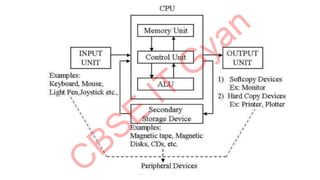
COMPONENTS OF COMPUTER SYSTEM
A computer is an electronic device that has devices to enter data, store
data and process raw facts and figures according to the given instructions
and give the desired result on an output device.
Data: Data refers to raw facts and figures. For example, 123, “English”,
etc. Information: Information refers to processed data. For example, total
marks and percentage of a student
A computer system comprises the following components:
Computer hardware – Physical parts of a computer such as Input devices,
output devices, central processing unit and storage devices are called computer
hardware.
Computer software – Software are the programs or applications that run on
computer. For example, MS Word, MS PowerPoint, Operating systems, etc.
Input devices
Input devices are used for entering data or instructions into the computer.
Keyboard is the most commonly used input device.
Another most important device that is commonly used is the mouse. It is a pointing device that is used to point to an object or
menu option on the computer screen.
Scanners are another important hardware devices that are used to convert a picture or text in a book or page in a digital form.
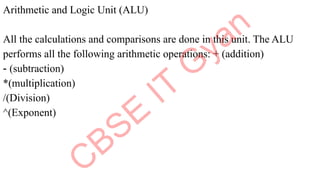
Arithmetic and Logic Unit (ALU)
All the calculations and comparisons are done in this unit. The ALU
performs all the following arithmetic operations: + (addition)
- (subtraction)
*(multiplication)
/(Division)
^(Exponent)
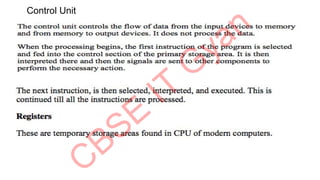
Control Unit
INFORMATION
TECHNOLOGY-
402
Class- IX
Chapter 1 Employability
skills
Unit 3: Basic ICT Skills (part 2)
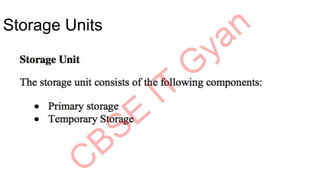
Storage Units
Primary Storage
The primary storage is also called the primary memory. It is directly accessible by the CPU. It can
be:
1. RAM (Random Access Memory
2. ROM (Read Only Memory)
Functions of primary memory are:
1. Here data is fed and held until it is ready to be accessed.
2. It is used to hold the data being processed and the intermediate results of processing.
3. It holds the result of the processing.
4. It holds the processing instructions.
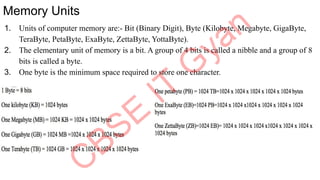
Memory Units
1. Units of computer memory are:- Bit (Binary Digit), Byte (Kilobyte, Megabyte, GigaByte,
TeraByte, PetaByte, ExaByte, ZettaByte, YottaByte).
2. The elementary unit of memory is a bit. A group of 4 bits is called a nibble and a group of 8
bits is called a byte.
3. One byte is the minimum space required to store one character.
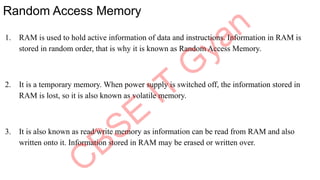
Random Access Memory
1. RAM is used to hold active information of data and instructions. Information in RAM is
stored in random order, that is why it is known as Random Access Memory.
2. It is a temporary memory. When power supply is switched off, the information stored in
RAM is lost, so it is also known as volatile memory.
3. It is also known as read/write memory as information can be read from RAM and also
written onto it. Information stored in RAM may be erased or written over.
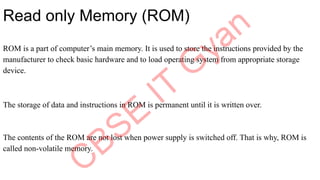
Read only Memory (ROM)
ROM is a part of computer’s main memory. It is used to store the instructions provided by the
manufacturer to check basic hardware and to load operating system from appropriate storage
device.
The storage of data and instructions in ROM is permanent until it is written over.
The contents of the ROM are not lost when power supply is switched off. That is why, ROM is
called non-volatile memory.
INFORMATION
TECHNOLOGY-
402
Class- IX
Chapter 1 Employability
skills
Unit 3: Basic ICT Skills
(Part 3)
Secondary Storage
Since the computer’s main memory stores the data and information temporarily, the
secondary memory is used. Secondary memory is used to store bulk of information.
The information stored in secondary memory is not lost, so it is also a non- volatile memory.
Secondary storage devices include hard disk, CD, DVDs, Pen drive , etc.
CDs/DVDs
Compact Disc (CD) and Digital Versatile disc (DVD) are optical media that is used
to record data from computer. Data can then be read from the CD. To read data from
the CD, we need to have a CD Drive in our computer.
There are two variations of CD-
CD-R and
CD-RW
In CD-R, data once recorded can be read only and cannot be erased. In CD-RW:
previously recorded data can be erased and new data can be recorded.
Both CD and DVD look same in appearance but DVDs can hold much more data
than CDs.
To read data from the DVD, we need to have a DVD drive in our
computer system. We can read a CD using DVD drive but we cannot
read a DVD using CD drive.
A CD can store upto 700 MB of data whereas a DVD can store 4.7
GB of data.
.dv
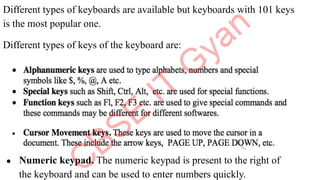
Different types of keyboards are available but keyboards with 101 keys
is the most popular one.
Different types of keys of the keyboard are:
● Numeric keypad. The numeric keypad is present to the right of
the keyboard and can be used to enter numbers quickly.
Mouse
● A mouse is a pointing device and is used to move mouse pointer
on a computer monitor. When you move the mouse on a flat
surface, the mouse pointer on the computer monitor moves in the
direction of the mouse’s movement.
● A computer mouse may be connected to a computer using wire
and connected to PS/2 or USB post. Some of the computer mouse
are wireless.
● A mouse usually has two buttons with a scroll wheel in the center.
Joystick
A Joystick is used to play games on the computer. It consists of a vertical
stick that is moved to control objects on the computer screen.
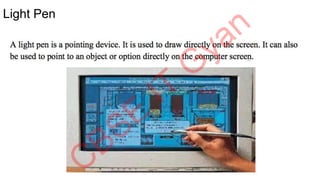
Light Pen
Graphics Tablets
A graphic tablet is used to create digital drawings by hand drawing
image on a flat surface called the tablet using a special pen. This
special pen is called stylus.
Scanner
A scanner is a device that is used to convert text or image into a
digital file.
Barcode Reader
A barcode consists of a combination of thick and thin vertical lines
found on products. The bar code identifies the product and the
manufacturer. These barcodes can be read by a device called Barcode
reader.
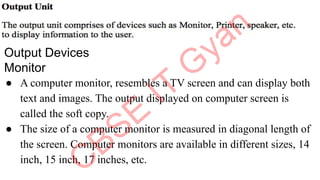
Output Devices
Monitor
● A computer monitor, resembles a TV screen and can display both
text and images. The output displayed on computer screen is
called the soft copy.
● The size of a computer monitor is measured in diagonal length of
the screen. Computer monitors are available in different sizes, 14
inch, 15 inch, 17 inches, etc.
Dot Matrix Printer
It is the most commonly used character printer, i.e, it prints one
character at a time. Most of the dot matrix printers are bidirectional,
i.e., they print one line of text from left to right and then the next line
from right to left.
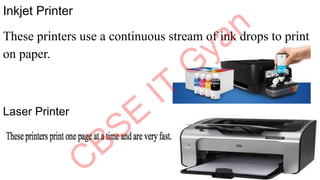
Inkjet Printer
These printers use a continuous stream of ink drops to print
on paper.
Laser Printer
INFORMATION
TECHNOLOGY-
402
Class- IX
Chapter 1 Employability
skills
Unit 3: Basic ICT Skills
(Part 4)
Motherboard
Motherboard also referred as system board, is the main circuit board inside a
computer. It connects input, processing and output devices
Software
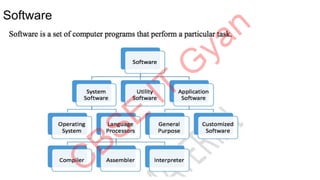
● System software is a set of one or more programs designed to control the
operation of a computer system.
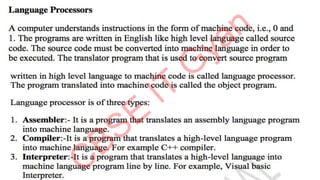
● Operating systems and language processors come under the category of system
software.
Operating System
Operating system is a master control program that runs the computer. When the
computer is switched on, operating system is the first program loaded into the
computer’s memory.
Examples of operating system are Windows, UNIX, MS-DOS, Mac OS, Solaris,
etc.
Application Software
Application software is a computer program that is designed to perform a certain
type of work. This type of software pertains to one specific application. For
example, software written to calculate salary of the school employees cannot be
used to prepare school result.
Application softwares can be classified as General purpose software and Specific
purpose application software.
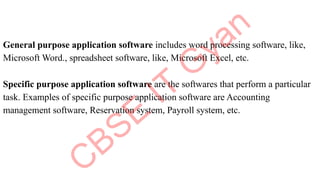
General purpose application software includes word processing software, like,
Microsoft Word., spreadsheet software, like, Microsoft Excel, etc.
Specific purpose application software are the softwares that perform a particular
task. Examples of specific purpose application software are Accounting
management software, Reservation system, Payroll system, etc.
Utility Program
A utility program is used to perform maintenance work on a system or on the
components of the computer.Examples of Utility program are;- anti-virus software,
file management programs, etc.
Antivirus software:- This program helps in detecting and removing viruses. For
example, Norton antivirus, McAffee virus scan, etc.
File management tools:-These tools help in storing, searching, and sorting files
and folders on the system. For example, Windows Explorer.
Compression:- This program helps in compression of large files so that they take
less storage space. For example, WinZip.
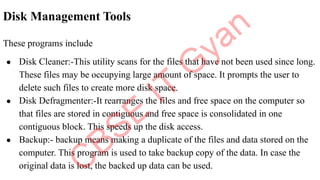
Disk Management Tools
These programs include
● Disk Cleaner:-This utility scans for the files that have not been used since long.
These files may be occupying large amount of space. It prompts the user to
delete such files to create more disk space.
● Disk Defragmenter:-It rearranges the files and free space on the computer so
that files are stored in contiguous and free space is consolidated in one
contiguous block. This speeds up the disk access.
● Backup:- backup means making a duplicate of the files and data stored on the
computer. This program is used to take backup copy of the data. In case the
original data is lost, the backed up data can be used.
Windows 7
Windows 7 is an operating system developed by Microsoft and is used on
personal computers.
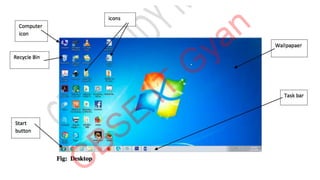
After loading Windows 7, the first screen that appears on the monitor is called
desktop. From the desktop, you can access different components of Windows
7.
By default, Windows 7 has a picture for the desktop background. This is
called wallpaper.
Small pictures on the desktop are called icons. These icons represent files,
folders, applications, etc. At the bottom of the desktop is a long bar called the
Taskbar. To the left of the taskbar is the Start button.
ICT-skills_IX.pdf...    .....    .......

ICT-skills_IX.pdf... ..... .......

  • 1.
    INFORMATION TECHNOLOGY- 402 Class- IX Chapter 1Employability skills Unit 3: Basic ICT Skills
  • 2.
    Using a Computer(Procedure for starting and shutting down a computer) Starting a Computer 1. Press the Power button of the computer. 2. When you turn on the computer, lights on the keyboard may blink for a while and you may hear a beep sound. This indicates that the Power-on-self text (POST) has started. POST is a sequence of tests that determines if the computer hardware like, keyboard, RAM, disk drives, etc are working correctly. The monitor may display a message, if a component is not functioning. 3. After the POST, the computer starts the operating system. The process of bringing up the operating system is called booting. The computer knows how to boot because the instructions of booting are built into a chip called BIOS (Basic Input/ Output System). 4. When the operating system starts, say Windows 7, Windows welcome screen appears. The first screen that appears after Windows 7 is successfully loaded is called desktop. Now, you can perform various tasks on the computer.
  • 3.
    Shutting down thecomputer 1. Before shutting down the computer, you need to save and close all the files and applications. You can completely turn off the computer, you can make it sleep or hibernate it. 2. To turn off the computer completely, click the Start button, and then click Shut Down. 3. If you choose Sleep option, the system uses very little power, the computer starts up faster and you are back to where you left. You can use sleep option if you going away for a short time. 4. If you select Hibernate option, system uses less power than Sleep. When you start the PC again, you are back to where you left.
  • 4.
    Introduction to ICT ICTstands for Information and Communication Technology which deals with the use of electronic media like computer, smart phone, ipad, etc. to store process, and retrieve data or information. ICT applications are found in every field – education, health, business, design, manufacturing, science, environment.
  • 5.
    ICT in Education ICTfor education refers to the development of information and communication technology specifically for teaching/learning purposes. ICT has also become integral to the teaching-learning process. ICT, to some extent, has replaced traditional chalkboards with interactive digital whiteboards, Students are also using their own smartphones or other devices for learning during class time.
  • 6.
    Some of theadvantages of ICT in education are: 1. Students are better prepared to deal with ongoing technological change in society and the workplace. 2. Images and videos used for teaching improves the retention memory of the students. 3. Practical demonstration can be given to the students . 4. If the teaching process in the class is interactive, it will make the lesson more enjoyable. 5. An e-learning program allows students to learn at their own pace, at any convenient time, and from any place.
  • 7.
    ICT in HealthCare Throughthe right communication media, a doctor can easily deliver treatment and care to the patient who is located far away. 1. Doctor can also continuously monitor the patient’s history, diagnostic report, and track the current health condition. The Doctor can also interact with patient, recommend to take medical examination and prescribe medicine. 2. Using the ICT tool or a suitable communication system, government can make efforts to create awareness among the public about the communicable diseases, prevention measures and various current diagnostic & etc. 3. MRI, CT-scan, ultrasound are done in hospitals, diagnostic centres, to diagnose the diseases.
  • 8.
    ICT in Governance ICTin governance means using Internet, other electronic media buy the central and state governments. ICT in governance can be help: 1. Deliver government services efficiently 2. E-governance sites enable people to perform various tasks such as fillin a form, applying for passport, paying bills, property tax, etc. even sitting at home.
  • 9.
    ICT in Business 1.ICT in business can be used for the following purposes: 2. Keep records of the stock 3. Prepare accounts and balance sheets 4. Maintain database of staff and customers 5. E-commerce enables people to buy and sell products online. 6. E-banking facility helps to make banking transactions at any time of the day .
  • 10.
    ICT Tools ICT toolsare devices that are used in Information and communication technology. For example, computer, smart phone, radio, television, ipad, tablets, etc. Some of these are: 1. Mobile: Mobile phones are the easiest and simplest way of communication. It is small in size, lightweight and portable. You can stay in touch with your friends, relatives, anytime and anywhere. Mobile phones are useful in studies. Students can access the internet on their mobile phones and get knowledge on any topic.
  • 11.
    Tablets Tablets are smallpersonal computers with a touch screen. Tablets allow user to input data and instructions through keyboard or mouse. Learning software called apps can be downloaded onto tablets. Radio Radio is the oldest tool used to provide entertainment and information to people. You can listen to music, radio shows, etc. on radio. TV Television is another important ICT tool. You can watch music, view programs, etc. on television.
  • 12.
    Newspaper: Newspaper is anothermost important ICT tool. News related to all the issues , national, international, sports, space, etc, are printed in newspapers. Email: Email is the most common way of communication in today’s world. It is the official way of communication. Some of the advantages of using email are: 1. You don’t have to pay anything extra for sending or receiving email. You just pay for the internet connection. 2. You can send bulk mails. 3. The receiver may not be online when you send the email. 4. You can send documents, presentations, images, videos, etc. as an attachment to email.
  • 13.
    COMPONENTS OF COMPUTERSYSTEM A computer is an electronic device that has devices to enter data, store data and process raw facts and figures according to the given instructions and give the desired result on an output device. Data: Data refers to raw facts and figures. For example, 123, “English”, etc. Information: Information refers to processed data. For example, total marks and percentage of a student
  • 14.
    A computer systemcomprises the following components: Computer hardware – Physical parts of a computer such as Input devices, output devices, central processing unit and storage devices are called computer hardware. Computer software – Software are the programs or applications that run on computer. For example, MS Word, MS PowerPoint, Operating systems, etc.
  • 16.
    Input devices Input devicesare used for entering data or instructions into the computer. Keyboard is the most commonly used input device. Another most important device that is commonly used is the mouse. It is a pointing device that is used to point to an object or menu option on the computer screen. Scanners are another important hardware devices that are used to convert a picture or text in a book or page in a digital form.
  • 18.
    Arithmetic and LogicUnit (ALU) All the calculations and comparisons are done in this unit. The ALU performs all the following arithmetic operations: + (addition) - (subtraction) *(multiplication) /(Division) ^(Exponent)
  • 19.
  • 20.
    INFORMATION TECHNOLOGY- 402 Class- IX Chapter 1Employability skills Unit 3: Basic ICT Skills (part 2)
  • 21.
  • 22.
    Primary Storage The primarystorage is also called the primary memory. It is directly accessible by the CPU. It can be: 1. RAM (Random Access Memory 2. ROM (Read Only Memory) Functions of primary memory are: 1. Here data is fed and held until it is ready to be accessed. 2. It is used to hold the data being processed and the intermediate results of processing. 3. It holds the result of the processing. 4. It holds the processing instructions.
  • 23.
    Memory Units 1. Unitsof computer memory are:- Bit (Binary Digit), Byte (Kilobyte, Megabyte, GigaByte, TeraByte, PetaByte, ExaByte, ZettaByte, YottaByte). 2. The elementary unit of memory is a bit. A group of 4 bits is called a nibble and a group of 8 bits is called a byte. 3. One byte is the minimum space required to store one character.
  • 24.
    Random Access Memory 1.RAM is used to hold active information of data and instructions. Information in RAM is stored in random order, that is why it is known as Random Access Memory. 2. It is a temporary memory. When power supply is switched off, the information stored in RAM is lost, so it is also known as volatile memory. 3. It is also known as read/write memory as information can be read from RAM and also written onto it. Information stored in RAM may be erased or written over.
  • 25.
    Read only Memory(ROM) ROM is a part of computer’s main memory. It is used to store the instructions provided by the manufacturer to check basic hardware and to load operating system from appropriate storage device. The storage of data and instructions in ROM is permanent until it is written over. The contents of the ROM are not lost when power supply is switched off. That is why, ROM is called non-volatile memory.
  • 26.
    INFORMATION TECHNOLOGY- 402 Class- IX Chapter 1Employability skills Unit 3: Basic ICT Skills (Part 3)
  • 27.
    Secondary Storage Since thecomputer’s main memory stores the data and information temporarily, the secondary memory is used. Secondary memory is used to store bulk of information. The information stored in secondary memory is not lost, so it is also a non- volatile memory. Secondary storage devices include hard disk, CD, DVDs, Pen drive , etc.
  • 28.
    CDs/DVDs Compact Disc (CD)and Digital Versatile disc (DVD) are optical media that is used to record data from computer. Data can then be read from the CD. To read data from the CD, we need to have a CD Drive in our computer. There are two variations of CD- CD-R and CD-RW In CD-R, data once recorded can be read only and cannot be erased. In CD-RW: previously recorded data can be erased and new data can be recorded. Both CD and DVD look same in appearance but DVDs can hold much more data than CDs.
  • 29.
    To read datafrom the DVD, we need to have a DVD drive in our computer system. We can read a CD using DVD drive but we cannot read a DVD using CD drive. A CD can store upto 700 MB of data whereas a DVD can store 4.7 GB of data.
  • 31.
  • 32.
    Different types ofkeyboards are available but keyboards with 101 keys is the most popular one. Different types of keys of the keyboard are: ● Numeric keypad. The numeric keypad is present to the right of the keyboard and can be used to enter numbers quickly.
  • 34.
    Mouse ● A mouseis a pointing device and is used to move mouse pointer on a computer monitor. When you move the mouse on a flat surface, the mouse pointer on the computer monitor moves in the direction of the mouse’s movement. ● A computer mouse may be connected to a computer using wire and connected to PS/2 or USB post. Some of the computer mouse are wireless. ● A mouse usually has two buttons with a scroll wheel in the center.
  • 35.
    Joystick A Joystick isused to play games on the computer. It consists of a vertical stick that is moved to control objects on the computer screen.
  • 36.
  • 37.
    Graphics Tablets A graphictablet is used to create digital drawings by hand drawing image on a flat surface called the tablet using a special pen. This special pen is called stylus.
  • 38.
    Scanner A scanner isa device that is used to convert text or image into a digital file. Barcode Reader A barcode consists of a combination of thick and thin vertical lines found on products. The bar code identifies the product and the manufacturer. These barcodes can be read by a device called Barcode reader.
  • 39.
    Output Devices Monitor ● Acomputer monitor, resembles a TV screen and can display both text and images. The output displayed on computer screen is called the soft copy. ● The size of a computer monitor is measured in diagonal length of the screen. Computer monitors are available in different sizes, 14 inch, 15 inch, 17 inches, etc.
  • 41.
    Dot Matrix Printer Itis the most commonly used character printer, i.e, it prints one character at a time. Most of the dot matrix printers are bidirectional, i.e., they print one line of text from left to right and then the next line from right to left.
  • 42.
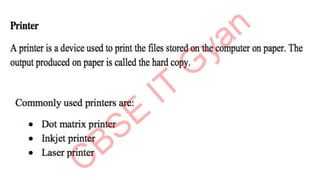
    Inkjet Printer These printersuse a continuous stream of ink drops to print on paper. Laser Printer
  • 44.
    INFORMATION TECHNOLOGY- 402 Class- IX Chapter 1Employability skills Unit 3: Basic ICT Skills (Part 4)
  • 45.
    Motherboard Motherboard also referredas system board, is the main circuit board inside a computer. It connects input, processing and output devices
  • 46.
  • 47.
    ● System softwareis a set of one or more programs designed to control the operation of a computer system. ● Operating systems and language processors come under the category of system software. Operating System Operating system is a master control program that runs the computer. When the computer is switched on, operating system is the first program loaded into the computer’s memory. Examples of operating system are Windows, UNIX, MS-DOS, Mac OS, Solaris, etc.
  • 49.
    Application Software Application softwareis a computer program that is designed to perform a certain type of work. This type of software pertains to one specific application. For example, software written to calculate salary of the school employees cannot be used to prepare school result. Application softwares can be classified as General purpose software and Specific purpose application software.
  • 50.
    General purpose applicationsoftware includes word processing software, like, Microsoft Word., spreadsheet software, like, Microsoft Excel, etc. Specific purpose application software are the softwares that perform a particular task. Examples of specific purpose application software are Accounting management software, Reservation system, Payroll system, etc.
  • 51.
    Utility Program A utilityprogram is used to perform maintenance work on a system or on the components of the computer.Examples of Utility program are;- anti-virus software, file management programs, etc. Antivirus software:- This program helps in detecting and removing viruses. For example, Norton antivirus, McAffee virus scan, etc. File management tools:-These tools help in storing, searching, and sorting files and folders on the system. For example, Windows Explorer. Compression:- This program helps in compression of large files so that they take less storage space. For example, WinZip.
  • 52.
    Disk Management Tools Theseprograms include ● Disk Cleaner:-This utility scans for the files that have not been used since long. These files may be occupying large amount of space. It prompts the user to delete such files to create more disk space. ● Disk Defragmenter:-It rearranges the files and free space on the computer so that files are stored in contiguous and free space is consolidated in one contiguous block. This speeds up the disk access. ● Backup:- backup means making a duplicate of the files and data stored on the computer. This program is used to take backup copy of the data. In case the original data is lost, the backed up data can be used.
  • 53.
    Windows 7 Windows 7is an operating system developed by Microsoft and is used on personal computers. After loading Windows 7, the first screen that appears on the monitor is called desktop. From the desktop, you can access different components of Windows 7. By default, Windows 7 has a picture for the desktop background. This is called wallpaper. Small pictures on the desktop are called icons. These icons represent files, folders, applications, etc. At the bottom of the desktop is a long bar called the Taskbar. To the left of the taskbar is the Start button.