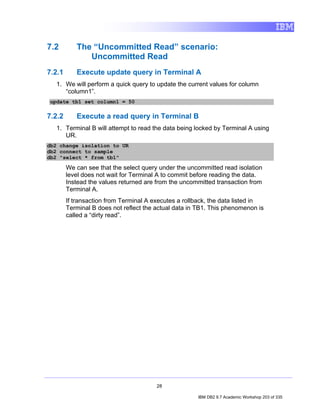




IBM® DB2® 9.7
              Academic Workshop
              Course Workbook


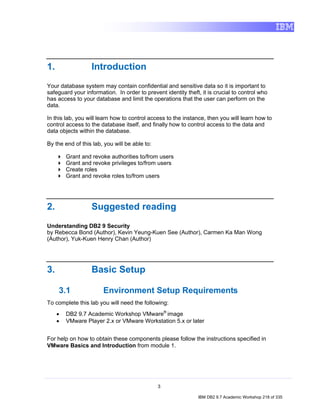
IBM Canada Ltd.


Information Management
Ecosystem Partnerships
                                  V-20100729
IBM® DB2® 9.7
    Academic Workshop
    Course Workbook


Information Management Ecosystem Partnerships
imschool@us.ibm.com
Contents


PREFACE
 WELCOME................................................................................................... 3
RELATIONAL DATA MODEL.................................................................... 10
DB2 FUNDAMENTALS AND IBM DATA STUDIO.................................... 21
IBM DATA STUDIO LAB (HANDS-ON) .................................................... 40
WORKING WITH DATABASES AND DATABASE OBJECTS ................ 55
WORKING WITH DATABASES AND DATABASE OBJECTS LAB ........ 74
INTRODUCTION TO SQL........................................................................ 104
UNDERSTANDING SQL LAB (HANDS-ON)........................................... 128
DATA CONCURRENCY ...........................................................................162
DATA CONCURRENCY LAB (HANDS-ON) ........................................... 176
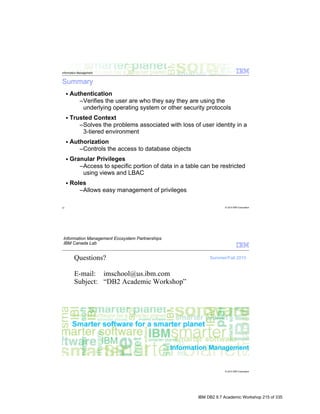
DB2 DATABASE SECURITY .................................................................. 205
DB2 SECURITY LAB (HANDS-ON) ........................................................ 216
DB2 BACKUP AND RECOVERY ............................................................ 232
DB2 BACKUP AND RECOVERY LAB (HANDS-ON) ............................. 243
DB2 PUREXML ........................................................................................ 257
DB2 PUREXML – STORING XML DATA MADE EASY LAB ................. 275
DB2 PROGRAMMING FUNDAMENTALS .............................................. 286
DB2 PROGRAMMING FUNDAMENTALS LAB (HANDS-ON) ............... 303
APPENDIX I – VMWARE BASICS AND INTRODUCTION ..................... 327
Preface

Welcome to the IBM DB2 9.7 Academic Workshop! If you are reading this text,
you are giving an important step towards building a successful career as an
Information Technology professional.
This course was specially designed for the academic community interested into
expanding their skill set on the exciting field of relational databases. Either if you
are a student taking your first steps into this area, or a member of the faculty, you
are certain to learn something new from this material. Additionally, the provided
hands-on laboratories, based on the latest version of IBM® DB2® for Linux,
UNIX and Windows, close the gap between theory learned from the
presentations, and real-world use of a Relational Database Management System
(RDBMS).
IBM DB2 for Linux, UNIX and Windows is an industry-leading performance
Relational Database Management System for mixed workloads that offers a wide
range of advanced features. During this course you will be exposed to some of
these features, understand the mechanics of relational databases and how DB2’s
features can be used to help increase productivity while lowering costs of
maintaining databases.
The course starts with a general overview of databases and the relational model
and moves on to introducing the DB2 environment and the easy of use of its
tools. Next, you will learn about the various objects that are part of a relational
databases and how to interact with them using SQL. Once you are comfortable
with the basic of RDBMS, we explore more advanced features such as DB2
pureXML, which allows supports storage of XML documents and use of XML
technologies such as XQuery and XML Schema. Afterwards, topics that every
Database Administrator (DBA) should know are presented such as implementing
security policy for access to data, backing up your database and understanding
data concurrency. The course finishes by briefly exploring how applications can
store and retrieve data from a DB2 server.
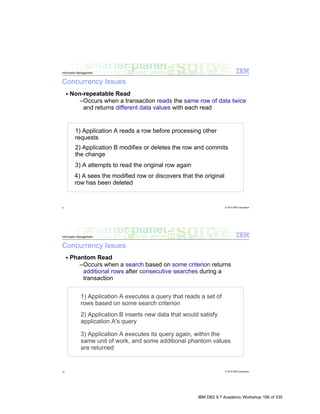
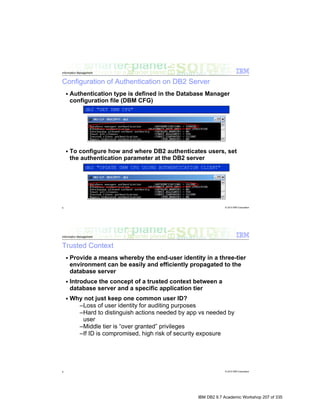
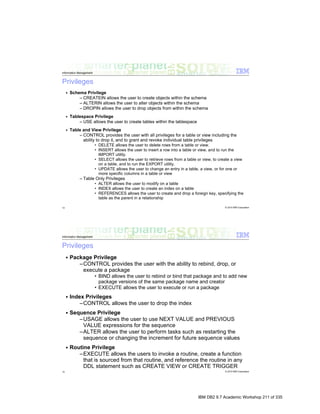
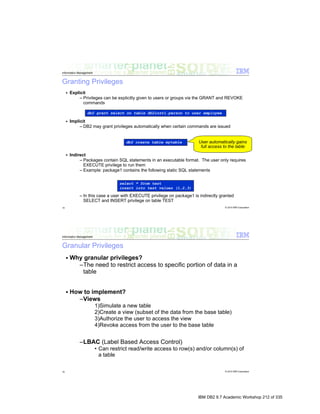
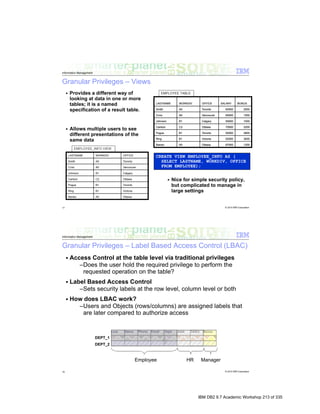
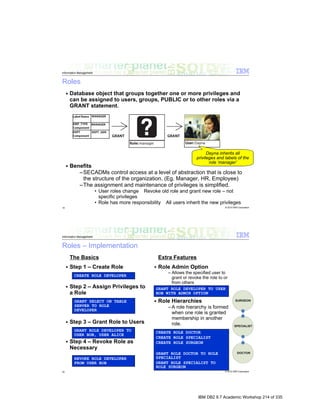
IBM DB2 9.7 Academic Workshop 3 of 335
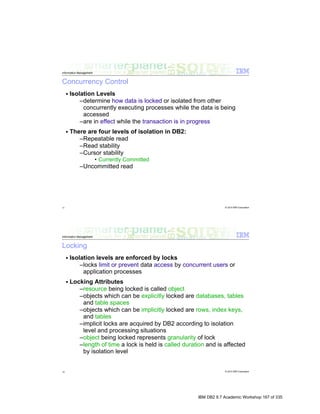
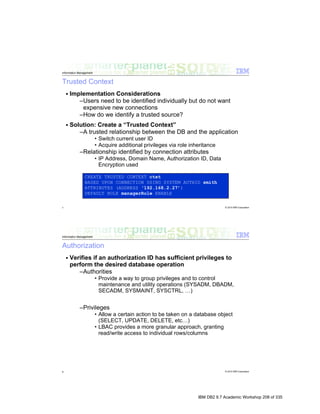
IBM DB2 9.7 Academic Workshop 4 of 335
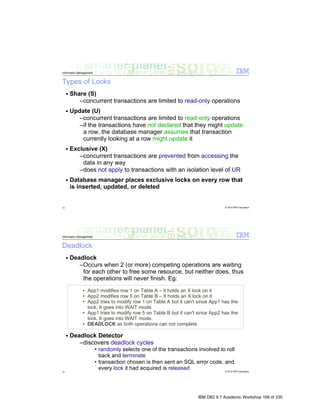
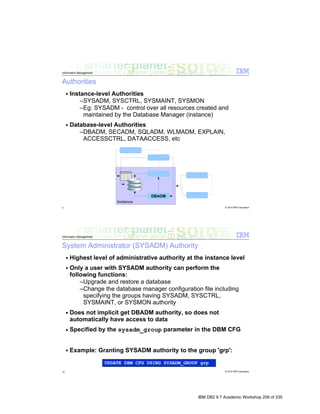
IBM DB2 9.7 Academic Workshop 5 of 335
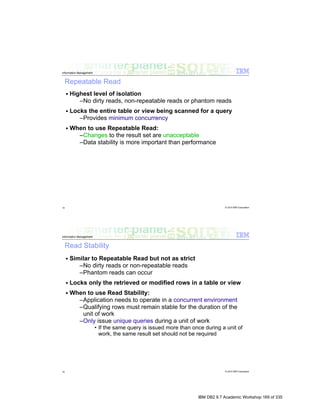
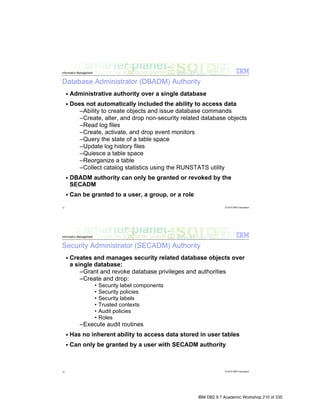
IBM DB2 9.7 Academic Workshop 6 of 335
IBM DB2 9.7 Academic Workshop 7 of 335
IBM DB2 9.7 Academic Workshop 8 of 335
Questions?

E-mail: imschool@us.ibm.com
Subject: DB2 Academic Workshop


                                 IBM DB2 9.7 Academic Workshop 9 of 335
IBM DB2 9.7 Academic Workshop 10 of 335
IBM DB2 9.7 Academic Workshop 11 of 335
IBM DB2 9.7 Academic Workshop 12 of 335
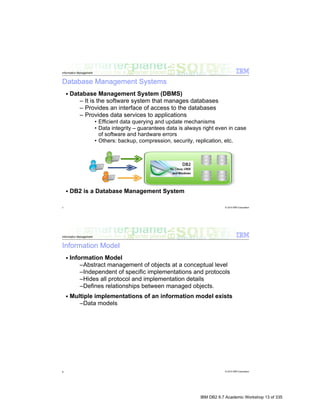
IBM DB2 9.7 Academic Workshop 13 of 335
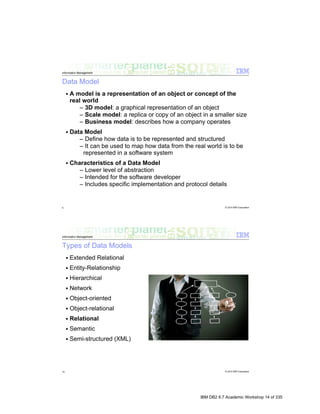
IBM DB2 9.7 Academic Workshop 14 of 335
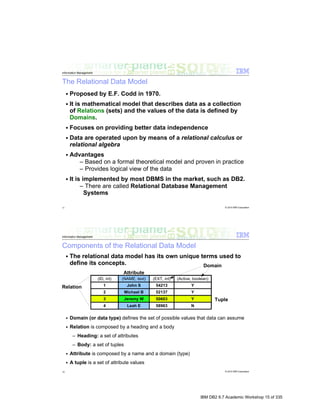
IBM DB2 9.7 Academic Workshop 15 of 335
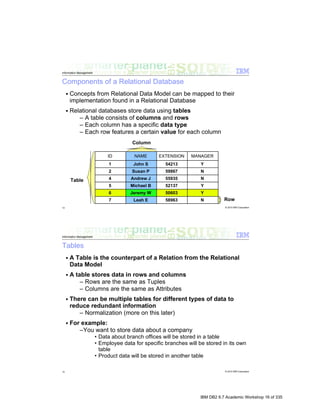
IBM DB2 9.7 Academic Workshop 16 of 335
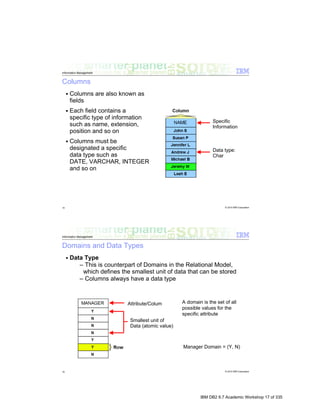
IBM DB2 9.7 Academic Workshop 17 of 335
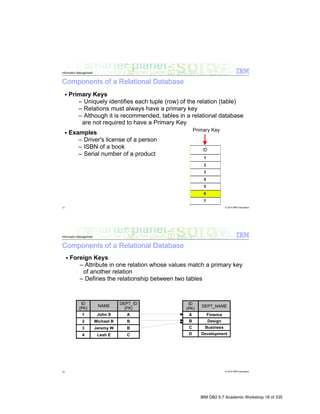
IBM DB2 9.7 Academic Workshop 18 of 335
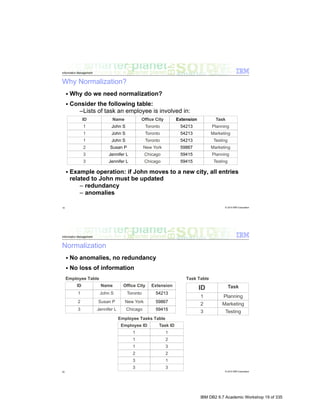
IBM DB2 9.7 Academic Workshop 19 of 335
IBM DB2 9.7 Academic Workshop 20 of 335
IBM DB2 9.7 Academic Workshop 21 of 335
IBM DB2 9.7 Academic Workshop 22 of 335
IBM DB2 9.7 Academic Workshop 23 of 335
IBM DB2 9.7 Academic Workshop 24 of 335
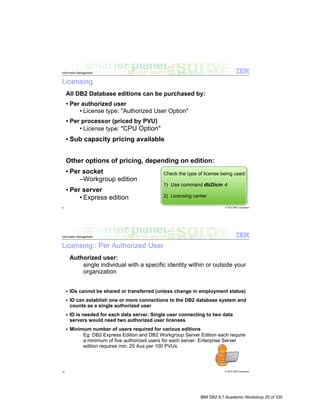
IBM DB2 9.7 Academic Workshop 25 of 335
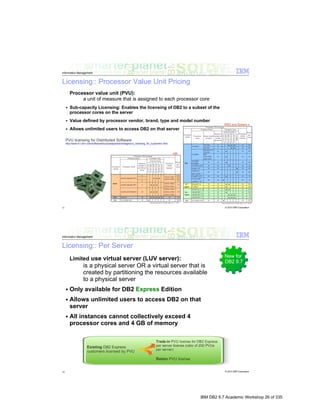
IBM DB2 9.7 Academic Workshop 26 of 335
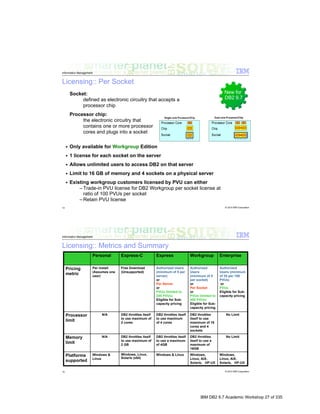
IBM DB2 9.7 Academic Workshop 27 of 335
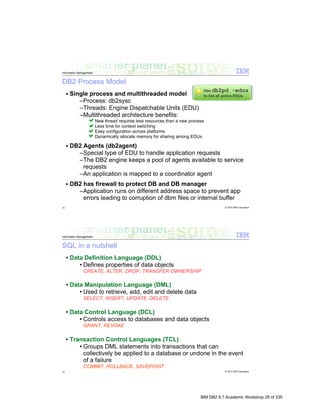
IBM DB2 9.7 Academic Workshop 28 of 335
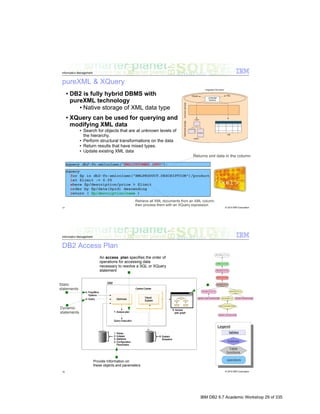
IBM DB2 9.7 Academic Workshop 29 of 335
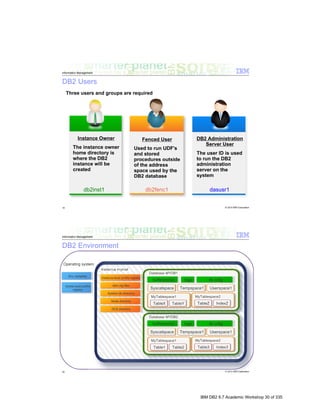
IBM DB2 9.7 Academic Workshop 30 of 335
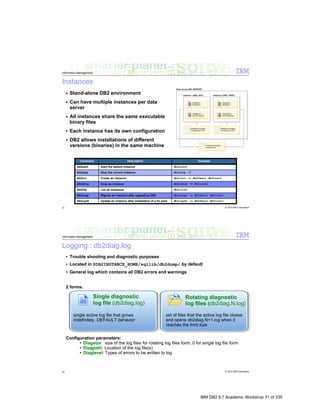
IBM DB2 9.7 Academic Workshop 31 of 335
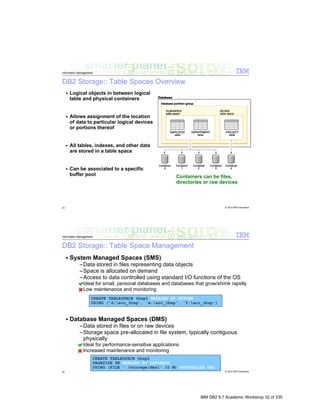
IBM DB2 9.7 Academic Workshop 32 of 335
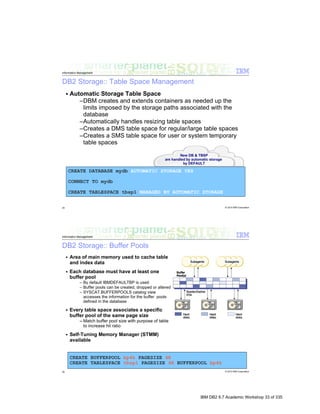
IBM DB2 9.7 Academic Workshop 33 of 335
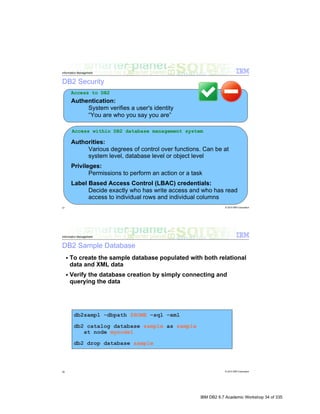
IBM DB2 9.7 Academic Workshop 34 of 335
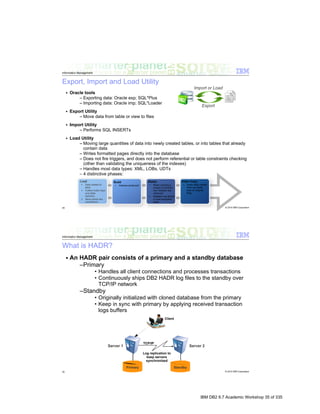
IBM DB2 9.7 Academic Workshop 35 of 335
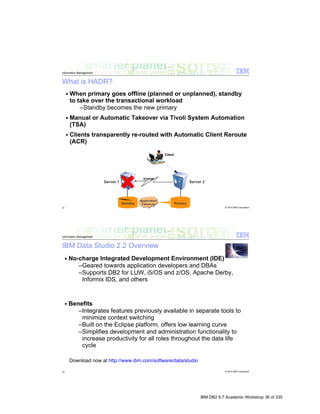
IBM DB2 9.7 Academic Workshop 36 of 335
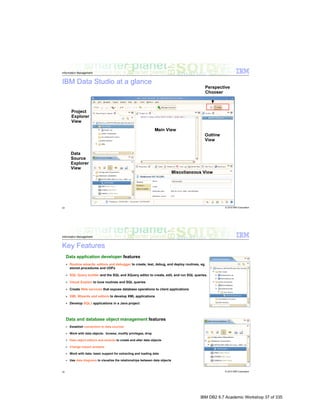
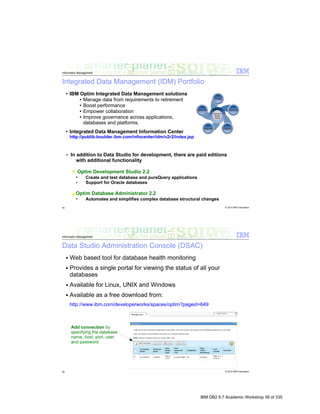
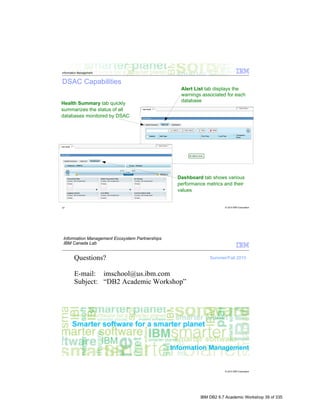
IBM DB2 9.7 Academic Workshop 37 of 335
IBM DB2 9.7 Academic Workshop 38 of 335
IBM DB2 9.7 Academic Workshop 39 of 335
IBM DB2® 9.7


    IBM Data Studio
    Hands-On Lab


I


    Information Management Ecosystem Partnerships

    IBM Canada Lab


                                         IBM DB2 9.7 Academic Workshop 40 of 335
Contents

1.      INTRODUCTION............................................................................................ 3
2.      OBJECTIVES ................................................................................................ 3
3.      SUGGESTED READING ............................................................................... 3
4.      GETTING STARTED: THE BASICS OF IBM DATA STUDIO ...................... 4
     4.1 ECLIPSE FUNDAMENTALS ............................................................................. 4
        4.1.1    DATA ORGANIZATION – WORKSPACES AND PROJECTS .......................... 4
        4.1.2    USER INTERFACE – VIEWS AND PERSPECTIVES .................................... 6
     5.     ENVIRONMENT SETUP REQUIREMENTS ......................................................... 7
     5.1 INITIAL STEPS ............................................................................................. 7
     6.     LAUNCHING DATA STUDIO ........................................................................... 9
     6.1 DATABASE CONNECTIONS.......................................................................... 11
        6.1.1    CREATING A NEW CONNECTION ......................................................... 11
        6.1.2    MODIFYING DATABASE PARAMETERS ................................................. 13
        6.1.3    STOPPING – STARTING YOUR DB2 INSTANCE ..................................... 14
        6.1.4    DISCONNECTING AND RECONNECTING ............................................... 15
7.      SUMMARY................................................................................................... 15


                                                           2

                                                                                IBM DB2 9.7 Academic Workshop 41 of 335
1.                Introduction
With the advent of IBM® Data Studio comes a major advance in the way DB2®
developers and administrators alike carry out their day to day functions. Historically,
depending on the tasks to be completed, it was common to switch back and forth
between disparate tools such as Control Center, Health Monitor, Developer Workbench,
and even the DB2 Command Line Processor (CLP).
The release of IBM Data Studio changes all this, facilitating DB2 administration, design,
development, and monitoring all within an integrated, Eclipsed-based environment. Data
Studio, the same tool that allows tuning of buffer pools and restriction of access to data
objects, can now be used to develop data web services and debug stored procedures.
By leveraging the power of IBM Data Studio, users are certain to enjoy increased
productivity as they find themselves able to perform a majority of their tasks within a
single environment.


2.                Objectives
By the end of this lab, you will be able to:

       Understand the basics of an Eclipse-based environment
       Establish a database connection
       Modify database parameters
       Start and stop a DB2 instance


3.                Suggested reading
IBM Data Studio: Get Started with Data Web Services
http://www.ibm.com/developerworks/edu/dm-dw-dm-0711pauser-i.html
An introduction to data web services development, deployment, and testing using IBM
Data Studio.


IBM Data Studio Information Center
http://publib.boulder.ibm.com/infocenter/dstudio/v1r1m0/index.jsp
A repository complete with tutorials on developing and administering with IBM Data
Studio.


                                               3

                                                             IBM DB2 9.7 Academic Workshop 42 of 335
4.                Getting Started: The Basics of IBM Data
                  Studio
This section of the lab introduces you to the basics of IBM Data Studio and how you can
quickly get up and running with it.

After completing this section, you will be able to:

        Launch Data Studio
        Create a new database connection
        Disconnect and reconnect to a database


4.1               Eclipse Fundamentals
IBM Data Studio is built upon the Eclipse platform and, as such, is said to be an Eclipse-
based development environment. The Eclipse platform is a framework that allows
integrated development environments (IDE) to be created; plug-ins exist to allow
development in Java, C/C++, PHP, COBOL, Ruby, and more. Developers using Eclipse
will appreciate the familiar look and feel that IBM Data Studio offers.

4.1.1             Data Organization – Workspaces and Projects
In an Eclipse-based environment, all development takes place within a project, which is
a directory that contains all of the source code, graphics, and other collateral. This is a
concept with which most are familiar from using other IDE’s. In Data Studio, you will
typically work with Data Development projects, but other project types exist for Java
development, web development, and more.
Each project you create must be contained within a workspace, which is a directory in
your file system. A workspace directory contains subdirectories for each of the projects
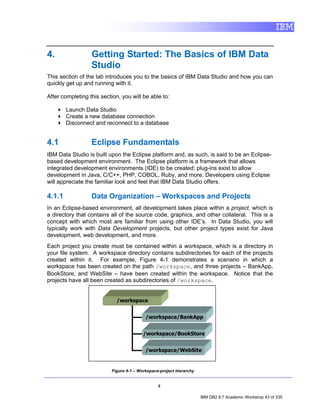
created within it. For example, Figure 4-1 demonstrates a scenario in which a
workspace has been created on the path /workspace, and three projects – BankApp,
BookStore, and WebSite – have been created within the workspace. Notice that the
projects have all been created as subdirectories of /workspace.


                             /workspace


                                          /workspace/BankApp


                                         /workspace/BookStore


                                          /workspace/WebSite


                          Figure 4-1 – Workspace-project hierarchy


                                                4

                                                                     IBM DB2 9.7 Academic Workshop 43 of 335
In an Eclipsed-based environment, workspaces and projects can easily be navigated
through the Project Explorer view (we’ll cover views in an upcoming section).
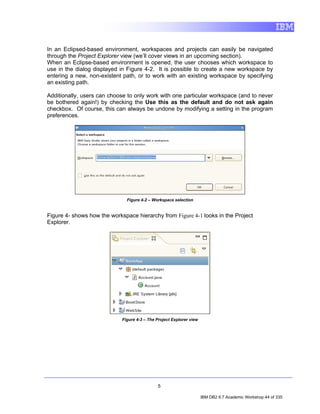
When an Eclipse-based environment is opened, the user chooses which workspace to
use in the dialog displayed in Figure 4-2. It is possible to create a new workspace by
entering a new, non-existent path, or to work with an existing workspace by specifying
an existing path.

Additionally, users can choose to only work with one particular workspace (and to never
be bothered again!) by checking the Use this as the default and do not ask again
checkbox. Of course, this can always be undone by modifying a setting in the program
preferences.


                               Figure 4-2 – Workspace selection


Figure 4- shows how the workspace hierarchy from Figure 4-1 looks in the Project
Explorer.


                             Figure 4-3 – The Project Explorer view


                                              5

                                                                      IBM DB2 9.7 Academic Workshop 44 of 335
4.1.2            User Interface – Views and Perspectives
Eclipse-based environments offer easy-to-use, customizable graphical interfaces
through the use of views and perspectives. Just as workspaces contain projects,
Eclipse perspectives contain views.

In fact, we’ve already seen an example of a view. In Figure 4-, we saw that the Project
Explorer view shows all projects in a workspace and files contained within them. A view
is nothing more than a task pane – a docked window that allows objects to be viewed
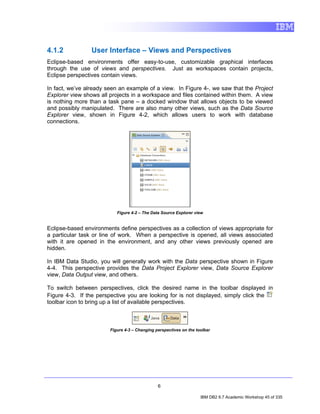
and possibly manipulated. There are also many other views, such as the Data Source
Explorer view, shown in Figure 4-2, which allows users to work with database
connections.


                           Figure 4-2 – The Data Source Explorer view


Eclipse-based environments define perspectives as a collection of views appropriate for
a particular task or line of work. When a perspective is opened, all views associated
with it are opened in the environment, and any other views previously opened are
hidden.

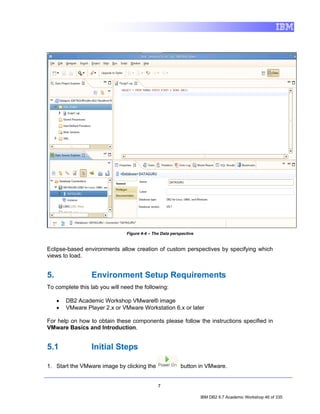
In IBM Data Studio, you will generally work with the Data perspective shown in Figure
4-4. This perspective provides the Data Project Explorer view, Data Source Explorer
view, Data Output view, and others.

To switch between perspectives, click the desired name in the toolbar displayed in
Figure 4-3. If the perspective you are looking for is not displayed, simply click the
toolbar icon to bring up a list of available perspectives.


                        Figure 4-3 – Changing perspectives on the toolbar


                                               6

                                                                    IBM DB2 9.7 Academic Workshop 45 of 335
Figure 4-4 – The Data perspective


Eclipse-based environments allow creation of custom perspectives by specifying which
views to load.


5.                Environment Setup Requirements
To complete this lab you will need the following:

     •   DB2 Academic Workshop VMware® image
     •   VMware Player 2.x or VMware Workstation 6.x or later

For help on how to obtain these components please follow the instructions specified in
VMware Basics and Introduction.


5.1               Initial Steps

1. Start the VMware image by clicking the                 button in VMware.


                                               7

                                                                    IBM DB2 9.7 Academic Workshop 46 of 335
2. At the login prompt, login with the following credentials:

       Username: root
       Password: password

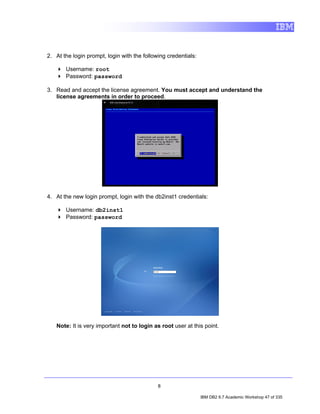
3. Read and accept the license agreement. You must accept and understand the
   license agreements in order to proceed.


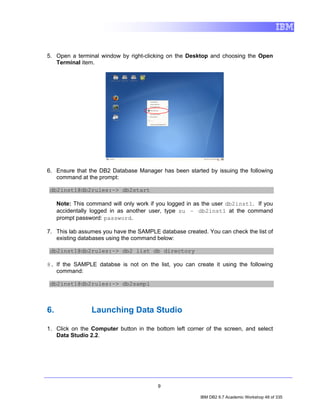
4. At the new login prompt, login with the db2inst1 credentials:

       Username: db2inst1
       Password: password


   Note: It is very important not to login as root user at this point.


                                             8

                                                                IBM DB2 9.7 Academic Workshop 47 of 335
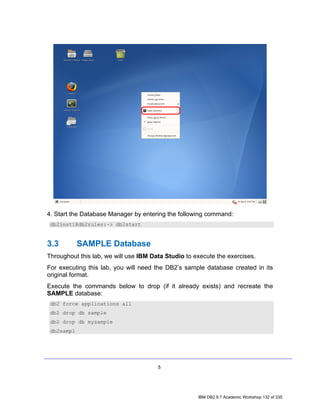
5. Open a terminal window by right-clicking on the Desktop and choosing the Open
   Terminal item.


6. Ensure that the DB2 Database Manager has been started by issuing the following
   command at the prompt:

 db2inst1@db2rules:~> db2start

     Note: This command will only work if you logged in as the user db2inst1. If you
     accidentally logged in as another user, type su – db2inst1 at the command
     prompt password: password.

7. This lab assumes you have the SAMPLE database created. You can check the list of
   existing databases using the command below:

 db2inst1@db2rules:~> db2 list db directory

8. If the SAMPLE databse is not on the list, you can create it using the following
   command:

 db2inst1@db2rules:~> db2sampl


6.               Launching Data Studio

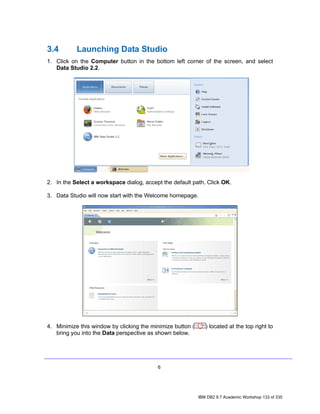
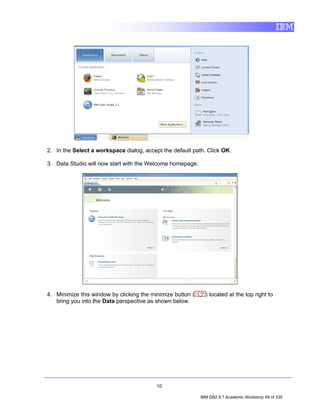
1. Click on the Computer button in the bottom left corner of the screen, and select
   Data Studio 2.2.


                                          9

                                                         IBM DB2 9.7 Academic Workshop 48 of 335
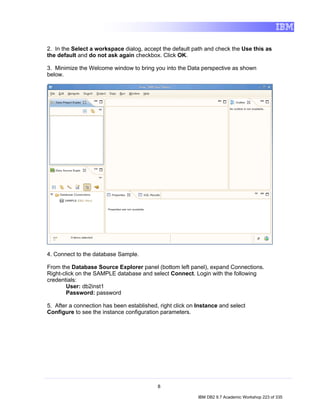
2. In the Select a workspace dialog, accept the default path. Click OK.

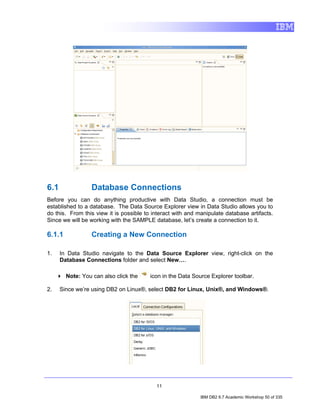
3. Data Studio will now start with the Welcome homepage.


4. Minimize this window by clicking the minimize button (     ) located at the top right to
   bring you into the Data perspective as shown below.


                                          10

                                                            IBM DB2 9.7 Academic Workshop 49 of 335
6.1              Database Connections
Before you can do anything productive with Data Studio, a connection must be
established to a database. The Data Source Explorer view in Data Studio allows you to
do this. From this view it is possible to interact with and manipulate database artifacts.
Since we will be working with the SAMPLE database, let’s create a connection to it.

6.1.1            Creating a New Connection

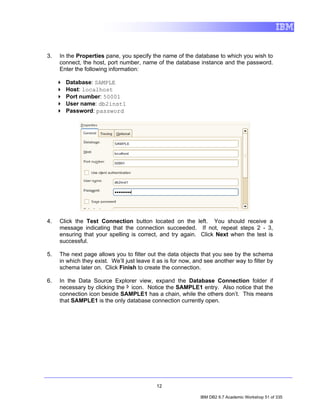
1.    In Data Studio navigate to the Data Source Explorer view, right-click on the
      Database Connections folder and select New….

        Note: You can also click the     icon in the Data Source Explorer toolbar.

2.    Since we’re using DB2 on Linux®, select DB2 for Linux, Unix®, and Windows®.


                                           11

                                                             IBM DB2 9.7 Academic Workshop 50 of 335
3.   In the Properties pane, you specify the name of the database to which you wish to
     connect, the host, port number, name of the database instance and the password.
     Enter the following information:

       Database: SAMPLE
       Host: localhost
       Port number: 50001
       User name: db2inst1
       Password: password


4.   Click the Test Connection button located on the left. You should receive a
     message indicating that the connection succeeded. If not, repeat steps 2 - 3,
     ensuring that your spelling is correct, and try again. Click Next when the test is
     successful.

5.   The next page allows you to filter out the data objects that you see by the schema
     in which they exist. We’ll just leave it as is for now, and see another way to filter by
     schema later on. Click Finish to create the connection.

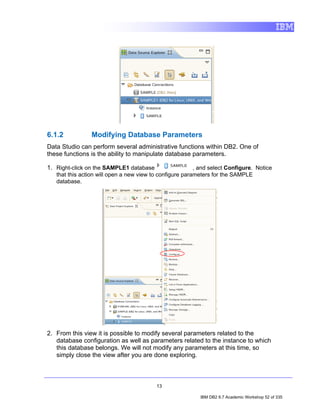
6.   In the Data Source Explorer view, expand the Database Connection folder if
     necessary by clicking the icon. Notice the SAMPLE1 entry. Also notice that the
     connection icon beside SAMPLE1 has a chain, while the others don’t. This means
     that SAMPLE1 is the only database connection currently open.


                                             12

                                                               IBM DB2 9.7 Academic Workshop 51 of 335
6.1.2           Modifying Database Parameters
Data Studio can perform several administrative functions within DB2. One of
these functions is the ability to manipulate database parameters.

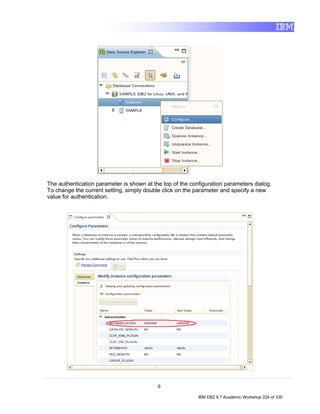
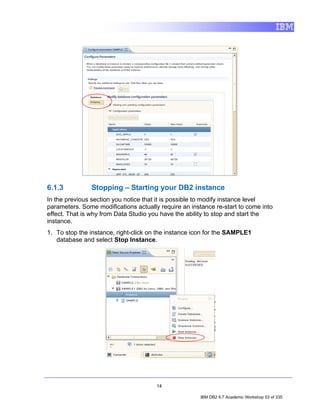
1. Right-click on the SAMPLE1 database                    , and select Configure. Notice
   that this action will open a new view to configure parameters for the SAMPLE
   database.


2. From this view it is possible to modify several parameters related to the
   database configuration as well as parameters related to the instance to which
   this database belongs. We will not modify any parameters at this time, so
   simply close the view after you are done exploring.


                                          13

                                                           IBM DB2 9.7 Academic Workshop 52 of 335
6.1.3          Stopping – Starting your DB2 instance
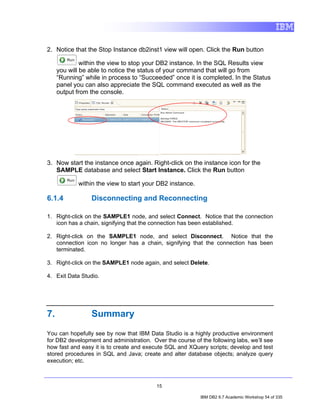
In the previous section you notice that it is possible to modify instance level
parameters. Some modifications actually require an instance re-start to come into
effect. That is why from Data Studio you have the ability to stop and start the
instance.
1. To stop the instance, right-click on the instance icon for the SAMPLE1
   database and select Stop Instance.


                                       14

                                                       IBM DB2 9.7 Academic Workshop 53 of 335
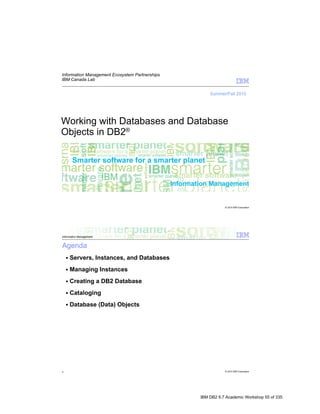
2. Notice that the Stop Instance db2inst1 view will open. Click the Run button

              within the view to stop your DB2 instance. In the SQL Results view
     you will be able to notice the status of your command that will go from
     “Running” while in process to “Succeeded” once it is completed. In the Status
     panel you can also appreciate the SQL command executed as well as the
     output from the console.


3. Now start the instance once again. Right-click on the instance icon for the
   SAMPLE database and select Start Instance. Click the Run button

            within the view to start your DB2 instance.

6.1.4            Disconnecting and Reconnecting

1. Right-click on the SAMPLE1 node, and select Connect. Notice that the connection
   icon has a chain, signifying that the connection has been established.

2. Right-click on the SAMPLE1 node, and select Disconnect. Notice that the
   connection icon no longer has a chain, signifying that the connection has been
   terminated.

3. Right-click on the SAMPLE1 node again, and select Delete.

4. Exit Data Studio.


7.               Summary
You can hopefully see by now that IBM Data Studio is a highly productive environment
for DB2 development and administration. Over the course of the following labs, we’ll see
how fast and easy it is to create and execute SQL and XQuery scripts; develop and test
stored procedures in SQL and Java; create and alter database objects; analyze query
execution; etc.


                                          15

                                                           IBM DB2 9.7 Academic Workshop 54 of 335
IBM DB2 9.7 Academic Workshop 55 of 335
IBM DB2 9.7 Academic Workshop 56 of 335
IBM DB2 9.7 Academic Workshop 57 of 335
IBM DB2 9.7 Academic Workshop 58 of 335
IBM DB2 9.7 Academic Workshop 59 of 335
IBM DB2 9.7 Academic Workshop 60 of 335
IBM DB2 9.7 Academic Workshop 61 of 335
IBM DB2 9.7 Academic Workshop 62 of 335
IBM DB2 9.7 Academic Workshop 63 of 335
IBM DB2 9.7 Academic Workshop 64 of 335
IBM DB2 9.7 Academic Workshop 65 of 335
IBM DB2 9.7 Academic Workshop 66 of 335
IBM DB2 9.7 Academic Workshop 67 of 335
IBM DB2 9.7 Academic Workshop 68 of 335
IBM DB2 9.7 Academic Workshop 69 of 335
IBM DB2 9.7 Academic Workshop 70 of 335
IBM DB2 9.7 Academic Workshop 71 of 335
IBM DB2 9.7 Academic Workshop 72 of 335
IBM DB2 9.7 Academic Workshop 73 of 335
IBM DB2® 9.7


    Working with
    Databases and
    Database Objects


I


     Information Management Emerging Partnership and Technologies

     IBM Canada Lab


                                           IBM DB2 9.7 Academic Workshop 74 of 335
Contents

CONTENTS........................................................................................................... 2
1.      INTRODUCTION............................................................................................ 3
2.      OBJECTIVES ................................................................................................ 3
3.      SUGGESTED READING ............................................................................... 3
4.      GETTING STARTED ..................................................................................... 3
     4.1     ENVIRONMENT SETUP REQUIREMENTS ......................................................... 3
     4.2     INITIAL STEPS ............................................................................................. 4
5.      WORKING WITH DB2 DATABASES............................................................ 5
     5.1 FIRST STEPS .............................................................................................. 5
     5.2 COMMAND LINE & ASSOCIATED DATABASE FILES .......................................... 7
     5.3 CONNECTING TO A DB2 DATABASE ............................................................ 10
        5.3.1 USING CONNECT ........................................................................... 10
        5.3.2 CATALOGING A DB2 DATABASE ......................................................... 11
6.      WORKING WITH DB2 DATA OBJECTS .................................................... 13
     6.1 TABLES .................................................................................................... 13
        6.1.1 SCHEMAS ......................................................................................... 17
     6.2 VIEWS ...................................................................................................... 20
     6.3 ALIASES ................................................................................................... 22
     6.4 INDEXES ................................................................................................... 24
     6.5 SEQUENCES ............................................................................................. 26
     6.6 TRIGGERS ................................................................................................ 28
7.      SUMMARY................................................................................................... 30


                                                            2

                                                                                   IBM DB2 9.7 Academic Workshop 75 of 335
1.                Introduction
This module is designed to introduce you to instances and databases, to walk you
through the database creation process, and to provide you with an overview of the
various objects that can be developed once a database has been created.


2.                Objectives
By the end of this lab, you will be able to:
       Create a DB2 database
       Catalog a database for use
       Examine and manipulate objects within a database


3.                Suggested reading
IBM DB2 Database for Linux, UNIX, and Windows Information Center
http://publib.boulder.ibm.com/infocenter/dstudio/v1r1m0/index.jsp
A repository with information describing how to use the DB2 family of products and
features


DB2 9 Fundamentals Certification Study Guide (Author: Roger E. Sanders)
Learn the basics and get ready for certification


4.                Getting Started

4.1               Environment Setup Requirements
To complete this lab you will need the following:

     •   DB2 Academic Associate Bootcamp VMware image
     •   VMware Player 2.x or VMware Workstation 5.x or later


                                            3

                                                           IBM DB2 9.7 Academic Workshop 76 of 335
4.2               Initial Steps

1. Start the VMware image by clicking the             button in VMware.

2. At the login prompt, login with the following credentials:

       Username: db2inst1
       Password: password

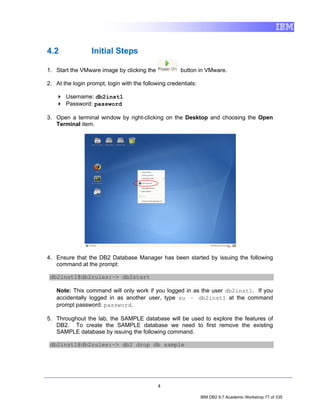
3. Open a terminal window by right-clicking on the Desktop and choosing the Open
   Terminal item.


4. Ensure that the DB2 Database Manager has been started by issuing the following
   command at the prompt:

 db2inst1@db2rules:~> db2start

   Note: This command will only work if you logged in as the user db2inst1. If you
   accidentally logged in as another user, type su – db2inst1 at the command
   prompt password: password.

5. Throughout the lab, the SAMPLE database will be used to explore the features of
   DB2. To create the SAMPLE database we need to first remove the existing
   SAMPLE database by issuing the following command.

 db2inst1@db2rules:~> db2 drop db sample


                                             4

                                                                IBM DB2 9.7 Academic Workshop 77 of 335
5.     Working with DB2 Databases

5.1              First Steps
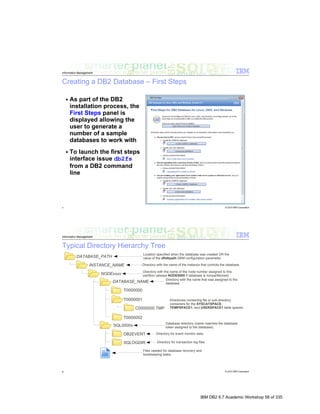
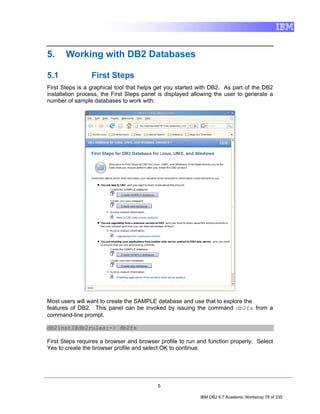
First Steps is a graphical tool that helps get you started with DB2. As part of the DB2
installation process, the First Steps panel is displayed allowing the user to generate a
number of sample databases to work with:


Most users will want to create the SAMPLE database and use that to explore the
features of DB2. This panel can be invoked by issuing the command db2fs from a
command-line prompt.

db2inst1@db2rules:~> db2fs

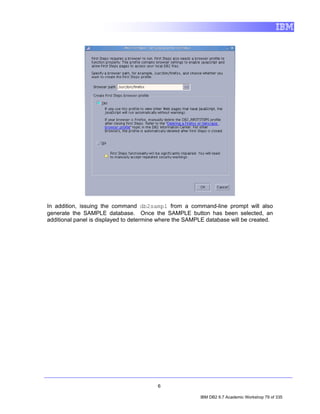
First Steps requires a browser and browser profile to run and function properly. Select
Yes to create the browser profile and select OK to continue.


                                           5

                                                           IBM DB2 9.7 Academic Workshop 78 of 335
In addition, issuing the command db2sampl from a command-line prompt will also
generate the SAMPLE database. Once the SAMPLE button has been selected, an
additional panel is displayed to determine where the SAMPLE database will be created.


                                         6

                                                         IBM DB2 9.7 Academic Workshop 79 of 335
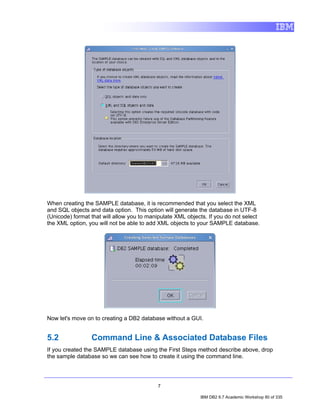
When creating the SAMPLE database, it is recommended that you select the XML
and SQL objects and data option. This option will generate the database in UTF-8
(Unicode) format that will allow you to manipulate XML objects. If you do not select
the XML option, you will not be able to add XML objects to your SAMPLE database.


Now let's move on to creating a DB2 database without a GUI.


5.2              Command Line & Associated Database Files
If you created the SAMPLE database using the First Steps method describe above, drop
the sample database so we can see how to create it using the command line.


                                           7

                                                            IBM DB2 9.7 Academic Workshop 80 of 335
db2inst1@db2rules:~> db2 drop db sample

As mention in the previous section, we can issue the command db2sampl from a
command-line prompt in order to also generate the SAMPLE database.

db2inst1@db2rules:~> db2sampl

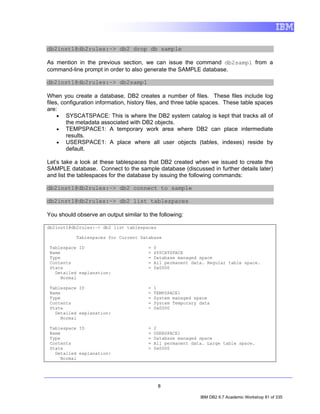
When you create a database, DB2 creates a number of files. These files include log
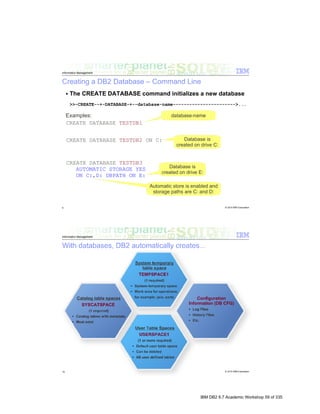
files, configuration information, history files, and three table spaces. These table spaces
are:
     • SYSCATSPACE: This is where the DB2 system catalog is kept that tracks all of
         the metadata associated with DB2 objects.
     • TEMPSPACE1: A temporary work area where DB2 can place intermediate
         results.
     • USERSPACE1: A place where all user objects (tables, indexes) reside by
         default.

Let’s take a look at these tablespaces that DB2 created when we issued to create the
SAMPLE database. Connect to the sample database (discussed in further details later)
and list the tablespaces for the database by issuing the following commands:

db2inst1@db2rules:~> db2 connect to sample

db2inst1@db2rules:~> db2 list tablespaces

You should observe an output similar to the following:

db2inst1@db2rules:~> db2 list tablespaces

           Tablespaces for Current Database

 Tablespace ID                          =   0
 Name                                   =   SYSCATSPACE
 Type                                   =   Database managed space
 Contents                               =   All permanent data. Regular table space.
 State                                  =   0x0000
   Detailed explanation:
      Normal

 Tablespace ID                          =   1
 Name                                   =   TEMPSPACE1
 Type                                   =   System managed space
 Contents                               =   System Temporary data
 State                                  =   0x0000
   Detailed explanation:
      Normal

 Tablespace ID                          =   2
 Name                                   =   USERSPACE1
 Type                                   =   Database managed space
 Contents                               =   All permanent data. Large table space.
 State                                  =   0x0000
   Detailed explanation:
      Normal


                                             8

                                                             IBM DB2 9.7 Academic Workshop 81 of 335
As mentioned, when a DB2 database instance or a database is created, a corresponding
configuration file is created with default parameter values. You can modify these
parameter values to improve performance and other characteristics of the instance or
database.

For simple applications, this default configuration may be sufficient for your needs.
However you can modify these parameter values to improve performance and other
characteristics of the instance or database.

Configuration files contain parameters that define values such as the resources
allocated to the DB2 database products and to individual databases, and the diagnostic
level. There are two types of configuration files:
    • The database manager configuration file for each DB2 instance
    • The database configuration file for each individual database

The database manager configuration file is created when a DB2 instance is created.
The parameters it contains affect system resources at the instance level, independent of
any one database that is part of that instance. Values for many of these parameters can
be changed from the system default values to improve performance or increase
capacity, depending on your system's configuration.

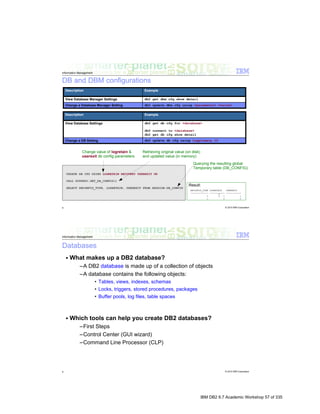
db2inst1@db2rules:~> db2 get dbm cfg

You can also append the show detail option to view current and delayed values:

db2inst1@db2rules:~> db2 get dbm cfg show detail

A database configuration file is created when a database is created, and resides where
that database resides. There is one configuration file per database. Its parameters
specify, among other things, the amount of resource to be allocated to that database.
Values for many of the parameters can be changed to improve performance or increase
capacity. Different changes may be required, depending on the type of activity in a
specific database.

To view the database configuration, issue the following command (make sure you are
connected to a database first):

db2inst1@db2rules:~> db2 get db cfg

Again, as with the database manager configuration, you can also append the show
detail option to view current and delayed values:

db2inst1@db2rules:~> db2 get db cfg show detail

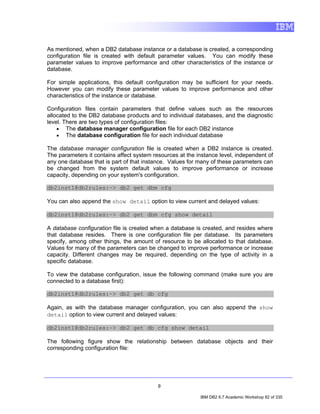
The following figure show the relationship between database objects and their
corresponding configuration file:


                                           9

                                                           IBM DB2 9.7 Academic Workshop 82 of 335
5.3              Connecting to a DB2 Database
Before working with a database, a user or application program must establish a
connection with that database. You connect to databases using the CONNECT
statement.

5.3.1            Using CONNECT
Before you can issue a SQL statement, you have to connect to a database.

To connect to our sample database, enter the command:

db2inst1@db2rules:~> db2 CONNECT TO sample USER db2inst1 USING password

You can also connect to a database and have DB2 prompt you for the password by
issuing the command:

db2inst1@db2rules:~> db2 CONNECT TO sample USER db2inst1

Or simply to connect to a database using the default user ID, issue the command:

db2inst1@db2rules:~> db2 CONNECT TO sample

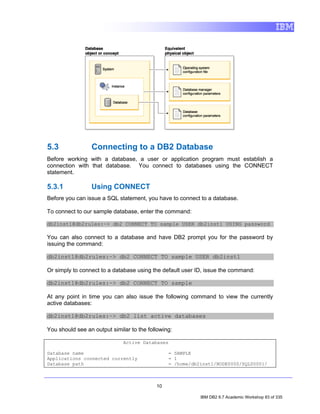
At any point in time you can also issue the following command to view the currently
active databases:

db2inst1@db2rules:~> db2 list active databases

You should see an output similar to the following:

                              Active Databases

Database name                                   = SAMPLE
Applications connected currently                = 1
Database path                                   = /home/db2inst1/NODE0000/SQL00001/


                                           10

                                                           IBM DB2 9.7 Academic Workshop 83 of 335
Anytime that you need to terminate the connection to the database, you can issue the
TERMINATE command:

db2inst1@db2rules:~> db2 terminate

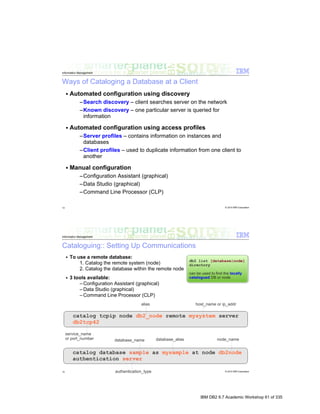
However, before a client application can access a remote database, the database must
be cataloged on the client. When you create a database, the database is automatically
cataloged in the local database directory and another entry in the system database
directory with a database alias that is the same as the database name. This is why we
were able to establish a connection to the sample database with the commands
specified above.

5.3.2            Cataloging a DB2 Database
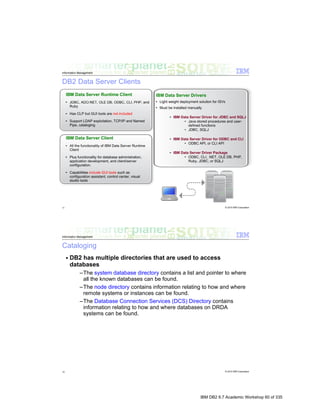
So, why does a database have to be cataloged? Without this information, an application
can't connect to a database! DB2 has multiple directories that are used to access
databases. These directories allow DB2 to find databases known to it whether they are
on the local system or a remote system. The system database directory contains a list
and pointer indication where each of the known databases can be found.

To put an entry into any of these directories, a CATALOG command is used. To remove
an entry, the UNCATALOG command is used.

As previously mention, we were able to connect to the SAMPLE database because the
database was already cataloged by default upon creation.

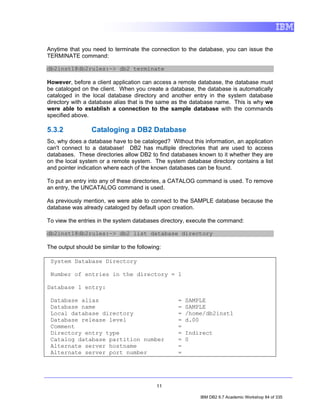
To view the entries in the system databases directory, execute the command:

db2inst1@db2rules:~> db2 list database directory

The output should be similar to the following:

 System Database Directory

 Number of entries in the directory = 1

Database 1 entry:

 Database alias                                  =   SAMPLE
 Database name                                   =   SAMPLE
 Local database directory                        =   /home/db2inst1
 Database release level                          =   d.00
 Comment                                         =
 Directory entry type                            =   Indirect
 Catalog database partition number               =   0
 Alternate server hostname                       =
 Alternate server port number                    =


                                            11

                                                          IBM DB2 9.7 Academic Workshop 84 of 335
Here we can see the sample database cataloged on our system. This information is
used to connect to the database.

However, if this information was not set here (ie, the database was not cataloged upon
creation) we would not be able to connect to the database.

Let’s take a look at how it would affect us if the database was not cataloged. Issue the
UNCATALOG command on the SAMPLE database:

db2inst1@db2rules:~> db2 uncatalog database sample

Then try connecting to the SAMPLE database.

db2inst1@db2rules:~> db2 connect to sample

Notice that it is not possible. You will most likely receive a SQL1013N message:

SQL1013N The database alias name or database name "SAMPLE"
could not be found. SQLSTATE=42705

The fact is that the sample database and the files associated with it still exist within our
system, however the information in the database directory does not exist for the DB2
client to establish a connection. You can verify this by checking the system database
directory as before:

db2inst1@db2rules:~> db2 list database directory

SQL1057W      The system database directory is empty.                   SQLSTATE=01606

Catalog the database by entering the following commands in the command line
processor:

db2 catalog database database_name as database_alias on path/drive

where:
   •     database_name represents the name of the database you want to catalog.
   •     database_alias represents a local nickname for the database you want to
         catalog.
   •     path/drive specifies the path on which the database being cataloged resides.

To catalog the database called sample so that it has the local database alias mysample,
enter the following command:

db2inst1@db2rules:~> db2 catalog database sample as mysample

Issue the following command to check the database directory for this new entry:

db2inst1@db2rules:~> db2 list database directory


                                            12

                                                              IBM DB2 9.7 Academic Workshop 85 of 335
System Database Directory

 Number of entries in the directory = 1

Database 1 entry:

 Database alias                                   =   MYSAMPLE
 Database name                                    =   SAMPLE
 Local database directory                         =   /home/db2inst1
 Database release level                           =   d.00
 Comment                                          =
 Directory entry type                             =   Indirect
 Catalog database partition number                =   0
 Alternate server hostname                        =
 Alternate server port number                     =

Now, since the database is cataloged and the information is back in the database
directory, we can connect to it using the alias we have specified with the catalog
statement above and issue our SQL statements.

db2inst1@db2rules:~> db2 connect to mysample

Before continuing on with the next section, issue a TERMINATE command to terminate
the connection to the SAMPLE database.

db2inst1@db2rules:~> db2 terminate


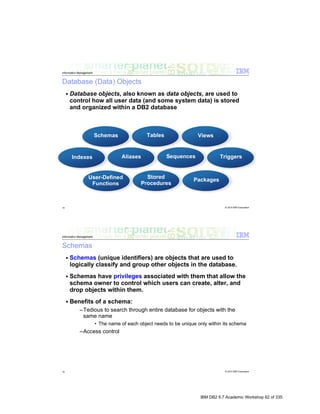
6.               Working with DB2 Data Objects
Before we get started with understanding and creating some basic and fundamental
database objects, let us create a new database which we will use to highlight some of
the concepts within this section.

db2inst1@db2rules:~> db2 create db testdb

Once the TESTDB database is created, issue a CONNECT statement, as show below,
to establish a connection to the newly created database.

db2inst1@db2rules:~> db2 connect to testdb


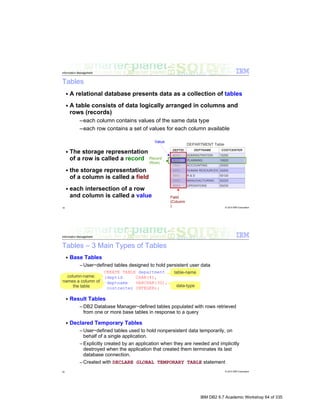
6.1              Tables
A relational database presents data as a collection of tables. A table consists of data
logically arranged in columns and rows (generally known as records).


                                          13

                                                           IBM DB2 9.7 Academic Workshop 86 of 335
Tables are created by executing the CREATE TABLE SQL statement. In its simplest
form, the syntax for this statement is:

                      CREATE TABLE [TableName]
                         ([ColumnName] [DataType], ...)
where:
   • TableName identifies the name that is to be assigned to the table to be created.
   • ColumnName identifies the unique name that is to be assigned to the column that
       is to be created.
   • DataType identifies the data type to be assigned to the column to be created;
       the data type specified determines the kind of data values that can be stored in
       the column.

Thus, if you wanted to create a table named EMPLOYEES that has three columns, one
of which is used to store numeric values and two that are used to store character string
values, as shown below,


                                  Column           Type

                                  empid        INTEGER
                                  name         CHAR(50)
                                  Dept         CHAR(9)

you could do so by executing a CREATE TABLE SQL statement that looks something
like this:

db2inst1@db2rules:~> db2 "CREATE TABLE employees
                      (empid INTEGER,
                      name CHAR(50),
                      dept INTEGER)"

You can execute a DESCRIBE command to view the basic properties of the table:

db2inst1@db2rules:~> db2 describe table employees

                                  Data type                       Column
Column name                       schema      Data type name      Length     Scale Nulls
-------------------------------   ---------   ------------------- ---------- ----- -----
EMPID                             SYSIBM      INTEGER                      4     0 Yes
NAME                              SYSIBM      CHARACTER                   50     0 Yes
DEPT                              SYSIBM      INTEGER                      4     0 Yes

  3 record(s) selected.


But, now we notice that the department data type was specified as INTEGER not CHAR
as originally intended. Therefore we need a way to change this data type from
INTEGER to CHARACTER. We can do this using the alter statement.


                                              14

                                                             IBM DB2 9.7 Academic Workshop 87 of 335
Alter

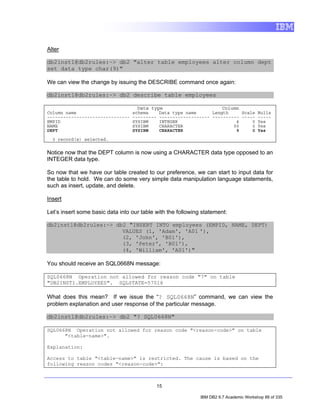
db2inst1@db2rules:~> db2 "alter table employees alter column dept
set data type char(9)"

We can view the change by issuing the DESCRIBE command once again:

db2inst1@db2rules:~> db2 describe table employees

                                    Data type                           Column
Column name                       schema      Data type name      Length     Scale Nulls
-------------------------------   ---------   ------------------- ---------- ----- -----
EMPID                             SYSIBM      INTEGER                      4     0 Yes
NAME                              SYSIBM      CHARACTER                   50     0 Yes
DEPT                              SYSIBM      CHARACTER                    9     0 Yes

  3 record(s) selected.


Notice now that the DEPT column is now using a CHARACTER data type opposed to an
INTEGER data type.

So now that we have our table created to our preference, we can start to input data for
the table to hold. We can do some very simple data manipulation language statements,
such as insert, update, and delete.

Insert

Let’s insert some basic data into our table with the following statement:

db2inst1@db2rules:~> db2 "INSERT INTO employees (EMPID, NAME, DEPT)
                       VALUES (1, 'Adam', 'A01 '),
                       (2, 'John', 'B01'),
                       (3, 'Peter', 'B01'),
                       (4, 'William', 'A01')"

You should receive an SQL0668N message:

SQL0668N Operation not allowed for reason code "7" on table
"DB2INST1.EMPLOYEES". SQLSTATE=57016

What does this mean? If we issue the “? SQL0668N” command, we can view the
problem explanation and user response of the particular message.

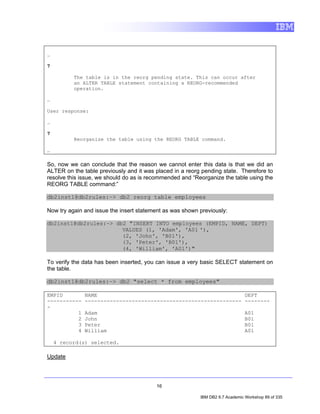
db2inst1@db2rules:~> db2 "? SQL0668N"

SQL0668N Operation not allowed for reason code "<reason-code>" on table
      "<table-name>".

Explanation:

Access to table "<table-name>" is restricted. The cause is based on the
following reason codes "<reason-code>":


                                              15

                                                              IBM DB2 9.7 Academic Workshop 88 of 335
…

7

          The table is in the reorg pending state. This can occur after
          an ALTER TABLE statement containing a REORG-recommended
          operation.

…

User response:

…

7
          Reorganize the table using the REORG TABLE command.

…

So, now we can conclude that the reason we cannot enter this data is that we did an
ALTER on the table previously and it was placed in a reorg pending state. Therefore to
resolve this issue, we should do as is recommended and “Reorganize the table using the
REORG TABLE command:”

db2inst1@db2rules:~> db2 reorg table employees

Now try again and issue the insert statement as was shown previously:

db2inst1@db2rules:~> db2 "INSERT INTO employees (EMPID, NAME, DEPT)
                       VALUES (1, 'Adam', 'A01 '),
                       (2, 'John', 'B01'),
                       (3, 'Peter', 'B01'),
                       (4, 'William', 'A01')"

To verify the data has been inserted, you can issue a very basic SELECT statement on
the table.

db2inst1@db2rules:~> db2 "select * from employees"

EMPID         NAME                                               DEPT
-----------   -------------------------------------------------- --------
-
          1   Adam                                                             A01
          2   John                                                             B01
          3   Peter                                                            B01
          4   William                                                          A01

    4 record(s) selected.

Update


                                         16

                                                          IBM DB2 9.7 Academic Workshop 89 of 335
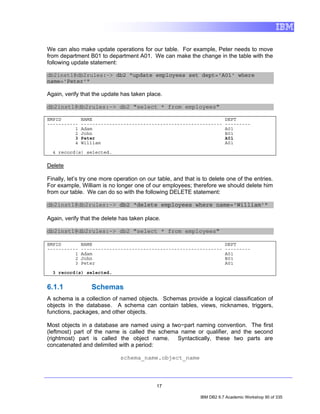
We can also make update operations for our table. For example, Peter needs to move
from department B01 to department A01. We can make the change in the table with the
following update statement:

db2inst1@db2rules:~> db2 "update employees set dept='A01' where
name='Peter'"

Again, verify that the update has taken place.

db2inst1@db2rules:~> db2 "select * from employees"

EMPID         NAME                                                        DEPT
-----------   --------------------------------------------------          ---------
          1   Adam                                                        A01
          2   John                                                        B01
          3   Peter                                                       A01
          4   William                                                     A01

  4 record(s) selected.

Delete

Finally, let’s try one more operation on our table, and that is to delete one of the entries.
For example, William is no longer one of our employees; therefore we should delete him
from our table. We can do so with the following DELETE statement:

db2inst1@db2rules:~> db2 "delete employees where name='William'"

Again, verify that the delete has taken place.

db2inst1@db2rules:~> db2 "select * from employees"

EMPID         NAME                                                        DEPT
-----------   --------------------------------------------------          ---------
          1   Adam                                                        A01
          2   John                                                        B01
          3   Peter                                                       A01

  3 record(s) selected.


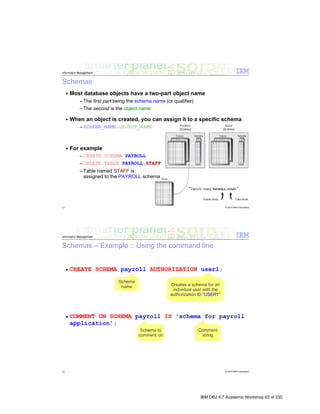
6.1.1             Schemas
A schema is a collection of named objects. Schemas provide a logical classification of
objects in the database. A schema can contain tables, views, nicknames, triggers,
functions, packages, and other objects.

Most objects in a database are named using a two−part naming convention. The first
(leftmost) part of the name is called the schema name or qualifier, and the second
(rightmost) part is called the object name.     Syntactically, these two parts are
concatenated and delimited with a period:

                              schema_name.object_name


                                             17

                                                               IBM DB2 9.7 Academic Workshop 90 of 335
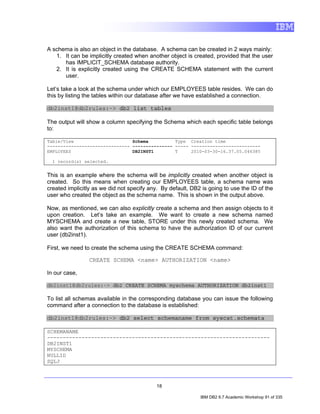
A schema is also an object in the database. A schema can be created in 2 ways mainly:
   1. It can be implicitly created when another object is created, provided that the user
      has IMPLICIT_SCHEMA database authority.
   2. It is explicitly created using the CREATE SCHEMA statement with the current
      user.

Let’s take a look at the schema under which our EMPLOYEES table resides. We can do
this by listing the tables within our database after we have established a connection.

db2inst1@db2rules:~> db2 list tables

The output will show a column specifying the Schema which each specific table belongs
to:

Table/View                      Schema          Type Creation time
------------------------------- --------------- ----- --------------------------
EMPLOYEES                       DB2INST1        T     2010-03-30-16.37.05.046385

  1 record(s) selected.


This is an example where the schema will be implicitly created when another object is
created. So this means when creating our EMPLOYEES table, a schema name was
created implicitly as we did not specify any. By default, DB2 is going to use the ID of the
user who created the object as the schema name. This is shown in the output above.

Now, as mentioned, we can also explicitly create a schema and then assign objects to it
upon creation. Let’s take an example. We want to create a new schema named
MYSCHEMA and create a new table, STORE under this newly created schema. We
also want the authorization of this schema to have the authorization ID of our current
user (db2inst1).

First, we need to create the schema using the CREATE SCHEMA command:

                CREATE SCHEMA <name> AUTHORIZATION <name>

In our case,

db2inst1@db2rules:~> db2 CREATE SCHEMA myschema AUTHORIZATION db2inst1

To list all schemas available in the corresponding database you can issue the following
command after a connection to the database is established:

db2inst1@db2rules:~> db2 select schemaname from syscat.schemata

SCHEMANAME
-----------------------------------------------------------------------
DB2INST1
MYSCHEMA
NULLID
SQLJ


                                            18

                                                             IBM DB2 9.7 Academic Workshop 91 of 335
SYSCAT
SYSFUN
SYSIBM
SYSIBMADM
SYSIBMINTERNAL
SYSIBMTS
SYSPROC
SYSPUBLIC
SYSSTAT
SYSTOOLS

  14 record(s) selected.

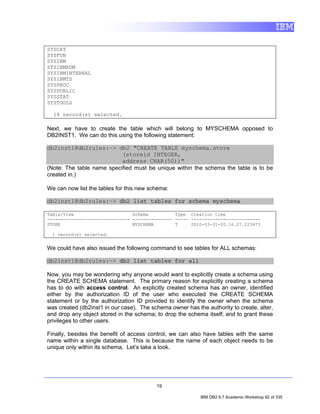
Next, we have to create the table which will belong to MYSCHEMA opposed to
DB2INST1. We can do this using the following statement:

db2inst1@db2rules:~> db2 "CREATE TABLE myschema.store
                           (storeid INTEGER,
                           address CHAR(50))"
(Note: The table name specified must be unique within the schema the table is to be
created in.)

We can now list the tables for this new schema:

db2inst1@db2rules:~> db2 list tables for schema myschema

Table/View                      Schema          Type Creation time
------------------------------- --------------- ----- --------------------------
STORE                           MYSCHEMA        T     2010-03-31-00.16.27.223473

  1 record(s) selected.


We could have also issued the following command to see tables for ALL schemas:

db2inst1@db2rules:~> db2 list tables for all

Now, you may be wondering why anyone would want to explicitly create a schema using
the CREATE SCHEMA statement. The primary reason for explicitly creating a schema
has to do with access control. An explicitly created schema has an owner, identified
either by the authorization ID of the user who executed the CREATE SCHEMA
statement or by the authorization ID provided to identify the owner when the schema
was created (db2inst1 in our case). The schema owner has the authority to create, alter,
and drop any object stored in the schema; to drop the schema itself; and to grant these
privileges to other users.

Finally, besides the benefit of access control, we can also have tables with the same
name within a single database. This is because the name of each object needs to be
unique only within its schema. Let’s take a look.


                                          19

                                                           IBM DB2 9.7 Academic Workshop 92 of 335
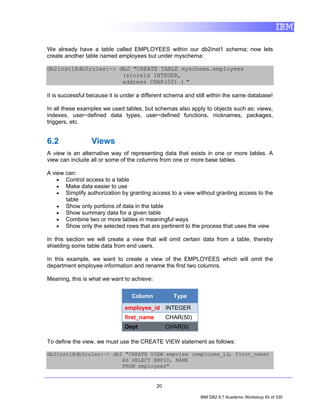
We already have a table called EMPLOYEES within our db2inst1 schema; now lets
create another table named employees but under myschema:

db2inst1@db2rules:~> db2 "CREATE TABLE myschema.employees
                      (storeid INTEGER,
                      address CHAR(50) ) "

It is successful because it is under a different schema and still within the same database!

In all these examples we used tables, but schemas also apply to objects such as: views,
indexes, user−defined data types, user−defined functions, nicknames, packages,
triggers, etc.


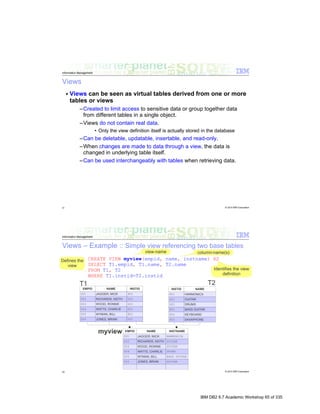
6.2              Views
A view is an alternative way of representing data that exists in one or more tables. A
view can include all or some of the columns from one or more base tables.

A view can:
    • Control access to a table
    • Make data easier to use
    • Simplify authorization by granting access to a view without granting access to the
       table
    • Show only portions of data in the table
    • Show summary data for a given table
    • Combine two or more tables in meaningful ways
    • Show only the selected rows that are pertinent to the process that uses the view

In this section we will create a view that will omit certain data from a table, thereby
shielding some table data from end users.

In this example, we want to create a view of the EMPLOYEES which will omit the
department employee information and rename the first two columns.

Meaning, this is what we want to achieve:

                                  Column           Type

                               employee_id INTEGER
                               first_name        CHAR(50)
                               Dept              CHAR(9)

To define the view, we must use the CREATE VIEW statement as follows:

db2inst1@db2rules:~> db2 "CREATE VIEW empview (employee_id, first_name)
                        AS SELECT EMPID, NAME
                        FROM employees"


                                            20

                                                             IBM DB2 9.7 Academic Workshop 93 of 335
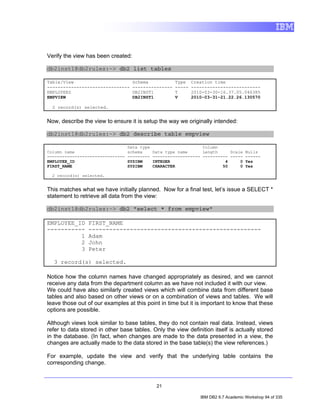
Verify the view has been created:

db2inst1@db2rules:~> db2 list tables

Table/View                          Schema            Type    Creation time
-------------------------------     ---------------   -----   --------------------------
EMPLOYEES                           DB2INST1          T       2010-03-30-16.37.05.046385
EMPVIEW                             DB2INST1          V       2010-03-31-21.22.26.130570

  2 record(s) selected.


Now, describe the view to ensure it is setup the way we originally intended:

db2inst1@db2rules:~> db2 describe table empview

                                  Data type                       Column
Column name                       schema      Data type name      Length     Scale Nulls
-------------------------------   ---------   ------------------- ---------- ----- ------
EMPLOYEE_ID                       SYSIBM      INTEGER                      4     0 Yes
FIRST_NAME                        SYSIBM      CHARACTER                   50     0 Yes

  2 record(s) selected.


This matches what we have initially planned. Now for a final test, let’s issue a SELECT *
statement to retrieve all data from the view:

db2inst1@db2rules:~> db2 "select * from empview"

EMPLOYEE_ID      FIRST_NAME
-----------      --------------------------------------------------
          1      Adam
          2      John
          3      Peter

  3 record(s) selected.

Notice how the column names have changed appropriately as desired, and we cannot
receive any data from the department column as we have not included it with our view.
We could have also similarly created views which will combine data from different base
tables and also based on other views or on a combination of views and tables. We will
leave those out of our examples at this point in time but it is important to know that these
options are possible.

Although views look similar to base tables, they do not contain real data. Instead, views
refer to data stored in other base tables. Only the view definition itself is actually stored
in the database. (In fact, when changes are made to the data presented in a view, the
changes are actually made to the data stored in the base table(s) the view references.)

For example, update the view and verify that the underlying table contains the
corresponding change.


                                               21

                                                                 IBM DB2 9.7 Academic Workshop 94 of 335
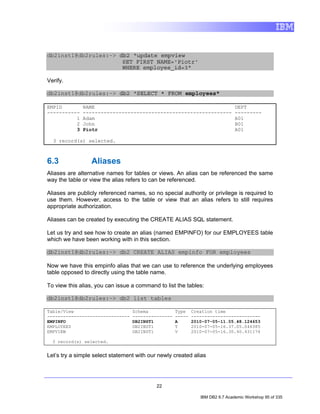
db2inst1@db2rules:~> db2 "update empview
                      SET FIRST_NAME='Piotr'
                      WHERE employee_id=3"

Verify.

db2inst1@db2rules:~> db2 "SELECT * FROM employees"

EMPID         NAME                                                             DEPT
-----------   --------------------------------------------------               ---------
          1   Adam                                                             A01
          2   John                                                             B01
          3   Piotr                                                            A01

  3 record(s) selected.


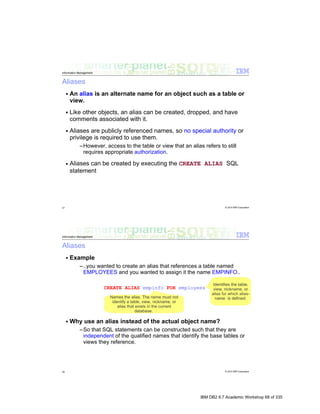
6.3              Aliases
Aliases are alternative names for tables or views. An alias can be referenced the same
way the table or view the alias refers to can be referenced.

Aliases are publicly referenced names, so no special authority or privilege is required to
use them. However, access to the table or view that an alias refers to still requires
appropriate authorization.

Aliases can be created by executing the CREATE ALIAS SQL statement.

Let us try and see how to create an alias (named EMPINFO) for our EMPLOYEES table
which we have been working with in this section.

db2inst1@db2rules:~> db2 CREATE ALIAS empinfo FOR employees

Now we have this empinfo alias that we can use to reference the underlying employees
table opposed to directly using the table name.

To view this alias, you can issue a command to list the tables:

db2inst1@db2rules:~> db2 list tables

Table/View                        Schema            Type    Creation time
-------------------------------   ---------------   -----   --------------------------
EMPINFO                           DB2INST1          A       2010-07-05-11.05.48.124653
EMPLOYEES                         DB2INST1          T       2010-07-05-16.37.05.046385
EMPVIEW                           DB2INST1          V       2010-07-05-16.30.40.431174

  3 record(s) selected.


Let’s try a simple select statement with our newly created alias


                                            22

                                                               IBM DB2 9.7 Academic Workshop 95 of 335
db2inst1@db2rules:~> db2 "SELECT * FROM empinfo "

EMPID          NAME                                                             DEPT
-----------    --------------------------------------------------               ---------
          1    Adam                                                             A01
          2    John                                                             B01
          3    Peter                                                            A01

  3 record(s) selected.

As you can see, it provides the same output as selecting from the original table name,
because after all it is referencing the same table.

Like tables and views, an alias can be created, dropped, and have comments associated
with it. Unlike tables (but similar to views), aliases can refer to other aliases—a process
known as chaining. We can take an example of this.

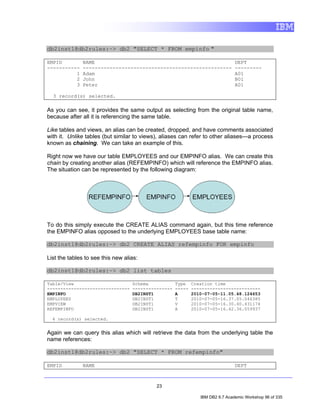
Right now we have our table EMPLOYEES and our EMPINFO alias. We can create this
chain by creating another alias (REFEMPINFO) which will reference the EMPINFO alias.
The situation can be represented by the following diagram:


To do this simply execute the CREATE ALIAS command again, but this time reference
the EMPINFO alias opposed to the underlying EMPLOYEES base table name:

db2inst1@db2rules:~> db2 CREATE ALIAS refempinfo FOR empinfo

List the tables to see this new alias:

db2inst1@db2rules:~> db2 list tables

Table/View                         Schema            Type    Creation time
-------------------------------    ---------------   -----   --------------------------
EMPINFO                            DB2INST1          A       2010-07-05-11.05.48.124653
EMPLOYEES                          DB2INST1          T       2010-07-05-16.37.05.046385
EMPVIEW                            DB2INST1          V       2010-07-05-16.30.40.431174
REFEMPINFO                         DB2INST1          A       2010-07-05-16.42.36.059937

  4 record(s) selected.


Again we can query this alias which will retrieve the data from the underlying table the
name references:

db2inst1@db2rules:~> db2 "SELECT * FROM refempinfo"

EMPID          NAME                                                             DEPT


                                            23

                                                                IBM DB2 9.7 Academic Workshop 96 of 335
-----------   --------------------------------------------------            ---------
          1   Adam                                                          A01
          2   John                                                          B01
          3   Peter                                                         A01

  3 record(s) selected.

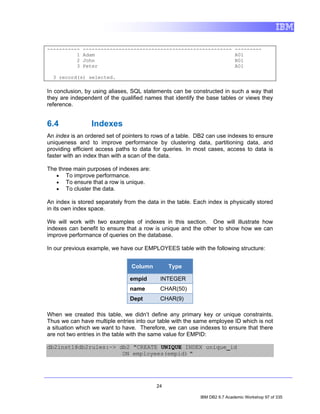
In conclusion, by using aliases, SQL statements can be constructed in such a way that
they are independent of the qualified names that identify the base tables or views they
reference.


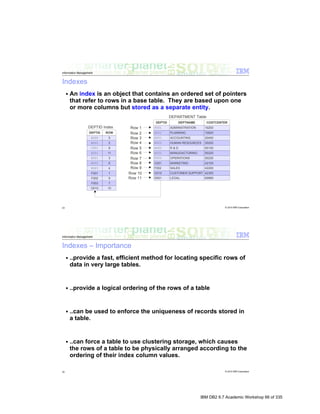
6.4              Indexes
An index is an ordered set of pointers to rows of a table. DB2 can use indexes to ensure
uniqueness and to improve performance by clustering data, partitioning data, and
providing efficient access paths to data for queries. In most cases, access to data is
faster with an index than with a scan of the data.

The three main purposes of indexes are:
   • To improve performance.
   • To ensure that a row is unique.
   • To cluster the data.

An index is stored separately from the data in the table. Each index is physically stored
in its own index space.

We will work with two examples of indexes in this section. One will illustrate how
indexes can benefit to ensure that a row is unique and the other to show how we can
improve performance of queries on the database.

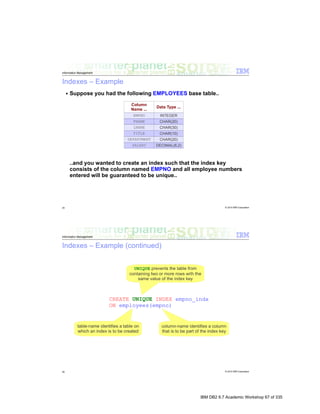
In our previous example, we have our EMPLOYEES table with the following structure:


                                 Column         Type

                                empid       INTEGER
                                name        CHAR(50)
                                Dept        CHAR(9)

When we created this table, we didn’t define any primary key or unique constraints.
Thus we can have multiple entries into our table with the same employee ID which is not
a situation which we want to have. Therefore, we can use indexes to ensure that there
are not two entries in the table with the same value for EMPID:

db2inst1@db2rules:~> db2 "CREATE UNIQUE INDEX unique_id
                      ON employees(empid) "


                                           24

                                                            IBM DB2 9.7 Academic Workshop 97 of 335
NOTE: You will receive the following message if you try to create this unique index with
already duplicate entries for the key you are creating the index with. There cannot be
duplicate entries when creating a unique index:
SQL0603N A unique index cannot be created because the table
contains data that would result in duplicate index entries.
SQLSTATE=23515

Verify the index has been created with the DESCRIBE command:

db2inst1@db2rules:~> db2 DESCRIBE INDEXES FOR TABLE employees

The output will look similar to the following:

Index        Index         Unique   Number of         Index                Index
schema       name          rule     columns           type                 partitioning
----------   -----------   -------- -----------       -----------------    --------------
DB2INST1     UNIQUE_ID     U                  1       RELATIONAL DATA      -

  1 record(s) selected.


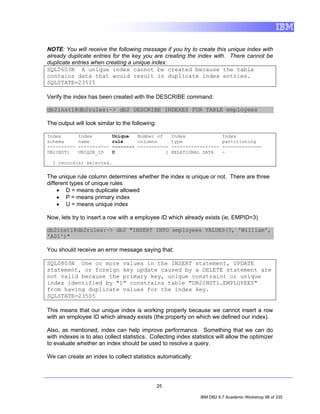
The unique rule column determines whether the index is unique or not. There are three
different types of unique rules
     • D = means duplicate allowed
     • P = means primary index
     • U = means unique index

Now, lets try to insert a row with a employee ID which already exists (ie, EMPID=3)

db2inst1@db2rules:~> db2 "INSERT INTO employees VALUES(3, 'William',
'A01')"

You should receive an error message saying that:

SQL0803N One or more values in the INSERT statement, UPDATE
statement, or foreign key update caused by a DELETE statement are
not valid because the primary key, unique constraint or unique
index identified by "1" constrains table "DB2INST1.EMPLOYEES"
from having duplicate values for the index key.
SQLSTATE=23505

This means that our unique index is working properly because we cannot insert a row
with an employee ID which already exists (the property on which we defined our index).

Also, as mentioned, index can help improve performance. Something that we can do
with indexes is to also collect statistics. Collecting index statistics will allow the optimizer
to evaluate whether an index should be used to resolve a query.

We can create an index to collect statistics automatically:


                                                 25

                                                                 IBM DB2 9.7 Academic Workshop 98 of 335
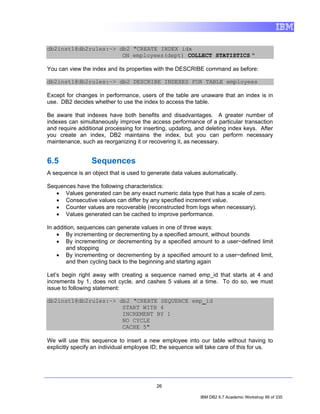
db2inst1@db2rules:~> db2 "CREATE INDEX idx
                      ON employees(dept) COLLECT STATISTICS "

You can view the index and its properties with the DESCRIBE command as before:

db2inst1@db2rules:~> db2 DESCRIBE INDEXES FOR TABLE employees

Except for changes in performance, users of the table are unaware that an index is in
use. DB2 decides whether to use the index to access the table.

Be aware that indexes have both benefits and disadvantages. A greater number of
indexes can simultaneously improve the access performance of a particular transaction
and require additional processing for inserting, updating, and deleting index keys. After
you create an index, DB2 maintains the index, but you can perform necessary
maintenance, such as reorganizing it or recovering it, as necessary.


6.5              Sequences
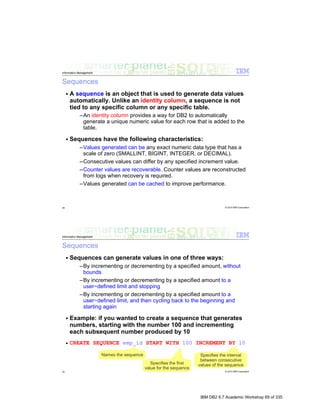
A sequence is an object that is used to generate data values automatically.

Sequences have the following characteristics:
   • Values generated can be any exact numeric data type that has a scale of zero.
   • Consecutive values can differ by any specified increment value.
   • Counter values are recoverable (reconstructed from logs when necessary).
   • Values generated can be cached to improve performance.

In addition, sequences can generate values in one of three ways:
    • By incrementing or decrementing by a specified amount, without bounds
    • By incrementing or decrementing by a specified amount to a user−defined limit
        and stopping
    • By incrementing or decrementing by a specified amount to a user−defined limit,
        and then cycling back to the beginning and starting again

Let’s begin right away with creating a sequence named emp_id that starts at 4 and
increments by 1, does not cycle, and cashes 5 values at a time. To do so, we must
issue to following statement:

db2inst1@db2rules:~> db2 "CREATE SEQUENCE emp_id
                      START WITH 4
                      INCREMENT BY 1
                      NO CYCLE
                      CACHE 5"

We will use this sequence to insert a new employee into our table without having to
explicitly specify an individual employee ID; the sequence will take care of this for us.


                                           26

                                                            IBM DB2 9.7 Academic Workshop 99 of 335
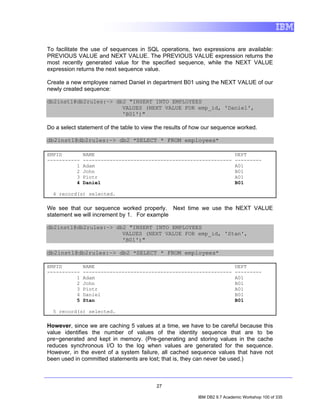
To facilitate the use of sequences in SQL operations, two expressions are available:
PREVIOUS VALUE and NEXT VALUE. The PREVIOUS VALUE expression returns the
most recently generated value for the specified sequence, while the NEXT VALUE
expression returns the next sequence value.

Create a new employee named Daniel in department B01 using the NEXT VALUE of our
newly created sequence:

db2inst1@db2rules:~> db2 "INSERT INTO EMPLOYEES
                       VALUES (NEXT VALUE FOR emp_id, 'Daniel',
                       'B01')"

Do a select statement of the table to view the results of how our sequence worked.

db2inst1@db2rules:~> db2 "SELECT * FROM employees"

EMPID         NAME                                                         DEPT
-----------   --------------------------------------------------           ---------
          1   Adam                                                         A01
          2   John                                                         B01
          3   Piotr                                                        A01
          4   Daniel                                                       B01

  4 record(s) selected.

We see that our sequence worked properly. Next time we use the NEXT VALUE
statement we will increment by 1. For example

db2inst1@db2rules:~> db2 "INSERT INTO EMPLOYEES
                       VALUES (NEXT VALUE FOR emp_id, 'Stan',
                       'B01')"

db2inst1@db2rules:~> db2 "SELECT * FROM employees"

EMPID         NAME                                                         DEPT
-----------   --------------------------------------------------           ---------
          1   Adam                                                         A01
          2   John                                                         B01
          3   Piotr                                                        A01
          4   Daniel                                                       B01
          5   Stan                                                         B01

  5 record(s) selected.

However, since we are caching 5 values at a time, we have to be careful because this
value identifies the number of values of the identity sequence that are to be
pre−generated and kept in memory. (Pre-generating and storing values in the cache
reduces synchronous I/O to the log when values are generated for the sequence.
However, in the event of a system failure, all cached sequence values that have not
been used in committed statements are lost; that is, they can never be used.)


                                          27

                                                          IBM DB2 9.7 Academic Workshop 100 of 335
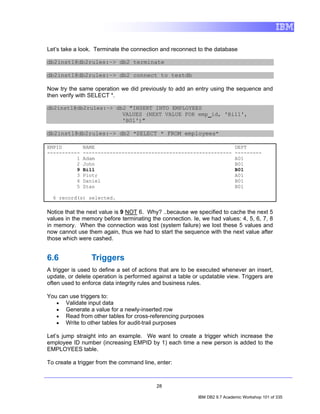
Let’s take a look. Terminate the connection and reconnect to the database

db2inst1@db2rules:~> db2 terminate

db2inst1@db2rules:~> db2 connect to testdb

Now try the same operation we did previously to add an entry using the sequence and
then verify with SELECT *.

db2inst1@db2rules:~> db2 "INSERT INTO EMPLOYEES
                       VALUES (NEXT VALUE FOR emp_id, 'Bill',
                       'B01')"

db2inst1@db2rules:~> db2 "SELECT * FROM employees"

EMPID         NAME                                                         DEPT
-----------   --------------------------------------------------           ---------
          1   Adam                                                         A01
          2   John                                                         B01
          9   Bill                                                         B01
          3   Piotr                                                        A01
          4   Daniel                                                       B01
          5   Stan                                                         B01

  6 record(s) selected.

Notice that the next value is 9 NOT 6. Why? ..because we specified to cache the next 5
values in the memory before terminating the connection. Ie, we had values: 4, 5, 6, 7, 8
in memory. When the connection was lost (system failure) we lost these 5 values and
now cannot use them again, thus we had to start the sequence with the next value after
those which were cashed.


6.6              Triggers
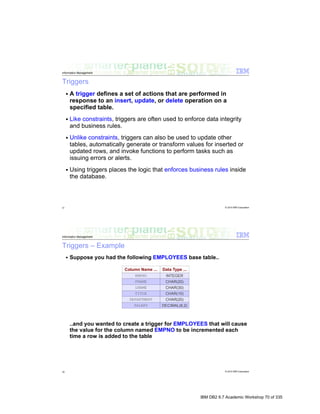
A trigger is used to define a set of actions that are to be executed whenever an insert,
update, or delete operation is performed against a table or updatable view. Triggers are
often used to enforce data integrity rules and business rules.

You can use triggers to:
   • Validate input data
   • Generate a value for a newly-inserted row
   • Read from other tables for cross-referencing purposes
   • Write to other tables for audit-trail purposes

Let’s jump straight into an example. We want to create a trigger which increase the
employee ID number (increasing EMPID by 1) each time a new person is added to the
EMPLOYEES table.

To create a trigger from the command line, enter:


                                          28

                                                          IBM DB2 9.7 Academic Workshop 101 of 335
CREATE TRIGGER <name>
                         <action> ON <table_name>
                         <operation>
                         <triggered_action>

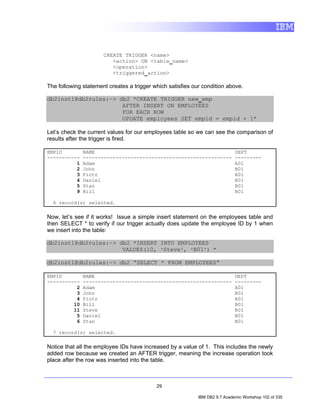
The following statement creates a trigger which satisfies our condition above.

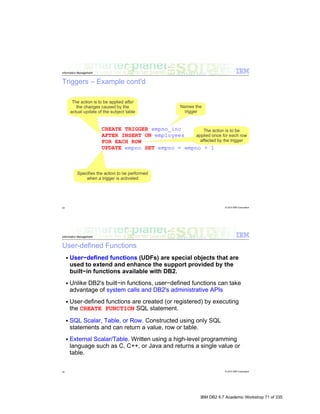
db2inst1@db2rules:~> db2 "CREATE TRIGGER new_emp
                      AFTER INSERT ON EMPLOYEES
                      FOR EACH ROW
                      UPDATE employees SET empid = empid + 1"

Let’s check the current values for our employees table so we can see the comparison of
results after the trigger is fired.

EMPID         NAME                                                           DEPT
-----------   --------------------------------------------------             ---------
          1   Adam                                                           A01
          2   John                                                           B01
          3   Piotr                                                          A01
          4   Daniel                                                         B01
          5   Stan                                                           B01
          9   Bill                                                           B01

  6 record(s) selected.

Now, let’s see if it works! Issue a simple insert statement on the employees table and
then SELECT * to verify if our trigger actually does update the employee ID by 1 when
we insert into the table:

db2inst1@db2rules:~> db2 "INSERT INTO EMPLOYEES
                      VALUES(10, 'Steve', 'B01') "

db2inst1@db2rules:~> db2 “SELECT * FROM EMPLOYEES”

EMPID         NAME                                                           DEPT
-----------   --------------------------------------------------             ---------
          2   Adam                                                           A01
          3   John                                                           B01
          4   Piotr                                                          A01
         10   Bill                                                           B01
         11   Steve                                                          B01
          5   Daniel                                                         B01
          6   Stan                                                           B01

  7 record(s) selected.

Notice that all the employee IDs have increased by a value of 1. This includes the newly
added row because we created an AFTER trigger, meaning the increase operation took
place after the row was inserted into the table.


                                           29

                                                            IBM DB2 9.7 Academic Workshop 102 of 335
We won’t go through more example of this process because it can be quite repetitive,
but it is very important to know that triggers can be specified for INSERT, UPDATE,
DELETE events, and the possible activation times are: BEFORE, AFTER, INSTEAD
OF of a particular query.

Benefits:
   • Faster application development: Because a trigger is stored in the database, you
       do not have to code the actions that it performs in every application.
   • Easier maintenance: Once a trigger is defined, it is automatically invoked when
       the table that it is created on is accessed.
   • Global enforcement of business rules: If a business policy changes, you only
       need to change the trigger and not each application program.

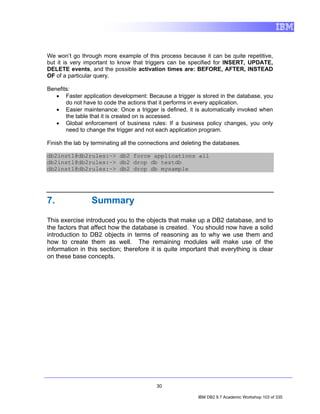
Finish the lab by terminating all the connections and deleting the databases.

db2inst1@db2rules:~> db2 force applications all
db2inst1@db2rules:~> db2 drop db testdb
db2inst1@db2rules:~> db2 drop db mysample


7.               Summary

This exercise introduced you to the objects that make up a DB2 database, and to
the factors that affect how the database is created. You should now have a solid
introduction to DB2 objects in terms of reasoning as to why we use them and
how to create them as well. The remaining modules will make use of the
information in this section; therefore it is quite important that everything is clear
on these base concepts.


                                           30

                                                            IBM DB2 9.7 Academic Workshop 103 of 335
IBM DB2 9.7 Academic Workshop 104 of 335
IBM DB2 9.7 Academic Workshop 105 of 335
IBM DB2 9.7 Academic Workshop 106 of 335
IBM DB2 9.7 Academic Workshop 107 of 335
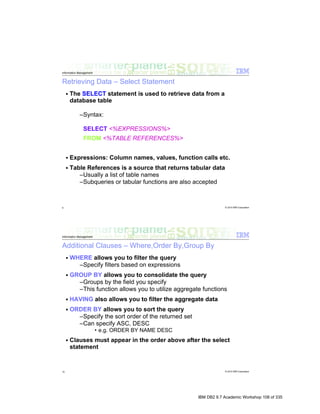
IBM DB2 9.7 Academic Workshop 108 of 335
IBM DB2 9.7 Academic Workshop 109 of 335
IBM DB2 9.7 Academic Workshop 110 of 335
IBM DB2 9.7 Academic Workshop 111 of 335
IBM DB2 9.7 Academic Workshop 112 of 335
IBM DB2 9.7 Academic Workshop 113 of 335
IBM DB2 9.7 Academic Workshop 114 of 335
IBM DB2 9.7 Academic Workshop 115 of 335
IBM DB2 9.7 Academic Workshop 116 of 335
IBM DB2 9.7 Academic Workshop 117 of 335
IBM DB2 9.7 Academic Workshop 118 of 335
IBM DB2 9.7 Academic Workshop 119 of 335
IBM DB2 9.7 Academic Workshop 120 of 335
IBM DB2 9.7 Academic Workshop 121 of 335
IBM DB2 9.7 Academic Workshop 122 of 335
IBM DB2 9.7 Academic Workshop 123 of 335
IBM DB2 9.7 Academic Workshop 124 of 335
IBM DB2 9.7 Academic Workshop 125 of 335
IBM DB2 9.7 Academic Workshop 126 of 335
IBM DB2 9.7 Academic Workshop 127 of 335
IBM DB2® 9.7

    Understanding SQL
    Hands-On Lab
I


    Information Management Ecosystem Partnerships

    IBM Canada Lab


                                        IBM DB2 9.7 Academic Workshop 128 of 335
Contents

1.     INTRODUCTION TO SQL                                                                    3
2.     OBJECTIVES OF THIS LAB                                                                 3
3.     SETUP AND START DB2                                                                    4
     3.1     Environment Setup Requirements                                                   4
     3.2     Login to the Virtual Machine                                                     4
     3.3     SAMPLE Database                                                                  5
     3.4     Launching Data Studio                                                            6
4.     EXPLORING A DATABASE WITH IBM DATA STUDIO                                              7
       4.1     Filtering by Schema                                                            8
       4.2     Viewing Data Object Properties                                                11
5.     DATA MANIPULATION LANGUAGE                                                            12
     5.1 Querying Data                                                                       13
        5.1.1 Retrieving All Rows from a Table                                               13
        5.1.2 Retrieving Rows using SELECT Statement                                         15
        5.1.3 Sorting the Results                                                            18
        5.1.4 Aggregating Information                                                        19
        5.1.5 Retrieving Data from Multiple Tables (Joins)                                   20
     5.2 Insert, Update and Delete                                                           24
        5.2.1 INSERT                                                                         24
        5.2.2 UPDATE                                                                         26
        5.2.3 DELETE                                                                         27
6.     ANSWERS                                                                               28


                                                2


                                                             IBM DB2 9.7 Academic Workshop 129 of 335
1.        Introduction to SQL

Structured Query Language (SQL) is a standardized language used to work with
database objects and the data they contain. Using SQL, you can define, alter,
and delete database objects, as well as insert, update, delete, and retrieve data
values stored in database tables.

SQL has a defined syntax and a set of language elements. Most SQL statements
can be categorized according to the functions they perform; SQL statements fall
under one of the following categories:

•  Data Definition Language (DDL)
       ● Defines properties of data objects

       CREATE, ALTER, DROP
• Data Manipulation Language (DML)
       ● Used to retrieve, add, edit and delete data

       SELECT, INSERT, UPDATE, DELETE
• Data Control Language (DCL)
       ● Used to control access to databases and data objects

       GRANT, REVOKE
• Transaction Control Language (TCL)
       ●  Groups DML statements into transactions that can collectively be
applied to a database or undone in the event of a failure
       COMMIT, ROLLBACK, SAVEPOINT


2.        Objectives of This Lab

By the end of this lab, you will be able to use IBM Data Studio environment to
write and execute DML SQL statements (SELECT, INSERT, UPDATE and
DELETE).


                                       3


                                                      IBM DB2 9.7 Academic Workshop 130 of 335
3.          Setup and Start DB2

3.1         Environment Setup Requirements
To complete this lab you will need the following:
     •   DB2 Academic Workshop VMware® image
     •   VMware Player 2.x or VMware Workstation 5.x or later
For help on how to obtain these components please follow the instructions
specified in the VMware Basics and Introduction module.


3.2         Login to the Virtual Machine

1. Start the VMware image by clicking the button            in VMware.
2. At the login prompt, login with the following credentials:
     •   Username: db2inst1
     •   Password: password
3. Open a terminal window as follows by right-clicking on the Desktop and
choosing the Open Terminal item.


                                          4


                                                         IBM DB2 9.7 Academic Workshop 131 of 335
4. Start the Database Manager by entering the following command:
 db2inst1@db2rules:~> db2start


3.3         SAMPLE Database
Throughout this lab, we will use IBM Data Studio to execute the exercises.
For executing this lab, you will need the DB2’s sample database created in its
original format.
Execute the commands below to drop (if it already exists) and recreate the
SAMPLE database:
 db2 force applications all
 db2 drop db sample
 db2 drop db mysample
 db2sampl


                                       5


                                                     IBM DB2 9.7 Academic Workshop 132 of 335
3.4        Launching Data Studio
1. Click on the Computer button in the bottom left corner of the screen, and select
   Data Studio 2.2.


2. In the Select a workspace dialog, accept the default path. Click OK.

3. Data Studio will now start with the Welcome homepage.


4. Minimize this window by clicking the minimize button (      ) located at the top right to
   bring you into the Data perspective as shown below.


                                          6


                                                            IBM DB2 9.7 Academic Workshop 133 of 335
4.          Exploring a Database with IBM Data Studio

Before you can do anything productive with IBM Data Studio, a connection must
be established to a database. The Data Source Explorer view in Data Studio
allows you to do this. From this view it is possible to interact with and manipulate
database artifacts. Now let's connect to SAMPLE database.

Note: In the Data Source Explorer make sure the Show the Data Source
Explorer Contents in flat view icon is selected (this icon should change to
this:     ), otherwise you may have problem directing to the right tables.

1. In the Data Source Explorer, right-click on the SAMPLE [DB2 Alias] node,
and select Connect.

2. If the Database Authorization window appears, enter the following
credentials:
   • Username: db2inst1
     •   Password: password


                                          7


                                                         IBM DB2 9.7 Academic Workshop 134 of 335
3. Click OK. Notice that the SAMPLE [DB2 Alias] connection icon now has a
little yellow chain, signifying that the connection has been established.

4.1       Filtering by Schema
1. In the Data Source Explorer, expand the following nodes by clicking the
icons beside them: SAMPLE [DB2 for Linux...] > SAMPLE > Schemas.


                                     8


                                                   IBM DB2 9.7 Academic Workshop 135 of 335
Notice that once you click on Schemas there are many different schemas listed
in the main view under SAMPLE > Schemas tab: DB2INST1, NULLID, SQLJ, etc.
Because we will only be working with the DB2INST1 schema, let’s filter our list to
show only this schema.


                                        9


                                                      IBM DB2 9.7 Academic Workshop 136 of 335
2. In the Data Source Explorer, right-click on the Schemas node and select
Filter. The Filter dialog will appear, allowing you to filter either by typing in the
name of a schema (or a portion thereof), or by selecting from a list of schemas.
For this lab, we will filter by selection.


   •   Uncheck the Disable filter checkbox.
   •   Select the Selection radio button.
   •   Select Include selected items in the drop down list.
   •   Check the DB2INST1 checkbox.
   •   Click OK.

Repeat step 1 and notice that the previous Schemas node now reads Schemas
[Filtered]. Note as well that DB2INST1 is the only schema that appears in the
list.


                                         10


                                                        IBM DB2 9.7 Academic Workshop 137 of 335
4.2       Viewing Data Object Properties
Data Source Explorer allows users to view most properties of nearly every
single data object available such as tables, views, packages, sequences, and so
on. Let’s spend a moment viewing the properties of some table to see how the
Properties view works.

1. In the Data Source Explorer, go to: SAMPLE > Schemas [Filtered] >
DB2INST1 > Tables.
2. Select one of the listed tables, say, EMPLOYEE by clicking on it.
3. Select the Properties tab to the right of the Data Source Explorer.


                                       11


                                                       IBM DB2 9.7 Academic Workshop 138 of 335
4. Click the Columns tab to view a list of the columns in the EMPLOYEE table.


5.        Data Manipulation Language

We will now look into the DML statements, using the SAMPLE database created
in Section 3.3. In this section, we are going to explore some commonly used


                                      12


                                                     IBM DB2 9.7 Academic Workshop 139 of 335
DML statements by walking through examples, and then followed by some
exercises to test your understanding.


Before we move on to executing the SQL statements, make sure you are
connected to the SAMPLE database.


5.1       Querying Data
Because no database is worth much unless data can be obtained from it, it’s
important to understand how to use a SELECT SQL statement to retrieve data
from your tables.


5.1.1     Retrieving All Rows from a Table
Before using SQL, we’ll quickly show you how to retrieve rows from a table just
using the Data Studio options, without the need to write SQL code.


1. In the Data Source Explorer view, direct to the table you want to return all the
rows. For example, SAMPLE [DB2 for Linux...] > SAMPLE > Schemas
[Filtered] > DB2INST1 > Tables > EMPLOYEE.
2. Right Click on the table EMPLOYEE, choose Data item, and then click on
Return All Rows.


                                        13


                                                       IBM DB2 9.7 Academic Workshop 140 of 335
3. As we can see under the SQL Results tab, the operation was successful. All
rows from table EMPLOYEE are displayed under the Result1 tab to the right.
You can always expand or restore views by clicking on the corresponding icons
in top right corner of each view.


                                     14


                                                   IBM DB2 9.7 Academic Workshop 141 of 335
5.1.2     Retrieving Rows using SELECT Statement
Although the method showed in the previous section is handy when you need to
quickly inspect the data from a table, in the real world you will be using SQL to
retrieve data from a database. Follow the steps below to learn how to execute a
SELECT statement in Data Studio.
1. In the Data Source Explorer toolbar, click the icon New SQL Script.


2. In the Select Connection Profile window that appears, select SAMPLE and
click Finish.


                                       15


                                                      IBM DB2 9.7 Academic Workshop 142 of 335
3. A new tab will appear in the main view. Now let's write a SQL query using a
WHERE clause, say, we are curious about the BONUS money the managers in
department D11 will get. Type in the query below in the newly-created tab:

 SELECT EMPNO, FIRSTNME, LASTNAME, WORKDEPT, JOB, BONUS
 FROM EMPLOYEE e
 WHERE e. WORKDEPT = 'D11'


                                     16


                                                    IBM DB2 9.7 Academic Workshop 143 of 335
4. From the main menu, select Run > Run SQL

5. Notice that the SQL Results view is brought to the foreground at the bottom of
the screen. Click the icon to maximize the view. The SQL Results view should
indicate that the SQL Script was successful. In the Status tab to the right, a
summary of the statements in the script file are listed.


6. To view the results of our SQL query statements, click the Result1 tab on the
right.


7. Restore the SQL Results view to its original state, and close the Script.sql tab in the
main view by clicking its X icon.

8. Now let's do some exercises. Create the SQL statements for the queries
described below. You can then compare your answers with the suggested
solutions in Section 6.

           1. Find out all sales information from salesman called “LEE” in the
              “Ontario-South” region from the table SALES


                                           17


                                                            IBM DB2 9.7 Academic Workshop 144 of 335
2. Find out the name of all the departments that have a manager
               assign to it from table DEPARTMENT.
            Tip: departments without a manager have NULL in the column
            MGRNO.


5.1.3       Sorting the Results
The ORDER BY statement sorts the result set by one or more columns. By
default, the records returned by executing a SQL statement are sorted in
ascending order, but we can change it to a descending order with the DESC
keyword.

SELECT column_name(s)
FROM table_name
ORDER BY column_name(s) ASC|DESC

Let's now run an example on our SAMPLE database. In the table STAFF, rank
all the people from department 66 by their salary, in descending order.

Tip: You can invoke the code assist function by pressing Ctrl + Space. This way
instead of typing in the whole words, you can choose from a pre-defined list of
keywords.


Now run the query below:
 SELECT *


                                      18


                                                    IBM DB2 9.7 Academic Workshop 145 of 335
FROM STAFF
 WHERE DEPT = '66'
 ORDER BY SALARY DESC


As you can see from the returned table above, manager “Lea” has the highest
salary in department 66.

More exercises: (Suggested solutions in Section 6)

          1. Using the same table STAFF as illustrated above, rank all the
             people by their years of experience in descending order. For people
             with same YEARS, rank again by their salary in ascending order.


5.1.4     Aggregating Information
The SQL GROUP BY statement is used in conjunction with the aggregate
functions (e.g. SUM, COUNT, MIN, or MAX, etc.) to group the result-set by one
or more columns.

 SELECT column_name(s), aggregate_function(column_name)
 FROM table_name
 WHERE column_name operator value
 GROUP BY column_name


Consider that you need to find out the average salary for each job position from
table STAFF. Run the query below:

 SELECT JOB, AVG(SALARY) as AVG_SALARY
 FROM STAFF
 GROUP BY JOB


                                      19


                                                     IBM DB2 9.7 Academic Workshop 146 of 335
As you can see in the returned table above, after column JOB, a newly-created
column called AVG_SALARY is displayed, containing the value that we were
looking for.
The logic behind the SQL is the following: The GROUP BY JOB clause instructs
DB2 to create groups of rows that have the same value for the JOB column, e.g.
Clerk, Manager, etc. Then calculate the average salary by using the function
AVG applied to the SALARY column for each of those group.

Exercise time again! (Suggested solutions can be found in Section 6)

           1. Find the total amount of sales for each sales person in table
              SALES.
           2. Count the number of male employees for each job position.


5.1.5      Retrieving Data from Multiple Tables (Joins)
SQL joins can be used to query data from two or more tables, based on a
relationship between certain columns in these tables.
Tables in a database are often related to each other by the use of foreign keys
(FK), which reference a primary key (PK) in a second table. When we query data
using JOINS, most likely we are joining two or more tables based on these
relations between PKs and FKs.
Before we continue with examples, we will list the types of JOIN you can use,
and the differences between them.
   •    (INNER) JOIN: Returns all rows that have corresponding PKs and FKs.
   •    LEFT (OUTER) JOIN: Returns all rows that have corresponding PKs and
        FKs plus the rows from left table that don’t have any matches in the right
        table.
   •    RIGHT (OUTER) JOIN: Returns all rows that have corresponding PKs and
        FKs plus the rows from right table that don’t have any matches in the left
        table.


                                        20


                                                       IBM DB2 9.7 Academic Workshop 147 of 335
•    FULL (OUTER) JOIN: Returns all rows that have corresponding PKs and
        FKs plus the rows from left table that don’t have any matches in the right
        table, plus the rows from right table that don’t have any matches in the left
        table.

Now, from tables EMP_PHOTO and EMPLOYEE, let's find out who uploaded a
employee photo in bitmap format. Try the query below:
 SELECT e.EMPNO, p.PHOTO_FORMAT, e.FIRSTNME, e.LASTNAME
 FROM EMPLOYEE e, EMP_PHOTO p
 WHERE e.EMPNO = p.EMPNO AND p.PHOTO_FORMAT = 'bitmap'

Note: p.EMPNO in EMP_PHOTO is actually FK referring to e.EMPNO, the PK in
table EMPLOYEE.


The rationale behind the SQL above is as follows: First, the tables in the FROM
clause are combined together into a bigger one. The WHERE clause is then
responsible for filtering rows from this bigger table. Finally the columns in the
SELECT clause are returned for all matching rows. This is known as “implicit join
notation” for INNER JOIN. The equivalent query with "explicit join notation" is
shown below:
 SELECT e.EMPNO, p.PHOTO_FORMAT, e.FIRSTNME, e.LASTNAME
 FROM     EMPLOYEE e INNER JOIN EMP_PHOTO p
        ON e.EMPNO = p.EMPNO
               AND p.PHOTO_FORMAT = 'bitmap'


Now let's run a similar query, but with LEFT OUTER JOIN instead of INNER
JOIN above. Run the following query:
 SELECT e.EMPNO, p.PHOTO_FORMAT, e.FIRSTNME, e.LASTNAME
 FROM     EMPLOYEE e LEFT OUTER JOIN EMP_PHOTO p
        ON e.EMPNO = p.EMPNO


                                         21


                                                         IBM DB2 9.7 Academic Workshop 148 of 335
AND p.PHOTO_FORMAT = 'bitmap'


This time, the result is much longer. From what was explained before, an outer
join does not require each record in the two joined tables to have a matching
record. And the result of a left (outer) join for table EMPLOYEE and
EMP_PHOTO always contains all records of the "left" table (EMPLOYEE), even
if the join-condition does not find any matching record in the "right" table
(EMP_PHOTO), and this is where all the NULL values under column
PHOTO_FORMAT come from.


                                     22


                                                    IBM DB2 9.7 Academic Workshop 149 of 335
Exercises time! (Suggested solutions in Section 6)


                                      23


                                                     IBM DB2 9.7 Academic Workshop 150 of 335
1. Consider you are interested in the active (with ACTNO greater than
            100) information and designer names of each project action (from
            table PROJACT). List this information sorting the results
            alphabetically according to designers' names.
         2. Join tables EMPLOYEE and DEPARTMENT, considering
            WORKDEPT in EMPLOYEE is the FK referring to DEPTNO the PK
            in table DEPARTMENT. Save the results, and repeat this query,
            but use LEFT OUTER JOIN, RIGHT OUTER JOIN and FULL
            OUTER JOIN instead. Compare the results.


5.2       Insert, Update and Delete
Consider now that we are required to enter new product information into our
database; or that Ms. Lee gets promoted so her JOB and SALARY need to be
altered accordingly; or Mr. Bryant was not active enough over a certain project
and got fired, should we still have him in our employee table?

For these situations, we can use the SQL statements INSERT, UPDATE and
DELETE to manipulate the table data.


5.2.1     INSERT
INSERT statement is used to add a new row to a table. For example, NBA player
Paul Pierce has retired from his career of basketball player, and successfully
locates himself in a position in your company. Now you should add his
information to the EMPLOYEE table.

Run the query below:

 INSERT INTO EMPLOYEE(EMPNO, FIRSTNME, LASTNAME, EDLEVEL)
 VALUES (300001, 'Paul', 'Pierce', 18)


                                      24


                                                    IBM DB2 9.7 Academic Workshop 151 of 335
If we run SELECT * FROM EMPLOYEE, we can see that Paul Pierce is now
successfully part of the EMPLOYEE table, with unspecified columns filled with
the default value, which is NULL in this case.


The INSERT statement could also have sub-queries, for example, using a
SELECT clause, which would allows us to insert multiple records at once. Let’s
try it out. First, execute the DDL below:

 CREATE TABLE MNG_PEOPLE LIKE EMPLOYEE

It creates a new table called MNG_PEOPLE which inherits all the
properties/column definitions from table EMPLOYEE.

Then we SELECT all the managers from table EMPLOYEE and insert them into
the newly-created table MNG_PEOPLE.

 INSERT INTO MNG_PEOPLE SELECT * FROM EMPLOYEE WHERE JOB = 'MANAGER'


To check if the operation was successful, retrieve all rows from table
MNG_PEOPLE. You should see that 7 records were successfully inserted into
the new table.


                                     25


                                                    IBM DB2 9.7 Academic Workshop 152 of 335
Now try to execute the exercises below (Suggested solutions can be found in
Section 6):
         1. Our company just started a new department called FOO with
            department number K47, and 'E01' as ADMRDEPT. Please insert
            this record into table DEPARTMENT.
         2. Create a new table called D11_PROJ with the same structure of
            table PROJECT and add to it data about all projects from
            department D11.


5.2.2     UPDATE
UPDATE statement is used to update existing records in a table. Its syntax looks
like:

UPDATE table_name
SET column1=value, column2=value2,...,column = valueN
WHERE some_column=some_value

Note: The WHERE clause here indicates specifically which record(s) will be
updated. Without WHERE, all records in this table will be modified!

The Human Resources lady just handed you a detailed information list about
Paul Pierce, and asked you to update all the following columns in table
EMPLOYEE with his data:

HIREDATE: 2010-01-01
JOB:       DESIGNER
SEX:       M
BIRTHDATE: 1977-10-13

We update his personal information by running the query below:
 UPDATE EMPLOYEE


                                      26


                                                     IBM DB2 9.7 Academic Workshop 153 of 335
SET HIREDATE = '2010-01-01', JOB = 'DESIGNER', SEX = 'M', BIRTHDATE =
 '1977-10-13'
 WHERE EMPNO = 300001


As you can see in the status tab, one row has been updated.


Again, if we run SELECT * FROM EMPLOYEE, we can see that Paul's data has
been updated in those four columns.


Now, let's see what else we can do with Paul's information.
(Suggested solutions in Section 6):
           1. Try to update Paul's EDLEVEL to 'NULL', see what happens.
           2. Try to update Paul's WORKDEPT to 'Z11', see what happens.


5.2.3     DELETE
DELETE statement deletes rows in a table. Its syntax looks like:

DELETE FROM table_name
WHERE some_column=some_value

IMPORTANT: Just like the UPDATE statement, if you omit the WHERE clause,
all records will be deleted.

Now, let's delete Paul Pierce's record from our database, since he changed his
mind heading back to the basketball court. Run the following query:

 DELETE FROM EMPLOYEE
 WHERE EMPNO = 300001


                                       27


                                                      IBM DB2 9.7 Academic Workshop 154 of 335
Check the contents of table EMPLOYEE (by now, you should know at least two
ways to do so). If you successfully executed the DELETE statement, Paul’s
record should not be in the result list.

More exercises (Suggested solutions in Section 6. Answers):
         1. Try to delete department 'E21' from table DEPARTMENT


6.          Answers

Section 5.1.2
Query 1
 SELECT *
 FROM SALES
 WHERE SALES_PERSON = 'LEE'
 AND REGION = 'Ontario-South'


Query 2
 SELECT DEPTNAME
 FROM DEPARTMENT
 WHERE MGRNO is not NULL


                                   28


                                                 IBM DB2 9.7 Academic Workshop 155 of 335
Section 5.1.3
Query 1
 SELECT *
 FROM STAFF
 WHERE YEARS is not NULL
 ORDER BY YEARS DESC, SALARY ASC


                                   29


                                        IBM DB2 9.7 Academic Workshop 156 of 335
Section 5.1.4


                30


                     IBM DB2 9.7 Academic Workshop 157 of 335
Query 1
 SELECT SALES_PERSON, SUM(SALES) AS total_sales
 FROM SALES
 GROUP BY SALES_PERSON


Query 2
 SELECT JOB, COUNT(*) as TOTAL_NUM
 FROM EMPLOYEE
 WHERE SEX = 'M'
 GROUP BY JOB


Section 5.1.5
Query 1
 SELECT DISTINCT p.PROJNO, FIRSTNME, LASTNAME, p.ACSTDATE, ep.EMSTDATE
 FROM EMPLOYEE e, EMPPROJACT ep, PROJACT p
 WHERE e.EMPNO = ep.EMPNO


                                     31


                                                  IBM DB2 9.7 Academic Workshop 158 of 335
AND ep.PROJNO = p.PROJNO
 AND e.JOB = ‘DESIGNER’
 AND p.ACTNO > 100
 ORDER BY FIRSTNME, LASTNAME


Query 2
 SELECT *
 FROM     EMPLOYEE e
                       INNER
                       | LEFT (OUTER)
                       | RIGHT (OUTER)
                       | FULL (OUTER)
              JOIN     DEPARTMENT d
        ON e.WORKDEPT = d.DEPTNO


Section 5.2.1
Query 1
 INSERT INTO DEPARTMENT (DEPTNO, DEPTNAME, ADMRDEPT)
 VALUES ('K47', 'FOO', 'E01')


                                         32


                                                IBM DB2 9.7 Academic Workshop 159 of 335
Query 2
 CREATE TABLE D11_PROJ LIKE PROJECT

 INSERT INTO D11_PROJ
      SELECT *
      FROM PROJECT
      WHERE DEPTNO = 'D11'


Section 5.2.2
Query 1
 UPDATE EMPLOYEE
 SET EDLEVEL = NULL
 WHERE EMPNO = 300001


Under the SQL Result tab, it says running of this query fails, and the Status tab
to the right says it is because we were trying to assign a NULL value to a NOT
NULL column, which is illegal.


                                       33


                                                      IBM DB2 9.7 Academic Workshop 160 of 335
Query 2
 UPDATE EMPLOYEE
 SET WORKDEPT = 'Z11'
 WHERE EMPNO = 300001


This query failed too, because it tried to update a FOREIGN KEY(FK) column,
WORKDEPT in our case, with a value that did not exist in the
PRIMARY/PARENT KEY column, column DEPTNO in table DEPARTMENT, that
this FK was referring to. This is illegal too.


Section 5.2.3
Query 1
 DELETE FROM DEPARTMENT
 WHERE DEPTNO = 'E21'


The error message says we can not delete row(s) containing PRIMARY/PARENT
KEY column(s) that some other columns are currently referring to, which is,
again, illegal.


                                    34


                                                  IBM DB2 9.7 Academic Workshop 161 of 335
IBM DB2 9.7 Academic Workshop 162 of 335
IBM DB2 9.7 Academic Workshop 163 of 335
IBM DB2 9.7 Academic Workshop 164 of 335
IBM DB2 9.7 Academic Workshop 165 of 335
IBM DB2 9.7 Academic Workshop 166 of 335
IBM DB2 9.7 Academic Workshop 167 of 335
IBM DB2 9.7 Academic Workshop 168 of 335
IBM DB2 9.7 Academic Workshop 169 of 335
IBM DB2 9.7 Academic Workshop 170 of 335
IBM DB2 9.7 Academic Workshop 171 of 335
IBM DB2 9.7 Academic Workshop 172 of 335
IBM DB2 9.7 Academic Workshop 173 of 335
IBM DB2 9.7 Academic Workshop 174 of 335
IBM DB2 9.7 Academic Workshop 175 of 335
IBM DB2® 9.7

    Data Concurrency
    Hands-On Lab
I


    Information Management Ecosystem Partnerships

    IBM Canada Lab


                                        IBM DB2 9.7 Academic Workshop 176 of 335
Contents

1.      INTRODUCTION TO DATA CONCURRENCY ............................................. 4
 1.1      CURSOR STABILITY.................................................................................... 4
 1.2      CURRENTLY COMMITTED ........................................................................... 5
    1.2.1    Cursor Stability x Currently Committed..................................................... 6
    1.2.2    Repeatable Read.......................................................................................... 6
    1.2.3    Read Stability.............................................................................................. 7
    1.2.4    Uncommitted Read ..................................................................................... 7
2.      OBJECTIVES OF THIS LAB......................................................................... 7
3.      SETUP AND START DB2 ............................................................................. 8
     3.1       ENVIRONMENT SETUP REQUIREMENTS ....................................................... 8
     3.2       LOGIN TO THE VIRTUAL MACHINE................................................................ 8
     3.3       SAMPLE DATABASE ................................................................................. 9
     3.4       CREATE AND POPULATE THE TABLE ............................................................. 9
4.      CURSOR STABILITY WITH CURRENTLY COMMITTED............................ 9
 4.1      THE “BEFORE” SCENARIO: WITHOUT CURRENTLY COMMITTED .................... 10
    4.1.1     Turning off Currently Committed............................................................. 10
    4.1.2     Execute write query in Terminal A........................................................... 11
    4.1.3     Execute a read query in Terminal B ......................................................... 12
    4.1.4     Releasing the lock ..................................................................................... 13
 4.2      THE “AFTER” SCENARIO: WITH CURRENTLY COMMITTED ............................ 14
    4.2.1     Turning on Currently Committed ............................................................. 15
    4.2.2     Execute write query in Terminal A........................................................... 15
    4.2.3     Execute a read query in Terminal B ......................................................... 15
5.      REPEATABLE READ.................................................................................. 17
     5.1      THE “PHANTOM READ” SCENARIO: REPEATABLE READ ............................... 18
        5.1.1     Execute read query in Terminal A ............................................................ 18
        5.1.2     Execute a write query in Terminal B ........................................................ 18
        5.1.3     Releasing the lock ..................................................................................... 19
6.      READ STABILITY ....................................................................................... 21
     6.1      THE “PHANTOM READ” SCENARIO: READ STABILITY ................................... 21
        6.1.1     Execute read query in Terminal A ............................................................ 21
        6.1.2     Execute a write query in Terminal B ........................................................ 22
        6.1.3     Execute another read query in Terminal A ............................................... 23
7.      UNCOMMITTED READ ............................................................................... 24
     7.1      THE “UNCOMMITTED READ” SCENARIO: CURSOR STABILITY........................ 25
        7.1.1     Execute update query in Terminal A ........................................................ 25
        7.1.2     Execute a read query in Terminal B ......................................................... 25


                                                              2

                                                                                    IBM DB2 9.7 Academic Workshop 177 of 335
7.1.3     Releasing the lock ..................................................................................... 26
7.2      THE “UNCOMMITTED READ” SCENARIO: UNCOMMITTED READ ..................... 28
   7.2.1     Execute update query in Terminal A ........................................................ 28
   7.2.2     Execute a read query in Terminal B ......................................................... 28


                                                         3

                                                                               IBM DB2 9.7 Academic Workshop 178 of 335
1.           Introduction to Data Concurrency

This section provides a brief introduction about data concurrency and
concurrency control in DB2. It explains in details the available isolation levels in
DB2, with a special focus on Currently Committed, which has been introduced in
DB2 9.7. If you are comfortable with these concepts and wish to start the lab
exercises right away, please proceed to Section 2.

In most database environments, many users must access and change the data
within the database at the same time. It is important that the database manager
allow these multiple users to make concurrent changes while ensuring that data
integrity is preserved.

Concurrency refers to the sharing of resources by multiple interactive users or
application programs at the same time. The database manager must control this
access in order to prevent undesirable effects, such as Lost Updates,
Uncommitted Read, Non-repeatable Read and Phantom Read.

The level of concurrency control in a database is determined by the isolation
level that is associated with an application process. This determines the degree
to which the data that is being accessed by that process is locked or isolated
from other concurrently executing processes. The isolation level is in effect for
the duration of a unit of work.

With DB2 there are four levels of isolation available:

     •   Repeatable read
     •   Read stability
     •   Cursor stability (default)
     •   Uncommitted read

In DB2 9.7 an additional parameter called Currently Committed has been added
to the cursor stability (CS) isolation level. Therefore, one could say DB2 has a 5th
isolation level: “Cursor Stability with Currently Committed semantics”. In fact, this
is the new default for new databases created in DB2 9.7.


1.1          Cursor Stability
The cursor stability isolation level locks any row being accessed during a
transaction while the cursor is positioned on that row. This lock remains in effect
until the next row is fetched or the transaction terminates. However, if any data in
the row was changed, the lock is held until the change is committed.


                                          4

                                                         IBM DB2 9.7 Academic Workshop 179 of 335
Under this isolation level, no other application can update or delete a row while
an updatable cursor is positioned on that row. Under CS, access to the
uncommitted data of other applications is not possible. However, non-repeatable
reads and phantom reads are possible.

CS is the default isolation level. It is suitable when you want maximum
concurrency and need to see only committed data.


1.2        Currently Committed
Lock timeouts and deadlocks can occur under the CS isolation level with row-
level locking, especially with applications that are not designed to prevent such
problems. Some high throughput database applications cannot tolerate waiting
on locks that are held during transaction processing, and some applications
cannot tolerate processing uncommitted data, but still require non-blocking
behavior for read transactions.

Under the new currently committed semantics, only committed data is returned,
as was the case previously, but now readers do not wait for writers to release
row locks. Instead, readers return data that is based on the currently committed
version; that is, data prior to the start of the write operation.

Currently committed semantics are turned on by default for new databases. This
allows any application to take advantage of the new behavior, and no changes to
the application itself are required. The new database configuration parameter
cur_commit can be used to override this behavior. This might be useful, for
example, in the case of applications that require blocking on writers to
synchronize internal logic.

Similarly, upgraded databases have cur_commit disabled by default in case
applications require blocking writers to synchronize their internal logic, and this
parameter can be turned on later, if so desired.

Currently committed semantics apply only to read-only scans that do not involve
catalog tables or the internal scans that are used to evaluate constraints. Note
that, because currently committed is decided at the scan level, a writer's access
plan might include currently committed scans. For example, the scan for a read-
only subquery can involve currently committed semantics. Because currently
committed semantics obey isolation level semantics, applications running under
currently committed semantics continue to respect isolation levels.

Currently committed semantics require increased log space. Additional space is
required for logging the first update of a data row during a transaction. This data
is required for retrieving the currently committed image of the row. Depending on


                                          5

                                                         IBM DB2 9.7 Academic Workshop 180 of 335
the workload, this can have an insignificant or substantial impact on the total log
space used. The requirement for additional log space does not apply when
cur_commit is disabled.


1.2.1      Cursor Stability x Currently Committed
Consider the following scenario, in which deadlocks are avoided under the
currently committed semantics. In this scenario, two applications update two
separate tables, but do not yet commit. Each application then attempts to read
(with a read-only cursor) from the table that the other application has updated.

Time             Transaction A                            Transaction B
  1     update T1 set col1 = ? where
        col2 = ?

  2                                           update T2 set col1 = ? where col2
                                              = ?

  3                                           select col1, col5, from T1 where
                                              col5 = ? and col2 = ?
                                                      waiting for A to commit
  4     select col1, col3, col4 from
        T2 where col2 >= ?
              waiting for B to commit


Without currently committed semantics, these transactions running under the
cursor stability isolation level might create a deadlock, causing one of the
transactions to fail. This happens when each transactions needs to read data that
is being updated by the other transaction.
Under currently committed semantics, if the query (of either application) happens
to require the data currently being updated by the other transaction, that
transaction does not wait for the lock to be released, making a deadlock
impossible. The previously committed version of the data is located and used
instead.

1.2.2      Repeatable Read
Under Repeatable Read, lost updates, uncommitted read, non-repeatable reads,
and phantom reads are not possible. In this scenario we will simulate how a
phantom read would occur and observe how repeatable read isolates the
transactions in order to prevent concurrency problems.
Application A will execute a query that reads a set of rows based on some search
criterion. Application B will try to insert new data that would satisfy application A's
query.


                                          6

                                                          IBM DB2 9.7 Academic Workshop 181 of 335
1.2.3        Read Stability
Read Stability is similar to Repeatable Read, however, since Read Stability only
locks the rows being accessed, phantom reads can occur. We will simulate a
scenario to show how read stability differs from repeatable read in terms of
isolation transactions.
Application A will execute a query that reads a set of rows based on some search
criterion. Application B will insert new data that would satisfy application A's
query.

1.2.4        Uncommitted Read
The uncommitted read isolation level can be useful when using read-only tables
or only select statements. When using uncommitted read we do not have to
worry about wait times because uncommitted read does not wait for a transaction
to commit. Instead, it will read the uncommitted changes of other transactions.
Updatable cursors operating under UR behave as though the isolation level were
CS. Under UR, access to uncommitted data, non-repeatable reads, and
phantom reads are possible.
Application A will execute a query that updates a row using RR. Application B will
attempt to read the same row using CS and UR.


2.           Objectives of This Lab

After completion of this lab, the student should be able to:
     •   Understand the semantic differences between Cursor Stability and
         Currently Committed.
     •   Be able to enable and disable the Currently Committed semantics for a
         database.
     •   Understand the differences between Repeatable Read, Read Stability,
         Cursor Stability and Uncommitted Read.
     •   Be able to specify different isolation levels for a database at run time using
         CLP.


                                           7

                                                          IBM DB2 9.7 Academic Workshop 182 of 335
3.          Setup and Start DB2

3.1         Environment Setup Requirements
To complete this lab you will need the following:
     •   DB2 Academic Workshop VMware® image
     •   VMware Player 2.x or VMware Workstation 5.x or later
For help on how to obtain these components please follow the instructions
specified in the VMware Basics and Introduction module.


3.2         Login to the Virtual Machine
         1. Login to the VMware virtual machine using the following information:
               User: db2inst1
               Password: password

         2. Open a terminal window as by right-clicking on the Desktop area and
            choose the “Open Terminal” item.


                                         8

                                                        IBM DB2 9.7 Academic Workshop 183 of 335
3. Start up DB2 Server by typing “db2start” in the terminal window.
 db2start


3.3         SAMPLE Database
For executing this lab, you will need the DB2’s sample database created in its
original format.
Execute the commands below to drop (if it already exists) and recreate the
SAMPLE database:
 db2 force applications all
 db2 drop db sample
 db2sampl


3.4         Create and populate the table
We will create a simple table that will be updated during this lab session. The
table named “tb1” will be created with a single column named “column1”. We
will then populate it with 9 rows with the same value “10”.
      1. Run the following commands.
 db2 connect to SAMPLE
 db2 “create table TB1 (COLUMN1 integer)”
 db2 “insert into TB1 (select 10 from syscat.tables fetch first 9 rows
 only)”
 db2 terminate


4.          Cursor Stability with Currently Committed

We will now demonstrate the effect of the currently committed feature. To do so,
we will simulate a scenario where a potential read / write block can happen when
2 queries are running concurrently. Then, we compare the difference in results
and execution time when we toggle the parameter cur_commit.
We will use DB2’s command line processor (CLP) to simulate the applications
accessing the database at the same time.


                                        9

                                                       IBM DB2 9.7 Academic Workshop 184 of 335
4.1         The “Before” scenario: without Currently
               Committed
4.1.1      Turning off Currently Committed
        1. First, we will examine the existing setting for currently committed.
           Using the terminal, type in the following command. Since we will be
           using more than one terminal, we’ll refer to this terminal as Terminal A.
 db2 get db cfg for sample


The cur_commit parameter is located near the end of the list. It should display as
ON for now, as this is the default for new databases in DB2 9.7.


        2. The next step is to disable the Currently Committed semantics. For
           that, change the value of cur_commit to DISABLED using the following
           command:
 db2 update db cfg for sample using cur_commit disabled


                                         10

                                                        IBM DB2 9.7 Academic Workshop 185 of 335
4.1.2    Execute write query in Terminal A
  1. In order to mimic the behaviour of a long running transaction, we first need
     to disable the auto-commit feature, which is ON by default in CLP. When
     auto-commit is active, CLP automatically issues a COMMIT after every
     executed SQL statement. Therefore, we need to disable it so we are able
     to specify when the transaction will be committed. Enter the CLP prompt
     by typing the command below. The “+c” option will disable the auto-
     commit feature for this session.
db2 +c

  2. You can check that the auto-commit feature is off by executing the
     command below. Since auto-commit is OFF, from now on all SQL
     statements that you execute will be part of the same transaction until you
     issue a “commit” or “rollback”.
list command options


  3. Connect to database “sample”.
connect to sample


                                      11

                                                     IBM DB2 9.7 Academic Workshop 186 of 335
4. Before we make any updates to the table, we will do a quick query to
     observe the current values for column “column1”.
select * from tb1


  5. We will then execute an update query which will put a lock on the rows for
     as long as the transaction is not committed. We will execute a simple
     update query which will change all the values to 20.
update tb1 set column1 = 20


4.1.3    Execute a read query in Terminal B
  1. We will open up another terminal window that will act as the second
     application trying to access the table. Open a terminal window as by right-
     clicking on the Desktop area and choose the “Open Terminal” item. This
     new terminal will be designated as Terminal B.


                                      12

                                                     IBM DB2 9.7 Academic Workshop 187 of 335
2. Similar to the first terminal, we will connect to the database “sample” as
     user “db2inst1” with password “password” by typing in the command
db2 connect to sample

  3. Next, we will launch a query that will read the data locked by Terminal A.
time db2 "select * from tb1"

        The time command will allow us to quantify the wait time. We can see that
        the query waits and does not return any result. In fact, it is being blocked
        by Terminal A’s query.


4.1.4      Releasing the lock
  1. With the 2 terminals open beside each other, we will observe the effect of
     committing the query in Terminal A. In Terminal A, commit the transaction
     by executing the following command
commit


                                         13

                                                        IBM DB2 9.7 Academic Workshop 188 of 335
We can see that terminal B’s query instantly returned with the updated
       values. The block by terminal A has been released and the transaction on
       terminal B was allowed to continue and access the values.


4.2        The “After” scenario: With Currently Committed
We will repeat the procedure again but this time with the Currently Committed
feature turned on. The objective is to see the difference in the time it took for the
second query to return and the actual values being returned.


                                         14

                                                         IBM DB2 9.7 Academic Workshop 189 of 335
4.2.1      Turning on Currently Committed
  1. In Terminal A, we will use the command to turn on currently committed:
update db cfg for sample using cur_commit on


  2. After changing the value, we need to disconnect the database connection
     for the new value to take effect. In terminal A, execute:
connect reset

  3. In terminal B, execute:
db2 connect reset

4.2.2      Execute write query in Terminal A
  1. Similar to the previous section, we will update the values in the table from
     20 to 30.
connect to sample
update tb1 set column1 = 30

        You should see that the query has been executed successfully.


4.2.3      Execute a read query in Terminal B
  1. In Terminal B, reconnect to the database and try to retrieve the values
     from table tb1.
db2 connect to sample
time db2 "select * from tb1"


                                       15

                                                      IBM DB2 9.7 Academic Workshop 190 of 335
Notice the amount of time the query took to return this time. The query returned
instantly because there was no access block to the data. Also, notice the values
returned were not from the most recent update since we have not committed it
yet.
   2. In Terminal A, commit the update by typing in the command
 commit

   3. Switch the focus back to Terminal B. We want to execute the selection
      query again by pressing the up arrow button once to retrieve the last
      executed command, and then press Enter. If you cannot find the last
      command, type in
 time db2 "select * from tb1"

       Notice the values returned this time reflects our last update since the
   transaction in terminal A has ended and the updates committed to the
   database.


                                        16

                                                        IBM DB2 9.7 Academic Workshop 191 of 335
4. Terminate the database connection in terminal A:
 connect reset

     5. Then, terminate the database connection in terminal B:
 db2 connect reset


5.          Repeatable Read

Now that we have demonstrated the effect of cursor stability and the currently
committed feature, we will take a look at repeatable read. To do so, we will
simulate a scenario to show how repeatable read isolates each transaction to
prevent phantom read concurrency issues.
Application A will execute a query that reads a set of rows based on some search
criterion. Application B will try to insert new data that would satisfy application A's
query.
We will use DB2’s command line processor (CLP) to simulate the applications
accessing the database at the same time.


                                          17

                                                          IBM DB2 9.7 Academic Workshop 192 of 335
5.1        The “Phantom Read” scenario: Repeatable Read
5.1.1      Execute read query in Terminal A
        1. We need to change the isolation of the current CLP session of
           Terminal A to repeatable read. This must be done before connecting
           to a database.
change isolation to RR


        2. Connect to database “sample”.
connect to sample

        3. Now we can perform a quick query to observe the current values for
           column “column1” based on some criteria.
select * from tb1 where column1 = 30


5.1.2      Execute a write query in Terminal B
   1. We will launch a query that will attempt to insert data into tb1 which is
      locked by Terminal A.
db2 connect to sample
db2 "insert into tb1 values (30)"


                                        18

                                                        IBM DB2 9.7 Academic Workshop 193 of 335
We can see that the operation waits and does not return any result. In fact,
        it is being blocked by Terminal A’s query.


5.1.3      Releasing the lock
  1. With the 2 terminals open beside each other, we will observe the effect of
     committing the query in Terminal A. In Terminal A, commit the transaction
     by executing the following command
commit


                                         19

                                                        IBM DB2 9.7 Academic Workshop 194 of 335
We can see that terminal B’s query instantly completed. The block by
     Terminal A has been released and the transaction on Terminal B was
     allowed to insert the new values.
     Here we can see that with the Repeatable Read isolation level, phantom
     read scenarios do not occur because the rows read by the application are
     locked and cannot be updated by other transactions.
     What if we perform the same scenario with the read stability isolation level
     instead?
  2. Terminate the database connection in terminal A:
connect reset

  3. Then, terminate the database connection in terminal B:
db2 connect reset


                                      20

                                                     IBM DB2 9.7 Academic Workshop 195 of 335
6.         Read Stability

We have previously determined that phantom reads cannot occur with the
repeatable read isolation level. They are possible, however, when using the read
stability isolation level. We will simulate a scenario to show how read stability
differs from repeatable read in terms of isolating transactions.
Application A will execute a query that reads a set of rows based on some search
criterion. Application B will insert new data that would satisfy application A's
query.
We will use DB2’s command line processor (CLP) to simulate the applications
accessing the database at the same time.


6.1        The “Phantom Read” scenario: Read Stability
6.1.1      Execute read query in Terminal A
        1. We need to change the isolation of the current CLP session of
           Terminal A to read stability. This must be done before connecting to a
           database.
 change isolation to RS


        2. Connect to database “sample”.
 connect to sample

        3. Now we can perform a quick query to observe the current values for
           column “column1” using some criteria.
 select * from tb1 where column1 = 30


                                        21

                                                       IBM DB2 9.7 Academic Workshop 196 of 335
The number of record(s) selected is currently 10.

6.1.2      Execute a write query in Terminal B
   1. Terminal B will insert data matching the criteria of the query by Terminal A.
db2 connect to sample
db2 "insert into tb1 values (30)"

        We can see that the query does not wait for Terminal A to commit and
        inserts data into tb1.


                                       22

                                                      IBM DB2 9.7 Academic Workshop 197 of 335
6.1.3    Execute another read query in Terminal A
  1. Now we can perform another quick query to observe the current values for
     column “column1” before committing.
select * from tb1 where column1 = 30


                                    23

                                                   IBM DB2 9.7 Academic Workshop 198 of 335
Notice the query now returns 11 rows of data instead of 10. One additional row
has appeared even though we executed the same SQL query inside the same
transaction. This is because the Read Stability isolation level does not prevent
the appearance of phantom rows.
     2. In Terminal A, commit the update by typing in the command
 commit

     3. Terminate the database connection in terminal A:
 connect reset

     4. Then, terminate the database connection in terminal B:
 db2 connect reset


7.          Uncommitted Read

Now that we know what the difference between repeatable read and read
stability is, we can see how the lowest isolation level functions. The uncommitted
read isolation level can be useful when using read-only tables or only select
statements. When using uncommitted read, uncommitted data from other
transactions is read.
Application A will execute a query that updates a row using RR. Application B will
attempt to read the same row using CS and UR.


                                        24

                                                       IBM DB2 9.7 Academic Workshop 199 of 335
7.1        The “Uncommitted Read” scenario: Cursor
              Stability


7.1.1      Execute update query in Terminal A
   1. We need to change the isolation of the current CLP session of Terminal A
      to repeatable read. This must be done before connecting to a database.
change isolation to RR

   2. Connect to database “sample”.
connect to sample

   3. Now we can perform a quick query to update the current values for
      column “column1”.
update tb1 set column1 = 40


7.1.2      Execute a read query in Terminal B
   1. Using CS, Terminal B will attempt to read the data being locked by
      Terminal A.
db2 connect to sample
db2 "select * from tb1"

        We can see that the select query waits for Terminal A to commit before
        reading the data.


                                        25

                                                       IBM DB2 9.7 Academic Workshop 200 of 335
7.1.3    Releasing the lock
  1. With the 2 terminals open beside each other, we will observe the effect of
     committing the query in Terminal A. In Terminal A, commit the transaction
     by executing the following command
commit


                                     26

                                                    IBM DB2 9.7 Academic Workshop 201 of 335
We can see that terminal B’s query instantly completed. The block by
     Terminal A has been released and the transaction on Terminal B was
     allowed to read the committed data.
  2. Terminate the database connection in terminal B:
db2 connect reset


                                     27

                                                   IBM DB2 9.7 Academic Workshop 202 of 335
7.2        The “Uncommitted Read” scenario:
              Uncommitted Read
7.2.1      Execute update query in Terminal A
   1. We will perform a quick query to update the current values for column
      “column1”.
update tb1 set column1 = 50

7.2.2      Execute a read query in Terminal B
   1. Terminal B will attempt to read the data being locked by Terminal A using
      UR.
db2 change isolation to UR
db2 connect to sample
db2 "select * from tb1"

        We can see that the select query under the uncommitted read isolation
        level does not wait for Terminal A to commit before reading the data.
        Instead the values returned are from the uncommitted transaction from
        Terminal A.
        If transaction from Terminal A executes a rollback, the data listed in
        Terminal B does not reflect the actual data in TB1. This phenomenon is
        called a “dirty read”.


                                        28

                                                      IBM DB2 9.7 Academic Workshop 203 of 335
2. In Terminal A, commit the update by typing in the command:
commit

  3. Terminate the database connection in terminal A:
connect reset

  4. Then, terminate the database connection in terminal B:
db2 connect reset


                                     29

                                                   IBM DB2 9.7 Academic Workshop 204 of 335
IBM DB2 9.7 Academic Workshop 205 of 335
IBM DB2 9.7 Academic Workshop 206 of 335
IBM DB2 9.7 Academic Workshop 207 of 335
IBM DB2 9.7 Academic Workshop 208 of 335
IBM DB2 9.7 Academic Workshop 209 of 335
IBM DB2 9.7 Academic Workshop 210 of 335
IBM DB2 9.7 Academic Workshop 211 of 335
IBM DB2 9.7 Academic Workshop 212 of 335
IBM DB2 9.7 Academic Workshop 213 of 335
IBM DB2 9.7 Academic Workshop 214 of 335
IBM DB2 9.7 Academic Workshop 215 of 335
IBM DB2® 9.7


    DB2 Security
    Hands-On Lab


I


    Information Management Ecosystem Partnerships

    IBM Canada Lab


                                        IBM DB2 9.7 Academic Workshop 216 of 335
Contents
CONTENTS........................................................................................................... 2
1.       INTRODUCTION ........................................................................................ 3
2.       SUGGESTED READING ........................................................................... 3
3.       BASIC SETUP ........................................................................................... 3
  3.1 Environment Setup Requirements.............................................................. 3
  3.2 Preparation Steps....................................................................................... 4
4.       AUTHENTICATION.................................................................................... 4
  4.1    Where Does Authentication Take Place?................................................... 4
  4.2    Specifying Authentication Type on the Server............................................ 6
  4.3    Specifying Authentication Type on the Client ............................................. 7
  4.4    Using Data Studio to Manage Authentication Parameters ......................... 7
5.       AUTHORIZATION.................................................................................... 10
  5.1 Authorities................................................................................................. 10
     5.1.1 INSTANCE-LEVEL AUTHORITIES ............................................................ 10
     5.1.2 DATABASE-LEVEL AUTHORITIES ........................................................... 11
  5.2 Privileges .................................................................................................. 12
  5.3 Exercise - Granting and Revoking Authorities and Privileges .................. 12
  5.4 Granular Privileges - Views ...................................................................... 14
6.       ROLE........................................................................................................ 16
  6.1 Example - Roles ....................................................................................... 16


                                                          2

                                                                               IBM DB2 9.7 Academic Workshop 217 of 335
1.                Introduction
Your database system may contain confidential and sensitive data so it is important to
safeguard your information. In order to prevent identity theft, it is crucial to control who
has access to your database and limit the operations that the user can perform on the
data.

In this lab, you will learn how to control access to the instance, then you will learn how to
control access to the database itself, and finally how to control access to the data and
data objects within the database.

By the end of this lab, you will be able to:

         Grant and revoke authorities to/from users
         Grant and revoke privileges to/from users
         Create roles
         Grant and revoke roles to/from users


2.                Suggested reading
Understanding DB2 9 Security
by Rebecca Bond (Author), Kevin Yeung-Kuen See (Author), Carmen Ka Man Wong
(Author), Yuk-Kuen Henry Chan (Author)


3.                Basic Setup

     3.1               Environment Setup Requirements
To complete this lab you will need the following:
     •   DB2 9.7 Academic Workshop VMware® image
     •   VMware Player 2.x or VMware Workstation 5.x or later


For help on how to obtain these components please follow the instructions specified in
VMware Basics and Introduction from module 1.


                                               3

                                                               IBM DB2 9.7 Academic Workshop 218 of 335
3.2              Preparation Steps

1. Start the VMware® image. Once loaded and prompted for login credentials, use the
user “db2inst1” to provide DBADM authority:
       User: db2inst1
       Password: password

2. Open a terminal window by right-clicking on the Desktop and choosing the
“Open Terminal” item:

3. Start the Database Manager by issuing the following command:

db2start

Note: Disregard the warning message if the database manager is already active.

For executing this lab, you will need the DB2’s sample database created in its original
format.
Execute the commands below to drop (if it already exists) and recreate the SAMPLE
database:
 db2 force applications all
 db2 drop db sample
 db2sampl


4.               Authentication
When you first attempt to access an instance or database, the authentication system will
try to determine if you are who you say you are. DB2 authentication works closely with
the authentication mechanism of the underlying operating system to verify your user IDs
and passwords. DB2 can also use third-party authentication facilities such as Kerberos
to authenticate users.

By using an external authentication system outside of DB2, DB2 does not need to store
a redundant set of passwords and sensitive credentials. This minimizes security
vulnerabilities and hacker attacks.


     4.1              Where Does Authentication Take Place?

Authentication type defines where and how authentication will take place. This is
specified by the AUTHENTICATION parameter in the database manager configuration


                                           4

                                                           IBM DB2 9.7 Academic Workshop 219 of 335
file on the server, thus all the databases in an instance will have the same authentication
type. On the client, the authentication type is specified when a remote database is
cataloged.


Authentication TypeDescription
SERVER             All authentications take place at the server. When you
                   connect to a database, you will have to include your user ID
                   and password. This information will then be verified against
                   the credentials at the server’s operating system.
SERVER_ENCRYPT     This is similar to SERVER authentication type where
                   authentication occurs at the server, but the password is
                   encrypted by DB2 at the client before it is sent to the server
                   for authentication.
CLIENT             Authentication occurs at the client’s operating system.
KERBEROS           Authentication occurs at the server and is handled by a
                   Kerberos security software. The KERBEROS
                   authentication type is available if both the DB2 server and
                   client operating systems support Kerberos. The Kerberos
                   security protocol uses conventional cryptography to create
                   a shared secret key which becomes the credentials used to
                   verify the identity of the user. This eliminates the need to
                   pass a user ID and password across the network.
KRB_SERVER_ENCRYPT This authentication type is the same as KEBREOS, except
                   it will use SERVER_ENCRYPT if the client does not
                   support Kerberos security system. If none of these options
                   are available, the client will receive a connection error and
                   will not be able to connect.
DATA_ENCRYPT       Authentication occurs at the server and its behaviour is
                   similar to SERVER_ENCRYPT. In this type of
                   authentication, not only is the password encrypted, but also
                   all user data is encrypted during transmission between the
                   client and the server.
DATA_ENCRYPT_CMP   This type of authentication is identical to DATA_ENCRYPT.
                   However, this setting provides compatibility to those clients
                   who do not support DATA_ENCRYPT authentication and
                   will instead connect using SERVER_ENCRYPT so user
                   data will not be encrypted.
GSSPLUGIN          Authentication occurs at the server using an external GSS-
                   API plug-in. If the client’s authentication type is not
                   specified, the server will send a list of server-supported
                   plug-ins to the client. These plug-ins are listed in the
                   srvcon_gssplugin_list database manager configuration
                   parameter. The client then selects the first plug-in found in
                   the client plug-in directory from the list. If the client does not
                   support any plug-in in the list, the client is authenticated
                   using the KERBEROS authentication method.
GSS_SERVER_ENCRYPT Authentication occurs at the server using either the
                   GSSPLUGIN or the SERVER_ENCRYPT authentication


                                            5

                                                             IBM DB2 9.7 Academic Workshop 220 of 335
method. Authentication uses a GSS-API plug-in and if the
                             client does not support any of the plug-ins found in the
                             server-supported plug-ins list, the client is authenticated
                             using KERBEROS. If the client does not support the
                             Kerberos security protocol, the client is authenticated using
                             the SERVER_ENCRYPT authentication method.


    4.2              Specifying Authentication Type on the
                     Server

1. To check the current authentication type, issue the following command. In this case,
the current authentication method is SERVER.

db2 GET DATABASE MANAGER CONFIGURATION


2. Change the authentication setting to SERVER_ENCRYPT by executing the following
command. You must be a member of the SYSADM group to make changes to security-
related configuration parameters for an instance.

db2 UPDATE DBM CFG USING AUTHENTICATION SERVER_ENCRYPT

3. Re-issue the command from step 1 to check the current authentication setting.


4. Change the authentication setting back to SERVER by executing the following
command.

db2 UPDATE DBM CFG USING AUTHENTICATION SERVER


                                           6

                                                           IBM DB2 9.7 Academic Workshop 221 of 335
4.3                Specifying Authentication Type on the
                       Client

The client authentication type is stored in the client’s database directory. To see the list
of databases known to the system, use the following command:

db2 LIST DATABASE DIRECTORY

To change the authentication type for a connection, the database needs to be re-
cataloged from the database directory with the new authentication type.

The specification of the authentication type when cataloging the remote client is optional.
If an authentication type is specified, it must match or be compatible with the value
specified at the data server. If they do not match, the connection will fail.

To catalog a database connection using the SERVER_ENCRYPT authentication you
can enter the following command:

db2 CATALOG DATABASE sample AT NODE mynode AUTHENTICATION
SERVER_ENCRYPT

Note: since the database could be already cataloged, you may receive the error
message:
               SQL1005N The database alias "sample" already exists in either the local
               database directory or system database directory.


    4.4                Using Data Studio to Manage
                       Authentication Parameters

Configuration of the authentication type can also be easily managed through the Data
Studio.

1. Launch Data Studio by clicking on the Computer button in the bottom left corner of
the screen, and select IBM Data Studio 2.2.


                                             7

                                                              IBM DB2 9.7 Academic Workshop 222 of 335
2. In the Select a workspace dialog, accept the default path and check the Use this as
the default and do not ask again checkbox. Click OK.

3. Minimize the Welcome window to bring you into the Data perspective as shown
below.


4. Connect to the database Sample.

From the Database Source Explorer panel (bottom left panel), expand Connections.
Right-click on the SAMPLE database and select Connect. Login with the following
credentials:
       User: db2inst1
       Password: password

5. After a connection has been established, right click on Instance and select
Configure to see the instance configuration parameters.


                                           8

                                                           IBM DB2 9.7 Academic Workshop 223 of 335
The authentication parameter is shown at the top of the configuration parameters dialog.
To change the current setting, simply double click on the parameter and specify a new
value for authentication.


                                           9

                                                           IBM DB2 9.7 Academic Workshop 224 of 335
5.               Authorization
After a user has been authenticated, authorization serves as the second security
mechanism which determines what operations a user can perform within a database or
instance. Authorization consists of the privileges, authorities, roles, and label-based
access control (LBAC) credentials.

A user’s authorities determine his/her ability to perform high-level database and instance
management operations.

Privileges provide more granular control than authorities. Privileges define the objects
that a user can create or drop and commands that a user can use to access objects like
tables, views, indexes, and packages.

Roles are a way of collecting users together, so that privileges can be managed together
instead of individually.

LBAC uses security labels to control who has read access and who has write access to
individual rows and/or columns in a table. LBAC is not included in DB2 Express-C and
the implementation of LBAC is beyond the scope of this lab.


     5.1              Authorities

Authorities are needed for managing databases and instances and can be divided into
two groups:
   • Instance-level authorities
   • Database-level authorities


5.1.1            Instance-level Authorities

Instance level authorities enable you to perform instance-wide functions, such as
creating and upgrading databases, managing table spaces, and monitoring activity and
performance on your instance. No instance-level authority provides access to data in
database tables.

Database-level Authorities     Descriptions
SYSADM                         for users managing the instance as a whole
SYSCTRL                        for users administering a database manager instance
SYSMAINT                       for users maintaining databases within an instance


                                           10

                                                            IBM DB2 9.7 Academic Workshop 225 of 335
SYSMON                        for users monitoring the instance and its databases


Instance-level authorities are granted through the database manager configuration and
can only be assigned to groups. Groups are defined at the operating system level and
individual users are assigned to these groups. To grant SYSADM, SYSCTRL,
SYSMAINT, or SYSMON authority to a group, set the database manager configuration
parameters SYSADM_GROUP, SYSCTRL_GROUP, SYSMAINT_GROUP, and
SYSMON_GROUP to an operating system group.

By default, on UNIX systems, the SYSADM group is set to the primary group of the
instance owner DB2GRP1. Any users that belong to this group have SYSADM
authority. On Windows, members of the local Administrators group are all granted
SYSADM authority.

From the command below, you can see that DB2GRP1 is defined as SYSADM group.

db2 get dbm cfg | grep SYSADM_GROUP


5.1.2            Database-level Authorities

Database authorities enable users to perform activities at the database level enabling
the users to perform functions such as granting and revoking privileges, inserting,
selecting, deleting and updating data, and managing workloads.

Database-level Authorities    Descriptions
SECADM                        for users managing security within a database

DBADM                         for users administering a database
ACCESSCTRL                    for users who need to grant and revoke authorities and
                              privileges (except for SECADM, DBADM, ACCESSCTRL,
                              and DATAACCESS authority, SECADM authority is
                              required to grant and revoke these authorities)
DATAACCESS                    for users who need to access data

SQLADM                        for users who monitor and tune SQL queries

WLMADM                        for users who manage workloads

EXPLAIN                       for users who need to explain query plans


                                           11

                                                           IBM DB2 9.7 Academic Workshop 226 of 335
5.2                Privileges

Privileges are more granular than authorities. It defines the objects that a user or group
can create, alter, or drop, and access database objects.Privileges can be obtained in
three different ways:

Explicit: Privileges can be explicitly be given or taken away by users with
ACCESSCTRL authority, SECADM authority or CONTROL privilege on that object using
the GRANT or REVOKE command. A user who has been assigned privilege with the
WITH GRANT OPTION on an object can also explicitly grant privileges.

Implicit: When a user creates a database object, that user will implicitly receive all
privileges for that object. For example, when a user creates a database, that user
implicitly receives DBADM authority for that database.

Indirect: An indirect privilege is usually associated with a package. When a user
executes a package, it may require privileges that the user does not have. The user will
be indirectly given these privileges temporary in order to execute the package.


    5.3                Exercise - Granting and Revoking
                       Authorities and Privileges

Thus far in the lab, you have been issuing all database commands as the instance
administrator (db2inst1) which has privileges to access all the utilities, data, and
database objects within DB2. It is important that users be only given privileges that are
necessary to complete their tasks.

In the following scenario a new member has joined your team. We will look at how to
assign specific authorities and privileges to him to safeguard the security of the
database.

1. Open a terminal window by right-clicking on the Desktop and choosing the
“Open Terminal” item:

2. DB2 use the underlying operating system security to manage users and passwords.
Thus we need to create the new users and groups at the operating system level.

Login to the operating system as the root user and add a new user USERDEV. Change
his password to ‘password’

su -
       Password: password

useradd userdev
passwd userdev
      New password: password
exit


                                            12

                                                             IBM DB2 9.7 Academic Workshop 227 of 335
3. Authorities and privileges are implicitly denied if not granted. When the new user is
added, he has no authorities or privileges other than those defined in the PUBLIC group.

Try querying the ‘EMPLOYEE’ table of sample database as user USERDEV and you will
see that the operation will be denied because USERDEV doesn’t have the required
authorization or privilege.

db2
CONNECT TO SAMPLE USER userdev USING password
SELECT * FROM DB2INST1.EMPLOYEE


4. USERDEV is an application developer within your team and he will develop and test
programs. He needs to have SELECT, INSERT, UPDATE, and DELETE access to the
various tables in the database. He also needs to be able to add new packages to the
database and execute the application to test it; therefore, He needs to be granted the
BINDADD authority.

To grant these privileges to USERDEV, you must be a SYSADM. Log in to your
machine as the instance owner for DB2 (db2inst1), and issue the GRANT command.

CONNECT TO SAMPLE USER db2inst1 USING password
GRANT CREATETAB, BINDADD, CONNECT ON DATABASE TO USER userdev
GRANT SELECT, INSERT, UPDATE, DELETE ON TABLE employee TO USER userdev


                                          13

                                                           IBM DB2 9.7 Academic Workshop 228 of 335
5. USERDEV now has the privilege to query and modify the table EMPLOYEE. Try re-
running the commands from step 3.


    5.4               Granular Privileges - Views

There are two ways in which access to specific portion of data in a table can be
restricted: views or label based access control (LBAC). LBAC is not included in DB2
Express-C and the implementation of LBAC is beyond the scope of this lab. We will
instead focus on the implementation of views.

Views are virtual tables (computed dynamically and not stored explicitly) that are derived
from one or more tables or views. They can be used to provide a customized subset of
data to the users, allowing them to see different presentations of the same set of data or
hide data to which a user should not have access. Views can perform delete, insert,


                                           14

                                                            IBM DB2 9.7 Academic Workshop 229 of 335
update operations or be read-only. The classification indicates the kind of SQL
operations allowed against the view.

Using the employee table from sample database, we will demonstrate how to implement
views.

The employee table contains confidential information such as employees’ salaries and
bonuses. This information should not be seen by everyone. In order to protect this
confidential information, a view can be created base on the employee table to restrict
users from see certain columns, granting users access to the view rather than to the
base table.

1. We would like to create a view that contains a directory of those who are in
department E11. This directory will contain only first name, last name, phone number,
and job role.

CONNECT TO SAMPLE
CREATE VIEW E11INFO AS SELECT FIRSTNME, LASTNAME, PHONENO, JOB FROM
EMPLOYEE WHERE WORKDEPT='E11'

2. A user issuing a select statement against the view will see only four columns:

SELECT * FROM E11INFO


3. The last step includes revoking access to the base table and granting access to the
view instead:

REVOKE ALL ON employee FROM USER userdev
GRANT SELECT ON e11info TO USER userdev


                                           15

                                                            IBM DB2 9.7 Academic Workshop 230 of 335
6.               Role
A role is a database object that may group together one or more privileges and can be
assigned to users, groups, PUBLIC or to other roles via a GRANT statement. Roles
simplify the administration and management of privileges.

Roles can be modeled after the structure of an organization. They can be created to
map directly to specific job functions within the organizations. Instead of granting the
same set of privileges to each individual user in a particular job function, this set of
privileges can be granted to a role and then users are granted membership in the roles
that reflect their job responsibilities. As their job responsibilities change, their
membership in roles can be easily granted and revoked.


     6.1              Example - Roles

Continuing the scenario from the previous section, your team is expending and more
application developers have joined your team. Instead of managing each of these
individuals’ privileges, it is easier to administer and manage if roles are used.

The security administrator holds the authority to create, drop, grant, revoke, and
comment on a role.

1. Connect to the sample database and create a new role called ‘developer’.

CONNECT TO SAMPLE
CREATE ROLE DEVELOPER

2. After a role has been defined, use the GRANT statement to assign authorities and
privileges to the role.

GRANT CREATETAB, BINDADD, CONNECT ON DATABASE TO ROLE developer
GRANT SELECT, INSERT, UPDATE, DELETE ON TABLE db2inst1.employee TO ROLE
developer

3. The role DEVELOPER is granted to user USERDEV:

GRANT ROLE DEVELOPER TO USER USERDEV

4. When USERDEV changes his role and is no longer a developer, his role can be
revoked from the database.

REVOKE ROLE DEVELOPER FROM USER USERDEV


                                            16

                                                             IBM DB2 9.7 Academic Workshop 231 of 335
IBM DB2 9.7 Academic Workshop 232 of 335
IBM DB2 9.7 Academic Workshop 233 of 335
IBM DB2 9.7 Academic Workshop 234 of 335
IBM DB2 9.7 Academic Workshop 235 of 335
IBM DB2 9.7 Academic Workshop 236 of 335
IBM DB2 9.7 Academic Workshop 237 of 335
IBM DB2 9.7 Academic Workshop 238 of 335
IBM DB2 9.7 Academic Workshop 239 of 335
IBM DB2 9.7 Academic Workshop 240 of 335
IBM DB2 9.7 Academic Workshop 241 of 335
IBM DB2 9.7 Academic Workshop 242 of 335
IBM DB2® 9.7

    Backup and
    Recovery
    Hands-On Lab
I


    Information Management Ecosystem Partnerships

    IBM Canada Lab


                            1

                                        IBM DB2 9.7 Academic Workshop 243 of 335
Contents
CONTENTS........................................................................................................... 2
1.      INTRODUCTION............................................................................................ 3
2.      BASIC SETUP ............................................................................................... 3
     2.1      Environment Setup Requirements............................................................ 3
     2.2      Preparation Steps ..................................................................................... 3
3.      DB2 LOGGING .............................................................................................. 4
  3.1 Logging Parameters ................................................................................. 4
     3.1.1 LOGFILSIZ....................................................................................... 5
     3.1.2 LOGPRIMARY AND LOGSECOND................................................... 5
     3.1.3 LOGBUFSZ...................................................................................... 6
  3.2 Types of Logging ...................................................................................... 6
     3.2.1 CIRCULAR LOGGING............................................................................ 6
     3.2.2 ARCHIVAL LOGGING ............................................................................ 6
4.      RECOVERY SCENARIO ............................................................................... 8
     4.1 Scenario 1 - Entire database is accidentally dropped or becomes
     corrupted ............................................................................................................ 8
     4.2 Scenario 2 - Database Roll forward to a Point in Time............................. 9
     4.3 Scenario 3 – Incremental Backup and Restore ...................................... 11
        4.3.1    INCREMENTAL BACKUP...................................................................... 11
        4.3.2    INCREMENTAL RESTORE ................................................................... 13


                                                              2

                                                                                    IBM DB2 9.7 Academic Workshop 244 of 335
1.       Introduction
Various situations may threaten the integrity of the database including system outage,
hardware failure, transaction failure, and disaster. With DB2’s backup and recovery, it
prevents you from losing data.

By the end of this lab, you will be able to:

         Perform a full backup and restore
         Restore a database to a point in time
         Perform an incremental backup and restore


2.       Basic Setup

2.1      Environment Setup Requirements
To complete this lab you will need the following:
     •   DB2 Academic Workshop VMware® image
     •   VMware Player 2.x or VMware Workstation 5.x or later


For help on how to obtain these components please follow the instructions specified in
VMware Basics and Introduction from module 1.


2.2      Preparation Steps

1. Start the VMware image. Once loaded and prompted for login credentials, use the
user “db2inst1” to provide DBADM authority:
       User: db2inst1
       Password: password

2. Type in the command “startx” to bring up the graphical environment.

3. Open a terminal window by right-clicking on the Desktop and choosing the
“Open Terminal” item:

4. If the Database Manager is not yet started, issue the following command:

db2start


                                               3

                                                            IBM DB2 9.7 Academic Workshop 245 of 335
For executing this lab, you will need the DB2’s sample database created in its original
format.
Execute the commands below to drop (if it already exists) and recreate the SAMPLE
database:
 db2 force applications all
 db2 drop db sample
 db2sampl


3.     DB2 Logging
A transaction is a logical unit of work. Every transaction performed by DB2 is first written
to the log and then it is performed against the data. DB2 relies on these log files for
backup and recovery.

Before we can go into the different types of DB2 logging, we first have to understand
some logging parameters


3.1     Logging Parameters

To see the database configuration that is related to logging, run the following command:

db2 get db cfg for sample | grep LOG


                                             4

                                                              IBM DB2 9.7 Academic Workshop 246 of 335
3.1.1            LOGFILSIZ

It is the size of each transactional log file measured in 4KB pages. The default size is
1000 pages or 4 MB, which implies it can hold up to 4 MB of transactional data. You can
configure it larger if it is going to be high transaction OLTP type of environment. In an
OLTP environment a small sized log files would fill up very quickly and new log files
would have to be created frequently.


3.1.2            LOGPRIMARY and LOGSECOND

LOGPRIMARY is the number of primary log files. At any given time there might be some
uncommitted transactions in the database that make up the active log space. Active log
space refers to sum total of log space taken up by uncommitted transactions. By default
it is 3, therefore if you have 3 log files worth of uncommitted transactions, any new
transactions would start utilizing the secondary log files.

LOGSECOND is the number of secondary log files. These are allocated only when a
transaction exhausts all the space configured for primary log to accommodate spikes in
transactional activity. Once the transactions using the secondary log files commit or roll
back, DB2 returns to using primary log. You can have this configured. By default
LOGSECOND is 2, meaning if primary log files filled up with uncommitted transactions 2
more log files will be allocated temporarily to handle the spike. If all the primary and
secondary log files have been used, then an error will be returned:

SQL0964C The transaction log for the database is full.

Set LOGPRIMARY to 5 and LOGSECOND to 3; issue the following command from the
terminal window:

db2 update database configuration for sample using LOGPRIMARY 5
db2 update database configuration for sample using LOGSECOND 3

A warning message may be returned:

SQL1363W One or more of the parameters submitted for immediate modification were
not changed dynamically. For these configuration parameters, all applications must
disconnect from this database before the changes become effective.

In order for the change of configuration to take effect, simply disconnect and reconnect
to it, since this is the only connection to the database at this moment.

db2 terminate
db2 connect to sample


                                            5

                                                            IBM DB2 9.7 Academic Workshop 247 of 335
3.1.3             LOGBUFSZ

All log records are written in memory before getting flushed to disk. LOGBUFSZ
specifies the size of this area in memory. The default of 8 4KB pages is small for most
scenarios. This parameter is critical for OLTP performance. Set the LOGBUFSZ to 256
which is a good starting number. In a real environment, take an OLTP workload and
benchmark with higher LOGBUFSZ to find the optimal value.


3.2     Types of Logging

DB2 databases support two different logging modes: Circular and Archival.


3.2.1             Circular Logging

This is DB2’s default logging technique for a newly created database. It uses primary
log files in rotation up to the number of log files indicated by the LOGPRIMARY
parameter. If a long-running transaction exhausts all the primary log files before
completing, the transaction spills over to the secondary log files. When the work is
committed, DB2 returns to the first log file and continues in a circular fashion.

Roll-forward recovery is not possible with this logging method because log files are not
kept as they are constantly being overwritten. Only crash recovery and version recovery
are available. If a database is using circular logging, the database can be backed up
only through an offline backup.

To enable circular logging, set both LOGARCHMETH1 and LOGARCHMETH2 database
configuration parameters to OFF.


3.2.2             Archival Logging

In archival logging, all log files are kept; they are never overwritten. To have online
backups and the ability to perform roll forward recovery, the database needs to be
enabled for archival logging.

To enable archival logging, you will need to specify the value of LOGARCHMETH1 to
something other than OFF. If both LOGARCHMETH1 and LOGARCHMETH2 have
been specified, then archive logs are archived twice.

Infinite logging is a variation of archival logging where LOGARCHMETH2 is set to -1.
With this type of logging, secondary log files are allocated until the unit of work commits.
Secondary log files are allocated until the unit of work commits or storage is exhausted
1. We will now change the logging method to archival logging and set the archival
     location:


                                             6

                                                              IBM DB2 9.7 Academic Workshop 248 of 335
mkdir /home/db2inst1/logarch
db2 update db cfg for sample using LOGARCHMETH1
   disk:/home/db2inst1/logarch

2. Terminate the connection to the database and reconnect to the sample database:

db2 terminate
db2 connect to sample

However, when you try to reconnect to the sample database, you will receive the
following error:

SQL1116N A connection to or activation of database "DS2" cannot be made because of
BACKUP PENDING. SQLSTATE=57019

This message is received because archival logging has just been enabled for this
database so it is put into backup pending state. Recall that once archival logging is
enabled for the database, roll forward recoveries can be performed. However, roll
forward recovery can only be performed once a backup image has been restored and
database is placed in Roll Forward Pending status. Therefore, a full database backup
must be made before the database can be used.

3. Create a directory to store the backup and take a full database backup by issuing the
   following command:

mkdir /home/db2inst1/backups
db2 backup database sample to /home/db2inst1/backups

If no error has occurred, you will see a similar message as the following but with different
timestamp:

Backup successful. The timestamp for this backup image is: 20100509163937

When a backup image is created, the timestamp at which the backup image is created is
returned in the format of yyyymmddhhmmss. This is useful information because the
Restore utility uses this timestamp to differentiate between multiple available backup
images.

Write down the timestamp returned by your backup command, it will be referred to as T1
in following exercises.
T1:

4. Try to connect to the database again. This time it should succeed.

db2 connect to sample


                                             7

                                                             IBM DB2 9.7 Academic Workshop 249 of 335
4.     Recovery Scenario
In this section of the lab, we will explore various scenarios in which DB2 Recovery utility
can be used to recover from failure.


4.1     Scenario 1 - Entire database is accidentally
        dropped or becomes corrupted

If a database was accidentally dropped or is corrupted, you can recover the database by
restoring a full backup

In this example, we will restore from the offline backup image taken at the end of
Exercise 3.2.2. If you had not note down the timestamp (T1) at which the backup was
taken, you can always check the Recovery history file to find the backup time stamp by
issuing the following command:

db2 list history backup all for database sample

The timestamp is indicated within the circle in the screenshot below:


                                             8

                                                             IBM DB2 9.7 Academic Workshop 250 of 335
1. To simulate this scenario, disconnect and drop the database sample:

db2 force applications all
db2 drop database sample

If you try to connect to the sample database now, you will receive the following error

db2 connect to sample

SQL1013N Database alias name or database name "sample" could not
found. SQLSTATE=43705

2. To recover from this failure, you can restore a previously created full database
   backup.

   Restore the database backup image that was created earlier in the previous
   exercise. You will need to substitute the timestamp T1 noted earlier into the
   command:

db2 restore database sample from /home/db2inst1/backups taken at <T1>
   without rolling forward

Note that there is the without rolling forward clause in the restore command. Since
restore is from an offline backup, it is not mandatory to do a roll forward after the restore.
This is useful when a roll forward is not needed and restore can finish in just one step.

After restore finishes, you should be able to connect to the sample database without
having to do a roll forward explicitly.


4.2     Scenario 2 - Database Roll forward to a Point in
        Time
Roll forward is the process of applying transaction log files after a restore has been
performed. For example, last backup was taken Sunday, database was lost on following
Tuesday. Once the backup from Sunday is restored, transactions in log files need to be
applied in order to recover transactions that were executed after the backup was taken.
This is achieved by rolling forward to END OF LOGS.

There might be a situation where it is not desired to apply all the transactions. For
example, a large set of records are deleted from the database mistakenly by the user. In
such a case, in order to recover all the deleted records, rolling forward to a POINT IN
TIME before the deletions took place would be more appropriate.

1. To simulate this scenario, we will delete some rows from tables.

Before we began, check the number of rows in the original STAFF table within the
sample database:


                                              9

                                                               IBM DB2 9.7 Academic Workshop 251 of 335
db2 connect to sample
db2 “select count(*) from staff”

The number of rows in the STAFF table should be 35.

Now run the following commands to delete some of the data from the STAFF table:
db2 “delete from staff where dept=10”

Check the count of the STAFF table after the delete statement:

db2 “select count(*) from staff”

There should now be 31 rows in the STAFF table.

2. We will run another delete statement on the EMPLOYEE table, however imagine that
   these rows were deleted accidentally.

      Run the “date” command and note the timestamp before we “accidentally” issue a
      delete statement.

date +%F-%H.%M.%S

This timestamp will be referred to as T2, write it down as a record as this is needed for
the point in time recovery:

T2:

Now check the number of rows in the original EMPLOYEE table:

db2 “select count(*) from employee”

The number of rows in the EMPLOYEE table should be 42.

Now we will accidentally delete some data from the EMPLOYEE table:
db2 “delete from employee where edlevel=12”

Check the count of the EMPLOYEE table after the delete statement:

db2 “select count(*) from employee”

There should now be 39 rows in the EMPLOYEE table.

3. The rows which you have just deleted from the EMPLOYEE table were not supposed
   to be deleted. If we restore the database to the last full backup, then the deletion of
   rows to the STAFF table will also be undone. In this case, we can recover to the
   point in time just before the delete statement was issued against the EMPLOYEE,
   which in our case is T2.


                                            10

                                                             IBM DB2 9.7 Academic Workshop 252 of 335
4. Restore the database to the last backup image which we have taken from exercise
   3.2.2 at T1:

db2 restore database sample from /home/db2inst1/backups taken at <T1>
   without prompting

5. Now that database is restored, roll forward to a point in time before the delete on
   table EMPLOYEE was issued which is T2.

db2 rollforward db sample to <T2> using local time

Note that timestamp for roll forward has to be provided in this format: yyyy-mm-dd-
hh.mm.ss.

6. Lastly, take database out of the roll forward pending status by executing:

db2 rollforward database sample stop

7. Connect to the sample database and check the number of rows of the STAFF table
   and the EMPLOYEE table.

db2 connect to sample
db2 “select count(*) from staff”
db2 “select count(*) from employee”

You will notice that the number of rows returned from STAFF table is 31 and the number
of rows in EMPLOYEE table is 42.

The “accidentally” deleted rows from EMPLOYEE table have been recovered by
performing a point in time recovery. Roll forward was done up to a time before the delete
statement was issued. Delete statement that were issued after this point in time,
therefore it was not replayed.

If an END OF LOGS roll forward was done in this case, it would have also replayed the
delete statement of the EMPLOYEE table, thereby deleting the rows again. The END OF
LOGS option is useful when database has been lost, and a recovery is needed through
all available logs to ensure that all transactions have been recovered.


4.3     Scenario 3 – Incremental Backup and Restore


4.3.1            Incremental Backup

As database sizes grow larger it can be quite costly to run full backups, both in terms of
storage for the backup images and time required to execute the backups. This is where
incremental backups come in. They allow the user to only backup the changes that have


                                           11

                                                            IBM DB2 9.7 Academic Workshop 253 of 335
been made since the last backup, instead of having to backup the entire database every
time.

In order to use incremental backups, the database has to be enabled for it. This is done
by turning the TRACKMOD database configuration parameter on. When TRACKMOD is
turned on, database keeps track of table spaces that have been modified. When an
incremental backup command is issued, it will skip the table spaces that have not been
modified since last backup.

1. Turn the TRACKMOD database configuration parameter to ON:

db2 connect to sample
db2 update db cfg for sample using TRACKMOD ON

A warning message will be returned:

SQL1363W One or more of the parameters submitted for immediate modification were
not changed dynamically. For these configuration parameters, all applications must
disconnect from this database before the changes become effective.

2. In order for the change of configuration to take effect, reconnect to it.

db2 terminate
db2 connect to sample

3. Incremental backups require a full backup to act as a reference point for incremental
   changes. Create a backup of the database using the online mode:

db2 backup database sample online to /home/db2inst1/backups

Write down the timestamp of this backup, it will be referred to as T3.

T3:

4. Make some changes to the STAFF table by decreasing the salary of everyone:

db2 connect to sample
db2 “update staff set salary=salary*0.9”

5. After the database has enabled incremental backups by modifying TRACKMOD to
   ON and after creating a full backup of the database, an incremental backup can be
   now taken to just include the changes made.

db2 backup db sample incremental to /home/db2inst1/backups

Note down the timestamp at which the incremental backup is created. This will be
referred to as T4.

T4:


                                             12

                                                              IBM DB2 9.7 Academic Workshop 254 of 335
6. Compare the size of the full backup and the incremental backup images. At the
   command prompt, run the following command to check the size:

ls –lrt /home/db2inst1/backups

The circle indicates the size of the last two backup images. Notice the size of the last
image (the incremental backup image) is much smaller than the image above it (the full
backup image). This is because the incremental image contains only the changes since
last full backup. Any table space that was not modified since the last full backup will not
be included in the incremental database backup.


4.3.2             Incremental Restore

When restoring from incremental backups, the right sequence of full, incremental and
incremental delta backups has to be applied. This can become very complex very
quickly in a real environment. For this reason, there is an AUTOMATIC option available
with the restore command such that DB2 figures out the right sequence for applying
backups and then applies them. There is also a MANUAL option available, but
AUTOMATIC option is highly recommended.

The db2ckrst utility can be used to query the database history and generate a list of
backup image time stamps needed for an incremental restore.

db2ckrst –d sample –t <T4>


                                            13

                                                             IBM DB2 9.7 Academic Workshop 255 of 335
This output shows that last incremental image will be read first to get the control and
header information only. Then the database will be restored from the full backup image.
Lastly, the incremental image will be read again, this time applying the data in the image.

Issue the following command from the command line to restore SAMPLE database to
the last incremental backup image:

db2 “restore db sample incremental automatic from
   /home/db2inst1/backups taken at <T4>“


                                            14

                                                            IBM DB2 9.7 Academic Workshop 256 of 335
IBM DB2 9.7 Academic Workshop 257 of 335
IBM DB2 9.7 Academic Workshop 258 of 335
IBM DB2 9.7 Academic Workshop 259 of 335
IBM DB2 9.7 Academic Workshop 260 of 335
IBM DB2 9.7 Academic Workshop 261 of 335
IBM DB2 9.7 Academic Workshop 262 of 335
IBM DB2 9.7 Academic Workshop 263 of 335
IBM DB2 9.7 Academic Workshop 264 of 335
IBM DB2 9.7 Academic Workshop 265 of 335
IBM DB2 9.7 Academic Workshop 266 of 335
IBM DB2 9.7 Academic Workshop 267 of 335
IBM DB2 9.7 Academic Workshop 268 of 335
IBM DB2 9.7 Academic Workshop 269 of 335
IBM DB2 9.7 Academic Workshop 270 of 335
IBM DB2 9.7 Academic Workshop 271 of 335
IBM DB2 9.7 Academic Workshop 272 of 335
IBM DB2 9.7 Academic Workshop 273 of 335
IBM DB2 9.7 Academic Workshop 274 of 335
IBM DB2® 9.7

    DB2 pureXML -
    Storing XML Data
    Made Easy
    Hands-On Lab


I


    Information Management Ecosystem Partnerships

    IBM Canada Lab


                                        IBM DB2 9.7 Academic Workshop 275 of 335
Contents

1.     XML BASICS AND INTRODUCTION............................................................ 3
2.     SETUP AND CREATE XML TABLES........................................................... 3
     2.1     ENVIRONMENT SETUP REQUIREMENTS ....................................................... 3
     2.2     LOGIN TO THE VIRTUAL MACHINE................................................................ 3
     2.3     START DB2 SERVER AND ADMINISTRATION SERVER .................................... 4
3.     DATABASE CREATION AND CONTROL CENTER .................................... 4
4.     XQUERY ........................................................................................................ 6
     4.1     USING XML QUERIES ................................................................................ 6
5.     SQL/XML ....................................................................................................... 8
6.     XMLTABLE FUNCTION ................................................................................ 9
SUGGESTED READING .................................................................................... 10


                                                           2

                                                                                IBM DB2 9.7 Academic Workshop 276 of 335
1.          XML Basics and Introduction
It is sometimes desirable for users accustomed to SQL to use or extend SQL statements
to query XML data. Many existing relational applications are augmented with XML data.
Therefore, it is not uncommon to extend existing SQL for XML capabilities. Since XML
has been a data type since DB2 9, SQL/XML functions makes it much easier for queries
of XML with relational data. SQL/XML is also useful since it allows retrieving and
transforming relational data into XML format, producing a single column of XML data
type that serves as input to XQuery. As we will see throughout the lab, XQuery provides
a way to extract and manipulate data from XML documents or other XML structured data
sources.

Since the introduction of pureXML technology DB2 9 many users have already learned
how to manage XML data with DB2. This lab refreshes some simple SQL/XML and
XQuery functionality and concentrates on some advanced SQL/XML functionality and
the new transform function from the XQuery Update Facility.

This lab works on the DB2 sample database, allowing these tasks to be completed from
any machine.


2.          Setup and Create XML Tables

2.1         Environment Setup Requirements
To complete this lab you will need the following:
     1. DB2 Academic Workshop VMware® image
     2. VMware Player 2.x or VMware Workstation 5.x or later
For help on how to obtain these components please follow the instructions specified in
the VMware Basics and Introduction module.


2.2         Login to the Virtual Machine
        1. Login to the VMware virtual machine using the following information:
               User: db2inst1
               Password: password

        2. In the command window enter startx to bring up the graphical environment.


                                            3

                                                           IBM DB2 9.7 Academic Workshop 277 of 335
3. Open a terminal window by right-clicking on the Desktop area and choosing
       the Open Terminal item.


2.3        Start DB2 Server and Administration Server

      1. Start up DB2 Server and Administration Server by typing the following
         commands in the terminal window in order:

              db2start
              su – dasusr1
              db2admin start
              exit


3.         Database Creation and Control Center

      1. Open a terminal window by right-clicking on the Desktop area and select the
         Open Terminal item.

      2. Execute the command below to create a sample database named “purexml”
         that will be populated with XML data.

         db2sampl -name purexml –xml


      3. We will use the Control Center to work with the PUREXML database. Start the
         DB2 Control Center by typing the following in the command window:

         db2cc


      4. In the Control Center View, select the “Advanced” display mode to have
         access to all the options. Then click “OK” to continue.


                                          4

                                                          IBM DB2 9.7 Academic Workshop 278 of 335
5. A screen similar to the following should display:


6. Open the Command Editor by clicking in the icon illustrated below to interact
   with the database.


7. Connect to the PUREXML database created earlier by entering the following
   command within the newly opened Command Editor and pressing the
   button to execute this command:

   connect to purexml;


                                      5

                                                       IBM DB2 9.7 Academic Workshop 279 of 335
8. Clear the results output by this command by right-clicking on the bottom panel
         and selecting the “Clear Results” option.


4.          XQuery
XQuery is used for querying XML data in the same manner as SQL is used for querying
traditional relational data within databases. As we will see in the steps below, this is
achieved by allowing XQuery to use XPath expression syntax to address specific parts
of an XML document.


4.1         Using XML Queries

         We are going to start by querying an XML document that contains a list of
         customers with information; such as name, address, phone number, etc.

       Note: All of the commands below should be placed on a single line as one query.

      1. Enter the following query within the Command Editor window and click             to
         execute it and retrieve the results:

         XQuery db2-fn:xmlcolumn("CUSTOMER.INFO");

         You probably noticed that the function xmlcolumn returns the complete XML
         document. If we want to retrieve specific information within the XML documents
         we can use an XPath expression. Additionally, XPath allows us to specify
         predicates within square brackets, in order to filter the results of your query.

      2. In XPath, there is a special predicate called the positional predicate that returns
         the node from a specified position for a given XML document. For example, the
         XQuery below has an XPath expression containing the positional predicate
         ([1]) and always returns the first phone number from every XML document
         (i.e. the first phone number of every customer). You may enter the query below
         in the Command Editor window and execute the query to see the results.

        xquery db2-fn:xmlcolumn("CUSTOMER.INFO")
       /*:customerinfo/*:phone[1]

      3. We can query for the details of customers who live in Toronto by entering the
         following XQuery into the Command Editor window and executing the query to
         see the results:

        xquery db2-fn:xmlcolumn('CUSTOMER.INFO')/customerinfo[addr
       /city ='Toronto']


                                             6

                                                             IBM DB2 9.7 Academic Workshop 280 of 335
4. We can write an XPath expression that fetchs the assistant name (without tags)
   of the customer whose Cid is greater than 1003 and belongs to Canada with
   the following:

  xquery db2-fn:xmlcolumn("CUSTOMER.INFO")/*:customerinfo
 [@Cid > 1003]/*:addr[@country="Canada"]/../*:assistant
 /*:name/text()

5. Now retrieve the names of customers that have a “work” phone number of
   “905-555-7258” as follows:

  xquery db2-fn:xmlcolumn('CUSTOMER.INFO')/
 customerinfo/phone[@type='work' and text()='905-555-
 7258']/../name


6. Then we can retrieve the cities where the country is “Canada” using the
   following query:

  xquery db2-
 fn:xmlcolumn('CUSTOMER.INFO')//addr[@country="Canada"]/city

7. So far we have seen how to fetch individual element/attribute values from an
   XML document. XQuery further allows construction of XML documents during
   querying. Now, we will write an XQuery that returns a single element
   <ShippedItems> containing the names of all items from orders that have been
   shipped;

   xquery <ShippedItems>
      {db2-fn:xmlcolumn("PURCHASEORDER.PORDER")
      /*:PurchaseOrder[@Status="Shipped"]/*:item/*:name}
          </ShippedItems>

8. Apart from constructing XML fragments on the fly, XQuery also allows nested
   loop operations. The XQuery expression shown below returns the name and
   quantity of all items from the purchase orders whose status is shipped (You
   may use a second “for” clause to iterate over the quantity of items):

  xquery for $po in
 db2-fn:xmlcolumn("PURCHASEORDER.PORDER")/*:PurchaseOrder
 for $quantity in $po/*:item/*:quantity
 where $po/@Status="Shipped"
 return ($po/*:item/*:name, $quantity)


                                     7

                                                    IBM DB2 9.7 Academic Workshop 281 of 335
5.         SQL/XML
Apart from supporting XQuery, DB2 also provides a number of built in SQL/XML
functions that can transform XML data into relational and vice versa. Some of the
SQL/XML functions can also be used for parsing, serializing and casting XML data type
into relational types.

We can now look at a couple of SQL/XML functions such as XMLQUERY, XMLEXISTS
that are used to fetch XML nodes that satisfy a given predicate.

     1. The following SELECT statement returns the customer IDs (CID) of only those
        customers who have an assistant:

        select CID from CUSTOMER where XMLEXISTS
       ('$d/customerinfo/assistant' passing INFO as "d")

        Here, only the CID is returned for the documents containing an assistant
        element
     2. The following SELECT statement returns all the customers whose address
        country is “Canada” and whose city is “Toronto”:

        select XMLQUERY( '$d/*:customerinfo/*:name' passing INFO
       as "d") from CUSTOMER where XMLEXISTS
       ('$x/*:customerinfo/*:addr[@country ="Canada" and
       *:city="Toronto"]' passing INFO as "x");


     3. We will now construct an XML document with a <PurchaseOrder> element tag
        and 4 children element tags (poid, status, custid and orderdate). The values for
        the document can be obtained from the PURCHASEORDER table where the
        POID is 5001.

        select XMLELEMENT (NAME "PurchaseOrder",
       XMLELEMENT (NAME "poid", POID),
       XMLELEMENT (NAME "status", STATUS),
       XMLELEMENT (NAME "custid", CUSTID),
       XMLELEMENT (NAME "orderdate", ORDERDATE))
       from PURCHASEORDER where POID = 5001


     4. The SQL/XML function XMLAGG aggregates certain values together into one
        group. The following SELECT statement returns an XML fragment with parent
        element <Orders> containing all the POIDs from table PURCHASEORDER as
        children:

        select XMLELEMENT (NAME "Orders",
       XMLAGG (XMLELEMENT (NAME "poid", POID))) from PURCHASEORDER


                                          8

                                                          IBM DB2 9.7 Academic Workshop 282 of 335
5. The XMLAGG function is commonly used with the GROUP BY clause of the
        SELECT statement as follows:

        select XMLELEMENT (NAME          "Orders",
       XMLATTRIBUTES (STATUS as          "status"),
       XMLAGG (XMLELEMENT (NAME          "poid", POID)))
       from PURCHASEORDER group          by STATUS

         The above SELECT statement groups the result by the status of purchase
         orders which helps us notice that there are duplicate rows.

         We are also able to construct new namespaces within XML documents using
         the XMLNAMESPACES function.


     6. For example, the following query returns a new element node <allProducts>
        with a namespace “http://posample.org”, and children element(s) <item>
        containing the name from the PRODUCT table

        select XMLELEMENT (NAME "allProducs",
       XMLNAMESPACES (DEFAULT 'http://posample.org'),
       XMLAGG (XMLELEMENT (NAME "item", NAME))) from PRODUCT


6.         XMLTABLE function
The XMLTABLE function is one of the most commonly used SQL/XML function since it
helps generate relational table from XML data. This function is used to help create views
for XML data. This is useful when certain portions of the XML documents need to be
exposed as relational data. For example, this helps the report designer write queries for
relational views without worrying about the XML data model.

     1. The following SELECT statement returns a relational table containing two
        columns (NAME as varchar(30) and ADDRESS as varchar(65)) with all of the
        elements of address concatenated as one single item:

        select X.* from
       XMLTABLE ('db2-fn:xmlcolumn ("CUSTOMER.INFO")/customerinfo'
       COLUMNS name varchar(30) PATH 'name', address
       varchar(65)PATH 'fn:string-join(addr/*," ")') as X;

         The syntax of the XMLTABLE function is straight forward. It takes an XQuery or
         XPath expression as input and populates the named relational columns with
         values of the XPath expression and the PATH clause.


                                           9

                                                           IBM DB2 9.7 Academic Workshop 283 of 335
Note: Make sure that the resulting values from the path expressions always
        yield atomic values to successfully cast the values into relational data types.
        For XPath expressions resulting in multiple values, these values can be stored
        as part of an XML column in the relational table.

     2. We will now retrieve table data containing columns storing the customer names
        and an XML column containing an XML file with customer phone numbers

       select X.* from
      XMLTABLE ('db2-fn:xmlcolumn("CUSTOMER.INFO")/customerinfo'
      COLUMNS name varchar(30) PATH 'name',
      phone xml PATH 'for $x in phone return $x') as X;

        Please note that if there is more than one phone element in the same XML
        document, then they will all appear in the same XML column value.

        The XMLTABLE function can also be used to populate another relational table
        by using the SELECT statement along with the INSERT statement

     3. For example, we can use the SQL statements below to first create a table
        named CUSTOMERDATA with the given schema:

       create table CUSTOMERDATA (CID integer, NAME varchar(30),
      CITY varchar(20), COUNTRY varchar(20));

     4. We can then use the INSERT statement to populate the table with the result
        set of the XMLTABLE function as follows:

       insert into CUSTOMERDATA
      select X.* from CUSTOMER,
      XMLTABLE ('$d/customerinfo' passing INFO as "d" COLUMNS
      cid integer    PATH '@Cid', name varchar(30) PATH 'name',
      city varchar(20) PATH 'addr/city', country varchar(20)
      PATH 'addr/@country') as X;

     5. Finally, we can check the result running by running the following query:

      select * from CUSTOMERDATA


Suggested Reading
Extenal Links:

• XQuery 1.0:
       www.w3.org/TR/XQuery


                                          10

                                                           IBM DB2 9.7 Academic Workshop 284 of 335
• XQuery Tutorial:
      www.w3schools.com/XQuery/default.asp

• XQuery FLWOR Expressions:
      http://www.w3schools.com/XQuery/XQuery_f

• What is XQuery:
      http://www.XQuery.com/


Articles:

   •   An Introduction to XQuery, by Howard Katz.
       http://www-128.ibm.com/developerworks/xml/library/x-XQuery.html

   •   Query DB2 XML Data with XQuery, by Don Chamberlin and C. M. Saracco.
       http://www-128.ibm.com/developerworks/db2/library/techarticle/dm-0604saracco/

   •   XQuery: An XML query language, by Don Chamberlin.
       http://www.research.ibm.com/journal/sj/414/chamberlin.html

   •   Native XML Support in DB2 Universal Database, by Matthias Nicola and Bert
       Van der Linden.
       http://www.vldb2005.org/program/paper/thu/p1164-nicola.pdf

   •   Query DB2 XML Data with SQL, by C. M. Saracco.
       http://www-128.ibm.com/developerworks/db2/library/techarticle/dm-0604saracco/

   •   XML Matters: Indexing XML documents, by David Mertz.
       http://www-128.ibm.com/developerworks/xml/library/x-matters10.html

   •   What’s new in DB2 Viper, by Cynthia M. Saracco.
       http://www-128.ibm.com/developerworks/db2/library/techarticle/dm-0602saracco/


                                         11

                                                         IBM DB2 9.7 Academic Workshop 285 of 335
IBM DB2 9.7 Academic Workshop 286 of 335
IBM DB2 9.7 Academic Workshop 287 of 335
IBM DB2 9.7 Academic Workshop 288 of 335
IBM DB2 9.7 Academic Workshop 289 of 335
IBM DB2 9.7 Academic Workshop 290 of 335
IBM DB2 9.7 Academic Workshop 291 of 335
IBM DB2 9.7 Academic Workshop 292 of 335
IBM DB2 9.7 Academic Workshop 293 of 335
IBM DB2 9.7 Academic Workshop 294 of 335
IBM DB2 9.7 Academic Workshop 295 of 335
IBM DB2 9.7 Academic Workshop 296 of 335
IBM DB2 9.7 Academic Workshop 297 of 335
IBM DB2 9.7 Academic Workshop 298 of 335
IBM DB2 9.7 Academic Workshop 299 of 335
IBM DB2 9.7 Academic Workshop 300 of 335
IBM DB2 9.7 Academic Workshop 301 of 335
IBM DB2 9.7 Academic Workshop 302 of 335
IBM DB2® 9.7

    Accessing DB2
    Databases from
    Applications
    Hands-On Lab
I


    Information Management Ecosystem Partnerships

    IBM Canada Lab


                                        IBM DB2 9.7 Academic Workshop 303 of 335
Contents
CONTENTS........................................................................................................... 1
1.      INTRODUCTION............................................................................................ 3
2.      OBJECTIVES OF THIS LAB......................................................................... 3
3.      SETUP AND START DB2 ............................................................................. 4
     3.1      Environment Setup Requirements .......................................................... 4
     3.2      Login to the Virtual Machine ................................................................... 4
     3.3      SAMPLE Database ................................................................................. 5
     3.4      Create and populate the table................................................................. 5
4.      CONFIGURING THE APPLICATION FOR ACCESS TO DB2 USING JDBC
        6
     4.1  Open the Application in IBM Data Studio................................................ 6
     4.2  Install JDBC Driver.................................................................................. 9
     5. Connecting to DB2 ................................................................................... 12
     5.1  Closing the Connection......................................................................... 13
6.      QUERYING DATA ....................................................................................... 13
     6.1      Incorporating SELECT with the Application .......................................... 15
     6.2      Search the Database using the Application .......................................... 16
7.      INSERTING DATA....................................................................................... 19
     7.1      Incorporating INSERT with the Application........................................... 20
     7.2      Insert into the Database using the Application...................................... 21


                                                         2


                                                                              IBM DB2 9.7 Academic Workshop 304 of 335
1.                Introduction
DB2 provides support to a wide range of programming languages and APIs (Ap-
plication Programming Interface) that allow applications to access and manipu-
late data in a DB2 database.

A development environment is typically composed of several elements such as
operating system, programming language, database API and DBMS drivers, de-
velopment tools and of course the database server. The combination of these
elements will define which database API and drivers you will need in order to ac-
cess a DB2 database.

Database drivers and APIs are specialized pieces of software that implement the
necessary functions to execute operations against a DBMS, and transfer data
between the database server and the client application. This way, developers
can focus on coding business logic in their system and leave the details of data
communication to the drivers.


2.                Objectives of This Lab
In this lab, we assume that your company wants you to create a Java application
capable of querying a database for employee information. You then decide to
use JDBC (Java Database Connectivity) as the API to access the DB2 server.
After completion of this lab, the student should be able to:
     •   Install the JDBC driver in IBM Data Studio
     •   Write Java code that can:
         •   Create a connection to DB2
         •   Properly close a connection to DB2
         •   Query data using SELECT statements
         •   Add new data to the database


                                          3


                                                        IBM DB2 9.7 Academic Workshop 305 of 335
3.                Setup and Start DB2

3.1               Environment Setup Requirements
To complete this lab you will need the following:
     •   DB2 Academic Workshop VMware® image
     •   VMware Player 2.x or VMware Workstation 5.x or later
For help on how to obtain these components please follow the instructions speci-
fied in the VMware Basics and Introduction module.


3.2               Login to the Virtual Machine
         1. Login to the VMware virtual machine using the following information:
               User: db2inst1
               Password: password

         2. Type in the command “startx” to bring up the graphical environment.

         3. Open a terminal window as by right-clicking on the Desktop area and
            choose the “Open Terminal” item.


                                         4


                                                        IBM DB2 9.7 Academic Workshop 306 of 335
4. Start up DB2 Server by typing “db2start” in the terminal window.
 db2start


3.3            SAMPLE Database
For executing this lab, you will need the DB2’s sample database created in its
original format.
Execute the commands below to drop (if it already exists) and recreate the
SAMPLE database:
 db2 force applications all
 db2 drop db sample
 db2sampl


3.4            Create and populate the table
We will create a simple table that will be updated during this lab session. The
table named “ESQLEMPLOYEE” will be created and will be populated with 1 row
of data.


                                      5


                                                     IBM DB2 9.7 Academic Workshop 307 of 335
1. Change to the directory where the script files are.
cd /home/db2inst1/Documents/LabScripts/EmbeddedSQL
      2. We will take a look at the simple query first by using the command
cat create_table.sql
      3. To run the query, in the terminal window, type in
db2 –tvf create_table.sql


4.             Configuring the Application for Access
               to DB2 Using JDBC

4.1            Open the Application in IBM Data Studio
Now that the database is ready and the ESQLEMPLOYEE table is created, we
need to open the application that we will be working with in IBM Data Studio.
Once opened, we can begin configuring the DB2 JDBC driver for the application.


                                        6


                                                      IBM DB2 9.7 Academic Workshop 308 of 335
1. Open IBM Data Studio by clicking Computer and choosing IBM Data
   Studio 2.2.


2. A prompt to select a workstation will appear. Enter
   “/home/db2inst1/Documents/LabScripts/EmbeddedSQL/embedded_sql_
   workspace” as the workstation and select OK.


                                 7


                                               IBM DB2 9.7 Academic Workshop 309 of 335
3. The following screen will be displayed.


                                 8


                                             IBM DB2 9.7 Academic Workshop 310 of 335
We have successfully opened our application in IBM Data Studio; however it is
not ready to connect to DB2 just yet. In order to connect to DB2 we must first
install the JDBC driver in our project.


4.2            Install JDBC Driver
The JDBC Driver allows Java applications to connect to SQL compliant
databases, send SQL statements, and process return messages and data.
      1. With IBM Data Studio opened, right click EmbeddedSQL and select
         Properties.


                                       9


                                                      IBM DB2 9.7 Academic Workshop 311 of 335
2. Select Java Build Path from the list. Then select the Libraries tab
   and click the Add External JARs button.


3. Browse to
   “/home/db2inst1/Documents/LabScripts/EmbeddedSQL/ibm_data_serv
   er_driver_for_jdbc_sqlj_v97” and select all the files in this folder.


                                10


                                               IBM DB2 9.7 Academic Workshop 312 of 335
4. The selected files will now appear under the Libraries Tab. Select OK
   to continue.


5. The JDBC Driver has been successfully installed. You can view the
   libraries that were added by selecting Referenced Libraries in the
   Package Explorer.


                               11


                                              IBM DB2 9.7 Academic Workshop 313 of 335
Now that the JDBC driver is properly set up in our development environment, we
can start adding code in our application to connect to DB2.


5.              Connecting to DB2
Whenever we wish to interact with a database, we must first establish a
connection to the database server.
       1. In the database package, open the EmbeddedSQLConnection class.
          Select the EmbeddedSQL project and press F5 to open the class


The EmbeddedSQLConnection class will be the most important class in this
exercise. This class contains all the functions in the application related to data
access.
       2. In order to create a connection, a variable of type Connection must first
          be declared to hold the Connection object.
private Connection con;

Now we can create the connection to the DB2 server using the DriverManager
object, and finally we store that connection in the “con” variable.
       3. Complete the getConnection() function by uncommenting the code
          provided within getConnection().
con=DriverManager.getConnection("jdbc:db2://localhost:50001/SAMPLE","db
2inst1","password");

The method getConnection() is attempting to establish a connection to the given
database URL. We are connecting to DB2’s SAMPLE database with the user
“db2inst1” using the password “password” through the JDBC API on port 50001.


                                         12


                                                        IBM DB2 9.7 Academic Workshop 314 of 335
5.1             Closing the Connection
Now that we know how to establish a connection, we also need to know how to
properly close our connection to DB2 once it is not needed any more. This is an
important step as it will free up system’s resources for your application and the
database server.
      1. In the EmbeddedSQLConnection class, complete the
         closeConnection() function by uncommenting the code provided within
         closeConnection().


con.close()

The method close() is terminating the connection to the database specified
during the getConnection() method above. Once the connection is terminated
we can also set con = null.


6.              Querying Data
Now that we have created functions to create and close a connection to DB2, we
are ready to write a query to search through and display data.
      1. In the EmbeddedSQLConnection class, complete the
         getEmployeeInformation() function by uncommenting the code
         provided within getEmployeeInformation ().


                                        13


                                                       IBM DB2 9.7 Academic Workshop 315 of 335
The getEmployeeInformation() function selects employee information based on a
provided name. It is used by the application to search through the database for a
specific employee.
      2. In order to create and execute a query, an object of type
         PreparedStatement must first be specified.
PreparedStatement s = null;

The PreparedStatement object “s”, will be used to hold the SQL SELECT
statement.
      3. The SQL statements itself is coded as a String.
String query = "SELECT userNumber, userID, password, name, address,
city, postalCode, telephoneNumber, email, position FROM ESQLEMPLOYEE
WHERE name = ?";

      4. We can now create the PreparedStatement using the Connection
         object con and the prepareStatement() method. The resulting object is
         stored in the variable “s“.
s = con.prepareStatement(query);

      5. Looking at the query String, notice the “?”. This is called a parameter
         marker. It marks the place where a value will be inserted during
         runtime, in this case, the search criteria provided by the user when
         executing the application.
         The following command is used to associate a value with the
         parameter marker.
s.setString(1, name);


                                       14


                                                      IBM DB2 9.7 Academic Workshop 316 of 335
For example: If we wish to search for an employee with the name Tu Tran, the
String query becomes, "SELECT userNumber, userID, password, name,
address, city, postalCode, telephoneNumber, email, position FROM
ESQLEMPLOYEE WHERE name = Tu Tran";.

      6. As we execute the query, the results returned from the query must be
         stored. We store the data in an object of the type ResultSet.
ResultSet rs=s.executeQuery();

      7. Finally we can retrieve the data stored in the ResultSet.
while(rs.next())
{

      u.changeUserNumber(rs.getInt(1));

      u.changeUserID(rs.getString(2));

      u.changePassword(rs.getString(3));

      u.changeName(rs.getString(4));

      u.changeAddress(rs.getString(5));

      u.changeCity(rs.getString(6));

      u.changePostalCode(rs.getString(7));

      u.changeTelephoneNumber(rs.getString(8));

      u.changeEmail(rs.getString(9));

      u.changePosition(rs.getString(10));

}


6.1            Incorporating SELECT with the Application
We have created functions to create and close a connection to DB2 as well as to
return data using a SELECT statement. How can we use these functions in our
application?
      1. In the GUI package, open the MainFrame class.


                                       15


                                                      IBM DB2 9.7 Academic Workshop 317 of 335
The MainFrame class is where we will be using the functions created to interact
with DB2. This class contains all the functions in the application that are
responsible for allowing the user to interact with the application.
      2. Go to the Search() function and uncomment the code provided.
//5.1 Incorporating SELECT with the Application
x.getConnection();
x.getEmployeeInformation(u, name.getText());
x.closeConnection();


6.2            Search the Database using the Application
The application is now capable of performing a SELECT statement on the
database and displaying the information returned.

      1. In the gui package, open the Main class and press         .


                                       16


                                                      IBM DB2 9.7 Academic Workshop 318 of 335
2. If you have not saved your changes, you will be prompted to save the
   file(s). Select all the resources that need to be saved and press OK.


3. The following program will appear. Enter the name “Tu Tran” and
   press Search.


                                17


                                               IBM DB2 9.7 Academic Workshop 319 of 335
We can see that the following employee data was returned from the database.


      4. Open a Terminal and connect to the Sample database to view the
         ESQLEMPLOYEE table.
db2 connect to sample
db2 “SELECT * FROM ESQLEMPLOYEE”


                                     18


                                                    IBM DB2 9.7 Academic Workshop 320 of 335
We can see that the data returned through the Embedded SQL application is the
same as the data we see by directly connecting to the Sample database.
      5. Go back to the Java program and press “OK” to close the window.


      6. Press “X” to close the application.


7.             Inserting Data
Using the INSERT statement is similar to using the SELECT statement except
we do not need to store data in a ResultSet.
      1. In the EmbeddedSQLConnection class, complete the addEmployee()
         function by uncommenting the code provided within addEmployee().


                                       19


                                                    IBM DB2 9.7 Academic Workshop 321 of 335
The addEmployee () function inserts new employee information into the table
ESQLEMPLOYEE.
      2. As before, an object of type PreparedStatement is specified to store
         the SQL statement.
PreparedStatement s = null;

      3. The SQL statement is coded as the following String.
String query = "INSERT INTO ESQLEMPLOYEE (userNumber, userID, password,
name, address, city, postalCode, telephoneNumber, email, position)
VALUES (?,?,?,?,?,?,?,?,?,?)";

      4. We can now create the PreparedStatement using the Connection
         object con and the prepareStatement() method.
s = con.prepareStatement(query);

      5. Notice the INSERT statement has several parameter markers. As
         before, they are necessary to associate values provided by the user to
         the SQL statement being executed.
         A command like the one below is used to associate a value to one of
         the parameters.
s.setString(2, userID);

      6. The statement can now be executed.
s.execute();


7.1            Incorporating INSERT with the Application
We have created functions to create and close a connection to DB2 as well insert
data using an INSERT statement. How can we use these functions in our
application?
      1. In the GUI package, open the MainFrame class.


                                      20


                                                     IBM DB2 9.7 Academic Workshop 322 of 335
The MainFrame class is where we will be using the functions created to interact
with DB2. This class contains all the functions in the application that are
responsible for allowing the user to interact with the application.
      2. Go to the AddToDB() function and uncomment the code provided.
//6.1 Incorporating INSERT with the Application
x.getConnection();
x.addEmployee(intText, userID.getText(), password.getText(),
eName.getText(), address.getText(), city.getText(),
postalCode.getText(), telephoneNumber.getText(), email.getText(),
position.getText());
x.closeConnection();


7.2            Insert into the Database using the Applica-
               tion
The application is now capable of performing an INSERT statement to add new
employees to the database.

      1. In the gui package, open the Main class and press         .


                                       21


                                                      IBM DB2 9.7 Academic Workshop 323 of 335
2. If you have not saved the changes, you will be prompted to save the
   file. Select all resources that need to be saved and press OK.


3. The following program will appear. Press the Add button.


                                22


                                              IBM DB2 9.7 Academic Workshop 324 of 335
4. The following popup will appear. Enter the information as seen below
         and press Add.


We can see that the employee data was successfully added to the database.
Press “OK” to close the popup message.


      5. Open a Terminal and connect to the SAMPLE database to view the
         ESQLEMPLOYEE table.
db2 connect to sample
db2 “SELECT * FROM ESQLEMPLOYEE”


                                     23


                                                    IBM DB2 9.7 Academic Workshop 325 of 335
We can see that the employee “John Park” has been added to the Sample
database.
Congratulations! You have just created a simple application capable of
interacting with DB2. In this exercise we learned how to retrieve and insert data
from a database using the JDBC API. Included with the application there are
also functions for the DELETE and UPDATE statements. Feel free to read
through the code for a better understanding of how we can use JDBC within a
Java application.


                                        24


                                                       IBM DB2 9.7 Academic Workshop 326 of 335
VMware® Basics
    and Introduction
I


    Information Management Ecosystem Partnerships

    IBM Canada Lab


                            1

                                        IBM DB2 9.7 Academic Workshop 327 of 335
Contents

1.   VMWARE BASICS AND INTRODUCTION................................................... 2
2.   HOW TO OBTAIN VMWARE SOFTWARE? ................................................ 3
3.   UNPACKING THE IMAGE ............................................................................ 4
4.   USING THE VMWARE VIRTUAL MACHINE................................................ 4
  4.1     OPEN THE VIRTUAL MACHINE IN VMWARE................................................... 4
  4.2     START THE VIRTUAL MACHINE .................................................................... 5
  4.3     LOGIN TO THE VIRTUAL MACHINE AND ACCEPT THE LICENSE AGREEMENT ..... 6
  4.4     START THE GRAPHICAL USER INTERFACE ................................................... 6
  4.5     OPEN THE TERMINAL WINDOW ................................................................... 7
  4.6     CLOSE THE TERMINAL WINDOW .................................................................. 8


1.          VMware Basics and Introduction
The VMware® Player and VMware Workstation are the synonym for test beds and
developer environments across the IT industry. While having many other functions for
this specific purpose it allows the easy distribution of an “up and running” Linux®
system featuring latest DB2® 9.7 and WebSphere® Application Server technology right
to anybody’s computer – be it a notebook, desktop, or server.
The VMware image can be deployed for simple demos and educational purposes or it
can be the base of your own development and experiments on top of the given
environment.

What is a VMware image?

VMware is providing a virtual computer environment on top of existing operating systems
on top of Intel® or AMD™ processor based systems. The virtual computer has all the
usual components like a CPU, memory and disks as well as network, USB devices or
even sound. The CPU and memory are simply the existing resources provided by the
underlying operating system (you can see them as processes starting with “vmware….”.
The disks are different. For the host operating systems they show up as a collection of
files that can be copied between any system – even between Windows® and Linux
flavors. Those virtual disk files make up the most part of the image while the actual
description file of the virtual machine is very small.


The following will illustrate how to obtain VMware Player. Then, it will show you how to
start the VMware image for the Hands-On Labs used in this technical session.


                                                   2

                                                                      IBM DB2 9.7 Academic Workshop 328 of 335
2.         How to obtain VMware Software?
Open a web browser and visit www.vmware.com
Click on the Downloads link. Look for the Downloads link on the upper right hand corner
of the page.


Click on the Desktop Downloads Tab.


Click on the product of your choice. We recommend VMware Player or VMware
Workstation. Follow the on screen instructions for registration and download.


                                           3

                                                          IBM DB2 9.7 Academic Workshop 329 of 335
3.            Unpacking the image

The image is delivered in a self-extractable set of rar files. For easy handling the files are
compressed to 700MB volumes. Download all the volumes to the same directory.

Double click the executable file and select the destination folder.


4.            Using the VMware Virtual Machine

4.1           Open the Virtual Machine in VMware
Starting the VMware virtual machine can happen through either way:
   • Double click on the file “DB2 Express-C 9.7 32-bit.vmx” in your Windows
        Explorer or Linux file browser.


Or:

      •   Select it through the File > Open… icon in the VMware console.


Either way should result in the screen below:


                                              4

                                                              IBM DB2 9.7 Academic Workshop 330 of 335
4.2        Start the Virtual Machine
Next the image can be booted up by pressing the “Power On”          button in the upper
left side (marked in a red circle above).

The system will power up like any other Linux system and will come to the state as
shown in the next picture below:


After the virtual machine has finished booting up, you can now work inside the virtual
machine environment. To bring focus into the virtual machine environment, click inside
the virtual machine screen with your mouse or click on the “Full Screen” button            in
the toolbar on top of the VMware window.


                                           5

                                                           IBM DB2 9.7 Academic Workshop 331 of 335
After clicking on the screen, you may not see your mouse pointer anymore, this is
normal as you are now operating in a command line mode inside the virtual machine.
You can bring focus to the host operating system at any point by pressing “Alt + Ctrl” at
the same time.


4.3        Login to the Virtual Machine and Accept the
           License Agreement

At this time, simply logon to the virtual machine at the command prompt with user
“db2inst1” and password “password”.

You will see some pop-up messages asking you to read and accept the license
agreement.

In order to use this image, you must accept all of the listed agreements and notices that
were displayed. Select “I accept” to go to the next screen. If you do not agree with the
license, select “Abort” and the virtual machine will be shutdown automatically.

You will be successfully login and presented with a login prompt:

       db2inst1@db2rules:~>


4.4        Start the Graphical User Interface
The virtual machine is capable of running in graphical mode as well. The default setup is
configured for a 1024x768 pixel screen that provides good results for any given system
today. Finer resolutions are possible but are not recommended since the text gets very
small.


                                            6

                                                            IBM DB2 9.7 Academic Workshop 332 of 335
The system comes up with the following screen – still in the window of the VMware
console and probably is showing scroll bars on the sides. Select the “Full Screen”
button        on the console to switch to “full screen” mode any time – the result is
significantly better. If you want to leaving the full screen mode, just press the
combination “Alt + Ctrl + Enter” at the same time.


The full screen mode looks as follows:


4.5          Open the Terminal Window
In order to execute commands, we will use the Command Line Terminal. To launch the
terminal window, press the                menu at the bottom left corner of the screen,

and select                         .


                                             7

                                                              IBM DB2 9.7 Academic Workshop 333 of 335
A terminal window similar to the above will pop up after you click on the icon.


The terminal gives you a command line prompt and allows you to execute any
commands using this prompt.


4.6         Close the Terminal Window
To close the terminal window, simple click on the “X” button on the top right hand corner
of the terminal window, or type “exit” at the command prompt to exit out of the logged-in
terminal. (Note, it might take multiple “exit” commands to logout of all logged-in sessions
and close the terminal window if you have remote login or you are logged into a different
user from this terminal window).


                                            8

                                                             IBM DB2 9.7 Academic Workshop 334 of 335
9

    IBM DB2 9.7 Academic Workshop 335 of 335
© Copyright IBM Corporation 2010
All Rights Reserved.

IBM Canada
8200 Warden Avenue
Markham, ON
L6G 1C7
Canada

Printed in Canada
07/07/2010

IBM, IBM (logo), and DB2 are trademarks or registered trademarks        Information concerning non-IBM products was obtained from the
of International Business Machines Corporation in the United            suppliers of those products, their published announcements or
States, other countries, or both.                                       other publicly available sources. IBM has not tested those products
                                                                        and cannot confirm the accuracy of performance, compatibility or
Linux is a trademark of Linus Torvalds in the United States, other      any other claims related to non-IBM products. Questions on the
countries, or both.                                                     capabilities of non-IBM products should be addressed to the
                                                                        suppliers of those products.
Windows is a trademark of Microsoft Corporation in the United
States, other countries, or both.                                       The information in this publication is provided AS IS without
                                                                        warranty. Such information was obtained from publicly available
VMware is a trademark or VMware Inc. in the United States, other        sources, is current as of July 2010, and is subject to change. Any
countries, or both.                                                     performance data included in the paper was obtained in the specific
                                                                        operating environment and is provided as an illustration.
Other company, product, or service names may be trademarks or           Performance in other operating environments may vary. More
service marks of others.                                                specific information about the capabilities of products described
                                                                        should be obtained from the suppliers of those products.
References in this publication to IBM products or services do not
imply that IBM intends to make them available in all countries in
which IBM operates. The following paragraph does not apply to the
United Kingdom or any other country where such provisions are
inconsistent with local law:

INTERNATIONAL BUSINESS MACHINES CORPORATION
PROVIDES THIS PUBLICATION "AS IS" WITHOUT WARRANTY
OF ANY KIND, EITHER EXPRESS OR IMPLIED, INCLUDING,
BUT NOT LIMITED TO, THE IMPLIED WARRANTIES OF NON-
INFRINGEMENT, MERCHANTABILITY OR FITNESS FOR A
PARTICULAR PURPOSE.

Some states do not allow disclaimer of express or implied
warranties in certain transactions, therefore, this statement may not
apply to you.

This information could include technical inaccuracies or
typographical errors. Changes are periodically made to the
information herein; these changes will be incorporated in new
editions of the publication. IBM may make improvements and/or
changes in the product(s) and/or the program(s) described in this
publication at any time without notice.

Any performance data contained herein was determined in a
controlled environment. Therefore, the results obtained in other
operating environments may vary significantly. Some
measurements may have been made on development-level
systems and there is no guarantee that these measurements will be
the same on generally available systems. Furthermore, some
measurement may have been estimated through extrapolation.
Actual results may vary. Users of this document should verify the
applicable data for their specific environment.

IBM COE course book

  • 1.
    IBM® DB2® 9.7 Academic Workshop Course Workbook IBM Canada Ltd. Information Management Ecosystem Partnerships V-20100729
  • 3.
    IBM® DB2® 9.7 Academic Workshop Course Workbook Information Management Ecosystem Partnerships imschool@us.ibm.com
  • 5.
    Contents PREFACE WELCOME................................................................................................... 3 RELATIONALDATA MODEL.................................................................... 10 DB2 FUNDAMENTALS AND IBM DATA STUDIO.................................... 21 IBM DATA STUDIO LAB (HANDS-ON) .................................................... 40 WORKING WITH DATABASES AND DATABASE OBJECTS ................ 55 WORKING WITH DATABASES AND DATABASE OBJECTS LAB ........ 74 INTRODUCTION TO SQL........................................................................ 104 UNDERSTANDING SQL LAB (HANDS-ON)........................................... 128 DATA CONCURRENCY ...........................................................................162 DATA CONCURRENCY LAB (HANDS-ON) ........................................... 176 DB2 DATABASE SECURITY .................................................................. 205 DB2 SECURITY LAB (HANDS-ON) ........................................................ 216 DB2 BACKUP AND RECOVERY ............................................................ 232 DB2 BACKUP AND RECOVERY LAB (HANDS-ON) ............................. 243 DB2 PUREXML ........................................................................................ 257 DB2 PUREXML – STORING XML DATA MADE EASY LAB ................. 275 DB2 PROGRAMMING FUNDAMENTALS .............................................. 286 DB2 PROGRAMMING FUNDAMENTALS LAB (HANDS-ON) ............... 303 APPENDIX I – VMWARE BASICS AND INTRODUCTION ..................... 327
  • 7.
    Preface Welcome to theIBM DB2 9.7 Academic Workshop! If you are reading this text, you are giving an important step towards building a successful career as an Information Technology professional. This course was specially designed for the academic community interested into expanding their skill set on the exciting field of relational databases. Either if you are a student taking your first steps into this area, or a member of the faculty, you are certain to learn something new from this material. Additionally, the provided hands-on laboratories, based on the latest version of IBM® DB2® for Linux, UNIX and Windows, close the gap between theory learned from the presentations, and real-world use of a Relational Database Management System (RDBMS). IBM DB2 for Linux, UNIX and Windows is an industry-leading performance Relational Database Management System for mixed workloads that offers a wide range of advanced features. During this course you will be exposed to some of these features, understand the mechanics of relational databases and how DB2’s features can be used to help increase productivity while lowering costs of maintaining databases. The course starts with a general overview of databases and the relational model and moves on to introducing the DB2 environment and the easy of use of its tools. Next, you will learn about the various objects that are part of a relational databases and how to interact with them using SQL. Once you are comfortable with the basic of RDBMS, we explore more advanced features such as DB2 pureXML, which allows supports storage of XML documents and use of XML technologies such as XQuery and XML Schema. Afterwards, topics that every Database Administrator (DBA) should know are presented such as implementing security policy for access to data, backing up your database and understanding data concurrency. The course finishes by briefly exploring how applications can store and retrieve data from a DB2 server.
  • 9.
    IBM DB2 9.7Academic Workshop 3 of 335
  • 10.
    IBM DB2 9.7Academic Workshop 4 of 335
  • 11.
    IBM DB2 9.7Academic Workshop 5 of 335
  • 12.
    IBM DB2 9.7Academic Workshop 6 of 335
  • 13.
    IBM DB2 9.7Academic Workshop 7 of 335
  • 14.
    IBM DB2 9.7Academic Workshop 8 of 335
  • 15.
    Questions? E-mail: imschool@us.ibm.com Subject: DB2Academic Workshop IBM DB2 9.7 Academic Workshop 9 of 335
  • 16.
    IBM DB2 9.7Academic Workshop 10 of 335
  • 17.
    IBM DB2 9.7Academic Workshop 11 of 335
  • 18.
    IBM DB2 9.7Academic Workshop 12 of 335
  • 19.
    IBM DB2 9.7Academic Workshop 13 of 335
  • 20.
    IBM DB2 9.7Academic Workshop 14 of 335
  • 21.
    IBM DB2 9.7Academic Workshop 15 of 335
  • 22.
    IBM DB2 9.7Academic Workshop 16 of 335
  • 23.
    IBM DB2 9.7Academic Workshop 17 of 335
  • 24.
    IBM DB2 9.7Academic Workshop 18 of 335
  • 25.
    IBM DB2 9.7Academic Workshop 19 of 335
  • 26.
    IBM DB2 9.7Academic Workshop 20 of 335
  • 27.
    IBM DB2 9.7Academic Workshop 21 of 335
  • 28.
    IBM DB2 9.7Academic Workshop 22 of 335
  • 29.
    IBM DB2 9.7Academic Workshop 23 of 335
  • 30.
    IBM DB2 9.7Academic Workshop 24 of 335
  • 31.
    IBM DB2 9.7Academic Workshop 25 of 335
  • 32.
    IBM DB2 9.7Academic Workshop 26 of 335
  • 33.
    IBM DB2 9.7Academic Workshop 27 of 335
  • 34.
    IBM DB2 9.7Academic Workshop 28 of 335
  • 35.
    IBM DB2 9.7Academic Workshop 29 of 335
  • 36.
    IBM DB2 9.7Academic Workshop 30 of 335
  • 37.
    IBM DB2 9.7Academic Workshop 31 of 335
  • 38.
    IBM DB2 9.7Academic Workshop 32 of 335
  • 39.
    IBM DB2 9.7Academic Workshop 33 of 335
  • 40.
    IBM DB2 9.7Academic Workshop 34 of 335
  • 41.
    IBM DB2 9.7Academic Workshop 35 of 335
  • 42.
    IBM DB2 9.7Academic Workshop 36 of 335
  • 43.
    IBM DB2 9.7Academic Workshop 37 of 335
  • 44.
    IBM DB2 9.7Academic Workshop 38 of 335
  • 45.
    IBM DB2 9.7Academic Workshop 39 of 335
  • 46.
    IBM DB2® 9.7 IBM Data Studio Hands-On Lab I Information Management Ecosystem Partnerships IBM Canada Lab IBM DB2 9.7 Academic Workshop 40 of 335
  • 47.
    Contents 1. INTRODUCTION............................................................................................ 3 2. OBJECTIVES ................................................................................................ 3 3. SUGGESTED READING ............................................................................... 3 4. GETTING STARTED: THE BASICS OF IBM DATA STUDIO ...................... 4 4.1 ECLIPSE FUNDAMENTALS ............................................................................. 4 4.1.1 DATA ORGANIZATION – WORKSPACES AND PROJECTS .......................... 4 4.1.2 USER INTERFACE – VIEWS AND PERSPECTIVES .................................... 6 5. ENVIRONMENT SETUP REQUIREMENTS ......................................................... 7 5.1 INITIAL STEPS ............................................................................................. 7 6. LAUNCHING DATA STUDIO ........................................................................... 9 6.1 DATABASE CONNECTIONS.......................................................................... 11 6.1.1 CREATING A NEW CONNECTION ......................................................... 11 6.1.2 MODIFYING DATABASE PARAMETERS ................................................. 13 6.1.3 STOPPING – STARTING YOUR DB2 INSTANCE ..................................... 14 6.1.4 DISCONNECTING AND RECONNECTING ............................................... 15 7. SUMMARY................................................................................................... 15 2 IBM DB2 9.7 Academic Workshop 41 of 335
  • 48.
    1. Introduction With the advent of IBM® Data Studio comes a major advance in the way DB2® developers and administrators alike carry out their day to day functions. Historically, depending on the tasks to be completed, it was common to switch back and forth between disparate tools such as Control Center, Health Monitor, Developer Workbench, and even the DB2 Command Line Processor (CLP). The release of IBM Data Studio changes all this, facilitating DB2 administration, design, development, and monitoring all within an integrated, Eclipsed-based environment. Data Studio, the same tool that allows tuning of buffer pools and restriction of access to data objects, can now be used to develop data web services and debug stored procedures. By leveraging the power of IBM Data Studio, users are certain to enjoy increased productivity as they find themselves able to perform a majority of their tasks within a single environment. 2. Objectives By the end of this lab, you will be able to: Understand the basics of an Eclipse-based environment Establish a database connection Modify database parameters Start and stop a DB2 instance 3. Suggested reading IBM Data Studio: Get Started with Data Web Services http://www.ibm.com/developerworks/edu/dm-dw-dm-0711pauser-i.html An introduction to data web services development, deployment, and testing using IBM Data Studio. IBM Data Studio Information Center http://publib.boulder.ibm.com/infocenter/dstudio/v1r1m0/index.jsp A repository complete with tutorials on developing and administering with IBM Data Studio. 3 IBM DB2 9.7 Academic Workshop 42 of 335
  • 49.
    4. Getting Started: The Basics of IBM Data Studio This section of the lab introduces you to the basics of IBM Data Studio and how you can quickly get up and running with it. After completing this section, you will be able to: Launch Data Studio Create a new database connection Disconnect and reconnect to a database 4.1 Eclipse Fundamentals IBM Data Studio is built upon the Eclipse platform and, as such, is said to be an Eclipse- based development environment. The Eclipse platform is a framework that allows integrated development environments (IDE) to be created; plug-ins exist to allow development in Java, C/C++, PHP, COBOL, Ruby, and more. Developers using Eclipse will appreciate the familiar look and feel that IBM Data Studio offers. 4.1.1 Data Organization – Workspaces and Projects In an Eclipse-based environment, all development takes place within a project, which is a directory that contains all of the source code, graphics, and other collateral. This is a concept with which most are familiar from using other IDE’s. In Data Studio, you will typically work with Data Development projects, but other project types exist for Java development, web development, and more. Each project you create must be contained within a workspace, which is a directory in your file system. A workspace directory contains subdirectories for each of the projects created within it. For example, Figure 4-1 demonstrates a scenario in which a workspace has been created on the path /workspace, and three projects – BankApp, BookStore, and WebSite – have been created within the workspace. Notice that the projects have all been created as subdirectories of /workspace. /workspace /workspace/BankApp /workspace/BookStore /workspace/WebSite Figure 4-1 – Workspace-project hierarchy 4 IBM DB2 9.7 Academic Workshop 43 of 335
  • 50.
    In an Eclipsed-basedenvironment, workspaces and projects can easily be navigated through the Project Explorer view (we’ll cover views in an upcoming section). When an Eclipse-based environment is opened, the user chooses which workspace to use in the dialog displayed in Figure 4-2. It is possible to create a new workspace by entering a new, non-existent path, or to work with an existing workspace by specifying an existing path. Additionally, users can choose to only work with one particular workspace (and to never be bothered again!) by checking the Use this as the default and do not ask again checkbox. Of course, this can always be undone by modifying a setting in the program preferences. Figure 4-2 – Workspace selection Figure 4- shows how the workspace hierarchy from Figure 4-1 looks in the Project Explorer. Figure 4-3 – The Project Explorer view 5 IBM DB2 9.7 Academic Workshop 44 of 335
  • 51.
    4.1.2 User Interface – Views and Perspectives Eclipse-based environments offer easy-to-use, customizable graphical interfaces through the use of views and perspectives. Just as workspaces contain projects, Eclipse perspectives contain views. In fact, we’ve already seen an example of a view. In Figure 4-, we saw that the Project Explorer view shows all projects in a workspace and files contained within them. A view is nothing more than a task pane – a docked window that allows objects to be viewed and possibly manipulated. There are also many other views, such as the Data Source Explorer view, shown in Figure 4-2, which allows users to work with database connections. Figure 4-2 – The Data Source Explorer view Eclipse-based environments define perspectives as a collection of views appropriate for a particular task or line of work. When a perspective is opened, all views associated with it are opened in the environment, and any other views previously opened are hidden. In IBM Data Studio, you will generally work with the Data perspective shown in Figure 4-4. This perspective provides the Data Project Explorer view, Data Source Explorer view, Data Output view, and others. To switch between perspectives, click the desired name in the toolbar displayed in Figure 4-3. If the perspective you are looking for is not displayed, simply click the toolbar icon to bring up a list of available perspectives. Figure 4-3 – Changing perspectives on the toolbar 6 IBM DB2 9.7 Academic Workshop 45 of 335
  • 52.
    Figure 4-4 –The Data perspective Eclipse-based environments allow creation of custom perspectives by specifying which views to load. 5. Environment Setup Requirements To complete this lab you will need the following: • DB2 Academic Workshop VMware® image • VMware Player 2.x or VMware Workstation 6.x or later For help on how to obtain these components please follow the instructions specified in VMware Basics and Introduction. 5.1 Initial Steps 1. Start the VMware image by clicking the button in VMware. 7 IBM DB2 9.7 Academic Workshop 46 of 335
  • 53.
    2. At thelogin prompt, login with the following credentials: Username: root Password: password 3. Read and accept the license agreement. You must accept and understand the license agreements in order to proceed. 4. At the new login prompt, login with the db2inst1 credentials: Username: db2inst1 Password: password Note: It is very important not to login as root user at this point. 8 IBM DB2 9.7 Academic Workshop 47 of 335
  • 54.
    5. Open aterminal window by right-clicking on the Desktop and choosing the Open Terminal item. 6. Ensure that the DB2 Database Manager has been started by issuing the following command at the prompt: db2inst1@db2rules:~> db2start Note: This command will only work if you logged in as the user db2inst1. If you accidentally logged in as another user, type su – db2inst1 at the command prompt password: password. 7. This lab assumes you have the SAMPLE database created. You can check the list of existing databases using the command below: db2inst1@db2rules:~> db2 list db directory 8. If the SAMPLE databse is not on the list, you can create it using the following command: db2inst1@db2rules:~> db2sampl 6. Launching Data Studio 1. Click on the Computer button in the bottom left corner of the screen, and select Data Studio 2.2. 9 IBM DB2 9.7 Academic Workshop 48 of 335
  • 55.
    2. In theSelect a workspace dialog, accept the default path. Click OK. 3. Data Studio will now start with the Welcome homepage. 4. Minimize this window by clicking the minimize button ( ) located at the top right to bring you into the Data perspective as shown below. 10 IBM DB2 9.7 Academic Workshop 49 of 335
  • 56.
    6.1 Database Connections Before you can do anything productive with Data Studio, a connection must be established to a database. The Data Source Explorer view in Data Studio allows you to do this. From this view it is possible to interact with and manipulate database artifacts. Since we will be working with the SAMPLE database, let’s create a connection to it. 6.1.1 Creating a New Connection 1. In Data Studio navigate to the Data Source Explorer view, right-click on the Database Connections folder and select New…. Note: You can also click the icon in the Data Source Explorer toolbar. 2. Since we’re using DB2 on Linux®, select DB2 for Linux, Unix®, and Windows®. 11 IBM DB2 9.7 Academic Workshop 50 of 335
  • 57.
    3. In the Properties pane, you specify the name of the database to which you wish to connect, the host, port number, name of the database instance and the password. Enter the following information: Database: SAMPLE Host: localhost Port number: 50001 User name: db2inst1 Password: password 4. Click the Test Connection button located on the left. You should receive a message indicating that the connection succeeded. If not, repeat steps 2 - 3, ensuring that your spelling is correct, and try again. Click Next when the test is successful. 5. The next page allows you to filter out the data objects that you see by the schema in which they exist. We’ll just leave it as is for now, and see another way to filter by schema later on. Click Finish to create the connection. 6. In the Data Source Explorer view, expand the Database Connection folder if necessary by clicking the icon. Notice the SAMPLE1 entry. Also notice that the connection icon beside SAMPLE1 has a chain, while the others don’t. This means that SAMPLE1 is the only database connection currently open. 12 IBM DB2 9.7 Academic Workshop 51 of 335
  • 58.
    6.1.2 Modifying Database Parameters Data Studio can perform several administrative functions within DB2. One of these functions is the ability to manipulate database parameters. 1. Right-click on the SAMPLE1 database , and select Configure. Notice that this action will open a new view to configure parameters for the SAMPLE database. 2. From this view it is possible to modify several parameters related to the database configuration as well as parameters related to the instance to which this database belongs. We will not modify any parameters at this time, so simply close the view after you are done exploring. 13 IBM DB2 9.7 Academic Workshop 52 of 335
  • 59.
    6.1.3 Stopping – Starting your DB2 instance In the previous section you notice that it is possible to modify instance level parameters. Some modifications actually require an instance re-start to come into effect. That is why from Data Studio you have the ability to stop and start the instance. 1. To stop the instance, right-click on the instance icon for the SAMPLE1 database and select Stop Instance. 14 IBM DB2 9.7 Academic Workshop 53 of 335
  • 60.
    2. Notice thatthe Stop Instance db2inst1 view will open. Click the Run button within the view to stop your DB2 instance. In the SQL Results view you will be able to notice the status of your command that will go from “Running” while in process to “Succeeded” once it is completed. In the Status panel you can also appreciate the SQL command executed as well as the output from the console. 3. Now start the instance once again. Right-click on the instance icon for the SAMPLE database and select Start Instance. Click the Run button within the view to start your DB2 instance. 6.1.4 Disconnecting and Reconnecting 1. Right-click on the SAMPLE1 node, and select Connect. Notice that the connection icon has a chain, signifying that the connection has been established. 2. Right-click on the SAMPLE1 node, and select Disconnect. Notice that the connection icon no longer has a chain, signifying that the connection has been terminated. 3. Right-click on the SAMPLE1 node again, and select Delete. 4. Exit Data Studio. 7. Summary You can hopefully see by now that IBM Data Studio is a highly productive environment for DB2 development and administration. Over the course of the following labs, we’ll see how fast and easy it is to create and execute SQL and XQuery scripts; develop and test stored procedures in SQL and Java; create and alter database objects; analyze query execution; etc. 15 IBM DB2 9.7 Academic Workshop 54 of 335
  • 61.
    IBM DB2 9.7Academic Workshop 55 of 335
  • 62.
    IBM DB2 9.7Academic Workshop 56 of 335
  • 63.
    IBM DB2 9.7Academic Workshop 57 of 335
  • 64.
    IBM DB2 9.7Academic Workshop 58 of 335
  • 65.
    IBM DB2 9.7Academic Workshop 59 of 335
  • 66.
    IBM DB2 9.7Academic Workshop 60 of 335
  • 67.
    IBM DB2 9.7Academic Workshop 61 of 335
  • 68.
    IBM DB2 9.7Academic Workshop 62 of 335
  • 69.
    IBM DB2 9.7Academic Workshop 63 of 335
  • 70.
    IBM DB2 9.7Academic Workshop 64 of 335
  • 71.
    IBM DB2 9.7Academic Workshop 65 of 335
  • 72.
    IBM DB2 9.7Academic Workshop 66 of 335
  • 73.
    IBM DB2 9.7Academic Workshop 67 of 335
  • 74.
    IBM DB2 9.7Academic Workshop 68 of 335
  • 75.
    IBM DB2 9.7Academic Workshop 69 of 335
  • 76.
    IBM DB2 9.7Academic Workshop 70 of 335
  • 77.
    IBM DB2 9.7Academic Workshop 71 of 335
  • 78.
    IBM DB2 9.7Academic Workshop 72 of 335
  • 79.
    IBM DB2 9.7Academic Workshop 73 of 335
  • 80.
    IBM DB2® 9.7 Working with Databases and Database Objects I Information Management Emerging Partnership and Technologies IBM Canada Lab IBM DB2 9.7 Academic Workshop 74 of 335
  • 81.
    Contents CONTENTS........................................................................................................... 2 1. INTRODUCTION............................................................................................ 3 2. OBJECTIVES ................................................................................................ 3 3. SUGGESTED READING ............................................................................... 3 4. GETTING STARTED ..................................................................................... 3 4.1 ENVIRONMENT SETUP REQUIREMENTS ......................................................... 3 4.2 INITIAL STEPS ............................................................................................. 4 5. WORKING WITH DB2 DATABASES............................................................ 5 5.1 FIRST STEPS .............................................................................................. 5 5.2 COMMAND LINE & ASSOCIATED DATABASE FILES .......................................... 7 5.3 CONNECTING TO A DB2 DATABASE ............................................................ 10 5.3.1 USING CONNECT ........................................................................... 10 5.3.2 CATALOGING A DB2 DATABASE ......................................................... 11 6. WORKING WITH DB2 DATA OBJECTS .................................................... 13 6.1 TABLES .................................................................................................... 13 6.1.1 SCHEMAS ......................................................................................... 17 6.2 VIEWS ...................................................................................................... 20 6.3 ALIASES ................................................................................................... 22 6.4 INDEXES ................................................................................................... 24 6.5 SEQUENCES ............................................................................................. 26 6.6 TRIGGERS ................................................................................................ 28 7. SUMMARY................................................................................................... 30 2 IBM DB2 9.7 Academic Workshop 75 of 335
  • 82.
    1. Introduction This module is designed to introduce you to instances and databases, to walk you through the database creation process, and to provide you with an overview of the various objects that can be developed once a database has been created. 2. Objectives By the end of this lab, you will be able to: Create a DB2 database Catalog a database for use Examine and manipulate objects within a database 3. Suggested reading IBM DB2 Database for Linux, UNIX, and Windows Information Center http://publib.boulder.ibm.com/infocenter/dstudio/v1r1m0/index.jsp A repository with information describing how to use the DB2 family of products and features DB2 9 Fundamentals Certification Study Guide (Author: Roger E. Sanders) Learn the basics and get ready for certification 4. Getting Started 4.1 Environment Setup Requirements To complete this lab you will need the following: • DB2 Academic Associate Bootcamp VMware image • VMware Player 2.x or VMware Workstation 5.x or later 3 IBM DB2 9.7 Academic Workshop 76 of 335
  • 83.
    4.2 Initial Steps 1. Start the VMware image by clicking the button in VMware. 2. At the login prompt, login with the following credentials: Username: db2inst1 Password: password 3. Open a terminal window by right-clicking on the Desktop and choosing the Open Terminal item. 4. Ensure that the DB2 Database Manager has been started by issuing the following command at the prompt: db2inst1@db2rules:~> db2start Note: This command will only work if you logged in as the user db2inst1. If you accidentally logged in as another user, type su – db2inst1 at the command prompt password: password. 5. Throughout the lab, the SAMPLE database will be used to explore the features of DB2. To create the SAMPLE database we need to first remove the existing SAMPLE database by issuing the following command. db2inst1@db2rules:~> db2 drop db sample 4 IBM DB2 9.7 Academic Workshop 77 of 335
  • 84.
    5. Working with DB2 Databases 5.1 First Steps First Steps is a graphical tool that helps get you started with DB2. As part of the DB2 installation process, the First Steps panel is displayed allowing the user to generate a number of sample databases to work with: Most users will want to create the SAMPLE database and use that to explore the features of DB2. This panel can be invoked by issuing the command db2fs from a command-line prompt. db2inst1@db2rules:~> db2fs First Steps requires a browser and browser profile to run and function properly. Select Yes to create the browser profile and select OK to continue. 5 IBM DB2 9.7 Academic Workshop 78 of 335
  • 85.
    In addition, issuingthe command db2sampl from a command-line prompt will also generate the SAMPLE database. Once the SAMPLE button has been selected, an additional panel is displayed to determine where the SAMPLE database will be created. 6 IBM DB2 9.7 Academic Workshop 79 of 335
  • 86.
    When creating theSAMPLE database, it is recommended that you select the XML and SQL objects and data option. This option will generate the database in UTF-8 (Unicode) format that will allow you to manipulate XML objects. If you do not select the XML option, you will not be able to add XML objects to your SAMPLE database. Now let's move on to creating a DB2 database without a GUI. 5.2 Command Line & Associated Database Files If you created the SAMPLE database using the First Steps method describe above, drop the sample database so we can see how to create it using the command line. 7 IBM DB2 9.7 Academic Workshop 80 of 335
  • 87.
    db2inst1@db2rules:~> db2 dropdb sample As mention in the previous section, we can issue the command db2sampl from a command-line prompt in order to also generate the SAMPLE database. db2inst1@db2rules:~> db2sampl When you create a database, DB2 creates a number of files. These files include log files, configuration information, history files, and three table spaces. These table spaces are: • SYSCATSPACE: This is where the DB2 system catalog is kept that tracks all of the metadata associated with DB2 objects. • TEMPSPACE1: A temporary work area where DB2 can place intermediate results. • USERSPACE1: A place where all user objects (tables, indexes) reside by default. Let’s take a look at these tablespaces that DB2 created when we issued to create the SAMPLE database. Connect to the sample database (discussed in further details later) and list the tablespaces for the database by issuing the following commands: db2inst1@db2rules:~> db2 connect to sample db2inst1@db2rules:~> db2 list tablespaces You should observe an output similar to the following: db2inst1@db2rules:~> db2 list tablespaces Tablespaces for Current Database Tablespace ID = 0 Name = SYSCATSPACE Type = Database managed space Contents = All permanent data. Regular table space. State = 0x0000 Detailed explanation: Normal Tablespace ID = 1 Name = TEMPSPACE1 Type = System managed space Contents = System Temporary data State = 0x0000 Detailed explanation: Normal Tablespace ID = 2 Name = USERSPACE1 Type = Database managed space Contents = All permanent data. Large table space. State = 0x0000 Detailed explanation: Normal 8 IBM DB2 9.7 Academic Workshop 81 of 335
  • 88.
    As mentioned, whena DB2 database instance or a database is created, a corresponding configuration file is created with default parameter values. You can modify these parameter values to improve performance and other characteristics of the instance or database. For simple applications, this default configuration may be sufficient for your needs. However you can modify these parameter values to improve performance and other characteristics of the instance or database. Configuration files contain parameters that define values such as the resources allocated to the DB2 database products and to individual databases, and the diagnostic level. There are two types of configuration files: • The database manager configuration file for each DB2 instance • The database configuration file for each individual database The database manager configuration file is created when a DB2 instance is created. The parameters it contains affect system resources at the instance level, independent of any one database that is part of that instance. Values for many of these parameters can be changed from the system default values to improve performance or increase capacity, depending on your system's configuration. db2inst1@db2rules:~> db2 get dbm cfg You can also append the show detail option to view current and delayed values: db2inst1@db2rules:~> db2 get dbm cfg show detail A database configuration file is created when a database is created, and resides where that database resides. There is one configuration file per database. Its parameters specify, among other things, the amount of resource to be allocated to that database. Values for many of the parameters can be changed to improve performance or increase capacity. Different changes may be required, depending on the type of activity in a specific database. To view the database configuration, issue the following command (make sure you are connected to a database first): db2inst1@db2rules:~> db2 get db cfg Again, as with the database manager configuration, you can also append the show detail option to view current and delayed values: db2inst1@db2rules:~> db2 get db cfg show detail The following figure show the relationship between database objects and their corresponding configuration file: 9 IBM DB2 9.7 Academic Workshop 82 of 335
  • 89.
    5.3 Connecting to a DB2 Database Before working with a database, a user or application program must establish a connection with that database. You connect to databases using the CONNECT statement. 5.3.1 Using CONNECT Before you can issue a SQL statement, you have to connect to a database. To connect to our sample database, enter the command: db2inst1@db2rules:~> db2 CONNECT TO sample USER db2inst1 USING password You can also connect to a database and have DB2 prompt you for the password by issuing the command: db2inst1@db2rules:~> db2 CONNECT TO sample USER db2inst1 Or simply to connect to a database using the default user ID, issue the command: db2inst1@db2rules:~> db2 CONNECT TO sample At any point in time you can also issue the following command to view the currently active databases: db2inst1@db2rules:~> db2 list active databases You should see an output similar to the following: Active Databases Database name = SAMPLE Applications connected currently = 1 Database path = /home/db2inst1/NODE0000/SQL00001/ 10 IBM DB2 9.7 Academic Workshop 83 of 335
  • 90.
    Anytime that youneed to terminate the connection to the database, you can issue the TERMINATE command: db2inst1@db2rules:~> db2 terminate However, before a client application can access a remote database, the database must be cataloged on the client. When you create a database, the database is automatically cataloged in the local database directory and another entry in the system database directory with a database alias that is the same as the database name. This is why we were able to establish a connection to the sample database with the commands specified above. 5.3.2 Cataloging a DB2 Database So, why does a database have to be cataloged? Without this information, an application can't connect to a database! DB2 has multiple directories that are used to access databases. These directories allow DB2 to find databases known to it whether they are on the local system or a remote system. The system database directory contains a list and pointer indication where each of the known databases can be found. To put an entry into any of these directories, a CATALOG command is used. To remove an entry, the UNCATALOG command is used. As previously mention, we were able to connect to the SAMPLE database because the database was already cataloged by default upon creation. To view the entries in the system databases directory, execute the command: db2inst1@db2rules:~> db2 list database directory The output should be similar to the following: System Database Directory Number of entries in the directory = 1 Database 1 entry: Database alias = SAMPLE Database name = SAMPLE Local database directory = /home/db2inst1 Database release level = d.00 Comment = Directory entry type = Indirect Catalog database partition number = 0 Alternate server hostname = Alternate server port number = 11 IBM DB2 9.7 Academic Workshop 84 of 335
  • 91.
    Here we cansee the sample database cataloged on our system. This information is used to connect to the database. However, if this information was not set here (ie, the database was not cataloged upon creation) we would not be able to connect to the database. Let’s take a look at how it would affect us if the database was not cataloged. Issue the UNCATALOG command on the SAMPLE database: db2inst1@db2rules:~> db2 uncatalog database sample Then try connecting to the SAMPLE database. db2inst1@db2rules:~> db2 connect to sample Notice that it is not possible. You will most likely receive a SQL1013N message: SQL1013N The database alias name or database name "SAMPLE" could not be found. SQLSTATE=42705 The fact is that the sample database and the files associated with it still exist within our system, however the information in the database directory does not exist for the DB2 client to establish a connection. You can verify this by checking the system database directory as before: db2inst1@db2rules:~> db2 list database directory SQL1057W The system database directory is empty. SQLSTATE=01606 Catalog the database by entering the following commands in the command line processor: db2 catalog database database_name as database_alias on path/drive where: • database_name represents the name of the database you want to catalog. • database_alias represents a local nickname for the database you want to catalog. • path/drive specifies the path on which the database being cataloged resides. To catalog the database called sample so that it has the local database alias mysample, enter the following command: db2inst1@db2rules:~> db2 catalog database sample as mysample Issue the following command to check the database directory for this new entry: db2inst1@db2rules:~> db2 list database directory 12 IBM DB2 9.7 Academic Workshop 85 of 335
  • 92.
    System Database Directory Number of entries in the directory = 1 Database 1 entry: Database alias = MYSAMPLE Database name = SAMPLE Local database directory = /home/db2inst1 Database release level = d.00 Comment = Directory entry type = Indirect Catalog database partition number = 0 Alternate server hostname = Alternate server port number = Now, since the database is cataloged and the information is back in the database directory, we can connect to it using the alias we have specified with the catalog statement above and issue our SQL statements. db2inst1@db2rules:~> db2 connect to mysample Before continuing on with the next section, issue a TERMINATE command to terminate the connection to the SAMPLE database. db2inst1@db2rules:~> db2 terminate 6. Working with DB2 Data Objects Before we get started with understanding and creating some basic and fundamental database objects, let us create a new database which we will use to highlight some of the concepts within this section. db2inst1@db2rules:~> db2 create db testdb Once the TESTDB database is created, issue a CONNECT statement, as show below, to establish a connection to the newly created database. db2inst1@db2rules:~> db2 connect to testdb 6.1 Tables A relational database presents data as a collection of tables. A table consists of data logically arranged in columns and rows (generally known as records). 13 IBM DB2 9.7 Academic Workshop 86 of 335
  • 93.
    Tables are createdby executing the CREATE TABLE SQL statement. In its simplest form, the syntax for this statement is: CREATE TABLE [TableName] ([ColumnName] [DataType], ...) where: • TableName identifies the name that is to be assigned to the table to be created. • ColumnName identifies the unique name that is to be assigned to the column that is to be created. • DataType identifies the data type to be assigned to the column to be created; the data type specified determines the kind of data values that can be stored in the column. Thus, if you wanted to create a table named EMPLOYEES that has three columns, one of which is used to store numeric values and two that are used to store character string values, as shown below, Column Type empid INTEGER name CHAR(50) Dept CHAR(9) you could do so by executing a CREATE TABLE SQL statement that looks something like this: db2inst1@db2rules:~> db2 "CREATE TABLE employees (empid INTEGER, name CHAR(50), dept INTEGER)" You can execute a DESCRIBE command to view the basic properties of the table: db2inst1@db2rules:~> db2 describe table employees Data type Column Column name schema Data type name Length Scale Nulls ------------------------------- --------- ------------------- ---------- ----- ----- EMPID SYSIBM INTEGER 4 0 Yes NAME SYSIBM CHARACTER 50 0 Yes DEPT SYSIBM INTEGER 4 0 Yes 3 record(s) selected. But, now we notice that the department data type was specified as INTEGER not CHAR as originally intended. Therefore we need a way to change this data type from INTEGER to CHARACTER. We can do this using the alter statement. 14 IBM DB2 9.7 Academic Workshop 87 of 335
  • 94.
    Alter db2inst1@db2rules:~> db2 "altertable employees alter column dept set data type char(9)" We can view the change by issuing the DESCRIBE command once again: db2inst1@db2rules:~> db2 describe table employees Data type Column Column name schema Data type name Length Scale Nulls ------------------------------- --------- ------------------- ---------- ----- ----- EMPID SYSIBM INTEGER 4 0 Yes NAME SYSIBM CHARACTER 50 0 Yes DEPT SYSIBM CHARACTER 9 0 Yes 3 record(s) selected. Notice now that the DEPT column is now using a CHARACTER data type opposed to an INTEGER data type. So now that we have our table created to our preference, we can start to input data for the table to hold. We can do some very simple data manipulation language statements, such as insert, update, and delete. Insert Let’s insert some basic data into our table with the following statement: db2inst1@db2rules:~> db2 "INSERT INTO employees (EMPID, NAME, DEPT) VALUES (1, 'Adam', 'A01 '), (2, 'John', 'B01'), (3, 'Peter', 'B01'), (4, 'William', 'A01')" You should receive an SQL0668N message: SQL0668N Operation not allowed for reason code "7" on table "DB2INST1.EMPLOYEES". SQLSTATE=57016 What does this mean? If we issue the “? SQL0668N” command, we can view the problem explanation and user response of the particular message. db2inst1@db2rules:~> db2 "? SQL0668N" SQL0668N Operation not allowed for reason code "<reason-code>" on table "<table-name>". Explanation: Access to table "<table-name>" is restricted. The cause is based on the following reason codes "<reason-code>": 15 IBM DB2 9.7 Academic Workshop 88 of 335
  • 95.
    … 7 The table is in the reorg pending state. This can occur after an ALTER TABLE statement containing a REORG-recommended operation. … User response: … 7 Reorganize the table using the REORG TABLE command. … So, now we can conclude that the reason we cannot enter this data is that we did an ALTER on the table previously and it was placed in a reorg pending state. Therefore to resolve this issue, we should do as is recommended and “Reorganize the table using the REORG TABLE command:” db2inst1@db2rules:~> db2 reorg table employees Now try again and issue the insert statement as was shown previously: db2inst1@db2rules:~> db2 "INSERT INTO employees (EMPID, NAME, DEPT) VALUES (1, 'Adam', 'A01 '), (2, 'John', 'B01'), (3, 'Peter', 'B01'), (4, 'William', 'A01')" To verify the data has been inserted, you can issue a very basic SELECT statement on the table. db2inst1@db2rules:~> db2 "select * from employees" EMPID NAME DEPT ----------- -------------------------------------------------- -------- - 1 Adam A01 2 John B01 3 Peter B01 4 William A01 4 record(s) selected. Update 16 IBM DB2 9.7 Academic Workshop 89 of 335
  • 96.
    We can alsomake update operations for our table. For example, Peter needs to move from department B01 to department A01. We can make the change in the table with the following update statement: db2inst1@db2rules:~> db2 "update employees set dept='A01' where name='Peter'" Again, verify that the update has taken place. db2inst1@db2rules:~> db2 "select * from employees" EMPID NAME DEPT ----------- -------------------------------------------------- --------- 1 Adam A01 2 John B01 3 Peter A01 4 William A01 4 record(s) selected. Delete Finally, let’s try one more operation on our table, and that is to delete one of the entries. For example, William is no longer one of our employees; therefore we should delete him from our table. We can do so with the following DELETE statement: db2inst1@db2rules:~> db2 "delete employees where name='William'" Again, verify that the delete has taken place. db2inst1@db2rules:~> db2 "select * from employees" EMPID NAME DEPT ----------- -------------------------------------------------- --------- 1 Adam A01 2 John B01 3 Peter A01 3 record(s) selected. 6.1.1 Schemas A schema is a collection of named objects. Schemas provide a logical classification of objects in the database. A schema can contain tables, views, nicknames, triggers, functions, packages, and other objects. Most objects in a database are named using a two−part naming convention. The first (leftmost) part of the name is called the schema name or qualifier, and the second (rightmost) part is called the object name. Syntactically, these two parts are concatenated and delimited with a period: schema_name.object_name 17 IBM DB2 9.7 Academic Workshop 90 of 335
  • 97.
    A schema isalso an object in the database. A schema can be created in 2 ways mainly: 1. It can be implicitly created when another object is created, provided that the user has IMPLICIT_SCHEMA database authority. 2. It is explicitly created using the CREATE SCHEMA statement with the current user. Let’s take a look at the schema under which our EMPLOYEES table resides. We can do this by listing the tables within our database after we have established a connection. db2inst1@db2rules:~> db2 list tables The output will show a column specifying the Schema which each specific table belongs to: Table/View Schema Type Creation time ------------------------------- --------------- ----- -------------------------- EMPLOYEES DB2INST1 T 2010-03-30-16.37.05.046385 1 record(s) selected. This is an example where the schema will be implicitly created when another object is created. So this means when creating our EMPLOYEES table, a schema name was created implicitly as we did not specify any. By default, DB2 is going to use the ID of the user who created the object as the schema name. This is shown in the output above. Now, as mentioned, we can also explicitly create a schema and then assign objects to it upon creation. Let’s take an example. We want to create a new schema named MYSCHEMA and create a new table, STORE under this newly created schema. We also want the authorization of this schema to have the authorization ID of our current user (db2inst1). First, we need to create the schema using the CREATE SCHEMA command: CREATE SCHEMA <name> AUTHORIZATION <name> In our case, db2inst1@db2rules:~> db2 CREATE SCHEMA myschema AUTHORIZATION db2inst1 To list all schemas available in the corresponding database you can issue the following command after a connection to the database is established: db2inst1@db2rules:~> db2 select schemaname from syscat.schemata SCHEMANAME ----------------------------------------------------------------------- DB2INST1 MYSCHEMA NULLID SQLJ 18 IBM DB2 9.7 Academic Workshop 91 of 335
  • 98.
    SYSCAT SYSFUN SYSIBM SYSIBMADM SYSIBMINTERNAL SYSIBMTS SYSPROC SYSPUBLIC SYSSTAT SYSTOOLS 14record(s) selected. Next, we have to create the table which will belong to MYSCHEMA opposed to DB2INST1. We can do this using the following statement: db2inst1@db2rules:~> db2 "CREATE TABLE myschema.store (storeid INTEGER, address CHAR(50))" (Note: The table name specified must be unique within the schema the table is to be created in.) We can now list the tables for this new schema: db2inst1@db2rules:~> db2 list tables for schema myschema Table/View Schema Type Creation time ------------------------------- --------------- ----- -------------------------- STORE MYSCHEMA T 2010-03-31-00.16.27.223473 1 record(s) selected. We could have also issued the following command to see tables for ALL schemas: db2inst1@db2rules:~> db2 list tables for all Now, you may be wondering why anyone would want to explicitly create a schema using the CREATE SCHEMA statement. The primary reason for explicitly creating a schema has to do with access control. An explicitly created schema has an owner, identified either by the authorization ID of the user who executed the CREATE SCHEMA statement or by the authorization ID provided to identify the owner when the schema was created (db2inst1 in our case). The schema owner has the authority to create, alter, and drop any object stored in the schema; to drop the schema itself; and to grant these privileges to other users. Finally, besides the benefit of access control, we can also have tables with the same name within a single database. This is because the name of each object needs to be unique only within its schema. Let’s take a look. 19 IBM DB2 9.7 Academic Workshop 92 of 335
  • 99.
    We already havea table called EMPLOYEES within our db2inst1 schema; now lets create another table named employees but under myschema: db2inst1@db2rules:~> db2 "CREATE TABLE myschema.employees (storeid INTEGER, address CHAR(50) ) " It is successful because it is under a different schema and still within the same database! In all these examples we used tables, but schemas also apply to objects such as: views, indexes, user−defined data types, user−defined functions, nicknames, packages, triggers, etc. 6.2 Views A view is an alternative way of representing data that exists in one or more tables. A view can include all or some of the columns from one or more base tables. A view can: • Control access to a table • Make data easier to use • Simplify authorization by granting access to a view without granting access to the table • Show only portions of data in the table • Show summary data for a given table • Combine two or more tables in meaningful ways • Show only the selected rows that are pertinent to the process that uses the view In this section we will create a view that will omit certain data from a table, thereby shielding some table data from end users. In this example, we want to create a view of the EMPLOYEES which will omit the department employee information and rename the first two columns. Meaning, this is what we want to achieve: Column Type employee_id INTEGER first_name CHAR(50) Dept CHAR(9) To define the view, we must use the CREATE VIEW statement as follows: db2inst1@db2rules:~> db2 "CREATE VIEW empview (employee_id, first_name) AS SELECT EMPID, NAME FROM employees" 20 IBM DB2 9.7 Academic Workshop 93 of 335
  • 100.
    Verify the viewhas been created: db2inst1@db2rules:~> db2 list tables Table/View Schema Type Creation time ------------------------------- --------------- ----- -------------------------- EMPLOYEES DB2INST1 T 2010-03-30-16.37.05.046385 EMPVIEW DB2INST1 V 2010-03-31-21.22.26.130570 2 record(s) selected. Now, describe the view to ensure it is setup the way we originally intended: db2inst1@db2rules:~> db2 describe table empview Data type Column Column name schema Data type name Length Scale Nulls ------------------------------- --------- ------------------- ---------- ----- ------ EMPLOYEE_ID SYSIBM INTEGER 4 0 Yes FIRST_NAME SYSIBM CHARACTER 50 0 Yes 2 record(s) selected. This matches what we have initially planned. Now for a final test, let’s issue a SELECT * statement to retrieve all data from the view: db2inst1@db2rules:~> db2 "select * from empview" EMPLOYEE_ID FIRST_NAME ----------- -------------------------------------------------- 1 Adam 2 John 3 Peter 3 record(s) selected. Notice how the column names have changed appropriately as desired, and we cannot receive any data from the department column as we have not included it with our view. We could have also similarly created views which will combine data from different base tables and also based on other views or on a combination of views and tables. We will leave those out of our examples at this point in time but it is important to know that these options are possible. Although views look similar to base tables, they do not contain real data. Instead, views refer to data stored in other base tables. Only the view definition itself is actually stored in the database. (In fact, when changes are made to the data presented in a view, the changes are actually made to the data stored in the base table(s) the view references.) For example, update the view and verify that the underlying table contains the corresponding change. 21 IBM DB2 9.7 Academic Workshop 94 of 335
  • 101.
    db2inst1@db2rules:~> db2 "updateempview SET FIRST_NAME='Piotr' WHERE employee_id=3" Verify. db2inst1@db2rules:~> db2 "SELECT * FROM employees" EMPID NAME DEPT ----------- -------------------------------------------------- --------- 1 Adam A01 2 John B01 3 Piotr A01 3 record(s) selected. 6.3 Aliases Aliases are alternative names for tables or views. An alias can be referenced the same way the table or view the alias refers to can be referenced. Aliases are publicly referenced names, so no special authority or privilege is required to use them. However, access to the table or view that an alias refers to still requires appropriate authorization. Aliases can be created by executing the CREATE ALIAS SQL statement. Let us try and see how to create an alias (named EMPINFO) for our EMPLOYEES table which we have been working with in this section. db2inst1@db2rules:~> db2 CREATE ALIAS empinfo FOR employees Now we have this empinfo alias that we can use to reference the underlying employees table opposed to directly using the table name. To view this alias, you can issue a command to list the tables: db2inst1@db2rules:~> db2 list tables Table/View Schema Type Creation time ------------------------------- --------------- ----- -------------------------- EMPINFO DB2INST1 A 2010-07-05-11.05.48.124653 EMPLOYEES DB2INST1 T 2010-07-05-16.37.05.046385 EMPVIEW DB2INST1 V 2010-07-05-16.30.40.431174 3 record(s) selected. Let’s try a simple select statement with our newly created alias 22 IBM DB2 9.7 Academic Workshop 95 of 335
  • 102.
    db2inst1@db2rules:~> db2 "SELECT* FROM empinfo " EMPID NAME DEPT ----------- -------------------------------------------------- --------- 1 Adam A01 2 John B01 3 Peter A01 3 record(s) selected. As you can see, it provides the same output as selecting from the original table name, because after all it is referencing the same table. Like tables and views, an alias can be created, dropped, and have comments associated with it. Unlike tables (but similar to views), aliases can refer to other aliases—a process known as chaining. We can take an example of this. Right now we have our table EMPLOYEES and our EMPINFO alias. We can create this chain by creating another alias (REFEMPINFO) which will reference the EMPINFO alias. The situation can be represented by the following diagram: To do this simply execute the CREATE ALIAS command again, but this time reference the EMPINFO alias opposed to the underlying EMPLOYEES base table name: db2inst1@db2rules:~> db2 CREATE ALIAS refempinfo FOR empinfo List the tables to see this new alias: db2inst1@db2rules:~> db2 list tables Table/View Schema Type Creation time ------------------------------- --------------- ----- -------------------------- EMPINFO DB2INST1 A 2010-07-05-11.05.48.124653 EMPLOYEES DB2INST1 T 2010-07-05-16.37.05.046385 EMPVIEW DB2INST1 V 2010-07-05-16.30.40.431174 REFEMPINFO DB2INST1 A 2010-07-05-16.42.36.059937 4 record(s) selected. Again we can query this alias which will retrieve the data from the underlying table the name references: db2inst1@db2rules:~> db2 "SELECT * FROM refempinfo" EMPID NAME DEPT 23 IBM DB2 9.7 Academic Workshop 96 of 335
  • 103.
    ----------- -------------------------------------------------- --------- 1 Adam A01 2 John B01 3 Peter A01 3 record(s) selected. In conclusion, by using aliases, SQL statements can be constructed in such a way that they are independent of the qualified names that identify the base tables or views they reference. 6.4 Indexes An index is an ordered set of pointers to rows of a table. DB2 can use indexes to ensure uniqueness and to improve performance by clustering data, partitioning data, and providing efficient access paths to data for queries. In most cases, access to data is faster with an index than with a scan of the data. The three main purposes of indexes are: • To improve performance. • To ensure that a row is unique. • To cluster the data. An index is stored separately from the data in the table. Each index is physically stored in its own index space. We will work with two examples of indexes in this section. One will illustrate how indexes can benefit to ensure that a row is unique and the other to show how we can improve performance of queries on the database. In our previous example, we have our EMPLOYEES table with the following structure: Column Type empid INTEGER name CHAR(50) Dept CHAR(9) When we created this table, we didn’t define any primary key or unique constraints. Thus we can have multiple entries into our table with the same employee ID which is not a situation which we want to have. Therefore, we can use indexes to ensure that there are not two entries in the table with the same value for EMPID: db2inst1@db2rules:~> db2 "CREATE UNIQUE INDEX unique_id ON employees(empid) " 24 IBM DB2 9.7 Academic Workshop 97 of 335
  • 104.
    NOTE: You willreceive the following message if you try to create this unique index with already duplicate entries for the key you are creating the index with. There cannot be duplicate entries when creating a unique index: SQL0603N A unique index cannot be created because the table contains data that would result in duplicate index entries. SQLSTATE=23515 Verify the index has been created with the DESCRIBE command: db2inst1@db2rules:~> db2 DESCRIBE INDEXES FOR TABLE employees The output will look similar to the following: Index Index Unique Number of Index Index schema name rule columns type partitioning ---------- ----------- -------- ----------- ----------------- -------------- DB2INST1 UNIQUE_ID U 1 RELATIONAL DATA - 1 record(s) selected. The unique rule column determines whether the index is unique or not. There are three different types of unique rules • D = means duplicate allowed • P = means primary index • U = means unique index Now, lets try to insert a row with a employee ID which already exists (ie, EMPID=3) db2inst1@db2rules:~> db2 "INSERT INTO employees VALUES(3, 'William', 'A01')" You should receive an error message saying that: SQL0803N One or more values in the INSERT statement, UPDATE statement, or foreign key update caused by a DELETE statement are not valid because the primary key, unique constraint or unique index identified by "1" constrains table "DB2INST1.EMPLOYEES" from having duplicate values for the index key. SQLSTATE=23505 This means that our unique index is working properly because we cannot insert a row with an employee ID which already exists (the property on which we defined our index). Also, as mentioned, index can help improve performance. Something that we can do with indexes is to also collect statistics. Collecting index statistics will allow the optimizer to evaluate whether an index should be used to resolve a query. We can create an index to collect statistics automatically: 25 IBM DB2 9.7 Academic Workshop 98 of 335
  • 105.
    db2inst1@db2rules:~> db2 "CREATEINDEX idx ON employees(dept) COLLECT STATISTICS " You can view the index and its properties with the DESCRIBE command as before: db2inst1@db2rules:~> db2 DESCRIBE INDEXES FOR TABLE employees Except for changes in performance, users of the table are unaware that an index is in use. DB2 decides whether to use the index to access the table. Be aware that indexes have both benefits and disadvantages. A greater number of indexes can simultaneously improve the access performance of a particular transaction and require additional processing for inserting, updating, and deleting index keys. After you create an index, DB2 maintains the index, but you can perform necessary maintenance, such as reorganizing it or recovering it, as necessary. 6.5 Sequences A sequence is an object that is used to generate data values automatically. Sequences have the following characteristics: • Values generated can be any exact numeric data type that has a scale of zero. • Consecutive values can differ by any specified increment value. • Counter values are recoverable (reconstructed from logs when necessary). • Values generated can be cached to improve performance. In addition, sequences can generate values in one of three ways: • By incrementing or decrementing by a specified amount, without bounds • By incrementing or decrementing by a specified amount to a user−defined limit and stopping • By incrementing or decrementing by a specified amount to a user−defined limit, and then cycling back to the beginning and starting again Let’s begin right away with creating a sequence named emp_id that starts at 4 and increments by 1, does not cycle, and cashes 5 values at a time. To do so, we must issue to following statement: db2inst1@db2rules:~> db2 "CREATE SEQUENCE emp_id START WITH 4 INCREMENT BY 1 NO CYCLE CACHE 5" We will use this sequence to insert a new employee into our table without having to explicitly specify an individual employee ID; the sequence will take care of this for us. 26 IBM DB2 9.7 Academic Workshop 99 of 335
  • 106.
    To facilitate theuse of sequences in SQL operations, two expressions are available: PREVIOUS VALUE and NEXT VALUE. The PREVIOUS VALUE expression returns the most recently generated value for the specified sequence, while the NEXT VALUE expression returns the next sequence value. Create a new employee named Daniel in department B01 using the NEXT VALUE of our newly created sequence: db2inst1@db2rules:~> db2 "INSERT INTO EMPLOYEES VALUES (NEXT VALUE FOR emp_id, 'Daniel', 'B01')" Do a select statement of the table to view the results of how our sequence worked. db2inst1@db2rules:~> db2 "SELECT * FROM employees" EMPID NAME DEPT ----------- -------------------------------------------------- --------- 1 Adam A01 2 John B01 3 Piotr A01 4 Daniel B01 4 record(s) selected. We see that our sequence worked properly. Next time we use the NEXT VALUE statement we will increment by 1. For example db2inst1@db2rules:~> db2 "INSERT INTO EMPLOYEES VALUES (NEXT VALUE FOR emp_id, 'Stan', 'B01')" db2inst1@db2rules:~> db2 "SELECT * FROM employees" EMPID NAME DEPT ----------- -------------------------------------------------- --------- 1 Adam A01 2 John B01 3 Piotr A01 4 Daniel B01 5 Stan B01 5 record(s) selected. However, since we are caching 5 values at a time, we have to be careful because this value identifies the number of values of the identity sequence that are to be pre−generated and kept in memory. (Pre-generating and storing values in the cache reduces synchronous I/O to the log when values are generated for the sequence. However, in the event of a system failure, all cached sequence values that have not been used in committed statements are lost; that is, they can never be used.) 27 IBM DB2 9.7 Academic Workshop 100 of 335
  • 107.
    Let’s take alook. Terminate the connection and reconnect to the database db2inst1@db2rules:~> db2 terminate db2inst1@db2rules:~> db2 connect to testdb Now try the same operation we did previously to add an entry using the sequence and then verify with SELECT *. db2inst1@db2rules:~> db2 "INSERT INTO EMPLOYEES VALUES (NEXT VALUE FOR emp_id, 'Bill', 'B01')" db2inst1@db2rules:~> db2 "SELECT * FROM employees" EMPID NAME DEPT ----------- -------------------------------------------------- --------- 1 Adam A01 2 John B01 9 Bill B01 3 Piotr A01 4 Daniel B01 5 Stan B01 6 record(s) selected. Notice that the next value is 9 NOT 6. Why? ..because we specified to cache the next 5 values in the memory before terminating the connection. Ie, we had values: 4, 5, 6, 7, 8 in memory. When the connection was lost (system failure) we lost these 5 values and now cannot use them again, thus we had to start the sequence with the next value after those which were cashed. 6.6 Triggers A trigger is used to define a set of actions that are to be executed whenever an insert, update, or delete operation is performed against a table or updatable view. Triggers are often used to enforce data integrity rules and business rules. You can use triggers to: • Validate input data • Generate a value for a newly-inserted row • Read from other tables for cross-referencing purposes • Write to other tables for audit-trail purposes Let’s jump straight into an example. We want to create a trigger which increase the employee ID number (increasing EMPID by 1) each time a new person is added to the EMPLOYEES table. To create a trigger from the command line, enter: 28 IBM DB2 9.7 Academic Workshop 101 of 335
  • 108.
    CREATE TRIGGER <name> <action> ON <table_name> <operation> <triggered_action> The following statement creates a trigger which satisfies our condition above. db2inst1@db2rules:~> db2 "CREATE TRIGGER new_emp AFTER INSERT ON EMPLOYEES FOR EACH ROW UPDATE employees SET empid = empid + 1" Let’s check the current values for our employees table so we can see the comparison of results after the trigger is fired. EMPID NAME DEPT ----------- -------------------------------------------------- --------- 1 Adam A01 2 John B01 3 Piotr A01 4 Daniel B01 5 Stan B01 9 Bill B01 6 record(s) selected. Now, let’s see if it works! Issue a simple insert statement on the employees table and then SELECT * to verify if our trigger actually does update the employee ID by 1 when we insert into the table: db2inst1@db2rules:~> db2 "INSERT INTO EMPLOYEES VALUES(10, 'Steve', 'B01') " db2inst1@db2rules:~> db2 “SELECT * FROM EMPLOYEES” EMPID NAME DEPT ----------- -------------------------------------------------- --------- 2 Adam A01 3 John B01 4 Piotr A01 10 Bill B01 11 Steve B01 5 Daniel B01 6 Stan B01 7 record(s) selected. Notice that all the employee IDs have increased by a value of 1. This includes the newly added row because we created an AFTER trigger, meaning the increase operation took place after the row was inserted into the table. 29 IBM DB2 9.7 Academic Workshop 102 of 335
  • 109.
    We won’t gothrough more example of this process because it can be quite repetitive, but it is very important to know that triggers can be specified for INSERT, UPDATE, DELETE events, and the possible activation times are: BEFORE, AFTER, INSTEAD OF of a particular query. Benefits: • Faster application development: Because a trigger is stored in the database, you do not have to code the actions that it performs in every application. • Easier maintenance: Once a trigger is defined, it is automatically invoked when the table that it is created on is accessed. • Global enforcement of business rules: If a business policy changes, you only need to change the trigger and not each application program. Finish the lab by terminating all the connections and deleting the databases. db2inst1@db2rules:~> db2 force applications all db2inst1@db2rules:~> db2 drop db testdb db2inst1@db2rules:~> db2 drop db mysample 7. Summary This exercise introduced you to the objects that make up a DB2 database, and to the factors that affect how the database is created. You should now have a solid introduction to DB2 objects in terms of reasoning as to why we use them and how to create them as well. The remaining modules will make use of the information in this section; therefore it is quite important that everything is clear on these base concepts. 30 IBM DB2 9.7 Academic Workshop 103 of 335
  • 110.
    IBM DB2 9.7Academic Workshop 104 of 335
  • 111.
    IBM DB2 9.7Academic Workshop 105 of 335
  • 112.
    IBM DB2 9.7Academic Workshop 106 of 335
  • 113.
    IBM DB2 9.7Academic Workshop 107 of 335
  • 114.
    IBM DB2 9.7Academic Workshop 108 of 335
  • 115.
    IBM DB2 9.7Academic Workshop 109 of 335
  • 116.
    IBM DB2 9.7Academic Workshop 110 of 335
  • 117.
    IBM DB2 9.7Academic Workshop 111 of 335
  • 118.
    IBM DB2 9.7Academic Workshop 112 of 335
  • 119.
    IBM DB2 9.7Academic Workshop 113 of 335
  • 120.
    IBM DB2 9.7Academic Workshop 114 of 335
  • 121.
    IBM DB2 9.7Academic Workshop 115 of 335
  • 122.
    IBM DB2 9.7Academic Workshop 116 of 335
  • 123.
    IBM DB2 9.7Academic Workshop 117 of 335
  • 124.
    IBM DB2 9.7Academic Workshop 118 of 335
  • 125.
    IBM DB2 9.7Academic Workshop 119 of 335
  • 126.
    IBM DB2 9.7Academic Workshop 120 of 335
  • 127.
    IBM DB2 9.7Academic Workshop 121 of 335
  • 128.
    IBM DB2 9.7Academic Workshop 122 of 335
  • 129.
    IBM DB2 9.7Academic Workshop 123 of 335
  • 130.
    IBM DB2 9.7Academic Workshop 124 of 335
  • 131.
    IBM DB2 9.7Academic Workshop 125 of 335
  • 132.
    IBM DB2 9.7Academic Workshop 126 of 335
  • 133.
    IBM DB2 9.7Academic Workshop 127 of 335
  • 134.
    IBM DB2® 9.7 Understanding SQL Hands-On Lab I Information Management Ecosystem Partnerships IBM Canada Lab IBM DB2 9.7 Academic Workshop 128 of 335
  • 135.
    Contents 1. INTRODUCTION TO SQL 3 2. OBJECTIVES OF THIS LAB 3 3. SETUP AND START DB2 4 3.1 Environment Setup Requirements 4 3.2 Login to the Virtual Machine 4 3.3 SAMPLE Database 5 3.4 Launching Data Studio 6 4. EXPLORING A DATABASE WITH IBM DATA STUDIO 7 4.1 Filtering by Schema 8 4.2 Viewing Data Object Properties 11 5. DATA MANIPULATION LANGUAGE 12 5.1 Querying Data 13 5.1.1 Retrieving All Rows from a Table 13 5.1.2 Retrieving Rows using SELECT Statement 15 5.1.3 Sorting the Results 18 5.1.4 Aggregating Information 19 5.1.5 Retrieving Data from Multiple Tables (Joins) 20 5.2 Insert, Update and Delete 24 5.2.1 INSERT 24 5.2.2 UPDATE 26 5.2.3 DELETE 27 6. ANSWERS 28 2 IBM DB2 9.7 Academic Workshop 129 of 335
  • 136.
    1. Introduction to SQL Structured Query Language (SQL) is a standardized language used to work with database objects and the data they contain. Using SQL, you can define, alter, and delete database objects, as well as insert, update, delete, and retrieve data values stored in database tables. SQL has a defined syntax and a set of language elements. Most SQL statements can be categorized according to the functions they perform; SQL statements fall under one of the following categories: • Data Definition Language (DDL) ● Defines properties of data objects CREATE, ALTER, DROP • Data Manipulation Language (DML) ● Used to retrieve, add, edit and delete data SELECT, INSERT, UPDATE, DELETE • Data Control Language (DCL) ● Used to control access to databases and data objects GRANT, REVOKE • Transaction Control Language (TCL) ● Groups DML statements into transactions that can collectively be applied to a database or undone in the event of a failure COMMIT, ROLLBACK, SAVEPOINT 2. Objectives of This Lab By the end of this lab, you will be able to use IBM Data Studio environment to write and execute DML SQL statements (SELECT, INSERT, UPDATE and DELETE). 3 IBM DB2 9.7 Academic Workshop 130 of 335
  • 137.
    3. Setup and Start DB2 3.1 Environment Setup Requirements To complete this lab you will need the following: • DB2 Academic Workshop VMware® image • VMware Player 2.x or VMware Workstation 5.x or later For help on how to obtain these components please follow the instructions specified in the VMware Basics and Introduction module. 3.2 Login to the Virtual Machine 1. Start the VMware image by clicking the button in VMware. 2. At the login prompt, login with the following credentials: • Username: db2inst1 • Password: password 3. Open a terminal window as follows by right-clicking on the Desktop and choosing the Open Terminal item. 4 IBM DB2 9.7 Academic Workshop 131 of 335
  • 138.
    4. Start theDatabase Manager by entering the following command: db2inst1@db2rules:~> db2start 3.3 SAMPLE Database Throughout this lab, we will use IBM Data Studio to execute the exercises. For executing this lab, you will need the DB2’s sample database created in its original format. Execute the commands below to drop (if it already exists) and recreate the SAMPLE database: db2 force applications all db2 drop db sample db2 drop db mysample db2sampl 5 IBM DB2 9.7 Academic Workshop 132 of 335
  • 139.
    3.4 Launching Data Studio 1. Click on the Computer button in the bottom left corner of the screen, and select Data Studio 2.2. 2. In the Select a workspace dialog, accept the default path. Click OK. 3. Data Studio will now start with the Welcome homepage. 4. Minimize this window by clicking the minimize button ( ) located at the top right to bring you into the Data perspective as shown below. 6 IBM DB2 9.7 Academic Workshop 133 of 335
  • 140.
    4. Exploring a Database with IBM Data Studio Before you can do anything productive with IBM Data Studio, a connection must be established to a database. The Data Source Explorer view in Data Studio allows you to do this. From this view it is possible to interact with and manipulate database artifacts. Now let's connect to SAMPLE database. Note: In the Data Source Explorer make sure the Show the Data Source Explorer Contents in flat view icon is selected (this icon should change to this: ), otherwise you may have problem directing to the right tables. 1. In the Data Source Explorer, right-click on the SAMPLE [DB2 Alias] node, and select Connect. 2. If the Database Authorization window appears, enter the following credentials: • Username: db2inst1 • Password: password 7 IBM DB2 9.7 Academic Workshop 134 of 335
  • 141.
    3. Click OK.Notice that the SAMPLE [DB2 Alias] connection icon now has a little yellow chain, signifying that the connection has been established. 4.1 Filtering by Schema 1. In the Data Source Explorer, expand the following nodes by clicking the icons beside them: SAMPLE [DB2 for Linux...] > SAMPLE > Schemas. 8 IBM DB2 9.7 Academic Workshop 135 of 335
  • 142.
    Notice that onceyou click on Schemas there are many different schemas listed in the main view under SAMPLE > Schemas tab: DB2INST1, NULLID, SQLJ, etc. Because we will only be working with the DB2INST1 schema, let’s filter our list to show only this schema. 9 IBM DB2 9.7 Academic Workshop 136 of 335
  • 143.
    2. In theData Source Explorer, right-click on the Schemas node and select Filter. The Filter dialog will appear, allowing you to filter either by typing in the name of a schema (or a portion thereof), or by selecting from a list of schemas. For this lab, we will filter by selection. • Uncheck the Disable filter checkbox. • Select the Selection radio button. • Select Include selected items in the drop down list. • Check the DB2INST1 checkbox. • Click OK. Repeat step 1 and notice that the previous Schemas node now reads Schemas [Filtered]. Note as well that DB2INST1 is the only schema that appears in the list. 10 IBM DB2 9.7 Academic Workshop 137 of 335
  • 144.
    4.2 Viewing Data Object Properties Data Source Explorer allows users to view most properties of nearly every single data object available such as tables, views, packages, sequences, and so on. Let’s spend a moment viewing the properties of some table to see how the Properties view works. 1. In the Data Source Explorer, go to: SAMPLE > Schemas [Filtered] > DB2INST1 > Tables. 2. Select one of the listed tables, say, EMPLOYEE by clicking on it. 3. Select the Properties tab to the right of the Data Source Explorer. 11 IBM DB2 9.7 Academic Workshop 138 of 335
  • 145.
    4. Click theColumns tab to view a list of the columns in the EMPLOYEE table. 5. Data Manipulation Language We will now look into the DML statements, using the SAMPLE database created in Section 3.3. In this section, we are going to explore some commonly used 12 IBM DB2 9.7 Academic Workshop 139 of 335
  • 146.
    DML statements bywalking through examples, and then followed by some exercises to test your understanding. Before we move on to executing the SQL statements, make sure you are connected to the SAMPLE database. 5.1 Querying Data Because no database is worth much unless data can be obtained from it, it’s important to understand how to use a SELECT SQL statement to retrieve data from your tables. 5.1.1 Retrieving All Rows from a Table Before using SQL, we’ll quickly show you how to retrieve rows from a table just using the Data Studio options, without the need to write SQL code. 1. In the Data Source Explorer view, direct to the table you want to return all the rows. For example, SAMPLE [DB2 for Linux...] > SAMPLE > Schemas [Filtered] > DB2INST1 > Tables > EMPLOYEE. 2. Right Click on the table EMPLOYEE, choose Data item, and then click on Return All Rows. 13 IBM DB2 9.7 Academic Workshop 140 of 335
  • 147.
    3. As wecan see under the SQL Results tab, the operation was successful. All rows from table EMPLOYEE are displayed under the Result1 tab to the right. You can always expand or restore views by clicking on the corresponding icons in top right corner of each view. 14 IBM DB2 9.7 Academic Workshop 141 of 335
  • 148.
    5.1.2 Retrieving Rows using SELECT Statement Although the method showed in the previous section is handy when you need to quickly inspect the data from a table, in the real world you will be using SQL to retrieve data from a database. Follow the steps below to learn how to execute a SELECT statement in Data Studio. 1. In the Data Source Explorer toolbar, click the icon New SQL Script. 2. In the Select Connection Profile window that appears, select SAMPLE and click Finish. 15 IBM DB2 9.7 Academic Workshop 142 of 335
  • 149.
    3. A newtab will appear in the main view. Now let's write a SQL query using a WHERE clause, say, we are curious about the BONUS money the managers in department D11 will get. Type in the query below in the newly-created tab: SELECT EMPNO, FIRSTNME, LASTNAME, WORKDEPT, JOB, BONUS FROM EMPLOYEE e WHERE e. WORKDEPT = 'D11' 16 IBM DB2 9.7 Academic Workshop 143 of 335
  • 150.
    4. From themain menu, select Run > Run SQL 5. Notice that the SQL Results view is brought to the foreground at the bottom of the screen. Click the icon to maximize the view. The SQL Results view should indicate that the SQL Script was successful. In the Status tab to the right, a summary of the statements in the script file are listed. 6. To view the results of our SQL query statements, click the Result1 tab on the right. 7. Restore the SQL Results view to its original state, and close the Script.sql tab in the main view by clicking its X icon. 8. Now let's do some exercises. Create the SQL statements for the queries described below. You can then compare your answers with the suggested solutions in Section 6. 1. Find out all sales information from salesman called “LEE” in the “Ontario-South” region from the table SALES 17 IBM DB2 9.7 Academic Workshop 144 of 335
  • 151.
    2. Find outthe name of all the departments that have a manager assign to it from table DEPARTMENT. Tip: departments without a manager have NULL in the column MGRNO. 5.1.3 Sorting the Results The ORDER BY statement sorts the result set by one or more columns. By default, the records returned by executing a SQL statement are sorted in ascending order, but we can change it to a descending order with the DESC keyword. SELECT column_name(s) FROM table_name ORDER BY column_name(s) ASC|DESC Let's now run an example on our SAMPLE database. In the table STAFF, rank all the people from department 66 by their salary, in descending order. Tip: You can invoke the code assist function by pressing Ctrl + Space. This way instead of typing in the whole words, you can choose from a pre-defined list of keywords. Now run the query below: SELECT * 18 IBM DB2 9.7 Academic Workshop 145 of 335
  • 152.
    FROM STAFF WHEREDEPT = '66' ORDER BY SALARY DESC As you can see from the returned table above, manager “Lea” has the highest salary in department 66. More exercises: (Suggested solutions in Section 6) 1. Using the same table STAFF as illustrated above, rank all the people by their years of experience in descending order. For people with same YEARS, rank again by their salary in ascending order. 5.1.4 Aggregating Information The SQL GROUP BY statement is used in conjunction with the aggregate functions (e.g. SUM, COUNT, MIN, or MAX, etc.) to group the result-set by one or more columns. SELECT column_name(s), aggregate_function(column_name) FROM table_name WHERE column_name operator value GROUP BY column_name Consider that you need to find out the average salary for each job position from table STAFF. Run the query below: SELECT JOB, AVG(SALARY) as AVG_SALARY FROM STAFF GROUP BY JOB 19 IBM DB2 9.7 Academic Workshop 146 of 335
  • 153.
    As you cansee in the returned table above, after column JOB, a newly-created column called AVG_SALARY is displayed, containing the value that we were looking for. The logic behind the SQL is the following: The GROUP BY JOB clause instructs DB2 to create groups of rows that have the same value for the JOB column, e.g. Clerk, Manager, etc. Then calculate the average salary by using the function AVG applied to the SALARY column for each of those group. Exercise time again! (Suggested solutions can be found in Section 6) 1. Find the total amount of sales for each sales person in table SALES. 2. Count the number of male employees for each job position. 5.1.5 Retrieving Data from Multiple Tables (Joins) SQL joins can be used to query data from two or more tables, based on a relationship between certain columns in these tables. Tables in a database are often related to each other by the use of foreign keys (FK), which reference a primary key (PK) in a second table. When we query data using JOINS, most likely we are joining two or more tables based on these relations between PKs and FKs. Before we continue with examples, we will list the types of JOIN you can use, and the differences between them. • (INNER) JOIN: Returns all rows that have corresponding PKs and FKs. • LEFT (OUTER) JOIN: Returns all rows that have corresponding PKs and FKs plus the rows from left table that don’t have any matches in the right table. • RIGHT (OUTER) JOIN: Returns all rows that have corresponding PKs and FKs plus the rows from right table that don’t have any matches in the left table. 20 IBM DB2 9.7 Academic Workshop 147 of 335
  • 154.
    FULL (OUTER) JOIN: Returns all rows that have corresponding PKs and FKs plus the rows from left table that don’t have any matches in the right table, plus the rows from right table that don’t have any matches in the left table. Now, from tables EMP_PHOTO and EMPLOYEE, let's find out who uploaded a employee photo in bitmap format. Try the query below: SELECT e.EMPNO, p.PHOTO_FORMAT, e.FIRSTNME, e.LASTNAME FROM EMPLOYEE e, EMP_PHOTO p WHERE e.EMPNO = p.EMPNO AND p.PHOTO_FORMAT = 'bitmap' Note: p.EMPNO in EMP_PHOTO is actually FK referring to e.EMPNO, the PK in table EMPLOYEE. The rationale behind the SQL above is as follows: First, the tables in the FROM clause are combined together into a bigger one. The WHERE clause is then responsible for filtering rows from this bigger table. Finally the columns in the SELECT clause are returned for all matching rows. This is known as “implicit join notation” for INNER JOIN. The equivalent query with "explicit join notation" is shown below: SELECT e.EMPNO, p.PHOTO_FORMAT, e.FIRSTNME, e.LASTNAME FROM EMPLOYEE e INNER JOIN EMP_PHOTO p ON e.EMPNO = p.EMPNO AND p.PHOTO_FORMAT = 'bitmap' Now let's run a similar query, but with LEFT OUTER JOIN instead of INNER JOIN above. Run the following query: SELECT e.EMPNO, p.PHOTO_FORMAT, e.FIRSTNME, e.LASTNAME FROM EMPLOYEE e LEFT OUTER JOIN EMP_PHOTO p ON e.EMPNO = p.EMPNO 21 IBM DB2 9.7 Academic Workshop 148 of 335
  • 155.
    AND p.PHOTO_FORMAT ='bitmap' This time, the result is much longer. From what was explained before, an outer join does not require each record in the two joined tables to have a matching record. And the result of a left (outer) join for table EMPLOYEE and EMP_PHOTO always contains all records of the "left" table (EMPLOYEE), even if the join-condition does not find any matching record in the "right" table (EMP_PHOTO), and this is where all the NULL values under column PHOTO_FORMAT come from. 22 IBM DB2 9.7 Academic Workshop 149 of 335
  • 156.
    Exercises time! (Suggestedsolutions in Section 6) 23 IBM DB2 9.7 Academic Workshop 150 of 335
  • 157.
    1. Consider youare interested in the active (with ACTNO greater than 100) information and designer names of each project action (from table PROJACT). List this information sorting the results alphabetically according to designers' names. 2. Join tables EMPLOYEE and DEPARTMENT, considering WORKDEPT in EMPLOYEE is the FK referring to DEPTNO the PK in table DEPARTMENT. Save the results, and repeat this query, but use LEFT OUTER JOIN, RIGHT OUTER JOIN and FULL OUTER JOIN instead. Compare the results. 5.2 Insert, Update and Delete Consider now that we are required to enter new product information into our database; or that Ms. Lee gets promoted so her JOB and SALARY need to be altered accordingly; or Mr. Bryant was not active enough over a certain project and got fired, should we still have him in our employee table? For these situations, we can use the SQL statements INSERT, UPDATE and DELETE to manipulate the table data. 5.2.1 INSERT INSERT statement is used to add a new row to a table. For example, NBA player Paul Pierce has retired from his career of basketball player, and successfully locates himself in a position in your company. Now you should add his information to the EMPLOYEE table. Run the query below: INSERT INTO EMPLOYEE(EMPNO, FIRSTNME, LASTNAME, EDLEVEL) VALUES (300001, 'Paul', 'Pierce', 18) 24 IBM DB2 9.7 Academic Workshop 151 of 335
  • 158.
    If we runSELECT * FROM EMPLOYEE, we can see that Paul Pierce is now successfully part of the EMPLOYEE table, with unspecified columns filled with the default value, which is NULL in this case. The INSERT statement could also have sub-queries, for example, using a SELECT clause, which would allows us to insert multiple records at once. Let’s try it out. First, execute the DDL below: CREATE TABLE MNG_PEOPLE LIKE EMPLOYEE It creates a new table called MNG_PEOPLE which inherits all the properties/column definitions from table EMPLOYEE. Then we SELECT all the managers from table EMPLOYEE and insert them into the newly-created table MNG_PEOPLE. INSERT INTO MNG_PEOPLE SELECT * FROM EMPLOYEE WHERE JOB = 'MANAGER' To check if the operation was successful, retrieve all rows from table MNG_PEOPLE. You should see that 7 records were successfully inserted into the new table. 25 IBM DB2 9.7 Academic Workshop 152 of 335
  • 159.
    Now try toexecute the exercises below (Suggested solutions can be found in Section 6): 1. Our company just started a new department called FOO with department number K47, and 'E01' as ADMRDEPT. Please insert this record into table DEPARTMENT. 2. Create a new table called D11_PROJ with the same structure of table PROJECT and add to it data about all projects from department D11. 5.2.2 UPDATE UPDATE statement is used to update existing records in a table. Its syntax looks like: UPDATE table_name SET column1=value, column2=value2,...,column = valueN WHERE some_column=some_value Note: The WHERE clause here indicates specifically which record(s) will be updated. Without WHERE, all records in this table will be modified! The Human Resources lady just handed you a detailed information list about Paul Pierce, and asked you to update all the following columns in table EMPLOYEE with his data: HIREDATE: 2010-01-01 JOB: DESIGNER SEX: M BIRTHDATE: 1977-10-13 We update his personal information by running the query below: UPDATE EMPLOYEE 26 IBM DB2 9.7 Academic Workshop 153 of 335
  • 160.
    SET HIREDATE ='2010-01-01', JOB = 'DESIGNER', SEX = 'M', BIRTHDATE = '1977-10-13' WHERE EMPNO = 300001 As you can see in the status tab, one row has been updated. Again, if we run SELECT * FROM EMPLOYEE, we can see that Paul's data has been updated in those four columns. Now, let's see what else we can do with Paul's information. (Suggested solutions in Section 6): 1. Try to update Paul's EDLEVEL to 'NULL', see what happens. 2. Try to update Paul's WORKDEPT to 'Z11', see what happens. 5.2.3 DELETE DELETE statement deletes rows in a table. Its syntax looks like: DELETE FROM table_name WHERE some_column=some_value IMPORTANT: Just like the UPDATE statement, if you omit the WHERE clause, all records will be deleted. Now, let's delete Paul Pierce's record from our database, since he changed his mind heading back to the basketball court. Run the following query: DELETE FROM EMPLOYEE WHERE EMPNO = 300001 27 IBM DB2 9.7 Academic Workshop 154 of 335
  • 161.
    Check the contentsof table EMPLOYEE (by now, you should know at least two ways to do so). If you successfully executed the DELETE statement, Paul’s record should not be in the result list. More exercises (Suggested solutions in Section 6. Answers): 1. Try to delete department 'E21' from table DEPARTMENT 6. Answers Section 5.1.2 Query 1 SELECT * FROM SALES WHERE SALES_PERSON = 'LEE' AND REGION = 'Ontario-South' Query 2 SELECT DEPTNAME FROM DEPARTMENT WHERE MGRNO is not NULL 28 IBM DB2 9.7 Academic Workshop 155 of 335
  • 162.
    Section 5.1.3 Query 1 SELECT * FROM STAFF WHERE YEARS is not NULL ORDER BY YEARS DESC, SALARY ASC 29 IBM DB2 9.7 Academic Workshop 156 of 335
  • 163.
    Section 5.1.4 30 IBM DB2 9.7 Academic Workshop 157 of 335
  • 164.
    Query 1 SELECTSALES_PERSON, SUM(SALES) AS total_sales FROM SALES GROUP BY SALES_PERSON Query 2 SELECT JOB, COUNT(*) as TOTAL_NUM FROM EMPLOYEE WHERE SEX = 'M' GROUP BY JOB Section 5.1.5 Query 1 SELECT DISTINCT p.PROJNO, FIRSTNME, LASTNAME, p.ACSTDATE, ep.EMSTDATE FROM EMPLOYEE e, EMPPROJACT ep, PROJACT p WHERE e.EMPNO = ep.EMPNO 31 IBM DB2 9.7 Academic Workshop 158 of 335
  • 165.
    AND ep.PROJNO =p.PROJNO AND e.JOB = ‘DESIGNER’ AND p.ACTNO > 100 ORDER BY FIRSTNME, LASTNAME Query 2 SELECT * FROM EMPLOYEE e INNER | LEFT (OUTER) | RIGHT (OUTER) | FULL (OUTER) JOIN DEPARTMENT d ON e.WORKDEPT = d.DEPTNO Section 5.2.1 Query 1 INSERT INTO DEPARTMENT (DEPTNO, DEPTNAME, ADMRDEPT) VALUES ('K47', 'FOO', 'E01') 32 IBM DB2 9.7 Academic Workshop 159 of 335
  • 166.
    Query 2 CREATETABLE D11_PROJ LIKE PROJECT INSERT INTO D11_PROJ SELECT * FROM PROJECT WHERE DEPTNO = 'D11' Section 5.2.2 Query 1 UPDATE EMPLOYEE SET EDLEVEL = NULL WHERE EMPNO = 300001 Under the SQL Result tab, it says running of this query fails, and the Status tab to the right says it is because we were trying to assign a NULL value to a NOT NULL column, which is illegal. 33 IBM DB2 9.7 Academic Workshop 160 of 335
  • 167.
    Query 2 UPDATEEMPLOYEE SET WORKDEPT = 'Z11' WHERE EMPNO = 300001 This query failed too, because it tried to update a FOREIGN KEY(FK) column, WORKDEPT in our case, with a value that did not exist in the PRIMARY/PARENT KEY column, column DEPTNO in table DEPARTMENT, that this FK was referring to. This is illegal too. Section 5.2.3 Query 1 DELETE FROM DEPARTMENT WHERE DEPTNO = 'E21' The error message says we can not delete row(s) containing PRIMARY/PARENT KEY column(s) that some other columns are currently referring to, which is, again, illegal. 34 IBM DB2 9.7 Academic Workshop 161 of 335
  • 168.
    IBM DB2 9.7Academic Workshop 162 of 335
  • 169.
    IBM DB2 9.7Academic Workshop 163 of 335
  • 170.
    IBM DB2 9.7Academic Workshop 164 of 335
  • 171.
    IBM DB2 9.7Academic Workshop 165 of 335
  • 172.
    IBM DB2 9.7Academic Workshop 166 of 335
  • 173.
    IBM DB2 9.7Academic Workshop 167 of 335
  • 174.
    IBM DB2 9.7Academic Workshop 168 of 335
  • 175.
    IBM DB2 9.7Academic Workshop 169 of 335
  • 176.
    IBM DB2 9.7Academic Workshop 170 of 335
  • 177.
    IBM DB2 9.7Academic Workshop 171 of 335
  • 178.
    IBM DB2 9.7Academic Workshop 172 of 335
  • 179.
    IBM DB2 9.7Academic Workshop 173 of 335
  • 180.
    IBM DB2 9.7Academic Workshop 174 of 335
  • 181.
    IBM DB2 9.7Academic Workshop 175 of 335
  • 182.
    IBM DB2® 9.7 Data Concurrency Hands-On Lab I Information Management Ecosystem Partnerships IBM Canada Lab IBM DB2 9.7 Academic Workshop 176 of 335
  • 183.
    Contents 1. INTRODUCTION TO DATA CONCURRENCY ............................................. 4 1.1 CURSOR STABILITY.................................................................................... 4 1.2 CURRENTLY COMMITTED ........................................................................... 5 1.2.1 Cursor Stability x Currently Committed..................................................... 6 1.2.2 Repeatable Read.......................................................................................... 6 1.2.3 Read Stability.............................................................................................. 7 1.2.4 Uncommitted Read ..................................................................................... 7 2. OBJECTIVES OF THIS LAB......................................................................... 7 3. SETUP AND START DB2 ............................................................................. 8 3.1 ENVIRONMENT SETUP REQUIREMENTS ....................................................... 8 3.2 LOGIN TO THE VIRTUAL MACHINE................................................................ 8 3.3 SAMPLE DATABASE ................................................................................. 9 3.4 CREATE AND POPULATE THE TABLE ............................................................. 9 4. CURSOR STABILITY WITH CURRENTLY COMMITTED............................ 9 4.1 THE “BEFORE” SCENARIO: WITHOUT CURRENTLY COMMITTED .................... 10 4.1.1 Turning off Currently Committed............................................................. 10 4.1.2 Execute write query in Terminal A........................................................... 11 4.1.3 Execute a read query in Terminal B ......................................................... 12 4.1.4 Releasing the lock ..................................................................................... 13 4.2 THE “AFTER” SCENARIO: WITH CURRENTLY COMMITTED ............................ 14 4.2.1 Turning on Currently Committed ............................................................. 15 4.2.2 Execute write query in Terminal A........................................................... 15 4.2.3 Execute a read query in Terminal B ......................................................... 15 5. REPEATABLE READ.................................................................................. 17 5.1 THE “PHANTOM READ” SCENARIO: REPEATABLE READ ............................... 18 5.1.1 Execute read query in Terminal A ............................................................ 18 5.1.2 Execute a write query in Terminal B ........................................................ 18 5.1.3 Releasing the lock ..................................................................................... 19 6. READ STABILITY ....................................................................................... 21 6.1 THE “PHANTOM READ” SCENARIO: READ STABILITY ................................... 21 6.1.1 Execute read query in Terminal A ............................................................ 21 6.1.2 Execute a write query in Terminal B ........................................................ 22 6.1.3 Execute another read query in Terminal A ............................................... 23 7. UNCOMMITTED READ ............................................................................... 24 7.1 THE “UNCOMMITTED READ” SCENARIO: CURSOR STABILITY........................ 25 7.1.1 Execute update query in Terminal A ........................................................ 25 7.1.2 Execute a read query in Terminal B ......................................................... 25 2 IBM DB2 9.7 Academic Workshop 177 of 335
  • 184.
    7.1.3 Releasing the lock ..................................................................................... 26 7.2 THE “UNCOMMITTED READ” SCENARIO: UNCOMMITTED READ ..................... 28 7.2.1 Execute update query in Terminal A ........................................................ 28 7.2.2 Execute a read query in Terminal B ......................................................... 28 3 IBM DB2 9.7 Academic Workshop 178 of 335
  • 185.
    1. Introduction to Data Concurrency This section provides a brief introduction about data concurrency and concurrency control in DB2. It explains in details the available isolation levels in DB2, with a special focus on Currently Committed, which has been introduced in DB2 9.7. If you are comfortable with these concepts and wish to start the lab exercises right away, please proceed to Section 2. In most database environments, many users must access and change the data within the database at the same time. It is important that the database manager allow these multiple users to make concurrent changes while ensuring that data integrity is preserved. Concurrency refers to the sharing of resources by multiple interactive users or application programs at the same time. The database manager must control this access in order to prevent undesirable effects, such as Lost Updates, Uncommitted Read, Non-repeatable Read and Phantom Read. The level of concurrency control in a database is determined by the isolation level that is associated with an application process. This determines the degree to which the data that is being accessed by that process is locked or isolated from other concurrently executing processes. The isolation level is in effect for the duration of a unit of work. With DB2 there are four levels of isolation available: • Repeatable read • Read stability • Cursor stability (default) • Uncommitted read In DB2 9.7 an additional parameter called Currently Committed has been added to the cursor stability (CS) isolation level. Therefore, one could say DB2 has a 5th isolation level: “Cursor Stability with Currently Committed semantics”. In fact, this is the new default for new databases created in DB2 9.7. 1.1 Cursor Stability The cursor stability isolation level locks any row being accessed during a transaction while the cursor is positioned on that row. This lock remains in effect until the next row is fetched or the transaction terminates. However, if any data in the row was changed, the lock is held until the change is committed. 4 IBM DB2 9.7 Academic Workshop 179 of 335
  • 186.
    Under this isolationlevel, no other application can update or delete a row while an updatable cursor is positioned on that row. Under CS, access to the uncommitted data of other applications is not possible. However, non-repeatable reads and phantom reads are possible. CS is the default isolation level. It is suitable when you want maximum concurrency and need to see only committed data. 1.2 Currently Committed Lock timeouts and deadlocks can occur under the CS isolation level with row- level locking, especially with applications that are not designed to prevent such problems. Some high throughput database applications cannot tolerate waiting on locks that are held during transaction processing, and some applications cannot tolerate processing uncommitted data, but still require non-blocking behavior for read transactions. Under the new currently committed semantics, only committed data is returned, as was the case previously, but now readers do not wait for writers to release row locks. Instead, readers return data that is based on the currently committed version; that is, data prior to the start of the write operation. Currently committed semantics are turned on by default for new databases. This allows any application to take advantage of the new behavior, and no changes to the application itself are required. The new database configuration parameter cur_commit can be used to override this behavior. This might be useful, for example, in the case of applications that require blocking on writers to synchronize internal logic. Similarly, upgraded databases have cur_commit disabled by default in case applications require blocking writers to synchronize their internal logic, and this parameter can be turned on later, if so desired. Currently committed semantics apply only to read-only scans that do not involve catalog tables or the internal scans that are used to evaluate constraints. Note that, because currently committed is decided at the scan level, a writer's access plan might include currently committed scans. For example, the scan for a read- only subquery can involve currently committed semantics. Because currently committed semantics obey isolation level semantics, applications running under currently committed semantics continue to respect isolation levels. Currently committed semantics require increased log space. Additional space is required for logging the first update of a data row during a transaction. This data is required for retrieving the currently committed image of the row. Depending on 5 IBM DB2 9.7 Academic Workshop 180 of 335
  • 187.
    the workload, thiscan have an insignificant or substantial impact on the total log space used. The requirement for additional log space does not apply when cur_commit is disabled. 1.2.1 Cursor Stability x Currently Committed Consider the following scenario, in which deadlocks are avoided under the currently committed semantics. In this scenario, two applications update two separate tables, but do not yet commit. Each application then attempts to read (with a read-only cursor) from the table that the other application has updated. Time Transaction A Transaction B 1 update T1 set col1 = ? where col2 = ? 2 update T2 set col1 = ? where col2 = ? 3 select col1, col5, from T1 where col5 = ? and col2 = ? waiting for A to commit 4 select col1, col3, col4 from T2 where col2 >= ? waiting for B to commit Without currently committed semantics, these transactions running under the cursor stability isolation level might create a deadlock, causing one of the transactions to fail. This happens when each transactions needs to read data that is being updated by the other transaction. Under currently committed semantics, if the query (of either application) happens to require the data currently being updated by the other transaction, that transaction does not wait for the lock to be released, making a deadlock impossible. The previously committed version of the data is located and used instead. 1.2.2 Repeatable Read Under Repeatable Read, lost updates, uncommitted read, non-repeatable reads, and phantom reads are not possible. In this scenario we will simulate how a phantom read would occur and observe how repeatable read isolates the transactions in order to prevent concurrency problems. Application A will execute a query that reads a set of rows based on some search criterion. Application B will try to insert new data that would satisfy application A's query. 6 IBM DB2 9.7 Academic Workshop 181 of 335
  • 188.
    1.2.3 Read Stability Read Stability is similar to Repeatable Read, however, since Read Stability only locks the rows being accessed, phantom reads can occur. We will simulate a scenario to show how read stability differs from repeatable read in terms of isolation transactions. Application A will execute a query that reads a set of rows based on some search criterion. Application B will insert new data that would satisfy application A's query. 1.2.4 Uncommitted Read The uncommitted read isolation level can be useful when using read-only tables or only select statements. When using uncommitted read we do not have to worry about wait times because uncommitted read does not wait for a transaction to commit. Instead, it will read the uncommitted changes of other transactions. Updatable cursors operating under UR behave as though the isolation level were CS. Under UR, access to uncommitted data, non-repeatable reads, and phantom reads are possible. Application A will execute a query that updates a row using RR. Application B will attempt to read the same row using CS and UR. 2. Objectives of This Lab After completion of this lab, the student should be able to: • Understand the semantic differences between Cursor Stability and Currently Committed. • Be able to enable and disable the Currently Committed semantics for a database. • Understand the differences between Repeatable Read, Read Stability, Cursor Stability and Uncommitted Read. • Be able to specify different isolation levels for a database at run time using CLP. 7 IBM DB2 9.7 Academic Workshop 182 of 335
  • 189.
    3. Setup and Start DB2 3.1 Environment Setup Requirements To complete this lab you will need the following: • DB2 Academic Workshop VMware® image • VMware Player 2.x or VMware Workstation 5.x or later For help on how to obtain these components please follow the instructions specified in the VMware Basics and Introduction module. 3.2 Login to the Virtual Machine 1. Login to the VMware virtual machine using the following information: User: db2inst1 Password: password 2. Open a terminal window as by right-clicking on the Desktop area and choose the “Open Terminal” item. 8 IBM DB2 9.7 Academic Workshop 183 of 335
  • 190.
    3. Start upDB2 Server by typing “db2start” in the terminal window. db2start 3.3 SAMPLE Database For executing this lab, you will need the DB2’s sample database created in its original format. Execute the commands below to drop (if it already exists) and recreate the SAMPLE database: db2 force applications all db2 drop db sample db2sampl 3.4 Create and populate the table We will create a simple table that will be updated during this lab session. The table named “tb1” will be created with a single column named “column1”. We will then populate it with 9 rows with the same value “10”. 1. Run the following commands. db2 connect to SAMPLE db2 “create table TB1 (COLUMN1 integer)” db2 “insert into TB1 (select 10 from syscat.tables fetch first 9 rows only)” db2 terminate 4. Cursor Stability with Currently Committed We will now demonstrate the effect of the currently committed feature. To do so, we will simulate a scenario where a potential read / write block can happen when 2 queries are running concurrently. Then, we compare the difference in results and execution time when we toggle the parameter cur_commit. We will use DB2’s command line processor (CLP) to simulate the applications accessing the database at the same time. 9 IBM DB2 9.7 Academic Workshop 184 of 335
  • 191.
    4.1 The “Before” scenario: without Currently Committed 4.1.1 Turning off Currently Committed 1. First, we will examine the existing setting for currently committed. Using the terminal, type in the following command. Since we will be using more than one terminal, we’ll refer to this terminal as Terminal A. db2 get db cfg for sample The cur_commit parameter is located near the end of the list. It should display as ON for now, as this is the default for new databases in DB2 9.7. 2. The next step is to disable the Currently Committed semantics. For that, change the value of cur_commit to DISABLED using the following command: db2 update db cfg for sample using cur_commit disabled 10 IBM DB2 9.7 Academic Workshop 185 of 335
  • 192.
    4.1.2 Execute write query in Terminal A 1. In order to mimic the behaviour of a long running transaction, we first need to disable the auto-commit feature, which is ON by default in CLP. When auto-commit is active, CLP automatically issues a COMMIT after every executed SQL statement. Therefore, we need to disable it so we are able to specify when the transaction will be committed. Enter the CLP prompt by typing the command below. The “+c” option will disable the auto- commit feature for this session. db2 +c 2. You can check that the auto-commit feature is off by executing the command below. Since auto-commit is OFF, from now on all SQL statements that you execute will be part of the same transaction until you issue a “commit” or “rollback”. list command options 3. Connect to database “sample”. connect to sample 11 IBM DB2 9.7 Academic Workshop 186 of 335
  • 193.
    4. Before wemake any updates to the table, we will do a quick query to observe the current values for column “column1”. select * from tb1 5. We will then execute an update query which will put a lock on the rows for as long as the transaction is not committed. We will execute a simple update query which will change all the values to 20. update tb1 set column1 = 20 4.1.3 Execute a read query in Terminal B 1. We will open up another terminal window that will act as the second application trying to access the table. Open a terminal window as by right- clicking on the Desktop area and choose the “Open Terminal” item. This new terminal will be designated as Terminal B. 12 IBM DB2 9.7 Academic Workshop 187 of 335
  • 194.
    2. Similar tothe first terminal, we will connect to the database “sample” as user “db2inst1” with password “password” by typing in the command db2 connect to sample 3. Next, we will launch a query that will read the data locked by Terminal A. time db2 "select * from tb1" The time command will allow us to quantify the wait time. We can see that the query waits and does not return any result. In fact, it is being blocked by Terminal A’s query. 4.1.4 Releasing the lock 1. With the 2 terminals open beside each other, we will observe the effect of committing the query in Terminal A. In Terminal A, commit the transaction by executing the following command commit 13 IBM DB2 9.7 Academic Workshop 188 of 335
  • 195.
    We can seethat terminal B’s query instantly returned with the updated values. The block by terminal A has been released and the transaction on terminal B was allowed to continue and access the values. 4.2 The “After” scenario: With Currently Committed We will repeat the procedure again but this time with the Currently Committed feature turned on. The objective is to see the difference in the time it took for the second query to return and the actual values being returned. 14 IBM DB2 9.7 Academic Workshop 189 of 335
  • 196.
    4.2.1 Turning on Currently Committed 1. In Terminal A, we will use the command to turn on currently committed: update db cfg for sample using cur_commit on 2. After changing the value, we need to disconnect the database connection for the new value to take effect. In terminal A, execute: connect reset 3. In terminal B, execute: db2 connect reset 4.2.2 Execute write query in Terminal A 1. Similar to the previous section, we will update the values in the table from 20 to 30. connect to sample update tb1 set column1 = 30 You should see that the query has been executed successfully. 4.2.3 Execute a read query in Terminal B 1. In Terminal B, reconnect to the database and try to retrieve the values from table tb1. db2 connect to sample time db2 "select * from tb1" 15 IBM DB2 9.7 Academic Workshop 190 of 335
  • 197.
    Notice the amountof time the query took to return this time. The query returned instantly because there was no access block to the data. Also, notice the values returned were not from the most recent update since we have not committed it yet. 2. In Terminal A, commit the update by typing in the command commit 3. Switch the focus back to Terminal B. We want to execute the selection query again by pressing the up arrow button once to retrieve the last executed command, and then press Enter. If you cannot find the last command, type in time db2 "select * from tb1" Notice the values returned this time reflects our last update since the transaction in terminal A has ended and the updates committed to the database. 16 IBM DB2 9.7 Academic Workshop 191 of 335
  • 198.
    4. Terminate thedatabase connection in terminal A: connect reset 5. Then, terminate the database connection in terminal B: db2 connect reset 5. Repeatable Read Now that we have demonstrated the effect of cursor stability and the currently committed feature, we will take a look at repeatable read. To do so, we will simulate a scenario to show how repeatable read isolates each transaction to prevent phantom read concurrency issues. Application A will execute a query that reads a set of rows based on some search criterion. Application B will try to insert new data that would satisfy application A's query. We will use DB2’s command line processor (CLP) to simulate the applications accessing the database at the same time. 17 IBM DB2 9.7 Academic Workshop 192 of 335
  • 199.
    5.1 The “Phantom Read” scenario: Repeatable Read 5.1.1 Execute read query in Terminal A 1. We need to change the isolation of the current CLP session of Terminal A to repeatable read. This must be done before connecting to a database. change isolation to RR 2. Connect to database “sample”. connect to sample 3. Now we can perform a quick query to observe the current values for column “column1” based on some criteria. select * from tb1 where column1 = 30 5.1.2 Execute a write query in Terminal B 1. We will launch a query that will attempt to insert data into tb1 which is locked by Terminal A. db2 connect to sample db2 "insert into tb1 values (30)" 18 IBM DB2 9.7 Academic Workshop 193 of 335
  • 200.
    We can seethat the operation waits and does not return any result. In fact, it is being blocked by Terminal A’s query. 5.1.3 Releasing the lock 1. With the 2 terminals open beside each other, we will observe the effect of committing the query in Terminal A. In Terminal A, commit the transaction by executing the following command commit 19 IBM DB2 9.7 Academic Workshop 194 of 335
  • 201.
    We can seethat terminal B’s query instantly completed. The block by Terminal A has been released and the transaction on Terminal B was allowed to insert the new values. Here we can see that with the Repeatable Read isolation level, phantom read scenarios do not occur because the rows read by the application are locked and cannot be updated by other transactions. What if we perform the same scenario with the read stability isolation level instead? 2. Terminate the database connection in terminal A: connect reset 3. Then, terminate the database connection in terminal B: db2 connect reset 20 IBM DB2 9.7 Academic Workshop 195 of 335
  • 202.
    6. Read Stability We have previously determined that phantom reads cannot occur with the repeatable read isolation level. They are possible, however, when using the read stability isolation level. We will simulate a scenario to show how read stability differs from repeatable read in terms of isolating transactions. Application A will execute a query that reads a set of rows based on some search criterion. Application B will insert new data that would satisfy application A's query. We will use DB2’s command line processor (CLP) to simulate the applications accessing the database at the same time. 6.1 The “Phantom Read” scenario: Read Stability 6.1.1 Execute read query in Terminal A 1. We need to change the isolation of the current CLP session of Terminal A to read stability. This must be done before connecting to a database. change isolation to RS 2. Connect to database “sample”. connect to sample 3. Now we can perform a quick query to observe the current values for column “column1” using some criteria. select * from tb1 where column1 = 30 21 IBM DB2 9.7 Academic Workshop 196 of 335
  • 203.
    The number ofrecord(s) selected is currently 10. 6.1.2 Execute a write query in Terminal B 1. Terminal B will insert data matching the criteria of the query by Terminal A. db2 connect to sample db2 "insert into tb1 values (30)" We can see that the query does not wait for Terminal A to commit and inserts data into tb1. 22 IBM DB2 9.7 Academic Workshop 197 of 335
  • 204.
    6.1.3 Execute another read query in Terminal A 1. Now we can perform another quick query to observe the current values for column “column1” before committing. select * from tb1 where column1 = 30 23 IBM DB2 9.7 Academic Workshop 198 of 335
  • 205.
    Notice the querynow returns 11 rows of data instead of 10. One additional row has appeared even though we executed the same SQL query inside the same transaction. This is because the Read Stability isolation level does not prevent the appearance of phantom rows. 2. In Terminal A, commit the update by typing in the command commit 3. Terminate the database connection in terminal A: connect reset 4. Then, terminate the database connection in terminal B: db2 connect reset 7. Uncommitted Read Now that we know what the difference between repeatable read and read stability is, we can see how the lowest isolation level functions. The uncommitted read isolation level can be useful when using read-only tables or only select statements. When using uncommitted read, uncommitted data from other transactions is read. Application A will execute a query that updates a row using RR. Application B will attempt to read the same row using CS and UR. 24 IBM DB2 9.7 Academic Workshop 199 of 335
  • 206.
    7.1 The “Uncommitted Read” scenario: Cursor Stability 7.1.1 Execute update query in Terminal A 1. We need to change the isolation of the current CLP session of Terminal A to repeatable read. This must be done before connecting to a database. change isolation to RR 2. Connect to database “sample”. connect to sample 3. Now we can perform a quick query to update the current values for column “column1”. update tb1 set column1 = 40 7.1.2 Execute a read query in Terminal B 1. Using CS, Terminal B will attempt to read the data being locked by Terminal A. db2 connect to sample db2 "select * from tb1" We can see that the select query waits for Terminal A to commit before reading the data. 25 IBM DB2 9.7 Academic Workshop 200 of 335
  • 207.
    7.1.3 Releasing the lock 1. With the 2 terminals open beside each other, we will observe the effect of committing the query in Terminal A. In Terminal A, commit the transaction by executing the following command commit 26 IBM DB2 9.7 Academic Workshop 201 of 335
  • 208.
    We can seethat terminal B’s query instantly completed. The block by Terminal A has been released and the transaction on Terminal B was allowed to read the committed data. 2. Terminate the database connection in terminal B: db2 connect reset 27 IBM DB2 9.7 Academic Workshop 202 of 335
  • 209.
    7.2 The “Uncommitted Read” scenario: Uncommitted Read 7.2.1 Execute update query in Terminal A 1. We will perform a quick query to update the current values for column “column1”. update tb1 set column1 = 50 7.2.2 Execute a read query in Terminal B 1. Terminal B will attempt to read the data being locked by Terminal A using UR. db2 change isolation to UR db2 connect to sample db2 "select * from tb1" We can see that the select query under the uncommitted read isolation level does not wait for Terminal A to commit before reading the data. Instead the values returned are from the uncommitted transaction from Terminal A. If transaction from Terminal A executes a rollback, the data listed in Terminal B does not reflect the actual data in TB1. This phenomenon is called a “dirty read”. 28 IBM DB2 9.7 Academic Workshop 203 of 335
  • 210.
    2. In TerminalA, commit the update by typing in the command: commit 3. Terminate the database connection in terminal A: connect reset 4. Then, terminate the database connection in terminal B: db2 connect reset 29 IBM DB2 9.7 Academic Workshop 204 of 335
  • 211.
    IBM DB2 9.7Academic Workshop 205 of 335
  • 212.
    IBM DB2 9.7Academic Workshop 206 of 335
  • 213.
    IBM DB2 9.7Academic Workshop 207 of 335
  • 214.
    IBM DB2 9.7Academic Workshop 208 of 335
  • 215.
    IBM DB2 9.7Academic Workshop 209 of 335
  • 216.
    IBM DB2 9.7Academic Workshop 210 of 335
  • 217.
    IBM DB2 9.7Academic Workshop 211 of 335
  • 218.
    IBM DB2 9.7Academic Workshop 212 of 335
  • 219.
    IBM DB2 9.7Academic Workshop 213 of 335
  • 220.
    IBM DB2 9.7Academic Workshop 214 of 335
  • 221.
    IBM DB2 9.7Academic Workshop 215 of 335
  • 222.
    IBM DB2® 9.7 DB2 Security Hands-On Lab I Information Management Ecosystem Partnerships IBM Canada Lab IBM DB2 9.7 Academic Workshop 216 of 335
  • 223.
    Contents CONTENTS........................................................................................................... 2 1. INTRODUCTION ........................................................................................ 3 2. SUGGESTED READING ........................................................................... 3 3. BASIC SETUP ........................................................................................... 3 3.1 Environment Setup Requirements.............................................................. 3 3.2 Preparation Steps....................................................................................... 4 4. AUTHENTICATION.................................................................................... 4 4.1 Where Does Authentication Take Place?................................................... 4 4.2 Specifying Authentication Type on the Server............................................ 6 4.3 Specifying Authentication Type on the Client ............................................. 7 4.4 Using Data Studio to Manage Authentication Parameters ......................... 7 5. AUTHORIZATION.................................................................................... 10 5.1 Authorities................................................................................................. 10 5.1.1 INSTANCE-LEVEL AUTHORITIES ............................................................ 10 5.1.2 DATABASE-LEVEL AUTHORITIES ........................................................... 11 5.2 Privileges .................................................................................................. 12 5.3 Exercise - Granting and Revoking Authorities and Privileges .................. 12 5.4 Granular Privileges - Views ...................................................................... 14 6. ROLE........................................................................................................ 16 6.1 Example - Roles ....................................................................................... 16 2 IBM DB2 9.7 Academic Workshop 217 of 335
  • 224.
    1. Introduction Your database system may contain confidential and sensitive data so it is important to safeguard your information. In order to prevent identity theft, it is crucial to control who has access to your database and limit the operations that the user can perform on the data. In this lab, you will learn how to control access to the instance, then you will learn how to control access to the database itself, and finally how to control access to the data and data objects within the database. By the end of this lab, you will be able to: Grant and revoke authorities to/from users Grant and revoke privileges to/from users Create roles Grant and revoke roles to/from users 2. Suggested reading Understanding DB2 9 Security by Rebecca Bond (Author), Kevin Yeung-Kuen See (Author), Carmen Ka Man Wong (Author), Yuk-Kuen Henry Chan (Author) 3. Basic Setup 3.1 Environment Setup Requirements To complete this lab you will need the following: • DB2 9.7 Academic Workshop VMware® image • VMware Player 2.x or VMware Workstation 5.x or later For help on how to obtain these components please follow the instructions specified in VMware Basics and Introduction from module 1. 3 IBM DB2 9.7 Academic Workshop 218 of 335
  • 225.
    3.2 Preparation Steps 1. Start the VMware® image. Once loaded and prompted for login credentials, use the user “db2inst1” to provide DBADM authority: User: db2inst1 Password: password 2. Open a terminal window by right-clicking on the Desktop and choosing the “Open Terminal” item: 3. Start the Database Manager by issuing the following command: db2start Note: Disregard the warning message if the database manager is already active. For executing this lab, you will need the DB2’s sample database created in its original format. Execute the commands below to drop (if it already exists) and recreate the SAMPLE database: db2 force applications all db2 drop db sample db2sampl 4. Authentication When you first attempt to access an instance or database, the authentication system will try to determine if you are who you say you are. DB2 authentication works closely with the authentication mechanism of the underlying operating system to verify your user IDs and passwords. DB2 can also use third-party authentication facilities such as Kerberos to authenticate users. By using an external authentication system outside of DB2, DB2 does not need to store a redundant set of passwords and sensitive credentials. This minimizes security vulnerabilities and hacker attacks. 4.1 Where Does Authentication Take Place? Authentication type defines where and how authentication will take place. This is specified by the AUTHENTICATION parameter in the database manager configuration 4 IBM DB2 9.7 Academic Workshop 219 of 335
  • 226.
    file on theserver, thus all the databases in an instance will have the same authentication type. On the client, the authentication type is specified when a remote database is cataloged. Authentication TypeDescription SERVER All authentications take place at the server. When you connect to a database, you will have to include your user ID and password. This information will then be verified against the credentials at the server’s operating system. SERVER_ENCRYPT This is similar to SERVER authentication type where authentication occurs at the server, but the password is encrypted by DB2 at the client before it is sent to the server for authentication. CLIENT Authentication occurs at the client’s operating system. KERBEROS Authentication occurs at the server and is handled by a Kerberos security software. The KERBEROS authentication type is available if both the DB2 server and client operating systems support Kerberos. The Kerberos security protocol uses conventional cryptography to create a shared secret key which becomes the credentials used to verify the identity of the user. This eliminates the need to pass a user ID and password across the network. KRB_SERVER_ENCRYPT This authentication type is the same as KEBREOS, except it will use SERVER_ENCRYPT if the client does not support Kerberos security system. If none of these options are available, the client will receive a connection error and will not be able to connect. DATA_ENCRYPT Authentication occurs at the server and its behaviour is similar to SERVER_ENCRYPT. In this type of authentication, not only is the password encrypted, but also all user data is encrypted during transmission between the client and the server. DATA_ENCRYPT_CMP This type of authentication is identical to DATA_ENCRYPT. However, this setting provides compatibility to those clients who do not support DATA_ENCRYPT authentication and will instead connect using SERVER_ENCRYPT so user data will not be encrypted. GSSPLUGIN Authentication occurs at the server using an external GSS- API plug-in. If the client’s authentication type is not specified, the server will send a list of server-supported plug-ins to the client. These plug-ins are listed in the srvcon_gssplugin_list database manager configuration parameter. The client then selects the first plug-in found in the client plug-in directory from the list. If the client does not support any plug-in in the list, the client is authenticated using the KERBEROS authentication method. GSS_SERVER_ENCRYPT Authentication occurs at the server using either the GSSPLUGIN or the SERVER_ENCRYPT authentication 5 IBM DB2 9.7 Academic Workshop 220 of 335
  • 227.
    method. Authentication usesa GSS-API plug-in and if the client does not support any of the plug-ins found in the server-supported plug-ins list, the client is authenticated using KERBEROS. If the client does not support the Kerberos security protocol, the client is authenticated using the SERVER_ENCRYPT authentication method. 4.2 Specifying Authentication Type on the Server 1. To check the current authentication type, issue the following command. In this case, the current authentication method is SERVER. db2 GET DATABASE MANAGER CONFIGURATION 2. Change the authentication setting to SERVER_ENCRYPT by executing the following command. You must be a member of the SYSADM group to make changes to security- related configuration parameters for an instance. db2 UPDATE DBM CFG USING AUTHENTICATION SERVER_ENCRYPT 3. Re-issue the command from step 1 to check the current authentication setting. 4. Change the authentication setting back to SERVER by executing the following command. db2 UPDATE DBM CFG USING AUTHENTICATION SERVER 6 IBM DB2 9.7 Academic Workshop 221 of 335
  • 228.
    4.3 Specifying Authentication Type on the Client The client authentication type is stored in the client’s database directory. To see the list of databases known to the system, use the following command: db2 LIST DATABASE DIRECTORY To change the authentication type for a connection, the database needs to be re- cataloged from the database directory with the new authentication type. The specification of the authentication type when cataloging the remote client is optional. If an authentication type is specified, it must match or be compatible with the value specified at the data server. If they do not match, the connection will fail. To catalog a database connection using the SERVER_ENCRYPT authentication you can enter the following command: db2 CATALOG DATABASE sample AT NODE mynode AUTHENTICATION SERVER_ENCRYPT Note: since the database could be already cataloged, you may receive the error message: SQL1005N The database alias "sample" already exists in either the local database directory or system database directory. 4.4 Using Data Studio to Manage Authentication Parameters Configuration of the authentication type can also be easily managed through the Data Studio. 1. Launch Data Studio by clicking on the Computer button in the bottom left corner of the screen, and select IBM Data Studio 2.2. 7 IBM DB2 9.7 Academic Workshop 222 of 335
  • 229.
    2. In theSelect a workspace dialog, accept the default path and check the Use this as the default and do not ask again checkbox. Click OK. 3. Minimize the Welcome window to bring you into the Data perspective as shown below. 4. Connect to the database Sample. From the Database Source Explorer panel (bottom left panel), expand Connections. Right-click on the SAMPLE database and select Connect. Login with the following credentials: User: db2inst1 Password: password 5. After a connection has been established, right click on Instance and select Configure to see the instance configuration parameters. 8 IBM DB2 9.7 Academic Workshop 223 of 335
  • 230.
    The authentication parameteris shown at the top of the configuration parameters dialog. To change the current setting, simply double click on the parameter and specify a new value for authentication. 9 IBM DB2 9.7 Academic Workshop 224 of 335
  • 231.
    5. Authorization After a user has been authenticated, authorization serves as the second security mechanism which determines what operations a user can perform within a database or instance. Authorization consists of the privileges, authorities, roles, and label-based access control (LBAC) credentials. A user’s authorities determine his/her ability to perform high-level database and instance management operations. Privileges provide more granular control than authorities. Privileges define the objects that a user can create or drop and commands that a user can use to access objects like tables, views, indexes, and packages. Roles are a way of collecting users together, so that privileges can be managed together instead of individually. LBAC uses security labels to control who has read access and who has write access to individual rows and/or columns in a table. LBAC is not included in DB2 Express-C and the implementation of LBAC is beyond the scope of this lab. 5.1 Authorities Authorities are needed for managing databases and instances and can be divided into two groups: • Instance-level authorities • Database-level authorities 5.1.1 Instance-level Authorities Instance level authorities enable you to perform instance-wide functions, such as creating and upgrading databases, managing table spaces, and monitoring activity and performance on your instance. No instance-level authority provides access to data in database tables. Database-level Authorities Descriptions SYSADM for users managing the instance as a whole SYSCTRL for users administering a database manager instance SYSMAINT for users maintaining databases within an instance 10 IBM DB2 9.7 Academic Workshop 225 of 335
  • 232.
    SYSMON for users monitoring the instance and its databases Instance-level authorities are granted through the database manager configuration and can only be assigned to groups. Groups are defined at the operating system level and individual users are assigned to these groups. To grant SYSADM, SYSCTRL, SYSMAINT, or SYSMON authority to a group, set the database manager configuration parameters SYSADM_GROUP, SYSCTRL_GROUP, SYSMAINT_GROUP, and SYSMON_GROUP to an operating system group. By default, on UNIX systems, the SYSADM group is set to the primary group of the instance owner DB2GRP1. Any users that belong to this group have SYSADM authority. On Windows, members of the local Administrators group are all granted SYSADM authority. From the command below, you can see that DB2GRP1 is defined as SYSADM group. db2 get dbm cfg | grep SYSADM_GROUP 5.1.2 Database-level Authorities Database authorities enable users to perform activities at the database level enabling the users to perform functions such as granting and revoking privileges, inserting, selecting, deleting and updating data, and managing workloads. Database-level Authorities Descriptions SECADM for users managing security within a database DBADM for users administering a database ACCESSCTRL for users who need to grant and revoke authorities and privileges (except for SECADM, DBADM, ACCESSCTRL, and DATAACCESS authority, SECADM authority is required to grant and revoke these authorities) DATAACCESS for users who need to access data SQLADM for users who monitor and tune SQL queries WLMADM for users who manage workloads EXPLAIN for users who need to explain query plans 11 IBM DB2 9.7 Academic Workshop 226 of 335
  • 233.
    5.2 Privileges Privileges are more granular than authorities. It defines the objects that a user or group can create, alter, or drop, and access database objects.Privileges can be obtained in three different ways: Explicit: Privileges can be explicitly be given or taken away by users with ACCESSCTRL authority, SECADM authority or CONTROL privilege on that object using the GRANT or REVOKE command. A user who has been assigned privilege with the WITH GRANT OPTION on an object can also explicitly grant privileges. Implicit: When a user creates a database object, that user will implicitly receive all privileges for that object. For example, when a user creates a database, that user implicitly receives DBADM authority for that database. Indirect: An indirect privilege is usually associated with a package. When a user executes a package, it may require privileges that the user does not have. The user will be indirectly given these privileges temporary in order to execute the package. 5.3 Exercise - Granting and Revoking Authorities and Privileges Thus far in the lab, you have been issuing all database commands as the instance administrator (db2inst1) which has privileges to access all the utilities, data, and database objects within DB2. It is important that users be only given privileges that are necessary to complete their tasks. In the following scenario a new member has joined your team. We will look at how to assign specific authorities and privileges to him to safeguard the security of the database. 1. Open a terminal window by right-clicking on the Desktop and choosing the “Open Terminal” item: 2. DB2 use the underlying operating system security to manage users and passwords. Thus we need to create the new users and groups at the operating system level. Login to the operating system as the root user and add a new user USERDEV. Change his password to ‘password’ su - Password: password useradd userdev passwd userdev New password: password exit 12 IBM DB2 9.7 Academic Workshop 227 of 335
  • 234.
    3. Authorities andprivileges are implicitly denied if not granted. When the new user is added, he has no authorities or privileges other than those defined in the PUBLIC group. Try querying the ‘EMPLOYEE’ table of sample database as user USERDEV and you will see that the operation will be denied because USERDEV doesn’t have the required authorization or privilege. db2 CONNECT TO SAMPLE USER userdev USING password SELECT * FROM DB2INST1.EMPLOYEE 4. USERDEV is an application developer within your team and he will develop and test programs. He needs to have SELECT, INSERT, UPDATE, and DELETE access to the various tables in the database. He also needs to be able to add new packages to the database and execute the application to test it; therefore, He needs to be granted the BINDADD authority. To grant these privileges to USERDEV, you must be a SYSADM. Log in to your machine as the instance owner for DB2 (db2inst1), and issue the GRANT command. CONNECT TO SAMPLE USER db2inst1 USING password GRANT CREATETAB, BINDADD, CONNECT ON DATABASE TO USER userdev GRANT SELECT, INSERT, UPDATE, DELETE ON TABLE employee TO USER userdev 13 IBM DB2 9.7 Academic Workshop 228 of 335
  • 235.
    5. USERDEV nowhas the privilege to query and modify the table EMPLOYEE. Try re- running the commands from step 3. 5.4 Granular Privileges - Views There are two ways in which access to specific portion of data in a table can be restricted: views or label based access control (LBAC). LBAC is not included in DB2 Express-C and the implementation of LBAC is beyond the scope of this lab. We will instead focus on the implementation of views. Views are virtual tables (computed dynamically and not stored explicitly) that are derived from one or more tables or views. They can be used to provide a customized subset of data to the users, allowing them to see different presentations of the same set of data or hide data to which a user should not have access. Views can perform delete, insert, 14 IBM DB2 9.7 Academic Workshop 229 of 335
  • 236.
    update operations orbe read-only. The classification indicates the kind of SQL operations allowed against the view. Using the employee table from sample database, we will demonstrate how to implement views. The employee table contains confidential information such as employees’ salaries and bonuses. This information should not be seen by everyone. In order to protect this confidential information, a view can be created base on the employee table to restrict users from see certain columns, granting users access to the view rather than to the base table. 1. We would like to create a view that contains a directory of those who are in department E11. This directory will contain only first name, last name, phone number, and job role. CONNECT TO SAMPLE CREATE VIEW E11INFO AS SELECT FIRSTNME, LASTNAME, PHONENO, JOB FROM EMPLOYEE WHERE WORKDEPT='E11' 2. A user issuing a select statement against the view will see only four columns: SELECT * FROM E11INFO 3. The last step includes revoking access to the base table and granting access to the view instead: REVOKE ALL ON employee FROM USER userdev GRANT SELECT ON e11info TO USER userdev 15 IBM DB2 9.7 Academic Workshop 230 of 335
  • 237.
    6. Role A role is a database object that may group together one or more privileges and can be assigned to users, groups, PUBLIC or to other roles via a GRANT statement. Roles simplify the administration and management of privileges. Roles can be modeled after the structure of an organization. They can be created to map directly to specific job functions within the organizations. Instead of granting the same set of privileges to each individual user in a particular job function, this set of privileges can be granted to a role and then users are granted membership in the roles that reflect their job responsibilities. As their job responsibilities change, their membership in roles can be easily granted and revoked. 6.1 Example - Roles Continuing the scenario from the previous section, your team is expending and more application developers have joined your team. Instead of managing each of these individuals’ privileges, it is easier to administer and manage if roles are used. The security administrator holds the authority to create, drop, grant, revoke, and comment on a role. 1. Connect to the sample database and create a new role called ‘developer’. CONNECT TO SAMPLE CREATE ROLE DEVELOPER 2. After a role has been defined, use the GRANT statement to assign authorities and privileges to the role. GRANT CREATETAB, BINDADD, CONNECT ON DATABASE TO ROLE developer GRANT SELECT, INSERT, UPDATE, DELETE ON TABLE db2inst1.employee TO ROLE developer 3. The role DEVELOPER is granted to user USERDEV: GRANT ROLE DEVELOPER TO USER USERDEV 4. When USERDEV changes his role and is no longer a developer, his role can be revoked from the database. REVOKE ROLE DEVELOPER FROM USER USERDEV 16 IBM DB2 9.7 Academic Workshop 231 of 335
  • 238.
    IBM DB2 9.7Academic Workshop 232 of 335
  • 239.
    IBM DB2 9.7Academic Workshop 233 of 335
  • 240.
    IBM DB2 9.7Academic Workshop 234 of 335
  • 241.
    IBM DB2 9.7Academic Workshop 235 of 335
  • 242.
    IBM DB2 9.7Academic Workshop 236 of 335
  • 243.
    IBM DB2 9.7Academic Workshop 237 of 335
  • 244.
    IBM DB2 9.7Academic Workshop 238 of 335
  • 245.
    IBM DB2 9.7Academic Workshop 239 of 335
  • 246.
    IBM DB2 9.7Academic Workshop 240 of 335
  • 247.
    IBM DB2 9.7Academic Workshop 241 of 335
  • 248.
    IBM DB2 9.7Academic Workshop 242 of 335
  • 249.
    IBM DB2® 9.7 Backup and Recovery Hands-On Lab I Information Management Ecosystem Partnerships IBM Canada Lab 1 IBM DB2 9.7 Academic Workshop 243 of 335
  • 250.
    Contents CONTENTS........................................................................................................... 2 1. INTRODUCTION............................................................................................ 3 2. BASIC SETUP ............................................................................................... 3 2.1 Environment Setup Requirements............................................................ 3 2.2 Preparation Steps ..................................................................................... 3 3. DB2 LOGGING .............................................................................................. 4 3.1 Logging Parameters ................................................................................. 4 3.1.1 LOGFILSIZ....................................................................................... 5 3.1.2 LOGPRIMARY AND LOGSECOND................................................... 5 3.1.3 LOGBUFSZ...................................................................................... 6 3.2 Types of Logging ...................................................................................... 6 3.2.1 CIRCULAR LOGGING............................................................................ 6 3.2.2 ARCHIVAL LOGGING ............................................................................ 6 4. RECOVERY SCENARIO ............................................................................... 8 4.1 Scenario 1 - Entire database is accidentally dropped or becomes corrupted ............................................................................................................ 8 4.2 Scenario 2 - Database Roll forward to a Point in Time............................. 9 4.3 Scenario 3 – Incremental Backup and Restore ...................................... 11 4.3.1 INCREMENTAL BACKUP...................................................................... 11 4.3.2 INCREMENTAL RESTORE ................................................................... 13 2 IBM DB2 9.7 Academic Workshop 244 of 335
  • 251.
    1. Introduction Various situations may threaten the integrity of the database including system outage, hardware failure, transaction failure, and disaster. With DB2’s backup and recovery, it prevents you from losing data. By the end of this lab, you will be able to: Perform a full backup and restore Restore a database to a point in time Perform an incremental backup and restore 2. Basic Setup 2.1 Environment Setup Requirements To complete this lab you will need the following: • DB2 Academic Workshop VMware® image • VMware Player 2.x or VMware Workstation 5.x or later For help on how to obtain these components please follow the instructions specified in VMware Basics and Introduction from module 1. 2.2 Preparation Steps 1. Start the VMware image. Once loaded and prompted for login credentials, use the user “db2inst1” to provide DBADM authority: User: db2inst1 Password: password 2. Type in the command “startx” to bring up the graphical environment. 3. Open a terminal window by right-clicking on the Desktop and choosing the “Open Terminal” item: 4. If the Database Manager is not yet started, issue the following command: db2start 3 IBM DB2 9.7 Academic Workshop 245 of 335
  • 252.
    For executing thislab, you will need the DB2’s sample database created in its original format. Execute the commands below to drop (if it already exists) and recreate the SAMPLE database: db2 force applications all db2 drop db sample db2sampl 3. DB2 Logging A transaction is a logical unit of work. Every transaction performed by DB2 is first written to the log and then it is performed against the data. DB2 relies on these log files for backup and recovery. Before we can go into the different types of DB2 logging, we first have to understand some logging parameters 3.1 Logging Parameters To see the database configuration that is related to logging, run the following command: db2 get db cfg for sample | grep LOG 4 IBM DB2 9.7 Academic Workshop 246 of 335
  • 253.
    3.1.1 LOGFILSIZ It is the size of each transactional log file measured in 4KB pages. The default size is 1000 pages or 4 MB, which implies it can hold up to 4 MB of transactional data. You can configure it larger if it is going to be high transaction OLTP type of environment. In an OLTP environment a small sized log files would fill up very quickly and new log files would have to be created frequently. 3.1.2 LOGPRIMARY and LOGSECOND LOGPRIMARY is the number of primary log files. At any given time there might be some uncommitted transactions in the database that make up the active log space. Active log space refers to sum total of log space taken up by uncommitted transactions. By default it is 3, therefore if you have 3 log files worth of uncommitted transactions, any new transactions would start utilizing the secondary log files. LOGSECOND is the number of secondary log files. These are allocated only when a transaction exhausts all the space configured for primary log to accommodate spikes in transactional activity. Once the transactions using the secondary log files commit or roll back, DB2 returns to using primary log. You can have this configured. By default LOGSECOND is 2, meaning if primary log files filled up with uncommitted transactions 2 more log files will be allocated temporarily to handle the spike. If all the primary and secondary log files have been used, then an error will be returned: SQL0964C The transaction log for the database is full. Set LOGPRIMARY to 5 and LOGSECOND to 3; issue the following command from the terminal window: db2 update database configuration for sample using LOGPRIMARY 5 db2 update database configuration for sample using LOGSECOND 3 A warning message may be returned: SQL1363W One or more of the parameters submitted for immediate modification were not changed dynamically. For these configuration parameters, all applications must disconnect from this database before the changes become effective. In order for the change of configuration to take effect, simply disconnect and reconnect to it, since this is the only connection to the database at this moment. db2 terminate db2 connect to sample 5 IBM DB2 9.7 Academic Workshop 247 of 335
  • 254.
    3.1.3 LOGBUFSZ All log records are written in memory before getting flushed to disk. LOGBUFSZ specifies the size of this area in memory. The default of 8 4KB pages is small for most scenarios. This parameter is critical for OLTP performance. Set the LOGBUFSZ to 256 which is a good starting number. In a real environment, take an OLTP workload and benchmark with higher LOGBUFSZ to find the optimal value. 3.2 Types of Logging DB2 databases support two different logging modes: Circular and Archival. 3.2.1 Circular Logging This is DB2’s default logging technique for a newly created database. It uses primary log files in rotation up to the number of log files indicated by the LOGPRIMARY parameter. If a long-running transaction exhausts all the primary log files before completing, the transaction spills over to the secondary log files. When the work is committed, DB2 returns to the first log file and continues in a circular fashion. Roll-forward recovery is not possible with this logging method because log files are not kept as they are constantly being overwritten. Only crash recovery and version recovery are available. If a database is using circular logging, the database can be backed up only through an offline backup. To enable circular logging, set both LOGARCHMETH1 and LOGARCHMETH2 database configuration parameters to OFF. 3.2.2 Archival Logging In archival logging, all log files are kept; they are never overwritten. To have online backups and the ability to perform roll forward recovery, the database needs to be enabled for archival logging. To enable archival logging, you will need to specify the value of LOGARCHMETH1 to something other than OFF. If both LOGARCHMETH1 and LOGARCHMETH2 have been specified, then archive logs are archived twice. Infinite logging is a variation of archival logging where LOGARCHMETH2 is set to -1. With this type of logging, secondary log files are allocated until the unit of work commits. Secondary log files are allocated until the unit of work commits or storage is exhausted 1. We will now change the logging method to archival logging and set the archival location: 6 IBM DB2 9.7 Academic Workshop 248 of 335
  • 255.
    mkdir /home/db2inst1/logarch db2 updatedb cfg for sample using LOGARCHMETH1 disk:/home/db2inst1/logarch 2. Terminate the connection to the database and reconnect to the sample database: db2 terminate db2 connect to sample However, when you try to reconnect to the sample database, you will receive the following error: SQL1116N A connection to or activation of database "DS2" cannot be made because of BACKUP PENDING. SQLSTATE=57019 This message is received because archival logging has just been enabled for this database so it is put into backup pending state. Recall that once archival logging is enabled for the database, roll forward recoveries can be performed. However, roll forward recovery can only be performed once a backup image has been restored and database is placed in Roll Forward Pending status. Therefore, a full database backup must be made before the database can be used. 3. Create a directory to store the backup and take a full database backup by issuing the following command: mkdir /home/db2inst1/backups db2 backup database sample to /home/db2inst1/backups If no error has occurred, you will see a similar message as the following but with different timestamp: Backup successful. The timestamp for this backup image is: 20100509163937 When a backup image is created, the timestamp at which the backup image is created is returned in the format of yyyymmddhhmmss. This is useful information because the Restore utility uses this timestamp to differentiate between multiple available backup images. Write down the timestamp returned by your backup command, it will be referred to as T1 in following exercises. T1: 4. Try to connect to the database again. This time it should succeed. db2 connect to sample 7 IBM DB2 9.7 Academic Workshop 249 of 335
  • 256.
    4. Recovery Scenario In this section of the lab, we will explore various scenarios in which DB2 Recovery utility can be used to recover from failure. 4.1 Scenario 1 - Entire database is accidentally dropped or becomes corrupted If a database was accidentally dropped or is corrupted, you can recover the database by restoring a full backup In this example, we will restore from the offline backup image taken at the end of Exercise 3.2.2. If you had not note down the timestamp (T1) at which the backup was taken, you can always check the Recovery history file to find the backup time stamp by issuing the following command: db2 list history backup all for database sample The timestamp is indicated within the circle in the screenshot below: 8 IBM DB2 9.7 Academic Workshop 250 of 335
  • 257.
    1. To simulatethis scenario, disconnect and drop the database sample: db2 force applications all db2 drop database sample If you try to connect to the sample database now, you will receive the following error db2 connect to sample SQL1013N Database alias name or database name "sample" could not found. SQLSTATE=43705 2. To recover from this failure, you can restore a previously created full database backup. Restore the database backup image that was created earlier in the previous exercise. You will need to substitute the timestamp T1 noted earlier into the command: db2 restore database sample from /home/db2inst1/backups taken at <T1> without rolling forward Note that there is the without rolling forward clause in the restore command. Since restore is from an offline backup, it is not mandatory to do a roll forward after the restore. This is useful when a roll forward is not needed and restore can finish in just one step. After restore finishes, you should be able to connect to the sample database without having to do a roll forward explicitly. 4.2 Scenario 2 - Database Roll forward to a Point in Time Roll forward is the process of applying transaction log files after a restore has been performed. For example, last backup was taken Sunday, database was lost on following Tuesday. Once the backup from Sunday is restored, transactions in log files need to be applied in order to recover transactions that were executed after the backup was taken. This is achieved by rolling forward to END OF LOGS. There might be a situation where it is not desired to apply all the transactions. For example, a large set of records are deleted from the database mistakenly by the user. In such a case, in order to recover all the deleted records, rolling forward to a POINT IN TIME before the deletions took place would be more appropriate. 1. To simulate this scenario, we will delete some rows from tables. Before we began, check the number of rows in the original STAFF table within the sample database: 9 IBM DB2 9.7 Academic Workshop 251 of 335
  • 258.
    db2 connect tosample db2 “select count(*) from staff” The number of rows in the STAFF table should be 35. Now run the following commands to delete some of the data from the STAFF table: db2 “delete from staff where dept=10” Check the count of the STAFF table after the delete statement: db2 “select count(*) from staff” There should now be 31 rows in the STAFF table. 2. We will run another delete statement on the EMPLOYEE table, however imagine that these rows were deleted accidentally. Run the “date” command and note the timestamp before we “accidentally” issue a delete statement. date +%F-%H.%M.%S This timestamp will be referred to as T2, write it down as a record as this is needed for the point in time recovery: T2: Now check the number of rows in the original EMPLOYEE table: db2 “select count(*) from employee” The number of rows in the EMPLOYEE table should be 42. Now we will accidentally delete some data from the EMPLOYEE table: db2 “delete from employee where edlevel=12” Check the count of the EMPLOYEE table after the delete statement: db2 “select count(*) from employee” There should now be 39 rows in the EMPLOYEE table. 3. The rows which you have just deleted from the EMPLOYEE table were not supposed to be deleted. If we restore the database to the last full backup, then the deletion of rows to the STAFF table will also be undone. In this case, we can recover to the point in time just before the delete statement was issued against the EMPLOYEE, which in our case is T2. 10 IBM DB2 9.7 Academic Workshop 252 of 335
  • 259.
    4. Restore thedatabase to the last backup image which we have taken from exercise 3.2.2 at T1: db2 restore database sample from /home/db2inst1/backups taken at <T1> without prompting 5. Now that database is restored, roll forward to a point in time before the delete on table EMPLOYEE was issued which is T2. db2 rollforward db sample to <T2> using local time Note that timestamp for roll forward has to be provided in this format: yyyy-mm-dd- hh.mm.ss. 6. Lastly, take database out of the roll forward pending status by executing: db2 rollforward database sample stop 7. Connect to the sample database and check the number of rows of the STAFF table and the EMPLOYEE table. db2 connect to sample db2 “select count(*) from staff” db2 “select count(*) from employee” You will notice that the number of rows returned from STAFF table is 31 and the number of rows in EMPLOYEE table is 42. The “accidentally” deleted rows from EMPLOYEE table have been recovered by performing a point in time recovery. Roll forward was done up to a time before the delete statement was issued. Delete statement that were issued after this point in time, therefore it was not replayed. If an END OF LOGS roll forward was done in this case, it would have also replayed the delete statement of the EMPLOYEE table, thereby deleting the rows again. The END OF LOGS option is useful when database has been lost, and a recovery is needed through all available logs to ensure that all transactions have been recovered. 4.3 Scenario 3 – Incremental Backup and Restore 4.3.1 Incremental Backup As database sizes grow larger it can be quite costly to run full backups, both in terms of storage for the backup images and time required to execute the backups. This is where incremental backups come in. They allow the user to only backup the changes that have 11 IBM DB2 9.7 Academic Workshop 253 of 335
  • 260.
    been made sincethe last backup, instead of having to backup the entire database every time. In order to use incremental backups, the database has to be enabled for it. This is done by turning the TRACKMOD database configuration parameter on. When TRACKMOD is turned on, database keeps track of table spaces that have been modified. When an incremental backup command is issued, it will skip the table spaces that have not been modified since last backup. 1. Turn the TRACKMOD database configuration parameter to ON: db2 connect to sample db2 update db cfg for sample using TRACKMOD ON A warning message will be returned: SQL1363W One or more of the parameters submitted for immediate modification were not changed dynamically. For these configuration parameters, all applications must disconnect from this database before the changes become effective. 2. In order for the change of configuration to take effect, reconnect to it. db2 terminate db2 connect to sample 3. Incremental backups require a full backup to act as a reference point for incremental changes. Create a backup of the database using the online mode: db2 backup database sample online to /home/db2inst1/backups Write down the timestamp of this backup, it will be referred to as T3. T3: 4. Make some changes to the STAFF table by decreasing the salary of everyone: db2 connect to sample db2 “update staff set salary=salary*0.9” 5. After the database has enabled incremental backups by modifying TRACKMOD to ON and after creating a full backup of the database, an incremental backup can be now taken to just include the changes made. db2 backup db sample incremental to /home/db2inst1/backups Note down the timestamp at which the incremental backup is created. This will be referred to as T4. T4: 12 IBM DB2 9.7 Academic Workshop 254 of 335
  • 261.
    6. Compare thesize of the full backup and the incremental backup images. At the command prompt, run the following command to check the size: ls –lrt /home/db2inst1/backups The circle indicates the size of the last two backup images. Notice the size of the last image (the incremental backup image) is much smaller than the image above it (the full backup image). This is because the incremental image contains only the changes since last full backup. Any table space that was not modified since the last full backup will not be included in the incremental database backup. 4.3.2 Incremental Restore When restoring from incremental backups, the right sequence of full, incremental and incremental delta backups has to be applied. This can become very complex very quickly in a real environment. For this reason, there is an AUTOMATIC option available with the restore command such that DB2 figures out the right sequence for applying backups and then applies them. There is also a MANUAL option available, but AUTOMATIC option is highly recommended. The db2ckrst utility can be used to query the database history and generate a list of backup image time stamps needed for an incremental restore. db2ckrst –d sample –t <T4> 13 IBM DB2 9.7 Academic Workshop 255 of 335
  • 262.
    This output showsthat last incremental image will be read first to get the control and header information only. Then the database will be restored from the full backup image. Lastly, the incremental image will be read again, this time applying the data in the image. Issue the following command from the command line to restore SAMPLE database to the last incremental backup image: db2 “restore db sample incremental automatic from /home/db2inst1/backups taken at <T4>“ 14 IBM DB2 9.7 Academic Workshop 256 of 335
  • 263.
    IBM DB2 9.7Academic Workshop 257 of 335
  • 264.
    IBM DB2 9.7Academic Workshop 258 of 335
  • 265.
    IBM DB2 9.7Academic Workshop 259 of 335
  • 266.
    IBM DB2 9.7Academic Workshop 260 of 335
  • 267.
    IBM DB2 9.7Academic Workshop 261 of 335
  • 268.
    IBM DB2 9.7Academic Workshop 262 of 335
  • 269.
    IBM DB2 9.7Academic Workshop 263 of 335
  • 270.
    IBM DB2 9.7Academic Workshop 264 of 335
  • 271.
    IBM DB2 9.7Academic Workshop 265 of 335
  • 272.
    IBM DB2 9.7Academic Workshop 266 of 335
  • 273.
    IBM DB2 9.7Academic Workshop 267 of 335
  • 274.
    IBM DB2 9.7Academic Workshop 268 of 335
  • 275.
    IBM DB2 9.7Academic Workshop 269 of 335
  • 276.
    IBM DB2 9.7Academic Workshop 270 of 335
  • 277.
    IBM DB2 9.7Academic Workshop 271 of 335
  • 278.
    IBM DB2 9.7Academic Workshop 272 of 335
  • 279.
    IBM DB2 9.7Academic Workshop 273 of 335
  • 280.
    IBM DB2 9.7Academic Workshop 274 of 335
  • 281.
    IBM DB2® 9.7 DB2 pureXML - Storing XML Data Made Easy Hands-On Lab I Information Management Ecosystem Partnerships IBM Canada Lab IBM DB2 9.7 Academic Workshop 275 of 335
  • 282.
    Contents 1. XML BASICS AND INTRODUCTION............................................................ 3 2. SETUP AND CREATE XML TABLES........................................................... 3 2.1 ENVIRONMENT SETUP REQUIREMENTS ....................................................... 3 2.2 LOGIN TO THE VIRTUAL MACHINE................................................................ 3 2.3 START DB2 SERVER AND ADMINISTRATION SERVER .................................... 4 3. DATABASE CREATION AND CONTROL CENTER .................................... 4 4. XQUERY ........................................................................................................ 6 4.1 USING XML QUERIES ................................................................................ 6 5. SQL/XML ....................................................................................................... 8 6. XMLTABLE FUNCTION ................................................................................ 9 SUGGESTED READING .................................................................................... 10 2 IBM DB2 9.7 Academic Workshop 276 of 335
  • 283.
    1. XML Basics and Introduction It is sometimes desirable for users accustomed to SQL to use or extend SQL statements to query XML data. Many existing relational applications are augmented with XML data. Therefore, it is not uncommon to extend existing SQL for XML capabilities. Since XML has been a data type since DB2 9, SQL/XML functions makes it much easier for queries of XML with relational data. SQL/XML is also useful since it allows retrieving and transforming relational data into XML format, producing a single column of XML data type that serves as input to XQuery. As we will see throughout the lab, XQuery provides a way to extract and manipulate data from XML documents or other XML structured data sources. Since the introduction of pureXML technology DB2 9 many users have already learned how to manage XML data with DB2. This lab refreshes some simple SQL/XML and XQuery functionality and concentrates on some advanced SQL/XML functionality and the new transform function from the XQuery Update Facility. This lab works on the DB2 sample database, allowing these tasks to be completed from any machine. 2. Setup and Create XML Tables 2.1 Environment Setup Requirements To complete this lab you will need the following: 1. DB2 Academic Workshop VMware® image 2. VMware Player 2.x or VMware Workstation 5.x or later For help on how to obtain these components please follow the instructions specified in the VMware Basics and Introduction module. 2.2 Login to the Virtual Machine 1. Login to the VMware virtual machine using the following information: User: db2inst1 Password: password 2. In the command window enter startx to bring up the graphical environment. 3 IBM DB2 9.7 Academic Workshop 277 of 335
  • 284.
    3. Open aterminal window by right-clicking on the Desktop area and choosing the Open Terminal item. 2.3 Start DB2 Server and Administration Server 1. Start up DB2 Server and Administration Server by typing the following commands in the terminal window in order: db2start su – dasusr1 db2admin start exit 3. Database Creation and Control Center 1. Open a terminal window by right-clicking on the Desktop area and select the Open Terminal item. 2. Execute the command below to create a sample database named “purexml” that will be populated with XML data. db2sampl -name purexml –xml 3. We will use the Control Center to work with the PUREXML database. Start the DB2 Control Center by typing the following in the command window: db2cc 4. In the Control Center View, select the “Advanced” display mode to have access to all the options. Then click “OK” to continue. 4 IBM DB2 9.7 Academic Workshop 278 of 335
  • 285.
    5. A screensimilar to the following should display: 6. Open the Command Editor by clicking in the icon illustrated below to interact with the database. 7. Connect to the PUREXML database created earlier by entering the following command within the newly opened Command Editor and pressing the button to execute this command: connect to purexml; 5 IBM DB2 9.7 Academic Workshop 279 of 335
  • 286.
    8. Clear theresults output by this command by right-clicking on the bottom panel and selecting the “Clear Results” option. 4. XQuery XQuery is used for querying XML data in the same manner as SQL is used for querying traditional relational data within databases. As we will see in the steps below, this is achieved by allowing XQuery to use XPath expression syntax to address specific parts of an XML document. 4.1 Using XML Queries We are going to start by querying an XML document that contains a list of customers with information; such as name, address, phone number, etc. Note: All of the commands below should be placed on a single line as one query. 1. Enter the following query within the Command Editor window and click to execute it and retrieve the results: XQuery db2-fn:xmlcolumn("CUSTOMER.INFO"); You probably noticed that the function xmlcolumn returns the complete XML document. If we want to retrieve specific information within the XML documents we can use an XPath expression. Additionally, XPath allows us to specify predicates within square brackets, in order to filter the results of your query. 2. In XPath, there is a special predicate called the positional predicate that returns the node from a specified position for a given XML document. For example, the XQuery below has an XPath expression containing the positional predicate ([1]) and always returns the first phone number from every XML document (i.e. the first phone number of every customer). You may enter the query below in the Command Editor window and execute the query to see the results. xquery db2-fn:xmlcolumn("CUSTOMER.INFO") /*:customerinfo/*:phone[1] 3. We can query for the details of customers who live in Toronto by entering the following XQuery into the Command Editor window and executing the query to see the results: xquery db2-fn:xmlcolumn('CUSTOMER.INFO')/customerinfo[addr /city ='Toronto'] 6 IBM DB2 9.7 Academic Workshop 280 of 335
  • 287.
    4. We canwrite an XPath expression that fetchs the assistant name (without tags) of the customer whose Cid is greater than 1003 and belongs to Canada with the following: xquery db2-fn:xmlcolumn("CUSTOMER.INFO")/*:customerinfo [@Cid > 1003]/*:addr[@country="Canada"]/../*:assistant /*:name/text() 5. Now retrieve the names of customers that have a “work” phone number of “905-555-7258” as follows: xquery db2-fn:xmlcolumn('CUSTOMER.INFO')/ customerinfo/phone[@type='work' and text()='905-555- 7258']/../name 6. Then we can retrieve the cities where the country is “Canada” using the following query: xquery db2- fn:xmlcolumn('CUSTOMER.INFO')//addr[@country="Canada"]/city 7. So far we have seen how to fetch individual element/attribute values from an XML document. XQuery further allows construction of XML documents during querying. Now, we will write an XQuery that returns a single element <ShippedItems> containing the names of all items from orders that have been shipped; xquery <ShippedItems> {db2-fn:xmlcolumn("PURCHASEORDER.PORDER") /*:PurchaseOrder[@Status="Shipped"]/*:item/*:name} </ShippedItems> 8. Apart from constructing XML fragments on the fly, XQuery also allows nested loop operations. The XQuery expression shown below returns the name and quantity of all items from the purchase orders whose status is shipped (You may use a second “for” clause to iterate over the quantity of items): xquery for $po in db2-fn:xmlcolumn("PURCHASEORDER.PORDER")/*:PurchaseOrder for $quantity in $po/*:item/*:quantity where $po/@Status="Shipped" return ($po/*:item/*:name, $quantity) 7 IBM DB2 9.7 Academic Workshop 281 of 335
  • 288.
    5. SQL/XML Apart from supporting XQuery, DB2 also provides a number of built in SQL/XML functions that can transform XML data into relational and vice versa. Some of the SQL/XML functions can also be used for parsing, serializing and casting XML data type into relational types. We can now look at a couple of SQL/XML functions such as XMLQUERY, XMLEXISTS that are used to fetch XML nodes that satisfy a given predicate. 1. The following SELECT statement returns the customer IDs (CID) of only those customers who have an assistant: select CID from CUSTOMER where XMLEXISTS ('$d/customerinfo/assistant' passing INFO as "d") Here, only the CID is returned for the documents containing an assistant element 2. The following SELECT statement returns all the customers whose address country is “Canada” and whose city is “Toronto”: select XMLQUERY( '$d/*:customerinfo/*:name' passing INFO as "d") from CUSTOMER where XMLEXISTS ('$x/*:customerinfo/*:addr[@country ="Canada" and *:city="Toronto"]' passing INFO as "x"); 3. We will now construct an XML document with a <PurchaseOrder> element tag and 4 children element tags (poid, status, custid and orderdate). The values for the document can be obtained from the PURCHASEORDER table where the POID is 5001. select XMLELEMENT (NAME "PurchaseOrder", XMLELEMENT (NAME "poid", POID), XMLELEMENT (NAME "status", STATUS), XMLELEMENT (NAME "custid", CUSTID), XMLELEMENT (NAME "orderdate", ORDERDATE)) from PURCHASEORDER where POID = 5001 4. The SQL/XML function XMLAGG aggregates certain values together into one group. The following SELECT statement returns an XML fragment with parent element <Orders> containing all the POIDs from table PURCHASEORDER as children: select XMLELEMENT (NAME "Orders", XMLAGG (XMLELEMENT (NAME "poid", POID))) from PURCHASEORDER 8 IBM DB2 9.7 Academic Workshop 282 of 335
  • 289.
    5. The XMLAGGfunction is commonly used with the GROUP BY clause of the SELECT statement as follows: select XMLELEMENT (NAME "Orders", XMLATTRIBUTES (STATUS as "status"), XMLAGG (XMLELEMENT (NAME "poid", POID))) from PURCHASEORDER group by STATUS The above SELECT statement groups the result by the status of purchase orders which helps us notice that there are duplicate rows. We are also able to construct new namespaces within XML documents using the XMLNAMESPACES function. 6. For example, the following query returns a new element node <allProducts> with a namespace “http://posample.org”, and children element(s) <item> containing the name from the PRODUCT table select XMLELEMENT (NAME "allProducs", XMLNAMESPACES (DEFAULT 'http://posample.org'), XMLAGG (XMLELEMENT (NAME "item", NAME))) from PRODUCT 6. XMLTABLE function The XMLTABLE function is one of the most commonly used SQL/XML function since it helps generate relational table from XML data. This function is used to help create views for XML data. This is useful when certain portions of the XML documents need to be exposed as relational data. For example, this helps the report designer write queries for relational views without worrying about the XML data model. 1. The following SELECT statement returns a relational table containing two columns (NAME as varchar(30) and ADDRESS as varchar(65)) with all of the elements of address concatenated as one single item: select X.* from XMLTABLE ('db2-fn:xmlcolumn ("CUSTOMER.INFO")/customerinfo' COLUMNS name varchar(30) PATH 'name', address varchar(65)PATH 'fn:string-join(addr/*," ")') as X; The syntax of the XMLTABLE function is straight forward. It takes an XQuery or XPath expression as input and populates the named relational columns with values of the XPath expression and the PATH clause. 9 IBM DB2 9.7 Academic Workshop 283 of 335
  • 290.
    Note: Make surethat the resulting values from the path expressions always yield atomic values to successfully cast the values into relational data types. For XPath expressions resulting in multiple values, these values can be stored as part of an XML column in the relational table. 2. We will now retrieve table data containing columns storing the customer names and an XML column containing an XML file with customer phone numbers select X.* from XMLTABLE ('db2-fn:xmlcolumn("CUSTOMER.INFO")/customerinfo' COLUMNS name varchar(30) PATH 'name', phone xml PATH 'for $x in phone return $x') as X; Please note that if there is more than one phone element in the same XML document, then they will all appear in the same XML column value. The XMLTABLE function can also be used to populate another relational table by using the SELECT statement along with the INSERT statement 3. For example, we can use the SQL statements below to first create a table named CUSTOMERDATA with the given schema: create table CUSTOMERDATA (CID integer, NAME varchar(30), CITY varchar(20), COUNTRY varchar(20)); 4. We can then use the INSERT statement to populate the table with the result set of the XMLTABLE function as follows: insert into CUSTOMERDATA select X.* from CUSTOMER, XMLTABLE ('$d/customerinfo' passing INFO as "d" COLUMNS cid integer PATH '@Cid', name varchar(30) PATH 'name', city varchar(20) PATH 'addr/city', country varchar(20) PATH 'addr/@country') as X; 5. Finally, we can check the result running by running the following query: select * from CUSTOMERDATA Suggested Reading Extenal Links: • XQuery 1.0: www.w3.org/TR/XQuery 10 IBM DB2 9.7 Academic Workshop 284 of 335
  • 291.
    • XQuery Tutorial: www.w3schools.com/XQuery/default.asp • XQuery FLWOR Expressions: http://www.w3schools.com/XQuery/XQuery_f • What is XQuery: http://www.XQuery.com/ Articles: • An Introduction to XQuery, by Howard Katz. http://www-128.ibm.com/developerworks/xml/library/x-XQuery.html • Query DB2 XML Data with XQuery, by Don Chamberlin and C. M. Saracco. http://www-128.ibm.com/developerworks/db2/library/techarticle/dm-0604saracco/ • XQuery: An XML query language, by Don Chamberlin. http://www.research.ibm.com/journal/sj/414/chamberlin.html • Native XML Support in DB2 Universal Database, by Matthias Nicola and Bert Van der Linden. http://www.vldb2005.org/program/paper/thu/p1164-nicola.pdf • Query DB2 XML Data with SQL, by C. M. Saracco. http://www-128.ibm.com/developerworks/db2/library/techarticle/dm-0604saracco/ • XML Matters: Indexing XML documents, by David Mertz. http://www-128.ibm.com/developerworks/xml/library/x-matters10.html • What’s new in DB2 Viper, by Cynthia M. Saracco. http://www-128.ibm.com/developerworks/db2/library/techarticle/dm-0602saracco/ 11 IBM DB2 9.7 Academic Workshop 285 of 335
  • 292.
    IBM DB2 9.7Academic Workshop 286 of 335
  • 293.
    IBM DB2 9.7Academic Workshop 287 of 335
  • 294.
    IBM DB2 9.7Academic Workshop 288 of 335
  • 295.
    IBM DB2 9.7Academic Workshop 289 of 335
  • 296.
    IBM DB2 9.7Academic Workshop 290 of 335
  • 297.
    IBM DB2 9.7Academic Workshop 291 of 335
  • 298.
    IBM DB2 9.7Academic Workshop 292 of 335
  • 299.
    IBM DB2 9.7Academic Workshop 293 of 335
  • 300.
    IBM DB2 9.7Academic Workshop 294 of 335
  • 301.
    IBM DB2 9.7Academic Workshop 295 of 335
  • 302.
    IBM DB2 9.7Academic Workshop 296 of 335
  • 303.
    IBM DB2 9.7Academic Workshop 297 of 335
  • 304.
    IBM DB2 9.7Academic Workshop 298 of 335
  • 305.
    IBM DB2 9.7Academic Workshop 299 of 335
  • 306.
    IBM DB2 9.7Academic Workshop 300 of 335
  • 307.
    IBM DB2 9.7Academic Workshop 301 of 335
  • 308.
    IBM DB2 9.7Academic Workshop 302 of 335
  • 309.
    IBM DB2® 9.7 Accessing DB2 Databases from Applications Hands-On Lab I Information Management Ecosystem Partnerships IBM Canada Lab IBM DB2 9.7 Academic Workshop 303 of 335
  • 310.
    Contents CONTENTS........................................................................................................... 1 1. INTRODUCTION............................................................................................ 3 2. OBJECTIVES OF THIS LAB......................................................................... 3 3. SETUP AND START DB2 ............................................................................. 4 3.1 Environment Setup Requirements .......................................................... 4 3.2 Login to the Virtual Machine ................................................................... 4 3.3 SAMPLE Database ................................................................................. 5 3.4 Create and populate the table................................................................. 5 4. CONFIGURING THE APPLICATION FOR ACCESS TO DB2 USING JDBC 6 4.1 Open the Application in IBM Data Studio................................................ 6 4.2 Install JDBC Driver.................................................................................. 9 5. Connecting to DB2 ................................................................................... 12 5.1 Closing the Connection......................................................................... 13 6. QUERYING DATA ....................................................................................... 13 6.1 Incorporating SELECT with the Application .......................................... 15 6.2 Search the Database using the Application .......................................... 16 7. INSERTING DATA....................................................................................... 19 7.1 Incorporating INSERT with the Application........................................... 20 7.2 Insert into the Database using the Application...................................... 21 2 IBM DB2 9.7 Academic Workshop 304 of 335
  • 311.
    1. Introduction DB2 provides support to a wide range of programming languages and APIs (Ap- plication Programming Interface) that allow applications to access and manipu- late data in a DB2 database. A development environment is typically composed of several elements such as operating system, programming language, database API and DBMS drivers, de- velopment tools and of course the database server. The combination of these elements will define which database API and drivers you will need in order to ac- cess a DB2 database. Database drivers and APIs are specialized pieces of software that implement the necessary functions to execute operations against a DBMS, and transfer data between the database server and the client application. This way, developers can focus on coding business logic in their system and leave the details of data communication to the drivers. 2. Objectives of This Lab In this lab, we assume that your company wants you to create a Java application capable of querying a database for employee information. You then decide to use JDBC (Java Database Connectivity) as the API to access the DB2 server. After completion of this lab, the student should be able to: • Install the JDBC driver in IBM Data Studio • Write Java code that can: • Create a connection to DB2 • Properly close a connection to DB2 • Query data using SELECT statements • Add new data to the database 3 IBM DB2 9.7 Academic Workshop 305 of 335
  • 312.
    3. Setup and Start DB2 3.1 Environment Setup Requirements To complete this lab you will need the following: • DB2 Academic Workshop VMware® image • VMware Player 2.x or VMware Workstation 5.x or later For help on how to obtain these components please follow the instructions speci- fied in the VMware Basics and Introduction module. 3.2 Login to the Virtual Machine 1. Login to the VMware virtual machine using the following information: User: db2inst1 Password: password 2. Type in the command “startx” to bring up the graphical environment. 3. Open a terminal window as by right-clicking on the Desktop area and choose the “Open Terminal” item. 4 IBM DB2 9.7 Academic Workshop 306 of 335
  • 313.
    4. Start upDB2 Server by typing “db2start” in the terminal window. db2start 3.3 SAMPLE Database For executing this lab, you will need the DB2’s sample database created in its original format. Execute the commands below to drop (if it already exists) and recreate the SAMPLE database: db2 force applications all db2 drop db sample db2sampl 3.4 Create and populate the table We will create a simple table that will be updated during this lab session. The table named “ESQLEMPLOYEE” will be created and will be populated with 1 row of data. 5 IBM DB2 9.7 Academic Workshop 307 of 335
  • 314.
    1. Change tothe directory where the script files are. cd /home/db2inst1/Documents/LabScripts/EmbeddedSQL 2. We will take a look at the simple query first by using the command cat create_table.sql 3. To run the query, in the terminal window, type in db2 –tvf create_table.sql 4. Configuring the Application for Access to DB2 Using JDBC 4.1 Open the Application in IBM Data Studio Now that the database is ready and the ESQLEMPLOYEE table is created, we need to open the application that we will be working with in IBM Data Studio. Once opened, we can begin configuring the DB2 JDBC driver for the application. 6 IBM DB2 9.7 Academic Workshop 308 of 335
  • 315.
    1. Open IBMData Studio by clicking Computer and choosing IBM Data Studio 2.2. 2. A prompt to select a workstation will appear. Enter “/home/db2inst1/Documents/LabScripts/EmbeddedSQL/embedded_sql_ workspace” as the workstation and select OK. 7 IBM DB2 9.7 Academic Workshop 309 of 335
  • 316.
    3. The followingscreen will be displayed. 8 IBM DB2 9.7 Academic Workshop 310 of 335
  • 317.
    We have successfullyopened our application in IBM Data Studio; however it is not ready to connect to DB2 just yet. In order to connect to DB2 we must first install the JDBC driver in our project. 4.2 Install JDBC Driver The JDBC Driver allows Java applications to connect to SQL compliant databases, send SQL statements, and process return messages and data. 1. With IBM Data Studio opened, right click EmbeddedSQL and select Properties. 9 IBM DB2 9.7 Academic Workshop 311 of 335
  • 318.
    2. Select JavaBuild Path from the list. Then select the Libraries tab and click the Add External JARs button. 3. Browse to “/home/db2inst1/Documents/LabScripts/EmbeddedSQL/ibm_data_serv er_driver_for_jdbc_sqlj_v97” and select all the files in this folder. 10 IBM DB2 9.7 Academic Workshop 312 of 335
  • 319.
    4. The selectedfiles will now appear under the Libraries Tab. Select OK to continue. 5. The JDBC Driver has been successfully installed. You can view the libraries that were added by selecting Referenced Libraries in the Package Explorer. 11 IBM DB2 9.7 Academic Workshop 313 of 335
  • 320.
    Now that theJDBC driver is properly set up in our development environment, we can start adding code in our application to connect to DB2. 5. Connecting to DB2 Whenever we wish to interact with a database, we must first establish a connection to the database server. 1. In the database package, open the EmbeddedSQLConnection class. Select the EmbeddedSQL project and press F5 to open the class The EmbeddedSQLConnection class will be the most important class in this exercise. This class contains all the functions in the application related to data access. 2. In order to create a connection, a variable of type Connection must first be declared to hold the Connection object. private Connection con; Now we can create the connection to the DB2 server using the DriverManager object, and finally we store that connection in the “con” variable. 3. Complete the getConnection() function by uncommenting the code provided within getConnection(). con=DriverManager.getConnection("jdbc:db2://localhost:50001/SAMPLE","db 2inst1","password"); The method getConnection() is attempting to establish a connection to the given database URL. We are connecting to DB2’s SAMPLE database with the user “db2inst1” using the password “password” through the JDBC API on port 50001. 12 IBM DB2 9.7 Academic Workshop 314 of 335
  • 321.
    5.1 Closing the Connection Now that we know how to establish a connection, we also need to know how to properly close our connection to DB2 once it is not needed any more. This is an important step as it will free up system’s resources for your application and the database server. 1. In the EmbeddedSQLConnection class, complete the closeConnection() function by uncommenting the code provided within closeConnection(). con.close() The method close() is terminating the connection to the database specified during the getConnection() method above. Once the connection is terminated we can also set con = null. 6. Querying Data Now that we have created functions to create and close a connection to DB2, we are ready to write a query to search through and display data. 1. In the EmbeddedSQLConnection class, complete the getEmployeeInformation() function by uncommenting the code provided within getEmployeeInformation (). 13 IBM DB2 9.7 Academic Workshop 315 of 335
  • 322.
    The getEmployeeInformation() functionselects employee information based on a provided name. It is used by the application to search through the database for a specific employee. 2. In order to create and execute a query, an object of type PreparedStatement must first be specified. PreparedStatement s = null; The PreparedStatement object “s”, will be used to hold the SQL SELECT statement. 3. The SQL statements itself is coded as a String. String query = "SELECT userNumber, userID, password, name, address, city, postalCode, telephoneNumber, email, position FROM ESQLEMPLOYEE WHERE name = ?"; 4. We can now create the PreparedStatement using the Connection object con and the prepareStatement() method. The resulting object is stored in the variable “s“. s = con.prepareStatement(query); 5. Looking at the query String, notice the “?”. This is called a parameter marker. It marks the place where a value will be inserted during runtime, in this case, the search criteria provided by the user when executing the application. The following command is used to associate a value with the parameter marker. s.setString(1, name); 14 IBM DB2 9.7 Academic Workshop 316 of 335
  • 323.
    For example: Ifwe wish to search for an employee with the name Tu Tran, the String query becomes, "SELECT userNumber, userID, password, name, address, city, postalCode, telephoneNumber, email, position FROM ESQLEMPLOYEE WHERE name = Tu Tran";. 6. As we execute the query, the results returned from the query must be stored. We store the data in an object of the type ResultSet. ResultSet rs=s.executeQuery(); 7. Finally we can retrieve the data stored in the ResultSet. while(rs.next()) { u.changeUserNumber(rs.getInt(1)); u.changeUserID(rs.getString(2)); u.changePassword(rs.getString(3)); u.changeName(rs.getString(4)); u.changeAddress(rs.getString(5)); u.changeCity(rs.getString(6)); u.changePostalCode(rs.getString(7)); u.changeTelephoneNumber(rs.getString(8)); u.changeEmail(rs.getString(9)); u.changePosition(rs.getString(10)); } 6.1 Incorporating SELECT with the Application We have created functions to create and close a connection to DB2 as well as to return data using a SELECT statement. How can we use these functions in our application? 1. In the GUI package, open the MainFrame class. 15 IBM DB2 9.7 Academic Workshop 317 of 335
  • 324.
    The MainFrame classis where we will be using the functions created to interact with DB2. This class contains all the functions in the application that are responsible for allowing the user to interact with the application. 2. Go to the Search() function and uncomment the code provided. //5.1 Incorporating SELECT with the Application x.getConnection(); x.getEmployeeInformation(u, name.getText()); x.closeConnection(); 6.2 Search the Database using the Application The application is now capable of performing a SELECT statement on the database and displaying the information returned. 1. In the gui package, open the Main class and press . 16 IBM DB2 9.7 Academic Workshop 318 of 335
  • 325.
    2. If youhave not saved your changes, you will be prompted to save the file(s). Select all the resources that need to be saved and press OK. 3. The following program will appear. Enter the name “Tu Tran” and press Search. 17 IBM DB2 9.7 Academic Workshop 319 of 335
  • 326.
    We can seethat the following employee data was returned from the database. 4. Open a Terminal and connect to the Sample database to view the ESQLEMPLOYEE table. db2 connect to sample db2 “SELECT * FROM ESQLEMPLOYEE” 18 IBM DB2 9.7 Academic Workshop 320 of 335
  • 327.
    We can seethat the data returned through the Embedded SQL application is the same as the data we see by directly connecting to the Sample database. 5. Go back to the Java program and press “OK” to close the window. 6. Press “X” to close the application. 7. Inserting Data Using the INSERT statement is similar to using the SELECT statement except we do not need to store data in a ResultSet. 1. In the EmbeddedSQLConnection class, complete the addEmployee() function by uncommenting the code provided within addEmployee(). 19 IBM DB2 9.7 Academic Workshop 321 of 335
  • 328.
    The addEmployee ()function inserts new employee information into the table ESQLEMPLOYEE. 2. As before, an object of type PreparedStatement is specified to store the SQL statement. PreparedStatement s = null; 3. The SQL statement is coded as the following String. String query = "INSERT INTO ESQLEMPLOYEE (userNumber, userID, password, name, address, city, postalCode, telephoneNumber, email, position) VALUES (?,?,?,?,?,?,?,?,?,?)"; 4. We can now create the PreparedStatement using the Connection object con and the prepareStatement() method. s = con.prepareStatement(query); 5. Notice the INSERT statement has several parameter markers. As before, they are necessary to associate values provided by the user to the SQL statement being executed. A command like the one below is used to associate a value to one of the parameters. s.setString(2, userID); 6. The statement can now be executed. s.execute(); 7.1 Incorporating INSERT with the Application We have created functions to create and close a connection to DB2 as well insert data using an INSERT statement. How can we use these functions in our application? 1. In the GUI package, open the MainFrame class. 20 IBM DB2 9.7 Academic Workshop 322 of 335
  • 329.
    The MainFrame classis where we will be using the functions created to interact with DB2. This class contains all the functions in the application that are responsible for allowing the user to interact with the application. 2. Go to the AddToDB() function and uncomment the code provided. //6.1 Incorporating INSERT with the Application x.getConnection(); x.addEmployee(intText, userID.getText(), password.getText(), eName.getText(), address.getText(), city.getText(), postalCode.getText(), telephoneNumber.getText(), email.getText(), position.getText()); x.closeConnection(); 7.2 Insert into the Database using the Applica- tion The application is now capable of performing an INSERT statement to add new employees to the database. 1. In the gui package, open the Main class and press . 21 IBM DB2 9.7 Academic Workshop 323 of 335
  • 330.
    2. If youhave not saved the changes, you will be prompted to save the file. Select all resources that need to be saved and press OK. 3. The following program will appear. Press the Add button. 22 IBM DB2 9.7 Academic Workshop 324 of 335
  • 331.
    4. The followingpopup will appear. Enter the information as seen below and press Add. We can see that the employee data was successfully added to the database. Press “OK” to close the popup message. 5. Open a Terminal and connect to the SAMPLE database to view the ESQLEMPLOYEE table. db2 connect to sample db2 “SELECT * FROM ESQLEMPLOYEE” 23 IBM DB2 9.7 Academic Workshop 325 of 335
  • 332.
    We can seethat the employee “John Park” has been added to the Sample database. Congratulations! You have just created a simple application capable of interacting with DB2. In this exercise we learned how to retrieve and insert data from a database using the JDBC API. Included with the application there are also functions for the DELETE and UPDATE statements. Feel free to read through the code for a better understanding of how we can use JDBC within a Java application. 24 IBM DB2 9.7 Academic Workshop 326 of 335
  • 333.
    VMware® Basics and Introduction I Information Management Ecosystem Partnerships IBM Canada Lab 1 IBM DB2 9.7 Academic Workshop 327 of 335
  • 334.
    Contents 1. VMWARE BASICS AND INTRODUCTION................................................... 2 2. HOW TO OBTAIN VMWARE SOFTWARE? ................................................ 3 3. UNPACKING THE IMAGE ............................................................................ 4 4. USING THE VMWARE VIRTUAL MACHINE................................................ 4 4.1 OPEN THE VIRTUAL MACHINE IN VMWARE................................................... 4 4.2 START THE VIRTUAL MACHINE .................................................................... 5 4.3 LOGIN TO THE VIRTUAL MACHINE AND ACCEPT THE LICENSE AGREEMENT ..... 6 4.4 START THE GRAPHICAL USER INTERFACE ................................................... 6 4.5 OPEN THE TERMINAL WINDOW ................................................................... 7 4.6 CLOSE THE TERMINAL WINDOW .................................................................. 8 1. VMware Basics and Introduction The VMware® Player and VMware Workstation are the synonym for test beds and developer environments across the IT industry. While having many other functions for this specific purpose it allows the easy distribution of an “up and running” Linux® system featuring latest DB2® 9.7 and WebSphere® Application Server technology right to anybody’s computer – be it a notebook, desktop, or server. The VMware image can be deployed for simple demos and educational purposes or it can be the base of your own development and experiments on top of the given environment. What is a VMware image? VMware is providing a virtual computer environment on top of existing operating systems on top of Intel® or AMD™ processor based systems. The virtual computer has all the usual components like a CPU, memory and disks as well as network, USB devices or even sound. The CPU and memory are simply the existing resources provided by the underlying operating system (you can see them as processes starting with “vmware….”. The disks are different. For the host operating systems they show up as a collection of files that can be copied between any system – even between Windows® and Linux flavors. Those virtual disk files make up the most part of the image while the actual description file of the virtual machine is very small. The following will illustrate how to obtain VMware Player. Then, it will show you how to start the VMware image for the Hands-On Labs used in this technical session. 2 IBM DB2 9.7 Academic Workshop 328 of 335
  • 335.
    2. How to obtain VMware Software? Open a web browser and visit www.vmware.com Click on the Downloads link. Look for the Downloads link on the upper right hand corner of the page. Click on the Desktop Downloads Tab. Click on the product of your choice. We recommend VMware Player or VMware Workstation. Follow the on screen instructions for registration and download. 3 IBM DB2 9.7 Academic Workshop 329 of 335
  • 336.
    3. Unpacking the image The image is delivered in a self-extractable set of rar files. For easy handling the files are compressed to 700MB volumes. Download all the volumes to the same directory. Double click the executable file and select the destination folder. 4. Using the VMware Virtual Machine 4.1 Open the Virtual Machine in VMware Starting the VMware virtual machine can happen through either way: • Double click on the file “DB2 Express-C 9.7 32-bit.vmx” in your Windows Explorer or Linux file browser. Or: • Select it through the File > Open… icon in the VMware console. Either way should result in the screen below: 4 IBM DB2 9.7 Academic Workshop 330 of 335
  • 337.
    4.2 Start the Virtual Machine Next the image can be booted up by pressing the “Power On” button in the upper left side (marked in a red circle above). The system will power up like any other Linux system and will come to the state as shown in the next picture below: After the virtual machine has finished booting up, you can now work inside the virtual machine environment. To bring focus into the virtual machine environment, click inside the virtual machine screen with your mouse or click on the “Full Screen” button in the toolbar on top of the VMware window. 5 IBM DB2 9.7 Academic Workshop 331 of 335
  • 338.
    After clicking onthe screen, you may not see your mouse pointer anymore, this is normal as you are now operating in a command line mode inside the virtual machine. You can bring focus to the host operating system at any point by pressing “Alt + Ctrl” at the same time. 4.3 Login to the Virtual Machine and Accept the License Agreement At this time, simply logon to the virtual machine at the command prompt with user “db2inst1” and password “password”. You will see some pop-up messages asking you to read and accept the license agreement. In order to use this image, you must accept all of the listed agreements and notices that were displayed. Select “I accept” to go to the next screen. If you do not agree with the license, select “Abort” and the virtual machine will be shutdown automatically. You will be successfully login and presented with a login prompt: db2inst1@db2rules:~> 4.4 Start the Graphical User Interface The virtual machine is capable of running in graphical mode as well. The default setup is configured for a 1024x768 pixel screen that provides good results for any given system today. Finer resolutions are possible but are not recommended since the text gets very small. 6 IBM DB2 9.7 Academic Workshop 332 of 335
  • 339.
    The system comesup with the following screen – still in the window of the VMware console and probably is showing scroll bars on the sides. Select the “Full Screen” button on the console to switch to “full screen” mode any time – the result is significantly better. If you want to leaving the full screen mode, just press the combination “Alt + Ctrl + Enter” at the same time. The full screen mode looks as follows: 4.5 Open the Terminal Window In order to execute commands, we will use the Command Line Terminal. To launch the terminal window, press the menu at the bottom left corner of the screen, and select . 7 IBM DB2 9.7 Academic Workshop 333 of 335
  • 340.
    A terminal windowsimilar to the above will pop up after you click on the icon. The terminal gives you a command line prompt and allows you to execute any commands using this prompt. 4.6 Close the Terminal Window To close the terminal window, simple click on the “X” button on the top right hand corner of the terminal window, or type “exit” at the command prompt to exit out of the logged-in terminal. (Note, it might take multiple “exit” commands to logout of all logged-in sessions and close the terminal window if you have remote login or you are logged into a different user from this terminal window). 8 IBM DB2 9.7 Academic Workshop 334 of 335
  • 341.
    9 IBM DB2 9.7 Academic Workshop 335 of 335
  • 343.
    © Copyright IBMCorporation 2010 All Rights Reserved. IBM Canada 8200 Warden Avenue Markham, ON L6G 1C7 Canada Printed in Canada 07/07/2010 IBM, IBM (logo), and DB2 are trademarks or registered trademarks Information concerning non-IBM products was obtained from the of International Business Machines Corporation in the United suppliers of those products, their published announcements or States, other countries, or both. other publicly available sources. IBM has not tested those products and cannot confirm the accuracy of performance, compatibility or Linux is a trademark of Linus Torvalds in the United States, other any other claims related to non-IBM products. Questions on the countries, or both. capabilities of non-IBM products should be addressed to the suppliers of those products. Windows is a trademark of Microsoft Corporation in the United States, other countries, or both. The information in this publication is provided AS IS without warranty. Such information was obtained from publicly available VMware is a trademark or VMware Inc. in the United States, other sources, is current as of July 2010, and is subject to change. Any countries, or both. performance data included in the paper was obtained in the specific operating environment and is provided as an illustration. Other company, product, or service names may be trademarks or Performance in other operating environments may vary. More service marks of others. specific information about the capabilities of products described should be obtained from the suppliers of those products. References in this publication to IBM products or services do not imply that IBM intends to make them available in all countries in which IBM operates. The following paragraph does not apply to the United Kingdom or any other country where such provisions are inconsistent with local law: INTERNATIONAL BUSINESS MACHINES CORPORATION PROVIDES THIS PUBLICATION "AS IS" WITHOUT WARRANTY OF ANY KIND, EITHER EXPRESS OR IMPLIED, INCLUDING, BUT NOT LIMITED TO, THE IMPLIED WARRANTIES OF NON- INFRINGEMENT, MERCHANTABILITY OR FITNESS FOR A PARTICULAR PURPOSE. Some states do not allow disclaimer of express or implied warranties in certain transactions, therefore, this statement may not apply to you. This information could include technical inaccuracies or typographical errors. Changes are periodically made to the information herein; these changes will be incorporated in new editions of the publication. IBM may make improvements and/or changes in the product(s) and/or the program(s) described in this publication at any time without notice. Any performance data contained herein was determined in a controlled environment. Therefore, the results obtained in other operating environments may vary significantly. Some measurements may have been made on development-level systems and there is no guarantee that these measurements will be the same on generally available systems. Furthermore, some measurement may have been estimated through extrapolation. Actual results may vary. Users of this document should verify the applicable data for their specific environment.