Використання Accessibility API для 
доступу до View/Window інших додатків. 
Застосування API в розробці додатків 
для людей з обмеженими здібностями або 
додатків для автоматизації 
користувальницьких дій/UX
Create Your Accessibility 
Service 
An accessibility service can be bundled with a normal application, or created as a standalone Android project. 
The steps to creating the service are the same in either situation. Within your project, create a class that 
extends AccessibilityService. 
package com.example.android.apis.accessibility; 
import android.accessibilityservice.AccessibilityService; 
public class MyAccessibilityService extends AccessibilityService { 
… 
@Override 
public void onAccessibilityEvent(AccessibilityEvent event) { 
} 
@Override 
public void onInterrupt() { 
} 
… 
}
Like any other service, you also declare it in the manifest file. Remember 
to specify that it handles the android.accessibilityservice intent, so that 
the service is called when applications fire an AccessibilityEvent. 
<application …> 
… 
<service android:name=”.MyAccessibilityService”> 
<intent-filter> 
<action android:name=”android.accessibilityservice.AccessibilityService” /> 
</intent-filter> 
. . . 
</service> 
… 
</application>
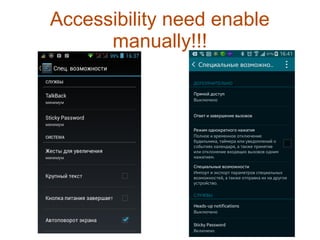
Accessibility need enable 
manually!!!
Configure Your Accessibility Service 
@Override 
public void onServiceConnected() { 
// Set the type of events that this service wants to listen to. Others 
// won’t be passed to this service. 
info.eventTypes = AccessibilityEvent.TYPE_VIEW_CLICKED | 
AccessibilityEvent.TYPE_VIEW_FOCUSED; 
// If you only want this service to work with specific applications, set their 
// package names here. Otherwise, when the service is activated, it will listen 
// to events from all applications. 
info.packageNames = new String[] 
{“com.example.android.myFirstApp”, “com.example.android.mySecondApp”}; 
// Set the type of feedback your service will provide. 
info.feedbackType = AccessibilityServiceInfo.FEEDBACK_SPOKEN; 
// Default services are invoked only if no package-specific ones are present 
// for the type of AccessibilityEvent generated. This service *is* 
// application-specific, so the flag isn’t necessary. If this was a 
// general-purpose service, it would be worth considering setting the 
// DEFAULT flag. 
// info.flags = AccessibilityServiceInfo.DEFAULT; 
info.notificationTimeout = 100; 
this.setServiceInfo(info); 
}
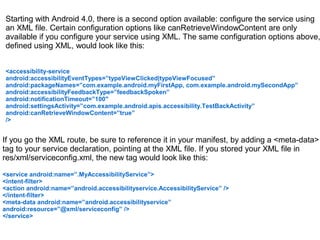
Starting with Android 4.0, there is a second option available: configure the service using 
an XML file. Certain configuration options like canRetrieveWindowContent are only 
available if you configure your service using XML. The same configuration options above, 
defined using XML, would look like this: 
<accessibility-service 
android:accessibilityEventTypes=”typeViewClicked|typeViewFocused” 
android:packageNames=”com.example.android.myFirstApp, com.example.android.mySecondApp” 
android:accessibilityFeedbackType=”feedbackSpoken” 
android:notificationTimeout=”100″ 
android:settingsActivity=”com.example.android.apis.accessibility.TestBackActivity” 
android:canRetrieveWindowContent=”true” 
/> 
If you go the XML route, be sure to reference it in your manifest, by adding a <meta-data> 
tag to your service declaration, pointing at the XML file. If you stored your XML file in 
res/xml/serviceconfig.xml, the new tag would look like this: 
<service android:name=”.MyAccessibilityService”> 
<intent-filter> 
<action android:name=”android.accessibilityservice.AccessibilityService” /> 
</intent-filter> 
<meta-data android:name=”android.accessibilityservice” 
android:resource=”@xml/serviceconfig” /> 
</service>
Respond to AccessibilityEvents 
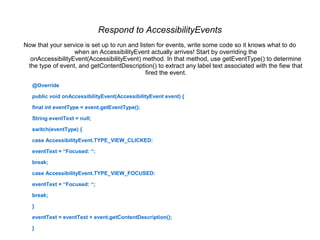
Now that your service is set up to run and listen for events, write some code so it knows what to do 
when an AccessibilityEvent actually arrives! Start by overriding the 
onAccessibilityEvent(AccessibilityEvent) method. In that method, use getEventType() to determine 
the type of event, and getContentDescription() to extract any label text associated with the fiew that 
fired the event. 
@Override 
public void onAccessibilityEvent(AccessibilityEvent event) { 
final int eventType = event.getEventType(); 
String eventText = null; 
switch(eventType) { 
case AccessibilityEvent.TYPE_VIEW_CLICKED: 
eventText = “Focused: “; 
break; 
case AccessibilityEvent.TYPE_VIEW_FOCUSED: 
eventText = “Focused: “; 
break; 
} 
eventText = eventText + event.getContentDescription(); 
}
Advanced service to access the 
window hierarchy
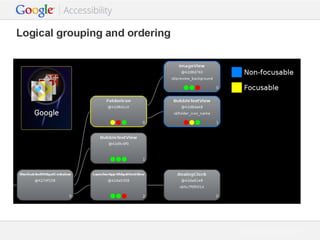
Query the View Heirarchy for More Context 
This step is optional, but highly useful. One of the new features in Android 4.0 (API Level 
14) is the ability for an AccessibilityService to query the view hierarchy, collecting 
information about the the UI component that generated an event, and its parent and 
children. In order to do this, make sure that you set the following line in your XML 
configuration: 
android:canRetrieveWindowContent=”true” 
Once that’s done, get an AccessibilityNodeInfo object using getSource(). This call only 
returns an object if the window where the event originated is still the active window. If not, 
it will return null, so behave accordingly. The following example is a snippet of code that, 
when it receives an event, does the following: 
1. Immediately grab the parent of the view where the event originated 
2. In that view, look for a label and a check box as children views 
3. If it finds them, create a string to report to the user, indicating the label and whether it 
was checked or not. 
4. If at any point a null value is returned while traversing the view hierarchy, the method 
quietly gives up.
// Alternative onAccessibilityEvent, that uses AccessibilityNodeInfo 
@Override 
public void onAccessibilityEvent(AccessibilityEvent event) { 
AccessibilityNodeInfo source = event.getSource(); 
if (source == null) { 
return; 
} 
CharSequence taskLabel = source.getText(); 
final boolean isComplete = source.isChecked(); 
}
Grab window hierarchy 
if (Build.VERSION.SDK_INT >= Build.VERSION_CODES.ICE_CREAM_SANDWICH) { 
currentNode = event.getSource(); 
if(Build.VERSION.SDK_INT >= Build.VERSION_CODES.JELLY_BEAN) 
rootNode = getRootInActiveWindow();//Node from root window 
} 
And then....
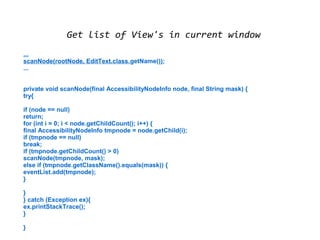
Get list of View's in current window 
... 
scanNode(rootNode, EditText.class.getName()); 
... 
private void scanNode(final AccessibilityNodeInfo node, final String mask) { 
try{ 
if (node == null) 
return; 
for (int i = 0; i < node.getChildCount(); i++) { 
final AccessibilityNodeInfo tmpnode = node.getChild(i); 
if (tmpnode == null) 
break; 
if (tmpnode.getChildCount() > 0) 
scanNode(tmpnode, mask); 
else if (tmpnode.getClassName().equals(mask)) { 
eventList.add(tmpnode); 
} 
}} 
catch (Exception ex){ 
ex.printStackTrace(); 
} 
}
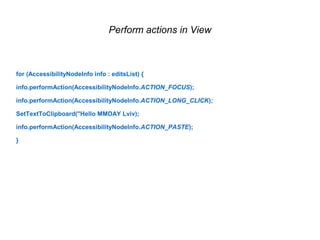
Perform actions in View 
for (AccessibilityNodeInfo info : editsList) { 
info.performAction(AccessibilityNodeInfo.ACTION_FOCUS); 
info.performAction(AccessibilityNodeInfo.ACTION_LONG_CLICK); 
SetTextToClipboard(''Hello MMDAY Lviv); 
info.performAction(AccessibilityNodeInfo.ACTION_PASTE); 
}
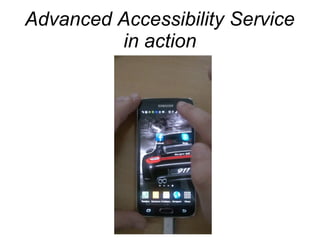
Advanced Accessibility Service 
in action
Sergey Komlach 
Lamantine Software a.s 
2014 
sergey.komlach@stickypassword.com

Lviv MDDay 2014. Сергій Комлач “Використання accessibility api для доступу до view window інших додатків.

  • 1.
    Використання Accessibility APIдля доступу до View/Window інших додатків. Застосування API в розробці додатків для людей з обмеженими здібностями або додатків для автоматизації користувальницьких дій/UX
  • 35.
    Create Your Accessibility Service An accessibility service can be bundled with a normal application, or created as a standalone Android project. The steps to creating the service are the same in either situation. Within your project, create a class that extends AccessibilityService. package com.example.android.apis.accessibility; import android.accessibilityservice.AccessibilityService; public class MyAccessibilityService extends AccessibilityService { … @Override public void onAccessibilityEvent(AccessibilityEvent event) { } @Override public void onInterrupt() { } … }
  • 36.
    Like any otherservice, you also declare it in the manifest file. Remember to specify that it handles the android.accessibilityservice intent, so that the service is called when applications fire an AccessibilityEvent. <application …> … <service android:name=”.MyAccessibilityService”> <intent-filter> <action android:name=”android.accessibilityservice.AccessibilityService” /> </intent-filter> . . . </service> … </application>
  • 37.
  • 38.
    Configure Your AccessibilityService @Override public void onServiceConnected() { // Set the type of events that this service wants to listen to. Others // won’t be passed to this service. info.eventTypes = AccessibilityEvent.TYPE_VIEW_CLICKED | AccessibilityEvent.TYPE_VIEW_FOCUSED; // If you only want this service to work with specific applications, set their // package names here. Otherwise, when the service is activated, it will listen // to events from all applications. info.packageNames = new String[] {“com.example.android.myFirstApp”, “com.example.android.mySecondApp”}; // Set the type of feedback your service will provide. info.feedbackType = AccessibilityServiceInfo.FEEDBACK_SPOKEN; // Default services are invoked only if no package-specific ones are present // for the type of AccessibilityEvent generated. This service *is* // application-specific, so the flag isn’t necessary. If this was a // general-purpose service, it would be worth considering setting the // DEFAULT flag. // info.flags = AccessibilityServiceInfo.DEFAULT; info.notificationTimeout = 100; this.setServiceInfo(info); }
  • 39.
    Starting with Android4.0, there is a second option available: configure the service using an XML file. Certain configuration options like canRetrieveWindowContent are only available if you configure your service using XML. The same configuration options above, defined using XML, would look like this: <accessibility-service android:accessibilityEventTypes=”typeViewClicked|typeViewFocused” android:packageNames=”com.example.android.myFirstApp, com.example.android.mySecondApp” android:accessibilityFeedbackType=”feedbackSpoken” android:notificationTimeout=”100″ android:settingsActivity=”com.example.android.apis.accessibility.TestBackActivity” android:canRetrieveWindowContent=”true” /> If you go the XML route, be sure to reference it in your manifest, by adding a <meta-data> tag to your service declaration, pointing at the XML file. If you stored your XML file in res/xml/serviceconfig.xml, the new tag would look like this: <service android:name=”.MyAccessibilityService”> <intent-filter> <action android:name=”android.accessibilityservice.AccessibilityService” /> </intent-filter> <meta-data android:name=”android.accessibilityservice” android:resource=”@xml/serviceconfig” /> </service>
  • 40.
    Respond to AccessibilityEvents Now that your service is set up to run and listen for events, write some code so it knows what to do when an AccessibilityEvent actually arrives! Start by overriding the onAccessibilityEvent(AccessibilityEvent) method. In that method, use getEventType() to determine the type of event, and getContentDescription() to extract any label text associated with the fiew that fired the event. @Override public void onAccessibilityEvent(AccessibilityEvent event) { final int eventType = event.getEventType(); String eventText = null; switch(eventType) { case AccessibilityEvent.TYPE_VIEW_CLICKED: eventText = “Focused: “; break; case AccessibilityEvent.TYPE_VIEW_FOCUSED: eventText = “Focused: “; break; } eventText = eventText + event.getContentDescription(); }
  • 41.
    Advanced service toaccess the window hierarchy
  • 42.
    Query the ViewHeirarchy for More Context This step is optional, but highly useful. One of the new features in Android 4.0 (API Level 14) is the ability for an AccessibilityService to query the view hierarchy, collecting information about the the UI component that generated an event, and its parent and children. In order to do this, make sure that you set the following line in your XML configuration: android:canRetrieveWindowContent=”true” Once that’s done, get an AccessibilityNodeInfo object using getSource(). This call only returns an object if the window where the event originated is still the active window. If not, it will return null, so behave accordingly. The following example is a snippet of code that, when it receives an event, does the following: 1. Immediately grab the parent of the view where the event originated 2. In that view, look for a label and a check box as children views 3. If it finds them, create a string to report to the user, indicating the label and whether it was checked or not. 4. If at any point a null value is returned while traversing the view hierarchy, the method quietly gives up.
  • 43.
    // Alternative onAccessibilityEvent,that uses AccessibilityNodeInfo @Override public void onAccessibilityEvent(AccessibilityEvent event) { AccessibilityNodeInfo source = event.getSource(); if (source == null) { return; } CharSequence taskLabel = source.getText(); final boolean isComplete = source.isChecked(); }
  • 44.
    Grab window hierarchy if (Build.VERSION.SDK_INT >= Build.VERSION_CODES.ICE_CREAM_SANDWICH) { currentNode = event.getSource(); if(Build.VERSION.SDK_INT >= Build.VERSION_CODES.JELLY_BEAN) rootNode = getRootInActiveWindow();//Node from root window } And then....
  • 45.
    Get list ofView's in current window ... scanNode(rootNode, EditText.class.getName()); ... private void scanNode(final AccessibilityNodeInfo node, final String mask) { try{ if (node == null) return; for (int i = 0; i < node.getChildCount(); i++) { final AccessibilityNodeInfo tmpnode = node.getChild(i); if (tmpnode == null) break; if (tmpnode.getChildCount() > 0) scanNode(tmpnode, mask); else if (tmpnode.getClassName().equals(mask)) { eventList.add(tmpnode); } }} catch (Exception ex){ ex.printStackTrace(); } }
  • 46.
    Perform actions inView for (AccessibilityNodeInfo info : editsList) { info.performAction(AccessibilityNodeInfo.ACTION_FOCUS); info.performAction(AccessibilityNodeInfo.ACTION_LONG_CLICK); SetTextToClipboard(''Hello MMDAY Lviv); info.performAction(AccessibilityNodeInfo.ACTION_PASTE); }
  • 47.
  • 48.
    Sergey Komlach LamantineSoftware a.s 2014 sergey.komlach@stickypassword.com