Html block
A HTML block is a standard
block used to add text or
images on a site or course
page. The title bar can be left
blank.
   It has the standard Moodle HTML editor
    for formatting text, adding images or
    creating links, switching to code view and
    allows any valid HTML markup to be
    used. This enables embedding video,
    sounds, Flash, and other files which can
    add unique elements to a course or site
    page.
1. Log in as a teacher in your
   class ,then turn editing on.
2. The blocks is in the right
    bottom .
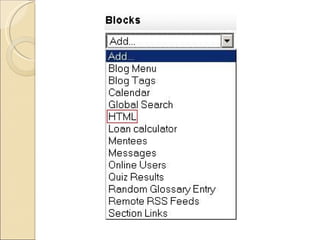
3. Click the small triangle in
   the right of the word add
   to pull down the menu.          
4. Select HTML.
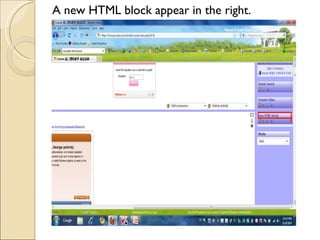
A new HTML block appear in the right.
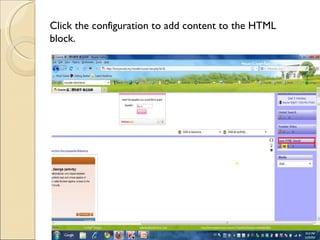
Click the configuration to add content to the HTML
block.
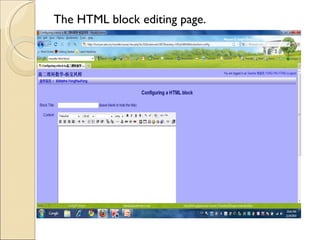
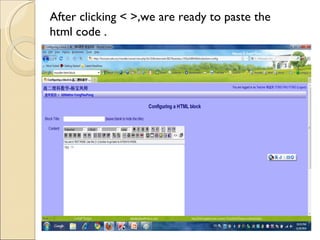
The HTML block editing page.
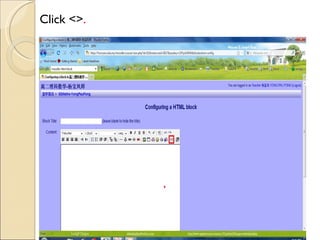
Click <>.
After clicking < >,we are ready to paste the
html code .
Search Widget

1.Seach in google, type
  widget for web page.
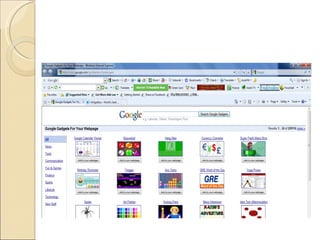
2.Go to
http://www.google.com/ig/directory?
3. Go to
http://www.widgetbox.com/home/gu
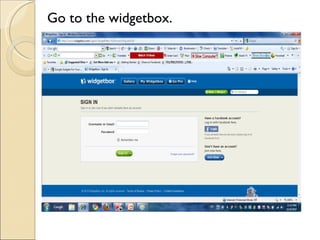
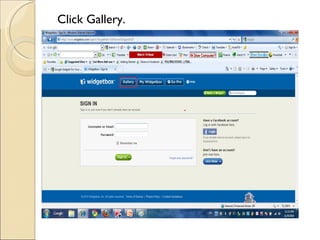
Go to the widgetbox.
Click Gallery.
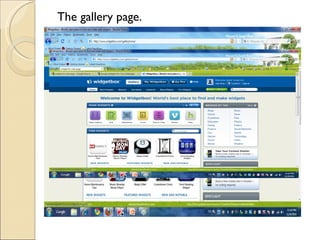
The gallery page.
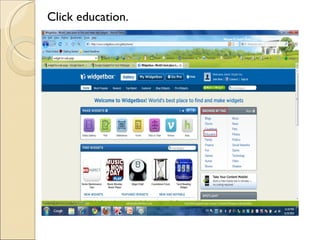
Click education.
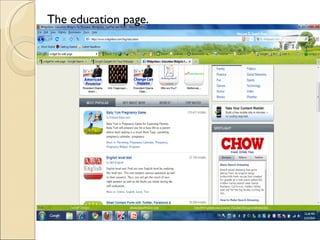
The education page.
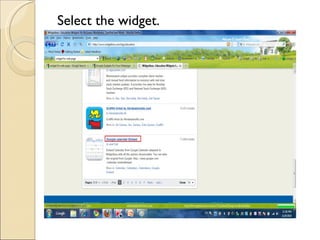
Select the widget.
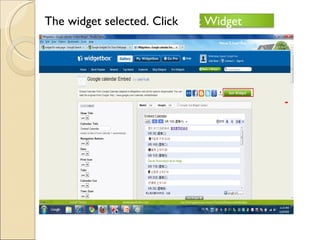
The widget selected. Click Get Widget
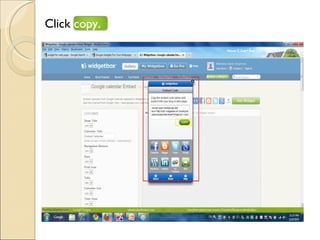
Click copy.
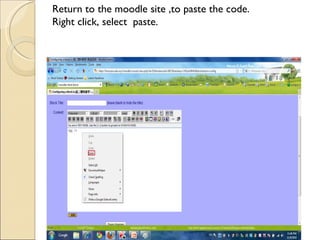
Return to the moodle site ,to paste the code.
Right click, select paste.
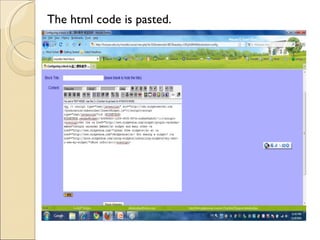
The html code is pasted.
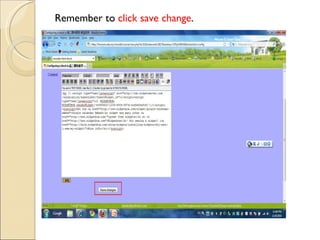
Remember to click save change.
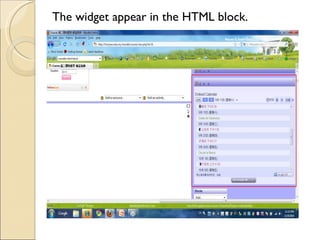
The widget appear in the HTML block.
Thank you.


    Prepared by: Yong Pau Fong

Html block