Lecture 7
In this lecture, we will learn about
    • Using an Image as a Link
    • Aligning Images

Using an Image as a Link
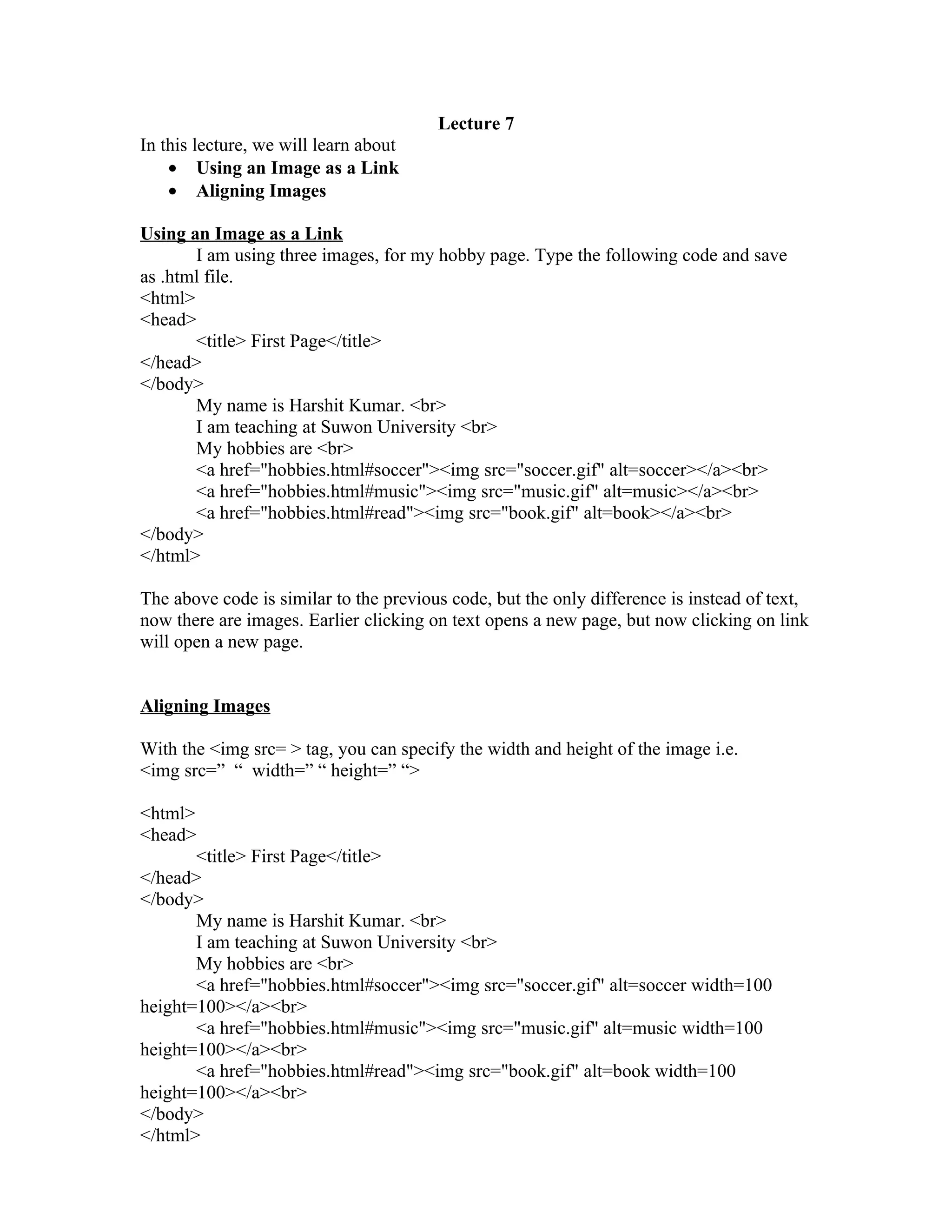
       I am using three images, for my hobby page. Type the following code and save
as .html file.
<html>
<head>
       <title> First Page</title>
</head>
</body>
       My name is Harshit Kumar. <br>
       I am teaching at Suwon University <br>
       My hobbies are <br>
       <a href="hobbies.html#soccer"><img src="soccer.gif" alt=soccer></a><br>
       <a href="hobbies.html#music"><img src="music.gif" alt=music></a><br>
       <a href="hobbies.html#read"><img src="book.gif" alt=book></a><br>
</body>
</html>

The above code is similar to the previous code, but the only difference is instead of text,
now there are images. Earlier clicking on text opens a new page, but now clicking on link
will open a new page.


Aligning Images

With the <img src= > tag, you can specify the width and height of the image i.e.
<img src=” “ width=” “ height=” “>

<html>
<head>
       <title> First Page</title>
</head>
</body>
       My name is Harshit Kumar. <br>
       I am teaching at Suwon University <br>
       My hobbies are <br>
       <a href="hobbies.html#soccer"><img src="soccer.gif" alt=soccer width=100
height=100></a><br>
       <a href="hobbies.html#music"><img src="music.gif" alt=music width=100
height=100></a><br>
       <a href="hobbies.html#read"><img src="book.gif" alt=book width=100
height=100></a><br>
</body>
</html>
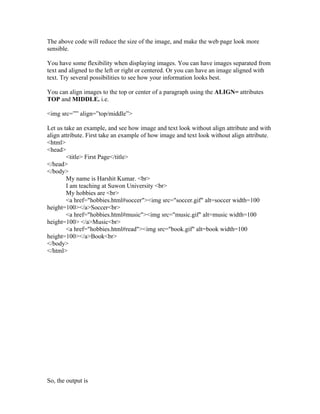
The above code will reduce the size of the image, and make the web page look more
sensible.

You have some flexibility when displaying images. You can have images separated from
text and aligned to the left or right or centered. Or you can have an image aligned with
text. Try several possibilities to see how your information looks best.

You can align images to the top or center of a paragraph using the ALIGN= attributes
TOP and MIDDLE. i.e.

<img src=”” align=”top/middle”>

Let us take an example, and see how image and text look without align attribute and with
align attribute. First take an example of how image and text look without align attribute.
<html>
<head>
        <title> First Page</title>
</head>
</body>
        My name is Harshit Kumar. <br>
        I am teaching at Suwon University <br>
        My hobbies are <br>
        <a href="hobbies.html#soccer"><img src="soccer.gif" alt=soccer width=100
height=100></a>Soccer<br>
        <a href="hobbies.html#music"><img src="music.gif" alt=music width=100
height=100> </a>Music<br>
        <a href="hobbies.html#read"><img src="book.gif" alt=book width=100
height=100></a>Book<br>
</body>
</html>


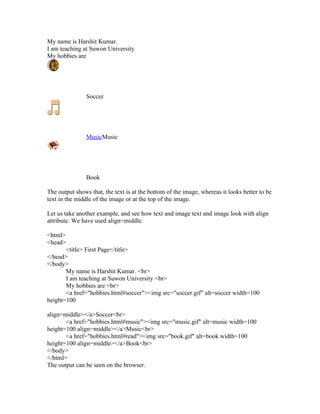
So, the output is
My name is Harshit Kumar.
I am teaching at Suwon University
My hobbies are


                Soccer


                MusicMusic


                Book

The output shows that, the text is at the bottom of the image, whereas it looks better to be
text in the middle of the image or at the top of the image.

Let us take another example, and see how text and image text and image look with align
attribute. We have used align=middle.

<html>
<head>
       <title> First Page</title>
</head>
</body>
       My name is Harshit Kumar. <br>
       I am teaching at Suwon University <br>
       My hobbies are <br>
       <a href="hobbies.html#soccer"><img src="soccer.gif" alt=soccer width=100
height=100

align=middle></a>Soccer<br>
       <a href="hobbies.html#music"><img src="music.gif" alt=music width=100
height=100 align=middle></a>Music<br>
       <a href="hobbies.html#read"><img src="book.gif" alt=book width=100
height=100 align=middle></a>Book<br>
</body>
</html>
The output can be seen on the browser.

Html basics 6 image

  • 1.
    Lecture 7 In thislecture, we will learn about • Using an Image as a Link • Aligning Images Using an Image as a Link I am using three images, for my hobby page. Type the following code and save as .html file. <html> <head> <title> First Page</title> </head> </body> My name is Harshit Kumar. <br> I am teaching at Suwon University <br> My hobbies are <br> <a href="hobbies.html#soccer"><img src="soccer.gif" alt=soccer></a><br> <a href="hobbies.html#music"><img src="music.gif" alt=music></a><br> <a href="hobbies.html#read"><img src="book.gif" alt=book></a><br> </body> </html> The above code is similar to the previous code, but the only difference is instead of text, now there are images. Earlier clicking on text opens a new page, but now clicking on link will open a new page. Aligning Images With the <img src= > tag, you can specify the width and height of the image i.e. <img src=” “ width=” “ height=” “> <html> <head> <title> First Page</title> </head> </body> My name is Harshit Kumar. <br> I am teaching at Suwon University <br> My hobbies are <br> <a href="hobbies.html#soccer"><img src="soccer.gif" alt=soccer width=100 height=100></a><br> <a href="hobbies.html#music"><img src="music.gif" alt=music width=100 height=100></a><br> <a href="hobbies.html#read"><img src="book.gif" alt=book width=100 height=100></a><br> </body> </html>
  • 2.
    The above codewill reduce the size of the image, and make the web page look more sensible. You have some flexibility when displaying images. You can have images separated from text and aligned to the left or right or centered. Or you can have an image aligned with text. Try several possibilities to see how your information looks best. You can align images to the top or center of a paragraph using the ALIGN= attributes TOP and MIDDLE. i.e. <img src=”” align=”top/middle”> Let us take an example, and see how image and text look without align attribute and with align attribute. First take an example of how image and text look without align attribute. <html> <head> <title> First Page</title> </head> </body> My name is Harshit Kumar. <br> I am teaching at Suwon University <br> My hobbies are <br> <a href="hobbies.html#soccer"><img src="soccer.gif" alt=soccer width=100 height=100></a>Soccer<br> <a href="hobbies.html#music"><img src="music.gif" alt=music width=100 height=100> </a>Music<br> <a href="hobbies.html#read"><img src="book.gif" alt=book width=100 height=100></a>Book<br> </body> </html> So, the output is
  • 3.
    My name isHarshit Kumar. I am teaching at Suwon University My hobbies are Soccer MusicMusic Book The output shows that, the text is at the bottom of the image, whereas it looks better to be text in the middle of the image or at the top of the image. Let us take another example, and see how text and image text and image look with align attribute. We have used align=middle. <html> <head> <title> First Page</title> </head> </body> My name is Harshit Kumar. <br> I am teaching at Suwon University <br> My hobbies are <br> <a href="hobbies.html#soccer"><img src="soccer.gif" alt=soccer width=100 height=100 align=middle></a>Soccer<br> <a href="hobbies.html#music"><img src="music.gif" alt=music width=100 height=100 align=middle></a>Music<br> <a href="hobbies.html#read"><img src="book.gif" alt=book width=100 height=100 align=middle></a>Book<br> </body> </html> The output can be seen on the browser.