HTML
HYPER TEXT MARKUP LANGUAGE
During this fourth application lesson, the
learners will gain the following knowledge
 Know what HTML stands for, and be able to define it.
 Design a webpage using basic HTML tags.
 Add images on a webpage.
Definition of HTML
 HTML stands for Hypertext Markup Language
 Hypertext Markup Language, a standardized systemfor tagging text files to achieve font,
colour, graphic, and hyperlink effects in World Wild Web pages.
 Webpage is a hypertext connected to the World Wide Web
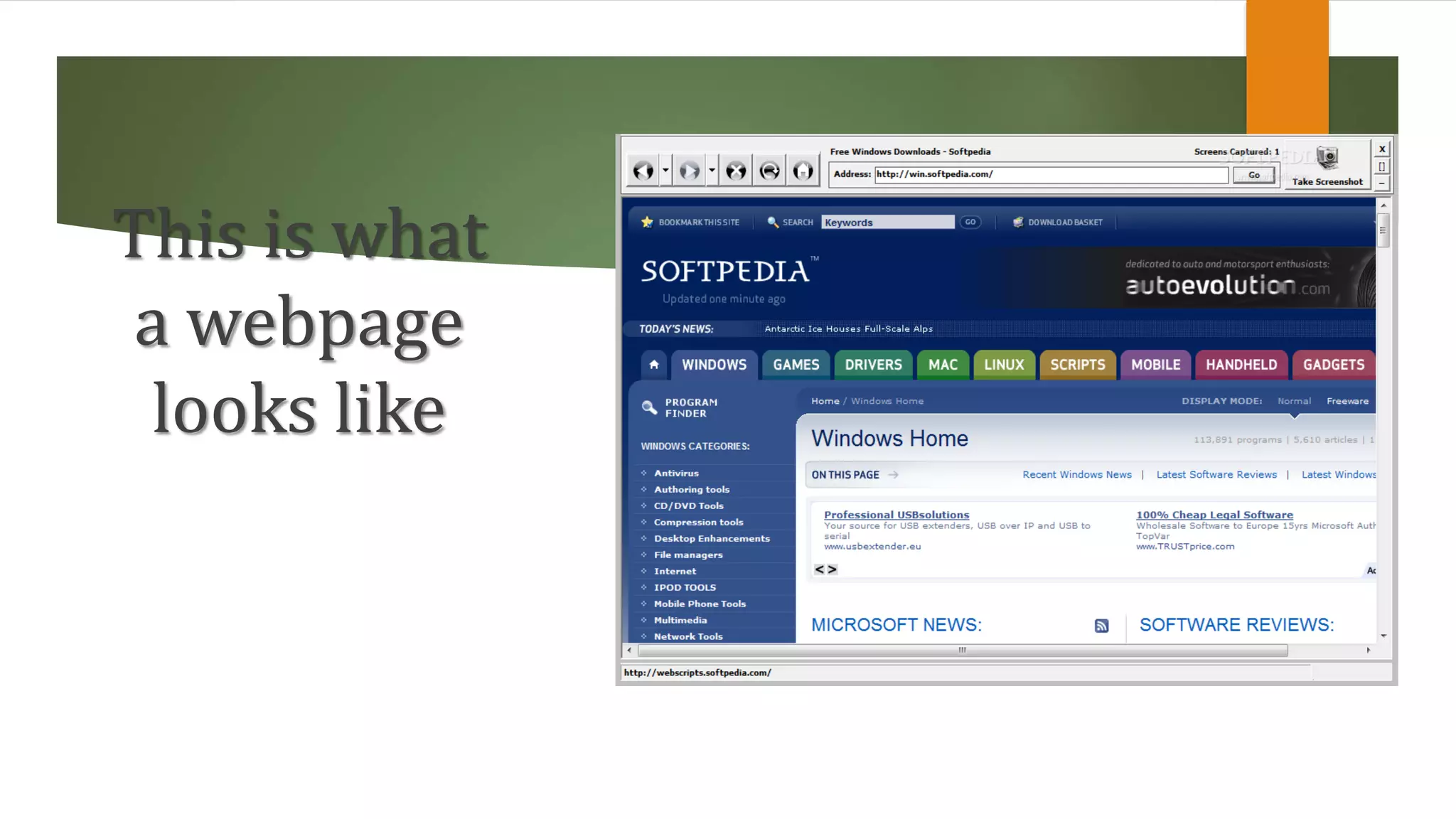
This is what
a webpage
looks like
Basic HTML tags and their meaning…
TAG DESCRIPTION
<!DOCTYPE> Defines the document type
<a> Defines a hyperlink
<b> Defines bold text
<body> Defines the document’s body
<br /> Defines a single line break
<h1> to <h6> Defines HTML headings
<head> Defines the information about the document
<header> Defines a header for a document or section
<HTML> Defines the root of an HTML document
<i> Defines italic
Creating a webpage…
 Notepad++
 To make a tag you use the following format (<), something in the middle e.g. p for
paragraph and then (>).
 Doctype tag, only used once per webpage. <!doctype html>. Tells your browswer about
what type of document it is trying to look at.
 Entire webpage goes between your ‘HTML’ tags.
 Forward slash indicates an end.
 Website is made of two parts: Head and Body
 Head is different from header
Continuation…
 For paragraphs you do not just insert space. <p>
 Line breaking, Address
Adding images on a webpage
 To insert an image, create an HTML folder and first paste the image there on your
computer.
 Use the following tag <img src=“name of the image. File type”/>
 Resize image <img src=“name of image. File type” height=“150”/>
In conclusion
 This lesson plan has covered the basic HTML tags.
 Two parts of a website (Head and Header).
 Difference between double tags and special tags.
 How to enlarge header/text
 How to insert an image on a webpage
 A more practical part to be done in the next session
Assessment
 Kahoot multiple choice question.

Html

  • 1.
  • 2.
    During this fourthapplication lesson, the learners will gain the following knowledge  Know what HTML stands for, and be able to define it.  Design a webpage using basic HTML tags.  Add images on a webpage.
  • 3.
    Definition of HTML HTML stands for Hypertext Markup Language  Hypertext Markup Language, a standardized systemfor tagging text files to achieve font, colour, graphic, and hyperlink effects in World Wild Web pages.  Webpage is a hypertext connected to the World Wide Web
  • 4.
    This is what awebpage looks like
  • 5.
    Basic HTML tagsand their meaning… TAG DESCRIPTION <!DOCTYPE> Defines the document type <a> Defines a hyperlink <b> Defines bold text <body> Defines the document’s body <br /> Defines a single line break <h1> to <h6> Defines HTML headings <head> Defines the information about the document <header> Defines a header for a document or section <HTML> Defines the root of an HTML document <i> Defines italic
  • 6.
    Creating a webpage… Notepad++  To make a tag you use the following format (<), something in the middle e.g. p for paragraph and then (>).  Doctype tag, only used once per webpage. <!doctype html>. Tells your browswer about what type of document it is trying to look at.  Entire webpage goes between your ‘HTML’ tags.  Forward slash indicates an end.  Website is made of two parts: Head and Body  Head is different from header
  • 7.
    Continuation…  For paragraphsyou do not just insert space. <p>  Line breaking, Address
  • 8.
    Adding images ona webpage  To insert an image, create an HTML folder and first paste the image there on your computer.  Use the following tag <img src=“name of the image. File type”/>  Resize image <img src=“name of image. File type” height=“150”/>
  • 9.
    In conclusion  Thislesson plan has covered the basic HTML tags.  Two parts of a website (Head and Header).  Difference between double tags and special tags.  How to enlarge header/text  How to insert an image on a webpage  A more practical part to be done in the next session
  • 10.