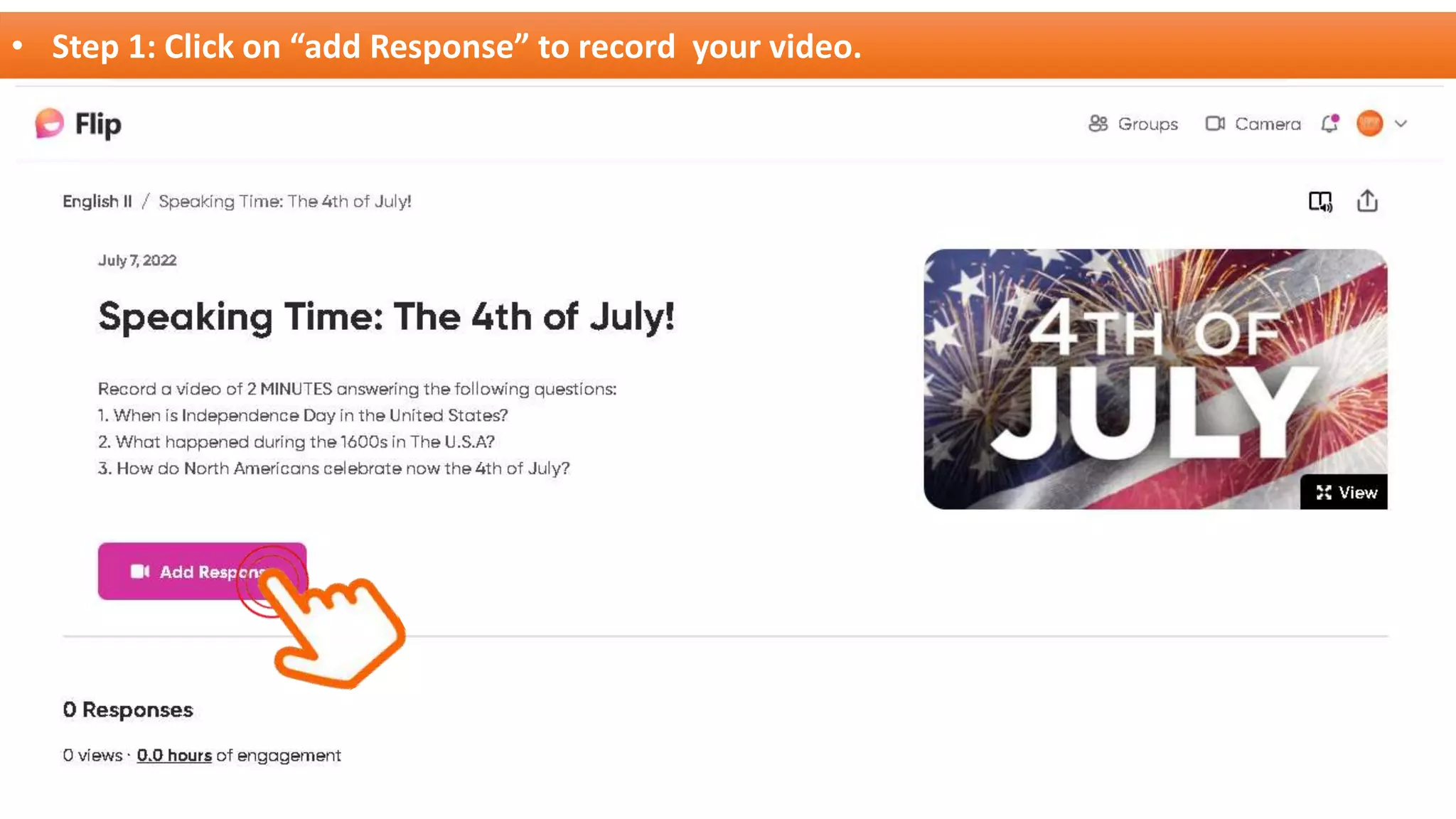
• Step 1: Click on “add Response” to record your video.
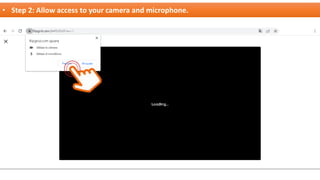
• Step 2: Allow access to your camera and microphone.
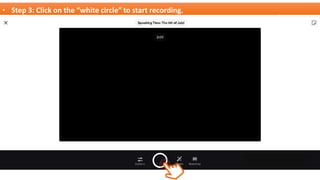
• Step 3: Click on the “white circle” to start recording.
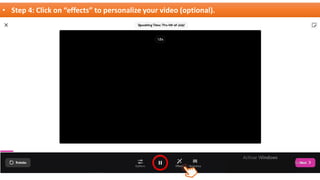
• Step 4: Click on “effects” to personalize your video (optional).
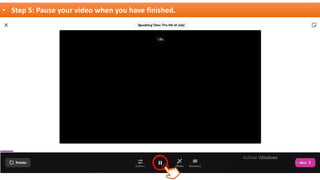
• Step 5: Pause your video when you have finished.
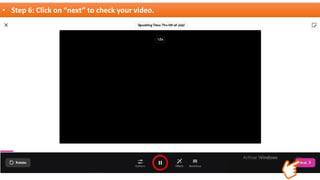
• Step 6: Click on “next” to check your video.
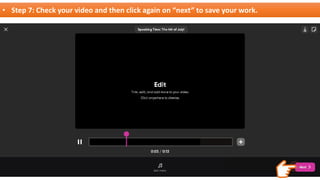
• Step 7: Check your video and then click again on “next” to save your work.
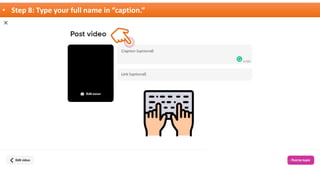
• Step 8: Type your full name in “caption.”
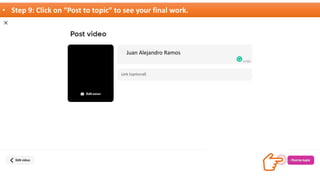
• Step 9: Click on “Post to topic” to see your final work.
Juan Alejandro Ramos
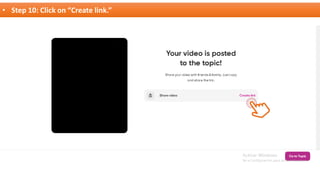
• Step 10: Click on “Create link.”
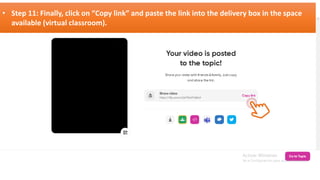
• Step 11: Finally, click on “Copy link” and paste the link into the delivery box in the space
available (virtual classroom).

How to use Flipgrid on your computer.pdf

  • 1.
    • Step 1:Click on “add Response” to record your video.
  • 2.
    • Step 2:Allow access to your camera and microphone.
  • 3.
    • Step 3:Click on the “white circle” to start recording.
  • 4.
    • Step 4:Click on “effects” to personalize your video (optional).
  • 5.
    • Step 5:Pause your video when you have finished.
  • 6.
    • Step 6:Click on “next” to check your video.
  • 7.
    • Step 7:Check your video and then click again on “next” to save your work.
  • 8.
    • Step 8:Type your full name in “caption.”
  • 9.
    • Step 9:Click on “Post to topic” to see your final work. Juan Alejandro Ramos
  • 10.
    • Step 10:Click on “Create link.”
  • 11.
    • Step 11:Finally, click on “Copy link” and paste the link into the delivery box in the space available (virtual classroom).