How to Manage the
Attendance of Employees
in Odoo 17 Attendance
Enterprise
Introduction
Enterprise
The attendance module in Odoo is designed to help organizations
for tracking employee attendance, manage work schedules, keep
track of and record each employee's working hours within a
company.
For both small and large organizations, the HRM operations can be a
huge task when done manually. But with Odoo, rather than keeping
the traditional systems, the complete management of all employee
related operations can be done so smoothly.
The key functionalities of the Attendance module of Odoo 17 include
Employee Check In/Out, Management and visibility, Reporting and
Insights, Configuration options, etc.
Enterprise
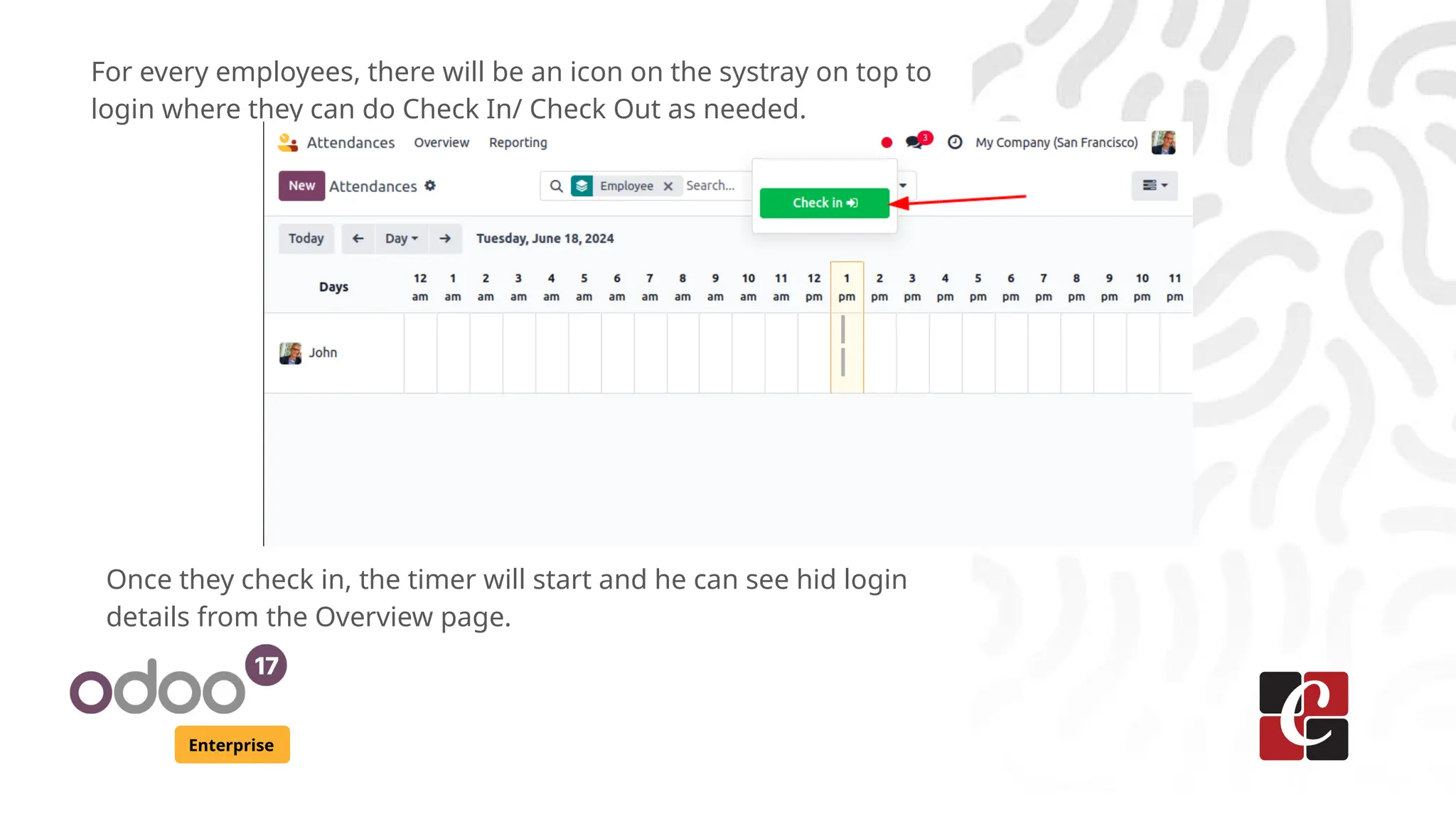
For every employees, there will be an icon on the systray on top to
login where they can do Check In/ Check Out as needed.
Once they check in, the timer will start and he can see hid login
details from the Overview page.
Enterprise
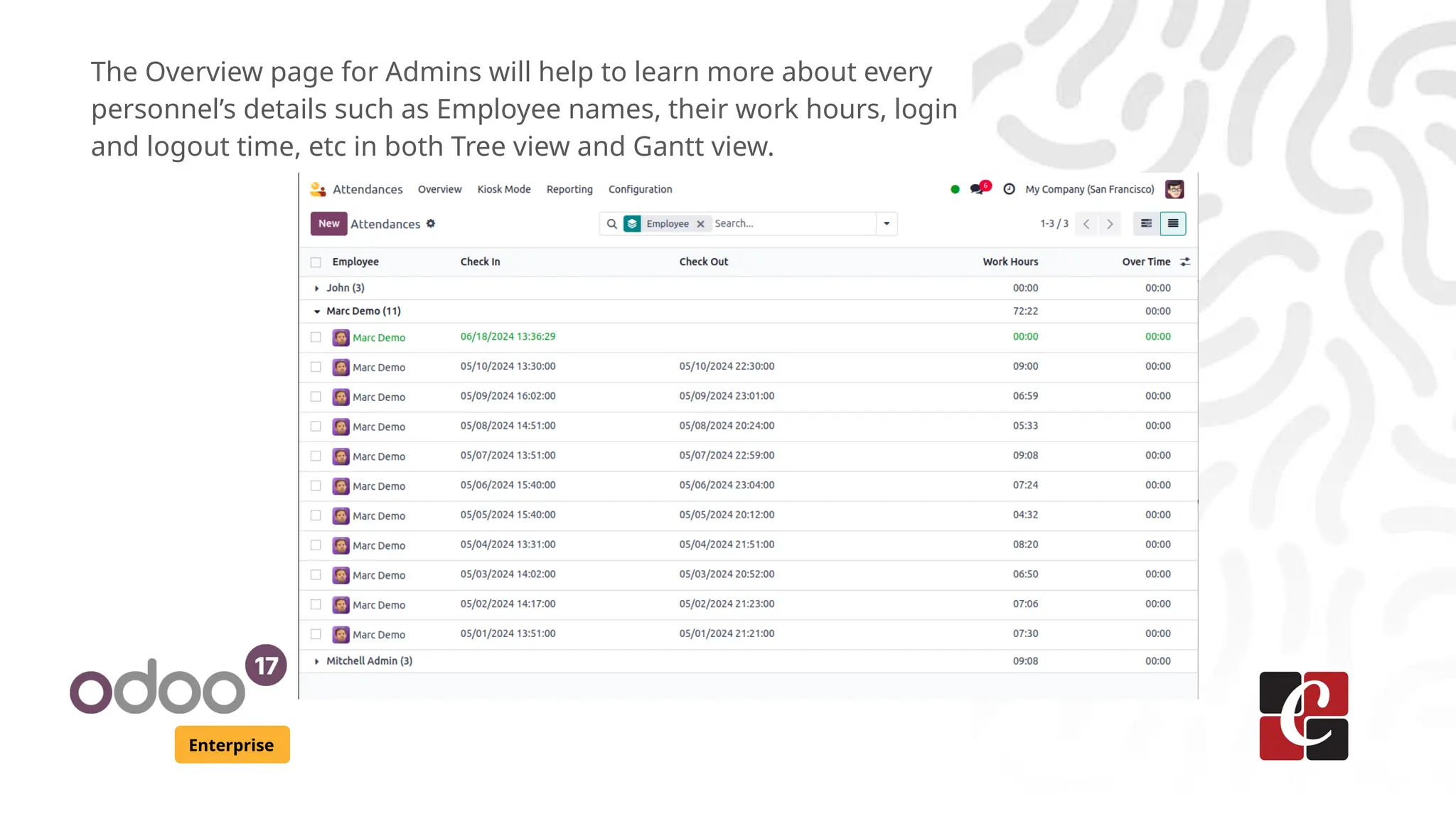
The Overview page for Admins will help to learn more about every
personnel’s details such as Employee names, their work hours, login
and logout time, etc in both Tree view and Gantt view.
Enterprise
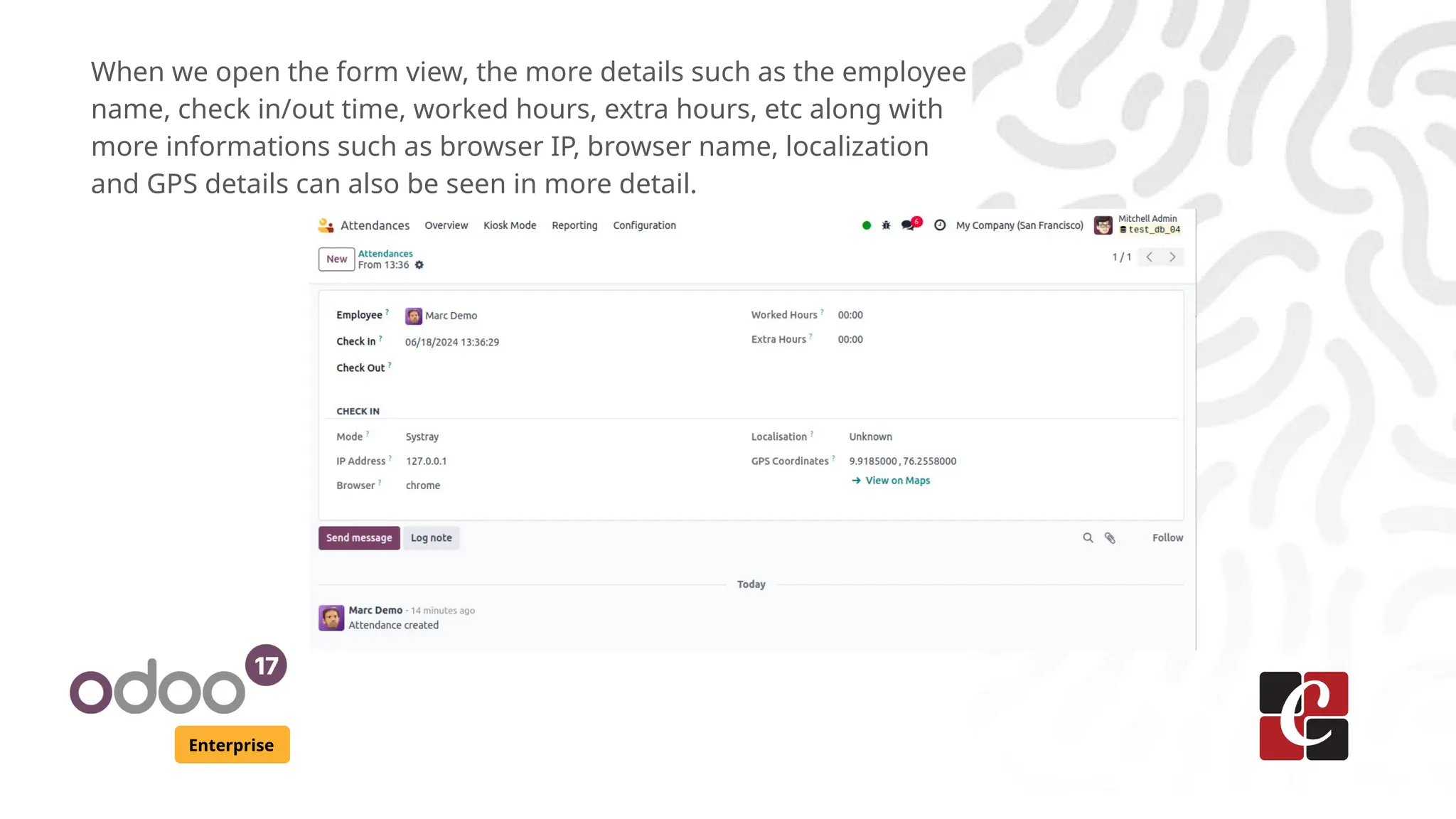
When we open the form view, the more details such as the employee
name, check in/out time, worked hours, extra hours, etc along with
more informations such as browser IP, browser name, localization
and GPS details can also be seen in more detail.
Configuration
Enterprise
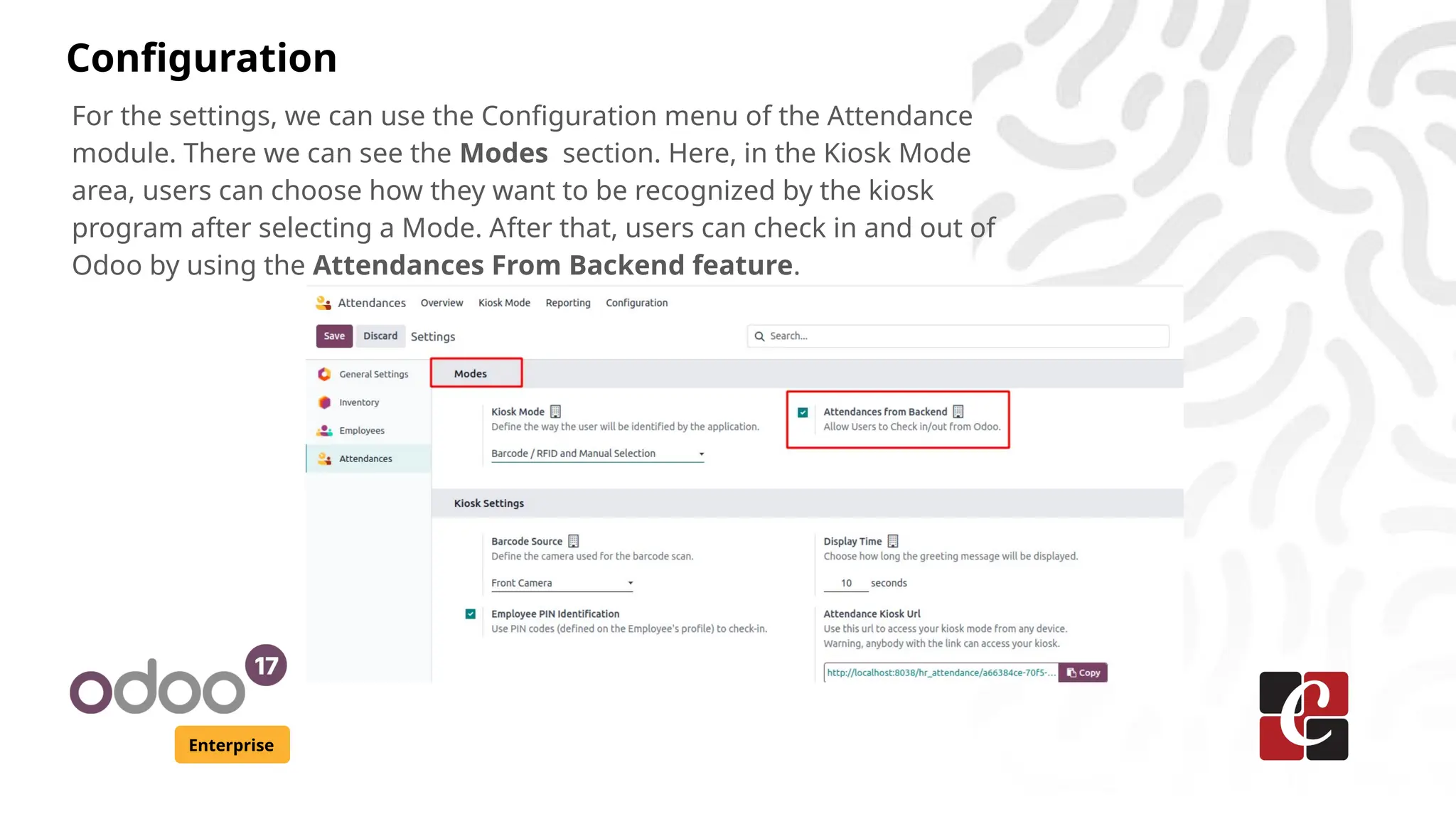
For the settings, we can use the Configuration menu of the Attendance
module. There we can see the Modes section. Here, in the Kiosk Mode
area, users can choose how they want to be recognized by the kiosk
program after selecting a Mode. After that, users can check in and out of
Odoo by using the Attendances From Backend feature.
Enterprise
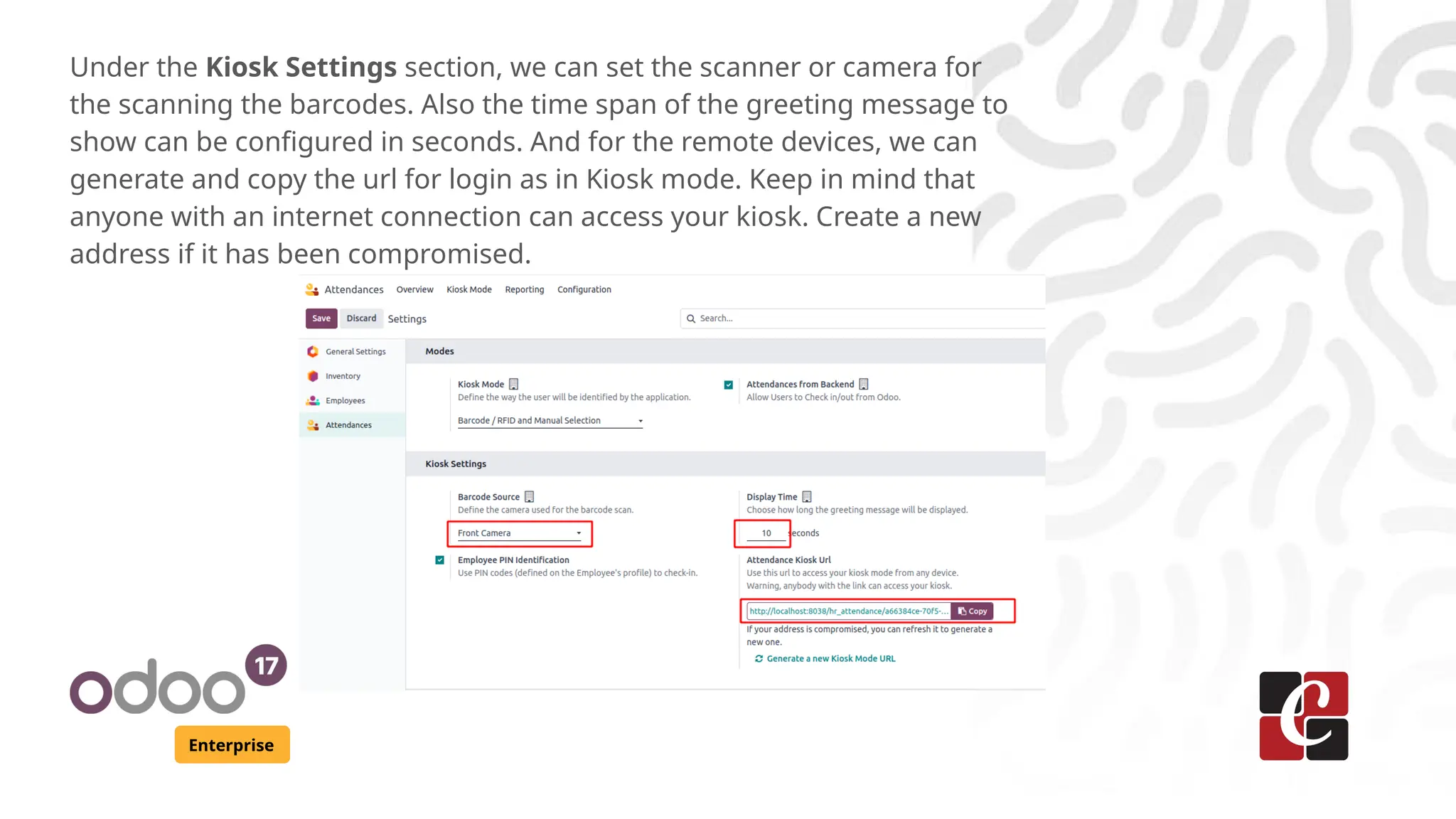
Under the Kiosk Settings section, we can set the scanner or camera for
the scanning the barcodes. Also the time span of the greeting message to
show can be configured in seconds. And for the remote devices, we can
generate and copy the url for login as in Kiosk mode. Keep in mind that
anyone with an internet connection can access your kiosk. Create a new
address if it has been compromised.
Kiosk Mode
Enterprise
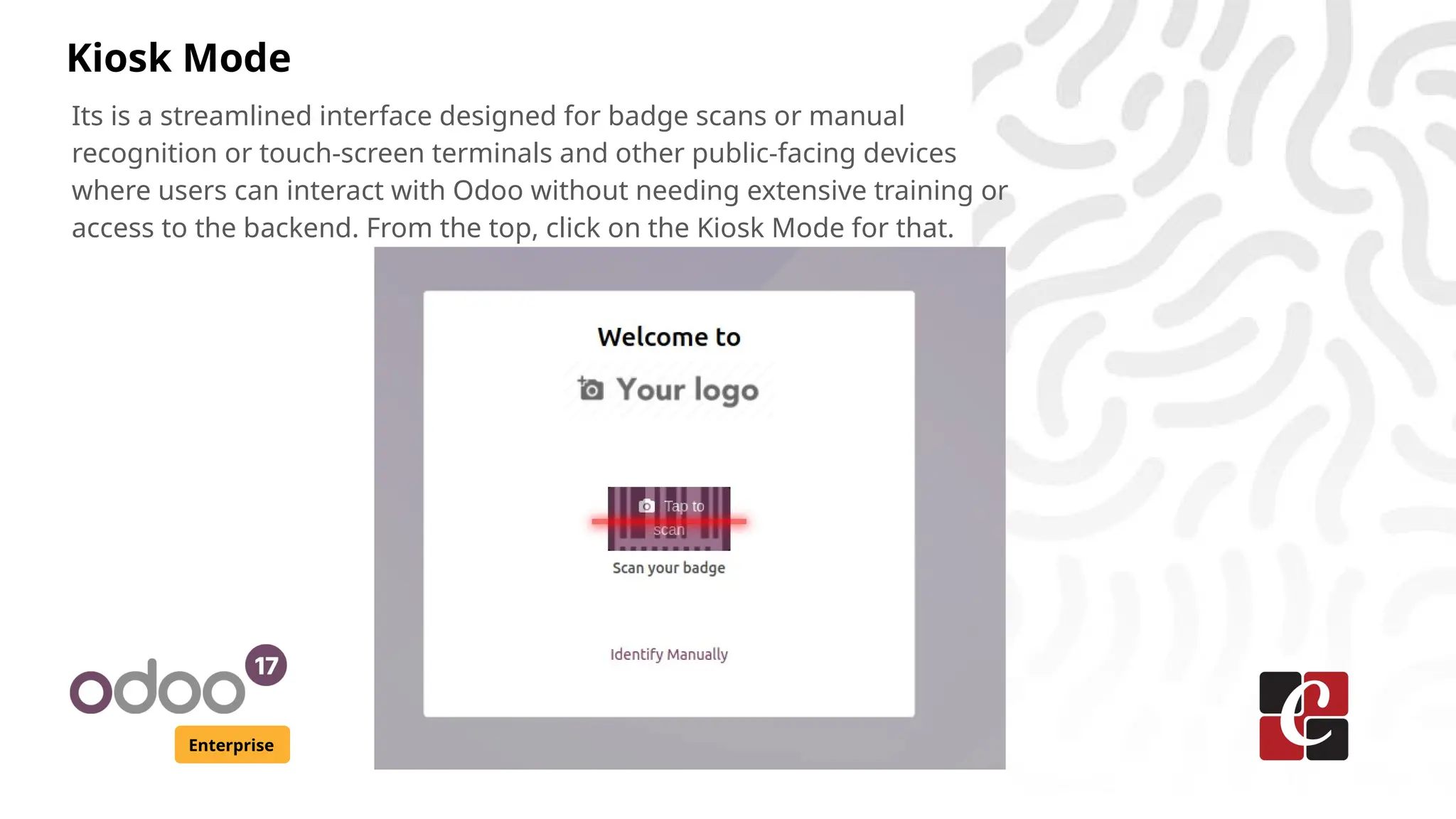
Its is a streamlined interface designed for badge scans or manual
recognition or touch-screen terminals and other public-facing devices
where users can interact with Odoo without needing extensive training or
access to the backend. From the top, click on the Kiosk Mode for that.
Enterprise
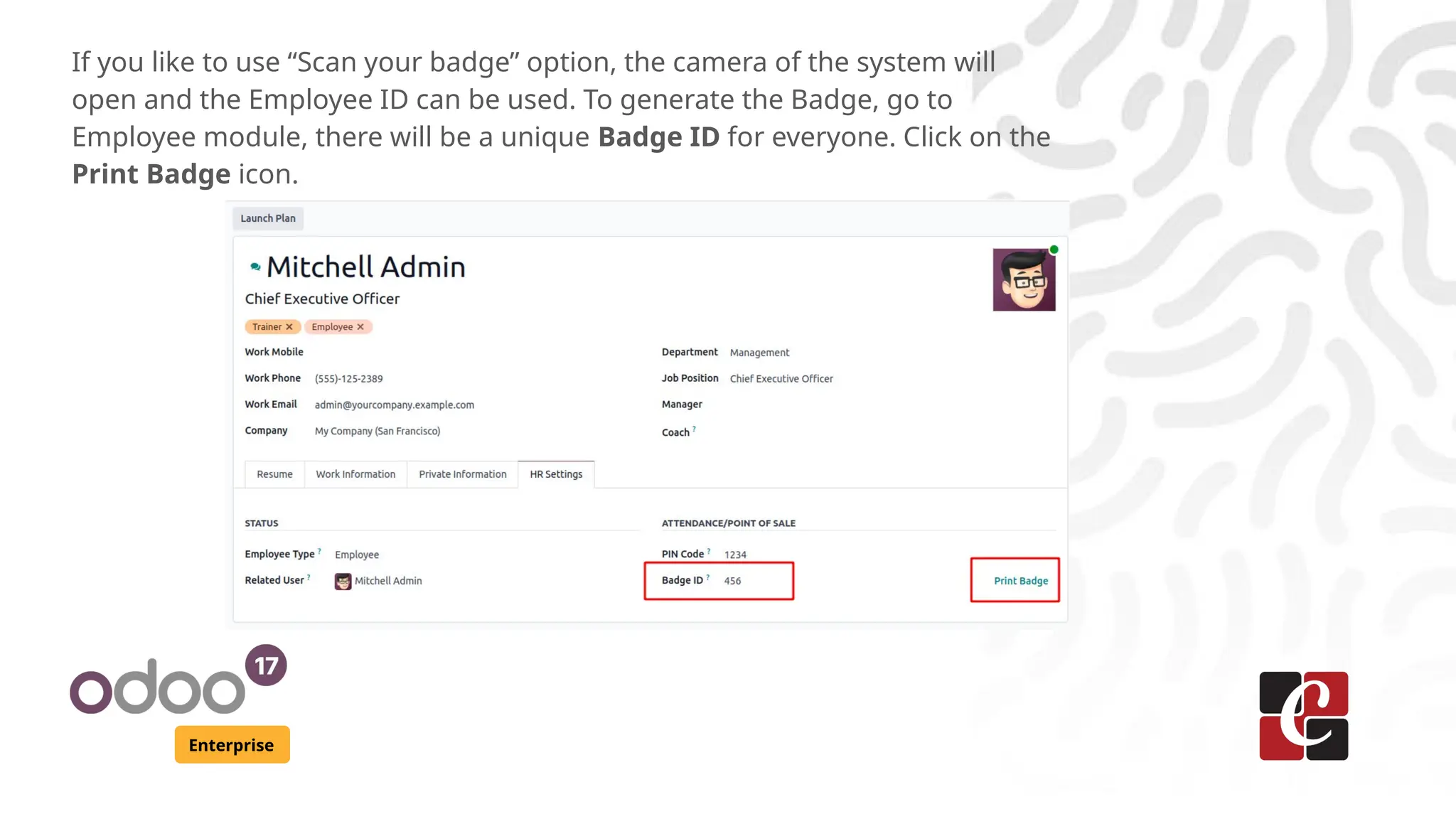
If you like to use “Scan your badge” option, the camera of the system will
open and the Employee ID can be used. To generate the Badge, go to
Employee module, there will be a unique Badge ID for everyone. Click on the
Print Badge icon.
Enterprise
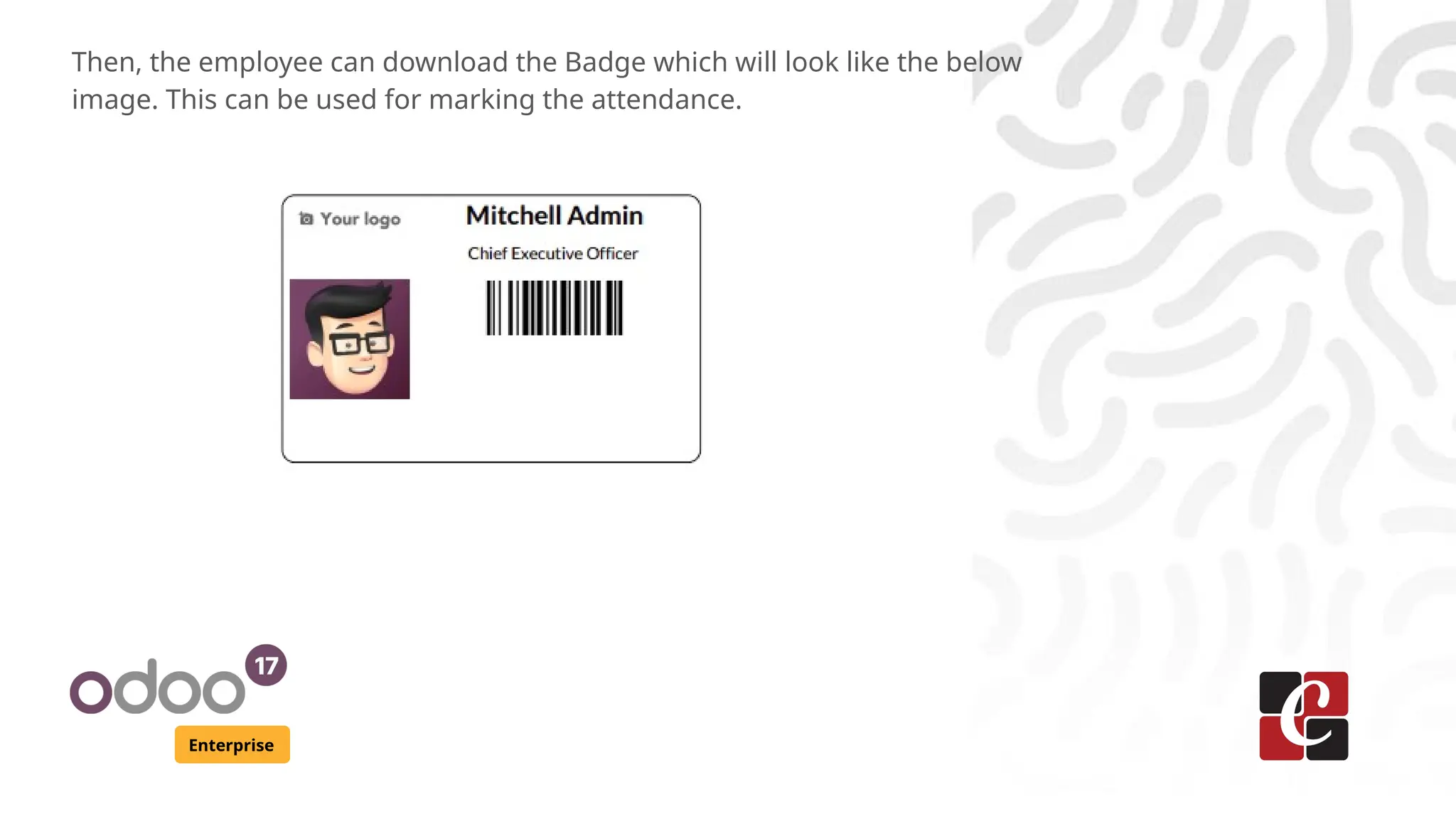
Then, the employee can download the Badge which will look like the below
image. This can be used for marking the attendance.
Enterprise
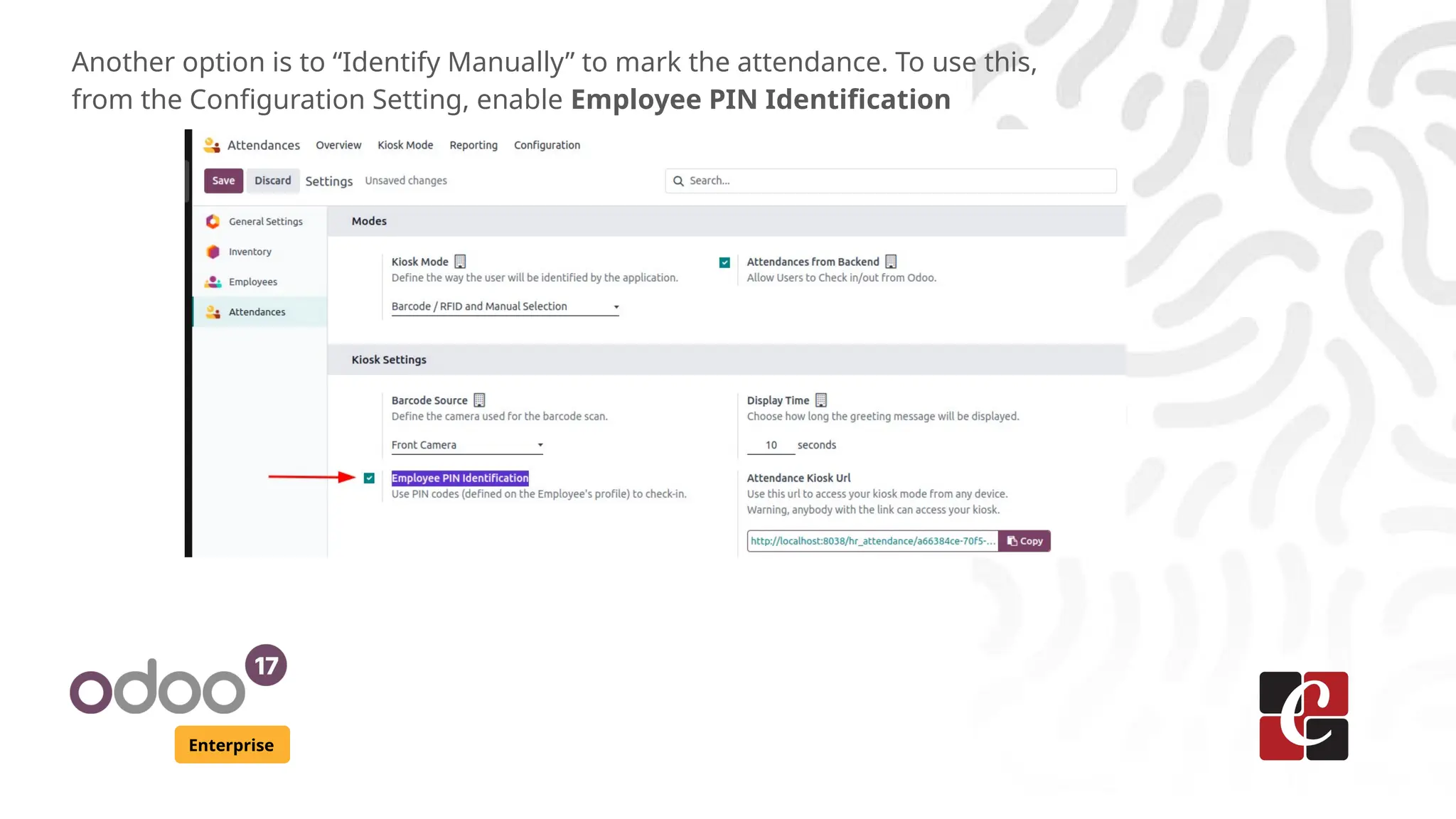
Another option is to “Identify Manually” to mark the attendance. To use this,
from the Configuration Setting, enable Employee PIN Identification
Enterprise
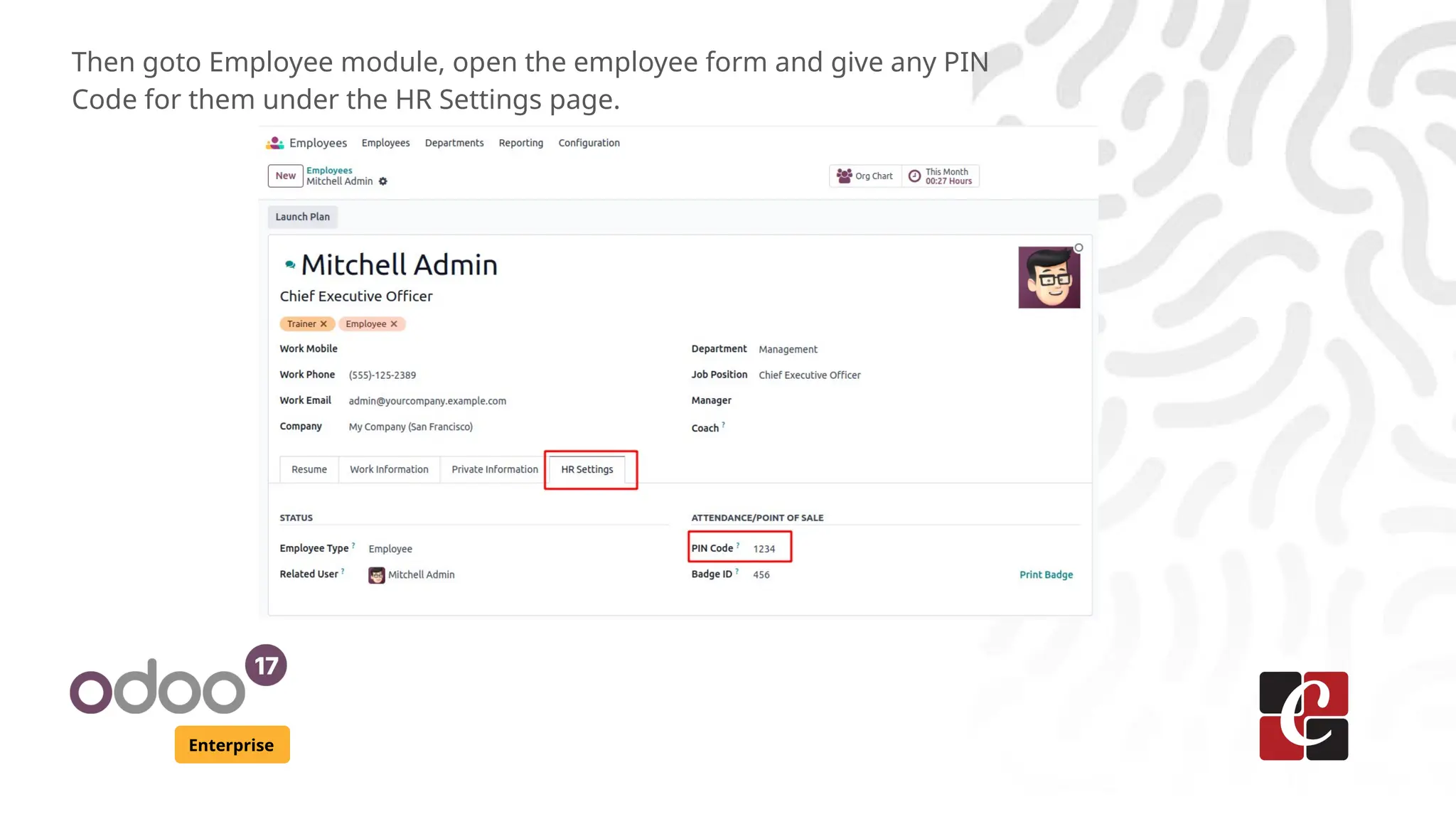
Then goto Employee module, open the employee form and give any PIN
Code for them under the HR Settings page.
Enterprise
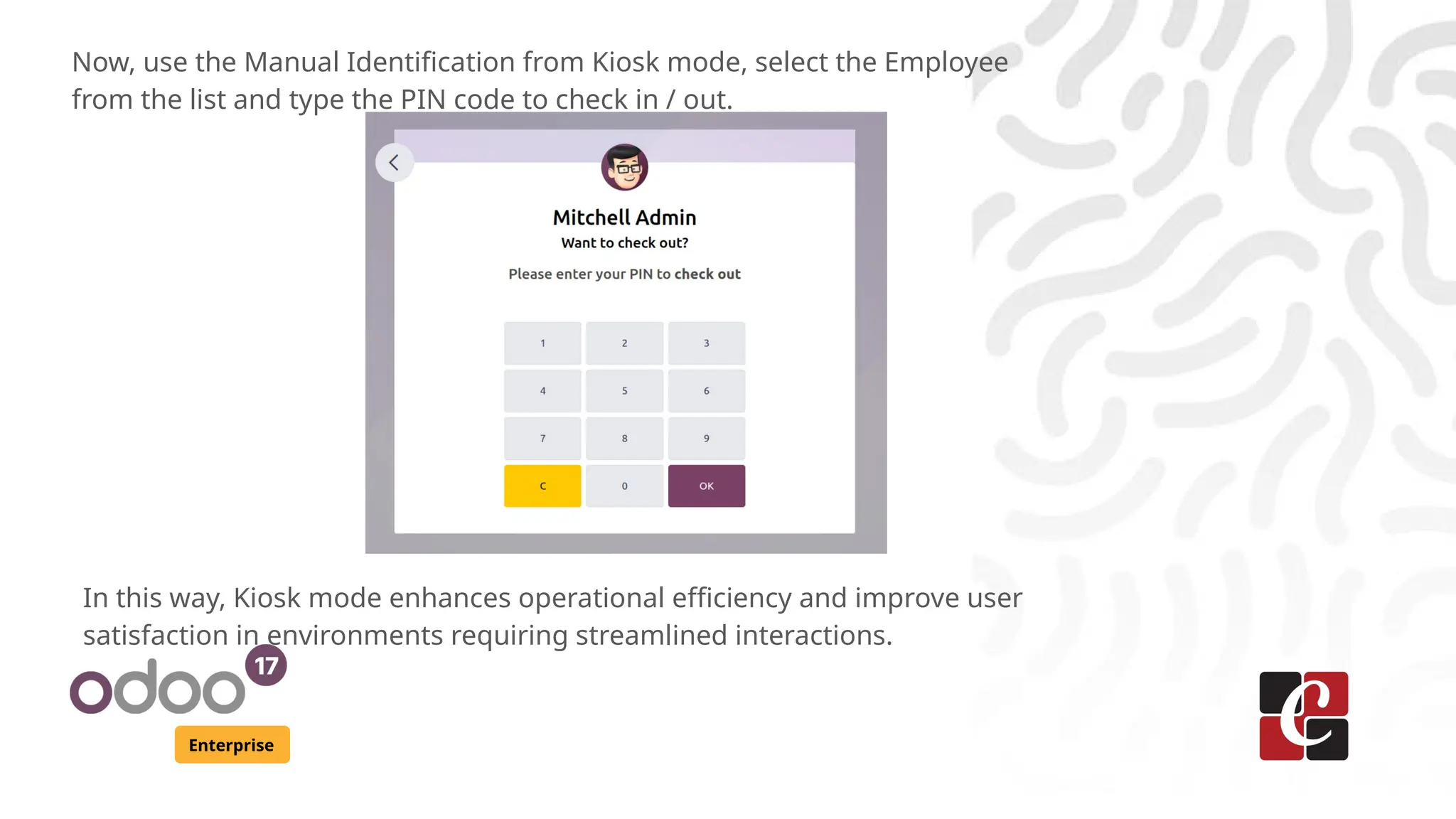
Now, use the Manual Identification from Kiosk mode, select the Employee
from the list and type the PIN code to check in / out.
In this way, Kiosk mode enhances operational efficiency and improve user
satisfaction in environments requiring streamlined interactions.
Enterprise
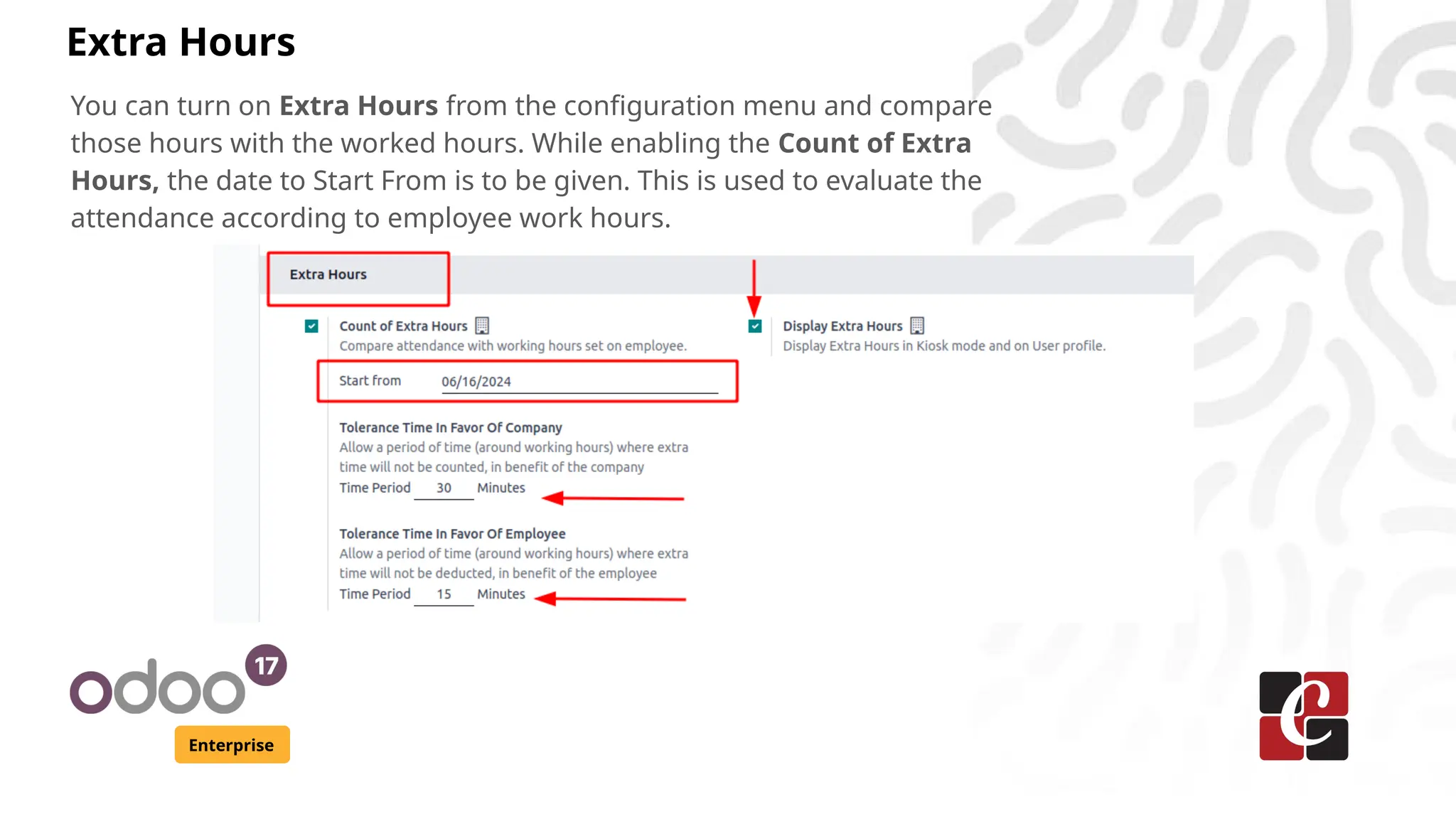
You can turn on Extra Hours from the configuration menu and compare
those hours with the worked hours. While enabling the Count of Extra
Hours, the date to Start From is to be given. This is used to evaluate the
attendance according to employee work hours.
Extra Hours
Enterprise
Tolerance Time In Favor Of Company and Tolerance Time In Favor Of
Employee can also be given under that in minutes. The former one works
for the Company’s favor and the additional time gets subtracted from the
working hours. But the latter one as its name implies works for the
Employee’s favor as it supports an employee and from which additional time
is not subtracted.
And while enabling the Display Extra Hours, it will show the extra hour
details on Kiosk mode.
Enterprise
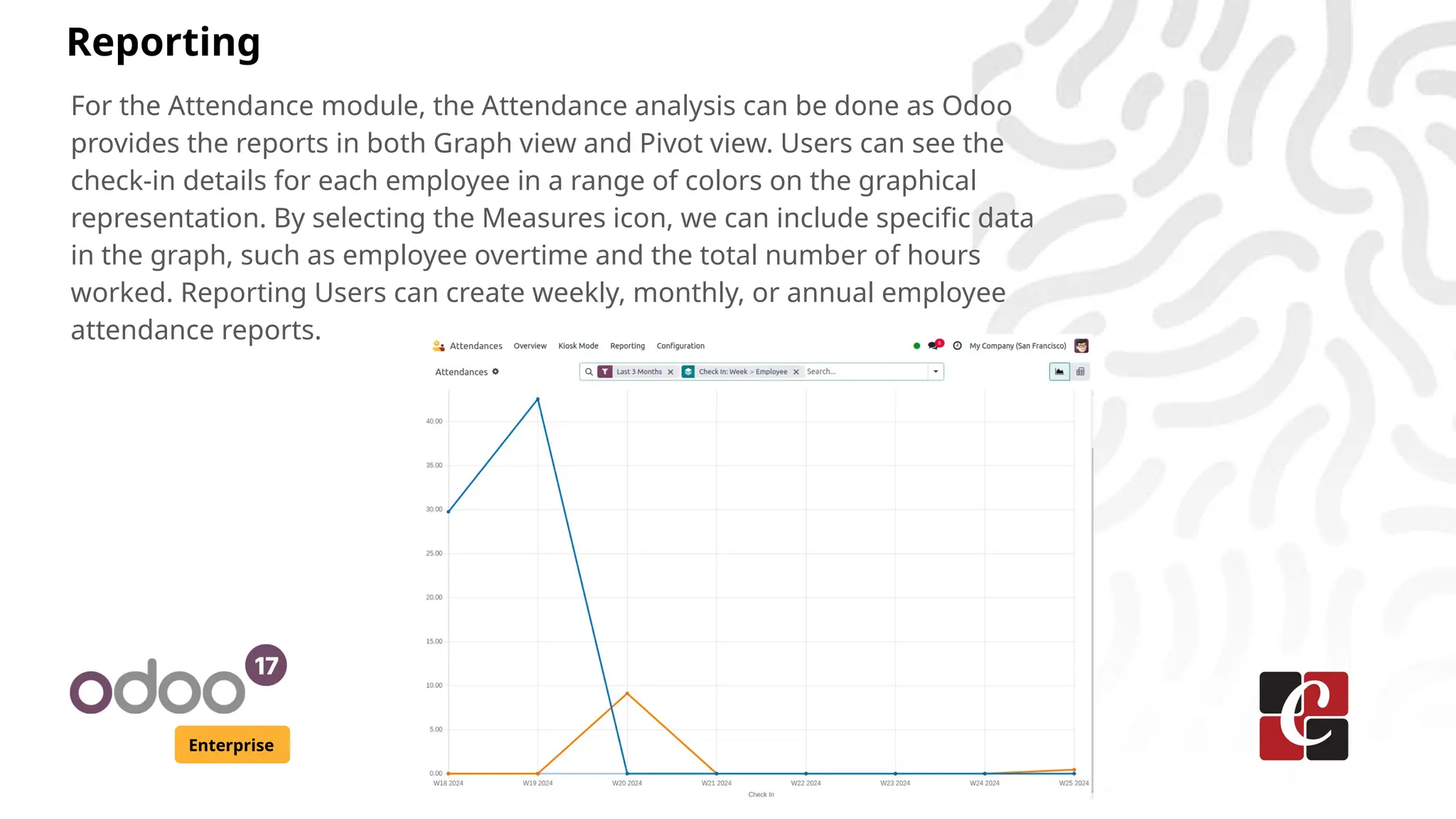
For the Attendance module, the Attendance analysis can be done as Odoo
provides the reports in both Graph view and Pivot view. Users can see the
check-in details for each employee in a range of colors on the graphical
representation. By selecting the Measures icon, we can include specific data
in the graph, such as employee overtime and the total number of hours
worked. Reporting Users can create weekly, monthly, or annual employee
attendance reports.
Reporting
Enterprise
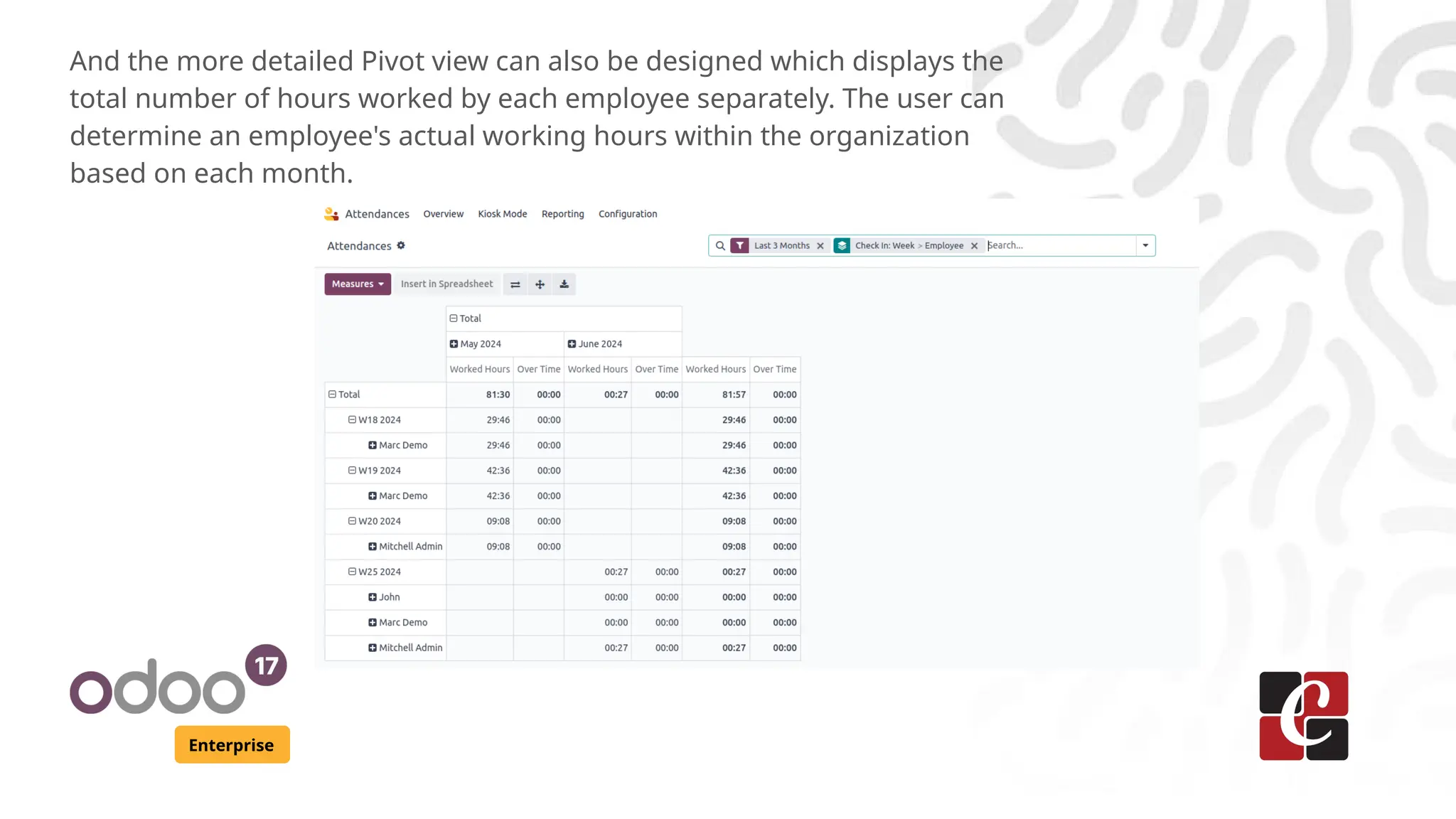
And the more detailed Pivot view can also be designed which displays the
total number of hours worked by each employee separately. The user can
determine an employee's actual working hours within the organization
based on each month.
For More Info.
Check our company website for related blogs
and Odoo book.
Check our YouTube channel for
functional and technical videos in Odoo.
Enterprise
www.cybrosys.com

How to Manage the Attendance of Employees in Odoo 17 Attendance

  • 1.
    How to Managethe Attendance of Employees in Odoo 17 Attendance Enterprise
  • 2.
    Introduction Enterprise The attendance modulein Odoo is designed to help organizations for tracking employee attendance, manage work schedules, keep track of and record each employee's working hours within a company. For both small and large organizations, the HRM operations can be a huge task when done manually. But with Odoo, rather than keeping the traditional systems, the complete management of all employee related operations can be done so smoothly. The key functionalities of the Attendance module of Odoo 17 include Employee Check In/Out, Management and visibility, Reporting and Insights, Configuration options, etc.
  • 3.
    Enterprise For every employees,there will be an icon on the systray on top to login where they can do Check In/ Check Out as needed. Once they check in, the timer will start and he can see hid login details from the Overview page.
  • 4.
    Enterprise The Overview pagefor Admins will help to learn more about every personnel’s details such as Employee names, their work hours, login and logout time, etc in both Tree view and Gantt view.
  • 5.
    Enterprise When we openthe form view, the more details such as the employee name, check in/out time, worked hours, extra hours, etc along with more informations such as browser IP, browser name, localization and GPS details can also be seen in more detail.
  • 6.
    Configuration Enterprise For the settings,we can use the Configuration menu of the Attendance module. There we can see the Modes section. Here, in the Kiosk Mode area, users can choose how they want to be recognized by the kiosk program after selecting a Mode. After that, users can check in and out of Odoo by using the Attendances From Backend feature.
  • 7.
    Enterprise Under the KioskSettings section, we can set the scanner or camera for the scanning the barcodes. Also the time span of the greeting message to show can be configured in seconds. And for the remote devices, we can generate and copy the url for login as in Kiosk mode. Keep in mind that anyone with an internet connection can access your kiosk. Create a new address if it has been compromised.
  • 8.
    Kiosk Mode Enterprise Its isa streamlined interface designed for badge scans or manual recognition or touch-screen terminals and other public-facing devices where users can interact with Odoo without needing extensive training or access to the backend. From the top, click on the Kiosk Mode for that.
  • 9.
    Enterprise If you liketo use “Scan your badge” option, the camera of the system will open and the Employee ID can be used. To generate the Badge, go to Employee module, there will be a unique Badge ID for everyone. Click on the Print Badge icon.
  • 10.
    Enterprise Then, the employeecan download the Badge which will look like the below image. This can be used for marking the attendance.
  • 11.
    Enterprise Another option isto “Identify Manually” to mark the attendance. To use this, from the Configuration Setting, enable Employee PIN Identification
  • 12.
    Enterprise Then goto Employeemodule, open the employee form and give any PIN Code for them under the HR Settings page.
  • 13.
    Enterprise Now, use theManual Identification from Kiosk mode, select the Employee from the list and type the PIN code to check in / out. In this way, Kiosk mode enhances operational efficiency and improve user satisfaction in environments requiring streamlined interactions.
  • 14.
    Enterprise You can turnon Extra Hours from the configuration menu and compare those hours with the worked hours. While enabling the Count of Extra Hours, the date to Start From is to be given. This is used to evaluate the attendance according to employee work hours. Extra Hours
  • 15.
    Enterprise Tolerance Time InFavor Of Company and Tolerance Time In Favor Of Employee can also be given under that in minutes. The former one works for the Company’s favor and the additional time gets subtracted from the working hours. But the latter one as its name implies works for the Employee’s favor as it supports an employee and from which additional time is not subtracted. And while enabling the Display Extra Hours, it will show the extra hour details on Kiosk mode.
  • 16.
    Enterprise For the Attendancemodule, the Attendance analysis can be done as Odoo provides the reports in both Graph view and Pivot view. Users can see the check-in details for each employee in a range of colors on the graphical representation. By selecting the Measures icon, we can include specific data in the graph, such as employee overtime and the total number of hours worked. Reporting Users can create weekly, monthly, or annual employee attendance reports. Reporting
  • 17.
    Enterprise And the moredetailed Pivot view can also be designed which displays the total number of hours worked by each employee separately. The user can determine an employee's actual working hours within the organization based on each month.
  • 18.
    For More Info. Checkour company website for related blogs and Odoo book. Check our YouTube channel for functional and technical videos in Odoo. Enterprise www.cybrosys.com