How to Create a Project Chart with SmartDraw


                                                  Managing a project in SmartDraw is so simple and intuitive that it will
                                                  make any manager look like a pro in no time.


                                                  Getting Started
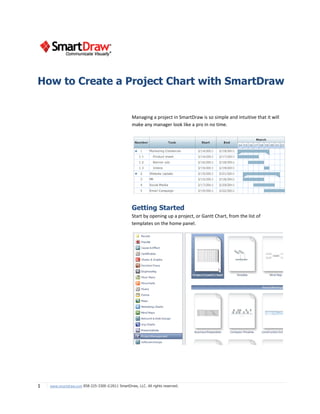
                                                  Start by opening up a project, or Gantt Chart, from the list of
                                                  templates on the home panel.


1   www.smartdraw.com 858-225-3300 ©2011 SmartDraw, LLC. All rights reserved.
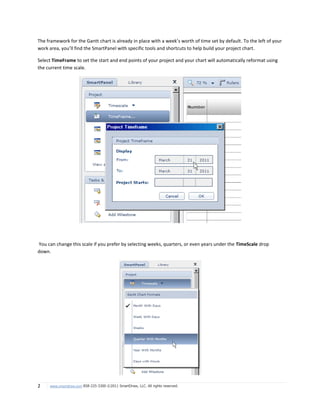
The framework for the Gantt chart is already in place with a week’s worth of time set by default. To the left of your
work area, you’ll find the SmartPanel with specific tools and shortcuts to help build your project chart.

Select TimeFrame to set the start and end points of your project and your chart will automatically reformat using
the current time scale.


You can change this scale if you prefer by selecting weeks, quarters, or even years under the TimeScale drop
down.


2    www.smartdraw.com 858-225-3300 ©2011 SmartDraw, LLC. All rights reserved.
Add a Task
Now you’re ready to add a task. Just hit the Add Task button in the SmartPanel and type in a description for your
task. You can hit Add Task again or simply hit the down arrow key and type to add another task. Repeat this until
you’ve added all your main tasks to the chart. These are the big, over-arching tasks that need to get done.
However, these larger tasks often cannot be completed until several smaller tasks are done first.


Switching to Mind Map View
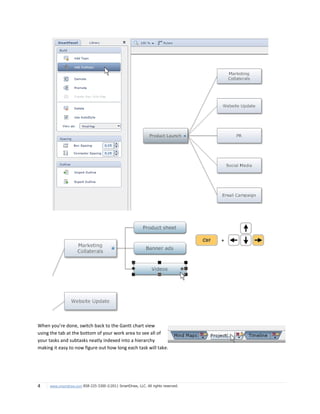
The best way to figure out each of these subtasks is to do so visually using a mind map. SmartDraw easily lets you
switch to a Mind Map view of your project if you select View As Mind Map from the SmartPanel.


Once in the mind map view, you’ll see each of your tasks represented as a box on a mind map. Select one of your
tasks and hit Add Subtopic in the SmartPanel or use [CTRL] and the right arrow key to do the same. If you have
one of the new subtopics selected, you can keep hitting [ENTER] to add more subtopics under the same task.

You can either use the SmartPanel buttons or simply the arrow keys to build out your entire project plan.

Use the arrow keys to navigate between tasks and use [CTRL] and the arrow keys to add more subtopics where you
want to.


3    www.smartdraw.com 858-225-3300 ©2011 SmartDraw, LLC. All rights reserved.
When you’re done, switch back to the Gantt chart view
using the tab at the bottom of your work area to see all of
your tasks and subtasks neatly indexed into a hierarchy
making it easy to now figure out how long each task will take.


4    www.smartdraw.com 858-225-3300 ©2011 SmartDraw, LLC. All rights reserved.
Adjust Task Due Dates
To adjust how long a task will take, simply
type in a start or end date on your chart and
a bar representing the task will be
automatically added to the chart. You can
also adjust the duration of a task using the
bar itself, just grab an end with the mouse
and drag.


Add Dependencies
If you have a task that can’t begin until another is completed, you’ll want to add a dependency. To do this, hold
down CTRL and select the bar representing the task that you need completed and the bar representing the task
that depends on this completion and hit Add Dependency in the SmartPanel.


You can see that it automatically resets the starting point of the dependent task. Continue on with your estimates
and due dates, adding dependencies where necessary.

Insert a Task
You can insert a task between two existing task by selecting the top one and hitting the [CTRL] and down arrow key
or clicking the Add Task button. Your chart will automatically expand to make room for the new task.

View Your Project
Chart as a Timeline
You can view the chart as a timeline
for yet another perspective by
selecting View As Timeline from the
SmartPanel.

Define Working Days
and Holidays
Define your work week and non-working holidays by clicking on the Properties button on the SmartPanel.


5    www.smartdraw.com 858-225-3300 ©2011 SmartDraw, LLC. All rights reserved.
Group Tasks
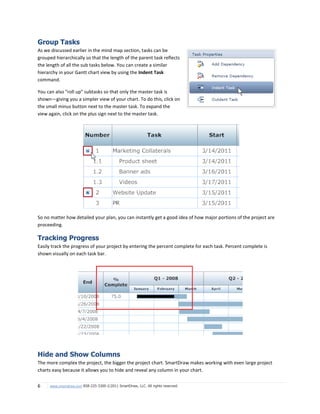
As we discussed earlier in the mind map section, tasks can be
grouped hierarchically so that the length of the parent task reflects
the length of all the sub tasks below. You can create a similar
hierarchy in your Gantt chart view by using the Indent Task
command.

You can also "roll up" subtasks so that only the master task is
shown—giving you a simpler view of your chart. To do this, click on
the small minus button next to the master task. To expand the
view again, click on the plus sign next to the master task.


So no matter how detailed your plan, you can instantly get a good idea of how major portions of the project are
proceeding.

Tracking Progress
Easily track the progress of your project by entering the percent complete for each task. Percent complete is
shown visually on each task bar.


Hide and Show Columns
The more complex the project, the bigger the project chart. SmartDraw makes working with even large project
charts easy because it allows you to hide and reveal any column in your chart.


6    www.smartdraw.com 858-225-3300 ©2011 SmartDraw, LLC. All rights reserved.
Though the project may be complex, your view of the chart can remain simple, because only what you need to see
at the time is shown.

Integration with Microsoft Project®
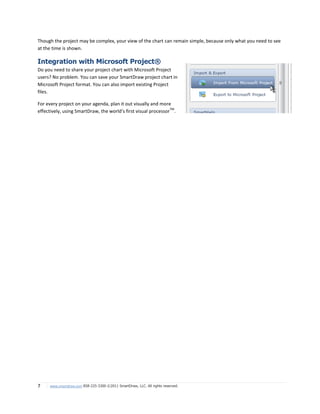
Do you need to share your project chart with Microsoft Project
users? No problem. You can save your SmartDraw project chart in
Microsoft Project format. You can also import existing Project
files.

For every project on your agenda, plan it out visually and more
                                                                TM
effectively, using SmartDraw, the world’s first visual processor .


7    www.smartdraw.com 858-225-3300 ©2011 SmartDraw, LLC. All rights reserved.

How to Manage Projects with SmartDraw

  • 1.
    How to Createa Project Chart with SmartDraw Managing a project in SmartDraw is so simple and intuitive that it will make any manager look like a pro in no time. Getting Started Start by opening up a project, or Gantt Chart, from the list of templates on the home panel. 1 www.smartdraw.com 858-225-3300 ©2011 SmartDraw, LLC. All rights reserved.
  • 2.
    The framework forthe Gantt chart is already in place with a week’s worth of time set by default. To the left of your work area, you’ll find the SmartPanel with specific tools and shortcuts to help build your project chart. Select TimeFrame to set the start and end points of your project and your chart will automatically reformat using the current time scale. You can change this scale if you prefer by selecting weeks, quarters, or even years under the TimeScale drop down. 2 www.smartdraw.com 858-225-3300 ©2011 SmartDraw, LLC. All rights reserved.
  • 3.
    Add a Task Nowyou’re ready to add a task. Just hit the Add Task button in the SmartPanel and type in a description for your task. You can hit Add Task again or simply hit the down arrow key and type to add another task. Repeat this until you’ve added all your main tasks to the chart. These are the big, over-arching tasks that need to get done. However, these larger tasks often cannot be completed until several smaller tasks are done first. Switching to Mind Map View The best way to figure out each of these subtasks is to do so visually using a mind map. SmartDraw easily lets you switch to a Mind Map view of your project if you select View As Mind Map from the SmartPanel. Once in the mind map view, you’ll see each of your tasks represented as a box on a mind map. Select one of your tasks and hit Add Subtopic in the SmartPanel or use [CTRL] and the right arrow key to do the same. If you have one of the new subtopics selected, you can keep hitting [ENTER] to add more subtopics under the same task. You can either use the SmartPanel buttons or simply the arrow keys to build out your entire project plan. Use the arrow keys to navigate between tasks and use [CTRL] and the arrow keys to add more subtopics where you want to. 3 www.smartdraw.com 858-225-3300 ©2011 SmartDraw, LLC. All rights reserved.
  • 4.
    When you’re done,switch back to the Gantt chart view using the tab at the bottom of your work area to see all of your tasks and subtasks neatly indexed into a hierarchy making it easy to now figure out how long each task will take. 4 www.smartdraw.com 858-225-3300 ©2011 SmartDraw, LLC. All rights reserved.
  • 5.
    Adjust Task DueDates To adjust how long a task will take, simply type in a start or end date on your chart and a bar representing the task will be automatically added to the chart. You can also adjust the duration of a task using the bar itself, just grab an end with the mouse and drag. Add Dependencies If you have a task that can’t begin until another is completed, you’ll want to add a dependency. To do this, hold down CTRL and select the bar representing the task that you need completed and the bar representing the task that depends on this completion and hit Add Dependency in the SmartPanel. You can see that it automatically resets the starting point of the dependent task. Continue on with your estimates and due dates, adding dependencies where necessary. Insert a Task You can insert a task between two existing task by selecting the top one and hitting the [CTRL] and down arrow key or clicking the Add Task button. Your chart will automatically expand to make room for the new task. View Your Project Chart as a Timeline You can view the chart as a timeline for yet another perspective by selecting View As Timeline from the SmartPanel. Define Working Days and Holidays Define your work week and non-working holidays by clicking on the Properties button on the SmartPanel. 5 www.smartdraw.com 858-225-3300 ©2011 SmartDraw, LLC. All rights reserved.
  • 6.
    Group Tasks As wediscussed earlier in the mind map section, tasks can be grouped hierarchically so that the length of the parent task reflects the length of all the sub tasks below. You can create a similar hierarchy in your Gantt chart view by using the Indent Task command. You can also "roll up" subtasks so that only the master task is shown—giving you a simpler view of your chart. To do this, click on the small minus button next to the master task. To expand the view again, click on the plus sign next to the master task. So no matter how detailed your plan, you can instantly get a good idea of how major portions of the project are proceeding. Tracking Progress Easily track the progress of your project by entering the percent complete for each task. Percent complete is shown visually on each task bar. Hide and Show Columns The more complex the project, the bigger the project chart. SmartDraw makes working with even large project charts easy because it allows you to hide and reveal any column in your chart. 6 www.smartdraw.com 858-225-3300 ©2011 SmartDraw, LLC. All rights reserved.
  • 7.
    Though the projectmay be complex, your view of the chart can remain simple, because only what you need to see at the time is shown. Integration with Microsoft Project® Do you need to share your project chart with Microsoft Project users? No problem. You can save your SmartDraw project chart in Microsoft Project format. You can also import existing Project files. For every project on your agenda, plan it out visually and more TM effectively, using SmartDraw, the world’s first visual processor . 7 www.smartdraw.com 858-225-3300 ©2011 SmartDraw, LLC. All rights reserved.