ENCRYPTING WORD
DOCUMENTS
This is one in a series of tutorials on digital and
mobile security for journalists and bloggers. We
will show you how to encrypt Microsoft Word 2010
documents and Open Office text documents.
Jorge Luis Sierra
Knight International Journalism Fellow
2013
ENCRYPTING WORD
DOCUMENTS IN MAC
Follow these steps to encrypt your Microsoft Office 2010
Word document in Mac computers.
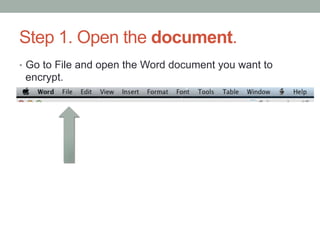
Step 1. Open the document.
•  Go to File and open the Word document you want to
encrypt.
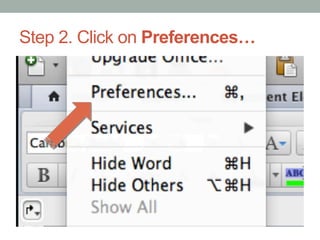
Step 2. Click on Preferences…
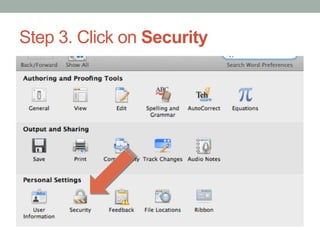
Step 3. Click on Security
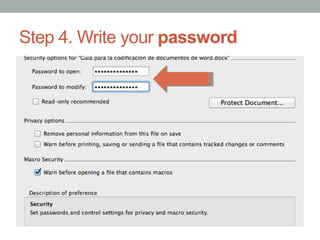
Step 4. Write your password
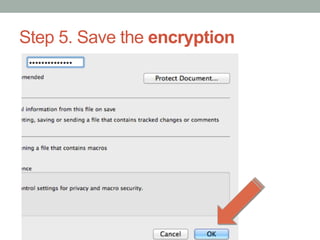
Step 5. Save the encryption
ENCRYPTING WORD
DOCUMENTS IN PC
Follow these steps to encrypt Microsoft Office 2010
Word documents in a PC computer.
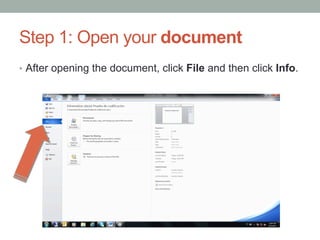
Step 1: Open your document
•  After opening the document, click File and then click Info.
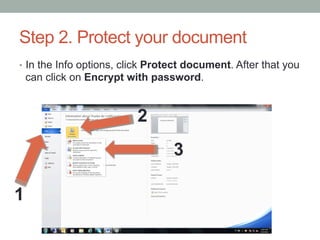
Step 2. Protect your document
•  In the Info options, click Protect document. After that you
can click on Encrypt with password.
1
2
3
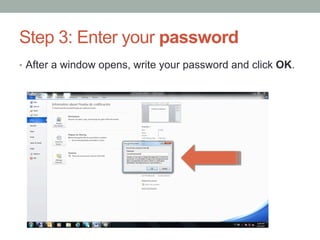
Step 3: Enter your password
•  After a window opens, write your password and click OK.
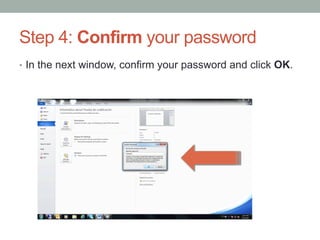
Step 4: Confirm your password
•  In the next window, confirm your password and click OK.
ENCRYPTING OPEN OFFICE
TEXT DOCUMENTS
Follow these steps to encrypt an Open Office text
document.
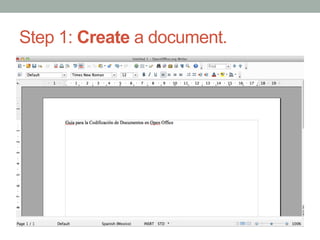
Step 1: Create a document.
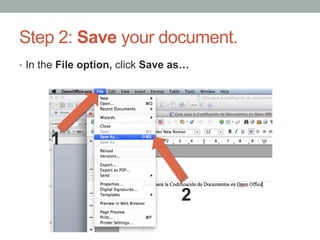
Step 2: Save your document.
•  In the File option, click Save as…
1
2
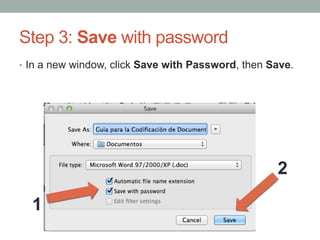
Step 3: Save with password
•  In a new window, click Save with Password, then Save.
1
2
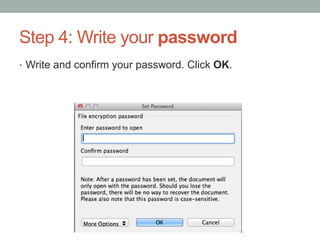
Step 4: Write your password
•  Write and confirm your password. Click OK.
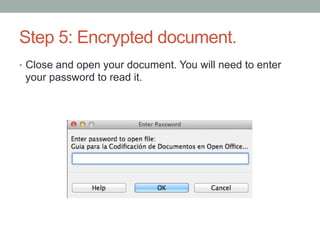
Step 5: Encrypted document.
•  Close and open your document. You will need to enter
your password to read it.
Encrypted documents
•  Are you ready to encrypt text documents?
•  This tutorial is part of the Digital and Mobile Security
Program for Journalists and Bloggers supported by the
International Center for Journalists and Freedom House.
•  Author: Jorge Luis Sierra, Knight International Journalism
Fellow. 2013.
•  Follow him on Twitter: @latinointx

How to encrypt word documents

  • 1.
    ENCRYPTING WORD DOCUMENTS This isone in a series of tutorials on digital and mobile security for journalists and bloggers. We will show you how to encrypt Microsoft Word 2010 documents and Open Office text documents. Jorge Luis Sierra Knight International Journalism Fellow 2013
  • 2.
    ENCRYPTING WORD DOCUMENTS INMAC Follow these steps to encrypt your Microsoft Office 2010 Word document in Mac computers.
  • 3.
    Step 1. Openthe document. •  Go to File and open the Word document you want to encrypt.
  • 4.
    Step 2. Clickon Preferences…
  • 5.
    Step 3. Clickon Security
  • 6.
    Step 4. Writeyour password
  • 7.
    Step 5. Savethe encryption
  • 8.
    ENCRYPTING WORD DOCUMENTS INPC Follow these steps to encrypt Microsoft Office 2010 Word documents in a PC computer.
  • 9.
    Step 1: Openyour document •  After opening the document, click File and then click Info.
  • 10.
    Step 2. Protectyour document •  In the Info options, click Protect document. After that you can click on Encrypt with password. 1 2 3
  • 11.
    Step 3: Enteryour password •  After a window opens, write your password and click OK.
  • 12.
    Step 4: Confirmyour password •  In the next window, confirm your password and click OK.
  • 13.
    ENCRYPTING OPEN OFFICE TEXTDOCUMENTS Follow these steps to encrypt an Open Office text document.
  • 14.
    Step 1: Createa document.
  • 15.
    Step 2: Saveyour document. •  In the File option, click Save as… 1 2
  • 16.
    Step 3: Savewith password •  In a new window, click Save with Password, then Save. 1 2
  • 17.
    Step 4: Writeyour password •  Write and confirm your password. Click OK.
  • 18.
    Step 5: Encrypteddocument. •  Close and open your document. You will need to enter your password to read it.
  • 19.
    Encrypted documents •  Areyou ready to encrypt text documents? •  This tutorial is part of the Digital and Mobile Security Program for Journalists and Bloggers supported by the International Center for Journalists and Freedom House. •  Author: Jorge Luis Sierra, Knight International Journalism Fellow. 2013. •  Follow him on Twitter: @latinointx