How to delete all
emails from Gmail?
Do you want to delete all your emails from Gmail at once?
Then you are in the right place, this article will guide you
throughout the steps in order to delete all your emails on
Gmail.
Delete all emails from Gmail
 Open up your browser and go
to https://gmail.com for this process,
you have to log-in to your Gmail
account if you haven’t done so.
 Click on the More drop-down menu
from the left pane of the page.
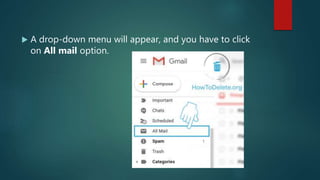
 A drop-down menu will appear, and you have to click
on All mail option.
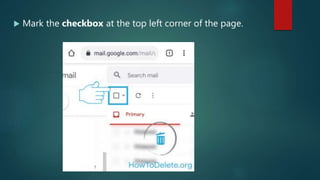
 Mark the checkbox at the top left corner of the page.
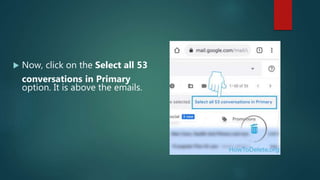
 Now, click on the Select all 53
conversations in Primary
option. It is above the emails.
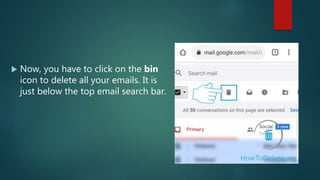
 Now, you have to click on the bin
icon to delete all your emails. It is
just below the top email search bar.
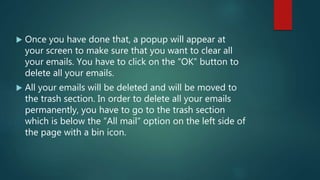
 Once you have done that, a popup will appear at
your screen to make sure that you want to clear all
your emails. You have to click on the “OK” button to
delete all your emails.
 All your emails will be deleted and will be moved to
the trash section. In order to delete all your emails
permanently, you have to go to the trash section
which is below the “All mail” option on the left side of
the page with a bin icon.
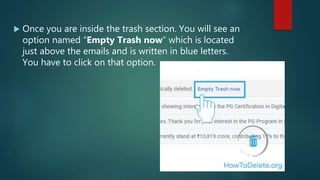
 Once you are inside the trash section. You will see an
option named “Empty Trash now” which is located
just above the emails and is written in blue letters.
You have to click on that option.
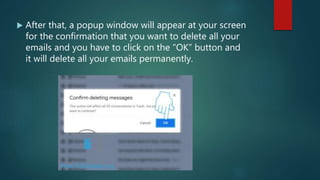
 After that, a popup window will appear at your screen
for the confirmation that you want to delete all your
emails and you have to click on the “OK” button and
it will delete all your emails permanently.
Source:
https://howtodelete.org/how-to-delete-all-emails-from-
gmail/

How to delete all emails from Gmail?

  • 1.
    How to deleteall emails from Gmail? Do you want to delete all your emails from Gmail at once? Then you are in the right place, this article will guide you throughout the steps in order to delete all your emails on Gmail.
  • 2.
    Delete all emailsfrom Gmail  Open up your browser and go to https://gmail.com for this process, you have to log-in to your Gmail account if you haven’t done so.  Click on the More drop-down menu from the left pane of the page.
  • 3.
     A drop-downmenu will appear, and you have to click on All mail option.
  • 4.
     Mark thecheckbox at the top left corner of the page.
  • 5.
     Now, clickon the Select all 53 conversations in Primary option. It is above the emails.
  • 6.
     Now, youhave to click on the bin icon to delete all your emails. It is just below the top email search bar.
  • 7.
     Once youhave done that, a popup will appear at your screen to make sure that you want to clear all your emails. You have to click on the “OK” button to delete all your emails.  All your emails will be deleted and will be moved to the trash section. In order to delete all your emails permanently, you have to go to the trash section which is below the “All mail” option on the left side of the page with a bin icon.
  • 8.
     Once youare inside the trash section. You will see an option named “Empty Trash now” which is located just above the emails and is written in blue letters. You have to click on that option.
  • 9.
     After that,a popup window will appear at your screen for the confirmation that you want to delete all your emails and you have to click on the “OK” button and it will delete all your emails permanently.
  • 10.