How to delete
browsing history?
WWW.HOWTODELETE.ORG
What is browsing history?
Every web browser stores the information about the websites
(usually the name and URL) you browse. The primary
objective of saving this is to make you able to keep track of
the sites you have visited so that you can return to the
website anytime.
The period for which the history is kept depends upon which
web browser you are using, for example, Google Chrome
stores the history of all the sites you have visited for the last
90 days. Browser history is accessible by all the people with
whom you share your device. To avoid other to know about
the websites you visit you need to clear browser history of
the web browser from time to time.
How to delete browsing history from
Firefox?
 Open Mozilla Firefox on your
device.
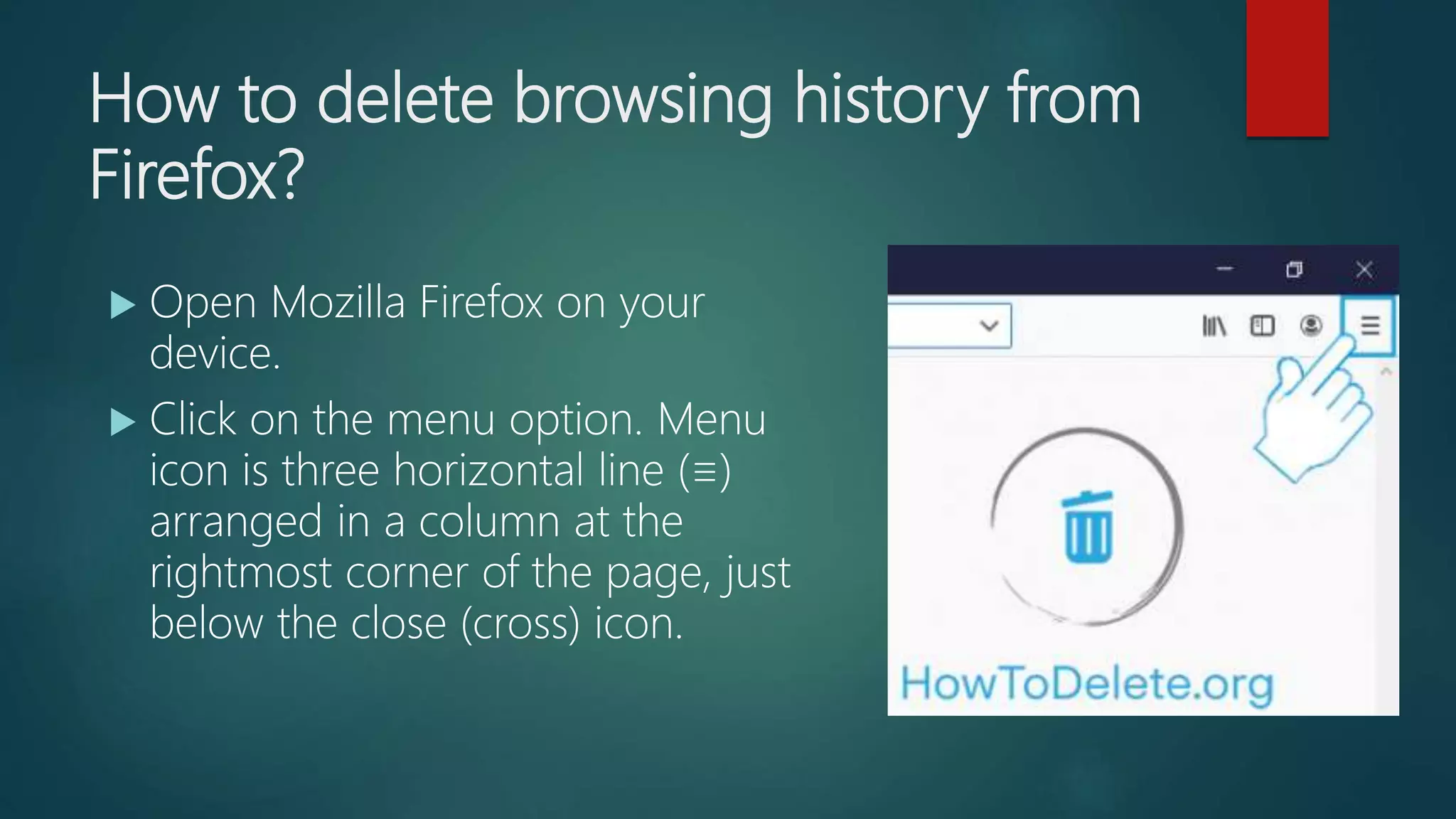
 Click on the menu option. Menu
icon is three horizontal line (≡)
arranged in a column at the
rightmost corner of the page, just
below the close (cross) icon.
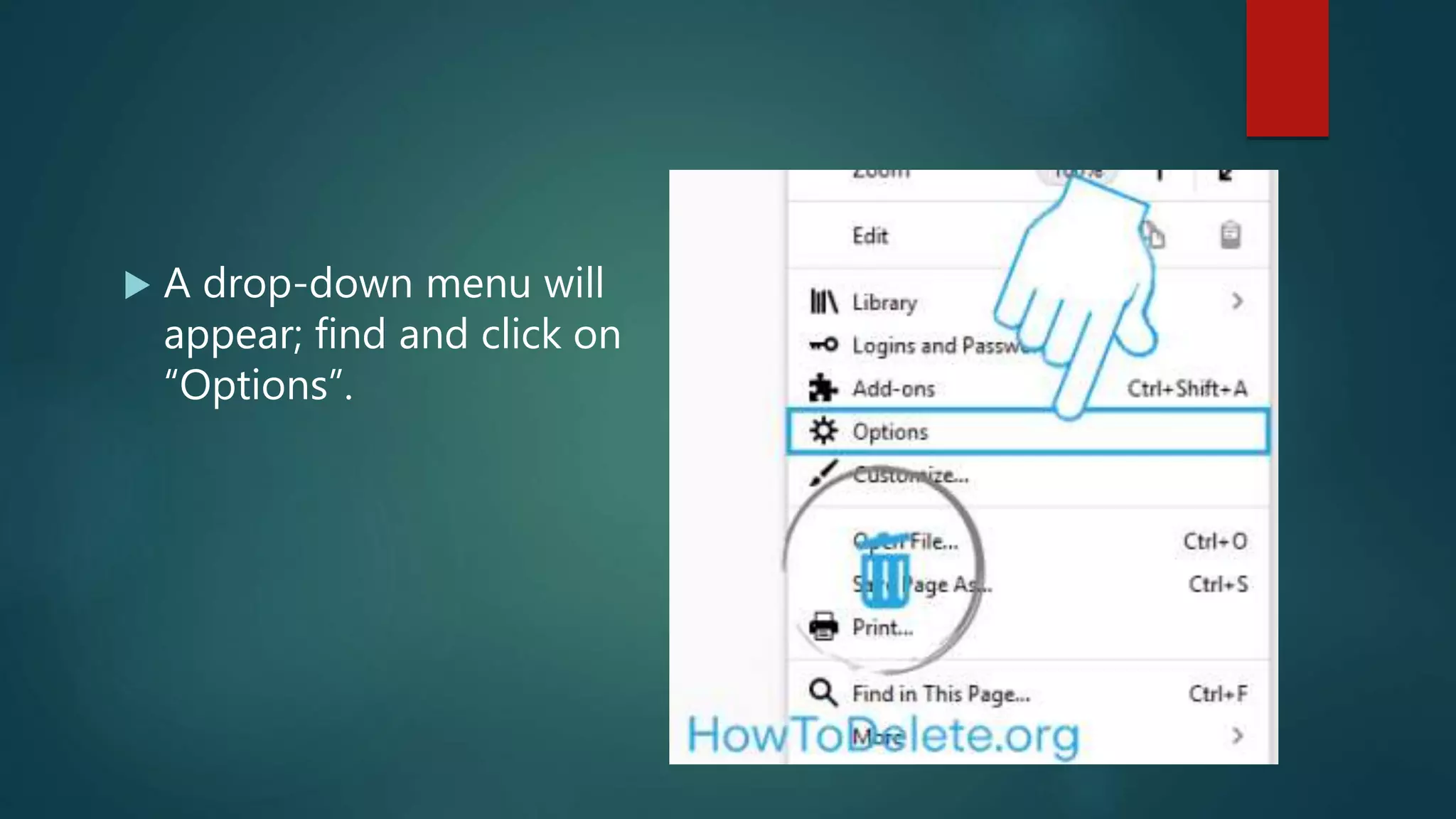
 A drop-down menu will
appear; find and click on
“Options”.
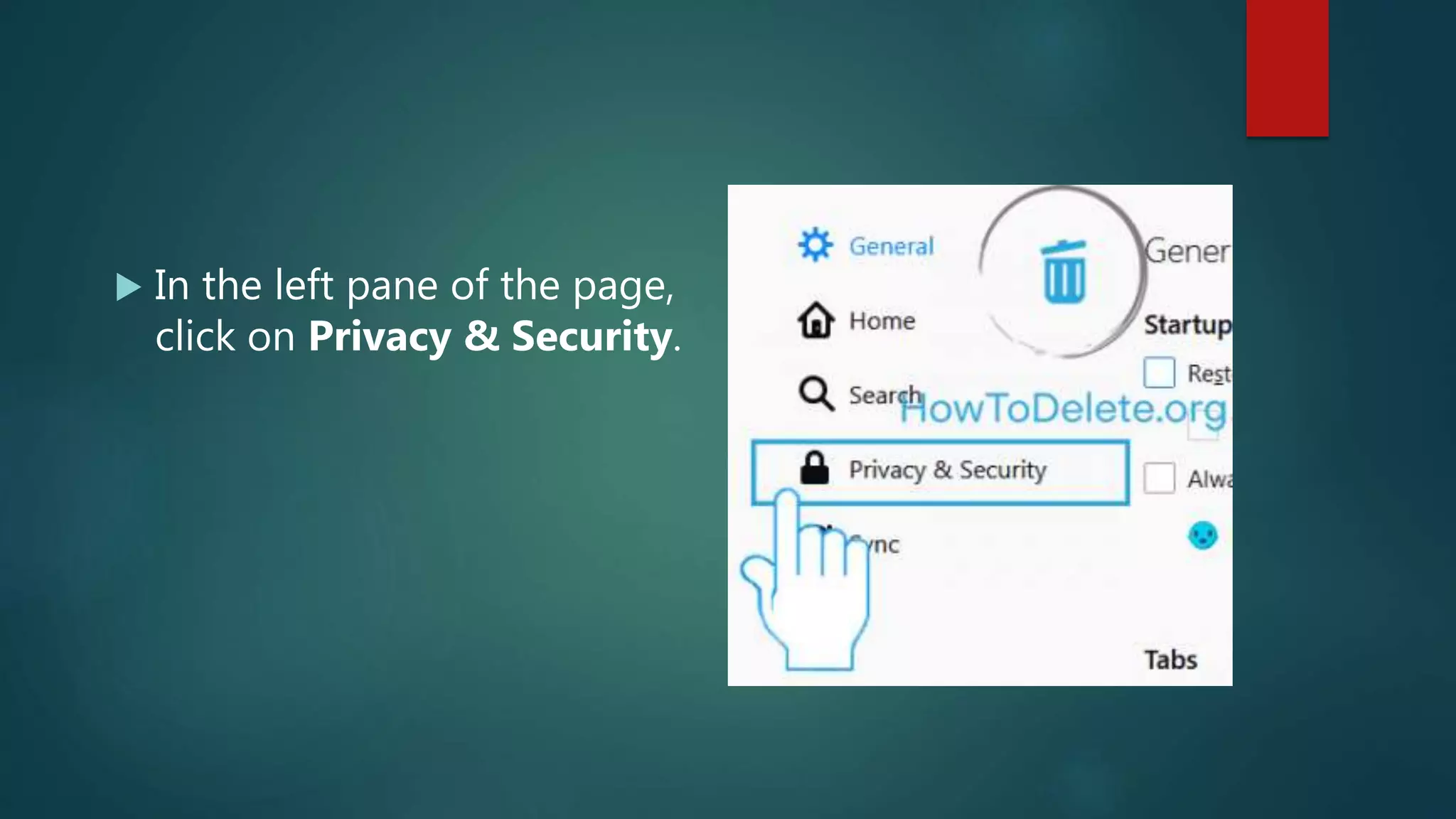
 In the left pane of the page,
click on Privacy & Security.
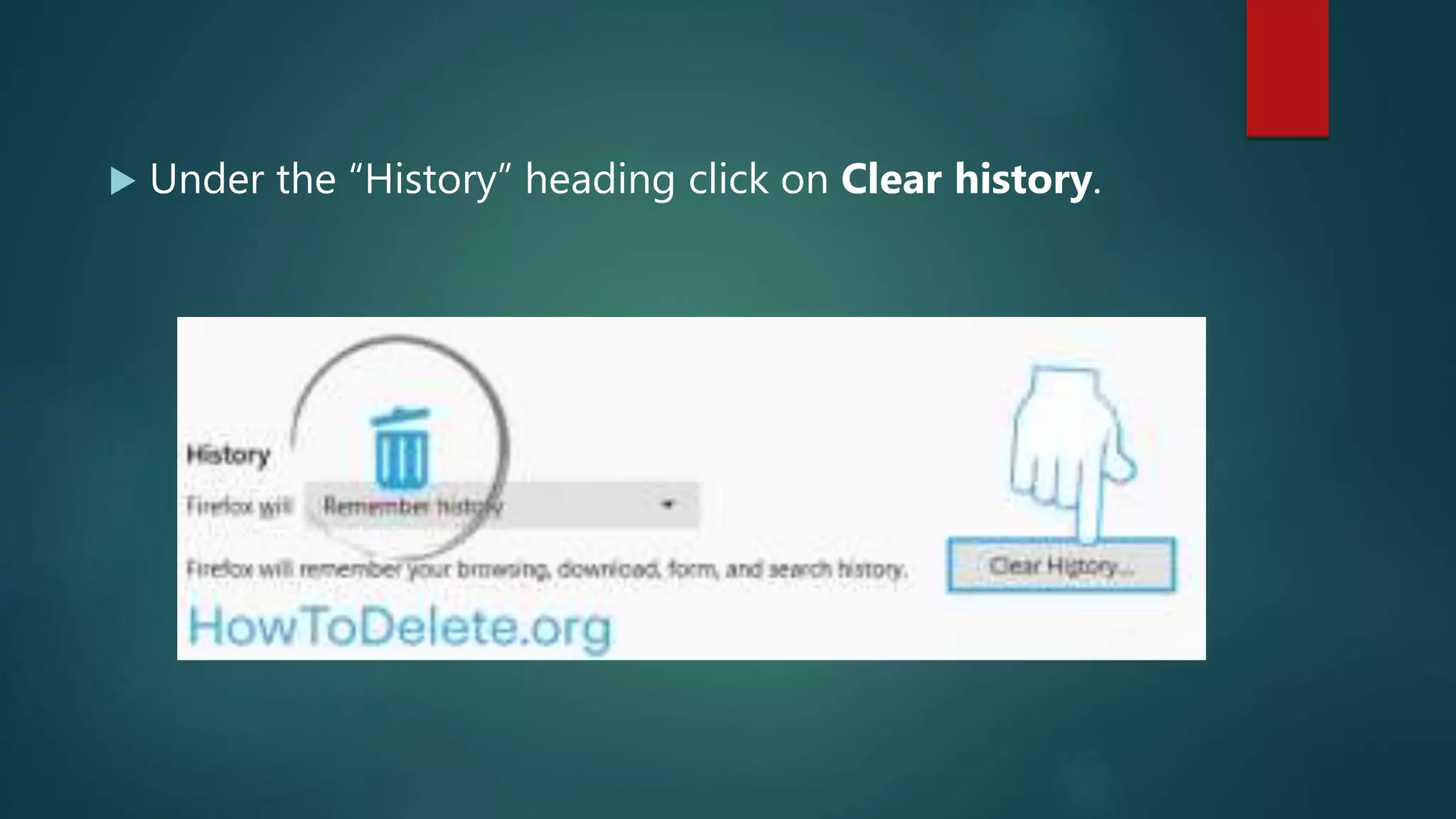
 Under the “History” heading click on Clear history.
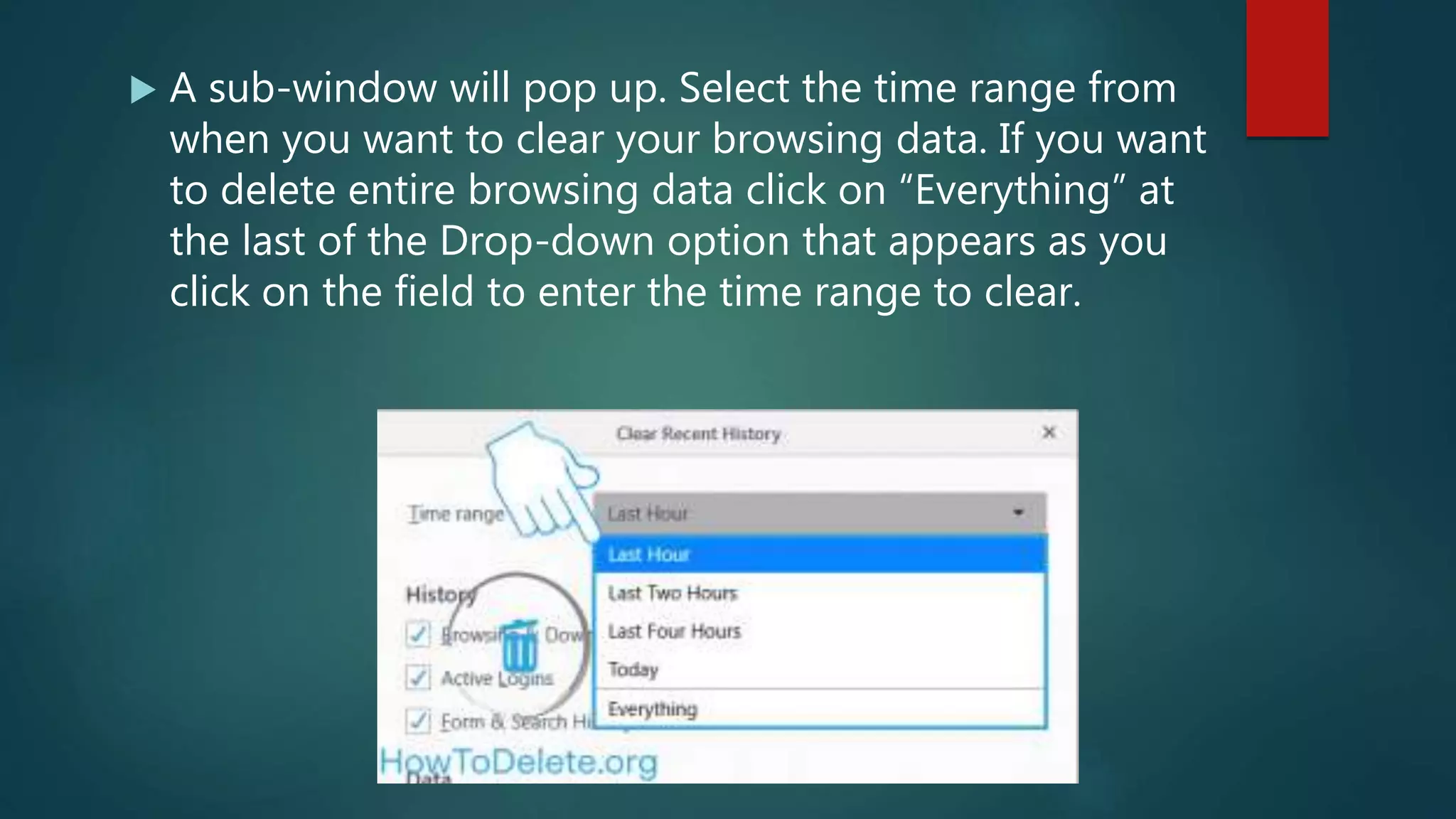
 A sub-window will pop up. Select the time range from
when you want to clear your browsing data. If you want
to delete entire browsing data click on “Everything” at
the last of the Drop-down option that appears as you
click on the field to enter the time range to clear.
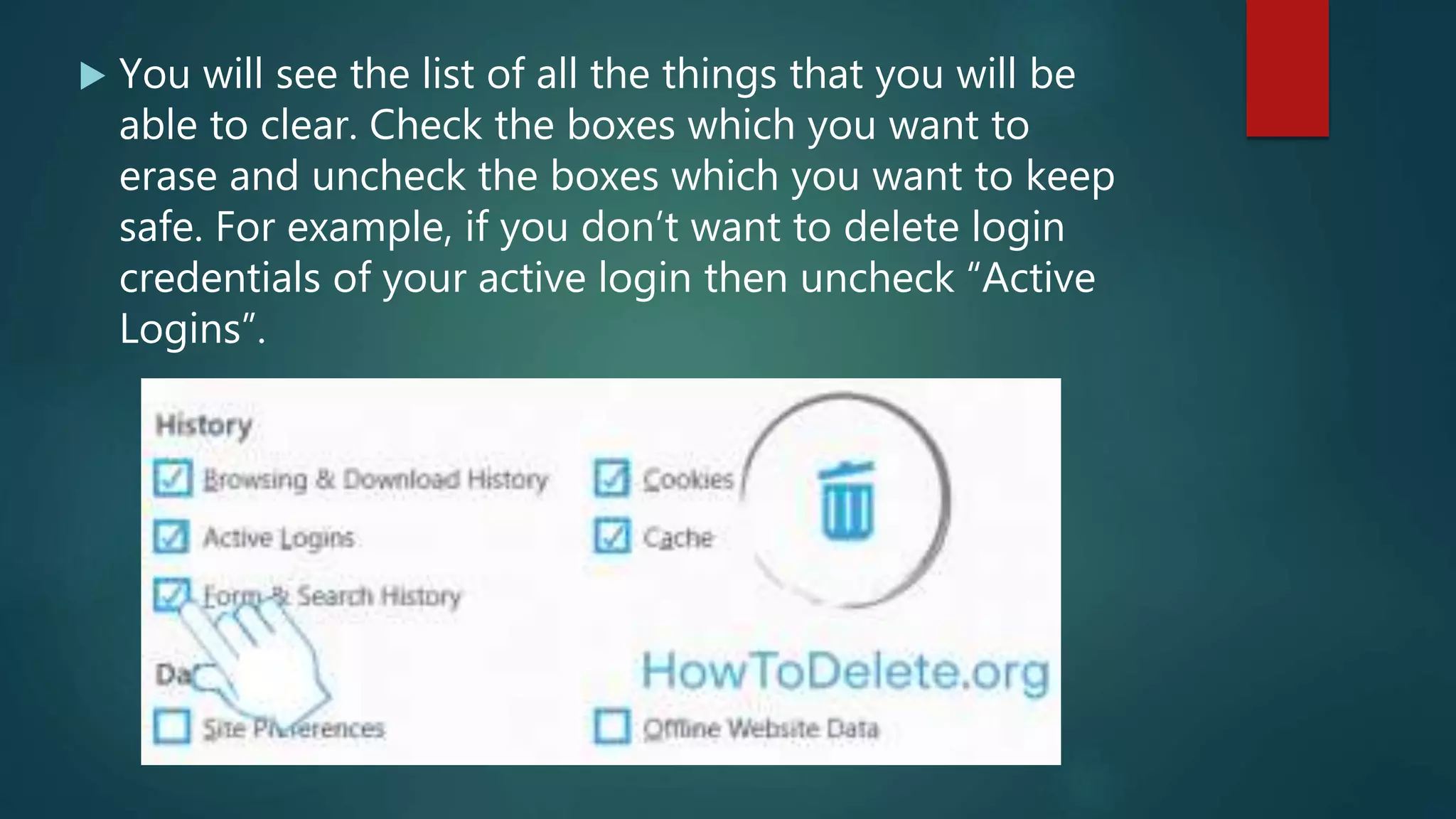
 You will see the list of all the things that you will be
able to clear. Check the boxes which you want to
erase and uncheck the boxes which you want to keep
safe. For example, if you don’t want to delete login
credentials of your active login then uncheck “Active
Logins”.
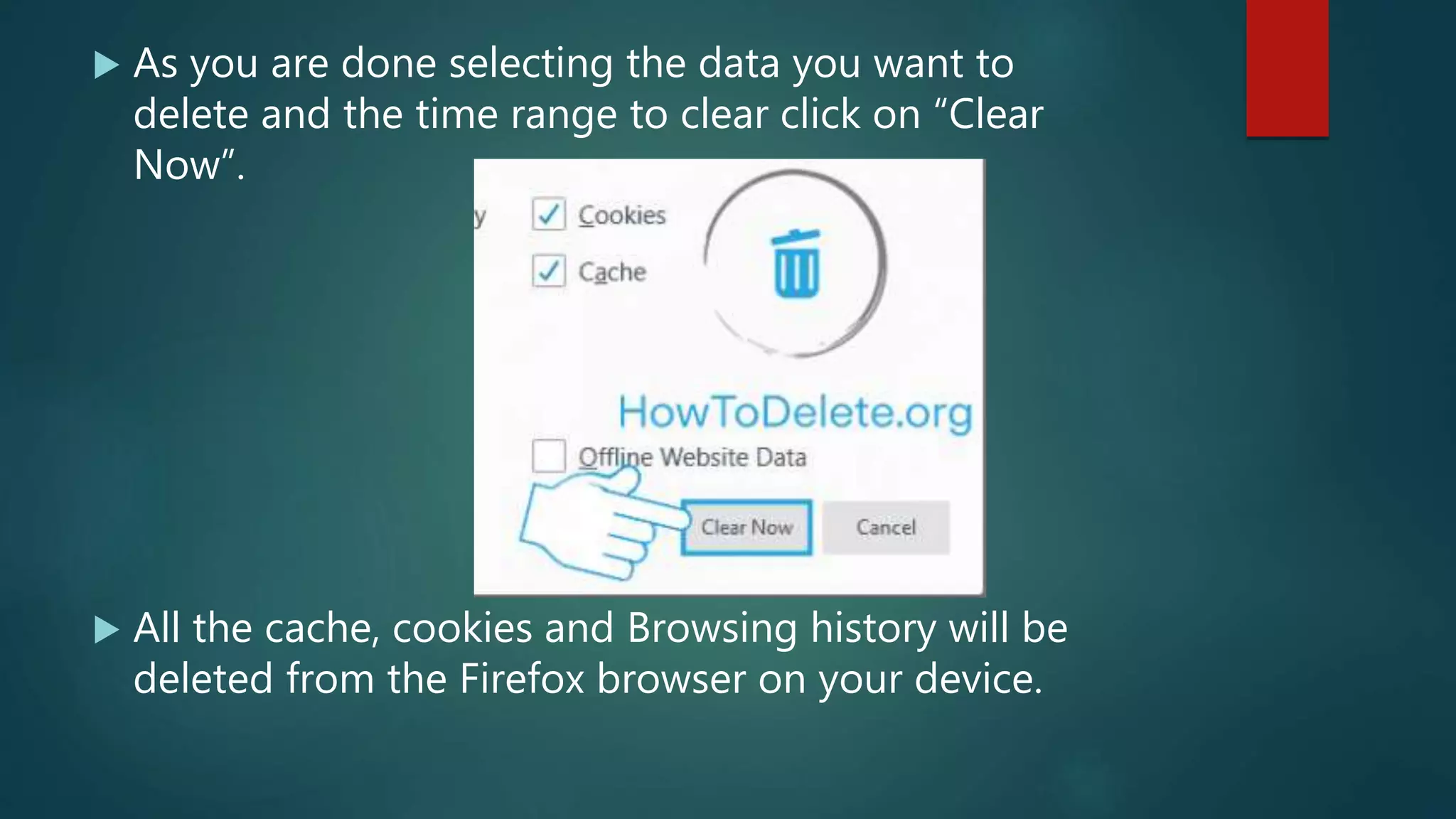
 As you are done selecting the data you want to
delete and the time range to clear click on “Clear
Now”.
 All the cache, cookies and Browsing history will be
deleted from the Firefox browser on your device.
Don’t want Firefox to remember your
browsing data?
 Open Mozilla Firefox
 Click on menu icon and then click on “Option” in the
dropdown list that appears.
 Click on the Privacy & Security tab in the left panel
of the page.
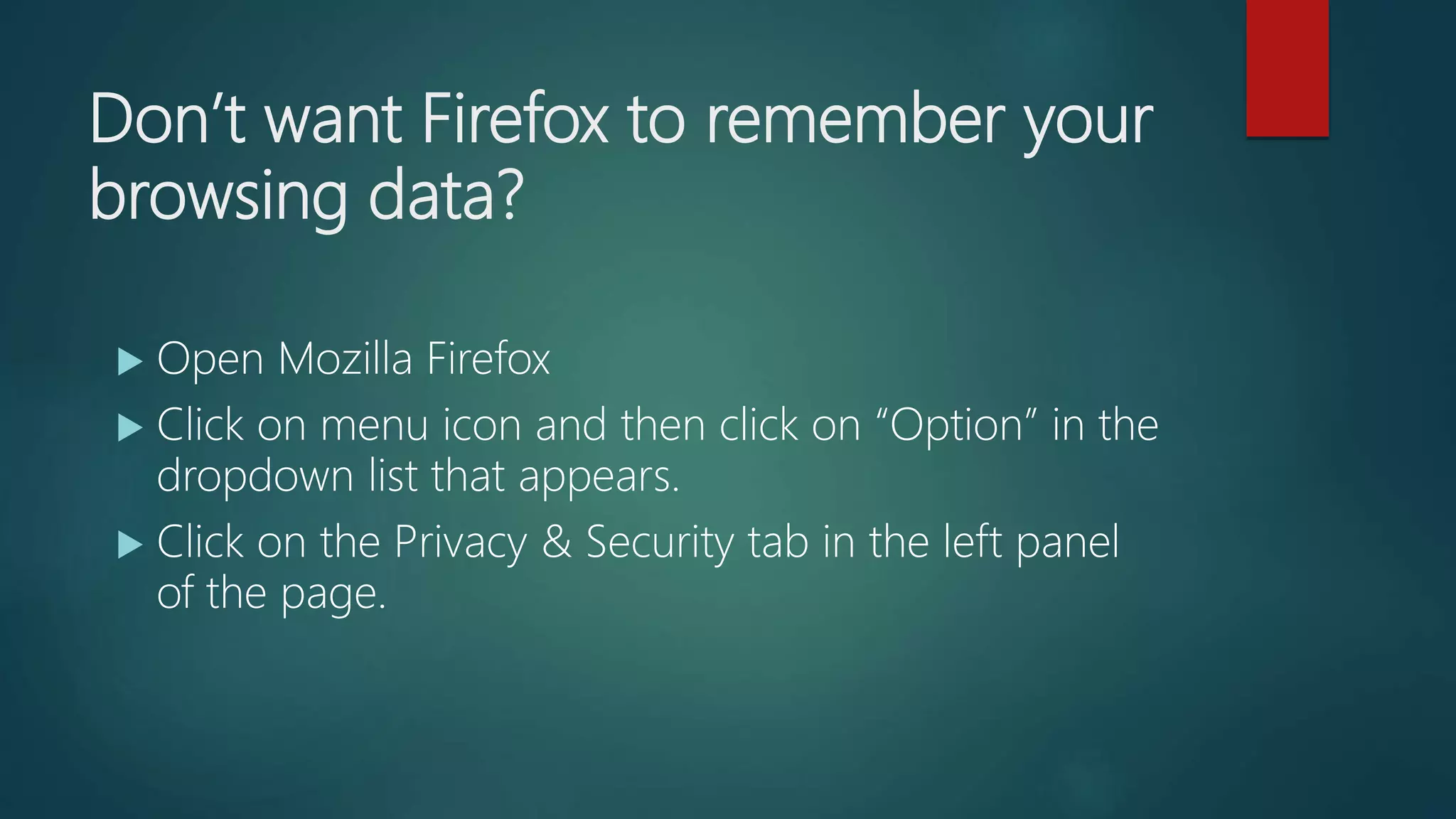
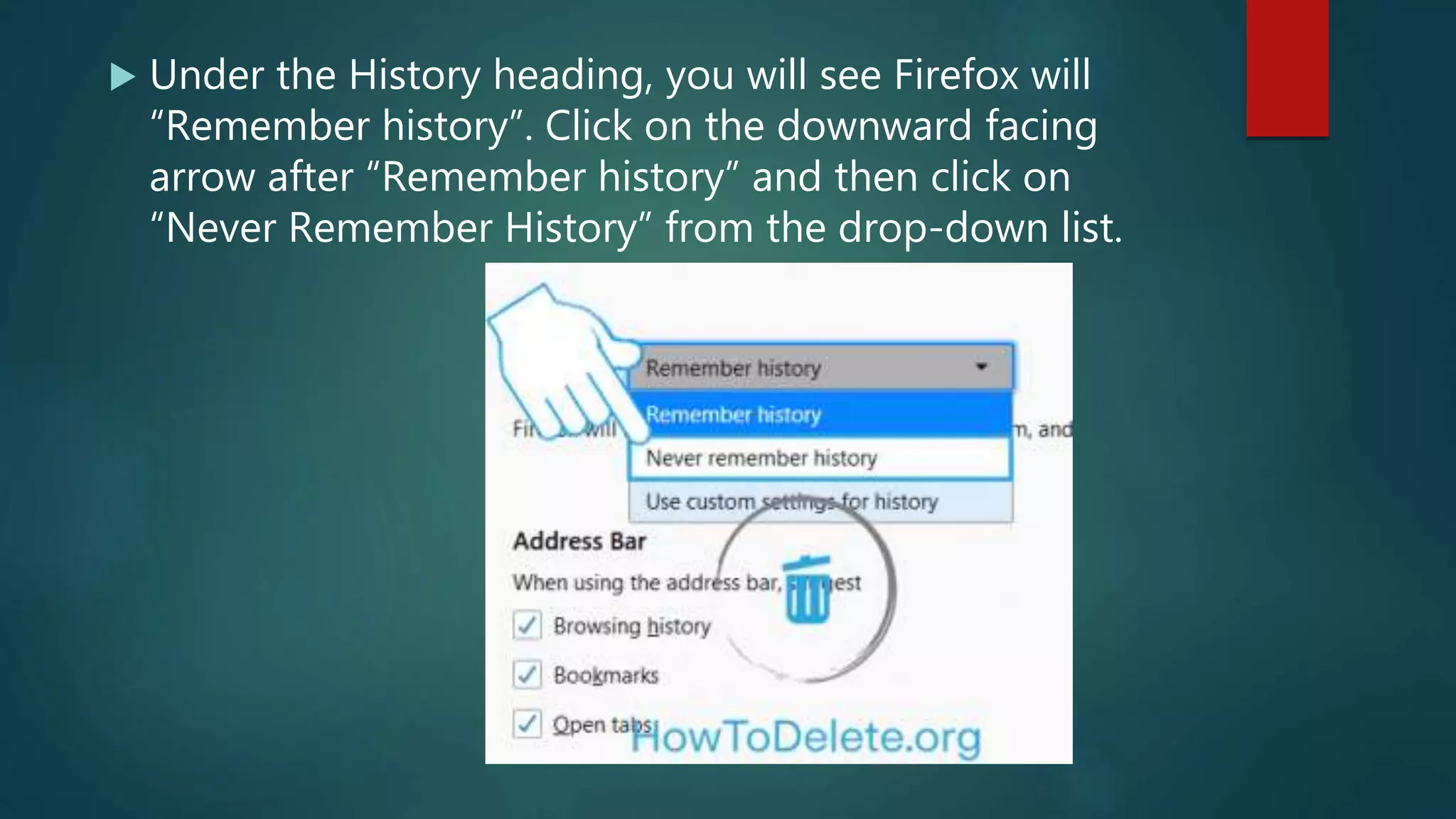
 Under the History heading, you will see Firefox will
“Remember history”. Click on the downward facing
arrow after “Remember history” and then click on
“Never Remember History” from the drop-down list.
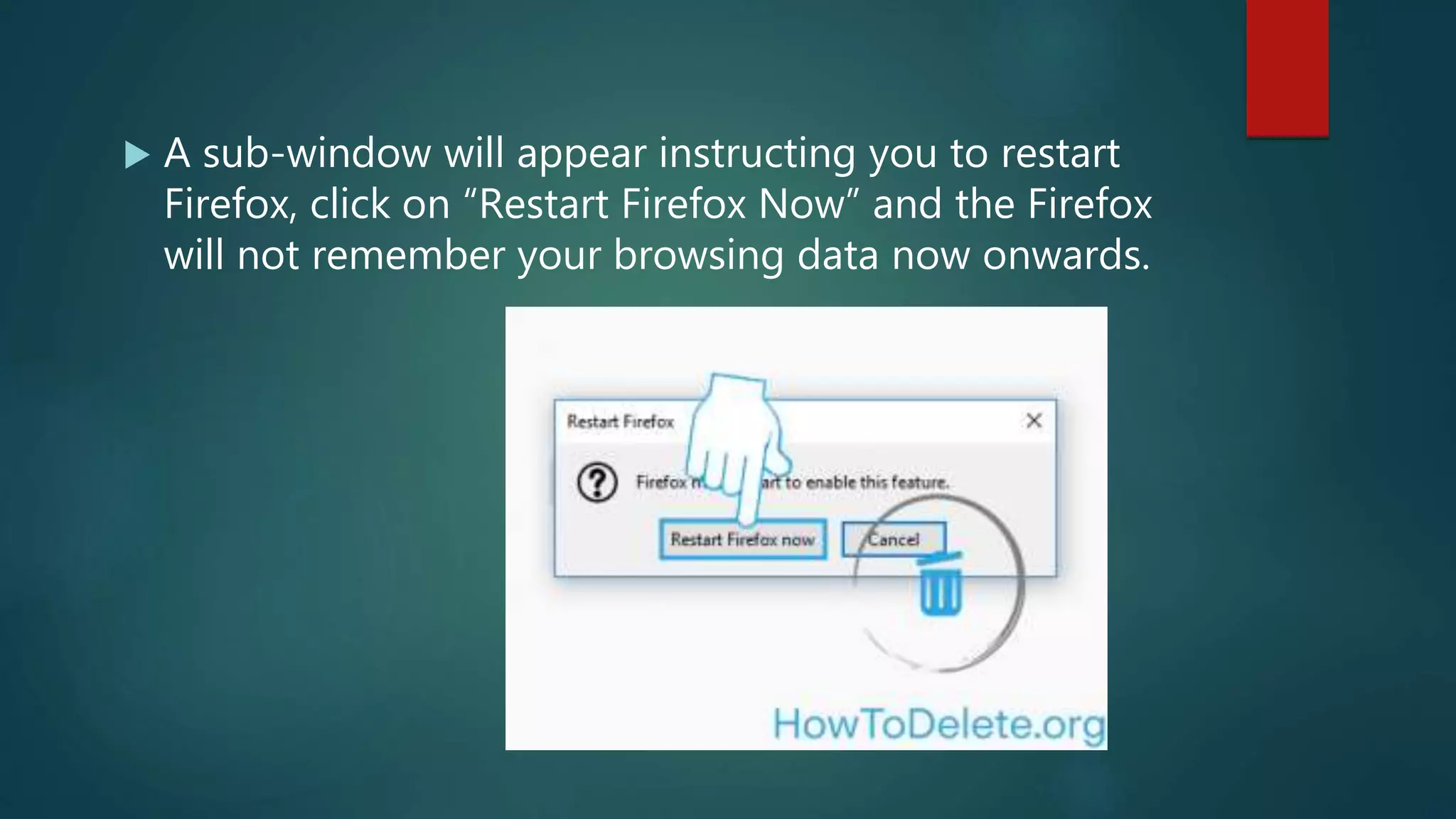
 A sub-window will appear instructing you to restart
Firefox, click on “Restart Firefox Now” and the Firefox
will not remember your browsing data now onwards.
Private window in Firefox
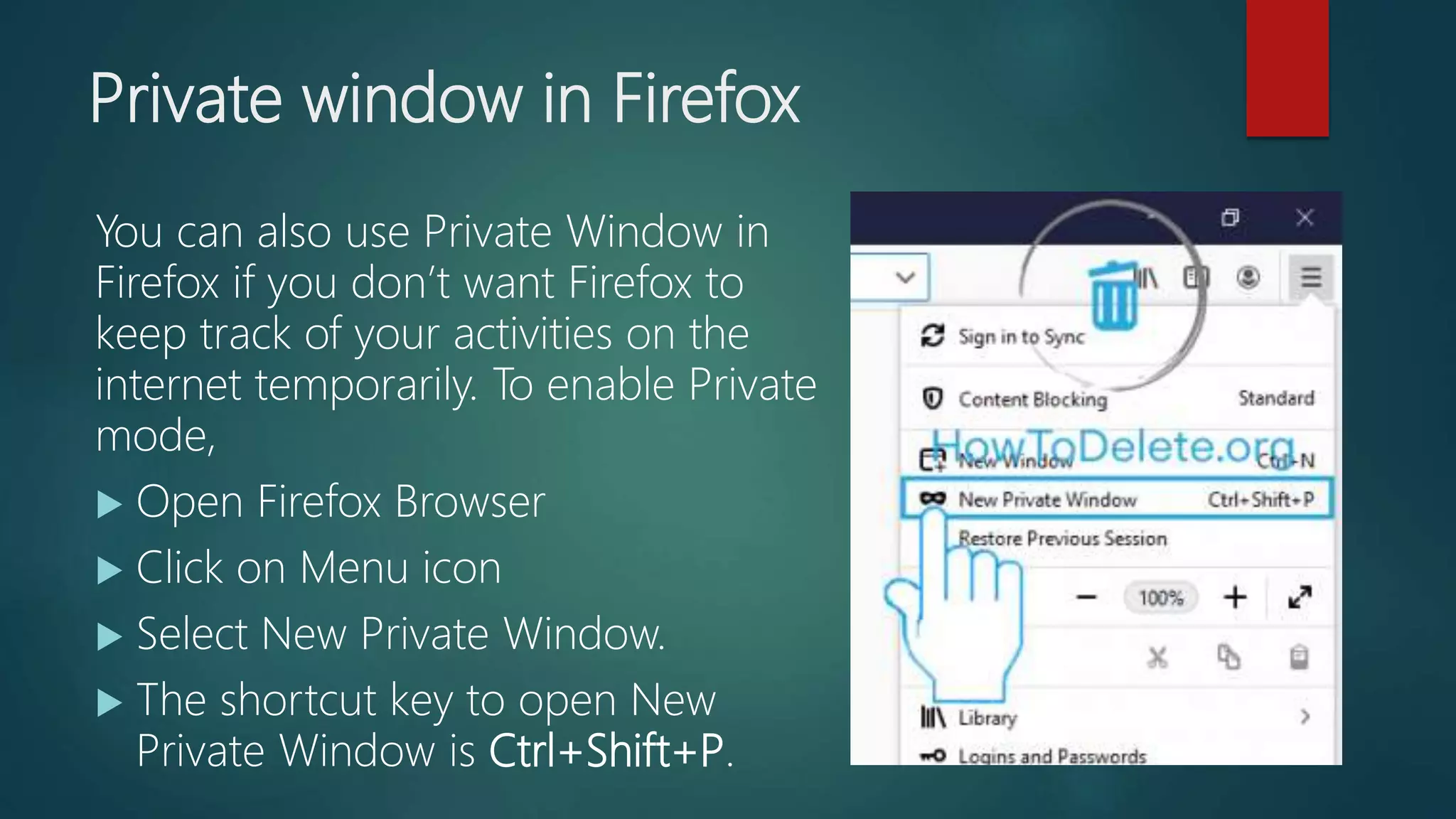
You can also use Private Window in
Firefox if you don’t want Firefox to
keep track of your activities on the
internet temporarily. To enable Private
mode,
 Open Firefox Browser
 Click on Menu icon
 Select New Private Window.
 The shortcut key to open New
Private Window is Ctrl+Shift+P.
Delete browsing history from Chrome
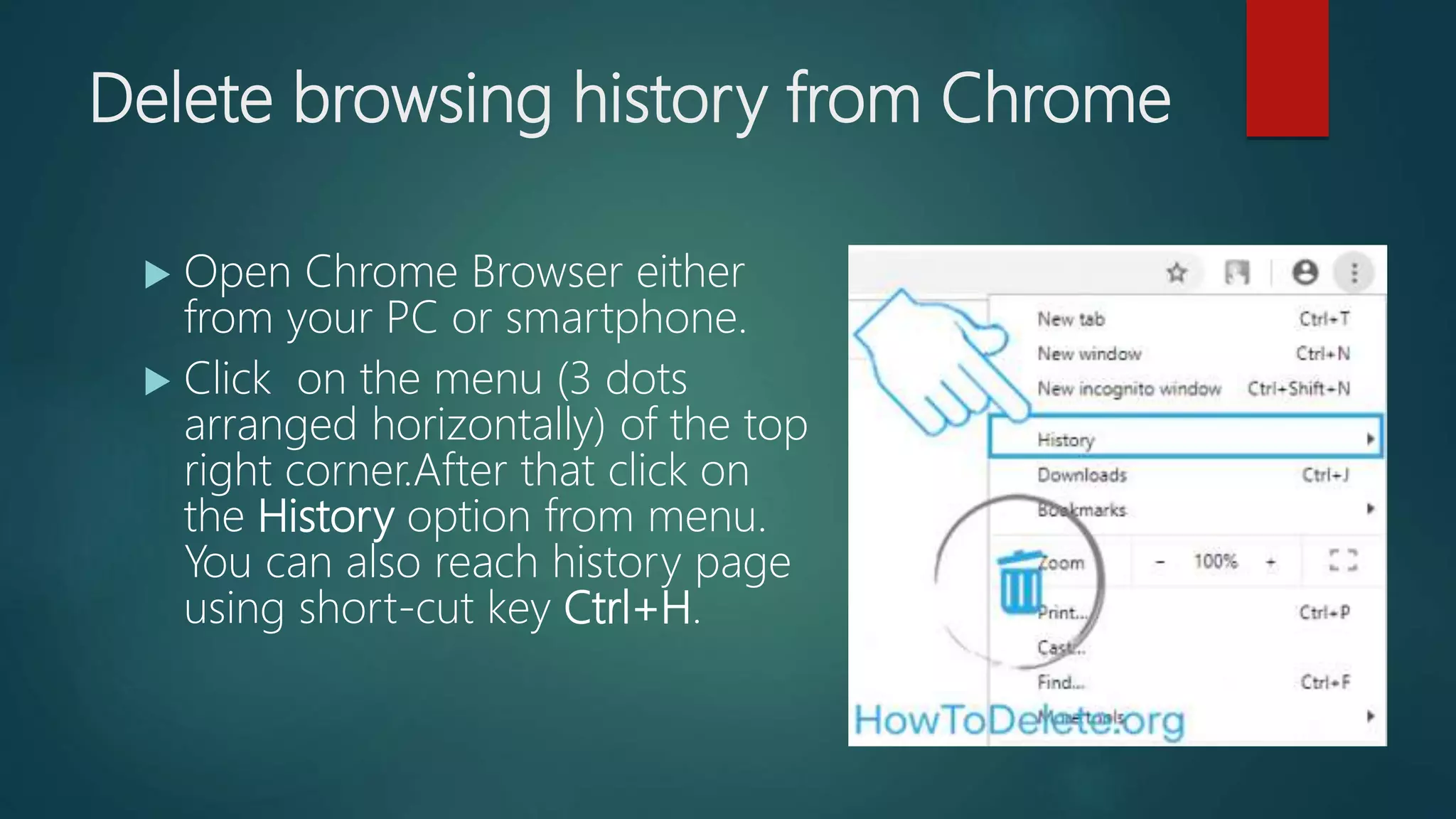
 Open Chrome Browser either
from your PC or smartphone.
 Click on the menu (3 dots
arranged horizontally) of the top
right corner.After that click on
the History option from menu.
You can also reach history page
using short-cut key Ctrl+H.
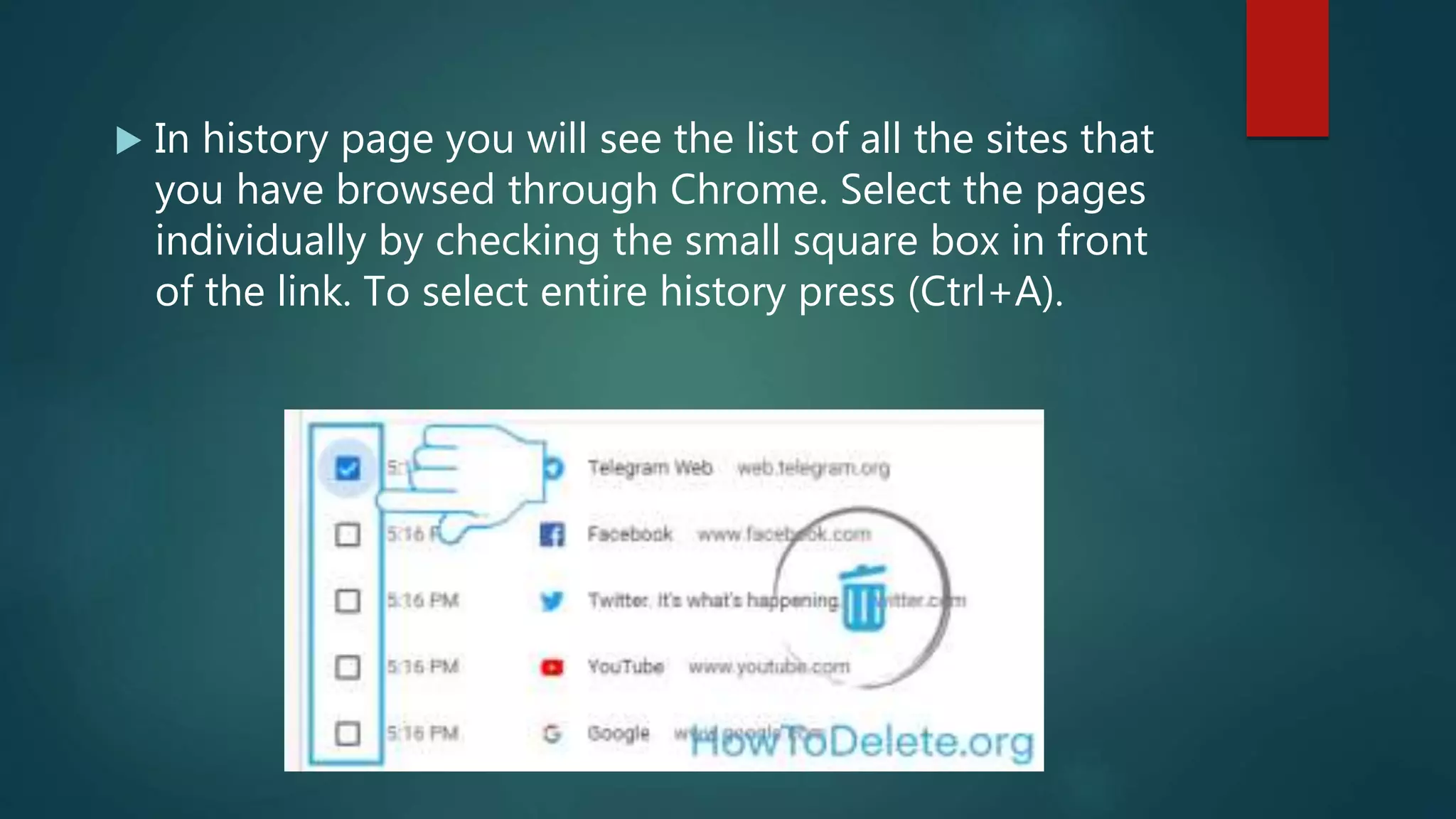
 In history page you will see the list of all the sites that
you have browsed through Chrome. Select the pages
individually by checking the small square box in front
of the link. To select entire history press (Ctrl+A).
 Once you finish selecting the history that you want to
clear click on “Delete” option that lies towards the
top right corner of the page.
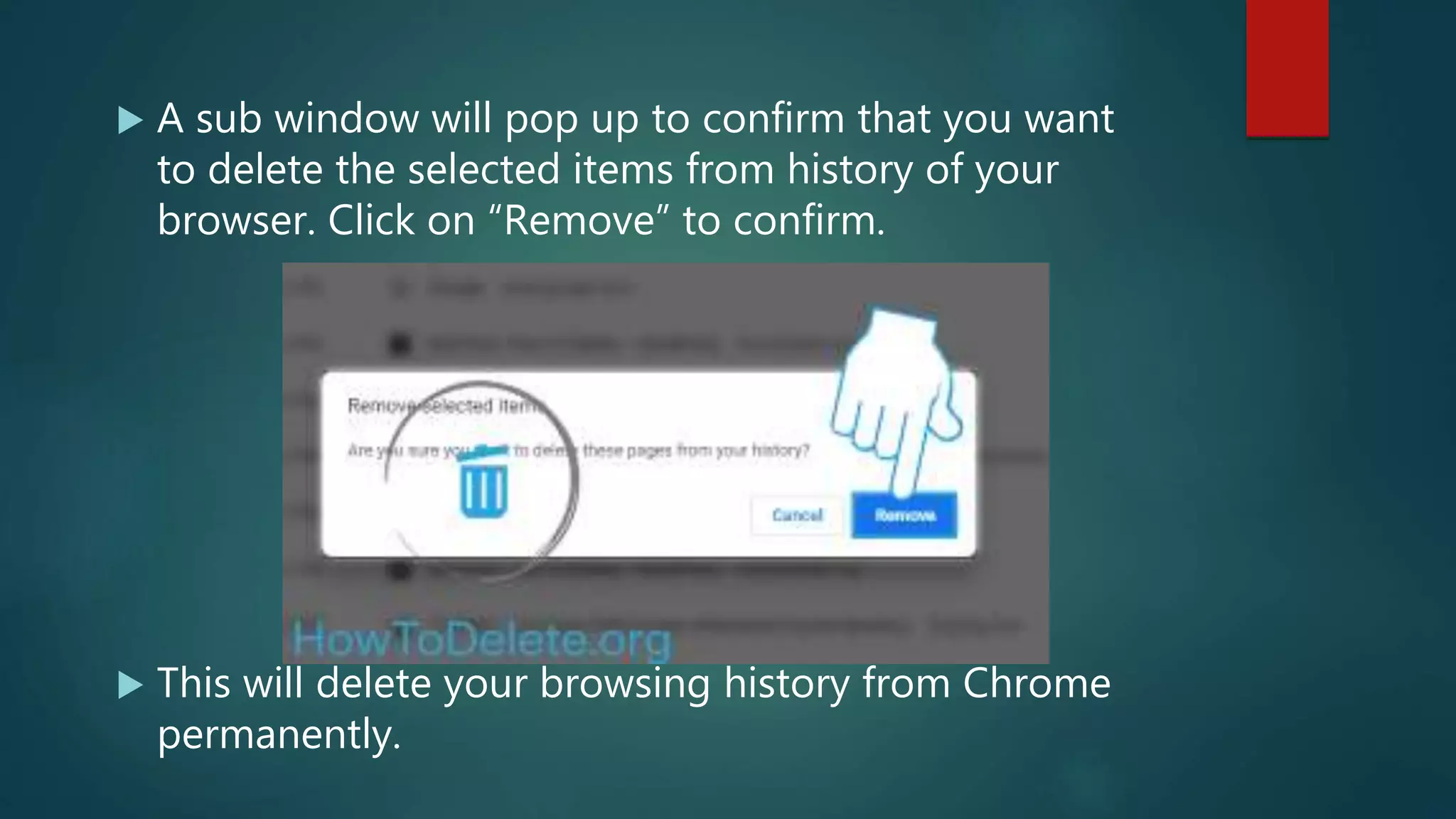
 A sub window will pop up to confirm that you want
to delete the selected items from history of your
browser. Click on “Remove” to confirm.
 This will delete your browsing history from Chrome
permanently.
Alternative way to clear browsing data
from Chrome
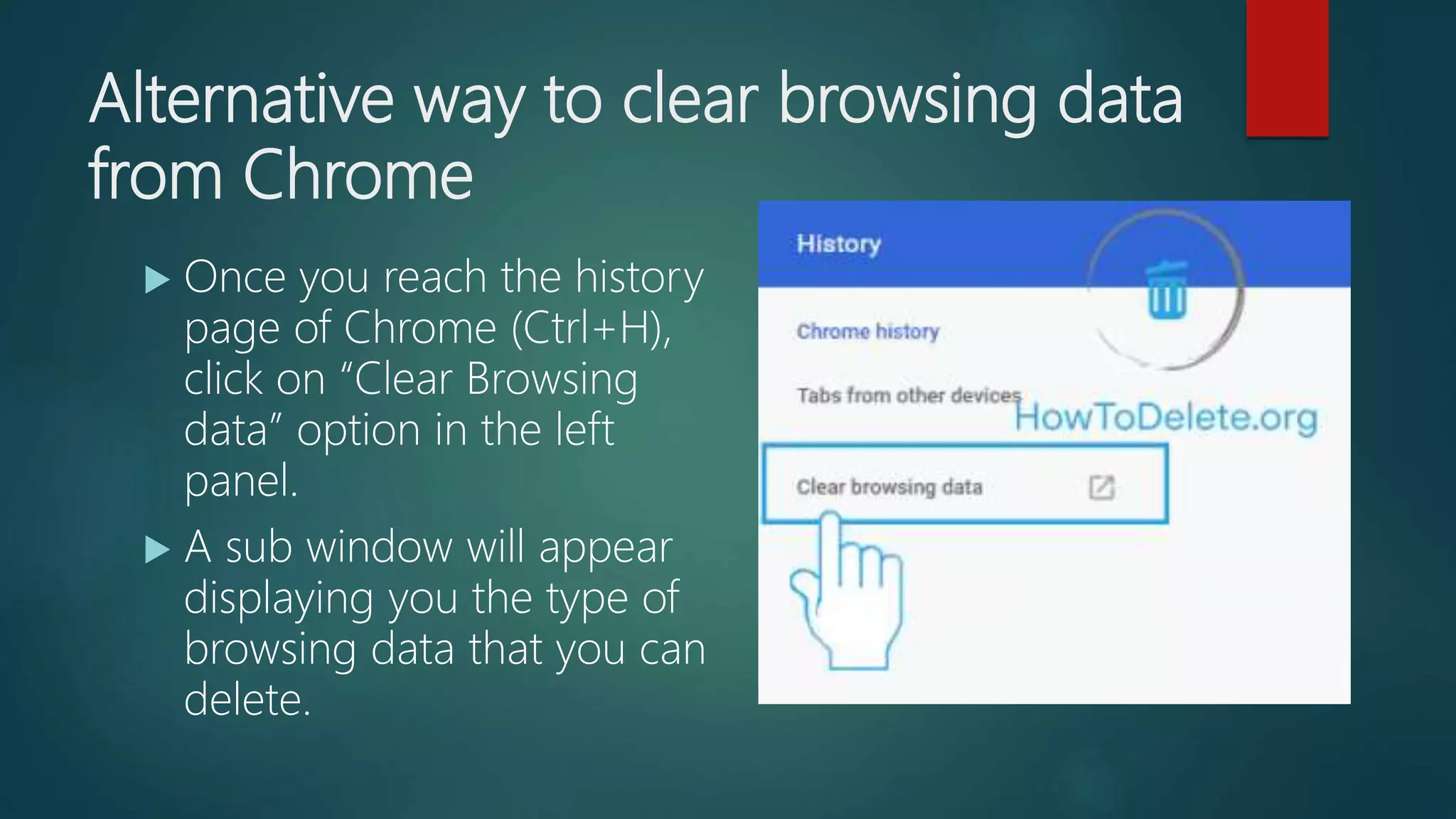
 Once you reach the history
page of Chrome (Ctrl+H),
click on “Clear Browsing
data” option in the left
panel.
 A sub window will appear
displaying you the type of
browsing data that you can
delete.
 Select the “Browsing history”. If you want to clear
cookies and caches, select them as well.
 Now select the time period from when you want to
delete Browsing history. If you want to delete entire
history, select “All Time” from the Time range box.
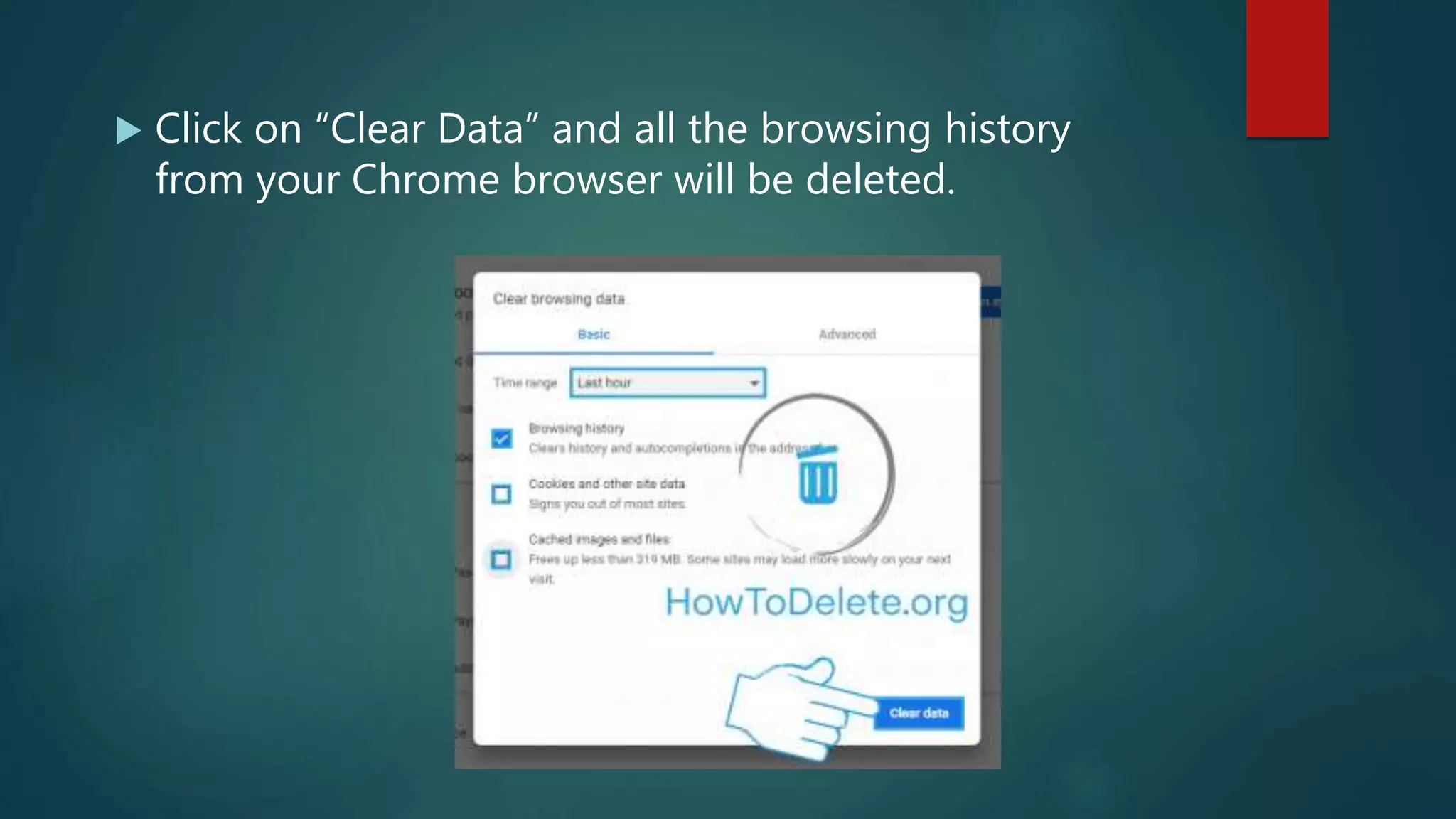
 Click on “Clear Data” and all the browsing history
from your Chrome browser will be deleted.
Incognito mode in Chrome
Browsing web from Incognito mode won’t save any
browsing data in Chrome. If you are browsing any site
that you don’t want your browser to remember, then
you can browse such sites in incognito mode. To
enable incognito mode:
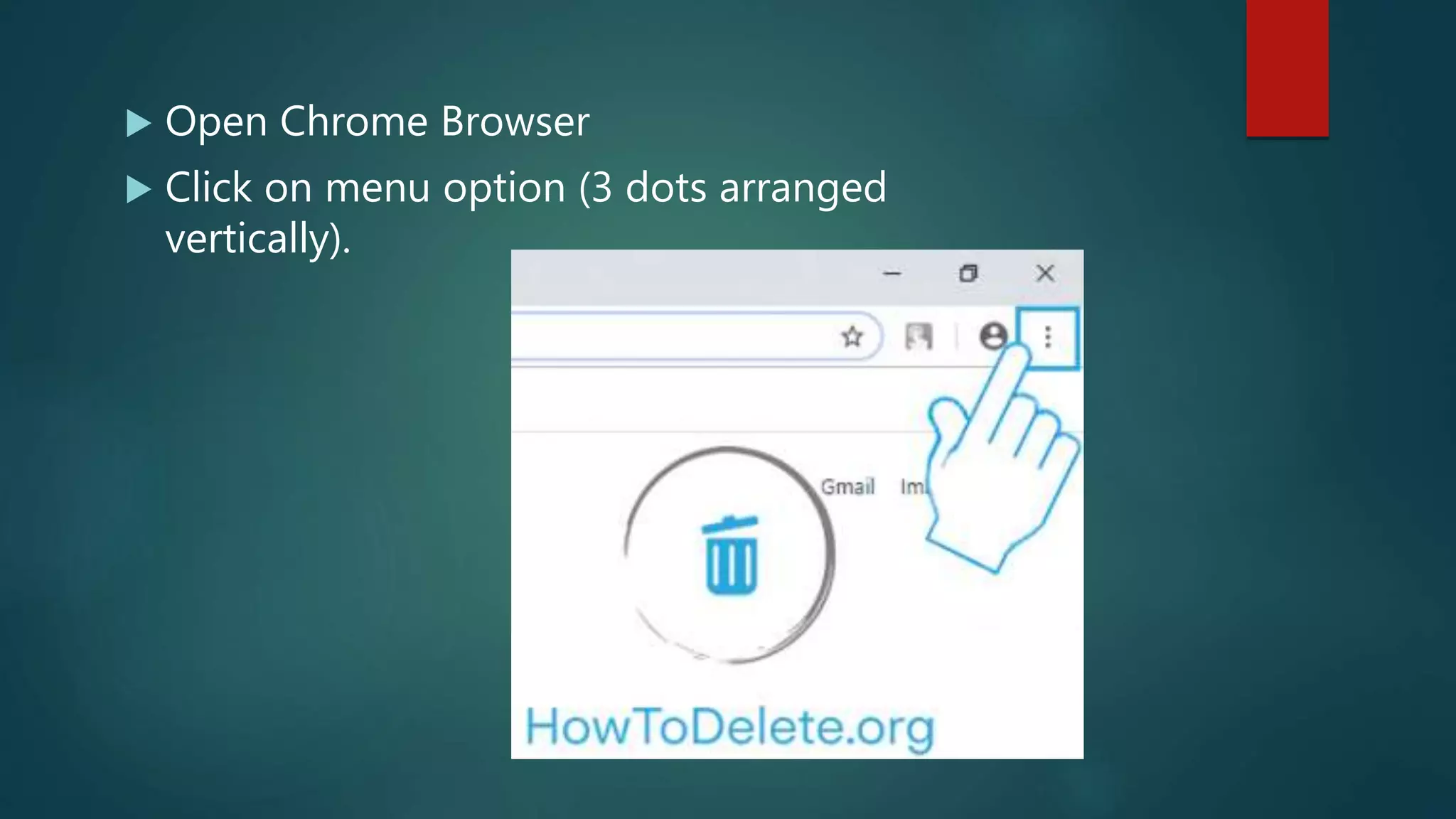
 Open Chrome Browser
 Click on menu option (3 dots arranged
vertically).
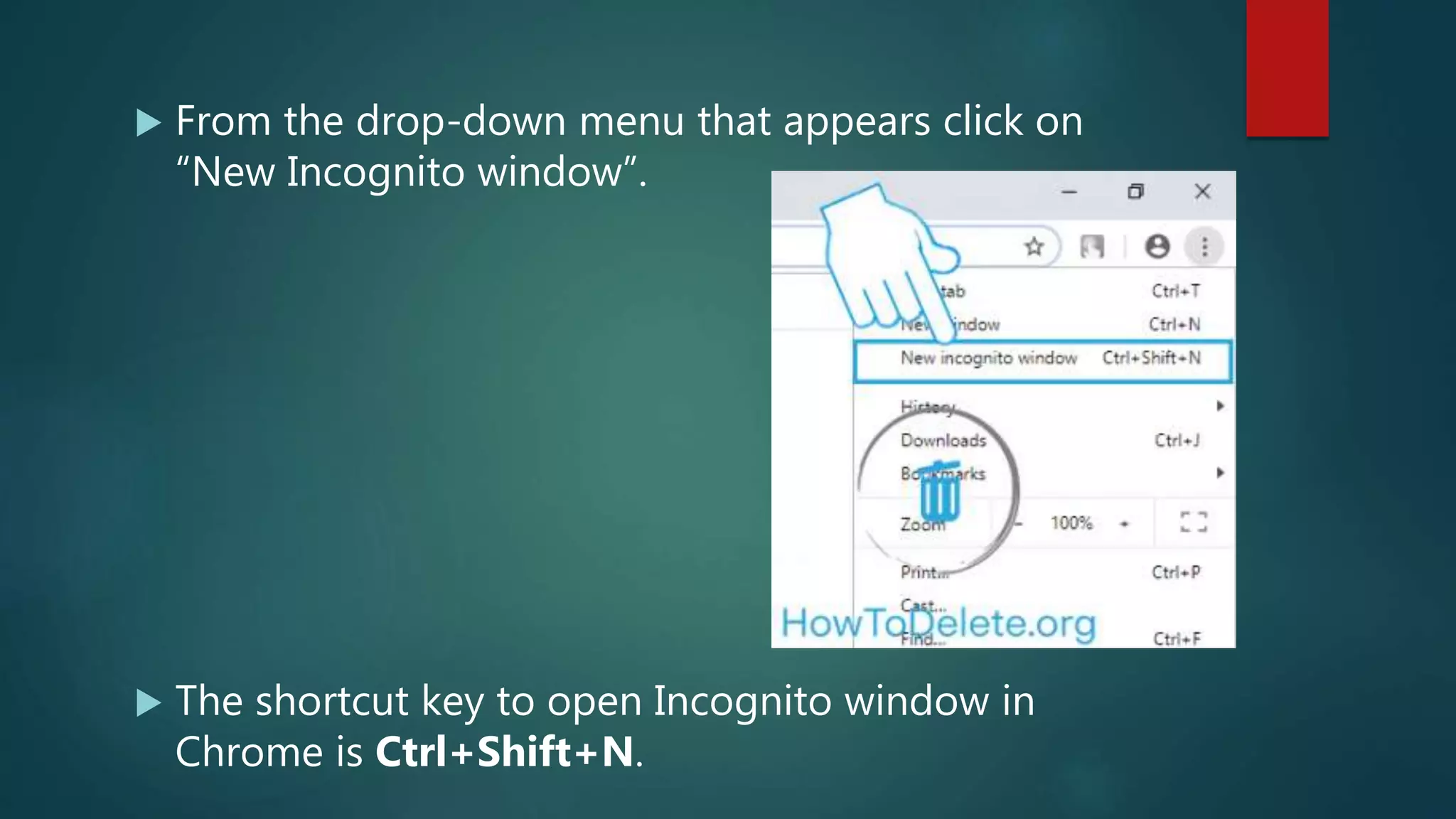
 From the drop-down menu that appears click on
“New Incognito window”.
 The shortcut key to open Incognito window in
Chrome is Ctrl+Shift+N.
Clear browsing history in Microsoft
Edge
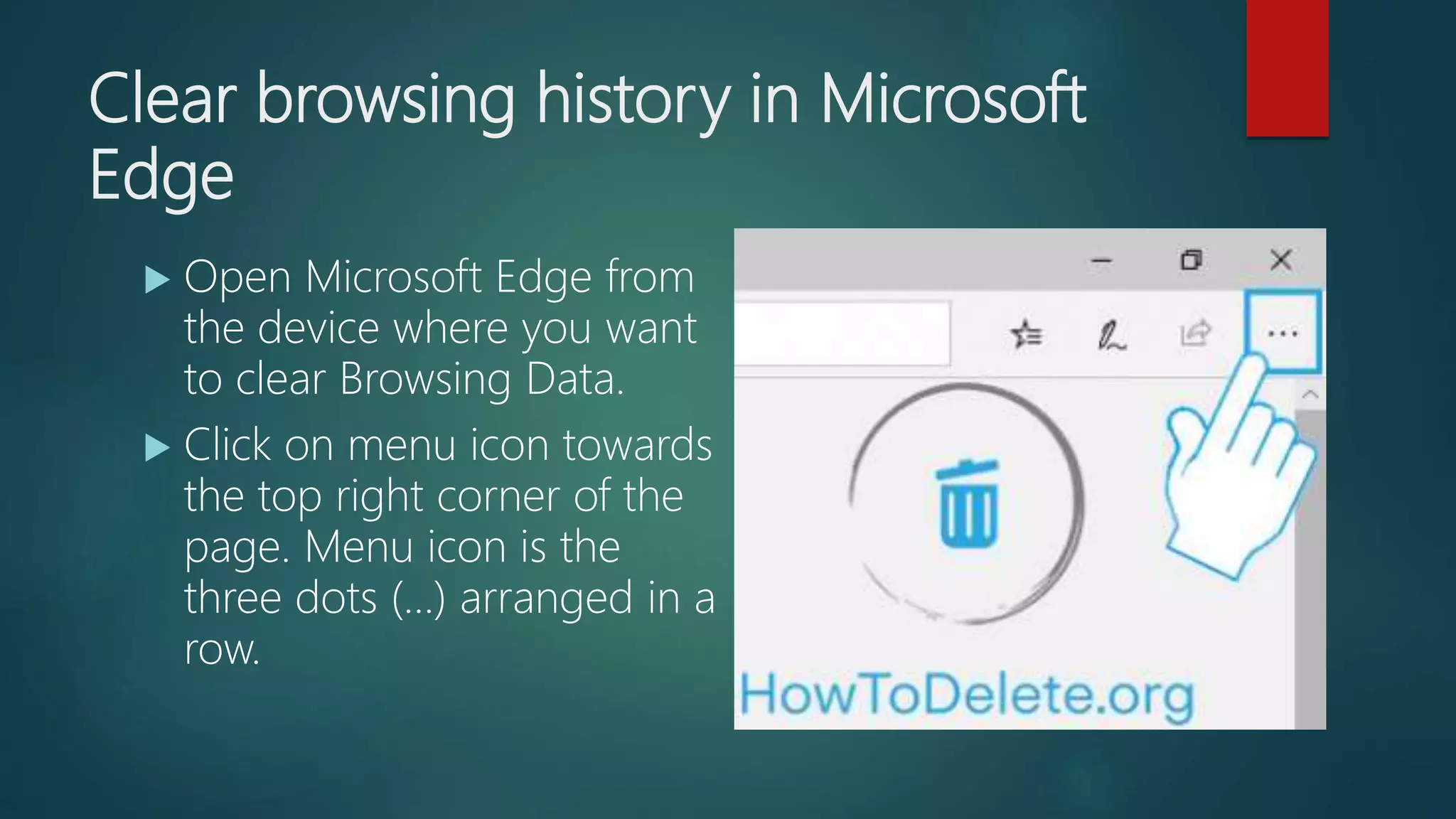
 Open Microsoft Edge from
the device where you want
to clear Browsing Data.
 Click on menu icon towards
the top right corner of the
page. Menu icon is the
three dots (…) arranged in a
row.
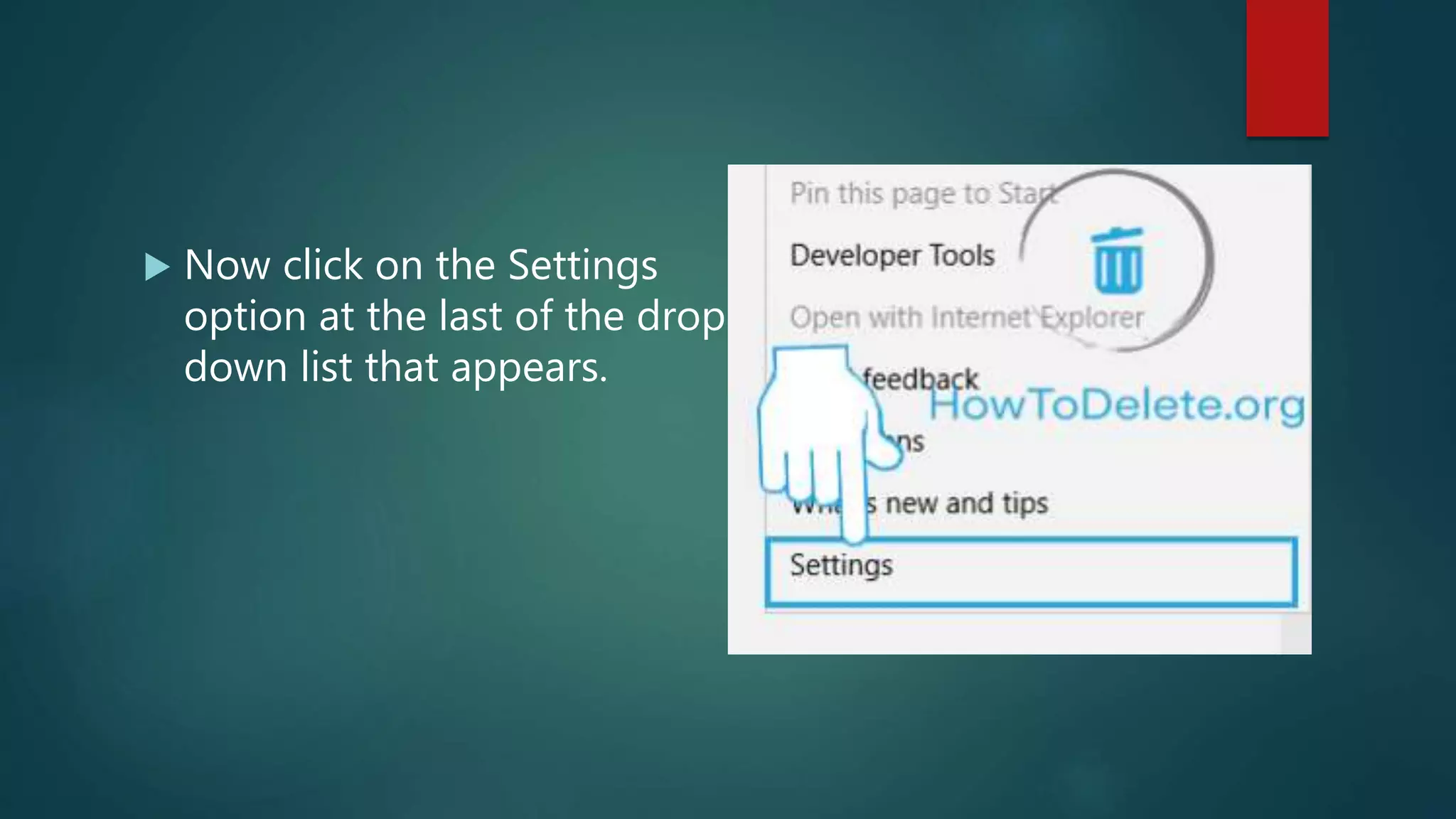
 Now click on the Settings
option at the last of the drop-
down list that appears.
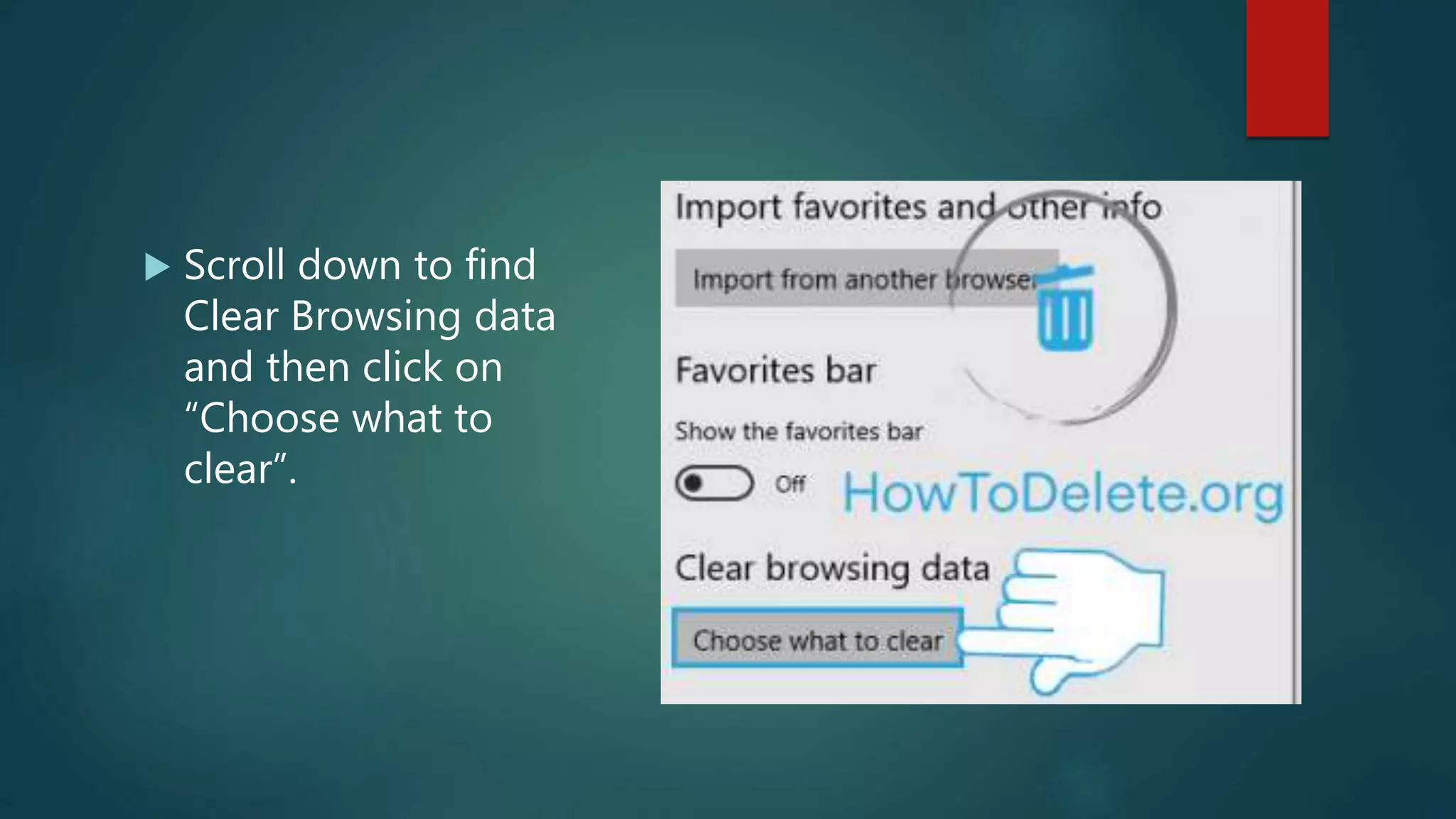
 Scroll down to find
Clear Browsing data
and then click on
“Choose what to
clear”.
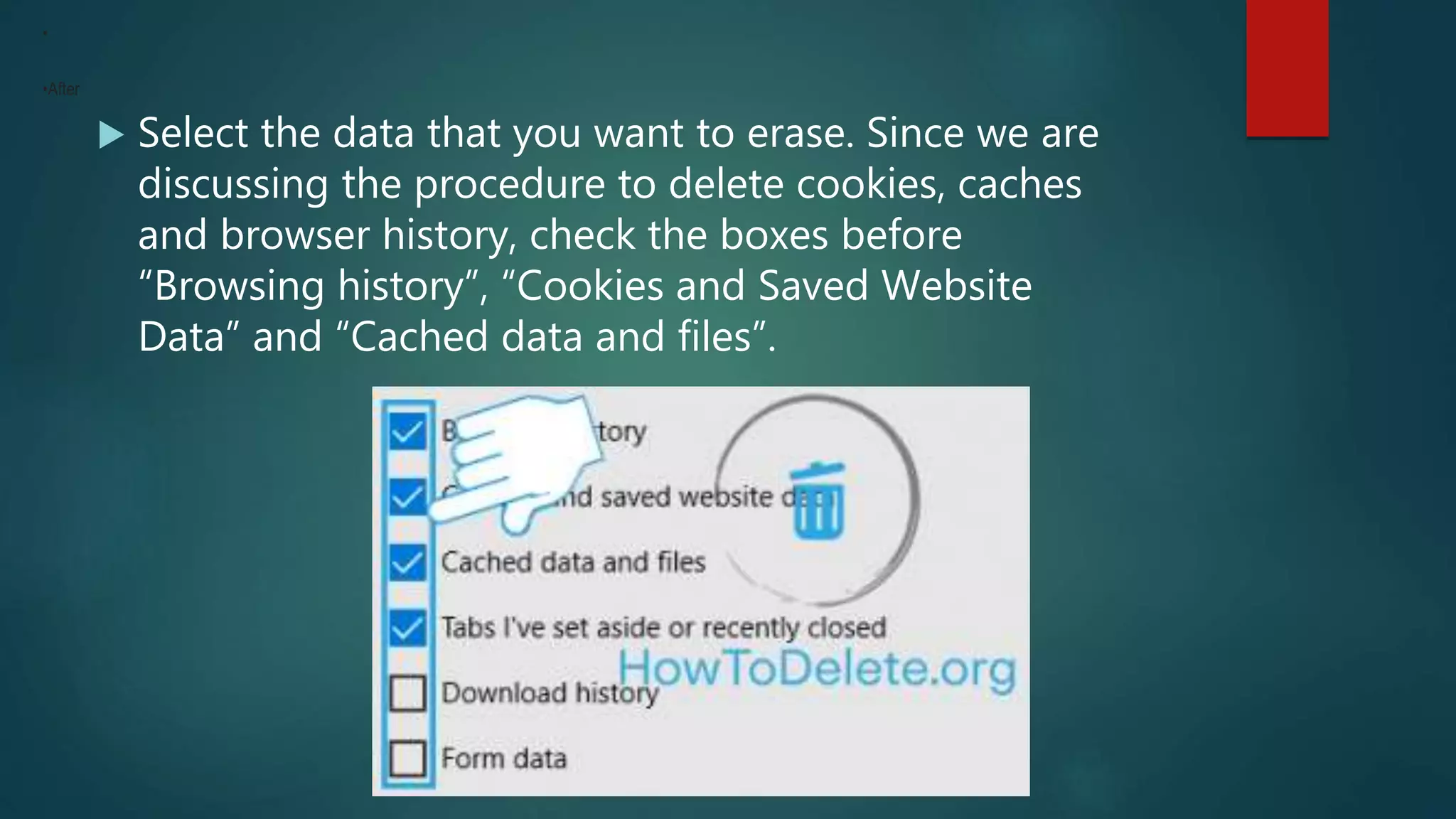
 Select the data that you want to erase. Since we are
discussing the procedure to delete cookies, caches
and browser history, check the boxes before
“Browsing history”, “Cookies and Saved Website
Data” and “Cached data and files”.
•
•After
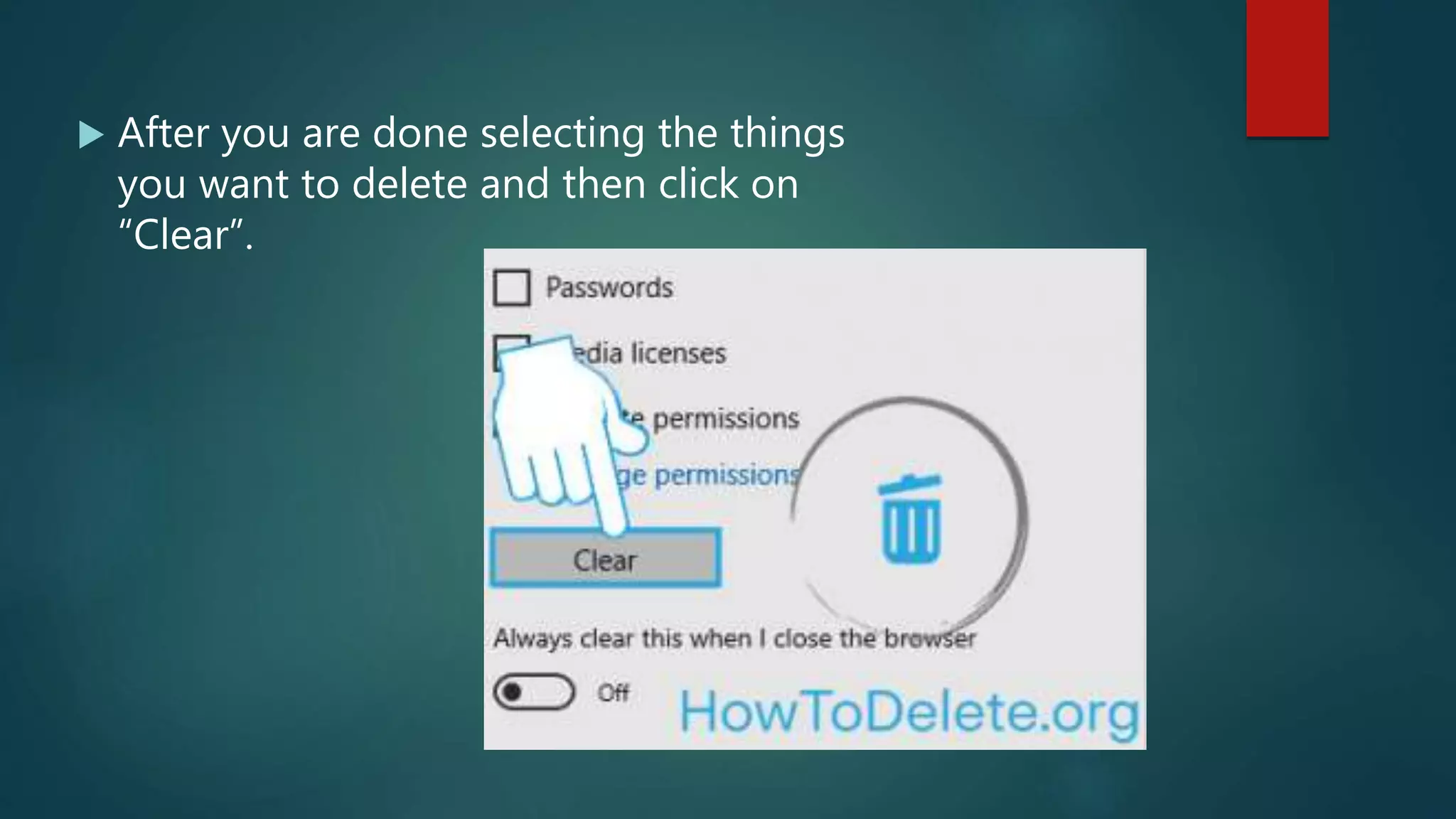
 After you are done selecting the things
you want to delete and then click on
“Clear”.
Open new InPrivate Window in
Microsoft Edge
Just like any other popular web browser Microsoft
Edge also has an InPrivate mode. Browsing history will
not be recorded by Edge when you are browsing in
this mode. To enable this mode
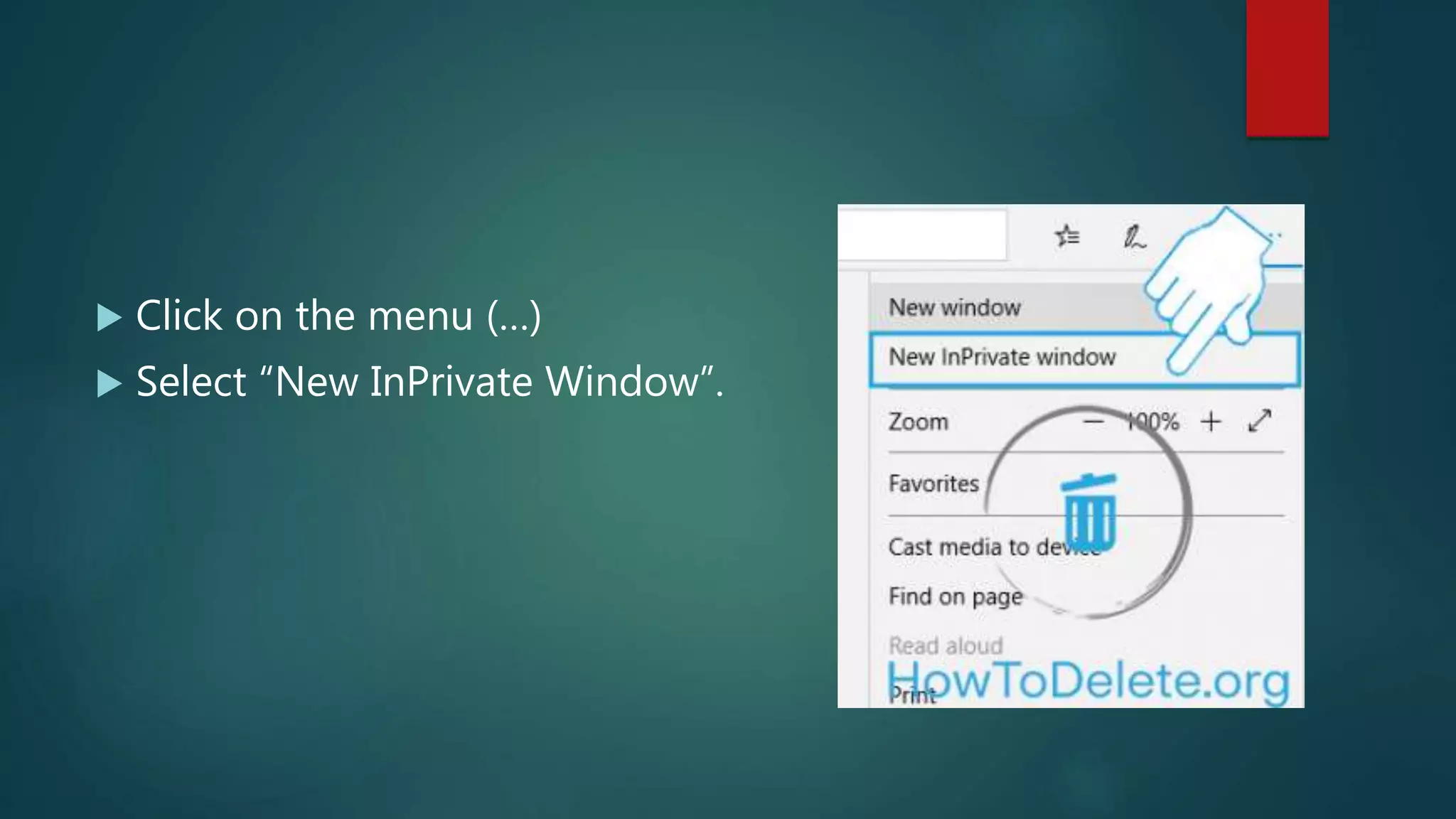
 Click on the menu (…)
 Select “New InPrivate Window”.
Delete browsing history in Opera
browser
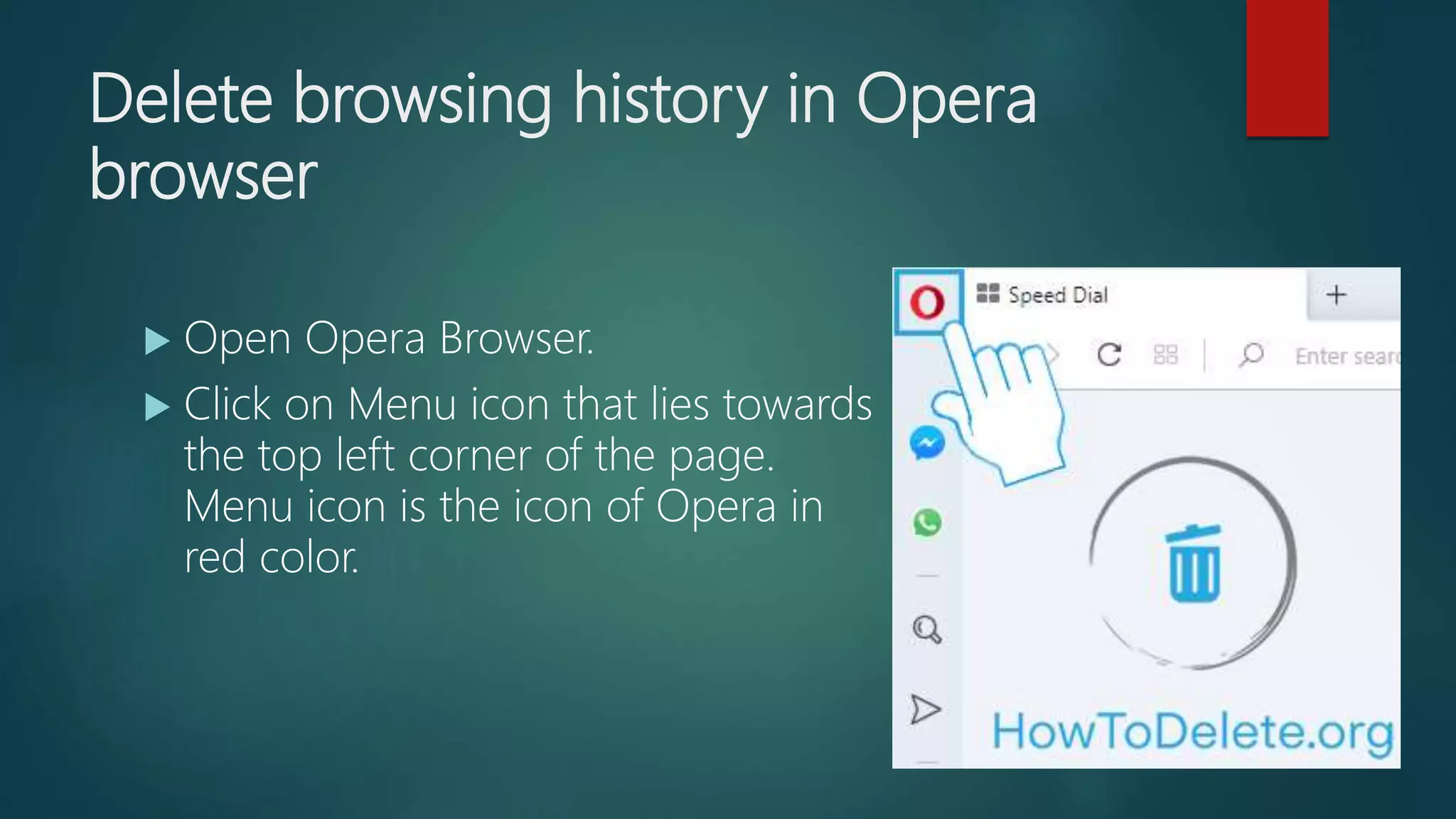
 Open Opera Browser.
 Click on Menu icon that lies towards
the top left corner of the page.
Menu icon is the icon of Opera in
red color.
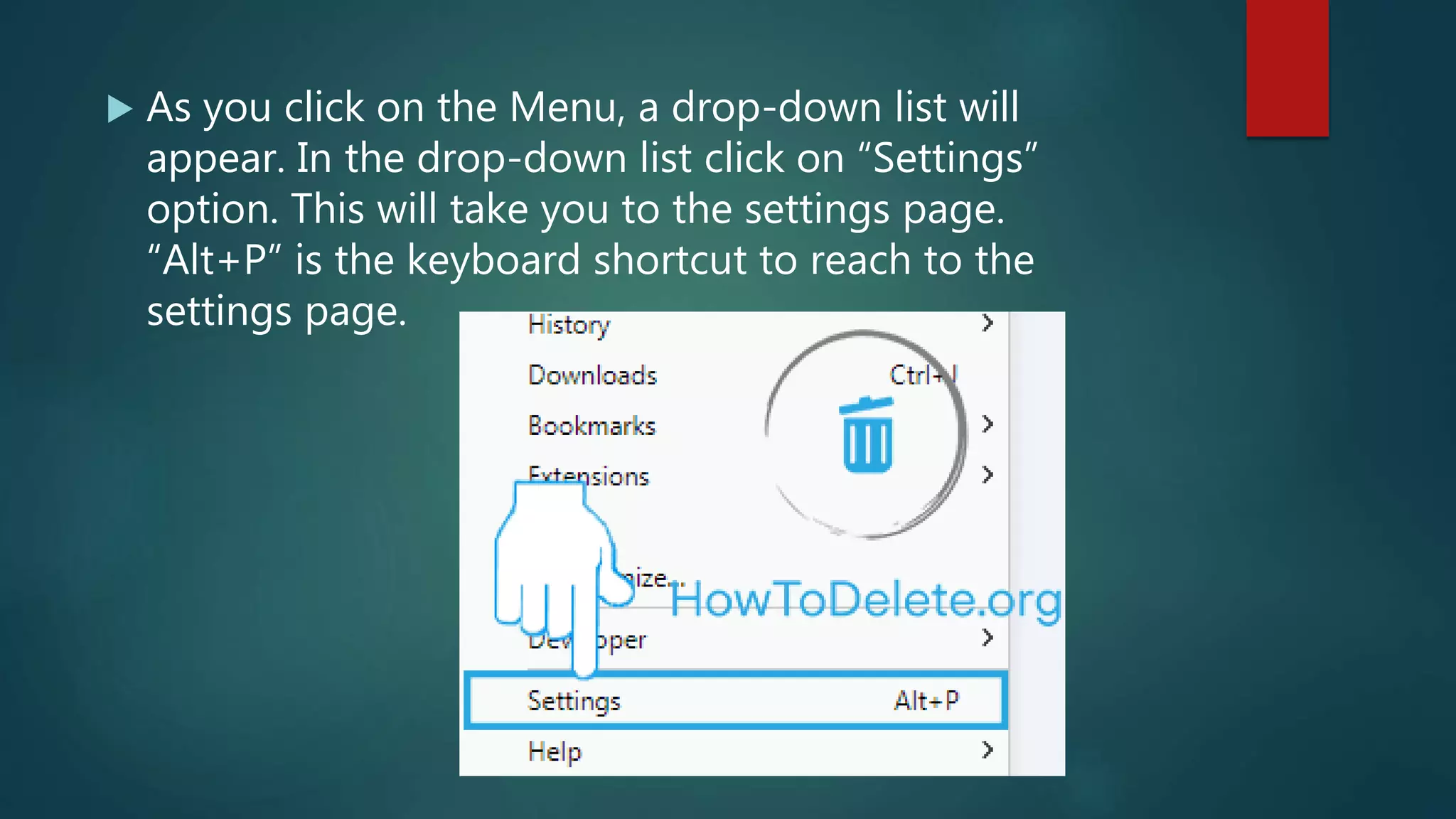
 As you click on the Menu, a drop-down list will
appear. In the drop-down list click on “Settings”
option. This will take you to the settings page.
“Alt+P” is the keyboard shortcut to reach to the
settings page.
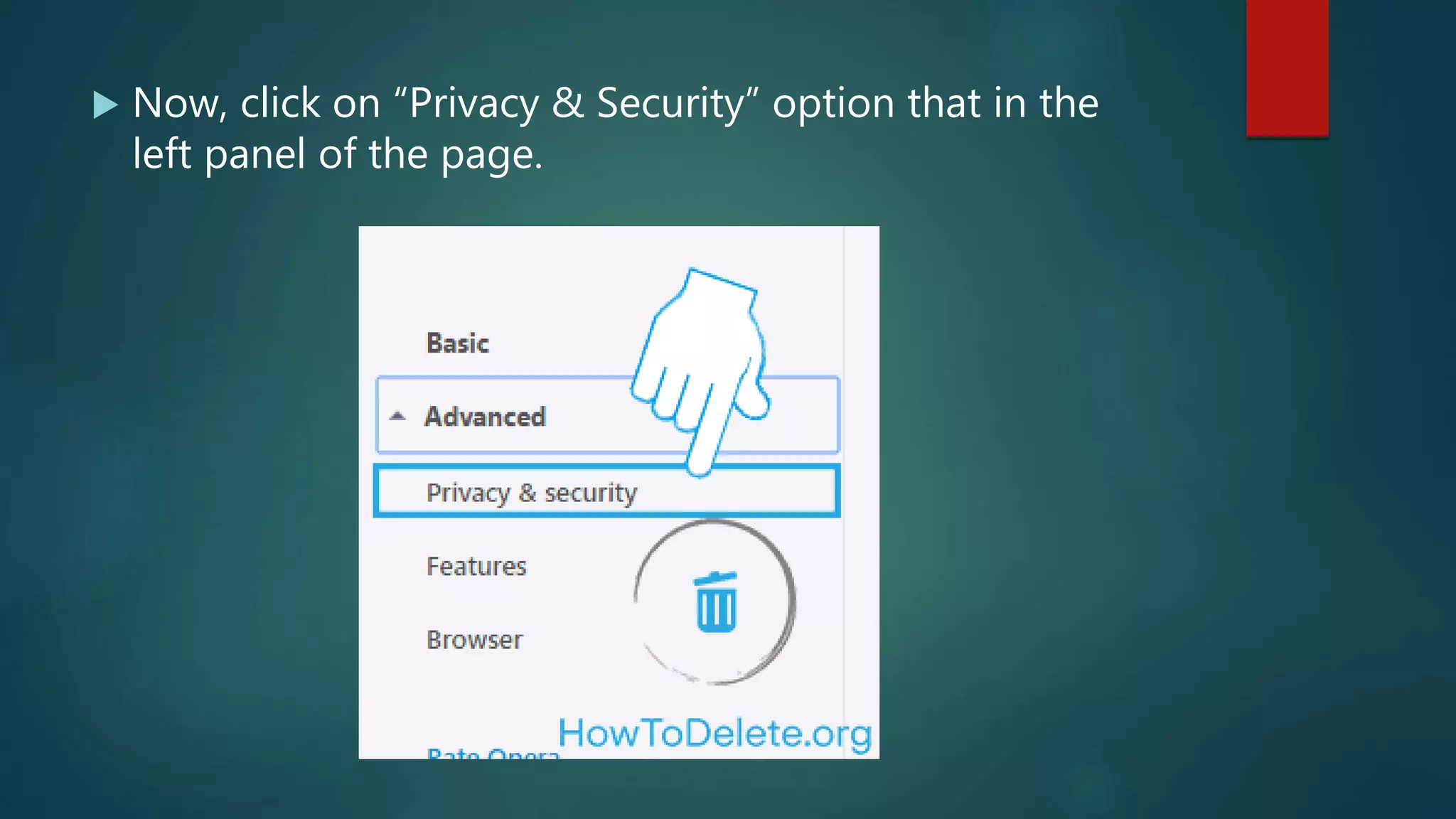
 Now, click on “Privacy & Security” option that in the
left panel of the page.
 Under privacy option click on “Clear Browsing data”.
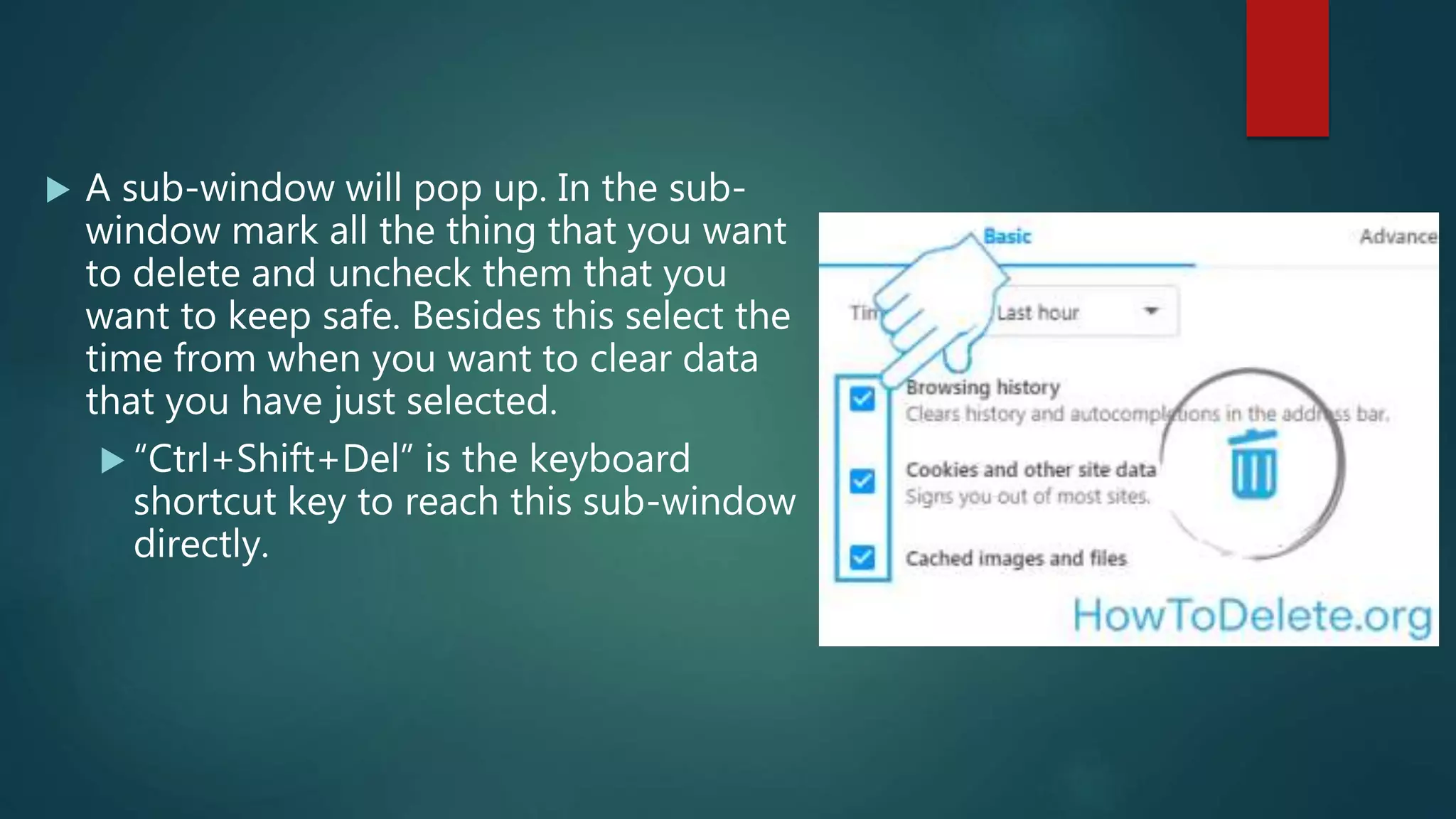
 A sub-window will pop up. In the sub-
window mark all the thing that you want
to delete and uncheck them that you
want to keep safe. Besides this select the
time from when you want to clear data
that you have just selected.
 “Ctrl+Shift+Del” is the keyboard
shortcut key to reach this sub-window
directly.
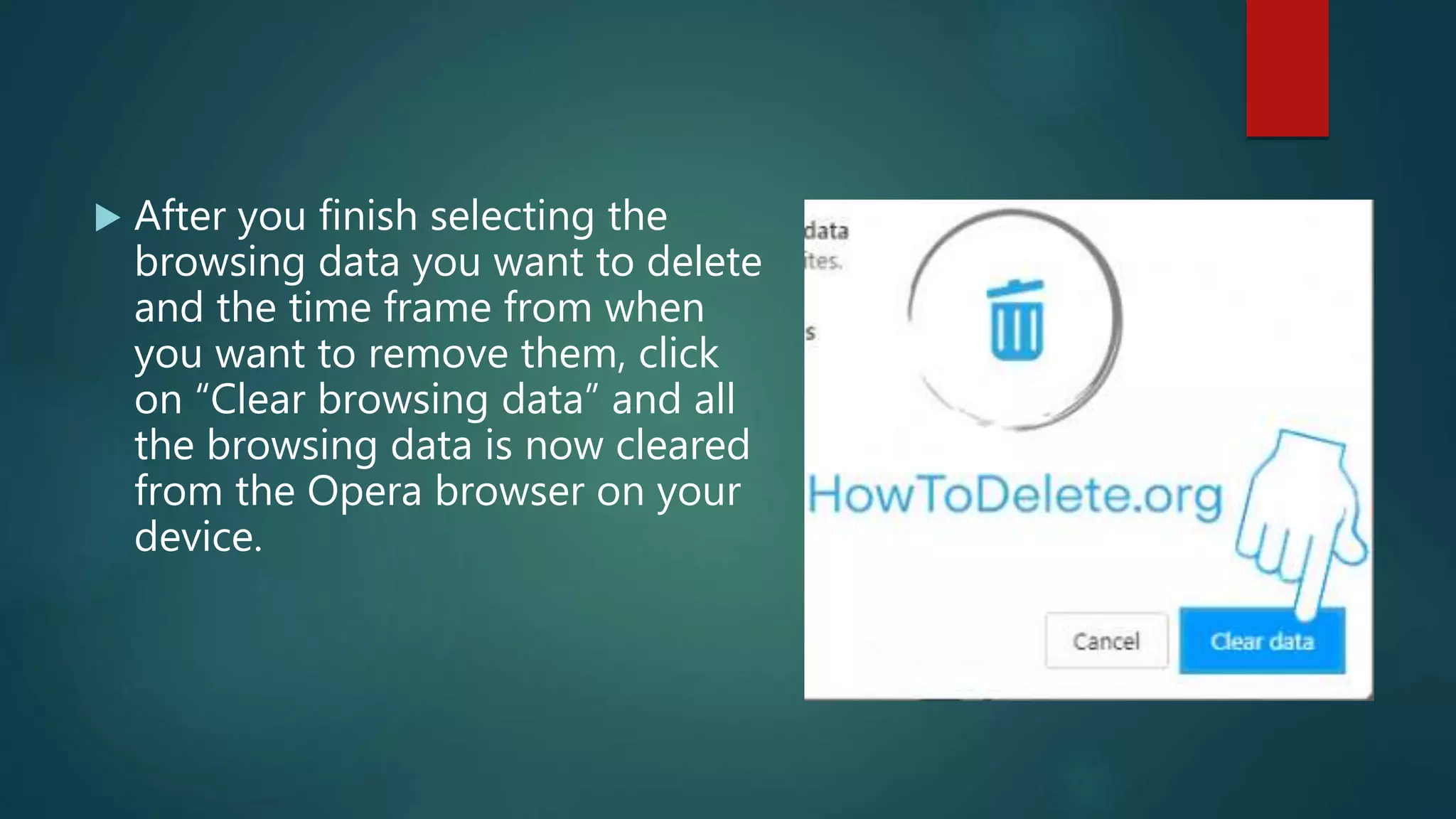
 After you finish selecting the
browsing data you want to delete
and the time frame from when
you want to remove them, click
on “Clear browsing data” and all
the browsing data is now cleared
from the Opera browser on your
device.
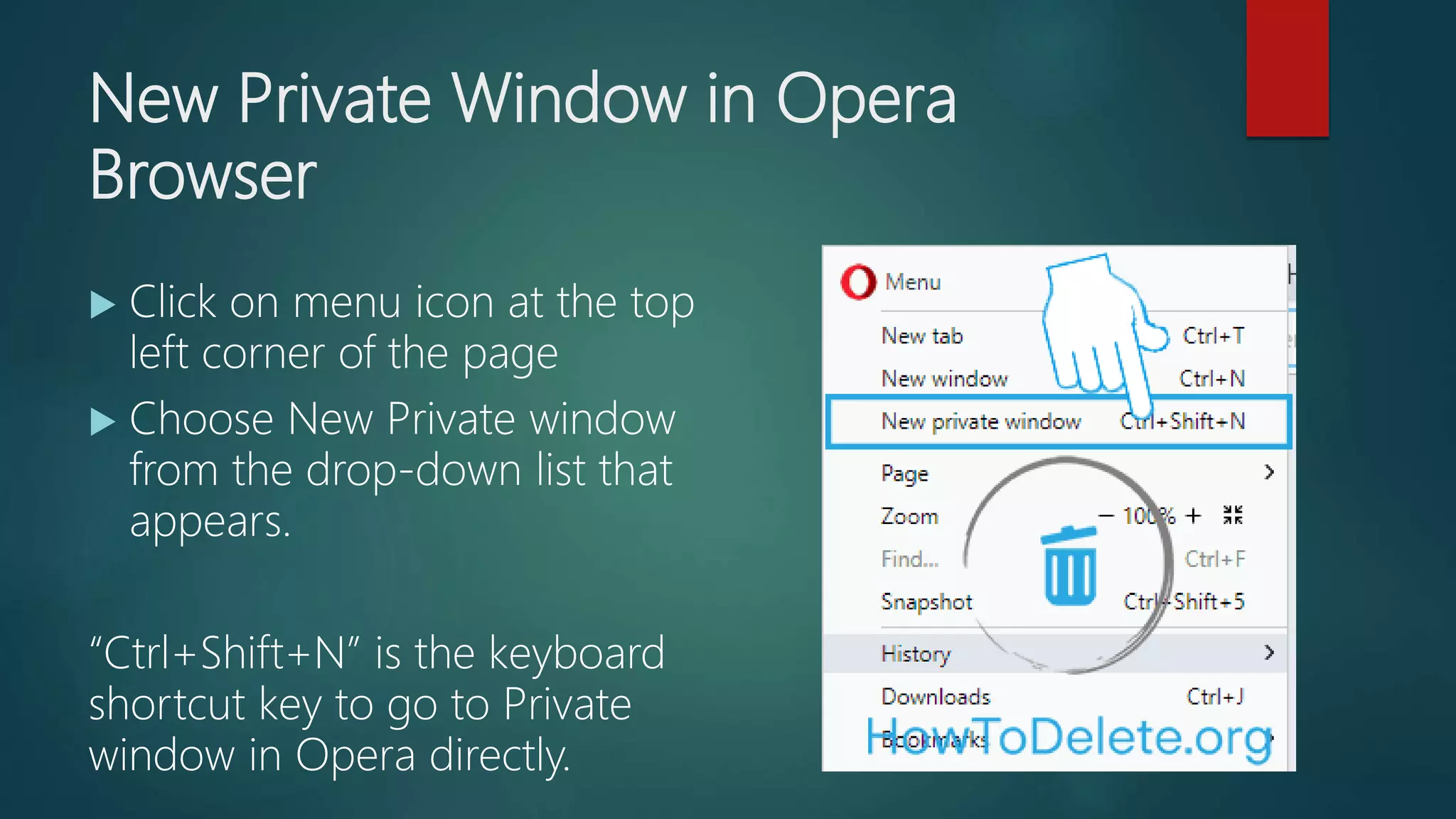
New Private Window in Opera
Browser
 Click on menu icon at the top
left corner of the page
 Choose New Private window
from the drop-down list that
appears.
“Ctrl+Shift+N” is the keyboard
shortcut key to go to Private
window in Opera directly.
Source:
https://howtodelete.org/delete-browsing-history/

How to delete browsing history

  • 1.
    How to delete browsinghistory? WWW.HOWTODELETE.ORG
  • 2.
    What is browsinghistory? Every web browser stores the information about the websites (usually the name and URL) you browse. The primary objective of saving this is to make you able to keep track of the sites you have visited so that you can return to the website anytime. The period for which the history is kept depends upon which web browser you are using, for example, Google Chrome stores the history of all the sites you have visited for the last 90 days. Browser history is accessible by all the people with whom you share your device. To avoid other to know about the websites you visit you need to clear browser history of the web browser from time to time.
  • 3.
    How to deletebrowsing history from Firefox?  Open Mozilla Firefox on your device.  Click on the menu option. Menu icon is three horizontal line (≡) arranged in a column at the rightmost corner of the page, just below the close (cross) icon.
  • 4.
     A drop-downmenu will appear; find and click on “Options”.
  • 5.
     In theleft pane of the page, click on Privacy & Security.
  • 6.
     Under the“History” heading click on Clear history.
  • 7.
     A sub-windowwill pop up. Select the time range from when you want to clear your browsing data. If you want to delete entire browsing data click on “Everything” at the last of the Drop-down option that appears as you click on the field to enter the time range to clear.
  • 8.
     You willsee the list of all the things that you will be able to clear. Check the boxes which you want to erase and uncheck the boxes which you want to keep safe. For example, if you don’t want to delete login credentials of your active login then uncheck “Active Logins”.
  • 9.
     As youare done selecting the data you want to delete and the time range to clear click on “Clear Now”.  All the cache, cookies and Browsing history will be deleted from the Firefox browser on your device.
  • 10.
    Don’t want Firefoxto remember your browsing data?  Open Mozilla Firefox  Click on menu icon and then click on “Option” in the dropdown list that appears.  Click on the Privacy & Security tab in the left panel of the page.
  • 11.
     Under theHistory heading, you will see Firefox will “Remember history”. Click on the downward facing arrow after “Remember history” and then click on “Never Remember History” from the drop-down list.
  • 12.
     A sub-windowwill appear instructing you to restart Firefox, click on “Restart Firefox Now” and the Firefox will not remember your browsing data now onwards.
  • 13.
    Private window inFirefox You can also use Private Window in Firefox if you don’t want Firefox to keep track of your activities on the internet temporarily. To enable Private mode,  Open Firefox Browser  Click on Menu icon  Select New Private Window.  The shortcut key to open New Private Window is Ctrl+Shift+P.
  • 14.
    Delete browsing historyfrom Chrome  Open Chrome Browser either from your PC or smartphone.  Click on the menu (3 dots arranged horizontally) of the top right corner.After that click on the History option from menu. You can also reach history page using short-cut key Ctrl+H.
  • 15.
     In historypage you will see the list of all the sites that you have browsed through Chrome. Select the pages individually by checking the small square box in front of the link. To select entire history press (Ctrl+A).
  • 16.
     Once youfinish selecting the history that you want to clear click on “Delete” option that lies towards the top right corner of the page.
  • 17.
     A subwindow will pop up to confirm that you want to delete the selected items from history of your browser. Click on “Remove” to confirm.  This will delete your browsing history from Chrome permanently.
  • 18.
    Alternative way toclear browsing data from Chrome  Once you reach the history page of Chrome (Ctrl+H), click on “Clear Browsing data” option in the left panel.  A sub window will appear displaying you the type of browsing data that you can delete.
  • 19.
     Select the“Browsing history”. If you want to clear cookies and caches, select them as well.  Now select the time period from when you want to delete Browsing history. If you want to delete entire history, select “All Time” from the Time range box.
  • 20.
     Click on“Clear Data” and all the browsing history from your Chrome browser will be deleted.
  • 21.
    Incognito mode inChrome Browsing web from Incognito mode won’t save any browsing data in Chrome. If you are browsing any site that you don’t want your browser to remember, then you can browse such sites in incognito mode. To enable incognito mode:
  • 22.
     Open ChromeBrowser  Click on menu option (3 dots arranged vertically).
  • 23.
     From thedrop-down menu that appears click on “New Incognito window”.  The shortcut key to open Incognito window in Chrome is Ctrl+Shift+N.
  • 24.
    Clear browsing historyin Microsoft Edge  Open Microsoft Edge from the device where you want to clear Browsing Data.  Click on menu icon towards the top right corner of the page. Menu icon is the three dots (…) arranged in a row.
  • 25.
     Now clickon the Settings option at the last of the drop- down list that appears.
  • 26.
     Scroll downto find Clear Browsing data and then click on “Choose what to clear”.
  • 27.
     Select thedata that you want to erase. Since we are discussing the procedure to delete cookies, caches and browser history, check the boxes before “Browsing history”, “Cookies and Saved Website Data” and “Cached data and files”. • •After
  • 28.
     After youare done selecting the things you want to delete and then click on “Clear”.
  • 29.
    Open new InPrivateWindow in Microsoft Edge Just like any other popular web browser Microsoft Edge also has an InPrivate mode. Browsing history will not be recorded by Edge when you are browsing in this mode. To enable this mode
  • 30.
     Click onthe menu (…)  Select “New InPrivate Window”.
  • 31.
    Delete browsing historyin Opera browser  Open Opera Browser.  Click on Menu icon that lies towards the top left corner of the page. Menu icon is the icon of Opera in red color.
  • 32.
     As youclick on the Menu, a drop-down list will appear. In the drop-down list click on “Settings” option. This will take you to the settings page. “Alt+P” is the keyboard shortcut to reach to the settings page.
  • 33.
     Now, clickon “Privacy & Security” option that in the left panel of the page.
  • 34.
     Under privacyoption click on “Clear Browsing data”.
  • 35.
     A sub-windowwill pop up. In the sub- window mark all the thing that you want to delete and uncheck them that you want to keep safe. Besides this select the time from when you want to clear data that you have just selected.  “Ctrl+Shift+Del” is the keyboard shortcut key to reach this sub-window directly.
  • 36.
     After youfinish selecting the browsing data you want to delete and the time frame from when you want to remove them, click on “Clear browsing data” and all the browsing data is now cleared from the Opera browser on your device.
  • 37.
    New Private Windowin Opera Browser  Click on menu icon at the top left corner of the page  Choose New Private window from the drop-down list that appears. “Ctrl+Shift+N” is the keyboard shortcut key to go to Private window in Opera directly.
  • 38.