•Using a cell phone
•Using a laptop computer
Using a cell phone
Most cell phones have Wi-Fi capability. A
Blackberry cell phone is being used to demonstrate
how to connect to a wireless network.
Step 1
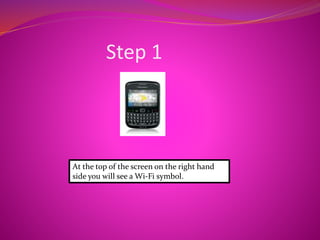
At the top of the screen on the right hand
side you will see a Wi-Fi symbol.
Step 2
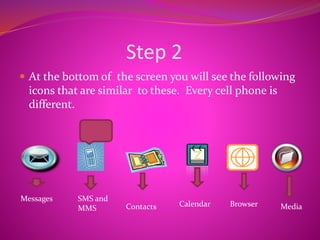
 At the bottom of the screen you will see the following
icons that are similar to these. Every cell phone is
different.
Messages SMS and
MMS Contacts Calendar Browser Media
Step 3
 Click on the browser icon.
 The Internet browser screen opens up to
http://www._______________________
 There is a second window that says Yahoo.
 Bookmarks
 History
Step 4
 Type in the website that you are searching for.
 Press the (Enter) key.
 The website will download.
 You can use the scroll button in the middle of the
phone to navigate the website then press the (Enter)
key.
 {If you make a mistake, reenter the correct information in
the browser}.
 To exit the browser you must hit the (Backspace) key
next to the scroll button several times until the phone goes
back to the original screen.
Using a laptop computer
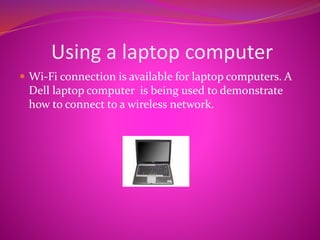
 Wi-Fi connection is available for laptop computers. A
Dell laptop computer is being used to demonstrate
how to connect to a wireless network.
Step 1
Log on to your computer.
Step 2
Insert your wireless card into the USB port. On the side
of your computer there’s a sliding button which you
should slide to the ON position to connect to a Wi-Fi
network. Select connect on your wireless card icon on
your computer screen. The Wi-Fi screen appears. Select
a Wi-Fi location (Airport, Café, Hot Zone or etc.) Click
on Search.
Click connect on the wireless card screen. The network
key screen will appear. Enter and confirm the network
key. (The network key is determined by the location).
Step 3
 Press enter -you are now connected.
 You can now see your homepage.
 You can browse the website(s) that you are searching
for.
 Once you are finished browsing you can disconnect
your wireless card by locating your wireless card screen
at the top of your computer. Click on Disconnect and
disable the Wi-Fi on your computer.
 You’re now ready to shut down your computer.

How to connect to a wireless network!!!!!!

  • 1.
    •Using a cellphone •Using a laptop computer
  • 2.
    Using a cellphone Most cell phones have Wi-Fi capability. A Blackberry cell phone is being used to demonstrate how to connect to a wireless network.
  • 3.
    Step 1 At thetop of the screen on the right hand side you will see a Wi-Fi symbol.
  • 4.
    Step 2  Atthe bottom of the screen you will see the following icons that are similar to these. Every cell phone is different. Messages SMS and MMS Contacts Calendar Browser Media
  • 5.
    Step 3  Clickon the browser icon.  The Internet browser screen opens up to http://www._______________________  There is a second window that says Yahoo.  Bookmarks  History
  • 6.
    Step 4  Typein the website that you are searching for.  Press the (Enter) key.  The website will download.  You can use the scroll button in the middle of the phone to navigate the website then press the (Enter) key.  {If you make a mistake, reenter the correct information in the browser}.  To exit the browser you must hit the (Backspace) key next to the scroll button several times until the phone goes back to the original screen.
  • 7.
    Using a laptopcomputer  Wi-Fi connection is available for laptop computers. A Dell laptop computer is being used to demonstrate how to connect to a wireless network.
  • 8.
    Step 1 Log onto your computer.
  • 9.
    Step 2 Insert yourwireless card into the USB port. On the side of your computer there’s a sliding button which you should slide to the ON position to connect to a Wi-Fi network. Select connect on your wireless card icon on your computer screen. The Wi-Fi screen appears. Select a Wi-Fi location (Airport, Café, Hot Zone or etc.) Click on Search. Click connect on the wireless card screen. The network key screen will appear. Enter and confirm the network key. (The network key is determined by the location).
  • 10.
    Step 3  Pressenter -you are now connected.  You can now see your homepage.  You can browse the website(s) that you are searching for.  Once you are finished browsing you can disconnect your wireless card by locating your wireless card screen at the top of your computer. Click on Disconnect and disable the Wi-Fi on your computer.  You’re now ready to shut down your computer.