Sharepoint
   Update
Priorities

Rolling out team sites:
 *QA
 *BA
 *HelpDesk
 *ProImp
MySite
• Fully operational
• Is ready to go when we give the go signal
• Delay is due to a lack of social media policy
• Social Media policy has been an action item in
  Jackie’s court since June 27, Jackie says it’s on
  Marnie’s desk
• No discussion on the internal culture piece
  until this get out of legal
Blogroll

IT’S ALIVE!
Blogroll Collapsed
Blogroll Expanded
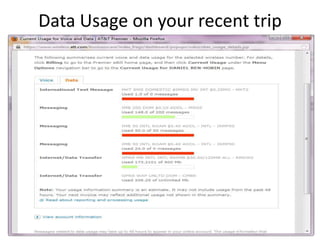
Data Usage on your recent trip
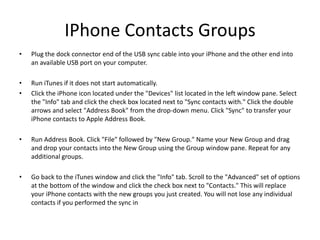
IPhone Contacts Groups
•   Plug the dock connector end of the USB sync cable into your iPhone and the other end into
    an available USB port on your computer.

•   Run iTunes if it does not start automatically.
•   Click the iPhone icon located under the "Devices" list located in the left window pane. Select
    the "Info" tab and click the check box located next to "Sync contacts with." Click the double
    arrows and select "Address Book" from the drop-down menu. Click "Sync" to transfer your
    iPhone contacts to Apple Address Book.

•   Run Address Book. Click "File" followed by "New Group." Name your New Group and drag
    and drop your contacts into the New Group using the Group window pane. Repeat for any
    additional groups.

•   Go back to the iTunes window and click the "Info" tab. Scroll to the "Advanced" set of options
    at the bottom of the window and click the check box next to "Contacts." This will replace
    your iPhone contacts with the new groups you just created. You will not lose any individual
    contacts if you performed the sync in

Sept19 meeting

  • 1.
  • 3.
    Priorities Rolling out teamsites: *QA *BA *HelpDesk *ProImp
  • 4.
    MySite • Fully operational •Is ready to go when we give the go signal • Delay is due to a lack of social media policy • Social Media policy has been an action item in Jackie’s court since June 27, Jackie says it’s on Marnie’s desk • No discussion on the internal culture piece until this get out of legal
  • 5.
  • 6.
  • 7.
  • 8.
    Data Usage onyour recent trip
  • 9.
    IPhone Contacts Groups • Plug the dock connector end of the USB sync cable into your iPhone and the other end into an available USB port on your computer. • Run iTunes if it does not start automatically. • Click the iPhone icon located under the "Devices" list located in the left window pane. Select the "Info" tab and click the check box located next to "Sync contacts with." Click the double arrows and select "Address Book" from the drop-down menu. Click "Sync" to transfer your iPhone contacts to Apple Address Book. • Run Address Book. Click "File" followed by "New Group." Name your New Group and drag and drop your contacts into the New Group using the Group window pane. Repeat for any additional groups. • Go back to the iTunes window and click the "Info" tab. Scroll to the "Advanced" set of options at the bottom of the window and click the check box next to "Contacts." This will replace your iPhone contacts with the new groups you just created. You will not lose any individual contacts if you performed the sync in