HOW TO CLEAN INSTALL
WINDOWS 11
STEP-BY-STEP
persentation by
HUGH RAPHAEL T.
FLORESTA
HOW TO CREATE A WINDOWS 11 INSTALL DISK
WITH MEDIA CREATION TOOL
This is one of the most straightforward ways to download
and install Windows 11 on your computer. Follow the
steps below.
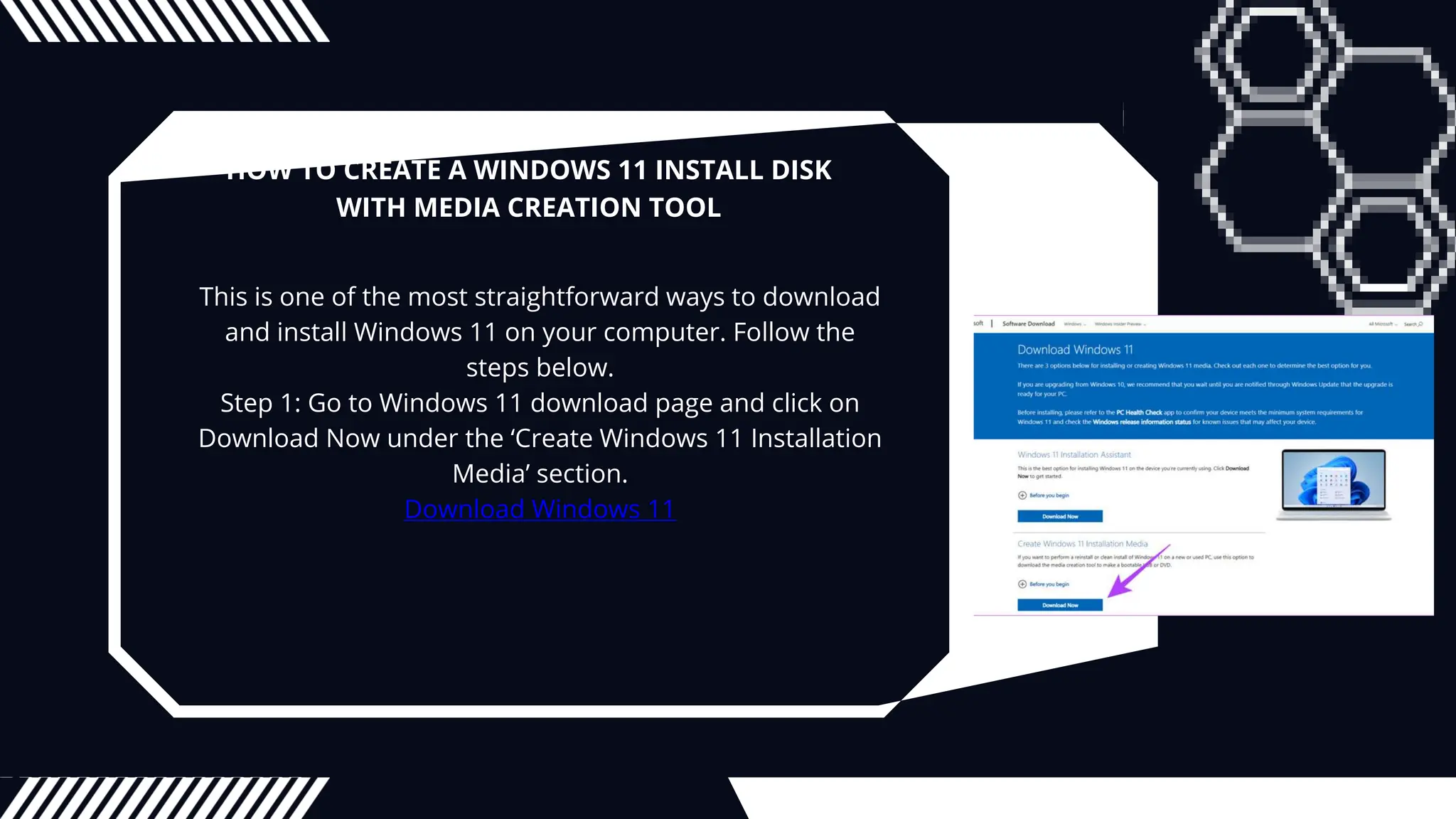
Step 1: Go to Windows 11 download page and click on
Download Now under the ‘Create Windows 11 Installation
Media’ section.
Download Windows 11
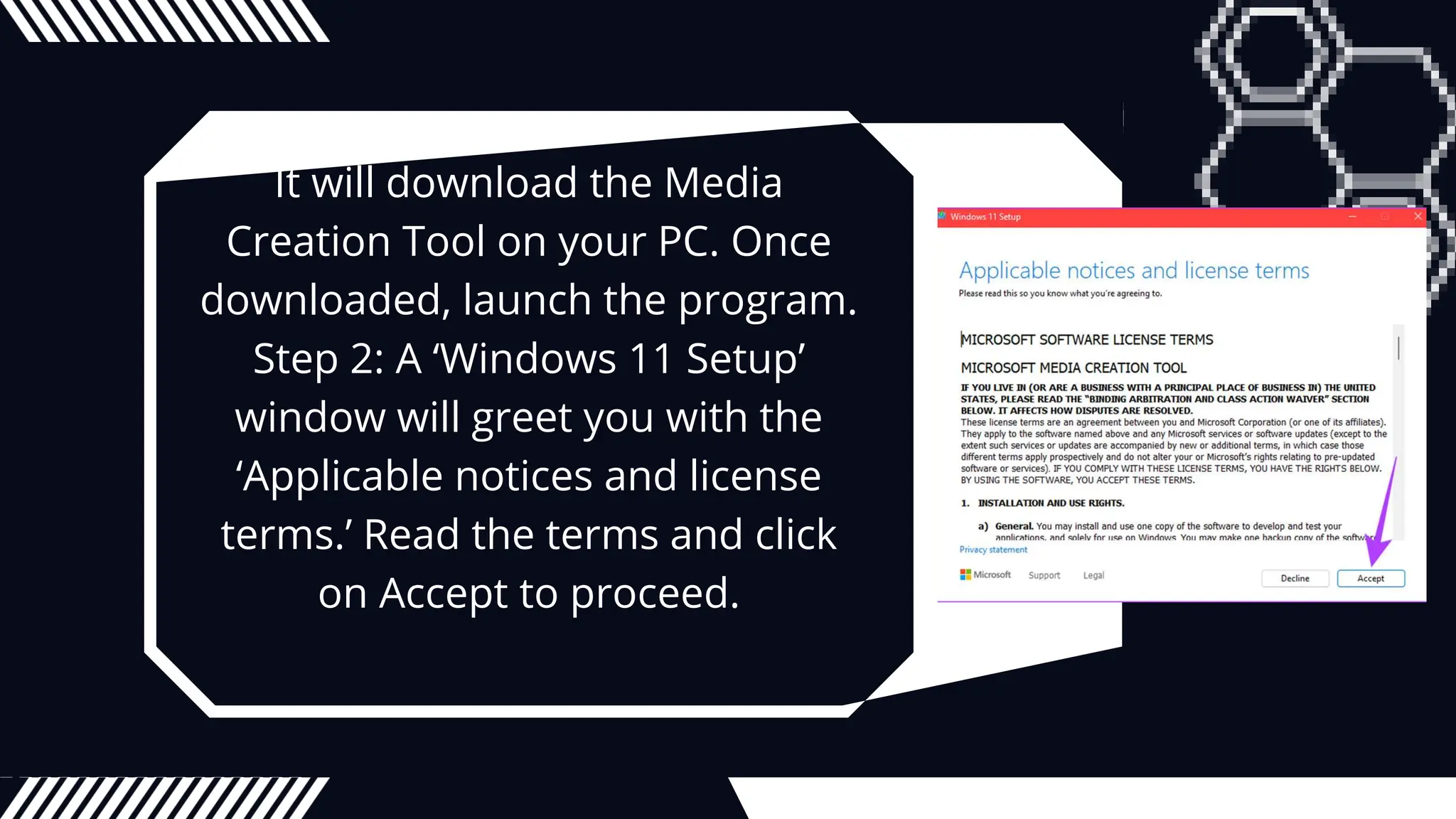
It will download the Media
Creation Tool on your PC. Once
downloaded, launch the program.
Step 2: A ‘Windows 11 Setup’
window will greet you with the
‘Applicable notices and license
terms.’ Read the terms and click
on Accept to proceed.
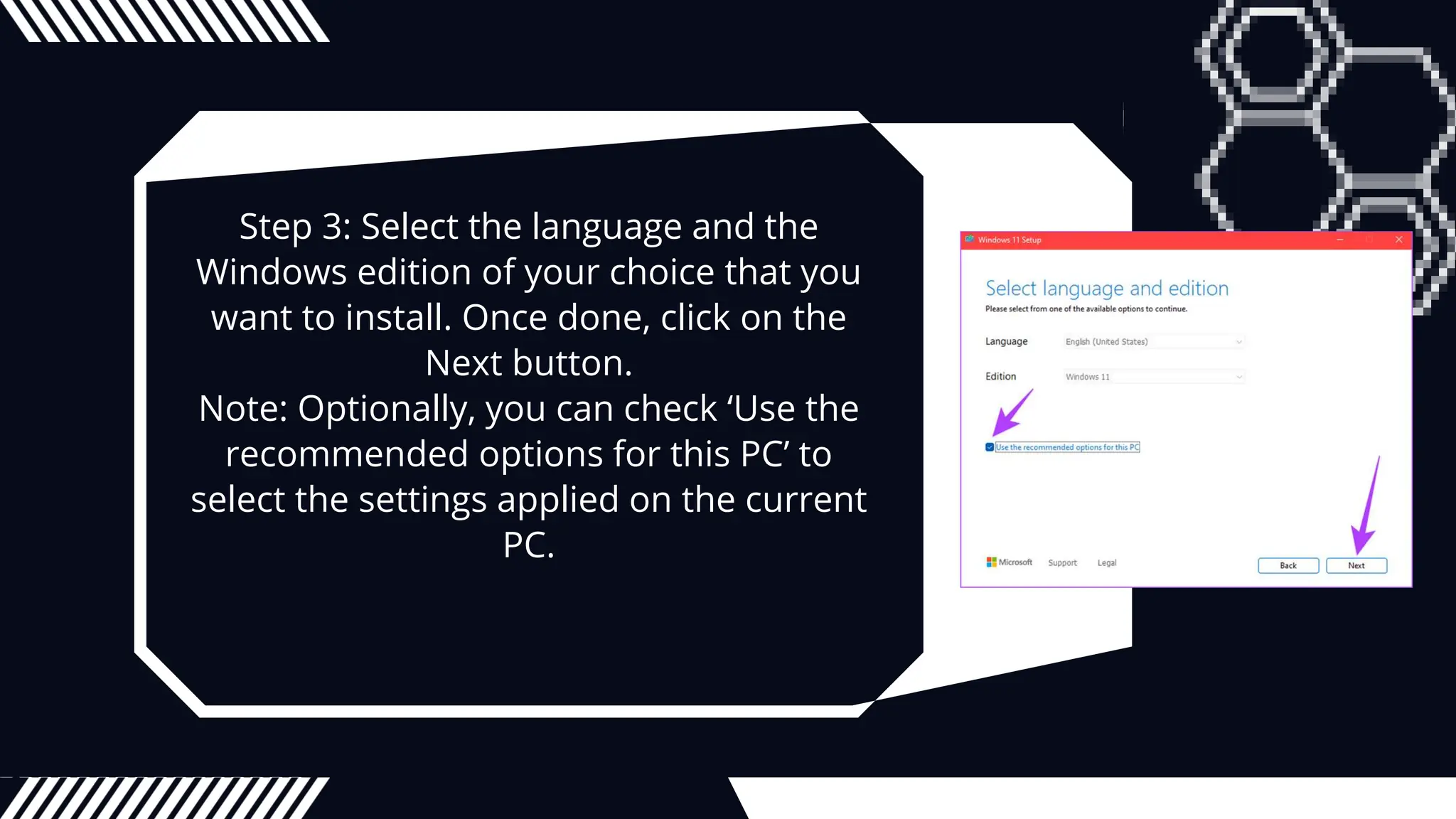
Step 3: Select the language and the
Windows edition of your choice that you
want to install. Once done, click on the
Next button.
Note: Optionally, you can check ‘Use the
recommended options for this PC’ to
select the settings applied on the current
PC.
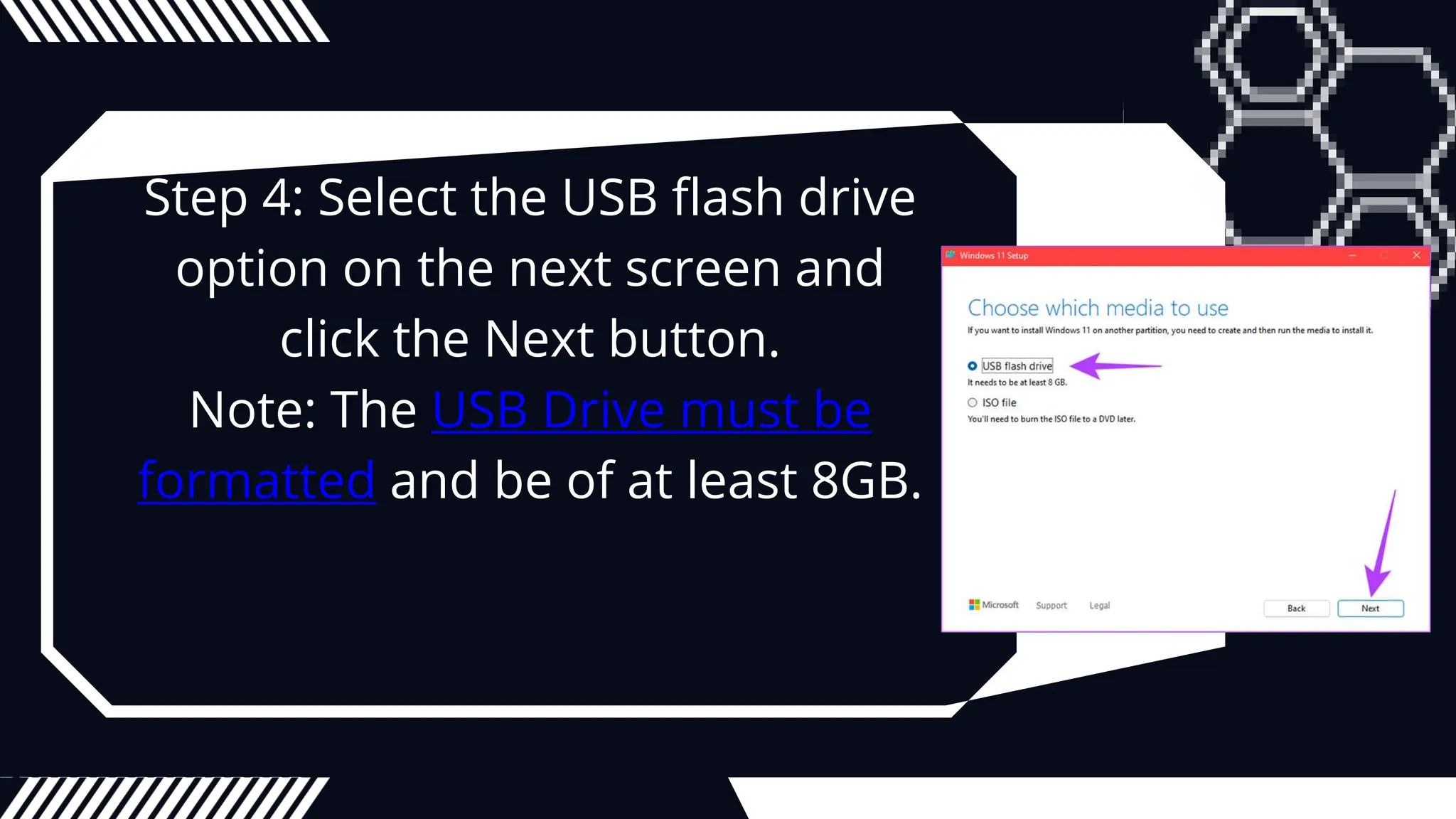
Step 4: Select the USB flash drive
option on the next screen and
click the Next button.
Note: The USB Drive must be
formatted and be of at least 8GB.
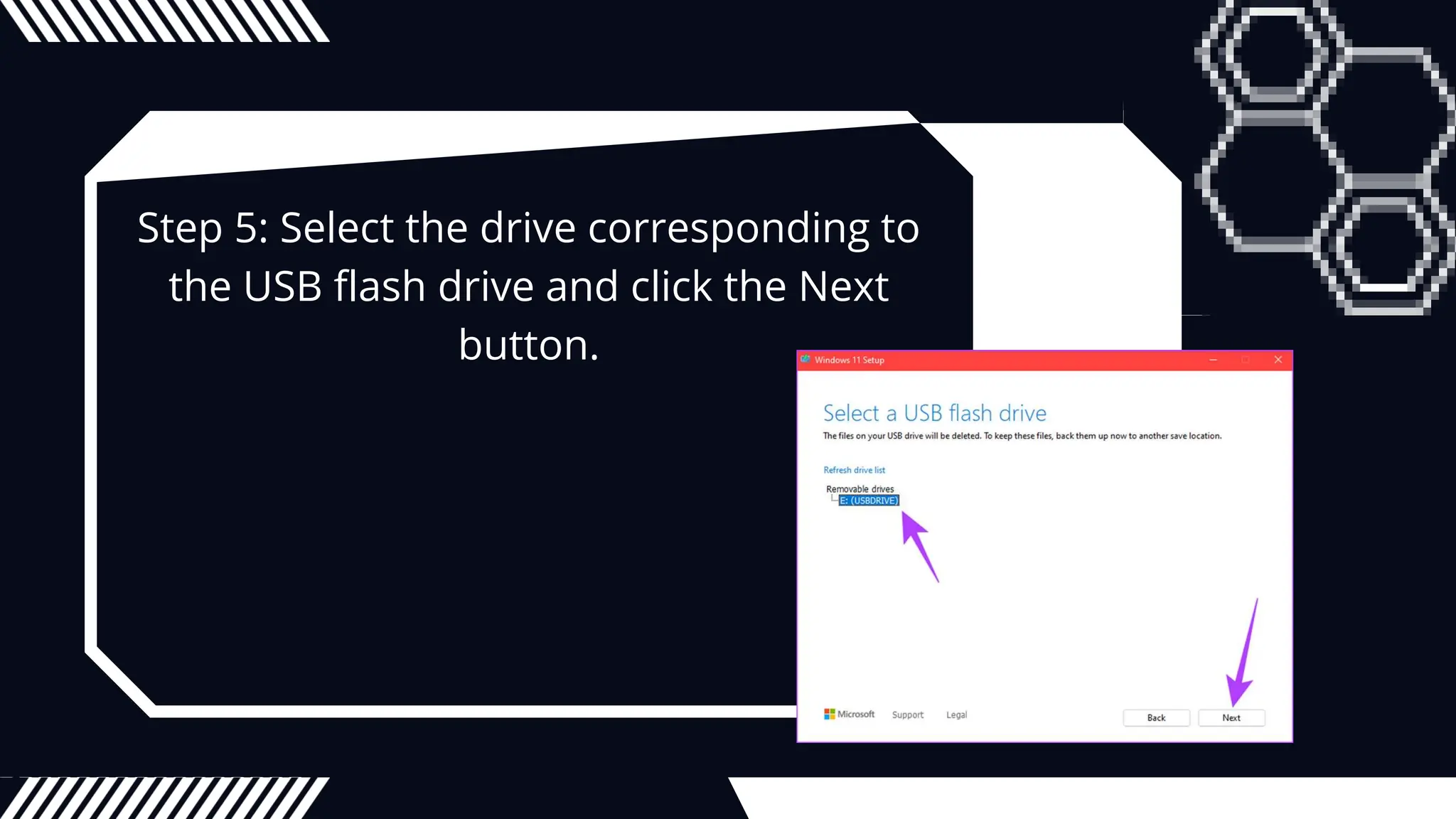
Step 5: Select the drive corresponding to
the USB flash drive and click the Next
button.
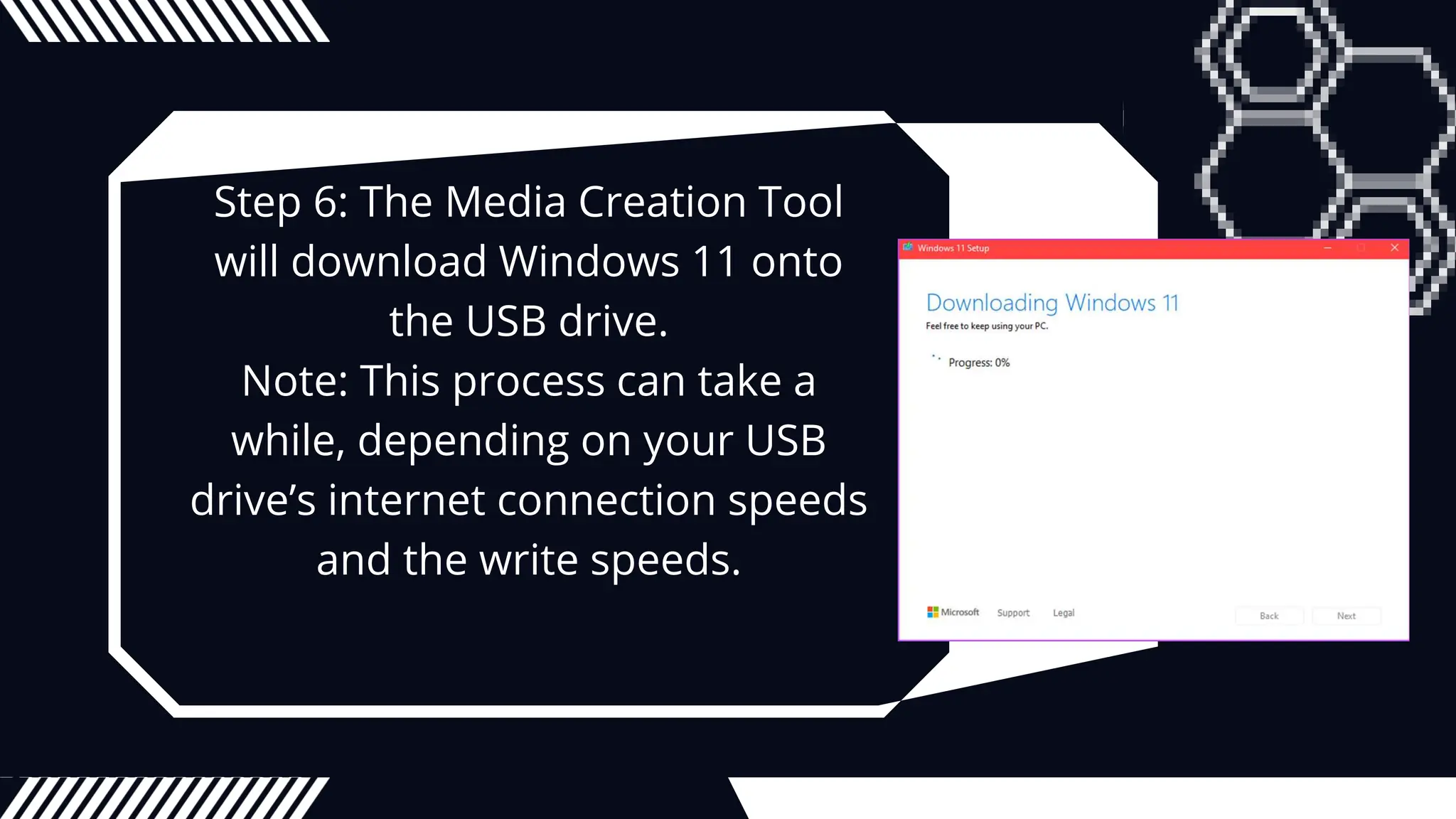
Step 6: The Media Creation Tool
will download Windows 11 onto
the USB drive.
Note: This process can take a
while, depending on your USB
drive’s internet connection speeds
and the write speeds.
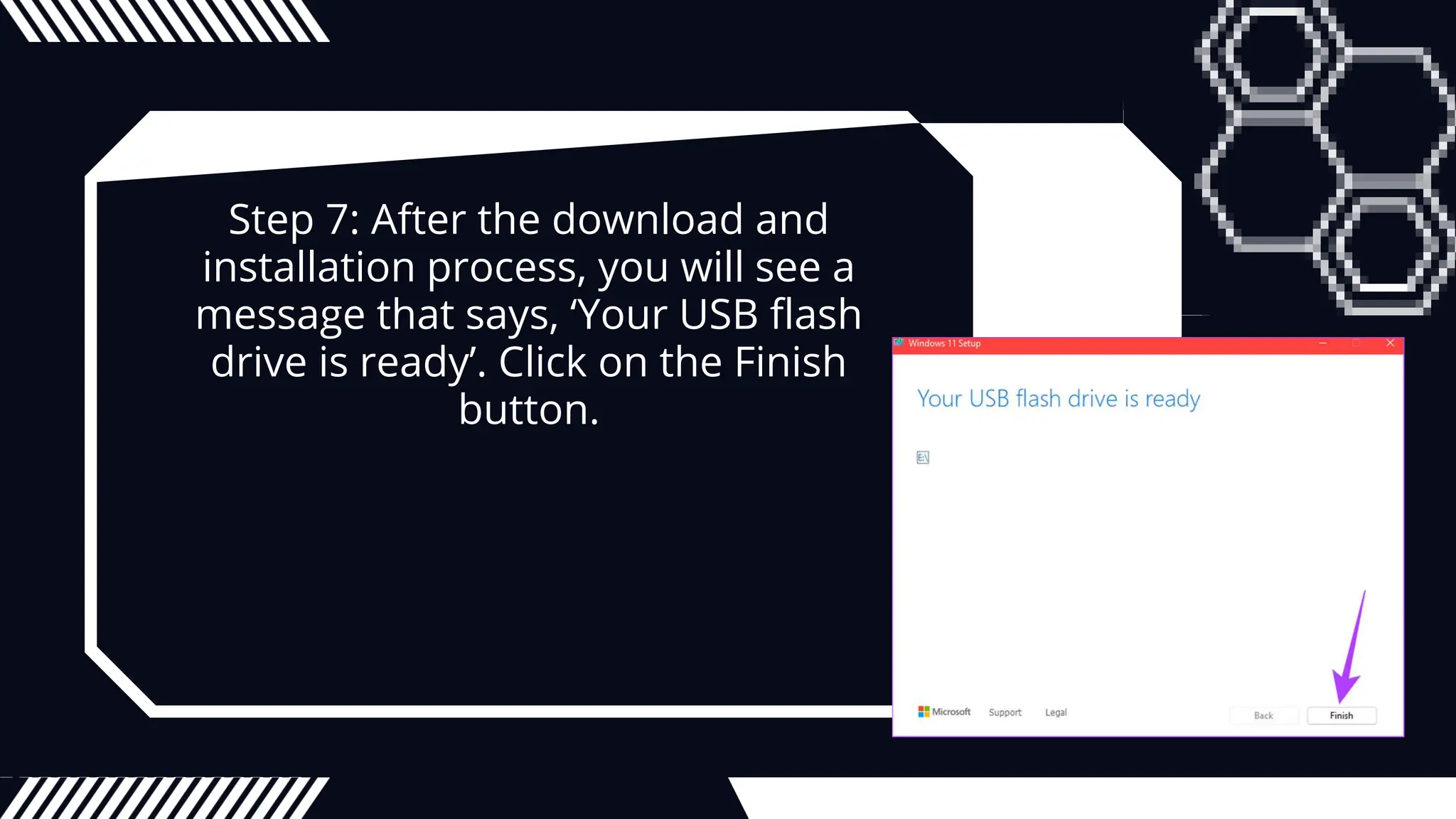
Step 7: After the download and
installation process, you will see a
message that says, ‘Your USB flash
drive is ready’. Click on the Finish
button.
HOW TO INSTALL
WINDOWS 11 ON THE
TARGET PC
If you have created a Windows 11 install disk with
a media creation tool or from Rufus, follow the
instructions below.
Step 1: Plug the Windows 11 bootable drive (USB)
and start your Windows PC.
Step 2: Press any key to the boot from the device.
Note: This step may be different for different
manufacturers. Moreover, you might need to
enable secure boot. If not, you will not be able to
move forward with installation.
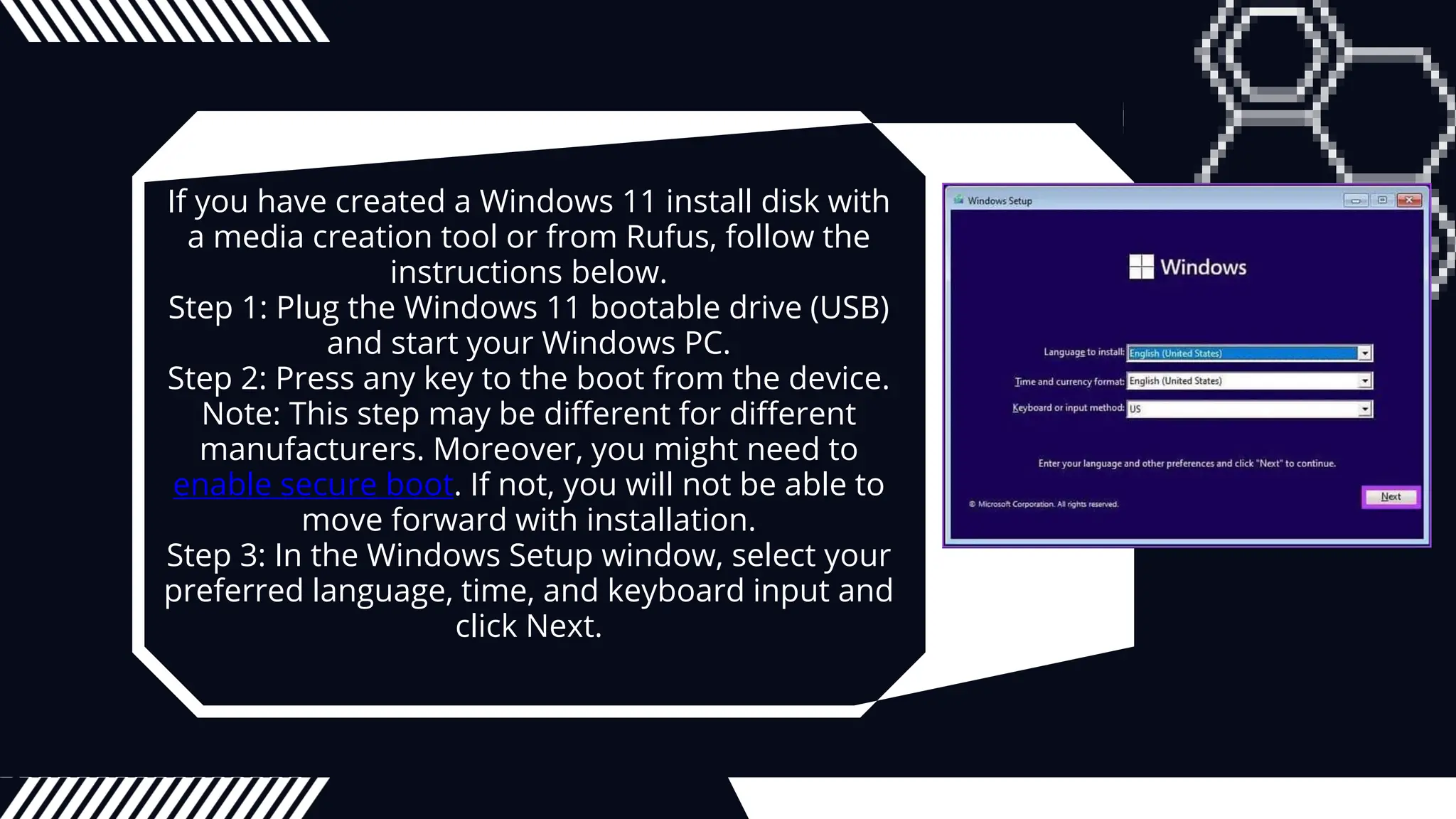
Step 3: In the Windows Setup window, select your
preferred language, time, and keyboard input and
click Next.
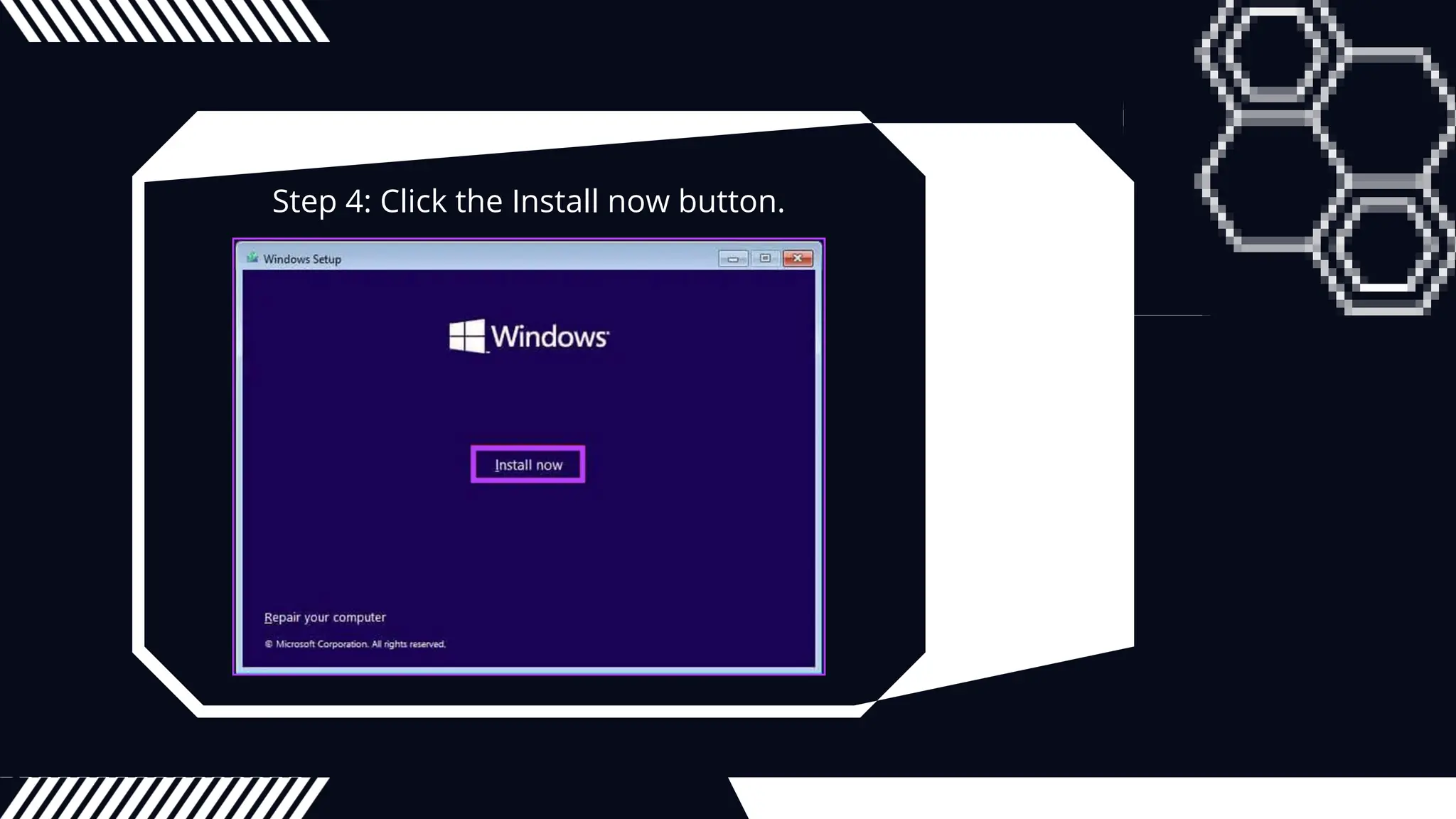
Step 4: Click the Install now button.
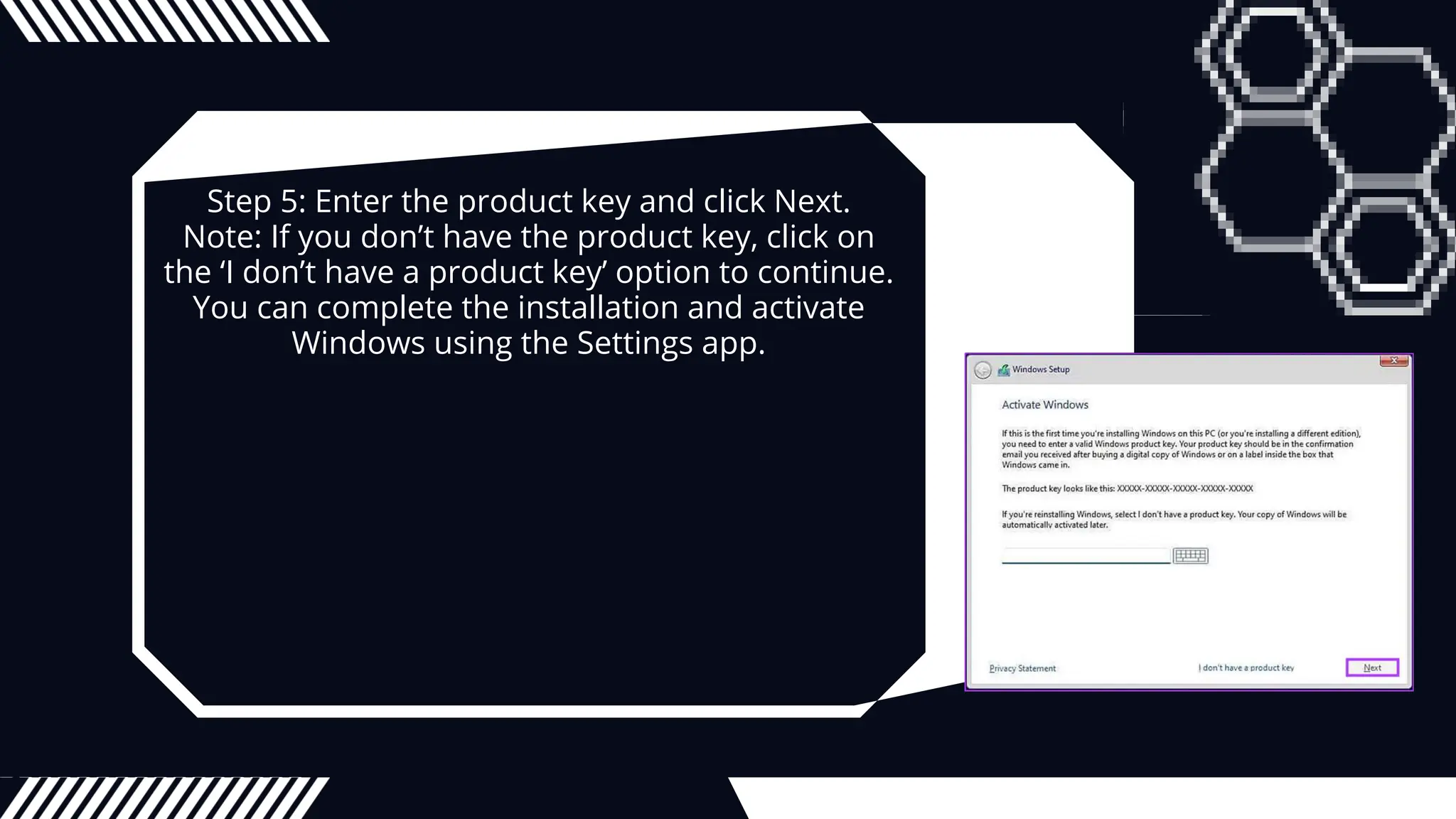
Step 5: Enter the product key and click Next.
Note: If you don’t have the product key, click on
the ‘I don’t have a product key’ option to continue.
You can complete the installation and activate
Windows using the Settings app.
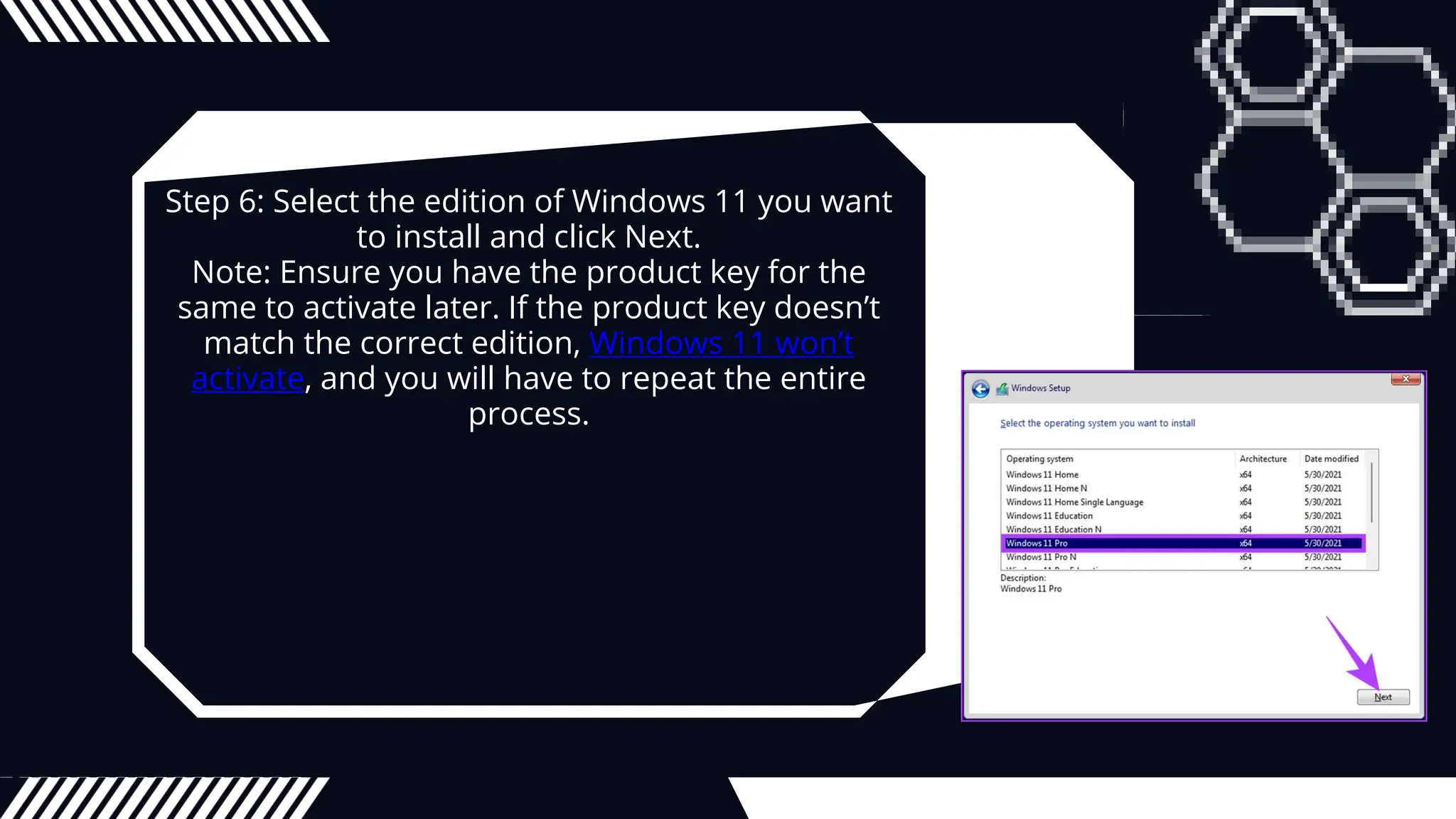
Step 6: Select the edition of Windows 11 you want
to install and click Next.
Note: Ensure you have the product key for the
same to activate later. If the product key doesn’t
match the correct edition, Windows 11 won’t
activate, and you will have to repeat the entire
process.
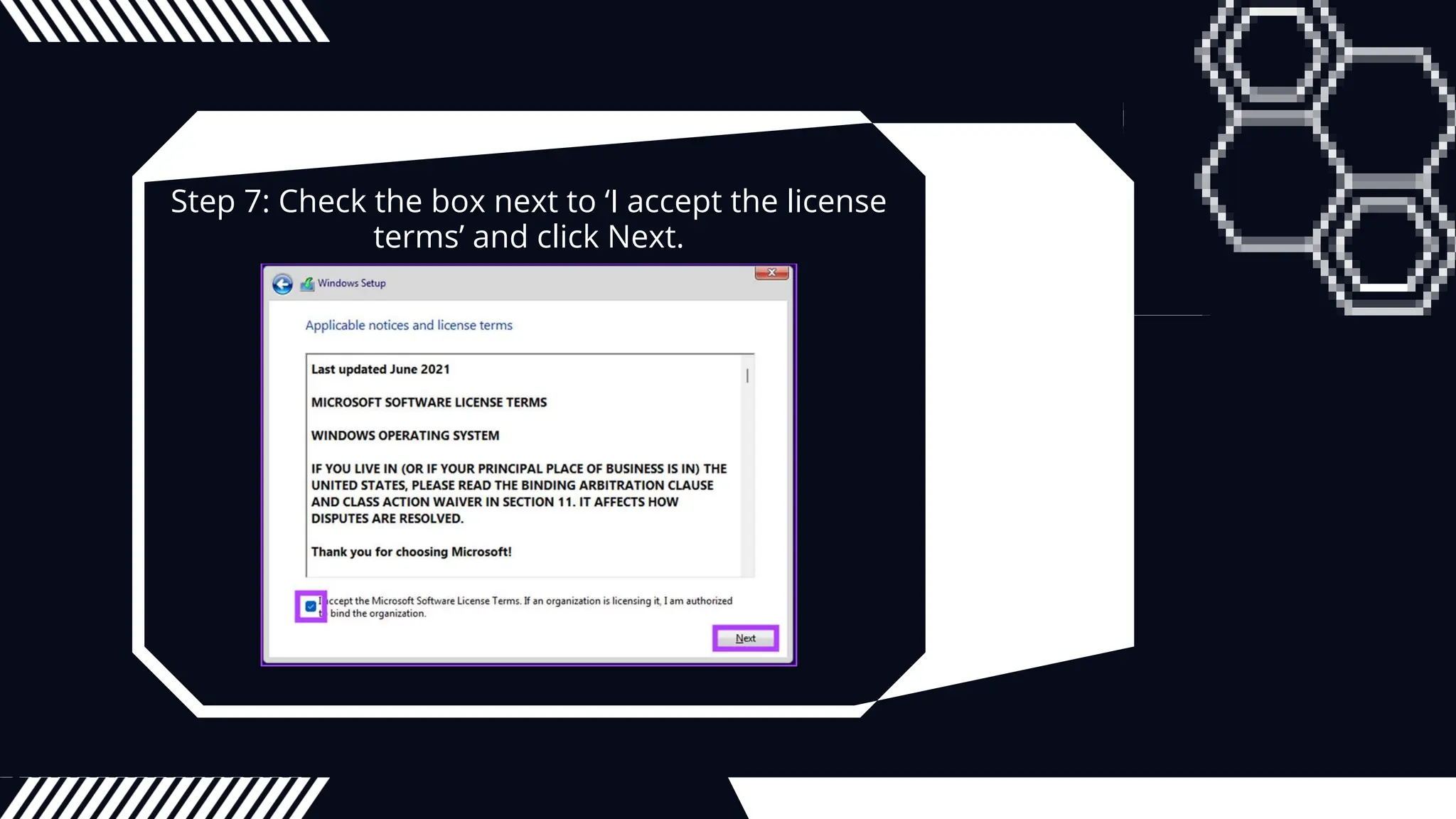
Step 7: Check the box next to ‘I accept the license
terms’ and click Next.
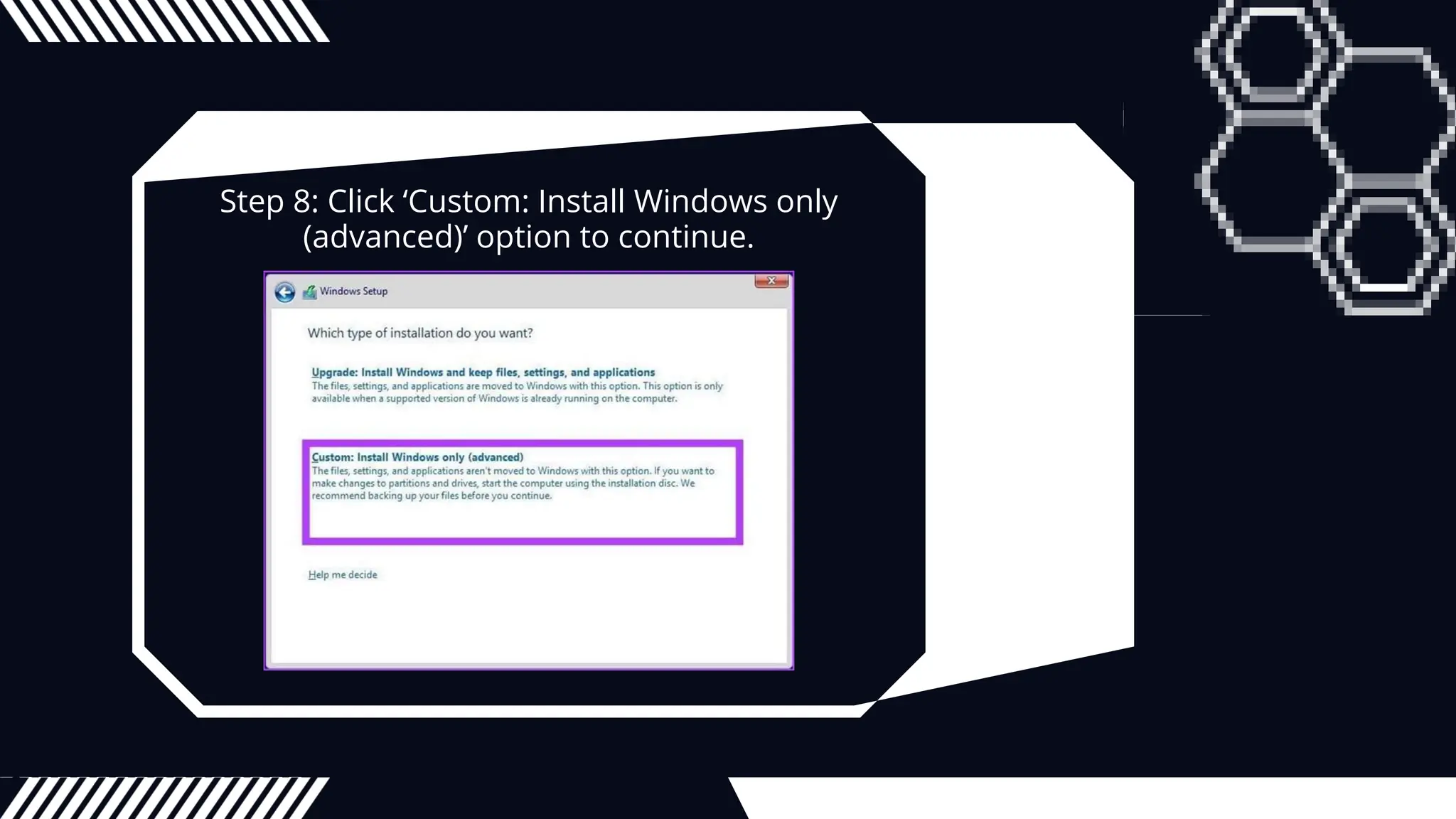
Step 8: Click ‘Custom: Install Windows only
(advanced)’ option to continue.
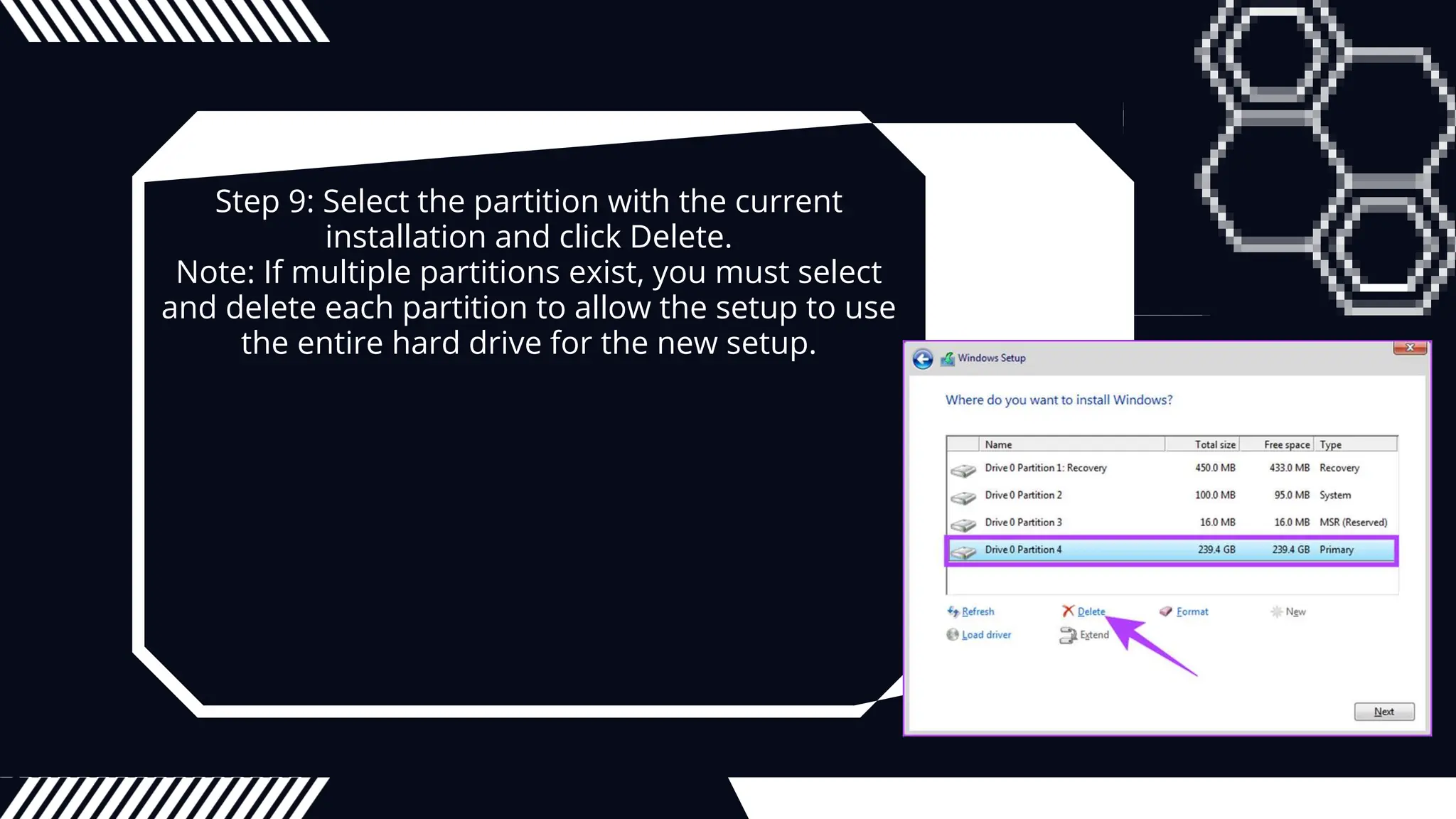
Step 9: Select the partition with the current
installation and click Delete.
Note: If multiple partitions exist, you must select
and delete each partition to allow the setup to use
the entire hard drive for the new setup.
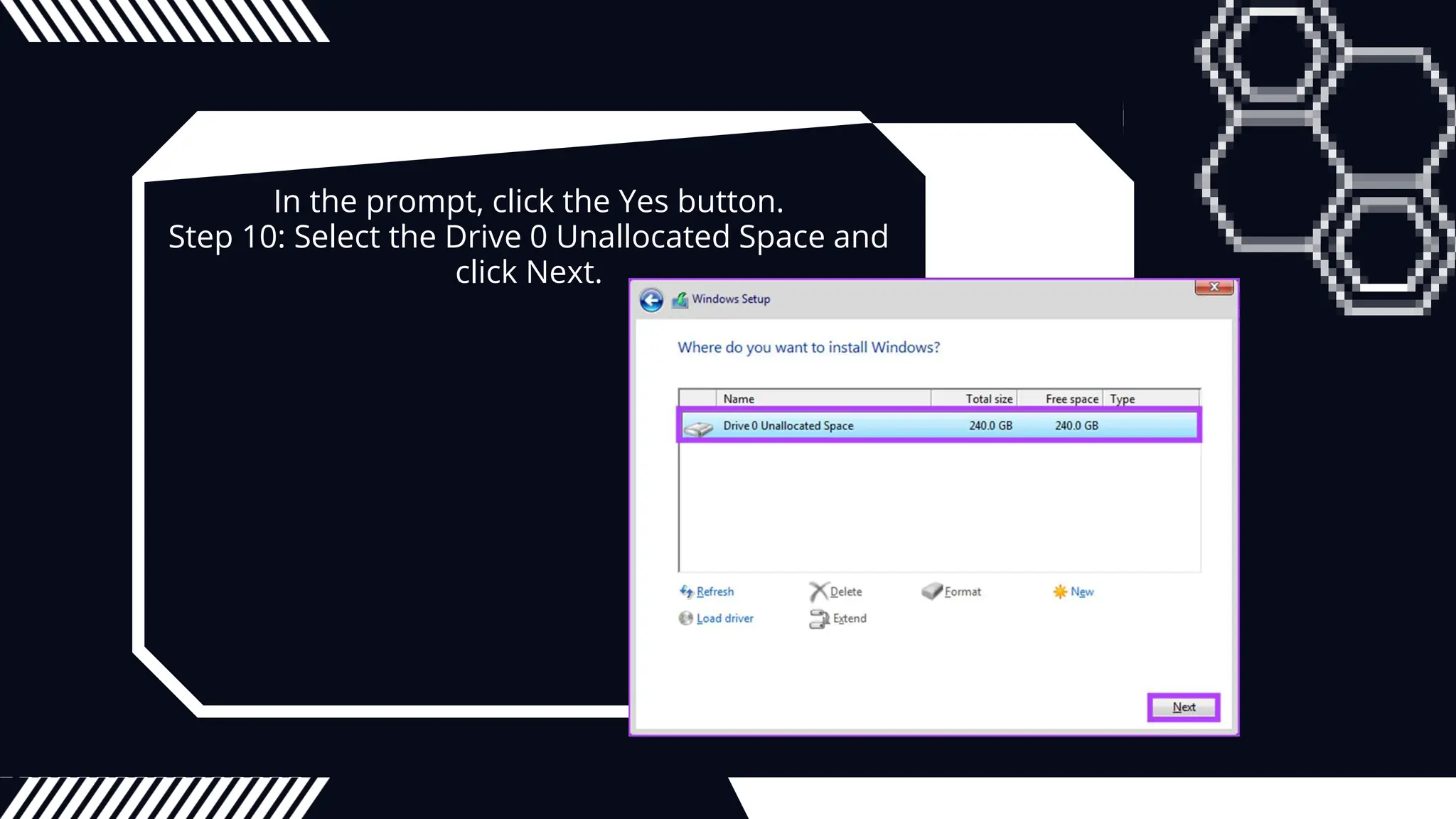
In the prompt, click the Yes button.
Step 10: Select the Drive 0 Unallocated Space and
click Next.
There you go. A fresh copy of Windows 11 will be
installed on your PC. If this is lengthy, you can
choose to Reset the Windows too.
ARE THERE ANY
QUESTIONS ?
THANK YOU

how to clean install windows 11 installation

  • 1.
    HOW TO CLEANINSTALL WINDOWS 11 STEP-BY-STEP persentation by HUGH RAPHAEL T. FLORESTA
  • 2.
    HOW TO CREATEA WINDOWS 11 INSTALL DISK WITH MEDIA CREATION TOOL This is one of the most straightforward ways to download and install Windows 11 on your computer. Follow the steps below. Step 1: Go to Windows 11 download page and click on Download Now under the ‘Create Windows 11 Installation Media’ section. Download Windows 11
  • 3.
    It will downloadthe Media Creation Tool on your PC. Once downloaded, launch the program. Step 2: A ‘Windows 11 Setup’ window will greet you with the ‘Applicable notices and license terms.’ Read the terms and click on Accept to proceed.
  • 4.
    Step 3: Selectthe language and the Windows edition of your choice that you want to install. Once done, click on the Next button. Note: Optionally, you can check ‘Use the recommended options for this PC’ to select the settings applied on the current PC.
  • 5.
    Step 4: Selectthe USB flash drive option on the next screen and click the Next button. Note: The USB Drive must be formatted and be of at least 8GB.
  • 6.
    Step 5: Selectthe drive corresponding to the USB flash drive and click the Next button.
  • 7.
    Step 6: TheMedia Creation Tool will download Windows 11 onto the USB drive. Note: This process can take a while, depending on your USB drive’s internet connection speeds and the write speeds.
  • 8.
    Step 7: Afterthe download and installation process, you will see a message that says, ‘Your USB flash drive is ready’. Click on the Finish button.
  • 9.
    HOW TO INSTALL WINDOWS11 ON THE TARGET PC
  • 10.
    If you havecreated a Windows 11 install disk with a media creation tool or from Rufus, follow the instructions below. Step 1: Plug the Windows 11 bootable drive (USB) and start your Windows PC. Step 2: Press any key to the boot from the device. Note: This step may be different for different manufacturers. Moreover, you might need to enable secure boot. If not, you will not be able to move forward with installation. Step 3: In the Windows Setup window, select your preferred language, time, and keyboard input and click Next.
  • 11.
    Step 4: Clickthe Install now button.
  • 12.
    Step 5: Enterthe product key and click Next. Note: If you don’t have the product key, click on the ‘I don’t have a product key’ option to continue. You can complete the installation and activate Windows using the Settings app.
  • 13.
    Step 6: Selectthe edition of Windows 11 you want to install and click Next. Note: Ensure you have the product key for the same to activate later. If the product key doesn’t match the correct edition, Windows 11 won’t activate, and you will have to repeat the entire process.
  • 14.
    Step 7: Checkthe box next to ‘I accept the license terms’ and click Next.
  • 15.
    Step 8: Click‘Custom: Install Windows only (advanced)’ option to continue.
  • 16.
    Step 9: Selectthe partition with the current installation and click Delete. Note: If multiple partitions exist, you must select and delete each partition to allow the setup to use the entire hard drive for the new setup.
  • 17.
    In the prompt,click the Yes button. Step 10: Select the Drive 0 Unallocated Space and click Next.
  • 18.
    There you go.A fresh copy of Windows 11 will be installed on your PC. If this is lengthy, you can choose to Reset the Windows too.
  • 19.
  • 20.