Billing
How to Bill and Invoice Customers with
Dispatch
Where to Find Billing
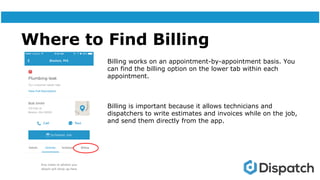
Billing works on an appointment-by-appointment basis. You
can find the billing option on the lower tab within each
appointment.
Billing is important because it allows technicians and
dispatchers to write estimates and invoices while on the job,
and send them directly from the app.
Billing
This is how the billing appears for all appointments. Once
you’ve added billing information, it will be visible here.
At the bottom of the screen, you have the option to
create a new estimate or invoice for this appointment.
● Estimates are a scope of work for a potential
appointment.
● Invoices are for work that has been completed and
needs to be signed off by and paid for by the
customer.
Estimates: How To
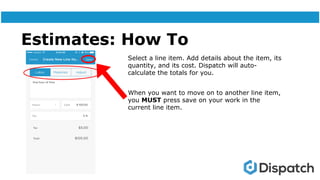
Select a line item. Add details about the item, its
quantity, and its cost. Dispatch will auto-
calculate the totals for you.
When you want to move on to another line item,
you MUST press save on your work in the
current line item.
Estimates: Continued
Once you’re done entering line items, you’ll
return to the estimate total page. If you exit
out of this page, your work will be saved as a
draft.
If you’d like to send the estimate to the client
for consideration, press “Send.” You will be
prompted for their email and then it will be
sent as a PDF.
Winning Estimates
If you’re lucky enough to win an estimate,
choose “Mark Estimate as Won.” You can have
the customer sign to accept the estimated work
order, and the information you entered will
automatically appear as a draft invoice.
Invoices: How To
If you have created an estimate that was
won, it will appear as a draft invoice. You can
skip this step.
Choose the invoice option from the billing
menu. You can create line items for different
costs like labor and materials. They will
calculate together within the app.
Remember: always save your work in each
line item before moving on to a new one.
Invoices: Continued
Once you’ve filled out and saved your invoice, you’ll be taken
back to the overview, where you can see the full price and tax.
From this screen, you can choose to send the invoice to the
customer’s email address, or have them sign it in person.
Need Help?
You’ve got options.
Message Dispatch directly in the app
Email support@dispatch.me
Call us at (617)500-4326

How To: Billing With Dispatch

  • 1.
    Billing How to Billand Invoice Customers with Dispatch
  • 2.
    Where to FindBilling Billing works on an appointment-by-appointment basis. You can find the billing option on the lower tab within each appointment. Billing is important because it allows technicians and dispatchers to write estimates and invoices while on the job, and send them directly from the app.
  • 3.
    Billing This is howthe billing appears for all appointments. Once you’ve added billing information, it will be visible here. At the bottom of the screen, you have the option to create a new estimate or invoice for this appointment. ● Estimates are a scope of work for a potential appointment. ● Invoices are for work that has been completed and needs to be signed off by and paid for by the customer.
  • 4.
    Estimates: How To Selecta line item. Add details about the item, its quantity, and its cost. Dispatch will auto- calculate the totals for you. When you want to move on to another line item, you MUST press save on your work in the current line item.
  • 5.
    Estimates: Continued Once you’redone entering line items, you’ll return to the estimate total page. If you exit out of this page, your work will be saved as a draft. If you’d like to send the estimate to the client for consideration, press “Send.” You will be prompted for their email and then it will be sent as a PDF.
  • 6.
    Winning Estimates If you’relucky enough to win an estimate, choose “Mark Estimate as Won.” You can have the customer sign to accept the estimated work order, and the information you entered will automatically appear as a draft invoice.
  • 7.
    Invoices: How To Ifyou have created an estimate that was won, it will appear as a draft invoice. You can skip this step. Choose the invoice option from the billing menu. You can create line items for different costs like labor and materials. They will calculate together within the app. Remember: always save your work in each line item before moving on to a new one.
  • 8.
    Invoices: Continued Once you’vefilled out and saved your invoice, you’ll be taken back to the overview, where you can see the full price and tax. From this screen, you can choose to send the invoice to the customer’s email address, or have them sign it in person.
  • 9.
    Need Help? You’ve gotoptions. Message Dispatch directly in the app Email support@dispatch.me Call us at (617)500-4326