•UNIT 1
•PowerPoint Basics
   •Trusty Toolbars
   •Handy Help
   •Techie Terms
   •Cool for School
Finding the toolbars
The toolbars contain graphically illustrated buttons
that you click to perform specific tasks in a
program. PowerPoint has four main toolbars,
which can help you create your presentations
quickly and easily.

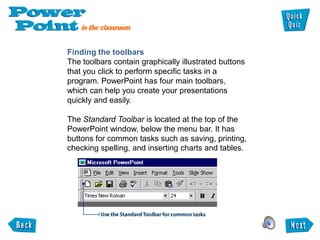
The Standard Toolbar is located at the top of the
PowerPoint window, below the menu bar. It has
buttons for common tasks such as saving, printing,
checking spelling, and inserting charts and tables.
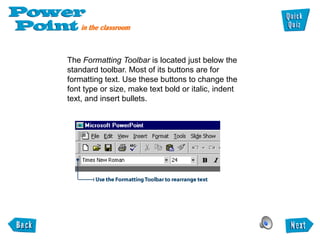
The Formatting Toolbar is located just below the
standard toolbar. Most of its buttons are for
formatting text. Use these buttons to change the
font type or size, make text bold or italic, indent
text, and insert bullets.
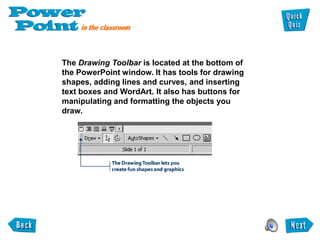
The Drawing Toolbar is located at the bottom of
the PowerPoint window. It has tools for drawing
shapes, adding lines and curves, and inserting
text boxes and WordArt. It also has buttons for
manipulating and formatting the objects you
draw.
Moving the toolbars to new locations
All PowerPoint toolbars can be moved or docked to
any side of the PowerPoint window. As well, docked
toolbars, including the Standard Toolbar, the
Formatting Toolbar, and the Drawing Toolbar, can be
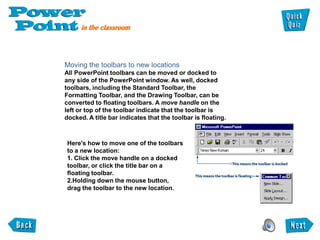
converted to floating toolbars. A move handle on the
left or top of the toolbar indicate that the toolbar is
docked. A title bar indicates that the toolbar is floating.


Here's how to move one of the toolbars
to a new location:
1. Click the move handle on a docked
toolbar, or click the title bar on a
floating toolbar.
2.Holding down the mouse button,
drag the toolbar to the new location.
Docking a toolbar
Try docking a toolbar to the top of the
PowerPoint window. This will give you more
working area on your PowerPoint window.

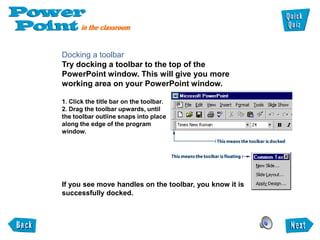
1. Click the title bar on the toolbar.
2. Drag the toolbar upwards, until
the toolbar outline snaps into place
along the edge of the program
window.


If you see move handles on the toolbar, you know it is
successfully docked.
Adding and removing toolbars
PowerPoint has several other toolbars to help you
accomplish your tasks.

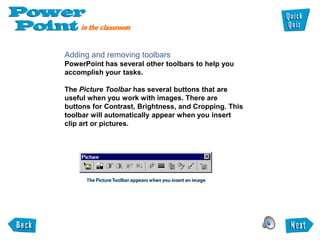
The Picture Toolbar has several buttons that are
useful when you work with images. There are
buttons for Contrast, Brightness, and Cropping. This
toolbar will automatically appear when you insert
clip art or pictures.
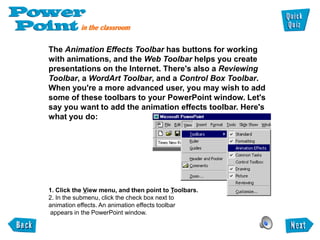
The Animation Effects Toolbar has buttons for working
with animations, and the Web Toolbar helps you create
presentations on the Internet. There's also a Reviewing
Toolbar, a WordArt Toolbar, and a Control Box Toolbar.
When you're a more advanced user, you may wish to add
some of these toolbars to your PowerPoint window. Let's
say you want to add the animation effects toolbar. Here's
what you do:


1. Click the View menu, and then point to Toolbars.
2. In the submenu, click the check box next to
animation effects. An animation effects toolbar
appears in the PowerPoint window.
Removing a toolbar
PowerPoint lets you remove toolbars you don't need.
Try removing the animation effects toolbar you just
activated.

1. Click the View menu, and then point to Toolbar.
2. In the submenu, click the check box next to animation effects to
deselect it.


The check mark disappears and the animation effects
toolbar is removed from your PowerPoint window.
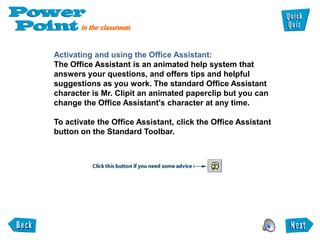
Activating and using the Office Assistant:
The Office Assistant is an animated help system that
answers your questions, and offers tips and helpful
suggestions as you work. The standard Office Assistant
character is Mr. Clipit an animated paperclip but you can
change the Office Assistant's character at any time.

To activate the Office Assistant, click the Office Assistant
button on the Standard Toolbar.
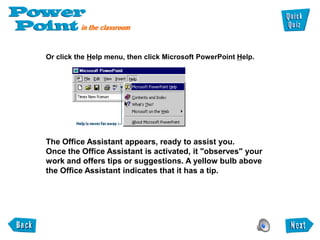
Or click the Help menu, then click Microsoft PowerPoint Help.


The Office Assistant appears, ready to assist you.
Once the Office Assistant is activated, it "observes" your
work and offers tips or suggestions. A yellow bulb above
the Office Assistant indicates that it has a tip.
You can ask the Office Assistant to help you
perform tasks in PowerPoint. Lets say you want to
find out how to insert a graphic. Here's what you
do:


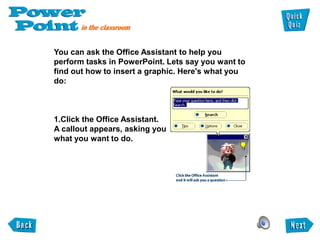
1.Click the Office Assistant.
A callout appears, asking you
what you want to do.
You can ask the Office Assistant to help you
perform tasks in PowerPoint. Lets say you want to
find out how to insert a graphic. Here's what you
do:


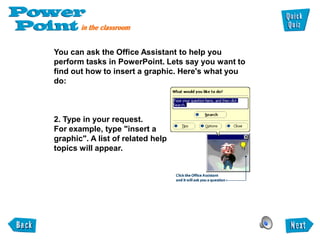
2. Type in your request.
For example, type "insert a
graphic". A list of related help
topics will appear.
You can ask the Office Assistant to help you
perform tasks in PowerPoint. Lets say you want to
find out how to insert a graphic. Here's what you
do:


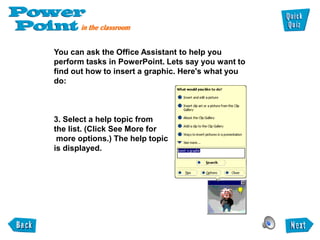
3. Select a help topic from
the list. (Click See More for
 more options.) The help topic
is displayed.
Using PowerPoint vocabulary
Here are some terms in PowerPoint 97 that are useful to know.

Slide: An individual screen in a slide show.

Presentation File: The file you save to disk that contains all the
slides, speakers notes, handouts, etc. that make up your
presentation.

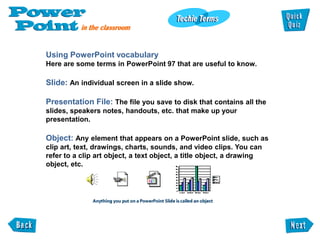
Object: Any element that appears on a PowerPoint slide, such as
clip art, text, drawings, charts, sounds, and video clips. You can
refer to a clip art object, a text object, a title object, a drawing
object, etc.
Slide Show: A series of slides displayed in sequence. A slide
show can be controlled manually or automatically.

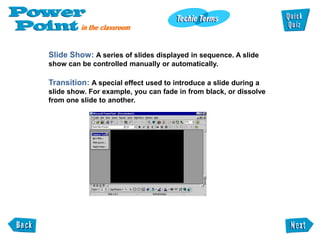
Transition: A special effect used to introduce a slide during a
slide show. For example, you can fade in from black, or dissolve
from one slide to another.
UNIT 1

Obviously you're a teacher with a pioneering spirit. So,
no doubt, you'll want to teach your students how to
create multimedia presentations using PowerPoint.
Before you get your students all excited about funky
animations and nifty sound effects, you'll have to equip
them with a few PowerPoint essentials.

First and foremost, you have to talk the talk. Introduce
your students to PowerPoint vocabulary by doing a live
demonstration of all the different terms you will be
using. Explain the difference between a slide and an
object. Show how a transition is a part of a slide show.
And just to make sure everyone is on the same
wavelength, follow-up your demonstration with a
worksheet.
PowerPoint comes with many toolbars-fifteen of them, to
be exact. Don't worry about introducing your students to
all of them. Concentrate on the four main toolbars that
appear when you first open the program.

You might want to consider introducing the toolbars one
at a time. To start, you can hide all of the toolbars. When
your students need to format text or add graphics, show
them how to add the appropriate toolbar and teach them
the function of each button.

The toolbar-by-toolbar approach sounds radical, but
what better way to prevent your students from clicking
every button in sight. Teaching PowerPoint one toolbar
at a time also keeps your students focused and gives
you a nice, systematic way of introducing the program's
features and functions.
Before you introduce the Office Assistant to your
students, consider whether it will be beneficial to them.
Will your students be able to read and comprehend the
words in Office Assistant. Can they navigate through the
Help files without your assistance? Do you have enough
class time to let students explore this feature? Will your
students become as addicted to animating with the
Office Assistant as you are?


Note: If you haven't discovered this yet, hold your mouse over the Office
Assistant and click your "right" mouse button. Choose Animate from the
pop-up menu and be prepared for a surprise.


                           Take the Quick Quiz to
                           test your knowledge!
UNIT 1: PowerPoint Basics
1. You know a toolbar is successfully docked when...

    a. It moves to the side of the page.
    b. It turns a different color.
    c. Move handles appear on it.
    d. A loud whistling sound comes from your
    computer speakers.


                    Click on the correct answer.
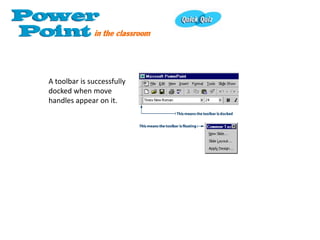
A toolbar is successfully
docked when move
handles appear on it.
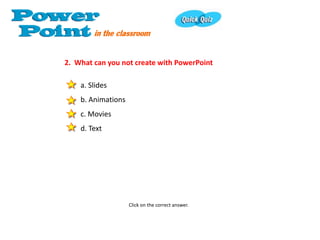
2. What can you not create with PowerPoint

    a. Slides
    b. Animations
    c. Movies
    d. Text


                    Click on the correct answer.
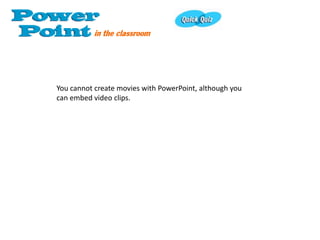
You cannot create movies with PowerPoint, although you
can embed video clips.
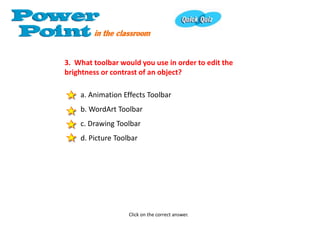
3. What toolbar would you use in order to edit the
brightness or contrast of an object?

    a. Animation Effects Toolbar
    b. WordArt Toolbar
    c. Drawing Toolbar
    d. Picture Toolbar


                   Click on the correct answer.
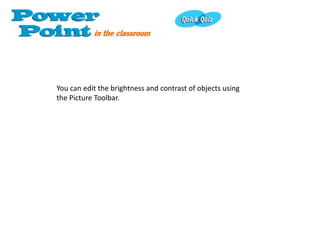
You can edit the brightness and contrast of objects using
the Picture Toolbar.
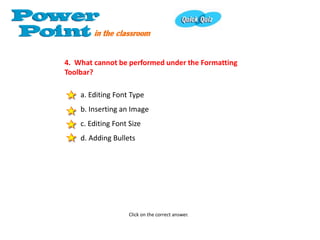
4. What cannot be performed under the Formatting
Toolbar?

    a. Editing Font Type
    b. Inserting an Image
    c. Editing Font Size
    d. Adding Bullets


                    Click on the correct answer.
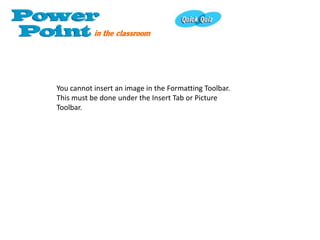
You cannot insert an image in the Formatting Toolbar.
This must be done under the Insert Tab or Picture
Toolbar.
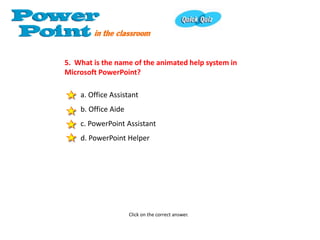
5. What is the name of the animated help system in
Microsoft PowerPoint?

    a. Office Assistant
    b. Office Aide
    c. PowerPoint Assistant
    d. PowerPoint Helper


                     Click on the correct answer.
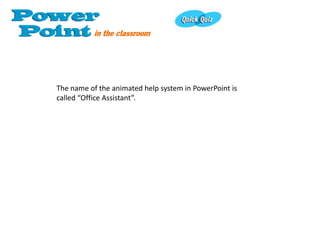
The name of the animated help system in PowerPoint is
called “Office Assistant”.
You have successfully completed the Quick Quiz!

Hickman a01-tutorial&quiz

  • 1.
    •UNIT 1 •PowerPoint Basics •Trusty Toolbars •Handy Help •Techie Terms •Cool for School
  • 2.
    Finding the toolbars Thetoolbars contain graphically illustrated buttons that you click to perform specific tasks in a program. PowerPoint has four main toolbars, which can help you create your presentations quickly and easily. The Standard Toolbar is located at the top of the PowerPoint window, below the menu bar. It has buttons for common tasks such as saving, printing, checking spelling, and inserting charts and tables.
  • 3.
    The Formatting Toolbaris located just below the standard toolbar. Most of its buttons are for formatting text. Use these buttons to change the font type or size, make text bold or italic, indent text, and insert bullets.
  • 5.
    The Drawing Toolbaris located at the bottom of the PowerPoint window. It has tools for drawing shapes, adding lines and curves, and inserting text boxes and WordArt. It also has buttons for manipulating and formatting the objects you draw.
  • 6.
    Moving the toolbarsto new locations All PowerPoint toolbars can be moved or docked to any side of the PowerPoint window. As well, docked toolbars, including the Standard Toolbar, the Formatting Toolbar, and the Drawing Toolbar, can be converted to floating toolbars. A move handle on the left or top of the toolbar indicate that the toolbar is docked. A title bar indicates that the toolbar is floating. Here's how to move one of the toolbars to a new location: 1. Click the move handle on a docked toolbar, or click the title bar on a floating toolbar. 2.Holding down the mouse button, drag the toolbar to the new location.
  • 7.
    Docking a toolbar Trydocking a toolbar to the top of the PowerPoint window. This will give you more working area on your PowerPoint window. 1. Click the title bar on the toolbar. 2. Drag the toolbar upwards, until the toolbar outline snaps into place along the edge of the program window. If you see move handles on the toolbar, you know it is successfully docked.
  • 8.
    Adding and removingtoolbars PowerPoint has several other toolbars to help you accomplish your tasks. The Picture Toolbar has several buttons that are useful when you work with images. There are buttons for Contrast, Brightness, and Cropping. This toolbar will automatically appear when you insert clip art or pictures.
  • 9.
    The Animation EffectsToolbar has buttons for working with animations, and the Web Toolbar helps you create presentations on the Internet. There's also a Reviewing Toolbar, a WordArt Toolbar, and a Control Box Toolbar. When you're a more advanced user, you may wish to add some of these toolbars to your PowerPoint window. Let's say you want to add the animation effects toolbar. Here's what you do: 1. Click the View menu, and then point to Toolbars. 2. In the submenu, click the check box next to animation effects. An animation effects toolbar appears in the PowerPoint window.
  • 10.
    Removing a toolbar PowerPointlets you remove toolbars you don't need. Try removing the animation effects toolbar you just activated. 1. Click the View menu, and then point to Toolbar. 2. In the submenu, click the check box next to animation effects to deselect it. The check mark disappears and the animation effects toolbar is removed from your PowerPoint window.
  • 11.
    Activating and usingthe Office Assistant: The Office Assistant is an animated help system that answers your questions, and offers tips and helpful suggestions as you work. The standard Office Assistant character is Mr. Clipit an animated paperclip but you can change the Office Assistant's character at any time. To activate the Office Assistant, click the Office Assistant button on the Standard Toolbar.
  • 12.
    Or click theHelp menu, then click Microsoft PowerPoint Help. The Office Assistant appears, ready to assist you. Once the Office Assistant is activated, it "observes" your work and offers tips or suggestions. A yellow bulb above the Office Assistant indicates that it has a tip.
  • 13.
    You can askthe Office Assistant to help you perform tasks in PowerPoint. Lets say you want to find out how to insert a graphic. Here's what you do: 1.Click the Office Assistant. A callout appears, asking you what you want to do.
  • 14.
    You can askthe Office Assistant to help you perform tasks in PowerPoint. Lets say you want to find out how to insert a graphic. Here's what you do: 2. Type in your request. For example, type "insert a graphic". A list of related help topics will appear.
  • 15.
    You can askthe Office Assistant to help you perform tasks in PowerPoint. Lets say you want to find out how to insert a graphic. Here's what you do: 3. Select a help topic from the list. (Click See More for more options.) The help topic is displayed.
  • 17.
    Using PowerPoint vocabulary Hereare some terms in PowerPoint 97 that are useful to know. Slide: An individual screen in a slide show. Presentation File: The file you save to disk that contains all the slides, speakers notes, handouts, etc. that make up your presentation. Object: Any element that appears on a PowerPoint slide, such as clip art, text, drawings, charts, sounds, and video clips. You can refer to a clip art object, a text object, a title object, a drawing object, etc.
  • 18.
    Slide Show: Aseries of slides displayed in sequence. A slide show can be controlled manually or automatically. Transition: A special effect used to introduce a slide during a slide show. For example, you can fade in from black, or dissolve from one slide to another.
  • 19.
    UNIT 1 Obviously you'rea teacher with a pioneering spirit. So, no doubt, you'll want to teach your students how to create multimedia presentations using PowerPoint. Before you get your students all excited about funky animations and nifty sound effects, you'll have to equip them with a few PowerPoint essentials. First and foremost, you have to talk the talk. Introduce your students to PowerPoint vocabulary by doing a live demonstration of all the different terms you will be using. Explain the difference between a slide and an object. Show how a transition is a part of a slide show. And just to make sure everyone is on the same wavelength, follow-up your demonstration with a worksheet.
  • 20.
    PowerPoint comes withmany toolbars-fifteen of them, to be exact. Don't worry about introducing your students to all of them. Concentrate on the four main toolbars that appear when you first open the program. You might want to consider introducing the toolbars one at a time. To start, you can hide all of the toolbars. When your students need to format text or add graphics, show them how to add the appropriate toolbar and teach them the function of each button. The toolbar-by-toolbar approach sounds radical, but what better way to prevent your students from clicking every button in sight. Teaching PowerPoint one toolbar at a time also keeps your students focused and gives you a nice, systematic way of introducing the program's features and functions.
  • 21.
    Before you introducethe Office Assistant to your students, consider whether it will be beneficial to them. Will your students be able to read and comprehend the words in Office Assistant. Can they navigate through the Help files without your assistance? Do you have enough class time to let students explore this feature? Will your students become as addicted to animating with the Office Assistant as you are? Note: If you haven't discovered this yet, hold your mouse over the Office Assistant and click your "right" mouse button. Choose Animate from the pop-up menu and be prepared for a surprise. Take the Quick Quiz to test your knowledge!
  • 22.
  • 23.
    1. You knowa toolbar is successfully docked when... a. It moves to the side of the page. b. It turns a different color. c. Move handles appear on it. d. A loud whistling sound comes from your computer speakers. Click on the correct answer.
  • 24.
    A toolbar issuccessfully docked when move handles appear on it.
  • 25.
    2. What canyou not create with PowerPoint a. Slides b. Animations c. Movies d. Text Click on the correct answer.
  • 26.
    You cannot createmovies with PowerPoint, although you can embed video clips.
  • 27.
    3. What toolbarwould you use in order to edit the brightness or contrast of an object? a. Animation Effects Toolbar b. WordArt Toolbar c. Drawing Toolbar d. Picture Toolbar Click on the correct answer.
  • 28.
    You can editthe brightness and contrast of objects using the Picture Toolbar.
  • 29.
    4. What cannotbe performed under the Formatting Toolbar? a. Editing Font Type b. Inserting an Image c. Editing Font Size d. Adding Bullets Click on the correct answer.
  • 30.
    You cannot insertan image in the Formatting Toolbar. This must be done under the Insert Tab or Picture Toolbar.
  • 31.
    5. What isthe name of the animated help system in Microsoft PowerPoint? a. Office Assistant b. Office Aide c. PowerPoint Assistant d. PowerPoint Helper Click on the correct answer.
  • 32.
    The name ofthe animated help system in PowerPoint is called “Office Assistant”.
  • 33.
    You have successfullycompleted the Quick Quiz!