HCM Extracts: Changes-Only
Table of Contents
1. Introduction .................................................................................................................................................................................................. 3
1.1. Scope of Items ....................................................................................................................................................................................... 4
2. Configuration................................................................................................................................................................................................. 5
2.1. Mandatory Configuration....................................................................................................................................................................... 5
2.2. Optional Configuration........................................................................................................................................................................... 5
3. Running a Changes-Only Extract .................................................................................................................................................................... 7
3.1. Supported Modes .................................................................................................................................................................................. 7
3.1.1. Changed Attributes (Mode: Y) ............................................................................................................................................................ 9
3.1.2. Changed and Marked Attributes (Mode: ATTRIBUTE) ........................................................................................................................10
3.1.3. Changed and Marked Attributes with Previous Values (Mode: ATTRIB_OLD).....................................................................................12
3.1.4. Changed, Marked Attributes, Previous Data under Threading Group (Mode: BLOCK_OLD) ................................................................15
3.2. Rollback a Changes-Only Run ................................................................................................................................................................20
4. Generic Extract Options ................................................................................................................................................................................21
4.1. Context Binding.....................................................................................................................................................................................21
4.2. Dynamic Output Filename.....................................................................................................................................................................21
5. FAQ ..............................................................................................................................................................................................................24
Appendix..............................................................................................................................................................................................................27
Document Control
Date Author Version Change Reference
05-Dec-2014 Rajesh Jupudi 0.1 Draft
11-Dec-2014 Rajesh Jupudi 0.2 Added ‘Other Generic Options’ section and
addressed comments received in Review.
16-Dec-2014 Rajesh Jupudi 0.3 Addressed comments of Alison
24-Dec-2014 Rajesh Jupudi 0.4 Addressed comments of Alison, Bharadwaj and
Tajinder. Added Rollback details and additional
scenario for BLOCK_OLD, Dynamic filename.
09-Jan-2014 Rajesh Jupudi 0.5 Addressed comments of Bharadwaj (removed
scenario 1 for BLOCK_OLD, revised virtual
baseline, new FAQ) and Alison
23-Jan-2014 Rajesh Jupudi 0.6 Pre-Final Version
Applicable Release Details
This document is applicable for Release 8 onwards.
Note that terminology from Release 8 is modified to refer Block as Data Group, Data Element as Attribute, Link as Connection, and Block Criteria
as Filter Criteria.
1. Introduction
While extracting data through HCM Extracts, you can configure the extract to identify the incremental changes after the previous extract runs.
The processing engine generates the current status of the data, compares it with the base-lined data of the previous runs, and identifies the new
as well as any modifications. The resultant output from such changes-only extract has the incremental data only.
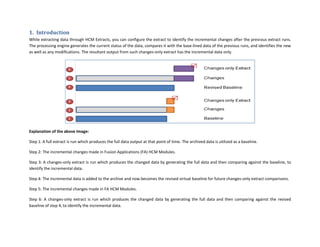
Explanation of the above Image:
Step 1: A full extract is run which produces the full data output at that point of time. The archived data is utilized as a baseline.
Step 2: The incremental changes made in Fusion Applications (FA) HCM Modules.
Step 3: A changes-only extract is run which produces the changed data by generating the full data and then comparing against the baseline, to
identify the incremental data.
Step 4: The incremental data is added to the archive and now becomes the revised virtual baseline for future changes-only extract comparisons.
Step 5: The incremental changes made in FA HCM Modules.
Step 6: A changes-only extract is run which produces the changed data by generating the full data and then comparing against the revised
baseline of step 4, to identify the incremental data.
1.1.Scope of Items
This feature can identify new, corrections and updates to existing details, by comparing the data reported earlier. Currently it cannot identify
physical deletes, where the data does not exist in the database.
The feature to identify physical deletes is tracked through ER#18411954. If you require this functionality, please add your requirements to this
ER.
2. Configuration
To implement the changes-only behavior, you must perform the following additional steps in the extract configuration.
2.1.Mandatory Configuration
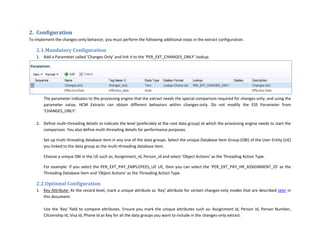
1. Add a Parameter called ‘Changes Only’ and link it to the ‘PER_EXT_CHANGES_ONLY’ lookup.
The parameter indicates to the processing engine that the extract needs the special comparison required for changes-only; and using the
parameter value, HCM Extracts can obtain different behaviors within changes-only. Do not modify the ESS Parameter from
‘CHANGES_ONLY’.
2. Define multi-threading details to indicate the level (preferably at the root data group) at which the processing engine needs to start the
comparison. You also define multi-threading details for performance purposes.
Set up multi threading database item in any one of the data groups. Select the unique Database Item Group (DBI) of the User Entity (UE)
you linked to the data group as the multi-threading database item.
Choose a unique DBI in the UE such as, Assignment_id, Person_id and select ‘Object Actions’ as the Threading Action Type.
For example: if you select the PER_EXT_PAY_EMPLOYEES_UE UE, then you can select the ‘PER_EXT_PAY_HR_ASSIGNMENT_ID’ as the
Threading Database Item and 'Object Actions' as the Threading Action Type.
2.2.Optional Configuration
1. Key Attribute: At the record level, mark a unique attribute as ‘Key’ attribute for certain changes-only modes that are described later in
this document.
Use the 'Key' field to compare attributes. Ensure you mark the unique attributes such as: Assignment Id, Person Id, Person Number,
Citizenship Id, Visa Id, Phone Id as Key for all the data groups you want to include in the changes-only extract.
For example, the key attribute for Assignment and Pay Employee UEs is Assignment Id, while for Person UE it is Person Id. For Historical
UE like Assignment Historical, the key attribute is Assignment ID and Assignment Effective Start date.
The key can be a combination of attributes to uniquely identify each row returned by the data group UE. Choose the attributes from one
record under that data group only.
2. Mark as Changed: At the attribute level, mark the attribute as 'Mark as Changed' whenever you want HCM Extracts to include the
attribute in the output of the extract even though they have not changed.
When and why do I need to set an attribute to ‘Mark as Changed’?
You can extract parent or reference details, such as, Person ID and Person Number even though those particular attributes have not
changed. For example, if the employee’s location changes, then the extract returns the new location only. However, how would you
know whose location has changed? To handle these scenarios you mark the person identifiers as ‘Mark as Changed’ so that the extract
returns those values whenever any other person details changes.
Once the above setup (mandatory and option configuration, if required) is complete, the extract design is ready to identify changes. While
running the extract, select the ‘Changes Only’ parameter values such that full or changed details are generated.
3. Running a Changes-Only Extract
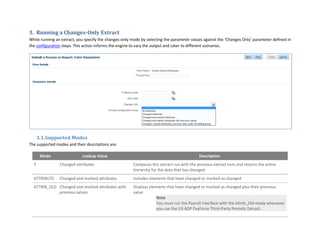
While running an extract, you specify the changes-only mode by selecting the parameter values against the ‘Changes Only’ parameter defined in
the configuration steps. This action informs the engine to vary the output and cater to different scenarios.
3.1.Supported Modes
The supported modes and their descriptions are:
Mode Lookup Value Description
Y Changed attributes Compares this extract run with the previous extract runs and returns the entire
hierarchy for the data that has changed.
ATTRIBUTE Changed and marked attributes Includes elements that have changed or marked as changed
ATTRIB_OLD Changed and marked attributes with
previous values
Displays elements that have changed or marked as changed plus their previous
value
Note
You must run the Payroll Interface with the Attrib_Old mode whenever
you use the US ADP PayForce Third-Party Periodic Extract.
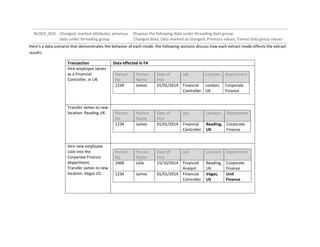
BLOCK_OLD Changed, marked attributes, previous
data under threading group
Displays the following data under threading data group:
Changed data; Data marked as changed; Previous values; Parent data group values
Here’s a data scenario that demonstrates the behavior of each mode, the following sections discuss how each extract mode effects the extract
results:
Transaction Data effected in FA
Hire employee James
as a Financial
Controller, in UK
Person
No
Person
Name
Date of
Hire
Job Location Department
1234 James 01/01/2014 Financial
Controller
London,
UK
Corporate
Finance
Transfer James to new
location: Reading UK. Person
No
Person
Name
Date of
Hire
Job Location Department
1234 James 01/01/2014 Financial
Controller
Reading,
UK
Corporate
Finance
Hire new employee
Julie into the
Corporate Finance
department.
Transfer James to new
location, Vegas US.
Person
No
Person
Name
Date of
Hire
Job Location Department
2468 Julie 15/10/2014 Financial
Analyst
Reading,
UK
Corporate
Finance
1234 James 01/01/2014 Financial
Controller
Vegas,
US
Unit
Finance
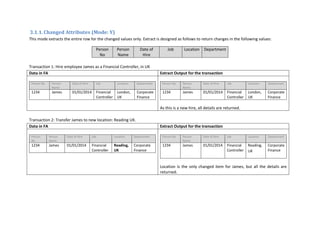
3.1.1.Changed Attributes (Mode: Y)
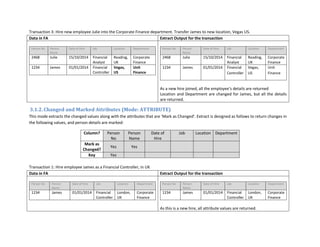
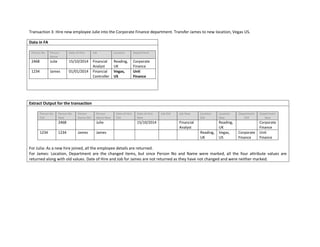
This mode extracts the entire row for the changed values only. Extract is designed as follows to return changes in the following values:
Person
No
Person
Name
Date of
Hire
Job Location Department
Transaction 1: Hire employee James as a Financial Controller, in UK
Data in FA Extract Output for the transaction
Person No Person
Name
Date of Hire Job Location Department
1234 James 01/01/2014 Financial
Controller
London,
UK
Corporate
Finance
Person No Person
Name
Date of Hire Job Location Department
1234 James 01/01/2014 Financial
Controller
London,
UK
Corporate
Finance
As this is a new hire, all details are returned.
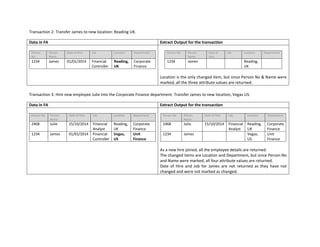
Transaction 2: Transfer James to new location: Reading UK.
Data in FA Extract Output for the transaction
Person
No
Person
Name
Date of Hire Job Location Department
1234 James 01/01/2014 Financial
Controller
Reading,
UK
Corporate
Finance
Person No Person
Name
Date of Hire Job Location Department
1234 James 01/01/2014 Financial
Controller
Reading,
UK
Corporate
Finance
Location is the only changed item for James, but all the details are
returned.
Transaction 3: Hire new employee Julie into the Corporate Finance department. Transfer James to new location, Vegas US.
Data in FA Extract Output for the transaction
Person No Person
Name
Date of Hire Job Location Department
2468 Julie 15/10/2014 Financial
Analyst
Reading,
UK
Corporate
Finance
1234 James 01/01/2014 Financial
Controller
Vegas,
US
Unit
Finance
Person No Person
Name
Date of Hire Job Location Department
2468 Julie 15/10/2014 Financial
Analyst
Reading,
UK
Corporate
Finance
1234 James 01/01/2014 Financial
Controller
Vegas,
US
Unit
Finance
As a new hire joined, all the employee’s details are returned
Location and Department are changed for James, but all the details
are returned.
3.1.2.Changed and Marked Attributes (Mode: ATTRIBUTE)
This mode extracts the changed values along with the attributes that are ‘Mark as Changed’. Extract is designed as follows to return changes in
the following values, and person details are marked:
Column? Person
No
Person
Name
Date of
Hire
Job Location Department
Mark as
Changed?
Yes Yes
Key Yes
Transaction 1: Hire employee James as a Financial Controller, in UK
Data in FA Extract Output for the transaction
Person No Person
Name
Date of Hire Job Location Department
1234 James 01/01/2014 Financial
Controller
London,
UK
Corporate
Finance
Person No Person
Name
Date of Hire Job Location Department
1234 James 01/01/2014 Financial
Controller
London,
UK
Corporate
Finance
As this is a new hire, all attribute values are returned.
Transaction 2: Transfer James to new location: Reading UK.
Data in FA Extract Output for the transaction
Person
No
Person
Name
Date of Hire Job Location Department
1234 James 01/01/2014 Financial
Controller
Reading,
UK
Corporate
Finance
Person No Person
Name
Date of
Hire
Job Location Department
1234 James Reading,
UK
Location is the only changed item, but since Person No & Name were
marked, all the three attribute values are returned.
Transaction 3: Hire new employee Julie into the Corporate Finance department. Transfer James to new location, Vegas US.
Data in FA Extract Output for the transaction
Person No Person
Name
Date of Hire Job Location Department
2468 Julie 15/10/2014 Financial
Analyst
Reading,
UK
Corporate
Finance
1234 James 01/01/2014 Financial
Controller
Vegas,
US
Unit
Finance
Person No Person
Name
Date of Hire Job Location Department
2468 Julie 15/10/2014 Financial
Analyst
Reading,
UK
Corporate
Finance
1234 James Vegas,
US
Unit
Finance
As a new hire joined, all the employee details are returned.
The changed items are Location and Department, but since Person No
and Name were marked, all four attribute values are returned.
Date of Hire and Job for James are not returned as they have not
changed and were not marked as changed.
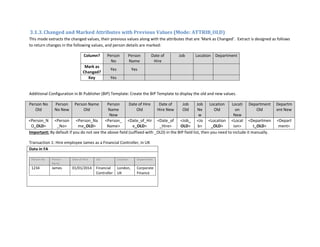
3.1.3.Changed and Marked Attributes with Previous Values (Mode: ATTRIB_OLD)
This mode extracts the changed values, their previous values along with the attributes that are ‘Mark as Changed’. Extract is designed as follows
to return changes in the following values, and person details are marked:
Column? Person
No
Person
Name
Date of
Hire
Job Location Department
Mark as
Changed?
Yes Yes
Key Yes
Additional Configuration in BI Publisher (BIP) Template: Create the BIP Template to display the old and new values.
Person No
Old
Person
No New
Person Name
Old
Person
Name
New
Date of Hire
Old
Date of
Hire New
Job
Old
Job
Ne
w
Location
Old
Locati
on
New
Department
Old
Departm
ent New
<Person_N
O_OLD>
<Person
_No>
<Person_Na
me_OLD>
<Person_
Name>
<Date_of_Hir
e_OLD>
<Date_of
_Hire>
<Job_
OLD>
<Jo
b>
<Location
_OLD>
<Locat
ion>
<Departmen
t_OLD>
<Depart
ment>
Important: By default if you do not see the above field (suffixed with _OLD) in the BIP field list, then you need to include it manually.
Transaction 1: Hire employee James as a Financial Controller, in UK
Data in FA
Person No Person
Name
Date of Hire Job Location Department
1234 James 01/01/2014 Financial
Controller
London,
UK
Corporate
Finance
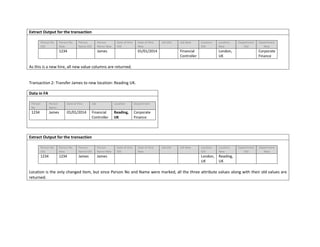
Extract Output for the transaction
Person No
Old
Person No
New
Person
Name Old
Person
Name New
Date of Hire
Old
Date of Hire
New
Job Old Job New Location
Old
Location
New
Department
Old
Department
New
1234 James 01/01/2014 Financial
Controller
London,
UK
Corporate
Finance
As this is a new hire, all new value columns are returned.
Transaction 2: Transfer James to new location: Reading UK.
Data in FA
Person
No
Person
Name
Date of Hire Job Location Department
1234 James 01/01/2014 Financial
Controller
Reading,
UK
Corporate
Finance
Extract Output for the transaction
Person No
Old
Person No
New
Person
Name Old
Person
Name New
Date of Hire
Old
Date of Hire
New
Job Old Job New Location
Old
Location
New
Department
Old
Department
New
1234 1234 James James London,
UK
Reading,
UK
Location is the only changed item, but since Person No and Name were marked, all the three attribute values along with their old values are
returned.
Transaction 3: Hire new employee Julie into the Corporate Finance department. Transfer James to new location, Vegas US.
Data in FA
Person No Person
Name
Date of Hire Job Location Department
2468 Julie 15/10/2014 Financial
Analyst
Reading,
UK
Corporate
Finance
1234 James 01/01/2014 Financial
Controller
Vegas,
US
Unit
Finance
Extract Output for the transaction
Person No
Old
Person No
New
Person
Name Old
Person
Name New
Date of Hire
Old
Date of Hire
New
Job Old Job New Location
Old
Location
New
Department
Old
Department
New
2468 Julie 15/10/2014 Financial
Analyst
Reading,
UK
Corporate
Finance
1234 1234 James James Reading,
UK
Vegas,
US
Corporate
Finance
Unit
Finance
For Julia: As a new hire joined, all the employee details are returned.
For James: Location, Department are the changed items, but since Person No and Name were marked, all the four attribute values are
returned along with old values. Date of Hire and Job for James are not returned as they have not changed and were neither marked.
3.1.4.Changed, Marked Attributes, Previous Data under Threading Group (Mode: BLOCK_OLD)
This mode extracts the changed values, their previous values, the attributes that are ‘Mark as Changed’; along with the parent data group
attributes too. The data transactions below demonstrate the different behaviors of this extract mode.
Extract is designed to return changes in the following values; person and address details are marked:
Column /
Group Details
Person No Person
Name
Date of
Hire
Job Location Manager
Mark as
Changed?
Yes Yes
Key Yes
Column /
Group Details
Address
Type ID
Address
Type
Address
ID
Address
Line 1
Address
Line 2
City State Country Effective
From
Effective
To
Mark as
Changed?
Yes Yes Yes
Key Yes Yes
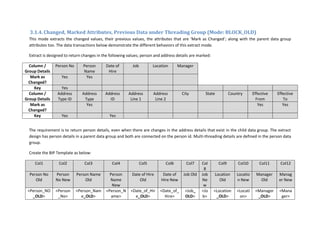
The requirement is to return person details, even when there are changes in the address details that exist in the child data group. The extract
design has person details in a parent data group and both are connected on the person id. Multi-threading details are defined in the person data
group.
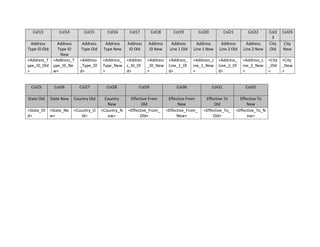
Create the BIP Template as below:
Col1 Col2 Col3 Col4 Col5 Col6 Col7 Col
8
Col9 Col10 Col11 Col12
Person No
Old
Person
No New
Person Name
Old
Person
Name
New
Date of Hire
Old
Date of
Hire New
Job Old Job
Ne
w
Location
Old
Locatio
n New
Manager
Old
Manag
er New
<Person_NO
_OLD>
<Person
_No>
<Person_Nam
e_OLD>
<Person_N
ame>
<Date_of_Hir
e_OLD>
<Date_of_
Hire>
<Job_
OLD>
<Jo
b>
<Location
_OLD>
<Locati
on>
<Manager
_OLD>
<Mana
ger>
Col13 Col14 Col15 Col16 Col17 Col18 Col19 Col20 Col21 Col22 Col2
3
Col24
Address
Type ID Old
Address
Type ID
New
Address
Type Old
Address
Type New
Address
ID Old
Address
ID New
Address
Line 1 Old
Address
Line 1 New
Address
Line 2 Old
Address
Line 2 New
City
Old
City
New
<Address_T
ype_ID_Old
>
<Address_T
ype_ID_Ne
w>
<Address
_Type_Ol
d>
<Address_
Type_New
>
<Addres
s_ID_Ol
d>
<Address
_ID_New
>
<Address_
Line_1_Ol
d>
<Address_L
ine_1_New
>
<Address_
Line_2_Ol
d>
<Address_L
ine_2_New
>
<City
_Old
>
<City
_New
>
Col25 Col26 Col27 Col28 Col29 Col30 Col31 Col32
State Old State New Country Old Country
New
Effective From
Old
Effective From
New
Effective To
Old
Effective To
New
<State_Ol
d>
<State_Ne
w>
<Country_O
ld>
<Country_N
ew>
<Effective_From_
Old>
<Effective_From_
New>
<Effective_To_
Old>
<Effective_To_N
ew>
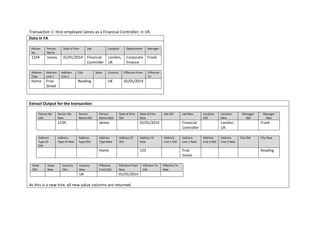
Transaction 1: Hire employee James as a Financial Controller, in UK.
Data in FA
Person
No
Person
Name
Date of Hire Job Location Department Manager
1234 James 01/01/2014 Financial
Controller
London,
UK
Corporate
Finance
Frank
Address
Type
Address
Line 1
Address
Line 2
City State Country Effective From Effective
To
Home Friar
Street
Reading UK 01/01/2014
.
Extract Output for the transaction
Person No
Old
Person No
New
Person
Name Old
Person
Name New
Date of Hire
Old
Date of Hire
New
Job Old Job New Location
Old
Location
New
Manager
Old
Manager
New
1234 James 01/01/2014 Financial
Controller
London,
UK
Frank
Address
Type ID
Old
Address
Type ID New
Address
Type Old
Address
Type New
Address ID
Old
Address ID
New
Address
Line 1 Old
Address
Line 1 New
Address
Line 2 Old
Address
Line 2 New
City Old City New
Home 123 Friar
Street
Reading
State
Old
State
New
Country
Old
Country
New
Effective
From Old
Effective From
New
Effective To
Old
Effective To
New
UK 01/01/2014
As this is a new hire, all new value columns are returned.
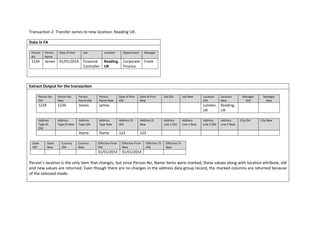
Transaction 2: Transfer James to new location: Reading UK.
Data in FA
Person
No
Person
Name
Date of Hire Job Location Department Manager
1234 James 01/01/2014 Financial
Controller
Reading,
UK
Corporate
Finance
Frank
.
Extract Output for the transaction
Person No
Old
Person No
New
Person
Name Old
Person
Name New
Date of Hire
Old
Date of Hire
New
Job Old Job New Location
Old
Location
New
Manager
Old
Manager
New
1234 1234 James James London,
UK
Reading,
UK
Address
Type ID
Old
Address
Type ID New
Address
Type Old
Address
Type New
Address ID
Old
Address ID
New
Address
Line 1 Old
Address
Line 1 New
Address
Line 2 Old
Address
Line 2 New
City Old City New
Home Home 123 123
State
Old
State
New
Country
Old
Country
New
Effective From
Old
Effective From
New
Effective To
Old
Effective To
New
01/01/2014 01/01/2014
Person’s location is the only item that changes, but since Person No, Name items were marked, these values along with location attribute, old
and new values are returned. Even though there are no changes in the address data group record, the marked columns are returned because
of the selected mode.
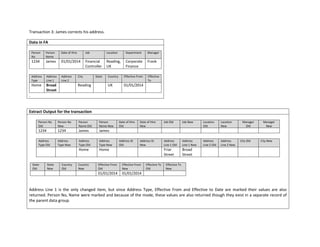
Transaction 3: James corrects his address.
Data in FA
Person
No
Person
Name
Date of Hire Job Location Department Manager
1234 James 01/01/2014 Financial
Controller
Reading,
UK
Corporate
Finance
Frank
Address
Type
Address
Line 1
Address
Line 2
City State Country Effective From Effective
To
Home Broad
Street
Reading UK 01/01/2014
.
Extract Output for the transaction
Person No
Old
Person No
New
Person
Name Old
Person
Name New
Date of Hire
Old
Date of Hire
New
Job Old Job New Location
Old
Location
New
Manager
Old
Manager
New
1234 1234 James James
Address
Type Old
Address
Type New
Address
Type Old
Address
Type New
Address ID
Old
Address ID
New
Address
Line 1 Old
Address
Line 1 New
Address
Line 2 Old
Address
Line 2 New
City Old City New
Home Home Friar
Street
Broad
Street
State
Old
State
New
Country
Old
Country
New
Effective From
Old
Effective From
New
Effective To
Old
Effective To
New
01/01/2014 01/01/2014
Address Line 1 is the only changed item, but since Address Type, Effective From and Effective to Date are marked their values are also
returned. Person No, Name were marked and because of the mode, these values are also returned though they exist in a separate record of
the parent data group.
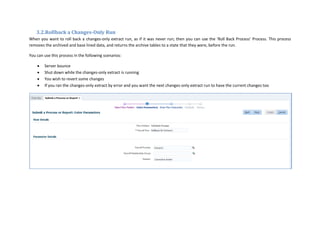
3.2.Rollback a Changes-Only Run
When you want to roll back a changes-only extract run, as if it was never run; then you can use the ‘Roll Back Process’ Process. This process
removes the archived and base lined data, and returns the archive tables to a state that they were, before the run.
You can use this process in the following scenarios:
 Server bounce
 Shut down while the changes-only extract is running
 You wish to revert some changes
 If you ran the changes-only extract by error and you want the next changes-only extract run to have the current changes too
4. Generic Extract Options
There are other configurable options in extracts that you can use in changes-only extracts like the context binding and dynamic output filename,
which are described here. You may want to schedule a changes-only extract on a recursive basis and this may require you to bind the context for
date parameters and/or have a dynamic output filename.
4.1.Context Binding
Use context binding to dynamically increment date parameters, especially for scenarios where you want to recursively schedule extract runs.
The parameter details should specify Context Binding for the parameter basis, and System Date for the basis value.
For example, you might have an extract that retrieves data based on an effective date. In the Refine HCM Extracts UI, you need to specify the
Context Binding for the ‘Effective Date’ parameter with parameter basis as ‘Context Binding’, and Basis Value as ‘System Date’. Setting these
parameters ensures that the dates the application derives from the defaulted date parameter are incremented appropriately.
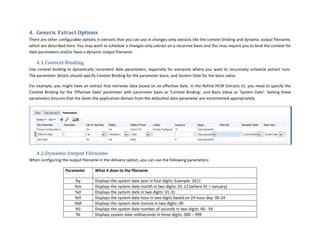
4.2.Dynamic Output Filename
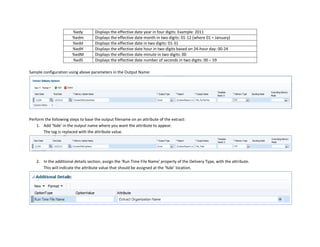
When configuring the output filename in the delivery option, you can use the following parameters:
Parameter What it does to the filename
%y Displays the system date year in four digits: Example: 2011
%m Displays the system date month in two digits: 01-12 (where 01 = January)
%d Displays the system date in two digits: 01-31
%H Displays the system date hour in two digits based on 24-hour day: 00-24
%M Displays the system date minute in two digits: 00
%S Displays the system date number of seconds in two digits: 00 - 59
%l Displays system date milliseconds in three digits: 000 – 999
%edy Displays the effective date year in four digits: Example: 2011
%edm Displays the effective date month in two digits: 01-12 (where 01 = January)
%edd Displays the effective date in two digits: 01-31
%edH Displays the effective date hour in two digits based on 24-hour day: 00-24
%edM Displays the effective date minute in two digits: 00
%edS Displays the effective date number of seconds in two digits: 00 – 59
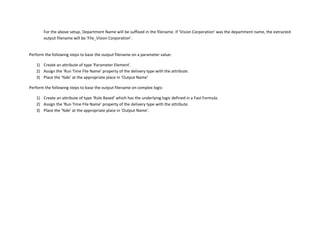
Sample configuration using above parameters in the Output Name:
Perform the following steps to base the output filename on an attribute of the extract:
1. Add ‘%de’ in the output name where you want the attribute to appear.
The tag is replaced with the attribute value.
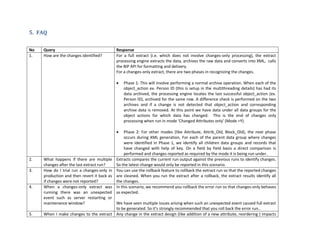
2. In the additional details section, assign the ‘Run Time File Name’ property of the Delivery Type, with the attribute.
This will indicate the attribute value that should be assigned at the ‘%de’ location.
For the above setup, Department Name will be suffixed in the filename. If ‘Vision Corporation’ was the department name, the extracted
output filename will be ‘File_Vision Corporation’.
Perform the following steps to base the output filename on a parameter value:
1) Create an attribute of type 'Parameter Element'.
2) Assign the ‘Run Time File Name’ property of the delivery type with the attribute.
3) Place the ‘%de’ at the appropriate place in ‘Output Name’
Perform the following steps to base the output filename on complex logic:
1) Create an attribute of type ‘Rule Based’ which has the underlying logic defined in a Fast Formula.
2) Assign the ‘Run Time File Name’ property of the delivery type with the attribute.
3) Place the ‘%de’ at the appropriate place in ‘Output Name’.
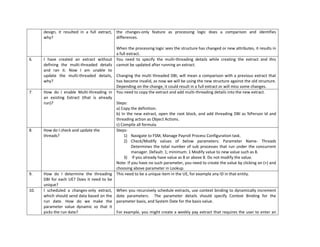
5. FAQ
No Query Response
1. How are the changes identified? For a full extract (i.e. which does not involve changes-only processing), the extract
processing engine extracts the data, archives the raw data and converts into XML, calls
the BIP API for formatting and delivery.
For a changes-only extract, there are two phases in recognizing the changes.
 Phase 1: This will involve performing a normal archive operation. When each of the
object_action ex. Person ID (this is setup in the multithreading details) has had its
data archived, the processing engine locates the last successful object_action (ex.
Person ID), archived for the same row. A difference check is performed on the two
archives and if a change is not detected that object_action and corresponding
archive data is removed. At this point we have data under all data groups for the
object actions for which data has changed. This is the end of changes only
processing when run in mode ‘Changed Attributes only’ (Mode =Y).
 Phase 2: For other modes (like Attribute, Attrib_Old, Block_Old), the next phase
occurs during XML generation. For each of the parent data group where changes
were identified in Phase 1, we identify all children data groups and records that
have changed with help of key. On a field by field basis a direct comparison is
performed and changes reported as required by the mode it is being run under.
2. What happens if there are multiple
changes after the last extract run?
Extracts compares the current run output against the previous runs to identify changes.
So the latest change would only be reported in this scenario.
3. How do I trial run a changes-only in
production and then revert it back as
if changes were not reported?
You can use the rollback feature to rollback the extract run so that the reported changes
are cleaned. When you run the extract after a rollback, the extract results identify all
the changes.
4. When a changes-only extract was
running there was an unexpected
event such as server restarting or
maintenance window?
In this scenario, we recommend you rollback the error run so that changes-only behaves
as expected.
We have seen multiple issues arising when such an unexpected event caused full extract
to be generated. So it’s strongly recommended that you roll back the error run..
5. When I make changes to the extract Any change in the extract design (like addition of a new attribute, reordering ) impacts
design, it resulted in a full extract,
why?
the changes-only feature as processing logic does a comparison and identifies
differences.
When the processing logic sees the structure has changed or new attributes, it results in
a full extract.
6. I have created an extract without
defining the multi-threaded details
and ran it. Now I am unable to
update the multi-threaded details,
why?
You need to specify the multi-threading details while creating the extract and this
cannot be updated after running an extract.
Changing the multi threaded DBI, will mean a comparison with a previous extract that
has become invalid, as now we will be using the new structure against the old structure.
Depending on the change, it could result in a full extract or will miss some changes.
7. How do I enable Multi-threading in
an existing Extract (that is already
run)?
You need to copy the extract and add multi-threading details into the new extract.
Steps:
a) Copy the definition.
b) In the new extract, open the root block, and add threading DBI as %Person Id and
threading action as Object Actions.
c) Compile all formula.
8. How do I check and update the
threads?
Steps:
1) Navigate to FSM, Manage Payroll Process Configuration task.
2) Check/Modify values of below parameters: Parameter Name- Threads
Determines the total number of sub processes that run under the concurrent
manager. Default: 1; minimum: 1 Modify value to new value such as 8.
3) If you already have value as 8 or above 8. Do not modify the value.
Note: If you have no such parameter, you need to create the value by clicking on (+) and
choosing above parameter in Lookup.
9. How do I determine the threading
DBI for each UE? Does it need to be
unique?
This need to be a unique item in the UE, for example any ID in that entity.
10. I scheduled a changes-only extract,
which should send data based on the
run date. How do we make the
parameter value dynamic so that it
picks the run date?
When you recursively schedule extracts, use context binding to dynamically increment
date parameters. The parameter details should specify Context Binding for the
parameter basis, and System Date for the basis value.
For example, you might create a weekly pay extract that requires the user to enter an
effective date. You specify the Context Binding for the parameter basis for the effective
date, and System Date for the basis value.
Setting these parameters ensures that the dates the application derives from the
defaulted date parameter are incremented appropriately.
11. I have used advanced conditions and
the extract output was not as
expected, why?
You may have used advanced conditions at record or attribute level to conditionally
exclude records for some action condition. If these advanced functionalities are not
designed correctly, lt can lead to unexpected results.
Appendix
You can refer to the following collateral on MOS for more details on HCM Extracts
Note Details
1559127.1 Oracle Fusion HCM Extracts Guide Release 5 Onwards
- HCM Extracts User guide
- Release 7 Entity Attributes
- Extracts presentation (PPT)
1677090.1 Troubleshooting HCM Extracts

HCM_Extract_Changes-Only.pdf

  • 1.
    HCM Extracts: Changes-Only Tableof Contents 1. Introduction .................................................................................................................................................................................................. 3 1.1. Scope of Items ....................................................................................................................................................................................... 4 2. Configuration................................................................................................................................................................................................. 5 2.1. Mandatory Configuration....................................................................................................................................................................... 5 2.2. Optional Configuration........................................................................................................................................................................... 5 3. Running a Changes-Only Extract .................................................................................................................................................................... 7 3.1. Supported Modes .................................................................................................................................................................................. 7 3.1.1. Changed Attributes (Mode: Y) ............................................................................................................................................................ 9 3.1.2. Changed and Marked Attributes (Mode: ATTRIBUTE) ........................................................................................................................10 3.1.3. Changed and Marked Attributes with Previous Values (Mode: ATTRIB_OLD).....................................................................................12 3.1.4. Changed, Marked Attributes, Previous Data under Threading Group (Mode: BLOCK_OLD) ................................................................15 3.2. Rollback a Changes-Only Run ................................................................................................................................................................20 4. Generic Extract Options ................................................................................................................................................................................21 4.1. Context Binding.....................................................................................................................................................................................21 4.2. Dynamic Output Filename.....................................................................................................................................................................21 5. FAQ ..............................................................................................................................................................................................................24 Appendix..............................................................................................................................................................................................................27
  • 2.
    Document Control Date AuthorVersion Change Reference 05-Dec-2014 Rajesh Jupudi 0.1 Draft 11-Dec-2014 Rajesh Jupudi 0.2 Added ‘Other Generic Options’ section and addressed comments received in Review. 16-Dec-2014 Rajesh Jupudi 0.3 Addressed comments of Alison 24-Dec-2014 Rajesh Jupudi 0.4 Addressed comments of Alison, Bharadwaj and Tajinder. Added Rollback details and additional scenario for BLOCK_OLD, Dynamic filename. 09-Jan-2014 Rajesh Jupudi 0.5 Addressed comments of Bharadwaj (removed scenario 1 for BLOCK_OLD, revised virtual baseline, new FAQ) and Alison 23-Jan-2014 Rajesh Jupudi 0.6 Pre-Final Version Applicable Release Details This document is applicable for Release 8 onwards. Note that terminology from Release 8 is modified to refer Block as Data Group, Data Element as Attribute, Link as Connection, and Block Criteria as Filter Criteria.
  • 3.
    1. Introduction While extractingdata through HCM Extracts, you can configure the extract to identify the incremental changes after the previous extract runs. The processing engine generates the current status of the data, compares it with the base-lined data of the previous runs, and identifies the new as well as any modifications. The resultant output from such changes-only extract has the incremental data only. Explanation of the above Image: Step 1: A full extract is run which produces the full data output at that point of time. The archived data is utilized as a baseline. Step 2: The incremental changes made in Fusion Applications (FA) HCM Modules. Step 3: A changes-only extract is run which produces the changed data by generating the full data and then comparing against the baseline, to identify the incremental data. Step 4: The incremental data is added to the archive and now becomes the revised virtual baseline for future changes-only extract comparisons. Step 5: The incremental changes made in FA HCM Modules. Step 6: A changes-only extract is run which produces the changed data by generating the full data and then comparing against the revised baseline of step 4, to identify the incremental data.
  • 4.
    1.1.Scope of Items Thisfeature can identify new, corrections and updates to existing details, by comparing the data reported earlier. Currently it cannot identify physical deletes, where the data does not exist in the database. The feature to identify physical deletes is tracked through ER#18411954. If you require this functionality, please add your requirements to this ER.
  • 5.
    2. Configuration To implementthe changes-only behavior, you must perform the following additional steps in the extract configuration. 2.1.Mandatory Configuration 1. Add a Parameter called ‘Changes Only’ and link it to the ‘PER_EXT_CHANGES_ONLY’ lookup. The parameter indicates to the processing engine that the extract needs the special comparison required for changes-only; and using the parameter value, HCM Extracts can obtain different behaviors within changes-only. Do not modify the ESS Parameter from ‘CHANGES_ONLY’. 2. Define multi-threading details to indicate the level (preferably at the root data group) at which the processing engine needs to start the comparison. You also define multi-threading details for performance purposes. Set up multi threading database item in any one of the data groups. Select the unique Database Item Group (DBI) of the User Entity (UE) you linked to the data group as the multi-threading database item. Choose a unique DBI in the UE such as, Assignment_id, Person_id and select ‘Object Actions’ as the Threading Action Type. For example: if you select the PER_EXT_PAY_EMPLOYEES_UE UE, then you can select the ‘PER_EXT_PAY_HR_ASSIGNMENT_ID’ as the Threading Database Item and 'Object Actions' as the Threading Action Type. 2.2.Optional Configuration 1. Key Attribute: At the record level, mark a unique attribute as ‘Key’ attribute for certain changes-only modes that are described later in this document. Use the 'Key' field to compare attributes. Ensure you mark the unique attributes such as: Assignment Id, Person Id, Person Number, Citizenship Id, Visa Id, Phone Id as Key for all the data groups you want to include in the changes-only extract.
  • 6.
    For example, thekey attribute for Assignment and Pay Employee UEs is Assignment Id, while for Person UE it is Person Id. For Historical UE like Assignment Historical, the key attribute is Assignment ID and Assignment Effective Start date. The key can be a combination of attributes to uniquely identify each row returned by the data group UE. Choose the attributes from one record under that data group only. 2. Mark as Changed: At the attribute level, mark the attribute as 'Mark as Changed' whenever you want HCM Extracts to include the attribute in the output of the extract even though they have not changed. When and why do I need to set an attribute to ‘Mark as Changed’? You can extract parent or reference details, such as, Person ID and Person Number even though those particular attributes have not changed. For example, if the employee’s location changes, then the extract returns the new location only. However, how would you know whose location has changed? To handle these scenarios you mark the person identifiers as ‘Mark as Changed’ so that the extract returns those values whenever any other person details changes. Once the above setup (mandatory and option configuration, if required) is complete, the extract design is ready to identify changes. While running the extract, select the ‘Changes Only’ parameter values such that full or changed details are generated.
  • 7.
    3. Running aChanges-Only Extract While running an extract, you specify the changes-only mode by selecting the parameter values against the ‘Changes Only’ parameter defined in the configuration steps. This action informs the engine to vary the output and cater to different scenarios. 3.1.Supported Modes The supported modes and their descriptions are: Mode Lookup Value Description Y Changed attributes Compares this extract run with the previous extract runs and returns the entire hierarchy for the data that has changed. ATTRIBUTE Changed and marked attributes Includes elements that have changed or marked as changed ATTRIB_OLD Changed and marked attributes with previous values Displays elements that have changed or marked as changed plus their previous value Note You must run the Payroll Interface with the Attrib_Old mode whenever you use the US ADP PayForce Third-Party Periodic Extract.
  • 8.
    BLOCK_OLD Changed, markedattributes, previous data under threading group Displays the following data under threading data group: Changed data; Data marked as changed; Previous values; Parent data group values Here’s a data scenario that demonstrates the behavior of each mode, the following sections discuss how each extract mode effects the extract results: Transaction Data effected in FA Hire employee James as a Financial Controller, in UK Person No Person Name Date of Hire Job Location Department 1234 James 01/01/2014 Financial Controller London, UK Corporate Finance Transfer James to new location: Reading UK. Person No Person Name Date of Hire Job Location Department 1234 James 01/01/2014 Financial Controller Reading, UK Corporate Finance Hire new employee Julie into the Corporate Finance department. Transfer James to new location, Vegas US. Person No Person Name Date of Hire Job Location Department 2468 Julie 15/10/2014 Financial Analyst Reading, UK Corporate Finance 1234 James 01/01/2014 Financial Controller Vegas, US Unit Finance
  • 9.
    3.1.1.Changed Attributes (Mode:Y) This mode extracts the entire row for the changed values only. Extract is designed as follows to return changes in the following values: Person No Person Name Date of Hire Job Location Department Transaction 1: Hire employee James as a Financial Controller, in UK Data in FA Extract Output for the transaction Person No Person Name Date of Hire Job Location Department 1234 James 01/01/2014 Financial Controller London, UK Corporate Finance Person No Person Name Date of Hire Job Location Department 1234 James 01/01/2014 Financial Controller London, UK Corporate Finance As this is a new hire, all details are returned. Transaction 2: Transfer James to new location: Reading UK. Data in FA Extract Output for the transaction Person No Person Name Date of Hire Job Location Department 1234 James 01/01/2014 Financial Controller Reading, UK Corporate Finance Person No Person Name Date of Hire Job Location Department 1234 James 01/01/2014 Financial Controller Reading, UK Corporate Finance Location is the only changed item for James, but all the details are returned.
  • 10.
    Transaction 3: Hirenew employee Julie into the Corporate Finance department. Transfer James to new location, Vegas US. Data in FA Extract Output for the transaction Person No Person Name Date of Hire Job Location Department 2468 Julie 15/10/2014 Financial Analyst Reading, UK Corporate Finance 1234 James 01/01/2014 Financial Controller Vegas, US Unit Finance Person No Person Name Date of Hire Job Location Department 2468 Julie 15/10/2014 Financial Analyst Reading, UK Corporate Finance 1234 James 01/01/2014 Financial Controller Vegas, US Unit Finance As a new hire joined, all the employee’s details are returned Location and Department are changed for James, but all the details are returned. 3.1.2.Changed and Marked Attributes (Mode: ATTRIBUTE) This mode extracts the changed values along with the attributes that are ‘Mark as Changed’. Extract is designed as follows to return changes in the following values, and person details are marked: Column? Person No Person Name Date of Hire Job Location Department Mark as Changed? Yes Yes Key Yes Transaction 1: Hire employee James as a Financial Controller, in UK Data in FA Extract Output for the transaction Person No Person Name Date of Hire Job Location Department 1234 James 01/01/2014 Financial Controller London, UK Corporate Finance Person No Person Name Date of Hire Job Location Department 1234 James 01/01/2014 Financial Controller London, UK Corporate Finance As this is a new hire, all attribute values are returned.
  • 11.
    Transaction 2: TransferJames to new location: Reading UK. Data in FA Extract Output for the transaction Person No Person Name Date of Hire Job Location Department 1234 James 01/01/2014 Financial Controller Reading, UK Corporate Finance Person No Person Name Date of Hire Job Location Department 1234 James Reading, UK Location is the only changed item, but since Person No & Name were marked, all the three attribute values are returned. Transaction 3: Hire new employee Julie into the Corporate Finance department. Transfer James to new location, Vegas US. Data in FA Extract Output for the transaction Person No Person Name Date of Hire Job Location Department 2468 Julie 15/10/2014 Financial Analyst Reading, UK Corporate Finance 1234 James 01/01/2014 Financial Controller Vegas, US Unit Finance Person No Person Name Date of Hire Job Location Department 2468 Julie 15/10/2014 Financial Analyst Reading, UK Corporate Finance 1234 James Vegas, US Unit Finance As a new hire joined, all the employee details are returned. The changed items are Location and Department, but since Person No and Name were marked, all four attribute values are returned. Date of Hire and Job for James are not returned as they have not changed and were not marked as changed.
  • 12.
    3.1.3.Changed and MarkedAttributes with Previous Values (Mode: ATTRIB_OLD) This mode extracts the changed values, their previous values along with the attributes that are ‘Mark as Changed’. Extract is designed as follows to return changes in the following values, and person details are marked: Column? Person No Person Name Date of Hire Job Location Department Mark as Changed? Yes Yes Key Yes Additional Configuration in BI Publisher (BIP) Template: Create the BIP Template to display the old and new values. Person No Old Person No New Person Name Old Person Name New Date of Hire Old Date of Hire New Job Old Job Ne w Location Old Locati on New Department Old Departm ent New <Person_N O_OLD> <Person _No> <Person_Na me_OLD> <Person_ Name> <Date_of_Hir e_OLD> <Date_of _Hire> <Job_ OLD> <Jo b> <Location _OLD> <Locat ion> <Departmen t_OLD> <Depart ment> Important: By default if you do not see the above field (suffixed with _OLD) in the BIP field list, then you need to include it manually. Transaction 1: Hire employee James as a Financial Controller, in UK Data in FA Person No Person Name Date of Hire Job Location Department 1234 James 01/01/2014 Financial Controller London, UK Corporate Finance
  • 13.
    Extract Output forthe transaction Person No Old Person No New Person Name Old Person Name New Date of Hire Old Date of Hire New Job Old Job New Location Old Location New Department Old Department New 1234 James 01/01/2014 Financial Controller London, UK Corporate Finance As this is a new hire, all new value columns are returned. Transaction 2: Transfer James to new location: Reading UK. Data in FA Person No Person Name Date of Hire Job Location Department 1234 James 01/01/2014 Financial Controller Reading, UK Corporate Finance Extract Output for the transaction Person No Old Person No New Person Name Old Person Name New Date of Hire Old Date of Hire New Job Old Job New Location Old Location New Department Old Department New 1234 1234 James James London, UK Reading, UK Location is the only changed item, but since Person No and Name were marked, all the three attribute values along with their old values are returned.
  • 14.
    Transaction 3: Hirenew employee Julie into the Corporate Finance department. Transfer James to new location, Vegas US. Data in FA Person No Person Name Date of Hire Job Location Department 2468 Julie 15/10/2014 Financial Analyst Reading, UK Corporate Finance 1234 James 01/01/2014 Financial Controller Vegas, US Unit Finance Extract Output for the transaction Person No Old Person No New Person Name Old Person Name New Date of Hire Old Date of Hire New Job Old Job New Location Old Location New Department Old Department New 2468 Julie 15/10/2014 Financial Analyst Reading, UK Corporate Finance 1234 1234 James James Reading, UK Vegas, US Corporate Finance Unit Finance For Julia: As a new hire joined, all the employee details are returned. For James: Location, Department are the changed items, but since Person No and Name were marked, all the four attribute values are returned along with old values. Date of Hire and Job for James are not returned as they have not changed and were neither marked.
  • 15.
    3.1.4.Changed, Marked Attributes,Previous Data under Threading Group (Mode: BLOCK_OLD) This mode extracts the changed values, their previous values, the attributes that are ‘Mark as Changed’; along with the parent data group attributes too. The data transactions below demonstrate the different behaviors of this extract mode. Extract is designed to return changes in the following values; person and address details are marked: Column / Group Details Person No Person Name Date of Hire Job Location Manager Mark as Changed? Yes Yes Key Yes Column / Group Details Address Type ID Address Type Address ID Address Line 1 Address Line 2 City State Country Effective From Effective To Mark as Changed? Yes Yes Yes Key Yes Yes The requirement is to return person details, even when there are changes in the address details that exist in the child data group. The extract design has person details in a parent data group and both are connected on the person id. Multi-threading details are defined in the person data group. Create the BIP Template as below: Col1 Col2 Col3 Col4 Col5 Col6 Col7 Col 8 Col9 Col10 Col11 Col12 Person No Old Person No New Person Name Old Person Name New Date of Hire Old Date of Hire New Job Old Job Ne w Location Old Locatio n New Manager Old Manag er New <Person_NO _OLD> <Person _No> <Person_Nam e_OLD> <Person_N ame> <Date_of_Hir e_OLD> <Date_of_ Hire> <Job_ OLD> <Jo b> <Location _OLD> <Locati on> <Manager _OLD> <Mana ger>
  • 16.
    Col13 Col14 Col15Col16 Col17 Col18 Col19 Col20 Col21 Col22 Col2 3 Col24 Address Type ID Old Address Type ID New Address Type Old Address Type New Address ID Old Address ID New Address Line 1 Old Address Line 1 New Address Line 2 Old Address Line 2 New City Old City New <Address_T ype_ID_Old > <Address_T ype_ID_Ne w> <Address _Type_Ol d> <Address_ Type_New > <Addres s_ID_Ol d> <Address _ID_New > <Address_ Line_1_Ol d> <Address_L ine_1_New > <Address_ Line_2_Ol d> <Address_L ine_2_New > <City _Old > <City _New > Col25 Col26 Col27 Col28 Col29 Col30 Col31 Col32 State Old State New Country Old Country New Effective From Old Effective From New Effective To Old Effective To New <State_Ol d> <State_Ne w> <Country_O ld> <Country_N ew> <Effective_From_ Old> <Effective_From_ New> <Effective_To_ Old> <Effective_To_N ew>
  • 17.
    Transaction 1: Hireemployee James as a Financial Controller, in UK. Data in FA Person No Person Name Date of Hire Job Location Department Manager 1234 James 01/01/2014 Financial Controller London, UK Corporate Finance Frank Address Type Address Line 1 Address Line 2 City State Country Effective From Effective To Home Friar Street Reading UK 01/01/2014 . Extract Output for the transaction Person No Old Person No New Person Name Old Person Name New Date of Hire Old Date of Hire New Job Old Job New Location Old Location New Manager Old Manager New 1234 James 01/01/2014 Financial Controller London, UK Frank Address Type ID Old Address Type ID New Address Type Old Address Type New Address ID Old Address ID New Address Line 1 Old Address Line 1 New Address Line 2 Old Address Line 2 New City Old City New Home 123 Friar Street Reading State Old State New Country Old Country New Effective From Old Effective From New Effective To Old Effective To New UK 01/01/2014 As this is a new hire, all new value columns are returned.
  • 18.
    Transaction 2: TransferJames to new location: Reading UK. Data in FA Person No Person Name Date of Hire Job Location Department Manager 1234 James 01/01/2014 Financial Controller Reading, UK Corporate Finance Frank . Extract Output for the transaction Person No Old Person No New Person Name Old Person Name New Date of Hire Old Date of Hire New Job Old Job New Location Old Location New Manager Old Manager New 1234 1234 James James London, UK Reading, UK Address Type ID Old Address Type ID New Address Type Old Address Type New Address ID Old Address ID New Address Line 1 Old Address Line 1 New Address Line 2 Old Address Line 2 New City Old City New Home Home 123 123 State Old State New Country Old Country New Effective From Old Effective From New Effective To Old Effective To New 01/01/2014 01/01/2014 Person’s location is the only item that changes, but since Person No, Name items were marked, these values along with location attribute, old and new values are returned. Even though there are no changes in the address data group record, the marked columns are returned because of the selected mode.
  • 19.
    Transaction 3: Jamescorrects his address. Data in FA Person No Person Name Date of Hire Job Location Department Manager 1234 James 01/01/2014 Financial Controller Reading, UK Corporate Finance Frank Address Type Address Line 1 Address Line 2 City State Country Effective From Effective To Home Broad Street Reading UK 01/01/2014 . Extract Output for the transaction Person No Old Person No New Person Name Old Person Name New Date of Hire Old Date of Hire New Job Old Job New Location Old Location New Manager Old Manager New 1234 1234 James James Address Type Old Address Type New Address Type Old Address Type New Address ID Old Address ID New Address Line 1 Old Address Line 1 New Address Line 2 Old Address Line 2 New City Old City New Home Home Friar Street Broad Street State Old State New Country Old Country New Effective From Old Effective From New Effective To Old Effective To New 01/01/2014 01/01/2014 Address Line 1 is the only changed item, but since Address Type, Effective From and Effective to Date are marked their values are also returned. Person No, Name were marked and because of the mode, these values are also returned though they exist in a separate record of the parent data group.
  • 20.
    3.2.Rollback a Changes-OnlyRun When you want to roll back a changes-only extract run, as if it was never run; then you can use the ‘Roll Back Process’ Process. This process removes the archived and base lined data, and returns the archive tables to a state that they were, before the run. You can use this process in the following scenarios:  Server bounce  Shut down while the changes-only extract is running  You wish to revert some changes  If you ran the changes-only extract by error and you want the next changes-only extract run to have the current changes too
  • 21.
    4. Generic ExtractOptions There are other configurable options in extracts that you can use in changes-only extracts like the context binding and dynamic output filename, which are described here. You may want to schedule a changes-only extract on a recursive basis and this may require you to bind the context for date parameters and/or have a dynamic output filename. 4.1.Context Binding Use context binding to dynamically increment date parameters, especially for scenarios where you want to recursively schedule extract runs. The parameter details should specify Context Binding for the parameter basis, and System Date for the basis value. For example, you might have an extract that retrieves data based on an effective date. In the Refine HCM Extracts UI, you need to specify the Context Binding for the ‘Effective Date’ parameter with parameter basis as ‘Context Binding’, and Basis Value as ‘System Date’. Setting these parameters ensures that the dates the application derives from the defaulted date parameter are incremented appropriately. 4.2.Dynamic Output Filename When configuring the output filename in the delivery option, you can use the following parameters: Parameter What it does to the filename %y Displays the system date year in four digits: Example: 2011 %m Displays the system date month in two digits: 01-12 (where 01 = January) %d Displays the system date in two digits: 01-31 %H Displays the system date hour in two digits based on 24-hour day: 00-24 %M Displays the system date minute in two digits: 00 %S Displays the system date number of seconds in two digits: 00 - 59 %l Displays system date milliseconds in three digits: 000 – 999
  • 22.
    %edy Displays theeffective date year in four digits: Example: 2011 %edm Displays the effective date month in two digits: 01-12 (where 01 = January) %edd Displays the effective date in two digits: 01-31 %edH Displays the effective date hour in two digits based on 24-hour day: 00-24 %edM Displays the effective date minute in two digits: 00 %edS Displays the effective date number of seconds in two digits: 00 – 59 Sample configuration using above parameters in the Output Name: Perform the following steps to base the output filename on an attribute of the extract: 1. Add ‘%de’ in the output name where you want the attribute to appear. The tag is replaced with the attribute value. 2. In the additional details section, assign the ‘Run Time File Name’ property of the Delivery Type, with the attribute. This will indicate the attribute value that should be assigned at the ‘%de’ location.
  • 23.
    For the abovesetup, Department Name will be suffixed in the filename. If ‘Vision Corporation’ was the department name, the extracted output filename will be ‘File_Vision Corporation’. Perform the following steps to base the output filename on a parameter value: 1) Create an attribute of type 'Parameter Element'. 2) Assign the ‘Run Time File Name’ property of the delivery type with the attribute. 3) Place the ‘%de’ at the appropriate place in ‘Output Name’ Perform the following steps to base the output filename on complex logic: 1) Create an attribute of type ‘Rule Based’ which has the underlying logic defined in a Fast Formula. 2) Assign the ‘Run Time File Name’ property of the delivery type with the attribute. 3) Place the ‘%de’ at the appropriate place in ‘Output Name’.
  • 24.
    5. FAQ No QueryResponse 1. How are the changes identified? For a full extract (i.e. which does not involve changes-only processing), the extract processing engine extracts the data, archives the raw data and converts into XML, calls the BIP API for formatting and delivery. For a changes-only extract, there are two phases in recognizing the changes.  Phase 1: This will involve performing a normal archive operation. When each of the object_action ex. Person ID (this is setup in the multithreading details) has had its data archived, the processing engine locates the last successful object_action (ex. Person ID), archived for the same row. A difference check is performed on the two archives and if a change is not detected that object_action and corresponding archive data is removed. At this point we have data under all data groups for the object actions for which data has changed. This is the end of changes only processing when run in mode ‘Changed Attributes only’ (Mode =Y).  Phase 2: For other modes (like Attribute, Attrib_Old, Block_Old), the next phase occurs during XML generation. For each of the parent data group where changes were identified in Phase 1, we identify all children data groups and records that have changed with help of key. On a field by field basis a direct comparison is performed and changes reported as required by the mode it is being run under. 2. What happens if there are multiple changes after the last extract run? Extracts compares the current run output against the previous runs to identify changes. So the latest change would only be reported in this scenario. 3. How do I trial run a changes-only in production and then revert it back as if changes were not reported? You can use the rollback feature to rollback the extract run so that the reported changes are cleaned. When you run the extract after a rollback, the extract results identify all the changes. 4. When a changes-only extract was running there was an unexpected event such as server restarting or maintenance window? In this scenario, we recommend you rollback the error run so that changes-only behaves as expected. We have seen multiple issues arising when such an unexpected event caused full extract to be generated. So it’s strongly recommended that you roll back the error run.. 5. When I make changes to the extract Any change in the extract design (like addition of a new attribute, reordering ) impacts
  • 25.
    design, it resultedin a full extract, why? the changes-only feature as processing logic does a comparison and identifies differences. When the processing logic sees the structure has changed or new attributes, it results in a full extract. 6. I have created an extract without defining the multi-threaded details and ran it. Now I am unable to update the multi-threaded details, why? You need to specify the multi-threading details while creating the extract and this cannot be updated after running an extract. Changing the multi threaded DBI, will mean a comparison with a previous extract that has become invalid, as now we will be using the new structure against the old structure. Depending on the change, it could result in a full extract or will miss some changes. 7. How do I enable Multi-threading in an existing Extract (that is already run)? You need to copy the extract and add multi-threading details into the new extract. Steps: a) Copy the definition. b) In the new extract, open the root block, and add threading DBI as %Person Id and threading action as Object Actions. c) Compile all formula. 8. How do I check and update the threads? Steps: 1) Navigate to FSM, Manage Payroll Process Configuration task. 2) Check/Modify values of below parameters: Parameter Name- Threads Determines the total number of sub processes that run under the concurrent manager. Default: 1; minimum: 1 Modify value to new value such as 8. 3) If you already have value as 8 or above 8. Do not modify the value. Note: If you have no such parameter, you need to create the value by clicking on (+) and choosing above parameter in Lookup. 9. How do I determine the threading DBI for each UE? Does it need to be unique? This need to be a unique item in the UE, for example any ID in that entity. 10. I scheduled a changes-only extract, which should send data based on the run date. How do we make the parameter value dynamic so that it picks the run date? When you recursively schedule extracts, use context binding to dynamically increment date parameters. The parameter details should specify Context Binding for the parameter basis, and System Date for the basis value. For example, you might create a weekly pay extract that requires the user to enter an
  • 26.
    effective date. Youspecify the Context Binding for the parameter basis for the effective date, and System Date for the basis value. Setting these parameters ensures that the dates the application derives from the defaulted date parameter are incremented appropriately. 11. I have used advanced conditions and the extract output was not as expected, why? You may have used advanced conditions at record or attribute level to conditionally exclude records for some action condition. If these advanced functionalities are not designed correctly, lt can lead to unexpected results.
  • 27.
    Appendix You can referto the following collateral on MOS for more details on HCM Extracts Note Details 1559127.1 Oracle Fusion HCM Extracts Guide Release 5 Onwards - HCM Extracts User guide - Release 7 Entity Attributes - Extracts presentation (PPT) 1677090.1 Troubleshooting HCM Extracts