OYO STATE COLLEGE OF AGRICULTURE AND TECHNOLOGY,
IGBOORA, OYO STATE
DEPARTMENT OF COMPUTER SCIENCE
COURSE TITLE
BASIC COMPUTER NETWORKING
COURSE CODE
COM 221
LEVEL
NATIONAL DIPLOMA II
PREPARED BY
SAMSON, Peter Adebowale
Computer Networking
A computer network is a collection of interconnected devices that share resources and
information. These devices can include computers, servers, printers, and other hardware.
Networks allow for the efficient exchange of data, enabling various applications such as
email, file sharing, and internet browsing.
Basic Terminologies of Computer Networks
 Network: A network is a collection of computers and devices that are connected
together to enable communication and data exchange.
 Nodes: Nodes are devices that are connected to a network. These can include
computers, Servers, Printers, Routers, Switches, and other devices.
 Protocol: A protocol is a set of rules and standards that govern how data is
transmitted over a network. Examples of protocols include TCP/IP, HTTP, and FTP.
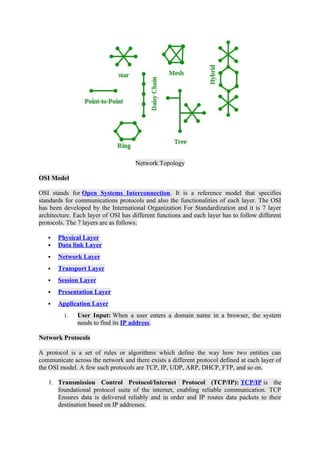
 Topology: Network topology refers to the physical and logical arrangement of nodes
on a network. The common network topologies include bus, star, ring, mesh, and tree.
 Service Provider Networks: These types of Networks give permission to take
Network Capacity and Functionality on lease from the Provider. Service Provider
Networks include Wireless Communications, Data Carriers, etc.
 IP Address: An IP address is a unique numerical identifier that is assigned to every
device on a network. IP addresses are used to identify devices and enable
communication between them.
 DNS: The Domain Name System (DNS) is a protocol that is used to translate human-
readable domain names (such as www.google.com) into IP addresses that computers
can understand.
 Firewall: A firewall is a security device that is used to monitor and control incoming
and outgoing network traffic. Firewalls are used to protect networks from
unauthorized access and other security threats.
How Does a Computer Network Work?
Basics building blocks of a Computer network are Nodes and Links. A Network Node can be
illustrated as Equipment for Data Communication like a Modem, Router, etc., or Equipment
of a Data Terminal like connecting two computers or more. Link in Computer Networks can
be defined as wires or cables or free space of wireless networks.
The working of Computer Networks can be simply defined as rules or protocols which help
in sending and receiving data via the links which allow Computer networks to communicate.
Each device has an IP Address, that helps in identifying a device.
What do Computer Networks do?
Computer networks first developed in 1950 for military and defense purpose. At that time
they are mainly used to send data through telephone lines and had limited use in business or
science.
Today computer networks are essential for businesses also. Modern networks offer more than
just connecting devices. They play a key role in helping businesses adapt to the digital world
and succeed. These networks have become more flexible, automated, and secure, making
them even more important in today’s business environment.
Modern computer networks can:
 Work Virtually: The physical network can be divided into smaller virtual networks.
In these virtual networks, devices are connected and can send data through multiple
physical routes. For example, many business networks use the internet this way.
 Connect on a Large Scale: Modern networks link many smaller, spread-out
networks into one big, powerful system. Automation and monitoring tools help
manage and adjust the network as needed, allowing it to grow or shrink based on
demand.
 Adapt Quickly: Many networks are controlled by software, so changes can be made
quickly through a digital dashboard. This allows traffic to be managed easily.
 Keep Data Secure: Built-in security features like encryption and access control
protect data. Additional protections like antivirus software, firewalls, and malware
protection can be added to strengthen network security.
Types of Enterprise Computer Networks
 LAN: A Local Area Network (LAN) is a network that covers a small area, such as
an office or a home. LANs are typically used to connect computers and other devices
within a building or a campus.
 WAN: A Wide Area Network (WAN) is a network that covers a large geographic
area, such as a city, country, or even the entire world. WANs are used to connect
LANs together and are typically used for long-distance communication.
 Cloud Networks: Cloud Networks can be visualized with a Wide Area Network
(WAN) as they can be hosted on public or private cloud service providers and cloud
networks are available if there is a demand. Cloud Networks consist of Virtual
Routers, Firewalls, etc.
These are just a few basic concepts of computer networking. Networking is a vast and
complex field, and there are many more concepts and technologies involved in building and
maintaining networks. Now we are going to discuss some more concepts on Computer
Networking.
 Open system: A system that is connected to the network and is ready for
communication.
 Closed system: A system that is not connected to the network and can’t be
communicated with.
Types of Computer Network Architecture
Computer Network falls under these broad Categories:
 Client-Server Architecture: Client-Server Architecture is a type of Computer
Network Architecture in which Nodes can be Servers or Clients. Here, the server node
can manage the Client Node Behaviour.
 Peer-to-Peer Architecture: In P2P (Peer-to-Peer) Architecture, there is not any
concept of a Central Server. Each device is free for working as either client or server.
Network Devices
An interconnection of multiple devices, also known as hosts, that are connected using
multiple paths for the purpose of sending/receiving data or media. Computer networks can
also include multiple devices/mediums which help in the communication between two
different devices; these are known as Network devices and include things such as routers,
switches, hubs, and bridges.
Network Devices
Network Topology
The Network Topology is the layout arrangement of the different devices in a network.
Some types of network topologies are:
 Bus Topology: In bus topology all devices are connected to a single central cable
called a bus. Data is sent along this cable and all devices share the same connection.
Simple and cheap to set up but if the main cable fails the whole network goes down.
 Star Topology: In star topology all devices are connected to a central node called
hub or switch. The hub controls the flow of data between devices. If one device fails
the rest of the network is unaffected. But, if the central hub fails the whole network
stops working.
 Ring Topology: In ring topology devices are connected in a circular loop with each
device connected to two others. Data travels in one direction (or sometimes both)
passing through each device until it reaches its destination. A failure in one device can
affect the whole network.
 Mesh Topology: In mesh topology every device is connected to every other device in
the network. It provides multiple paths for data so if one path fails another can take
over.
 Tree Topology: Tree topology is the combination of star and bus topology. Tree
topology is good for organizing large networks and allows for easy expansion.
 Hybrid Topology: Hybrid topology is the combination of two or more different
topologies (like star and mesh). It is flexible and can be customized based on the
network’s specific needs.
Network Topology
OSI Model
OSI stands for Open Systems Interconnection. It is a reference model that specifies
standards for communications protocols and also the functionalities of each layer. The OSI
has been developed by the International Organization For Standardization and it is 7 layer
architecture. Each layer of OSI has different functions and each layer has to follow different
protocols. The 7 layers are as follows:
 Physical Layer
 Data link Layer
 Network Layer
 Transport Layer
 Session Layer
 Presentation Layer
 Application Layer
i. User Input: When a user enters a domain name in a browser, the system
needs to find its IP address.
Network Protocols
A protocol is a set of rules or algorithms which define the way how two entities can
communicate across the network and there exists a different protocol defined at each layer of
the OSI model. A few such protocols are TCP, IP, UDP, ARP, DHCP, FTP, and so on.
1. Transmission Control Protocol/Internet Protocol (TCP/IP): TCP/IP is the
foundational protocol suite of the internet, enabling reliable communication. TCP
Ensures data is delivered reliably and in order and IP routes data packets to their
destination based on IP addresses.
2. Hypertext Transfer Protocol (HTTP) and HTTPS: HTTP and HTTPS protocols
used for transmitting web pages. In HTTP communication is unsecured and
in HTTPS secured communication using SSL/TLS encryption.
3. Simple Mail Transfer Protocol (SMTP): SMTP protocol used to send
email. SMTP protocol works with other protocols like POP3 and IMAP for email
retrieval.
4. File Transfer Protocol (FTP): FTP protocol used for transferring files between
computers. Includes commands for uploading, downloading, and managing files on a
remote server.
5. Dynamic Host Configuration Protocol (DHCP):
DHCP protocol automatically assigns IP addresses to devices on a network. Reduces manual
configuration and IP address conflicts.
6. Domain Name System (DNS): DNS Translates human-friendly domain names into
IP addresses. Ensures seamless navigation on the internet.
Unique Identifiers of Network
Hostname: Each device in the network is associated with a unique device name known as
Hostname. Type “hostname” in the command prompt(Administrator Mode) and press ‘Enter’,
this displays the hostname of your machine.
HostName
IP Address (Internet Protocol address): Also known as the Logical Address, the IP
Address is the network address of the system across the network. To identify each device in
the world-wide-web, the Internet Assigned Numbers Authority (IANA) assigns an IPV4
(Version 4) address as a unique identifier to each device on the Internet. The length of an
IPv4 address is 32 bits, hence, we have 232 IP addresses available. The length of an IPv6
address is 128 bits.
In Windows Type “ipconfig” in the command prompt and press ‘Enter’, this gives us the IP
address of the device. For Linux, Type “ifconfig” in the terminal and press ‘Enter’ this gives
us the IP address of the device.
MAC Address (Media Access Control address): Also known as physical address,
the MAC Address is the unique identifier of each host and is associated with its NIC
(Network Interface Card). A MAC address is assigned to the NIC at the time of
manufacturing. The length of the MAC address is: 12-nibble/ 6 bytes/ 48 bits Type
“ipconfig/all” in the command prompt and press ‘Enter’, this gives us the MAC address.
Port: A port can be referred to as a logical channel through which data can be sent/received
to an application. Any host may have multiple applications running, and each of these
applications is identified using the port number on which they are running.
A port number is a 16-bit integer, hence, we have 216 ports available which are categorized
as shown below:
Port Types Range
Well known Ports 0 – 1023
Registered Ports 1024 – 49151
Ephemeral Ports 49152 - 65535
Number of ports: 65,536
Range: 0 – 65535
Type “netstat -a” in the command prompt and press ‘Enter’, this lists all the ports being
used.
List of Ports
Socket: The unique combination of IP address and Port number together is termed a Socket.
Other Related Concepts
DNS Server: DNS stands for Domain Name System. DNS is basically a server that
translates web addresses or URLs (ex: www.google.com) into their corresponding IP
addresses. We don’t have to remember all the IP addresses of each and every website. The
command ‘nslookup’ gives you the IP address of the domain you are looking for. This also
provides information on our DNS Server. /
Domain IP Address
ARP: ARP stands for Address Resolution Protocol. It is used to convert an IP address to its
corresponding physical address(i.e., MAC Address). ARP is used by the Data Link Layer to
identify the MAC address of the Receiver’s machine.
RARP: RARP stands for Reverse Address Resolution Protocol. As the name suggests, it
provides the IP address of the device given a physical address as input. But RARP has
become obsolete since the time DHCP has come into the picture.
The Domain Name System (DNS) is a critical component of computer networking. It
converts easily recognizable domain names, such as www.example.com, into numerical IP
addresses that computers use to identify each other on the network.
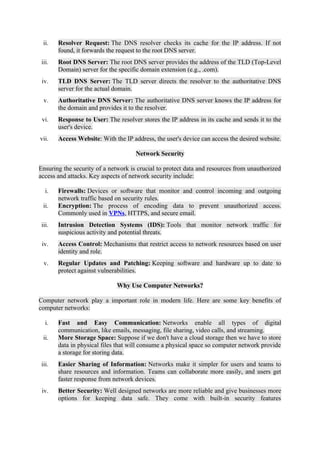
How DNS Works?
DNS works efficiently, translating user-friendly domain names into IP addresses, allowing
seamless navigation on the internet. Below step by step working of DNS:
i. DNS Query: The user's device sends a DNS query to the DNS resolver.
ii. Resolver Request: The DNS resolver checks its cache for the IP address. If not
found, it forwards the request to the root DNS server.
iii. Root DNS Server: The root DNS server provides the address of the TLD (Top-Level
Domain) server for the specific domain extension (e.g., .com).
iv. TLD DNS Server: The TLD server directs the resolver to the authoritative DNS
server for the actual domain.
v. Authoritative DNS Server: The authoritative DNS server knows the IP address for
the domain and provides it to the resolver.
vi. Response to User: The resolver stores the IP address in its cache and sends it to the
user's device.
vii. Access Website: With the IP address, the user's device can access the desired website.
Network Security
Ensuring the security of a network is crucial to protect data and resources from unauthorized
access and attacks. Key aspects of network security include:
i. Firewalls: Devices or software that monitor and control incoming and outgoing
network traffic based on security rules.
ii. Encryption: The process of encoding data to prevent unauthorized access.
Commonly used in VPNs, HTTPS, and secure email.
iii. Intrusion Detection Systems (IDS): Tools that monitor network traffic for
suspicious activity and potential threats.
iv. Access Control: Mechanisms that restrict access to network resources based on user
identity and role.
v. Regular Updates and Patching: Keeping software and hardware up to date to
protect against vulnerabilities.
Why Use Computer Networks?
Computer network play a important role in modern life. Here are some key benefits of
computer networks:
i. Fast and Easy Communication: Networks enable all types of digital
communication, like emails, messaging, file sharing, video calls, and streaming.
ii. More Storage Space: Suppose if we don't have a cloud storage then we have to store
data in physical files that will consume a physical space so computer network provide
a storage for storing data.
iii. Easier Sharing of Information: Networks make it simpler for users and teams to
share resources and information. Teams can collaborate more easily, and users get
faster response from network devices.
iv. Better Security: Well designed networks are more reliable and give businesses more
options for keeping data safe. They come with built-in security features
like encryption and access controls to protect sensitive information from cyber
threats.
Types of Switches in Computer Network
Last Updated : 21 Jun, 2024
Switches in computer networks are devices that connect multiple devices (like computers,
and printers) within a network. They manage data traffic efficiently by directing data only to
the devices that need it, enhancing network performance. Unlike hubs, switches operate at the
data link layer (Layer 2) of the OSI model, making decisions based on MAC addresses. They
are crucial for creating reliable and fast local area networks (LANs).
Switches are the connectivity points of an Ethernet network. These are small devices that can
receive data from multiple input ports and send it to the specific output port that takes data to
its intended destination in the network.
Characteristics of a Switch
Before we dive into different types of switches, let's understand some key features of a
switch:
i. In a switch, two important things to know are its "poles" and "throws." A pole is
where an electrical contact is made, and a throw is how many different contacts each
pole can connect to. The number of poles and throws tells you how the switch works
and what it can connect to in a circuit.
ii. In switches, you often find two standard types: Single, which has one contact point or
one connection, and Double, which has two contact points or two connections. These
terms describe how switches are built and what they can do in electronic devices.
iii. If a switch has more than two poles or throws, we usually just state the number
directly. For example, a switch with three poles and six throws is called a "3P6T"
switch.
iv. Momentary switches, like push buttons, make contact only while they are pressed.
They're used for brief actions or as long as you hold the button.
v. Latched switches, on the other hand, maintain their contact position until they are
switched to the other position.
Types of Switches in Computer Network
There are different types of switches in a network. These are:
 Mechanical Switches
 Electronic Switches
 Managed Switches
 Unmanaged Switches
 Layer 2 Switches
 Layer 3 Switches
i. This is a simple ON and OFF switch that has one input contact and one output
contact.
 Single Pole Single Throw Switch (SPST)
 Single Pole Double Throw Switch (SPDT)
 Double Pole Single Throw Switch (DPST)
 Double Pole Double Throw Switch (DPDT)
 Toggle Switch
 Limit Switch
 Pressure Switches
 Temperature Switches
 Joystick Switch
 Rotary Switches
 Power Diode
 MOSFET
 SCR
 Smart Switches
 Enterprise-Managed Switches
 LAN Switches
 PoE Switches
Mechanical Switches
Mechanical switches are physical switches that you activate by physically moving, pressing,
releasing, or touching their contacts. Mechanical switches come in different types depending
on things like how they are activated (manual, limit, or process switches), how many contacts
they have (single or multi-contact switches), the number of poles and throws (like SPST,
DPDT, SPDT), their design and operation (push button, toggle, rotary, joystick), and whether
they are momentary or locked.
Some important mechanical switches are discuss below:
Single Pole Single Throw Switch (SPST)
i. It controls a single circuit, either allowing current to flow (ON) or stopping it (OFF).
ii. The SPST switch can have contacts that are normally open (not connected in the
default state) or normally closed (connected in the default state).
Single Pole Double Throw Switch (SPDT)
i. This switch has three terminals: one is the input contact and the other two are output
contacts.
ii. It has two ON positions and one OFF position.
iii. Typically, these switches are used to alternate between two outputs for a given input.
iv. The contact that is connected to the input by default is called the normally closed
contact, and the contact that is connected during the ON operation is called the
normally open contact.
Double Pole Single Throw Switch (DPST)
i. This switch has four terminals: two are input contacts and two are output contacts.
ii. It functions like two separate SPST switches that work simultaneously.
iii. There is only one ON position, but both switches can activate their respective contacts
at the same time, connecting each input to its corresponding output.
iv. When in the OFF position, both switches are open.
v. These switches are used to control two different circuits simultaneously.
vi. The contacts of this switch can be either normally open or normally closed
configurations.
Double Pole Double Throw Switch (DPDT)
1. This is a dual ON/OFF switch with two ON positions.
2. It has six terminals: two input contacts and four output contacts.
3. It works like two separate SPDT switches operating at the same time.
4. In one position, the two input contacts are connected to one set of output contacts. In
the other position, the input contacts are connected to the other set of output contacts.
Toggle Switch
1. A toggle switch is manually operated using a handle, lever, or rocking mechanism. It's
often used to control lights.
2. These switches typically have multiple positions for their levers, such as SPDT,
SPST, DPST, and DPDT.
3. They can handle high currents, up to 10 amps, or small currents.
4. Toggle switches come in various ratings, sizes, and styles for different applications.
5. The ON position can be at any lever position, but conventionally, the downward
position is considered ON or closed.
Limit Switch
1. They are designed to operate based on the presence or absence of objects, or the
movement of machinery rather than human hand operation.
2. These switches use a bumper-type arm that reacts when an object makes contact with
it. When this happens, it triggers a change in the position of the switch contacts.
Pressure Switches
1. These switches are widely used in industrial settings to monitor the pressure of
hydraulic and pneumatic systems.
2. Depending on the pressure range they measure, they are classified into diaphragm-
operated, metal bellow, and piston-type pressure switches.
3. In all these types, a pressure sensing element triggers a set of contacts, which can be
either double-pole or single-pole.
4. The symbol for these switches features a half-circle connected to a line, with the flat
part.
5. They can be configured as normally open or normally closed switches.
Temperature Switches
1. The most common heat sensing element is the bimetallic strip, which works by
utilizing thermal expansion.
2. Bimetallic strips are made by bonding two metals with different rates of thermal
expansion.
3. When temperature changes, the strip bends or warps, activating the switch contacts.
4. Another method uses a mercury glass tube: as the bulb heats up, the mercury inside
expands, creating pressure that triggers the switch contacts.
Joystick Switch
1. Joystick switches are handheld control devices used in portable equipment. They
have a lever that moves in multiple directions.
2. When you move the lever, it activates one or more switch contacts.
3. Joysticks are great for controlling movements like up, down, left, and right.
4. They're commonly used in machinery, cable controls, and cranes.
Rotary Switches
1. These switches are used to connect one line to several others.
2. They're found in electrical meters (for range selection), communication devices (for
channel selection), and multi-band radios (for band selection).
3. These switches come in various configurations like single pole 12-way, 3-pole 4-way,
2-pole 6-way, and 4-pole 3-way, depending on the number of poles (lines connected)
and throws (ways to connect)
4. They have a knob (moving contact) that connects with multiple fixed contacts.
Electronic Switches
Electronic switches operate differently from mechanical switches because they don't need
physical contact to control a circuit. Instead, they use semiconductor technology to activate
and deactivate. Electronic switches are often referred to as Solid State switches because they
lack physical moving parts and therefore have no physical contacts. Semiconductor switches,
such as transistors, SCRs, MOSFETs, TRIACs, and IGBTs, are commonly used to control
various appliances like motor drives and HVAC equipment. These solid state switches come
in different types and sizes, catering to consumer, industrial, and automotive needs with
varying ratings.
Power Diode
1. A diode can switch between two states: a high impedance state and a low impedance
state. These states control how easily electricity can pass through it.
2. Diodes are made from semiconductor materials like Silicon and Germanium. For
power diodes, Silicon is commonly used because it can handle higher currents and
temperatures at the junction where the materials meet.
3. A diode is created by joining together two types of semiconductors: p-type and n-
type. This junction is called a PN junction.
4. A diode has two parts, the anode and the cathode, which are its two terminals. These
terminals determine how electricity flows through the diode, allowing it to control
current in electronic circuits.
MOSFET
1. The MOSFET is a very popular semiconductor device used for switching in
electronics. It's called a Metal Oxide Semiconductor Field Effect Transistor. It's
known for being unipolar, meaning it uses only one type of charge carrier, and it can
switch on and off very quickly, even at high frequencies.
2. In electronic power applications, the MOSFET is the go-to choice. It has three
important parts: the drain (where the output goes), the source (which is the common
connection), and the gate (where you give it commands).
SCR
1. A Silicon Controlled Rectifier (SCR) is a high-speed switching device commonly
used for power control applications. It operates as a unidirectional switch similar to a
diode, with three terminals: anode, cathode, and gate.
2. To turn an SCR ON or OFF, you control its gate input and adjust the biasing
conditions between the anode and cathode terminals.
3. The SCR is structured with four layers of alternating P (positive) and N (negative)
semiconductor materials. The boundaries between these layers form junctions labeled
as J1, J2, and J3. These junctions play a critical role in the SCR's operation and
switching characteristics.
Managed Switches
These types of switches have many features like the highest levels of security, precision
control, and full management of the network. These are used in organizations containing a
large network and can be customized to enhance the functionality of a certain network. These
are the most costly option but their scalability makes them an ideal option for a network that
is growing. They are achieved by setting a simple network management protocol(SNMP).
Advantages
1. Control over network traffic.
2. Enhanced security and performance.
3. Remote management and monitoring capabilities.
Disadvantages
1. More expensive than unmanaged switches.
2. Requires technical expertise to set up and configure.
Types of Managed Switches
1. Smart Switches
These switches offer basic management features with the ability to create some levels of
security but have a simpler management interface than the other managed switches. Thus
they are often called partially managed switches. These are mostly used in fast and constant
LANs which support gigabit data transfer and allocations. It can accept the configuration of
VLANs (Virtual LAN).
1. Enterprise-Managed Switches
They have features like the ability to fix, copy, transform and display different network
configurations, along with a web interface SNMP agent and command-line interface. These
are also known as fully managed switches and are more expensive than smart switches as
they have more features that can be enhanced. These are used in organizations that contain a
large number of ports, switches, and nodes.
1. LAN Switches
These are also known as Ethernet switches or data switches and are used to reduce network
congestion or bottleneck by distributing a package of data only to its intended recipient.
These are used to connect points on a LAN.
1. PoE Switches
PoE switches are used in PoE technology which stands for power over Ethernet that is a
technology that integrates data and power on the same cable allowing power devices to
receive data in parallel to power. Thus these switches provide greater flexibility by
simplifying the cabling process.
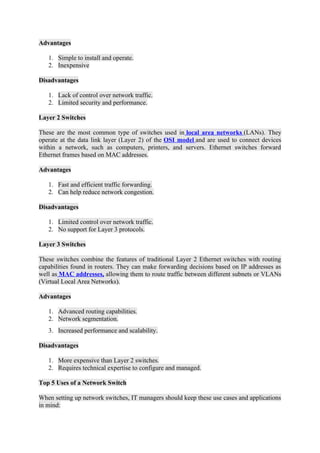
1. Unmanaged Switches
These are the switches that are mostly used in home networks and small businesses as they
plug in and instantly start doing their job and such switches do not need to be watched or
configured. These require only small cable connections. It allows devices on a network to
connect such as a computer to a computer or a computer to a printer in one location. They are
the least expensive switches among all categories.
Advantages
1. Simple to install and operate.
2. Inexpensive
Disadvantages
1. Lack of control over network traffic.
2. Limited security and performance.
Layer 2 Switches
These are the most common type of switches used in local area networks (LANs). They
operate at the data link layer (Layer 2) of the OSI model and are used to connect devices
within a network, such as computers, printers, and servers. Ethernet switches forward
Ethernet frames based on MAC addresses.
Advantages
1. Fast and efficient traffic forwarding.
2. Can help reduce network congestion.
Disadvantages
1. Limited control over network traffic.
2. No support for Layer 3 protocols.
Layer 3 Switches
These switches combine the features of traditional Layer 2 Ethernet switches with routing
capabilities found in routers. They can make forwarding decisions based on IP addresses as
well as MAC addresses, allowing them to route traffic between different subnets or VLANs
(Virtual Local Area Networks).
Advantages
1. Advanced routing capabilities.
2. Network segmentation.
3. Increased performance and scalability.
Disadvantages
1. More expensive than Layer 2 switches.
2. Requires technical expertise to configure and managed.
Top 5 Uses of a Network Switch
When setting up network switches, IT managers should keep these use cases and applications
in mind:
Uses of Network Switches
1. Connect with multiple hosts simultaneously.
2. Offload network traffic: reduce the amount of data that travels through a network by
diverting some of it to alternative paths or methods.
3. Optimize LAN bandwidth: improve the efficiency of data transfer within a local
area network to ensure faster and smoother communication between devices.
4. Populate the MAC address table: fill in the table that maps MAC addresses to their
corresponding network ports, enabling the network switch to efficiently forward data
to the correct devices.
5. Enable MAC filtering and other access control features: activate settings that
allow a network device to permit or deny connections based on the MAC addresses of
devices trying to access the network, enhancing security and control over network
access.
Types of Computer Cables and Ports
Last Updated : 22 Mar, 2021
We find many types of cables and ports while working with a computer or other electronic
gadgets, but most of us don’t know about their features, uses and some we don’t even know
their real name. What we all do is just compare the cable and the port, if it gets fitted means
they are made for each other.
After reading this post we will be an expert with different ports and cables and how to choose
the right one for our use.
Types of Computer Ports.
Types of USB (Universal Serial Bus).
USB connectors come in three main styles: Type A (rectangular), Type B (square) and Type
C (flattened oval), but you can also get Mini and Micro versions of A and B.
USB-C cables are the most recent and also the most versatile, letting you connect the latest
phones to your PC. Because they can carry data, audio, video, and a power supply, you can
use a USB-C cable to connect a compatible laptop to a docking station.
This will not only power your laptop but serve as a connection point between it and your
keyboard, mouse, monitor, and speakers. And, unlike other USB connectors, you can plug in
USB-C either way.
And there’s no need to worry about plugging a USB cable into the wrong port- if it fits, it will
work. However, transfer speeds will vary depending on the devices at either end of the
cables, as well as on the cable itself. There are three USB standards: USB 1.1, USB 2.0, and
USB 3.0 which have now reached 3.2. Each new generation is faster than the one before.
For example:
 USB 3.0 can transfer a 1GB video in two seconds.
 USB 2.0 can transfer a 1GB video in 16 seconds.
 USB 1.1 can transfer a 1GB video in 11 minutes.
In other words, to get the faster speed possible, both devices and the USB cable that connects
them need to use the USB 3.0 standard.
Most new devices support USB 3.0, but on some laptops only via specific USB ports. Take a
look at the ports on your laptop, if you spot a small SS symbol next to a USB port, it supports
USB 3.0. If your USB connector is blue, it’s a USB 3.0 standard. You can make sure by
peering inside the plug itself and checking the number of metal pins within, if you find just
four metal connectors then the cable is older while USB 3.0 cables have an additional five
connectors at the back.
Some other useful ports and their uses,
1. Card reader: These are for your microSD or SD card used to copy your data.
2. HDMI: These are the new type for connecting your laptop with a projector or TV
screen.
3. VGA port: These are also old types for connecting your laptop with a projector or
other monitors.
4. Thunderbolt: It is a combination of type-C and DisplayPort and its fastest type of
connector for laptops. Use for charging, connection with peripherals or displays.
5. RJ45 port: It is a network port on a computer. Many people called it an Ethernet port
or Network port.
Types of Cables.
1. Ethernet cables:
Wireless connections might be more convenient and make for a tidier working environment,
but in many ways cables are superior. They aren’t hampered by nearby networks and other
interference, meaning they can maintain fast speeds at all times.
Most routers have Gigabit Ethernet ports, which can transfer at speeds up to 1Gbps. To
benefit, however, the device you’re connecting it to needs to support Gigabit Ethernet, as
must the actual cable. If you’re using older cables, they may be the slower Cat5 type, which
will reduce speeds to around 100Mbps. If you’re not sure which you have, the Cat rating will
be on the cable. Cat5e or Cat6 Ethernet cables will support speeds of 1Gbps.
2. PS/2 cables
It’s likely that your keyboard and mouse connect to your PC wirelessly or using a USB. If
you have a particularly old set of peripherals, however, they may use a PS/2 keyboard or
mouse that you can’t bear to part with, you can carry on using it with your new computer by
buying a PS/2-to-USB adapter. Simply plug your old keyboard and mouse into the two PS/2
sockets on the adapter, then the other end into a spare USB port on your PC.
3. VGA cables
Back in the 1970s and 1980s, computers like the Acorn Electron used coaxial cables to
connect to standard, low-resolution TV sets. However, by the 1990s most computers were
using VGA cables to connect to dedicated monitors, which were able to produce much
sharper pictures. VGA cables are still widely used today, mostly connecting older monitors or
PCs. They can only carry analog signals, so the quality can’t match digital alternatives such
as DVI and HDMI. However, aside from a few rare exceptions, VGA cables are universal, so
you’re unlikely to run into any compatibility problems.
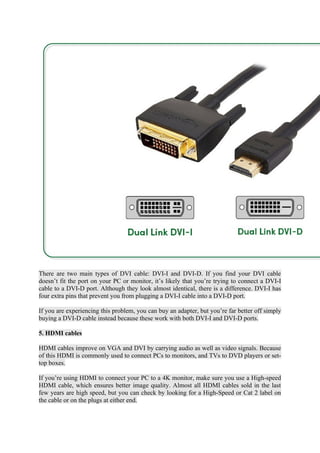
4. DVI cables
The DVI cable started appearing around 2000, offering a digital and higher-quality
alternative to VGA. While modern computers mostly provide HDMI ports for sending video
signals, it’s fairly common for them to also have one or more DVI ports.
There are two main types of DVI cable: DVI-I and DVI-D. If you find your DVI cable
doesn’t fit the port on your PC or monitor, it’s likely that you’re trying to connect a DVI-I
cable to a DVI-D port. Although they look almost identical, there is a difference. DVI-I has
four extra pins that prevent you from plugging a DVI-I cable into a DVI-D port.
If you are experiencing this problem, you can buy an adapter, but you’re far better off simply
buying a DVI-D cable instead because these work with both DVI-I and DVI-D ports.
5. HDMI cables
HDMI cables improve on VGA and DVI by carrying audio as well as video signals. Because
of this HDMI is commonly used to connect PCs to monitors, and TVs to DVD players or set-
top boxes.
If you’re using HDMI to connect your PC to a 4K monitor, make sure you use a High-speed
HDMI cable, which ensures better image quality. Almost all HDMI cables sold in the last
few years are high speed, but you can check by looking for a High-Speed or Cat 2 label on
the cable or on the plugs at either end.
If your cable is not high speed, it’s worth buying one that is. Ignore expensive options- cheap
cables are fine.
Devices like camcorders and portable projectors often have Mini or Micro HDMI ports,
which take up less space. For these, you’ll need an HDMI cable with a Mini/Micro HDMI
plug on one end and a standard HDMI plug on the other, which lets you connect it to a
display.
However, you may prefer to buy an adapter that lets you use any standard HDMI cable with
your device. Make sure you buy the correct adapter-either Mini HDMI or the smaller Micro
HDMI. Check your device specifications if you’re not sure which one you need.
Given their similar appearance and function, it’s easy to confuse DisplayPort and HDMI
connectors. However, DisplayPort connectors have an asymmetrical design, which means
you can’t plug an HDMI plug into a DisplayPort socket- and vice versa. They’re not as
common on home computers as HDMI, but if you do have one and your monitor only has
HDMI ports, you can buy a cheap adapter. There’s also a Mini version of the DisplayPort
connector, which was common on Macs until recently.
Difference Between Secure Socket Layer (SSL) and Transport Layer Security (TLS)
Last Updated : 10 May, 2025
Both Secure Socket Layer and Transport Layer Security are the protocols used to provide
security between web browsers and web servers. The main difference between Secure Socket
Layer and Transport Layer Security is that, in SSL (Secure Socket Layer), the Message digest
is used to create a master secret and it provides the basic security services which
are Authentication and confidentiality. While in TLS (Transport Layer Security), a Pseudo-
random function is used to create a master secret.
Secure Socket Layer (SSL)
The Secure Socket Layer (SSL) is a cryptographic protocol designed to provide secure
communication over a computer network. It was developed by Netscape in the 1990s to
establish an encrypted link between the web server and a web browser. SSL operates by using
encryption to secure the transmission of data ensuring that sensitive information such as
credit card details and personal data remains confidential.
Key Features of SSL
1. Encryption: It uses encryption algorithms to protect data during transmission.
2. Authentication: It verifies the identity of the server to ensure that data is sent to the
correct destination.
3. Data Integrity: It ensures that data has not been altered during the transmission.
4. Fortezza algorithm: The Fortezza algorithm is a cryptographic system that was used in
early versions of SSL (like SSL 3.0) to support strong encryption for secure
communications.
Transport Layer Security (TLS)
The Transport Layer Security (TLS) is the successor to SSL and is designed to provide
improved security and efficiency. TLS was developed as an enhancement of SSL to the
address various vulnerabilities and to the incorporate modern cryptographic techniques. The
first version, TLS 1.0 was based on SSL 3.0 but included significant improvements. TLS
continues to evolve with the newer versions offering enhanced the security features.
Key Features of TLS
1. Enhanced Encryption: It uses stronger encryption algorithms compared to SSL.
2. Forward Secrecy: It supports forward secrecy which ensures that session keys are not
compromised even if the server's private key is exposed.
3. Improved Performance: It provides better performance and efficiency with the
optimized algorithms and protocols.
Difference Between Secure Socket Layer (SSL) and Transport Layer Security (TLS)

Hand Note on Basic Internet Network Wordings

  • 1.
    OYO STATE COLLEGEOF AGRICULTURE AND TECHNOLOGY, IGBOORA, OYO STATE DEPARTMENT OF COMPUTER SCIENCE COURSE TITLE BASIC COMPUTER NETWORKING COURSE CODE COM 221 LEVEL NATIONAL DIPLOMA II PREPARED BY SAMSON, Peter Adebowale
  • 2.
    Computer Networking A computernetwork is a collection of interconnected devices that share resources and information. These devices can include computers, servers, printers, and other hardware. Networks allow for the efficient exchange of data, enabling various applications such as email, file sharing, and internet browsing. Basic Terminologies of Computer Networks  Network: A network is a collection of computers and devices that are connected together to enable communication and data exchange.  Nodes: Nodes are devices that are connected to a network. These can include computers, Servers, Printers, Routers, Switches, and other devices.  Protocol: A protocol is a set of rules and standards that govern how data is transmitted over a network. Examples of protocols include TCP/IP, HTTP, and FTP.  Topology: Network topology refers to the physical and logical arrangement of nodes on a network. The common network topologies include bus, star, ring, mesh, and tree.  Service Provider Networks: These types of Networks give permission to take Network Capacity and Functionality on lease from the Provider. Service Provider Networks include Wireless Communications, Data Carriers, etc.  IP Address: An IP address is a unique numerical identifier that is assigned to every device on a network. IP addresses are used to identify devices and enable communication between them.  DNS: The Domain Name System (DNS) is a protocol that is used to translate human- readable domain names (such as www.google.com) into IP addresses that computers can understand.  Firewall: A firewall is a security device that is used to monitor and control incoming and outgoing network traffic. Firewalls are used to protect networks from unauthorized access and other security threats. How Does a Computer Network Work? Basics building blocks of a Computer network are Nodes and Links. A Network Node can be illustrated as Equipment for Data Communication like a Modem, Router, etc., or Equipment of a Data Terminal like connecting two computers or more. Link in Computer Networks can be defined as wires or cables or free space of wireless networks. The working of Computer Networks can be simply defined as rules or protocols which help in sending and receiving data via the links which allow Computer networks to communicate. Each device has an IP Address, that helps in identifying a device. What do Computer Networks do? Computer networks first developed in 1950 for military and defense purpose. At that time they are mainly used to send data through telephone lines and had limited use in business or science.
  • 3.
    Today computer networksare essential for businesses also. Modern networks offer more than just connecting devices. They play a key role in helping businesses adapt to the digital world and succeed. These networks have become more flexible, automated, and secure, making them even more important in today’s business environment. Modern computer networks can:  Work Virtually: The physical network can be divided into smaller virtual networks. In these virtual networks, devices are connected and can send data through multiple physical routes. For example, many business networks use the internet this way.  Connect on a Large Scale: Modern networks link many smaller, spread-out networks into one big, powerful system. Automation and monitoring tools help manage and adjust the network as needed, allowing it to grow or shrink based on demand.  Adapt Quickly: Many networks are controlled by software, so changes can be made quickly through a digital dashboard. This allows traffic to be managed easily.  Keep Data Secure: Built-in security features like encryption and access control protect data. Additional protections like antivirus software, firewalls, and malware protection can be added to strengthen network security. Types of Enterprise Computer Networks
  • 4.
     LAN: ALocal Area Network (LAN) is a network that covers a small area, such as an office or a home. LANs are typically used to connect computers and other devices within a building or a campus.  WAN: A Wide Area Network (WAN) is a network that covers a large geographic area, such as a city, country, or even the entire world. WANs are used to connect LANs together and are typically used for long-distance communication.  Cloud Networks: Cloud Networks can be visualized with a Wide Area Network (WAN) as they can be hosted on public or private cloud service providers and cloud networks are available if there is a demand. Cloud Networks consist of Virtual Routers, Firewalls, etc. These are just a few basic concepts of computer networking. Networking is a vast and complex field, and there are many more concepts and technologies involved in building and maintaining networks. Now we are going to discuss some more concepts on Computer Networking.  Open system: A system that is connected to the network and is ready for communication.  Closed system: A system that is not connected to the network and can’t be communicated with. Types of Computer Network Architecture Computer Network falls under these broad Categories:  Client-Server Architecture: Client-Server Architecture is a type of Computer Network Architecture in which Nodes can be Servers or Clients. Here, the server node can manage the Client Node Behaviour.  Peer-to-Peer Architecture: In P2P (Peer-to-Peer) Architecture, there is not any concept of a Central Server. Each device is free for working as either client or server. Network Devices An interconnection of multiple devices, also known as hosts, that are connected using multiple paths for the purpose of sending/receiving data or media. Computer networks can also include multiple devices/mediums which help in the communication between two different devices; these are known as Network devices and include things such as routers, switches, hubs, and bridges.
  • 5.
    Network Devices Network Topology TheNetwork Topology is the layout arrangement of the different devices in a network. Some types of network topologies are:  Bus Topology: In bus topology all devices are connected to a single central cable called a bus. Data is sent along this cable and all devices share the same connection. Simple and cheap to set up but if the main cable fails the whole network goes down.  Star Topology: In star topology all devices are connected to a central node called hub or switch. The hub controls the flow of data between devices. If one device fails the rest of the network is unaffected. But, if the central hub fails the whole network stops working.  Ring Topology: In ring topology devices are connected in a circular loop with each device connected to two others. Data travels in one direction (or sometimes both) passing through each device until it reaches its destination. A failure in one device can affect the whole network.  Mesh Topology: In mesh topology every device is connected to every other device in the network. It provides multiple paths for data so if one path fails another can take over.  Tree Topology: Tree topology is the combination of star and bus topology. Tree topology is good for organizing large networks and allows for easy expansion.  Hybrid Topology: Hybrid topology is the combination of two or more different topologies (like star and mesh). It is flexible and can be customized based on the network’s specific needs.
  • 6.
    Network Topology OSI Model OSIstands for Open Systems Interconnection. It is a reference model that specifies standards for communications protocols and also the functionalities of each layer. The OSI has been developed by the International Organization For Standardization and it is 7 layer architecture. Each layer of OSI has different functions and each layer has to follow different protocols. The 7 layers are as follows:  Physical Layer  Data link Layer  Network Layer  Transport Layer  Session Layer  Presentation Layer  Application Layer i. User Input: When a user enters a domain name in a browser, the system needs to find its IP address. Network Protocols A protocol is a set of rules or algorithms which define the way how two entities can communicate across the network and there exists a different protocol defined at each layer of the OSI model. A few such protocols are TCP, IP, UDP, ARP, DHCP, FTP, and so on. 1. Transmission Control Protocol/Internet Protocol (TCP/IP): TCP/IP is the foundational protocol suite of the internet, enabling reliable communication. TCP Ensures data is delivered reliably and in order and IP routes data packets to their destination based on IP addresses.
  • 7.
    2. Hypertext TransferProtocol (HTTP) and HTTPS: HTTP and HTTPS protocols used for transmitting web pages. In HTTP communication is unsecured and in HTTPS secured communication using SSL/TLS encryption. 3. Simple Mail Transfer Protocol (SMTP): SMTP protocol used to send email. SMTP protocol works with other protocols like POP3 and IMAP for email retrieval. 4. File Transfer Protocol (FTP): FTP protocol used for transferring files between computers. Includes commands for uploading, downloading, and managing files on a remote server. 5. Dynamic Host Configuration Protocol (DHCP): DHCP protocol automatically assigns IP addresses to devices on a network. Reduces manual configuration and IP address conflicts. 6. Domain Name System (DNS): DNS Translates human-friendly domain names into IP addresses. Ensures seamless navigation on the internet. Unique Identifiers of Network Hostname: Each device in the network is associated with a unique device name known as Hostname. Type “hostname” in the command prompt(Administrator Mode) and press ‘Enter’, this displays the hostname of your machine. HostName IP Address (Internet Protocol address): Also known as the Logical Address, the IP Address is the network address of the system across the network. To identify each device in the world-wide-web, the Internet Assigned Numbers Authority (IANA) assigns an IPV4 (Version 4) address as a unique identifier to each device on the Internet. The length of an
  • 8.
    IPv4 address is32 bits, hence, we have 232 IP addresses available. The length of an IPv6 address is 128 bits. In Windows Type “ipconfig” in the command prompt and press ‘Enter’, this gives us the IP address of the device. For Linux, Type “ifconfig” in the terminal and press ‘Enter’ this gives us the IP address of the device. MAC Address (Media Access Control address): Also known as physical address, the MAC Address is the unique identifier of each host and is associated with its NIC (Network Interface Card). A MAC address is assigned to the NIC at the time of manufacturing. The length of the MAC address is: 12-nibble/ 6 bytes/ 48 bits Type “ipconfig/all” in the command prompt and press ‘Enter’, this gives us the MAC address. Port: A port can be referred to as a logical channel through which data can be sent/received to an application. Any host may have multiple applications running, and each of these applications is identified using the port number on which they are running. A port number is a 16-bit integer, hence, we have 216 ports available which are categorized as shown below: Port Types Range Well known Ports 0 – 1023 Registered Ports 1024 – 49151 Ephemeral Ports 49152 - 65535 Number of ports: 65,536 Range: 0 – 65535 Type “netstat -a” in the command prompt and press ‘Enter’, this lists all the ports being used. List of Ports
  • 9.
    Socket: The uniquecombination of IP address and Port number together is termed a Socket. Other Related Concepts DNS Server: DNS stands for Domain Name System. DNS is basically a server that translates web addresses or URLs (ex: www.google.com) into their corresponding IP addresses. We don’t have to remember all the IP addresses of each and every website. The command ‘nslookup’ gives you the IP address of the domain you are looking for. This also provides information on our DNS Server. / Domain IP Address ARP: ARP stands for Address Resolution Protocol. It is used to convert an IP address to its corresponding physical address(i.e., MAC Address). ARP is used by the Data Link Layer to identify the MAC address of the Receiver’s machine. RARP: RARP stands for Reverse Address Resolution Protocol. As the name suggests, it provides the IP address of the device given a physical address as input. But RARP has become obsolete since the time DHCP has come into the picture. The Domain Name System (DNS) is a critical component of computer networking. It converts easily recognizable domain names, such as www.example.com, into numerical IP addresses that computers use to identify each other on the network. How DNS Works? DNS works efficiently, translating user-friendly domain names into IP addresses, allowing seamless navigation on the internet. Below step by step working of DNS: i. DNS Query: The user's device sends a DNS query to the DNS resolver.
  • 10.
    ii. Resolver Request:The DNS resolver checks its cache for the IP address. If not found, it forwards the request to the root DNS server. iii. Root DNS Server: The root DNS server provides the address of the TLD (Top-Level Domain) server for the specific domain extension (e.g., .com). iv. TLD DNS Server: The TLD server directs the resolver to the authoritative DNS server for the actual domain. v. Authoritative DNS Server: The authoritative DNS server knows the IP address for the domain and provides it to the resolver. vi. Response to User: The resolver stores the IP address in its cache and sends it to the user's device. vii. Access Website: With the IP address, the user's device can access the desired website. Network Security Ensuring the security of a network is crucial to protect data and resources from unauthorized access and attacks. Key aspects of network security include: i. Firewalls: Devices or software that monitor and control incoming and outgoing network traffic based on security rules. ii. Encryption: The process of encoding data to prevent unauthorized access. Commonly used in VPNs, HTTPS, and secure email. iii. Intrusion Detection Systems (IDS): Tools that monitor network traffic for suspicious activity and potential threats. iv. Access Control: Mechanisms that restrict access to network resources based on user identity and role. v. Regular Updates and Patching: Keeping software and hardware up to date to protect against vulnerabilities. Why Use Computer Networks? Computer network play a important role in modern life. Here are some key benefits of computer networks: i. Fast and Easy Communication: Networks enable all types of digital communication, like emails, messaging, file sharing, video calls, and streaming. ii. More Storage Space: Suppose if we don't have a cloud storage then we have to store data in physical files that will consume a physical space so computer network provide a storage for storing data. iii. Easier Sharing of Information: Networks make it simpler for users and teams to share resources and information. Teams can collaborate more easily, and users get faster response from network devices. iv. Better Security: Well designed networks are more reliable and give businesses more options for keeping data safe. They come with built-in security features
  • 11.
    like encryption andaccess controls to protect sensitive information from cyber threats. Types of Switches in Computer Network Last Updated : 21 Jun, 2024 Switches in computer networks are devices that connect multiple devices (like computers, and printers) within a network. They manage data traffic efficiently by directing data only to the devices that need it, enhancing network performance. Unlike hubs, switches operate at the data link layer (Layer 2) of the OSI model, making decisions based on MAC addresses. They are crucial for creating reliable and fast local area networks (LANs). Switches are the connectivity points of an Ethernet network. These are small devices that can receive data from multiple input ports and send it to the specific output port that takes data to its intended destination in the network. Characteristics of a Switch Before we dive into different types of switches, let's understand some key features of a switch: i. In a switch, two important things to know are its "poles" and "throws." A pole is where an electrical contact is made, and a throw is how many different contacts each pole can connect to. The number of poles and throws tells you how the switch works and what it can connect to in a circuit. ii. In switches, you often find two standard types: Single, which has one contact point or one connection, and Double, which has two contact points or two connections. These terms describe how switches are built and what they can do in electronic devices. iii. If a switch has more than two poles or throws, we usually just state the number directly. For example, a switch with three poles and six throws is called a "3P6T" switch. iv. Momentary switches, like push buttons, make contact only while they are pressed. They're used for brief actions or as long as you hold the button. v. Latched switches, on the other hand, maintain their contact position until they are switched to the other position. Types of Switches in Computer Network There are different types of switches in a network. These are:  Mechanical Switches  Electronic Switches  Managed Switches  Unmanaged Switches  Layer 2 Switches
  • 12.
     Layer 3Switches i. This is a simple ON and OFF switch that has one input contact and one output contact.  Single Pole Single Throw Switch (SPST)  Single Pole Double Throw Switch (SPDT)  Double Pole Single Throw Switch (DPST)  Double Pole Double Throw Switch (DPDT)  Toggle Switch  Limit Switch  Pressure Switches  Temperature Switches  Joystick Switch  Rotary Switches  Power Diode  MOSFET  SCR  Smart Switches  Enterprise-Managed Switches  LAN Switches  PoE Switches Mechanical Switches Mechanical switches are physical switches that you activate by physically moving, pressing, releasing, or touching their contacts. Mechanical switches come in different types depending on things like how they are activated (manual, limit, or process switches), how many contacts they have (single or multi-contact switches), the number of poles and throws (like SPST, DPDT, SPDT), their design and operation (push button, toggle, rotary, joystick), and whether they are momentary or locked. Some important mechanical switches are discuss below: Single Pole Single Throw Switch (SPST) i. It controls a single circuit, either allowing current to flow (ON) or stopping it (OFF). ii. The SPST switch can have contacts that are normally open (not connected in the default state) or normally closed (connected in the default state). Single Pole Double Throw Switch (SPDT)
  • 13.
    i. This switchhas three terminals: one is the input contact and the other two are output contacts. ii. It has two ON positions and one OFF position. iii. Typically, these switches are used to alternate between two outputs for a given input. iv. The contact that is connected to the input by default is called the normally closed contact, and the contact that is connected during the ON operation is called the normally open contact. Double Pole Single Throw Switch (DPST) i. This switch has four terminals: two are input contacts and two are output contacts. ii. It functions like two separate SPST switches that work simultaneously. iii. There is only one ON position, but both switches can activate their respective contacts at the same time, connecting each input to its corresponding output. iv. When in the OFF position, both switches are open. v. These switches are used to control two different circuits simultaneously. vi. The contacts of this switch can be either normally open or normally closed configurations. Double Pole Double Throw Switch (DPDT) 1. This is a dual ON/OFF switch with two ON positions. 2. It has six terminals: two input contacts and four output contacts. 3. It works like two separate SPDT switches operating at the same time. 4. In one position, the two input contacts are connected to one set of output contacts. In the other position, the input contacts are connected to the other set of output contacts. Toggle Switch 1. A toggle switch is manually operated using a handle, lever, or rocking mechanism. It's often used to control lights. 2. These switches typically have multiple positions for their levers, such as SPDT, SPST, DPST, and DPDT. 3. They can handle high currents, up to 10 amps, or small currents. 4. Toggle switches come in various ratings, sizes, and styles for different applications. 5. The ON position can be at any lever position, but conventionally, the downward position is considered ON or closed. Limit Switch 1. They are designed to operate based on the presence or absence of objects, or the movement of machinery rather than human hand operation. 2. These switches use a bumper-type arm that reacts when an object makes contact with it. When this happens, it triggers a change in the position of the switch contacts.
  • 14.
    Pressure Switches 1. Theseswitches are widely used in industrial settings to monitor the pressure of hydraulic and pneumatic systems. 2. Depending on the pressure range they measure, they are classified into diaphragm- operated, metal bellow, and piston-type pressure switches. 3. In all these types, a pressure sensing element triggers a set of contacts, which can be either double-pole or single-pole. 4. The symbol for these switches features a half-circle connected to a line, with the flat part. 5. They can be configured as normally open or normally closed switches. Temperature Switches 1. The most common heat sensing element is the bimetallic strip, which works by utilizing thermal expansion. 2. Bimetallic strips are made by bonding two metals with different rates of thermal expansion. 3. When temperature changes, the strip bends or warps, activating the switch contacts. 4. Another method uses a mercury glass tube: as the bulb heats up, the mercury inside expands, creating pressure that triggers the switch contacts. Joystick Switch 1. Joystick switches are handheld control devices used in portable equipment. They have a lever that moves in multiple directions. 2. When you move the lever, it activates one or more switch contacts. 3. Joysticks are great for controlling movements like up, down, left, and right. 4. They're commonly used in machinery, cable controls, and cranes. Rotary Switches 1. These switches are used to connect one line to several others. 2. They're found in electrical meters (for range selection), communication devices (for channel selection), and multi-band radios (for band selection). 3. These switches come in various configurations like single pole 12-way, 3-pole 4-way, 2-pole 6-way, and 4-pole 3-way, depending on the number of poles (lines connected) and throws (ways to connect) 4. They have a knob (moving contact) that connects with multiple fixed contacts. Electronic Switches Electronic switches operate differently from mechanical switches because they don't need physical contact to control a circuit. Instead, they use semiconductor technology to activate and deactivate. Electronic switches are often referred to as Solid State switches because they
  • 15.
    lack physical movingparts and therefore have no physical contacts. Semiconductor switches, such as transistors, SCRs, MOSFETs, TRIACs, and IGBTs, are commonly used to control various appliances like motor drives and HVAC equipment. These solid state switches come in different types and sizes, catering to consumer, industrial, and automotive needs with varying ratings. Power Diode 1. A diode can switch between two states: a high impedance state and a low impedance state. These states control how easily electricity can pass through it. 2. Diodes are made from semiconductor materials like Silicon and Germanium. For power diodes, Silicon is commonly used because it can handle higher currents and temperatures at the junction where the materials meet. 3. A diode is created by joining together two types of semiconductors: p-type and n- type. This junction is called a PN junction. 4. A diode has two parts, the anode and the cathode, which are its two terminals. These terminals determine how electricity flows through the diode, allowing it to control current in electronic circuits. MOSFET 1. The MOSFET is a very popular semiconductor device used for switching in electronics. It's called a Metal Oxide Semiconductor Field Effect Transistor. It's known for being unipolar, meaning it uses only one type of charge carrier, and it can switch on and off very quickly, even at high frequencies. 2. In electronic power applications, the MOSFET is the go-to choice. It has three important parts: the drain (where the output goes), the source (which is the common connection), and the gate (where you give it commands). SCR 1. A Silicon Controlled Rectifier (SCR) is a high-speed switching device commonly used for power control applications. It operates as a unidirectional switch similar to a diode, with three terminals: anode, cathode, and gate. 2. To turn an SCR ON or OFF, you control its gate input and adjust the biasing conditions between the anode and cathode terminals. 3. The SCR is structured with four layers of alternating P (positive) and N (negative) semiconductor materials. The boundaries between these layers form junctions labeled as J1, J2, and J3. These junctions play a critical role in the SCR's operation and switching characteristics. Managed Switches These types of switches have many features like the highest levels of security, precision control, and full management of the network. These are used in organizations containing a large network and can be customized to enhance the functionality of a certain network. These are the most costly option but their scalability makes them an ideal option for a network that is growing. They are achieved by setting a simple network management protocol(SNMP).
  • 16.
    Advantages 1. Control overnetwork traffic. 2. Enhanced security and performance. 3. Remote management and monitoring capabilities. Disadvantages 1. More expensive than unmanaged switches. 2. Requires technical expertise to set up and configure. Types of Managed Switches 1. Smart Switches These switches offer basic management features with the ability to create some levels of security but have a simpler management interface than the other managed switches. Thus they are often called partially managed switches. These are mostly used in fast and constant LANs which support gigabit data transfer and allocations. It can accept the configuration of VLANs (Virtual LAN). 1. Enterprise-Managed Switches They have features like the ability to fix, copy, transform and display different network configurations, along with a web interface SNMP agent and command-line interface. These are also known as fully managed switches and are more expensive than smart switches as they have more features that can be enhanced. These are used in organizations that contain a large number of ports, switches, and nodes. 1. LAN Switches These are also known as Ethernet switches or data switches and are used to reduce network congestion or bottleneck by distributing a package of data only to its intended recipient. These are used to connect points on a LAN. 1. PoE Switches PoE switches are used in PoE technology which stands for power over Ethernet that is a technology that integrates data and power on the same cable allowing power devices to receive data in parallel to power. Thus these switches provide greater flexibility by simplifying the cabling process. 1. Unmanaged Switches These are the switches that are mostly used in home networks and small businesses as they plug in and instantly start doing their job and such switches do not need to be watched or configured. These require only small cable connections. It allows devices on a network to connect such as a computer to a computer or a computer to a printer in one location. They are the least expensive switches among all categories.
  • 17.
    Advantages 1. Simple toinstall and operate. 2. Inexpensive Disadvantages 1. Lack of control over network traffic. 2. Limited security and performance. Layer 2 Switches These are the most common type of switches used in local area networks (LANs). They operate at the data link layer (Layer 2) of the OSI model and are used to connect devices within a network, such as computers, printers, and servers. Ethernet switches forward Ethernet frames based on MAC addresses. Advantages 1. Fast and efficient traffic forwarding. 2. Can help reduce network congestion. Disadvantages 1. Limited control over network traffic. 2. No support for Layer 3 protocols. Layer 3 Switches These switches combine the features of traditional Layer 2 Ethernet switches with routing capabilities found in routers. They can make forwarding decisions based on IP addresses as well as MAC addresses, allowing them to route traffic between different subnets or VLANs (Virtual Local Area Networks). Advantages 1. Advanced routing capabilities. 2. Network segmentation. 3. Increased performance and scalability. Disadvantages 1. More expensive than Layer 2 switches. 2. Requires technical expertise to configure and managed. Top 5 Uses of a Network Switch When setting up network switches, IT managers should keep these use cases and applications in mind:
  • 18.
    Uses of NetworkSwitches 1. Connect with multiple hosts simultaneously. 2. Offload network traffic: reduce the amount of data that travels through a network by diverting some of it to alternative paths or methods. 3. Optimize LAN bandwidth: improve the efficiency of data transfer within a local area network to ensure faster and smoother communication between devices. 4. Populate the MAC address table: fill in the table that maps MAC addresses to their corresponding network ports, enabling the network switch to efficiently forward data to the correct devices. 5. Enable MAC filtering and other access control features: activate settings that allow a network device to permit or deny connections based on the MAC addresses of devices trying to access the network, enhancing security and control over network access. Types of Computer Cables and Ports Last Updated : 22 Mar, 2021 We find many types of cables and ports while working with a computer or other electronic gadgets, but most of us don’t know about their features, uses and some we don’t even know
  • 19.
    their real name.What we all do is just compare the cable and the port, if it gets fitted means they are made for each other. After reading this post we will be an expert with different ports and cables and how to choose the right one for our use. Types of Computer Ports. Types of USB (Universal Serial Bus). USB connectors come in three main styles: Type A (rectangular), Type B (square) and Type C (flattened oval), but you can also get Mini and Micro versions of A and B. USB-C cables are the most recent and also the most versatile, letting you connect the latest phones to your PC. Because they can carry data, audio, video, and a power supply, you can use a USB-C cable to connect a compatible laptop to a docking station.
  • 20.
    This will notonly power your laptop but serve as a connection point between it and your keyboard, mouse, monitor, and speakers. And, unlike other USB connectors, you can plug in USB-C either way. And there’s no need to worry about plugging a USB cable into the wrong port- if it fits, it will work. However, transfer speeds will vary depending on the devices at either end of the cables, as well as on the cable itself. There are three USB standards: USB 1.1, USB 2.0, and USB 3.0 which have now reached 3.2. Each new generation is faster than the one before. For example:  USB 3.0 can transfer a 1GB video in two seconds.  USB 2.0 can transfer a 1GB video in 16 seconds.  USB 1.1 can transfer a 1GB video in 11 minutes. In other words, to get the faster speed possible, both devices and the USB cable that connects them need to use the USB 3.0 standard. Most new devices support USB 3.0, but on some laptops only via specific USB ports. Take a look at the ports on your laptop, if you spot a small SS symbol next to a USB port, it supports USB 3.0. If your USB connector is blue, it’s a USB 3.0 standard. You can make sure by peering inside the plug itself and checking the number of metal pins within, if you find just four metal connectors then the cable is older while USB 3.0 cables have an additional five connectors at the back. Some other useful ports and their uses, 1. Card reader: These are for your microSD or SD card used to copy your data. 2. HDMI: These are the new type for connecting your laptop with a projector or TV screen. 3. VGA port: These are also old types for connecting your laptop with a projector or other monitors. 4. Thunderbolt: It is a combination of type-C and DisplayPort and its fastest type of connector for laptops. Use for charging, connection with peripherals or displays. 5. RJ45 port: It is a network port on a computer. Many people called it an Ethernet port or Network port. Types of Cables. 1. Ethernet cables: Wireless connections might be more convenient and make for a tidier working environment, but in many ways cables are superior. They aren’t hampered by nearby networks and other interference, meaning they can maintain fast speeds at all times. Most routers have Gigabit Ethernet ports, which can transfer at speeds up to 1Gbps. To benefit, however, the device you’re connecting it to needs to support Gigabit Ethernet, as must the actual cable. If you’re using older cables, they may be the slower Cat5 type, which
  • 21.
    will reduce speedsto around 100Mbps. If you’re not sure which you have, the Cat rating will be on the cable. Cat5e or Cat6 Ethernet cables will support speeds of 1Gbps. 2. PS/2 cables It’s likely that your keyboard and mouse connect to your PC wirelessly or using a USB. If you have a particularly old set of peripherals, however, they may use a PS/2 keyboard or mouse that you can’t bear to part with, you can carry on using it with your new computer by buying a PS/2-to-USB adapter. Simply plug your old keyboard and mouse into the two PS/2 sockets on the adapter, then the other end into a spare USB port on your PC. 3. VGA cables Back in the 1970s and 1980s, computers like the Acorn Electron used coaxial cables to connect to standard, low-resolution TV sets. However, by the 1990s most computers were using VGA cables to connect to dedicated monitors, which were able to produce much sharper pictures. VGA cables are still widely used today, mostly connecting older monitors or PCs. They can only carry analog signals, so the quality can’t match digital alternatives such as DVI and HDMI. However, aside from a few rare exceptions, VGA cables are universal, so you’re unlikely to run into any compatibility problems. 4. DVI cables The DVI cable started appearing around 2000, offering a digital and higher-quality alternative to VGA. While modern computers mostly provide HDMI ports for sending video signals, it’s fairly common for them to also have one or more DVI ports.
  • 22.
    There are twomain types of DVI cable: DVI-I and DVI-D. If you find your DVI cable doesn’t fit the port on your PC or monitor, it’s likely that you’re trying to connect a DVI-I cable to a DVI-D port. Although they look almost identical, there is a difference. DVI-I has four extra pins that prevent you from plugging a DVI-I cable into a DVI-D port. If you are experiencing this problem, you can buy an adapter, but you’re far better off simply buying a DVI-D cable instead because these work with both DVI-I and DVI-D ports. 5. HDMI cables HDMI cables improve on VGA and DVI by carrying audio as well as video signals. Because of this HDMI is commonly used to connect PCs to monitors, and TVs to DVD players or set- top boxes. If you’re using HDMI to connect your PC to a 4K monitor, make sure you use a High-speed HDMI cable, which ensures better image quality. Almost all HDMI cables sold in the last few years are high speed, but you can check by looking for a High-Speed or Cat 2 label on the cable or on the plugs at either end.
  • 23.
    If your cableis not high speed, it’s worth buying one that is. Ignore expensive options- cheap cables are fine. Devices like camcorders and portable projectors often have Mini or Micro HDMI ports, which take up less space. For these, you’ll need an HDMI cable with a Mini/Micro HDMI plug on one end and a standard HDMI plug on the other, which lets you connect it to a display. However, you may prefer to buy an adapter that lets you use any standard HDMI cable with your device. Make sure you buy the correct adapter-either Mini HDMI or the smaller Micro HDMI. Check your device specifications if you’re not sure which one you need. Given their similar appearance and function, it’s easy to confuse DisplayPort and HDMI connectors. However, DisplayPort connectors have an asymmetrical design, which means you can’t plug an HDMI plug into a DisplayPort socket- and vice versa. They’re not as common on home computers as HDMI, but if you do have one and your monitor only has HDMI ports, you can buy a cheap adapter. There’s also a Mini version of the DisplayPort connector, which was common on Macs until recently. Difference Between Secure Socket Layer (SSL) and Transport Layer Security (TLS) Last Updated : 10 May, 2025 Both Secure Socket Layer and Transport Layer Security are the protocols used to provide security between web browsers and web servers. The main difference between Secure Socket Layer and Transport Layer Security is that, in SSL (Secure Socket Layer), the Message digest is used to create a master secret and it provides the basic security services which are Authentication and confidentiality. While in TLS (Transport Layer Security), a Pseudo- random function is used to create a master secret. Secure Socket Layer (SSL) The Secure Socket Layer (SSL) is a cryptographic protocol designed to provide secure communication over a computer network. It was developed by Netscape in the 1990s to establish an encrypted link between the web server and a web browser. SSL operates by using encryption to secure the transmission of data ensuring that sensitive information such as credit card details and personal data remains confidential. Key Features of SSL 1. Encryption: It uses encryption algorithms to protect data during transmission. 2. Authentication: It verifies the identity of the server to ensure that data is sent to the correct destination. 3. Data Integrity: It ensures that data has not been altered during the transmission. 4. Fortezza algorithm: The Fortezza algorithm is a cryptographic system that was used in early versions of SSL (like SSL 3.0) to support strong encryption for secure communications. Transport Layer Security (TLS)
  • 24.
    The Transport LayerSecurity (TLS) is the successor to SSL and is designed to provide improved security and efficiency. TLS was developed as an enhancement of SSL to the address various vulnerabilities and to the incorporate modern cryptographic techniques. The first version, TLS 1.0 was based on SSL 3.0 but included significant improvements. TLS continues to evolve with the newer versions offering enhanced the security features. Key Features of TLS 1. Enhanced Encryption: It uses stronger encryption algorithms compared to SSL. 2. Forward Secrecy: It supports forward secrecy which ensures that session keys are not compromised even if the server's private key is exposed. 3. Improved Performance: It provides better performance and efficiency with the optimized algorithms and protocols. Difference Between Secure Socket Layer (SSL) and Transport Layer Security (TLS)