Hadoop AWS Setup
step by step
BY MAGGIE ZHANG
Three Types of Hadoop Modes
Standalone Mode Single-Node Pseudo-
distributed Mode
Fully-distributed Mode
In this practice, we will achieve the fully distributed mode
to set up 4 node Hadoop AWS EC2 cluster
What you will target
NameNode (Master) SecondaryNameNode DataNode (Slave1) DataNode (Slave2)
Four Major
Steps
Step 4
Hadoop Multi-Node Installation and setup
Notes: Most people have issues with Step 4.
If you just need to dig in Hadoop configuration,
welcome to skip to Step 4.
Step 3 Setup WinSCP access to EC2 instances
Step 2 Setting up client access to Amazon Instances (using Putty.)
Step 1 Setting up Amazon EC2 Instances
Step 1 -
Setting up
AWS EC2
Instances
Abstracts:
• 4 Node Instance Cluster
• Security Group
(Inbound/Outbound – all
public at the very
beginning)
• Security Pair Key
1.1 Get Amazon AWS Account
eligible free-tier instances
1.2 Launch Instance
Instances Console
1.3 Select AMI
Recommend to use Ubuntu
1.4 Select Instance Type
Micro
1.5 Configure Number of Instances
4 Nodes
1.6 Add Storage
Minimum volume size is 8GB
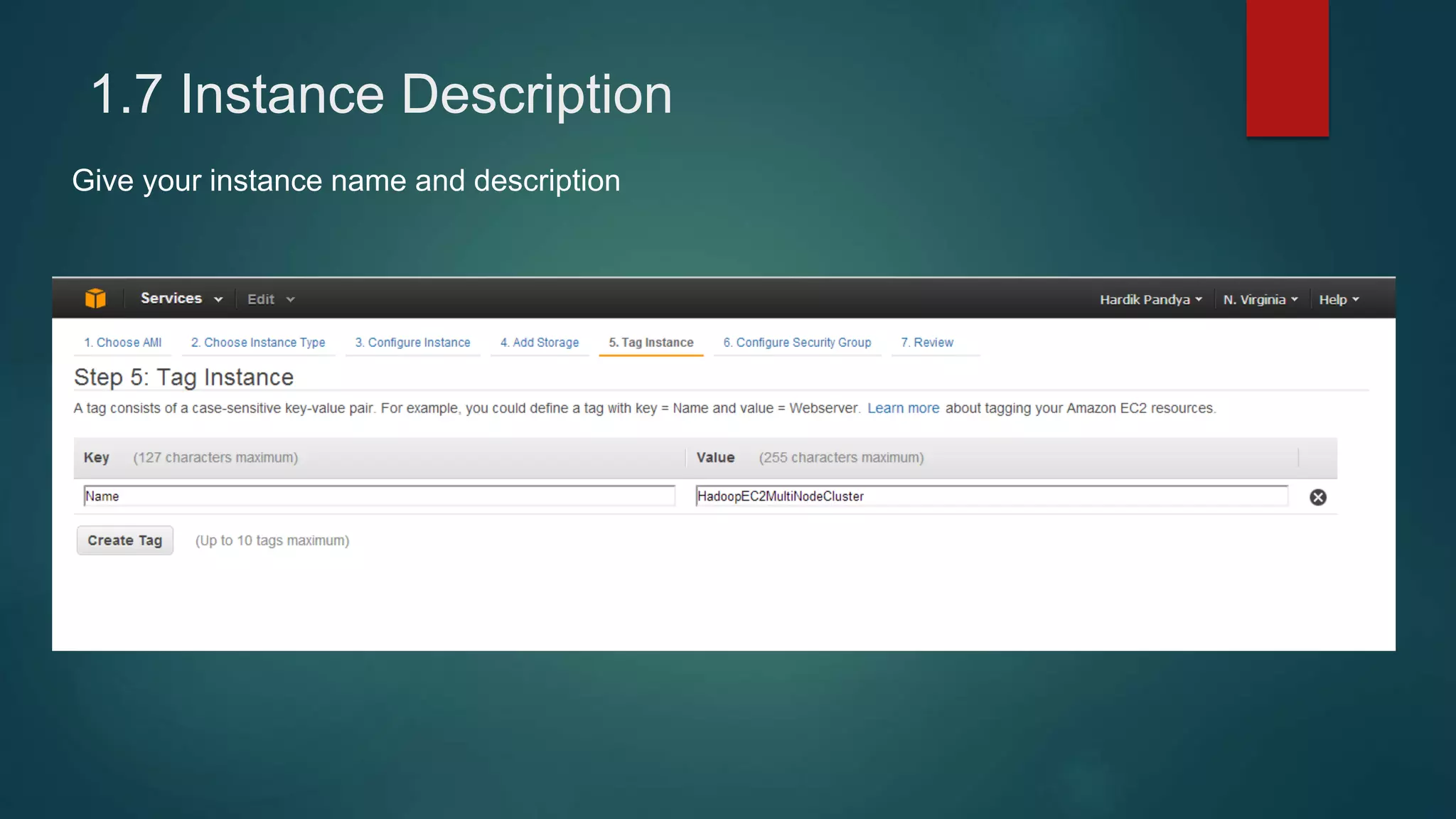
1.7 Instance Description
Give your instance name and description
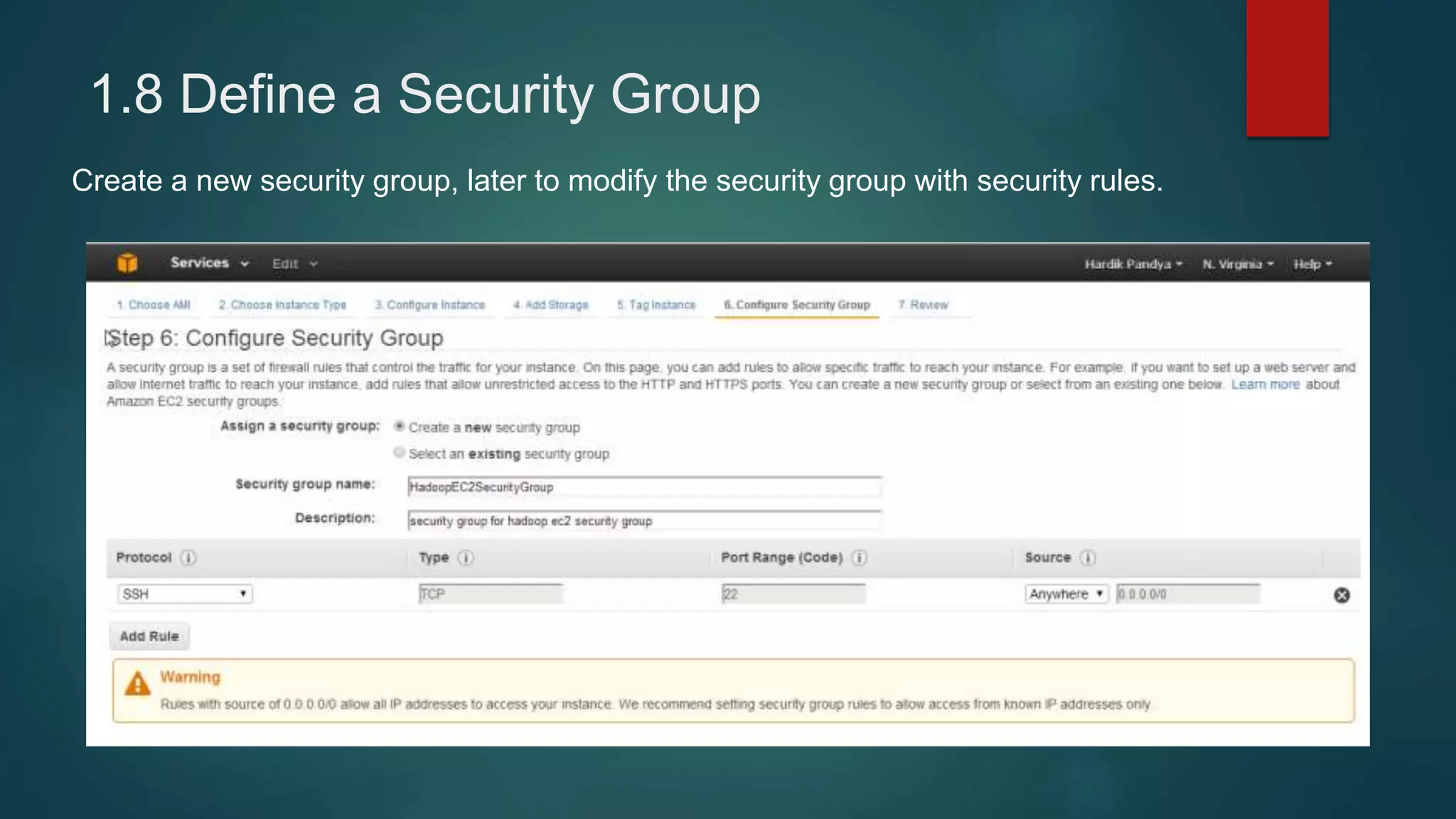
1.8 Define a Security Group
Create a new security group, later to modify the security group with security rules.
1.9 Launch Instance and Create Security
Only one new key and save it safely; Can’t change it later.
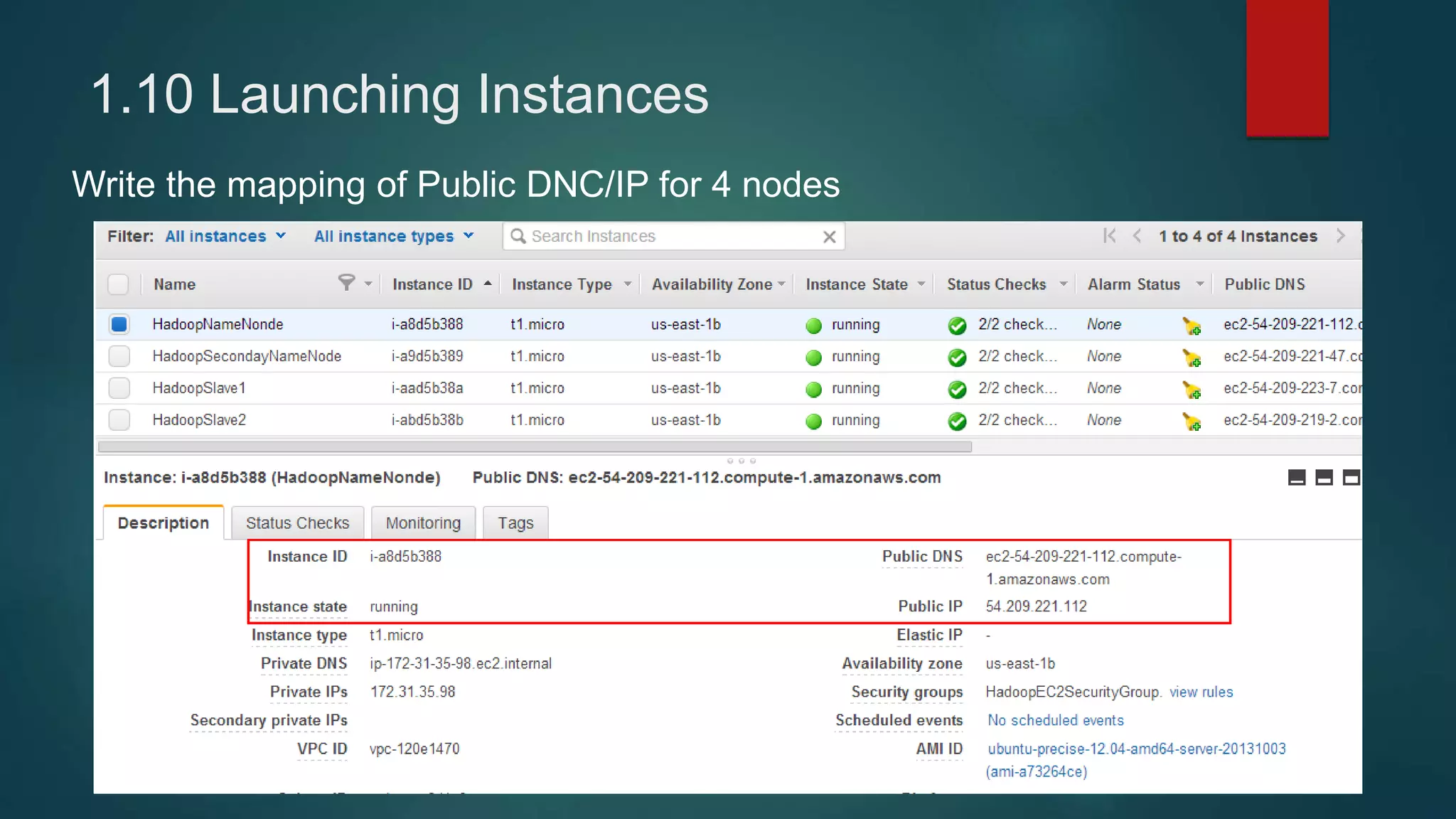
1.10 Launching Instances
Write the mapping of Public DNC/IP for 4 nodes
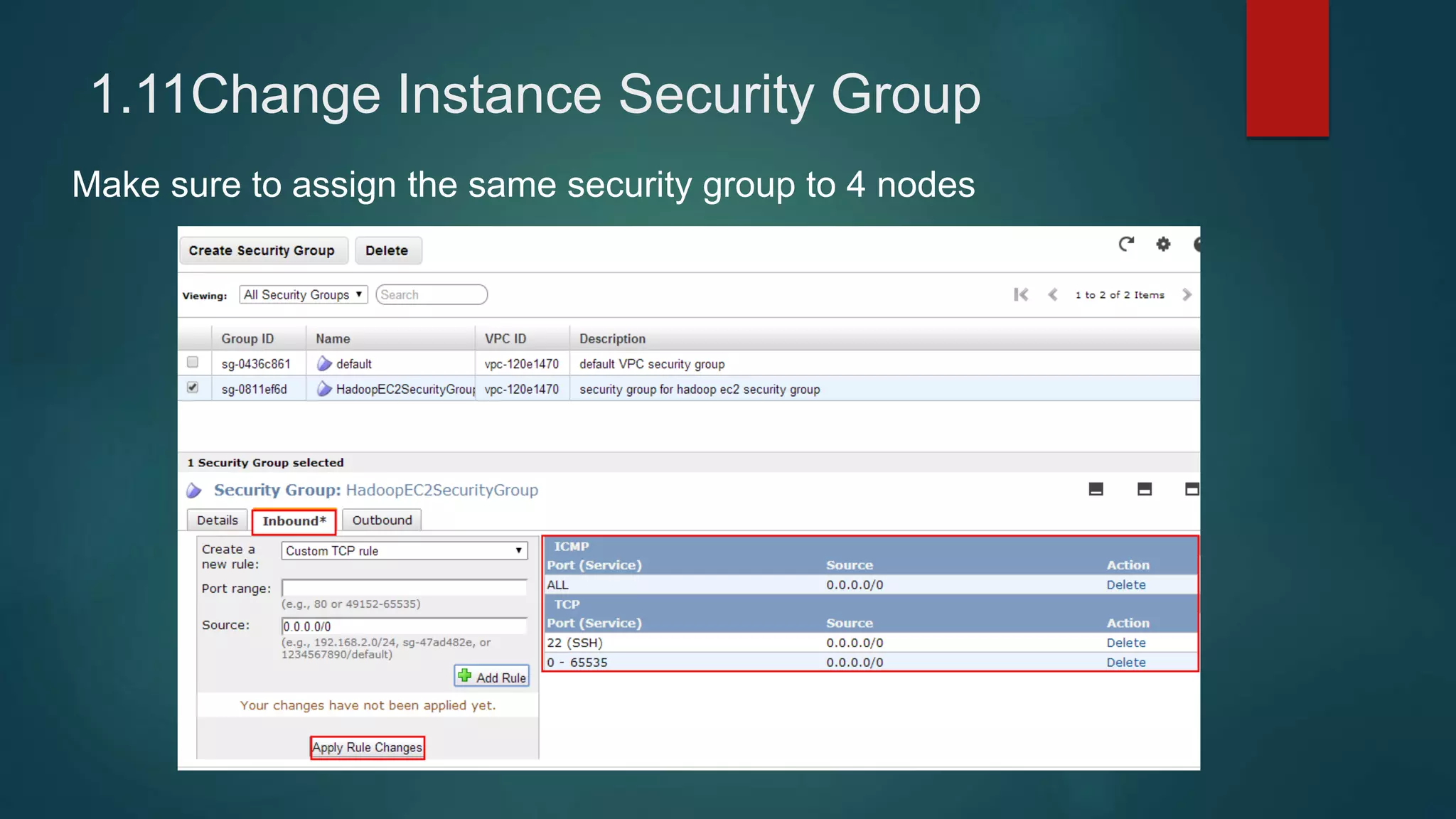
1.11Change Instance Security Group
Make sure to assign the same security group to 4 nodes
Step 2 –
Putty Setting
up client
access
Abstracts:
• Pem key to ppk key
• Username for Ubuntu
AWS - Ubuntu
• Passphraseless
Communication
among nodes
2.1
Generating
Private Key
USING PUTTYGEN TO
GENERATE
2.1 Generating Private Key
LOADING PRIVATE KEY
2.2 Save
Private Key
LOADING PRIVATE KEY
2.3.1 Provide
private key for
authentication
2.3.2
Hostname/Port
and Connection
Type
2.3.2 Hostname/Port and Connection Type
2.3.3 Login in using Ubuntu & Key
If there is a problem with your key,
you may receive below error
message
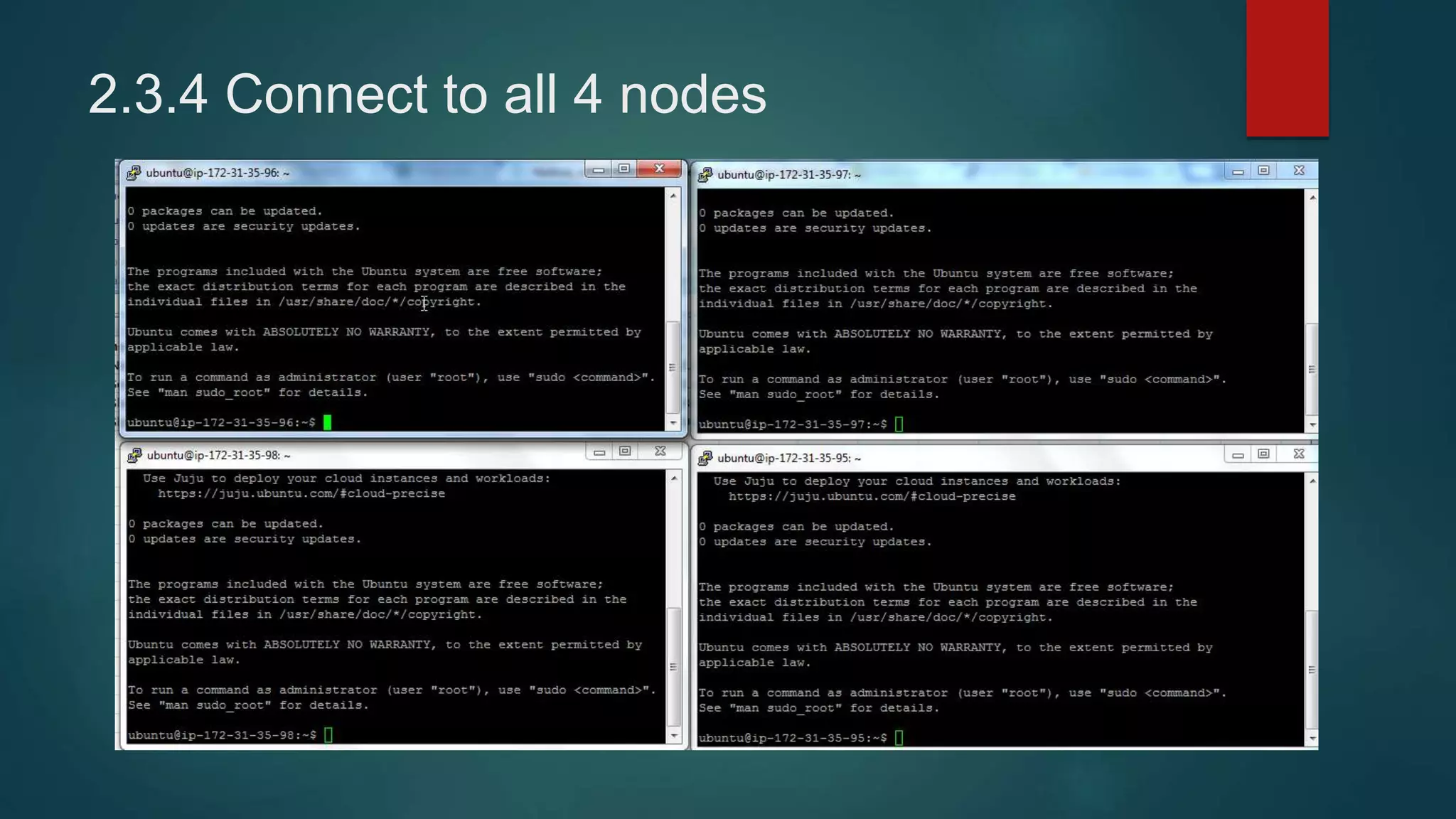
2.3.4 Connect to all 4 nodes
2.4.1 Enable Public Access
REPEAT ON ALL 4 NODES
2.4.2 Change Host Names
$ sudo hostname ec2-54-209-221-112.compute-1.amazonaws.com
2.5 Modify /etc/hosts
REPEAT ON ALL 4 NODES
Step 3 -
Setup
WinSCP
access to
EC2
Abstracts:
•Hostname
•User name -
Ubuntu
•Using .PPK key
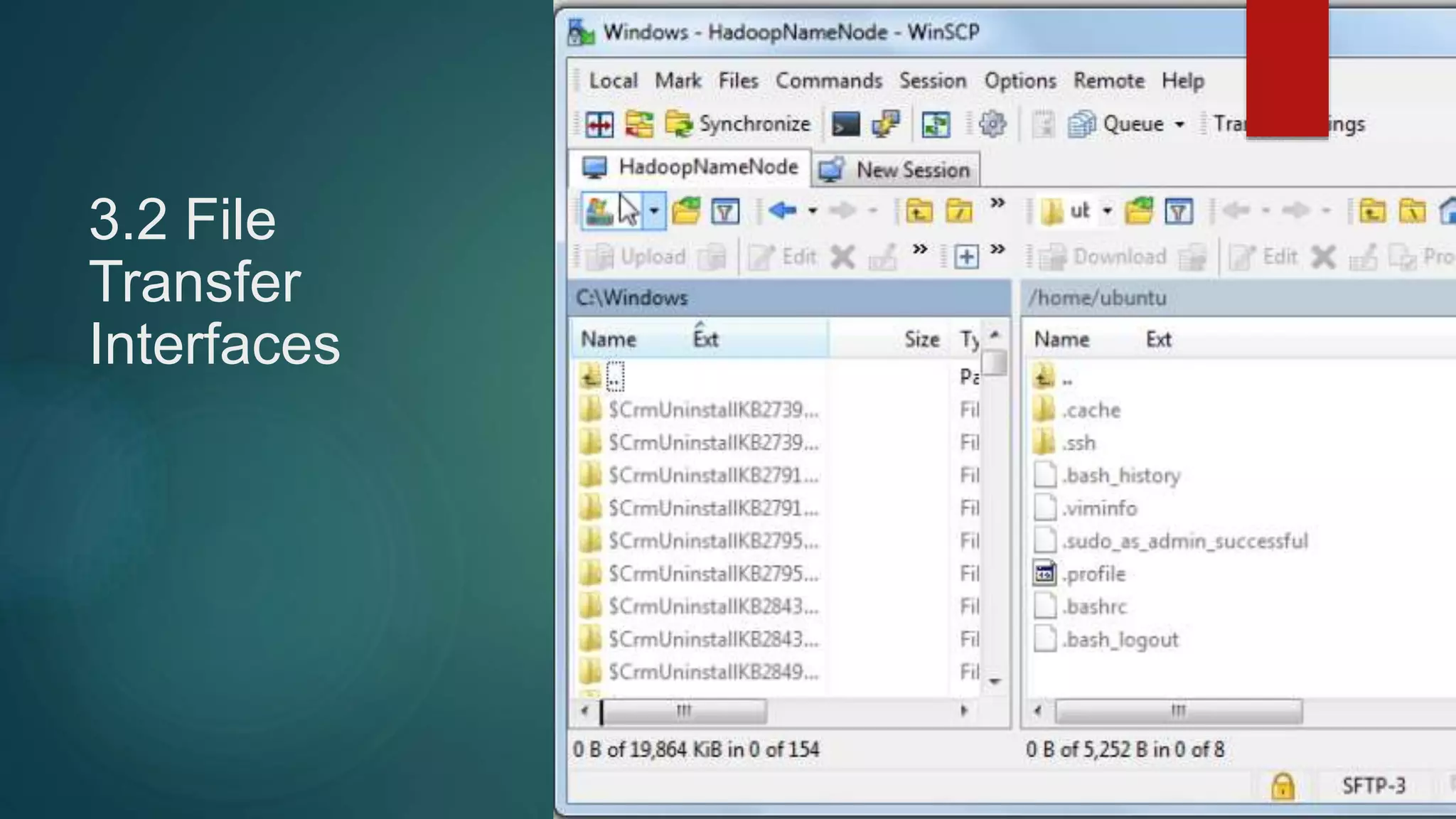
3.2 File
Transfer
Interfaces
2.5 Modify /etc/hosts
REPEAT ON ALL 4 NODES
Made
Easiest
Parts!
Fun
Parts
Coming!
Step 4 -
Hadoop
Installation
and setup
Abstracts:
• Install Jave
• Install Hadoop
• Passphraseless Access
• Configurations
• Run Java Programs
• Internet User Interface
4.1.1
Install Java
REPEAT ON EVERY
NODE
4.1.2
JAVA Home
Configuration
REPEAT ON EVERY
NODE
$ vim ~/.bashrc
Better check the directory first otherwise JAVA program
can’t run functionally if JAVA_HOME is wrong
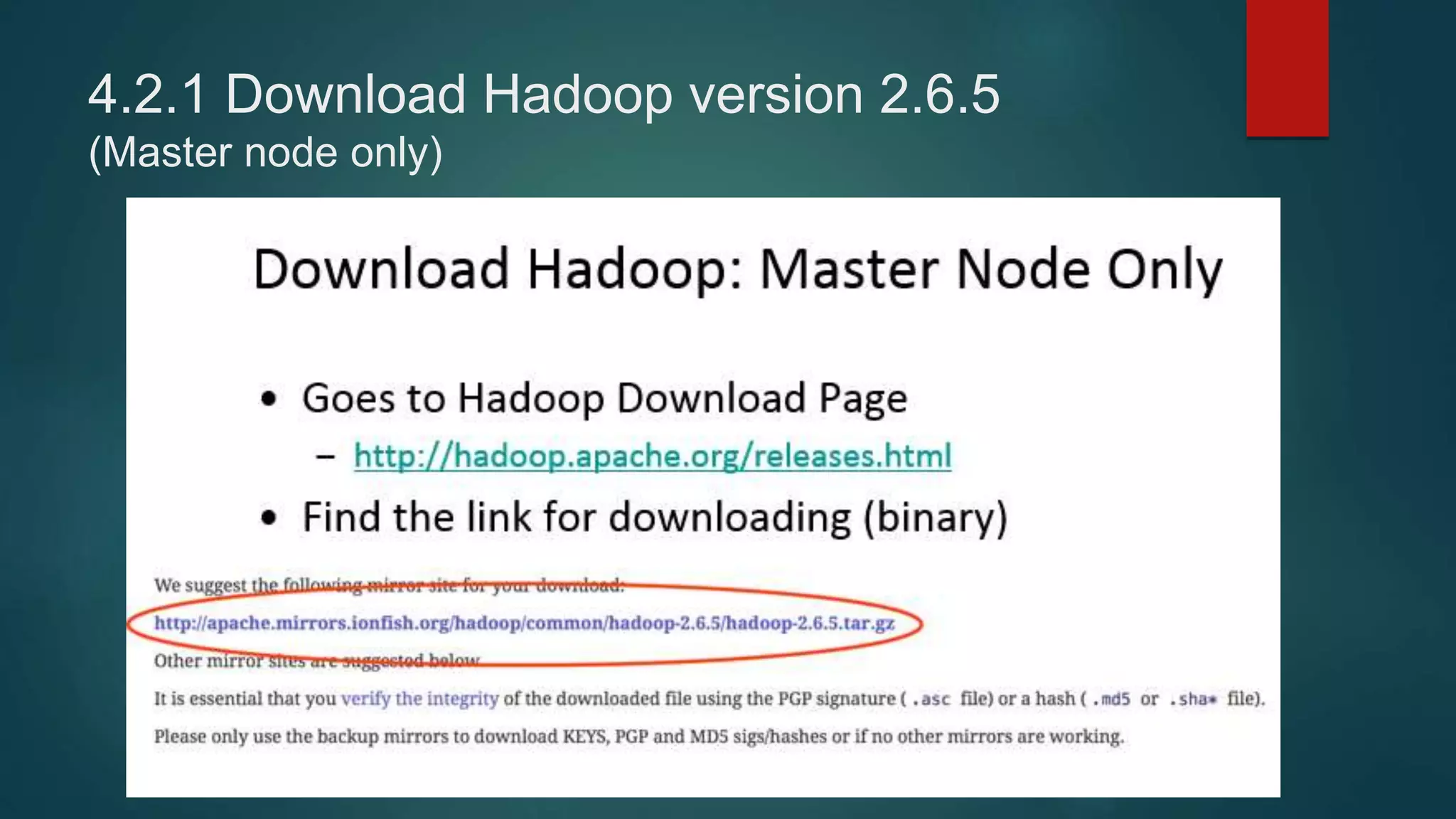
4.2.1 Download Hadoop version 2.6.5
(Master node only)
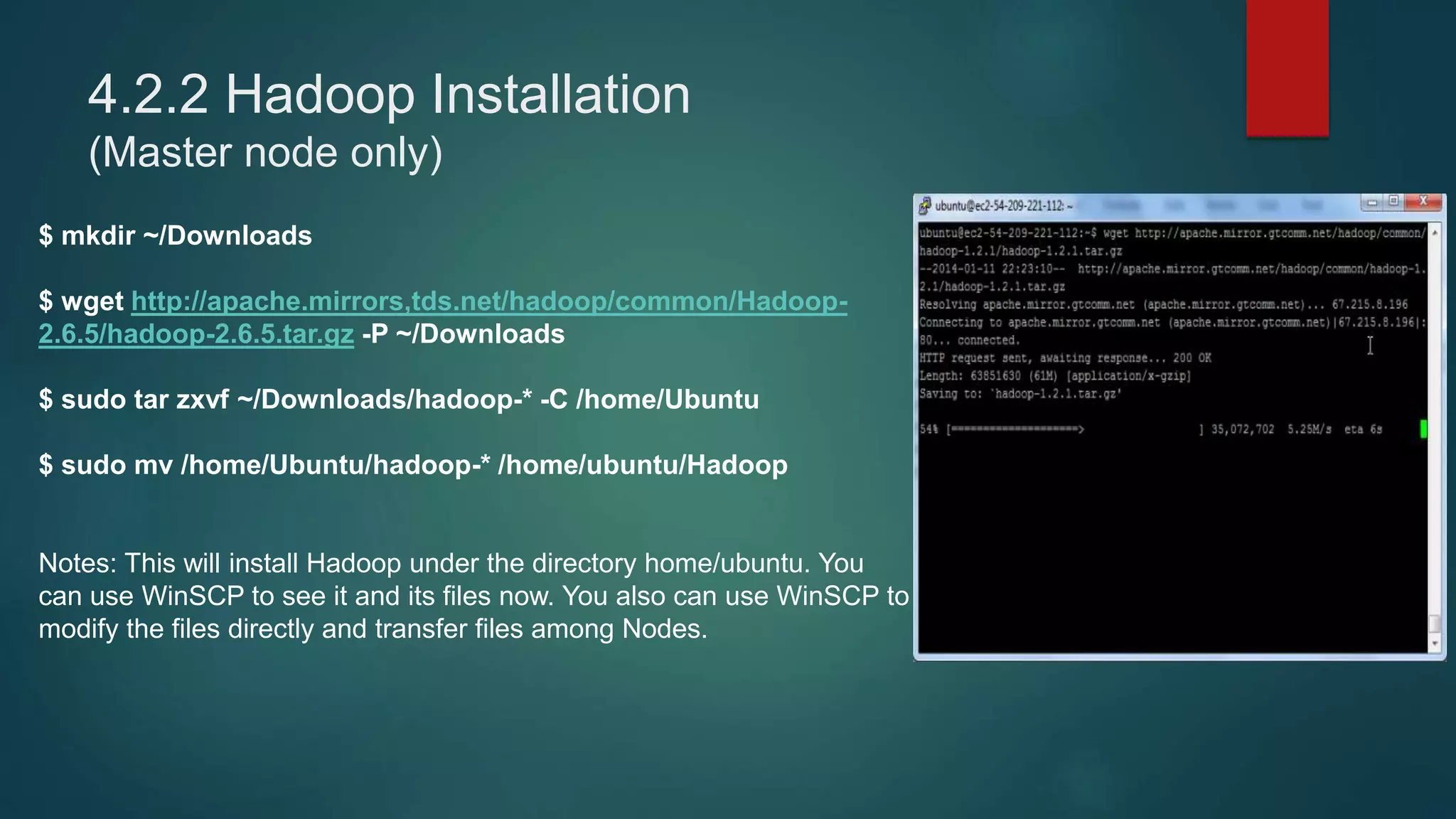
4.2.2 Hadoop Installation
(Master node only)
$ mkdir ~/Downloads
$ wget http://apache.mirrors,tds.net/hadoop/common/Hadoop-
2.6.5/hadoop-2.6.5.tar.gz -P ~/Downloads
$ sudo tar zxvf ~/Downloads/hadoop-* -C /home/Ubuntu
$ sudo mv /home/Ubuntu/hadoop-* /home/ubuntu/Hadoop
Notes: This will install Hadoop under the directory home/ubuntu. You
can use WinSCP to see it and its files now. You also can use WinSCP to
modify the files directly and transfer files among Nodes.
4.3 Set up Environment Variable
REPEAT ON ALL 4 NODES
$ vi ~/.bashrc
Add the picture code
Esc + : + w to save
Esc + : + q to quit
$ source ~/.bashrc
echo $HADOOP_PREFIX
echo $HADOOP_CONF
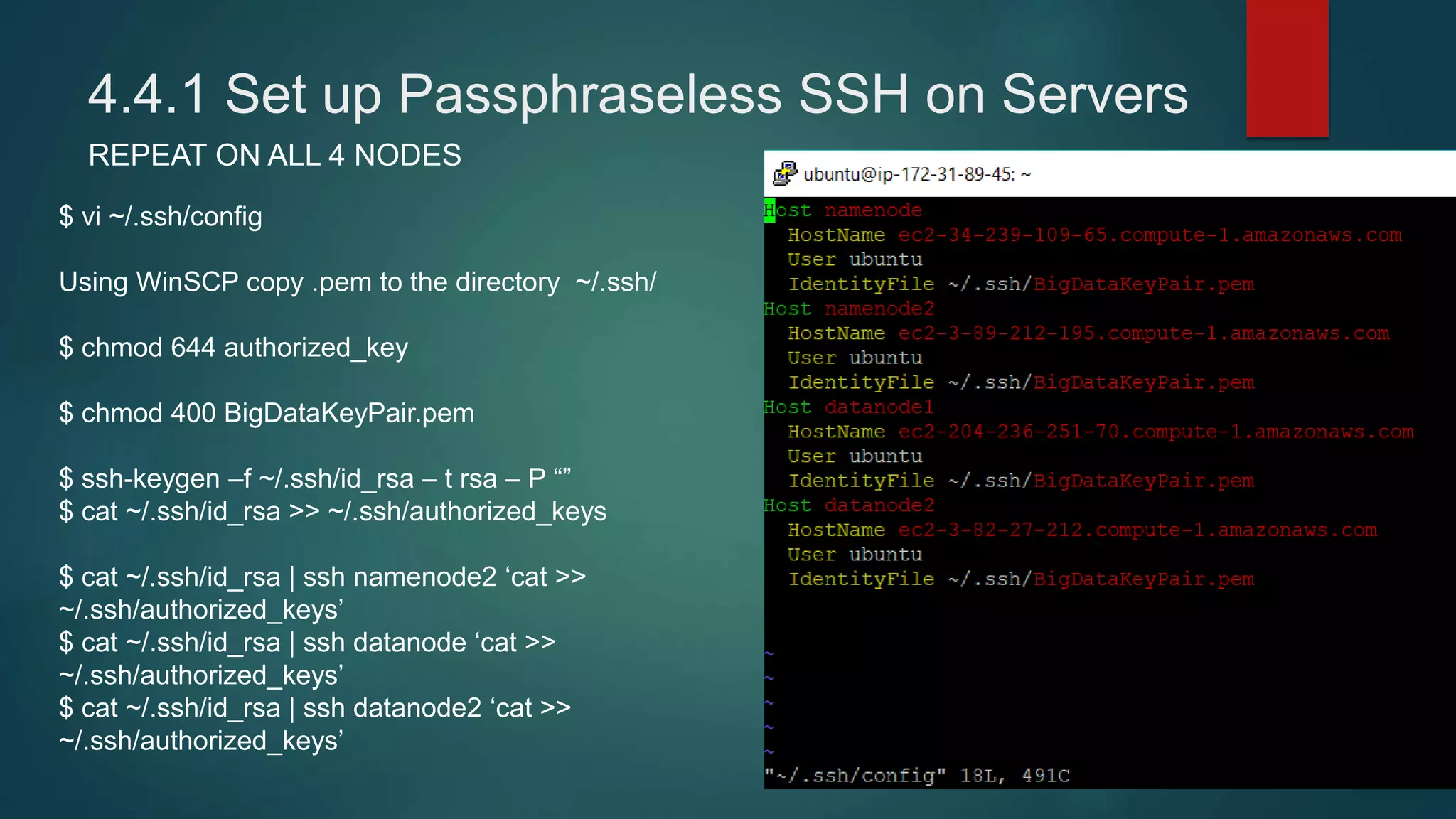
4.4.1 Set up Passphraseless SSH on Servers
REPEAT ON ALL 4 NODES
$ vi ~/.ssh/config
Using WinSCP copy .pem to the directory ~/.ssh/
$ chmod 644 authorized_key
$ chmod 400 BigDataKeyPair.pem
$ ssh-keygen –f ~/.ssh/id_rsa – t rsa – P “”
$ cat ~/.ssh/id_rsa >> ~/.ssh/authorized_keys
$ cat ~/.ssh/id_rsa | ssh namenode2 ‘cat >>
~/.ssh/authorized_keys’
$ cat ~/.ssh/id_rsa | ssh datanode ‘cat >>
~/.ssh/authorized_keys’
$ cat ~/.ssh/id_rsa | ssh datanode2 ‘cat >>
~/.ssh/authorized_keys’
4.4.2 Remost SSH
REPEAT ON ALL 4 NODES
$ ssh namenode
$ ssh namenode1
$ ssh datanode1
$ ssh datanode2
$ ssh ubuntu@<your-amazon-ec2-public
URL>
May not work anymore.
Use name stated in config
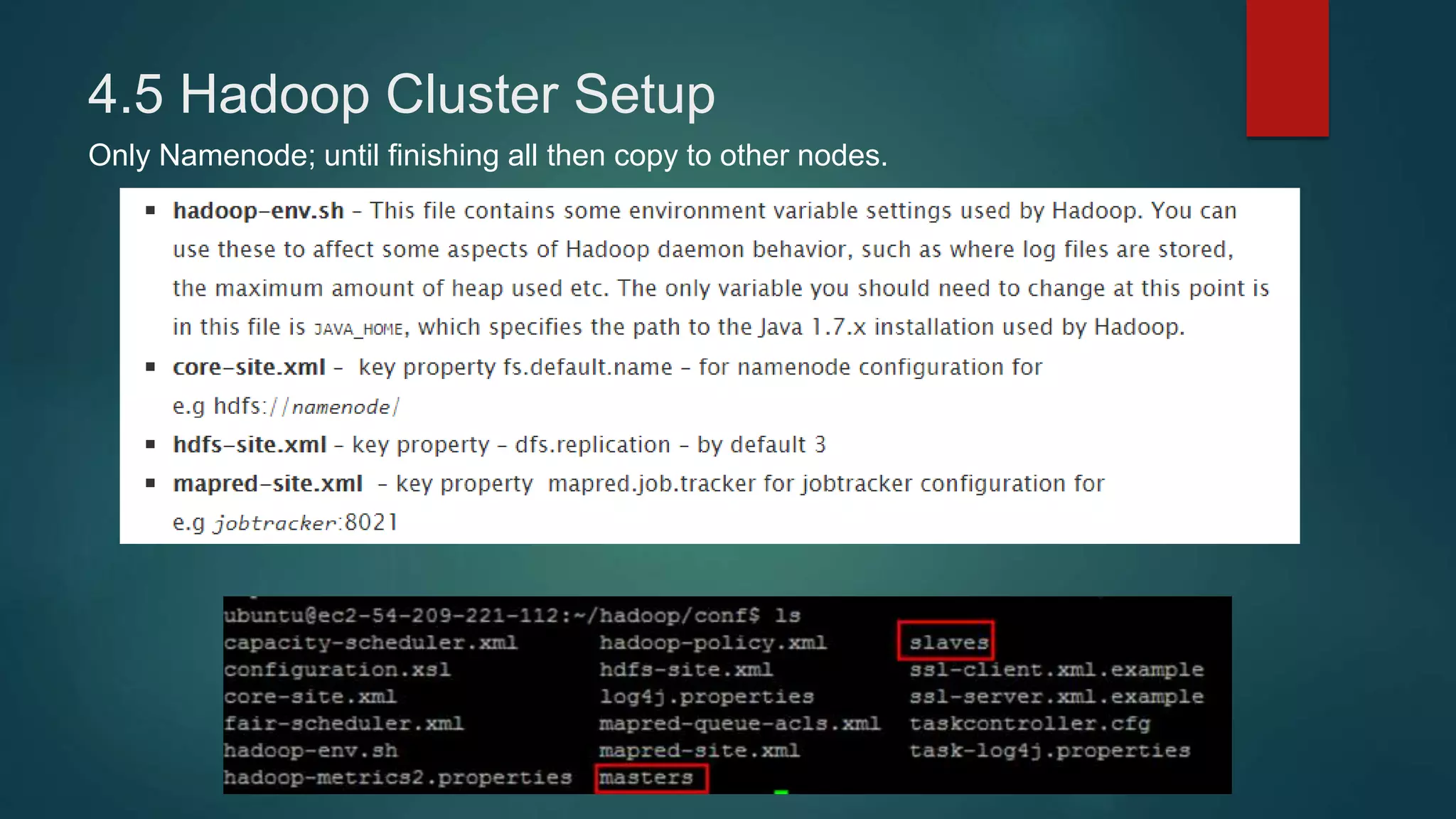
4.5 Hadoop Cluster Setup
Only Namenode; until finishing all then copy to other nodes.
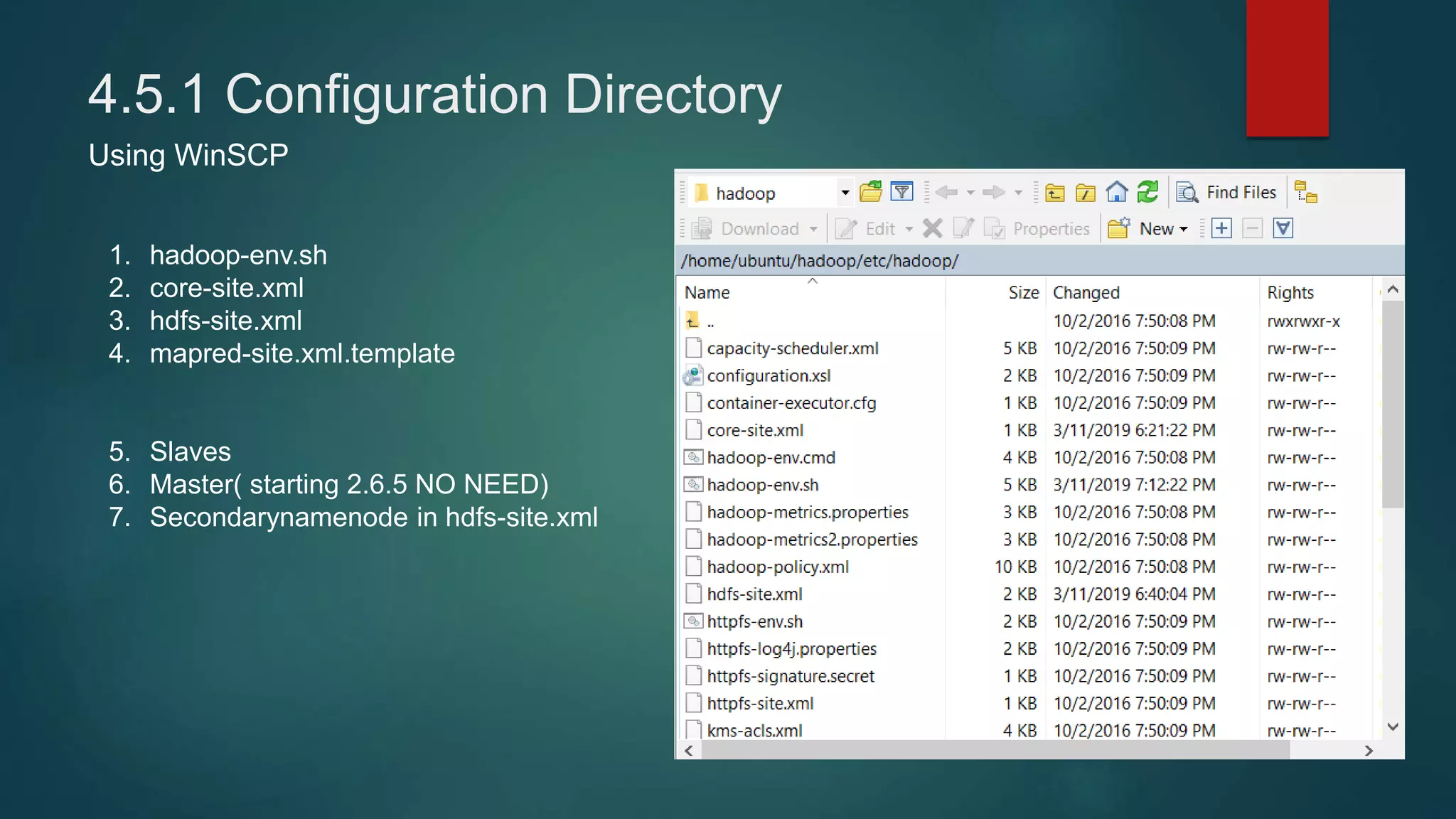
4.5.1 Configuration Directory
Using WinSCP
1. hadoop-env.sh
2. core-site.xml
3. hdfs-site.xml
4. mapred-site.xml.template
5. Slaves
6. Master( starting 2.6.5 NO NEED)
7. Secondarynamenode in hdfs-site.xml
4.5.2 hadoop-env.sh
Using WinSCP
4.5.3 core-site.xml
Using WinSCP
4.5.4 hdfs-site.xml
Using WinSCP
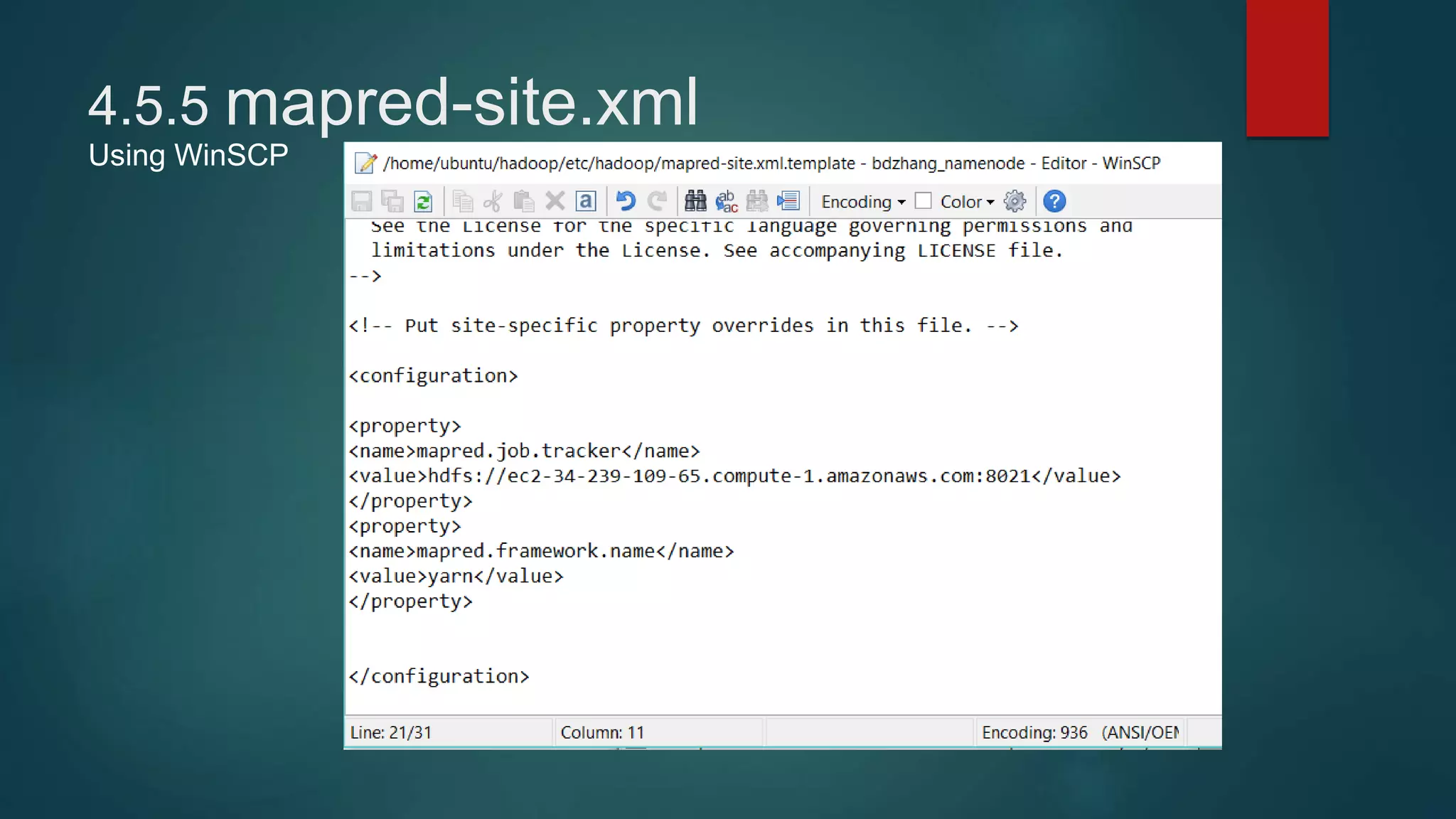
4.5.5 mapred-site.xml
Using WinSCP
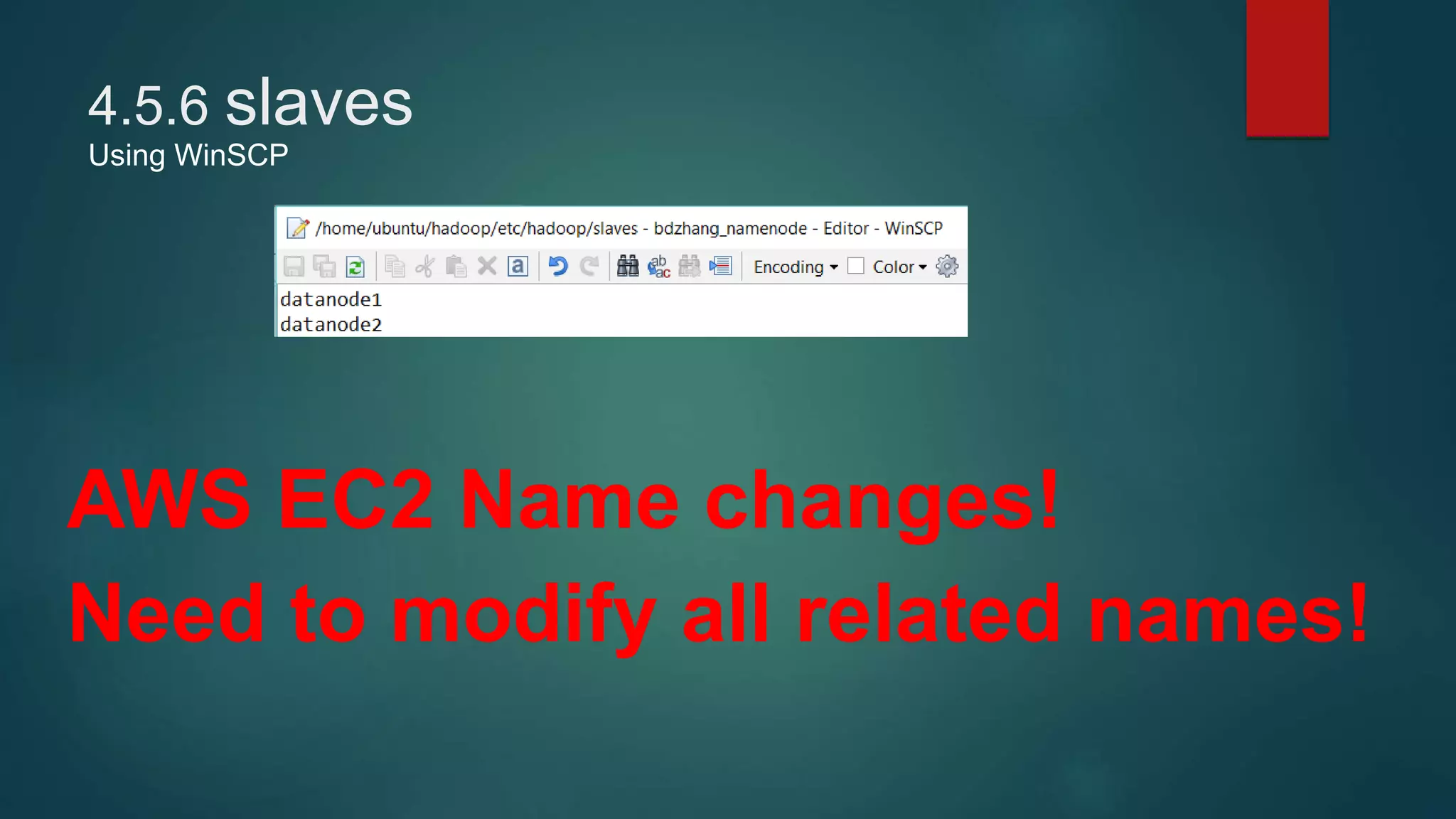
4.5.6 slaves
Using WinSCP
AWS EC2 Name changes!
Need to modify all related names!
4.5.7 Send Hadoop to all other nodes
$ scp –r hadoop namenode1:~
$ scp –r hadoop datanode1:~
$ scp –r hadoop datanode2:~
If changes files after this, using WinSCP to transfer
4.5.8 Format Namenode and Start Hadoop
$ hdfs namenode -format
$ start-dfs.sh
$ start-yarn.sh
4.7 Get Result
$ hdfs dfs –get /output
4.8.1 Web Interface
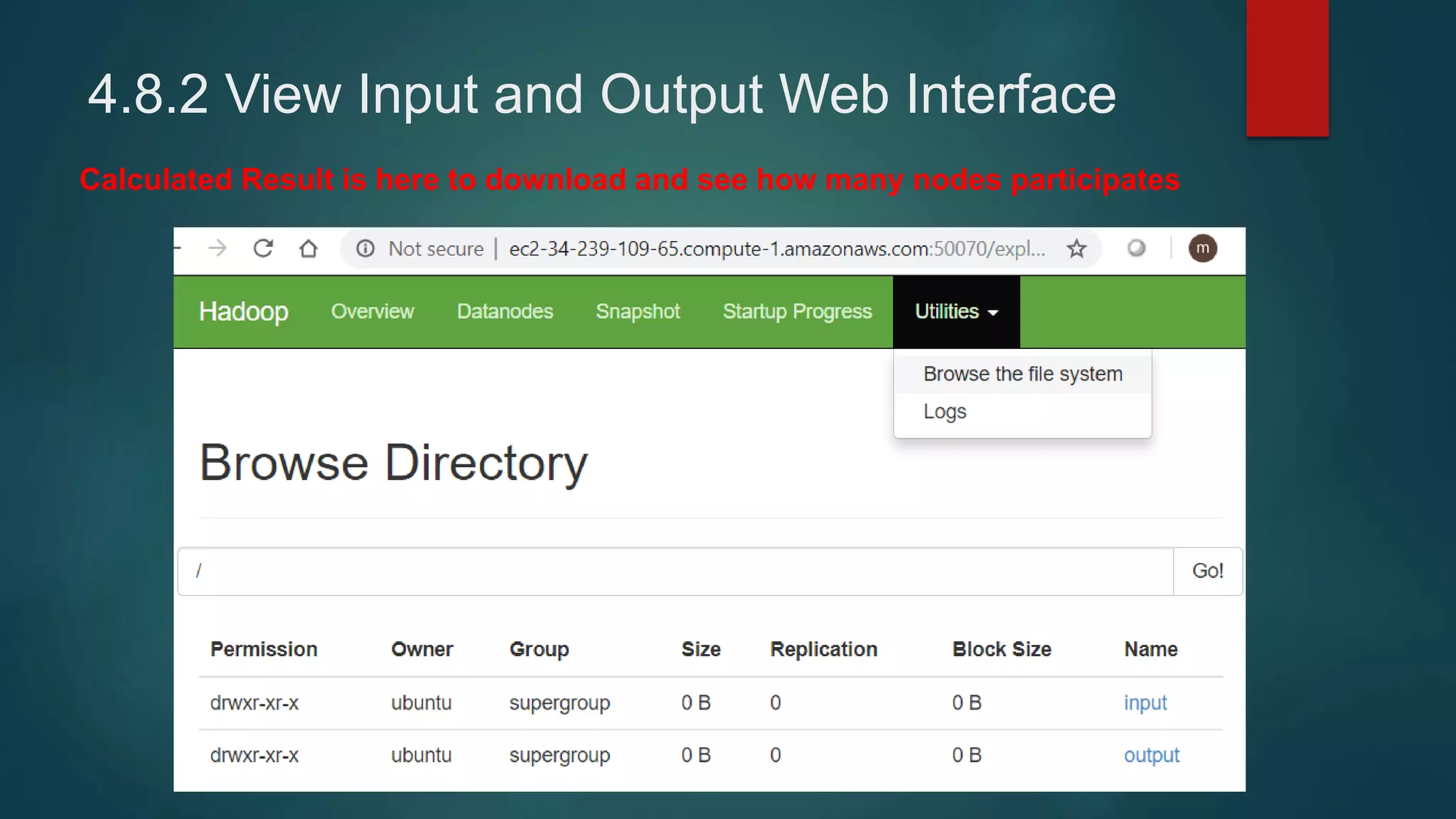
4.8.2 View Input and Output Web Interface
Calculated Result is here to download and see how many nodes participates
MAPREDUCE
JAVA PROGRAM
COMING
NEXT
ROUND!

Hadoop presentation