SourcingSummit(SOSU)Europe
BOOKMARKLETS: THE
SOURCER’S GATEWAY DRUG
FOR AUTOMATING SOURCING
presented at SOSU Europe
Oct. 10, 2018
Glenn Gutmacher
VP, Global Talent Sourcing Strategy Lead
State Street Corporation
ggutmacher@statestreet.com
@gutmach @glenngutmacher
linkedin.com/in/gutmach
1
SourcingSummit(SOSU)Europe
Glenn Gutmacher
Who Is Glenn Gutmacher?
• At State Street, world’s largest custody bank, since 2015, first
building out a NA-focused diversity sourcing team, and now
centralizing sourcing globally
• At Avanade 2010-15, managing offshore sourcing team supporting
North America, lead strategic online sourcing strategies and global
training
• VP of Arbita’s Recruiter Consulting & Education Services (2008-
2010) training many companies on sourcing with Shally Steckerl
• Senior Sourcer at Microsoft (2005-2008) & Getronics (2003-2005)
• Pioneering Sourcing trainer and methods since 1997 (Founder of
Recruiting-Online.com)
• Founded JobSmart in 1996, greater Boston's 1st regional career
portal (owned by a major newspaper chain)
• Started out in Broadcasting while at Yale
• Wife and 3 sons ages 20, 17 and 13
10/16/2018
2
SourcingSummit(SOSU)Europe
Glenn Gutmacher
3
PROS:
• Works cross-browser, doesn’t require Chrome
extensions / Google-level login
• Usable on websites of any type, not just major search
engines (e.g., prompt for keywords and runs rest of
embedded search criteria)
• Almost anything you can do in JavaScript (e.g., web
scraping, extract email addresses from pages, highlight
text, (de-)select checkboxes on a webform, etc.)
• Portable; can be copied/stored in folders in web
browser’s favorites/bookmarks on any computer
• Many pre-made ones available free: search
“bookmarklet” plus a keyword to find relevant ones
posted online, ask peers for useful bookmarklets, etc.
What Are Bookmarklets?
Bookmarklets are browser favorites/bookmarks on steroids because they
have JavaScript embedded in them: They don’t just take you to a website –
they *do* something. Many websites also offer a bookmarklet version of their
tool (Saved.io, PDFmyURL, Starzonia, etc.).
CONS:
• Not quite as
flexible as
Chrome
extensions
• Need to know
some JavaScript
to truly
customize
bookmarklets
SourcingSummit(SOSU)Europe
Glenn Gutmacher
Let’s look at some (which you can have)
1. Functional bookmarklets NOT related to search
2. BATSA bookmarklets (contact info finders)
3. SOSU searchers (other search examples)
10/16/2018
4
SourcingSummit(SOSU)Europe
Glenn Gutmacher
How deep would you like to go?
Some ways to implement bookmarklets, jump off the train
when you arrive at your preferred destination:
10/16/2018
5
1. Copy someone else’s
bookmarklets into your
browser as is
2. Get a bunch at a time (&
share yours) using
Bookmarklet combiner
3. Learn a little JavaScript so
you can customize or
create your own (maximum
flexibility, but takes more
time & tech skill to master)
SourcingSummit(SOSU)Europe
Glenn Gutmacher
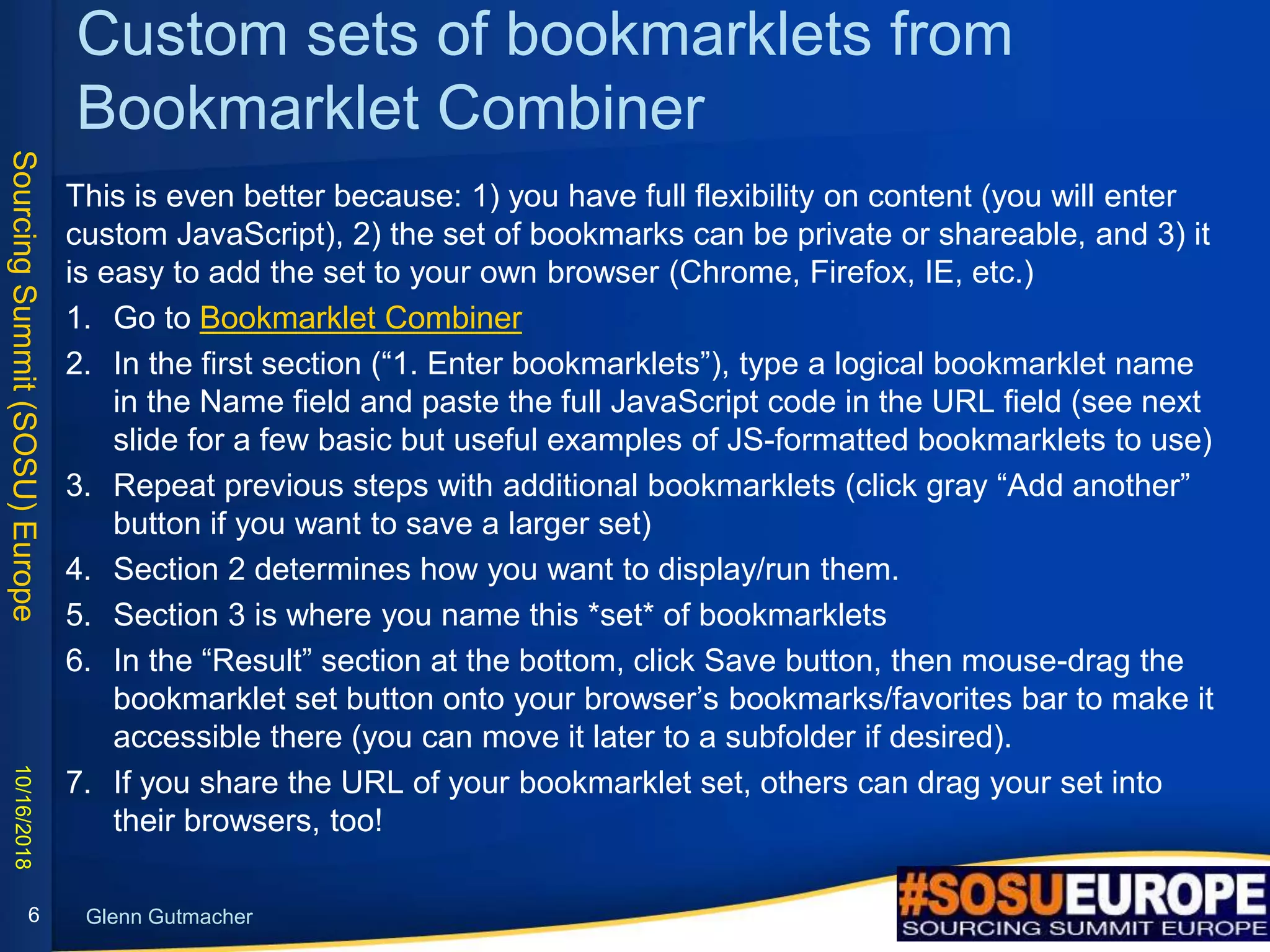
Custom sets of bookmarklets from
Bookmarklet Combiner
This is even better because: 1) you have full flexibility on content (you will enter
custom JavaScript), 2) the set of bookmarks can be private or shareable, and 3) it
is easy to add the set to your own browser (Chrome, Firefox, IE, etc.)
1. Go to Bookmarklet Combiner
2. In the first section (“1. Enter bookmarklets”), type a logical bookmarklet name
in the Name field and paste the full JavaScript code in the URL field (see next
slide for a few basic but useful examples of JS-formatted bookmarklets to use)
3. Repeat previous steps with additional bookmarklets (click gray “Add another”
button if you want to save a larger set)
4. Section 2 determines how you want to display/run them.
5. Section 3 is where you name this *set* of bookmarklets
6. In the “Result” section at the bottom, click Save button, then mouse-drag the
bookmarklet set button onto your browser’s bookmarks/favorites bar to make it
accessible there (you can move it later to a subfolder if desired).
7. If you share the URL of your bookmarklet set, others can drag your set into
their browsers, too!
10/16/2018
6
SourcingSummit(SOSU)Europe
Glenn Gutmacher
10/16/2018
7
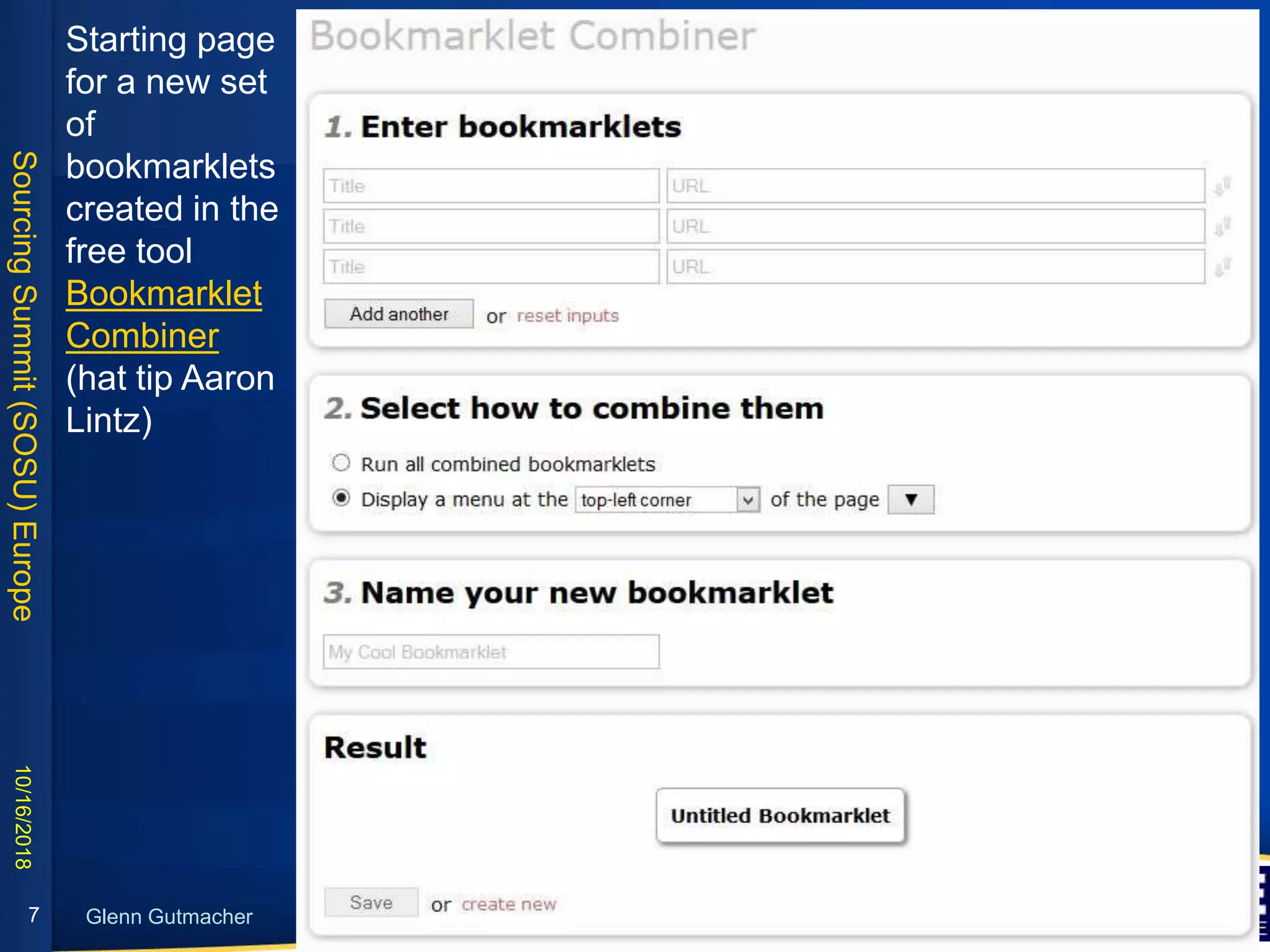
Starting page
for a new set
of
bookmarklets
created in the
free tool
Bookmarklet
Combiner
(hat tip Aaron
Lintz)
SourcingSummit(SOSU)Europe
Glenn Gutmacher
Tired of news sites’ trial subscriptions?
I am a big fan of the Boston Globe, but after viewing a few articles, they say it’s time to pay. I
could delete cookies in order to keep viewing, but there’s an easier way with a bookmarklet:
1. Normal articles that count towards the free views limit are of the format:
https://www.bostonglobe.com/arts/2018/10/06/banksy-artwork-self-destructs-moment-
after-million-
sale/NphZVTQG2ts9xXW6hSaEdJ/story.html?p1=Article_Trending_Most_Viewed
2. But if you look at unblocked URLs that appear in search engine results, they’re formatted:
https://www.bostonglobe.com/arts/2018/10/06/banksy-artwork-self-destructs-moment-
after-million-sale/NphZVTQG2ts9xXW6hSaEdJ/amp.html
3. So we just want a bookmarklet that takes the final /story.html and whatever may follow it,
and replace it with amp.html
var a=location.href.replace("story.html","amp.html");
a=a.replace(/?(.+)/,"");location.href=a;
10/16/2018
8
Note that we used a little Regular
Expressions (regex) code to tell it
to look for a questionmark
followed by any characters and
replace it with nothing (nothing
inside the quotes)
SourcingSummit(SOSU)Europe
Glenn Gutmacher
Coding javascript in the browser console
• Right click anywhere in your browser and select Inspect (or Inspect
Element), then click Console tab (shortcut is Ctrl + Shift + i)
• Type or copy/paste one or more lines at a time. When you hit Enter
key, the snippet of code since your last Enter will be invoked
• If you run out of space, Clear console (Ctrl + L or click the icon of
circle with diagonal line through it)
• Getting started with the console (Chrome developer tools section)
Let’s test it with the previous JS code…
16-Oct-18
9
SourcingSummit(SOSU)Europe
Glenn Gutmacher
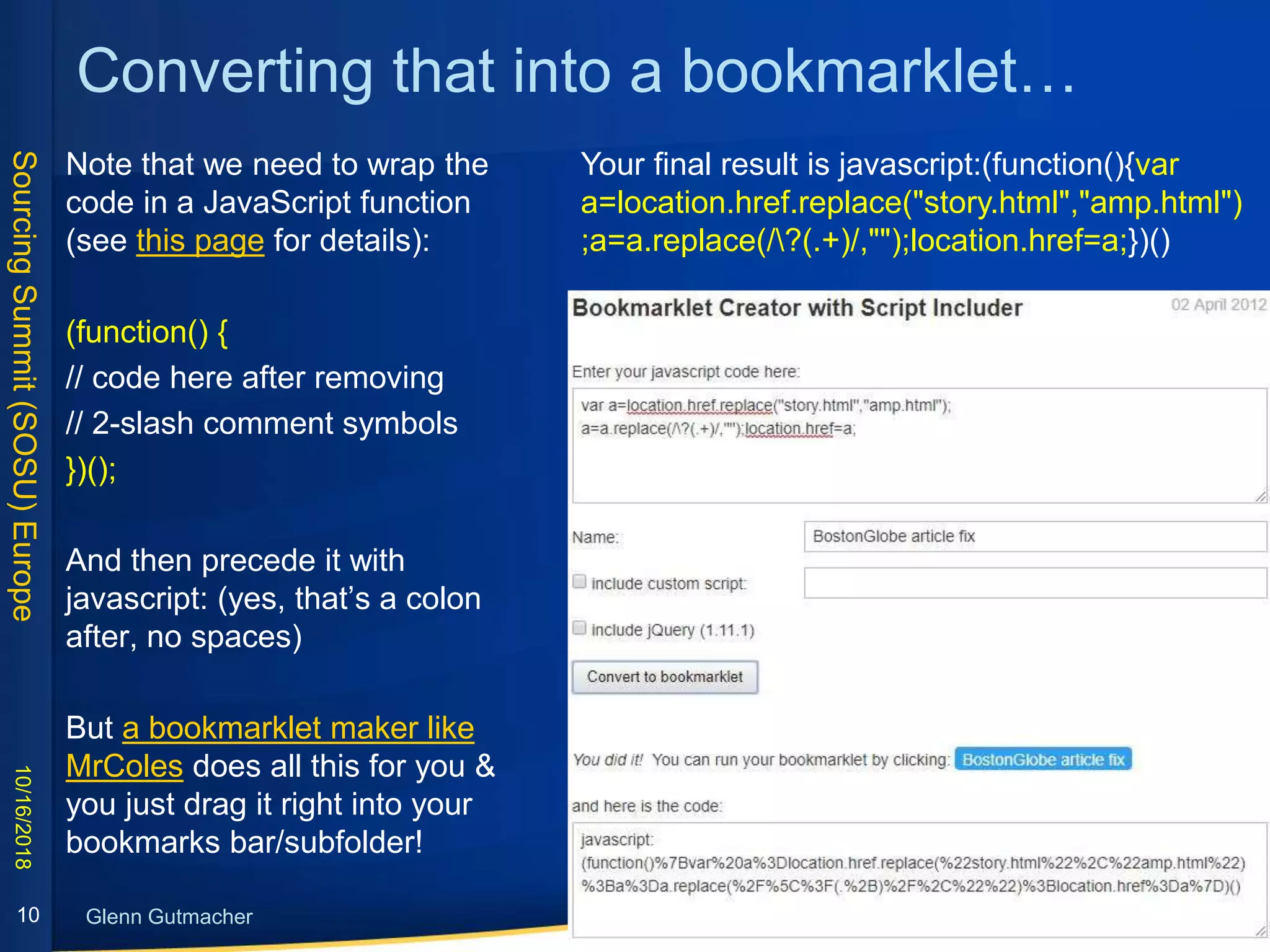
Converting that into a bookmarklet…
Note that we need to wrap the
code in a JavaScript function
(see this page for details):
(function() {
// code here after removing
// 2-slash comment symbols
})();
And then precede it with
javascript: (yes, that’s a colon
after, no spaces)
But a bookmarklet maker like
MrColes does all this for you &
you just drag it right into your
bookmarks bar/subfolder!
10/16/2018
10
Your final result is javascript:(function(){var
a=location.href.replace("story.html","amp.html")
;a=a.replace(/?(.+)/,"");location.href=a;})()
SourcingSummit(SOSU)Europe
Glenn Gutmacher
Basic useful example bookmarklets
10/16/2018
11
Find WhoIs for any domain
(this explains the getSelection syntax)
javascript: var s;
if (window.getSelection) {
s = window.getSelection().toString();
} else {
s =
document.selection.createRange().text;
}
var t = prompt('Enter root domain', s);
if (t) {
t = t.trim();
location = 'https://who.is/whois/' +
escape(t);
}
You need to put this into bookmarklet
format at MrColes and then drag that
into your bookmarks bar or add the
code as a row in a Bookmarklet
Combiner
PRO TIP
If you ever receive a
bookmarklet and you
want to know how it
was coded, you can
use a free JavaScript
beautifier to revert it
back to readable line-
by-line JS code like
Dan’s Tools,
Beautifier.io, etc.
SourcingSummit(SOSU)Europe
Glenn Gutmacher
Basic useful example bookmarklets
10/16/2018
12
Find WhoIs for domain you’re at
javascript:c=window.location.hostn
ame;c=c.replace('www.','');location
='http://who.is/whois/'+c;
Find contact emails by domain:
javascript:var%20s;if(window.getS
election){s=window.getSelection();
}else{s=document.selection.create
Range().text;}var%20t=prompt('Ent
er%20rootdomain%20after%20@',
s);if(t){void(location='http://www.go
ogle.com/search?num=100&hl=en
&newwindow=1&q=(contact+OR+
email)+*%40'+t);}else{void(s);}
Preferably surround by starting
with javascript:function(){
and end with })()
Github C# profiles by location (you can
substitute desired skill term)
javascript:var%20s;if(window.getSelection){s=
window.getSelection();}else{s=document.sele
ction.createRange().text;}var%20t=prompt('En
ter%20location%20name%20for%20C%23%2
0Github%20profiles',s);if(t){void(location='http
s://github.com/search?q=location%3A'+escap
e(t)+'&type=Users&ref=advsearch&l=C%2523
');}else{void(s);}
Email-Format.com (enter domain)
javascript:var%20s;if(window.getSelection){s=
window.getSelection();}else{s=document.sele
ction.createRange().text;}var%20t=prompt('En
ter%20root%20domain%20after%20@',s);if(t)
{void(location='http://www.email-
format.com/d/'+escape(t)+'/');}else{void(s);}
SourcingSummit(SOSU)Europe
Glenn Gutmacher
Basic useful example bookmarklets (cont.)
10/16/2018
13
Find WhoIs domain records associated with an email address you know:
javascript:(function(){
var Xs;if(window.getSelection){Xs=window.getSelection();}
else{Xs=document.selection.createRange().text;}
var Xt=prompt('Enter full email address you want to find WhoIs domain records
for',Xs);var Em=Xt.trim();
Pattern = /^[a-zA-Z][a-zA-Z_0-9.-]+@[a-zA-Z_0-9.-]+.[a-zA-Z]{2,6}$/;
bValid = Pattern.test(Em);
var
WN=open('http://www.whoismind.com/email/'+Em+'.html','z7','height=500,outerhei
ght=800,width=500,outerwidth=700,left=200,top=0,resizable=1,scrollbars=1,status
=0,menubar=1,toolbar=1');
if(bValid==true){void(WN);}else{alert('invalid email address');}})();
Use the MrColes bookmarklet maker to automatically remove the line breaks
SourcingSummit(SOSU)Europe
Glenn Gutmacher
More complex example bookmarklets
(copy/paste as is to use)
10/16/2018
14
Convert Bing search result into
an RSS feed
javascript:Q=[];%20c=location.sear
ch.slice(1).split('&');%20for%20(i%
20in%20c)%20{%20f=c[i].split('=');
%20if%20(f[0]=='q'%20||%20f[0]==
'as_q'%20||%20f[0]=='p'%20||%20f
[0]=='query')%20if%20(f[1])%20Q.
push(f[1])%20}%20R=unescape(Q
.join(';%20').replace(/+/g,'%20'));%
20location%20=%20'http://www.bi
ng.com/search?q='+escape(R)+'&f
ormat=rss';
Show all links on page
javascript:WN7z=open('','Z6','width=800,heigh
t=400,scrollbars,resizable,menubar');DL5e=do
cument.links;with(WN7z.document){write('<ba
se%20target=_blank>');for(lKi=0;lKi<DL5e.len
gth;lKi++){write(DL5e[lKi].toString().link(DL5e[l
Ki])+'<br><br>')};void(close())}
Find all emails (mailto: links) on page – try
the bookmarklet here
javascript:eMlA='';for(iB2M=0;iB2M<document
.links.length;iB2M++){if(document.links[iB2M].
protocol=='mailto:'){Ju59=document.links[iB2
M].toString();eMlA+=Ju59.substring(7,Ju59.le
ngth)+'n'}};if(eMlA!=''){alert(eMlA)}else{alert('
No mailto links on page!')}
SourcingSummit(SOSU)Europe
Glenn Gutmacher
2-value prompt search example 1
1. Start with base bookmarklet for a 2-value
prompt (yellow text has 2nd variable prompt):
javascript:var%20s;if(window.getSelection){s=
window.getSelection();}else{s=document.selec
tion.createRange().text;}var%20one=prompt('E
nter%20first%20value',s);var%20two=prompt('
Enter%20second%20value',s);if(one){void(loca
tion='http://www.URLtoVisit.com/RestOfPath/'+
one+'/'+two+'/');}else{void(s);}
2. Change wording above value prompts as
appropriate for site (see yellow highlight):
javascript:var%20s;if(window.getSelection){s=
window.getSelection();}else{s=document.selec
tion.createRange().text;}var%20one=prompt('E
nter%20LASTname%20only',s);var%20two=pr
ompt('Enter%20FIRSTname%20only',s);if(one)
{void(location='http://www.URLtoVisit.com/Res
tOfPath/'+one+'/'+two+'/');}else{void(s);}
10/16/2018
15
3. Change URL pattern to match
the site (in this case,
http://www.peoplebyname.com/p
eople/gutmacher/glenn):
javascript:var%20s;if(window.get
Selection){s=window.getSelectio
n();}else{s=document.selection.cr
eateRange().text;}var%20one=pr
ompt('Enter%20LASTname%20o
nly',s);var%20two=prompt('Enter
%20FIRSTname%20only',s);if(on
e){void(location='http://www.peop
lebyname.com/people/'+one+'/'+t
wo);}else{void(s);}
4. Copy new bookmarklet into
your bookmarks/favorites!
SourcingSummit(SOSU)Europe
Glenn Gutmacher
3-value bookmarklet example
This example is to find a US zipcode when you know the rest of the
address. It is the same format as 2-variable, with 1 extra prompt (and
you are not limited to 3, but it gets impractical if you need more prompts
than that):
javascript:var%20s;if(window.getSelection){s=window.getSelection();}el
se{s=document.selection.createRange().text;}var%20one=prompt('Ente
r%20street%20address',s);var%20two=prompt('Enter%20city%20only',
s);var%20three=prompt('Enter%202-
letter%20state',s);if(one){void(location='https://tools.usps.com/go/ZipLo
okupResultsAction!input.action?resultMode=0&companyName=&addre
ss1='+one+'&address2=&city='+two+'&state='+three+'&urbanCode=&p
ostalCode=&zip');}else{void(s);}
10/16/2018
16
SourcingSummit(SOSU)Europe
Glenn Gutmacher
JS in browser console (example 2)
See “Coding in the Browser Console” slide to remind you how to access.
This nice example comes from Andre Bradshaw (see his companion how-
to video) for when you are on someone’s Github profile and want to
immediately go to their LinkedIn profile (based on email match).
function getEmail(){
var liTag = document.getElementsByClassName("vcard-
details")[0].getElementsByTagName("li");
for(i=0; i<liTag.length; i++){
var attr = liTag[i].getAttribute("itemprop");
if(attr == "email"){
return liTag[i].getElementsByTagName("a")[0].innerText;
}
}
}
window.open("https://www.linkedin.com/sales/gmail/profile/proxy/"+getEm
ail());
16-Oct-18
17
SourcingSummit(SOSU)Europe
Glenn Gutmacher
Bonus Webscraping example in JavaScript
converted to bookmarklet (thanks, Andre Bradshaw!)
Code highlights (with extra comments):
var list = document.getElementsByClassName("large-11 columns
program");
// mousing over each school in Elements tab of browser inspector,
we see above div class highlights a school's whole set of data
// initial guess is:
var schoolname = list[i].getElementsByClassName("detailslink-
title")[0].innerText;
// testing this in Console -- console.log(schoolname) -- we get the
list of schools and cities!
// similarly this gets degree program and years:
var degreeProg = list[i].getElementsByTagName("p")[1].innerText;
// type clear() in console to erase output thus far & get you back to
top
Here’s the data I wanted to
grab: http://accredit-
id.org/accredited-programs
(shortcut:
http://bit.ly/ggsc4)
Why it’s challenging for the
commercial scrapers to
process is that some of the
data I want is *not*
contained between specific
HTML tags, or within a
class or ID value.
Git repo to download:
http://bit.ly/ggsc22
(redirects to Andre B’s
repo here)
SourcingSummit(SOSU)Europe
Glenn Gutmacher
Webscraping example in JavaScript (continued)
var schoolname = list[i].getElementsByTagName("p")[0].innerText.replace(/,/g, '_');
// within each <p> tag and replace all commas with underscores to avoid csv delimiter issues
later
var degreeProg = list[i].getElementsByTagName("p")[1].innerText.replace(/,/g, '_');
var website = list[i].getElementsByTagName("a")[0].href;
// console.log(website) confirms above gets each URL
var programDeetz = list[i].getElementsByClassName("program-details")[0];
// the class program-details contains what we want
var person =
validate(/.+?(?=nPhone)|.+?(?=nnPhone)/.exec(programDeetz.innerText),0).replace(/,/g,
";");
// regex positive lookahead for all chars on line preceding 1 or 2 line returns then Phone
var phone = /(?<=Phone:s*).+/.exec(programDeetz.innerText)[0];
// within that, do regex for phone numbers, i.e., lookbehind
// grab all .+ that follows Phone: and any spaces, within innerText of 1st element of
programDeetz
SourcingSummit(SOSU)Europe
Glenn Gutmacher
Webscraping example in JavaScript (continued)
// positive lookbehind, negative lookbehind, positive lookahead, and negative lookahead are
all explained well at www.regular-expressions.info/lookaround.html
var email = /(?<=mailto:).+?(?)/.exec(programDeetz.innerHTML)[0];
// similarly, grab all text following mailto:
var arr = new Array(schoolname,degreeProg,website,person,phone,email); // array
to contain each component
containArr.push(arr+'r'); } // and insert line return after each school
var output =
'school_name,degree_program,website,person,phone,emailr'+containArr.toString();
// above to create a header row of values, line return, followed by the data, then convert all to
a string
// below function to create and append an invisible download link for file, click it, then remove
it
SourcingSummit(SOSU)Europe
Glenn Gutmacher
Webscraping example in JavaScript (continued)
function dl(filename, text) {
var elmi = document.createElement('a');
elmi.setAttribute('href', 'data:text/plain;charset=utf-8,' + encodeURIComponent(text));
elmi.setAttribute('download', filename); elmi.style.display = 'none';
document.body.appendChild(elmi); elmi.click();
document.body.removeChild(elmi);
}
var namethis = /(?<=org/).+?(?=/)/.exec(window.location.href);
// generate a name (to be used later for the csv file) of whatever the url is following org/
// (since this particular website is a .org) with a positive lookahead of any char .+ string
// until the next forward slash, escaped as (?=/) and the lookahead is not part of the match by
definition, so it's just grabbing the next part of path as filename
SourcingSummit(SOSU)Europe
Glenn Gutmacher
Webscraping example in JavaScript (continued)
dl(namethis+".csv", output)
// invoke function using partialpath.csv as 1st filename argument, and data (output var as 2nd
text argument
// .csv file will have downloaded, can open or launch a new google sheet and drag file from
downloads bar into
// sheet & it prompts to import file (replace spreadsheet, separator type auto-detect, click
import data button)
Version without comments you can download (courtesy of Andre Bradshaw):
https://github.com/andrebradshaw/Random-DOM-
scraping/blob/master/bookmarklet_download_CIDA_as_csv.js
Turn it into a bookmarklet at https://mrcoles.com/bookmarklet/ and drag it into your browser!
SourcingSummit(SOSU)Europe
Glenn Gutmacher
Questions?
(Appendix
follows with
bookmarklet
resources &
ideas of other
kinds of
searches to
convert into
bookmarklets)
SourcingSummit(SOSU)Europe
Glenn Gutmacher
Bookmarklet resources
• Wikipedia’s entry for bookmarklet
• Good how-to and resources from Casey Watts
• Bookmarklets – Subsimple Browser Power guide
• This Dutch guy has a how-to guide and a tool
• Other lists of bookmarklets
• x
16-Oct-18
24
SourcingSummit(SOSU)Europe
Glenn Gutmacher
Other examples using intitle: and inurl:
Beyond just resumes, also try words like:
• bio, profile, about, us, our
• team, staff, people, alumni
• roster, list, directory, members, attendees, board
• speakers, panel, agenda, officers, minutes
• Examples: intitle:hospital (clinical OR health OR healthcare) ("data
analyst" OR "financial analyst") (Texas OR ", TX") (intitle:alumni OR
intitle:people OR intitle:staff OR intitle:about OR intitle:bio OR
intitle:profile OR intitle:team OR intitle:our OR inurl:about OR inurl:bio
OR inurl:profile OR inurl:our OR inurl:team OR inurl:alumni OR
inurl:people OR inurl:staff)
• himss 2013 (intitle:"delegates" OR intitle:"attendees" OR
intitle:"speakers" OR intitle:"members")
16-Oct-18
25
SourcingSummit(SOSU)Europe
Glenn Gutmacher
Associations and Virtual Communities
(MeetUps, portfolio sites, etc.)
Many technical and other communities exist
online with plenty of info about individual talent,
collected into similar-skilled buckets.
Some are best searched directly within the site using its native
search, e.g.:
• profiles of users on Github
• MeetUp.com (and see this article about how to source
from them)
• portfolios on Coroflot or Behance.net or
http://portfolios.aiga.org
While others may yield better results using a search engine,
e.g.:
• StackOverflow.com (and its technical sister sites) – try
Googling:
– TECH TERMS: site:stackoverflow.com inurl:users
intitle:user sitecore
– LOCATIONS: site:stackoverflow.com inurl:users
intitle:user (houston OR texas OR "tx")
26
www.uvrx.com - a
well-designed
public Google CSE
that lets you run
your search (e.g.,
"UI Engineer"
Texas) and it has
tabs along the top
for each social
network, then
clickable filters for
All, Posts, Plus,
(and the best)
Profiles
SourcingSummit(SOSU)Europe
Glenn Gutmacher
People Home Contact Info Search
• If the name is unique enough, you may be
able to find their home contact info using
Pipl, Radaris, Zabasearch, Whitepages or a
similar tool. (They often only need a state,
which is usually obvious from LinkedIn metro
area.) You can also Google if you include
name, two-letter state abbreviation and some
other piece of data in the query.
• Save your searches and candidates in
project folders.
• Use custom tags (up to 1,000 connections)
16-Oct-18
27
LinkedIn posted a
recent presentation
with many good
suggestions for
sourcers, and check
out the various
trainings included
with your LinkedIn
Recruiter account.
SourcingSummit(SOSU)Europe
Glenn Gutmacher
28
Finding Experts
Experts’ online footprints make them relatively easy to find – and are often
undervalued. Good places to tap: Speakers, Authors, User Groups, Bloggers.
• Find relevant conferences or groups in your industry niche (e.g., besides those
from your Excel lists, search "INDUSTRY TERM portal" or "KEYWORD user
group" or Google related: command from a site you know.
• Then search within those (e.g., use site: search)
• MeetUp has one of the largest collections of virtual user groups and very
searchable; members can be messaged free without knowing contact info.
• For tech forums, StackOverflow is a great Q&A site where you can filter by
programming languages and other keyword tags.
• use Namechk to search by username across all networks.
SourcingSummit(SOSU)Europe
Glenn Gutmacher
Diversity search
These techniques are not foolproof in part because many candidates don’t
promote their diverse status. If your company is subject to OFCCP guidelines,
consult your legal dept. re: if/how you use and document these sourcing
methods.
• Ethnicities: “natural phrase” keywords put in an OR clause such as (“African
American” OR “Asian American” OR “Latin American”) added to a string of
professional/educational associations can be effective in expanding results.
• Languages: combine with natural phrases like “native Spanish”, “fluent
Cantonese” or “fluent Korean”. Searching for both the words “Cantonese”
and “Mandarin” is a great way to find Chinese candidates because typically
only native speakers list both on a resume. This works well for other
ethnicities that commonly speak multiple languages (e.g., “Hindi” and “Urdu.”
Also try using the native spelling of their language as a search keyword, e.g.,
Español CPA Miami FL (he OR she)
10/16/2018
29
SourcingSummit(SOSU)Europe
Glenn Gutmacher
Coding javascript in the browser console
(non-search example)
• Type or copy/paste one or more lines at a time. When you hit Enter
key, the snippet of code since your last Enter will be invoked
• If you run out of space, Clear console (Ctrl + L or click the icon of
circle with diagonal line through it)
• Getting started with the console (Chrome developer tools section)
Let’s test it with this Javascript code:
var body = document.body,
links = document.getElementsByTagName('a');
body.setAttribute("style", "background-color:#000000; color:#ffffff; font-
family: "Courier New", Courier, monospace;");
for ( i in links ){
links[i].setAttribute("style", "color:#347c17; font-family: "Courier
New", Courier, monospace;");
}
16-Oct-18
30

Gutmacher bookmarklets-sosu-europe-oct2018

  • 1.
    SourcingSummit(SOSU)Europe BOOKMARKLETS: THE SOURCER’S GATEWAYDRUG FOR AUTOMATING SOURCING presented at SOSU Europe Oct. 10, 2018 Glenn Gutmacher VP, Global Talent Sourcing Strategy Lead State Street Corporation ggutmacher@statestreet.com @gutmach @glenngutmacher linkedin.com/in/gutmach 1
  • 2.
    SourcingSummit(SOSU)Europe Glenn Gutmacher Who IsGlenn Gutmacher? • At State Street, world’s largest custody bank, since 2015, first building out a NA-focused diversity sourcing team, and now centralizing sourcing globally • At Avanade 2010-15, managing offshore sourcing team supporting North America, lead strategic online sourcing strategies and global training • VP of Arbita’s Recruiter Consulting & Education Services (2008- 2010) training many companies on sourcing with Shally Steckerl • Senior Sourcer at Microsoft (2005-2008) & Getronics (2003-2005) • Pioneering Sourcing trainer and methods since 1997 (Founder of Recruiting-Online.com) • Founded JobSmart in 1996, greater Boston's 1st regional career portal (owned by a major newspaper chain) • Started out in Broadcasting while at Yale • Wife and 3 sons ages 20, 17 and 13 10/16/2018 2
  • 3.
    SourcingSummit(SOSU)Europe Glenn Gutmacher 3 PROS: • Workscross-browser, doesn’t require Chrome extensions / Google-level login • Usable on websites of any type, not just major search engines (e.g., prompt for keywords and runs rest of embedded search criteria) • Almost anything you can do in JavaScript (e.g., web scraping, extract email addresses from pages, highlight text, (de-)select checkboxes on a webform, etc.) • Portable; can be copied/stored in folders in web browser’s favorites/bookmarks on any computer • Many pre-made ones available free: search “bookmarklet” plus a keyword to find relevant ones posted online, ask peers for useful bookmarklets, etc. What Are Bookmarklets? Bookmarklets are browser favorites/bookmarks on steroids because they have JavaScript embedded in them: They don’t just take you to a website – they *do* something. Many websites also offer a bookmarklet version of their tool (Saved.io, PDFmyURL, Starzonia, etc.). CONS: • Not quite as flexible as Chrome extensions • Need to know some JavaScript to truly customize bookmarklets
  • 4.
    SourcingSummit(SOSU)Europe Glenn Gutmacher Let’s lookat some (which you can have) 1. Functional bookmarklets NOT related to search 2. BATSA bookmarklets (contact info finders) 3. SOSU searchers (other search examples) 10/16/2018 4
  • 5.
    SourcingSummit(SOSU)Europe Glenn Gutmacher How deepwould you like to go? Some ways to implement bookmarklets, jump off the train when you arrive at your preferred destination: 10/16/2018 5 1. Copy someone else’s bookmarklets into your browser as is 2. Get a bunch at a time (& share yours) using Bookmarklet combiner 3. Learn a little JavaScript so you can customize or create your own (maximum flexibility, but takes more time & tech skill to master)
  • 6.
    SourcingSummit(SOSU)Europe Glenn Gutmacher Custom setsof bookmarklets from Bookmarklet Combiner This is even better because: 1) you have full flexibility on content (you will enter custom JavaScript), 2) the set of bookmarks can be private or shareable, and 3) it is easy to add the set to your own browser (Chrome, Firefox, IE, etc.) 1. Go to Bookmarklet Combiner 2. In the first section (“1. Enter bookmarklets”), type a logical bookmarklet name in the Name field and paste the full JavaScript code in the URL field (see next slide for a few basic but useful examples of JS-formatted bookmarklets to use) 3. Repeat previous steps with additional bookmarklets (click gray “Add another” button if you want to save a larger set) 4. Section 2 determines how you want to display/run them. 5. Section 3 is where you name this *set* of bookmarklets 6. In the “Result” section at the bottom, click Save button, then mouse-drag the bookmarklet set button onto your browser’s bookmarks/favorites bar to make it accessible there (you can move it later to a subfolder if desired). 7. If you share the URL of your bookmarklet set, others can drag your set into their browsers, too! 10/16/2018 6
  • 7.
    SourcingSummit(SOSU)Europe Glenn Gutmacher 10/16/2018 7 Starting page fora new set of bookmarklets created in the free tool Bookmarklet Combiner (hat tip Aaron Lintz)
  • 8.
    SourcingSummit(SOSU)Europe Glenn Gutmacher Tired ofnews sites’ trial subscriptions? I am a big fan of the Boston Globe, but after viewing a few articles, they say it’s time to pay. I could delete cookies in order to keep viewing, but there’s an easier way with a bookmarklet: 1. Normal articles that count towards the free views limit are of the format: https://www.bostonglobe.com/arts/2018/10/06/banksy-artwork-self-destructs-moment- after-million- sale/NphZVTQG2ts9xXW6hSaEdJ/story.html?p1=Article_Trending_Most_Viewed 2. But if you look at unblocked URLs that appear in search engine results, they’re formatted: https://www.bostonglobe.com/arts/2018/10/06/banksy-artwork-self-destructs-moment- after-million-sale/NphZVTQG2ts9xXW6hSaEdJ/amp.html 3. So we just want a bookmarklet that takes the final /story.html and whatever may follow it, and replace it with amp.html var a=location.href.replace("story.html","amp.html"); a=a.replace(/?(.+)/,"");location.href=a; 10/16/2018 8 Note that we used a little Regular Expressions (regex) code to tell it to look for a questionmark followed by any characters and replace it with nothing (nothing inside the quotes)
  • 9.
    SourcingSummit(SOSU)Europe Glenn Gutmacher Coding javascriptin the browser console • Right click anywhere in your browser and select Inspect (or Inspect Element), then click Console tab (shortcut is Ctrl + Shift + i) • Type or copy/paste one or more lines at a time. When you hit Enter key, the snippet of code since your last Enter will be invoked • If you run out of space, Clear console (Ctrl + L or click the icon of circle with diagonal line through it) • Getting started with the console (Chrome developer tools section) Let’s test it with the previous JS code… 16-Oct-18 9
  • 10.
    SourcingSummit(SOSU)Europe Glenn Gutmacher Converting thatinto a bookmarklet… Note that we need to wrap the code in a JavaScript function (see this page for details): (function() { // code here after removing // 2-slash comment symbols })(); And then precede it with javascript: (yes, that’s a colon after, no spaces) But a bookmarklet maker like MrColes does all this for you & you just drag it right into your bookmarks bar/subfolder! 10/16/2018 10 Your final result is javascript:(function(){var a=location.href.replace("story.html","amp.html") ;a=a.replace(/?(.+)/,"");location.href=a;})()
  • 11.
    SourcingSummit(SOSU)Europe Glenn Gutmacher Basic usefulexample bookmarklets 10/16/2018 11 Find WhoIs for any domain (this explains the getSelection syntax) javascript: var s; if (window.getSelection) { s = window.getSelection().toString(); } else { s = document.selection.createRange().text; } var t = prompt('Enter root domain', s); if (t) { t = t.trim(); location = 'https://who.is/whois/' + escape(t); } You need to put this into bookmarklet format at MrColes and then drag that into your bookmarks bar or add the code as a row in a Bookmarklet Combiner PRO TIP If you ever receive a bookmarklet and you want to know how it was coded, you can use a free JavaScript beautifier to revert it back to readable line- by-line JS code like Dan’s Tools, Beautifier.io, etc.
  • 12.
    SourcingSummit(SOSU)Europe Glenn Gutmacher Basic usefulexample bookmarklets 10/16/2018 12 Find WhoIs for domain you’re at javascript:c=window.location.hostn ame;c=c.replace('www.','');location ='http://who.is/whois/'+c; Find contact emails by domain: javascript:var%20s;if(window.getS election){s=window.getSelection(); }else{s=document.selection.create Range().text;}var%20t=prompt('Ent er%20rootdomain%20after%20@', s);if(t){void(location='http://www.go ogle.com/search?num=100&hl=en &newwindow=1&q=(contact+OR+ email)+*%40'+t);}else{void(s);} Preferably surround by starting with javascript:function(){ and end with })() Github C# profiles by location (you can substitute desired skill term) javascript:var%20s;if(window.getSelection){s= window.getSelection();}else{s=document.sele ction.createRange().text;}var%20t=prompt('En ter%20location%20name%20for%20C%23%2 0Github%20profiles',s);if(t){void(location='http s://github.com/search?q=location%3A'+escap e(t)+'&type=Users&ref=advsearch&l=C%2523 ');}else{void(s);} Email-Format.com (enter domain) javascript:var%20s;if(window.getSelection){s= window.getSelection();}else{s=document.sele ction.createRange().text;}var%20t=prompt('En ter%20root%20domain%20after%20@',s);if(t) {void(location='http://www.email- format.com/d/'+escape(t)+'/');}else{void(s);}
  • 13.
    SourcingSummit(SOSU)Europe Glenn Gutmacher Basic usefulexample bookmarklets (cont.) 10/16/2018 13 Find WhoIs domain records associated with an email address you know: javascript:(function(){ var Xs;if(window.getSelection){Xs=window.getSelection();} else{Xs=document.selection.createRange().text;} var Xt=prompt('Enter full email address you want to find WhoIs domain records for',Xs);var Em=Xt.trim(); Pattern = /^[a-zA-Z][a-zA-Z_0-9.-]+@[a-zA-Z_0-9.-]+.[a-zA-Z]{2,6}$/; bValid = Pattern.test(Em); var WN=open('http://www.whoismind.com/email/'+Em+'.html','z7','height=500,outerhei ght=800,width=500,outerwidth=700,left=200,top=0,resizable=1,scrollbars=1,status =0,menubar=1,toolbar=1'); if(bValid==true){void(WN);}else{alert('invalid email address');}})(); Use the MrColes bookmarklet maker to automatically remove the line breaks
  • 14.
    SourcingSummit(SOSU)Europe Glenn Gutmacher More complexexample bookmarklets (copy/paste as is to use) 10/16/2018 14 Convert Bing search result into an RSS feed javascript:Q=[];%20c=location.sear ch.slice(1).split('&');%20for%20(i% 20in%20c)%20{%20f=c[i].split('='); %20if%20(f[0]=='q'%20||%20f[0]== 'as_q'%20||%20f[0]=='p'%20||%20f [0]=='query')%20if%20(f[1])%20Q. push(f[1])%20}%20R=unescape(Q .join(';%20').replace(/+/g,'%20'));% 20location%20=%20'http://www.bi ng.com/search?q='+escape(R)+'&f ormat=rss'; Show all links on page javascript:WN7z=open('','Z6','width=800,heigh t=400,scrollbars,resizable,menubar');DL5e=do cument.links;with(WN7z.document){write('<ba se%20target=_blank>');for(lKi=0;lKi<DL5e.len gth;lKi++){write(DL5e[lKi].toString().link(DL5e[l Ki])+'<br><br>')};void(close())} Find all emails (mailto: links) on page – try the bookmarklet here javascript:eMlA='';for(iB2M=0;iB2M<document .links.length;iB2M++){if(document.links[iB2M]. protocol=='mailto:'){Ju59=document.links[iB2 M].toString();eMlA+=Ju59.substring(7,Ju59.le ngth)+'n'}};if(eMlA!=''){alert(eMlA)}else{alert(' No mailto links on page!')}
  • 15.
    SourcingSummit(SOSU)Europe Glenn Gutmacher 2-value promptsearch example 1 1. Start with base bookmarklet for a 2-value prompt (yellow text has 2nd variable prompt): javascript:var%20s;if(window.getSelection){s= window.getSelection();}else{s=document.selec tion.createRange().text;}var%20one=prompt('E nter%20first%20value',s);var%20two=prompt(' Enter%20second%20value',s);if(one){void(loca tion='http://www.URLtoVisit.com/RestOfPath/'+ one+'/'+two+'/');}else{void(s);} 2. Change wording above value prompts as appropriate for site (see yellow highlight): javascript:var%20s;if(window.getSelection){s= window.getSelection();}else{s=document.selec tion.createRange().text;}var%20one=prompt('E nter%20LASTname%20only',s);var%20two=pr ompt('Enter%20FIRSTname%20only',s);if(one) {void(location='http://www.URLtoVisit.com/Res tOfPath/'+one+'/'+two+'/');}else{void(s);} 10/16/2018 15 3. Change URL pattern to match the site (in this case, http://www.peoplebyname.com/p eople/gutmacher/glenn): javascript:var%20s;if(window.get Selection){s=window.getSelectio n();}else{s=document.selection.cr eateRange().text;}var%20one=pr ompt('Enter%20LASTname%20o nly',s);var%20two=prompt('Enter %20FIRSTname%20only',s);if(on e){void(location='http://www.peop lebyname.com/people/'+one+'/'+t wo);}else{void(s);} 4. Copy new bookmarklet into your bookmarks/favorites!
  • 16.
    SourcingSummit(SOSU)Europe Glenn Gutmacher 3-value bookmarkletexample This example is to find a US zipcode when you know the rest of the address. It is the same format as 2-variable, with 1 extra prompt (and you are not limited to 3, but it gets impractical if you need more prompts than that): javascript:var%20s;if(window.getSelection){s=window.getSelection();}el se{s=document.selection.createRange().text;}var%20one=prompt('Ente r%20street%20address',s);var%20two=prompt('Enter%20city%20only', s);var%20three=prompt('Enter%202- letter%20state',s);if(one){void(location='https://tools.usps.com/go/ZipLo okupResultsAction!input.action?resultMode=0&companyName=&addre ss1='+one+'&address2=&city='+two+'&state='+three+'&urbanCode=&p ostalCode=&zip');}else{void(s);} 10/16/2018 16
  • 17.
    SourcingSummit(SOSU)Europe Glenn Gutmacher JS inbrowser console (example 2) See “Coding in the Browser Console” slide to remind you how to access. This nice example comes from Andre Bradshaw (see his companion how- to video) for when you are on someone’s Github profile and want to immediately go to their LinkedIn profile (based on email match). function getEmail(){ var liTag = document.getElementsByClassName("vcard- details")[0].getElementsByTagName("li"); for(i=0; i<liTag.length; i++){ var attr = liTag[i].getAttribute("itemprop"); if(attr == "email"){ return liTag[i].getElementsByTagName("a")[0].innerText; } } } window.open("https://www.linkedin.com/sales/gmail/profile/proxy/"+getEm ail()); 16-Oct-18 17
  • 18.
    SourcingSummit(SOSU)Europe Glenn Gutmacher Bonus Webscrapingexample in JavaScript converted to bookmarklet (thanks, Andre Bradshaw!) Code highlights (with extra comments): var list = document.getElementsByClassName("large-11 columns program"); // mousing over each school in Elements tab of browser inspector, we see above div class highlights a school's whole set of data // initial guess is: var schoolname = list[i].getElementsByClassName("detailslink- title")[0].innerText; // testing this in Console -- console.log(schoolname) -- we get the list of schools and cities! // similarly this gets degree program and years: var degreeProg = list[i].getElementsByTagName("p")[1].innerText; // type clear() in console to erase output thus far & get you back to top Here’s the data I wanted to grab: http://accredit- id.org/accredited-programs (shortcut: http://bit.ly/ggsc4) Why it’s challenging for the commercial scrapers to process is that some of the data I want is *not* contained between specific HTML tags, or within a class or ID value. Git repo to download: http://bit.ly/ggsc22 (redirects to Andre B’s repo here)
  • 19.
    SourcingSummit(SOSU)Europe Glenn Gutmacher Webscraping examplein JavaScript (continued) var schoolname = list[i].getElementsByTagName("p")[0].innerText.replace(/,/g, '_'); // within each <p> tag and replace all commas with underscores to avoid csv delimiter issues later var degreeProg = list[i].getElementsByTagName("p")[1].innerText.replace(/,/g, '_'); var website = list[i].getElementsByTagName("a")[0].href; // console.log(website) confirms above gets each URL var programDeetz = list[i].getElementsByClassName("program-details")[0]; // the class program-details contains what we want var person = validate(/.+?(?=nPhone)|.+?(?=nnPhone)/.exec(programDeetz.innerText),0).replace(/,/g, ";"); // regex positive lookahead for all chars on line preceding 1 or 2 line returns then Phone var phone = /(?<=Phone:s*).+/.exec(programDeetz.innerText)[0]; // within that, do regex for phone numbers, i.e., lookbehind // grab all .+ that follows Phone: and any spaces, within innerText of 1st element of programDeetz
  • 20.
    SourcingSummit(SOSU)Europe Glenn Gutmacher Webscraping examplein JavaScript (continued) // positive lookbehind, negative lookbehind, positive lookahead, and negative lookahead are all explained well at www.regular-expressions.info/lookaround.html var email = /(?<=mailto:).+?(?)/.exec(programDeetz.innerHTML)[0]; // similarly, grab all text following mailto: var arr = new Array(schoolname,degreeProg,website,person,phone,email); // array to contain each component containArr.push(arr+'r'); } // and insert line return after each school var output = 'school_name,degree_program,website,person,phone,emailr'+containArr.toString(); // above to create a header row of values, line return, followed by the data, then convert all to a string // below function to create and append an invisible download link for file, click it, then remove it
  • 21.
    SourcingSummit(SOSU)Europe Glenn Gutmacher Webscraping examplein JavaScript (continued) function dl(filename, text) { var elmi = document.createElement('a'); elmi.setAttribute('href', 'data:text/plain;charset=utf-8,' + encodeURIComponent(text)); elmi.setAttribute('download', filename); elmi.style.display = 'none'; document.body.appendChild(elmi); elmi.click(); document.body.removeChild(elmi); } var namethis = /(?<=org/).+?(?=/)/.exec(window.location.href); // generate a name (to be used later for the csv file) of whatever the url is following org/ // (since this particular website is a .org) with a positive lookahead of any char .+ string // until the next forward slash, escaped as (?=/) and the lookahead is not part of the match by definition, so it's just grabbing the next part of path as filename
  • 22.
    SourcingSummit(SOSU)Europe Glenn Gutmacher Webscraping examplein JavaScript (continued) dl(namethis+".csv", output) // invoke function using partialpath.csv as 1st filename argument, and data (output var as 2nd text argument // .csv file will have downloaded, can open or launch a new google sheet and drag file from downloads bar into // sheet & it prompts to import file (replace spreadsheet, separator type auto-detect, click import data button) Version without comments you can download (courtesy of Andre Bradshaw): https://github.com/andrebradshaw/Random-DOM- scraping/blob/master/bookmarklet_download_CIDA_as_csv.js Turn it into a bookmarklet at https://mrcoles.com/bookmarklet/ and drag it into your browser!
  • 23.
  • 24.
    SourcingSummit(SOSU)Europe Glenn Gutmacher Bookmarklet resources •Wikipedia’s entry for bookmarklet • Good how-to and resources from Casey Watts • Bookmarklets – Subsimple Browser Power guide • This Dutch guy has a how-to guide and a tool • Other lists of bookmarklets • x 16-Oct-18 24
  • 25.
    SourcingSummit(SOSU)Europe Glenn Gutmacher Other examplesusing intitle: and inurl: Beyond just resumes, also try words like: • bio, profile, about, us, our • team, staff, people, alumni • roster, list, directory, members, attendees, board • speakers, panel, agenda, officers, minutes • Examples: intitle:hospital (clinical OR health OR healthcare) ("data analyst" OR "financial analyst") (Texas OR ", TX") (intitle:alumni OR intitle:people OR intitle:staff OR intitle:about OR intitle:bio OR intitle:profile OR intitle:team OR intitle:our OR inurl:about OR inurl:bio OR inurl:profile OR inurl:our OR inurl:team OR inurl:alumni OR inurl:people OR inurl:staff) • himss 2013 (intitle:"delegates" OR intitle:"attendees" OR intitle:"speakers" OR intitle:"members") 16-Oct-18 25
  • 26.
    SourcingSummit(SOSU)Europe Glenn Gutmacher Associations andVirtual Communities (MeetUps, portfolio sites, etc.) Many technical and other communities exist online with plenty of info about individual talent, collected into similar-skilled buckets. Some are best searched directly within the site using its native search, e.g.: • profiles of users on Github • MeetUp.com (and see this article about how to source from them) • portfolios on Coroflot or Behance.net or http://portfolios.aiga.org While others may yield better results using a search engine, e.g.: • StackOverflow.com (and its technical sister sites) – try Googling: – TECH TERMS: site:stackoverflow.com inurl:users intitle:user sitecore – LOCATIONS: site:stackoverflow.com inurl:users intitle:user (houston OR texas OR "tx") 26 www.uvrx.com - a well-designed public Google CSE that lets you run your search (e.g., "UI Engineer" Texas) and it has tabs along the top for each social network, then clickable filters for All, Posts, Plus, (and the best) Profiles
  • 27.
    SourcingSummit(SOSU)Europe Glenn Gutmacher People HomeContact Info Search • If the name is unique enough, you may be able to find their home contact info using Pipl, Radaris, Zabasearch, Whitepages or a similar tool. (They often only need a state, which is usually obvious from LinkedIn metro area.) You can also Google if you include name, two-letter state abbreviation and some other piece of data in the query. • Save your searches and candidates in project folders. • Use custom tags (up to 1,000 connections) 16-Oct-18 27 LinkedIn posted a recent presentation with many good suggestions for sourcers, and check out the various trainings included with your LinkedIn Recruiter account.
  • 28.
    SourcingSummit(SOSU)Europe Glenn Gutmacher 28 Finding Experts Experts’online footprints make them relatively easy to find – and are often undervalued. Good places to tap: Speakers, Authors, User Groups, Bloggers. • Find relevant conferences or groups in your industry niche (e.g., besides those from your Excel lists, search "INDUSTRY TERM portal" or "KEYWORD user group" or Google related: command from a site you know. • Then search within those (e.g., use site: search) • MeetUp has one of the largest collections of virtual user groups and very searchable; members can be messaged free without knowing contact info. • For tech forums, StackOverflow is a great Q&A site where you can filter by programming languages and other keyword tags. • use Namechk to search by username across all networks.
  • 29.
    SourcingSummit(SOSU)Europe Glenn Gutmacher Diversity search Thesetechniques are not foolproof in part because many candidates don’t promote their diverse status. If your company is subject to OFCCP guidelines, consult your legal dept. re: if/how you use and document these sourcing methods. • Ethnicities: “natural phrase” keywords put in an OR clause such as (“African American” OR “Asian American” OR “Latin American”) added to a string of professional/educational associations can be effective in expanding results. • Languages: combine with natural phrases like “native Spanish”, “fluent Cantonese” or “fluent Korean”. Searching for both the words “Cantonese” and “Mandarin” is a great way to find Chinese candidates because typically only native speakers list both on a resume. This works well for other ethnicities that commonly speak multiple languages (e.g., “Hindi” and “Urdu.” Also try using the native spelling of their language as a search keyword, e.g., Español CPA Miami FL (he OR she) 10/16/2018 29
  • 30.
    SourcingSummit(SOSU)Europe Glenn Gutmacher Coding javascriptin the browser console (non-search example) • Type or copy/paste one or more lines at a time. When you hit Enter key, the snippet of code since your last Enter will be invoked • If you run out of space, Clear console (Ctrl + L or click the icon of circle with diagonal line through it) • Getting started with the console (Chrome developer tools section) Let’s test it with this Javascript code: var body = document.body, links = document.getElementsByTagName('a'); body.setAttribute("style", "background-color:#000000; color:#ffffff; font- family: "Courier New", Courier, monospace;"); for ( i in links ){ links[i].setAttribute("style", "color:#347c17; font-family: "Courier New", Courier, monospace;"); } 16-Oct-18 30