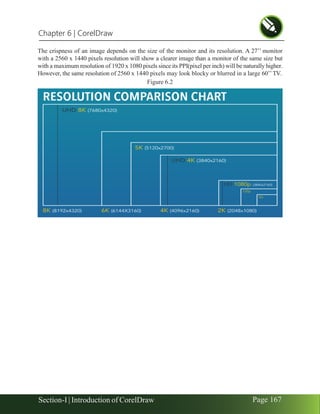
National Vocational & Technical Training Commission (NAVTTC)
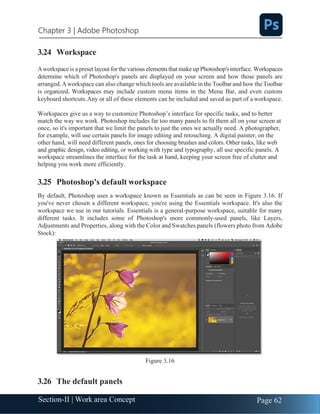
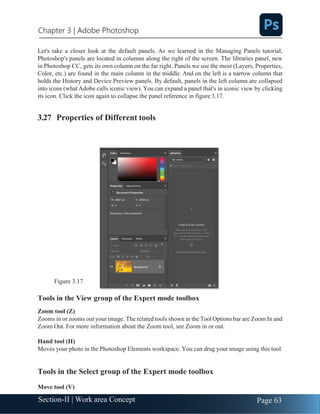
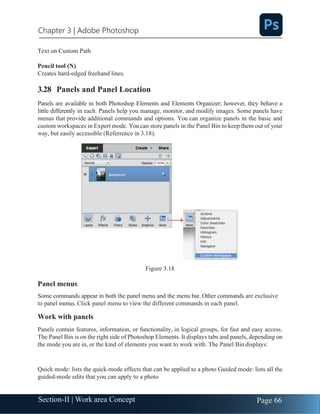
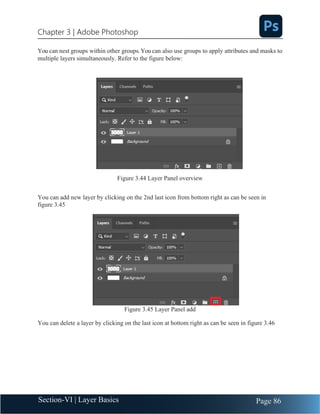
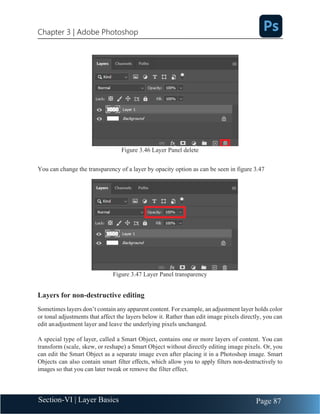
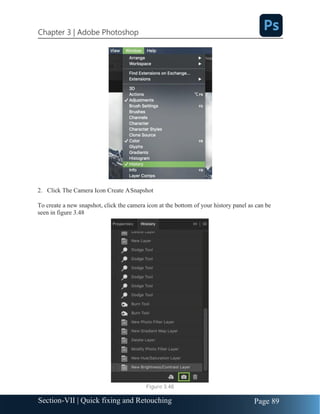
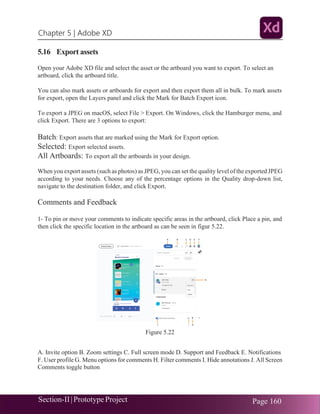
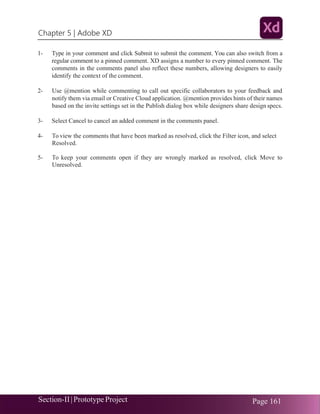
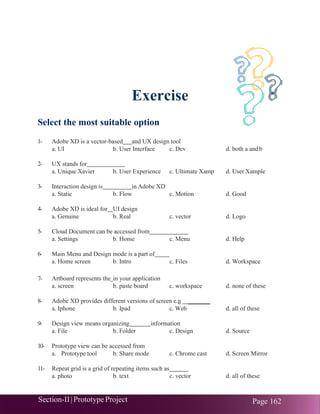
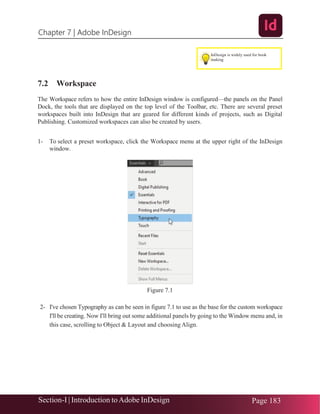
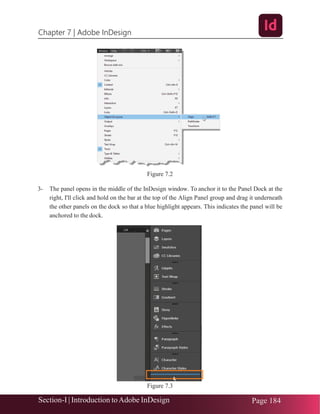
Graphics Designing-I
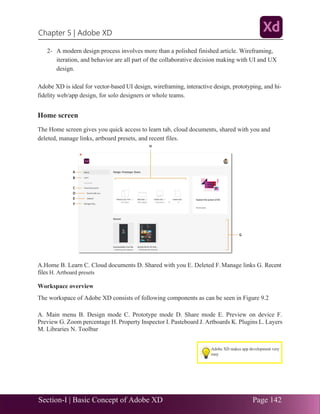
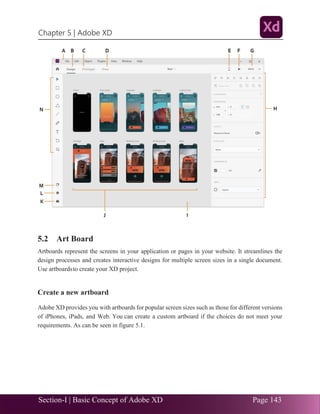
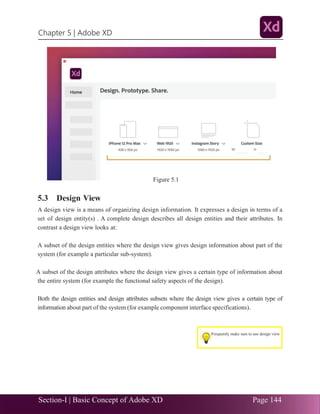
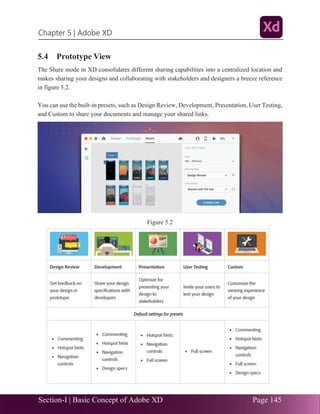
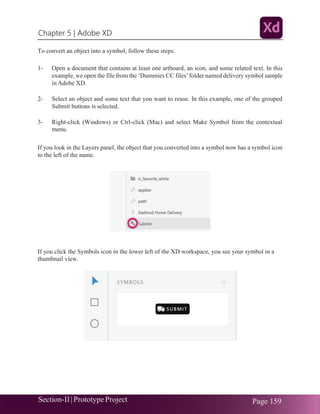
Grade - IX
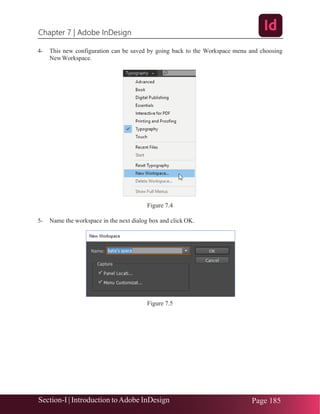
Textbook of
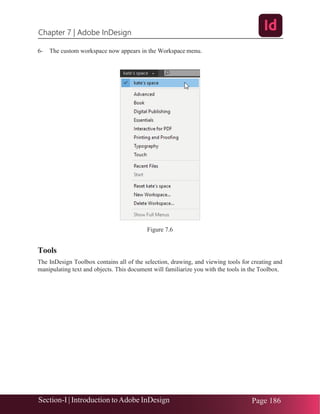
i
Textbook of
GRAPHICS DESIGNING-I
Grade – IX
National Vocational and Technical Training Commission
H-9, Islamabad
ii
Author: Dr. Faisal Riaz, Associate Professor, Department of Computer Sciences, Mirpur
University of Science and Technology
Reviewers: 1. Saba Sadiq, DACUM Facilitator, Islamabad
2. Dr. Muhammad Idrees, Associate Professor, Curriculum Expert,
Islamabad
3. Muhammad Zubair Akhtar Hussain, CEO, Microsoft Certified Trainer,
Microsoft Certified Educator Expert, GoogleBiz, Faisalabad
4. Marryum Zaman, Lecturer Computer Graphics, NUTECH, Islamabad
5. Bilal Mahmood, Lab Engineer, NUTECH, Islamabad
6. Mubashar Chishtee, CEO / Lecturer, Coding phoenix / LSFD
7. Hoorya, Lecturer, Women Welfare Development Centre
8. Muhammad Asim, Assistant Director, NAVTTC
9. Sohail Bin Aziz, Assistant Education Advisor, NCC, Islamabad
Designing: Gul Awan Printers, Blue Area, Islamabad.
Edition: 1st Edition, 2022
ISBN:
Publishers: National Vocational & Technical Training Commission
H-9, Islamabad.
Website: www.navttc.gov.pk,
All rights are preserved with the National Vocational and Technical Training Commission. No
part of this book can be copied, translated, reproduced or used for guide books, key notes, helping
books etc. without permission of NAVTTC.
Note: Names of Curriculum Developers will be part of curriculum document. In the book there
will be names of reviewers only.
iii
Preface
This book has been written to fulfill the requirements of Matric-Tech course to prepare the students
for the subject of Graphics Designing in Grade 9. Matric-Tech in Graphics Designing and Media
Production has been introduced first time in Pakistan. The main objective of starting this
technical course is to produce technical workforce instead of teaching them conventional
theoretical subjects. On accomplishment of this objective, students will be able to explore
the job market easily as well as start their careers as freelancers. Efforts have been made to
present graphic related training material in one book.
This book covers major topics to enrich students with the knowledge of Graphics Designing. Each
subject/topic is clarified in a helpful manner for better understanding of Matric-Tech students.
The book starts with the introduction to computer systems. Afterwards, we explained the software
programs which are being used in the field of graphics. Wehave explained all the major tools with their
implementations onvarious objects for better understanding. Students must perform the activities and
tasks to get hands on experience to learn Graphics Designing in a better way.
All sections incorporate evaluations in the form of MCQs, exercises, short and long questions. Any
enhancement/idea for the improvement of this book will be higly appreciated.
Executive Director
National Vocational & Technical Training Commission
(NAVTTC)
iv
v
Contents
Preface......................................................................................................................................................iii
Introduction to Computing ............................................................. 7
Basics of Graphics Designing..................................................... 32
Activities.................................................................................................................................................44
Chapter 3...................................................................................... 45
Activities...............................................................................................................................................107
Chapter 4.................................................................................... 108
Chapter 5.................................................................................... 141
Activities...............................................................................................................................................163
Chapter 6.................................................................................... 164
Activities...............................................................................................................................................181
Chapter 7.................................................................................... 182
Activities...............................................................................................................................................208
Chapter 8.................................................................................... 209
Activities...............................................................................................................................................228
vi
Chapter 1
Introduction to Computing
Section-I: Basic Concepts of Computers:
After completing this section, students will be able to: -
• define computer
• define types of computers
• describe importance of computer
• describe usage of computer
• know about components of computer and their applications
Chapter 1 | Introduction to Computing
Section-I | Basic Concepts of Computer Page 2
1.1 Introduction
Counting things and calculating simple types of additions were done earlier by using pebbles and
fingers. Understanding why we need such calculating machines is giving rise to what we called
as the computer. The earlier versions of man’s calculating devices include sand tables, abacus, slide
rule, Pascaline, stepped reckoner, punch card system, difference engine, and then analytical engine.
All these were developed to help humans in performing a calculation in a better manner. It must
be known by the student that Charles Babbage was acknowledged as the ‘father of the modern
digital computer’. He suggested the base of modern digital computer architecture which helped the
earlier engineers to build the initial generation of computers. Lady Ada Lovelace is considered as
‘first computer programmer’ because she worked with Babbage on his analytical engine, and write
programs for the analyticalengine.
The word “Computer” comes from the Latin word “pature” which means to calculate, to sum, or
to think as well. A computer is an electronic device, which stores and processes data to give
meaningful information. Processing is done with the help of instructions given by the user, which
are also stored within the computer. During early times humans were assigned this title as they use
to do calculations but with the passage of time, this term was specifically used for machines.
1.2 Types of Computers
Generally, there are four types of computers based on the characteristics like speed, size,
performance, and its use. These types have been described below:
Microcomputer
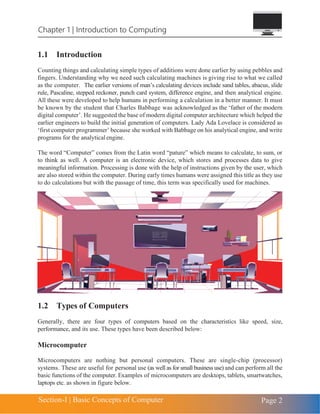
Microcomputers are nothing but personal computers. These are single-chip (processor)
systems. These are useful for personal use (as well as for small business use) and can perform all the
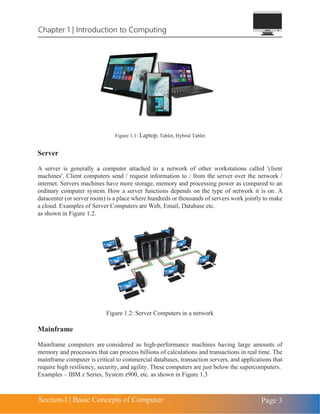
basic functions of the computer. Examples of microcomputers are desktops, tablets, smartwatches,
laptops etc. as shown in figure below.
Chapter 1 | Introduction to Computing
Section-I | Basic Concepts of Computer Page 3
Figure 1.1: Laptop, Tablet, Hybrid Tablet
Server
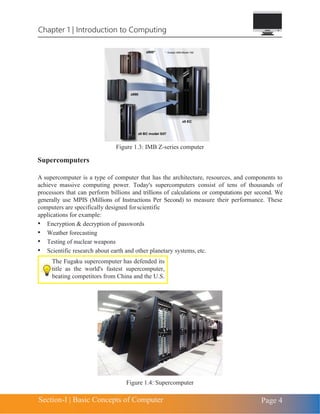
A server is generally a computer attached to a network of other workstations called 'client
machines'. Client computers send / request information to / from the server over the network /
internet. Servers machines have more storage, memory and processing power as compared to an
ordinary computer system. How a server functions depends on the type of network it is on. A
datacenter (or server room) is a place where hundreds or thousands of servers work jointly to make
a cloud. Examples of Server Computers are Web, Email, Database etc.
as shown in Figure 1.2.
Figure 1.2: Server Computers in a network
Mainframe
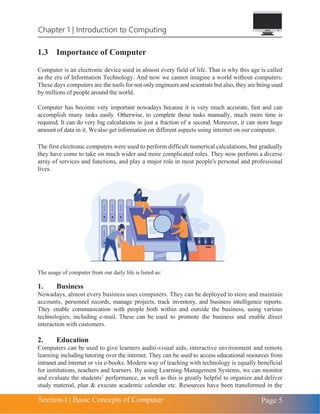
Mainframe computers are considered as high-performance machines having large amounts of
memory and processors that can process billions of calculations and transactions in real time. The
mainframe computer is critical to commercial databases, transaction servers, and applications that
require high resiliency, security, and agility. These computers are just below the supercomputers.
Examples – IBM z Series, System z900, etc. as shown in Figure 1.3
Chapter 1 | Introduction to Computing
Section-I | Basic Concepts of Computer Page 4
Figure 1.3: IMB Z-series computer
Supercomputers
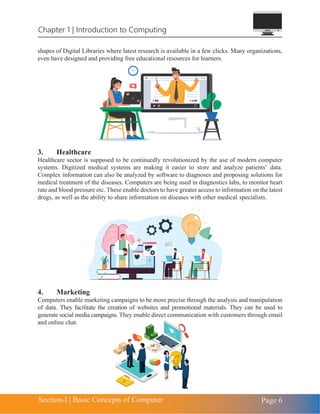
A supercomputer is a type of computer that has the architecture, resources, and components to
achieve massive computing power. Today's supercomputers consist of tens of thousands of
processors that can perform billions and trillions of calculations or computations per second. We
generally use MPIS (Millions of Instructions Per Second) to measure their performance. These
computers are specifically designed forscientific
applications for example:
• Encryption & decryption of passwords
• Weather forecasting
• Testing of nuclear weapons
• Scientific research about earth and other planetary systems, etc.
Figure 1.4: Supercomputer
The Fugaku supercomputer has defended its
title as the world's fastest supercomputer,
beating competitors from China and the U.S.
Chapter 1 | Introduction to Computing
Section-I | Basic Concepts of Computer Page 5
1.3 Importance of Computer
Computer is an electronic device used in almost every field of life. That is why this age is called
as the era of Information Technology. And now we cannot imagine a world without computers.
These days computers are the tools for not only engineers and scientists but also, they are being used
by millions of people around the world.
Computer has become very important nowadays because it is very much accurate, fast and can
accomplish many tasks easily. Otherwise, to complete those tasks manually, much more time is
required. It can do very big calculations in just a fraction of a second. Moreover, it can store huge
amount of data in it. Wealso get information on different aspects using internet on our computer.
The first electronic computers were used to perform difficult numerical calculations, but gradually
they have come to take on much wider and more complicated roles. They now perform a diverse
array of services and functions, and play a major role in most people's personal and professional
lives.
The usage of computer from our daily life is listed as:
1. Business
Nowadays, almost every business uses computers. They can be deployed to store and maintain
accounts, personnel records, manage projects, track inventory, and business intelligence reports.
They enable communication with people both within and outside the business, using various
technologies, including e-mail. These can be used to promote the business and enable direct
interaction with customers.
2. Education
Computers can be used to give learners audio-visual aids, interactive environment and remote
learning including tutoring over the internet. They can be used to access educational resources from
intranet and internet or via e-books. Modern way of teaching with technology is equally beneficial
for institutions, teachers and learners. By using Learning Management Systems, we can monitor
and evaluate the students’ performance, as well as this is greatly helpful to organize and deliver
study material, plan & execute academic calendar etc. Resources have been transformed in the
Chapter 1 | Introduction to Computing
Section-I | Basic Concepts of Computer Page 6
shapes of Digital Libraries where latest research is available in a few clicks. Many organizations,
even have designed and providing free educational resources for learners.
3. Healthcare
Healthcare sector is supposed to be continuedly revolutionized by the use of modern computer
systems. Digitized medical systems are making it easier to store and analyze patients’ data.
Complex information can also be analyzed by software to diagnoses and proposing solutions for
medical treatment of the diseases. Computers are being used in diagnostics labs, to monitor heart
rate and blood pressure etc. These enable doctors to have greater access to information on the latest
drugs, as well as the ability to share information on diseases with other medical specialists.
4. Marketing
Computers enable marketing campaigns to be more precise through the analysis and manipulation
of data. They facilitate the creation of websites and promotional materials. They can be used to
generate social media campaigns. They enable direct communication with customers through email
and online chat.
Chapter 1 | Introduction to Computing
Section-I | Basic Concepts of Computer Page 7
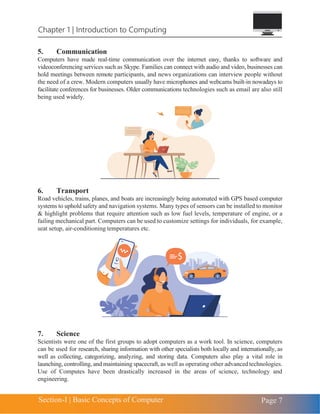
5. Communication
Computers have made real-time communication over the internet easy, thanks to software and
videoconferencing services such as Skype. Families can connect with audio and video, businesses can
hold meetings between remote participants, and news organizations can interview people without
the need of a crew. Modern computers usually have microphones and webcams built-in nowadays to
facilitate conferences for businesses. Older communications technologies such as email are also still
being used widely.
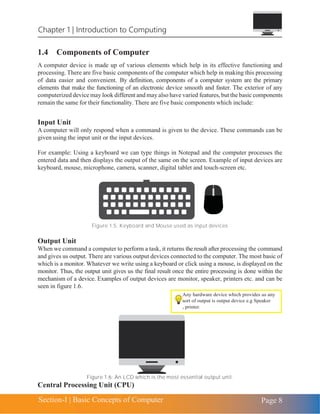
6. Transport
Road vehicles, trains, planes, and boats are increasingly being automated with GPS based computer
systems to uphold safety and navigation systems. Many types of sensors can be installed to monitor
& highlight problems that require attention such as low fuel levels, temperature of engine, or a
failing mechanical part. Computers can be used to customize settings for individuals, for example,
seat setup, air-conditioning temperatures etc.
7. Science
Scientists were one of the first groups to adopt computers as a work tool. In science, computers
can be used for research, sharing information with other specialists both locally and internationally, as
well as collecting, categorizing, analyzing, and storing data. Computers also play a vital role in
launching, controlling, and maintaining spacecraft, as well as operating other advancedtechnologies.
Use of Computes have been drastically increased in the areas of science, technology and
engineering.
Chapter 1 | Introduction to Computing
Section-I | Basic Concepts of Computer Page 8
1.4 Components of Computer
A computer device is made up of various elements which help in its effective functioning and
processing. There are five basic components of the computer which help in making this processing
of data easier and convenient. By definition, components of a computer system are the primary
elements that make the functioning of an electronic device smooth and faster. The exterior of any
computerized device may look different and may also have varied features, but the basic components
remain the same for their functionality. There are five basic components which include:
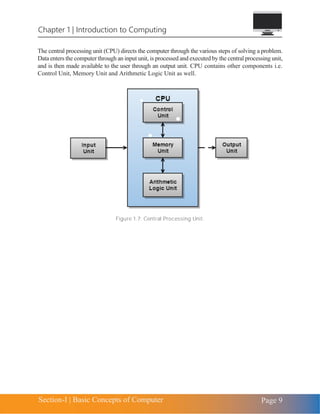
Input Unit
A computer will only respond when a command is given to the device. These commands can be
given using the input unit or the input devices.
For example: Using a keyboard we can type things in Notepad and the computer processes the
entered data and then displays the output of the same on the screen. Example of input devices are
keyboard, mouse, microphone, camera, scanner, digital tablet and touch-screen etc.
Figure 1.5: Keyboard and Mouse used as input devices
Output Unit
When we command a computer to perform a task, it returns the result after processing the command
and gives us output. There are various output devices connected to the computer. The most basic of
which is a monitor. Whatever we write using a keyboard or click using a mouse, is displayed on the
monitor. Thus, the output unit gives us the final result once the entire processing is done within the
mechanism of a device. Examples of output devices are monitor, speaker, printers etc. and can be
seen in figure 1.6.
Figure 1.6: An LCD which is the most essential output unit.
Central Processing Unit (CPU)
Chapter 1 | Introduction to Computing
Section-I | Basic Concepts of Computer Page 9
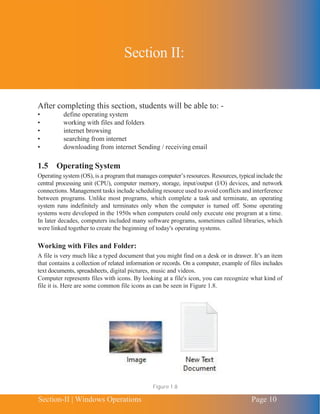
The central processing unit (CPU) directs the computer through the various steps of solving a problem.
Data enters the computer through an input unit, is processed and executed by the central processing unit,
and is then made available to the user through an output unit. CPU contains other components i.e.
Control Unit, Memory Unit and Arithmetic Logic Unit as well.
Figure 1.7: Central Processing Unit.
Chapter 1 | Introduction to Computing
Section-II | Windows Operations Page 10
After completing this section, students will be able to: -
• define operating system
• working with files and folders
• internet browsing
• searching from internet
• downloading from internet Sending / receiving email
1.5 Operating System
Operating system (OS), is a program that manages computer’s resources. Resources, typical include the
central processing unit (CPU), computer memory, storage, input/output (I/O) devices, and network
connections. Management tasks include scheduling resource used to avoid conflicts and interference
between programs. Unlike most programs, which complete a task and terminate, an operating
system runs indefinitely and terminates only when the computer is turned off. Some operating
systems were developed in the 1950s when computers could only execute one program at a time.
In later decades, computers included many software programs, sometimes called libraries, which
were linked together to create the beginning of today's operating systems.
Working with Files and Folder:
A file is very much like a typed document that you might find on a desk or in drawer. It’s an item
that contains a collection of related information or records. On a computer, example of files includes
text documents, spreadsheets, digital pictures, music and videos.
Computer represents files with icons. By looking at a file's icon, you can recognize what kind of
file it is. Here are some common file icons as can be seen in Figure 1.8.
Figure 1.8
Section II:
Chapter 1 | Introduction to Computing
Section-II | Windows Operations Page 11
A folder is just like a container in which you can store files. If you put thousands of paper files on
someone's desk, it would be impossible to find any particular one when you need it. That's why people
often store paper files in folders inside a filing cabinet. Arranging files into logical groups makes it easy
to locate any particular file. Folders on your computer work exactly the same manner. This is what
a typical folder icon looks like (Figure 1.9):
Figure 1.9
1.6 Interacting with your files
By now you must be familiar with the term “Cut, Copy and Paste” which are basic commands for file
management (making multiple copies of the same file and moving the location of files and folders). You
can use the following steps to perform such file functions.
Cut: The purpose of cut is to move files or folders from one place to another location (folder). In File
Manager, Cut function is performed by simply right clicking on the file to be moved as shown in
figure 1.11 and by clicking on cut option. In windows, user can also use Ctrl + X (shortcut)
command using keyboard for the same purpose.
Figure 1.11
Chapter 1 | Introduction to Computing
Section-II | Windows Operations Page 12
After cutting the file or folder, navigate to the location you want to paste the file and right click on
any empty space on screen then click on paste as shown in figure 1.12.
Figure 1.12
Copy: The purpose of copy is to duplicate a file or folder from one place to the next location.
Copying a file at same location is also allowed, however, system prompts a dialog box asking user
to rename it or replace it. To perform copy function, you can simply right click on the file to be
copied as shown in figure 1.13. Shortcut command for copy in windows is Ctrl + C.
Figure 1.13
Move to the location you want to paste the file and right click on any empty area in screen then
click on paste, same as done above for cut. Shortcut key to past is Ctrl+V.
Chapter 1 | Introduction to Computing
Section-II | Windows Operations Page 13
Delete: To delete a file or folder (or multiple selected files), right-click on the file and select
Delete as can be seen in figure 1.14. You can also select the file and hit the Delete key on the
keyboard. Deleting a folder deletes all its contents as well.
Figure 1.14
You may get a dialog prompt that asks if you want to move the file to the recycle bin. If it appears,
press the yes button. If you didn’t get a dialog prompt, the file was still sent to the Recycle Bin. (The
Mac equivalent is called Trash.) Deleted files are not gone forever; they are sent to the Recycle
Bin.
Recycle Bin:
When a file is deleted, it is sent to the Recycle Bin. The Recycle Bin can be found on the Desktop.
Its icon resembles a recycle bin or trash can, and the icon changes depending on whether the
Recycle Bin contains any deleted files. Icons of recycle bin can be seen in figure 1.15(a) and
1.15(b)
Figure 1.15 (a): Empty Recycle Bin Figure 1.15 (b): Recycle Bin Containing files
To permanently delete a file, you can delete it again from the Recycle Bin, or you can empty the
Recycle Bin. It is recommended you empty the Recycle Bin every once in a while, to free up disk
space.
If you delete something by accident, or if you change your mind about a deleted file, you can un-
delete it by restoring the file from the Recycle Bin.
Chapter 1 | Introduction to Computing
Section-II | Windows Operations Page 14
To restore or permanently delete a file, right-click on the file and select either Restore or Delete.
Deleted files are permanently deleted; restored files are restored to their original location before being
deleted. Some available options in a recycle bin can be seen in figure 1.16.
Figure 1.16
1.7 Personalize Desktop
Desktop personalization is the process of adjusting the look, feel and organization of a Windows end-user
experience. In general, any adjustment to the user interface that deviates from the default installation
settings may be considered to be a personalization, but users typically personalize a desktop to
improve the personal comfort of the user interface, enhance its visual behaviors or reflect personal
interests.
Windows 10 makes it easy to customize the look and feel of your desktop. To access the
Personalization settings, right-click anywhere on the desktop (Figure 1.16), then select
‘Personalize’ from the drop-down menu. The Personalization settings will appear.
Figure 1.17
Chapter 1 | Introduction to Computing
Section-II | Windows Operations Page 15
Click the buttons in the figure below to learn more about using the Personalization settings (Figure 1.18).
Figure 1.18
Here you can find all the options which you can use as you desire to customize your desktop.
1.8 Internet Browsing
The Internet is the biggest world-wide communicationnetwork of computers. The internet has millions
of smaller domestic, academic, business, and government networks, which together carry many
different kinds of information. The short form of internet is 'net'. Internet is known as network of
networks. The World Wide Web is one of its biggest services. It is used by billions of people all over
the world to browse the websites, sending emails, shopping online etc.
A web browser is a type of software that allows you to browse and view websites on the Internet.
Even if you didn't know it, you're using a web browser right now to read this page. There are many
different web browsers including Google Chrome, Internet Explorer, Safari, Microsoft Edge, and
Mozilla Firefox.
We'll be using Google Chrome web browser throughout this lesson, but you can use any browser
you like. Keep in mind that your browser may look and act a bit differently, but all web browsers
work in the same way.
URLs and the address bar
Each website has a unique address, called a URL (short for Uniform Resource Locator). It's like a
street address that tells your browser where to go on the Internet. When you type a URL into the
browser's address bar and press Enter on your keyboard, the browser will load the page associated
with that URL.
Chapter 1 | Introduction to Computing
Section-II | Windows Operations Page 16
You may use backspace key instead of
navigation buttons
In the example below, we've typed www.bbc.com/travel into the address bar as can be seen in
figure 1.19
Figure 1.19
1.9 Links
Whenever you see a word or phrase on a website that's blue or underlined in blue, it's probably a
hyperlink (or link for short).
Links are used to navigate the Web pages. When you click a link, it will usually take you to a different
webpage.You may also notice that your cursor changes into a hand icon whenever you hover over a link
Many websites use text, buttons and images as links (hyperlinks) as can be seen in figure 1.20,
Figure 1.20
1.11 Navigation buttons
The Back and Forward buttons allow you to move through websites you've recently viewed as
can be seen in figure 1.22. You can also click and hold either button to see your recent history.
Chapter 1 | Introduction to Computing
Section-II | Windows Operations Page 17
Figure 1.22
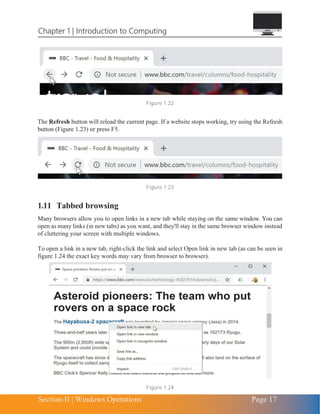
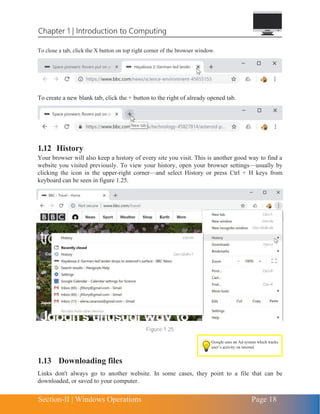
The Refresh button will reload the current page. If a website stops working, try using the Refresh
button (Figure 1.23) or press F5.
Figure 1.23
1.11 Tabbed browsing
Many browsers allow you to open links in a new tab while staying on the same window. You can
open as many links (in new tabs) as you want, and they'll stay in the same browser window instead
of cluttering your screen with multiple windows.
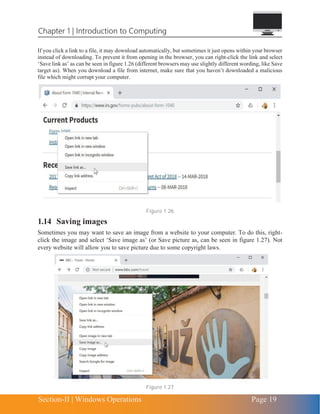
To open a link in a new tab, right-click the link and select Open link in new tab (as can be seen in
figure 1.24 the exact key words may vary from browser to browser).
Figure 1.24
Chapter 1 | Introduction to Computing
Section-II | Windows Operations Page 18
To close a tab, click the X button on top right corner of the browser window.
To create a new blank tab, click the + button to the right of already opened tab.
1.12 History
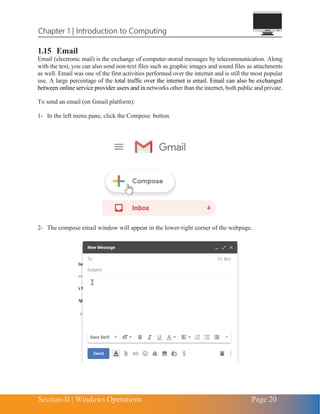
Your browser will also keep a history of every site you visit. This is another good way to find a
website you visited previously. To view your history, open your browser settings—usually by
clicking the icon in the upper-right corner—and select History or press Ctrl + H keys from
keyboard can be seen in figure 1.25.
Figure 1.25
1.13 Downloading files
Links don't always go to another website. In some cases, they point to a file that can be
downloaded, or saved to your computer.
Google uses an Ad system which tracks
user’s activity on internet
Chapter 1 | Introduction to Computing
Section-II | Windows Operations Page 19
If you click a link to a file, it may download automatically, but sometimes it just opens within your browser
instead of downloading. To prevent it from opening in the browser, you can right-click the link and select
‘Save link as’ as can be seen in figure 1.26 (different browsers may use slightly different wording, like Save
target as). When you download a file from internet, make sure that you haven’t downloaded a malicious
file which might corrupt your computer.
Figure 1.26
1.14 Saving images
Sometimes you may want to save an image from a website to your computer. To do this, right-
click the image and select ‘Save image as’ (or Save picture as, can be seen in figure 1.27). Not
every website will allow you to save picture due to some copyright laws.
Figure 1.27
Chapter 1 | Introduction to Computing
Section-II | Windows Operations Page 20
1.15 Email
Email (electronic mail) is the exchange of computer-stored messages by telecommunication. Along
with the text, you can also send non-text files such as graphic images and sound files as attachments
as well. Email was one of the first activities performed over the internet and is still the most popular
use. A large percentage of the total traffic over the internet is email. Email can also be exchanged
between online service provider users and in networks other than the internet, both public and private.
To send an email (on Gmail platform):
1- In the left menu pane, click the Compose button.
2- The compose email window will appear in the lower-right corner of the webpage.
Chapter 1 | Introduction to Computing
Section-II | Windows Operations Page 21
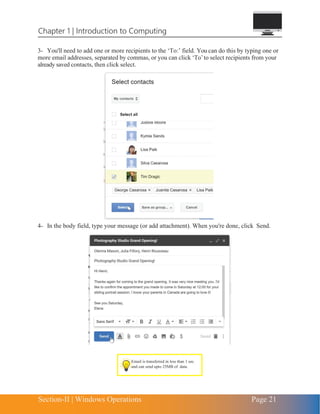
3- You'll need to add one or more recipients to the ‘To:’ field. You can do this by typing one or
more email addresses, separated by commas, or you can click ‘To’to select recipients from your
already saved contacts, then click select.
4- In the body field, type your message (or add attachment). When you're done, click Send.
Email is transferred in less than 1 sec.
and can send upto 25MB of data.
Section-II | Windows Operations Page 22
Chapter 1 | Introduction to Computing
After completing this section, students will be able to: -
• Define Microsoft Office
• Describe applications of MS Office (Word, PowerPoint, Excel)
• Knowledge about working in MS Word
• Knowledge about working in PowerPoint
• Knowledge about working in MS Excel
1.16 MS Office
Microsoft Office is a popular set of software programs from Microsoft that includes a word
processor, a spreadsheet tool, a database program, an email utility and other productivity software
commonly used in modern offices.
Each of the applications in Microsoft Office serves as specific knowledge or office domain such
as:
1. Microsoft Word: Helps users in creating text documents.
2. Microsoft Excel: Creates simple to complex data/numerical spreadsheets including charts
etc.
3. Microsoft PowerPoint: Stand-alone application for creating professional multimedia
presentations.
4. Microsoft Access: Database management application.
5. Microsoft Publisher: Introductory application for creating and publishing flyers & brochures
etc.
6. Microsoft OneNote: Alternate to a paper notebook, it enables a user to organize their notes
and to do lists.
7. Microsoft Outlook: For sending and receiving emails.
Section-III
Section-II | Windows Operations Page 23
Chapter 1 | Introduction to Computing
1.17 Microsoft Word
It is used to make professional-quality documents, letters, reports, etc., MS Word is a word processor
developed by Microsoft. It has advanced features which allow you to format and edit your files and
documents in the best possible way.
Now let us read more about the features and components of MS Word in detail.
Section-II | Windows Operations Page 24
Chapter 1 | Introduction to Computing
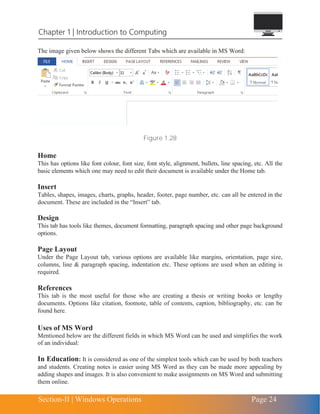
The image given below shows the different Tabs which are available in MS Word:
Figure 1.28
Home
This has options like font colour, font size, font style, alignment, bullets, line spacing, etc. All the
basic elements which one may need to edit their document is available under the Home tab.
Insert
Tables, shapes, images, charts, graphs, header, footer, page number, etc. can all be entered in the
document. These are included in the “Insert” tab.
Design
This tab has tools like themes, document formatting, paragraph spacing and other page background
options.
Page Layout
Under the Page Layout tab, various options are available like margins, orientation, page size,
columns, line & paragraph spacing, indentation etc. These options are used when an editing is
required.
References
This tab is the most useful for those who are creating a thesis or writing books or lengthy
documents. Options like citation, footnote, table of contents, caption, bibliography, etc. can be
found here.
Uses of MS Word
Mentioned below are the different fields in which MS Word can be used and simplifies the work
of an individual:
In Education: It is considered as one of the simplest tools which can be used by both teachers
and students. Creating notes is easier using MS Word as they can be made more appealing by
adding shapes and images. It is also convenient to make assignments on MS Word and submitting
them online.
Section-II | Windows Operations Page 25
Chapter 1 | Introduction to Computing
In Workplace: Submitting letters, bills, creating reports, letterheads, sample documents, can all
easily be done using MS Word.
Creating & Updating Resume: One of the best tools to create your resumes, biographies,
and profiles is easy to edit and make changes in it as per your experience.
For Authors: Since separate options are available for bibliography, table of contents, etc., it is
the great tool which can be used by authors for writing books and adjusting it as per the layout and
alignment of your choice.
1.18 Microsoft PowerPoint
MS PowerPoint is a program that is included in the Microsoft Office suite. It is used to make
presentations for personal and professional purposes.
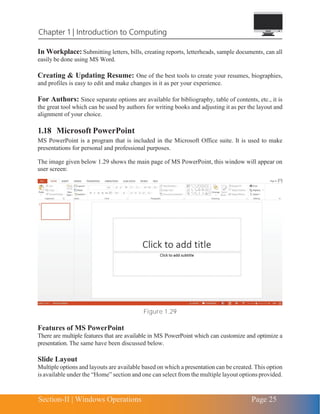
The image given below 1.29 shows the main page of MS PowerPoint, this window will appear on
user screen:
Figure 1.29
Features of MS PowerPoint
There are multiple features that are available in MS PowerPoint which can customize and optimize a
presentation. The same have been discussed below.
Slide Layout
Multiple options and layouts are available based on which a presentation can be created. This option
is available under the “Home” section and one can select from the multiple layout optionsprovided.
Section-II | Windows Operations Page 26
Chapter 1 | Introduction to Computing
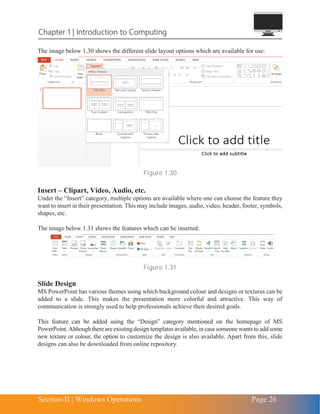
The image below 1.30 shows the different slide layout options which are available for use:
Figure 1.30
Insert – Clipart, Video, Audio, etc.
Under the “Insert” category, multiple options are available where one can choose the feature they
want to insert in their presentation. This may include images, audio, video, header, footer, symbols,
shapes, etc.
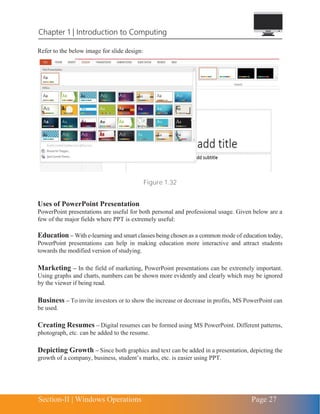
The image below 1.31 shows the features which can be inserted:
Figure 1.31
Slide Design
MS PowerPoint has various themes using which background colour and designs or textures can be
added to a slide. This makes the presentation more colorful and attractive. This way of
communication is strongly used to help professionals achieve their desired goals.
This feature can be added using the “Design” category mentioned on the homepage of MS
PowerPoint. Althoughthereare existingdesign templates available, in casesomeonewantsto add some
new texture or colour, the option to customize the design is also available. Apart from this, slide
designs can also be downloaded from online repository.
Section-II | Windows Operations Page 27
Chapter 1 | Introduction to Computing
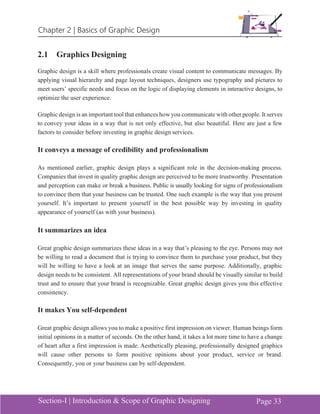
Refer to the below image for slide design:
Figure 1.32
Uses of PowerPoint Presentation
PowerPoint presentations are useful for both personal and professional usage. Given below are a
few of the major fields where PPT is extremely useful:
Education – With e-learning and smart classes being chosen as a common mode of education today,
PowerPoint presentations can help in making education more interactive and attract students
towards the modified version of studying.
Marketing – In the field of marketing, PowerPoint presentations can be extremely important.
Using graphs and charts, numbers can be shown more evidently and clearly which may be ignored
by the viewer if being read.
Business – To invite investors or to show the increase or decrease in profits, MS PowerPoint can
be used.
Creating Resumes – Digital resumes can be formed using MS PowerPoint. Different patterns,
photograph, etc. can be added to the resume.
Depicting Growth – Since both graphics and text can be added in a presentation, depicting the
growth of a company, business, student’s marks, etc. is easier using PPT.
Section-II | Windows Operations Page 28
Chapter 1 | Introduction to Computing
1.19 Microsoft Excel
MS Excel is a commonly used Microsoft Office application. It is a spreadsheet program which is
used to save, analyze and present data.
Figure 1.33
Various editing and formatting can also be done on an Excel spreadsheet. Discussed below are the
important features of MS Excel.
Features of MS Excel:
Home
Comprises options like font size, font styles, font colour, background colour, alignment, formatting
options and styles, insertion and deletion of cells and editing options.
Insert
Comprises options like table format and style, inserting images and figures, adding graphs, charts and
sparklines, header and footer option, equation and symbols.
Page Layout
Themes, orientation and page setup options are available under the page layout tab.
Formulas
Since tables with a large amount of data can be created in MS excel, under this feature, you can
add formulas to your data and get quicker results.
Data
Adding external data (from the web), filtering options and data tools are available under this
category.
Section-II | Windows Operations Page 29
Chapter 1 | Introduction to Computing
Review
Proofreading can be done for an excel sheet (like spell check) in the review category and a reader
can add comments as well.
View
Different views in which we want the spreadsheet to be displayed can be edited here. Options to
zoom in and out and pane arrangement are available under this tab.
Uses of MS Excel
MS Excel is widely used for various purposes because the data is easy to save, and information
can be added and removed without any discomfort and less hard work.
Given below are a few important benefits of using MS Excel:
Easy To Store Data: Since there is no limit to the amount of information that can be saved in
a spreadsheet, MS Excel is widely used to save data or to analyze data. Filtering information in
Excel is easy and convenient.
Easy To Recover Data: If the information is written on a piece of paper, finding it may take
longer, however, this is not the case with excel spreadsheets. Finding and recovering data is easy.
Application of Mathematical Formulas: Doing calculations has become easier and less
time-taking with the formulas option in MS excel.
More Secure: These spreadsheets can be password secured in a laptop or personal computer and
the probability of losing them is way lesser in comparison to data written in registers or piece of
paper.
Data at One Place: Earlier, data was to be kept in different files and registers when it was done
manually. Now, this has become convenient as more than one worksheet can be added in a single
MS Excel file.
Organized and Clearer Visibility of Information:When the data is saved in the form of
a table, analyzing it becomes easier. Thus, information in a spreadsheet is more readable and
understandable.
Chapter 1: Exercise Page 30
Exercise
Select the most suitable option
1. Who is known as the ‘father of the modern digital computer’?
a) Charles Babbage b) Einstein c) Elon Musk d) Nikola Tesla
2. Who was the very first computer programmer?
a) Lady Ada Lovelace b) Nikola Tesla c) Bill Gates d) Simpson
3. Computer Speed is measured as
a) Seconds b) Megahertz c) Milliseconds d) Kilometers
4. Supercomputers usually perform how many instructions per seconds?
a) Hundreds b) Thousands c) Millions d) Billions
5. Which part of computer is considered as the brain of the computer?
a) Memory b) Control Unit c) ALU d) CPU
6. What is the shortcut to cut a file?
a) Ctrl + C b) Ctrl + V c) Ctrl + X d) Ctrl + F
7. URL Stands for?
a) Universal Resource Language b) Universal Resource Locator c) Universal Resource Link
d) None
8. What type of Mainframe computer is?
a) Server b) PC c) Microcomputer d) Super Computer
9. What type of device is a printer?
a) Input Device b) Output Device c) Memory Unit d) System Device
9. CPU stands for?
a) Complete Program Unit b) Central Program Unit c) Central Processing Unit d)
None of these
10. ALU performs which types of operations
a) Arithmetic b) Logical c) Comparison d) Memory
Chapter 1: Exercise Page 31
Give short answer the following questions
1. What is an Operating System?
2. Download an Image and apply it on your desktop screen as Wallpaper.
3. Copy a file form one place to another.
4. Delete a file from your computersystem.
5. Rename a file on your system.
6. What is Internet?
7. Name any three Internet browsers.
8. Open a web browser and search for latest news
9. Try to send an email to one of your friends
10. Open and check your email inbox.
Answer the following questions in detail
1. Discuss the different types of computers
2. Discuss in detail the usage of Computer in our daily life.
3. Which actions you can take on a file or folder and how?
4. Discuss MS Word in Detail along with its usage.
5. Discuss features and uses of MS Excel
Activities
1. Create, copy and move files and folders
2. Delete and restore the files and folders from recycle bin.
3. Prepare you CV using MS word
4. Prepare presentation using the power point on the topic given by the instructor
5. Prepare different spreadsheets using MS Excel having student results for various classes and
subjects
Chapter2
Basics of Graphics Designing
After completing this section, students will be able to:-
• define graphic designing
• describe importance of graphic designing
• understand industrial usage of graphic designing
• describe opportunities for employment and advancement in graphic
designing field
Chapter 2 | Basics of Graphic Design
Section-I | Introduction & Scope of Graphic Designing Page 33
2.1 Graphics Designing
Graphic design is a skill where professionals create visual content to communicate messages. By
applying visual hierarchy and page layout techniques, designers use typography and pictures to
meet users’ specific needs and focus on the logic of displaying elements in interactive designs, to
optimize the user experience.
Graphic design is an important tool that enhances how you communicate with other people. It serves
to convey your ideas in a way that is not only effective, but also beautiful. Here are just a few
factors to consider before investing in graphic design services.
It conveys a message of credibility and professionalism
As mentioned earlier, graphic design plays a significant role in the decision-making process.
Companies that invest in quality graphic design are perceived to be more trustworthy. Presentation
and perception can make or break a business. Public is usually looking for signs of professionalism
to convince them that your business can be trusted. One such example is the way that you present
yourself. It’s important to present yourself in the best possible way by investing in quality
appearance of yourself (as with your business).
It summarizes an idea
Great graphic design summarizes these ideas in a way that’s pleasing to the eye. Persons may not
be willing to read a document that is trying to convince them to purchase your product, but they
will be willing to have a look at an image that serves the same purpose. Additionally, graphic
design needs to be consistent. All representations of your brand should be visually similar to build
trust and to ensure that your brand is recognizable. Great graphic design gives you this effective
consistency.
It makes You self-dependent
Great graphic design allows you to make a positive first impression on viewer. Human beings form
initial opinions in a matter of seconds. On the other hand, it takes a lot more time to have a change
of heart after a first impression is made. Aesthetically pleasing, professionally designed graphics
will cause other persons to form positive opinions about your product, service or brand.
Consequently, you or your business can by self-dependent.
Chapter 2 | Basics of Graphic Design
Section-I | Introduction & Scope of Graphic Designing Page 34
2.2 Industrial Scope
Graphics designing is involved and has a vital scope in almost every industry. It has made a
permanent place in various industries. Some of the uses of graphics designing have been mentioned
below:
• Custom Logo
A custom logo establishes credibility by creating brand recognition, and firmly positions your
company within the marketplace. A Logo is actually the first impression about a business or
organization. It should reflect the main theme of the organization and should match the vision
statement or the moto of the organization. While there are many factors in building an impactful
logo and visual identity, a major influence on your logo’s success is its color scheme. Certain color
combinations create distinct perceptions and elicit emotions. Examining the market trends in your
industry and understanding to which colors your customers respond, may make big differences.
• Advertising
Considering the psychological effects that your branding has on prospects, your advertisements
need to follow a similar set of guidelines. Among a sea of expertly crafted ads, a poorly designed
advert will easily become overlooked as noise. The chances that your ad will convert prospects
without a hero image, strong graphic elements, and a clear call to action is required. In advertising,
or in any form of print or digital communications, your brand’s essence speaks louder than words.
• Marketing Collateral
Graphic design optimizes your marketing efforts across all channels, and is key to building a
professional brand. Being consistent in your marketing collateral allows your brand to be easily
recognizable, and allows your customers and clients quickly get familiar with what your company
has to offer. The comfortability that clients and customers get through consistent marketing will
ultimately lead to credibility. Your brand should have a strong visual foundation to communicate
its confidence in its offerings and expertise. This allows customers to engage with your business
more frequently, in turn leading to stronger customer relationship management (CRM).
• Presentations
In order to keep an audience engaged throughout a new presentation or pitch, you will need
strategically structured and designed slides. This will be your effective strategy to win the crowd
over if paired with a smooth verbal delivery. Telling your story with enticing graphics that support
your product or services benefits in selling your work. Be sure that the flow of the presentation is
clear and concise with hard start/stops to denote a new topic or chapter.
• Social Media
Chapter 2 | Basics of Graphic Design
Section-I | Introduction & Scope of Graphic Designing Page 35
By using graphic design, you are able to establish a consistent brand footprint across all social media
platforms. Create an account on platforms where you feel your customers use most often. Try
Facebook,LinkedIn, Instagram, Google Plus, and Twitter, just to name a few. Using custom-branded
graphics in your posts will tie your digital branding to your physical marketing collateral, leading
toacohesivebrandidentity.Brandingyourowngraphics lets your audience become more interested
in your business and curious to see what else will be posted in the future and therefore be more
inclined to follow you on social media.
2.3 Graphic Designer Career Options
Graphic designers are creative individuals who use text and images - either computer generated or
hand drawn to express ideas. They work largely in marketing, advertising, publication -
collaborating with writers, art directors, and sales professionals. The common requirements for
graphic designers may be a bachelor's degree (or training) in graphic design, strong computer skills,
and a diverse portfolio. These qualifications, along with some years of experience in the field, can set
a graphic designer up for several different career advancement options. Some career choices for
graphics designers are mentioned below:
UX / Web Designer
A UX designer (User Experience Designer) emphases on how individuals experience and interact
with products, apps or websites. A graphic designer with experience in website design may choose
to move into the role of web designer. A web developer is responsible for both the front-end visual
appeal of a website as well as its back-end functionality.
Educational requirements for this role vary from an associate's degree in web design to a bachelor’s
degree in computer science or related field. Proven web development experience and knowledge
of online programming languages and development applications are a must for a graphic designer
wishing to enter this field.
Art Manager
An art manager manages a design staff to create cohesive visual designs for print or digital
publications, movie and television promotions, product marketing, and more. Graphic designers who
excel at distilling large concepts into a visual product and who can communicate their vision to others
may find the role art manager / supervisor to be a natural next step. A bachelor's degree in graphic
design or similar design field is often adequate but strong skillset along with a solid experience is
greatly required in this domain.
Layout Artist and Book Designer
Layout artists work with software such as InDesign or PageMaker to place together images in a bigger
design. Layout artists rely on solid artistic skills to balance compositions and communicate ideas.
Book designers develop both front covers and interior layouts of books and manganins etc. Creating
the interior of books is called typesetting, though instead of putting together each letter of type on a
printing press, modern book designers rely on software programs such as InDesign or Quark.
Chapter 2 | Basics of Graphic Design
Section-I | Introduction & Scope of Graphic Designing Page 36
Marketing Manager
A graphic designer with an affinity for the business side of promotions may find the role of
marketing manager a good fit. Marketing managers work with sales staff, art directors, and other
management to guide product development, promotions, and sales. Familiarity with various
marketing media are important for a marketing manager, understanding of market trends and the
ability to lead a diverse team and delegate roles is required. A bachelor's degree in marketing or a
related field is a minimum requirement for a marketing manager. In this competitive field,
experience with digital advertising and several years of marketing and management experience can
set an applicant apart.
Multimedia Artist and Animator
A career move for a graphic designer may be multimedia artist and animator. Similar to a graphic
designer, a multimedia artist and animator uses both hand-illustrated and computer-generated
images to produce a final product, the distinction, however, is that this final product is animated
rather than static. Multimedia artists and animators design for video games, movies, or television,
usually specializing in their chosen area. A bachelor's degree in a design-related field, such as
graphic design or animation, is recommended. Proven computer skills, specifically with animation
applications, and a strong animation portfolio are also a must in this competitive field.
Trainers
Graphic design is a creative and dynamic profession. To prepare the next generation of graphic
designers, institutions and organizations need instructors with experience, insight and an interest
in helping new people learn graphic design. While the work of graphic designers is often to create
the next great design, a graphic design trainer is more involved in helping to support the next great
designer. For designers that find themselves more interested in the human side of design, trainer
can become a fulfilling role.
Section-II | Graphic Software and Installation Page 37
Section-II
After completing this section, students will be able to: -
• describe graphic software o adobe photoshop
o adobe illustrator
o adobe xd
o in page
o corel draw
o adobe in design
• learn about installation steps of each software
Chapter 2 | Basics of Graphic Design
Section-II | Graphic Software and Installation Page 38
2.4 Graphics Software
Following are the most used graphics software, Students will learn about them in detail in
upcoming chapters.
Adobe Photoshop
Adobe Photoshop is software that is extensively used for raster image editing, graphic design and
digital art. It allows use of layering concepts to allow for depth and flexibility in the design and
editing process, as well as provide powerful editing tools, that when combined, are capable of
doing just anything.
Adobe Illustrator
Adobe Illustrator is an application program used on Windows and MacOS which helps to create
illustrations, drawings, and artwork. Illustrator allows a user to create everything from a single
element to the entire composition. Designers use Illustrator to create logos, patterns, posters,
symbols, and icons, etc.
Adobe XD
Adobe XD is a vector-based UI and UX design tool and it can be used to design anything from
smartwatch apps to fully fledged websites. Designers and design teams across the world use Adobe
XD for collaborating through the design process from ideation and wireframing to developer final
products.
Inpage
InPage is a word processor and page layout software for languages such as Urdu, Balochi, Persian,
Pashto and Arabic under Windows and Mac which was first developed in 1994. It is primarily used
for creating pages in
CorelDraw is a software program for editing vector graphics. Developed by Ottawa-based software
company, allows users to do things like add special effects such as borders to images, in addition
to allowing for contrast adjustment, colour balancing and more. Furthermore, it has great options
for text formatting and decoration.
CorelDraw
Chapter 2 | Basics of Graphic Design
Section-II | Graphic Software and Installation Page 39
InDesign
InDesign is a sophisticated page-layout program. You can use it to create professional-looking
documents, including newsletters, books and magazines. You can also use it to create documents for
distribution on a tablet such as an ipad and even documents that includes interactivity or videos. It
has evolved into a tool that lets you publish content to just about any device or in print. For example,
using InDesign you can create a document and distribute content in print and then add hyperlinks
and video and export it to PDF or EPUB formats.
Installation of software:
The installation of the software is easy and described in the following section.
Adobe:
The installation process may vary version to version but is straight forward. We can Install Adobe
illustrator, Photoshop, XD and InDesign through Adobe Creative Cloud or we can install separate
applications using downloaded package. After you’ve downloaded the setup, Follow the steps
below:
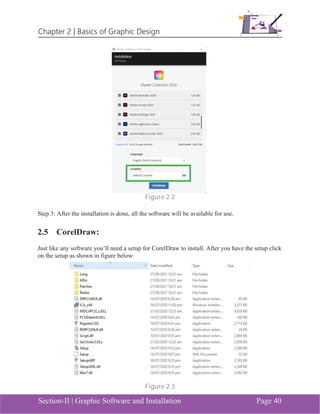
Step 1: Open the setup through “Autoplay” as can be seen in figure 2.1
Figure 2.1
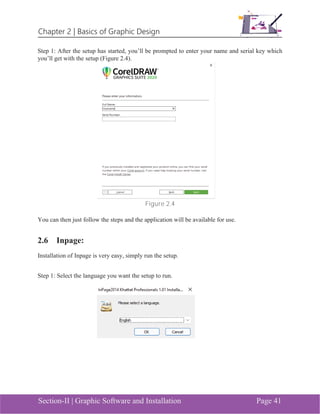
Step 2: Select the software you want and press Continue, You can also select the installation
location from green box in below figure.
Every update a new feature is brought
to the application
Chapter 2 | Basics of Graphic Design
Section-II | Graphic Software and Installation Page 40
Figure 2.2
Step 3: After the installation is done, all the software will be available for use.
2.5 CorelDraw:
Just like any software you’ll need a setup for CorelDraw to install. After you have the setup click
on the setup as shown in figure below:
Figure 2.3
Chapter 2 | Basics of Graphic Design
Section-II | Graphic Software and Installation Page 41
Step 1: After the setup has started, you’ll be prompted to enter your name and serial key which
you’ll get with the setup (Figure 2.4).
Figure 2.4
You can then just follow the steps and the application will be available for use.
2.6 Inpage:
Installation of Inpage is very easy, simply run the setup.
Step 1: Select the language you want the setup to run.
Chapter 2 | Basics of Graphic Design
Section-II | Graphic Software and Installation Page 42
Step 2: Press Next on the next screen as can be seen in figure below:
Figure 2.5
Just follow the simple steps by pressing “Next” button and software will be ready to be used.
If you don’t press finish after installation
the software won’t be installed
Chapter 2: Exercise Page 43
Exercise
Select the most suitable option
1. Urdu Language software for Computer was Developed in
a) 1940 b) 1994 c) 1948 d) 1993
2. Adobe InDesign export extension is
a) PDF b) EPUB c) EXE d) WORD
3. Graphics Design is a skill where professionals Create
a) Visual Content b) User Interface c) User Experience d) LOGO
4. Graphics Design plays a significant role in
a) Design b) User Experience c) Decision Making d) none
5. A good graphic design can make good first impression of your
a) Product b) Company c) Character d) None
6. Companies that invest in quality graphic designing are perceived to be more
a) Trustworthy b) Good c) Complex d) Pleasing
7. serves to convey your idea in a way that is beautiful.
a) Graphics Design b) Logo c) Website d) UI
8. Graphics Design plays a role in field of industry.
a) relative b) insufficient c) Important d) Vital
9. A custom logo establishes
a) Brand Recognition b) Awareness c) Decision Making d) None
10. A major influence on your logo’s success is its
a) Design b) Font c) Typography d) Color Pallet
11. Your Advertisement need to follow a similar set of
a) Guidelines b) Template c) Elements d) None
12. In print or digital communication your brand’s essence speaks louder than
a) Elements b) Color c) Words d) Actions
13. Graphics Design is key to build a
a) Professional Design b) Website c) Logo d) Image
14. The comfortability that clients and customers get through consistent marketing will ultimately lead to
a) Professionalism b) Credibility c) Marketing d) Guidelines
Chapter 2: Exercise Page 44
15. To keep audience engaged you need
a) Strategically Structured b) Good Logo c) Website d) Nothing
Give short answer the following questions
1. What do you understand by the term graphics Designing?
2. Describe importance of graphics designing.
3. Write any ten applications of graphics designing.
4. What are career options in Graphics Designing field?
5. Describe why would you choose this field over others?
6. List out the names of most common Graphics Designing software.
7. What is the usage of Adobe Photoshop?
8. Which software is used to create any Illustration and vector-based drawing?
9. What is Adobe XD used for?
10. Which graphics designing software is used for publishing industry?
Answer the following questions in detail
2. Discuss in detail the Industrial Scope of Graphics Designing.
3. Discuss mostly used Graphics Designing Software.
4. Discuss what you know about Graphics Designing.
5. What are different Graphics Designing Career Options?
Activities
1) Make a group presentation on graphic designing concepts.
2) Demonstration on scope of graphic designing.
3) Install different graphics designing software under supervision of teacher
Section-I | Introduction to Adobe Photoshop Page 45
Chapter 3 | Adobe Photoshop
Chapter 3
Section-I: Introduction to Adobe Photoshop
After completing this section, students will be able to:-
• define adobe photoshop
• describe applications of photoshop
• explain basic tools of adobe photoshop (selection tools, burn tool, history, pen
tools, smudge tool, crop tool, blur, dodge and sponge etc.).
• describe popular file formats in photoshop (jpeg, gif & png etc.)
3.1 Adobe Photoshop
Adobe Photoshop is the software that is extensively used for raster image editing, graphic design
and digital art. Adobe Photoshop, computer application software used to edit and manipulate
digital images. Photoshop was developed in 1987 by the American brothers Thomas and John
Knoll, who sold the distribution license to Adobe Systems Incorporated in 1988.
Raster Image:
In computer graphics and digital photography, a raster graphic is a dot matrix data structure that
represents a generally rectangular grid of pixels.
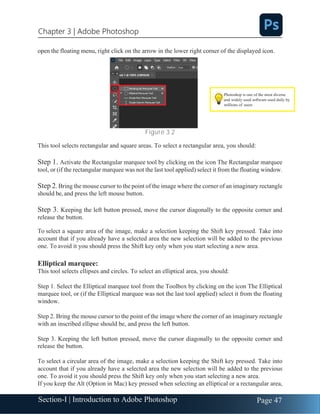
Vector:
Vector graphics are computer graphics images that are defined in terms of points on a cartesian
plane, which are connected by lines and curves to form polygons and other shapes. Example given
in below image:
Adobe Photoshop
Section-I | Introduction to Adobe Photoshop Page 46
Chapter 3 | Adobe Photoshop
Figure 3.1: Raster Image vs Vector
3.2 Applications of Photoshop
We can use Adobe Photoshop to retouch our scanned or digital photographs. We can improve the
color tone and brightness of the pictures into a fresh style. We can also remove the unwanted dots
using blur tool, photo filter, and color lookup. In Adobe Photoshop, we can remove or change the
backgrounds of our photographs. Changing the color of clothes, hair, and eyes is very simple when
you use this software. We can add a person to the photograph and make it look like an original
one. Adobe Photoshop helps us to retouch, sharpen and enhance the photos in high quality.
3.3 Basic tools in Photoshop
Selection Tools:
Adobe Photoshop also offers a number of selection tools: Quick Mask, Rectangular marquee,
Elliptical marquee, Lasso, Polygonal Lasso, Magnetic Lasso, Magic Wand.
Quick Mask mode:
To switch from Standard mode to Quick Mask mode, press the Q button. Paint over the areas to be
selected with a hard-edge Brush (in Quick Mask mode the selected area is highlighted in semi-
transparent red), then switch back to Standard mode by pressing the Q button again.
Rectangular Marquee:
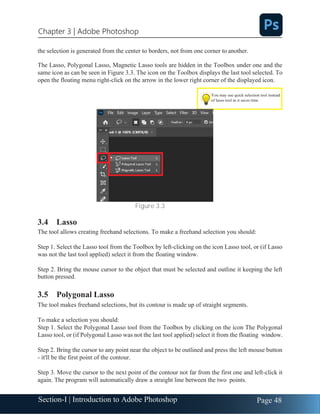
The Rectangular marquee and Elliptical marquee tools are hidden in the Toolbox under one and
the same icon as can be seen in Figure 3.2. The icon on the Toolbox displays the last tool used. To
Section-I | Introduction to Adobe Photoshop Page 47
Chapter 3 | Adobe Photoshop
open the floating menu, right click on the arrow in the lower right corner of the displayed icon.
Figure 3.2
This tool selects rectangular and square areas. To select a rectangular area, you should:
Step 1. Activate the Rectangular marquee tool by clicking on the icon The Rectangular marquee
tool, or (if the rectangular marquee was not the last tool applied) select it from the floating window.
Step 2. Bring the mouse cursor to the point of the image where the corner of an imaginary rectangle
should be, and press the left mouse button.
Step 3. Keeping the left button pressed, move the cursor diagonally to the opposite corner and
release the button.
To select a square area of the image, make a selection keeping the Shift key pressed. Take into
account that if you already have a selected area the new selection will be added to the previous
one. To avoid it you should press the Shift key only when you start selecting a new area.
Elliptical marquee:
This tool selects ellipses and circles. To select an elliptical area, you should:
Step 1. Select the Elliptical marquee tool from the Toolbox by clicking on the icon The Elliptical
marquee tool, or (if the Elliptical marquee was not the last tool applied) select it from the floating
window.
Step 2. Bring the mouse cursor to the point of the image where the corner of an imaginary rectangle
with an inscribed ellipse should be, and press the left button.
Step 3. Keeping the left button pressed, move the cursor diagonally to the opposite corner and
release the button.
To select a circular area of the image, make a selection keeping the Shift key pressed. Take into
account that if you already have a selected area the new selection will be added to the previous
one. To avoid it you should press the Shift key only when you start selecting a new area.
If you keep the Alt (Option in Mac) key pressed when selecting an elliptical or a rectangular area,
Photoshop is one of the most diverse
and widely used software used daily by
millions of users
Section-I | Introduction to Adobe Photoshop Page 48
Chapter 3 | Adobe Photoshop
You may use quick selection tool instead
of lasso tool as it saves time
the selection is generated from the center to borders, not from one corner to another.
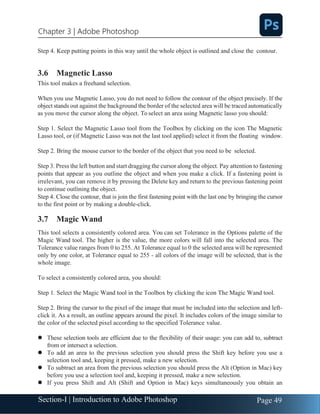
The Lasso, Polygonal Lasso, Magnetic Lasso tools are hidden in the Toolbox under one and the
same icon as can be seen in Figure 3.3. The icon on the Toolbox displays the last tool selected. To
open the floating menu right-click on the arrow in the lower right corner of the displayed icon.
Figure 3.3
3.4 Lasso
The tool allows creating freehand selections. To make a freehand selection you should:
Step 1. Select the Lasso tool from the Toolbox by left-clicking on the icon Lasso tool, or (if Lasso
was not the last tool applied) select it from the floating window.
Step 2. Bring the mouse cursor to the object that must be selected and outline it keeping the left
button pressed.
3.5 Polygonal Lasso
The tool makes freehand selections, but its contour is made up of straight segments.
To make a selection you should:
Step 1. Select the Polygonal Lasso tool from the Toolbox by clicking on the icon The Polygonal
Lasso tool, or (if Polygonal Lasso was not the last tool applied) select it from the floating window.
Step 2. Bring the cursor to any point near the object to be outlined and press the left mouse button
- it'll be the first point of the contour.
Step 3. Move the cursor to the next point of the contour not far from the first one and left-click it
again. The program will automatically draw a straight line between the two points.
Section-I | Introduction to Adobe Photoshop Page 49
Chapter 3 | Adobe Photoshop
Step 4. Keep putting points in this way until the whole object is outlined and close the contour.
3.6 Magnetic Lasso
This tool makes a freehand selection.
When you use Magnetic Lasso, you do not need to follow the contour of the object precisely. If the
object stands out against the background the border of the selected area will be traced automatically
as you move the cursor along the object. To select an area using Magnetic lasso you should:
Step 1. Select the Magnetic Lasso tool from the Toolbox by clicking on the icon The Magnetic
Lasso tool, or (if Magnetic Lasso was not the last tool applied) select it from the floating window.
Step 2. Bring the mouse cursor to the border of the object that you need to be selected.
Step 3. Press the left button and start dragging the cursor along the object. Pay attention to fastening
points that appear as you outline the object and when you make a click. If a fastening point is
irrelevant, you can remove it by pressing the Delete key and return to the previous fastening point
to continue outlining the object.
Step 4. Close the contour, that is join the first fastening point with the last one by bringing the cursor
to the first point or by making a double-click.
3.7 Magic Wand
This tool selects a consistently colored area. You can set Tolerance in the Options palette of the
Magic Wand tool. The higher is the value, the more colors will fall into the selected area. The
Tolerance value ranges from 0 to 255. At Tolerance equal to 0 the selected area will be represented
only by one color, at Tolerance equal to 255 - all colors of the image will be selected, that is the
whole image.
To select a consistently colored area, you should:
Step 1. Select the Magic Wand tool in the Toolbox by clicking the icon The Magic Wand tool.
Step 2. Bring the cursor to the pixel of the image that must be included into the selection and left-
click it. As a result, an outline appears around the pixel. It includes colors of the image similar to
the color of the selected pixel according to the specified Tolerance value.
⚫ These selection tools are efficient due to the flexibility of their usage: you can add to, subtract
from or intersect a selection.
⚫ To add an area to the previous selection you should press the Shift key before you use a
selection tool and, keeping it pressed, make a new selection.
⚫ To subtract an area from the previous selection you should press the Alt (Option in Mac) key
before you use a selection tool and, keeping it pressed, make a new selection.
⚫ If you press Shift and Alt (Shift and Option in Mac) keys simultaneously you obtain an
Section-I | Introduction to Adobe Photoshop Page 50
Chapter 3 | Adobe Photoshop
intersection of the old and new selections.
3.8 Burn Tool
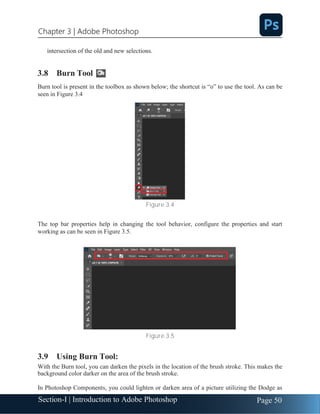
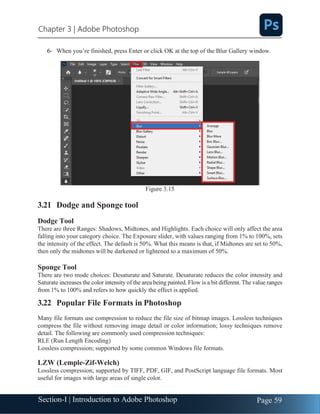
Burn tool is present in the toolbox as shown below; the shortcut is “o” to use the tool. As can be
seen in Figure 3.4
Figure 3.4
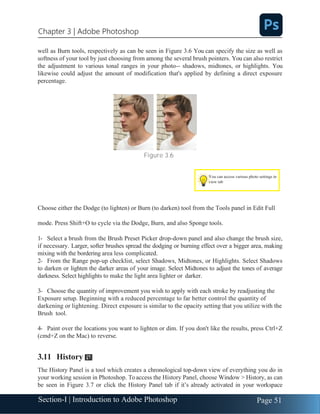
The top bar properties help in changing the tool behavior, configure the properties and start
working as can be seen in Figure 3.5.
Figure 3.5
3.9 Using Burn Tool:
With the Burn tool, you can darken the pixels in the location of the brush stroke. This makes the
background color darker on the area of the brush stroke.
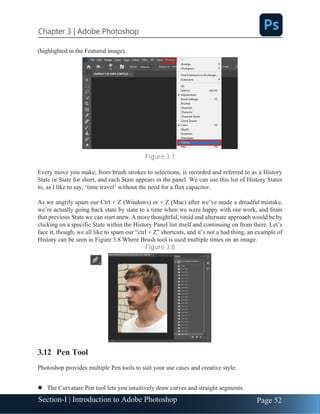
In Photoshop Components, you could lighten or darken area of a picture utilizing the Dodge as
Section-I | Introduction to Adobe Photoshop Page 51
Chapter 3 | Adobe Photoshop
well as Burn tools, respectively as can be seen in Figure 3.6 You can specify the size as well as
softness of your tool by just choosing from among the several brush pointers. You can also restrict
the adjustment to various tonal ranges in your photo-- shadows, midtones, or highlights. You
likewise could adjust the amount of modification that's applied by defining a direct exposure
percentage.
Figure 3.6
Choose either the Dodge (to lighten) or Burn (to darken) tool from the Tools panel in Edit Full
mode. Press Shift+O to cycle via the Dodge, Burn, and also Sponge tools.
1- Select a brush from the Brush Preset Picker drop-down panel and also change the brush size,
if necessary. Larger, softer brushes spread the dodging or burning effect over a bigger area, making
mixing with the bordering area less complicated.
2- From the Range pop-up checklist, select Shadows, Midtones, or Highlights. Select Shadows
to darken or lighten the darker areas of your image. Select Midtones to adjust the tones of average
darkness. Select highlights to make the light area lighter or darker.
3- Choose the quantity of improvement you wish to apply with each stroke by readjusting the
Exposure setup. Beginning with a reduced percentage to far better control the quantity of
darkening or lightening. Direct exposure is similar to the opacity setting that you utilize with the
Brush tool.
4- Paint over the locations you want to lighten or dim. If you don't like the results, press Ctrl+Z
(cmd+Z on the Mac) to reverse.
3.11 History
The History Panel is a tool which creates a chronological top-down view of everything you do in
your working session in Photoshop. Toaccess the History Panel, choose Window > History, as can
be seen in Figure 3.7 or click the History Panel tab if it’s already activated in your workspace
You can access various photo settings in
view tab
Section-I | Introduction to Adobe Photoshop Page 52
Chapter 3 | Adobe Photoshop
(highlighted in the Featured image).
Figure 3.7
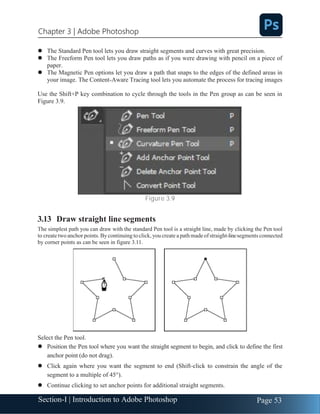
Every move you make, from brush strokes to selections, is recorded and referred to as a History
State or State for short, and each State appears in the panel. We can use this list of History States
to, as I like to say, ‘time travel’ without the need for a flux capacitor.
As we angrily spam our Ctrl + Z (Windows) or + Z (Mac) after we’ve made a dreadful mistake,
we’re actually going back state by state to a time when we were happy with our work, and from
that previous State we can start anew.Amore thoughtful, timid and alternate approach would be by
clicking on a specific State within the History Panel list itself and continuing on from there. Let’s
face it, though, we all like to spam our “ctrl + Z” shortcuts, and it’s not a bad thing, an example of
History can be seen in Figure 3.8 Where Brush tool is used multiple times on an image.
Figure 3.8
3.12 Pen Tool
Photoshop provides multiple Pen tools to suit your use cases and creative style:
⚫ The Curvature Pen tool lets you intuitively draw curves and straight segments.
Section-I | Introduction to Adobe Photoshop Page 53
Chapter 3 | Adobe Photoshop
⚫ The Standard Pen tool lets you draw straight segments and curves with great precision.
⚫ The Freeform Pen tool lets you draw paths as if you were drawing with pencil on a piece of
paper.
⚫ The Magnetic Pen options let you draw a path that snaps to the edges of the defined areas in
your image. The Content-Aware Tracing tool lets you automate the process for tracing images
Use the Shift+P key combination to cycle through the tools in the Pen group as can be seen in
Figure 3.9.
Figure 3.9
3.13 Draw straight line segments
The simplest path you can draw with the standard Pen tool is a straight line, made by clicking the Pen tool
to createtwo anchor points.By continuing toclick, you create a pathmade ofstraight-linesegments connected
by corner points as can be seen in figure 3.11.
Select the Pen tool.
⚫ Position the Pen tool where you want the straight segment to begin, and click to define the first
anchor point (do not drag).
⚫ Click again where you want the segment to end (Shift-click to constrain the angle of the
segment to a multiple of 45°).
⚫ Continue clicking to set anchor points for additional straight segments.
Section-I | Introduction to Adobe Photoshop Page 54
Chapter 3 | Adobe Photoshop
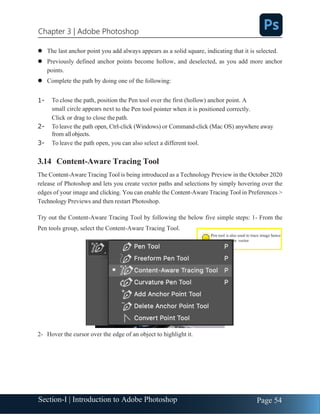
Pen tool is also used to trace image hence
converting it in vector
⚫ The last anchor point you add always appears as a solid square, indicating that it is selected.
⚫ Previously defined anchor points become hollow, and deselected, as you add more anchor
points.
⚫ Complete the path by doing one of the following:
1- To close the path, position the Pen tool over the first (hollow) anchor point. A
small circle appears next to the Pen tool pointer when it is positioned correctly.
Click or drag to close thepath.
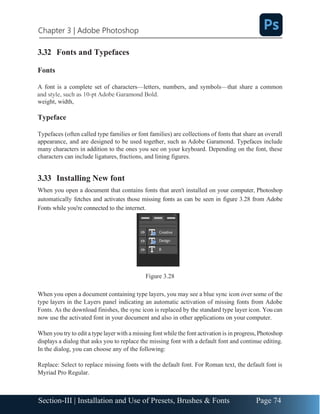
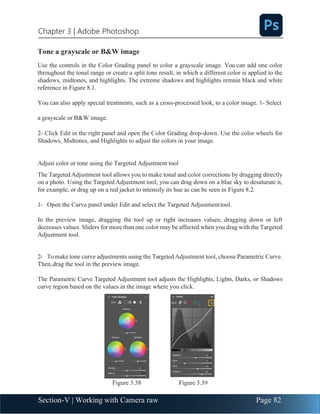
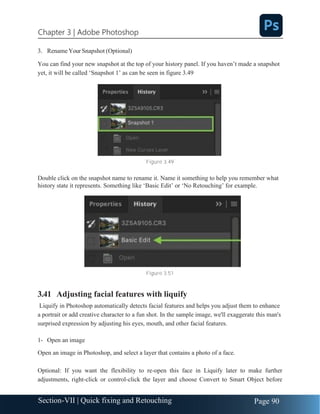
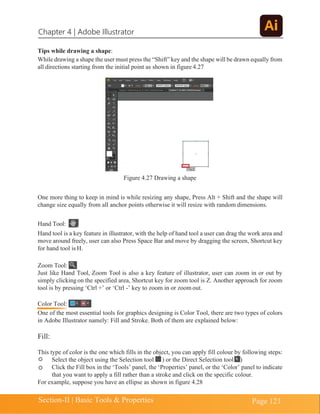
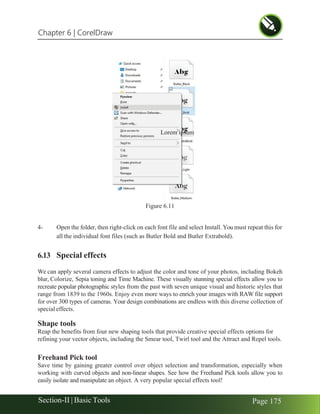
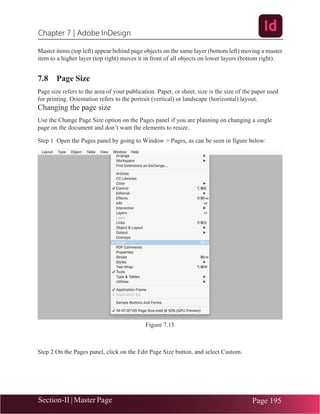
2- Toleave the path open, Ctrl-click (Windows) or Command-click (Mac OS) anywhere away
from allobjects.
3- To leave the path open, you can also select a different tool.
3.14 Content-Aware Tracing Tool
The Content-Aware Tracing Tool is being introduced as a Technology Preview in the October 2020
release of Photoshop and lets you create vector paths and selections by simply hovering over the
edges of your image and clicking. You can enable the Content-Aware Tracing Tool in Preferences >
Technology Previews and then restart Photoshop.
Try out the Content-Aware Tracing Tool by following the below five simple steps: 1- From the
Pen tools group, select the Content-Aware Tracing Tool.
2- Hover the cursor over the edge of an object to highlight it.
Section-I | Introduction to Adobe Photoshop Page 55
Chapter 3 | Adobe Photoshop
3- Click on the highlighted section to create a path
4- To add to the path, hover over an adjacent edge to highlight a new section and hold the Shift
key while clicking to extended the path. The pink line that appears indicates that you're adding a
new section to the existing path.
Section-I | Introduction to Adobe Photoshop Page 56
Chapter 3 | Adobe Photoshop
5- To delete an area from the path, hold down the Alt key (Windows) or Option key (Mac) while
you click. You can also click and drag in a direction to remove larger sections.
3.15 Details
While adjusting the Detail slider, Photoshop displays a preview of the edges that Photoshop sees.
Moving the slider to the right increases the amount of edges Photoshop detects and moving to the
left decreases the number of detected edges. Figure 3.12
Figure 3.12
3.16 Tracing
Tracing modes (Detailed, Normal, and Simplified) adjust how detailed or textured the image dis prior
to processing the tracing (Figure 3.13).
Figure 3.13
Section-I | Introduction to Adobe Photoshop Page 57
Chapter 3 | Adobe Photoshop
3.17 Smudge
The Smudge tool simulates the effect you see when you drag a finger through wet paint. The tool
picks up color where the stroke begins and pushes it in the direction you drag.
1- Select the Smudge tool.
2- Choose a brush tip and options for the blending mode in the options bar.
3- Select Sample All Layers in the options bar to smudge using color data from all visible
layers. If this is deselected, the Smudge tool uses colors from only the active layer.
4- Select Finger Painting in the options bar to smudge using the foreground color at the beginning
of each stroke. If this is deselected, the Smudge tool uses the color under the pointer at the
beginning of each stroke.
5- Drag in the image to smudge the pixels.
3.18 Crop Tool
Cropping is the process of removing portions of a photo to create focus or strengthen the
composition. Use the Crop tool to crop and straighten photos in Photoshop. The Crop tool is non-
destructive, and you can choose to retain the cropped pixels to optimize the crop boundaries later.
The Crop tool also provides intuitive methods to straighten a photo while cropping.
For all operations, visual guides provide an interactive preview. When you crop or straighten
photos, real-time feedback helps you visualize the final result.
3.19 Crop a Photo
1- From the toolbar, select the Crop Tool. Crop borders display on the edges of the photo.
2- Draw a new cropping area or drag the corner and edge handles to specify the crop
boundaries in your photo.
3- (Optional) Specify the Crop options using the Control bar. (Reference in figure 3.14)
Figure 3.14
A. Aspect Ratio Menu B. Swap Width and Height values C. Overlay Options
Size and proportions
Crop tool is also present in all android
and IOS devices in gallery
Section-I | Introduction to Adobe Photoshop Page 58
Chapter 3 | Adobe Photoshop
Choose a ratio or size for the crop box. You can also choose a preset, enter your own, or even
define your own preset values for later use.
Overlay Options
Choose a view to display overlay guides while cropping. Guides such as Rule of Thirds, Grid, and
Golden Ratio are available. To cycle through all the options, press O.
Crop Options
Click the Settings (gear) menu to specify additional crop options.
Use Classic mode
Enable this option if you want to use the Crop tool in Photoshop CS5.
Auto Center Preview
Enable this option to place the preview in the center of the canvas.
Show Cropped Area
Enable this option to display the area that is cropped. If this option is disabled, only the final area
is previewed.
Enable Crop Shield
Use the crop shield to overlay the cropped areas with a tint. You can specify a color and opacity. If
you Enable Auto Adjust Opacity, the opacity is reduced when you edit the crop boundaries.
Delete cropped pixels
Disable this option to apply a non-destructive crop and retain pixels outside the crop boundaries. Non-
destructive cropping does not remove any pixels. You can later click the image to see areas outside
current crop borders. Enable this option to delete any pixels that are outside the crop area. These
pixels are lost and are not available for future adjustments.
3.20 Blur Tool
1- In Photoshop, go to Filter > Blur Gallery as can be seen in figure 3.15 and select Iris Blur.
2- Click the pin at the center of the ring and place it on your focal point.
3- Click and drag single points to elongate the ellipsis or drag the outer line to resize the blur
area.
4- Click and drag the dots inside the blur preview ring to adjust the size of the blur transition
area.
5- Adjust the round blur dial to control the amount of blur applied.
Section-I | Introduction to Adobe Photoshop Page 59
Chapter 3 | Adobe Photoshop
6- When you’re finished, press Enter or click OK at the top of the Blur Gallery window.
Figure 3.15
3.21 Dodge and Sponge tool
Dodge Tool
There are three Ranges: Shadows, Midtones, and Highlights. Each choice will only affect the area
falling into your category choice. The Exposure slider, with values ranging from 1% to 100%, sets
the intensity of the effect. The default is 50%. What this means is that, if Midtones are set to 50%,
then only the midtones will be darkened or lightened to a maximum of 50%.
Sponge Tool
There are two mode choices: Desaturate and Saturate. Desaturate reduces the color intensity and
Saturate increases the color intensity of the area being painted. Flow is a bit different. The value ranges
from 1% to 100% and refers to how quickly the effect is applied.
3.22 Popular File Formats in Photoshop
Many file formats use compression to reduce the file size of bitmap images. Lossless techniques
compress the file without removing image detail or color information; lossy techniques remove
detail. The following are commonly used compression techniques:
RLE (Run Length Encoding)
Lossless compression; supported by some common Windows file formats.
LZW (Lemple-Zif-Welch)
Lossless compression; supported by TIFF, PDF, GIF, and PostScript language file formats. Most
useful for images with large areas of single color.
Section-I | Introduction to Adobe Photoshop Page 60
Chapter 3 | Adobe Photoshop
JPEG (Joint Photographic Experts Group)
Lossy compression; supported by JPEG, TIFF, PDF, and PostScript language file formats.
Recommended for continuous-tone images, such as photographs. JPEG uses lossy compression. To
specify image quality, choose
Quality text box. For the best printed results, choose maximum-quality compression. JPEG files can
be printed only on Level 2 (or later) PostScript printers and may not separate into individualplates.
CCITT
Afamily of lossless compression techniques for black-and-white images, supported by the PDF and
PostScript language file formats. (CCITT is an abbreviation for the French spelling of
International Telegraph and Telekeyed Consultive Committee.)
ZIP
Lossless compression; supported by PDF and TIFF file formats. Like LZW, ZIP compression is
most effective for images that contain large areas of single color.
Chapter 3 | Adobe Photoshop
Page 61
Section-II | Work area Concept
In Section-II of this chapter:
After completing this section, students will be able to: -
• define home screen
• understand workspace
• understand about user interface of photoshop
• describe properties of different tool
• describe about panels and panel location
• define how to import and export files
• understand concept of save files for web and print
3.23 Home Screen
The Home Screen in Photoshop Elements appears after opening Photoshop Elements 2019 or later.
This screen replaces the Welcome Screen in Photoshop Elements from older software versions. The
Home Screen in Photoshop Elements contains auto-generated photo and video collages and
slideshows from imported media. It also lets you find new editing projects, get inspiring ideas,
open different workspaces, open recent files, and get help.
The Search bar at the top of the Home Screen in Photoshop Elements lets you search and find help
files and tutorials. To search, enter the desired text in the Search bar and then press your keyboard’s
“Enter” key. Matching results appear via thumbnails and hyperlinks in the Home Screen. To access
the help documentation, click a thumbnail or hyperlink to open the page in your web browser. To
return “Home” in the Home Screen, click the “Home” link in the breadcrumbs area in the upper-
left corner of the screen.
Make sure to customize the workspaces
so you could work easily
(Section-II)
Chapter 3 | Adobe Photoshop
Page 62
Section-II | Work area Concept
3.24 Workspace
Aworkspaceis a preset layout forthe various elements that make up Photoshop'sinterface.Workspaces
determine which of Photoshop's panels are displayed on your screen and how those panels are
arranged.Aworkspace can also change which tools are available in the Toolbar and how the Toolbar
is organized. Workspaces may include custom menu items in the Menu Bar, and even custom
keyboard shortcuts.Any or all of these elements can be included and saved as part of a workspace.
Workspaces give us a way to customize Photoshop’s interface for specific tasks, and to better
match the way we work. Photoshop includes far too many panels to fit them all on your screen at
once, so it's important that we limit the panels to just the ones we actually need. A photographer,
for example, will use certain panels for image editing and retouching. A digital painter, on the
other hand, will need different panels, ones for choosing brushes and colors. Other tasks, like web
and graphic design, video editing, or working with type and typography, all use specific panels. A
workspace streamlines the interface for the task at hand, keeping your screen free of clutter and
helping you work more efficiently.
3.25 Photoshop's default workspace
By default, Photoshop uses a workspace known as Essentials as can be seen in Figure 3.16. If
you've never chosen a different workspace, you're using the Essentials workspace. It's also the
workspace we use in our tutorials. Essentials is a general-purpose workspace, suitable for many
different tasks. It includes some of Photoshop's more commonly-used panels, like Layers,
Adjustments and Properties, along with the Color and Swatches panels (flowers photo from Adobe
Stock):
Figure 3.16
3.26 The default panels
Chapter 3 | Adobe Photoshop
Page 63
Section-II | Work area Concept
Let's take a closer look at the default panels. As we learned in the Managing Panels tutorial,
Photoshop's panels are located in columns along the right of the screen. The libraries panel, new
in Photoshop CC, gets its own column on the far right. Panels we use the most (Layers, Properties,
Color, etc.) are found in the main column in the middle. And on the left is a narrow column that
holds the History and Device Preview panels. By default, panels in the left column are collapsed
into icons (what Adobe calls iconic view). You can expand a panel that's in iconic view by clicking
its icon. Click the icon again to collapse the panel reference in figure 3.17.
3.27 Properties of Different tools
Figure 3.17
Tools in the View group of the Expert mode toolbox
Zoom tool (Z)
Zooms in or zooms out your image. The related tools shown in the Tool Options bar are Zoom In and
Zoom Out. For more information about the Zoom tool, see Zoom in or out.
Hand tool (H)
Moves your photo in the Photoshop Elements workspace. You can drag your image using this tool.
Tools in the Select group of the Expert mode toolbox
Move tool (V)
Chapter 3 | Adobe Photoshop
Page 64
Section-II | Work area Concept
Moves selections or layers.
Rectangular Marquee tool (M)
Selects an area in your image in a rectangular box. Hold the Shift key to make the selection a
square.
Elliptical Marquee tool (M)
Selects an area in your image in an elliptical shape. Hold the Shift key to make the selection a
circle.
Lasso tool (L)
Selects an area in your image in a free-form shape.
Magnetic Lasso tool (L)
Selects part of an image by selecting the high-contrast edges around a shape.
Polygonal Lasso tool (L)
Draws straight-edged segments of a selection border.
Quick Selection tool (A)
Makes a selection based on color and texture similarity when you click or click-drag the area you
want to select.
Selection Brush tool (A)
Selects the area where you paint with the brush.
Magic Wand tool (A)
Selects the pixels with similar colors in a single click.
Refine Selection Brush tool (A)
Adds or removes areas to and from a selection by automatically detecting the edges. For more
information on this tool, see Edit and refine selections.
Auto Selection tool (A)
Automatically makes a selection when you draw a shape around the object you want to select.
Tools in the Draw group of the Expert mode toolbox
Brush tool (B)
Creates soft or hard strokes of color. You can use it to simulate airbrush techniques.
Impressionist Brush tool (B)
Changes the existing colors and details in your image so your photo looks like it was painted using
stylized brush strokes.
Use of shortcut keys makes work easy
Chapter 3 | Adobe Photoshop
Page 65
Section-II | Work area Concept
Color Replacement tool (B)
Simplifies replacing specific colors in your image.
Eraser tool (E)
Erases the pixels in the image as you drag through them.
Background Eraser tool (E)
Turns color pixels to transparent pixels so that you can easily remove an object from its
background.
Magic Eraser tool (E)
Changes all similar pixels when you drag within a photo. For more information, see Use the
Magic Eraser tool.
Paint Bucket tool (K)
Fills an area that is similar in color value to the pixels you click.
Pattern tool (K)
Applies a fill or a pattern to your image, instead of using one of the brush tools.
Gradient tool (G)
Fills in an area of image by a gradient. For more information, see Apply a gradient.
Color Picker tool (I)
Copies or samples the color of an area in your photo to set a new foreground or background color.
Custom Shape tool (U)
Provides different shape options for you to draw. When you select the Custom Shape tool, you can
access these shapes in the Tool Options bar.
The other shape-related tools available in the Tool Options bar are:
Rectangle
Rounded Rectangle Ellipse
Polygon Star Line
Selection
Type tool (T)
Creates and edits text on your image.
The other type-related tools available in the Tool Options bar are:
Vertical Type Horizontal Type Mask Vertical Type Mask Text on Selection
Text on Shape
Chapter 3 | Adobe Photoshop
Page 66
Section-II | Work area Concept
Text on Custom Path
Pencil tool (N)
Creates hard-edged freehand lines.
3.28 Panels and Panel Location
Panels are available in both Photoshop Elements and Elements Organizer; however, they behave a
little differently in each. Panels help you manage, monitor, and modify images. Some panels have
menus that provide additional commands and options. You can organize panels in the basic and
custom workspaces in Expert mode. Youcan store panels in the Panel Bin to keep them out of your
way, but easily accessible (Referrence in 3.18).
Figure 3.18
Panel menus
Some commands appear in both the panel menu and the menu bar. Other commands are exclusive
to panel menus. Click panel menu to view the different commands in each panel.
Work with panels
Panels contain features, information, or functionality, in logical groups, for fast and easy access.
The Panel Bin is on the right side of Photoshop Elements. It displays tabs and panels, depending on
the mode you are in, or the kind of elements you want to work with. The Panel Bin displays:
Quick mode: lists the quick-mode effects that can be applied to a photo Guided mode: lists all the
guided-mode edits that you can apply to a photo
Chapter 3 | Adobe Photoshop
Page 67
Section-II | Work area Concept
Expert mode: lists the options for a selected panel (Layers, Effects, Graphics, or Favorites)
Panels in the Expert mode
In the Expert mode, panels can be displayed in two ways - Basic Workspace, and Custom
Workspace.
Basic Workspace
By default, the available workspace displayed is the Basic Workspace. In this view, buttons for the most
frequently used panels are placed in the taskbar. The buttons in this workspace are Layers, Effects,
Graphics, and Favorites. For example, clicking the Layers button displays all the layers-related
options. To view all the other available tabs, or close open tabs, click More.
Custom Workspace
To view panels in a tabbed layout in the Panel Bin, click the arrow next to More, and select Custom
Workspace. Click More to view a list of all the available tabs, and select one from the pop-up list. The
selected tab is displayed. You can keep the frequently used panels open in the custom workspace.
Group panels together or dock one panel at the bottom of another panel. You can drag title bar of the
tab and drop it in the tabbed layout,or drag-and-drop the tabs dialog into the tabbed layout (reference
in 3.19).
Figure 3.19
Import content to Photoshop
In Photoshop, you can choose to open an image to work with or import content into a document
Chapter 3 | Adobe Photoshop
Page 68
Section-II | Work area Concept
that’s open document, and you can then use tools to manipulate the imported content, as shown in
the figure.
3.29 Export content from Photoshop
Because Photoshop can export paths in a document to Illustrator (in an AI file), your work in
Photoshop is easy to manipulate after you open it with Illustrator.
You have another option, though: Export your Photoshop file by using the Zoomify feature. This
useful feature can export a large file to a smaller, more compact SWF file. This file can be easily
sent by e-mail and opened using the free Flash Player, which almost everyone already hasinstalled.
To use Zoomify, follow these steps:
Click Folder in the Output Location section of the Zoomify dialog box and choose a folder location
for your SWF file.
Choose the quality and size and then click OK.
The Zoomify Preview window appears. Use this window to zoom in to see detail.
You can then retrieve the files that were created in your destination folder and post them online or
attach them to an e-mail message.
Save files for Web and Print
One of the more critical functions that Photoshop offers is the Save for Web/ Devices feature.
Why use it? While you could just save your file in a standard method, such File / Save As, the
Save for Web/Devices feature does crucial three things.
It optimizes the file dimensions (for example: 150 px X 150 px) allowing it to fit into web pages
cleaner and look better and less distorted.
It optimizes the file size (for example: 23 kb) allowing it to download faster.
It saves in the RGB (or monitor) format as opposed to the CMYK (print) format. This tool works
great for outputting Twitter icons, Facebook profile pics, product files, blog images and source
files for favicons.
Chapter 3 | Adobe Photoshop
Page 69
Section-II | Work area Concept
To get started, you’ll need to go to File/Open to open your file. It can be in any format jpg, gif, psd,
png or others. As long as Photoshop can open it, you can output it for the web as shown in figure
3.21.
Figure 3.21
Go to File / Save for Web/Devices and click. It is about halfway down the drop-down menu. This
process doesn’t change your original file at all. You are creating a new file. Once you complete
this tutorial and return to your original image in Photoshop, you’ll need to save that file if you’ve
made any changes to it. It’s important to name your new image different than your original one. Often
simplyaddingwebto the filenamewill workwell. (Example: 123.jpg)
Each of the three jpg options (High, Medium, Low) as can be seen in figure 3.23, have preset
quality settings – which can be manually adjusted. If you are viewing at 100% you can decide
what quality you need. To adjust the level of zoom, see Step 5. The image will look the same
online as it does in the preview window. If you chose anything other than jpg you can skip this
step.
Figure 3.22
Chapter 3 | Adobe Photoshop
Page 70
Section-II | Work area Concept
Figure 3.23
Once you have made the necessary adjustments you are ready to save the file. Click “Save” as can
be seen in Figure 3.24 and choose the folder and file name you want for this new image.
Figure 3.24
Chapter 3 | Adobe Photoshop
Page 71
Section-III | Installation and Use of Presets, Brushes & Fonts
In Section-III of this chapter:
After completing this section, students will be able to: -
• define presets
• describe brushes
• define type faces and font
• learn installation of new brushes and fonts
• learn about usage of presets, brushes, and fonts
3.30 Presets
Presets are a collection of edits that are recorded as a batch and can be applied to an image (or
multiple images) with just one click (reference in 3.25).
The Preset Manager lets you save or load your presets for contours and tools. Each set of presets has
its own file extension and default folder. Optional preset files are available inside the Presets
folder in the Photoshop application folder.
To open the Preset Manager, choose Edit > Presets > Preset Manager. Choose a specific Preset
Type from the Preset Type menu.
To delete a preset in the Preset Manager, select the preset and click Delete. Use the Reset command
to restore the default presets.
You can adjust the way presets are displayed by clicking the Preset Manager's gear icon and
choosing from the display modes listed:
Text Only
Displays the name of each preset item.
Small Thumbnail or Large Thumbnail
Displays a thumbnail of each preset item.
Small List or Large List
Displays the name and thumbnail of each preset item.
(Section-III)
Chapter 3 | Adobe Photoshop
Page 72
Section-III | Installation and Use of Presets, Brushes & Fonts
Figure 3.25
3.31 Brushes
You can create brushes that apply paint to images in a variety of ways. You select
an existing preset brush, a brush tip shape, or create a unique brush tip from part of
an image. You choose options from the Brush Settings panel to specify how the paint
is applied.
Brush Settings panel overview
The Brush Settings panel lets you modify existing brushes and design new custom brushes. The
Brush Settings panel contains the brush tip options that determine how paint is applied to an image.
The brush stroke preview at the bottom of the panel shows how paint strokes look with the current
brush options (referred in figure 3.26).
Figure 3.26
Chapter 3 | Adobe Photoshop
Page 73
Section-III | Installation and Use of Presets, Brushes & Fonts
A. Locked/Unlocked B. Selected brush tip C. Brush stroke preview D. Brushes panel Installing
brushes and brush packs
You can import a wide variety of free and purchased brushes—for example, Kyle's Photoshop
brush packs into Photoshop. (Reference in figure 3.27) Follow these steps:
1- In the Brushes panel, from the flyout menu, choose Get More Brushes. Alternatively, right-
click a brush listed in the Brushes panel and select Get More Brushes from the contextual
menu.
2- Download a brush pack. For example, download Kyle's "Megapack". 3- With Photoshop
running, double-click the downloaded ABRfile.
The brushes you added are now displayed in the Brushes panel.
Figure 3.27
Common font extension is tff
Chapter 3 | Adobe Photoshop
Page 74
Section-III | Installation and Use of Presets, Brushes & Fonts
3.32 Fonts and Typefaces
Fonts
A font is a complete set of characters—letters, numbers, and symbols—that share a common
weight, width,
Typeface
Typefaces (often called type families or font families) are collections of fonts that share an overall
appearance, and are designed to be used together, such as Adobe Garamond. Typefaces include
many characters in addition to the ones you see on your keyboard. Depending on the font, these
characters can include ligatures, fractions, and lining figures.
3.33 Installing New font
When you open a document that contains fonts that aren't installed on your computer, Photoshop
automatically fetches and activates those missing fonts as can be seen in figure 3.28 from Adobe
Fonts while you're connected to the internet.
Figure 3.28
When you open a document containing type layers, you may see a blue sync icon over some of the
type layers in the Layers panel indicating an automatic activation of missing fonts from Adobe
Fonts. As the download finishes, the sync icon is replaced by the standard type layer icon. You can
now use the activated font in your document and also in other applications on your computer.
When you try to edit a type layer with a missing font while the font activation is in progress, Photoshop
displays a dialog that asks you to replace the missing font with a default font and continue editing.
In the dialog, you can choose any of the following:
Replace: Select to replace missing fonts with the default font. For Roman text, the default font is
Myriad Pro Regular.
Chapter 3 | Adobe Photoshop
Page 75
Section-III | Installation and Use of Presets, Brushes & Fonts
Cancel: Select to exit text-editing mode and resume activation of your missing Adobe Fonts.
Manage missing non-Adobe fonts
If you have a missing font as can be seen in figure 3.29 in your document that is not available via
Adobe Fonts, Photoshop displays a yellow missing font icon over the type layer the Layers panel.
Figure 3.29
You may drag the font file in
Control panel > Fonts
Chapter 3 | Adobe Photoshop
Page 76
Section-IV | Painting with the mixer brush
In Section-IV of this chapter:
After completing this section, students will be able to: -
• understand mixer brush
• know about brush setting
• learn about mixing of colors
• describe color mixing with photograph
• explain painting and mixing colors with brush presets
3.34 Mixer Brush
The Mixer Brush simulates realistic painting techniques such as mixing colors on the canvas,
combining colors on a brush, and varying paint wetness across a stroke. The Mixer Brush has two
paint wells, a reservoir and a pickup. The reservoir stores the final color deposited onto the canvas
and has more paint capacity. The pickup well receives paint only from the canvas; its contents are
continuously mixed with canvas colors.
1- Select the Mixer Brush tool. (If necessary, click and hold the standard Brushtool to reveal
the Mixer Brush.)
2- To load paint into the reservoir, Alt-click (Windows) or Option-click (Mac OS) the canvas.
Or, choose a foreground color.
3- Choose a brush from the Brush Presets panel. 4- In the options bar, set tool options.
Current Brush Load swatch
From the pop-up panel, click Load Brush to fill the brush with the reservoir color, or Clean Brush
to remove paint from the brush. To perform these tasks after each stroke, select the automatic Load
or Clean options.
Preset pop-up menu
Applies popular combinations of Wet, Load, and Mix settings.
Wet
Controls how much paint the brush picks up from the canvas. Higher settings produce longer paint streaks
as can be seen in figure 3.31.
(Section-IV)
Chapter 3 | Adobe Photoshop
Page 77
Section-IV | Painting with the mixer brush
Figure 3.31
Photoshop Increasing paint wetness Increasing paint wetness
A. 0% B. 100%
Load
Specifies the amount of paint loaded in the reservoir. At low load rates, paint strokes dry out more
quickly as can be seen in figure 3.32.
Figure 3.32
A. 1% B. 100%
Mix
Controls the ratio of canvas paint to reservoir paint. At 100%, all paint is picked up from the
canvas; at 0%, all paint comes from the reservoir. (The Wet setting, however, continues to
determine how paints mix on the canvas.)
Sample All Layers
Picks up canvas color from all visible layers.
3.35 Colors Primary colors
Additive primaries are the three colors of light (red, green, and blue) that produce all the colors in
the visible spectrum when added together in different combinations. Adding equal parts of red,
blue, and green light produces white. The complete absence of red, blue, and green light results in
black. Computer monitors are devices that use the additive primaries to create color (reference in
figure 3.33).
You can use RGB and CYMK color
code to get exact color
Chapter 3 | Adobe Photoshop
Page 78
Section-IV | Painting with the mixer brush
Figure 3.33
Subtractive primaries are pigments, which create a spectrum of colors in different combinations.
Unlike monitors, printers use subtractive primaries (cyan, magenta, yellow, and black pigments)
to produce colors through subtractive mixing. The term “subtractive” is used because the primary
colors are pure until you begin mixing them together, resulting in colors that are less pure versions
of the primaries. For example, orange is created through the subtractive mixing of magenta and
yellow together. Refer to the image below.
Figure 3.34
3.36 Color Mixer
Chapter 3 | Adobe Photoshop
Page 79
Section-IV | Painting with the mixer brush
If you’re new to adjusting color components, it helps to keep a standard color wheel diagram on
hand when you work on color balance. You can use the color wheel to predict how a change in one
color component affects other colors and also how changes translate between RGB and CMYK
color models as can be seen in figure 3.35.
Figure 3.35
Chapter 3 | Adobe Photoshop
Section-V | Working with Camera raw Page 80
In Section-V of this chapter:
After completing this section, students will be able to: -
• Describe camera raw
• Understand advance color correction
• Learn techniques of using camera raw
3.37 Camera Raw
Adobe Camera Raw, which lets you import and enhance raw images, has been a must-have tool for
professional photographers right since it was first released in 2003. Applications that support
Adobe Camera Raw include Photoshop, Photoshop Elements, After Effects, and Bridge.
Additionally, Adobe Lightroom is built upon the same powerful raw image processing technology
that powers Adobe Camera Raw.
Advance Color Correction
Histogram and RGB levels:
A histogram is a representation of the number of pixels at each luminance value in an image. A
histogram that has non-zero values for each luminance value indicates an image that takes
advantage of the full tonal scale. One that doesn’t use the full tonal range corresponds to a dull
image that lacks contrast. A histogram with a spike at the left side indicates shadow clipping; a
histogram with a spike on the right side indicates highlight clipping. Refer to the figure below:
Figure 3.36
(Section-V)
Chapter 3 | Adobe Photoshop
Section-V | Working with Camera raw Page 81
One common task for adjusting an image is to spread out the pixel values more evenly from left to
right on the histogram, instead of having them bunched up at one end or the other. A histogram is
made up of three ribbons of color that represent the red, green, and blue color channels. White
appears when all three channels overlap. Yellow, magenta, and cyan appear when two of the RGB
channels overlap (yellow equals the red + green channels, magenta equals the red + blue channels,
and cyan equals the green + blue channels).
The histogram changes automatically as you adjust the settings in the Camera Raw dialog box.
The RGB values of the pixel under the pointer (in the preview image) appear below the histogram.
Preview highlight and shadow clipping
Clipping occurs when the color values of a pixel are higher than the highest value or lower than
the lowest value that can be represented in the image. Overly bright values are clipped to output
white, and overly dark values are clipped to output black. The result is a loss of image detail.
You can view Highlight and Shadow clipping indicators in the upper corners of the histogram. This
is to check areas in your photo that are either too light or dark, as you make edits.
1- If the upper-left clipping indicator is illuminated (the clipping indicator is white), it implies
that shadows are clipped in your photo. Click the illuminated indicator to view the shadows
in your photo. The shadows are displayed as a blue overlay mask.
2- If the upper-right clipping indicator is illuminated (the clipping indicator is white), it implies
that highlights are clipped in your photo. Click the illuminated indicator to view the
highlights in your photo. The highlights are displayed as a red overlay mask. Refer to the
figure below:
Figure 3.37
Section-V | Working with Camera raw Page 82
Chapter 3 | Adobe Photoshop
Tone a grayscale or B&W image
Use the controls in the Color Grading panel to color a grayscale image. You can add one color
throughout the tonal range or create a split tone result, in which a different color is applied to the
shadows, midtones, and highlights. The extreme shadows and highlights remain black and white
reference in Figure 8.1.
You can also apply special treatments, such as a cross-processed look, to a color image. 1- Select
a grayscale or B&W image.
2- Click Edit in the right panel and open the Color Grading drop-down. Use the color wheels for
Shadows, Midtones, and Highlights to adjust the colors in your image.
Adjust color or tone using the Targeted Adjustment tool
The Targeted Adjustment tool allows you to make tonal and color corrections by dragging directly
on a photo. Using the Targeted Adjustment tool, you can drag down on a blue sky to desaturate it,
for example, or drag up on a red jacket to intensify its hue as can be seen in Figure 8.2.
1- Open the Curve panel under Edit and select the Targeted Adjustmenttool.
In the preview image, dragging the tool up or right increases values; dragging down or left
decreases values. Sliders for more than one color may be affected when you drag with the Targeted
Adjustment tool.
2- Tomake tone curve adjustments using the Targeted Adjustment tool, choose Parametric Curve.
Then,drag the tool in the preview image.
The Parametric Curve Targeted Adjustment tool adjusts the Highlights, Lights, Darks, or Shadows
curve region based on the values in the image where you click.
Figure 3.38 Figure 3.39
Section-V | Working with Camera raw Page 83
Chapter 3 | Adobe Photoshop
3.38 Work with Camera Raw
Camera Raw and Lightroom share the same image-processing technology to ensure consistent and
compatible results across applications. For Camera Raw to view image adjustments made in the
Develop module of Light room, metadata changes must be saved to XMP in Lightroom.
Adjustments made in Camera Raw are also displayed in the Adobe Bridge Content and Preview
panels.
To view Lightroom changes in Camera Raw, and to ensure that Camera Raw adjustments can be
viewed in Lightroom and Adobe Bridge, do the following:
1- In Adobe Bridge, choose Edit > Camera Raw Preferences (Windows) or Bridge > Camera
Raw Preferences (Mac OS). Or, with the Camera Raw dialog box open, click the Open
Preferences Dialog button.
2- Choose Save Image Settings In > Sidecar “.XMP” Files, and deselect Ignore Sidecar “.XMP”
Files. 3- After applying adjustments to a photo in Camera Raw, save them by clicking Done
or OpenImage.
Filmstrip
The images that you open in Camera Raw are displayed in the filmstrip, positioned below the
preview. You can choose to hide the filmstrip, sort images based on Capture Date, File Name, Star
Rating, and Color Label, and also filter photos using the Filter icon.
You can also move the filmstrip to the left panel, which is especially useful when working with
portraits. Todo this, Control-click (macOS)/Right-click (Windows) the filmstrip and select Filmstrip
Orientation > Vertical. Refer to the figure below:
Figure 3.42
Chapter 3 | Adobe Photoshop
Page 84
Section-VI | Layer Basics
Always work on layers as you can easily
undo any unwanted change
In Section-VI of this chapter:
After completing this section, students will be able to: -
• define layers
• understand layer panel
• know about arrangement of layers
• learn about grouping of layers
• understand layer style
• comprehend updating the layer style
• understand about the adjustment layer
• understand smart objects
3.39 Layers
Photoshop layers are like sheets of stacked acetate. Youcan see through transparent areas of a layer to
the layers below. You move a layer to position the content on the layer, like sliding a sheet of acetate
in a stack. You can also change the opacity of a layer to make content partially transparent.
Photoshop Layers panel overview
(Section-VI)
Chapter 3 | Adobe Photoshop
Page 85
Section-VI | Layer Basics
The Layers panel in Photoshop lists all layers, layer groups, and layer effects in an image. You can
use the Layers panel to show and hide layers, create new layers, and work with groups of layers.
You can access additional commands and options in the Layers panel menu as can be seen in figure
3.43.
Figure 3.43 A. Layers panel menu B. Filter C. Layer Group D. Layer E. Expand/Collapse Layer
effects F. Layer effect G. Layer thumbnail
Display the Photoshop Layers panel 1- Choose Window > Layers.
Choose a command from the Photoshop Layers panel menu 2-Click the triangle in the upper-right
corner of the panel.
Change the size of Photoshop layer thumbnails
3- Choose Panel Options from the Layers panel menu, and select a thumbnail size.
Change thumbnail contents
4- Choose Panel Options from the Layers panel menu, and select Entire Document to display the
contentsof the entire document. Select Layer Bounds to restrict the thumbnail to the object’s pixels
on the layer.
Organizing Photoshop layers
A new image has a single layer. The number of additional layers, layer effects, and layer sets you
can add to an image is limited only by your computer’s memory.
You work with layers in the Layers panel. Layer groups help you organize and manage layers. You
can use groups to arrange your layers in a logical order and to reduce clutter in the Layers panel.
Chapter 3 | Adobe Photoshop
Page 86
Section-VI | Layer Basics
You can nest groups within other groups.You can also use groups to apply attributes and masks to
multiple layers simultaneously. Refer to the figure below:
Figure 3.44 Layer Panel overview
You can add new layer by clicking on the 2nd last icon from bottom right as can be seen in
figure 3.45
Figure 3.45 Layer Panel add
You can delete a layer by clicking on the last icon at bottom right as can be seen in figure 3.46
Chapter 3 | Adobe Photoshop
Page 87
Section-VI | Layer Basics
Figure 3.46 Layer Panel delete
You can change the transparency of a layer by opacity option as can be seen in figure 3.47
Figure 3.47 Layer Panel transparency
Layers for non-destructive editing
Sometimes layers don’t contain any apparent content. For example, an adjustment layer holds color
or tonal adjustments that affect the layers below it. Rather than edit image pixels directly, you can
edit anadjustment layer and leave the underlying pixels unchanged.
A special type of layer, called a Smart Object, contains one or more layers of content. You can
transform (scale, skew, or reshape) a Smart Object without directly editing image pixels. Or, you
can edit the Smart Object as a separate image even after placing it in a Photoshop image. Smart
Objects can also contain smart filter effects, which allow you to apply filters non-destructively to
images so that you can later tweak or remove the filter effect.
Chapter 3 | Adobe Photoshop
Page 88
Section-VII | Quick fixing and Retouching
In Section-VII of this chapter:
After completing this section, students will be able to: -
• define snapshot improvement
• adjust facial features with liquify
• blur a background
• understand panorama
• understand image cropping and slicing
• define working of content-aware move tool
• define perspective adjustment of an image
3.40 Snapshot
A snapshot in Photoshop is like a checkpoint for your project. Once you create a snapshot, you
can go back and restore the previous state of your document. This is perfect when you want to undo a
drastic change and step back further than your history states allow.
SnapshotscanbecreatedforanytypeofdocumentorprojectinPhotoshop.Whetheryou’reeditingphotos,
graphics, text, or painting, you can still utilize them as a fail-safe undo option.
How to take a Snapshot in Photoshop?
1. Access Your History Panel Open up your history panel.
If you do not see it, go up to Window > History.
(Section-VII)
Chapter 3 | Adobe Photoshop
Page 89
Section-VII | Quick fixing and Retouching
2. Click The Camera Icon Create ASnapshot
To create a new snapshot, click the camera icon at the bottom of your history panel as can be
seen in figure 3.48
Figure 3.48
Chapter 3 | Adobe Photoshop
Page 90
Section-VII | Quick fixing and Retouching
3. RenameYourSnapshot (Optional)
You can find your new snapshot at the top of your history panel. If you haven’t made a snapshot
yet, it will be called ‘Snapshot 1’ as can be seen in figure 3.49
Figure 3.49
Double click on the snapshot name to rename it. Name it something to help you remember what
history state it represents. Something like ‘Basic Edit’ or ‘No Retouching’ for example.
Figure 3.51
3.41 Adjusting facial features with liquify
Liquify in Photoshop automatically detects facial features and helps you adjust them to enhance
a portrait or add creative character to a fun shot. In the sample image, we'll exaggerate this man's
surprised expression by adjusting his eyes, mouth, and other facial features.
1- Open an image
Open an image in Photoshop, and select a layer that contains a photo of a face.
Optional: If you want the flexibility to re-open this face in Liquify later to make further
adjustments, right-click or control-click the layer and choose Convert to Smart Object before
Chapter 3 | Adobe Photoshop
Page 91
Section-VII | Quick fixing and Retouching
opening it in Liquify this time.
Go to Filter > Liquify as can be seen in figure 3.52, to open the photo in the Liquify window.
Figure 3.52
2- Enlarge the eyes
In the Liquify window, click the triangle to the left of Face-Aware Liquify.
Click the triangle to the left of Eyes to reveal sliders that affect just the eyes. Drag those sliders to
adjust the size, height, width, tilt and/or distance of the eyes until you get a look you like refer to
image below:
Figure 3.53
Chapter 3 | Adobe Photoshop
Page 92
Section-VII | Quick fixing and Retouching
Alternatively, you can make adjustments by clicking and dragging directly on facial features in Face-
Aware Liquify. Select the Face Tool in the Toolbar on the left side of the Liquify window. To adjust
the size of the eyes, hover over one of the eyes in the photo until your cursor changes to a double-
pointed diagonal arrow. Then click, hold, and drag outward to increase the size of both eyes. Refer
to the image below:
Figure 3.54
3- Adjust the shape of the nose
Click the triangle to the left of Nose to view sliders you can use to change the shape of the nose.
Drag the Nose Height slider to the left to elongate the nose. Drag the Nose Width slider to the left
to narrow the nose as can be seen in figure 3.55:
Figure 3.55
Chapter 3 | Adobe Photoshop
Page 93
Section-VII | Quick fixing and Retouching
4- Elongate the face
Tochange the shape of the man's face, click the Face Shape triangle. Drag the Forehead Height slider
to the right to make the forehead taller. Drag the Jawline slider to the right to expand the jaw. Drag
the Face Width slider to the left to contract the width of the face. As can be seen in figurebelow:
Figure 3.56
Close Liquify and Save.
Click OK to close the Liquify window.
Chose File > Save to save the photo with the changes you made with Face-Aware Liquify.
Give Face-Aware Liquify a try to get creative with your fun shots and polish your more serious
portraits.
3.42 Blurring The Background
Duplicate Your Original Image
Start the process by duplicating your image layer and renaming the duplicate layer to
“Foreground.”
Photos taken from professional camera
are defocused, not blurred
Chapter 3 | Adobe Photoshop
Page 94
Section-VII | Quick fixing and Retouching
You can right-click to duplicate, or use the keyboard shortcut Ctrl J (Windows) or Command J
(macOS).
Figure 3.59
Make a Selection Out of The Main Subject
The next step is to remove the background from the main subject to avoid edge halos upon blurring
the image, and to give you more flexibility when masking the Foreground element.
To create a selection with the latest version of Photoshop, choose Select > Subject and allow Adobe
Sensei, Photoshop’s Artificial Intelligence (AI), to study the entire image, find the subject, and
create a selection out of it as can be seen in figure 3.61.
Chapter 3 | Adobe Photoshop
Page 95
Section-VII | Quick fixing and Retouching
Figure 3.61
Expand The Selection
Create a gap between the selection and the edge of the subject’s body by choosing Select >
Modify > Expand reference in figure 3.62.
Figure 3.62
Remove The Main Subject with Content-Aware Fill
Choose Edit > Content-Aware Fill to remove the subject from the layer and fill in space where
the selection used to be.
Chapter 3 | Adobe Photoshop
Page 96
Section-VII | Quick fixing and Retouching
Figure 3.63
The content-Aware will fill with similar pixels to the surrounding edges. Please note that the result
doesn’t have to be perfect. As long the contents inside the fill are similar to the surrounding areas
this technique should work.
Then, set the Output to Duplicate Layer (Figure 3.64) and press OK.
Figure 3.64
Blur The Background with The Tilt-Shift Filter First, convert the Background copy layer into a
Smart Object so that you have the ability to edit the blur at a later time. Reference in figure 3.65:
Chapter 3 | Adobe Photoshop
Page 97
Section-VII | Quick fixing and Retouching
Figure 3.65
Then, choose Filter > Blur Gallery > Tilt-Shift, Outcome can be seen in figure 3.66.
Figure 3.66
Chapter 3 | Adobe Photoshop
Page 98
Section-VII | Quick fixing and Retouching
Final Adjustments with Camera Raw
To edit the image as a whole, place all the layers into a Smart Object.
Then, select Filter > Camera Raw Filter and use the available tools to enhance the details, colors,
and tonality, of the image. The result can be seen in the below image 3.68
Figure 3.68
Chapter 3 | Adobe Photoshop
Page 99
Section-VII | Quick fixing and Retouching
3.43 Panorama
The Photomerge command combines several photographs into one continuous image. For example,
you can take five overlapping photographs of a city skyline, and then merge them into a panorama.
The Photomerge command can assemble photos that are tiled horizontally as well as vertically.
Reference in figurebelow:
Figure 3.69
Take pictures for Photomerge
Your source photographs play a large role in panoramic compositions. To avoid problems, follow
these guidelines when taking pictures for use with Photomerge:
Overlap images sufficiently
Images should overlap by approximately 40%. If the overlap is less, Photomerge may not be able to
automatically assemble the panorama. However, keep in mind that the images shouldn't overlap
too much. If images overlap by 70% or more, Photomerge may not be able to blend the images.
Try to keep the individual photos at least somewhat distinct from each other.
Use one focal length
If you use a zoom lens, don't change the focal length (zoom in or out) while taking your pictures.
Keep the camera level
Although Photomerge can process slight rotations between pictures, a tilt of more than a few
degrees can result in errors when the panorama is assembled. Using a tripod with a rotating head
helps maintain camera alignment and viewpoint.
Stay in the same position
Try not to change your position as you take a series of photographs, so that the pictures are from
the same view-point. Using the optical viewfinder with the camera held close to the eye helps keep
the viewpoint consistent. Or try using a tripod to keep the camera in the same place.
Avoid using distortion lenses
Distortion lenses can interfere with Photomerge. However, the Auto option adjusts for images
taken with fish- eye lenses.
Chapter 3 | Adobe Photoshop
Page 100
Section-VII | Quick fixing and Retouching
Maintain the same exposure
Avoid using the flash in some pictures and not in others. The blending features in Photomerge helps
smooth out different exposures, but extreme differences make alignment difficult. Some digital
cameras change exposure settings automatically as you take pictures, so you may need to check
your camera settings to be sure that all the images have the same exposure.
Image cropping and slicing
We use this tool to crop an image and it is similar to the Rectangular Marquee tool. The difference
is that when you press the [Enter/Return] key, it crops your image to the size of the box. And outside
of the box information is not shown whenever you do not press "Ctrl+Z". Reference in figure
below:
Figure 3.71
Figure 3.72
On the other hand, the slice tool creates multiple images from one image or layer.
Chapter 3 | Adobe Photoshop
Page 101
Section-VII | Quick fixing and Retouching
Figure 3.74
3.44 Content Aware Move Tool
With Content-Aware Move Tool we can move objects within our image. First, open the image in
Photoshop.
Figure 3.73
Chapter 3 | Adobe Photoshop
Page 102
Section-VII | Quick fixing and Retouching
Open the image
Figure 3.75
Move the Object
Press the Content-Aware Move Tool (J) in your tools palette and create a quick selection of your
object. You can soften the selection by using the feather tool (Shift + F6) to improve the overall
result. Move the selection to the new position. Photoshop will automatically fill and replace the
original object for you. Finally, correct any imperfections with the fill tool.
Figure 3.76
Chapter 3 | Adobe Photoshop
Page 103
Section-VII | Quick fixing and Retouching
Conclusion
all the hard work for you quickly and easily. However, sometimes content-aware tool doesn’t work
and you have to use the old time-consuming methods.
Figure 3.78
3.45 Perspective adjustment:
Before you adjust perspective, you must define the planes of the architecture in the image:
Open the image in Photoshop.
Choose Edit > Perspective Warp. as shown in Figure 3.79 Review the onscreen tip and close it.
Draw quads along the planes of the architecture in the image. While drawing the quads, try to
keep their edges parallel to the straight lines in the architecture.
Figure 3.79
Chapter 3 | Adobe Photoshop
Page 104
Section-VII | Quick fixing and Retouching
1- Switch to wrap mode from layout mode
2- Manipulate perspective in one of the available ways:
Move around the corners of the quads as appropriate. For example, you can adjust the perspective
of this image such that the two sides of building exhibit foreshortening in equal measures.as can
be seen in figure 3.81
Figure 3.81
Shift-click to straighten an individual edge of a quad and keep it straight during further perspective
manipulation. The rightmost selected edge in this image is highlighted in yellow. Refer to the image
below:
Figure 3.82
Chapter 3 | Adobe Photoshop
Page 105
Section-VII | Quick fixing and Retouching
Automatically level near horizontal lines
In the Warp mode, you can click the following icons for automatic perspective adjustment:
The selected edge is straightened. Also, the straightening of the edge is preserved during further
perspective manipulation.
Automatically straighten both vertically and horizontally
Once you're done adjusting the perspective, click the Commit Perspective Warp icon
Chapter 3:Exercise Page 106
Exercise
Select the most suitable option
1-Adobe Photoshop is a software that is extensively used for editing
a. Video b. Image c. Graphics d. both b and c
2-A raster graphic is a data structure that represents a generally rectangular
grid of pixels.
a.dot matrix b. digits c. complex file d. square maze
3- In vector graphics, points on a cartesian plane are connected by
a. Joint b. node c. linesand curves d. polygon
4- We can use photoshop to retouch our photograph
a. Negative b. printed c. digital d. hard copy
5- Quick Mask tool is a
a. Mesh tool b. Selection tool c. Shape builder tool d. none of these
6- Shortcut key for rectangular marquee tool is
a.R b. Ctrl + R c. M d. Ctrl+M
7- Lasso tool allows creating selection.
a. Freehand b. Quick c. Diverse d. both a and c
8- Shortcut key for Burn tool is
a. B b. O c. T d. B+T
9- With the Burn tool, you can the pixels in the location of the brush stroke.
a. Lighten b. Contoure c. Darken d. Beautify
10- The History Panel is a tool which creates a chronological view of
everything you do in your working session in Photoshop
a. top-down b. down-top c. left-right d. right-left
11- The shortcut key Ctrl+Z is used for _________
a. Zoom b. Delete c. Undo d. Zip
Chapter 3:Exercise Page 107
12- Straight line can be drawn using tool
a. Shape builder b. Pen c. Lasso d. Magic wand
13- The Smudge tool simulates the effect you see when you drag a finger through
a. water b. wet paint c. paper d. reality
14- Cropping is the process of portions of a photo
a. deleting b. removing c. cropping d. both b and c
15- There are ranges of Dodge tool
a. two b. four c. three d. one
Give short answer the following questions
1. Write an essay of 200 words on the topic of Use of Photoshop for scientists.
2. Search from Google (at least five) different examples of raster and vector images.
3. Which tool can be used to combine different images? Search from Google and download
images of birds and then combine them.
4. What is the purpose of light room?
5. Which steps will be involved to Slice an image of K2 Mountain? Write down the step-by-
step process and then demonstrate practically.
Answer the following questions in detail
1. Write the use of eight different tools in Photoshop to edit and enhance a photograph.
2. What is Home Screen and Workspace in Photoshop? Discuss briefly.
3. Discuss Fonts and Typefaces inPhotoshop.
4. Write what you know about Advance Color Correction inPhotoshop.
5. Discuss Panorama and steps to produce a good quality Panorama.
Activities
1. Download and install new brushes and Fonts in Photoshop.
2. Make an artistic background by using newly installed brushes and fonts.
3. Create a new document, and import two images and change the background of images.
Save the file for web and print.
4. Load a Vector image of your choice and then demonstrate practical usage of dodge, Burn
and spung tool.
5. Remove background of any portrait image and replace it with something interesting.
6. Load your selfie in Adobe Photoshop and apply following functions in it. Enlarge your eyes,
adjust the shape of your nose and elongate the face.
7. Use Content-Aware Tool and Align ten persons in a straightrow.
8. Make a panorama view of an object using different images perspectives.
Chapter 4 | Adobe Illustrator
Page 108
Section-I | Introduction of Adobe Illustrator
Chapter 4
(Section-I)
After completing this section, students will be able to: -
• define adobe illustrator
• describe uses of adobe illustrator
• define home screen
• understand workspace
• configure the workspace
• understand art boards
• explore default presets in illustrator
•
4.0 Adobe Illustrator
Adobe Illustrator is an application program used on Windows and MacOS which helps to create
illustrations, drawings, and artwork. Illustrator allows a user to create everything from a single
element to the entire composition. Designers use Illustrator to create logos, patterns, posters,
symbols, and icons, etc.
4.1 Uses of Illustrator
There are a variety of uses for Adobe Illustrators. Some of these are described below:
Adobe Illustrator
Chapter 4 | Adobe Illustrator
Page 109
Section-I | Introduction of Adobe Illustrator
Remember to customize the workspace
• Its use is very diverse in the field of graphics including logos, graphics, diagrams, charts,
cartoons, and illustrations.
• This can be used to create a sketch then color or re-color it.
• Illustrator also makes it possible to manipulate the drawings.
• Illustrator’s ability to place text around a curve is especially useful for artists creatinglogos.
• Illustrator is also used in designing mock-ups that show what the website will look like.
4.2 Home Screen Basics
The home screen on Illustrator is something you will instantly see after opening the program as
can be seen in (Figure 10.7). Here You will see different templates, you can either opt for one of
those or create a new file or open a previous file. Home screen varies from version to version on
illustrator.
Figure 4.1 Home Screen
4.3 Workspace
Workspace (Figure 4.2) is the main work screen of Illustrator used to create and edit our designs
and artwork for print, using on the web, and mobile devices. We have our Control Bar, Menu Bar,
Tool Panel, and Art Board. These are 4 main components a user should have control over, the basic
functionalities of these components are explained as:
Illustrator is the most used graphics
designing software
Chapter 4 | Adobe Illustrator
Page 110
Section-I | Introduction of Adobe Illustrator
Figure 4.2 Workspace
1. Menu Bar:
It is always on the top of the window. As can be seen in (Figure 4.3), It provides a user with
multiple options to interact. You can click on Edit, Object, Type, Select, Effect, View, Window, or
Help and a dropdown menu will appear giving you options all relating to the menu name. For
example, all the options in File have functions to do with your documents, such as opening,
creating, saving, printing, and so forth.
(Figure 4.3: Menu bar)
2. Control Bar:
The control panel (as can be seen in Figure 4.4 is docked at the top of the work area. It is the quick
access options related to the object that we want to access. Variety of options displayed in the
control panel depending on the type of tools or objects we are using. For example, the control panel
displays a text formatting option when any text object is selected. The text formatting option helps
in changing color, and assist in the placement and selecting the dimension of an object.
(Figure 4.4: Control Bar)
3. Tool Panel:
The tools panel is on the left side of the illustrator window by default. We can use the tools
mentioned in (Figure 4.5) to select, create, and manipulate objects in Adobe Illustrator. Some of the
tools are used to type, select, paint, draw, sample, edit, and move images. All the useable tools from
the tool panel are listed below (Figure4.6)
Chapter 4 | Adobe Illustrator
Page 111
Section-I | Introduction of Adobe Illustrator
Figure 4.6(Tool Bar) Figure 4.5 (Shortcut keys)
4. Art Board:
The white color pad (Figure 4.7) in the workspace is the main work area where the user will
work/design. Everything on the white pad will be considered as the main content. The area outside
the artboard is called the pasteboard. You can draw (or use any other tool) on it, however, any
object that is on the pasteboard will not print. So, it's handy to use for art/ text/ objects you are
working on but aren't final, or that are just pieces that you haven't found a use for yet.
To use the shortcut key, sometimes user has
to press Esc in order for it to work
Chapter 4 | Adobe Illustrator
Page 112
Section-I | Introduction of Adobe Illustrator
(Figure 4.7 Art Board)
4.4 Configuring the Workspace
When starting work on Illustrator the first thing to do is to configure the workspace according to
the project you are working on. If you haven’t already configured your workspace, you’ll see the
default set of workspaces but you can con-figure it and even save / access multiple presets of
(Figure 4.8 Workspace) workspace anytime
(Figure 4.8 Workspace)
Chapter 4 | Adobe Illustrator
Page 113
Section-I | Introduction of Adobe Illustrator
working depending on your project. As can be seen in Figure 4.8 we have many available
workspaces namely Essential, Painting, Tracing, Webetc. Toaccess them you’ll have an option on the
Top Right of the Window Screen. Now if you want to make your workspace, you can click on the
“Windows” button in Menu Bar you will be provided with that feature of Illustrator in a small
moveable window (Figure 11.5)
(Figure 4.9: Showing Windows and different Tools which can be acquired for workspace)
For example, if we click on “Magic Wand” we will get the full tool in a moveable window as can
be seen in Figure 4.11,
(Figure 4.11)
Chapter 4 | Adobe Illustrator
Page 114
Section-I | Introduction of Adobe Illustrator
4.5 Understanding the ArtBoard
• Just like the artboard in Adobe InDesign or Microsoft Word, the artboard of illustrator also
represents the printable area.
• Every stuff is in the white artboard is considered as the main content, the outer grey area is
called pasteboard and won’t be printed.
• Artboards can be different sizes and orientations, be arranged how you like, and overlap.
• TheArtboards panel (Window > Artboards, reference present in (Figure 4.7) is another way to
navigate artboards.
• The Artboard navigation menu in the lower-left corner of the Document window shows
the same listing of artboards as in the Artboards panel.
When we start a new project from Home (Figure 2.1) we get an option to set dimensions /size of
the artboard as width and height as can be seen in Figure 4.12
Select the Artboard tool in the Toolbar (Shortcut key is Shift + O) as can be seen in (Figure 4.13),
and drag on the canvas to create an artboard. You can resize it by dragging a corner handle with
the Artboard tool. To duplicate an existing artboard, select an artboard with the Artboard tool.
Then press Option (MacOS) or Alt (Windows) and drag an exact copy of the artboard and its
contents. You can do this to create color or design variations side-by-side.
(Figure 4.12)
Chapter 4 | Adobe Illustrator
Page 115
Section-I | Introduction of Adobe Illustrator
(Figure 4.13)
4.6 Exploring different Presets
This is a straight forward process you’ll just have to open artboard tool (shift + O for windows)
you’ll get an option of presets on Control Bar. As shown in (Figure 4.14). You’ll get many sizes
for Art Board (A4, Legal, A3, B5, B4) by clicking them the size of your Artboard will change
instantly.
(Figure 4.14: Showing different presets which can be used to instantly change the size of
Artboard)
Before starting a project, remember to
set the page size correctly
Chapter 4 | Adobe Illustrator
Section-II | Basic Tools & Properties Page 116
In Section-II of this chapter:
After completing this section, students will be able to: -
• enlist basic tools of adobe illustrator
• learn selection tool vs. direct selection tool
• understand shapes, strokes and fill
• define pen tool
• understand pathfinder tool
• understand shape builder tool
• use eyedropper tool
• understand align panel
• understand pencil and paint brush tool
4.7 Basic Tools in Illustrator
Illustrator has a wide variety of drawing tools found in the Toolbar, each allowing you to create in
different ways. Some basic tools of them all are discussed below:
Selection tool:
One of the most fundamental tools in Illustrator is Selection tool. It is used for selecting a particular
part of the object. The shortcut key for Selection tool is “V” as described in Figure 4.15
For Example:
We have an example of Domino, we want to move the circle, First Click on the circle and it’ll be
selected you’ll see a blue dotted square around the circle, you can simply drag it or resize/rotate it
using the four points around the four points of the square. (Figure 4.15-4.16)
(Section-II)
Chapter 4 | Adobe Illustrator
Section-II | Basic Tools & Properties Page 117
Figure 4.15: Selection Tool Figure 4.16: Selected Circle
Type tool:
Type tool in Illustrator is used to type text, you can do different types of cool stuff with type, from
the simplest task of creating a single lie of text to more complicated creative uses of text, such as
placing text along with a path and wrapping text around objects. Click and hold the type tool to see the
hidden options, as shown in Figure 4.17
Figure4.17: Type Tool Options
Chapter 4 | Adobe Illustrator
Section-II | Basic Tools & Properties Page 118
Creating a line of Text:
Figure 4.18: Type tool line example
Creating Text Area:
A text area is a region that you define. Text, when inserted in this region, is constrained within the
shape. Tocreate a text area, click and drag with the Type tool.As you create and finish typing in a text
area, you may want to quickly click and drag to create a new text area elsewhere on your artboard.
Shown in Figure 4.19
AAAAAAAAAAA AAAAAAAAAAAAA AAAAAAAAAAAAAAA
AAAAAAAAAAAAAAAAA AAAAAAAAAAAAAAAAAAA
AAAAAAAAAAAAAAAAAAAAA AAAAAAAAAAAAAAAAAAAAA
AAAAAAAAAAAAAAAAAAA AAAAAAAAAAAAAAAAAA AAAAAAAAAAAAAAAA
AAAAAAAAAAAAAA AAAAAAAAAAAA
Figure 4.19: Text inserted in a Polygon region
Eyedropper tool in Illustrator is one of the most helpful and significant tools. It helps the user to
pick any color from the images or objects that are already present or created within the program.
The eyedropper tool will help the user to fill the images with the same referred color picked with
the help of the eyedropper tool. Eyedropper tool is mostly present in every graphic design
program and contains a lot of usage and benefit to the users. Sometimes the users don’t
remember the exact code of the color they want to fill. So, they use this eyedropper tool to pick
and fill the image with the exact color they have chosen.
For example:
We have a random shape and we want to adapt colors from an image, simply select the first shape
and click on the color of the image, the color will be automatically adapted as shown in Figure
4.21
Eyedropper tool:
Chapter 4 | Adobe Illustrator
Section-II | Basic Tools & Properties Page 119
Figure 4.21: Eyedropper tool implementation
The Pen tool, found in the Toolbar, is one of the most powerful drawing tools in Illustrator. With it,
you can create and edit anchor points and paths. Set stroke and fill before drawing To start with the
Pen tool, select the Pen tool in the Toolbar and, in the ‘properties’ panel, set the stroke weight to 1
pt, the color to black, and the fill to none. Figure 4.23.
Figure 4.24: Pen Tool
Create Straight Line:
To create straight lines with the Pen tool, click and release to create an anchor point. Move the
pointer, and you’ll see a preview of the path you are creating. Click and release to create another
anchor point. You can continue clicking and releasing in different areas to create more anchor
points for the path.
If you use Eyedropper for text, it will
replicate Font, Colour and Size of the
Text from other text
Pentool is also used for vectorizing
a simple image.....
Pen Tool:
Chapter 4 | Adobe Illustrator
Section-II | Basic Tools & Properties Page 120
To close a path, move the pointer over the original anchor point and, when a circle shows next to the
pointer, press the Shift key and click the end point. To stop drawing a path without closing it, press
the Escape key as can be seen in figure 4.25
Figure 4.25: Starting and Ending points of a Line
Shape Tools:
There are five different types of shapes available in Adobe Illusrator which are located on the
toolbar section, to select a shape long press the shape tool and you will get some options to choose
from as shown in figure 4.26
Figure 4.26: Shape Tools
Ellipse vary in shape from broad to flat
Chapter 4 | Adobe Illustrator
Section-II | Basic Tools & Properties Page 121
Tips while drawing a shape:
While drawing a shape the user must press the “Shift” key and the shape will be drawn equally from
all directions starting from the initial point as shown in figure 4.27
Figure 4.27 Drawing a shape
One more thing to keep in mind is while resizing any shape, Press Alt + Shift and the shape will
change size equally from all anchor points otherwise it will resize with random dimensions.
Hand Tool:
Hand tool is a key feature in illustrator, with the help of hand tool a user can drag the work area and
move around freely, user can also Press Space Bar and move by dragging the screen, Shortcut key
for hand tool is H.
Zoom Tool:
Just like Hand Tool, Zoom Tool is also a key feature of illustrator, user can zoom in or out by
simply clicking on the specified area, Shortcut key for zoom tool is Z. Another approach for zoom
tool is by pressing ‘Ctrl +’ or ‘Ctrl -’ key to zoom in or zoom out.
Color Tool:
One of the most essential tools for graphics designing is Color Tool, there are two types of colors
in Adobe Illustrator namely: Fill and Stroke. Both of them are explained below:
Fill:
This type of color is the one which fills in the object, you can apply fill colour by following steps:
Select the object using the Selection tool ) or the Direct Selection tool )
Click the Fill box in the ‘Tools’ panel, the ‘Properties’ panel, or the ‘Color’ panel to indicate
that you want to apply a fill rather than a stroke and click on the specific colour.
For example, suppose you have an ellipse as shown in figure 4.28
Chapter 4 | Adobe Illustrator
Section-II | Basic Tools & Properties Page 122
Select the shape and click on the colour tool as shown in figure 4.29
Figure 4.29
select any colour suppose we click on green, the selected colour will be filled in the shape as shown
in figure 4.31.
Figure 4.28 : Ellipse Shape
Chapter 4 | Adobe Illustrator
Section-II | Basic Tools & Properties Page 123
Figure 4.31: Showing filled colour
The second type of colour is Stroke colour, it is basically the outline colour of any object in the
workspace. The procedure is straight forward, similar to fill colour a stroke is applied by clicking
on the shape and selectingthe stroke colour. You can also adjust the width of the stroke. You can
also access Swatches Panel from Windows option in ‘Menu bar’and can control the colors you
want to apply.
For example: Select the Shape and click on stroke colors as shown in figure 4.32
Figure 4.32: Showing stroke colour
Chapter 4 | Adobe Illustrator
Section-II | Basic Tools & Properties Page 124
As can be seen in figure 4.33 stroke colour is applied, you can adjust the stroke width using Stroke
option as shown in figure.
Figure 4.33
Brush/Pencil Tool:
A brush/Pencil tools is one of the basic tools found in graphic design and editing applications. It
is a part of the painting tool set which may also include pencil tools, pen tools, fill color and many
others. It allows the user to paint on a picture or photograph with the selected color. The size of
the resulting stroke or line and the color can be selected from predefined options, or in some
applications the user can create custom definitions. You can adjust the stroke of brush and pencil
similar to stroke colour. for example:
Stroke Level 1 Stroke Level 2 Stroke Level 3
To draw a shape, Pen toll is easier
and more accurate to use
Chapter 4 | Adobe Illustrator
Section-II | Basic Tools & Properties Page 125
Figure 4.34
Eraser Tool:
The eraser is basically a brush which erases pixels as you drag it across the image. Pixels are erased
to transparency, or the background colour if the layer is locked.
Direct Selection tool allows a user to select individual points of any object. We can also select
segments of any object and drag them according to the requirement. With the Direct Selection tool,
you can select individual path points and segments; you can also add or subtract items to/from the
selection. In addition, you can also use the Direct selection method and drag a marquee to pick
sections of the path and drag a part of it to create a selection rectangle.
For example:
Direct Selection Tool:
Simple selection tool is more
preferred to be used while designing
Chapter 4 | Adobe Illustrator
Section-II | Basic Tools & Properties Page 126
Another Feature of Direct selection tool is that we can select a specific object from grouped objects
by simply clicking on it, in this way user can select any object without ungrouping objects and it is
also time efficient. as shown in figure 4.35
Figure 4.35
In figure 4.35 we have a Dominos Logo which is grouped. If you want to select a specific shape
for instance ellipse, use direct selection tool and directly click on it instead of ungrouping it.
Shape Builder Tool:
It combines multiple shapes in various compositions. You can merge shapes, as well as subtract
one shape from another.
For example, let’s draw a fish using shape builder tool.
First you need to make some shapes as in below figure, this totally depends on your creativity and
imagination.
I want the body, fins and tail to be separate shapes, so first I'll select the body and tail shapes, then
choose the Shape Builder Tool. This time I'll click, hold and drag through the body and just the portion
of the tail that overlaps.
Chapter 4 | Adobe Illustrator
Section-II | Basic Tools & Properties Page 127
I also need to combine the overlapping sections of the fins with the body, so using the Selection
Tool, I'll select the fins and body, then switch back to the Shape Builder Tool and drag through the
overlapping section of the top fin shape, through the body and into the overlapping part of the
bottom fin to combine them.
Here I've added another shape for the mouth, which I want to subtract from the body. I'll select the
body and mouth shapes, then choose the Shape Builder Tool. This time I'll hold down theAlt and drag
through just the mouth shape. Notice the minus sign [-] that appears in the cursor.
Here's the cartoon fish illustration with color applied.
Chapter 4 | Adobe Illustrator
Section-II | Basic Tools & Properties Page 128
Pathfinder tool:
The Pathfinder Palette is one of the most useful tools in Adobe Illustrator. It makes it easier to
combine paths, divide objects and subtract shapes. It's really handy to master because it helps you
make neater-lookingvector images and speeds up your overall workflow.
Suppose we have two different shapes, the interaction with different pathfinder tools is explained
below:
All the interactions with the shapes will be done on these two.
Divide:
Crop:
You will learn about clipping mask tool
in the upcoming section to perform same
task more easily and accurately
Chapter 4 | Adobe Illustrator
Section-II | Basic Tools & Properties Page 129
Minus Back:
4.8 Align Panel:
You use the Align panel (Window > Align) and the align options in the Control panel to align or
distribute selectedobjectsalongtheaxisyouspecify.Youcanuseeithertheobjectedgesoranchorpoints
as the reference point, and you can align to a selection, an artboard, or a key object.
When you select two different shapes in illustrator, you will get some options in menu bar as shown
in Figure 4.36.
Figure 4.36
by just clicking on each option, you align two shapes either vertically, horizontally across x and
y-axis.
Chapter 4 | Adobe Illustrator
Section-II | Basic Tools & Properties Page 130
4.9 Landscape and Portrait Illustrations:
Landscape and portrait are antonyms used in computing, printing, painting, and photography fields
to refer to page orientations. They both refer to two different shapes and versions of a printout, image,
or page, be it a hard or soft copy. To help most folks who are confused on which one they should
refer to as portrait and which one to call landscape, here are the major differences between the two
concepts.
Landscape:
A landscape orientation means a horizontal display. When it comes to sizing, a landscaped page,
image, or painting is taller in height but narrower in width. For example, when a photo is taken
with a camera held straight up, it gets captured in landscape mode.
Other areas where a landscape orientation is required: In notices which need to be in a rectangular
shape.
In videos.
On pictures of a wide subject or a large group of people. On Facebook cover photos.
Figure 4.37: Landscape Illustration
Portrait:
Aportrait orientation means a vertical display. In simple terms, a portrait page or image is shorter in
height but wider in width. If you were taking a photograph and hold the camera at 90 degrees, the
photo would be taken in portrait orientation.
Design your project in landscape is
recommended
Chapter 4 | Adobe Illustrator
Section-II | Basic Tools & Properties Page 131
Other areas that require portrait orientations: Pictures of tall objects.
Pictures of a single person.
A phone’s lock screen image. On Facebook’s profile photos.
Trim:
Figure 4.38: Portrait Illustration
Chapter 4 | Adobe Illustrator
Section-III | Ruler Page 132
In Section-III of this chapter:
After completing this section, students will be able to: -
Know techniques of:
• ruler
• grid
• guides
• measure tool
• smart guides
4.11 Ruler:
Ruler in Illustrator is used to help organize and accurate place your illustrations. These functions
can be used with their default settings but can also be customized to your needs. The shortcut key
for Ruler is Ctrl+R or you can access ruler from View -> Ruler -> Show Ruler. You will see two
scales as seen in Figure 4.39
Figure 4.39: Ruler
Now you can simply use the ruler by dragging a line from upper axis and one from the lower axis
as can be seen in figure 4.41.
(Section-III)
Chapter 4 | Adobe Illustrator
Section-III | Ruler Page 133
Figure 4.41
Now you can simply have a track of work you have to do under particular area.
4.12 Guides:
Guides help you align text and graphic objects. You can create ruler guides (straight vertical or
horizontal lines) and guide objects (vector objects that you convert to guides). Like the grid, guides
do not print.
You can choose between two guide styles—dots and lines—and you can change the color of guides
by using either predefined guide colors or colors you select using a color picker. By default,
guides are unlocked so that you can move, modify, delete, or revert them, but you can choose to
lock them into place.
⚫ To show or hide guides, choose View > Guides > Show Guides or View > Guides > Hide
Guides.
⚫ To change guide settings, choose Edit > Preferences > Guides & Grid
(Windows) or Illustrator > Preferences > Guides & Grid (Mac OS).
⚫ To lock guides, select View > Guides > Lock Guides.
Using grid make you align your project
more easily
Chapter 4 | Adobe Illustrator
Section-III | Ruler Page 134
Figure 4.42
Grids:
The grid appears behind your artwork in the illustration window. It does not print.
• To show or hide the grid, choose View > Show Grid or View > Hide Grid.
• To snap objects to gridlines, choose View > Snap To Grid, select the object you want to
move, and drag it to the desired location. When the object’s boundaries come within 2 pixels of a
gridline, it snaps to the point.
Note: If you choose View > Pixel Preview, Snap To Grid changes to Snap To Pixel.
• To specify the spacing between gridlines, grid style (lines or dots), grid color, or whether
grids appear in the front or back of artwork, choose Edit > Preferences > Guides & Grid
(Windows) or Illustrator > Preferences > Guides & Grid (Mac OS).
Figure 4.43
Chapter 4 | Adobe Illustrator
Section-IV | Clipping Mask Page 135
In Section-IV of this chapter:
After completing this section, students will be able to: -
• define clipping mask
• describe use of clipping mask
• learn about technique of clipping mask
• export files in different formats
4.13 Clipping Mask:
When we have to hide areas of color or images then the shapes used for this purpose are called
masks. The basic purpose of masks is to clip images and to insert images inside the text.
A clipping mask is a group of layers to which a mask is applied. The bottom-most layer, or base
layer, defines the visible boundaries of the entire group. For example, suppose you have a shape
in the base layer, a photograph in the layer above it, and text in the top-most layer. If the photograph
and text appear only through the shape outline in the base layer, they also take on the opacity of
the base layer.
You can group only successive layers. The name of the base layer in the group is underlined, and
the thumbnails for the overlying layers are indented. Additionally, the overlying layers display
the clipping mask icon.
Create a clipping mask:
• Hold down Alt (Option in macOS), position the pointer over the line dividing two layers in the
Layers panel (the pointer changes to two overlapping circles), and then click.
• In the Layers panel, select the top layer of a pair of layers you want to group, and choose Layer
> Create Clipping Mask, With the help of following figures, you’ll have a better understanding
of clipping:
You can design fancy T-Shirts using this
tool
(Section-IV)
Chapter 4 | Adobe Illustrator
Section-IV | Clipping Mask Page 136
Step 1: Take Two layers
Figure 4.44
Step 2: Place layer 2 on layer 1.
Figure 4.45
Chapter 4 | Adobe Illustrator
Section-IV | Clipping Mask Page 137
Step 3: Right Click on it and select clipping mask.
Figure 4.46
Step 4: Final Results can be seen in 4.47.
Figure 4.47
If you want to remove clipping mask , simply right click and select “Release Compound path”.
Chapter 4 | Adobe Illustrator
Section-IV | Clipping Mask Page 138
4.14 Exporting Files
• Choose File > Export.
• Select a location for the file, and enter a filename.
•
• Click Save (Windows) or Export (macOS). Reference in figure 4.48.
Figure 4.48
Section-IV | Clipping Mask Page 139
Exercise
Select the most suitable option
1- Adobe Illustrator is an application program which helps to create
a. Logo b. Graphics c. Illustrations d. all of these
2- The home screen on Illustrator is something you will see after opening the program
a. seldom b. instantly c. After 2 minutes d. rarely
3- Workspace is the main__ screen of Illustrator
a. work b. home c. office d. exit
4- Menu bar is always on the of the windows
a. bottom b. top c. left d. right
5- The tool panel is on the of the illustrator by default.
a. top b. bottom c. right d. left
6- Selection tool is found in
a. Menu bar b. Property bar c. Tool bar d. none of these
7- The white color pad on the workspace is
a. Page b. Paper c. Art board d. both a and c
8- The area outside the artboard is called
a. Grey zone b. Practice zone c. paste board d. both b and c
9- Shortcut key for selection tool is
a. S b. S+T c. V d. M
10- Shortcut key for Type tool is _______
a. Ctrl+N b-T c-O d-A
11- Eyedropper tool any color from the images or objects that are already
present or created within the program.
a. Waters b. Picks c. Erase d. Undo
12- The Most powerful drawing tool in illustrator is
a. Selection tool b-Pen tool c-Magic wand tool d-Marquee tool
Section-IV | Clipping Mask Page 140
13- There are different types of shapes available in illustrator by default.
a. two b. three c. four d. five
14- If you press the key while drawing, the shape will be drawn equally from all
directions
a. Ctrl b. Alt c. Shift d. Esc
Give short answer the following questions
1. Explain Adobe Illustrator and its applications in your ownwords.
2. What is the purpose of the direct selection tool?
3. What is the purpose of the swatches panel? Furthermore, where do they exist in adobe
illustrator?
4. What are the functions of the live paint tool?
5. What is the purpose of the Eyedropper tool?
Answer the following questions in detail
1. What is workspace and also write its components in detail in Adobe Illustrator.
2. Write in detail six different components of Adobe Illustrator.
3. What are Guides inAdobe Illustrator, Discuss?
4. Write a detailed paragraph on Clipping Mask in Adobe Illustrator.
5. Discuss what you know aboutArt Board in Illustrator.
Activities
1. Create a custom size artboard.
2. Draw a pet by using these tools: Rectangle, Ellipse and Polygon.
Practice with Shape builder Tools
3. Clip an image using different shapes.
4. Create an artboard then change its length and width.
5. Load an image and then apply the following manipulation to this image.
i. Change its colors.
ii. Change its brightness or contrast.
iii. Change its resolution.
iv. Crop it.
v. Modify its content, to remove its imperfections.
6. Draw a Triangle and a Star using Pen Tool.
7. Emboss your picture in your name (Text) using a clipping mask.
8. Draw a Rocket using a Square, Circle, and Shape tool.
Section-I | Basic Concept of Adobe XD Page 141
Chapter 5 | Adobe XD
.33
Chapter 5
(Section-I)
After completing this section, students will be able to: -
• define adobe xd
• describe purpose of adobe xd
• define home screen
• understand workspace
• create and use artboards
• define design view
• understand prototype view
5.1 Adobe XD
Adobe XD is a vector-based UI and UX design tool and it can be used to design anything from
smartwatch apps to fully fledged websites. Let’s take a look at what it offers to designer and why
it has become such a powerful tool in the web design industry.
Purpose
The main purpose of Adobe XD is to addresses the two main problems that Photoshop and other
graphics applications couldn’t:
1- Interaction design isn’t static. A designer cannot communicate a fluid and dynamic design
using pixels alone.
Adobe XD
Section-I | Basic Concept of Adobe XD Page 142
Chapter 5 | Adobe XD
.33
2- A modern design process involves more than a polished finished article. Wireframing,
iteration, and behavior are all part of the collaborative decision making with UI and UX
design.
Adobe XD is ideal for vector-based UI design, wireframing, interactive design, prototyping, and hi-
fidelity web/app design, for solo designers or whole teams.
Home screen
The Home screen gives you quick access to learn tab, cloud documents, shared with you and
deleted, manage links, artboard presets, and recent files.
A.Home B. Learn C. Cloud documents D. Shared with you E. Deleted F. Manage links G. Recent
files H. Artboard presets
Workspace overview
The workspace of Adobe XD consists of following components as can be seen in Figure 9.2
A. Main menu B. Design mode C. Prototype mode D. Share mode E. Preview on device F.
Preview G. Zoom percentage H. Property Inspector I. Pasteboard J. Artboards K. Plugins L. Layers
M. Libraries N. Toolbar
Adobe XD makes app development very
easy
Section-I | Basic Concept of Adobe XD Page 143
Chapter 5 | Adobe XD
.33
5.2 Art Board
Artboards represent the screens in your application or pages in your website. It streamlines the
design processes and creates interactive designs for multiple screen sizes in a single document.
Use artboardsto create your XD project.
Create a new artboard
Adobe XD provides you with artboards for popular screen sizes such as those for different versions
of iPhones, iPads, and Web. You can create a custom artboard if the choices do not meet your
requirements. As can be seen in figure 5.1.
Section-I | Basic Concept of Adobe XD Page 144
Chapter 5 | Adobe XD
.33
5.3 Design View
A design view is a means of organizing design information. It expresses a design in terms of a
set of design entity(s) . A complete design describes all design entities and their attributes. In
contrast a design view looks at:
A subset of the design entities where the design view gives design information about part of the
system (for example a particular sub-system).
A subset of the design attributes where the design view gives a certain type of information about
the entire system (for example the functional safety aspects of the design).
Both the design entities and design attributes subsets where the design view gives a certain type of
information about part of the system (for example component interface specifications).
Figure 5.1
Frequently make sure to use design view
Section-I | Basic Concept of Adobe XD Page 145
Chapter 5 | Adobe XD
.33
5.4 Prototype View
The Share mode in XD consolidates different sharing capabilities into a centralized location and
makes sharing your designs and collaborating with stakeholders and designers a breeze reference
in figure 5.2.
You can use the built-in presets, such as Design Review, Development, Presentation, User Testing,
and Custom to share your documents and manage your shared links.
Figure 5.2
Chapter 5 | Adobe XD
Section-II|Prototype Project Page 146
In Section-II of this chapter:
After completing this section, students will be able to: -
• learn fundamental aspects of adobe xd
• work with user interface and wireframe kits
• understand the usage of masks
• work with point and are type
• create and edit vector shapes
• use the repeat grid function
• create and work with symbols
• export assets
• use comments to get feedback
5.5 Fundamental aspects of AdobeXD
Repeat grid
Helps creating a grid of repeating items such as lists, and photo galleries.
Prototype and animation
Creates animated prototypes through linking artboards. These prototypes can be previewed on
supported mobile devices.
Interoperability
XD supports and can open files from Illustrator, Photoshop, Photoshop Sketch, and After
Effects. In addition to theAdobe Creative Cloud, XD can also connect to other tools and services
such as Slack and Microsoft Teams to collaborate. XD is also able to auto-adjust and move from
macOS to Windows. For security, prototypes can be sent with password protection to ensure full
disclosure.
Content-Aware Layout
Design and edit components without the nudging or the tinkering. Content-Aware Layout aligns
and evenly
-spaces as you add, remove, or resize objects. Make adjustments with smart controls and get back
to exploring.
(Section-II)
Chapter 5 | Adobe XD
Section-II|Prototype Project Page 147
Voice design
Apps can be designed using voice commands. In addition, what users create for smart assistants
can be previewed as well.
Components
Users can create components (previously known as symbols) to create logos, buttons and other
assets for reuse. Their appearance can change with the context where they are used.
Responsive resize
Responsive resize automatically adjusts, resizes pictures and other objects on the artboards. This
allows the user to have their content automatically adjusted for different screens for different sized
platforms such as mobile phones and PCs.
Plugins
XD is compatible with custom plugins that add additional features and uses. Plugins range from
design to functionality, automation and animation.
5.6 Wireframe
Any website or app starts with wireframes — simple line drawings, like blueprints, that lay out the
size and structure of page elements, navigation, and site features. They help stakeholders and other
teams focus on and understand the flows, content states, and elements of the design.
Working with Wireframe
1. Start with basic shapes
Select the appropriate size for your first artboard, based on the device or devices the design will
be used on. You can either select a preset size, or if there isn’t a preset, specify a custom size.
Double-click on the artboard’s title at its top left corner to name it.
Chapter 5 | Adobe XD
Section-II|Prototype Project Page 148
As you add objects to the artboard, think about the purpose and intent of each and how you want
the user to interact with them. Keep the shapes simple, only as complex as necessary to make your
point, and let the mind draw in the details, refer to the image below:
Figure 5.3
2. Use shapes as image placeholders
Basic shapes, such as rectangles and circles, can serve as placeholders for imagery. If you want
to include images in your wireframes, use simple shapes to represent them. Refer to the Image
below:
Figure 5.4
Chapter 5 | Adobe XD
Section-II|Prototype Project Page 149
3. Save time with symbols
If you’re trying to display an interaction, many of the screens in your app will be very similar,
much like a movie — repeating the same main objects, like menu bars and headers, in every screen.
No need to draw them from scratch every time you add a new artboard. Instead, convert your
objects into Symbols that are easy to place throughout your artboards. They stay linked, so when
you update one, you update all.
Figure 5.5
4. Arrange artboards
You can marquee select (drag select) or hold down Shift and select to pick up multiple artboards
and move them. You can also use the Arrange buttons or the Arrange option in the menu to arrange
the selected artboards.
Figure 5.6
Chapter 5 | Adobe XD
Section-II|Prototype Project Page 150
5. Design in grids
Grids let you align objects and text with guides. When you draw, objects snap to the grid
automatically when the object’s edges are within the grid’s snap-to zone. Grids also help you get
a quick idea of measurement while laying out objects or text on your artboards as can be seen in
figure 5.7.
Figure 5.7
6. Animate your wireframe
Once you have a series of artboards, link them together with animations — known as “wiring the
app” to show how they interact. Adobe XD lets you define transition types between screens: Slide
Left, Slide Right, Slide Up, Slide Down, and Dissolve. You can also define the easing and the
duration of the transition itself. Adobe XD defaults to the most recent settings you choose, so it
can speed up the process of wiring your app if you batch many transitions of one type together,
refer to the image below:
Figure 5.8
Chapter 5 | Adobe XD
Section-II|Prototype Project Page 151
7. Share your wireframe
Now it’s time to preview your work. You can share your design by sending a link or embedding it
in a web page, and you can enable comments if you want feedback. You can also record a
walkthrough as a ‘.mov’ file. Open the Adobe XD file that you want to share, and click the Share
Online icon. Name it and click New Link, and XD will give you a URL. When you make changes
to your design and want to refresh the URL, click Update Link. You can open it in either the
Preview window or in full screen. You can also use Preview to record the interactions. If you need
to make corrections, you can do so while still keeping the Preview window open. Just make your
changes to your prototype, and they’ll update immediately as can be seen in figure 5.9.
Figure 5.9
6. Animate your wireframe
Once you have a series of artboards, link them together with animations — known as “wiring the
app” toshow how they interact. Adobe XD lets you define transition types between screens: Slide
Left, Slide Right, Slide Up, Slide Down, and Dissolve. You can also define the easing and the
duration of the transition itself. Adobe XD defaults to the most recent settings you chose, so it can
speed up the process of wiring your app if you batch many transitions of one type together, as can
be seen in figure 5.11.
Figure 5.11
Chapter 5 | Adobe XD
Section-II|Prototype Project Page 152
7. Share your wireframe
Now it’s time to preview your work. You can share your design by sending a link or embedding it
in a web page, and you can enable comments if you want feedback. You can also record a
walkthrough as a .mov file Open the Adobe XD file that you want to share, and click the Share
Online icon. Name it and click New link, and XD will give you a URL. When you make changes
to your design and want to refresh the URL, click Update Link. You can open it in either the
Preview window or in full screen. You can also use Preview to record the interactions. If you need
to make corrections, you can do so while still keeping the Preview window open. Just make your
changes to your prototype, and they’ll update immediately.
Figure 5.12
5.7 Masking
Masking is a method of using a shape or object to hide, or cut off, portions of a shape or object below
it. Similar to “cropping” an image to size, masking lets us show only the parts of an object that we
want to show as shown in figure 5.13.
Using masks can help you add excitement to your designs, create fills of odd objects with images
or gradients, and help you create the perception of depth in your designs. We’ll explore some
examples of what can be done at the end of this article.
Chapter 5 | Adobe XD
Section-II|Prototype Project Page 153
Figure 5.13
5.8 Masking with text
Masking text objects in Adobe XD can create unique effects in your designs. Whether you want
to set the background fill to be an expansive mountain range, or a babbling brook, or you want to
mask your text object with another vector shape, it’s all possible.
To mask a text object, it needs to first be converted to a vector path. To do this, we’ll select the
text object, and navigate to Object > Path > Convert to Path, or hit CMD/CTRL + 8 on the
keyboard. Your text is now a vector path which we can mask like other objects.
It is important to remember that the order of the selected objects determines which object acts as
the mask, and which is being masked. The object on the bottom will be masked by the object on
the top. So if you’d like to set your text as the mask to an image, ensure the text object is on top of
the image layer, and then select your “Mask with object” (Shift+CMD+M) command to mask the
image with the new text path.
Chapter 5 | Adobe XD
Section-II|Prototype Project Page 154
Figure 5.14
Drawing masks
Creating a mask shape is very simple in Adobe XD. You can use any of the existing shapes in XD
to create a rectangle, ellipse, triangle, or polygon. Simply click the shape on the left panel and
draw it how you’d like. For more complex situations, the pen tool can be a powerful feature for
creating complex masks. For instance, you can use the pen tool to trace elements in a photo to mask
a very specific element of the photo as can be seen in figure below.
Figure 5.15
Chapter 5 | Adobe XD
Section-II|Prototype Project Page 155
5.9 Creating and editing shapes
Creating vector artwork inAdobe XD is easy thanks to the array ofdrawing tools available. If you’re
coming from other Adobe applications, you’ll find the drawing tools in Adobe XD to be streamlined
and efficient, with a few differences. For more complex vector content, you can use Illustrator and
easily bring the vector artwork into XD.
1- Choose File > Open from Your Computer (macOS), or click the menu icon
(menu_icon.jpg) in the upper- left corner of the application window and choose Open from
Your Computer (Windows). Open the Travel_ Design.XD document in the Lessons folder
(or where you saved it).
2- Press Command+0 (macOS) or Ctrl+0 (Windows) to see all of the content.
3- Click the artboard name “Home” in the document window to select that artboard. Press
Command+3 (macOS) or Ctrl+3 (Windows) to zoom in.
4- Select the Select tool and click away from the artboards to deselect all.
5.11 Creating rectangles
In this section, using the Rectangle tool, you’ll create a rectangle that will be used as a button on
the home screen.
Select the Rectangle tool (rectangle_tool.jpg) in the toolbar. Near the bottom of the Home artboard,
move the pointer over the left edge of the artboard until that edge of the artboard turns aqua. This
change in color indicates that the shape will snap or align to the edge of the artboard. Drag down
Chapter 5 | Adobe XD
Section-II|Prototype Project Page 156
and to the right to draw a rectangle, stopping on the right edge of the artboard. When alignment
guides appear on the right, release the mouse button. Don’t worry about the height for now, refer to
the figure below:
Figure 5.16
5.12 Creating ellipses
Another drawing tool you can use is the Ellipse tool. In this section, you’ll create several circles
that will be used as a button in the app footer.
Press Command+Shift+A (macOS) or Ctrl+Shift+A (Windows) to deselect all so that you will be
able to see all of the artboards in the Layers panel.
Click the Layers panel button (layers_panel.jpg) in the lower-left corner or Ctrl+Y [Windows]) to
open the Layers panel, if it isn’t already open. Double-click the artboard icon to the left of the
artboard name “Icons” in the Layers panel to fit the artboard in the document window.
Figure 5.17
5.13 Repeat Grid Function
Simply click-and-drag to turn a single element into repeating grids. Create sets of replicated
elements like photo galleries, product listings, contact lists, menus, and more. You can also add
states to repeat effects and interactions across elements, all at once.
Chapter 5 | Adobe XD
Section-II|Prototype Project Page 157
5.14 Design your first element.
Using easy drawing, create an element to repeat. Select all the layers and turn it into a group,
refer to the figure below.
Figure 5.18
Chapter 5 | Adobe XD
Section-II|Prototype Project Page 158
Drag it out
With your element selected, click “Repeat Grid” and drag the green handles in any direction to
generate a grid. You can hover over spaces between elements to adjust the distance., refer to the
image below:
Figure 5.19
Bring in real content
Drag in images or import text to replace content in your grid. The grid will automatically update
with local content to make it look like the real thing as can be seen in figure 5.21.
Figure 5.21
5.15 Symbol
If you find that you are reusing objects in yourAdobe XD UI, you should consider converting them
to symbols. Symbols are linked objects that can be reused across all artboards in a document.
Because they are dynamically linked, changes to one reflect across all instances.
Chapter 5 | Adobe XD
Section-II|Prototype Project Page 159
To convert an object into a symbol, follow these steps:
1- Open a document that contains at least one artboard, an icon, and some related text. In this
example, we open the file from the ‘Dummies CC files’folder named delivery symbol sample
in Adobe XD.
2- Select an object and some text that you want to reuse. In this example, one of the grouped
Submit buttons is selected.
3- Right-click (Windows) or Ctrl-click (Mac) and select Make Symbol from the contextual
menu.
If you look in the Layers panel, the object that you converted into a symbol now has a symbol icon
to the left of the name.
If you click the Symbols icon in the lower left of the XD workspace, you see your symbol in a
thumbnail view.
Chapter 5 | Adobe XD
Section-II|Prototype Project Page 160
5.16 Export assets
Open your Adobe XD file and select the asset or the artboard you want to export. To select an
artboard, click the artboard title.
You can also mark assets or artboards for export and then export them all in bulk. To mark assets
for export, open the Layers panel and click the Mark for Batch Export icon.
To export a JPEG on macOS, select File > Export. On Windows, click the Hamburger menu, and
click Export. There are 3 options to export:
Batch: Export assets that are marked using the Mark for Export option.
Selected: Export selected assets.
All Artboards: To export all the artboards in your design.
When you export assets (such as photos) as JPEG, you can set the quality level of the exported JPEG
according to your needs. Choose any of the percentage options in the Quality drop-down list,
navigate to the destination folder, and click Export.
Comments and Feedback
1- To pin or move your comments to indicate specific areas in the artboard, click Place a pin, and
then click the specific location in the artboard as can be seen in figur 5.22.
Figure 5.22
A. Invite option B. Zoom settings C. Full screen mode D. Support and Feedback E. Notifications
F. User profile G. Menu options for comments H. Filter comments I. Hide annotations J. All Screen
Comments toggle button
Chapter 5 | Adobe XD
Section-II|Prototype Project Page 161
1- Type in your comment and click Submit to submit the comment. You can also switch from a
regular comment to a pinned comment. XD assigns a number to every pinned comment. The
comments in the comments panel also reflect these numbers, allowing designers to easily
identify the context of the comment.
2- Use @mention while commenting to call out specific collaborators to your feedback and
notify them via email or Creative Cloud application. @mention provides hints of their names
based on the invite settings set in the Publish dialog box while designers share design specs.
3- Select Cancel to cancel an added comment in the comments panel.
4- To view the comments that have been marked as resolved, click the Filter icon, and select
Resolved.
5- To keep your comments open if they are wrongly marked as resolved, click Move to
Unresolved.
Section-II|Prototype Project Page 162
Exercise
Select the most suitable option
1- Adobe XD is a vector-based and UX design tool
a. UI b. User Interface c. Dev d. both a andb
2- UX stands for
a. Unique Xavier b. User Experience c. Ultimate Xamp d. User Xample
3- Interaction design is in Adobe XD
a. Static b. Flow c. Motion d. Good
4- Adobe XD is ideal for UI design
a. Genuine b. Real c. vector d. Logo
5- Cloud Document can be accessed from
a. Settings b. Home c. Menu d. Help
6- Main Menu and Design mode is a part of
a. Home screen b. Intro c. Files d. Workspace
7- Artboard represents the in your application
a. screen b. paste board c. workspace d. none of these
8- Adobe XD provides different versions of screen e.g _______
a. Iphone b. Ipad c. Web d. all of these
9- Design view means organizing information
a. File b. Folder c. Design d. Source
10- Prototype view can be accessed from
a. Prototype tool b. Share mode c. Chrome cast d. Screen Mirror
11- Repeat grid is a grid of repeating items such as
a. photo b. text c. vector d. all of these
Section-II|Prototype Project Page 163
12- XD can open files from
a. Inpage b. Corel Draw c. Illustrator d. both b and c
13- command can be used to design apps
a. text b. voice c. visual d. both a and b
14- Any website or app starts with
a. intro b. outro c. program d. wireframe
15- let you align objects and text with guides
a. Rules b. Guides c. Grid d. Mesh
Give short answer the following questions
1- Write a detailed note to describe Adobe XD functions and its features.
2- Define different masking methods in Adobe XD with two examples for each method.
3- What are the eight fundamental aspects of Adobe XD?
5- Write down five ways adobe XD makes development easy.
Answer the following questions in detail
1. Discuss what you know about Design View and PrototypeView.
2. Write Fundamentals aspects ofAdobe XD.
3. Write what you know about Wireframe and also write three steps of working with
Wireframe.
Activities
1- Create an artboard Choosing presets for iPhone.
2- Design a multipage responsive UI for mobile app and export it as per requirement.
3- Export file and share with fellows.
4- Search and explore different UI presets for Adobe XD.
5- Create unique design using text masking.
6- Draw vector art using drawing tools.
7- Convert your frequently used objects to symbols.
8- Make a wireframe for social media website.
10- Export your project, exchange them with your fellows and study the approached used in
making these.
Chapter 6 | CorelDraw
Section-I | Introduction of CorelDraw Page 164
Chapter 6
(Section-I)
After completing this section, students will be able to: -
The student will be able to:
• define coreldraw
• describe applications of coreldraw
• understand the difference between vector image and bitmap image
• define resolution
6.1 Define CorelDraw
CorelDraw is a software program for editing vector graphics.
Vector graphics are created in graphics packages and consist of objects. Each object can be edited
separately, meaning that the shape, colour, size and position can be changed.
Developed by Ottawa-based software company, Corel, CorelDraw, styled CorelDRAW, allows
users to to do things like add special effects such as borders to images, in addition to allowing for
contrast adjustment, colour balancing and more.
One of the handy features of the software is that it can also work with multiple layers and multiple
pages.
CorelDraw
Chapter 6 | CorelDraw
Section-I | Introduction of CorelDraw Page 165
6.2 Applications
CorelDraw provides users with different tools to create original images or drastically edit them.
Some of the things that users are able to do with the program are QR code generation, page layout
and adding various special effects. Furthermore, CorelDraw is also compatible with other programs
in the CorelDraw X7 Graphics Suite, such as Corel PHOTO-PAINT, which allows users to create
even more complex images.
6.3 Bitmap vs Vector
In Bitmap graphics, an image is displayed on the screen as a collection of tiny squares called pixels,
which together form a pattern. Bitmap images- sometimes called Raster images- are the most
commonly used graphic type. Nearly all photographs and images on the internet are Bitmaps.
Reference in Figure 6.1 Here are some hallmarks of bitmap graphics:
File size is dependent on: Data x Resolution (pixel dimensions) x Bit Depth (number of colors per
pixel) as well as the compression technique used to squeeze data together. All bitmaps are
rectangular and respond relatively the same way. Bitmap file formats include TIF, BMP, GIF, JPG.
The difference in formats is usually seen in the file sizes.
Corel draw is used in many printings
business
Chapter 6 | CorelDraw
Section-I | Introduction of CorelDraw Page 166
Common Bitmap programs include: Photoshop, Corel Paint, Painter, Photo Impact, Windows
Paint.
The second type of graphics- Vector graphics- are a way of representing pictures by designating
coordinates and drawing lines or geometric shapes in relation to them. In vector graphics, the image is
saved as a file containing instructions for drawing it, as opposed to Bitmap graphics in which an
image is stored as a collection of pixels. One advantage of vector graphics over bitmap graphics is
that a picture can be enlarged or reduced without losing quality. Vector graphics are most
commonly seen in clip art, fonts and logos. Adobe Flash is a program that extensively uses Vector
format graphics on web sites. Other hallmarks of Vector graphics include:
1. Small file sizes.
2. Files are resolution and bit-depth independent.
3. They can be any shape, as opposed to the rectangular dimensions.
4. Vector file formats include WMF, EPS, AI.
Common Vector programs include: Illustrator, Freehand Corel Draw.
Figure 6.1: Difference between Bitmap and Vectors
6.4 Resolution
Image resolution is the total amount of pixels shown by a digital image expressed as width and height
proportions. For example, an image with a resolution of 1920 x 1080, has a total of 2,073,600 pixels
– which is usually referred to as a “2 megapixel” picture as can be seen in figure 6.2.
Resolution is often used interchangeably as the “size” of an image, but it also expresses the size
of a display, monitor, screen, or TV (display resolution) in relation to its physical ability to focus
light. An HD display has a maximum resolution of 1920 x 1080 pixels, half the resolution of a 4K
display (3840 x 2160 pixels). Usually, a display with a higher resolution may also support several
lesser ones.
Chapter 6 | CorelDraw
Section-I | Introduction of CorelDraw Page 167
The crispness of an image depends on the size of the monitor and its resolution. A 27’’ monitor
with a 2560 x 1440 pixels resolution will show a clearer image than a monitor of the same size but
with a maximum resolution of 1920 x 1080 pixels since its PPI(pixel per inch) will be naturally higher.
However, the same resolution of 2560 x 1440 pixels may look blocky or blurred in a large 60’’TV.
Figure 6.2
Chapter 6 | CorelDraw
Section-II | Basic Tools Page 168
In Section-II of this chapter:
After completing this section, students will be able to:
• define home screen
• understand workspace
• configure the workspace
• understand coreldraw interface
• describe viewing modes and customizing options
• create and manipulate objects
• understand drawing, outline, fill, and transform objects
• understand usage and installation of fonts
• use layers and special effects
• bitmap and vector effect
• letter head and data merge
• use tools, palettes, symbols, clip-art, and work with bitmaps
• save, and print design layouts
• apply styles and templates
• create animations, sprites, and interactive movies
6.5 Home Screen
Just like many other applications CorelDraw has a Home Screen. The user gets many options either
toopen his workspace or to open a previously saved file with some list of available saved files as
can be seen in Figure 6.3.
Figure 6.3
(Section-II)
Chapter 6 | CorelDraw
Section-II | Basic Tools Page 169
Remember to customize workspace to
work efficiently
6.6 Workspace
A workspace is a configuration of settings that specifies how the various command bars,
commands, and buttons are arranged when you open the application. The specialized workspaces in
CorelDRAW are configured according to specific workflows or tasks, such as page layout work
or illustrating. An example look of workspace can be seen in figure 6.4.
Figure 6.4
6.7 Configuring the workspace
Go to Tools > Customization. In the Options dialog box, you will see the Customization section in
the left menu. This is where you control what toolbars are displayed. We will be adding
Commands (buttons) to a new Command Bar (toolbar) in Figure 6.5.
Figure 6.5
Chapter 6 | CorelDraw
Section-II | Basic Tools Page 170
6.8 CorelDraw Interface
The interface of CorelDraw of is similar to many other similar applications. The components of
CorelDraw interface are marked in Figure 6.6.
Figure 6.6
Here’s a list of Interface components:
6.9 Viewing Mode
There are six different types of viewing modes in CorelDraw. The viewing mode you choose affects
the amount of time it takes for a drawing to open or be displayed on the monitor. For example, a
drawing displayed in Wireframe view takes less time to refresh or open than does a drawing
displayed in Simulate Overprints view.
Chapter 6 | CorelDraw
Section-II | Basic Tools Page 171
• Wireframe — displays an outline of the drawing by hiding fills, extrusions, contours, and drop
shadows; also displays the bitmaps in monochrome. This mode lets you quickly preview basic
elements in a drawing.
• Normal — displays a drawing without PostScript fills or high-resolution bitmaps. This mode
refreshesand opens slightly faster than the Enhanced mode.
• Enhanced — displays a drawing with PostScript fills, high-resolution bitmaps, and anti-aliased
vector graphics.
• Pixels — displays a pixel-based rendition of the drawing, which allows you to zoom in on an area
of an object, and then position and size the object more precisely. This view also lets you see
what the drawing will look like when it is exported to a bitmap file format.
• Simulate overprints — simulates the color of areas where overlapping objects were set to overprint
and displays PostScript fills, high-resolution bitmaps, and anti-aliased vector graphics. For
information about overprinting objects, see To overprint selected color separations.
• Rasterize complex effects — rasterizes the display of complex effects, such as transparencies,
bevels, and drop shadows when in Enhanced view. This option is useful for previewing how
the complex effects will be printed. To ensure the successful printing of complex effects, most
printers require complex effects to be rasterized. Example of different viewing modes are in
figure below:
6.11 Creating and manipulating objects
Figure 6.7: Different Viewing Modes
Check your project in different viewing
modes to get a better idea
Chapter 6 | CorelDraw
Section-II | Basic Tools Page 172
Objects are basically anything in your document. It can be a shape, line, text, image, etc. Suppose
we want to make a random object (shape), we’ll have to select the desired shape tool that we need
to draw as you can see in Figure 6.8.
We can draw a rectangle or a square by dragging diagonally with the Rectangle tool or by specifying
the width and height with the three-point rectangle tool. We can find the three-point rectangle tool very
useful for creating rectangles at an angle. Both tools are located on the Rectangle flyout.
To draw a rectangle, open the Rectangle flyout, click the Rectangle tool, and drag in the drawing
window until the rectangle is the size you want.
To draw a square, click the Rectangle tool, hold down Ctrl, and drag in the drawing window until
the square is the size you want.
To draw a rectangle at an angle, click the 3 point rectangle tool. In the drawing window, point to
where you want to start the rectangle, drag to draw the width, and release the mouse button. Move
the pointer to draw the height, and click.
Figure 6.8
Chapter 6 | CorelDraw
Section-II | Basic Tools Page 173
1- You can draw a rectangle from its center outward by holding down Shift as you drag
with the Rectangle tool.
2- You can draw a square from its center outward by holding down Shift + Ctrl as you
drag with the Rectangle tool.
3- You can draw a rectangle that covers the drawing page by double-clicking the
Rectangle tool.
Let’s manipulate the rectangle by coloring it. To do that you can select the shape by clicking it and
the right click on the color to fill the rectangle, reference in Figure 6.9.
Figure 6.9
Chapter 6 | CorelDraw
Section-II | Basic Tools Page 174
6.12 Drawing, Outline, Fill, and TransformObjects Outlines
The outline is the outer border of a graphic or area of text. You can also convert an outline to an
object, and you can remove an outline. Converting an outline to an object creates an unfilled closed
object with the outline’s shape. You can apply fills and special effects to the new object.
Fill
The Fill attribute is used to adjust an object’s content. Changes are applied to the currently
selected objects. Colors, gradients, patterns or images can be added to fills.
Transformation
1. Select the object.
2. Click Object menu > Transformations, and click a command. TheTransformations
docker opens at the page that corresponds to the command you selected (the Rotate page in the following
example).
Fonts and Installation
A font, essentially, is the lettering that graphic designers use to put text on their images and videos.
They come in all shapes and sizes, and there is likely one for every imaginable use. A good image
paired with a great font gives your work an edge and helps you to better convey your message.
Installation process
1- Download the font from Google Fonts, or another fontwebsite.
2- Unzip the font by double-clicking on the .zip file in your Downloads folder.
3- Open the font folder, which will show the font or fonts you downloaded. Refer to the
imagebelow:
Chapter 6 | CorelDraw
Section-II | Basic Tools Page 175
Figure 6.11
4- Open the folder, then right-click on each font file and select Install. You must repeat this for
all the individual font files (such as Butler Bold and Butler Extrabold).
6.13 Special effects
We can apply several camera effects to adjust the color and tone of your photos, including Bokeh
blur, Colorize, Sepia toning and Time Machine. These visually stunning special effects allow you to
recreate popular photographic styles from the past with seven unique visual and historic styles that
range from 1839 to the 1960s. Enjoy even more ways to enrich your images with RAW file support
for over 300 types of cameras. Your design combinations are endless with this diverse collection of
special effects.
Shape tools
Reap the benefits from four new shaping tools that provide creative special effects options for
refining your vector objects, including the Smear tool, Twirl tool and the Attract and Repel tools.
Freehand Pick tool
Save time by gaining greater control over object selection and transformation, especially when
working with curved objects and non-linear shapes. See how the Freehand Pick tools allow you to
easily isolate and manipulate an object. A very popular special effects tool!
Lorem ipsum
Chapter 6 | CorelDraw
Section-II | Basic Tools Page 176
Quick Pan tool
With a single click, you can bring out the pan hand to quickly pan around your image while
maintaining your same zoom level. It’s a brilliant way to get a visual overview of your entire
project.
Drop Shadow tool
Learn how to create a chiseled wood carving special effect with the Drop Shadow tool.
Using layers in CorelDRAW
Layers provide a very effective way to organize the objects you create with CorelDRAW. By using
layers, you can reduce your work time, make it easier to handle the job at hand, and increase the
accuracy level of your designs.
What type of jobs are suitable for creating in layers?
Multi-page jobs – certain objects that are required to appear and print on all pages and some which
are different and need to appear only on individual pages, for example, a wall calendar. The master
head will be common to all pages but the dates will change on each page. Single page jobs –
multiple Bank Cheques for a client company with a common background for the cheque and some
other objects unique for each bank, such as the name, bank account, contact information, etc. I use
layers when designing my clients’ cheques for multiple banks to their distribution of dividend
warrants among their shareholders.
6.14 Bitmap
Corel PHOTO-PAINT work with bitmap images. When you work with bitmap images, you can
refine small details, make drastic changes, and intensify effects.
Bitmap images, also called raster or paint images, are made of individual dots, called pixels
(picture elements), that are arranged and colored differently to form a pattern. When you zoom in,
you can see the individual squares that make up the total image. Increasing the size of a bitmap has
the effect of increasing individual pixels, making lines and shapes appear jagged.
An example of a bitmap image in Figure 6.12
Figure 6.12
Chapter 6 | CorelDraw
Section-II | Basic Tools Page 177
6.15 Vector Effects
There are two types of vector effects: effects, such as bevels, blends, contours, and extrusions,
which can be applied only to vector objects; and effects, such as envelopes, drop shadows, inner
shadows, block shadows, lenses, perspective, and mosaics, which can be applied to both vector
and bitmap objects. Refer to the image below:
Figure 6.13
Vector effect somewhat converts
your 3d object to 2d
Chapter 6 | CorelDraw
Section-II | Basic Tools Page 178
6.16 Using Color Palette
When designing and editing images for your small business, creating custom color palettes can
save time and effort, keeping the colors you use most at your fingertips. Not unlike a master artist
mixing colors on a traditional handheld board, you can use CorelDRAW to create palettes loaded with
your preferred shades and hues. Investing a few minutes in the palette creation process can save you
frustration over the course of a project, eliminating the need to search for just the right color each
and every step of the way.
1. Launch CorelDRAW and click "Window" to bring up an option menu. Select "Color
Palettes" and then "Palette Editor."
2. Click the "New Palette" icon on the Palette Editor screen. This icon is the first of four
buttons located tothe far right just below the Palette Editor's "X" button.
3. Select where you would like to save your new palette. The default directory is
C:ProgramFilesCorelGraphicsCustomPalettes.
4. Enter a name for your new palette, one that you'll easily recognize as belonging to the
current project. Click "Save."
5. Click the "Add Color" button found on the right side of the Palette Editor window.The Select
Color window opens, providing CorelDRAW's full array of color choices.
6. Search through the preset palettes and click on the colors you would like to have in your
new palette. Click the "Add to Palette" button in the bottom left of the window to assign
the colour to yourpalette.
7. Pick as many colors as you'd like to fill out your new palette. Click "Close" and "OK" to
finalize your palette.
6.17 Using Symbols
Symbols are similar to text so they need to be installed before they can be used in CorelDraw:
1. Launch CorelDRAW and create a new graphic or open an existing document.
2. Click the Text | Insert Symbol Character (the Insert Character docker will appear on the
right side of the work area).
3. Choose the desired symbol set from the drop-down menu and simply drag and drop the
symbols into your document.
6.17 Using Cliparts
There are times that you want a simple object to add effect to your diagram or flowchart and an
image doesn’t make sense. Clip art can be a great way to add a visual element. With CorelDRAW
you can create custom clipart designs.
Chapter 6 | CorelDraw
Section-II | Basic Tools Page 179
Step 1 Add the image that you want to create the clipart from. Step 2 Outline the part you want for
the clip art and clip them. Step 3 Color the shapes to the color you desire.
Step 4 And you are done. Save your new clipart design.
6.18 Working with Bitmap
To edit a bitmap in Corel PHOTO-PAINT read the text below:
1. Using the Pick tool, select the bitmap that you want to edit.
2. On the property bar, click Edit bitmap.
3. Corel PHOTO-PAINT opens, with the selected bitmap in the image window.
4. Edit the bitmap.
5. In Corel PHOTO-PAINT, click the Save button, and click the Close button in the top
right corner of the application window.
6. Corel PHOTO-PAINT closes and the edited bitmap appears on the drawing page in
CorelDRAW.
Saving:
1. Click the Tools > Save Settings AsDefault.
2. Click the Tools > Options > Workspace > Export.
3. Select All Check Boxes and clickSave.
4. Give it a filename and Save.
5. To make sure the workspace file is also backed up securely. Repeat steps 2,3,4 but save in
another location such as "My Documents" so that if the temporary folder where
CorelDRAW workspaces are usually saved gets corrupt or needs to be reset for technical
support purposes the workspace can be re-installed from another location that would likely be
unaffected.
Section-II | Basic Tools Page 180
Exercise
Select the most suitable option
1. Corel Draw is a Software for Editing
a. Vector Graphics b. Pictures c. UI Design d. 3D Objects
2. Corel Draw is Compatible With
a. Photoshop b. Photo Paint c. UI Design d. 3DObjects
3. Vector Graphics are Represented in
a. Coordinates and Lines b. Pixels c. JPG d. GIF
4. What is the Height of a 1920 * 1080 pixel Image?
a. 2,073,600 Pixel b. 1920 * 1080 Pixel c. 1920 Pixel d. 1080 Pixel
5. How many Viewing Modes Does CorelDraw Have
a. 4 b. 7 c. 8 d. 6
6. Corel Photo-Paint Works with
a. JPG b. PNG c. GIF d. Bitmap
7. All Bitmap Images are in
a. Rectangular b. Sqare c. Circle d. Triangle
8. Vector File Format is
a. WMF b. ESP c. PNG d. Both Aand B
9. HD Display has Resolution of
a. 3840 * 2160 b. 1920 * 1080 c. 5120 * 2160 d. 7680 * 432
10. The Crispness of an Image Depends on
a. Monitor b. Resolution c. No. of Pixels d. Both A and B
11. What Part of CorelDraw Specifies which Toolbars are tobedisplayed?
a. Customization b. Workspace c. Viewing Mode d. None Above
12. What is the Hotkey to Draw Square from its CenterOutwards?
a. Shift + Alt b. Ctrl + Alt c. Shift + Ctrl d. None Above
13. Freehand Pick Tool Provides a Greater Control Over
a. Rotation b. Selection and Transformation
c. Customization d. Editing
Section-II | Basic Tools Page 181
14. The Type of Vector Effects is
a. Extrusion b. Color c. Transformation d. None Above
15. What is the Universal Image Format That Support Wide Range ofCameras?
a. GIF b. PNG c. JPG d. RAW
Give short answer the following questions
1. Define CorelDraw.
2. DefineApplications of CorelDraw.
3. What is Bitmap Graphics?
4. What is Vector Graphics?
5. What is Resolution?
6. What is the Purpose of the Workspace in CorelDraw?
7. Name Interface Components of CorelDraw.
8. What are Vector Effects?
9. How to save a Workspace in CorelDraw.
10. What is the Purpose of the Quick Pan tool?
Answer the following questions in detail
1. Discuss Viewing Modes of Corel Draw.
2. Discuss in detail the Difference between Bitmap and Vector.
3. Discuss in detail the Creating and Manipulating of Objects.
4. Discuss the various types of Shape Tools and Layers in Corel Draw.
5. Write in Detail what you know About Using Color Palette.
Activities
1- Prepare a presentation on features of CorelDraw.
2- Create business cards for various professionals from different businesses.
3- Create web banners for different social media platforms.
4- Create front pages for books
5- Create a three-fold brochure using photographs for a business.
6- Create slides of presentation using script and macros to create a calendar.
Chapter 7 | Adobe InDesign
Section-I | Introduction toAdobe InDesign Page 182
Chapter 7
(Section-I)
After completing this section, students will be able to: -
The student will be able to:
• define indesign
• understand indesign workspace
• define indesign tools
• understand pages panel
• describe paragraph styles, character styles and object styles
• define layers
• import files into indesign
7.1 InDesign
InDesign is a sophisticated page-layout program. You can use it to create professional-looking
documents, including newsletters, books and magazines. You can also use it to create documents for
distribution on a tablet such as an iPad and even documents that includes interactivity or videos. It
has evolved into a tool that lets you publish content to just about any device or in print. For example,
using InDesign you can create a document and distribute content in print and then add hyperlinks,
videos, and export it to PDF or EPUB.
Adobe InDesign
Chapter 7 | Adobe InDesign
Section-I | Introduction toAdobe InDesign Page 183
7.2 Workspace
The Workspace refers to how the entire InDesign window is configured—the panels on the Panel
Dock, the tools that are displayed on the top level of the Toolbar, etc. There are several preset
workspaces built into InDesign that are geared for different kinds of projects, such as Digital
Publishing. Customized workspaces can also be created by users.
1- To select a preset workspace, click the Workspace menu at the upper right of the InDesign
window.
Figure 7.1
2- I've chosen Typography as can be seen in figure 7.1 to use as the base for the custom workspace
I'll be creating. Now I'll bring out some additional panels by going to the Window menu and, in
this case, scrolling to Object & Layout and choosing Align.
InDesign is widely used for book
making
Chapter 7 | Adobe InDesign
Section-I | Introduction toAdobe InDesign Page 184
Figure 7.2
3- The panel opens in the middle of the InDesign window. To anchor it to the Panel Dock at the
right, I'll click and hold on the bar at the top of the Align Panel group and drag it underneath
the other panels on the dock so that a blue highlight appears. This indicates the panel will be
anchored to the dock.
Figure 7.3
Chapter 7 | Adobe InDesign
Section-I | Introduction toAdobe InDesign Page 185
4- This new configuration can be saved by going back to the Workspace menu and choosing
NewWorkspace.
Figure 7.4
5- Name the workspace in the next dialog box and click OK.
Figure 7.5
Chapter 7 | Adobe InDesign
Section-I | Introduction toAdobe InDesign Page 186
6- The custom workspace now appears in the Workspace menu.
Figure 7.6
Tools
The InDesign Toolbox contains all of the selection, drawing, and viewing tools for creating and
manipulating text and objects. This document will familiarize you with the tools in the Toolbox.
Chapter 7 | Adobe InDesign
Section-I | Introduction toAdobe InDesign Page 187
Chapter 7 | Adobe InDesign
Section-I | Introduction toAdobe InDesign Page 188
7.3 Pages Panel
Step 1: Locate/Open the Pages panel
When you click the OK button in the New Document window, InDesign creates a blank document
set up to your specifications. If you’re used to working in a single-page program, like Illustrator or
Photoshop, or even a word-processing program, like Microsoft Word or Pages, the way that
documents are laid out and navigated through in InDesign can seem quite different and may not be
immediately intuitive.
Unless you have set your Preferences to open a pre-defined Workspace, InDesign will open the
workspace (the collection and arrangement of panels) in Essential’s mode. You can view this, or
alter the workspace to suit your specific purposes, from the top right of the control panel running
along the top of your screen as can be seen in figure 7.7.
Pages panel works similar to Photoshop
Chapter 7 | Adobe InDesign
Section-I | Introduction toAdobe InDesign Page 189
Figure 7.7
One of the most important, and useful, panels in InDesign is the Pages panel. This will open by
default, or you can find it in the Window menu (Window > Pages). You will see that the panel is
actually a group of three panels: Pages, Layers and Links.
Figure 7.8
The Layers panel allows you to manage layers in your document, just as you would in Photoshop
or Illustrator. You can choose to View or Hide layers, and Lock or Unlock them, by clicking in the
two square spaces to the left of the layer’s name in the panel.
Figure 7.9
Chapter 7 | Adobe InDesign
Section-I | Introduction toAdobe InDesign Page 190
The Layers panel allows you to manage layers in your document, just as you would in Photoshop
or Illustrator. You can choose to View or Hide layers, and Lock or Unlock them, by clicking in the
two square spaces to the left of the layer’s name in the panel.
Different Styles:
Paragraph Styles:
Paragraph styles allow you to save and re-use specific text formatting (e.g. font or size) and
paragraph formatting (e.g. tabs, indents or paragraph spacing) reference in figure below.
⚫ Font family Font style Font size Leading Spacing
⚫ Horizontal/vertical scale Alignment
⚫ Indents
⚫ Space before/after Tabs
⚫ Paragraph Colour
Figure 7.11
7.4 Character styles
Character styles allow you to save and re-use specific text formatting (e.g. font face or font colour).
Using a character style allows you to customize specific text within a paragraph.
Chapter 7 | Adobe InDesign
Section-I | Introduction toAdobe InDesign Page 191
Reference in figure below:
⚫ Font family Font style Font size Leading Spacing
⚫ Horizontal/vertical scale Character Colour
⚫ As a general rule, you should have a lot more paragraph styles defined than character styles.
Character styles are for the exceptions, paragraph styles are for everything else.
Figure 7.12
Use the Object Styles panel to create, edit, and apply object styles. For each new document, the
panel initially lists a default set of object styles. Object styles are saved with a document and
display in the panel each time you open that document. The Text Frame icon marks the default style
for text frames; the Graphics Frame icon marks the default style for graphics frames and drawn
shapes.
Use the Object Styles panel to create, name, and apply object styles. For each new document, the
panel initially lists a default set of object styles. Object styles are saved with a document and
display in the panel each time you open that document. The Text Frame icon marks the default style
for text frames; the Graphics Frame icon marks the default style for graphic frames; the Grid icon
marks the default style for frame grids.
Chapter 7 | Adobe InDesign
Section-I | Introduction toAdobe InDesign Page 192
Figure 7.13
7.5 Layers
Each document includes at least one named layer. By using multiple layers, you can create and
edit specific areas or kinds of content in your document without affecting other areas or kinds of
content. For example, if your document prints slowly because it contains many large graphics, you
can use one layer for just the text in your document; then, when it’s time to proofread the text, you
can hide all other layers and quickly print the text layer only. You can also use layers to display
alternate design ideas for the same layout, or versions of advertisements for different regions.
Think of layers as transparent sheets stacked on top of each other. If a layer doesn’t have objects on
it, you can see through it to any objects on layers behind it.
Additional layer notes:
Chapter 7 | Adobe InDesign
Section-I | Introduction toAdobe InDesign Page 193
Make sure to work in layers it is easy to
revert changes
Each document layer has a disclosure triangle that can be expanded to reveal the objects and their
stacking order on that layer for the active spread. Groups, buttons, and multi-state objects also have
disclosure triangles that can be expanded to display their contained objects. Youcan re-order these
objects, lock and unlock them,and add or remove them from groups.
Objects on masters appear at the bottom of each layer. Master items can appear Infront of document
page objects if the master page objects are on a higher layer. Layers involve all pages of a document,
including masters. For example, if you hide Layer 1 while editing page 1 of your document, the
layer is hidden on all pages until you decide to show it again.
Figure 7.14
7.6 Importing File
Step 1 Open a new InDesign document by selecting "New," then choose "Document" from the
"File" menu.
Step 2 Select "Place" from the "File" menu. Navigate to the location of the file which is to be
imported, then click "Open." The Illustrator file is now part of the InDesign document.
Chapter 7 | Adobe InDesign
Section-II | Master Page Page 194
In Section-II of this chapter:
After completing this section, students will be able to: -
• understand hierarchy of master pages
• define page sizes
• define master page creation and formatting
• understand automatic page numbering
• understand incorporation of text and images in master f r a m e s
7.7 Master Page
A master is like a background that you can quickly apply to many pages. Objects on a master appear
on all pages with that master applied. Master items that appear on document pages are surrounded by
a dotted border. Changes you make to a master are automatically applied to associated pages.
Masters commonly contain repeating logos, page numbers, headers, and footers. They can also
contain empty text or graphic frames that serve as placeholders on document pages. A master item
cannot be selected on a document page unless the masteritem is overridden.
Masters can have multiple layers, just like pages in your document. Objects on a single layer have
their own stacking order within that layer. Objects on a master page layer appear behind objects
assigned to the same layer in the document page.
If you want a master item to appear in front of objects on the document page, assign a higher layer
to the object on the master. A master item on a higher layer appears in front of all objects on lower
layers. Merging all layers will move master items behind document page objects, refer to the image
below.
Figure 7.14
(Section-II)
Chapter 7 | Adobe InDesign
Section-II | Master Page Page 195
Master items (top left) appear behind page objects on the same layer (bottom left) moving a master
item to a higher layer (top right) moves it in front of all objects on lower layers (bottom right).
7.8 Page Size
Page size refers to the area of your publication. Paper, or sheet, size is the size of the paper used
for printing. Orientation refers to the portrait (vertical) or landscape (horizontal) layout.
Changing the page size
Use the Change Page Size option on the Pages panel if you are planning on changing a single
page on the document and don’t want the elements to resize.
Step 1 Open the Pages panel by going to Window > Pages, as can be seen in figure below:
Figure 7.15
Step 2 On the Pages panel, click on the Edit Page Size button, and select Custom.
Chapter 7 | Adobe InDesign
Section-II | Master Page Page 196
Figure 7.16
Step 3
In the Custom Page Size option window, you will be able to find previous sizes you’ve used that you
can select from. You can also create a new size by adding a Name and changing the Width and
Height.
Let’s create a new option, and set the Name to Project 1. Set the Width to 8 in and the Height to 6
in. Click on Add. Select the new setting from the options below and click OK.
Figure 7.17
Step 4
In the image below, you can see that page 1 is bigger than page 2. This will be reflected in the
layout window but not in the Pages panel. This approach won’t allow you to resize the elements
on the page, only the size of a single or multiple pages of your choice.
Chapter 7 | Adobe InDesign
Section-II | Master Page Page 197
Figure 7.18
7.9 Master Page Creation
By default, any document you create has a master page. You can create additional masters from
scratch or from an existing master page or document page. After you apply master pages to other
pages, any changes made to the source master carry forward to the masters and document pages
that are based on it. With careful planning, this provides an easy way to make layout changes to
multiple pages across your document.
Create a master from scratch
1- Choose New Master in the Pages panel menu.
2- Specify the following options, and click OK:
For Prefix, type a prefix that identifies the applied master for each page in the Pages panel. You
can type as many as four characters.
For Name, type a name for the master spread.
For Based on Master, choose an existing master spread on which you’ll base this master spread,
or choose None.
Chapter 7 | Adobe InDesign
Section-II | Master Page Page 198
For Number of Pages, type a value for the number of pages you want in the master spread (as many
as ten).
Create a master from an existing page or spread
⚫ Drag an entire spread from the Pages section of the Pages panel to the Masters section.
Select a spread in the Pages panel and choose Save As Master from the Pages panel menu.
⚫ Any objects on the original page or spread become part of the new master. If the original
page used a master, the new master is based on the original page’s master refer to the image
below.
Figure 7.19
7.11 Formatting a master page
You can edit the layout of master pages at any time; changes you make are automatically reflected
on all pages with that master applied. For example, any text or graphic you add to a master will
appear on document pages to which the master is applied.
1- In the Pages panel, double-click the icon for the master you want to edit, or select the
master page from the text box list at the bottom of the document window. The master spread
appears in the document window.
2- Make changes to the master.
InDesign automatically updates any pages using that master.
To change the size of the master page, select it using the Page tool, and then use the options in the
Control panel to change the dimension. See ‘Use multiple page sizes’.
7.12 Page Numbering
You can add a current page number marker to your pages to specify where a page number sits on
a page and how it looks. Because a page number marker updates automatically, the page number
it displays is always correct—even as you add, remove, or rearrange pages in the document. Page
number markers can be formatted and styled as text.
Add a page number marker to a master page
Page number markers are commonly added to master pages. When master pages are applied to
document pages, the page numbering is updated automatically, similar to headers andfooters.
Chapter 7 | Adobe InDesign
Section-II | Master Page Page 199
Figure 7.21
1- If the automatic page number is on a master page, it displays the master page prefix. On a
document page, the automatic page number displays the page number. On a pasteboard, it
displays PB.
In the Pages panel, double-click the master page to which you want to add your page
number. To create master pages, see Create masters.
2- Create a text frame large enough to hold the longest page number and any text you want to
appear next toit. Position the text frame where you want the page number to appear. If your
document has facing pages, create separate text frames for the left and right master pages.
3- In the page number text frame, add any text that will come before or after the page number
(such as “Page “).
4- Position the insertion point where you want the page number to appear, and then choose Type
> Insert Special Character > Markers > Current Page Number.
5- Apply the master page to the document pages on which you want the page numbering to
appear. To apply master pages, see Apply master pages.
7.13 Working with Graphics and Text
Adding Graphics in a Project
In InDesign, you can bring raster images, like an image you take with your phone, or vector
graphics, like a logo, into your documents:
1- Choose File > Place to place a graphic (or multiple graphics) in your document.
2- Click Open. If a frame was selected before placing, the graphic is placed within the frame.
You can also click to place a graphic into an existing empty frame or create a frame as
you place a graphic.
3- With the Selection tool in the toolbox, drag a corner point of a graphic frame to resize the
frame and to reveal or hide parts of the image.
4- Drag within the graphic area (not the center) to reposition the graphic and the frame.
7.14 Move, Resize and Adjust Graphics
Chapter 7 | Adobe InDesign
Section-II | Master Page Page 200
Graphics placed in InDesign are linked by default to the original file outside InDesign. If a placed
graphic is updated outside InDesign — in Adobe Photoshop for instance — the graphic is
automatically updated in InDesign.
1- Choose Window > Links to see a list of all the graphic files placed in a document in the
Links panel. Each linked graphic is listed in the Links panel along with the number of the
page it’s on.
2- Select an image in the Links panel and click the Go To Link button to select the image.
3- Click the Relink button with a graphic selected in the list and navigate to a replacement
image. Any transformations performed in InDesign are preserved.
Incorporation of text (Add text with the Type tool)
1- Select the Type tool in the toolbox.
2- With the Type tool selected, drag in the Document window to add a text frame to the
document, or click on an existing text frame to add text.
3- Choose Type > Fill with Placeholder Text to fill the frame with placeholder text.
4- With the text cursor in the text frame, type your text. Text will wrap once it reaches the right
edge of the text frame. Dragging a corner of the text frame scales the text object and wraps
the text within it. If the text frame is too small, a red plus appears in the lower-right corner
of the frame, indicating overset text (the text doesn’t fit). Reposition the text object with the
Selection tool in the toolbox.
5- Format text with the options in the Properties panel.
Chapter 7 | Adobe InDesign
Section-III | Style, Text & Type Page 201
In Section-III of this chapter:
After completing this section, students will be able to: -
• define text formation
• understand text frame creation
• understand (font, character attributes, line spacing & paragraph
attributes)
• style loading from another document
• define how to organize styles into group
7.15 Text Formatting
In InDesign Properties panel, there are two types of text formatting that you can apply to text:
character formatting and paragraph formatting. Character formatting, such as font and font size,
applies to selected text or all of the text in a selected text frame. Paragraph formatting, such as
alignment, applies formatting to entire paragraphs.
You can view text formatting in separate panels by choosing Type > Character or Type >
Paragraph.
1- Select the Type tool in the toolbox and drag across text to select it.
2- In the Character section of the Properties panel, change the leading value to adjust the
spacing between lines of text.
3- In the Paragraph section of the Properties panel, change formatting such as the text
alignment.
7.16 Create text frames
Text in InDesign resides inside containers called text frames. (A text frame) is similar to a text box
in QuarkX Press and a text block in Adobe PageMaker.)
There are two types of text frames: frame grids and plain text frames. Frame grids are the kind of
text frames specific to Asian-language composition in which character emboxes and spacing are
displayed as grids. Empty text frames in which no grid is displayed are plain text frames.
Like graphics frames, text frames can be moved, resized, and changed. The tool with which you
select a text frame determines the kind of changes you can make:
1- Use the Type tool to enter or edit text in a frame.
2- Use the Selection tool for general layout tasks such as positioning and sizing a frame. 3-
Use the Direct Selection tool to alter a frame’s shape.
4- Use the Horizontal Grid tool or the Vertical Grid tool to create a frame grid.
(Section-III)
Chapter 7 | Adobe InDesign
Section-III | Style, Text & Type Page 202
5- Use the Type tool to create a plain text frame for horizontal text, and the Vertical Type tool
to create a plain text frame for vertical text.
6- Use the same tools to edit existing text in a frame.
Figure 7.22
7.18 Font
A font is a complete set of characters—letters, numbers, and symbols that share a common weight,
width, and
Typefaces (often called type families or font families) are collections of fonts that share an overall
appearance, and are designed to be used together, such asAdobe Garamond.
Line Spacing
In InDesign, line spacing is controlled by the leading value, upper left in the control panel, just
below font size. There is a control in preferences that keeps that from happening, but it is off as a
default. Remembering that line spacing is called "leading", you might want to enable Apply
Leading to Entire Paragraph.
Character Attributes
In InDesign you can apply three types of character formatting: Individual character formats
including font, font size, bold, italic, underline, strikethrough, subscript, superscript, font color,
and highlight color. Artistic text effects that incorporate character outline and fill colors
Paragraph Attributes
A paragraph in InDesign is any text that ends with a hard return. You insert a hard return anytime
you press the Enter key. Paragraph formatting lets you control the appearance if individual
paragraphs. For example, you can change the alignment of text from left to center or the spacing
between lines form single to double. You can indent paragraphs, number them, or add borders and
shading to them.
Chapter 7 | Adobe InDesign
Section-III | Style, Text & Type Page 203
7.19 Importing Styles from another document
Just like Paragraph and Character Styles, Object Styles can greatly improve workflow by capturing
commonly used attributes for frames. They can be used for text, image, and shape frames alike,
and can also be loaded between various InDesign files.
1- To import Object Styles from another document, go to the Window menu, then to Styles,
and select Object Styles.
2- Go to the Object Styles Panel menu and choose Load ObjectStyles.
Chapter 7 | Adobe InDesign
Section-III | Style, Text & Type Page 204
3- In the file directory that opens, navigate to the file with styles you want to load and click
OK. The next dialog box has options for loading all the styles or selectively choosing
ones that are needed.
7.21 Organizing group style
You can organize styles by grouping them into separate folders in the Character Styles, Paragraph
Styles, Object Styles, Table Styles, and Cell Styles panels. You can even nest groups within groups.
Styles do not need to be in a group; you can add them to a group or to the root level of the panel.
Create a style group
1- In the Styles panel:
a. To create the group at the root level, deselect all styles.
b. To create a group within a group, select and open a group.
c. To include existing styles in the group, select the styles.
2- Choose New Style Group from the Styles panel menu, or choose New Group From Styles to
move the selected styles into the new group.
3- Type the name of the group and click OK.
4- To move a style into the group, drag the style over the style group. When the style group is
highlighted, release the mouse button.
Chapter 7 | Adobe InDesign
Section-IV|Working with Multipage Page 205
In Section-IV of this chapter:
After completing this section, students will be able to: -
• understand multi-page document organization
• know application of page numbers on multi-page magazine
• export files in different formats
7.22 Organize multi page document
1- To create a new page, with no content selected in the document, click the Create New Page
button in the Properties panel.
2- To edit page properties like size and orientation, click the Edit button in the Page section of
the Properties panel, with no content in the document selected. To stop editing page
properties, click the Back button at the top of the Properties panel.
3- To duplicate a page, in the Pages panel (Window > Pages), you can drag a page thumbnail
to the Create New Page button at the bottom of the panel.
4- In the Pages panel, drag a page thumbnail to reorder it in the document.
5- To delete a selected page or pages, click the Delete Selected Pages button (trash can) at the
bottom of the Pages panel (Window > Pages).
7.23 Page Number in Multi page magazine
A special page number marker is often the first master item you add to a master page, especially
for longer documents, such as books, reports, or magazines.
To add a current page number marker (Figure 4.6):
1- Using the Type tool, draw a text frame on the A-Master page, in the footer area, and click
inside the frame.
2- Choose Type > Insert Special Character > Markers > Current Page Number.Adding a current
page number marker to a text frame on the master page.
The special page number marker that is inserted appears as the letter A, matching the prefix of
the master page. A page number on a B-Master would thus appear as the letter B.
3- Format the page number marker as you would format any other text, changing font, font
size, alignment, etc.
4- To return to a document page and see the page number appear, double-click a document
page in the Pages panel, or choose Layout > Go To Page and select a page from the Page
menu.
(Section-IV)
Chapter 7 | Adobe InDesign
Section-IV|Working with Multipage Page 206
7.24 Exporting files
You can save all or part of an InDesign story in file formats that you can open later in other
applications. Each story in a document export to a separate document.
InDesign can export text in several file formats, which are listed in the Export dialog box. The
formats listed are used by other applications, and they may retain many of the type specifications,
indents, and tabs set in your document.
You can save sections of commonly used text and page layout items as snippets.
Using the Type tool, click in the story you want to export. Choose File > Export. Specify a name and
location for the exported story, and select a text file format under Save as Type (Windows) or
Format (Mac OS).
If you don’t see a listing for your word-processing application, you can save the document in a
format the application can import, such as RTF.If your word-processing application doesn’t support
any other InDesign export formats, use a text-only format. Note, however, that exporting in text-only
format removes all character attributes from the text.
Click Save to export the story in the format you’ve selected.
Chapter 7:Exercise Page 207
Exercise
Select the most suitable option
1. Adobe InDesign is used to create
a.Newsletter b. Vectors Images c. Logo d. 3D Objects
2. The pre-built preset workspace is
a.News Publishing b. Web Publishing c. Digital Publishing d.none
3. By default, each document contains
a.One Layer b. Two Layers c. Three Layers d. Four Layers
4. A Master Page is
a.First Page b. Last Page c. Background d. None
5. Text Formatting contains
a.Word formatting b. Character Formatting c. Paragraph Formatting d. B and C
6. Text Frames Contain
a.Frame Grids b. Frame Patterns c. Frame Border d.Outlines
7. Page Size refers to
a.Publication Area b. Printing Area c. UI Design d. Resolution
8. Each Document has a
a.Disclosure Triangle b. Disclosure Circle c. Disclosure Square d. None
9. Objects on Masters Page appearat the of each layer
a.Top b. Middle c. Bottom d. None
10. Character Styles Allow you to save and re-usespecific
a.Text Formatting b. Font Face c. Font Style d. Font Color
11. Paragraph Formatting Allows you to Save andre-Use
A,Tabs b. Indents c. Font Styling d. A and B
12. Tool is used to select individual points on a path
a.Selection Tool b. Direct Selection Tool c. Position Tool d. None
13. Objects on Master Page will appear on
a. First Page b. Last Page c. All Pages d. none
Chapter 7:Exercise Page 208
14. Merging Master Items will move master items to
a. Behind Document Page Object b. On Top of The First Layer
c. Behind Second Layer d. None
15. A paragraph in InDesign is any text that ends with
a. Full Stop b. Hard Return c. Question Mark d. Semi Colon
Give short answer the following questions
1. Define specific usage of InDesign.
2. Define Workspace in InDesign?
3. Write the names and functions of at least five tools in AdobeInDesign?
4. What formatting styles a Paragraph mayhave?
5. What formatting styles Characters may have?
6. What is a Master Page?
7. Define text formatting.
8. How to add Graphics in a Project in InDesign?
9. How to Export a Project in InDesign?
10. How to Create a Master Page?
Answer the following questions in detail
1. Define Work Space and also write the procedure to create a customized workspace.
2. Discuss Layers in Detail in InDesign.
3. Discuss in detail TextFormatting.
4. Discuss Pages Panel in InDesign.
5. How to Create Text Frames in InDesign, Discuss.
Activities
1- Design a five-page report document.
2- Design a threefold flyer for a business.
3- Design a five pages magazine by using different styles, text, and formats.
4- Add page numbers on the five pages magazine
Chapter 8
In this chapter:
(Section-I)
After completing this section, Students will be able to:
• define communication
• learn about process of communication
• understand about importance of communication for graphic designing
and media production
• know about types of communication
• comprehend about level of communication (intrapersonal and
interpersonal)
• understand about barriers (physical, perceptual, emotional, language,
gender and cultural) of communication
Communication Skills
Chapter 8 | Introduction to Communication
Section-I | Introduction to Communication Page 210
8.1 Define Communication
Communication is the process of sending and receiving messages through verbal or non-verbal means,
including speech, or oral communication; writing and graphical representations (such as infographics,
maps, and charts); and signs, signals, and behavior. More simply, communication is said to be "the
creation and exchange of meaning."
8.2 Communication Process
The Communication is a two-way process wherein the message in the form of ideas, thoughts,
feelings, opinions is transmitted between two or more persons with the intent of creating a shared
understanding. The communication is a dynamic process that begins with the conceptualizing of
ideas by the sender who then transmits the message through a channel to the receiver, who in turn
gives the feedback in the form of some message or signal within the given time frame. Thus, there
are seven major elements of communication process given in the figure below:
Figure 8.1
Sender:
The sender or the communicator is the person who initiates the conversation and has conceptualized
the idea that he intends to convey it to others. Encoding: The sender begins with the encoding process
wherein he uses certain words or non-verbal methods such as symbols, signs, body gestures, etc. to
translate the information into a message. The sender's knowledge, skills, perception, background,
competencies, etc. has a great impact on the success of the message.
Message
Chapter 8 | Introduction to Communication
Section-I | Introduction to Communication Page 211
Once the encoding is finished, the sender gets the message that he intends to convey. The message
can be written, oral, symbolic or non-verbal such as body gestures, silence, sights, sounds, etc. or
any other signal that triggers the response of a receiver.
Communication Channel:
The Sender chooses the medium through which he wants to convey his message to the recipient.
It must be selected carefully in order to make the message effective and correctly interpreted by
the recipient. The choice of medium depends on the interpersonal relationships between the sender
and the receiver and also on the urgency of the message being sent. Oral, virtual, written, sound,
gesture, etc. are some of the commonly used communication mediums.
Receiver:
The receiver is the person for whom the message is intended or targeted. He tries to comprehend it in
the best possible manner such that the communication objective is attained. The degree to which the
receiver decodes the message depends on his knowledge of the subject matter, experience, trust and
relationship with thesender.
Decoding:
Here, the receiver interprets the sender's message and tries to understand it in the best possible
manner.An effective communication occurs only if the receiver understands the message in exactly
the same way as it was intended by the sender.
Feedback:
The Feedback is the final step of the process that ensures the receiver has received the message and
interpreted it correctly as it was intended by the sender. It increases the effectiveness of the
communication as it permits the sender to know the efficacy of his message. The response of the
receiver can be verbal or non-verbal.
Understand about importance of communication for graphic designing and media production
Graphic design relates to every visual component of a company or organization and its
communication. This could include: visual identity,printed and computer-generatedcommunications,
advertising and promotional graphics, product graphics, package graphics, point-of-purchase and
exhibit graphics, and environmental graphics and signage.
Visual communications typically have either of two purposes: to inform and to persuade. Graphic
design can help to fulfill these purposes because effective communication transcends mere
words. Effective communication requires that the right ideas and messages are delivered to the right
audiences in the proper visual forms, formats and media. The Graphic Designer possesses
specialized education, training and experience which helps assure the appropriateness of business
and organizational messages and improves their transmissions, reception and impact by creating
communications which utilize the proper formats, colors, typestyles, symbols, photography,
illustration, diagrams andmaterials.
Chapter 8 | Introduction to Communication
Section-I | Introduction to Communication Page 212
Most importantly, the professional Graphic Designer is qualified to address the three major
communications needs critical to organizations, their audiences and customers: Image, function,
and economics. Good communication image affords organizations increased exposure,
competitive differentiation, and positive reception by their audiences and markets. Improved
communications function contributes to efficient organizational operation with high-performance
graphic communications which are convenient, user-friendly and work well for the intended
audience. Improved communications economics means reduced costs and increased sales via cost
effective communications, reduced printing and implementation costs, and increased marketplace
acceptance of products and services.
8.3 Types of communication
VERBAL COMMUNICATION
Verbal communication occurs when we engage in speaking with others. It can be face-to-face,
over the telephone, via Skype or Zoom, etc. Some verbal engagements are informal, such as
chatting with a friend over coffee or in the office kitchen, while others are more formal, such as a
scheduled meeting. Regardless of the type, it is not just about the words, it is also about the caliber
and complexity of those words, how we string those words together to create an overarching
message, as well as the intonation (pitch, tone, cadence, etc.) used while speaking. And when
occurring face-to-face, while the words are important, they cannot be separated from non-verbal
communication.
8.4 NON-VERBAL COMMUNICATION
What we do while we speak often says more than the actual words. Non-verbal communication
includes facial expressions, posture, eye contact, hand movements, and touch. For example, if
you're engaged in a conversation with your boss about your cost-saving idea, it is important to pay
attention to both the words and their non-verbal communication. Your boss might be in agreement
with your idea verbally, but their nonverbal cues: avoiding eye contact, sighing, scrunched up face,
etc. indicate something different.
WRITTEN COMMUNICATION Whether it is an email, a memo, a report, a Facebook post, a
Tweet, a contract, etc. all forms of written communication have the same goal to disseminate
information in a clear and concise manner — though that objective is often not achieved. In fact,
poor writing skills often lead to confusion and embarrassment, and even potential legal jeopardy.
One important thing to remember about written communication, especially in the digital age, is
the message lives on, perhaps in perpetuity. Thus, there are two things to remember: first, write well
and careless errors make you look bad; and second, ensure the content of the message is something
you want to promote or be associated with for the long haul.
LISTENING
The act of listening does not often make its way onto the list of types of communication. Active
Chapter 8 | Introduction to Communication
Section-I | Introduction to Communication Page 213
listening, however, is perhaps one of the most important types of communication because if we
cannot listen to the person sitting across from us, we cannot effectively engage with them. Think
about a negotiation –part of the process is to assess what the opposition wants and needs. Without
listening, it is impossible to assess that, which makes it difficult to achieve a win/win outcome.
VISUAL COMMUNICATION
Weare a visual society. Think about it, televisions are running 24/7, Facebook is visual with memes,
videos, images, etc., Instagram is an image-only platform, and advertisers use imagery to sell
products and ideas. Think about from a personal perspective – the images we post on social media
are meant to convey meaning to communicate a message. In some cases that message might be,
look at me, I’m in Italy or I just won an award. Others are carefully curated to tug on our
heartstrings – injured animals, crying children, etc.
Comprehend about level of communication (intrapersonal and interpersonal)
Interpersonal Communication: It involves two parties-a sender and a receiver who use common
language to transit message either through oral communication or written communication.
Intrapersonal Communication: Intrapersonal communication is all about talking to ourselves. Weuse
phrase like, ‘telling ourselves the truth’ or ‘admitting the truth to ourselves” reflects human self-
awareness. Prefix ‘intra’ means ‘within’ hence intrapersonal communication is ‘self-talk’ It is the
active internal involvement of the individual in symbolic progressing of messages. The internal
thought process keeps on working even at thesleeping hour.
There are various examples in our day-to-day life related to intrapersonal communications like
asking the solution for the problem, introspecting about any episode in which you should not have
done that particular act, if you are overweight you see and admit it and then decide to plan a diet for
you, if you need to forgive someone, you’ll have to talk to yourself about it first, etc.
8.5 Understand about barriers
• Language Barriers
Language is needed for any kind of communication. And communication becomes tough if people
don’t understand each other’s language. This is known as a language barrier to communication. But
a difference in language isn’t the only kind of communication barrier.The use of jargon and technical
language also creates barriers to communication. You may have heard lawyers discussing a case or
doctors talking among themselves about a patient, but not necessarily understood the conversation.
Not everyone can understand legal and medical jargon. However, lawyers and doctors regularly
interact with their clients who are not from the same profession and are able to convey their points
to them by explaining the case, legal or medical, in simple language.
Excessive use of jargon, ambiguous words, or technical terminology is another kind of language
barrier. You can overcome these by keeping communication clear and appropriate for the target
audience. If you practice doing this, you will be able to make an impact at your workplace.
Chapter 8 | Introduction to Communication
Section-I | Introduction to Communication Page 214
• Cultural Barriers
The global market has opened up lots of opportunities for business. However, due to cultural
barriers, people or companies often miss out on these opportunities. Language differences can lead
to misinterpretations, the activity of labeling people can create stereotypes, and behavioral patterns
can form mental blocks.
• Physical Barriers
Weall know how celebrated physicist Stephen Hawking, who wrote the genre defining bookABrief
History of Time, overcame his challenging physical disabilities and excelled in his career.
Obviously, because of my disability, I need assistance. But I have always tried to overcome the
limitations of my condition and lead as full a life as possible. I have traveled the world, from the
Antarctic to zero gravity,” he was quoted as saying. His words are inspiring. Physical barriers such
as hearing impairment, defects in vision, speech problems, or learning disabilities such as dyslexia
affect communication, but they can be
overcome with proper training and practice.
• Perceptual Barriers
Perceptual barriers of communication are internal barriers that occur within a person's mind when
said individual believes, or perceives, that the person they intend to speak with won’t understand or
be interested in what they have to say. In other words, perceptual barriers are mental blocks we create
due to the perceptions we have of the people, situations and/or events
around us.
As you can imagine, perceptual barriers often cause communication problems; often, the language
employed by the person with the perceptual barrier is sarcastic, dismissive, or obtuse. As a result,
the person on the receiving end isn’t going to fully understand what’s being said to them, and the
communicator won’t be able to communicate anything of substance.
Effective communication means both parties are open and willing to listen to each other. Getting
rid of perceptual communication barriers makes it much more likely that both sides will get their
ideas across, thus improving the intrapersonal relationship.
• Emotional Barriers
An emotional barrier is a mental limitation that prevents you from openly communicating your
thoughts and feelings. It has the potential of preventing you from being your authentic self as it
affects your emotions and feelings.An emotional barrier to communication is often the result of low
emotional intelligence, also known as emotional awareness or control. However, a better
understanding of our feelings and emotions can help us communicate better.
Chapter 8 | Introduction to Communication
Section-II |Verbal Communication Page 215
In Section-II of this chapter:
After completing this section, students will be able to: -
• describe verbal communication
• learn about types of verbal communication
• describe purpose of written skills
• knowledge of data presentation
• learn about email(business) writing
Define Verbal Communication
Verbal communication is defined as communication to express our views, information, and ideas in
the form of sound and words. The spoken part usually involves face-to-face communication.
Communication through radio, television, or mobile phones is also called verbal communication.
The series of words and grammar rules define the language. Two or more persons can quickly
communicate if they are aware of their languages. It might be difficult for people to communicate
without a commonly known language. For effective communication, there must be a common
language, which everyone present can understand.
Effective verbal communication encompasses good relations at the workspace and home.
There are two aspects for effective verbal communication; one is 'what to say,' and another is 'how
to say.' People good at verbal communication can easily ask some questions or express the
information with confidence. They also know how to represent their words so that people can
easily listen.
Types of Verbal Communication
There are four types of verbal communication, which are listed below:
• Public Communication
The public communication is defined as the communication of a person with the public. It involves a
massive assembly of people. For example, the Prime Minister addressing the public about the
multiple developing projects; Other examples include elections, campaigns, public speeches, etc.
• Small-Group Communication
The small group communication is defined as communication within two or more people. The
number of people participating in such communication is enough to have a good interaction with each
other; For example, school meetings, board meetings, press conferences, office meetings, team
meetings, family gatherings, etc.
(Section-II)
Chapter 8 | Introduction to Communication
Section-II |Verbal Communication Page 216
Sometimes, such conversations can become chaotic due to some issues being discussed.
• Intrapersonal Communication
Intrapersonal communication is communication within us. It is also called as internal
communication. It includes self-thinking, analysis, thoughts, assessments, etc. associated with the
inner state of mind.
The person's internal thoughts or feelings play a vital role in intrapersonal communication. It also
includes various activities, such as solo speaking, solo writing, solo dancing, concentration, and
self-awareness.
• Interpersonal Communication
Interpersonal communication is the communication between us and others over the channel. The
communication can be online, face-to-face, video conference on mobile, etc.
Interpersonal skills are essential, whether we are a manager, employee, or looking for work. Such
skills are also known as soft skills that determine how well a person can communicate, behave,
and relate to others.
Describe purpose of written skills
Writing skills allow you to communicate clearly with others and create useful resources for the
workplace. Even professions that don't focus on writing require written communication skills, from
the initial application to daily tasks and record-keeping.
Employers look for people with strong writing skills to represent their company and grow into
leadership roles. Having a range of writing skills can enable professionals in any industry to get
noticed by employers, advocate for their interests and get work done moreeffectively.
Good writing skills are essential for success in the workplace. Whether it’s emails, project reports,
or sales proposals, content full of typos, grammatical errors, and poorly constructed sentences
suggests a similar attitude towards work. Thus, along with improving communication,
understanding the significance of writing skills can also influence how you are perceived at the
workplace in terms of:
Being Professional: With effective writing skills, your message can be understood by your peers
in a better way. Writing clear messages makes it easier for others to understand your ideas and
thoughts. Proving your ability at the workplace: Whether your job requires a lot of writing or not,
people may remember even a few grammatical errors and spelling mistakes from your content.
And these minor mistakes may make you seem less capable at the workplace.
Boosting professional confidence: Each content piece has a motive. A well written business
proposal entices investors and probable partners. Clear and to the-point emails can further
Chapter 8 | Introduction to Communication
Section-II |Verbal Communication Page 217
impress possible buyers. And your well-crafted reports will fascinate your manager.
Knowledge of data presentation
Data presentation is defined as the process of using various graphical formats to visually represent
the relationship between two or more data sets so that an informed decision can be made based on
them.
Types of Data Presentation
Broadly speaking, there are three methods of data presentation:
• Textual
• Tabular
• Diagrammatic
Textual Ways of Presenting Data
Out of the different methods of data presentation, this is the simplest one. You just write your
findings in a coherent manner and your job is done. The demerit of this method is that one has to
read the whole text to get a clear picture. Yes, introduction, summary and conclusion can help
condense the information.
Tabular Ways of Data Presentation and Analysis
To avoid the complexities involved in the textual way of data presentation, people use tables and
charts to present data. In this method, data is presented in rows and columns - just like you see in
a cricket match showing who made how many runs. Each row and column have an attribute
(name, year, age and other things like these). It is against these attributes that data is written within
a cell. refer to the tablebelow:
Table 1
Chapter 8 | Introduction to Communication
Section-II |Verbal Communication Page 218
DIAGRAMMATIC PRESENTATION OF DATA
This is the third method of presenting data. This method provides the quickest understanding of
the actual situation to be explained by data in comparison to tabular or textual presentations.
Diagrammatic presentation of data translates quite effectively the highly abstract ideas contained
in numbers into more concrete and easily comprehensible form. Diagrams may be less accurate
but are much more effective than tables in presenting the data. There are various kinds of diagrams
in common use. Amongst them the importantones are the following:
(i) Geometric diagram
Bar diagram and pie diagram come in the category of geometric diagram. The bar diagrams are of
three types simple, multiple and component bar diagrams. An example of it is givenbelow:
Figure 8.2
(ii) Frequency diagram
Data in the form of grouped frequency distributions are generally represented by frequency
diagrams like histogram, frequency polygon, frequency curve and ogive, their look is given in the
figures below:
Chapter 8 | Introduction to Communication
Section-II |Verbal Communication Page 219
Figure 8.3 Histogram
Figure 8.4 Frequency Polygon
Chapter 8 | Introduction to Communication
Section-II |Verbal Communication Page 220
Figure 8.5: Frequency Curve
(iii) Arithmetic line graph
An arithmetic line graph is also called time series graph. In this graph, time (hour, day/date, week,
month, year, etc.) is plotted along x-axis and the value of the variable (time series data) along y-
axis. A line graph by joining these plotted points, thus, obtained is called arithmetic line graph
(time series graph). It helps in understanding the trend, periodicity, etc., in a long-term time series
data.
Learn about email(business) writing
For most of us, email is the most common form of business communication so it’s important to get
it right. Although emails usually aren’t as formal as letters, they still need to be professional to present
a good image of you and your company. Follow these five simple steps to make sure your English
emails are perfectly professional.
1. Begin with a greeting
Always open your email with a greeting, such as “Dear Lillian”. If your relationship with the reader
is formal, use their family name (e.g. “Dear Mrs. Price”). If the relationship is more casual, you
can simply say, “Hi Kelly”. If you don’t know the name of the person you are writing to, use: “To
whom it may concern” or “Dear Sir/Madam”.
2. Thank the recipient
If you are replying to a client’s inquiry, you should begin with a line of thanks. For example, if
someone has a question about your company, you can say, “Thank you for contacting ABC
Chapter 8 | Introduction to Communication
Section-II |Verbal Communication Page 221
Company”. If someone has replied to one of your emails, be sure to say,“Thank you for your prompt
reply” or “Thanks for getting back to me”. Thanking the reader puts him or her at ease, and it will
make you appear more polite.
3. State your purpose
If you are starting the email communication, it may be impossible to include a line of thanks.
Instead, begin by stating your purpose. For example, “I am writing to enquire about …” or “I am
writing in reference to …”. Make your purpose clear early on in the email, and then move into the
main text of your email. Remember, people want to read emails quickly, so keep your sentences
short and clear. You’ll also need to pay careful attention to grammar, spelling and punctuation so
that you present a professional image
of yourself and your company.
4. Add your closing remarks
Before you end your email, it’s polite to thank your reader one more time and add some polite closing
remarks. You might start with “Thank you for your patience and cooperation” or “Thank you for
your consideration” and then follow up with, “If you have any questions or concerns, don’t hesitate
to let me know” and “I look forward to hearing from you”.
5. End with a closing
The last step is to include an appropriate closing with your name. “Best regards”, “Sincerely”, and
“Thank you” are all professional. Avoid closings such as “Best wishes” or “Cheers” unless you are
good friends with the reader. Finally, before you hit the send button, review and spell check your
email one more time to make sure it’s truly perfect!
Business Email Sample:
Dear Stephen
I hope you are well. It was great to hear from you – thank you for your time.
Could we set up a meeting on this? Let me know when’s best for you and we can arrange
something. It’d be great to discuss this in person, rather than by email.
If you have any further questions on this, don’t hesitate to ask. I look forward to speaking to you
again.
Kind regards David
Chapter 8 | Introduction to Communication
Section-III |Non-Verbal Communication Page 222
In Section-III of this chapter:
After completing this section, students will be able to: -
• define non-verbal communication
• learn about components of nonverbal communication
• learn about body language
• understand personal presentation (clothing style etc.)
• know about audience awareness (online, face to face)
8.6 Nonverbal Communication
Nonverbal communication types include facial expressions, gestures, paralinguistic such as
loudness or tone of voice, body language, proxemics or personal space, eye gaze, haptics (touch),
appearance, and artifacts.
8.7 Types of Nonverbal Communication: Facialexpressions
The human face is extremely expressive, able to convey countless emotions without saying a word.
And unlike
some forms of nonverbal communication, facial expressions are universal. The facial expressions
for happiness, sadness, anger, surprise, fear, and disgust are the same across cultures.
Body movement and posture
Consider how your perceptions of people are affected by the way they sit, walk, stand, or hold their
head. The way you move and carry yourself communicates a wealth of information to the world.
This type of nonverbal communication includes your posture, bearing, stance, and the subtle
movements you make.
Gestures
Gestures are woven into the fabric of our daily lives. You may wave, point, beckon, or use your
hands when arguing or speaking animatedly, often expressing yourself with gestures without thinking.
However, the meaning of some gestures can be very different across cultures. While the “OK” sign
made with the hand, for example, usually conveys a positive message in English speaking
countries, it’s considered offensive in countries such as Germany, Russia, and Brazil. So, it’s
important to be careful of how you use gestures to avoid misinterpretation.
(Section-III)
Chapter 8 | Introduction to Communication
Section-III |Non-Verbal Communication Page 223
Eye contact
Since the visual sense is dominant for most people, eye contact is an especially important type of
nonverbal communication. The way you look at someone can communicate many things, including
interest, affection, hostility, or attraction. Eye contact is also important in maintaining the flow of
conversation and for gauging the other person’s interest and response.
Touch
Wecommunicate a great deal through touch. Think about the very different messages given by a weak
handshake, a warm bear hug, a patronizing pat on the head, or a controlling grip on the arm, for
example.
Space
Have you ever felt uncomfortable during a conversation because the other person was standing too
close and invading your space? We all have a need for physical space, although that need differs
depending on the culture, the situation, and the closeness of the relationship. You can use physical
space to communicate many different nonverbal messages, including signals of intimacy and
affection, aggression or dominance.
Voice
It’s not just what you say, it’s how you say it. When you speak, other people “read” your voice in
addition to listening to your words. Things they pay attention to include your timing and pace, how
loud you speak, your tone and inflection, and sounds that convey understanding, such as “ahh” and
“uh-huh.” Think about how your tone of voice can indicate sarcasm, anger, affection, or
confidence.
8.8 Learn About Body Language
Body language is a type of nonverbal communication in which physical behaviors, as opposed to
words, are used to express or convey the information. Such behavior includes facial expressions,
body posture, gestures, eye movement, touch and the use of space. Body language exists in both
animals and humans, but this article focuses on interpretations of human body language. It is also
known as kinesics.
Although body language is an important part of communication, most of it happens without conscious
awareness. Body "language" must not be confused with sign language, as sign languages are
languages and have their own complex grammar systems, as well as being able to exhibit the
fundamental properties that exist in all languages. Body language, on the other hand, does not have
a grammar system and must be interpreted broadly, instead of having an absolute meaning
corresponding with a certain movement, so it is not a language, and is simply termed as a
“language" due to popular culture.
Chapter 8 | Introduction to Communication
Section-III |Non-Verbal Communication Page 224
In a society, there are agreed-upon interpretations of particular behavior. Interpretations may vary
from country to country, or culture to culture. On this note, there is controversy on whether body
language is universal. Body language, a subset of nonverbal communication, complements verbal
communication in social interaction. In fact some researchers conclude that nonverbal
communication accounts for the majority of information transmitted during interpersonal interactions.
It helps to establish the relationship between two people and regulates interaction, but can be
ambiguous.
Understand Personal Presentation
Personal presentation is how you portray and present yourself to other people. It includes how you
look, what you say, and what you do, and is all about marketing YOU, the brand that is you.
Personal presentation is about you and how you present yourself to others. This includes both in
everyday situations and when under pressure, for example, at job interviews. It is best thought of as a
form of communication, because it always involves at least two people—the person presenting
themselves (you) and the person seeing and hearing you.
Personal presentation covers what other people both see and hear. It includes how you look, what
you say,and what you do. It therefore requires a wide range of skills, from improving your personal
appearance to your communication skills. However, all these aspects start from one place: you.
To present yourself well and confidently, you need to believe in yourself—or at least, be able to
act as if youdo.
8.9 Aspects of Personal Presentation
Your personal presentation includes:
Clothes
Accessories, which in this context means anything that you’re carrying or wearing, including your
notes, although it also includes luggage, bags, phones, jewelry, watches, and scarves;
Body language; and Voice
Your clothes are probably the most obvious aspect of personal presentation.
Areas of Personal Presentation
Improving personal presentation therefore requires a look at several different areas.
These include:
Self-esteem and self-confidence – how you feel about yourself and your abilities
Personal appearance – how you look, and how other people see you
Chapter 8 | Introduction to Communication
Section-III |Non-Verbal Communication Page 225
Non-verbal communication – your body language, voice and facial expressions
Verbal communication – how you speak and use your words to make an impression.
Behavior – how you behave more generally, including politeness.
Audience Awareness
Knowing your audience—whether readers or listeners—will help you determine what information
to include in a document or presentation, as well as how to convey it most effectively. You should
consider your audience when choosing your tone,content, and language—or elseyourmessagemay
seem unfocused or inappropriate. In the classroom, your audience is often your professor. However,
some assignments are designed so that you are addressing a secondary audience such as an expert in
the field or the general public. Even when your audienceis your instructor, tailor your communication
to meet expectations. For example, your professor may expect you to demonstrate critical thinking
or to employ an academic style.
Online Audience:
It’s tough to ‘read your audience’ when you can’t fully see them. But even in virtual settings, you
have an audience. In order to be successful in business, to drive sales and close accounts, you have
to be aware of, and manage your audience’s experience. Just as we do in person, defining your
audience is the first step to being aware of their experience. A strength in virtual meetings,
particularly video calls, is that you know everyone will be watching the same thing. In this sense, you
can really ‘play to the audience’from a specific focal perspective.
Playing up your Virtual Presence by ensuring you have your lens set up properly with your face and
upper body framed in the center. Lighting, distance from the screen, all of these technical cues will
enhance your audience’s experience for the better. A challenge in virtual meetings presents itself
when you have some participants who are not on video, but instead are calling in. These individuals
won’t have the benefit of seeing you, so you will have to make up for it by being more descriptive
and intentional with your vocal delivery. Things like tone, volume, articulation and speed will need
to be on point if you want to make sure everyone is coming away with a clear message.
Face to Face Audience
When communicating with a person in a face-to-face setting, there are a number of ques that can be
picked up from the audience. If you as a presenter are aware of these ques, you will have the
opportunity to adjust your presentation to make it more effective. One of the major ques to be aware
of would be how open you audience is to your presentation. If your audience has their arms crossed
or is looking away,they may be closed off or not paying attention. Youcan also check for a person’s
facial expressions to determine the receptiveness of your audience.
The hardest part of presenting in a teleconference or over a webinar, is you are unable to observe your
audience and they are unable to observe you. This means that your tone of voice and the content
Chapter 8 | Introduction to Communication
Section-III |Non-Verbal Communication Page 226
of your presentation are the only things holding your audience’s attention. This means that you
should use your speaking voiceto your advantage and provide some range to keep your audience’s
attention.
When communicating face to face some non-verbal elements that are used would be a person’s body
language, a presentation that is very formal may involve very little body movement or hand
gestures where as a more heated discussion or a presentation meant to get the crowd pumped would
more than likely have the speaker moving about the stage and involve hand gestures. Facial
expression is also a non-verbal element that is used in face to face that can be used to convey
different feelings or can change the meaning behind the words you are trying to convey.
Chapter 8:Exercise Page 227
Exercise
Select the most suitable option
1. Communication is ____________
a. One-Way Process b. Two-Way Process c. Self-Talking d.none
2. is the person who transmits the message
a. receiver b. driver c. sender d. cleaner
3. Is the person who notices and decodes and attaches some meaning to a message
a. Receiver b. Driver c. Sender d. Cleaner
4. Message is any signal that triggers the response of a
a.Receiver b. Driver c. Sender d. Cleaner
5. The response to a sender’s message is called
a. Answer b. Source c. Feedback d. none
6. Environmental barriers are the same as Noise
a.Physiological b. Psychological c. Physical d.Sociological
7. Our Dress code is an Example of Communication
a.Verbal b. Non-Verbal c. Written d. Interpersonal
8. Communication includes tone of voice body language, facial expressions etc.
a.Non Verbal b. Verbal c. Letter d. Notice
9. When there is similarity of background between the sender and the receiver such as age,
language, nationality, religion, gender, then it is called
a.Social b. Cultural c. Physical d. Dynamic
10. All Communication Events have a
a. Resource b. Source c. Start d. End
11. The Message may be misinterpreted because of
a. Barriers b. Non-Verbal c. Written d. Interpersonal
12. In oral Communication there is a possibility of immediate
a. Reaction b. Response c. Refraction d. Speaking
Chapter 8:Exercise Page 228
13. In oral communication the speaker can observe the listener’s to what is being
elated
a. Reaction b. Response c. Rejection d. Reset
14. While talking to friend you do not pay attention to Communication
a. Written b. Oral c. Audio d. Visual l
15. Listening means learning through conversation
a. Evaluation b. Appreciation c. Dialogic d. Empathetic
Give short answer the following questions
1. Define Communication.
2. Define Verbal Communication.
3. Define Non-Verbal Communication.
4. Define Interpersonal Communication.
5. Define Intrapersonal Communication.
6. Write Two Types of Verbal Communication.
7. Define PerceptualBarrier.
8. What are facial Expressions?
9. What are different aspects of PersonalPresentation?
10. What do you know about Knowledge of data presentation?
Answer the following questions in detail
1. Define Verbal Communication and also discuss its types.
2. What are different Language barriers, Explain?
3. Define Non-Verbal Communication and also discuss its types.
4. Explain what you know about the importance of communication for graphics designing
and media Production.
5. Explain writing of a Business Email and also write a Business Email Example.
Activities
1. Group presentation on process of communication for graphic designing and media
production.
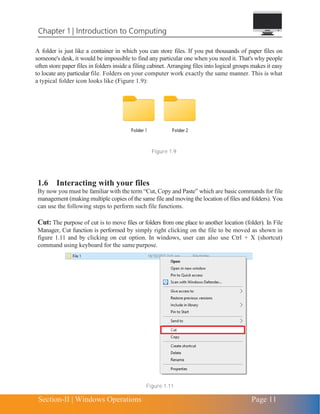
2. Prepare a template for email writing for business proposal.
3. Prepare a template for communication with client for project acquisition.
4. Write a comprehensive welcome note for your client.
5. Make your portfolio for freelancing platform
Page 229
1- Cover the essentials of visual design, theory and practical examples described
throughout the book.
2- Encourage students by conveying that a great way of starting graphics design
studies is to review the history of graphicsdesign.
3- Give an overview of the most influential ideas within the world of design from the
19th and early 20th centuries, highlighting key ideas and providing valuable
insights
4- Go beyond theory and focuses on designers that shaped history, sharing their stories
and important works. The book covers the development of design, mid-century
design, corporate branding, typography, magazine design and iconic posters.
5- Create challenging design exercises in the classroom. Ask students to create a logo
for their favorite game / business / brand / organization. Have them make up his
own cartoon character, first outlining and drawing it and then filling it in withcolor.
6- For starters, have students to draw their name as supposed to write it. Teach them
how to draw each letter separately and how to create effects like shadow. Ask them
to integrate a picture with his name that he feels best describes himself.
7- Build interest in students, make them engage in more practical work. Photoshop is
an extremely useful program for designing t-shirts, especially if your t-shirt will
include text. Using Photoshop, you can create various elements that will be part of
your overall design in layers and make separate changes to them as you go, shifting
the elements around, resizing and making changes using various colors, fonts and
filters.
8- Corel Painter is a program that offers many options including a cloning tool and
various filters ranging from an automatic VanGogh filter to a water color filter. You
can also purchase additional filters and paint textures for this program. Corel also
has a graphics program, CorelDraw, that can be used to create your t-shirt designs.
Instructions for Teacher
Page 230
9- Encourage students to view the work done by professionals by using different software
tools like CorelDraw, Adobe Illustrator, Adobe InDesign, Adobe XD etc. Guide them how
they can search the internet for the state of the art work. By watching professional work
students will get great inspiration.
10- Motivate students by guiding them about the careers available for a Graphic Designers in
the modern world. Tell them about the jobs available as well as opportunities as an
entrepreneurship.
11- Improve Communication skills in students by taking presentations, group discussions and
writing business proposals.
12- Motivate students to involve in internships provided by various organization. This will be
a chance to work with professionals and to learn latest market trends about products.
Author
Page 231
Dr. Faisal Riaz
FAISAL RIAZ received his Ph.D. from Iqra University, Pakistan in 2018 in the field of Cyber
Physical Systems (CPS) and is currently serving as an Associate Professor in the Department of
computer sciences in Mirpur University of Science and Technology. Moreover, he is working as
the director in the office of research, innovation and commercialization (ORIC), MUST. He has
more than 34 research publications in various national / international research journals and
conferences. He is the author of three books as well. Furthermore, he is heading Control,
Automotive and Robotics Lab, National Centre of Robotics, MUST AJ&K Pakistan. Under the
banner of CAR-lab, he has innovated the world’s first-ever cognitive and emotional Autonomous
Vehicle. He got the hall of fame award in 2018 in the recognition of his smart innovations. He is
the reviewer of many well-reputed journals. He has served as a technical program committee
member in many international IEEE conferences. His reviewing profile can be viewed over
https://publons.com/author/742771.
National Vocational & Technical Training Commission (NAVTTC)
Plot No.38, Sector H-9/4, Kirthar Road, Islamabad.
Tel: +92-51-9207518
Website: www.navttc.gov.pk

GraphicDesigningfor9th. pdf

  • 1.
    National Vocational &Technical Training Commission (NAVTTC) Graphics Designing-I Grade - IX Textbook of
  • 2.
    i Textbook of GRAPHICS DESIGNING-I Grade– IX National Vocational and Technical Training Commission H-9, Islamabad
  • 3.
    ii Author: Dr. FaisalRiaz, Associate Professor, Department of Computer Sciences, Mirpur University of Science and Technology Reviewers: 1. Saba Sadiq, DACUM Facilitator, Islamabad 2. Dr. Muhammad Idrees, Associate Professor, Curriculum Expert, Islamabad 3. Muhammad Zubair Akhtar Hussain, CEO, Microsoft Certified Trainer, Microsoft Certified Educator Expert, GoogleBiz, Faisalabad 4. Marryum Zaman, Lecturer Computer Graphics, NUTECH, Islamabad 5. Bilal Mahmood, Lab Engineer, NUTECH, Islamabad 6. Mubashar Chishtee, CEO / Lecturer, Coding phoenix / LSFD 7. Hoorya, Lecturer, Women Welfare Development Centre 8. Muhammad Asim, Assistant Director, NAVTTC 9. Sohail Bin Aziz, Assistant Education Advisor, NCC, Islamabad Designing: Gul Awan Printers, Blue Area, Islamabad. Edition: 1st Edition, 2022 ISBN: Publishers: National Vocational & Technical Training Commission H-9, Islamabad. Website: www.navttc.gov.pk, All rights are preserved with the National Vocational and Technical Training Commission. No part of this book can be copied, translated, reproduced or used for guide books, key notes, helping books etc. without permission of NAVTTC. Note: Names of Curriculum Developers will be part of curriculum document. In the book there will be names of reviewers only.
  • 4.
    iii Preface This book hasbeen written to fulfill the requirements of Matric-Tech course to prepare the students for the subject of Graphics Designing in Grade 9. Matric-Tech in Graphics Designing and Media Production has been introduced first time in Pakistan. The main objective of starting this technical course is to produce technical workforce instead of teaching them conventional theoretical subjects. On accomplishment of this objective, students will be able to explore the job market easily as well as start their careers as freelancers. Efforts have been made to present graphic related training material in one book. This book covers major topics to enrich students with the knowledge of Graphics Designing. Each subject/topic is clarified in a helpful manner for better understanding of Matric-Tech students. The book starts with the introduction to computer systems. Afterwards, we explained the software programs which are being used in the field of graphics. Wehave explained all the major tools with their implementations onvarious objects for better understanding. Students must perform the activities and tasks to get hands on experience to learn Graphics Designing in a better way. All sections incorporate evaluations in the form of MCQs, exercises, short and long questions. Any enhancement/idea for the improvement of this book will be higly appreciated. Executive Director National Vocational & Technical Training Commission (NAVTTC)
  • 5.
  • 6.
    v Contents Preface......................................................................................................................................................iii Introduction to Computing............................................................. 7 Basics of Graphics Designing..................................................... 32 Activities.................................................................................................................................................44 Chapter 3...................................................................................... 45 Activities...............................................................................................................................................107 Chapter 4.................................................................................... 108 Chapter 5.................................................................................... 141 Activities...............................................................................................................................................163 Chapter 6.................................................................................... 164 Activities...............................................................................................................................................181 Chapter 7.................................................................................... 182 Activities...............................................................................................................................................208 Chapter 8.................................................................................... 209 Activities...............................................................................................................................................228
  • 7.
  • 8.
    Chapter 1 Introduction toComputing Section-I: Basic Concepts of Computers: After completing this section, students will be able to: - • define computer • define types of computers • describe importance of computer • describe usage of computer • know about components of computer and their applications
  • 9.
    Chapter 1 |Introduction to Computing Section-I | Basic Concepts of Computer Page 2 1.1 Introduction Counting things and calculating simple types of additions were done earlier by using pebbles and fingers. Understanding why we need such calculating machines is giving rise to what we called as the computer. The earlier versions of man’s calculating devices include sand tables, abacus, slide rule, Pascaline, stepped reckoner, punch card system, difference engine, and then analytical engine. All these were developed to help humans in performing a calculation in a better manner. It must be known by the student that Charles Babbage was acknowledged as the ‘father of the modern digital computer’. He suggested the base of modern digital computer architecture which helped the earlier engineers to build the initial generation of computers. Lady Ada Lovelace is considered as ‘first computer programmer’ because she worked with Babbage on his analytical engine, and write programs for the analyticalengine. The word “Computer” comes from the Latin word “pature” which means to calculate, to sum, or to think as well. A computer is an electronic device, which stores and processes data to give meaningful information. Processing is done with the help of instructions given by the user, which are also stored within the computer. During early times humans were assigned this title as they use to do calculations but with the passage of time, this term was specifically used for machines. 1.2 Types of Computers Generally, there are four types of computers based on the characteristics like speed, size, performance, and its use. These types have been described below: Microcomputer Microcomputers are nothing but personal computers. These are single-chip (processor) systems. These are useful for personal use (as well as for small business use) and can perform all the basic functions of the computer. Examples of microcomputers are desktops, tablets, smartwatches, laptops etc. as shown in figure below.
  • 10.
    Chapter 1 |Introduction to Computing Section-I | Basic Concepts of Computer Page 3 Figure 1.1: Laptop, Tablet, Hybrid Tablet Server A server is generally a computer attached to a network of other workstations called 'client machines'. Client computers send / request information to / from the server over the network / internet. Servers machines have more storage, memory and processing power as compared to an ordinary computer system. How a server functions depends on the type of network it is on. A datacenter (or server room) is a place where hundreds or thousands of servers work jointly to make a cloud. Examples of Server Computers are Web, Email, Database etc. as shown in Figure 1.2. Figure 1.2: Server Computers in a network Mainframe Mainframe computers are considered as high-performance machines having large amounts of memory and processors that can process billions of calculations and transactions in real time. The mainframe computer is critical to commercial databases, transaction servers, and applications that require high resiliency, security, and agility. These computers are just below the supercomputers. Examples – IBM z Series, System z900, etc. as shown in Figure 1.3
  • 11.
    Chapter 1 |Introduction to Computing Section-I | Basic Concepts of Computer Page 4 Figure 1.3: IMB Z-series computer Supercomputers A supercomputer is a type of computer that has the architecture, resources, and components to achieve massive computing power. Today's supercomputers consist of tens of thousands of processors that can perform billions and trillions of calculations or computations per second. We generally use MPIS (Millions of Instructions Per Second) to measure their performance. These computers are specifically designed forscientific applications for example: • Encryption & decryption of passwords • Weather forecasting • Testing of nuclear weapons • Scientific research about earth and other planetary systems, etc. Figure 1.4: Supercomputer The Fugaku supercomputer has defended its title as the world's fastest supercomputer, beating competitors from China and the U.S.
  • 12.
    Chapter 1 |Introduction to Computing Section-I | Basic Concepts of Computer Page 5 1.3 Importance of Computer Computer is an electronic device used in almost every field of life. That is why this age is called as the era of Information Technology. And now we cannot imagine a world without computers. These days computers are the tools for not only engineers and scientists but also, they are being used by millions of people around the world. Computer has become very important nowadays because it is very much accurate, fast and can accomplish many tasks easily. Otherwise, to complete those tasks manually, much more time is required. It can do very big calculations in just a fraction of a second. Moreover, it can store huge amount of data in it. Wealso get information on different aspects using internet on our computer. The first electronic computers were used to perform difficult numerical calculations, but gradually they have come to take on much wider and more complicated roles. They now perform a diverse array of services and functions, and play a major role in most people's personal and professional lives. The usage of computer from our daily life is listed as: 1. Business Nowadays, almost every business uses computers. They can be deployed to store and maintain accounts, personnel records, manage projects, track inventory, and business intelligence reports. They enable communication with people both within and outside the business, using various technologies, including e-mail. These can be used to promote the business and enable direct interaction with customers. 2. Education Computers can be used to give learners audio-visual aids, interactive environment and remote learning including tutoring over the internet. They can be used to access educational resources from intranet and internet or via e-books. Modern way of teaching with technology is equally beneficial for institutions, teachers and learners. By using Learning Management Systems, we can monitor and evaluate the students’ performance, as well as this is greatly helpful to organize and deliver study material, plan & execute academic calendar etc. Resources have been transformed in the
  • 13.
    Chapter 1 |Introduction to Computing Section-I | Basic Concepts of Computer Page 6 shapes of Digital Libraries where latest research is available in a few clicks. Many organizations, even have designed and providing free educational resources for learners. 3. Healthcare Healthcare sector is supposed to be continuedly revolutionized by the use of modern computer systems. Digitized medical systems are making it easier to store and analyze patients’ data. Complex information can also be analyzed by software to diagnoses and proposing solutions for medical treatment of the diseases. Computers are being used in diagnostics labs, to monitor heart rate and blood pressure etc. These enable doctors to have greater access to information on the latest drugs, as well as the ability to share information on diseases with other medical specialists. 4. Marketing Computers enable marketing campaigns to be more precise through the analysis and manipulation of data. They facilitate the creation of websites and promotional materials. They can be used to generate social media campaigns. They enable direct communication with customers through email and online chat.
  • 14.
    Chapter 1 |Introduction to Computing Section-I | Basic Concepts of Computer Page 7 5. Communication Computers have made real-time communication over the internet easy, thanks to software and videoconferencing services such as Skype. Families can connect with audio and video, businesses can hold meetings between remote participants, and news organizations can interview people without the need of a crew. Modern computers usually have microphones and webcams built-in nowadays to facilitate conferences for businesses. Older communications technologies such as email are also still being used widely. 6. Transport Road vehicles, trains, planes, and boats are increasingly being automated with GPS based computer systems to uphold safety and navigation systems. Many types of sensors can be installed to monitor & highlight problems that require attention such as low fuel levels, temperature of engine, or a failing mechanical part. Computers can be used to customize settings for individuals, for example, seat setup, air-conditioning temperatures etc. 7. Science Scientists were one of the first groups to adopt computers as a work tool. In science, computers can be used for research, sharing information with other specialists both locally and internationally, as well as collecting, categorizing, analyzing, and storing data. Computers also play a vital role in launching, controlling, and maintaining spacecraft, as well as operating other advancedtechnologies. Use of Computes have been drastically increased in the areas of science, technology and engineering.
  • 15.
    Chapter 1 |Introduction to Computing Section-I | Basic Concepts of Computer Page 8 1.4 Components of Computer A computer device is made up of various elements which help in its effective functioning and processing. There are five basic components of the computer which help in making this processing of data easier and convenient. By definition, components of a computer system are the primary elements that make the functioning of an electronic device smooth and faster. The exterior of any computerized device may look different and may also have varied features, but the basic components remain the same for their functionality. There are five basic components which include: Input Unit A computer will only respond when a command is given to the device. These commands can be given using the input unit or the input devices. For example: Using a keyboard we can type things in Notepad and the computer processes the entered data and then displays the output of the same on the screen. Example of input devices are keyboard, mouse, microphone, camera, scanner, digital tablet and touch-screen etc. Figure 1.5: Keyboard and Mouse used as input devices Output Unit When we command a computer to perform a task, it returns the result after processing the command and gives us output. There are various output devices connected to the computer. The most basic of which is a monitor. Whatever we write using a keyboard or click using a mouse, is displayed on the monitor. Thus, the output unit gives us the final result once the entire processing is done within the mechanism of a device. Examples of output devices are monitor, speaker, printers etc. and can be seen in figure 1.6. Figure 1.6: An LCD which is the most essential output unit. Central Processing Unit (CPU)
  • 16.
    Chapter 1 |Introduction to Computing Section-I | Basic Concepts of Computer Page 9 The central processing unit (CPU) directs the computer through the various steps of solving a problem. Data enters the computer through an input unit, is processed and executed by the central processing unit, and is then made available to the user through an output unit. CPU contains other components i.e. Control Unit, Memory Unit and Arithmetic Logic Unit as well. Figure 1.7: Central Processing Unit.
  • 17.
    Chapter 1 |Introduction to Computing Section-II | Windows Operations Page 10 After completing this section, students will be able to: - • define operating system • working with files and folders • internet browsing • searching from internet • downloading from internet Sending / receiving email 1.5 Operating System Operating system (OS), is a program that manages computer’s resources. Resources, typical include the central processing unit (CPU), computer memory, storage, input/output (I/O) devices, and network connections. Management tasks include scheduling resource used to avoid conflicts and interference between programs. Unlike most programs, which complete a task and terminate, an operating system runs indefinitely and terminates only when the computer is turned off. Some operating systems were developed in the 1950s when computers could only execute one program at a time. In later decades, computers included many software programs, sometimes called libraries, which were linked together to create the beginning of today's operating systems. Working with Files and Folder: A file is very much like a typed document that you might find on a desk or in drawer. It’s an item that contains a collection of related information or records. On a computer, example of files includes text documents, spreadsheets, digital pictures, music and videos. Computer represents files with icons. By looking at a file's icon, you can recognize what kind of file it is. Here are some common file icons as can be seen in Figure 1.8. Figure 1.8 Section II:
  • 18.
    Chapter 1 |Introduction to Computing Section-II | Windows Operations Page 11 A folder is just like a container in which you can store files. If you put thousands of paper files on someone's desk, it would be impossible to find any particular one when you need it. That's why people often store paper files in folders inside a filing cabinet. Arranging files into logical groups makes it easy to locate any particular file. Folders on your computer work exactly the same manner. This is what a typical folder icon looks like (Figure 1.9): Figure 1.9 1.6 Interacting with your files By now you must be familiar with the term “Cut, Copy and Paste” which are basic commands for file management (making multiple copies of the same file and moving the location of files and folders). You can use the following steps to perform such file functions. Cut: The purpose of cut is to move files or folders from one place to another location (folder). In File Manager, Cut function is performed by simply right clicking on the file to be moved as shown in figure 1.11 and by clicking on cut option. In windows, user can also use Ctrl + X (shortcut) command using keyboard for the same purpose. Figure 1.11
  • 19.
    Chapter 1 |Introduction to Computing Section-II | Windows Operations Page 12 After cutting the file or folder, navigate to the location you want to paste the file and right click on any empty space on screen then click on paste as shown in figure 1.12. Figure 1.12 Copy: The purpose of copy is to duplicate a file or folder from one place to the next location. Copying a file at same location is also allowed, however, system prompts a dialog box asking user to rename it or replace it. To perform copy function, you can simply right click on the file to be copied as shown in figure 1.13. Shortcut command for copy in windows is Ctrl + C. Figure 1.13 Move to the location you want to paste the file and right click on any empty area in screen then click on paste, same as done above for cut. Shortcut key to past is Ctrl+V.
  • 20.
    Chapter 1 |Introduction to Computing Section-II | Windows Operations Page 13 Delete: To delete a file or folder (or multiple selected files), right-click on the file and select Delete as can be seen in figure 1.14. You can also select the file and hit the Delete key on the keyboard. Deleting a folder deletes all its contents as well. Figure 1.14 You may get a dialog prompt that asks if you want to move the file to the recycle bin. If it appears, press the yes button. If you didn’t get a dialog prompt, the file was still sent to the Recycle Bin. (The Mac equivalent is called Trash.) Deleted files are not gone forever; they are sent to the Recycle Bin. Recycle Bin: When a file is deleted, it is sent to the Recycle Bin. The Recycle Bin can be found on the Desktop. Its icon resembles a recycle bin or trash can, and the icon changes depending on whether the Recycle Bin contains any deleted files. Icons of recycle bin can be seen in figure 1.15(a) and 1.15(b) Figure 1.15 (a): Empty Recycle Bin Figure 1.15 (b): Recycle Bin Containing files To permanently delete a file, you can delete it again from the Recycle Bin, or you can empty the Recycle Bin. It is recommended you empty the Recycle Bin every once in a while, to free up disk space. If you delete something by accident, or if you change your mind about a deleted file, you can un- delete it by restoring the file from the Recycle Bin.
  • 21.
    Chapter 1 |Introduction to Computing Section-II | Windows Operations Page 14 To restore or permanently delete a file, right-click on the file and select either Restore or Delete. Deleted files are permanently deleted; restored files are restored to their original location before being deleted. Some available options in a recycle bin can be seen in figure 1.16. Figure 1.16 1.7 Personalize Desktop Desktop personalization is the process of adjusting the look, feel and organization of a Windows end-user experience. In general, any adjustment to the user interface that deviates from the default installation settings may be considered to be a personalization, but users typically personalize a desktop to improve the personal comfort of the user interface, enhance its visual behaviors or reflect personal interests. Windows 10 makes it easy to customize the look and feel of your desktop. To access the Personalization settings, right-click anywhere on the desktop (Figure 1.16), then select ‘Personalize’ from the drop-down menu. The Personalization settings will appear. Figure 1.17
  • 22.
    Chapter 1 |Introduction to Computing Section-II | Windows Operations Page 15 Click the buttons in the figure below to learn more about using the Personalization settings (Figure 1.18). Figure 1.18 Here you can find all the options which you can use as you desire to customize your desktop. 1.8 Internet Browsing The Internet is the biggest world-wide communicationnetwork of computers. The internet has millions of smaller domestic, academic, business, and government networks, which together carry many different kinds of information. The short form of internet is 'net'. Internet is known as network of networks. The World Wide Web is one of its biggest services. It is used by billions of people all over the world to browse the websites, sending emails, shopping online etc. A web browser is a type of software that allows you to browse and view websites on the Internet. Even if you didn't know it, you're using a web browser right now to read this page. There are many different web browsers including Google Chrome, Internet Explorer, Safari, Microsoft Edge, and Mozilla Firefox. We'll be using Google Chrome web browser throughout this lesson, but you can use any browser you like. Keep in mind that your browser may look and act a bit differently, but all web browsers work in the same way. URLs and the address bar Each website has a unique address, called a URL (short for Uniform Resource Locator). It's like a street address that tells your browser where to go on the Internet. When you type a URL into the browser's address bar and press Enter on your keyboard, the browser will load the page associated with that URL.
  • 23.
    Chapter 1 |Introduction to Computing Section-II | Windows Operations Page 16 You may use backspace key instead of navigation buttons In the example below, we've typed www.bbc.com/travel into the address bar as can be seen in figure 1.19 Figure 1.19 1.9 Links Whenever you see a word or phrase on a website that's blue or underlined in blue, it's probably a hyperlink (or link for short). Links are used to navigate the Web pages. When you click a link, it will usually take you to a different webpage.You may also notice that your cursor changes into a hand icon whenever you hover over a link Many websites use text, buttons and images as links (hyperlinks) as can be seen in figure 1.20, Figure 1.20 1.11 Navigation buttons The Back and Forward buttons allow you to move through websites you've recently viewed as can be seen in figure 1.22. You can also click and hold either button to see your recent history.
  • 24.
    Chapter 1 |Introduction to Computing Section-II | Windows Operations Page 17 Figure 1.22 The Refresh button will reload the current page. If a website stops working, try using the Refresh button (Figure 1.23) or press F5. Figure 1.23 1.11 Tabbed browsing Many browsers allow you to open links in a new tab while staying on the same window. You can open as many links (in new tabs) as you want, and they'll stay in the same browser window instead of cluttering your screen with multiple windows. To open a link in a new tab, right-click the link and select Open link in new tab (as can be seen in figure 1.24 the exact key words may vary from browser to browser). Figure 1.24
  • 25.
    Chapter 1 |Introduction to Computing Section-II | Windows Operations Page 18 To close a tab, click the X button on top right corner of the browser window. To create a new blank tab, click the + button to the right of already opened tab. 1.12 History Your browser will also keep a history of every site you visit. This is another good way to find a website you visited previously. To view your history, open your browser settings—usually by clicking the icon in the upper-right corner—and select History or press Ctrl + H keys from keyboard can be seen in figure 1.25. Figure 1.25 1.13 Downloading files Links don't always go to another website. In some cases, they point to a file that can be downloaded, or saved to your computer. Google uses an Ad system which tracks user’s activity on internet
  • 26.
    Chapter 1 |Introduction to Computing Section-II | Windows Operations Page 19 If you click a link to a file, it may download automatically, but sometimes it just opens within your browser instead of downloading. To prevent it from opening in the browser, you can right-click the link and select ‘Save link as’ as can be seen in figure 1.26 (different browsers may use slightly different wording, like Save target as). When you download a file from internet, make sure that you haven’t downloaded a malicious file which might corrupt your computer. Figure 1.26 1.14 Saving images Sometimes you may want to save an image from a website to your computer. To do this, right- click the image and select ‘Save image as’ (or Save picture as, can be seen in figure 1.27). Not every website will allow you to save picture due to some copyright laws. Figure 1.27
  • 27.
    Chapter 1 |Introduction to Computing Section-II | Windows Operations Page 20 1.15 Email Email (electronic mail) is the exchange of computer-stored messages by telecommunication. Along with the text, you can also send non-text files such as graphic images and sound files as attachments as well. Email was one of the first activities performed over the internet and is still the most popular use. A large percentage of the total traffic over the internet is email. Email can also be exchanged between online service provider users and in networks other than the internet, both public and private. To send an email (on Gmail platform): 1- In the left menu pane, click the Compose button. 2- The compose email window will appear in the lower-right corner of the webpage.
  • 28.
    Chapter 1 |Introduction to Computing Section-II | Windows Operations Page 21 3- You'll need to add one or more recipients to the ‘To:’ field. You can do this by typing one or more email addresses, separated by commas, or you can click ‘To’to select recipients from your already saved contacts, then click select. 4- In the body field, type your message (or add attachment). When you're done, click Send. Email is transferred in less than 1 sec. and can send upto 25MB of data.
  • 29.
    Section-II | WindowsOperations Page 22 Chapter 1 | Introduction to Computing After completing this section, students will be able to: - • Define Microsoft Office • Describe applications of MS Office (Word, PowerPoint, Excel) • Knowledge about working in MS Word • Knowledge about working in PowerPoint • Knowledge about working in MS Excel 1.16 MS Office Microsoft Office is a popular set of software programs from Microsoft that includes a word processor, a spreadsheet tool, a database program, an email utility and other productivity software commonly used in modern offices. Each of the applications in Microsoft Office serves as specific knowledge or office domain such as: 1. Microsoft Word: Helps users in creating text documents. 2. Microsoft Excel: Creates simple to complex data/numerical spreadsheets including charts etc. 3. Microsoft PowerPoint: Stand-alone application for creating professional multimedia presentations. 4. Microsoft Access: Database management application. 5. Microsoft Publisher: Introductory application for creating and publishing flyers & brochures etc. 6. Microsoft OneNote: Alternate to a paper notebook, it enables a user to organize their notes and to do lists. 7. Microsoft Outlook: For sending and receiving emails. Section-III
  • 30.
    Section-II | WindowsOperations Page 23 Chapter 1 | Introduction to Computing 1.17 Microsoft Word It is used to make professional-quality documents, letters, reports, etc., MS Word is a word processor developed by Microsoft. It has advanced features which allow you to format and edit your files and documents in the best possible way. Now let us read more about the features and components of MS Word in detail.
  • 31.
    Section-II | WindowsOperations Page 24 Chapter 1 | Introduction to Computing The image given below shows the different Tabs which are available in MS Word: Figure 1.28 Home This has options like font colour, font size, font style, alignment, bullets, line spacing, etc. All the basic elements which one may need to edit their document is available under the Home tab. Insert Tables, shapes, images, charts, graphs, header, footer, page number, etc. can all be entered in the document. These are included in the “Insert” tab. Design This tab has tools like themes, document formatting, paragraph spacing and other page background options. Page Layout Under the Page Layout tab, various options are available like margins, orientation, page size, columns, line & paragraph spacing, indentation etc. These options are used when an editing is required. References This tab is the most useful for those who are creating a thesis or writing books or lengthy documents. Options like citation, footnote, table of contents, caption, bibliography, etc. can be found here. Uses of MS Word Mentioned below are the different fields in which MS Word can be used and simplifies the work of an individual: In Education: It is considered as one of the simplest tools which can be used by both teachers and students. Creating notes is easier using MS Word as they can be made more appealing by adding shapes and images. It is also convenient to make assignments on MS Word and submitting them online.
  • 32.
    Section-II | WindowsOperations Page 25 Chapter 1 | Introduction to Computing In Workplace: Submitting letters, bills, creating reports, letterheads, sample documents, can all easily be done using MS Word. Creating & Updating Resume: One of the best tools to create your resumes, biographies, and profiles is easy to edit and make changes in it as per your experience. For Authors: Since separate options are available for bibliography, table of contents, etc., it is the great tool which can be used by authors for writing books and adjusting it as per the layout and alignment of your choice. 1.18 Microsoft PowerPoint MS PowerPoint is a program that is included in the Microsoft Office suite. It is used to make presentations for personal and professional purposes. The image given below 1.29 shows the main page of MS PowerPoint, this window will appear on user screen: Figure 1.29 Features of MS PowerPoint There are multiple features that are available in MS PowerPoint which can customize and optimize a presentation. The same have been discussed below. Slide Layout Multiple options and layouts are available based on which a presentation can be created. This option is available under the “Home” section and one can select from the multiple layout optionsprovided.
  • 33.
    Section-II | WindowsOperations Page 26 Chapter 1 | Introduction to Computing The image below 1.30 shows the different slide layout options which are available for use: Figure 1.30 Insert – Clipart, Video, Audio, etc. Under the “Insert” category, multiple options are available where one can choose the feature they want to insert in their presentation. This may include images, audio, video, header, footer, symbols, shapes, etc. The image below 1.31 shows the features which can be inserted: Figure 1.31 Slide Design MS PowerPoint has various themes using which background colour and designs or textures can be added to a slide. This makes the presentation more colorful and attractive. This way of communication is strongly used to help professionals achieve their desired goals. This feature can be added using the “Design” category mentioned on the homepage of MS PowerPoint. Althoughthereare existingdesign templates available, in casesomeonewantsto add some new texture or colour, the option to customize the design is also available. Apart from this, slide designs can also be downloaded from online repository.
  • 34.
    Section-II | WindowsOperations Page 27 Chapter 1 | Introduction to Computing Refer to the below image for slide design: Figure 1.32 Uses of PowerPoint Presentation PowerPoint presentations are useful for both personal and professional usage. Given below are a few of the major fields where PPT is extremely useful: Education – With e-learning and smart classes being chosen as a common mode of education today, PowerPoint presentations can help in making education more interactive and attract students towards the modified version of studying. Marketing – In the field of marketing, PowerPoint presentations can be extremely important. Using graphs and charts, numbers can be shown more evidently and clearly which may be ignored by the viewer if being read. Business – To invite investors or to show the increase or decrease in profits, MS PowerPoint can be used. Creating Resumes – Digital resumes can be formed using MS PowerPoint. Different patterns, photograph, etc. can be added to the resume. Depicting Growth – Since both graphics and text can be added in a presentation, depicting the growth of a company, business, student’s marks, etc. is easier using PPT.
  • 35.
    Section-II | WindowsOperations Page 28 Chapter 1 | Introduction to Computing 1.19 Microsoft Excel MS Excel is a commonly used Microsoft Office application. It is a spreadsheet program which is used to save, analyze and present data. Figure 1.33 Various editing and formatting can also be done on an Excel spreadsheet. Discussed below are the important features of MS Excel. Features of MS Excel: Home Comprises options like font size, font styles, font colour, background colour, alignment, formatting options and styles, insertion and deletion of cells and editing options. Insert Comprises options like table format and style, inserting images and figures, adding graphs, charts and sparklines, header and footer option, equation and symbols. Page Layout Themes, orientation and page setup options are available under the page layout tab. Formulas Since tables with a large amount of data can be created in MS excel, under this feature, you can add formulas to your data and get quicker results. Data Adding external data (from the web), filtering options and data tools are available under this category.
  • 36.
    Section-II | WindowsOperations Page 29 Chapter 1 | Introduction to Computing Review Proofreading can be done for an excel sheet (like spell check) in the review category and a reader can add comments as well. View Different views in which we want the spreadsheet to be displayed can be edited here. Options to zoom in and out and pane arrangement are available under this tab. Uses of MS Excel MS Excel is widely used for various purposes because the data is easy to save, and information can be added and removed without any discomfort and less hard work. Given below are a few important benefits of using MS Excel: Easy To Store Data: Since there is no limit to the amount of information that can be saved in a spreadsheet, MS Excel is widely used to save data or to analyze data. Filtering information in Excel is easy and convenient. Easy To Recover Data: If the information is written on a piece of paper, finding it may take longer, however, this is not the case with excel spreadsheets. Finding and recovering data is easy. Application of Mathematical Formulas: Doing calculations has become easier and less time-taking with the formulas option in MS excel. More Secure: These spreadsheets can be password secured in a laptop or personal computer and the probability of losing them is way lesser in comparison to data written in registers or piece of paper. Data at One Place: Earlier, data was to be kept in different files and registers when it was done manually. Now, this has become convenient as more than one worksheet can be added in a single MS Excel file. Organized and Clearer Visibility of Information:When the data is saved in the form of a table, analyzing it becomes easier. Thus, information in a spreadsheet is more readable and understandable.
  • 37.
    Chapter 1: ExercisePage 30 Exercise Select the most suitable option 1. Who is known as the ‘father of the modern digital computer’? a) Charles Babbage b) Einstein c) Elon Musk d) Nikola Tesla 2. Who was the very first computer programmer? a) Lady Ada Lovelace b) Nikola Tesla c) Bill Gates d) Simpson 3. Computer Speed is measured as a) Seconds b) Megahertz c) Milliseconds d) Kilometers 4. Supercomputers usually perform how many instructions per seconds? a) Hundreds b) Thousands c) Millions d) Billions 5. Which part of computer is considered as the brain of the computer? a) Memory b) Control Unit c) ALU d) CPU 6. What is the shortcut to cut a file? a) Ctrl + C b) Ctrl + V c) Ctrl + X d) Ctrl + F 7. URL Stands for? a) Universal Resource Language b) Universal Resource Locator c) Universal Resource Link d) None 8. What type of Mainframe computer is? a) Server b) PC c) Microcomputer d) Super Computer 9. What type of device is a printer? a) Input Device b) Output Device c) Memory Unit d) System Device 9. CPU stands for? a) Complete Program Unit b) Central Program Unit c) Central Processing Unit d) None of these 10. ALU performs which types of operations a) Arithmetic b) Logical c) Comparison d) Memory
  • 38.
    Chapter 1: ExercisePage 31 Give short answer the following questions 1. What is an Operating System? 2. Download an Image and apply it on your desktop screen as Wallpaper. 3. Copy a file form one place to another. 4. Delete a file from your computersystem. 5. Rename a file on your system. 6. What is Internet? 7. Name any three Internet browsers. 8. Open a web browser and search for latest news 9. Try to send an email to one of your friends 10. Open and check your email inbox. Answer the following questions in detail 1. Discuss the different types of computers 2. Discuss in detail the usage of Computer in our daily life. 3. Which actions you can take on a file or folder and how? 4. Discuss MS Word in Detail along with its usage. 5. Discuss features and uses of MS Excel Activities 1. Create, copy and move files and folders 2. Delete and restore the files and folders from recycle bin. 3. Prepare you CV using MS word 4. Prepare presentation using the power point on the topic given by the instructor 5. Prepare different spreadsheets using MS Excel having student results for various classes and subjects
  • 39.
    Chapter2 Basics of GraphicsDesigning After completing this section, students will be able to:- • define graphic designing • describe importance of graphic designing • understand industrial usage of graphic designing • describe opportunities for employment and advancement in graphic designing field
  • 40.
    Chapter 2 |Basics of Graphic Design Section-I | Introduction & Scope of Graphic Designing Page 33 2.1 Graphics Designing Graphic design is a skill where professionals create visual content to communicate messages. By applying visual hierarchy and page layout techniques, designers use typography and pictures to meet users’ specific needs and focus on the logic of displaying elements in interactive designs, to optimize the user experience. Graphic design is an important tool that enhances how you communicate with other people. It serves to convey your ideas in a way that is not only effective, but also beautiful. Here are just a few factors to consider before investing in graphic design services. It conveys a message of credibility and professionalism As mentioned earlier, graphic design plays a significant role in the decision-making process. Companies that invest in quality graphic design are perceived to be more trustworthy. Presentation and perception can make or break a business. Public is usually looking for signs of professionalism to convince them that your business can be trusted. One such example is the way that you present yourself. It’s important to present yourself in the best possible way by investing in quality appearance of yourself (as with your business). It summarizes an idea Great graphic design summarizes these ideas in a way that’s pleasing to the eye. Persons may not be willing to read a document that is trying to convince them to purchase your product, but they will be willing to have a look at an image that serves the same purpose. Additionally, graphic design needs to be consistent. All representations of your brand should be visually similar to build trust and to ensure that your brand is recognizable. Great graphic design gives you this effective consistency. It makes You self-dependent Great graphic design allows you to make a positive first impression on viewer. Human beings form initial opinions in a matter of seconds. On the other hand, it takes a lot more time to have a change of heart after a first impression is made. Aesthetically pleasing, professionally designed graphics will cause other persons to form positive opinions about your product, service or brand. Consequently, you or your business can by self-dependent.
  • 41.
    Chapter 2 |Basics of Graphic Design Section-I | Introduction & Scope of Graphic Designing Page 34 2.2 Industrial Scope Graphics designing is involved and has a vital scope in almost every industry. It has made a permanent place in various industries. Some of the uses of graphics designing have been mentioned below: • Custom Logo A custom logo establishes credibility by creating brand recognition, and firmly positions your company within the marketplace. A Logo is actually the first impression about a business or organization. It should reflect the main theme of the organization and should match the vision statement or the moto of the organization. While there are many factors in building an impactful logo and visual identity, a major influence on your logo’s success is its color scheme. Certain color combinations create distinct perceptions and elicit emotions. Examining the market trends in your industry and understanding to which colors your customers respond, may make big differences. • Advertising Considering the psychological effects that your branding has on prospects, your advertisements need to follow a similar set of guidelines. Among a sea of expertly crafted ads, a poorly designed advert will easily become overlooked as noise. The chances that your ad will convert prospects without a hero image, strong graphic elements, and a clear call to action is required. In advertising, or in any form of print or digital communications, your brand’s essence speaks louder than words. • Marketing Collateral Graphic design optimizes your marketing efforts across all channels, and is key to building a professional brand. Being consistent in your marketing collateral allows your brand to be easily recognizable, and allows your customers and clients quickly get familiar with what your company has to offer. The comfortability that clients and customers get through consistent marketing will ultimately lead to credibility. Your brand should have a strong visual foundation to communicate its confidence in its offerings and expertise. This allows customers to engage with your business more frequently, in turn leading to stronger customer relationship management (CRM). • Presentations In order to keep an audience engaged throughout a new presentation or pitch, you will need strategically structured and designed slides. This will be your effective strategy to win the crowd over if paired with a smooth verbal delivery. Telling your story with enticing graphics that support your product or services benefits in selling your work. Be sure that the flow of the presentation is clear and concise with hard start/stops to denote a new topic or chapter. • Social Media
  • 42.
    Chapter 2 |Basics of Graphic Design Section-I | Introduction & Scope of Graphic Designing Page 35 By using graphic design, you are able to establish a consistent brand footprint across all social media platforms. Create an account on platforms where you feel your customers use most often. Try Facebook,LinkedIn, Instagram, Google Plus, and Twitter, just to name a few. Using custom-branded graphics in your posts will tie your digital branding to your physical marketing collateral, leading toacohesivebrandidentity.Brandingyourowngraphics lets your audience become more interested in your business and curious to see what else will be posted in the future and therefore be more inclined to follow you on social media. 2.3 Graphic Designer Career Options Graphic designers are creative individuals who use text and images - either computer generated or hand drawn to express ideas. They work largely in marketing, advertising, publication - collaborating with writers, art directors, and sales professionals. The common requirements for graphic designers may be a bachelor's degree (or training) in graphic design, strong computer skills, and a diverse portfolio. These qualifications, along with some years of experience in the field, can set a graphic designer up for several different career advancement options. Some career choices for graphics designers are mentioned below: UX / Web Designer A UX designer (User Experience Designer) emphases on how individuals experience and interact with products, apps or websites. A graphic designer with experience in website design may choose to move into the role of web designer. A web developer is responsible for both the front-end visual appeal of a website as well as its back-end functionality. Educational requirements for this role vary from an associate's degree in web design to a bachelor’s degree in computer science or related field. Proven web development experience and knowledge of online programming languages and development applications are a must for a graphic designer wishing to enter this field. Art Manager An art manager manages a design staff to create cohesive visual designs for print or digital publications, movie and television promotions, product marketing, and more. Graphic designers who excel at distilling large concepts into a visual product and who can communicate their vision to others may find the role art manager / supervisor to be a natural next step. A bachelor's degree in graphic design or similar design field is often adequate but strong skillset along with a solid experience is greatly required in this domain. Layout Artist and Book Designer Layout artists work with software such as InDesign or PageMaker to place together images in a bigger design. Layout artists rely on solid artistic skills to balance compositions and communicate ideas. Book designers develop both front covers and interior layouts of books and manganins etc. Creating the interior of books is called typesetting, though instead of putting together each letter of type on a printing press, modern book designers rely on software programs such as InDesign or Quark.
  • 43.
    Chapter 2 |Basics of Graphic Design Section-I | Introduction & Scope of Graphic Designing Page 36 Marketing Manager A graphic designer with an affinity for the business side of promotions may find the role of marketing manager a good fit. Marketing managers work with sales staff, art directors, and other management to guide product development, promotions, and sales. Familiarity with various marketing media are important for a marketing manager, understanding of market trends and the ability to lead a diverse team and delegate roles is required. A bachelor's degree in marketing or a related field is a minimum requirement for a marketing manager. In this competitive field, experience with digital advertising and several years of marketing and management experience can set an applicant apart. Multimedia Artist and Animator A career move for a graphic designer may be multimedia artist and animator. Similar to a graphic designer, a multimedia artist and animator uses both hand-illustrated and computer-generated images to produce a final product, the distinction, however, is that this final product is animated rather than static. Multimedia artists and animators design for video games, movies, or television, usually specializing in their chosen area. A bachelor's degree in a design-related field, such as graphic design or animation, is recommended. Proven computer skills, specifically with animation applications, and a strong animation portfolio are also a must in this competitive field. Trainers Graphic design is a creative and dynamic profession. To prepare the next generation of graphic designers, institutions and organizations need instructors with experience, insight and an interest in helping new people learn graphic design. While the work of graphic designers is often to create the next great design, a graphic design trainer is more involved in helping to support the next great designer. For designers that find themselves more interested in the human side of design, trainer can become a fulfilling role.
  • 44.
    Section-II | GraphicSoftware and Installation Page 37 Section-II After completing this section, students will be able to: - • describe graphic software o adobe photoshop o adobe illustrator o adobe xd o in page o corel draw o adobe in design • learn about installation steps of each software
  • 45.
    Chapter 2 |Basics of Graphic Design Section-II | Graphic Software and Installation Page 38 2.4 Graphics Software Following are the most used graphics software, Students will learn about them in detail in upcoming chapters. Adobe Photoshop Adobe Photoshop is software that is extensively used for raster image editing, graphic design and digital art. It allows use of layering concepts to allow for depth and flexibility in the design and editing process, as well as provide powerful editing tools, that when combined, are capable of doing just anything. Adobe Illustrator Adobe Illustrator is an application program used on Windows and MacOS which helps to create illustrations, drawings, and artwork. Illustrator allows a user to create everything from a single element to the entire composition. Designers use Illustrator to create logos, patterns, posters, symbols, and icons, etc. Adobe XD Adobe XD is a vector-based UI and UX design tool and it can be used to design anything from smartwatch apps to fully fledged websites. Designers and design teams across the world use Adobe XD for collaborating through the design process from ideation and wireframing to developer final products. Inpage InPage is a word processor and page layout software for languages such as Urdu, Balochi, Persian, Pashto and Arabic under Windows and Mac which was first developed in 1994. It is primarily used for creating pages in CorelDraw is a software program for editing vector graphics. Developed by Ottawa-based software company, allows users to do things like add special effects such as borders to images, in addition to allowing for contrast adjustment, colour balancing and more. Furthermore, it has great options for text formatting and decoration. CorelDraw
  • 46.
    Chapter 2 |Basics of Graphic Design Section-II | Graphic Software and Installation Page 39 InDesign InDesign is a sophisticated page-layout program. You can use it to create professional-looking documents, including newsletters, books and magazines. You can also use it to create documents for distribution on a tablet such as an ipad and even documents that includes interactivity or videos. It has evolved into a tool that lets you publish content to just about any device or in print. For example, using InDesign you can create a document and distribute content in print and then add hyperlinks and video and export it to PDF or EPUB formats. Installation of software: The installation of the software is easy and described in the following section. Adobe: The installation process may vary version to version but is straight forward. We can Install Adobe illustrator, Photoshop, XD and InDesign through Adobe Creative Cloud or we can install separate applications using downloaded package. After you’ve downloaded the setup, Follow the steps below: Step 1: Open the setup through “Autoplay” as can be seen in figure 2.1 Figure 2.1 Step 2: Select the software you want and press Continue, You can also select the installation location from green box in below figure. Every update a new feature is brought to the application
  • 47.
    Chapter 2 |Basics of Graphic Design Section-II | Graphic Software and Installation Page 40 Figure 2.2 Step 3: After the installation is done, all the software will be available for use. 2.5 CorelDraw: Just like any software you’ll need a setup for CorelDraw to install. After you have the setup click on the setup as shown in figure below: Figure 2.3
  • 48.
    Chapter 2 |Basics of Graphic Design Section-II | Graphic Software and Installation Page 41 Step 1: After the setup has started, you’ll be prompted to enter your name and serial key which you’ll get with the setup (Figure 2.4). Figure 2.4 You can then just follow the steps and the application will be available for use. 2.6 Inpage: Installation of Inpage is very easy, simply run the setup. Step 1: Select the language you want the setup to run.
  • 49.
    Chapter 2 |Basics of Graphic Design Section-II | Graphic Software and Installation Page 42 Step 2: Press Next on the next screen as can be seen in figure below: Figure 2.5 Just follow the simple steps by pressing “Next” button and software will be ready to be used. If you don’t press finish after installation the software won’t be installed
  • 50.
    Chapter 2: ExercisePage 43 Exercise Select the most suitable option 1. Urdu Language software for Computer was Developed in a) 1940 b) 1994 c) 1948 d) 1993 2. Adobe InDesign export extension is a) PDF b) EPUB c) EXE d) WORD 3. Graphics Design is a skill where professionals Create a) Visual Content b) User Interface c) User Experience d) LOGO 4. Graphics Design plays a significant role in a) Design b) User Experience c) Decision Making d) none 5. A good graphic design can make good first impression of your a) Product b) Company c) Character d) None 6. Companies that invest in quality graphic designing are perceived to be more a) Trustworthy b) Good c) Complex d) Pleasing 7. serves to convey your idea in a way that is beautiful. a) Graphics Design b) Logo c) Website d) UI 8. Graphics Design plays a role in field of industry. a) relative b) insufficient c) Important d) Vital 9. A custom logo establishes a) Brand Recognition b) Awareness c) Decision Making d) None 10. A major influence on your logo’s success is its a) Design b) Font c) Typography d) Color Pallet 11. Your Advertisement need to follow a similar set of a) Guidelines b) Template c) Elements d) None 12. In print or digital communication your brand’s essence speaks louder than a) Elements b) Color c) Words d) Actions 13. Graphics Design is key to build a a) Professional Design b) Website c) Logo d) Image 14. The comfortability that clients and customers get through consistent marketing will ultimately lead to a) Professionalism b) Credibility c) Marketing d) Guidelines
  • 51.
    Chapter 2: ExercisePage 44 15. To keep audience engaged you need a) Strategically Structured b) Good Logo c) Website d) Nothing Give short answer the following questions 1. What do you understand by the term graphics Designing? 2. Describe importance of graphics designing. 3. Write any ten applications of graphics designing. 4. What are career options in Graphics Designing field? 5. Describe why would you choose this field over others? 6. List out the names of most common Graphics Designing software. 7. What is the usage of Adobe Photoshop? 8. Which software is used to create any Illustration and vector-based drawing? 9. What is Adobe XD used for? 10. Which graphics designing software is used for publishing industry? Answer the following questions in detail 2. Discuss in detail the Industrial Scope of Graphics Designing. 3. Discuss mostly used Graphics Designing Software. 4. Discuss what you know about Graphics Designing. 5. What are different Graphics Designing Career Options? Activities 1) Make a group presentation on graphic designing concepts. 2) Demonstration on scope of graphic designing. 3) Install different graphics designing software under supervision of teacher
  • 52.
    Section-I | Introductionto Adobe Photoshop Page 45 Chapter 3 | Adobe Photoshop Chapter 3 Section-I: Introduction to Adobe Photoshop After completing this section, students will be able to:- • define adobe photoshop • describe applications of photoshop • explain basic tools of adobe photoshop (selection tools, burn tool, history, pen tools, smudge tool, crop tool, blur, dodge and sponge etc.). • describe popular file formats in photoshop (jpeg, gif & png etc.) 3.1 Adobe Photoshop Adobe Photoshop is the software that is extensively used for raster image editing, graphic design and digital art. Adobe Photoshop, computer application software used to edit and manipulate digital images. Photoshop was developed in 1987 by the American brothers Thomas and John Knoll, who sold the distribution license to Adobe Systems Incorporated in 1988. Raster Image: In computer graphics and digital photography, a raster graphic is a dot matrix data structure that represents a generally rectangular grid of pixels. Vector: Vector graphics are computer graphics images that are defined in terms of points on a cartesian plane, which are connected by lines and curves to form polygons and other shapes. Example given in below image: Adobe Photoshop
  • 53.
    Section-I | Introductionto Adobe Photoshop Page 46 Chapter 3 | Adobe Photoshop Figure 3.1: Raster Image vs Vector 3.2 Applications of Photoshop We can use Adobe Photoshop to retouch our scanned or digital photographs. We can improve the color tone and brightness of the pictures into a fresh style. We can also remove the unwanted dots using blur tool, photo filter, and color lookup. In Adobe Photoshop, we can remove or change the backgrounds of our photographs. Changing the color of clothes, hair, and eyes is very simple when you use this software. We can add a person to the photograph and make it look like an original one. Adobe Photoshop helps us to retouch, sharpen and enhance the photos in high quality. 3.3 Basic tools in Photoshop Selection Tools: Adobe Photoshop also offers a number of selection tools: Quick Mask, Rectangular marquee, Elliptical marquee, Lasso, Polygonal Lasso, Magnetic Lasso, Magic Wand. Quick Mask mode: To switch from Standard mode to Quick Mask mode, press the Q button. Paint over the areas to be selected with a hard-edge Brush (in Quick Mask mode the selected area is highlighted in semi- transparent red), then switch back to Standard mode by pressing the Q button again. Rectangular Marquee: The Rectangular marquee and Elliptical marquee tools are hidden in the Toolbox under one and the same icon as can be seen in Figure 3.2. The icon on the Toolbox displays the last tool used. To
  • 54.
    Section-I | Introductionto Adobe Photoshop Page 47 Chapter 3 | Adobe Photoshop open the floating menu, right click on the arrow in the lower right corner of the displayed icon. Figure 3.2 This tool selects rectangular and square areas. To select a rectangular area, you should: Step 1. Activate the Rectangular marquee tool by clicking on the icon The Rectangular marquee tool, or (if the rectangular marquee was not the last tool applied) select it from the floating window. Step 2. Bring the mouse cursor to the point of the image where the corner of an imaginary rectangle should be, and press the left mouse button. Step 3. Keeping the left button pressed, move the cursor diagonally to the opposite corner and release the button. To select a square area of the image, make a selection keeping the Shift key pressed. Take into account that if you already have a selected area the new selection will be added to the previous one. To avoid it you should press the Shift key only when you start selecting a new area. Elliptical marquee: This tool selects ellipses and circles. To select an elliptical area, you should: Step 1. Select the Elliptical marquee tool from the Toolbox by clicking on the icon The Elliptical marquee tool, or (if the Elliptical marquee was not the last tool applied) select it from the floating window. Step 2. Bring the mouse cursor to the point of the image where the corner of an imaginary rectangle with an inscribed ellipse should be, and press the left button. Step 3. Keeping the left button pressed, move the cursor diagonally to the opposite corner and release the button. To select a circular area of the image, make a selection keeping the Shift key pressed. Take into account that if you already have a selected area the new selection will be added to the previous one. To avoid it you should press the Shift key only when you start selecting a new area. If you keep the Alt (Option in Mac) key pressed when selecting an elliptical or a rectangular area, Photoshop is one of the most diverse and widely used software used daily by millions of users
  • 55.
    Section-I | Introductionto Adobe Photoshop Page 48 Chapter 3 | Adobe Photoshop You may use quick selection tool instead of lasso tool as it saves time the selection is generated from the center to borders, not from one corner to another. The Lasso, Polygonal Lasso, Magnetic Lasso tools are hidden in the Toolbox under one and the same icon as can be seen in Figure 3.3. The icon on the Toolbox displays the last tool selected. To open the floating menu right-click on the arrow in the lower right corner of the displayed icon. Figure 3.3 3.4 Lasso The tool allows creating freehand selections. To make a freehand selection you should: Step 1. Select the Lasso tool from the Toolbox by left-clicking on the icon Lasso tool, or (if Lasso was not the last tool applied) select it from the floating window. Step 2. Bring the mouse cursor to the object that must be selected and outline it keeping the left button pressed. 3.5 Polygonal Lasso The tool makes freehand selections, but its contour is made up of straight segments. To make a selection you should: Step 1. Select the Polygonal Lasso tool from the Toolbox by clicking on the icon The Polygonal Lasso tool, or (if Polygonal Lasso was not the last tool applied) select it from the floating window. Step 2. Bring the cursor to any point near the object to be outlined and press the left mouse button - it'll be the first point of the contour. Step 3. Move the cursor to the next point of the contour not far from the first one and left-click it again. The program will automatically draw a straight line between the two points.
  • 56.
    Section-I | Introductionto Adobe Photoshop Page 49 Chapter 3 | Adobe Photoshop Step 4. Keep putting points in this way until the whole object is outlined and close the contour. 3.6 Magnetic Lasso This tool makes a freehand selection. When you use Magnetic Lasso, you do not need to follow the contour of the object precisely. If the object stands out against the background the border of the selected area will be traced automatically as you move the cursor along the object. To select an area using Magnetic lasso you should: Step 1. Select the Magnetic Lasso tool from the Toolbox by clicking on the icon The Magnetic Lasso tool, or (if Magnetic Lasso was not the last tool applied) select it from the floating window. Step 2. Bring the mouse cursor to the border of the object that you need to be selected. Step 3. Press the left button and start dragging the cursor along the object. Pay attention to fastening points that appear as you outline the object and when you make a click. If a fastening point is irrelevant, you can remove it by pressing the Delete key and return to the previous fastening point to continue outlining the object. Step 4. Close the contour, that is join the first fastening point with the last one by bringing the cursor to the first point or by making a double-click. 3.7 Magic Wand This tool selects a consistently colored area. You can set Tolerance in the Options palette of the Magic Wand tool. The higher is the value, the more colors will fall into the selected area. The Tolerance value ranges from 0 to 255. At Tolerance equal to 0 the selected area will be represented only by one color, at Tolerance equal to 255 - all colors of the image will be selected, that is the whole image. To select a consistently colored area, you should: Step 1. Select the Magic Wand tool in the Toolbox by clicking the icon The Magic Wand tool. Step 2. Bring the cursor to the pixel of the image that must be included into the selection and left- click it. As a result, an outline appears around the pixel. It includes colors of the image similar to the color of the selected pixel according to the specified Tolerance value. ⚫ These selection tools are efficient due to the flexibility of their usage: you can add to, subtract from or intersect a selection. ⚫ To add an area to the previous selection you should press the Shift key before you use a selection tool and, keeping it pressed, make a new selection. ⚫ To subtract an area from the previous selection you should press the Alt (Option in Mac) key before you use a selection tool and, keeping it pressed, make a new selection. ⚫ If you press Shift and Alt (Shift and Option in Mac) keys simultaneously you obtain an
  • 57.
    Section-I | Introductionto Adobe Photoshop Page 50 Chapter 3 | Adobe Photoshop intersection of the old and new selections. 3.8 Burn Tool Burn tool is present in the toolbox as shown below; the shortcut is “o” to use the tool. As can be seen in Figure 3.4 Figure 3.4 The top bar properties help in changing the tool behavior, configure the properties and start working as can be seen in Figure 3.5. Figure 3.5 3.9 Using Burn Tool: With the Burn tool, you can darken the pixels in the location of the brush stroke. This makes the background color darker on the area of the brush stroke. In Photoshop Components, you could lighten or darken area of a picture utilizing the Dodge as
  • 58.
    Section-I | Introductionto Adobe Photoshop Page 51 Chapter 3 | Adobe Photoshop well as Burn tools, respectively as can be seen in Figure 3.6 You can specify the size as well as softness of your tool by just choosing from among the several brush pointers. You can also restrict the adjustment to various tonal ranges in your photo-- shadows, midtones, or highlights. You likewise could adjust the amount of modification that's applied by defining a direct exposure percentage. Figure 3.6 Choose either the Dodge (to lighten) or Burn (to darken) tool from the Tools panel in Edit Full mode. Press Shift+O to cycle via the Dodge, Burn, and also Sponge tools. 1- Select a brush from the Brush Preset Picker drop-down panel and also change the brush size, if necessary. Larger, softer brushes spread the dodging or burning effect over a bigger area, making mixing with the bordering area less complicated. 2- From the Range pop-up checklist, select Shadows, Midtones, or Highlights. Select Shadows to darken or lighten the darker areas of your image. Select Midtones to adjust the tones of average darkness. Select highlights to make the light area lighter or darker. 3- Choose the quantity of improvement you wish to apply with each stroke by readjusting the Exposure setup. Beginning with a reduced percentage to far better control the quantity of darkening or lightening. Direct exposure is similar to the opacity setting that you utilize with the Brush tool. 4- Paint over the locations you want to lighten or dim. If you don't like the results, press Ctrl+Z (cmd+Z on the Mac) to reverse. 3.11 History The History Panel is a tool which creates a chronological top-down view of everything you do in your working session in Photoshop. Toaccess the History Panel, choose Window > History, as can be seen in Figure 3.7 or click the History Panel tab if it’s already activated in your workspace You can access various photo settings in view tab
  • 59.
    Section-I | Introductionto Adobe Photoshop Page 52 Chapter 3 | Adobe Photoshop (highlighted in the Featured image). Figure 3.7 Every move you make, from brush strokes to selections, is recorded and referred to as a History State or State for short, and each State appears in the panel. We can use this list of History States to, as I like to say, ‘time travel’ without the need for a flux capacitor. As we angrily spam our Ctrl + Z (Windows) or + Z (Mac) after we’ve made a dreadful mistake, we’re actually going back state by state to a time when we were happy with our work, and from that previous State we can start anew.Amore thoughtful, timid and alternate approach would be by clicking on a specific State within the History Panel list itself and continuing on from there. Let’s face it, though, we all like to spam our “ctrl + Z” shortcuts, and it’s not a bad thing, an example of History can be seen in Figure 3.8 Where Brush tool is used multiple times on an image. Figure 3.8 3.12 Pen Tool Photoshop provides multiple Pen tools to suit your use cases and creative style: ⚫ The Curvature Pen tool lets you intuitively draw curves and straight segments.
  • 60.
    Section-I | Introductionto Adobe Photoshop Page 53 Chapter 3 | Adobe Photoshop ⚫ The Standard Pen tool lets you draw straight segments and curves with great precision. ⚫ The Freeform Pen tool lets you draw paths as if you were drawing with pencil on a piece of paper. ⚫ The Magnetic Pen options let you draw a path that snaps to the edges of the defined areas in your image. The Content-Aware Tracing tool lets you automate the process for tracing images Use the Shift+P key combination to cycle through the tools in the Pen group as can be seen in Figure 3.9. Figure 3.9 3.13 Draw straight line segments The simplest path you can draw with the standard Pen tool is a straight line, made by clicking the Pen tool to createtwo anchor points.By continuing toclick, you create a pathmade ofstraight-linesegments connected by corner points as can be seen in figure 3.11. Select the Pen tool. ⚫ Position the Pen tool where you want the straight segment to begin, and click to define the first anchor point (do not drag). ⚫ Click again where you want the segment to end (Shift-click to constrain the angle of the segment to a multiple of 45°). ⚫ Continue clicking to set anchor points for additional straight segments.
  • 61.
    Section-I | Introductionto Adobe Photoshop Page 54 Chapter 3 | Adobe Photoshop Pen tool is also used to trace image hence converting it in vector ⚫ The last anchor point you add always appears as a solid square, indicating that it is selected. ⚫ Previously defined anchor points become hollow, and deselected, as you add more anchor points. ⚫ Complete the path by doing one of the following: 1- To close the path, position the Pen tool over the first (hollow) anchor point. A small circle appears next to the Pen tool pointer when it is positioned correctly. Click or drag to close thepath. 2- Toleave the path open, Ctrl-click (Windows) or Command-click (Mac OS) anywhere away from allobjects. 3- To leave the path open, you can also select a different tool. 3.14 Content-Aware Tracing Tool The Content-Aware Tracing Tool is being introduced as a Technology Preview in the October 2020 release of Photoshop and lets you create vector paths and selections by simply hovering over the edges of your image and clicking. You can enable the Content-Aware Tracing Tool in Preferences > Technology Previews and then restart Photoshop. Try out the Content-Aware Tracing Tool by following the below five simple steps: 1- From the Pen tools group, select the Content-Aware Tracing Tool. 2- Hover the cursor over the edge of an object to highlight it.
  • 62.
    Section-I | Introductionto Adobe Photoshop Page 55 Chapter 3 | Adobe Photoshop 3- Click on the highlighted section to create a path 4- To add to the path, hover over an adjacent edge to highlight a new section and hold the Shift key while clicking to extended the path. The pink line that appears indicates that you're adding a new section to the existing path.
  • 63.
    Section-I | Introductionto Adobe Photoshop Page 56 Chapter 3 | Adobe Photoshop 5- To delete an area from the path, hold down the Alt key (Windows) or Option key (Mac) while you click. You can also click and drag in a direction to remove larger sections. 3.15 Details While adjusting the Detail slider, Photoshop displays a preview of the edges that Photoshop sees. Moving the slider to the right increases the amount of edges Photoshop detects and moving to the left decreases the number of detected edges. Figure 3.12 Figure 3.12 3.16 Tracing Tracing modes (Detailed, Normal, and Simplified) adjust how detailed or textured the image dis prior to processing the tracing (Figure 3.13). Figure 3.13
  • 64.
    Section-I | Introductionto Adobe Photoshop Page 57 Chapter 3 | Adobe Photoshop 3.17 Smudge The Smudge tool simulates the effect you see when you drag a finger through wet paint. The tool picks up color where the stroke begins and pushes it in the direction you drag. 1- Select the Smudge tool. 2- Choose a brush tip and options for the blending mode in the options bar. 3- Select Sample All Layers in the options bar to smudge using color data from all visible layers. If this is deselected, the Smudge tool uses colors from only the active layer. 4- Select Finger Painting in the options bar to smudge using the foreground color at the beginning of each stroke. If this is deselected, the Smudge tool uses the color under the pointer at the beginning of each stroke. 5- Drag in the image to smudge the pixels. 3.18 Crop Tool Cropping is the process of removing portions of a photo to create focus or strengthen the composition. Use the Crop tool to crop and straighten photos in Photoshop. The Crop tool is non- destructive, and you can choose to retain the cropped pixels to optimize the crop boundaries later. The Crop tool also provides intuitive methods to straighten a photo while cropping. For all operations, visual guides provide an interactive preview. When you crop or straighten photos, real-time feedback helps you visualize the final result. 3.19 Crop a Photo 1- From the toolbar, select the Crop Tool. Crop borders display on the edges of the photo. 2- Draw a new cropping area or drag the corner and edge handles to specify the crop boundaries in your photo. 3- (Optional) Specify the Crop options using the Control bar. (Reference in figure 3.14) Figure 3.14 A. Aspect Ratio Menu B. Swap Width and Height values C. Overlay Options Size and proportions Crop tool is also present in all android and IOS devices in gallery
  • 65.
    Section-I | Introductionto Adobe Photoshop Page 58 Chapter 3 | Adobe Photoshop Choose a ratio or size for the crop box. You can also choose a preset, enter your own, or even define your own preset values for later use. Overlay Options Choose a view to display overlay guides while cropping. Guides such as Rule of Thirds, Grid, and Golden Ratio are available. To cycle through all the options, press O. Crop Options Click the Settings (gear) menu to specify additional crop options. Use Classic mode Enable this option if you want to use the Crop tool in Photoshop CS5. Auto Center Preview Enable this option to place the preview in the center of the canvas. Show Cropped Area Enable this option to display the area that is cropped. If this option is disabled, only the final area is previewed. Enable Crop Shield Use the crop shield to overlay the cropped areas with a tint. You can specify a color and opacity. If you Enable Auto Adjust Opacity, the opacity is reduced when you edit the crop boundaries. Delete cropped pixels Disable this option to apply a non-destructive crop and retain pixels outside the crop boundaries. Non- destructive cropping does not remove any pixels. You can later click the image to see areas outside current crop borders. Enable this option to delete any pixels that are outside the crop area. These pixels are lost and are not available for future adjustments. 3.20 Blur Tool 1- In Photoshop, go to Filter > Blur Gallery as can be seen in figure 3.15 and select Iris Blur. 2- Click the pin at the center of the ring and place it on your focal point. 3- Click and drag single points to elongate the ellipsis or drag the outer line to resize the blur area. 4- Click and drag the dots inside the blur preview ring to adjust the size of the blur transition area. 5- Adjust the round blur dial to control the amount of blur applied.
  • 66.
    Section-I | Introductionto Adobe Photoshop Page 59 Chapter 3 | Adobe Photoshop 6- When you’re finished, press Enter or click OK at the top of the Blur Gallery window. Figure 3.15 3.21 Dodge and Sponge tool Dodge Tool There are three Ranges: Shadows, Midtones, and Highlights. Each choice will only affect the area falling into your category choice. The Exposure slider, with values ranging from 1% to 100%, sets the intensity of the effect. The default is 50%. What this means is that, if Midtones are set to 50%, then only the midtones will be darkened or lightened to a maximum of 50%. Sponge Tool There are two mode choices: Desaturate and Saturate. Desaturate reduces the color intensity and Saturate increases the color intensity of the area being painted. Flow is a bit different. The value ranges from 1% to 100% and refers to how quickly the effect is applied. 3.22 Popular File Formats in Photoshop Many file formats use compression to reduce the file size of bitmap images. Lossless techniques compress the file without removing image detail or color information; lossy techniques remove detail. The following are commonly used compression techniques: RLE (Run Length Encoding) Lossless compression; supported by some common Windows file formats. LZW (Lemple-Zif-Welch) Lossless compression; supported by TIFF, PDF, GIF, and PostScript language file formats. Most useful for images with large areas of single color.
  • 67.
    Section-I | Introductionto Adobe Photoshop Page 60 Chapter 3 | Adobe Photoshop JPEG (Joint Photographic Experts Group) Lossy compression; supported by JPEG, TIFF, PDF, and PostScript language file formats. Recommended for continuous-tone images, such as photographs. JPEG uses lossy compression. To specify image quality, choose Quality text box. For the best printed results, choose maximum-quality compression. JPEG files can be printed only on Level 2 (or later) PostScript printers and may not separate into individualplates. CCITT Afamily of lossless compression techniques for black-and-white images, supported by the PDF and PostScript language file formats. (CCITT is an abbreviation for the French spelling of International Telegraph and Telekeyed Consultive Committee.) ZIP Lossless compression; supported by PDF and TIFF file formats. Like LZW, ZIP compression is most effective for images that contain large areas of single color.
  • 68.
    Chapter 3 |Adobe Photoshop Page 61 Section-II | Work area Concept In Section-II of this chapter: After completing this section, students will be able to: - • define home screen • understand workspace • understand about user interface of photoshop • describe properties of different tool • describe about panels and panel location • define how to import and export files • understand concept of save files for web and print 3.23 Home Screen The Home Screen in Photoshop Elements appears after opening Photoshop Elements 2019 or later. This screen replaces the Welcome Screen in Photoshop Elements from older software versions. The Home Screen in Photoshop Elements contains auto-generated photo and video collages and slideshows from imported media. It also lets you find new editing projects, get inspiring ideas, open different workspaces, open recent files, and get help. The Search bar at the top of the Home Screen in Photoshop Elements lets you search and find help files and tutorials. To search, enter the desired text in the Search bar and then press your keyboard’s “Enter” key. Matching results appear via thumbnails and hyperlinks in the Home Screen. To access the help documentation, click a thumbnail or hyperlink to open the page in your web browser. To return “Home” in the Home Screen, click the “Home” link in the breadcrumbs area in the upper- left corner of the screen. Make sure to customize the workspaces so you could work easily (Section-II)
  • 69.
    Chapter 3 |Adobe Photoshop Page 62 Section-II | Work area Concept 3.24 Workspace Aworkspaceis a preset layout forthe various elements that make up Photoshop'sinterface.Workspaces determine which of Photoshop's panels are displayed on your screen and how those panels are arranged.Aworkspace can also change which tools are available in the Toolbar and how the Toolbar is organized. Workspaces may include custom menu items in the Menu Bar, and even custom keyboard shortcuts.Any or all of these elements can be included and saved as part of a workspace. Workspaces give us a way to customize Photoshop’s interface for specific tasks, and to better match the way we work. Photoshop includes far too many panels to fit them all on your screen at once, so it's important that we limit the panels to just the ones we actually need. A photographer, for example, will use certain panels for image editing and retouching. A digital painter, on the other hand, will need different panels, ones for choosing brushes and colors. Other tasks, like web and graphic design, video editing, or working with type and typography, all use specific panels. A workspace streamlines the interface for the task at hand, keeping your screen free of clutter and helping you work more efficiently. 3.25 Photoshop's default workspace By default, Photoshop uses a workspace known as Essentials as can be seen in Figure 3.16. If you've never chosen a different workspace, you're using the Essentials workspace. It's also the workspace we use in our tutorials. Essentials is a general-purpose workspace, suitable for many different tasks. It includes some of Photoshop's more commonly-used panels, like Layers, Adjustments and Properties, along with the Color and Swatches panels (flowers photo from Adobe Stock): Figure 3.16 3.26 The default panels
  • 70.
    Chapter 3 |Adobe Photoshop Page 63 Section-II | Work area Concept Let's take a closer look at the default panels. As we learned in the Managing Panels tutorial, Photoshop's panels are located in columns along the right of the screen. The libraries panel, new in Photoshop CC, gets its own column on the far right. Panels we use the most (Layers, Properties, Color, etc.) are found in the main column in the middle. And on the left is a narrow column that holds the History and Device Preview panels. By default, panels in the left column are collapsed into icons (what Adobe calls iconic view). You can expand a panel that's in iconic view by clicking its icon. Click the icon again to collapse the panel reference in figure 3.17. 3.27 Properties of Different tools Figure 3.17 Tools in the View group of the Expert mode toolbox Zoom tool (Z) Zooms in or zooms out your image. The related tools shown in the Tool Options bar are Zoom In and Zoom Out. For more information about the Zoom tool, see Zoom in or out. Hand tool (H) Moves your photo in the Photoshop Elements workspace. You can drag your image using this tool. Tools in the Select group of the Expert mode toolbox Move tool (V)
  • 71.
    Chapter 3 |Adobe Photoshop Page 64 Section-II | Work area Concept Moves selections or layers. Rectangular Marquee tool (M) Selects an area in your image in a rectangular box. Hold the Shift key to make the selection a square. Elliptical Marquee tool (M) Selects an area in your image in an elliptical shape. Hold the Shift key to make the selection a circle. Lasso tool (L) Selects an area in your image in a free-form shape. Magnetic Lasso tool (L) Selects part of an image by selecting the high-contrast edges around a shape. Polygonal Lasso tool (L) Draws straight-edged segments of a selection border. Quick Selection tool (A) Makes a selection based on color and texture similarity when you click or click-drag the area you want to select. Selection Brush tool (A) Selects the area where you paint with the brush. Magic Wand tool (A) Selects the pixels with similar colors in a single click. Refine Selection Brush tool (A) Adds or removes areas to and from a selection by automatically detecting the edges. For more information on this tool, see Edit and refine selections. Auto Selection tool (A) Automatically makes a selection when you draw a shape around the object you want to select. Tools in the Draw group of the Expert mode toolbox Brush tool (B) Creates soft or hard strokes of color. You can use it to simulate airbrush techniques. Impressionist Brush tool (B) Changes the existing colors and details in your image so your photo looks like it was painted using stylized brush strokes. Use of shortcut keys makes work easy
  • 72.
    Chapter 3 |Adobe Photoshop Page 65 Section-II | Work area Concept Color Replacement tool (B) Simplifies replacing specific colors in your image. Eraser tool (E) Erases the pixels in the image as you drag through them. Background Eraser tool (E) Turns color pixels to transparent pixels so that you can easily remove an object from its background. Magic Eraser tool (E) Changes all similar pixels when you drag within a photo. For more information, see Use the Magic Eraser tool. Paint Bucket tool (K) Fills an area that is similar in color value to the pixels you click. Pattern tool (K) Applies a fill or a pattern to your image, instead of using one of the brush tools. Gradient tool (G) Fills in an area of image by a gradient. For more information, see Apply a gradient. Color Picker tool (I) Copies or samples the color of an area in your photo to set a new foreground or background color. Custom Shape tool (U) Provides different shape options for you to draw. When you select the Custom Shape tool, you can access these shapes in the Tool Options bar. The other shape-related tools available in the Tool Options bar are: Rectangle Rounded Rectangle Ellipse Polygon Star Line Selection Type tool (T) Creates and edits text on your image. The other type-related tools available in the Tool Options bar are: Vertical Type Horizontal Type Mask Vertical Type Mask Text on Selection Text on Shape
  • 73.
    Chapter 3 |Adobe Photoshop Page 66 Section-II | Work area Concept Text on Custom Path Pencil tool (N) Creates hard-edged freehand lines. 3.28 Panels and Panel Location Panels are available in both Photoshop Elements and Elements Organizer; however, they behave a little differently in each. Panels help you manage, monitor, and modify images. Some panels have menus that provide additional commands and options. You can organize panels in the basic and custom workspaces in Expert mode. Youcan store panels in the Panel Bin to keep them out of your way, but easily accessible (Referrence in 3.18). Figure 3.18 Panel menus Some commands appear in both the panel menu and the menu bar. Other commands are exclusive to panel menus. Click panel menu to view the different commands in each panel. Work with panels Panels contain features, information, or functionality, in logical groups, for fast and easy access. The Panel Bin is on the right side of Photoshop Elements. It displays tabs and panels, depending on the mode you are in, or the kind of elements you want to work with. The Panel Bin displays: Quick mode: lists the quick-mode effects that can be applied to a photo Guided mode: lists all the guided-mode edits that you can apply to a photo
  • 74.
    Chapter 3 |Adobe Photoshop Page 67 Section-II | Work area Concept Expert mode: lists the options for a selected panel (Layers, Effects, Graphics, or Favorites) Panels in the Expert mode In the Expert mode, panels can be displayed in two ways - Basic Workspace, and Custom Workspace. Basic Workspace By default, the available workspace displayed is the Basic Workspace. In this view, buttons for the most frequently used panels are placed in the taskbar. The buttons in this workspace are Layers, Effects, Graphics, and Favorites. For example, clicking the Layers button displays all the layers-related options. To view all the other available tabs, or close open tabs, click More. Custom Workspace To view panels in a tabbed layout in the Panel Bin, click the arrow next to More, and select Custom Workspace. Click More to view a list of all the available tabs, and select one from the pop-up list. The selected tab is displayed. You can keep the frequently used panels open in the custom workspace. Group panels together or dock one panel at the bottom of another panel. You can drag title bar of the tab and drop it in the tabbed layout,or drag-and-drop the tabs dialog into the tabbed layout (reference in 3.19). Figure 3.19 Import content to Photoshop In Photoshop, you can choose to open an image to work with or import content into a document
  • 75.
    Chapter 3 |Adobe Photoshop Page 68 Section-II | Work area Concept that’s open document, and you can then use tools to manipulate the imported content, as shown in the figure. 3.29 Export content from Photoshop Because Photoshop can export paths in a document to Illustrator (in an AI file), your work in Photoshop is easy to manipulate after you open it with Illustrator. You have another option, though: Export your Photoshop file by using the Zoomify feature. This useful feature can export a large file to a smaller, more compact SWF file. This file can be easily sent by e-mail and opened using the free Flash Player, which almost everyone already hasinstalled. To use Zoomify, follow these steps: Click Folder in the Output Location section of the Zoomify dialog box and choose a folder location for your SWF file. Choose the quality and size and then click OK. The Zoomify Preview window appears. Use this window to zoom in to see detail. You can then retrieve the files that were created in your destination folder and post them online or attach them to an e-mail message. Save files for Web and Print One of the more critical functions that Photoshop offers is the Save for Web/ Devices feature. Why use it? While you could just save your file in a standard method, such File / Save As, the Save for Web/Devices feature does crucial three things. It optimizes the file dimensions (for example: 150 px X 150 px) allowing it to fit into web pages cleaner and look better and less distorted. It optimizes the file size (for example: 23 kb) allowing it to download faster. It saves in the RGB (or monitor) format as opposed to the CMYK (print) format. This tool works great for outputting Twitter icons, Facebook profile pics, product files, blog images and source files for favicons.
  • 76.
    Chapter 3 |Adobe Photoshop Page 69 Section-II | Work area Concept To get started, you’ll need to go to File/Open to open your file. It can be in any format jpg, gif, psd, png or others. As long as Photoshop can open it, you can output it for the web as shown in figure 3.21. Figure 3.21 Go to File / Save for Web/Devices and click. It is about halfway down the drop-down menu. This process doesn’t change your original file at all. You are creating a new file. Once you complete this tutorial and return to your original image in Photoshop, you’ll need to save that file if you’ve made any changes to it. It’s important to name your new image different than your original one. Often simplyaddingwebto the filenamewill workwell. (Example: 123.jpg) Each of the three jpg options (High, Medium, Low) as can be seen in figure 3.23, have preset quality settings – which can be manually adjusted. If you are viewing at 100% you can decide what quality you need. To adjust the level of zoom, see Step 5. The image will look the same online as it does in the preview window. If you chose anything other than jpg you can skip this step. Figure 3.22
  • 77.
    Chapter 3 |Adobe Photoshop Page 70 Section-II | Work area Concept Figure 3.23 Once you have made the necessary adjustments you are ready to save the file. Click “Save” as can be seen in Figure 3.24 and choose the folder and file name you want for this new image. Figure 3.24
  • 78.
    Chapter 3 |Adobe Photoshop Page 71 Section-III | Installation and Use of Presets, Brushes & Fonts In Section-III of this chapter: After completing this section, students will be able to: - • define presets • describe brushes • define type faces and font • learn installation of new brushes and fonts • learn about usage of presets, brushes, and fonts 3.30 Presets Presets are a collection of edits that are recorded as a batch and can be applied to an image (or multiple images) with just one click (reference in 3.25). The Preset Manager lets you save or load your presets for contours and tools. Each set of presets has its own file extension and default folder. Optional preset files are available inside the Presets folder in the Photoshop application folder. To open the Preset Manager, choose Edit > Presets > Preset Manager. Choose a specific Preset Type from the Preset Type menu. To delete a preset in the Preset Manager, select the preset and click Delete. Use the Reset command to restore the default presets. You can adjust the way presets are displayed by clicking the Preset Manager's gear icon and choosing from the display modes listed: Text Only Displays the name of each preset item. Small Thumbnail or Large Thumbnail Displays a thumbnail of each preset item. Small List or Large List Displays the name and thumbnail of each preset item. (Section-III)
  • 79.
    Chapter 3 |Adobe Photoshop Page 72 Section-III | Installation and Use of Presets, Brushes & Fonts Figure 3.25 3.31 Brushes You can create brushes that apply paint to images in a variety of ways. You select an existing preset brush, a brush tip shape, or create a unique brush tip from part of an image. You choose options from the Brush Settings panel to specify how the paint is applied. Brush Settings panel overview The Brush Settings panel lets you modify existing brushes and design new custom brushes. The Brush Settings panel contains the brush tip options that determine how paint is applied to an image. The brush stroke preview at the bottom of the panel shows how paint strokes look with the current brush options (referred in figure 3.26). Figure 3.26
  • 80.
    Chapter 3 |Adobe Photoshop Page 73 Section-III | Installation and Use of Presets, Brushes & Fonts A. Locked/Unlocked B. Selected brush tip C. Brush stroke preview D. Brushes panel Installing brushes and brush packs You can import a wide variety of free and purchased brushes—for example, Kyle's Photoshop brush packs into Photoshop. (Reference in figure 3.27) Follow these steps: 1- In the Brushes panel, from the flyout menu, choose Get More Brushes. Alternatively, right- click a brush listed in the Brushes panel and select Get More Brushes from the contextual menu. 2- Download a brush pack. For example, download Kyle's "Megapack". 3- With Photoshop running, double-click the downloaded ABRfile. The brushes you added are now displayed in the Brushes panel. Figure 3.27 Common font extension is tff
  • 81.
    Chapter 3 |Adobe Photoshop Page 74 Section-III | Installation and Use of Presets, Brushes & Fonts 3.32 Fonts and Typefaces Fonts A font is a complete set of characters—letters, numbers, and symbols—that share a common weight, width, Typeface Typefaces (often called type families or font families) are collections of fonts that share an overall appearance, and are designed to be used together, such as Adobe Garamond. Typefaces include many characters in addition to the ones you see on your keyboard. Depending on the font, these characters can include ligatures, fractions, and lining figures. 3.33 Installing New font When you open a document that contains fonts that aren't installed on your computer, Photoshop automatically fetches and activates those missing fonts as can be seen in figure 3.28 from Adobe Fonts while you're connected to the internet. Figure 3.28 When you open a document containing type layers, you may see a blue sync icon over some of the type layers in the Layers panel indicating an automatic activation of missing fonts from Adobe Fonts. As the download finishes, the sync icon is replaced by the standard type layer icon. You can now use the activated font in your document and also in other applications on your computer. When you try to edit a type layer with a missing font while the font activation is in progress, Photoshop displays a dialog that asks you to replace the missing font with a default font and continue editing. In the dialog, you can choose any of the following: Replace: Select to replace missing fonts with the default font. For Roman text, the default font is Myriad Pro Regular.
  • 82.
    Chapter 3 |Adobe Photoshop Page 75 Section-III | Installation and Use of Presets, Brushes & Fonts Cancel: Select to exit text-editing mode and resume activation of your missing Adobe Fonts. Manage missing non-Adobe fonts If you have a missing font as can be seen in figure 3.29 in your document that is not available via Adobe Fonts, Photoshop displays a yellow missing font icon over the type layer the Layers panel. Figure 3.29 You may drag the font file in Control panel > Fonts
  • 83.
    Chapter 3 |Adobe Photoshop Page 76 Section-IV | Painting with the mixer brush In Section-IV of this chapter: After completing this section, students will be able to: - • understand mixer brush • know about brush setting • learn about mixing of colors • describe color mixing with photograph • explain painting and mixing colors with brush presets 3.34 Mixer Brush The Mixer Brush simulates realistic painting techniques such as mixing colors on the canvas, combining colors on a brush, and varying paint wetness across a stroke. The Mixer Brush has two paint wells, a reservoir and a pickup. The reservoir stores the final color deposited onto the canvas and has more paint capacity. The pickup well receives paint only from the canvas; its contents are continuously mixed with canvas colors. 1- Select the Mixer Brush tool. (If necessary, click and hold the standard Brushtool to reveal the Mixer Brush.) 2- To load paint into the reservoir, Alt-click (Windows) or Option-click (Mac OS) the canvas. Or, choose a foreground color. 3- Choose a brush from the Brush Presets panel. 4- In the options bar, set tool options. Current Brush Load swatch From the pop-up panel, click Load Brush to fill the brush with the reservoir color, or Clean Brush to remove paint from the brush. To perform these tasks after each stroke, select the automatic Load or Clean options. Preset pop-up menu Applies popular combinations of Wet, Load, and Mix settings. Wet Controls how much paint the brush picks up from the canvas. Higher settings produce longer paint streaks as can be seen in figure 3.31. (Section-IV)
  • 84.
    Chapter 3 |Adobe Photoshop Page 77 Section-IV | Painting with the mixer brush Figure 3.31 Photoshop Increasing paint wetness Increasing paint wetness A. 0% B. 100% Load Specifies the amount of paint loaded in the reservoir. At low load rates, paint strokes dry out more quickly as can be seen in figure 3.32. Figure 3.32 A. 1% B. 100% Mix Controls the ratio of canvas paint to reservoir paint. At 100%, all paint is picked up from the canvas; at 0%, all paint comes from the reservoir. (The Wet setting, however, continues to determine how paints mix on the canvas.) Sample All Layers Picks up canvas color from all visible layers. 3.35 Colors Primary colors Additive primaries are the three colors of light (red, green, and blue) that produce all the colors in the visible spectrum when added together in different combinations. Adding equal parts of red, blue, and green light produces white. The complete absence of red, blue, and green light results in black. Computer monitors are devices that use the additive primaries to create color (reference in figure 3.33). You can use RGB and CYMK color code to get exact color
  • 85.
    Chapter 3 |Adobe Photoshop Page 78 Section-IV | Painting with the mixer brush Figure 3.33 Subtractive primaries are pigments, which create a spectrum of colors in different combinations. Unlike monitors, printers use subtractive primaries (cyan, magenta, yellow, and black pigments) to produce colors through subtractive mixing. The term “subtractive” is used because the primary colors are pure until you begin mixing them together, resulting in colors that are less pure versions of the primaries. For example, orange is created through the subtractive mixing of magenta and yellow together. Refer to the image below. Figure 3.34 3.36 Color Mixer
  • 86.
    Chapter 3 |Adobe Photoshop Page 79 Section-IV | Painting with the mixer brush If you’re new to adjusting color components, it helps to keep a standard color wheel diagram on hand when you work on color balance. You can use the color wheel to predict how a change in one color component affects other colors and also how changes translate between RGB and CMYK color models as can be seen in figure 3.35. Figure 3.35
  • 87.
    Chapter 3 |Adobe Photoshop Section-V | Working with Camera raw Page 80 In Section-V of this chapter: After completing this section, students will be able to: - • Describe camera raw • Understand advance color correction • Learn techniques of using camera raw 3.37 Camera Raw Adobe Camera Raw, which lets you import and enhance raw images, has been a must-have tool for professional photographers right since it was first released in 2003. Applications that support Adobe Camera Raw include Photoshop, Photoshop Elements, After Effects, and Bridge. Additionally, Adobe Lightroom is built upon the same powerful raw image processing technology that powers Adobe Camera Raw. Advance Color Correction Histogram and RGB levels: A histogram is a representation of the number of pixels at each luminance value in an image. A histogram that has non-zero values for each luminance value indicates an image that takes advantage of the full tonal scale. One that doesn’t use the full tonal range corresponds to a dull image that lacks contrast. A histogram with a spike at the left side indicates shadow clipping; a histogram with a spike on the right side indicates highlight clipping. Refer to the figure below: Figure 3.36 (Section-V)
  • 88.
    Chapter 3 |Adobe Photoshop Section-V | Working with Camera raw Page 81 One common task for adjusting an image is to spread out the pixel values more evenly from left to right on the histogram, instead of having them bunched up at one end or the other. A histogram is made up of three ribbons of color that represent the red, green, and blue color channels. White appears when all three channels overlap. Yellow, magenta, and cyan appear when two of the RGB channels overlap (yellow equals the red + green channels, magenta equals the red + blue channels, and cyan equals the green + blue channels). The histogram changes automatically as you adjust the settings in the Camera Raw dialog box. The RGB values of the pixel under the pointer (in the preview image) appear below the histogram. Preview highlight and shadow clipping Clipping occurs when the color values of a pixel are higher than the highest value or lower than the lowest value that can be represented in the image. Overly bright values are clipped to output white, and overly dark values are clipped to output black. The result is a loss of image detail. You can view Highlight and Shadow clipping indicators in the upper corners of the histogram. This is to check areas in your photo that are either too light or dark, as you make edits. 1- If the upper-left clipping indicator is illuminated (the clipping indicator is white), it implies that shadows are clipped in your photo. Click the illuminated indicator to view the shadows in your photo. The shadows are displayed as a blue overlay mask. 2- If the upper-right clipping indicator is illuminated (the clipping indicator is white), it implies that highlights are clipped in your photo. Click the illuminated indicator to view the highlights in your photo. The highlights are displayed as a red overlay mask. Refer to the figure below: Figure 3.37
  • 89.
    Section-V | Workingwith Camera raw Page 82 Chapter 3 | Adobe Photoshop Tone a grayscale or B&W image Use the controls in the Color Grading panel to color a grayscale image. You can add one color throughout the tonal range or create a split tone result, in which a different color is applied to the shadows, midtones, and highlights. The extreme shadows and highlights remain black and white reference in Figure 8.1. You can also apply special treatments, such as a cross-processed look, to a color image. 1- Select a grayscale or B&W image. 2- Click Edit in the right panel and open the Color Grading drop-down. Use the color wheels for Shadows, Midtones, and Highlights to adjust the colors in your image. Adjust color or tone using the Targeted Adjustment tool The Targeted Adjustment tool allows you to make tonal and color corrections by dragging directly on a photo. Using the Targeted Adjustment tool, you can drag down on a blue sky to desaturate it, for example, or drag up on a red jacket to intensify its hue as can be seen in Figure 8.2. 1- Open the Curve panel under Edit and select the Targeted Adjustmenttool. In the preview image, dragging the tool up or right increases values; dragging down or left decreases values. Sliders for more than one color may be affected when you drag with the Targeted Adjustment tool. 2- Tomake tone curve adjustments using the Targeted Adjustment tool, choose Parametric Curve. Then,drag the tool in the preview image. The Parametric Curve Targeted Adjustment tool adjusts the Highlights, Lights, Darks, or Shadows curve region based on the values in the image where you click. Figure 3.38 Figure 3.39
  • 90.
    Section-V | Workingwith Camera raw Page 83 Chapter 3 | Adobe Photoshop 3.38 Work with Camera Raw Camera Raw and Lightroom share the same image-processing technology to ensure consistent and compatible results across applications. For Camera Raw to view image adjustments made in the Develop module of Light room, metadata changes must be saved to XMP in Lightroom. Adjustments made in Camera Raw are also displayed in the Adobe Bridge Content and Preview panels. To view Lightroom changes in Camera Raw, and to ensure that Camera Raw adjustments can be viewed in Lightroom and Adobe Bridge, do the following: 1- In Adobe Bridge, choose Edit > Camera Raw Preferences (Windows) or Bridge > Camera Raw Preferences (Mac OS). Or, with the Camera Raw dialog box open, click the Open Preferences Dialog button. 2- Choose Save Image Settings In > Sidecar “.XMP” Files, and deselect Ignore Sidecar “.XMP” Files. 3- After applying adjustments to a photo in Camera Raw, save them by clicking Done or OpenImage. Filmstrip The images that you open in Camera Raw are displayed in the filmstrip, positioned below the preview. You can choose to hide the filmstrip, sort images based on Capture Date, File Name, Star Rating, and Color Label, and also filter photos using the Filter icon. You can also move the filmstrip to the left panel, which is especially useful when working with portraits. Todo this, Control-click (macOS)/Right-click (Windows) the filmstrip and select Filmstrip Orientation > Vertical. Refer to the figure below: Figure 3.42
  • 91.
    Chapter 3 |Adobe Photoshop Page 84 Section-VI | Layer Basics Always work on layers as you can easily undo any unwanted change In Section-VI of this chapter: After completing this section, students will be able to: - • define layers • understand layer panel • know about arrangement of layers • learn about grouping of layers • understand layer style • comprehend updating the layer style • understand about the adjustment layer • understand smart objects 3.39 Layers Photoshop layers are like sheets of stacked acetate. Youcan see through transparent areas of a layer to the layers below. You move a layer to position the content on the layer, like sliding a sheet of acetate in a stack. You can also change the opacity of a layer to make content partially transparent. Photoshop Layers panel overview (Section-VI)
  • 92.
    Chapter 3 |Adobe Photoshop Page 85 Section-VI | Layer Basics The Layers panel in Photoshop lists all layers, layer groups, and layer effects in an image. You can use the Layers panel to show and hide layers, create new layers, and work with groups of layers. You can access additional commands and options in the Layers panel menu as can be seen in figure 3.43. Figure 3.43 A. Layers panel menu B. Filter C. Layer Group D. Layer E. Expand/Collapse Layer effects F. Layer effect G. Layer thumbnail Display the Photoshop Layers panel 1- Choose Window > Layers. Choose a command from the Photoshop Layers panel menu 2-Click the triangle in the upper-right corner of the panel. Change the size of Photoshop layer thumbnails 3- Choose Panel Options from the Layers panel menu, and select a thumbnail size. Change thumbnail contents 4- Choose Panel Options from the Layers panel menu, and select Entire Document to display the contentsof the entire document. Select Layer Bounds to restrict the thumbnail to the object’s pixels on the layer. Organizing Photoshop layers A new image has a single layer. The number of additional layers, layer effects, and layer sets you can add to an image is limited only by your computer’s memory. You work with layers in the Layers panel. Layer groups help you organize and manage layers. You can use groups to arrange your layers in a logical order and to reduce clutter in the Layers panel.
  • 93.
    Chapter 3 |Adobe Photoshop Page 86 Section-VI | Layer Basics You can nest groups within other groups.You can also use groups to apply attributes and masks to multiple layers simultaneously. Refer to the figure below: Figure 3.44 Layer Panel overview You can add new layer by clicking on the 2nd last icon from bottom right as can be seen in figure 3.45 Figure 3.45 Layer Panel add You can delete a layer by clicking on the last icon at bottom right as can be seen in figure 3.46
  • 94.
    Chapter 3 |Adobe Photoshop Page 87 Section-VI | Layer Basics Figure 3.46 Layer Panel delete You can change the transparency of a layer by opacity option as can be seen in figure 3.47 Figure 3.47 Layer Panel transparency Layers for non-destructive editing Sometimes layers don’t contain any apparent content. For example, an adjustment layer holds color or tonal adjustments that affect the layers below it. Rather than edit image pixels directly, you can edit anadjustment layer and leave the underlying pixels unchanged. A special type of layer, called a Smart Object, contains one or more layers of content. You can transform (scale, skew, or reshape) a Smart Object without directly editing image pixels. Or, you can edit the Smart Object as a separate image even after placing it in a Photoshop image. Smart Objects can also contain smart filter effects, which allow you to apply filters non-destructively to images so that you can later tweak or remove the filter effect.
  • 95.
    Chapter 3 |Adobe Photoshop Page 88 Section-VII | Quick fixing and Retouching In Section-VII of this chapter: After completing this section, students will be able to: - • define snapshot improvement • adjust facial features with liquify • blur a background • understand panorama • understand image cropping and slicing • define working of content-aware move tool • define perspective adjustment of an image 3.40 Snapshot A snapshot in Photoshop is like a checkpoint for your project. Once you create a snapshot, you can go back and restore the previous state of your document. This is perfect when you want to undo a drastic change and step back further than your history states allow. SnapshotscanbecreatedforanytypeofdocumentorprojectinPhotoshop.Whetheryou’reeditingphotos, graphics, text, or painting, you can still utilize them as a fail-safe undo option. How to take a Snapshot in Photoshop? 1. Access Your History Panel Open up your history panel. If you do not see it, go up to Window > History. (Section-VII)
  • 96.
    Chapter 3 |Adobe Photoshop Page 89 Section-VII | Quick fixing and Retouching 2. Click The Camera Icon Create ASnapshot To create a new snapshot, click the camera icon at the bottom of your history panel as can be seen in figure 3.48 Figure 3.48
  • 97.
    Chapter 3 |Adobe Photoshop Page 90 Section-VII | Quick fixing and Retouching 3. RenameYourSnapshot (Optional) You can find your new snapshot at the top of your history panel. If you haven’t made a snapshot yet, it will be called ‘Snapshot 1’ as can be seen in figure 3.49 Figure 3.49 Double click on the snapshot name to rename it. Name it something to help you remember what history state it represents. Something like ‘Basic Edit’ or ‘No Retouching’ for example. Figure 3.51 3.41 Adjusting facial features with liquify Liquify in Photoshop automatically detects facial features and helps you adjust them to enhance a portrait or add creative character to a fun shot. In the sample image, we'll exaggerate this man's surprised expression by adjusting his eyes, mouth, and other facial features. 1- Open an image Open an image in Photoshop, and select a layer that contains a photo of a face. Optional: If you want the flexibility to re-open this face in Liquify later to make further adjustments, right-click or control-click the layer and choose Convert to Smart Object before
  • 98.
    Chapter 3 |Adobe Photoshop Page 91 Section-VII | Quick fixing and Retouching opening it in Liquify this time. Go to Filter > Liquify as can be seen in figure 3.52, to open the photo in the Liquify window. Figure 3.52 2- Enlarge the eyes In the Liquify window, click the triangle to the left of Face-Aware Liquify. Click the triangle to the left of Eyes to reveal sliders that affect just the eyes. Drag those sliders to adjust the size, height, width, tilt and/or distance of the eyes until you get a look you like refer to image below: Figure 3.53
  • 99.
    Chapter 3 |Adobe Photoshop Page 92 Section-VII | Quick fixing and Retouching Alternatively, you can make adjustments by clicking and dragging directly on facial features in Face- Aware Liquify. Select the Face Tool in the Toolbar on the left side of the Liquify window. To adjust the size of the eyes, hover over one of the eyes in the photo until your cursor changes to a double- pointed diagonal arrow. Then click, hold, and drag outward to increase the size of both eyes. Refer to the image below: Figure 3.54 3- Adjust the shape of the nose Click the triangle to the left of Nose to view sliders you can use to change the shape of the nose. Drag the Nose Height slider to the left to elongate the nose. Drag the Nose Width slider to the left to narrow the nose as can be seen in figure 3.55: Figure 3.55
  • 100.
    Chapter 3 |Adobe Photoshop Page 93 Section-VII | Quick fixing and Retouching 4- Elongate the face Tochange the shape of the man's face, click the Face Shape triangle. Drag the Forehead Height slider to the right to make the forehead taller. Drag the Jawline slider to the right to expand the jaw. Drag the Face Width slider to the left to contract the width of the face. As can be seen in figurebelow: Figure 3.56 Close Liquify and Save. Click OK to close the Liquify window. Chose File > Save to save the photo with the changes you made with Face-Aware Liquify. Give Face-Aware Liquify a try to get creative with your fun shots and polish your more serious portraits. 3.42 Blurring The Background Duplicate Your Original Image Start the process by duplicating your image layer and renaming the duplicate layer to “Foreground.” Photos taken from professional camera are defocused, not blurred
  • 101.
    Chapter 3 |Adobe Photoshop Page 94 Section-VII | Quick fixing and Retouching You can right-click to duplicate, or use the keyboard shortcut Ctrl J (Windows) or Command J (macOS). Figure 3.59 Make a Selection Out of The Main Subject The next step is to remove the background from the main subject to avoid edge halos upon blurring the image, and to give you more flexibility when masking the Foreground element. To create a selection with the latest version of Photoshop, choose Select > Subject and allow Adobe Sensei, Photoshop’s Artificial Intelligence (AI), to study the entire image, find the subject, and create a selection out of it as can be seen in figure 3.61.
  • 102.
    Chapter 3 |Adobe Photoshop Page 95 Section-VII | Quick fixing and Retouching Figure 3.61 Expand The Selection Create a gap between the selection and the edge of the subject’s body by choosing Select > Modify > Expand reference in figure 3.62. Figure 3.62 Remove The Main Subject with Content-Aware Fill Choose Edit > Content-Aware Fill to remove the subject from the layer and fill in space where the selection used to be.
  • 103.
    Chapter 3 |Adobe Photoshop Page 96 Section-VII | Quick fixing and Retouching Figure 3.63 The content-Aware will fill with similar pixels to the surrounding edges. Please note that the result doesn’t have to be perfect. As long the contents inside the fill are similar to the surrounding areas this technique should work. Then, set the Output to Duplicate Layer (Figure 3.64) and press OK. Figure 3.64 Blur The Background with The Tilt-Shift Filter First, convert the Background copy layer into a Smart Object so that you have the ability to edit the blur at a later time. Reference in figure 3.65:
  • 104.
    Chapter 3 |Adobe Photoshop Page 97 Section-VII | Quick fixing and Retouching Figure 3.65 Then, choose Filter > Blur Gallery > Tilt-Shift, Outcome can be seen in figure 3.66. Figure 3.66
  • 105.
    Chapter 3 |Adobe Photoshop Page 98 Section-VII | Quick fixing and Retouching Final Adjustments with Camera Raw To edit the image as a whole, place all the layers into a Smart Object. Then, select Filter > Camera Raw Filter and use the available tools to enhance the details, colors, and tonality, of the image. The result can be seen in the below image 3.68 Figure 3.68
  • 106.
    Chapter 3 |Adobe Photoshop Page 99 Section-VII | Quick fixing and Retouching 3.43 Panorama The Photomerge command combines several photographs into one continuous image. For example, you can take five overlapping photographs of a city skyline, and then merge them into a panorama. The Photomerge command can assemble photos that are tiled horizontally as well as vertically. Reference in figurebelow: Figure 3.69 Take pictures for Photomerge Your source photographs play a large role in panoramic compositions. To avoid problems, follow these guidelines when taking pictures for use with Photomerge: Overlap images sufficiently Images should overlap by approximately 40%. If the overlap is less, Photomerge may not be able to automatically assemble the panorama. However, keep in mind that the images shouldn't overlap too much. If images overlap by 70% or more, Photomerge may not be able to blend the images. Try to keep the individual photos at least somewhat distinct from each other. Use one focal length If you use a zoom lens, don't change the focal length (zoom in or out) while taking your pictures. Keep the camera level Although Photomerge can process slight rotations between pictures, a tilt of more than a few degrees can result in errors when the panorama is assembled. Using a tripod with a rotating head helps maintain camera alignment and viewpoint. Stay in the same position Try not to change your position as you take a series of photographs, so that the pictures are from the same view-point. Using the optical viewfinder with the camera held close to the eye helps keep the viewpoint consistent. Or try using a tripod to keep the camera in the same place. Avoid using distortion lenses Distortion lenses can interfere with Photomerge. However, the Auto option adjusts for images taken with fish- eye lenses.
  • 107.
    Chapter 3 |Adobe Photoshop Page 100 Section-VII | Quick fixing and Retouching Maintain the same exposure Avoid using the flash in some pictures and not in others. The blending features in Photomerge helps smooth out different exposures, but extreme differences make alignment difficult. Some digital cameras change exposure settings automatically as you take pictures, so you may need to check your camera settings to be sure that all the images have the same exposure. Image cropping and slicing We use this tool to crop an image and it is similar to the Rectangular Marquee tool. The difference is that when you press the [Enter/Return] key, it crops your image to the size of the box. And outside of the box information is not shown whenever you do not press "Ctrl+Z". Reference in figure below: Figure 3.71 Figure 3.72 On the other hand, the slice tool creates multiple images from one image or layer.
  • 108.
    Chapter 3 |Adobe Photoshop Page 101 Section-VII | Quick fixing and Retouching Figure 3.74 3.44 Content Aware Move Tool With Content-Aware Move Tool we can move objects within our image. First, open the image in Photoshop. Figure 3.73
  • 109.
    Chapter 3 |Adobe Photoshop Page 102 Section-VII | Quick fixing and Retouching Open the image Figure 3.75 Move the Object Press the Content-Aware Move Tool (J) in your tools palette and create a quick selection of your object. You can soften the selection by using the feather tool (Shift + F6) to improve the overall result. Move the selection to the new position. Photoshop will automatically fill and replace the original object for you. Finally, correct any imperfections with the fill tool. Figure 3.76
  • 110.
    Chapter 3 |Adobe Photoshop Page 103 Section-VII | Quick fixing and Retouching Conclusion all the hard work for you quickly and easily. However, sometimes content-aware tool doesn’t work and you have to use the old time-consuming methods. Figure 3.78 3.45 Perspective adjustment: Before you adjust perspective, you must define the planes of the architecture in the image: Open the image in Photoshop. Choose Edit > Perspective Warp. as shown in Figure 3.79 Review the onscreen tip and close it. Draw quads along the planes of the architecture in the image. While drawing the quads, try to keep their edges parallel to the straight lines in the architecture. Figure 3.79
  • 111.
    Chapter 3 |Adobe Photoshop Page 104 Section-VII | Quick fixing and Retouching 1- Switch to wrap mode from layout mode 2- Manipulate perspective in one of the available ways: Move around the corners of the quads as appropriate. For example, you can adjust the perspective of this image such that the two sides of building exhibit foreshortening in equal measures.as can be seen in figure 3.81 Figure 3.81 Shift-click to straighten an individual edge of a quad and keep it straight during further perspective manipulation. The rightmost selected edge in this image is highlighted in yellow. Refer to the image below: Figure 3.82
  • 112.
    Chapter 3 |Adobe Photoshop Page 105 Section-VII | Quick fixing and Retouching Automatically level near horizontal lines In the Warp mode, you can click the following icons for automatic perspective adjustment: The selected edge is straightened. Also, the straightening of the edge is preserved during further perspective manipulation. Automatically straighten both vertically and horizontally Once you're done adjusting the perspective, click the Commit Perspective Warp icon
  • 113.
    Chapter 3:Exercise Page106 Exercise Select the most suitable option 1-Adobe Photoshop is a software that is extensively used for editing a. Video b. Image c. Graphics d. both b and c 2-A raster graphic is a data structure that represents a generally rectangular grid of pixels. a.dot matrix b. digits c. complex file d. square maze 3- In vector graphics, points on a cartesian plane are connected by a. Joint b. node c. linesand curves d. polygon 4- We can use photoshop to retouch our photograph a. Negative b. printed c. digital d. hard copy 5- Quick Mask tool is a a. Mesh tool b. Selection tool c. Shape builder tool d. none of these 6- Shortcut key for rectangular marquee tool is a.R b. Ctrl + R c. M d. Ctrl+M 7- Lasso tool allows creating selection. a. Freehand b. Quick c. Diverse d. both a and c 8- Shortcut key for Burn tool is a. B b. O c. T d. B+T 9- With the Burn tool, you can the pixels in the location of the brush stroke. a. Lighten b. Contoure c. Darken d. Beautify 10- The History Panel is a tool which creates a chronological view of everything you do in your working session in Photoshop a. top-down b. down-top c. left-right d. right-left 11- The shortcut key Ctrl+Z is used for _________ a. Zoom b. Delete c. Undo d. Zip
  • 114.
    Chapter 3:Exercise Page107 12- Straight line can be drawn using tool a. Shape builder b. Pen c. Lasso d. Magic wand 13- The Smudge tool simulates the effect you see when you drag a finger through a. water b. wet paint c. paper d. reality 14- Cropping is the process of portions of a photo a. deleting b. removing c. cropping d. both b and c 15- There are ranges of Dodge tool a. two b. four c. three d. one Give short answer the following questions 1. Write an essay of 200 words on the topic of Use of Photoshop for scientists. 2. Search from Google (at least five) different examples of raster and vector images. 3. Which tool can be used to combine different images? Search from Google and download images of birds and then combine them. 4. What is the purpose of light room? 5. Which steps will be involved to Slice an image of K2 Mountain? Write down the step-by- step process and then demonstrate practically. Answer the following questions in detail 1. Write the use of eight different tools in Photoshop to edit and enhance a photograph. 2. What is Home Screen and Workspace in Photoshop? Discuss briefly. 3. Discuss Fonts and Typefaces inPhotoshop. 4. Write what you know about Advance Color Correction inPhotoshop. 5. Discuss Panorama and steps to produce a good quality Panorama. Activities 1. Download and install new brushes and Fonts in Photoshop. 2. Make an artistic background by using newly installed brushes and fonts. 3. Create a new document, and import two images and change the background of images. Save the file for web and print. 4. Load a Vector image of your choice and then demonstrate practical usage of dodge, Burn and spung tool. 5. Remove background of any portrait image and replace it with something interesting. 6. Load your selfie in Adobe Photoshop and apply following functions in it. Enlarge your eyes, adjust the shape of your nose and elongate the face. 7. Use Content-Aware Tool and Align ten persons in a straightrow. 8. Make a panorama view of an object using different images perspectives.
  • 115.
    Chapter 4 |Adobe Illustrator Page 108 Section-I | Introduction of Adobe Illustrator Chapter 4 (Section-I) After completing this section, students will be able to: - • define adobe illustrator • describe uses of adobe illustrator • define home screen • understand workspace • configure the workspace • understand art boards • explore default presets in illustrator • 4.0 Adobe Illustrator Adobe Illustrator is an application program used on Windows and MacOS which helps to create illustrations, drawings, and artwork. Illustrator allows a user to create everything from a single element to the entire composition. Designers use Illustrator to create logos, patterns, posters, symbols, and icons, etc. 4.1 Uses of Illustrator There are a variety of uses for Adobe Illustrators. Some of these are described below: Adobe Illustrator
  • 116.
    Chapter 4 |Adobe Illustrator Page 109 Section-I | Introduction of Adobe Illustrator Remember to customize the workspace • Its use is very diverse in the field of graphics including logos, graphics, diagrams, charts, cartoons, and illustrations. • This can be used to create a sketch then color or re-color it. • Illustrator also makes it possible to manipulate the drawings. • Illustrator’s ability to place text around a curve is especially useful for artists creatinglogos. • Illustrator is also used in designing mock-ups that show what the website will look like. 4.2 Home Screen Basics The home screen on Illustrator is something you will instantly see after opening the program as can be seen in (Figure 10.7). Here You will see different templates, you can either opt for one of those or create a new file or open a previous file. Home screen varies from version to version on illustrator. Figure 4.1 Home Screen 4.3 Workspace Workspace (Figure 4.2) is the main work screen of Illustrator used to create and edit our designs and artwork for print, using on the web, and mobile devices. We have our Control Bar, Menu Bar, Tool Panel, and Art Board. These are 4 main components a user should have control over, the basic functionalities of these components are explained as: Illustrator is the most used graphics designing software
  • 117.
    Chapter 4 |Adobe Illustrator Page 110 Section-I | Introduction of Adobe Illustrator Figure 4.2 Workspace 1. Menu Bar: It is always on the top of the window. As can be seen in (Figure 4.3), It provides a user with multiple options to interact. You can click on Edit, Object, Type, Select, Effect, View, Window, or Help and a dropdown menu will appear giving you options all relating to the menu name. For example, all the options in File have functions to do with your documents, such as opening, creating, saving, printing, and so forth. (Figure 4.3: Menu bar) 2. Control Bar: The control panel (as can be seen in Figure 4.4 is docked at the top of the work area. It is the quick access options related to the object that we want to access. Variety of options displayed in the control panel depending on the type of tools or objects we are using. For example, the control panel displays a text formatting option when any text object is selected. The text formatting option helps in changing color, and assist in the placement and selecting the dimension of an object. (Figure 4.4: Control Bar) 3. Tool Panel: The tools panel is on the left side of the illustrator window by default. We can use the tools mentioned in (Figure 4.5) to select, create, and manipulate objects in Adobe Illustrator. Some of the tools are used to type, select, paint, draw, sample, edit, and move images. All the useable tools from the tool panel are listed below (Figure4.6)
  • 118.
    Chapter 4 |Adobe Illustrator Page 111 Section-I | Introduction of Adobe Illustrator Figure 4.6(Tool Bar) Figure 4.5 (Shortcut keys) 4. Art Board: The white color pad (Figure 4.7) in the workspace is the main work area where the user will work/design. Everything on the white pad will be considered as the main content. The area outside the artboard is called the pasteboard. You can draw (or use any other tool) on it, however, any object that is on the pasteboard will not print. So, it's handy to use for art/ text/ objects you are working on but aren't final, or that are just pieces that you haven't found a use for yet. To use the shortcut key, sometimes user has to press Esc in order for it to work
  • 119.
    Chapter 4 |Adobe Illustrator Page 112 Section-I | Introduction of Adobe Illustrator (Figure 4.7 Art Board) 4.4 Configuring the Workspace When starting work on Illustrator the first thing to do is to configure the workspace according to the project you are working on. If you haven’t already configured your workspace, you’ll see the default set of workspaces but you can con-figure it and even save / access multiple presets of (Figure 4.8 Workspace) workspace anytime (Figure 4.8 Workspace)
  • 120.
    Chapter 4 |Adobe Illustrator Page 113 Section-I | Introduction of Adobe Illustrator working depending on your project. As can be seen in Figure 4.8 we have many available workspaces namely Essential, Painting, Tracing, Webetc. Toaccess them you’ll have an option on the Top Right of the Window Screen. Now if you want to make your workspace, you can click on the “Windows” button in Menu Bar you will be provided with that feature of Illustrator in a small moveable window (Figure 11.5) (Figure 4.9: Showing Windows and different Tools which can be acquired for workspace) For example, if we click on “Magic Wand” we will get the full tool in a moveable window as can be seen in Figure 4.11, (Figure 4.11)
  • 121.
    Chapter 4 |Adobe Illustrator Page 114 Section-I | Introduction of Adobe Illustrator 4.5 Understanding the ArtBoard • Just like the artboard in Adobe InDesign or Microsoft Word, the artboard of illustrator also represents the printable area. • Every stuff is in the white artboard is considered as the main content, the outer grey area is called pasteboard and won’t be printed. • Artboards can be different sizes and orientations, be arranged how you like, and overlap. • TheArtboards panel (Window > Artboards, reference present in (Figure 4.7) is another way to navigate artboards. • The Artboard navigation menu in the lower-left corner of the Document window shows the same listing of artboards as in the Artboards panel. When we start a new project from Home (Figure 2.1) we get an option to set dimensions /size of the artboard as width and height as can be seen in Figure 4.12 Select the Artboard tool in the Toolbar (Shortcut key is Shift + O) as can be seen in (Figure 4.13), and drag on the canvas to create an artboard. You can resize it by dragging a corner handle with the Artboard tool. To duplicate an existing artboard, select an artboard with the Artboard tool. Then press Option (MacOS) or Alt (Windows) and drag an exact copy of the artboard and its contents. You can do this to create color or design variations side-by-side. (Figure 4.12)
  • 122.
    Chapter 4 |Adobe Illustrator Page 115 Section-I | Introduction of Adobe Illustrator (Figure 4.13) 4.6 Exploring different Presets This is a straight forward process you’ll just have to open artboard tool (shift + O for windows) you’ll get an option of presets on Control Bar. As shown in (Figure 4.14). You’ll get many sizes for Art Board (A4, Legal, A3, B5, B4) by clicking them the size of your Artboard will change instantly. (Figure 4.14: Showing different presets which can be used to instantly change the size of Artboard) Before starting a project, remember to set the page size correctly
  • 123.
    Chapter 4 |Adobe Illustrator Section-II | Basic Tools & Properties Page 116 In Section-II of this chapter: After completing this section, students will be able to: - • enlist basic tools of adobe illustrator • learn selection tool vs. direct selection tool • understand shapes, strokes and fill • define pen tool • understand pathfinder tool • understand shape builder tool • use eyedropper tool • understand align panel • understand pencil and paint brush tool 4.7 Basic Tools in Illustrator Illustrator has a wide variety of drawing tools found in the Toolbar, each allowing you to create in different ways. Some basic tools of them all are discussed below: Selection tool: One of the most fundamental tools in Illustrator is Selection tool. It is used for selecting a particular part of the object. The shortcut key for Selection tool is “V” as described in Figure 4.15 For Example: We have an example of Domino, we want to move the circle, First Click on the circle and it’ll be selected you’ll see a blue dotted square around the circle, you can simply drag it or resize/rotate it using the four points around the four points of the square. (Figure 4.15-4.16) (Section-II)
  • 124.
    Chapter 4 |Adobe Illustrator Section-II | Basic Tools & Properties Page 117 Figure 4.15: Selection Tool Figure 4.16: Selected Circle Type tool: Type tool in Illustrator is used to type text, you can do different types of cool stuff with type, from the simplest task of creating a single lie of text to more complicated creative uses of text, such as placing text along with a path and wrapping text around objects. Click and hold the type tool to see the hidden options, as shown in Figure 4.17 Figure4.17: Type Tool Options
  • 125.
    Chapter 4 |Adobe Illustrator Section-II | Basic Tools & Properties Page 118 Creating a line of Text: Figure 4.18: Type tool line example Creating Text Area: A text area is a region that you define. Text, when inserted in this region, is constrained within the shape. Tocreate a text area, click and drag with the Type tool.As you create and finish typing in a text area, you may want to quickly click and drag to create a new text area elsewhere on your artboard. Shown in Figure 4.19 AAAAAAAAAAA AAAAAAAAAAAAA AAAAAAAAAAAAAAA AAAAAAAAAAAAAAAAA AAAAAAAAAAAAAAAAAAA AAAAAAAAAAAAAAAAAAAAA AAAAAAAAAAAAAAAAAAAAA AAAAAAAAAAAAAAAAAAA AAAAAAAAAAAAAAAAAA AAAAAAAAAAAAAAAA AAAAAAAAAAAAAA AAAAAAAAAAAA Figure 4.19: Text inserted in a Polygon region Eyedropper tool in Illustrator is one of the most helpful and significant tools. It helps the user to pick any color from the images or objects that are already present or created within the program. The eyedropper tool will help the user to fill the images with the same referred color picked with the help of the eyedropper tool. Eyedropper tool is mostly present in every graphic design program and contains a lot of usage and benefit to the users. Sometimes the users don’t remember the exact code of the color they want to fill. So, they use this eyedropper tool to pick and fill the image with the exact color they have chosen. For example: We have a random shape and we want to adapt colors from an image, simply select the first shape and click on the color of the image, the color will be automatically adapted as shown in Figure 4.21 Eyedropper tool:
  • 126.
    Chapter 4 |Adobe Illustrator Section-II | Basic Tools & Properties Page 119 Figure 4.21: Eyedropper tool implementation The Pen tool, found in the Toolbar, is one of the most powerful drawing tools in Illustrator. With it, you can create and edit anchor points and paths. Set stroke and fill before drawing To start with the Pen tool, select the Pen tool in the Toolbar and, in the ‘properties’ panel, set the stroke weight to 1 pt, the color to black, and the fill to none. Figure 4.23. Figure 4.24: Pen Tool Create Straight Line: To create straight lines with the Pen tool, click and release to create an anchor point. Move the pointer, and you’ll see a preview of the path you are creating. Click and release to create another anchor point. You can continue clicking and releasing in different areas to create more anchor points for the path. If you use Eyedropper for text, it will replicate Font, Colour and Size of the Text from other text Pentool is also used for vectorizing a simple image..... Pen Tool:
  • 127.
    Chapter 4 |Adobe Illustrator Section-II | Basic Tools & Properties Page 120 To close a path, move the pointer over the original anchor point and, when a circle shows next to the pointer, press the Shift key and click the end point. To stop drawing a path without closing it, press the Escape key as can be seen in figure 4.25 Figure 4.25: Starting and Ending points of a Line Shape Tools: There are five different types of shapes available in Adobe Illusrator which are located on the toolbar section, to select a shape long press the shape tool and you will get some options to choose from as shown in figure 4.26 Figure 4.26: Shape Tools Ellipse vary in shape from broad to flat
  • 128.
    Chapter 4 |Adobe Illustrator Section-II | Basic Tools & Properties Page 121 Tips while drawing a shape: While drawing a shape the user must press the “Shift” key and the shape will be drawn equally from all directions starting from the initial point as shown in figure 4.27 Figure 4.27 Drawing a shape One more thing to keep in mind is while resizing any shape, Press Alt + Shift and the shape will change size equally from all anchor points otherwise it will resize with random dimensions. Hand Tool: Hand tool is a key feature in illustrator, with the help of hand tool a user can drag the work area and move around freely, user can also Press Space Bar and move by dragging the screen, Shortcut key for hand tool is H. Zoom Tool: Just like Hand Tool, Zoom Tool is also a key feature of illustrator, user can zoom in or out by simply clicking on the specified area, Shortcut key for zoom tool is Z. Another approach for zoom tool is by pressing ‘Ctrl +’ or ‘Ctrl -’ key to zoom in or zoom out. Color Tool: One of the most essential tools for graphics designing is Color Tool, there are two types of colors in Adobe Illustrator namely: Fill and Stroke. Both of them are explained below: Fill: This type of color is the one which fills in the object, you can apply fill colour by following steps: Select the object using the Selection tool ) or the Direct Selection tool ) Click the Fill box in the ‘Tools’ panel, the ‘Properties’ panel, or the ‘Color’ panel to indicate that you want to apply a fill rather than a stroke and click on the specific colour. For example, suppose you have an ellipse as shown in figure 4.28
  • 129.
    Chapter 4 |Adobe Illustrator Section-II | Basic Tools & Properties Page 122 Select the shape and click on the colour tool as shown in figure 4.29 Figure 4.29 select any colour suppose we click on green, the selected colour will be filled in the shape as shown in figure 4.31. Figure 4.28 : Ellipse Shape
  • 130.
    Chapter 4 |Adobe Illustrator Section-II | Basic Tools & Properties Page 123 Figure 4.31: Showing filled colour The second type of colour is Stroke colour, it is basically the outline colour of any object in the workspace. The procedure is straight forward, similar to fill colour a stroke is applied by clicking on the shape and selectingthe stroke colour. You can also adjust the width of the stroke. You can also access Swatches Panel from Windows option in ‘Menu bar’and can control the colors you want to apply. For example: Select the Shape and click on stroke colors as shown in figure 4.32 Figure 4.32: Showing stroke colour
  • 131.
    Chapter 4 |Adobe Illustrator Section-II | Basic Tools & Properties Page 124 As can be seen in figure 4.33 stroke colour is applied, you can adjust the stroke width using Stroke option as shown in figure. Figure 4.33 Brush/Pencil Tool: A brush/Pencil tools is one of the basic tools found in graphic design and editing applications. It is a part of the painting tool set which may also include pencil tools, pen tools, fill color and many others. It allows the user to paint on a picture or photograph with the selected color. The size of the resulting stroke or line and the color can be selected from predefined options, or in some applications the user can create custom definitions. You can adjust the stroke of brush and pencil similar to stroke colour. for example: Stroke Level 1 Stroke Level 2 Stroke Level 3 To draw a shape, Pen toll is easier and more accurate to use
  • 132.
    Chapter 4 |Adobe Illustrator Section-II | Basic Tools & Properties Page 125 Figure 4.34 Eraser Tool: The eraser is basically a brush which erases pixels as you drag it across the image. Pixels are erased to transparency, or the background colour if the layer is locked. Direct Selection tool allows a user to select individual points of any object. We can also select segments of any object and drag them according to the requirement. With the Direct Selection tool, you can select individual path points and segments; you can also add or subtract items to/from the selection. In addition, you can also use the Direct selection method and drag a marquee to pick sections of the path and drag a part of it to create a selection rectangle. For example: Direct Selection Tool: Simple selection tool is more preferred to be used while designing
  • 133.
    Chapter 4 |Adobe Illustrator Section-II | Basic Tools & Properties Page 126 Another Feature of Direct selection tool is that we can select a specific object from grouped objects by simply clicking on it, in this way user can select any object without ungrouping objects and it is also time efficient. as shown in figure 4.35 Figure 4.35 In figure 4.35 we have a Dominos Logo which is grouped. If you want to select a specific shape for instance ellipse, use direct selection tool and directly click on it instead of ungrouping it. Shape Builder Tool: It combines multiple shapes in various compositions. You can merge shapes, as well as subtract one shape from another. For example, let’s draw a fish using shape builder tool. First you need to make some shapes as in below figure, this totally depends on your creativity and imagination. I want the body, fins and tail to be separate shapes, so first I'll select the body and tail shapes, then choose the Shape Builder Tool. This time I'll click, hold and drag through the body and just the portion of the tail that overlaps.
  • 134.
    Chapter 4 |Adobe Illustrator Section-II | Basic Tools & Properties Page 127 I also need to combine the overlapping sections of the fins with the body, so using the Selection Tool, I'll select the fins and body, then switch back to the Shape Builder Tool and drag through the overlapping section of the top fin shape, through the body and into the overlapping part of the bottom fin to combine them. Here I've added another shape for the mouth, which I want to subtract from the body. I'll select the body and mouth shapes, then choose the Shape Builder Tool. This time I'll hold down theAlt and drag through just the mouth shape. Notice the minus sign [-] that appears in the cursor. Here's the cartoon fish illustration with color applied.
  • 135.
    Chapter 4 |Adobe Illustrator Section-II | Basic Tools & Properties Page 128 Pathfinder tool: The Pathfinder Palette is one of the most useful tools in Adobe Illustrator. It makes it easier to combine paths, divide objects and subtract shapes. It's really handy to master because it helps you make neater-lookingvector images and speeds up your overall workflow. Suppose we have two different shapes, the interaction with different pathfinder tools is explained below: All the interactions with the shapes will be done on these two. Divide: Crop: You will learn about clipping mask tool in the upcoming section to perform same task more easily and accurately
  • 136.
    Chapter 4 |Adobe Illustrator Section-II | Basic Tools & Properties Page 129 Minus Back: 4.8 Align Panel: You use the Align panel (Window > Align) and the align options in the Control panel to align or distribute selectedobjectsalongtheaxisyouspecify.Youcanuseeithertheobjectedgesoranchorpoints as the reference point, and you can align to a selection, an artboard, or a key object. When you select two different shapes in illustrator, you will get some options in menu bar as shown in Figure 4.36. Figure 4.36 by just clicking on each option, you align two shapes either vertically, horizontally across x and y-axis.
  • 137.
    Chapter 4 |Adobe Illustrator Section-II | Basic Tools & Properties Page 130 4.9 Landscape and Portrait Illustrations: Landscape and portrait are antonyms used in computing, printing, painting, and photography fields to refer to page orientations. They both refer to two different shapes and versions of a printout, image, or page, be it a hard or soft copy. To help most folks who are confused on which one they should refer to as portrait and which one to call landscape, here are the major differences between the two concepts. Landscape: A landscape orientation means a horizontal display. When it comes to sizing, a landscaped page, image, or painting is taller in height but narrower in width. For example, when a photo is taken with a camera held straight up, it gets captured in landscape mode. Other areas where a landscape orientation is required: In notices which need to be in a rectangular shape. In videos. On pictures of a wide subject or a large group of people. On Facebook cover photos. Figure 4.37: Landscape Illustration Portrait: Aportrait orientation means a vertical display. In simple terms, a portrait page or image is shorter in height but wider in width. If you were taking a photograph and hold the camera at 90 degrees, the photo would be taken in portrait orientation. Design your project in landscape is recommended
  • 138.
    Chapter 4 |Adobe Illustrator Section-II | Basic Tools & Properties Page 131 Other areas that require portrait orientations: Pictures of tall objects. Pictures of a single person. A phone’s lock screen image. On Facebook’s profile photos. Trim: Figure 4.38: Portrait Illustration
  • 139.
    Chapter 4 |Adobe Illustrator Section-III | Ruler Page 132 In Section-III of this chapter: After completing this section, students will be able to: - Know techniques of: • ruler • grid • guides • measure tool • smart guides 4.11 Ruler: Ruler in Illustrator is used to help organize and accurate place your illustrations. These functions can be used with their default settings but can also be customized to your needs. The shortcut key for Ruler is Ctrl+R or you can access ruler from View -> Ruler -> Show Ruler. You will see two scales as seen in Figure 4.39 Figure 4.39: Ruler Now you can simply use the ruler by dragging a line from upper axis and one from the lower axis as can be seen in figure 4.41. (Section-III)
  • 140.
    Chapter 4 |Adobe Illustrator Section-III | Ruler Page 133 Figure 4.41 Now you can simply have a track of work you have to do under particular area. 4.12 Guides: Guides help you align text and graphic objects. You can create ruler guides (straight vertical or horizontal lines) and guide objects (vector objects that you convert to guides). Like the grid, guides do not print. You can choose between two guide styles—dots and lines—and you can change the color of guides by using either predefined guide colors or colors you select using a color picker. By default, guides are unlocked so that you can move, modify, delete, or revert them, but you can choose to lock them into place. ⚫ To show or hide guides, choose View > Guides > Show Guides or View > Guides > Hide Guides. ⚫ To change guide settings, choose Edit > Preferences > Guides & Grid (Windows) or Illustrator > Preferences > Guides & Grid (Mac OS). ⚫ To lock guides, select View > Guides > Lock Guides. Using grid make you align your project more easily
  • 141.
    Chapter 4 |Adobe Illustrator Section-III | Ruler Page 134 Figure 4.42 Grids: The grid appears behind your artwork in the illustration window. It does not print. • To show or hide the grid, choose View > Show Grid or View > Hide Grid. • To snap objects to gridlines, choose View > Snap To Grid, select the object you want to move, and drag it to the desired location. When the object’s boundaries come within 2 pixels of a gridline, it snaps to the point. Note: If you choose View > Pixel Preview, Snap To Grid changes to Snap To Pixel. • To specify the spacing between gridlines, grid style (lines or dots), grid color, or whether grids appear in the front or back of artwork, choose Edit > Preferences > Guides & Grid (Windows) or Illustrator > Preferences > Guides & Grid (Mac OS). Figure 4.43
  • 142.
    Chapter 4 |Adobe Illustrator Section-IV | Clipping Mask Page 135 In Section-IV of this chapter: After completing this section, students will be able to: - • define clipping mask • describe use of clipping mask • learn about technique of clipping mask • export files in different formats 4.13 Clipping Mask: When we have to hide areas of color or images then the shapes used for this purpose are called masks. The basic purpose of masks is to clip images and to insert images inside the text. A clipping mask is a group of layers to which a mask is applied. The bottom-most layer, or base layer, defines the visible boundaries of the entire group. For example, suppose you have a shape in the base layer, a photograph in the layer above it, and text in the top-most layer. If the photograph and text appear only through the shape outline in the base layer, they also take on the opacity of the base layer. You can group only successive layers. The name of the base layer in the group is underlined, and the thumbnails for the overlying layers are indented. Additionally, the overlying layers display the clipping mask icon. Create a clipping mask: • Hold down Alt (Option in macOS), position the pointer over the line dividing two layers in the Layers panel (the pointer changes to two overlapping circles), and then click. • In the Layers panel, select the top layer of a pair of layers you want to group, and choose Layer > Create Clipping Mask, With the help of following figures, you’ll have a better understanding of clipping: You can design fancy T-Shirts using this tool (Section-IV)
  • 143.
    Chapter 4 |Adobe Illustrator Section-IV | Clipping Mask Page 136 Step 1: Take Two layers Figure 4.44 Step 2: Place layer 2 on layer 1. Figure 4.45
  • 144.
    Chapter 4 |Adobe Illustrator Section-IV | Clipping Mask Page 137 Step 3: Right Click on it and select clipping mask. Figure 4.46 Step 4: Final Results can be seen in 4.47. Figure 4.47 If you want to remove clipping mask , simply right click and select “Release Compound path”.
  • 145.
    Chapter 4 |Adobe Illustrator Section-IV | Clipping Mask Page 138 4.14 Exporting Files • Choose File > Export. • Select a location for the file, and enter a filename. • • Click Save (Windows) or Export (macOS). Reference in figure 4.48. Figure 4.48
  • 146.
    Section-IV | ClippingMask Page 139 Exercise Select the most suitable option 1- Adobe Illustrator is an application program which helps to create a. Logo b. Graphics c. Illustrations d. all of these 2- The home screen on Illustrator is something you will see after opening the program a. seldom b. instantly c. After 2 minutes d. rarely 3- Workspace is the main__ screen of Illustrator a. work b. home c. office d. exit 4- Menu bar is always on the of the windows a. bottom b. top c. left d. right 5- The tool panel is on the of the illustrator by default. a. top b. bottom c. right d. left 6- Selection tool is found in a. Menu bar b. Property bar c. Tool bar d. none of these 7- The white color pad on the workspace is a. Page b. Paper c. Art board d. both a and c 8- The area outside the artboard is called a. Grey zone b. Practice zone c. paste board d. both b and c 9- Shortcut key for selection tool is a. S b. S+T c. V d. M 10- Shortcut key for Type tool is _______ a. Ctrl+N b-T c-O d-A 11- Eyedropper tool any color from the images or objects that are already present or created within the program. a. Waters b. Picks c. Erase d. Undo 12- The Most powerful drawing tool in illustrator is a. Selection tool b-Pen tool c-Magic wand tool d-Marquee tool
  • 147.
    Section-IV | ClippingMask Page 140 13- There are different types of shapes available in illustrator by default. a. two b. three c. four d. five 14- If you press the key while drawing, the shape will be drawn equally from all directions a. Ctrl b. Alt c. Shift d. Esc Give short answer the following questions 1. Explain Adobe Illustrator and its applications in your ownwords. 2. What is the purpose of the direct selection tool? 3. What is the purpose of the swatches panel? Furthermore, where do they exist in adobe illustrator? 4. What are the functions of the live paint tool? 5. What is the purpose of the Eyedropper tool? Answer the following questions in detail 1. What is workspace and also write its components in detail in Adobe Illustrator. 2. Write in detail six different components of Adobe Illustrator. 3. What are Guides inAdobe Illustrator, Discuss? 4. Write a detailed paragraph on Clipping Mask in Adobe Illustrator. 5. Discuss what you know aboutArt Board in Illustrator. Activities 1. Create a custom size artboard. 2. Draw a pet by using these tools: Rectangle, Ellipse and Polygon. Practice with Shape builder Tools 3. Clip an image using different shapes. 4. Create an artboard then change its length and width. 5. Load an image and then apply the following manipulation to this image. i. Change its colors. ii. Change its brightness or contrast. iii. Change its resolution. iv. Crop it. v. Modify its content, to remove its imperfections. 6. Draw a Triangle and a Star using Pen Tool. 7. Emboss your picture in your name (Text) using a clipping mask. 8. Draw a Rocket using a Square, Circle, and Shape tool.
  • 148.
    Section-I | BasicConcept of Adobe XD Page 141 Chapter 5 | Adobe XD .33 Chapter 5 (Section-I) After completing this section, students will be able to: - • define adobe xd • describe purpose of adobe xd • define home screen • understand workspace • create and use artboards • define design view • understand prototype view 5.1 Adobe XD Adobe XD is a vector-based UI and UX design tool and it can be used to design anything from smartwatch apps to fully fledged websites. Let’s take a look at what it offers to designer and why it has become such a powerful tool in the web design industry. Purpose The main purpose of Adobe XD is to addresses the two main problems that Photoshop and other graphics applications couldn’t: 1- Interaction design isn’t static. A designer cannot communicate a fluid and dynamic design using pixels alone. Adobe XD
  • 149.
    Section-I | BasicConcept of Adobe XD Page 142 Chapter 5 | Adobe XD .33 2- A modern design process involves more than a polished finished article. Wireframing, iteration, and behavior are all part of the collaborative decision making with UI and UX design. Adobe XD is ideal for vector-based UI design, wireframing, interactive design, prototyping, and hi- fidelity web/app design, for solo designers or whole teams. Home screen The Home screen gives you quick access to learn tab, cloud documents, shared with you and deleted, manage links, artboard presets, and recent files. A.Home B. Learn C. Cloud documents D. Shared with you E. Deleted F. Manage links G. Recent files H. Artboard presets Workspace overview The workspace of Adobe XD consists of following components as can be seen in Figure 9.2 A. Main menu B. Design mode C. Prototype mode D. Share mode E. Preview on device F. Preview G. Zoom percentage H. Property Inspector I. Pasteboard J. Artboards K. Plugins L. Layers M. Libraries N. Toolbar Adobe XD makes app development very easy
  • 150.
    Section-I | BasicConcept of Adobe XD Page 143 Chapter 5 | Adobe XD .33 5.2 Art Board Artboards represent the screens in your application or pages in your website. It streamlines the design processes and creates interactive designs for multiple screen sizes in a single document. Use artboardsto create your XD project. Create a new artboard Adobe XD provides you with artboards for popular screen sizes such as those for different versions of iPhones, iPads, and Web. You can create a custom artboard if the choices do not meet your requirements. As can be seen in figure 5.1.
  • 151.
    Section-I | BasicConcept of Adobe XD Page 144 Chapter 5 | Adobe XD .33 5.3 Design View A design view is a means of organizing design information. It expresses a design in terms of a set of design entity(s) . A complete design describes all design entities and their attributes. In contrast a design view looks at: A subset of the design entities where the design view gives design information about part of the system (for example a particular sub-system). A subset of the design attributes where the design view gives a certain type of information about the entire system (for example the functional safety aspects of the design). Both the design entities and design attributes subsets where the design view gives a certain type of information about part of the system (for example component interface specifications). Figure 5.1 Frequently make sure to use design view
  • 152.
    Section-I | BasicConcept of Adobe XD Page 145 Chapter 5 | Adobe XD .33 5.4 Prototype View The Share mode in XD consolidates different sharing capabilities into a centralized location and makes sharing your designs and collaborating with stakeholders and designers a breeze reference in figure 5.2. You can use the built-in presets, such as Design Review, Development, Presentation, User Testing, and Custom to share your documents and manage your shared links. Figure 5.2
  • 153.
    Chapter 5 |Adobe XD Section-II|Prototype Project Page 146 In Section-II of this chapter: After completing this section, students will be able to: - • learn fundamental aspects of adobe xd • work with user interface and wireframe kits • understand the usage of masks • work with point and are type • create and edit vector shapes • use the repeat grid function • create and work with symbols • export assets • use comments to get feedback 5.5 Fundamental aspects of AdobeXD Repeat grid Helps creating a grid of repeating items such as lists, and photo galleries. Prototype and animation Creates animated prototypes through linking artboards. These prototypes can be previewed on supported mobile devices. Interoperability XD supports and can open files from Illustrator, Photoshop, Photoshop Sketch, and After Effects. In addition to theAdobe Creative Cloud, XD can also connect to other tools and services such as Slack and Microsoft Teams to collaborate. XD is also able to auto-adjust and move from macOS to Windows. For security, prototypes can be sent with password protection to ensure full disclosure. Content-Aware Layout Design and edit components without the nudging or the tinkering. Content-Aware Layout aligns and evenly -spaces as you add, remove, or resize objects. Make adjustments with smart controls and get back to exploring. (Section-II)
  • 154.
    Chapter 5 |Adobe XD Section-II|Prototype Project Page 147 Voice design Apps can be designed using voice commands. In addition, what users create for smart assistants can be previewed as well. Components Users can create components (previously known as symbols) to create logos, buttons and other assets for reuse. Their appearance can change with the context where they are used. Responsive resize Responsive resize automatically adjusts, resizes pictures and other objects on the artboards. This allows the user to have their content automatically adjusted for different screens for different sized platforms such as mobile phones and PCs. Plugins XD is compatible with custom plugins that add additional features and uses. Plugins range from design to functionality, automation and animation. 5.6 Wireframe Any website or app starts with wireframes — simple line drawings, like blueprints, that lay out the size and structure of page elements, navigation, and site features. They help stakeholders and other teams focus on and understand the flows, content states, and elements of the design. Working with Wireframe 1. Start with basic shapes Select the appropriate size for your first artboard, based on the device or devices the design will be used on. You can either select a preset size, or if there isn’t a preset, specify a custom size. Double-click on the artboard’s title at its top left corner to name it.
  • 155.
    Chapter 5 |Adobe XD Section-II|Prototype Project Page 148 As you add objects to the artboard, think about the purpose and intent of each and how you want the user to interact with them. Keep the shapes simple, only as complex as necessary to make your point, and let the mind draw in the details, refer to the image below: Figure 5.3 2. Use shapes as image placeholders Basic shapes, such as rectangles and circles, can serve as placeholders for imagery. If you want to include images in your wireframes, use simple shapes to represent them. Refer to the Image below: Figure 5.4
  • 156.
    Chapter 5 |Adobe XD Section-II|Prototype Project Page 149 3. Save time with symbols If you’re trying to display an interaction, many of the screens in your app will be very similar, much like a movie — repeating the same main objects, like menu bars and headers, in every screen. No need to draw them from scratch every time you add a new artboard. Instead, convert your objects into Symbols that are easy to place throughout your artboards. They stay linked, so when you update one, you update all. Figure 5.5 4. Arrange artboards You can marquee select (drag select) or hold down Shift and select to pick up multiple artboards and move them. You can also use the Arrange buttons or the Arrange option in the menu to arrange the selected artboards. Figure 5.6
  • 157.
    Chapter 5 |Adobe XD Section-II|Prototype Project Page 150 5. Design in grids Grids let you align objects and text with guides. When you draw, objects snap to the grid automatically when the object’s edges are within the grid’s snap-to zone. Grids also help you get a quick idea of measurement while laying out objects or text on your artboards as can be seen in figure 5.7. Figure 5.7 6. Animate your wireframe Once you have a series of artboards, link them together with animations — known as “wiring the app” to show how they interact. Adobe XD lets you define transition types between screens: Slide Left, Slide Right, Slide Up, Slide Down, and Dissolve. You can also define the easing and the duration of the transition itself. Adobe XD defaults to the most recent settings you choose, so it can speed up the process of wiring your app if you batch many transitions of one type together, refer to the image below: Figure 5.8
  • 158.
    Chapter 5 |Adobe XD Section-II|Prototype Project Page 151 7. Share your wireframe Now it’s time to preview your work. You can share your design by sending a link or embedding it in a web page, and you can enable comments if you want feedback. You can also record a walkthrough as a ‘.mov’ file. Open the Adobe XD file that you want to share, and click the Share Online icon. Name it and click New Link, and XD will give you a URL. When you make changes to your design and want to refresh the URL, click Update Link. You can open it in either the Preview window or in full screen. You can also use Preview to record the interactions. If you need to make corrections, you can do so while still keeping the Preview window open. Just make your changes to your prototype, and they’ll update immediately as can be seen in figure 5.9. Figure 5.9 6. Animate your wireframe Once you have a series of artboards, link them together with animations — known as “wiring the app” toshow how they interact. Adobe XD lets you define transition types between screens: Slide Left, Slide Right, Slide Up, Slide Down, and Dissolve. You can also define the easing and the duration of the transition itself. Adobe XD defaults to the most recent settings you chose, so it can speed up the process of wiring your app if you batch many transitions of one type together, as can be seen in figure 5.11. Figure 5.11
  • 159.
    Chapter 5 |Adobe XD Section-II|Prototype Project Page 152 7. Share your wireframe Now it’s time to preview your work. You can share your design by sending a link or embedding it in a web page, and you can enable comments if you want feedback. You can also record a walkthrough as a .mov file Open the Adobe XD file that you want to share, and click the Share Online icon. Name it and click New link, and XD will give you a URL. When you make changes to your design and want to refresh the URL, click Update Link. You can open it in either the Preview window or in full screen. You can also use Preview to record the interactions. If you need to make corrections, you can do so while still keeping the Preview window open. Just make your changes to your prototype, and they’ll update immediately. Figure 5.12 5.7 Masking Masking is a method of using a shape or object to hide, or cut off, portions of a shape or object below it. Similar to “cropping” an image to size, masking lets us show only the parts of an object that we want to show as shown in figure 5.13. Using masks can help you add excitement to your designs, create fills of odd objects with images or gradients, and help you create the perception of depth in your designs. We’ll explore some examples of what can be done at the end of this article.
  • 160.
    Chapter 5 |Adobe XD Section-II|Prototype Project Page 153 Figure 5.13 5.8 Masking with text Masking text objects in Adobe XD can create unique effects in your designs. Whether you want to set the background fill to be an expansive mountain range, or a babbling brook, or you want to mask your text object with another vector shape, it’s all possible. To mask a text object, it needs to first be converted to a vector path. To do this, we’ll select the text object, and navigate to Object > Path > Convert to Path, or hit CMD/CTRL + 8 on the keyboard. Your text is now a vector path which we can mask like other objects. It is important to remember that the order of the selected objects determines which object acts as the mask, and which is being masked. The object on the bottom will be masked by the object on the top. So if you’d like to set your text as the mask to an image, ensure the text object is on top of the image layer, and then select your “Mask with object” (Shift+CMD+M) command to mask the image with the new text path.
  • 161.
    Chapter 5 |Adobe XD Section-II|Prototype Project Page 154 Figure 5.14 Drawing masks Creating a mask shape is very simple in Adobe XD. You can use any of the existing shapes in XD to create a rectangle, ellipse, triangle, or polygon. Simply click the shape on the left panel and draw it how you’d like. For more complex situations, the pen tool can be a powerful feature for creating complex masks. For instance, you can use the pen tool to trace elements in a photo to mask a very specific element of the photo as can be seen in figure below. Figure 5.15
  • 162.
    Chapter 5 |Adobe XD Section-II|Prototype Project Page 155 5.9 Creating and editing shapes Creating vector artwork inAdobe XD is easy thanks to the array ofdrawing tools available. If you’re coming from other Adobe applications, you’ll find the drawing tools in Adobe XD to be streamlined and efficient, with a few differences. For more complex vector content, you can use Illustrator and easily bring the vector artwork into XD. 1- Choose File > Open from Your Computer (macOS), or click the menu icon (menu_icon.jpg) in the upper- left corner of the application window and choose Open from Your Computer (Windows). Open the Travel_ Design.XD document in the Lessons folder (or where you saved it). 2- Press Command+0 (macOS) or Ctrl+0 (Windows) to see all of the content. 3- Click the artboard name “Home” in the document window to select that artboard. Press Command+3 (macOS) or Ctrl+3 (Windows) to zoom in. 4- Select the Select tool and click away from the artboards to deselect all. 5.11 Creating rectangles In this section, using the Rectangle tool, you’ll create a rectangle that will be used as a button on the home screen. Select the Rectangle tool (rectangle_tool.jpg) in the toolbar. Near the bottom of the Home artboard, move the pointer over the left edge of the artboard until that edge of the artboard turns aqua. This change in color indicates that the shape will snap or align to the edge of the artboard. Drag down
  • 163.
    Chapter 5 |Adobe XD Section-II|Prototype Project Page 156 and to the right to draw a rectangle, stopping on the right edge of the artboard. When alignment guides appear on the right, release the mouse button. Don’t worry about the height for now, refer to the figure below: Figure 5.16 5.12 Creating ellipses Another drawing tool you can use is the Ellipse tool. In this section, you’ll create several circles that will be used as a button in the app footer. Press Command+Shift+A (macOS) or Ctrl+Shift+A (Windows) to deselect all so that you will be able to see all of the artboards in the Layers panel. Click the Layers panel button (layers_panel.jpg) in the lower-left corner or Ctrl+Y [Windows]) to open the Layers panel, if it isn’t already open. Double-click the artboard icon to the left of the artboard name “Icons” in the Layers panel to fit the artboard in the document window. Figure 5.17 5.13 Repeat Grid Function Simply click-and-drag to turn a single element into repeating grids. Create sets of replicated elements like photo galleries, product listings, contact lists, menus, and more. You can also add states to repeat effects and interactions across elements, all at once.
  • 164.
    Chapter 5 |Adobe XD Section-II|Prototype Project Page 157 5.14 Design your first element. Using easy drawing, create an element to repeat. Select all the layers and turn it into a group, refer to the figure below. Figure 5.18
  • 165.
    Chapter 5 |Adobe XD Section-II|Prototype Project Page 158 Drag it out With your element selected, click “Repeat Grid” and drag the green handles in any direction to generate a grid. You can hover over spaces between elements to adjust the distance., refer to the image below: Figure 5.19 Bring in real content Drag in images or import text to replace content in your grid. The grid will automatically update with local content to make it look like the real thing as can be seen in figure 5.21. Figure 5.21 5.15 Symbol If you find that you are reusing objects in yourAdobe XD UI, you should consider converting them to symbols. Symbols are linked objects that can be reused across all artboards in a document. Because they are dynamically linked, changes to one reflect across all instances.
  • 166.
    Chapter 5 |Adobe XD Section-II|Prototype Project Page 159 To convert an object into a symbol, follow these steps: 1- Open a document that contains at least one artboard, an icon, and some related text. In this example, we open the file from the ‘Dummies CC files’folder named delivery symbol sample in Adobe XD. 2- Select an object and some text that you want to reuse. In this example, one of the grouped Submit buttons is selected. 3- Right-click (Windows) or Ctrl-click (Mac) and select Make Symbol from the contextual menu. If you look in the Layers panel, the object that you converted into a symbol now has a symbol icon to the left of the name. If you click the Symbols icon in the lower left of the XD workspace, you see your symbol in a thumbnail view.
  • 167.
    Chapter 5 |Adobe XD Section-II|Prototype Project Page 160 5.16 Export assets Open your Adobe XD file and select the asset or the artboard you want to export. To select an artboard, click the artboard title. You can also mark assets or artboards for export and then export them all in bulk. To mark assets for export, open the Layers panel and click the Mark for Batch Export icon. To export a JPEG on macOS, select File > Export. On Windows, click the Hamburger menu, and click Export. There are 3 options to export: Batch: Export assets that are marked using the Mark for Export option. Selected: Export selected assets. All Artboards: To export all the artboards in your design. When you export assets (such as photos) as JPEG, you can set the quality level of the exported JPEG according to your needs. Choose any of the percentage options in the Quality drop-down list, navigate to the destination folder, and click Export. Comments and Feedback 1- To pin or move your comments to indicate specific areas in the artboard, click Place a pin, and then click the specific location in the artboard as can be seen in figur 5.22. Figure 5.22 A. Invite option B. Zoom settings C. Full screen mode D. Support and Feedback E. Notifications F. User profile G. Menu options for comments H. Filter comments I. Hide annotations J. All Screen Comments toggle button
  • 168.
    Chapter 5 |Adobe XD Section-II|Prototype Project Page 161 1- Type in your comment and click Submit to submit the comment. You can also switch from a regular comment to a pinned comment. XD assigns a number to every pinned comment. The comments in the comments panel also reflect these numbers, allowing designers to easily identify the context of the comment. 2- Use @mention while commenting to call out specific collaborators to your feedback and notify them via email or Creative Cloud application. @mention provides hints of their names based on the invite settings set in the Publish dialog box while designers share design specs. 3- Select Cancel to cancel an added comment in the comments panel. 4- To view the comments that have been marked as resolved, click the Filter icon, and select Resolved. 5- To keep your comments open if they are wrongly marked as resolved, click Move to Unresolved.
  • 169.
    Section-II|Prototype Project Page162 Exercise Select the most suitable option 1- Adobe XD is a vector-based and UX design tool a. UI b. User Interface c. Dev d. both a andb 2- UX stands for a. Unique Xavier b. User Experience c. Ultimate Xamp d. User Xample 3- Interaction design is in Adobe XD a. Static b. Flow c. Motion d. Good 4- Adobe XD is ideal for UI design a. Genuine b. Real c. vector d. Logo 5- Cloud Document can be accessed from a. Settings b. Home c. Menu d. Help 6- Main Menu and Design mode is a part of a. Home screen b. Intro c. Files d. Workspace 7- Artboard represents the in your application a. screen b. paste board c. workspace d. none of these 8- Adobe XD provides different versions of screen e.g _______ a. Iphone b. Ipad c. Web d. all of these 9- Design view means organizing information a. File b. Folder c. Design d. Source 10- Prototype view can be accessed from a. Prototype tool b. Share mode c. Chrome cast d. Screen Mirror 11- Repeat grid is a grid of repeating items such as a. photo b. text c. vector d. all of these
  • 170.
    Section-II|Prototype Project Page163 12- XD can open files from a. Inpage b. Corel Draw c. Illustrator d. both b and c 13- command can be used to design apps a. text b. voice c. visual d. both a and b 14- Any website or app starts with a. intro b. outro c. program d. wireframe 15- let you align objects and text with guides a. Rules b. Guides c. Grid d. Mesh Give short answer the following questions 1- Write a detailed note to describe Adobe XD functions and its features. 2- Define different masking methods in Adobe XD with two examples for each method. 3- What are the eight fundamental aspects of Adobe XD? 5- Write down five ways adobe XD makes development easy. Answer the following questions in detail 1. Discuss what you know about Design View and PrototypeView. 2. Write Fundamentals aspects ofAdobe XD. 3. Write what you know about Wireframe and also write three steps of working with Wireframe. Activities 1- Create an artboard Choosing presets for iPhone. 2- Design a multipage responsive UI for mobile app and export it as per requirement. 3- Export file and share with fellows. 4- Search and explore different UI presets for Adobe XD. 5- Create unique design using text masking. 6- Draw vector art using drawing tools. 7- Convert your frequently used objects to symbols. 8- Make a wireframe for social media website. 10- Export your project, exchange them with your fellows and study the approached used in making these.
  • 171.
    Chapter 6 |CorelDraw Section-I | Introduction of CorelDraw Page 164 Chapter 6 (Section-I) After completing this section, students will be able to: - The student will be able to: • define coreldraw • describe applications of coreldraw • understand the difference between vector image and bitmap image • define resolution 6.1 Define CorelDraw CorelDraw is a software program for editing vector graphics. Vector graphics are created in graphics packages and consist of objects. Each object can be edited separately, meaning that the shape, colour, size and position can be changed. Developed by Ottawa-based software company, Corel, CorelDraw, styled CorelDRAW, allows users to to do things like add special effects such as borders to images, in addition to allowing for contrast adjustment, colour balancing and more. One of the handy features of the software is that it can also work with multiple layers and multiple pages. CorelDraw
  • 172.
    Chapter 6 |CorelDraw Section-I | Introduction of CorelDraw Page 165 6.2 Applications CorelDraw provides users with different tools to create original images or drastically edit them. Some of the things that users are able to do with the program are QR code generation, page layout and adding various special effects. Furthermore, CorelDraw is also compatible with other programs in the CorelDraw X7 Graphics Suite, such as Corel PHOTO-PAINT, which allows users to create even more complex images. 6.3 Bitmap vs Vector In Bitmap graphics, an image is displayed on the screen as a collection of tiny squares called pixels, which together form a pattern. Bitmap images- sometimes called Raster images- are the most commonly used graphic type. Nearly all photographs and images on the internet are Bitmaps. Reference in Figure 6.1 Here are some hallmarks of bitmap graphics: File size is dependent on: Data x Resolution (pixel dimensions) x Bit Depth (number of colors per pixel) as well as the compression technique used to squeeze data together. All bitmaps are rectangular and respond relatively the same way. Bitmap file formats include TIF, BMP, GIF, JPG. The difference in formats is usually seen in the file sizes. Corel draw is used in many printings business
  • 173.
    Chapter 6 |CorelDraw Section-I | Introduction of CorelDraw Page 166 Common Bitmap programs include: Photoshop, Corel Paint, Painter, Photo Impact, Windows Paint. The second type of graphics- Vector graphics- are a way of representing pictures by designating coordinates and drawing lines or geometric shapes in relation to them. In vector graphics, the image is saved as a file containing instructions for drawing it, as opposed to Bitmap graphics in which an image is stored as a collection of pixels. One advantage of vector graphics over bitmap graphics is that a picture can be enlarged or reduced without losing quality. Vector graphics are most commonly seen in clip art, fonts and logos. Adobe Flash is a program that extensively uses Vector format graphics on web sites. Other hallmarks of Vector graphics include: 1. Small file sizes. 2. Files are resolution and bit-depth independent. 3. They can be any shape, as opposed to the rectangular dimensions. 4. Vector file formats include WMF, EPS, AI. Common Vector programs include: Illustrator, Freehand Corel Draw. Figure 6.1: Difference between Bitmap and Vectors 6.4 Resolution Image resolution is the total amount of pixels shown by a digital image expressed as width and height proportions. For example, an image with a resolution of 1920 x 1080, has a total of 2,073,600 pixels – which is usually referred to as a “2 megapixel” picture as can be seen in figure 6.2. Resolution is often used interchangeably as the “size” of an image, but it also expresses the size of a display, monitor, screen, or TV (display resolution) in relation to its physical ability to focus light. An HD display has a maximum resolution of 1920 x 1080 pixels, half the resolution of a 4K display (3840 x 2160 pixels). Usually, a display with a higher resolution may also support several lesser ones.
  • 174.
    Chapter 6 |CorelDraw Section-I | Introduction of CorelDraw Page 167 The crispness of an image depends on the size of the monitor and its resolution. A 27’’ monitor with a 2560 x 1440 pixels resolution will show a clearer image than a monitor of the same size but with a maximum resolution of 1920 x 1080 pixels since its PPI(pixel per inch) will be naturally higher. However, the same resolution of 2560 x 1440 pixels may look blocky or blurred in a large 60’’TV. Figure 6.2
  • 175.
    Chapter 6 |CorelDraw Section-II | Basic Tools Page 168 In Section-II of this chapter: After completing this section, students will be able to: • define home screen • understand workspace • configure the workspace • understand coreldraw interface • describe viewing modes and customizing options • create and manipulate objects • understand drawing, outline, fill, and transform objects • understand usage and installation of fonts • use layers and special effects • bitmap and vector effect • letter head and data merge • use tools, palettes, symbols, clip-art, and work with bitmaps • save, and print design layouts • apply styles and templates • create animations, sprites, and interactive movies 6.5 Home Screen Just like many other applications CorelDraw has a Home Screen. The user gets many options either toopen his workspace or to open a previously saved file with some list of available saved files as can be seen in Figure 6.3. Figure 6.3 (Section-II)
  • 176.
    Chapter 6 |CorelDraw Section-II | Basic Tools Page 169 Remember to customize workspace to work efficiently 6.6 Workspace A workspace is a configuration of settings that specifies how the various command bars, commands, and buttons are arranged when you open the application. The specialized workspaces in CorelDRAW are configured according to specific workflows or tasks, such as page layout work or illustrating. An example look of workspace can be seen in figure 6.4. Figure 6.4 6.7 Configuring the workspace Go to Tools > Customization. In the Options dialog box, you will see the Customization section in the left menu. This is where you control what toolbars are displayed. We will be adding Commands (buttons) to a new Command Bar (toolbar) in Figure 6.5. Figure 6.5
  • 177.
    Chapter 6 |CorelDraw Section-II | Basic Tools Page 170 6.8 CorelDraw Interface The interface of CorelDraw of is similar to many other similar applications. The components of CorelDraw interface are marked in Figure 6.6. Figure 6.6 Here’s a list of Interface components: 6.9 Viewing Mode There are six different types of viewing modes in CorelDraw. The viewing mode you choose affects the amount of time it takes for a drawing to open or be displayed on the monitor. For example, a drawing displayed in Wireframe view takes less time to refresh or open than does a drawing displayed in Simulate Overprints view.
  • 178.
    Chapter 6 |CorelDraw Section-II | Basic Tools Page 171 • Wireframe — displays an outline of the drawing by hiding fills, extrusions, contours, and drop shadows; also displays the bitmaps in monochrome. This mode lets you quickly preview basic elements in a drawing. • Normal — displays a drawing without PostScript fills or high-resolution bitmaps. This mode refreshesand opens slightly faster than the Enhanced mode. • Enhanced — displays a drawing with PostScript fills, high-resolution bitmaps, and anti-aliased vector graphics. • Pixels — displays a pixel-based rendition of the drawing, which allows you to zoom in on an area of an object, and then position and size the object more precisely. This view also lets you see what the drawing will look like when it is exported to a bitmap file format. • Simulate overprints — simulates the color of areas where overlapping objects were set to overprint and displays PostScript fills, high-resolution bitmaps, and anti-aliased vector graphics. For information about overprinting objects, see To overprint selected color separations. • Rasterize complex effects — rasterizes the display of complex effects, such as transparencies, bevels, and drop shadows when in Enhanced view. This option is useful for previewing how the complex effects will be printed. To ensure the successful printing of complex effects, most printers require complex effects to be rasterized. Example of different viewing modes are in figure below: 6.11 Creating and manipulating objects Figure 6.7: Different Viewing Modes Check your project in different viewing modes to get a better idea
  • 179.
    Chapter 6 |CorelDraw Section-II | Basic Tools Page 172 Objects are basically anything in your document. It can be a shape, line, text, image, etc. Suppose we want to make a random object (shape), we’ll have to select the desired shape tool that we need to draw as you can see in Figure 6.8. We can draw a rectangle or a square by dragging diagonally with the Rectangle tool or by specifying the width and height with the three-point rectangle tool. We can find the three-point rectangle tool very useful for creating rectangles at an angle. Both tools are located on the Rectangle flyout. To draw a rectangle, open the Rectangle flyout, click the Rectangle tool, and drag in the drawing window until the rectangle is the size you want. To draw a square, click the Rectangle tool, hold down Ctrl, and drag in the drawing window until the square is the size you want. To draw a rectangle at an angle, click the 3 point rectangle tool. In the drawing window, point to where you want to start the rectangle, drag to draw the width, and release the mouse button. Move the pointer to draw the height, and click. Figure 6.8
  • 180.
    Chapter 6 |CorelDraw Section-II | Basic Tools Page 173 1- You can draw a rectangle from its center outward by holding down Shift as you drag with the Rectangle tool. 2- You can draw a square from its center outward by holding down Shift + Ctrl as you drag with the Rectangle tool. 3- You can draw a rectangle that covers the drawing page by double-clicking the Rectangle tool. Let’s manipulate the rectangle by coloring it. To do that you can select the shape by clicking it and the right click on the color to fill the rectangle, reference in Figure 6.9. Figure 6.9
  • 181.
    Chapter 6 |CorelDraw Section-II | Basic Tools Page 174 6.12 Drawing, Outline, Fill, and TransformObjects Outlines The outline is the outer border of a graphic or area of text. You can also convert an outline to an object, and you can remove an outline. Converting an outline to an object creates an unfilled closed object with the outline’s shape. You can apply fills and special effects to the new object. Fill The Fill attribute is used to adjust an object’s content. Changes are applied to the currently selected objects. Colors, gradients, patterns or images can be added to fills. Transformation 1. Select the object. 2. Click Object menu > Transformations, and click a command. TheTransformations docker opens at the page that corresponds to the command you selected (the Rotate page in the following example). Fonts and Installation A font, essentially, is the lettering that graphic designers use to put text on their images and videos. They come in all shapes and sizes, and there is likely one for every imaginable use. A good image paired with a great font gives your work an edge and helps you to better convey your message. Installation process 1- Download the font from Google Fonts, or another fontwebsite. 2- Unzip the font by double-clicking on the .zip file in your Downloads folder. 3- Open the font folder, which will show the font or fonts you downloaded. Refer to the imagebelow:
  • 182.
    Chapter 6 |CorelDraw Section-II | Basic Tools Page 175 Figure 6.11 4- Open the folder, then right-click on each font file and select Install. You must repeat this for all the individual font files (such as Butler Bold and Butler Extrabold). 6.13 Special effects We can apply several camera effects to adjust the color and tone of your photos, including Bokeh blur, Colorize, Sepia toning and Time Machine. These visually stunning special effects allow you to recreate popular photographic styles from the past with seven unique visual and historic styles that range from 1839 to the 1960s. Enjoy even more ways to enrich your images with RAW file support for over 300 types of cameras. Your design combinations are endless with this diverse collection of special effects. Shape tools Reap the benefits from four new shaping tools that provide creative special effects options for refining your vector objects, including the Smear tool, Twirl tool and the Attract and Repel tools. Freehand Pick tool Save time by gaining greater control over object selection and transformation, especially when working with curved objects and non-linear shapes. See how the Freehand Pick tools allow you to easily isolate and manipulate an object. A very popular special effects tool! Lorem ipsum
  • 183.
    Chapter 6 |CorelDraw Section-II | Basic Tools Page 176 Quick Pan tool With a single click, you can bring out the pan hand to quickly pan around your image while maintaining your same zoom level. It’s a brilliant way to get a visual overview of your entire project. Drop Shadow tool Learn how to create a chiseled wood carving special effect with the Drop Shadow tool. Using layers in CorelDRAW Layers provide a very effective way to organize the objects you create with CorelDRAW. By using layers, you can reduce your work time, make it easier to handle the job at hand, and increase the accuracy level of your designs. What type of jobs are suitable for creating in layers? Multi-page jobs – certain objects that are required to appear and print on all pages and some which are different and need to appear only on individual pages, for example, a wall calendar. The master head will be common to all pages but the dates will change on each page. Single page jobs – multiple Bank Cheques for a client company with a common background for the cheque and some other objects unique for each bank, such as the name, bank account, contact information, etc. I use layers when designing my clients’ cheques for multiple banks to their distribution of dividend warrants among their shareholders. 6.14 Bitmap Corel PHOTO-PAINT work with bitmap images. When you work with bitmap images, you can refine small details, make drastic changes, and intensify effects. Bitmap images, also called raster or paint images, are made of individual dots, called pixels (picture elements), that are arranged and colored differently to form a pattern. When you zoom in, you can see the individual squares that make up the total image. Increasing the size of a bitmap has the effect of increasing individual pixels, making lines and shapes appear jagged. An example of a bitmap image in Figure 6.12 Figure 6.12
  • 184.
    Chapter 6 |CorelDraw Section-II | Basic Tools Page 177 6.15 Vector Effects There are two types of vector effects: effects, such as bevels, blends, contours, and extrusions, which can be applied only to vector objects; and effects, such as envelopes, drop shadows, inner shadows, block shadows, lenses, perspective, and mosaics, which can be applied to both vector and bitmap objects. Refer to the image below: Figure 6.13 Vector effect somewhat converts your 3d object to 2d
  • 185.
    Chapter 6 |CorelDraw Section-II | Basic Tools Page 178 6.16 Using Color Palette When designing and editing images for your small business, creating custom color palettes can save time and effort, keeping the colors you use most at your fingertips. Not unlike a master artist mixing colors on a traditional handheld board, you can use CorelDRAW to create palettes loaded with your preferred shades and hues. Investing a few minutes in the palette creation process can save you frustration over the course of a project, eliminating the need to search for just the right color each and every step of the way. 1. Launch CorelDRAW and click "Window" to bring up an option menu. Select "Color Palettes" and then "Palette Editor." 2. Click the "New Palette" icon on the Palette Editor screen. This icon is the first of four buttons located tothe far right just below the Palette Editor's "X" button. 3. Select where you would like to save your new palette. The default directory is C:ProgramFilesCorelGraphicsCustomPalettes. 4. Enter a name for your new palette, one that you'll easily recognize as belonging to the current project. Click "Save." 5. Click the "Add Color" button found on the right side of the Palette Editor window.The Select Color window opens, providing CorelDRAW's full array of color choices. 6. Search through the preset palettes and click on the colors you would like to have in your new palette. Click the "Add to Palette" button in the bottom left of the window to assign the colour to yourpalette. 7. Pick as many colors as you'd like to fill out your new palette. Click "Close" and "OK" to finalize your palette. 6.17 Using Symbols Symbols are similar to text so they need to be installed before they can be used in CorelDraw: 1. Launch CorelDRAW and create a new graphic or open an existing document. 2. Click the Text | Insert Symbol Character (the Insert Character docker will appear on the right side of the work area). 3. Choose the desired symbol set from the drop-down menu and simply drag and drop the symbols into your document. 6.17 Using Cliparts There are times that you want a simple object to add effect to your diagram or flowchart and an image doesn’t make sense. Clip art can be a great way to add a visual element. With CorelDRAW you can create custom clipart designs.
  • 186.
    Chapter 6 |CorelDraw Section-II | Basic Tools Page 179 Step 1 Add the image that you want to create the clipart from. Step 2 Outline the part you want for the clip art and clip them. Step 3 Color the shapes to the color you desire. Step 4 And you are done. Save your new clipart design. 6.18 Working with Bitmap To edit a bitmap in Corel PHOTO-PAINT read the text below: 1. Using the Pick tool, select the bitmap that you want to edit. 2. On the property bar, click Edit bitmap. 3. Corel PHOTO-PAINT opens, with the selected bitmap in the image window. 4. Edit the bitmap. 5. In Corel PHOTO-PAINT, click the Save button, and click the Close button in the top right corner of the application window. 6. Corel PHOTO-PAINT closes and the edited bitmap appears on the drawing page in CorelDRAW. Saving: 1. Click the Tools > Save Settings AsDefault. 2. Click the Tools > Options > Workspace > Export. 3. Select All Check Boxes and clickSave. 4. Give it a filename and Save. 5. To make sure the workspace file is also backed up securely. Repeat steps 2,3,4 but save in another location such as "My Documents" so that if the temporary folder where CorelDRAW workspaces are usually saved gets corrupt or needs to be reset for technical support purposes the workspace can be re-installed from another location that would likely be unaffected.
  • 187.
    Section-II | BasicTools Page 180 Exercise Select the most suitable option 1. Corel Draw is a Software for Editing a. Vector Graphics b. Pictures c. UI Design d. 3D Objects 2. Corel Draw is Compatible With a. Photoshop b. Photo Paint c. UI Design d. 3DObjects 3. Vector Graphics are Represented in a. Coordinates and Lines b. Pixels c. JPG d. GIF 4. What is the Height of a 1920 * 1080 pixel Image? a. 2,073,600 Pixel b. 1920 * 1080 Pixel c. 1920 Pixel d. 1080 Pixel 5. How many Viewing Modes Does CorelDraw Have a. 4 b. 7 c. 8 d. 6 6. Corel Photo-Paint Works with a. JPG b. PNG c. GIF d. Bitmap 7. All Bitmap Images are in a. Rectangular b. Sqare c. Circle d. Triangle 8. Vector File Format is a. WMF b. ESP c. PNG d. Both Aand B 9. HD Display has Resolution of a. 3840 * 2160 b. 1920 * 1080 c. 5120 * 2160 d. 7680 * 432 10. The Crispness of an Image Depends on a. Monitor b. Resolution c. No. of Pixels d. Both A and B 11. What Part of CorelDraw Specifies which Toolbars are tobedisplayed? a. Customization b. Workspace c. Viewing Mode d. None Above 12. What is the Hotkey to Draw Square from its CenterOutwards? a. Shift + Alt b. Ctrl + Alt c. Shift + Ctrl d. None Above 13. Freehand Pick Tool Provides a Greater Control Over a. Rotation b. Selection and Transformation c. Customization d. Editing
  • 188.
    Section-II | BasicTools Page 181 14. The Type of Vector Effects is a. Extrusion b. Color c. Transformation d. None Above 15. What is the Universal Image Format That Support Wide Range ofCameras? a. GIF b. PNG c. JPG d. RAW Give short answer the following questions 1. Define CorelDraw. 2. DefineApplications of CorelDraw. 3. What is Bitmap Graphics? 4. What is Vector Graphics? 5. What is Resolution? 6. What is the Purpose of the Workspace in CorelDraw? 7. Name Interface Components of CorelDraw. 8. What are Vector Effects? 9. How to save a Workspace in CorelDraw. 10. What is the Purpose of the Quick Pan tool? Answer the following questions in detail 1. Discuss Viewing Modes of Corel Draw. 2. Discuss in detail the Difference between Bitmap and Vector. 3. Discuss in detail the Creating and Manipulating of Objects. 4. Discuss the various types of Shape Tools and Layers in Corel Draw. 5. Write in Detail what you know About Using Color Palette. Activities 1- Prepare a presentation on features of CorelDraw. 2- Create business cards for various professionals from different businesses. 3- Create web banners for different social media platforms. 4- Create front pages for books 5- Create a three-fold brochure using photographs for a business. 6- Create slides of presentation using script and macros to create a calendar.
  • 189.
    Chapter 7 |Adobe InDesign Section-I | Introduction toAdobe InDesign Page 182 Chapter 7 (Section-I) After completing this section, students will be able to: - The student will be able to: • define indesign • understand indesign workspace • define indesign tools • understand pages panel • describe paragraph styles, character styles and object styles • define layers • import files into indesign 7.1 InDesign InDesign is a sophisticated page-layout program. You can use it to create professional-looking documents, including newsletters, books and magazines. You can also use it to create documents for distribution on a tablet such as an iPad and even documents that includes interactivity or videos. It has evolved into a tool that lets you publish content to just about any device or in print. For example, using InDesign you can create a document and distribute content in print and then add hyperlinks, videos, and export it to PDF or EPUB. Adobe InDesign
  • 190.
    Chapter 7 |Adobe InDesign Section-I | Introduction toAdobe InDesign Page 183 7.2 Workspace The Workspace refers to how the entire InDesign window is configured—the panels on the Panel Dock, the tools that are displayed on the top level of the Toolbar, etc. There are several preset workspaces built into InDesign that are geared for different kinds of projects, such as Digital Publishing. Customized workspaces can also be created by users. 1- To select a preset workspace, click the Workspace menu at the upper right of the InDesign window. Figure 7.1 2- I've chosen Typography as can be seen in figure 7.1 to use as the base for the custom workspace I'll be creating. Now I'll bring out some additional panels by going to the Window menu and, in this case, scrolling to Object & Layout and choosing Align. InDesign is widely used for book making
  • 191.
    Chapter 7 |Adobe InDesign Section-I | Introduction toAdobe InDesign Page 184 Figure 7.2 3- The panel opens in the middle of the InDesign window. To anchor it to the Panel Dock at the right, I'll click and hold on the bar at the top of the Align Panel group and drag it underneath the other panels on the dock so that a blue highlight appears. This indicates the panel will be anchored to the dock. Figure 7.3
  • 192.
    Chapter 7 |Adobe InDesign Section-I | Introduction toAdobe InDesign Page 185 4- This new configuration can be saved by going back to the Workspace menu and choosing NewWorkspace. Figure 7.4 5- Name the workspace in the next dialog box and click OK. Figure 7.5
  • 193.
    Chapter 7 |Adobe InDesign Section-I | Introduction toAdobe InDesign Page 186 6- The custom workspace now appears in the Workspace menu. Figure 7.6 Tools The InDesign Toolbox contains all of the selection, drawing, and viewing tools for creating and manipulating text and objects. This document will familiarize you with the tools in the Toolbox.
  • 194.
    Chapter 7 |Adobe InDesign Section-I | Introduction toAdobe InDesign Page 187
  • 195.
    Chapter 7 |Adobe InDesign Section-I | Introduction toAdobe InDesign Page 188 7.3 Pages Panel Step 1: Locate/Open the Pages panel When you click the OK button in the New Document window, InDesign creates a blank document set up to your specifications. If you’re used to working in a single-page program, like Illustrator or Photoshop, or even a word-processing program, like Microsoft Word or Pages, the way that documents are laid out and navigated through in InDesign can seem quite different and may not be immediately intuitive. Unless you have set your Preferences to open a pre-defined Workspace, InDesign will open the workspace (the collection and arrangement of panels) in Essential’s mode. You can view this, or alter the workspace to suit your specific purposes, from the top right of the control panel running along the top of your screen as can be seen in figure 7.7. Pages panel works similar to Photoshop
  • 196.
    Chapter 7 |Adobe InDesign Section-I | Introduction toAdobe InDesign Page 189 Figure 7.7 One of the most important, and useful, panels in InDesign is the Pages panel. This will open by default, or you can find it in the Window menu (Window > Pages). You will see that the panel is actually a group of three panels: Pages, Layers and Links. Figure 7.8 The Layers panel allows you to manage layers in your document, just as you would in Photoshop or Illustrator. You can choose to View or Hide layers, and Lock or Unlock them, by clicking in the two square spaces to the left of the layer’s name in the panel. Figure 7.9
  • 197.
    Chapter 7 |Adobe InDesign Section-I | Introduction toAdobe InDesign Page 190 The Layers panel allows you to manage layers in your document, just as you would in Photoshop or Illustrator. You can choose to View or Hide layers, and Lock or Unlock them, by clicking in the two square spaces to the left of the layer’s name in the panel. Different Styles: Paragraph Styles: Paragraph styles allow you to save and re-use specific text formatting (e.g. font or size) and paragraph formatting (e.g. tabs, indents or paragraph spacing) reference in figure below. ⚫ Font family Font style Font size Leading Spacing ⚫ Horizontal/vertical scale Alignment ⚫ Indents ⚫ Space before/after Tabs ⚫ Paragraph Colour Figure 7.11 7.4 Character styles Character styles allow you to save and re-use specific text formatting (e.g. font face or font colour). Using a character style allows you to customize specific text within a paragraph.
  • 198.
    Chapter 7 |Adobe InDesign Section-I | Introduction toAdobe InDesign Page 191 Reference in figure below: ⚫ Font family Font style Font size Leading Spacing ⚫ Horizontal/vertical scale Character Colour ⚫ As a general rule, you should have a lot more paragraph styles defined than character styles. Character styles are for the exceptions, paragraph styles are for everything else. Figure 7.12 Use the Object Styles panel to create, edit, and apply object styles. For each new document, the panel initially lists a default set of object styles. Object styles are saved with a document and display in the panel each time you open that document. The Text Frame icon marks the default style for text frames; the Graphics Frame icon marks the default style for graphics frames and drawn shapes. Use the Object Styles panel to create, name, and apply object styles. For each new document, the panel initially lists a default set of object styles. Object styles are saved with a document and display in the panel each time you open that document. The Text Frame icon marks the default style for text frames; the Graphics Frame icon marks the default style for graphic frames; the Grid icon marks the default style for frame grids.
  • 199.
    Chapter 7 |Adobe InDesign Section-I | Introduction toAdobe InDesign Page 192 Figure 7.13 7.5 Layers Each document includes at least one named layer. By using multiple layers, you can create and edit specific areas or kinds of content in your document without affecting other areas or kinds of content. For example, if your document prints slowly because it contains many large graphics, you can use one layer for just the text in your document; then, when it’s time to proofread the text, you can hide all other layers and quickly print the text layer only. You can also use layers to display alternate design ideas for the same layout, or versions of advertisements for different regions. Think of layers as transparent sheets stacked on top of each other. If a layer doesn’t have objects on it, you can see through it to any objects on layers behind it. Additional layer notes:
  • 200.
    Chapter 7 |Adobe InDesign Section-I | Introduction toAdobe InDesign Page 193 Make sure to work in layers it is easy to revert changes Each document layer has a disclosure triangle that can be expanded to reveal the objects and their stacking order on that layer for the active spread. Groups, buttons, and multi-state objects also have disclosure triangles that can be expanded to display their contained objects. Youcan re-order these objects, lock and unlock them,and add or remove them from groups. Objects on masters appear at the bottom of each layer. Master items can appear Infront of document page objects if the master page objects are on a higher layer. Layers involve all pages of a document, including masters. For example, if you hide Layer 1 while editing page 1 of your document, the layer is hidden on all pages until you decide to show it again. Figure 7.14 7.6 Importing File Step 1 Open a new InDesign document by selecting "New," then choose "Document" from the "File" menu. Step 2 Select "Place" from the "File" menu. Navigate to the location of the file which is to be imported, then click "Open." The Illustrator file is now part of the InDesign document.
  • 201.
    Chapter 7 |Adobe InDesign Section-II | Master Page Page 194 In Section-II of this chapter: After completing this section, students will be able to: - • understand hierarchy of master pages • define page sizes • define master page creation and formatting • understand automatic page numbering • understand incorporation of text and images in master f r a m e s 7.7 Master Page A master is like a background that you can quickly apply to many pages. Objects on a master appear on all pages with that master applied. Master items that appear on document pages are surrounded by a dotted border. Changes you make to a master are automatically applied to associated pages. Masters commonly contain repeating logos, page numbers, headers, and footers. They can also contain empty text or graphic frames that serve as placeholders on document pages. A master item cannot be selected on a document page unless the masteritem is overridden. Masters can have multiple layers, just like pages in your document. Objects on a single layer have their own stacking order within that layer. Objects on a master page layer appear behind objects assigned to the same layer in the document page. If you want a master item to appear in front of objects on the document page, assign a higher layer to the object on the master. A master item on a higher layer appears in front of all objects on lower layers. Merging all layers will move master items behind document page objects, refer to the image below. Figure 7.14 (Section-II)
  • 202.
    Chapter 7 |Adobe InDesign Section-II | Master Page Page 195 Master items (top left) appear behind page objects on the same layer (bottom left) moving a master item to a higher layer (top right) moves it in front of all objects on lower layers (bottom right). 7.8 Page Size Page size refers to the area of your publication. Paper, or sheet, size is the size of the paper used for printing. Orientation refers to the portrait (vertical) or landscape (horizontal) layout. Changing the page size Use the Change Page Size option on the Pages panel if you are planning on changing a single page on the document and don’t want the elements to resize. Step 1 Open the Pages panel by going to Window > Pages, as can be seen in figure below: Figure 7.15 Step 2 On the Pages panel, click on the Edit Page Size button, and select Custom.
  • 203.
    Chapter 7 |Adobe InDesign Section-II | Master Page Page 196 Figure 7.16 Step 3 In the Custom Page Size option window, you will be able to find previous sizes you’ve used that you can select from. You can also create a new size by adding a Name and changing the Width and Height. Let’s create a new option, and set the Name to Project 1. Set the Width to 8 in and the Height to 6 in. Click on Add. Select the new setting from the options below and click OK. Figure 7.17 Step 4 In the image below, you can see that page 1 is bigger than page 2. This will be reflected in the layout window but not in the Pages panel. This approach won’t allow you to resize the elements on the page, only the size of a single or multiple pages of your choice.
  • 204.
    Chapter 7 |Adobe InDesign Section-II | Master Page Page 197 Figure 7.18 7.9 Master Page Creation By default, any document you create has a master page. You can create additional masters from scratch or from an existing master page or document page. After you apply master pages to other pages, any changes made to the source master carry forward to the masters and document pages that are based on it. With careful planning, this provides an easy way to make layout changes to multiple pages across your document. Create a master from scratch 1- Choose New Master in the Pages panel menu. 2- Specify the following options, and click OK: For Prefix, type a prefix that identifies the applied master for each page in the Pages panel. You can type as many as four characters. For Name, type a name for the master spread. For Based on Master, choose an existing master spread on which you’ll base this master spread, or choose None.
  • 205.
    Chapter 7 |Adobe InDesign Section-II | Master Page Page 198 For Number of Pages, type a value for the number of pages you want in the master spread (as many as ten). Create a master from an existing page or spread ⚫ Drag an entire spread from the Pages section of the Pages panel to the Masters section. Select a spread in the Pages panel and choose Save As Master from the Pages panel menu. ⚫ Any objects on the original page or spread become part of the new master. If the original page used a master, the new master is based on the original page’s master refer to the image below. Figure 7.19 7.11 Formatting a master page You can edit the layout of master pages at any time; changes you make are automatically reflected on all pages with that master applied. For example, any text or graphic you add to a master will appear on document pages to which the master is applied. 1- In the Pages panel, double-click the icon for the master you want to edit, or select the master page from the text box list at the bottom of the document window. The master spread appears in the document window. 2- Make changes to the master. InDesign automatically updates any pages using that master. To change the size of the master page, select it using the Page tool, and then use the options in the Control panel to change the dimension. See ‘Use multiple page sizes’. 7.12 Page Numbering You can add a current page number marker to your pages to specify where a page number sits on a page and how it looks. Because a page number marker updates automatically, the page number it displays is always correct—even as you add, remove, or rearrange pages in the document. Page number markers can be formatted and styled as text. Add a page number marker to a master page Page number markers are commonly added to master pages. When master pages are applied to document pages, the page numbering is updated automatically, similar to headers andfooters.
  • 206.
    Chapter 7 |Adobe InDesign Section-II | Master Page Page 199 Figure 7.21 1- If the automatic page number is on a master page, it displays the master page prefix. On a document page, the automatic page number displays the page number. On a pasteboard, it displays PB. In the Pages panel, double-click the master page to which you want to add your page number. To create master pages, see Create masters. 2- Create a text frame large enough to hold the longest page number and any text you want to appear next toit. Position the text frame where you want the page number to appear. If your document has facing pages, create separate text frames for the left and right master pages. 3- In the page number text frame, add any text that will come before or after the page number (such as “Page “). 4- Position the insertion point where you want the page number to appear, and then choose Type > Insert Special Character > Markers > Current Page Number. 5- Apply the master page to the document pages on which you want the page numbering to appear. To apply master pages, see Apply master pages. 7.13 Working with Graphics and Text Adding Graphics in a Project In InDesign, you can bring raster images, like an image you take with your phone, or vector graphics, like a logo, into your documents: 1- Choose File > Place to place a graphic (or multiple graphics) in your document. 2- Click Open. If a frame was selected before placing, the graphic is placed within the frame. You can also click to place a graphic into an existing empty frame or create a frame as you place a graphic. 3- With the Selection tool in the toolbox, drag a corner point of a graphic frame to resize the frame and to reveal or hide parts of the image. 4- Drag within the graphic area (not the center) to reposition the graphic and the frame. 7.14 Move, Resize and Adjust Graphics
  • 207.
    Chapter 7 |Adobe InDesign Section-II | Master Page Page 200 Graphics placed in InDesign are linked by default to the original file outside InDesign. If a placed graphic is updated outside InDesign — in Adobe Photoshop for instance — the graphic is automatically updated in InDesign. 1- Choose Window > Links to see a list of all the graphic files placed in a document in the Links panel. Each linked graphic is listed in the Links panel along with the number of the page it’s on. 2- Select an image in the Links panel and click the Go To Link button to select the image. 3- Click the Relink button with a graphic selected in the list and navigate to a replacement image. Any transformations performed in InDesign are preserved. Incorporation of text (Add text with the Type tool) 1- Select the Type tool in the toolbox. 2- With the Type tool selected, drag in the Document window to add a text frame to the document, or click on an existing text frame to add text. 3- Choose Type > Fill with Placeholder Text to fill the frame with placeholder text. 4- With the text cursor in the text frame, type your text. Text will wrap once it reaches the right edge of the text frame. Dragging a corner of the text frame scales the text object and wraps the text within it. If the text frame is too small, a red plus appears in the lower-right corner of the frame, indicating overset text (the text doesn’t fit). Reposition the text object with the Selection tool in the toolbox. 5- Format text with the options in the Properties panel.
  • 208.
    Chapter 7 |Adobe InDesign Section-III | Style, Text & Type Page 201 In Section-III of this chapter: After completing this section, students will be able to: - • define text formation • understand text frame creation • understand (font, character attributes, line spacing & paragraph attributes) • style loading from another document • define how to organize styles into group 7.15 Text Formatting In InDesign Properties panel, there are two types of text formatting that you can apply to text: character formatting and paragraph formatting. Character formatting, such as font and font size, applies to selected text or all of the text in a selected text frame. Paragraph formatting, such as alignment, applies formatting to entire paragraphs. You can view text formatting in separate panels by choosing Type > Character or Type > Paragraph. 1- Select the Type tool in the toolbox and drag across text to select it. 2- In the Character section of the Properties panel, change the leading value to adjust the spacing between lines of text. 3- In the Paragraph section of the Properties panel, change formatting such as the text alignment. 7.16 Create text frames Text in InDesign resides inside containers called text frames. (A text frame) is similar to a text box in QuarkX Press and a text block in Adobe PageMaker.) There are two types of text frames: frame grids and plain text frames. Frame grids are the kind of text frames specific to Asian-language composition in which character emboxes and spacing are displayed as grids. Empty text frames in which no grid is displayed are plain text frames. Like graphics frames, text frames can be moved, resized, and changed. The tool with which you select a text frame determines the kind of changes you can make: 1- Use the Type tool to enter or edit text in a frame. 2- Use the Selection tool for general layout tasks such as positioning and sizing a frame. 3- Use the Direct Selection tool to alter a frame’s shape. 4- Use the Horizontal Grid tool or the Vertical Grid tool to create a frame grid. (Section-III)
  • 209.
    Chapter 7 |Adobe InDesign Section-III | Style, Text & Type Page 202 5- Use the Type tool to create a plain text frame for horizontal text, and the Vertical Type tool to create a plain text frame for vertical text. 6- Use the same tools to edit existing text in a frame. Figure 7.22 7.18 Font A font is a complete set of characters—letters, numbers, and symbols that share a common weight, width, and Typefaces (often called type families or font families) are collections of fonts that share an overall appearance, and are designed to be used together, such asAdobe Garamond. Line Spacing In InDesign, line spacing is controlled by the leading value, upper left in the control panel, just below font size. There is a control in preferences that keeps that from happening, but it is off as a default. Remembering that line spacing is called "leading", you might want to enable Apply Leading to Entire Paragraph. Character Attributes In InDesign you can apply three types of character formatting: Individual character formats including font, font size, bold, italic, underline, strikethrough, subscript, superscript, font color, and highlight color. Artistic text effects that incorporate character outline and fill colors Paragraph Attributes A paragraph in InDesign is any text that ends with a hard return. You insert a hard return anytime you press the Enter key. Paragraph formatting lets you control the appearance if individual paragraphs. For example, you can change the alignment of text from left to center or the spacing between lines form single to double. You can indent paragraphs, number them, or add borders and shading to them.
  • 210.
    Chapter 7 |Adobe InDesign Section-III | Style, Text & Type Page 203 7.19 Importing Styles from another document Just like Paragraph and Character Styles, Object Styles can greatly improve workflow by capturing commonly used attributes for frames. They can be used for text, image, and shape frames alike, and can also be loaded between various InDesign files. 1- To import Object Styles from another document, go to the Window menu, then to Styles, and select Object Styles. 2- Go to the Object Styles Panel menu and choose Load ObjectStyles.
  • 211.
    Chapter 7 |Adobe InDesign Section-III | Style, Text & Type Page 204 3- In the file directory that opens, navigate to the file with styles you want to load and click OK. The next dialog box has options for loading all the styles or selectively choosing ones that are needed. 7.21 Organizing group style You can organize styles by grouping them into separate folders in the Character Styles, Paragraph Styles, Object Styles, Table Styles, and Cell Styles panels. You can even nest groups within groups. Styles do not need to be in a group; you can add them to a group or to the root level of the panel. Create a style group 1- In the Styles panel: a. To create the group at the root level, deselect all styles. b. To create a group within a group, select and open a group. c. To include existing styles in the group, select the styles. 2- Choose New Style Group from the Styles panel menu, or choose New Group From Styles to move the selected styles into the new group. 3- Type the name of the group and click OK. 4- To move a style into the group, drag the style over the style group. When the style group is highlighted, release the mouse button.
  • 212.
    Chapter 7 |Adobe InDesign Section-IV|Working with Multipage Page 205 In Section-IV of this chapter: After completing this section, students will be able to: - • understand multi-page document organization • know application of page numbers on multi-page magazine • export files in different formats 7.22 Organize multi page document 1- To create a new page, with no content selected in the document, click the Create New Page button in the Properties panel. 2- To edit page properties like size and orientation, click the Edit button in the Page section of the Properties panel, with no content in the document selected. To stop editing page properties, click the Back button at the top of the Properties panel. 3- To duplicate a page, in the Pages panel (Window > Pages), you can drag a page thumbnail to the Create New Page button at the bottom of the panel. 4- In the Pages panel, drag a page thumbnail to reorder it in the document. 5- To delete a selected page or pages, click the Delete Selected Pages button (trash can) at the bottom of the Pages panel (Window > Pages). 7.23 Page Number in Multi page magazine A special page number marker is often the first master item you add to a master page, especially for longer documents, such as books, reports, or magazines. To add a current page number marker (Figure 4.6): 1- Using the Type tool, draw a text frame on the A-Master page, in the footer area, and click inside the frame. 2- Choose Type > Insert Special Character > Markers > Current Page Number.Adding a current page number marker to a text frame on the master page. The special page number marker that is inserted appears as the letter A, matching the prefix of the master page. A page number on a B-Master would thus appear as the letter B. 3- Format the page number marker as you would format any other text, changing font, font size, alignment, etc. 4- To return to a document page and see the page number appear, double-click a document page in the Pages panel, or choose Layout > Go To Page and select a page from the Page menu. (Section-IV)
  • 213.
    Chapter 7 |Adobe InDesign Section-IV|Working with Multipage Page 206 7.24 Exporting files You can save all or part of an InDesign story in file formats that you can open later in other applications. Each story in a document export to a separate document. InDesign can export text in several file formats, which are listed in the Export dialog box. The formats listed are used by other applications, and they may retain many of the type specifications, indents, and tabs set in your document. You can save sections of commonly used text and page layout items as snippets. Using the Type tool, click in the story you want to export. Choose File > Export. Specify a name and location for the exported story, and select a text file format under Save as Type (Windows) or Format (Mac OS). If you don’t see a listing for your word-processing application, you can save the document in a format the application can import, such as RTF.If your word-processing application doesn’t support any other InDesign export formats, use a text-only format. Note, however, that exporting in text-only format removes all character attributes from the text. Click Save to export the story in the format you’ve selected.
  • 214.
    Chapter 7:Exercise Page207 Exercise Select the most suitable option 1. Adobe InDesign is used to create a.Newsletter b. Vectors Images c. Logo d. 3D Objects 2. The pre-built preset workspace is a.News Publishing b. Web Publishing c. Digital Publishing d.none 3. By default, each document contains a.One Layer b. Two Layers c. Three Layers d. Four Layers 4. A Master Page is a.First Page b. Last Page c. Background d. None 5. Text Formatting contains a.Word formatting b. Character Formatting c. Paragraph Formatting d. B and C 6. Text Frames Contain a.Frame Grids b. Frame Patterns c. Frame Border d.Outlines 7. Page Size refers to a.Publication Area b. Printing Area c. UI Design d. Resolution 8. Each Document has a a.Disclosure Triangle b. Disclosure Circle c. Disclosure Square d. None 9. Objects on Masters Page appearat the of each layer a.Top b. Middle c. Bottom d. None 10. Character Styles Allow you to save and re-usespecific a.Text Formatting b. Font Face c. Font Style d. Font Color 11. Paragraph Formatting Allows you to Save andre-Use A,Tabs b. Indents c. Font Styling d. A and B 12. Tool is used to select individual points on a path a.Selection Tool b. Direct Selection Tool c. Position Tool d. None 13. Objects on Master Page will appear on a. First Page b. Last Page c. All Pages d. none
  • 215.
    Chapter 7:Exercise Page208 14. Merging Master Items will move master items to a. Behind Document Page Object b. On Top of The First Layer c. Behind Second Layer d. None 15. A paragraph in InDesign is any text that ends with a. Full Stop b. Hard Return c. Question Mark d. Semi Colon Give short answer the following questions 1. Define specific usage of InDesign. 2. Define Workspace in InDesign? 3. Write the names and functions of at least five tools in AdobeInDesign? 4. What formatting styles a Paragraph mayhave? 5. What formatting styles Characters may have? 6. What is a Master Page? 7. Define text formatting. 8. How to add Graphics in a Project in InDesign? 9. How to Export a Project in InDesign? 10. How to Create a Master Page? Answer the following questions in detail 1. Define Work Space and also write the procedure to create a customized workspace. 2. Discuss Layers in Detail in InDesign. 3. Discuss in detail TextFormatting. 4. Discuss Pages Panel in InDesign. 5. How to Create Text Frames in InDesign, Discuss. Activities 1- Design a five-page report document. 2- Design a threefold flyer for a business. 3- Design a five pages magazine by using different styles, text, and formats. 4- Add page numbers on the five pages magazine
  • 216.
    Chapter 8 In thischapter: (Section-I) After completing this section, Students will be able to: • define communication • learn about process of communication • understand about importance of communication for graphic designing and media production • know about types of communication • comprehend about level of communication (intrapersonal and interpersonal) • understand about barriers (physical, perceptual, emotional, language, gender and cultural) of communication Communication Skills
  • 217.
    Chapter 8 |Introduction to Communication Section-I | Introduction to Communication Page 210 8.1 Define Communication Communication is the process of sending and receiving messages through verbal or non-verbal means, including speech, or oral communication; writing and graphical representations (such as infographics, maps, and charts); and signs, signals, and behavior. More simply, communication is said to be "the creation and exchange of meaning." 8.2 Communication Process The Communication is a two-way process wherein the message in the form of ideas, thoughts, feelings, opinions is transmitted between two or more persons with the intent of creating a shared understanding. The communication is a dynamic process that begins with the conceptualizing of ideas by the sender who then transmits the message through a channel to the receiver, who in turn gives the feedback in the form of some message or signal within the given time frame. Thus, there are seven major elements of communication process given in the figure below: Figure 8.1 Sender: The sender or the communicator is the person who initiates the conversation and has conceptualized the idea that he intends to convey it to others. Encoding: The sender begins with the encoding process wherein he uses certain words or non-verbal methods such as symbols, signs, body gestures, etc. to translate the information into a message. The sender's knowledge, skills, perception, background, competencies, etc. has a great impact on the success of the message. Message
  • 218.
    Chapter 8 |Introduction to Communication Section-I | Introduction to Communication Page 211 Once the encoding is finished, the sender gets the message that he intends to convey. The message can be written, oral, symbolic or non-verbal such as body gestures, silence, sights, sounds, etc. or any other signal that triggers the response of a receiver. Communication Channel: The Sender chooses the medium through which he wants to convey his message to the recipient. It must be selected carefully in order to make the message effective and correctly interpreted by the recipient. The choice of medium depends on the interpersonal relationships between the sender and the receiver and also on the urgency of the message being sent. Oral, virtual, written, sound, gesture, etc. are some of the commonly used communication mediums. Receiver: The receiver is the person for whom the message is intended or targeted. He tries to comprehend it in the best possible manner such that the communication objective is attained. The degree to which the receiver decodes the message depends on his knowledge of the subject matter, experience, trust and relationship with thesender. Decoding: Here, the receiver interprets the sender's message and tries to understand it in the best possible manner.An effective communication occurs only if the receiver understands the message in exactly the same way as it was intended by the sender. Feedback: The Feedback is the final step of the process that ensures the receiver has received the message and interpreted it correctly as it was intended by the sender. It increases the effectiveness of the communication as it permits the sender to know the efficacy of his message. The response of the receiver can be verbal or non-verbal. Understand about importance of communication for graphic designing and media production Graphic design relates to every visual component of a company or organization and its communication. This could include: visual identity,printed and computer-generatedcommunications, advertising and promotional graphics, product graphics, package graphics, point-of-purchase and exhibit graphics, and environmental graphics and signage. Visual communications typically have either of two purposes: to inform and to persuade. Graphic design can help to fulfill these purposes because effective communication transcends mere words. Effective communication requires that the right ideas and messages are delivered to the right audiences in the proper visual forms, formats and media. The Graphic Designer possesses specialized education, training and experience which helps assure the appropriateness of business and organizational messages and improves their transmissions, reception and impact by creating communications which utilize the proper formats, colors, typestyles, symbols, photography, illustration, diagrams andmaterials.
  • 219.
    Chapter 8 |Introduction to Communication Section-I | Introduction to Communication Page 212 Most importantly, the professional Graphic Designer is qualified to address the three major communications needs critical to organizations, their audiences and customers: Image, function, and economics. Good communication image affords organizations increased exposure, competitive differentiation, and positive reception by their audiences and markets. Improved communications function contributes to efficient organizational operation with high-performance graphic communications which are convenient, user-friendly and work well for the intended audience. Improved communications economics means reduced costs and increased sales via cost effective communications, reduced printing and implementation costs, and increased marketplace acceptance of products and services. 8.3 Types of communication VERBAL COMMUNICATION Verbal communication occurs when we engage in speaking with others. It can be face-to-face, over the telephone, via Skype or Zoom, etc. Some verbal engagements are informal, such as chatting with a friend over coffee or in the office kitchen, while others are more formal, such as a scheduled meeting. Regardless of the type, it is not just about the words, it is also about the caliber and complexity of those words, how we string those words together to create an overarching message, as well as the intonation (pitch, tone, cadence, etc.) used while speaking. And when occurring face-to-face, while the words are important, they cannot be separated from non-verbal communication. 8.4 NON-VERBAL COMMUNICATION What we do while we speak often says more than the actual words. Non-verbal communication includes facial expressions, posture, eye contact, hand movements, and touch. For example, if you're engaged in a conversation with your boss about your cost-saving idea, it is important to pay attention to both the words and their non-verbal communication. Your boss might be in agreement with your idea verbally, but their nonverbal cues: avoiding eye contact, sighing, scrunched up face, etc. indicate something different. WRITTEN COMMUNICATION Whether it is an email, a memo, a report, a Facebook post, a Tweet, a contract, etc. all forms of written communication have the same goal to disseminate information in a clear and concise manner — though that objective is often not achieved. In fact, poor writing skills often lead to confusion and embarrassment, and even potential legal jeopardy. One important thing to remember about written communication, especially in the digital age, is the message lives on, perhaps in perpetuity. Thus, there are two things to remember: first, write well and careless errors make you look bad; and second, ensure the content of the message is something you want to promote or be associated with for the long haul. LISTENING The act of listening does not often make its way onto the list of types of communication. Active
  • 220.
    Chapter 8 |Introduction to Communication Section-I | Introduction to Communication Page 213 listening, however, is perhaps one of the most important types of communication because if we cannot listen to the person sitting across from us, we cannot effectively engage with them. Think about a negotiation –part of the process is to assess what the opposition wants and needs. Without listening, it is impossible to assess that, which makes it difficult to achieve a win/win outcome. VISUAL COMMUNICATION Weare a visual society. Think about it, televisions are running 24/7, Facebook is visual with memes, videos, images, etc., Instagram is an image-only platform, and advertisers use imagery to sell products and ideas. Think about from a personal perspective – the images we post on social media are meant to convey meaning to communicate a message. In some cases that message might be, look at me, I’m in Italy or I just won an award. Others are carefully curated to tug on our heartstrings – injured animals, crying children, etc. Comprehend about level of communication (intrapersonal and interpersonal) Interpersonal Communication: It involves two parties-a sender and a receiver who use common language to transit message either through oral communication or written communication. Intrapersonal Communication: Intrapersonal communication is all about talking to ourselves. Weuse phrase like, ‘telling ourselves the truth’ or ‘admitting the truth to ourselves” reflects human self- awareness. Prefix ‘intra’ means ‘within’ hence intrapersonal communication is ‘self-talk’ It is the active internal involvement of the individual in symbolic progressing of messages. The internal thought process keeps on working even at thesleeping hour. There are various examples in our day-to-day life related to intrapersonal communications like asking the solution for the problem, introspecting about any episode in which you should not have done that particular act, if you are overweight you see and admit it and then decide to plan a diet for you, if you need to forgive someone, you’ll have to talk to yourself about it first, etc. 8.5 Understand about barriers • Language Barriers Language is needed for any kind of communication. And communication becomes tough if people don’t understand each other’s language. This is known as a language barrier to communication. But a difference in language isn’t the only kind of communication barrier.The use of jargon and technical language also creates barriers to communication. You may have heard lawyers discussing a case or doctors talking among themselves about a patient, but not necessarily understood the conversation. Not everyone can understand legal and medical jargon. However, lawyers and doctors regularly interact with their clients who are not from the same profession and are able to convey their points to them by explaining the case, legal or medical, in simple language. Excessive use of jargon, ambiguous words, or technical terminology is another kind of language barrier. You can overcome these by keeping communication clear and appropriate for the target audience. If you practice doing this, you will be able to make an impact at your workplace.
  • 221.
    Chapter 8 |Introduction to Communication Section-I | Introduction to Communication Page 214 • Cultural Barriers The global market has opened up lots of opportunities for business. However, due to cultural barriers, people or companies often miss out on these opportunities. Language differences can lead to misinterpretations, the activity of labeling people can create stereotypes, and behavioral patterns can form mental blocks. • Physical Barriers Weall know how celebrated physicist Stephen Hawking, who wrote the genre defining bookABrief History of Time, overcame his challenging physical disabilities and excelled in his career. Obviously, because of my disability, I need assistance. But I have always tried to overcome the limitations of my condition and lead as full a life as possible. I have traveled the world, from the Antarctic to zero gravity,” he was quoted as saying. His words are inspiring. Physical barriers such as hearing impairment, defects in vision, speech problems, or learning disabilities such as dyslexia affect communication, but they can be overcome with proper training and practice. • Perceptual Barriers Perceptual barriers of communication are internal barriers that occur within a person's mind when said individual believes, or perceives, that the person they intend to speak with won’t understand or be interested in what they have to say. In other words, perceptual barriers are mental blocks we create due to the perceptions we have of the people, situations and/or events around us. As you can imagine, perceptual barriers often cause communication problems; often, the language employed by the person with the perceptual barrier is sarcastic, dismissive, or obtuse. As a result, the person on the receiving end isn’t going to fully understand what’s being said to them, and the communicator won’t be able to communicate anything of substance. Effective communication means both parties are open and willing to listen to each other. Getting rid of perceptual communication barriers makes it much more likely that both sides will get their ideas across, thus improving the intrapersonal relationship. • Emotional Barriers An emotional barrier is a mental limitation that prevents you from openly communicating your thoughts and feelings. It has the potential of preventing you from being your authentic self as it affects your emotions and feelings.An emotional barrier to communication is often the result of low emotional intelligence, also known as emotional awareness or control. However, a better understanding of our feelings and emotions can help us communicate better.
  • 222.
    Chapter 8 |Introduction to Communication Section-II |Verbal Communication Page 215 In Section-II of this chapter: After completing this section, students will be able to: - • describe verbal communication • learn about types of verbal communication • describe purpose of written skills • knowledge of data presentation • learn about email(business) writing Define Verbal Communication Verbal communication is defined as communication to express our views, information, and ideas in the form of sound and words. The spoken part usually involves face-to-face communication. Communication through radio, television, or mobile phones is also called verbal communication. The series of words and grammar rules define the language. Two or more persons can quickly communicate if they are aware of their languages. It might be difficult for people to communicate without a commonly known language. For effective communication, there must be a common language, which everyone present can understand. Effective verbal communication encompasses good relations at the workspace and home. There are two aspects for effective verbal communication; one is 'what to say,' and another is 'how to say.' People good at verbal communication can easily ask some questions or express the information with confidence. They also know how to represent their words so that people can easily listen. Types of Verbal Communication There are four types of verbal communication, which are listed below: • Public Communication The public communication is defined as the communication of a person with the public. It involves a massive assembly of people. For example, the Prime Minister addressing the public about the multiple developing projects; Other examples include elections, campaigns, public speeches, etc. • Small-Group Communication The small group communication is defined as communication within two or more people. The number of people participating in such communication is enough to have a good interaction with each other; For example, school meetings, board meetings, press conferences, office meetings, team meetings, family gatherings, etc. (Section-II)
  • 223.
    Chapter 8 |Introduction to Communication Section-II |Verbal Communication Page 216 Sometimes, such conversations can become chaotic due to some issues being discussed. • Intrapersonal Communication Intrapersonal communication is communication within us. It is also called as internal communication. It includes self-thinking, analysis, thoughts, assessments, etc. associated with the inner state of mind. The person's internal thoughts or feelings play a vital role in intrapersonal communication. It also includes various activities, such as solo speaking, solo writing, solo dancing, concentration, and self-awareness. • Interpersonal Communication Interpersonal communication is the communication between us and others over the channel. The communication can be online, face-to-face, video conference on mobile, etc. Interpersonal skills are essential, whether we are a manager, employee, or looking for work. Such skills are also known as soft skills that determine how well a person can communicate, behave, and relate to others. Describe purpose of written skills Writing skills allow you to communicate clearly with others and create useful resources for the workplace. Even professions that don't focus on writing require written communication skills, from the initial application to daily tasks and record-keeping. Employers look for people with strong writing skills to represent their company and grow into leadership roles. Having a range of writing skills can enable professionals in any industry to get noticed by employers, advocate for their interests and get work done moreeffectively. Good writing skills are essential for success in the workplace. Whether it’s emails, project reports, or sales proposals, content full of typos, grammatical errors, and poorly constructed sentences suggests a similar attitude towards work. Thus, along with improving communication, understanding the significance of writing skills can also influence how you are perceived at the workplace in terms of: Being Professional: With effective writing skills, your message can be understood by your peers in a better way. Writing clear messages makes it easier for others to understand your ideas and thoughts. Proving your ability at the workplace: Whether your job requires a lot of writing or not, people may remember even a few grammatical errors and spelling mistakes from your content. And these minor mistakes may make you seem less capable at the workplace. Boosting professional confidence: Each content piece has a motive. A well written business proposal entices investors and probable partners. Clear and to the-point emails can further
  • 224.
    Chapter 8 |Introduction to Communication Section-II |Verbal Communication Page 217 impress possible buyers. And your well-crafted reports will fascinate your manager. Knowledge of data presentation Data presentation is defined as the process of using various graphical formats to visually represent the relationship between two or more data sets so that an informed decision can be made based on them. Types of Data Presentation Broadly speaking, there are three methods of data presentation: • Textual • Tabular • Diagrammatic Textual Ways of Presenting Data Out of the different methods of data presentation, this is the simplest one. You just write your findings in a coherent manner and your job is done. The demerit of this method is that one has to read the whole text to get a clear picture. Yes, introduction, summary and conclusion can help condense the information. Tabular Ways of Data Presentation and Analysis To avoid the complexities involved in the textual way of data presentation, people use tables and charts to present data. In this method, data is presented in rows and columns - just like you see in a cricket match showing who made how many runs. Each row and column have an attribute (name, year, age and other things like these). It is against these attributes that data is written within a cell. refer to the tablebelow: Table 1
  • 225.
    Chapter 8 |Introduction to Communication Section-II |Verbal Communication Page 218 DIAGRAMMATIC PRESENTATION OF DATA This is the third method of presenting data. This method provides the quickest understanding of the actual situation to be explained by data in comparison to tabular or textual presentations. Diagrammatic presentation of data translates quite effectively the highly abstract ideas contained in numbers into more concrete and easily comprehensible form. Diagrams may be less accurate but are much more effective than tables in presenting the data. There are various kinds of diagrams in common use. Amongst them the importantones are the following: (i) Geometric diagram Bar diagram and pie diagram come in the category of geometric diagram. The bar diagrams are of three types simple, multiple and component bar diagrams. An example of it is givenbelow: Figure 8.2 (ii) Frequency diagram Data in the form of grouped frequency distributions are generally represented by frequency diagrams like histogram, frequency polygon, frequency curve and ogive, their look is given in the figures below:
  • 226.
    Chapter 8 |Introduction to Communication Section-II |Verbal Communication Page 219 Figure 8.3 Histogram Figure 8.4 Frequency Polygon
  • 227.
    Chapter 8 |Introduction to Communication Section-II |Verbal Communication Page 220 Figure 8.5: Frequency Curve (iii) Arithmetic line graph An arithmetic line graph is also called time series graph. In this graph, time (hour, day/date, week, month, year, etc.) is plotted along x-axis and the value of the variable (time series data) along y- axis. A line graph by joining these plotted points, thus, obtained is called arithmetic line graph (time series graph). It helps in understanding the trend, periodicity, etc., in a long-term time series data. Learn about email(business) writing For most of us, email is the most common form of business communication so it’s important to get it right. Although emails usually aren’t as formal as letters, they still need to be professional to present a good image of you and your company. Follow these five simple steps to make sure your English emails are perfectly professional. 1. Begin with a greeting Always open your email with a greeting, such as “Dear Lillian”. If your relationship with the reader is formal, use their family name (e.g. “Dear Mrs. Price”). If the relationship is more casual, you can simply say, “Hi Kelly”. If you don’t know the name of the person you are writing to, use: “To whom it may concern” or “Dear Sir/Madam”. 2. Thank the recipient If you are replying to a client’s inquiry, you should begin with a line of thanks. For example, if someone has a question about your company, you can say, “Thank you for contacting ABC
  • 228.
    Chapter 8 |Introduction to Communication Section-II |Verbal Communication Page 221 Company”. If someone has replied to one of your emails, be sure to say,“Thank you for your prompt reply” or “Thanks for getting back to me”. Thanking the reader puts him or her at ease, and it will make you appear more polite. 3. State your purpose If you are starting the email communication, it may be impossible to include a line of thanks. Instead, begin by stating your purpose. For example, “I am writing to enquire about …” or “I am writing in reference to …”. Make your purpose clear early on in the email, and then move into the main text of your email. Remember, people want to read emails quickly, so keep your sentences short and clear. You’ll also need to pay careful attention to grammar, spelling and punctuation so that you present a professional image of yourself and your company. 4. Add your closing remarks Before you end your email, it’s polite to thank your reader one more time and add some polite closing remarks. You might start with “Thank you for your patience and cooperation” or “Thank you for your consideration” and then follow up with, “If you have any questions or concerns, don’t hesitate to let me know” and “I look forward to hearing from you”. 5. End with a closing The last step is to include an appropriate closing with your name. “Best regards”, “Sincerely”, and “Thank you” are all professional. Avoid closings such as “Best wishes” or “Cheers” unless you are good friends with the reader. Finally, before you hit the send button, review and spell check your email one more time to make sure it’s truly perfect! Business Email Sample: Dear Stephen I hope you are well. It was great to hear from you – thank you for your time. Could we set up a meeting on this? Let me know when’s best for you and we can arrange something. It’d be great to discuss this in person, rather than by email. If you have any further questions on this, don’t hesitate to ask. I look forward to speaking to you again. Kind regards David
  • 229.
    Chapter 8 |Introduction to Communication Section-III |Non-Verbal Communication Page 222 In Section-III of this chapter: After completing this section, students will be able to: - • define non-verbal communication • learn about components of nonverbal communication • learn about body language • understand personal presentation (clothing style etc.) • know about audience awareness (online, face to face) 8.6 Nonverbal Communication Nonverbal communication types include facial expressions, gestures, paralinguistic such as loudness or tone of voice, body language, proxemics or personal space, eye gaze, haptics (touch), appearance, and artifacts. 8.7 Types of Nonverbal Communication: Facialexpressions The human face is extremely expressive, able to convey countless emotions without saying a word. And unlike some forms of nonverbal communication, facial expressions are universal. The facial expressions for happiness, sadness, anger, surprise, fear, and disgust are the same across cultures. Body movement and posture Consider how your perceptions of people are affected by the way they sit, walk, stand, or hold their head. The way you move and carry yourself communicates a wealth of information to the world. This type of nonverbal communication includes your posture, bearing, stance, and the subtle movements you make. Gestures Gestures are woven into the fabric of our daily lives. You may wave, point, beckon, or use your hands when arguing or speaking animatedly, often expressing yourself with gestures without thinking. However, the meaning of some gestures can be very different across cultures. While the “OK” sign made with the hand, for example, usually conveys a positive message in English speaking countries, it’s considered offensive in countries such as Germany, Russia, and Brazil. So, it’s important to be careful of how you use gestures to avoid misinterpretation. (Section-III)
  • 230.
    Chapter 8 |Introduction to Communication Section-III |Non-Verbal Communication Page 223 Eye contact Since the visual sense is dominant for most people, eye contact is an especially important type of nonverbal communication. The way you look at someone can communicate many things, including interest, affection, hostility, or attraction. Eye contact is also important in maintaining the flow of conversation and for gauging the other person’s interest and response. Touch Wecommunicate a great deal through touch. Think about the very different messages given by a weak handshake, a warm bear hug, a patronizing pat on the head, or a controlling grip on the arm, for example. Space Have you ever felt uncomfortable during a conversation because the other person was standing too close and invading your space? We all have a need for physical space, although that need differs depending on the culture, the situation, and the closeness of the relationship. You can use physical space to communicate many different nonverbal messages, including signals of intimacy and affection, aggression or dominance. Voice It’s not just what you say, it’s how you say it. When you speak, other people “read” your voice in addition to listening to your words. Things they pay attention to include your timing and pace, how loud you speak, your tone and inflection, and sounds that convey understanding, such as “ahh” and “uh-huh.” Think about how your tone of voice can indicate sarcasm, anger, affection, or confidence. 8.8 Learn About Body Language Body language is a type of nonverbal communication in which physical behaviors, as opposed to words, are used to express or convey the information. Such behavior includes facial expressions, body posture, gestures, eye movement, touch and the use of space. Body language exists in both animals and humans, but this article focuses on interpretations of human body language. It is also known as kinesics. Although body language is an important part of communication, most of it happens without conscious awareness. Body "language" must not be confused with sign language, as sign languages are languages and have their own complex grammar systems, as well as being able to exhibit the fundamental properties that exist in all languages. Body language, on the other hand, does not have a grammar system and must be interpreted broadly, instead of having an absolute meaning corresponding with a certain movement, so it is not a language, and is simply termed as a “language" due to popular culture.
  • 231.
    Chapter 8 |Introduction to Communication Section-III |Non-Verbal Communication Page 224 In a society, there are agreed-upon interpretations of particular behavior. Interpretations may vary from country to country, or culture to culture. On this note, there is controversy on whether body language is universal. Body language, a subset of nonverbal communication, complements verbal communication in social interaction. In fact some researchers conclude that nonverbal communication accounts for the majority of information transmitted during interpersonal interactions. It helps to establish the relationship between two people and regulates interaction, but can be ambiguous. Understand Personal Presentation Personal presentation is how you portray and present yourself to other people. It includes how you look, what you say, and what you do, and is all about marketing YOU, the brand that is you. Personal presentation is about you and how you present yourself to others. This includes both in everyday situations and when under pressure, for example, at job interviews. It is best thought of as a form of communication, because it always involves at least two people—the person presenting themselves (you) and the person seeing and hearing you. Personal presentation covers what other people both see and hear. It includes how you look, what you say,and what you do. It therefore requires a wide range of skills, from improving your personal appearance to your communication skills. However, all these aspects start from one place: you. To present yourself well and confidently, you need to believe in yourself—or at least, be able to act as if youdo. 8.9 Aspects of Personal Presentation Your personal presentation includes: Clothes Accessories, which in this context means anything that you’re carrying or wearing, including your notes, although it also includes luggage, bags, phones, jewelry, watches, and scarves; Body language; and Voice Your clothes are probably the most obvious aspect of personal presentation. Areas of Personal Presentation Improving personal presentation therefore requires a look at several different areas. These include: Self-esteem and self-confidence – how you feel about yourself and your abilities Personal appearance – how you look, and how other people see you
  • 232.
    Chapter 8 |Introduction to Communication Section-III |Non-Verbal Communication Page 225 Non-verbal communication – your body language, voice and facial expressions Verbal communication – how you speak and use your words to make an impression. Behavior – how you behave more generally, including politeness. Audience Awareness Knowing your audience—whether readers or listeners—will help you determine what information to include in a document or presentation, as well as how to convey it most effectively. You should consider your audience when choosing your tone,content, and language—or elseyourmessagemay seem unfocused or inappropriate. In the classroom, your audience is often your professor. However, some assignments are designed so that you are addressing a secondary audience such as an expert in the field or the general public. Even when your audienceis your instructor, tailor your communication to meet expectations. For example, your professor may expect you to demonstrate critical thinking or to employ an academic style. Online Audience: It’s tough to ‘read your audience’ when you can’t fully see them. But even in virtual settings, you have an audience. In order to be successful in business, to drive sales and close accounts, you have to be aware of, and manage your audience’s experience. Just as we do in person, defining your audience is the first step to being aware of their experience. A strength in virtual meetings, particularly video calls, is that you know everyone will be watching the same thing. In this sense, you can really ‘play to the audience’from a specific focal perspective. Playing up your Virtual Presence by ensuring you have your lens set up properly with your face and upper body framed in the center. Lighting, distance from the screen, all of these technical cues will enhance your audience’s experience for the better. A challenge in virtual meetings presents itself when you have some participants who are not on video, but instead are calling in. These individuals won’t have the benefit of seeing you, so you will have to make up for it by being more descriptive and intentional with your vocal delivery. Things like tone, volume, articulation and speed will need to be on point if you want to make sure everyone is coming away with a clear message. Face to Face Audience When communicating with a person in a face-to-face setting, there are a number of ques that can be picked up from the audience. If you as a presenter are aware of these ques, you will have the opportunity to adjust your presentation to make it more effective. One of the major ques to be aware of would be how open you audience is to your presentation. If your audience has their arms crossed or is looking away,they may be closed off or not paying attention. Youcan also check for a person’s facial expressions to determine the receptiveness of your audience. The hardest part of presenting in a teleconference or over a webinar, is you are unable to observe your audience and they are unable to observe you. This means that your tone of voice and the content
  • 233.
    Chapter 8 |Introduction to Communication Section-III |Non-Verbal Communication Page 226 of your presentation are the only things holding your audience’s attention. This means that you should use your speaking voiceto your advantage and provide some range to keep your audience’s attention. When communicating face to face some non-verbal elements that are used would be a person’s body language, a presentation that is very formal may involve very little body movement or hand gestures where as a more heated discussion or a presentation meant to get the crowd pumped would more than likely have the speaker moving about the stage and involve hand gestures. Facial expression is also a non-verbal element that is used in face to face that can be used to convey different feelings or can change the meaning behind the words you are trying to convey.
  • 234.
    Chapter 8:Exercise Page227 Exercise Select the most suitable option 1. Communication is ____________ a. One-Way Process b. Two-Way Process c. Self-Talking d.none 2. is the person who transmits the message a. receiver b. driver c. sender d. cleaner 3. Is the person who notices and decodes and attaches some meaning to a message a. Receiver b. Driver c. Sender d. Cleaner 4. Message is any signal that triggers the response of a a.Receiver b. Driver c. Sender d. Cleaner 5. The response to a sender’s message is called a. Answer b. Source c. Feedback d. none 6. Environmental barriers are the same as Noise a.Physiological b. Psychological c. Physical d.Sociological 7. Our Dress code is an Example of Communication a.Verbal b. Non-Verbal c. Written d. Interpersonal 8. Communication includes tone of voice body language, facial expressions etc. a.Non Verbal b. Verbal c. Letter d. Notice 9. When there is similarity of background between the sender and the receiver such as age, language, nationality, religion, gender, then it is called a.Social b. Cultural c. Physical d. Dynamic 10. All Communication Events have a a. Resource b. Source c. Start d. End 11. The Message may be misinterpreted because of a. Barriers b. Non-Verbal c. Written d. Interpersonal 12. In oral Communication there is a possibility of immediate a. Reaction b. Response c. Refraction d. Speaking
  • 235.
    Chapter 8:Exercise Page228 13. In oral communication the speaker can observe the listener’s to what is being elated a. Reaction b. Response c. Rejection d. Reset 14. While talking to friend you do not pay attention to Communication a. Written b. Oral c. Audio d. Visual l 15. Listening means learning through conversation a. Evaluation b. Appreciation c. Dialogic d. Empathetic Give short answer the following questions 1. Define Communication. 2. Define Verbal Communication. 3. Define Non-Verbal Communication. 4. Define Interpersonal Communication. 5. Define Intrapersonal Communication. 6. Write Two Types of Verbal Communication. 7. Define PerceptualBarrier. 8. What are facial Expressions? 9. What are different aspects of PersonalPresentation? 10. What do you know about Knowledge of data presentation? Answer the following questions in detail 1. Define Verbal Communication and also discuss its types. 2. What are different Language barriers, Explain? 3. Define Non-Verbal Communication and also discuss its types. 4. Explain what you know about the importance of communication for graphics designing and media Production. 5. Explain writing of a Business Email and also write a Business Email Example. Activities 1. Group presentation on process of communication for graphic designing and media production. 2. Prepare a template for email writing for business proposal. 3. Prepare a template for communication with client for project acquisition. 4. Write a comprehensive welcome note for your client. 5. Make your portfolio for freelancing platform
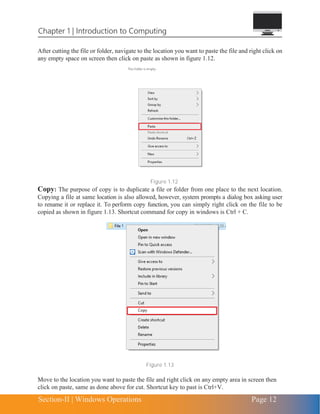
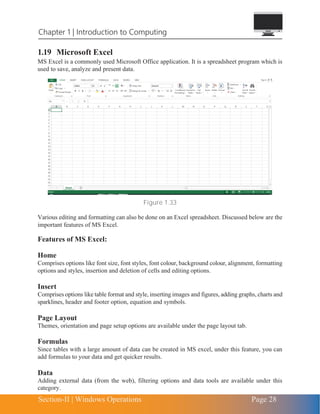
  • 236.
    Page 229 1- Coverthe essentials of visual design, theory and practical examples described throughout the book. 2- Encourage students by conveying that a great way of starting graphics design studies is to review the history of graphicsdesign. 3- Give an overview of the most influential ideas within the world of design from the 19th and early 20th centuries, highlighting key ideas and providing valuable insights 4- Go beyond theory and focuses on designers that shaped history, sharing their stories and important works. The book covers the development of design, mid-century design, corporate branding, typography, magazine design and iconic posters. 5- Create challenging design exercises in the classroom. Ask students to create a logo for their favorite game / business / brand / organization. Have them make up his own cartoon character, first outlining and drawing it and then filling it in withcolor. 6- For starters, have students to draw their name as supposed to write it. Teach them how to draw each letter separately and how to create effects like shadow. Ask them to integrate a picture with his name that he feels best describes himself. 7- Build interest in students, make them engage in more practical work. Photoshop is an extremely useful program for designing t-shirts, especially if your t-shirt will include text. Using Photoshop, you can create various elements that will be part of your overall design in layers and make separate changes to them as you go, shifting the elements around, resizing and making changes using various colors, fonts and filters. 8- Corel Painter is a program that offers many options including a cloning tool and various filters ranging from an automatic VanGogh filter to a water color filter. You can also purchase additional filters and paint textures for this program. Corel also has a graphics program, CorelDraw, that can be used to create your t-shirt designs. Instructions for Teacher
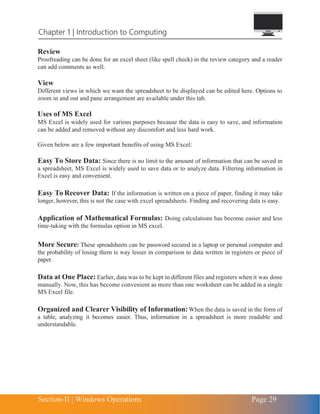
  • 237.
    Page 230 9- Encouragestudents to view the work done by professionals by using different software tools like CorelDraw, Adobe Illustrator, Adobe InDesign, Adobe XD etc. Guide them how they can search the internet for the state of the art work. By watching professional work students will get great inspiration. 10- Motivate students by guiding them about the careers available for a Graphic Designers in the modern world. Tell them about the jobs available as well as opportunities as an entrepreneurship. 11- Improve Communication skills in students by taking presentations, group discussions and writing business proposals. 12- Motivate students to involve in internships provided by various organization. This will be a chance to work with professionals and to learn latest market trends about products. Author
  • 238.
    Page 231 Dr. FaisalRiaz FAISAL RIAZ received his Ph.D. from Iqra University, Pakistan in 2018 in the field of Cyber Physical Systems (CPS) and is currently serving as an Associate Professor in the Department of computer sciences in Mirpur University of Science and Technology. Moreover, he is working as the director in the office of research, innovation and commercialization (ORIC), MUST. He has more than 34 research publications in various national / international research journals and conferences. He is the author of three books as well. Furthermore, he is heading Control, Automotive and Robotics Lab, National Centre of Robotics, MUST AJ&K Pakistan. Under the banner of CAR-lab, he has innovated the world’s first-ever cognitive and emotional Autonomous Vehicle. He got the hall of fame award in 2018 in the recognition of his smart innovations. He is the reviewer of many well-reputed journals. He has served as a technical program committee member in many international IEEE conferences. His reviewing profile can be viewed over https://publons.com/author/742771.
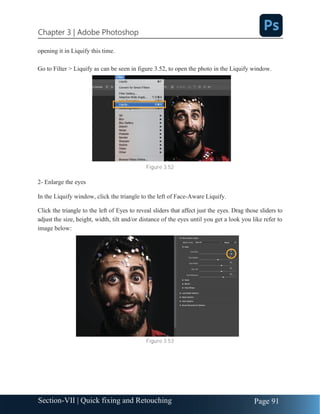
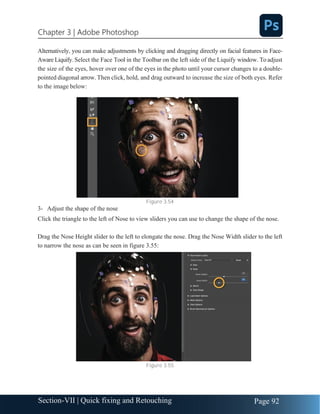
  • 239.
    National Vocational &Technical Training Commission (NAVTTC) Plot No.38, Sector H-9/4, Kirthar Road, Islamabad. Tel: +92-51-9207518 Website: www.navttc.gov.pk