Certified GRAPHIC DESIGNER
MULTIMEDIA
Graphic design can be used into 3 sectors.
1. Print media
2. Audio Media
3. Electronic Video Media
Designing in print media means designing any material which can be printed, like brochures
etc. Soft wares which can be used for this purpose are Photoshop, illustrator, Quark Express,
Corel draw etc.
Designing in Audio media like Sound editing etc .Soft wares which can be used for this
purpose are Sound forge etc.
Designing in Electronic media means designing for media production like movie editing,
special effects, animation etc. Soft wares which can be used for this purpose are Premiere,
After effects and 3D Max.
Software Covered
Photoshop
Illustrator
Corel Draw /or/ InDesign
Note: any software can be replaced with Quark Xpress or In design etc.
Other Optional Soft ware’s are:
Adobe In Design
PageMaker
Adobe Fireworks
Adobe Freehand
Swish
Swish Max
--------------------------------------------------------------------------------------------------------------------
Course Instructors
The instructors are Senior Designers with more than 5 years of experience in providing
professional training in various Computer Aided Design like Photoshop, Illustrator, Corel Draw,
Flash & Multimedia Subjects. Zabeel uses licensed software for conducting their training. Live
data is used in the practical sessions to give hands on experience to the participants.
Certification
Certificates will be issued at the end of the course attested by the Ministry of Education , UAE
--------------------------------------------------------------------------------------------------------------------
Courses Offered by Zabeel International:
Course 1: Graphic Designing
with Photoshop, Illustrator, Corel Draw, Quark Xpress.
Other Optional Soft ware’s are:
Adobe In Design
PageMaker
Adobe Fireworks
Adobe Freehand
Swish
Swish Max
Course 2: Web Designing
with Html ,CSS ,Dreamweaver ,Flash.
Other Optional Soft ware’s are:
PHP
C#
VB.Net
Java
Course 3: Print Media
with In design , QuarkXPress, PageMaker
Course 4:Video Editing
with Premier Pro ,After Effect, FCP ( Final Cut Pro)
Further details , please contact the Reception / Course Consultants
---------------------------------------------------------------------------------------------
Zabeel Institute – at a glance
Zabeel Institute, established in 1988, is a leading Educational and Training Institute for
executives in Dubai and is approved by the Ministry of Education, UAE. We offer training
programs to professionals from various industries like Engineering, Construction, Projects,
Accounts & Finance, and Management, Languages etc.
The Zabeel Advantage
• 22 Years Experience in training Professional Executives
• Achiever of many QUALITY AWARDS for training from 1988 till date
• Qualified & Certified Trainers
• Sophisticated Lab with High end machines
• Certificates attested by the Ministry of Education, UAE
• Vast resource materials for reference and course materials
• Free online support for further assistance
• Free follow up orientation seminars & workshops & placement assistance
-------------------------------------------------------------------------------------------
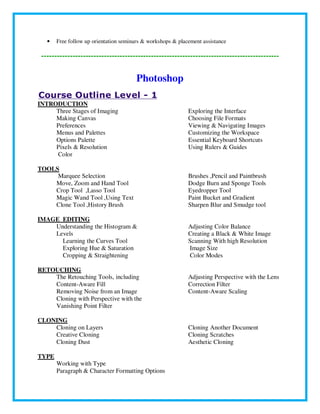
Photoshop
Course Outline Level - 1
INTRODUCTION
Three Stages of Imaging
Making Canvas
Preferences
Menus and Palettes
Options Palette
Pixels & Resolution
Color
Exploring the Interface
Choosing File Formats
Viewing & Navigating Images
Customizing the Workspace
Essential Keyboard Shortcuts
Using Rulers & Guides
TOOLS
Marquee Selection
Move, Zoom and Hand Tool
Crop Tool ,Lasso Tool
Magic Wand Tool ,Using Text
Clone Tool ,History Brush
Brushes ,Pencil and Paintbrush
Dodge Burn and Sponge Tools
Eyedropper Tool
Paint Bucket and Gradient
Sharpen Blur and Smudge tool
IMAGE EDITING
Understanding the Histogram &
Levels
Learning the Curves Tool
Exploring Hue & Saturation
Cropping & Straightening
Adjusting Color Balance
Creating a Black & White Image
Scanning With high Resolution
Image Size
Color Modes
RETOUCHING
The Retouching Tools, including
Content-Aware Fill
Removing Noise from an Image
Cloning with Perspective with the
Vanishing Point Filter
Adjusting Perspective with the Lens
Correction Filter
Content-Aware Scaling
CLONING
Cloning on Layers
Creative Cloning
Cloning Dust
Cloning Another Document
Cloning Scratches
Aesthetic Cloning
TYPE
Working with Type
Paragraph & Character Formatting Options
Typing on a Path
Applying Layer Styles to Type
PRINT & WEB OUTPUT
Sharpening Images with Smart Sharpen
Setting Up the Print Dialog Box
Saving for the Web
PROJECTS
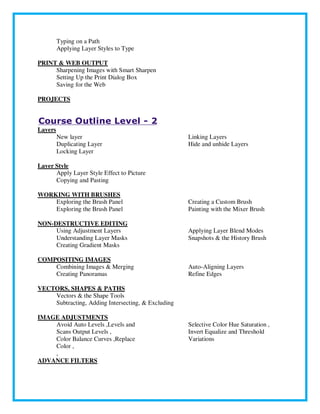
Course Outline Level - 2
Layers
New layer
Duplicating Layer
Locking Layer
Linking Layers
Hide and unhide Layers
Layer Style
Apply Layer Style Effect to Picture
Copying and Pasting
WORKING WITH BRUSHES
Exploring the Brush Panel
Creating a Custom Brush
Painting with the Mixer Brush
NON-DESTRUCTIVE EDITING
Using Adjustment Layers
Understanding Layer Masks
Creating Gradient Masks
Applying Layer Blend Modes
Snapshots & the History Brush
COMPOSITING IMAGES
Combining Images & Merging
Creating Panoramas
Auto-Aligning Layers
Refine Edges
VECTORS, SHAPES & PATHS
Vectors & the Shape Tools
Subtracting, Adding Intersecting, & Excluding
IMAGE ADJUSTMENTS
Avoid Auto Levels ,Levels and
Scans Output Levels ,
Color Balance Curves ,Replace
Color ,
Selective Color Hue Saturation ,
Invert Equalize and Threshold
Variations
,
ADVANCE FILTERS
PRINT & WEB OUTPUT
Sharpening Images with Smart
Sharpen
Setting Up the Print Dialog Box
Saving for the Web
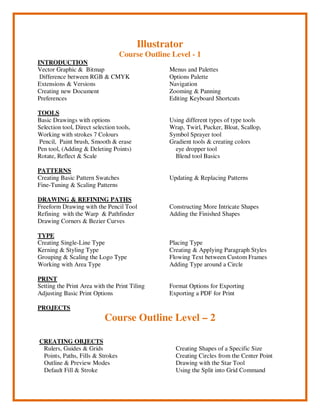
Illustrator
Course Outline Level - 1
INTRODUCTION
Vector Graphic & Bitmap
Difference between RGB & CMYK
Extensions & Versions
Creating new Document
Preferences
Menus and Palettes
Options Palette
Navigation
Zooming & Panning
Editing Keyboard Shortcuts
TOOLS
Basic Drawings with options
Selection tool, Direct selection tools,
Working with strokes 7 Colours
Pencil, Paint brush, Smooth & erase
Pen tool, (Adding & Deleting Points)
Rotate, Reflect & Scale
Using different types of type tools
Wrap, Twirl, Pucker, Bloat, Scallop,
Symbol Sprayer tool
Gradient tools & creating colors
eye dropper tool
Blend tool Basics
PATTERNS
Creating Basic Pattern Swatches
Fine-Tuning & Scaling Patterns
Updating & Replacing Patterns
DRAWING & REFINING PATHS
Freeform Drawing with the Pencil Tool
Refining with the Warp & Pathfinder
Drawing Corners & Bezier Curves
Constructing More Intricate Shapes
Adding the Finished Shapes
TYPE
Creating Single-Line Type
Kerning & Styling Type
Grouping & Scaling the Logo Type
Working with Area Type
Placing Type
Creating & Applying Paragraph Styles
Flowing Text between Custom Frames
Adding Type around a Circle
PRINT
Setting the Print Area with the Print Tiling
Adjusting Basic Print Options
Format Options for Exporting
Exporting a PDF for Print
PROJECTS
Course Outline Level – 2
CREATING OBJECTS
Rulers, Guides & Grids
Points, Paths, Fills & Strokes
Outline & Preview Modes
Default Fill & Stroke
Creating Shapes of a Specific Size
Creating Circles from the Center Point
Drawing with the Star Tool
Using the Split into Grid Command
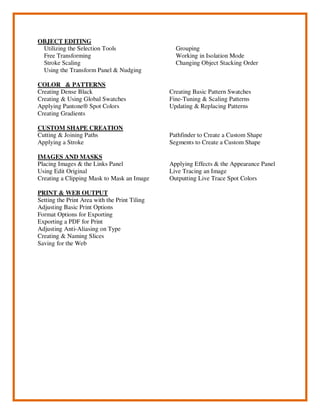
OBJECT EDITING
Utilizing the Selection Tools
Free Transforming
Stroke Scaling
Using the Transform Panel & Nudging
Grouping
Working in Isolation Mode
Changing Object Stacking Order
COLOR & PATTERNS
Creating Dense Black
Creating & Using Global Swatches
Applying Pantone® Spot Colors
Creating Gradients
Creating Basic Pattern Swatches
Fine-Tuning & Scaling Patterns
Updating & Replacing Patterns
CUSTOM SHAPE CREATION
Cutting & Joining Paths
Applying a Stroke
Pathfinder to Create a Custom Shape
Segments to Create a Custom Shape
IMAGES AND MASKS
Placing Images & the Links Panel
Using Edit Original
Creating a Clipping Mask to Mask an Image
Applying Effects & the Appearance Panel
Live Tracing an Image
Outputting Live Trace Spot Colors
PRINT & WEB OUTPUT
Setting the Print Area with the Print Tiling
Adjusting Basic Print Options
Format Options for Exporting
Exporting a PDF for Print
Adjusting Anti-Aliasing on Type
Creating & Naming Slices
Saving for the Web
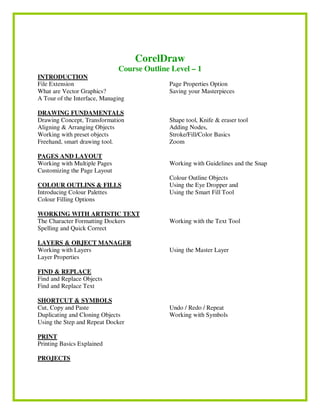
CorelDraw
Course Outline Level – 1
INTRODUCTION
File Extension
What are Vector Graphics?
A Tour of the Interface, Managing
Page Properties Option
Saving your Masterpieces
DRAWING FUNDAMENTALS
Drawing Concept, Transformation
Aligning & Arranging Objects
Working with preset objects
Freehand, smart drawing tool.
Shape tool, Knife & eraser tool
Adding Nodes,
Stroke/Fill/Color Basics
Zoom
PAGES AND LAYOUT
Working with Multiple Pages
Customizing the Page Layout
Working with Guidelines and the Snap
COLOUR OUTLINS & FILLS
Introducing Colour Palettes
Colour Filling Options
Colour Outline Objects
Using the Eye Dropper and
Using the Smart Fill Tool
WORKING WITH ARTISTIC TEXT
The Character Formatting Dockers
Spelling and Quick Correct
Working with the Text Tool
LAYERS & OBJECT MANAGER
Working with Layers
Layer Properties
Using the Master Layer
FIND & REPLACE
Find and Replace Objects
Find and Replace Text
SHORTCUT & SYMBOLS
Cut, Copy and Paste
Duplicating and Cloning Objects
Using the Step and Repeat Docker
Undo / Redo / Repeat
Working with Symbols
PRINT
Printing Basics Explained
PROJECTS
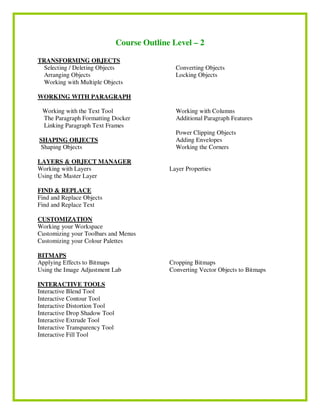
Course Outline Level – 2
TRANSFORMING OBJECTS
Selecting / Deleting Objects
Arranging Objects
Working with Multiple Objects
Converting Objects
Locking Objects
WORKING WITH PARAGRAPH
Working with the Text Tool
The Paragraph Formatting Docker
Linking Paragraph Text Frames
Working with Columns
Additional Paragraph Features
SHAPING OBJECTS
Shaping Objects
Power Clipping Objects
Adding Envelopes
Working the Corners
LAYERS & OBJECT MANAGER
Working with Layers
Using the Master Layer
Layer Properties
FIND & REPLACE
Find and Replace Objects
Find and Replace Text
CUSTOMIZATION
Working your Workspace
Customizing your Toolbars and Menus
Customizing your Colour Palettes
BITMAPS
Applying Effects to Bitmaps
Using the Image Adjustment Lab
Cropping Bitmaps
Converting Vector Objects to Bitmaps
INTERACTIVE TOOLS
Interactive Blend Tool
Interactive Contour Tool
Interactive Distortion Tool
Interactive Drop Shadow Tool
Interactive Extrude Tool
Interactive Transparency Tool
Interactive Fill Tool
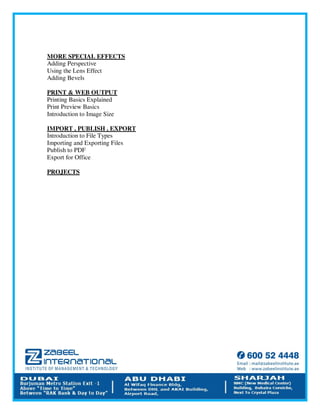
Graphic Designing 11
MORE SPECIAL EFFECTS
Adding Perspective
Using the Lens Effect
Adding Bevels
PRINT & WEB OUTPUT
Printing Basics Explained
Print Preview Basics
Introduction to Image Size
IMPORT , PUBLISH , EXPORT
Introduction to File Types
Importing and Exporting Files
Publish to PDF
Export for Office
PROJECTS

Graphic design brochure

  • 1.
  • 2.
    Graphic design canbe used into 3 sectors. 1. Print media 2. Audio Media 3. Electronic Video Media Designing in print media means designing any material which can be printed, like brochures etc. Soft wares which can be used for this purpose are Photoshop, illustrator, Quark Express, Corel draw etc. Designing in Audio media like Sound editing etc .Soft wares which can be used for this purpose are Sound forge etc. Designing in Electronic media means designing for media production like movie editing, special effects, animation etc. Soft wares which can be used for this purpose are Premiere, After effects and 3D Max. Software Covered Photoshop Illustrator Corel Draw /or/ InDesign Note: any software can be replaced with Quark Xpress or In design etc. Other Optional Soft ware’s are: Adobe In Design PageMaker Adobe Fireworks Adobe Freehand Swish Swish Max -------------------------------------------------------------------------------------------------------------------- Course Instructors The instructors are Senior Designers with more than 5 years of experience in providing professional training in various Computer Aided Design like Photoshop, Illustrator, Corel Draw, Flash & Multimedia Subjects. Zabeel uses licensed software for conducting their training. Live data is used in the practical sessions to give hands on experience to the participants.
  • 3.
    Certification Certificates will beissued at the end of the course attested by the Ministry of Education , UAE -------------------------------------------------------------------------------------------------------------------- Courses Offered by Zabeel International: Course 1: Graphic Designing with Photoshop, Illustrator, Corel Draw, Quark Xpress. Other Optional Soft ware’s are: Adobe In Design PageMaker Adobe Fireworks Adobe Freehand Swish Swish Max Course 2: Web Designing with Html ,CSS ,Dreamweaver ,Flash. Other Optional Soft ware’s are: PHP C# VB.Net Java Course 3: Print Media with In design , QuarkXPress, PageMaker Course 4:Video Editing with Premier Pro ,After Effect, FCP ( Final Cut Pro) Further details , please contact the Reception / Course Consultants --------------------------------------------------------------------------------------------- Zabeel Institute – at a glance Zabeel Institute, established in 1988, is a leading Educational and Training Institute for executives in Dubai and is approved by the Ministry of Education, UAE. We offer training programs to professionals from various industries like Engineering, Construction, Projects, Accounts & Finance, and Management, Languages etc. The Zabeel Advantage • 22 Years Experience in training Professional Executives • Achiever of many QUALITY AWARDS for training from 1988 till date • Qualified & Certified Trainers • Sophisticated Lab with High end machines • Certificates attested by the Ministry of Education, UAE • Vast resource materials for reference and course materials • Free online support for further assistance
  • 4.
    • Free followup orientation seminars & workshops & placement assistance ------------------------------------------------------------------------------------------- Photoshop Course Outline Level - 1 INTRODUCTION Three Stages of Imaging Making Canvas Preferences Menus and Palettes Options Palette Pixels & Resolution Color Exploring the Interface Choosing File Formats Viewing & Navigating Images Customizing the Workspace Essential Keyboard Shortcuts Using Rulers & Guides TOOLS Marquee Selection Move, Zoom and Hand Tool Crop Tool ,Lasso Tool Magic Wand Tool ,Using Text Clone Tool ,History Brush Brushes ,Pencil and Paintbrush Dodge Burn and Sponge Tools Eyedropper Tool Paint Bucket and Gradient Sharpen Blur and Smudge tool IMAGE EDITING Understanding the Histogram & Levels Learning the Curves Tool Exploring Hue & Saturation Cropping & Straightening Adjusting Color Balance Creating a Black & White Image Scanning With high Resolution Image Size Color Modes RETOUCHING The Retouching Tools, including Content-Aware Fill Removing Noise from an Image Cloning with Perspective with the Vanishing Point Filter Adjusting Perspective with the Lens Correction Filter Content-Aware Scaling CLONING Cloning on Layers Creative Cloning Cloning Dust Cloning Another Document Cloning Scratches Aesthetic Cloning TYPE Working with Type Paragraph & Character Formatting Options
  • 5.
    Typing on aPath Applying Layer Styles to Type PRINT & WEB OUTPUT Sharpening Images with Smart Sharpen Setting Up the Print Dialog Box Saving for the Web PROJECTS Course Outline Level - 2 Layers New layer Duplicating Layer Locking Layer Linking Layers Hide and unhide Layers Layer Style Apply Layer Style Effect to Picture Copying and Pasting WORKING WITH BRUSHES Exploring the Brush Panel Exploring the Brush Panel Creating a Custom Brush Painting with the Mixer Brush NON-DESTRUCTIVE EDITING Using Adjustment Layers Understanding Layer Masks Creating Gradient Masks Applying Layer Blend Modes Snapshots & the History Brush COMPOSITING IMAGES Combining Images & Merging Creating Panoramas Auto-Aligning Layers Refine Edges VECTORS, SHAPES & PATHS Vectors & the Shape Tools Subtracting, Adding Intersecting, & Excluding IMAGE ADJUSTMENTS Avoid Auto Levels ,Levels and Scans Output Levels , Color Balance Curves ,Replace Color , Selective Color Hue Saturation , Invert Equalize and Threshold Variations , ADVANCE FILTERS
  • 6.
    PRINT & WEBOUTPUT Sharpening Images with Smart Sharpen Setting Up the Print Dialog Box Saving for the Web
  • 7.
    Illustrator Course Outline Level- 1 INTRODUCTION Vector Graphic & Bitmap Difference between RGB & CMYK Extensions & Versions Creating new Document Preferences Menus and Palettes Options Palette Navigation Zooming & Panning Editing Keyboard Shortcuts TOOLS Basic Drawings with options Selection tool, Direct selection tools, Working with strokes 7 Colours Pencil, Paint brush, Smooth & erase Pen tool, (Adding & Deleting Points) Rotate, Reflect & Scale Using different types of type tools Wrap, Twirl, Pucker, Bloat, Scallop, Symbol Sprayer tool Gradient tools & creating colors eye dropper tool Blend tool Basics PATTERNS Creating Basic Pattern Swatches Fine-Tuning & Scaling Patterns Updating & Replacing Patterns DRAWING & REFINING PATHS Freeform Drawing with the Pencil Tool Refining with the Warp & Pathfinder Drawing Corners & Bezier Curves Constructing More Intricate Shapes Adding the Finished Shapes TYPE Creating Single-Line Type Kerning & Styling Type Grouping & Scaling the Logo Type Working with Area Type Placing Type Creating & Applying Paragraph Styles Flowing Text between Custom Frames Adding Type around a Circle PRINT Setting the Print Area with the Print Tiling Adjusting Basic Print Options Format Options for Exporting Exporting a PDF for Print PROJECTS Course Outline Level – 2 CREATING OBJECTS Rulers, Guides & Grids Points, Paths, Fills & Strokes Outline & Preview Modes Default Fill & Stroke Creating Shapes of a Specific Size Creating Circles from the Center Point Drawing with the Star Tool Using the Split into Grid Command
  • 8.
    OBJECT EDITING Utilizing theSelection Tools Free Transforming Stroke Scaling Using the Transform Panel & Nudging Grouping Working in Isolation Mode Changing Object Stacking Order COLOR & PATTERNS Creating Dense Black Creating & Using Global Swatches Applying Pantone® Spot Colors Creating Gradients Creating Basic Pattern Swatches Fine-Tuning & Scaling Patterns Updating & Replacing Patterns CUSTOM SHAPE CREATION Cutting & Joining Paths Applying a Stroke Pathfinder to Create a Custom Shape Segments to Create a Custom Shape IMAGES AND MASKS Placing Images & the Links Panel Using Edit Original Creating a Clipping Mask to Mask an Image Applying Effects & the Appearance Panel Live Tracing an Image Outputting Live Trace Spot Colors PRINT & WEB OUTPUT Setting the Print Area with the Print Tiling Adjusting Basic Print Options Format Options for Exporting Exporting a PDF for Print Adjusting Anti-Aliasing on Type Creating & Naming Slices Saving for the Web
  • 9.
    CorelDraw Course Outline Level– 1 INTRODUCTION File Extension What are Vector Graphics? A Tour of the Interface, Managing Page Properties Option Saving your Masterpieces DRAWING FUNDAMENTALS Drawing Concept, Transformation Aligning & Arranging Objects Working with preset objects Freehand, smart drawing tool. Shape tool, Knife & eraser tool Adding Nodes, Stroke/Fill/Color Basics Zoom PAGES AND LAYOUT Working with Multiple Pages Customizing the Page Layout Working with Guidelines and the Snap COLOUR OUTLINS & FILLS Introducing Colour Palettes Colour Filling Options Colour Outline Objects Using the Eye Dropper and Using the Smart Fill Tool WORKING WITH ARTISTIC TEXT The Character Formatting Dockers Spelling and Quick Correct Working with the Text Tool LAYERS & OBJECT MANAGER Working with Layers Layer Properties Using the Master Layer FIND & REPLACE Find and Replace Objects Find and Replace Text SHORTCUT & SYMBOLS Cut, Copy and Paste Duplicating and Cloning Objects Using the Step and Repeat Docker Undo / Redo / Repeat Working with Symbols PRINT Printing Basics Explained PROJECTS
  • 10.
    Course Outline Level– 2 TRANSFORMING OBJECTS Selecting / Deleting Objects Arranging Objects Working with Multiple Objects Converting Objects Locking Objects WORKING WITH PARAGRAPH Working with the Text Tool The Paragraph Formatting Docker Linking Paragraph Text Frames Working with Columns Additional Paragraph Features SHAPING OBJECTS Shaping Objects Power Clipping Objects Adding Envelopes Working the Corners LAYERS & OBJECT MANAGER Working with Layers Using the Master Layer Layer Properties FIND & REPLACE Find and Replace Objects Find and Replace Text CUSTOMIZATION Working your Workspace Customizing your Toolbars and Menus Customizing your Colour Palettes BITMAPS Applying Effects to Bitmaps Using the Image Adjustment Lab Cropping Bitmaps Converting Vector Objects to Bitmaps INTERACTIVE TOOLS Interactive Blend Tool Interactive Contour Tool Interactive Distortion Tool Interactive Drop Shadow Tool Interactive Extrude Tool Interactive Transparency Tool Interactive Fill Tool
  • 11.
    Graphic Designing 11 MORESPECIAL EFFECTS Adding Perspective Using the Lens Effect Adding Bevels PRINT & WEB OUTPUT Printing Basics Explained Print Preview Basics Introduction to Image Size IMPORT , PUBLISH , EXPORT Introduction to File Types Importing and Exporting Files Publish to PDF Export for Office PROJECTS