Google ChromeBook Keys
Functions and Meaning
Chromebooks are unique in many ways, they are
very inexpensive, for the most part very durable,
well at least durable enough for most of the
school districts across the country to switch from
Macbooks to Chromebooks.
The chromebook unlike laptops it is meant to be
disposable and not repaired or repairable so
many of the parts on it are either soldered into
the motherboard, the screen is glued into the
screen bezels, and the keyboard is also glued
together with the palmrest making repair
impossible or expensive.
Another unique feature of the chromebook is its
extra row of keys on top, regular laptops have a
set of "function" keys where you can toggle
between the designated key and then the other,
but Chromebook have what we call dedicated
chromebook keyboard key functions.
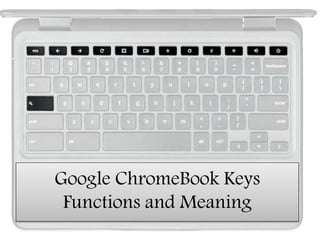
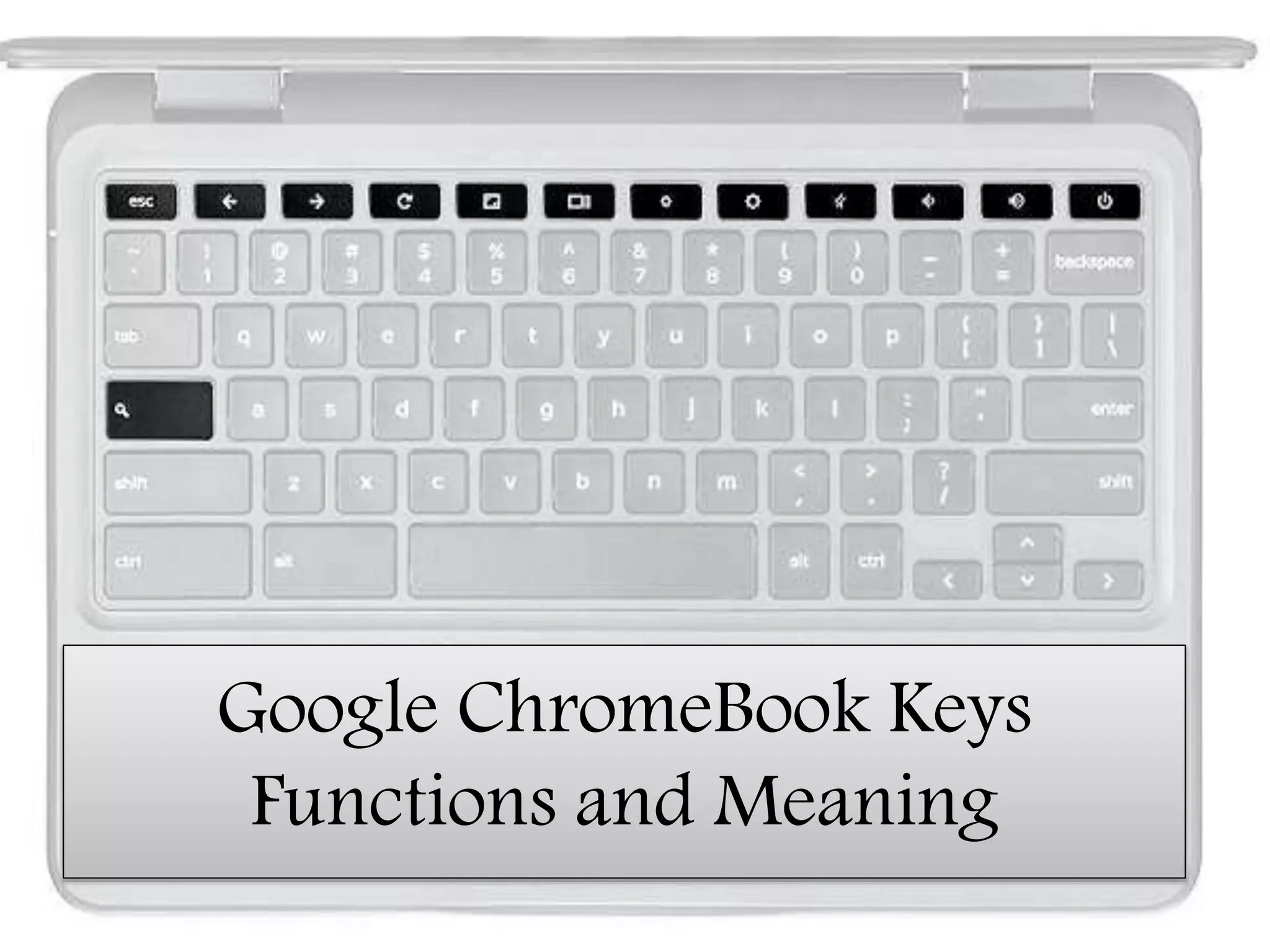
The set of the 10 keys on top are dedicated in
making it simple for kids at school to browse the
web from going to previous page, and even
opening the browser in full screen mode.
Lets dive a little deeper in the function of these
keys, it will also make it easier when you are
ready to order a Chromebook keyboard key that
you know which keys to select, we have provided
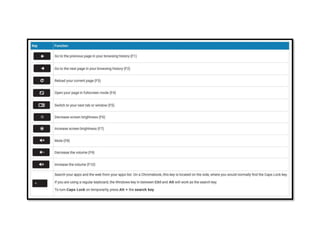
a chart below, and a picture of the actual
keyboard key and its intended function.
The symbols on these keys are standard on all
chromebook keyboards from Acer, Asus, Dell, HP,
Google, Lenovo, samsung, and Toshiba, not only
do they share the same top row of keys, a pro tip
is they often share the same keyboard!
• Left Arrow or Function 1 : Go back to the
previous page on the web browser.
• Right Arrow or Function 2 : Go forward to the
next page in the web browser history.
• Refresh or Function 3 : Reload or Refresh the
current web page.
• Full Screen or Function 4 : Take the current page
to full screen mode.
• Tabs or Function 5 : Switches to different tab or
window.
• Dim Screen or Function 6 : Decrease the screen
brightness.
• Light Screen or Function 7 : Increase the screen
brightness.
• Mute or Function 8 : Mute the sound.
• Volume Down or Function 9 : Decrease the
Volume.
• Volume Up or Function 10 : Increase the Volume.

Google ChromeBook Keys - Functions and Meaning

  • 1.
  • 2.
    Chromebooks are uniquein many ways, they are very inexpensive, for the most part very durable, well at least durable enough for most of the school districts across the country to switch from Macbooks to Chromebooks.
  • 3.
    The chromebook unlikelaptops it is meant to be disposable and not repaired or repairable so many of the parts on it are either soldered into the motherboard, the screen is glued into the screen bezels, and the keyboard is also glued together with the palmrest making repair impossible or expensive.
  • 4.
    Another unique featureof the chromebook is its extra row of keys on top, regular laptops have a set of "function" keys where you can toggle between the designated key and then the other, but Chromebook have what we call dedicated chromebook keyboard key functions.
  • 5.
    The set ofthe 10 keys on top are dedicated in making it simple for kids at school to browse the web from going to previous page, and even opening the browser in full screen mode.
  • 6.
    Lets dive alittle deeper in the function of these keys, it will also make it easier when you are ready to order a Chromebook keyboard key that you know which keys to select, we have provided a chart below, and a picture of the actual keyboard key and its intended function.
  • 7.
    The symbols onthese keys are standard on all chromebook keyboards from Acer, Asus, Dell, HP, Google, Lenovo, samsung, and Toshiba, not only do they share the same top row of keys, a pro tip is they often share the same keyboard!
  • 9.
    • Left Arrowor Function 1 : Go back to the previous page on the web browser. • Right Arrow or Function 2 : Go forward to the next page in the web browser history. • Refresh or Function 3 : Reload or Refresh the current web page. • Full Screen or Function 4 : Take the current page to full screen mode. • Tabs or Function 5 : Switches to different tab or window.
  • 10.
    • Dim Screenor Function 6 : Decrease the screen brightness. • Light Screen or Function 7 : Increase the screen brightness. • Mute or Function 8 : Mute the sound. • Volume Down or Function 9 : Decrease the Volume. • Volume Up or Function 10 : Increase the Volume.