Go Material
An Introduction to the new
Google design language
Who I am
Abdallah Zidan
CEO of Codly
5+ years Loving Android
What is Material Design
• A design language from Google that combines
elements of print design, motion design, digital
paper, and light and shadow.
• Same experience across different platforms.
• Set of guidelines.
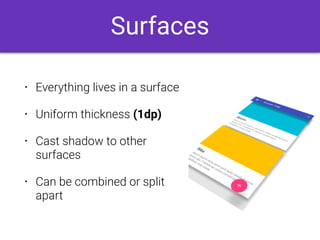
Surfaces
• Everything lives in a surface
• Uniform thickness (1dp)
• Cast shadow to other
surfaces
• Can be combined or split
apart
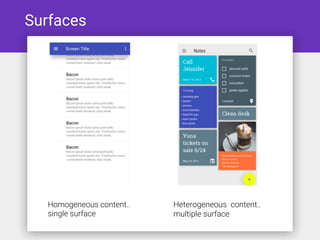
Surfaces
Homogeneous content..
single surface
Heterogeneous content..
multiple surface
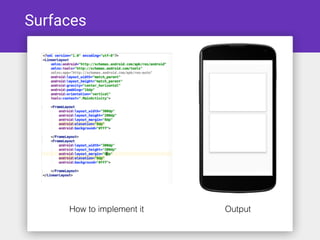
Surfaces
How to implement it Output
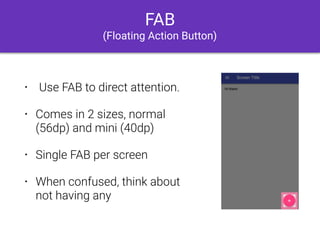
FAB
(Floating Action Button)
• Use FAB to direct attention.
• Comes in 2 sizes, normal
(56dp) and mini (40dp)
• Single FAB per screen
• When confused, think about
not having any
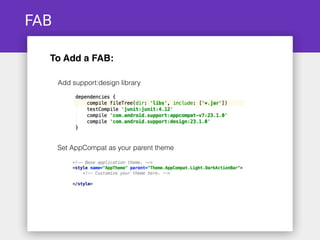
FAB
To Add a FAB:
Add support:design library
Set AppCompat as your parent theme
FAB
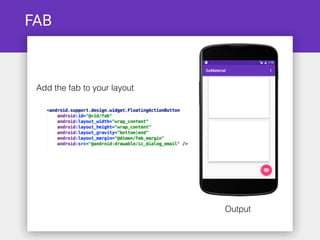
Add the fab to your layout
Output
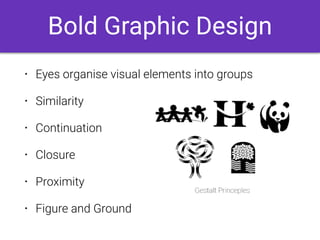
• Eyes organise visual elements into groups
• Similarity
• Continuation
• Closure
• Proximity
• Figure and Ground
Bold Graphic Design
Grids & Keylines
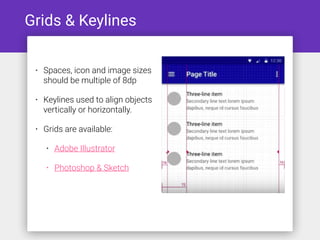
• Spaces, icon and image sizes
should be multiple of 8dp
• Keylines used to align objects
vertically or horizontally.
• Grids are available:
• Adobe Illustrator
• Photoshop & Sketch
Grids & Keylines
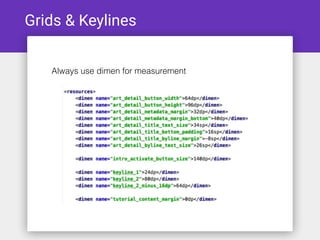
Always use dimen for measurement
Colors & Palettes
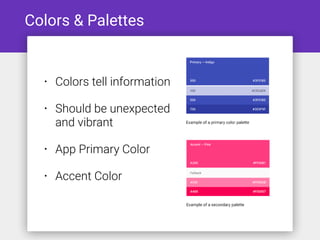
• Colors tell information
• Should be unexpected
and vibrant
• App Primary Color
• Accent Color
Colors & Palettes
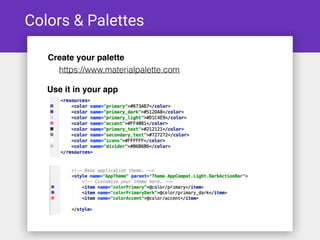
Create your palette
https://www.materialpalette.com
Use it in your app
Typography
• Roboto is designed to fit across a variety of
screens
• Comes in all families and types. Therefore
• you use it for headlines, body, smaller
caption or whatever text in your app.
• Always use sp for font sizes
Imagery
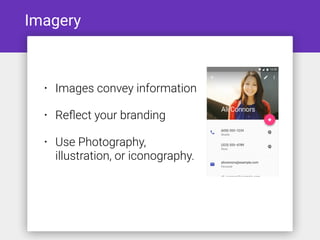
• Images convey information
• Reflect your branding
• Use Photography,
illustration, or iconography.
Meaningful Motion
• Continous experience
• Guide user to next action
• Should not distracting the user
• Meaningful order
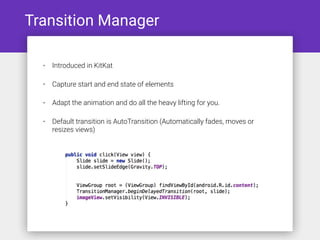
Transition Manager
• Introduced in KitKat
• Capture start and end state of elements
• Adapt the animation and do all the heavy lifting for you.
• Default transition is AutoTransition (Automatically fades, moves or
resizes views)
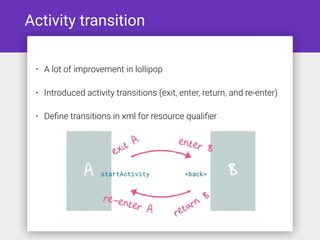
Activity transition
• A lot of improvement in lollipop
• Introduced activity transitions (exit, enter, return, and re-enter)
• Define transitions in xml for resource qualifier
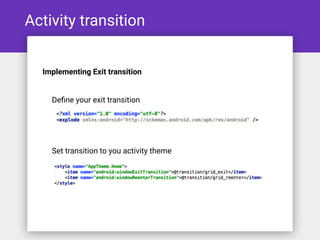
Activity transition
Define your exit transition
Implementing Exit transition
Set transition to you activity theme
Activity transition
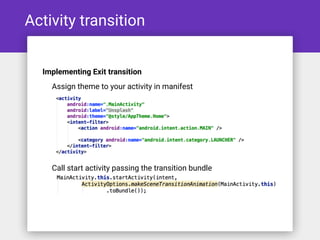
Assign theme to your activity in manifest
Implementing Exit transition
Call start activity passing the transition bundle
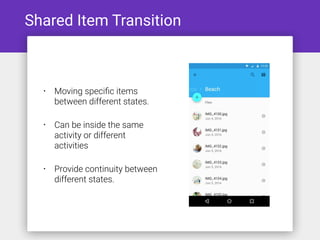
Shared Item Transition
• Moving specific items
between different states.
• Can be inside the same
activity or different
activities
• Provide continuity between
different states.
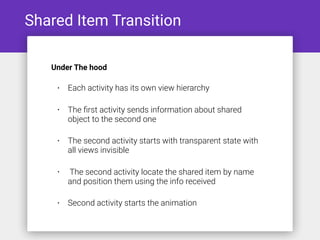
Shared Item Transition
• Each activity has its own view hierarchy
• The first activity sends information about shared
object to the second one
• The second activity starts with transparent state with
all views invisible
• The second activity locate the shared item by name
and position them using the info received
• Second activity starts the animation
Under The hood
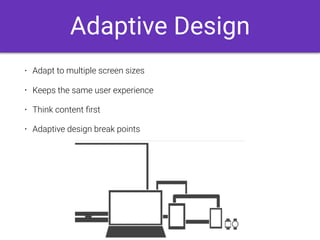
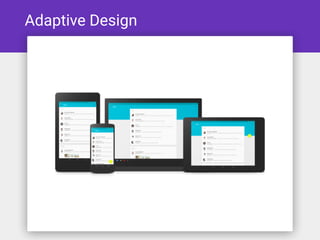
Adaptive Design
• Adapt to multiple screen sizes
• Keeps the same user experience
• Think content first
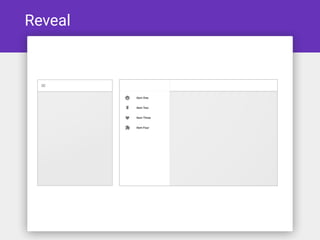
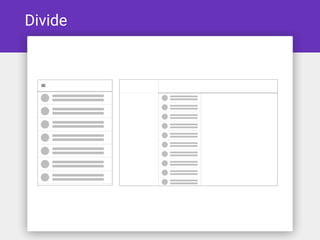
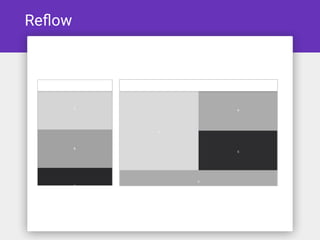
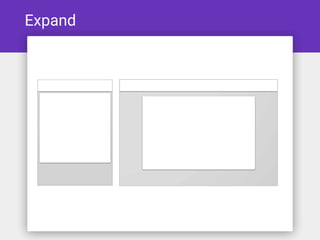
• Adaptive design break points
Reveal
Divide
Reflow
Expand
Adaptive Design
Resources
Google Material Design Specs
Material for Android Development
Udacity Material Design Tutorial
Material Palette
Layer Visualizer
Questions?
Thank you
E-mail: abdallah.zidan@gmail.com
Facebook: fb.com/3bdallah.Zidan
Twitter: @3bdallahZidan
LinkedIn: linkedin.com/in/3bdallahZidan

Go Material

  • 1.
    Go Material An Introductionto the new Google design language
  • 2.
    Who I am AbdallahZidan CEO of Codly 5+ years Loving Android
  • 3.
    What is MaterialDesign • A design language from Google that combines elements of print design, motion design, digital paper, and light and shadow. • Same experience across different platforms. • Set of guidelines.
  • 4.
    Surfaces • Everything livesin a surface • Uniform thickness (1dp) • Cast shadow to other surfaces • Can be combined or split apart
  • 5.
  • 6.
  • 7.
    FAB (Floating Action Button) •Use FAB to direct attention. • Comes in 2 sizes, normal (56dp) and mini (40dp) • Single FAB per screen • When confused, think about not having any
  • 8.
    FAB To Add aFAB: Add support:design library Set AppCompat as your parent theme
  • 9.
    FAB Add the fabto your layout Output
  • 10.
    • Eyes organisevisual elements into groups • Similarity • Continuation • Closure • Proximity • Figure and Ground Bold Graphic Design
  • 11.
    Grids & Keylines •Spaces, icon and image sizes should be multiple of 8dp • Keylines used to align objects vertically or horizontally. • Grids are available: • Adobe Illustrator • Photoshop & Sketch
  • 12.
    Grids & Keylines Alwaysuse dimen for measurement
  • 13.
    Colors & Palettes •Colors tell information • Should be unexpected and vibrant • App Primary Color • Accent Color
  • 14.
    Colors & Palettes Createyour palette https://www.materialpalette.com Use it in your app
  • 15.
    Typography • Roboto isdesigned to fit across a variety of screens • Comes in all families and types. Therefore • you use it for headlines, body, smaller caption or whatever text in your app. • Always use sp for font sizes
  • 16.
    Imagery • Images conveyinformation • Reflect your branding • Use Photography, illustration, or iconography.
  • 17.
    Meaningful Motion • Continousexperience • Guide user to next action • Should not distracting the user • Meaningful order
  • 18.
    Transition Manager • Introducedin KitKat • Capture start and end state of elements • Adapt the animation and do all the heavy lifting for you. • Default transition is AutoTransition (Automatically fades, moves or resizes views)
  • 19.
    Activity transition • Alot of improvement in lollipop • Introduced activity transitions (exit, enter, return, and re-enter) • Define transitions in xml for resource qualifier
  • 20.
    Activity transition Define yourexit transition Implementing Exit transition Set transition to you activity theme
  • 21.
    Activity transition Assign themeto your activity in manifest Implementing Exit transition Call start activity passing the transition bundle
  • 22.
    Shared Item Transition •Moving specific items between different states. • Can be inside the same activity or different activities • Provide continuity between different states.
  • 23.
    Shared Item Transition •Each activity has its own view hierarchy • The first activity sends information about shared object to the second one • The second activity starts with transparent state with all views invisible • The second activity locate the shared item by name and position them using the info received • Second activity starts the animation Under The hood
  • 24.
    Adaptive Design • Adaptto multiple screen sizes • Keeps the same user experience • Think content first • Adaptive design break points
  • 25.
  • 26.
  • 27.
  • 28.
  • 29.
  • 30.
    Resources Google Material DesignSpecs Material for Android Development Udacity Material Design Tutorial Material Palette Layer Visualizer
  • 31.
  • 32.
    Thank you E-mail: abdallah.zidan@gmail.com Facebook:fb.com/3bdallah.Zidan Twitter: @3bdallahZidan LinkedIn: linkedin.com/in/3bdallahZidan