By Anirban Sen Chowdhary
Kubernetes which is also known as K8 is a well known container
management solution.
The main advantage of
Kubernetes is it is open source and production ready. The othe advantage
is, when there are multiple instances or deployments happens, it becomes
very difficult to manage them manually and it requires great tools like
Kubernetes.
For those who are new to Kubernetes, I will be writting a series of blog as
a part of Project Calico blog:
This slide will demonstrate an easy way to run Kubernetes on Windows
machine.
To start with, we need Minikube, which is a tool that makes it easy to run
Kubernetes locally.
The very first thing we need to do is to download minikube-windows-
amd64 form GitHub. Then it needs to be renamed as minikube.exe.
We also needs kubectl.exe which is controls the Kubernetes cluster
manager and put it on the same path.
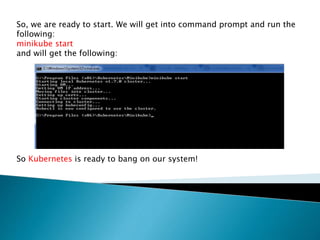
So, we are ready to start. We will get into command prompt and run the
following:
minikube start
and will get the following:
So Kubernetes is ready to bang on our system!
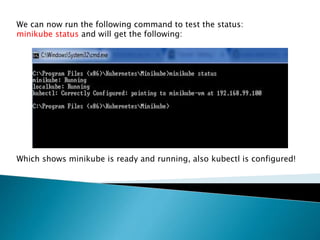
We can now run the following command to test the status:
minikube status and will get the following:
Which shows minikube is ready and running, also kubectl is configured!
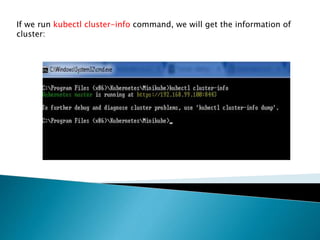
If we run kubectl cluster-info command, we will get the information of
cluster:
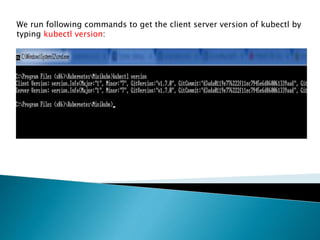
We run following commands to get the client server version of kubectl by
typing kubectl version:
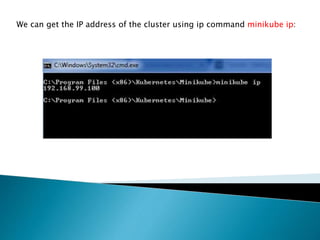
We can get the IP address of the cluster using ip command minikube ip:
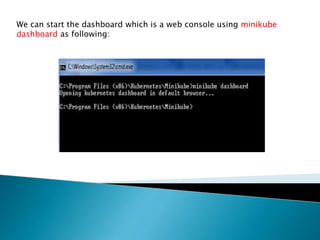
We can start the dashboard which is a web console using minikube
dashboard as following:
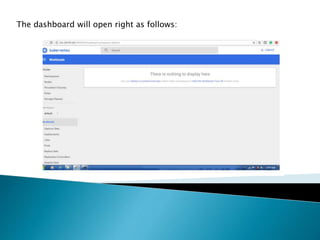
The dashboard will open right as follows:
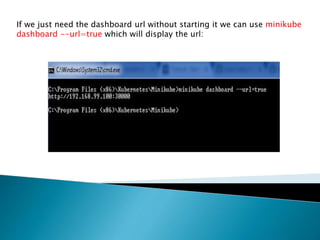
If we just need the dashboard url without starting it we can use minikube
dashboard --url=true which will display the url:
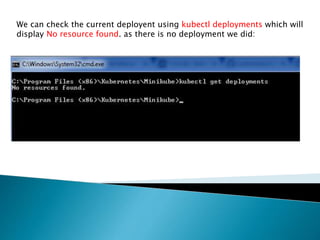
We can check the current deployent using kubectl deployments which will
display No resource found. as there is no deployment we did:
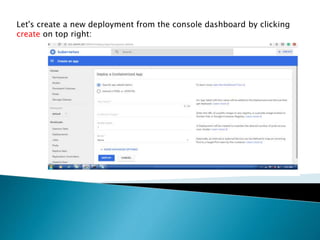
Let's create a new deployment from the console dashboard by clicking
create on top right:
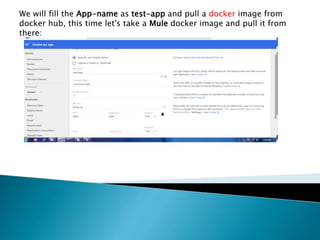
We will fill the App-name as test-app and pull a docker image from
docker hub, this time let's take a Mule docker image and pull it from
there:
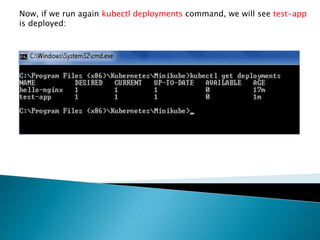
Now, if we run again kubectl deployments command, we will see test-app
is deployed:
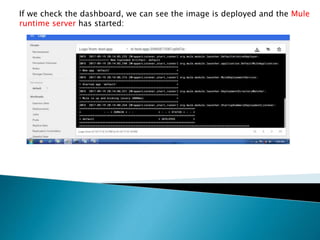
If we check the dashboard, we can see the image is deployed and the Mule
runtime server has started:
Thus you can see it's very easy to use Kubernetes which can manage the container.
There are lot of other thing that we can do with it which we can discuss in next
series.
Hope you like the slides.….
Getting started with k8

Getting started with k8

  • 1.
    By Anirban SenChowdhary
  • 2.
    Kubernetes which isalso known as K8 is a well known container management solution. The main advantage of Kubernetes is it is open source and production ready. The othe advantage is, when there are multiple instances or deployments happens, it becomes very difficult to manage them manually and it requires great tools like Kubernetes. For those who are new to Kubernetes, I will be writting a series of blog as a part of Project Calico blog: This slide will demonstrate an easy way to run Kubernetes on Windows machine.
  • 4.
    To start with,we need Minikube, which is a tool that makes it easy to run Kubernetes locally. The very first thing we need to do is to download minikube-windows- amd64 form GitHub. Then it needs to be renamed as minikube.exe. We also needs kubectl.exe which is controls the Kubernetes cluster manager and put it on the same path.
  • 5.
    So, we areready to start. We will get into command prompt and run the following: minikube start and will get the following: So Kubernetes is ready to bang on our system!
  • 6.
    We can nowrun the following command to test the status: minikube status and will get the following: Which shows minikube is ready and running, also kubectl is configured!
  • 7.
    If we runkubectl cluster-info command, we will get the information of cluster:
  • 8.
    We run followingcommands to get the client server version of kubectl by typing kubectl version:
  • 9.
    We can getthe IP address of the cluster using ip command minikube ip:
  • 10.
    We can startthe dashboard which is a web console using minikube dashboard as following:
  • 11.
    The dashboard willopen right as follows:
  • 12.
    If we justneed the dashboard url without starting it we can use minikube dashboard --url=true which will display the url:
  • 13.
    We can checkthe current deployent using kubectl deployments which will display No resource found. as there is no deployment we did:
  • 14.
    Let's create anew deployment from the console dashboard by clicking create on top right:
  • 15.
    We will fillthe App-name as test-app and pull a docker image from docker hub, this time let's take a Mule docker image and pull it from there:
  • 16.
    Now, if werun again kubectl deployments command, we will see test-app is deployed:
  • 17.
    If we checkthe dashboard, we can see the image is deployed and the Mule runtime server has started:
  • 18.
    Thus you cansee it's very easy to use Kubernetes which can manage the container. There are lot of other thing that we can do with it which we can discuss in next series. Hope you like the slides.….