Get Ready for New Nexus
Devices
Nexus 6 & 9
www.letsnurture.com
• Recently Google unveiled the Nexus 6 and Nexus 9,
the newest additions to our Nexus family that will
ship with Android 5.0 Lollipop.
• Together, they deliver a pure Google experience,
showcasing fresh visual styles with material design,
improved performance, and additional features.
• Let’s make sure your apps and games are optimized
to give your users the best mobile experience on
these devices. We’ve outlined some best practices
for you.
www.letsnurture.com
Nexus 6
Screen
• The Nexus 6 boasts an impressive 5.96” Quad HD screen display at a resolution of
2560 x 1440 (493 ppi). This translates to ~ 730 x 410 dp(density independent
pixels).
Check your assets
• It has a quantized density of 560 dpi, which falls in between
thexxhdpi and xxxhdpi primary density buckets. For the Nexus 6, the platform will
scale down xxxhdpi assets, but if those aren’t available, then it will scale
up xxhdpi assets.
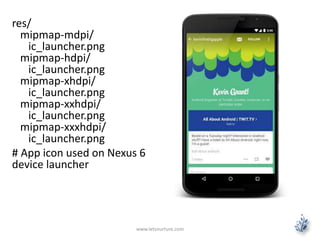
• Provide at least an xxxhdpi app icon because devices can display large app icons on
the launcher. It’s best practice to place your app icons in mipmap- folders (not
the drawable- folders) because they are used at resolutions different from the
device’s current density.
• For example, an xxxhdpi app icon can be used on the launcher for
an xxhdpi device.
www.letsnurture.com
res/
mipmap-mdpi/
ic_launcher.png
mipmap-hdpi/
ic_launcher.png
mipmap-xhdpi/
ic_launcher.png
mipmap-xxhdpi/
ic_launcher.png
mipmap-xxxhdpi/
ic_launcher.png
# App icon used on Nexus 6
device launcher
www.letsnurture.com
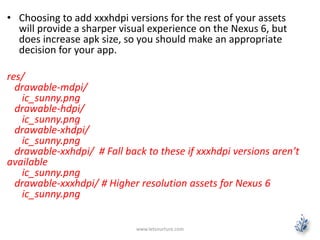
• Choosing to add xxxhdpi versions for the rest of your assets
will provide a sharper visual experience on the Nexus 6, but
does increase apk size, so you should make an appropriate
decision for your app.
res/
drawable-mdpi/
ic_sunny.png
drawable-hdpi/
ic_sunny.png
drawable-xhdpi/
ic_sunny.png
drawable-xxhdpi/ # Fall back to these if xxxhdpi versions aren’t
available
ic_sunny.png
drawable-xxxhdpi/ # Higher resolution assets for Nexus 6
ic_sunny.png
www.letsnurture.com
Make sure you are not filtered on Google Play
• If you are using the <compatible-screens> element in
the AndroidManifest.xml file, you should stop using
it because it’s not scalable to re-compile and publish
your app each time new devices come out.
• However, if you must use it, make sure to update the
manifest to add the configuration for these
devices (by screen size and density).
• Otherwise your app may be excluded from Google Play
search results on these devices.
www.letsnurture.com
www.letsnurture.com
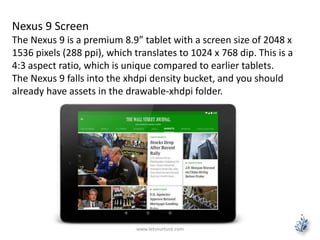
Nexus 9 Screen
The Nexus 9 is a premium 8.9” tablet with a screen size of 2048 x
1536 pixels (288 ppi), which translates to 1024 x 768 dip. This is a
4:3 aspect ratio, which is unique compared to earlier tablets.
The Nexus 9 falls into the xhdpi density bucket, and you should
already have assets in the drawable-xhdpi folder.
Enable NDK apps for 64-bit
• The Nexus 9 runs on a 64-bit Dual Core processor, which makes it
the first Android device to ship with a 64-bit ARM instruction set.
• Support for 64-bit processors was just added in Android 5.0, so if
you have an NDK app, enable it by updating the APP_ABI value in
your Application.mk file:
• APP_ABI := armeabi armeabi-v7a arm64-v8a x86 x86_64 mips
mips64
• More detailed instructions are provided in the developer site.
• You can test your 64-bit enabled app on a physical device with a 64-
bit processor running Android 5.0, or take advantage of the recently
announced 64-bit emulator in Android Studio.
www.letsnurture.com
Update your hardware keyboard support
• The Nexus 9 Keyboard Folio will be available as an accessory in Google Play.
• It’s very important that you don’t lock your app to a single orientation.
• The Nexus 9’s natural orientation is portrait mode, while it’s used in landscape
mode with the keyboard. If you lock to the device’s natural orientation, the app
may appear sideways for devices with keyboards.
• Users should be able to navigate around the main content of the app with the
keyboard, while relying on touch input or keyboard shortcuts for toolbar actions
and button bars.
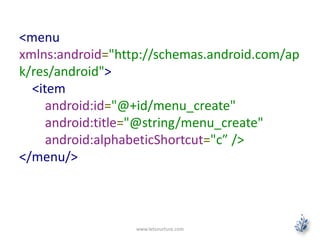
• Therefore, ensure that your app has proper keyboard navigationand shortcuts for
primary actions. Keyboard shortcuts that are invoked with Ctrl + [shortcut] combo
can be defined via menu items using:
www.letsnurture.com
<menu
xmlns:android="http://schemas.android.com/ap
k/res/android">
<item
android:id="@+id/menu_create"
android:title="@string/menu_create"
android:alphabeticShortcut="c” />
</menu/>
www.letsnurture.com
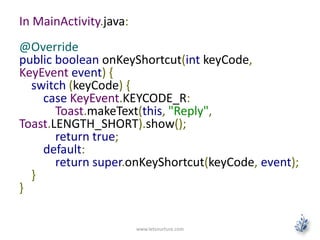
In MainActivity.java:
@Override
public boolean onKeyShortcut(int keyCode,
KeyEvent event) {
switch (keyCode) {
case KeyEvent.KEYCODE_R:
Toast.makeText(this, "Reply",
Toast.LENGTH_SHORT).show();
return true;
default:
return super.onKeyShortcut(keyCode, event);
}
}
www.letsnurture.com
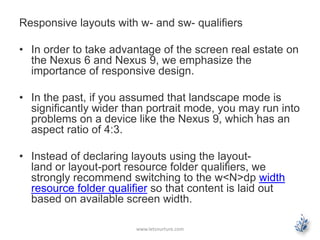
Responsive layouts with w- and sw- qualifiers
• In order to take advantage of the screen real estate on
the Nexus 6 and Nexus 9, we emphasize the
importance of responsive design.
• In the past, if you assumed that landscape mode is
significantly wider than portrait mode, you may run into
problems on a device like the Nexus 9, which has an
aspect ratio of 4:3.
• Instead of declaring layouts using the layout-
land or layout-port resource folder qualifiers, we
strongly recommend switching to the w<N>dp width
resource folder qualifier so that content is laid out
based on available screen width.
www.letsnurture.com
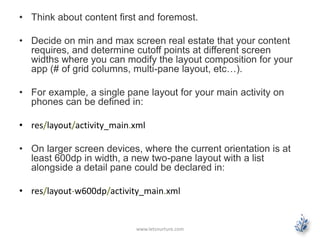
• Think about content first and foremost.
• Decide on min and max screen real estate that your content
requires, and determine cutoff points at different screen
widths where you can modify the layout composition for your
app (# of grid columns, multi-pane layout, etc…).
• For example, a single pane layout for your main activity on
phones can be defined in:
• res/layout/activity_main.xml
• On larger screen devices, where the current orientation is at
least 600dp in width, a new two-pane layout with a list
alongside a detail pane could be declared in:
• res/layout-w600dp/activity_main.xml
www.letsnurture.com
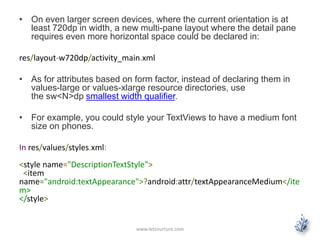
• On even larger screen devices, where the current orientation is at
least 720dp in width, a new multi-pane layout where the detail pane
requires even more horizontal space could be declared in:
res/layout-w720dp/activity_main.xml
• As for attributes based on form factor, instead of declaring them in
values-large or values-xlarge resource directories, use
the sw<N>dp smallest width qualifier.
• For example, you could style your TextViews to have a medium font
size on phones.
In res/values/styles.xml:
<style name="DescriptionTextStyle">
<item
name="android:textAppearance">?android:attr/textAppearanceMedium</ite
m>
</style>
www.letsnurture.com
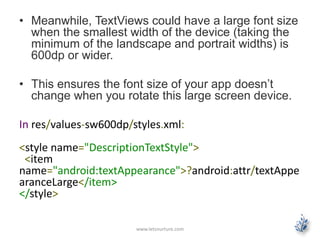
• Meanwhile, TextViews could have a large font size
when the smallest width of the device (taking the
minimum of the landscape and portrait widths) is
600dp or wider.
• This ensures the font size of your app doesn’t
change when you rotate this large screen device.
In res/values-sw600dp/styles.xml:
<style name="DescriptionTextStyle">
<item
name="android:textAppearance">?android:attr/textAppe
aranceLarge</item>
</style>
www.letsnurture.com
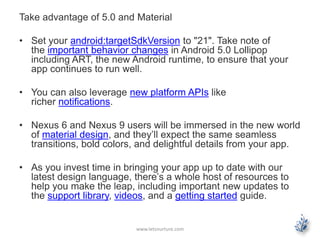
Take advantage of 5.0 and Material
• Set your android:targetSdkVersion to "21". Take note of
the important behavior changes in Android 5.0 Lollipop
including ART, the new Android runtime, to ensure that your
app continues to run well.
• You can also leverage new platform APIs like
richer notifications.
• Nexus 6 and Nexus 9 users will be immersed in the new world
of material design, and they’ll expect the same seamless
transitions, bold colors, and delightful details from your app.
• As you invest time in bringing your app up to date with our
latest design language, there’s a whole host of resources to
help you make the leap, including important new updates to
the support library, videos, and a getting started guide.
www.letsnurture.com
Follow us on
https://www.facebook.com/LetsNurture
https://twitter.com/letsnurture
http://www.linkedin.com/company/letsnurture
Mail Us on
info@letsnurture.om
www.letsnurture.com | www.letsnurture.co.uk

Get ready for new nexus devices

  • 1.
    Get Ready forNew Nexus Devices Nexus 6 & 9 www.letsnurture.com
  • 2.
    • Recently Googleunveiled the Nexus 6 and Nexus 9, the newest additions to our Nexus family that will ship with Android 5.0 Lollipop. • Together, they deliver a pure Google experience, showcasing fresh visual styles with material design, improved performance, and additional features. • Let’s make sure your apps and games are optimized to give your users the best mobile experience on these devices. We’ve outlined some best practices for you. www.letsnurture.com
  • 3.
    Nexus 6 Screen • TheNexus 6 boasts an impressive 5.96” Quad HD screen display at a resolution of 2560 x 1440 (493 ppi). This translates to ~ 730 x 410 dp(density independent pixels). Check your assets • It has a quantized density of 560 dpi, which falls in between thexxhdpi and xxxhdpi primary density buckets. For the Nexus 6, the platform will scale down xxxhdpi assets, but if those aren’t available, then it will scale up xxhdpi assets. • Provide at least an xxxhdpi app icon because devices can display large app icons on the launcher. It’s best practice to place your app icons in mipmap- folders (not the drawable- folders) because they are used at resolutions different from the device’s current density. • For example, an xxxhdpi app icon can be used on the launcher for an xxhdpi device. www.letsnurture.com
  • 4.
  • 5.
    • Choosing toadd xxxhdpi versions for the rest of your assets will provide a sharper visual experience on the Nexus 6, but does increase apk size, so you should make an appropriate decision for your app. res/ drawable-mdpi/ ic_sunny.png drawable-hdpi/ ic_sunny.png drawable-xhdpi/ ic_sunny.png drawable-xxhdpi/ # Fall back to these if xxxhdpi versions aren’t available ic_sunny.png drawable-xxxhdpi/ # Higher resolution assets for Nexus 6 ic_sunny.png www.letsnurture.com
  • 6.
    Make sure youare not filtered on Google Play • If you are using the <compatible-screens> element in the AndroidManifest.xml file, you should stop using it because it’s not scalable to re-compile and publish your app each time new devices come out. • However, if you must use it, make sure to update the manifest to add the configuration for these devices (by screen size and density). • Otherwise your app may be excluded from Google Play search results on these devices. www.letsnurture.com
  • 7.
    www.letsnurture.com Nexus 9 Screen TheNexus 9 is a premium 8.9” tablet with a screen size of 2048 x 1536 pixels (288 ppi), which translates to 1024 x 768 dip. This is a 4:3 aspect ratio, which is unique compared to earlier tablets. The Nexus 9 falls into the xhdpi density bucket, and you should already have assets in the drawable-xhdpi folder.
  • 8.
    Enable NDK appsfor 64-bit • The Nexus 9 runs on a 64-bit Dual Core processor, which makes it the first Android device to ship with a 64-bit ARM instruction set. • Support for 64-bit processors was just added in Android 5.0, so if you have an NDK app, enable it by updating the APP_ABI value in your Application.mk file: • APP_ABI := armeabi armeabi-v7a arm64-v8a x86 x86_64 mips mips64 • More detailed instructions are provided in the developer site. • You can test your 64-bit enabled app on a physical device with a 64- bit processor running Android 5.0, or take advantage of the recently announced 64-bit emulator in Android Studio. www.letsnurture.com
  • 9.
    Update your hardwarekeyboard support • The Nexus 9 Keyboard Folio will be available as an accessory in Google Play. • It’s very important that you don’t lock your app to a single orientation. • The Nexus 9’s natural orientation is portrait mode, while it’s used in landscape mode with the keyboard. If you lock to the device’s natural orientation, the app may appear sideways for devices with keyboards. • Users should be able to navigate around the main content of the app with the keyboard, while relying on touch input or keyboard shortcuts for toolbar actions and button bars. • Therefore, ensure that your app has proper keyboard navigationand shortcuts for primary actions. Keyboard shortcuts that are invoked with Ctrl + [shortcut] combo can be defined via menu items using: www.letsnurture.com
  • 10.
  • 11.
    In MainActivity.java: @Override public booleanonKeyShortcut(int keyCode, KeyEvent event) { switch (keyCode) { case KeyEvent.KEYCODE_R: Toast.makeText(this, "Reply", Toast.LENGTH_SHORT).show(); return true; default: return super.onKeyShortcut(keyCode, event); } } www.letsnurture.com
  • 12.
    Responsive layouts withw- and sw- qualifiers • In order to take advantage of the screen real estate on the Nexus 6 and Nexus 9, we emphasize the importance of responsive design. • In the past, if you assumed that landscape mode is significantly wider than portrait mode, you may run into problems on a device like the Nexus 9, which has an aspect ratio of 4:3. • Instead of declaring layouts using the layout- land or layout-port resource folder qualifiers, we strongly recommend switching to the w<N>dp width resource folder qualifier so that content is laid out based on available screen width. www.letsnurture.com
  • 13.
    • Think aboutcontent first and foremost. • Decide on min and max screen real estate that your content requires, and determine cutoff points at different screen widths where you can modify the layout composition for your app (# of grid columns, multi-pane layout, etc…). • For example, a single pane layout for your main activity on phones can be defined in: • res/layout/activity_main.xml • On larger screen devices, where the current orientation is at least 600dp in width, a new two-pane layout with a list alongside a detail pane could be declared in: • res/layout-w600dp/activity_main.xml www.letsnurture.com
  • 14.
    • On evenlarger screen devices, where the current orientation is at least 720dp in width, a new multi-pane layout where the detail pane requires even more horizontal space could be declared in: res/layout-w720dp/activity_main.xml • As for attributes based on form factor, instead of declaring them in values-large or values-xlarge resource directories, use the sw<N>dp smallest width qualifier. • For example, you could style your TextViews to have a medium font size on phones. In res/values/styles.xml: <style name="DescriptionTextStyle"> <item name="android:textAppearance">?android:attr/textAppearanceMedium</ite m> </style> www.letsnurture.com
  • 15.
    • Meanwhile, TextViewscould have a large font size when the smallest width of the device (taking the minimum of the landscape and portrait widths) is 600dp or wider. • This ensures the font size of your app doesn’t change when you rotate this large screen device. In res/values-sw600dp/styles.xml: <style name="DescriptionTextStyle"> <item name="android:textAppearance">?android:attr/textAppe aranceLarge</item> </style> www.letsnurture.com
  • 16.
    Take advantage of5.0 and Material • Set your android:targetSdkVersion to "21". Take note of the important behavior changes in Android 5.0 Lollipop including ART, the new Android runtime, to ensure that your app continues to run well. • You can also leverage new platform APIs like richer notifications. • Nexus 6 and Nexus 9 users will be immersed in the new world of material design, and they’ll expect the same seamless transitions, bold colors, and delightful details from your app. • As you invest time in bringing your app up to date with our latest design language, there’s a whole host of resources to help you make the leap, including important new updates to the support library, videos, and a getting started guide. www.letsnurture.com
  • 17.