Government e-Marketplace (GeM)-
Buying Modes
Dr. Anurag B Singh
Certified Trainer-GeM
Faridabad, India
Buying Modes
• The GeM platform shall provide three primary buying modes and the
appropriate use of the buying mode shall be indicated by the platform as
per the total value of the procurement.
• The three buying modes are Direct Purchase, Direct Purchase with L1 and
e-bid/RA.
• The GeM platform shall reserve the right to set the thresholds of
transaction value for the applicability of each of the buying modes based on
the GFR and related guidance issued by Ministry of Finance, Government of
India from time to time. All decisions related to use of the modes available
on GeM shall be made solely and exclusively by the buyer with required
approvals from the competent authorities.
Direct Purchase and Direct Purchase with L1
• Direct Purchase mode shall be allowed for low value transactions and shall allow the buyer to
directly procure from any available seller on GeM that meets the requisite quality, specification
and delivery period as specified by the buyer. ( UPTO Rs. 25000)
• The Direct Purchase with L1 mode shall be allowed for mid value transactions and shall allow the
buyer to directly procure from the L1 seller after comparing all available sellers on the platform
that meet the requisite quality, specification and delivery period as specified by the buyer. The
comparison must be made between goods/services of at least three different
manufacturers/OEMs and three different sellers. (above Rs. 25000 to up to Rs. 5,00,000/-)
• The GeM platform shall provide buyers with a robust search and filter functionality to enable them
to specify their exact requirements. It shall also provide the buyer with the functionality to exercise
purchase preference in these modes by providing filters such as Make in India, MSE etc. as per
extant Government of India policies and guidelines. The platform shall also recommend buyers to
purchase from sellers meeting local content/MSE when the prices are comparable with the market
L1 price.
• These modes shall allow buyers to make time efficient purchases and have strict delivery and
payment timelines.
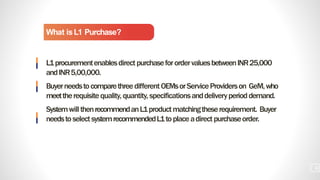
What isL1 Purchase?
L1procurementenablesdirectpurchaseforordervaluesbetweenINR25,000
andINR5,00,000.
BuyerneedstocomparethreedifferentOEMsorServiceProviderson GeM,who
meettherequisitequality, quantity,specificationsanddeliveryperioddemand.
SystemwillthenrecommendanL1productmatchingtheserequirement. Buyer
needstoselectsystemrecommendedL1toplaceadirectpurchaseorder.
4
LetstakealookattheL1PurchaseProcessforbuyingaproductstepby
step..
5
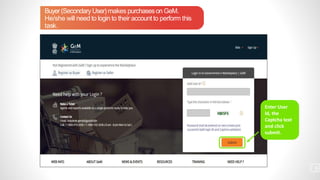
Buyer(Secondary User) makes purchaseson GeM.
He/she will need to login to their account to perform this
task.
6
Enter User
Id, the
Captcha text
and click
submit.
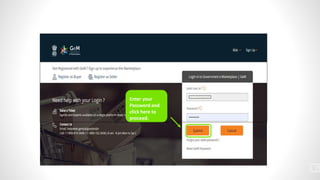
Enter your
Password and
click here to
proceed.
7
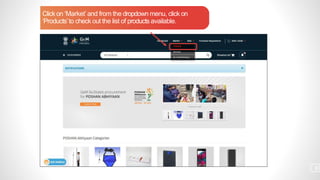
Click on ‘Market’ and from the dropdown menu, click on
‘Products’to check out the list of products available.
8
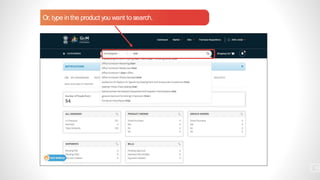
Or, type in the product you want to search.
9
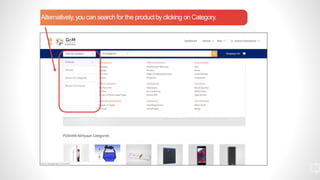
Alternatively, you can search for the productbyclicking on Category.
1
0
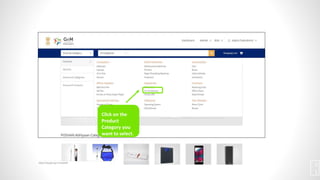
Click on the
Product
Category you
want to select.
1
1
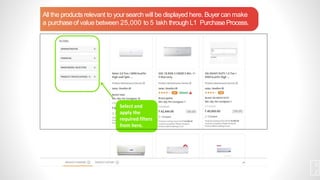
Select and
apply the
required filters
from here.
All the products relevant to yoursearch will be displayed here. Buyer can make
a purchaseof value between 25,000 to 5 lakh throughL1 PurchaseProcess.
1
2
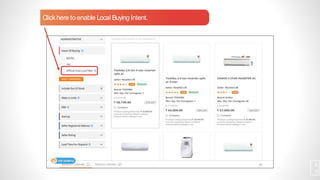
Click here to enable Local Buying Intent.
1
3
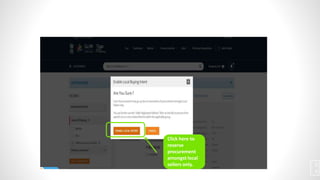
Click here to
reserve
procurement
amongst local
sellers only. 1
4
Click here toadd your location and quantity.
`
1
5
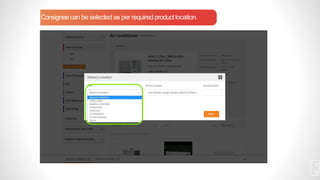
Consigneecan be selected as per required product location.
1
6
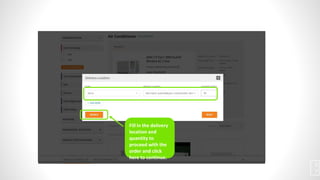
Fill in the delivery
location and
quantity to
proceed with the
order and click
here to continue.
1
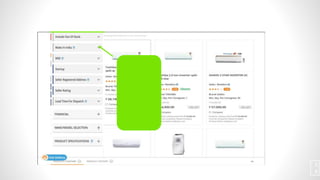
7
Click here to
Include Out of
Stock products.
This filter
selection will
show buyers
the products
which are OOS
in the market
at the last.
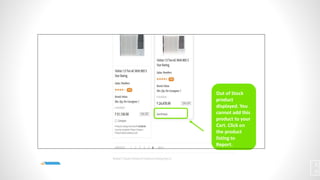
1
8
Out of Stock
product
displayed. You
cannot add this
product to your
Cart. Click on
the product
listing to
Report.
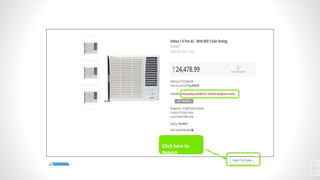
1
9
Click here to
Report.
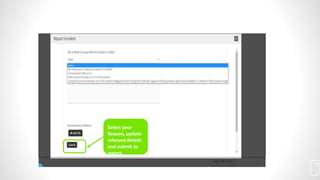
2
0
Select your
Reason, update
relevant details
and submit to
report.
2
1
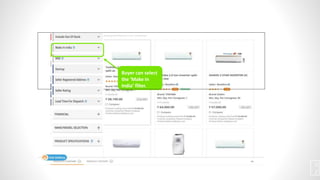
Buyer can select
the ‘Make in
India’ filter.
2
2
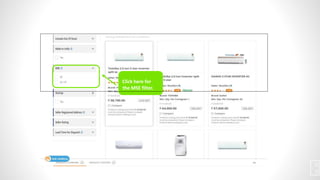
Click here for
the MSE filter.
2
3
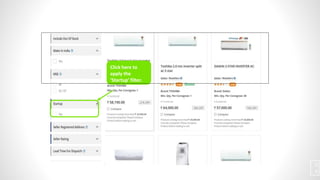
Click here to
apply the
‘Startup’ filter.
2
4
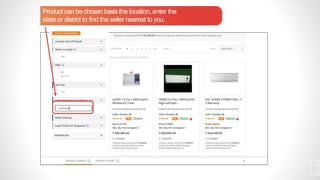
Product can be chosenbasisthe location, enter the
state or district to find the seller nearest to you.
2
5
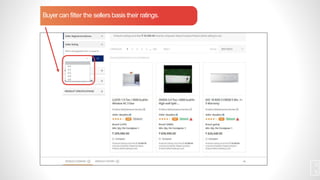
Buyer can filter the sellers basis their ratings.
2
6
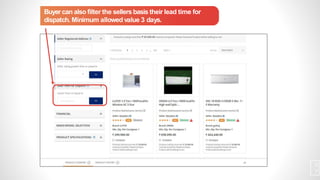
Buyer can also filter the sellers basis their lead time for
dispatch. Minimum allowed value 3 days.
2
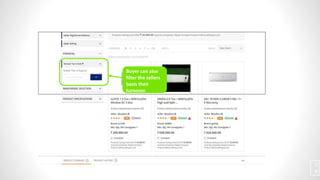
7
Buyer can also
filter the sellers
basis their
turnover.
2
8
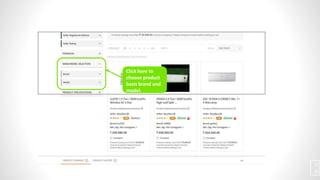
Click here to
choose product
basis brand and
model.
2
9
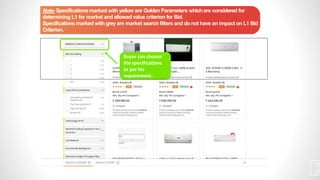
Buyer can choose
the specifications
as per his
requirement.
Note- Specifications marked with yellow are Golden Parameters whichare considered for
determining L1 for market and allowed value criterion for Bid.
Specifications marked with grey are market search filters and do not have an impact on L1 Bid
Criterion.
3
0
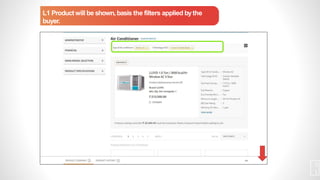
L1 Product will be shown,basis the filters applied bythe
buyer.
3
1
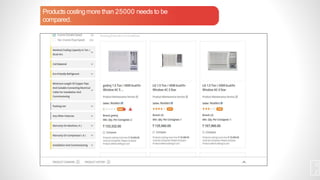
Products costingmore than 25000 needs to be
compared.
3
2
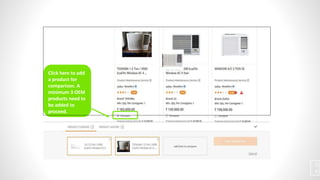
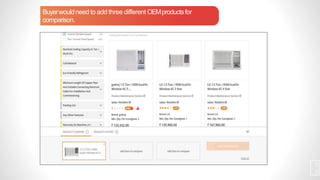
Buyerwouldneed to add three different OEMproductsfor
comparison.
3
3
Click here to add
a product for
comparison. A
minimum 3 OEM
products need to
be added to
proceed.
3
4
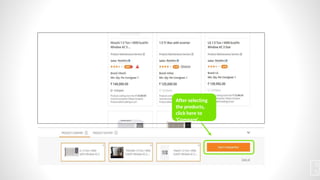
After selecting
the products,
click here to
‘Compare’.
3
5
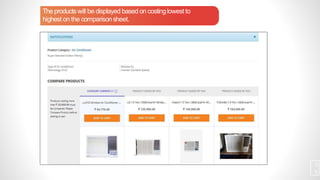
The products will be displayed based on costinglowest to
highest on the comparisonsheet.
3
6
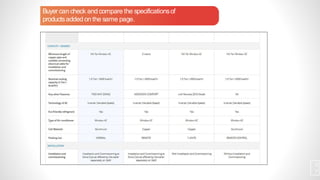
Buyer can check and compare the specificationsof
productsadded on the same page.
3
7
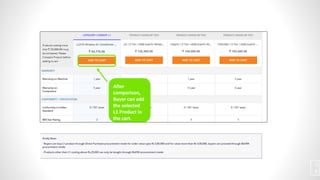
After
comparison,
Buyer can add
the selected
L1 Product in
the cart.
3
8
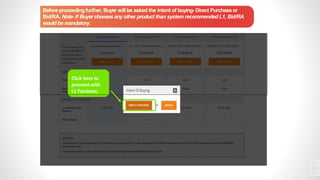
Click here to
proceed with
L1 Purchase.
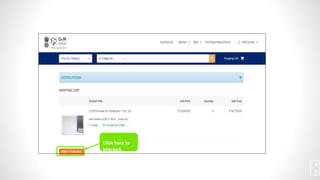
Before proceeding further, Buyer will be asked the intent of buying- Direct Purchase or
Bid/RA. Note- If Buyer chooses any other product than system recommended L1, Bid/RA
would be mandatory.
3
9
Click here to
proceed.
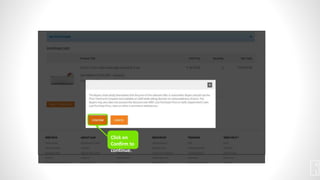
4
0
Click on
Confirm to
continue.
4
1
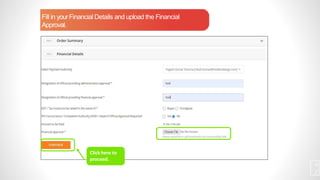
Fill in yourFinancial Details and upload the Financial
Approval.
4
2
Click here to
proceed.
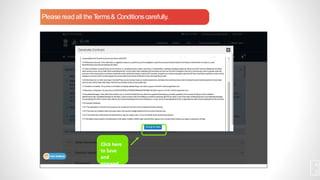
Please readall the T
erms& Conditionscarefully.
4
3
Click here
to Save
and
proceed.
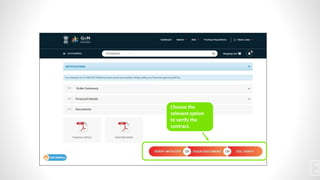
Choose the
relevant option
to verify the
contract.
4
4
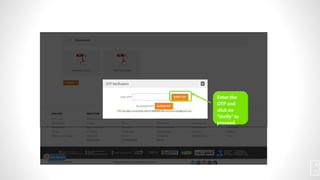
Enter the
OTP and
click on
‘Verify’ to
proceed.
4
5
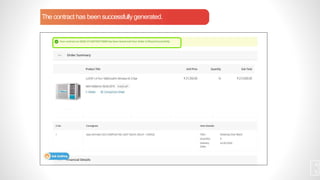
The contract has been successfullygenerated.
4
6
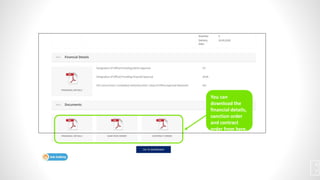
You can
download the
financial details,
sanction order
and contract
order from here.
4
7
GEM purchase guidelines and use GEM portal

GEM purchase guidelines and use GEM portal

  • 1.
    Government e-Marketplace (GeM)- BuyingModes Dr. Anurag B Singh Certified Trainer-GeM Faridabad, India
  • 2.
    Buying Modes • TheGeM platform shall provide three primary buying modes and the appropriate use of the buying mode shall be indicated by the platform as per the total value of the procurement. • The three buying modes are Direct Purchase, Direct Purchase with L1 and e-bid/RA. • The GeM platform shall reserve the right to set the thresholds of transaction value for the applicability of each of the buying modes based on the GFR and related guidance issued by Ministry of Finance, Government of India from time to time. All decisions related to use of the modes available on GeM shall be made solely and exclusively by the buyer with required approvals from the competent authorities.
  • 3.
    Direct Purchase andDirect Purchase with L1 • Direct Purchase mode shall be allowed for low value transactions and shall allow the buyer to directly procure from any available seller on GeM that meets the requisite quality, specification and delivery period as specified by the buyer. ( UPTO Rs. 25000) • The Direct Purchase with L1 mode shall be allowed for mid value transactions and shall allow the buyer to directly procure from the L1 seller after comparing all available sellers on the platform that meet the requisite quality, specification and delivery period as specified by the buyer. The comparison must be made between goods/services of at least three different manufacturers/OEMs and three different sellers. (above Rs. 25000 to up to Rs. 5,00,000/-) • The GeM platform shall provide buyers with a robust search and filter functionality to enable them to specify their exact requirements. It shall also provide the buyer with the functionality to exercise purchase preference in these modes by providing filters such as Make in India, MSE etc. as per extant Government of India policies and guidelines. The platform shall also recommend buyers to purchase from sellers meeting local content/MSE when the prices are comparable with the market L1 price. • These modes shall allow buyers to make time efficient purchases and have strict delivery and payment timelines.
  • 4.
    What isL1 Purchase? L1procurementenablesdirectpurchaseforordervaluesbetweenINR25,000 andINR5,00,000. BuyerneedstocomparethreedifferentOEMsorServiceProvidersonGeM,who meettherequisitequality, quantity,specificationsanddeliveryperioddemand. SystemwillthenrecommendanL1productmatchingtheserequirement. Buyer needstoselectsystemrecommendedL1toplaceadirectpurchaseorder. 4
  • 5.
  • 6.
    Buyer(Secondary User) makespurchaseson GeM. He/she will need to login to their account to perform this task. 6 Enter User Id, the Captcha text and click submit.
  • 7.
  • 8.
    Click on ‘Market’and from the dropdown menu, click on ‘Products’to check out the list of products available. 8
  • 9.
    Or, type inthe product you want to search. 9
  • 10.
    Alternatively, you cansearch for the productbyclicking on Category. 1 0
  • 11.
    Click on the Product Categoryyou want to select. 1 1
  • 12.
    Select and apply the requiredfilters from here. All the products relevant to yoursearch will be displayed here. Buyer can make a purchaseof value between 25,000 to 5 lakh throughL1 PurchaseProcess. 1 2
  • 13.
    Click here toenable Local Buying Intent. 1 3
  • 14.
  • 15.
    Click here toaddyour location and quantity. ` 1 5
  • 16.
    Consigneecan be selectedas per required product location. 1 6
  • 17.
    Fill in thedelivery location and quantity to proceed with the order and click here to continue. 1 7
  • 18.
    Click here to IncludeOut of Stock products. This filter selection will show buyers the products which are OOS in the market at the last. 1 8
  • 19.
    Out of Stock product displayed.You cannot add this product to your Cart. Click on the product listing to Report. 1 9
  • 20.
  • 21.
    Select your Reason, update relevantdetails and submit to report. 2 1
  • 22.
    Buyer can select the‘Make in India’ filter. 2 2
  • 23.
    Click here for theMSE filter. 2 3
  • 24.
    Click here to applythe ‘Startup’ filter. 2 4
  • 25.
    Product can bechosenbasisthe location, enter the state or district to find the seller nearest to you. 2 5
  • 26.
    Buyer can filterthe sellers basis their ratings. 2 6
  • 27.
    Buyer can alsofilter the sellers basis their lead time for dispatch. Minimum allowed value 3 days. 2 7
  • 28.
    Buyer can also filterthe sellers basis their turnover. 2 8
  • 29.
    Click here to chooseproduct basis brand and model. 2 9
  • 30.
    Buyer can choose thespecifications as per his requirement. Note- Specifications marked with yellow are Golden Parameters whichare considered for determining L1 for market and allowed value criterion for Bid. Specifications marked with grey are market search filters and do not have an impact on L1 Bid Criterion. 3 0
  • 31.
    L1 Product willbe shown,basis the filters applied bythe buyer. 3 1
  • 32.
    Products costingmore than25000 needs to be compared. 3 2
  • 33.
    Buyerwouldneed to addthree different OEMproductsfor comparison. 3 3
  • 34.
    Click here toadd a product for comparison. A minimum 3 OEM products need to be added to proceed. 3 4
  • 35.
    After selecting the products, clickhere to ‘Compare’. 3 5
  • 36.
    The products willbe displayed based on costinglowest to highest on the comparisonsheet. 3 6
  • 37.
    Buyer can checkand compare the specificationsof productsadded on the same page. 3 7
  • 38.
    After comparison, Buyer can add theselected L1 Product in the cart. 3 8
  • 39.
    Click here to proceedwith L1 Purchase. Before proceeding further, Buyer will be asked the intent of buying- Direct Purchase or Bid/RA. Note- If Buyer chooses any other product than system recommended L1, Bid/RA would be mandatory. 3 9
  • 40.
  • 41.
  • 42.
    Fill in yourFinancialDetails and upload the Financial Approval. 4 2 Click here to proceed.
  • 43.
    Please readall theT erms& Conditionscarefully. 4 3 Click here to Save and proceed.
  • 44.
    Choose the relevant option toverify the contract. 4 4
  • 45.
    Enter the OTP and clickon ‘Verify’ to proceed. 4 5
  • 46.
    The contract hasbeen successfullygenerated. 4 6
  • 47.
    You can download the financialdetails, sanction order and contract order from here. 4 7