http://www.geekfolder.com In this series of slides we will explain how-to use plugins and manage the site efficiently.
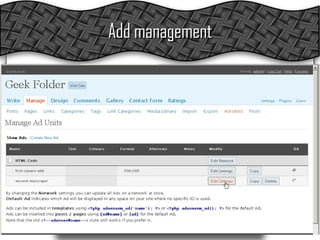
Add management Use Arial Narrow Bold or Agency FB Font for the Same Effect!
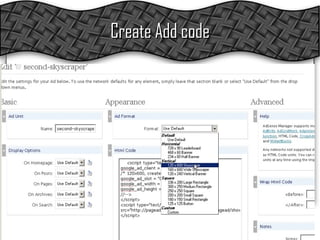
Create Add code
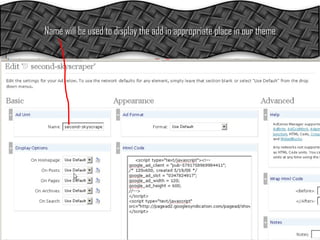
Name will be used to display the add in appropriate place in our theme
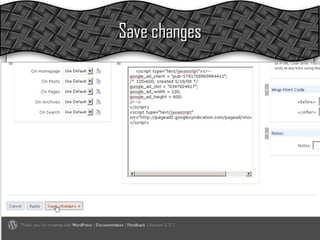
Save changes
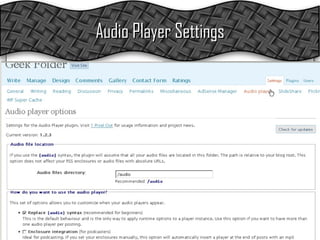
Audio Player Settings
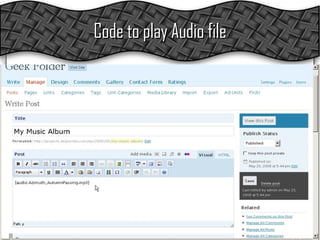
Code to play Audio file
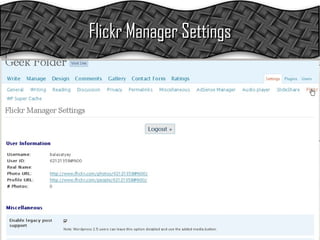
Flickr Manager Settings
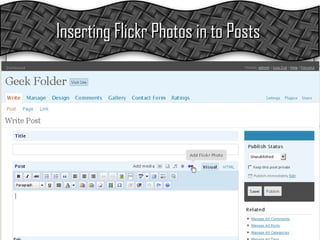
Inserting Flickr Photos in to Posts
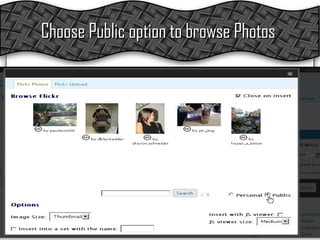
Choose Public option to browse Photos
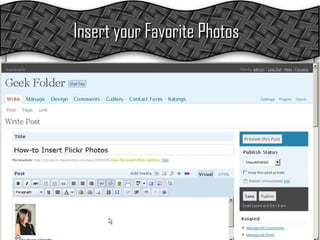
Insert your Favorite Photos
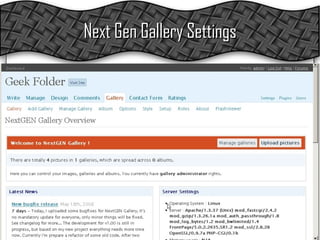
Next Gen Gallery Settings
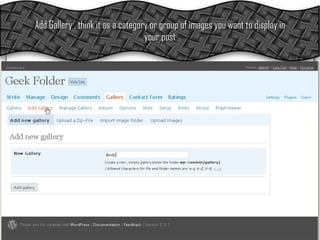
Add Gallery , think it as a category or group of images you want to display in your post
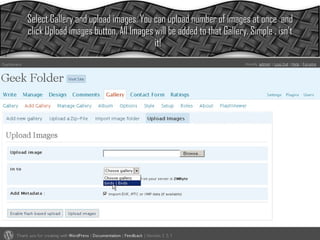
Select Gallery and upload images. You can upload number of images at once  and click Upload images button. All Images will be added to that Gallery. Simple , isn’t it!
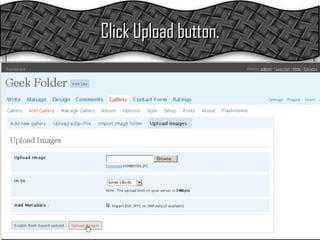
Click Upload button.
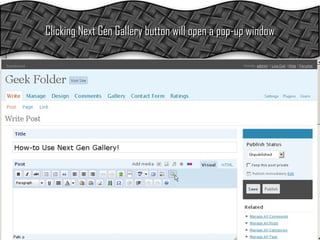
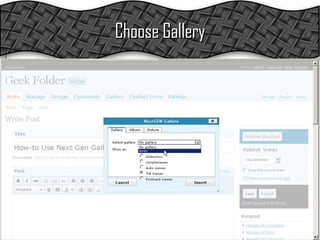
Clicking Next Gen Gallery button will open a pop-up window
Choose Gallery
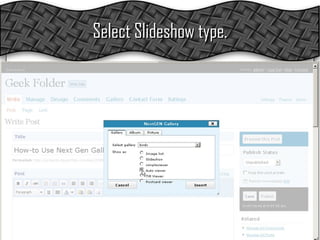
Select Slideshow type.
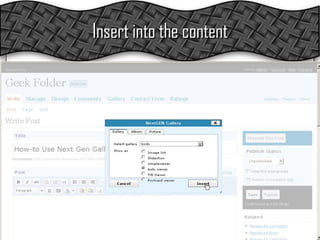
Insert into the content
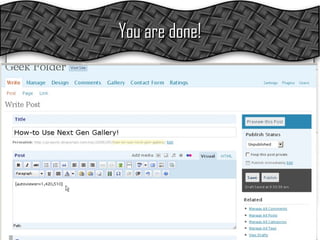
You are done!
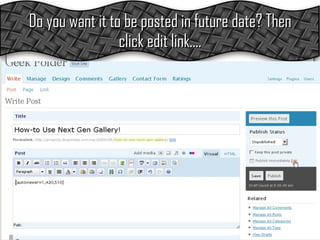
Do you want it to be posted in future date? Then click edit link….
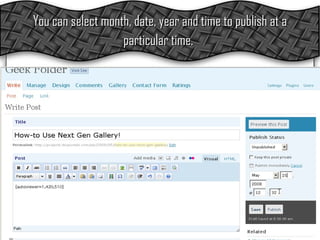
You can select month, date, year and time to publish at a particular time.
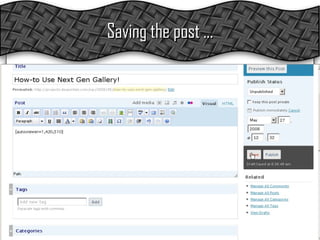
Saving the post …
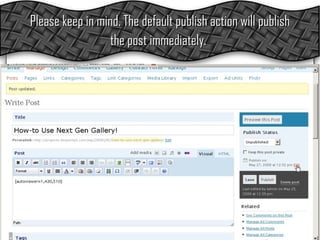
Please keep in mind. The default publish action will publish the post immediately.
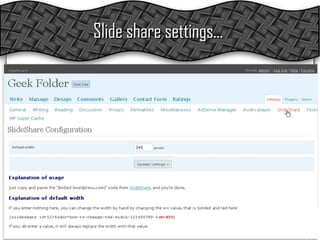
Slide share settings…
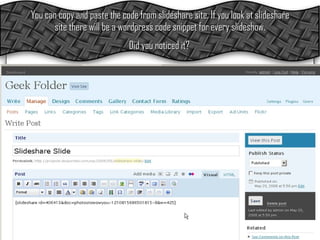
You can copy and paste the code from slideshare site. If you look at slideshare site there will be a wordpress code snippet for every slideshow.  Did you noticed it?
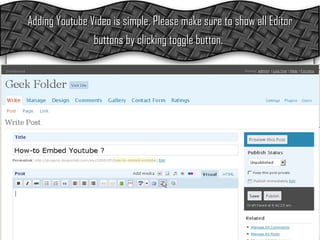
Adding Youtube Video is simple. Please make sure to show all Editor buttons by clicking toggle button.
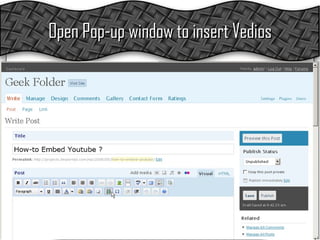
Open Pop-up window to insert Vedios
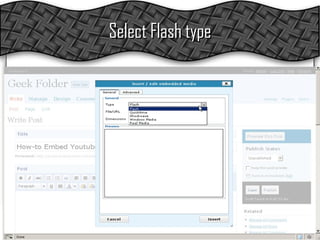
Select Flash type
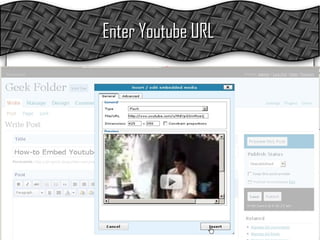
Enter Youtube URL
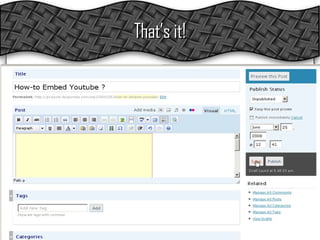
That’s it!
Thank you. Hope these slides will help you to understand how-to use plugins easily. Thanking you, Balasatya.

GeekFolder.com