Deleting Stuff on
 GarageBand for iOS
  How to delete songs, tracks,
  regions, and measures


GarageBandForIOS.com
Deleting on the iPhone,
iPod & iPad
All screen captures in this presentation
are from GarageBand 1.2 on an iPhone
4S.


The actions are the same on iPad, but
the placement and labeling of some
buttons may be different. The iPod
Touch should be identical.

GarageBandForIOS.com
Deleting Songs                                1
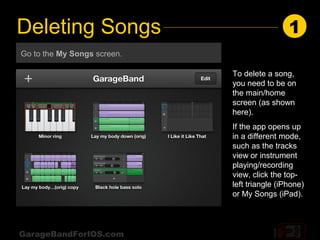
Go to the My Songs screen.

                             To delete a song,
                             you need to be on
                             the main/home
                             screen (as shown
                             here).
                             If the app opens up
                             in a different mode,
                             such as the tracks
                             view or instrument
                             playing/recording
                             view, click the top-
                             left triangle (iPhone)
                             or My Songs (iPad).


GarageBandForIOS.com
Deleting Songs                                                            2
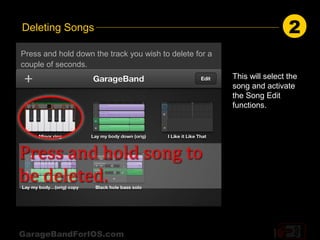
Press and hold down the track you wish to delete for a
couple of seconds.
                                                         This will select the
                                                         song and activate
                                                         the Song Edit
                                                         functions.


GarageBandForIOS.com
Deleting Songs                                                3
                                                             [end]
With the song now selected, press the trash can icon to
delete the song. The song should disappear.                  Next
                                                              Up:
                                                          Deleting
                                                           Tracks


GarageBandForIOS.com
Deleting Tracks                            1
To delete an entire track of a song, you
must be on the Tracks screen. Deleting a
track completely removes the track and
its data.


GarageBandForIOS.com
Deleting Tracks                                              2
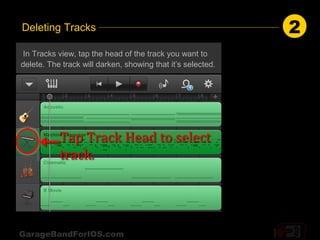
 In Tracks view, tap the head of the track you want to
delete. The track will darken, showing that it’s selected.


GarageBandForIOS.com
Deleting Tracks                                      3
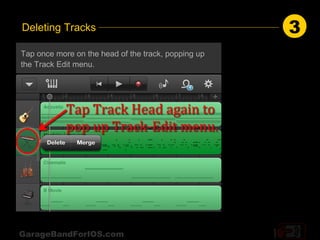
Tap once more on the head of the track, popping up
the Track Edit menu.


GarageBandForIOS.com
Deleting Tracks                               4
                                             [end]
Tap Delete. Your track will be history.
                                             Next
                                              Up:
                                          Deleting
                                          Regions


GarageBandForIOS.com
Deleting Regions                                                         1
A region (or sometimes called “segment” or “clip”) is part of a track.
You can make a region by just recording for a few seconds into a fresh
track. If you recorded a few seconds more from there, you’d make a
second region.


Also, if you divide a song into sections, and are working in just one
section, the green bar would represent only a part of the song, and
you’d be viewing a region. You might want to delete a region if you’re
doing multiple takes over a part of a song. Or you could clear out the
drums just in the last verse to create a gentler dynamic.


GarageBandForIOS.com
Deleting Regions                                                       2
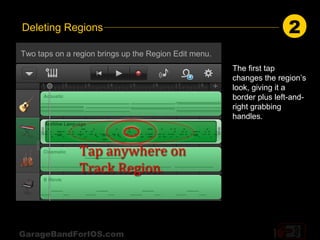
Two taps on a region brings up the Region Edit menu.
                                                       The first tap
                                                       changes the region’s
                                                       look, giving it a
                                                       border plus left-and-
                                                       right grabbing
                                                       handles.


GarageBandForIOS.com
Deleting Regions                                 3
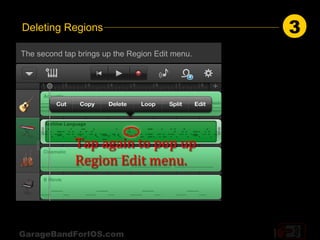
The second tap brings up the Region Edit menu.


GarageBandForIOS.com
Deleting Regions                                   4
                                                  [end]
Tap Delete. Poof! The region will disappear.
                                                  Next
                                                   Up:
                                               Deleting
                                                Partial
                                               Regions


GarageBandForIOS.com
Deleting Beats, Measures,                                              1
or Part of a Region
Sometimes you might need to perform minor surgery on just part of a
region—a couple of measures or even just a beat or two. On a recent
project, I removed the first few measures of a region in the introduction
of a song, delaying the second guitar’s entrance until measure five.


(You can edit individual notes for most (but not all) of the GB4IOS
instruments, but definitely not recorded audio.)


GarageBandForIOS.com
Deleting Beats, Measures, or Part of a Region              2
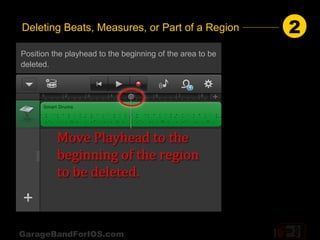
Position the playhead to the beginning of the area to be
deleted.


GarageBandForIOS.com
Deleting Beats, Measures, or Part of a Region          3
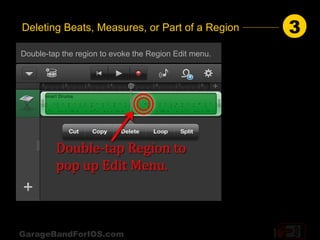
Double-tap the region to evoke the Region Edit menu.


GarageBandForIOS.com
Deleting Beats, Measures, or Part of a Region                 4
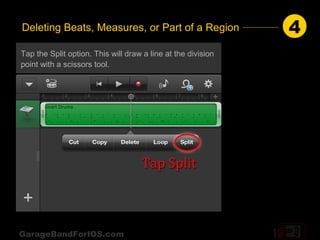
Tap the Split option. This will draw a line at the division
point with a scissors tool.


GarageBandForIOS.com
Deleting Beats, Measures, or Part of a Region         5
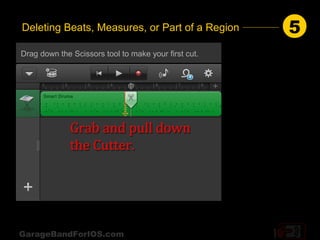
Drag down the Scissors tool to make your first cut.


GarageBandForIOS.com
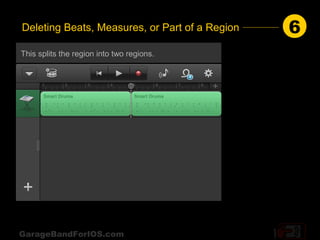
Deleting Beats, Measures, or Part of a Region   6
This splits the region into two regions.


GarageBandForIOS.com
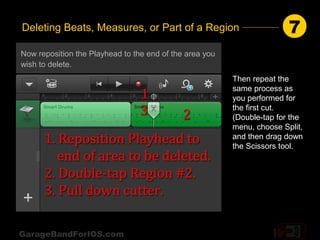
Deleting Beats, Measures, or Part of a Region                           7
Now reposition the Playhead to the end of the area you
wish to delete.
                                                         Then repeat the
                                                         same process as
                                                         you performed for
                                                         the first cut.
                                                         (Double-tap for the
                                                         menu, choose Split,
                                                         and then drag down
                                                         the Scissors tool.


GarageBandForIOS.com
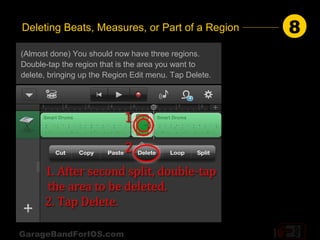
Deleting Beats, Measures, or Part of a Region           8
(Almost done) You should now have three regions.
Double-tap the region that is the area you want to
delete, bringing up the Region Edit menu. Tap Delete.


GarageBandForIOS.com
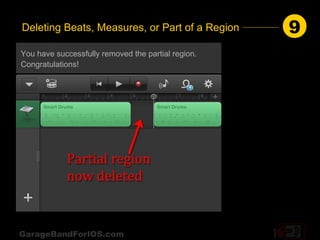
Deleting Beats, Measures, or Part of a Region       9
You have successfully removed the partial region.
Congratulations!


GarageBandForIOS.com

Deleting Stuff on GarageBand for iPhone

  • 1.
    Deleting Stuff on GarageBand for iOS How to delete songs, tracks, regions, and measures GarageBandForIOS.com GarageBandForIOS.com
  • 2.
    Deleting on theiPhone, iPod & iPad All screen captures in this presentation are from GarageBand 1.2 on an iPhone 4S. The actions are the same on iPad, but the placement and labeling of some buttons may be different. The iPod Touch should be identical. GarageBandForIOS.com
  • 3.
    Deleting Songs 1 Go to the My Songs screen. To delete a song, you need to be on the main/home screen (as shown here). If the app opens up in a different mode, such as the tracks view or instrument playing/recording view, click the top- left triangle (iPhone) or My Songs (iPad). GarageBandForIOS.com
  • 4.
    Deleting Songs 2 Press and hold down the track you wish to delete for a couple of seconds. This will select the song and activate the Song Edit functions. GarageBandForIOS.com
  • 5.
    Deleting Songs 3 [end] With the song now selected, press the trash can icon to delete the song. The song should disappear. Next Up: Deleting Tracks GarageBandForIOS.com
  • 6.
    Deleting Tracks 1 To delete an entire track of a song, you must be on the Tracks screen. Deleting a track completely removes the track and its data. GarageBandForIOS.com
  • 7.
    Deleting Tracks 2 In Tracks view, tap the head of the track you want to delete. The track will darken, showing that it’s selected. GarageBandForIOS.com
  • 8.
    Deleting Tracks 3 Tap once more on the head of the track, popping up the Track Edit menu. GarageBandForIOS.com
  • 9.
    Deleting Tracks 4 [end] Tap Delete. Your track will be history. Next Up: Deleting Regions GarageBandForIOS.com
  • 10.
    Deleting Regions 1 A region (or sometimes called “segment” or “clip”) is part of a track. You can make a region by just recording for a few seconds into a fresh track. If you recorded a few seconds more from there, you’d make a second region. Also, if you divide a song into sections, and are working in just one section, the green bar would represent only a part of the song, and you’d be viewing a region. You might want to delete a region if you’re doing multiple takes over a part of a song. Or you could clear out the drums just in the last verse to create a gentler dynamic. GarageBandForIOS.com
  • 11.
    Deleting Regions 2 Two taps on a region brings up the Region Edit menu. The first tap changes the region’s look, giving it a border plus left-and- right grabbing handles. GarageBandForIOS.com
  • 12.
    Deleting Regions 3 The second tap brings up the Region Edit menu. GarageBandForIOS.com
  • 13.
    Deleting Regions 4 [end] Tap Delete. Poof! The region will disappear. Next Up: Deleting Partial Regions GarageBandForIOS.com
  • 14.
    Deleting Beats, Measures, 1 or Part of a Region Sometimes you might need to perform minor surgery on just part of a region—a couple of measures or even just a beat or two. On a recent project, I removed the first few measures of a region in the introduction of a song, delaying the second guitar’s entrance until measure five. (You can edit individual notes for most (but not all) of the GB4IOS instruments, but definitely not recorded audio.) GarageBandForIOS.com
  • 15.
    Deleting Beats, Measures,or Part of a Region 2 Position the playhead to the beginning of the area to be deleted. GarageBandForIOS.com
  • 16.
    Deleting Beats, Measures,or Part of a Region 3 Double-tap the region to evoke the Region Edit menu. GarageBandForIOS.com
  • 17.
    Deleting Beats, Measures,or Part of a Region 4 Tap the Split option. This will draw a line at the division point with a scissors tool. GarageBandForIOS.com
  • 18.
    Deleting Beats, Measures,or Part of a Region 5 Drag down the Scissors tool to make your first cut. GarageBandForIOS.com
  • 19.
    Deleting Beats, Measures,or Part of a Region 6 This splits the region into two regions. GarageBandForIOS.com
  • 20.
    Deleting Beats, Measures,or Part of a Region 7 Now reposition the Playhead to the end of the area you wish to delete. Then repeat the same process as you performed for the first cut. (Double-tap for the menu, choose Split, and then drag down the Scissors tool. GarageBandForIOS.com
  • 21.
    Deleting Beats, Measures,or Part of a Region 8 (Almost done) You should now have three regions. Double-tap the region that is the area you want to delete, bringing up the Region Edit menu. Tap Delete. GarageBandForIOS.com
  • 22.
    Deleting Beats, Measures,or Part of a Region 9 You have successfully removed the partial region. Congratulations! GarageBandForIOS.com