Fujitsu scanners & Datacap, Inc. "Invoice and Variable Document Capture Innovations" Kevin Neal Product Manager – Production Scanners Fujitsu Computer Products of America, Inc. Imaging Products Group (IPG) March 22, 2007
Agenda Introductions of Fujitsu and Datacap, Inc. Kevin Neal, Fujitsu presenter Megan Fowler, Fujitsu moderator Art Gehring, Datacap Director of Marketing Tom Stuart, Datacap Taskmaster Product Manager Fujitsu scanner Network Attach solutions Network Scanning terminology Fujitsu fi-5900C Ultrasonic and Intelligent MultiFeed Function (iMFF) Document Protection Datacap overview Invoice scanning and capture survey of 400 AP managers Datacap Taskmaster live demonstration of invoice processing Questions and Answers
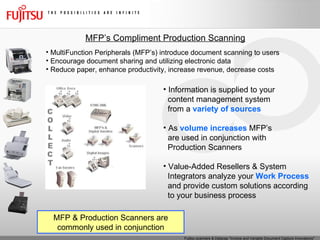
MFP’s Compliment Production Scanning MultiFunction Peripherals (MFP’s) introduce document scanning to users Encourage document sharing and utilizing electronic data Reduce paper, enhance productivity, increase revenue, decrease costs MFP & Production Scanners are commonly used in conjunction Information is supplied to your content management system from a  variety of sources As  volume increases  MFP’s are used in conjunction with Production Scanners Value-Added Resellers & System Integrators analyze your  Work Process and provide custom solutions according to your business process
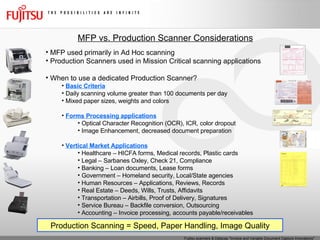
MFP vs. Production Scanner Considerations MFP used primarily in Ad Hoc scanning Production Scanners used in Mission Critical scanning applications When to use a dedicated Production Scanner? Basic Criteria Daily scanning volume greater than 100 documents per day Mixed paper sizes, weights and colors Forms Processing applications Optical Character Recognition (OCR), ICR, color dropout Image Enhancement, decreased document preparation Vertical Market Applications Healthcare – HICFA forms, Medical records, Plastic cards Legal – Sarbanes Oxley, Check 21, Compliance Banking – Loan documents, Lease forms Government – Homeland security, Local/State agencies Human Resources – Applications, Reviews, Records Real Estate – Deeds, Wills, Trusts, Affidavits Transportation – Airbills, Proof of Delivery, Signatures Service Bureau – Backfile conversion, Outsourcing Accounting – Invoice processing, accounts payable/receivables Production Scanning = Speed, Paper Handling, Image Quality
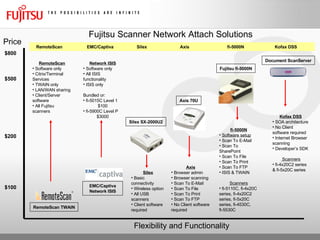
Fujitsu Scanner Network Attach Solutions Flexibility and Functionality Silex SX-2000U2 Axis 70U Fujitsu fi-5000N Document ScanServer RemoteScan TWAIN EMC/Captiva Network ISIS Price $800 $500 $200 $100 RemoteScan Software only Citrix/Terminal Services TWAIN only LAN/WAN sharing Client/Server software All Fujitsu scanners Network ISIS Software only All ISIS functionality ISIS only Bundled or: fi-5015C Level 1 $100 fi-5900C Level P $3000 Silex Basic connectivity Wireless option All USB scanners Client software required Axis Browser admin Browser scanning Scan To E-Mail Scan To File Scan To Print Scan To FTP No Client software required fi-5000N Software setup Scan To E-Mail Scan To SharePoint Scan To File Scan To Print Scan To FTP ISIS & TWAIN Scanners fi-5110C, fi-4x20C series, fi-4x20C2 series, fi-5x20C series, fi-4530C, fi-5530C Kofax DSS SOA architecture No Client software required Internet Browser scanning Developer’s SDK Scanners fi-4x20C2 series & fi-5x20C series RemoteScan  EMC/Captiva  Silex  Axis  fi-5000N  Kofax DSS
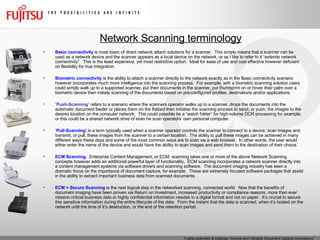
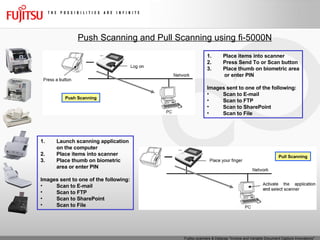
Network Scanning terminology Basic connectivity  is most basic of direct network attach solutions for a scanner.  This simply means that a scanner can be used as a network device and the scanner appears as a local device on the network, or as I like to refer to it “extends network connectivity”.  This is the least expensive, yet most restrictive option.  Ideal for ease of use and cost effective however deficient on flexibility for true integration.   Biometric connectivity  is the ability to attach a scanner directly to the network exactly as in the Basic connectivity scenario however incorporates much more intelligence into the scanning process.  For example, with a biometric scanning solution users could simply walk up to a supported scanner, put their documents in the scanner, put thumbprint on or hover their palm over a biometric device then initiate scanning of the documents based on pre-configured profiles, destinations and/or applications.   ‘ Push-Scanning’  refers to a scenario where the scanners operator walks up to a scanner, drops the documents into the automatic document feeder or places them on the flatbed then initiates the scanning process to send, or push, the images to the desires location on the computer network.  This could possible be a “watch folder” for high-volume OCR processing for example, or this could be a shared network drive of even he scan operators’ own personal computer.   ‘ Pull-Scanning’  is a term typically used when a scanner operator controls the scanner to connect to a device, scan images and transmit, or pull, these images from the scanner to a certain location.  The ability to pull these images can be achieved in many different ways these days and some of the most common ways are to scan via a web browser.  In other words, the user would either enter the name of the device and would have the ability to scan images and send them to the destination of their choice.   ECM Scanning.   Enterprise Content Management, or ECM, scanning takes one or more of the above Network Scanning concepts however adds an additional powerful layer of functionality.  ECM scanning incorporates a network scanner directly into a content management systems via software drivers and scanning software.  The document imaging industry has seen a dramatic focus on the importance of document capture, for example.  These are extremely focused software packages that assist in the ability to extract important business data from scanned documents.   ECM + Secure Scanning  is the next logical step in the networked scanning, connected world.  Now that the benefits of document imaging have been proven via Return on Investment, increased productivity or compliance reasons, more than ever mission critical business data or highly confidential information resides in a digital format and not on paper.  It’s crucial to secure this sensitive information during the entire lifecycle of the data.  From the instant that the data is scanned, when it’s hosted on the network until the time of it’s destruction, or the end of the retention period.
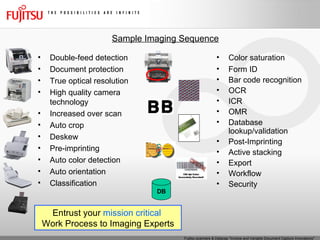
Double-feed detection Document protection True optical resolution High quality camera technology Increased over scan Auto crop Deskew Pre-imprinting Auto color detection Auto orientation Classification Sample Imaging Sequence DB Color saturation Form ID Bar code recognition OCR ICR OMR Database lookup/validation Post-Imprinting Active stacking Export Workflow Security Entrust your  mission critical   Work Process to Imaging Experts
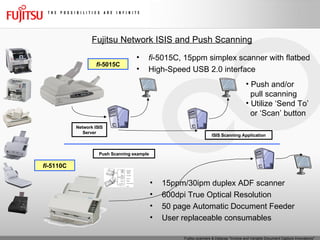
Fujitsu Network ISIS and Push Scanning fi -5110C fi -5015C fi -5015C, 15ppm simplex scanner with flatbed High-Speed USB 2.0 interface 15ppm/30ipm duplex ADF scanner 600dpi True Optical Resolution 50 page Automatic Document Feeder User replaceable consumables ISIS Scanning Application Push and/or  pull scanning Utilize ‘Send To’ or ‘Scan’ button  Network ISIS Server Push Scanning example
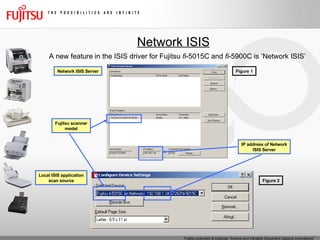
Network ISIS A new feature in the ISIS driver for Fujitsu  fi -5015C and  fi -5900C is ‘Network ISIS’ Network ISIS Server Local ISIS application scan source IP address of Network ISIS Server Fujitsu scanner model Figure 1 Figure 2
Push Scanning and Pull Scanning using fi-5000N Push Scanning Pull Scanning Place items into scanner Press Send To or Scan button Place thumb on biometric area or enter PIN Images sent to one of the following: Scan to E-mail Scan to FTP Scan to SharePoint Scan to File Launch scanning application on the computer Place items into scanner Place thumb on biometric area or enter PIN Images sent to one of the following: Scan to E-mail Scan to FTP Scan to SharePoint Scan to File
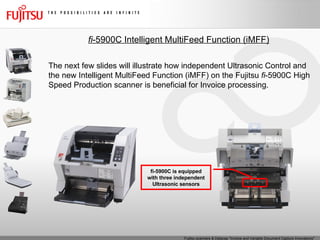
Fujitsu fi-5900C with three Ultrasonic MultiFeed sensors Each Sensor Is Independently Configurable   The  fi -5900C is equipped with 3 ultrasonic sensors . ULTRASONIC SENSORS DETECT MULTI-FEEDS Not dependant upon paper weight Not dependant upon paper color ULTRASONIC OPTICAL SENSOR COMPARISONS ULTRASONIC STRENGTHS OPTICAL SENSOR ULTRASONIC SENSOR Same type of paper  Different  types of paper  Same type of paper  Different  types of paper  × ○ Colored Documents × ○ Mixed Batches Optical Ultrasonic
fi -5900C Intelligent MultiFeed Function (iMFF) The next few slides will illustrate how independent Ultrasonic Control and the new Intelligent MultiFeed Function (iMFF) on the Fujitsu  fi -5900C High Speed Production scanner is beneficial for Invoice processing. fi-5900C is equipped with three independent Ultrasonic sensors
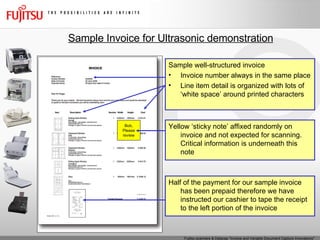
Sample Invoice for Ultrasonic demonstration Sample well-structured invoice Invoice number always in the same place Line item detail is organized with lots of ‘white space’ around printed characters Bob, Please review Yellow ‘sticky note’ affixed randomly on invoice and not expected for scanning.  Critical information is underneath this note Half of the payment for our sample invoice has been prepaid therefore we have instructed our cashier to tape the receipt to the left portion of the invoice
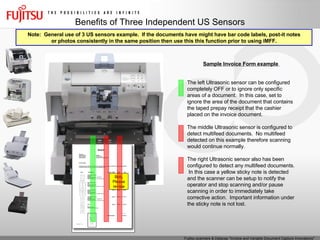
Benefits of Three Independent US Sensors Sample Invoice Form example   Bob, Please review The left Ultrasonic sensor can be configured completely OFF or to ignore only specific areas of a document.  In this case, set to ignore the area of the document that contains the taped prepay receipt that the cashier placed on the invoice document. The middle Ultrasonic sensor is configured to detect multifeed documents.  No multifeed detected on this example therefore scanning would continue normally. The right Ultrasonic sensor also has been configured to detect any multifeed documents.  In this case a yellow sticky note is detected and the scanner can be setup to notify the operator and stop scanning and/or pause scanning in order to immediately take corrective action.  Important information under the sticky note is not lost. Note:  General use of 3 US sensors example.  If the documents have might have bar code labels, post-it notes or photos consistently in the same position then use this this function prior to using iMFF.
Fujitsu fi-5900C “Intelligent MultiFeed Function” for Advanced Ultrasonic Double-Feed Detection Control In Action and Examples
Manual mode (Bypass by front panel button) Use this mode when you want to continue scanning, while checking for overlapping items every time a Multifeed error is detected. When a Multifeed error occurs, press the [Send to] button to eject sheet To Intelligently bypass intentional overlapping items, return the sheet to the Hopper and press the [Function] button once to change the blinking rate from slow to fast then press the [Scan] button The scanner will not check for a Multifeed error on the first sheet being scanned The following sheets are checked for Multifeed errors with the existing Mutlifeed settings in the Software Operator Panel (SOP) or driver.  Manual mode is the Default setting for the Intelligent MultiFeed Function (iMFF) of the fi-5900C. In this particular case the sticky note is not obscuring critical information on the document and we allow the image to be captured via Manual Mode iMFF 1 3 2 Bob, Please review
Auto mode 1 (Bypass by combination of length and position) Use this mode when you scan many sheets in a fixed format; for example, when every sheet has  the same size item  attached  at the same location . When a Multifeed error occurs, press the [Send to] button to eject sheet To Intelligently bypass intentional overlapping items, return the sheet to the Hopper and press the [Function] button once to change the blinking rate from slow to fast then press the [Scan] button The scanner will memorize the length and position of the overlap The following sheets are checked for Multifeed errors and the scanner Intelligently bypasses Multifeed errors if the scanned overlap pattern is the same as already the already memorized pattern(s) In our Sample Invoice example we have two persons that approve payment (Mark and Barb).  Each of them uses a different size note but places them always on the same location on the invoice 1 3 2 Ok to pay -Barb Ok to pay -Mark
Auto mode 2 Use this mode when you scan multiple sheets, each having different-size overlapping items at different locations. When a Multifeed error occurs, press the [Send to] button to eject sheet To Intelligently bypass intentional overlapping items, return the sheet to the Hopper and press the [Function] button once to change the blinking rate from slow to fast then press the [Scan] button The scanner will memorize the length of the overlapping area that caused the error The following sheets are checked for Multifeed errors and the scanner bypasses Multifeed if the scanned overlapping pattern is the same or shorter than the already memorized pattern. While we had used Auto Mode 2 to intelligently remember the size and location of the receipt and the notes, this particular receipt is a bit longer and covers invoice data 1 3 2 Ok to pay -Barb Ok to pay -Mark
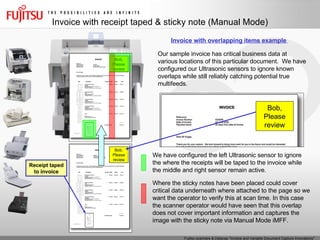
Invoice with receipt taped & sticky note (Manual Mode) Invoice with overlapping items example   Our sample invoice has critical business data at various locations of this particular document.  We have configured our Ultrasonic sensors to ignore known overlaps while still reliably catching potential true multifeeds. Receipt taped to invoice Bob, Please review Bob, Please review Where the sticky notes have been placed could cover critical data underneath where attached to the page so we want the operator to verify this at scan time. In this case the scanner operator would have seen that this overlap does not cover important information and captures the image with the sticky note via Manual Mode iMFF. We have configured the left Ultrasonic sensor to ignore the where the receipts will be taped to the invoice while the middle and right sensor remain active.  Bob, Please review
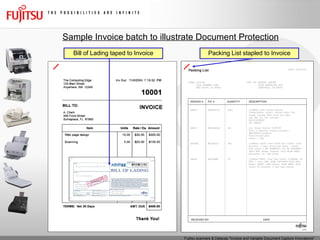
Sample Invoice batch to illustrate Document Protection Bill of Lading taped to Invoice Packing List stapled to Invoice
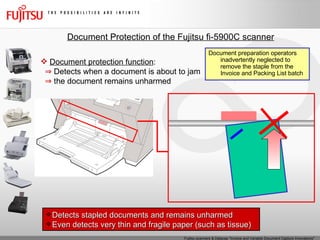
Document protection function :  ⇒   Detects when a document is about to jam ⇒   the document remains unharmed Detects stapled documents and remains unharmed Even detects very thin and fragile paper (such as tissue) Document Protection of the Fujitsu fi-5900C scanner Document preparation operators inadvertently neglected to remove the staple from the Invoice and Packing List batch
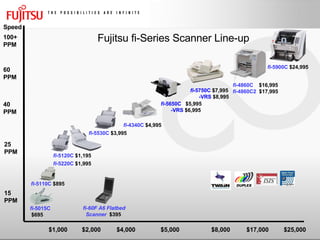
Fujitsu fi-Series Scanner Line-up 40 PPM Speed $1,000 $5,000 $8,000 15  PPM $17,000 $2,000 25  PPM $25,000 fi -5750C  $7,995 -VRS  $8,995 fi -4340C   $4,995  fi -5220C   $1,995  fi -5015C $695 fi -5120C   $1,195  60  PPM fi -4860C  $16,995 fi -4860C2  $17,995 fi -5530C   $3,995  $4,000 fi -5650C  $5,995 -VRS  $6,995 fi-60F A6 Flatbed Scanner  $395  fi -5110C   $895  100+  PPM fi -5900C   $24,995
More information Fujitsu Document Scanners Web Site:  http://www.fcpa.com E-mail:  [email_address] Phone:  888-425-8228 Datacap, Inc. Web Site:  http://www.datacap.com E-mail:  [email_address] Phone:  800-701-8482

Fujitsu Scanners and Datacap, Invoice and Variable Document Capture Innovations

  • 1.
    Fujitsu scanners &Datacap, Inc. "Invoice and Variable Document Capture Innovations" Kevin Neal Product Manager – Production Scanners Fujitsu Computer Products of America, Inc. Imaging Products Group (IPG) March 22, 2007
  • 2.
    Agenda Introductions ofFujitsu and Datacap, Inc. Kevin Neal, Fujitsu presenter Megan Fowler, Fujitsu moderator Art Gehring, Datacap Director of Marketing Tom Stuart, Datacap Taskmaster Product Manager Fujitsu scanner Network Attach solutions Network Scanning terminology Fujitsu fi-5900C Ultrasonic and Intelligent MultiFeed Function (iMFF) Document Protection Datacap overview Invoice scanning and capture survey of 400 AP managers Datacap Taskmaster live demonstration of invoice processing Questions and Answers
  • 3.
    MFP’s Compliment ProductionScanning MultiFunction Peripherals (MFP’s) introduce document scanning to users Encourage document sharing and utilizing electronic data Reduce paper, enhance productivity, increase revenue, decrease costs MFP & Production Scanners are commonly used in conjunction Information is supplied to your content management system from a variety of sources As volume increases MFP’s are used in conjunction with Production Scanners Value-Added Resellers & System Integrators analyze your Work Process and provide custom solutions according to your business process
  • 4.
    MFP vs. ProductionScanner Considerations MFP used primarily in Ad Hoc scanning Production Scanners used in Mission Critical scanning applications When to use a dedicated Production Scanner? Basic Criteria Daily scanning volume greater than 100 documents per day Mixed paper sizes, weights and colors Forms Processing applications Optical Character Recognition (OCR), ICR, color dropout Image Enhancement, decreased document preparation Vertical Market Applications Healthcare – HICFA forms, Medical records, Plastic cards Legal – Sarbanes Oxley, Check 21, Compliance Banking – Loan documents, Lease forms Government – Homeland security, Local/State agencies Human Resources – Applications, Reviews, Records Real Estate – Deeds, Wills, Trusts, Affidavits Transportation – Airbills, Proof of Delivery, Signatures Service Bureau – Backfile conversion, Outsourcing Accounting – Invoice processing, accounts payable/receivables Production Scanning = Speed, Paper Handling, Image Quality
  • 5.
    Fujitsu Scanner NetworkAttach Solutions Flexibility and Functionality Silex SX-2000U2 Axis 70U Fujitsu fi-5000N Document ScanServer RemoteScan TWAIN EMC/Captiva Network ISIS Price $800 $500 $200 $100 RemoteScan Software only Citrix/Terminal Services TWAIN only LAN/WAN sharing Client/Server software All Fujitsu scanners Network ISIS Software only All ISIS functionality ISIS only Bundled or: fi-5015C Level 1 $100 fi-5900C Level P $3000 Silex Basic connectivity Wireless option All USB scanners Client software required Axis Browser admin Browser scanning Scan To E-Mail Scan To File Scan To Print Scan To FTP No Client software required fi-5000N Software setup Scan To E-Mail Scan To SharePoint Scan To File Scan To Print Scan To FTP ISIS & TWAIN Scanners fi-5110C, fi-4x20C series, fi-4x20C2 series, fi-5x20C series, fi-4530C, fi-5530C Kofax DSS SOA architecture No Client software required Internet Browser scanning Developer’s SDK Scanners fi-4x20C2 series & fi-5x20C series RemoteScan EMC/Captiva Silex Axis fi-5000N Kofax DSS
  • 6.
    Network Scanning terminologyBasic connectivity is most basic of direct network attach solutions for a scanner. This simply means that a scanner can be used as a network device and the scanner appears as a local device on the network, or as I like to refer to it “extends network connectivity”. This is the least expensive, yet most restrictive option. Ideal for ease of use and cost effective however deficient on flexibility for true integration.   Biometric connectivity is the ability to attach a scanner directly to the network exactly as in the Basic connectivity scenario however incorporates much more intelligence into the scanning process. For example, with a biometric scanning solution users could simply walk up to a supported scanner, put their documents in the scanner, put thumbprint on or hover their palm over a biometric device then initiate scanning of the documents based on pre-configured profiles, destinations and/or applications.   ‘ Push-Scanning’ refers to a scenario where the scanners operator walks up to a scanner, drops the documents into the automatic document feeder or places them on the flatbed then initiates the scanning process to send, or push, the images to the desires location on the computer network. This could possible be a “watch folder” for high-volume OCR processing for example, or this could be a shared network drive of even he scan operators’ own personal computer.   ‘ Pull-Scanning’ is a term typically used when a scanner operator controls the scanner to connect to a device, scan images and transmit, or pull, these images from the scanner to a certain location. The ability to pull these images can be achieved in many different ways these days and some of the most common ways are to scan via a web browser. In other words, the user would either enter the name of the device and would have the ability to scan images and send them to the destination of their choice.   ECM Scanning. Enterprise Content Management, or ECM, scanning takes one or more of the above Network Scanning concepts however adds an additional powerful layer of functionality. ECM scanning incorporates a network scanner directly into a content management systems via software drivers and scanning software. The document imaging industry has seen a dramatic focus on the importance of document capture, for example. These are extremely focused software packages that assist in the ability to extract important business data from scanned documents.   ECM + Secure Scanning is the next logical step in the networked scanning, connected world. Now that the benefits of document imaging have been proven via Return on Investment, increased productivity or compliance reasons, more than ever mission critical business data or highly confidential information resides in a digital format and not on paper. It’s crucial to secure this sensitive information during the entire lifecycle of the data. From the instant that the data is scanned, when it’s hosted on the network until the time of it’s destruction, or the end of the retention period.
  • 7.
    Double-feed detection Documentprotection True optical resolution High quality camera technology Increased over scan Auto crop Deskew Pre-imprinting Auto color detection Auto orientation Classification Sample Imaging Sequence DB Color saturation Form ID Bar code recognition OCR ICR OMR Database lookup/validation Post-Imprinting Active stacking Export Workflow Security Entrust your mission critical Work Process to Imaging Experts
  • 8.
    Fujitsu Network ISISand Push Scanning fi -5110C fi -5015C fi -5015C, 15ppm simplex scanner with flatbed High-Speed USB 2.0 interface 15ppm/30ipm duplex ADF scanner 600dpi True Optical Resolution 50 page Automatic Document Feeder User replaceable consumables ISIS Scanning Application Push and/or pull scanning Utilize ‘Send To’ or ‘Scan’ button Network ISIS Server Push Scanning example
  • 9.
    Network ISIS Anew feature in the ISIS driver for Fujitsu fi -5015C and fi -5900C is ‘Network ISIS’ Network ISIS Server Local ISIS application scan source IP address of Network ISIS Server Fujitsu scanner model Figure 1 Figure 2
  • 10.
    Push Scanning andPull Scanning using fi-5000N Push Scanning Pull Scanning Place items into scanner Press Send To or Scan button Place thumb on biometric area or enter PIN Images sent to one of the following: Scan to E-mail Scan to FTP Scan to SharePoint Scan to File Launch scanning application on the computer Place items into scanner Place thumb on biometric area or enter PIN Images sent to one of the following: Scan to E-mail Scan to FTP Scan to SharePoint Scan to File
  • 11.
    Fujitsu fi-5900C withthree Ultrasonic MultiFeed sensors Each Sensor Is Independently Configurable The fi -5900C is equipped with 3 ultrasonic sensors . ULTRASONIC SENSORS DETECT MULTI-FEEDS Not dependant upon paper weight Not dependant upon paper color ULTRASONIC OPTICAL SENSOR COMPARISONS ULTRASONIC STRENGTHS OPTICAL SENSOR ULTRASONIC SENSOR Same type of paper Different types of paper Same type of paper Different types of paper × ○ Colored Documents × ○ Mixed Batches Optical Ultrasonic
  • 12.
    fi -5900C IntelligentMultiFeed Function (iMFF) The next few slides will illustrate how independent Ultrasonic Control and the new Intelligent MultiFeed Function (iMFF) on the Fujitsu fi -5900C High Speed Production scanner is beneficial for Invoice processing. fi-5900C is equipped with three independent Ultrasonic sensors
  • 13.
    Sample Invoice forUltrasonic demonstration Sample well-structured invoice Invoice number always in the same place Line item detail is organized with lots of ‘white space’ around printed characters Bob, Please review Yellow ‘sticky note’ affixed randomly on invoice and not expected for scanning. Critical information is underneath this note Half of the payment for our sample invoice has been prepaid therefore we have instructed our cashier to tape the receipt to the left portion of the invoice
  • 14.
    Benefits of ThreeIndependent US Sensors Sample Invoice Form example Bob, Please review The left Ultrasonic sensor can be configured completely OFF or to ignore only specific areas of a document. In this case, set to ignore the area of the document that contains the taped prepay receipt that the cashier placed on the invoice document. The middle Ultrasonic sensor is configured to detect multifeed documents. No multifeed detected on this example therefore scanning would continue normally. The right Ultrasonic sensor also has been configured to detect any multifeed documents. In this case a yellow sticky note is detected and the scanner can be setup to notify the operator and stop scanning and/or pause scanning in order to immediately take corrective action. Important information under the sticky note is not lost. Note: General use of 3 US sensors example. If the documents have might have bar code labels, post-it notes or photos consistently in the same position then use this this function prior to using iMFF.
  • 15.
    Fujitsu fi-5900C “IntelligentMultiFeed Function” for Advanced Ultrasonic Double-Feed Detection Control In Action and Examples
  • 16.
    Manual mode (Bypassby front panel button) Use this mode when you want to continue scanning, while checking for overlapping items every time a Multifeed error is detected. When a Multifeed error occurs, press the [Send to] button to eject sheet To Intelligently bypass intentional overlapping items, return the sheet to the Hopper and press the [Function] button once to change the blinking rate from slow to fast then press the [Scan] button The scanner will not check for a Multifeed error on the first sheet being scanned The following sheets are checked for Multifeed errors with the existing Mutlifeed settings in the Software Operator Panel (SOP) or driver. Manual mode is the Default setting for the Intelligent MultiFeed Function (iMFF) of the fi-5900C. In this particular case the sticky note is not obscuring critical information on the document and we allow the image to be captured via Manual Mode iMFF 1 3 2 Bob, Please review
  • 17.
    Auto mode 1(Bypass by combination of length and position) Use this mode when you scan many sheets in a fixed format; for example, when every sheet has the same size item attached at the same location . When a Multifeed error occurs, press the [Send to] button to eject sheet To Intelligently bypass intentional overlapping items, return the sheet to the Hopper and press the [Function] button once to change the blinking rate from slow to fast then press the [Scan] button The scanner will memorize the length and position of the overlap The following sheets are checked for Multifeed errors and the scanner Intelligently bypasses Multifeed errors if the scanned overlap pattern is the same as already the already memorized pattern(s) In our Sample Invoice example we have two persons that approve payment (Mark and Barb). Each of them uses a different size note but places them always on the same location on the invoice 1 3 2 Ok to pay -Barb Ok to pay -Mark
  • 18.
    Auto mode 2Use this mode when you scan multiple sheets, each having different-size overlapping items at different locations. When a Multifeed error occurs, press the [Send to] button to eject sheet To Intelligently bypass intentional overlapping items, return the sheet to the Hopper and press the [Function] button once to change the blinking rate from slow to fast then press the [Scan] button The scanner will memorize the length of the overlapping area that caused the error The following sheets are checked for Multifeed errors and the scanner bypasses Multifeed if the scanned overlapping pattern is the same or shorter than the already memorized pattern. While we had used Auto Mode 2 to intelligently remember the size and location of the receipt and the notes, this particular receipt is a bit longer and covers invoice data 1 3 2 Ok to pay -Barb Ok to pay -Mark
  • 19.
    Invoice with receipttaped & sticky note (Manual Mode) Invoice with overlapping items example Our sample invoice has critical business data at various locations of this particular document. We have configured our Ultrasonic sensors to ignore known overlaps while still reliably catching potential true multifeeds. Receipt taped to invoice Bob, Please review Bob, Please review Where the sticky notes have been placed could cover critical data underneath where attached to the page so we want the operator to verify this at scan time. In this case the scanner operator would have seen that this overlap does not cover important information and captures the image with the sticky note via Manual Mode iMFF. We have configured the left Ultrasonic sensor to ignore the where the receipts will be taped to the invoice while the middle and right sensor remain active. Bob, Please review
  • 20.
    Sample Invoice batchto illustrate Document Protection Bill of Lading taped to Invoice Packing List stapled to Invoice
  • 21.
    Document protection function: ⇒ Detects when a document is about to jam ⇒ the document remains unharmed Detects stapled documents and remains unharmed Even detects very thin and fragile paper (such as tissue) Document Protection of the Fujitsu fi-5900C scanner Document preparation operators inadvertently neglected to remove the staple from the Invoice and Packing List batch
  • 22.
    Fujitsu fi-Series ScannerLine-up 40 PPM Speed $1,000 $5,000 $8,000 15 PPM $17,000 $2,000 25 PPM $25,000 fi -5750C $7,995 -VRS $8,995 fi -4340C $4,995 fi -5220C $1,995 fi -5015C $695 fi -5120C $1,195 60 PPM fi -4860C $16,995 fi -4860C2 $17,995 fi -5530C $3,995 $4,000 fi -5650C $5,995 -VRS $6,995 fi-60F A6 Flatbed Scanner $395 fi -5110C $895 100+ PPM fi -5900C $24,995
  • 23.
    More information FujitsuDocument Scanners Web Site: http://www.fcpa.com E-mail: [email_address] Phone: 888-425-8228 Datacap, Inc. Web Site: http://www.datacap.com E-mail: [email_address] Phone: 800-701-8482