1
Fujitsu LIFEBOOK®
E / P / S / U Series
BIOS Guide
LIFEBOOK Series Models:
E752
P702 / P772
S752 / S762
U772
Document Date: 5/26/2012
Document Part Number: FPC58-3037-01
F U J I T S U A M E R I C A , I N C .
2
L I F E B O O K E / P / S / U B I O S G u i d e
E/P/S/U Series BIOS
BIOS SETUP UTILITY
The BIOS Setup Utility is a program that sets up the
operating environment for your notebook. Your BIOS is
set at the factory for normal operating conditions,
therefore there is no need to set or change the BIOS
environment to operate your notebook.
The BIOS Setup Utility configures:
• Device control feature parameters, such as
changing I/O addresses and boot devices.
• System Data Security feature parameters, such as
passwords.
Entering the BIOS Setup Utility
To enter the BIOS Setup Utility, do the following:
1. Turn on or restart your notebook.
2. Press [F2] once the Fujitsu logo appears on the
screen. This will open the main menu of the BIOS
Setup Utility with the current settings displayed.
3. Press the [RIGHT ARROW] or [LEFT ARROW] key to
scroll through the other setup menus to review or
alter the current settings.
Navigating through the Setup Utility
The BIOS setup utility consists of six menus: Info,
System, Advanced, Security, Boot, and Exit. This docu-
ment explains each menu in turn, including all
submenus and setup items.
The following procedures allow you to navigate the
setup utility menus:
1. To select a menu, use the cursor keys:
2. To select a field within a menu or a submenu, use
the cursor keys:
3. To select the different values for each field, press
the [Spacebar] or [+] to change to the next lower
selection and [F5] or [-] to go to the next higher
selection.
4. To activate a submenu press the [Enter] key.
5. To return to a menu from a submenu, press the
[Esc] key.
6. To go to the Exit menu from any other menu, press
the [Esc] key.
7. Pressing the [F9] key resets all items in the BIOS to
the default values.
8. Pressing the [F10] key saves the current configura-
tion and exits the BIOS Setup Utility. You will be
asked to verify this selection before it is executed.
9. Pressing the [F1] key gives you a general help
screen.
Entering the Setup Utility After a Configuration
Change or System Failure
If there has been a change in the system configuration
that does not agree with the parameter settings stored
in your BIOS memory, or there is a failure in the
system, the system beeps and/or displays an error
message after the Power On Self Test (POST). If the
failure is not too severe, it will give you an opportunity
to modify the setup utility settings, as described in the
following steps:
1. When you turn on or restart the computer there is
a beep and/or the following message appears on
the screen:
Error message - please run SETUP program Press
<F1> key to continue, <F2> to run SETUP
2. If an error message is displayed and you want to
continue with the boot process and start the oper-
ating system anyway, press the [F1] key.
[ ], [ ].
[ ], [ ].
 Selecting a field causes a help message
about that field to be displayed on the
right-hand side of the screen.
 Pressing the Enter key with the highlight
on a selection that is not a submenu or
auto selection will cause a list of all
options for that item to be displayed.
Pressing the Enter key again will select the
highlighted choice.
 If your notebook emits a series of beeps
that sounds like a code and the display is
blank, please refer to the Troubleshooting
Section in the system User’s Guide. The
Troubleshooting Section includes a list of
error messages and their meanings.
 If your data security settings require it, you
may be asked for a password before the
operating system will be opened.
3
3. If an error message is displayed on the screen, and
you want to enter the setup utility, press the [F2]
key.
4. When the setup utility starts with a fault present,
the system displays the following message:
Warning!
Error message
[Continue]
5. Press any key to enter the setup utility. The system
will then display the Info Menu with current
parameters values.
I n f o M e n u
4
L I F E B O O K E / P / S / U B I O S G u i d e
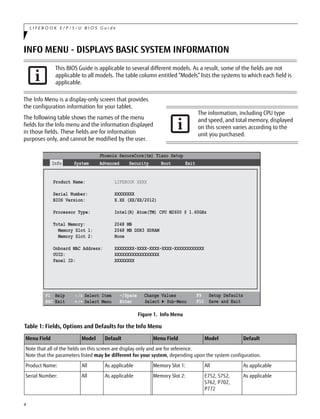
INFO MENU - DISPLAYS BASIC SYSTEM INFORMATION
The Info Menu is a display-only screen that provides
the configuration information for your tablet.
The following table shows the names of the menu
fields for the Info menu and the information displayed
in those fields. These fields are for information
purposes only, and cannot be modified by the user.
Figure 1. Info Menu
This BIOS Guide is applicable to several different models. As a result, some of the fields are not
applicable to all models. The table column entitled “Models” lists the systems to which each field is
applicable.
The information, including CPU type
and speed, and total memory, displayed
on this screen varies according to the
unit you purchased.
Table 1: Fields, Options and Defaults for the Info Menu
Menu Field Model Default Menu Field Model Default
Note that all of the fields on this screen are display only and are for reference.
Note that the parameters listed may be different for your system, depending upon the system configuration.
Product Name: All As applicable Memory Slot 1: All As applicable
Serial Number: All As applicable Memory Slot 2: E752, S752,
S762, P702,
P772
As applicable
Phoenix SecureCore(tm) Tiano Setup
F1 Help
ESC Exit
Select Item
Select Menu
-/Space Change Values
Enter Select ► Sub-Menu
F9 Setup Defaults
F10 Save and Exit
Info System Advanced Security Boot Exit
Product Name: LIFEBOOK XXXX
Serial Number: XXXXXXXX
BIOS Version: X.XX (XX/XX/2012)
Processor Type: Intel(R) Atom(TM) CPU M2600 @ 1.60GHz
Total Memory: 2048 MB
Memory Slot 1: 2048 MB DDR3 SDRAM
Memory Slot 2: None
Onboard MAC Address: XXXXXXXX-XXXX-XXXX-XXXX-XXXXXXXXXXXX
UUID: XXXXXXXXXXXXXXXXXX
Panel ID: XXXXXXXX
/
/
5
BIOS Version: All As applicable Onboard MAC Address: All As applicable
Processor Type: All As applicable UUID: All As applicable
Total Memory: All As applicable Panel ID: All As applicable
Table 1: Fields, Options and Defaults for the Info Menu
Menu Field Model Default Menu Field Model Default
I n f o M e n u
6
L I F E B O O K E / P / S / U B I O S G u i d e
SYSTEM MENU – SETTING STANDARD SYSTEM PARAMETERS
The System Menu allows you to set or view the current
system parameters. (See Navigating through the Setup
Utility on page 2 for more information.)
The following tables show the names of the menu
fields for the System menu and its submenus, all of
the options for each field, the default settings and a
description of the field’s function and any special
information needed to help understand the field’s use.
Figure 2. System Menu
System Time and System Date can also be set
from your operating system without using
the setup utility. Use the Date and Time icon
on your Windows Control panel or type time
or date from the MS-DOS prompt.
Table 2: Fields, Options and Defaults for the System Menu
Note that the parameters listed in the following table may vary depending upon your system’s configuration.
Menu Field Options Default Model Description
System Time: –— –— All Sets and displays the current time. Time is in a 24
hour format of hours:minutes:seconds with 2 digits
for each. (HH:MM:SS). Example: 16:45:57. You may
change each segment of the time separately. Move
between the segments with the [Tab] key and/or
[Shift] + [Tab] keys.
Phoenix SecureCore(tm) Tiano Setup
F1 Help
ESC Exit
Select Item
Select Menu
-/Space Change Values
Enter Select ► Sub-Menu
F9 Setup Defaults
F10 Save and Exit
Info System Advanced Security Boot Exit
/
/
Item Specific Help
Adjust calendar clock.
<Tab>, <Shift-Tab>, or
<Enter> selects field.
System Time: [14:57:01]
System Date: [06/02/2012]
Drive Configurations
Language: [English (US)]
7
System Date: –— –— All Sets and displays the current date. Date is in a
month/day/year numeric format with 2 digits each
for month and day and 4 digits for year. (MM/DD/
YYYY) for example: 02/20/2011. You may change
each segment of the date separately. Move between
the segments with the [Tab] key and/or [Shift] +
[Tab] keys.
Drive Configurations --- --- All Opens the Drive Configurations submenu to allow
you to enable or disable the installed drives.
Language:  English (US)
 Japanese (JP)
[English (US)] All The default setting differs between the US/European
and the Japanese model. Selects the display lan-
guage for the BIOS.
Table 2: Fields, Options and Defaults for the System Menu
Note that the parameters listed in the following table may vary depending upon your system’s configuration.
Menu Field Options Default Model Description
S y s t e m M e n u
8
L I F E B O O K E / P / S / U B I O S G u i d e
Drive Configurations Submenu of the System Menu
The Drive Configurations submenu identifies the installed S-ATA drive(s).
Figure 3. Drive Configurations Submenu
Exiting from System Menu
When you have finished setting the parameters on this menu, you can either exit from the setup utility, or move to
another menu. If you wish to move to another menu, tap the desired menu name at the top of the screen.
Table 3: Fields, Options and Defaults for the Drive Configurations Submenu of the System Menu
Menu Field Options Default Model Description
Drive0:  Disabled
 Enabled
[Enabled] All Enables and disables the SATA Port 0 (HDD).
Drive2:  Disabled
 Enabled
[Enabled] E752, S752,
S762, P702,
P772
Enables and disables the SATA Port 2 (ODD or HDD).
Drive4:  Disabled
 Enabled
[Enabled] E752, S752,
S762
Enables and disables the SATA Port 4 (eSATA).
Drive5:  Disabled
 Enabled
[Enabled] E752, S752,
S762, P702,
P772
Enables and disables the SATA Port 5 (eSATA).
Note: For E752 and S752, it is the eSATA of the port
replicator.
Phoenix SecureCore(tm) Tiano Setup
Item Specific Help
Enable/disable SATA
device.
Drive Configurations
Drive0: [XXXXXXXX (XXX)]
[Enabled]
Drive2: [XXXXXXXX (XXX)]
[Enabled]
Drive4: [XXXXXXXX (XXX)] ]
[Enabled]
Drive5: [XXXXXXXX (XXX)] ]
[Enabled]
System
F1 Help
ESC Exit
Select Item
Select Menu
-/Space Change Values
Enter Select ► Sub-Menu
F9 Setup Defaults
F10 Save and Exit/
/
9
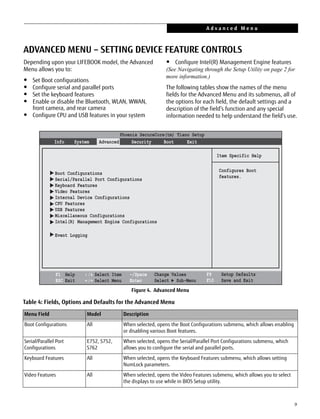
ADVANCED MENU – SETTING DEVICE FEATURE CONTROLS
Depending upon your LIFEBOOK model, the Advanced
Menu allows you to:
• Set Boot configurations
• Configure serial and parallel ports
• Set the keyboard features
• Enable or disable the Bluetooth, WLAN, WWAN,
front camera, and rear camera
• Configure CPU and USB features in your system
• Configure Intel(R) Management Engine features
(See Navigating through the Setup Utility on page 2 for
more information.)
The following tables show the names of the menu
fields for the Advanced Menu and its submenus, all of
the options for each field, the default settings and a
description of the field’s function and any special
information needed to help understand the field’s use.
Figure 4. Advanced Menu
Table 4: Fields, Options and Defaults for the Advanced Menu
Menu Field Model Description
Boot Configurations All When selected, opens the Boot Configurations submenu, which allows enabling
or disabling various Boot features.
Serial/Parallel Port
Configurations
E752, S752,
S762
When selected, opens the Serial/Parallel Port Configurations submenu, which
allows you to configure the serial and parallel ports.
Keyboard Features All When selected, opens the Keyboard Features submenu, which allows setting
NumLock parameters.
Video Features All When selected, opens the Video Features submenu, which allows you to select
the displays to use while in BIOS Setup utility.
Phoenix SecureCore(tm) Tiano Setup
Item Specific Help
Info System Advanced Security Boot Exit
Boot Configurations
Serial/Parallel Port Configurations
Keyboard Features
Video Features
Internal Device Configurations
CPU Features
USB Features
Miscellaneous Configurations
Intel(R) Management Engine Configurations
Configures Boot
features.






Event Logging




F1 Help
ESC Exit
Select Item
Select Menu
-/Space Change Values
Enter Select ► Sub-Menu
F9 Setup Defaults
F10 Save and Exit/
/
A d v a n c e d M e n u
10
L I F E B O O K E / P / S / U B I O S G u i d e
Internal Device
Configurations
All When selected, opens the Internal Device Configuration submenu, which allows
enabling or disabling the Bluetooth, WLAN, WWAN, and camera controllers.
CPU Features All When selected, opens the CPU Features submenu to allow you to enable/disable
SpeedStep(R) Technology and HT Technology.
USB Features All When selected, opens the USB Features submenu to allow you to enable or dis-
able legacy USB devices and SCSI SubClass support.
Miscellaneous
Configurations
All When selected, opens the Miscellaneous Configurations submenu to allow you to
select various settings.
Intel(R) Management
Engine Configurations
All When selected, opens the Intel(R) Management Engine Configurations submenu
to allow you to configure the Intel Management Engine features.
Event Logging All When selected, opens the event logging submenu.
Table 4: Fields, Options and Defaults for the Advanced Menu
Menu Field Model Description
11
Boot Configurations Submenu of the Advanced Menu
The Boot Configurations submenu is for setting a variety of Boot features.
Figure 5. Boot Configurations Submenu
Table 5: Fields, Options and Defaults for the Boot Configurations Submenu of the Advanced Menu
Menu Field Options Default Model Description
Boot Time
Diagnostic Screen:
 Disabled
 Enabled
[Disabled] All When disabled, the logo screen is displayed during boot
up. If enabled, the diagnostic screen is displayed during
the boot up.
Preboot Execution
Environment:
 Disabled
 Enabled
[Enabled] All When disabled, the feature is disabled. If enabled, booting
from a network server (pre-boot execution environment) is
enabled.
Phoenix SecureCore(tm) Tiano Setup
F1 Help
ESC Exit
Select Item
Select Menu
-/Space
Enter
F9 Setup Default
F10 Save and Exit
Change Values
Select Sub-Menu
Item Specific HelpBoot Configurations
Advanced

[Disabled]
Display the logo
screen during boot.
[Enabled]
Display the diagnosti
screen during boot.
Boot Time Diagnostic Screen:
Preboot Execution Environment: [Enabled]
[Disabled]
A d v a n c e d M e n u
12
L I F E B O O K E / P / S / U B I O S G u i d e
Serial/Parallel Port Configurations Submenu of the Advanced Menu
The Serial/Parallel Port Configurations submenu is for setting the serial and parallel port parameters.
Figure 6. Serial/Parallel Port Configurations Submenu
Table 6: Fields, Options and Defaults for the Serial/Parallel Port Configurations Submenu of the Advanced
Menu
Menu Field Options Default Model Description
Serial Port:  Disabled
 Enabled
 Auto
[Enabled] E752, S752,
S762
When disabled, the serial port is disabled. When
enabled, the serial port is enabled with the user-
selected configuration. When Auto is selected, the
Plug & Play OS configures the port.
Base I/O Address/
IRQ
 3F8/IRQ4
 2F8/IRQ3
 3E8/IRQ4
 2E8/IRQ3
[3F8/IRQ4] E752, S752,
S762
Allows you to select the base I/O address and the IRQ
for the port when the Serial Port is enabled.
Parallel Port:  Disabled
 Enabled
 Auto
[Enabled] E752, S752,
S762
When disabled, the parallel port is disabled. When
enabled, the parallel port is enabled with the user-
selected configuration. When Auto is selected, the
Plug & Play OS configures the port.
Mode:  Output only
 Bi-directional
 ECP
[Bi-directional] E752, S752,
S762
Allows you to select the mode for the parallel port
when the Parallel Port is set to Auto or Enabled.
Phoenix SecureCore(tm) Tiano Setup
F1 Help
ESC Exit
Select Item
Select Menu
-/Space
Enter
F9 Setup Defaults
F10 Save and Exit
Change Values
Select Sub-Menu
Item Specific HelpSerial/Parallel Port Configurations
Advanced

Serial Port:
Base I/O Address/IRQ: [3F8/IRQ 4]
Parallel Port: [Enabled]
Mode: [Bi-directional]
Base I/O Address: [378]
Interrupt: [IRQ 7]
DMA Channel: [DMA 1]
[Enabled]
[Disabled]
The port is disabled.
[Enabled]
The port is enabled
with user configuration.
[Auto]
Plug & Play OS
configures the port.
13
Base I/O Address:  378
 278
 3BC
[378] E752, S752,
S762
Allows you to select the base I/O address for the port
when it is enabled.
Interrupt:  IRQ 5
 IRQ 7
[IRQ 7] E752, S752,
S762
Allows you to select the interrupt number for the port
when it is enabled.
DMA Channel:  DMA 1
 DMA 3
[DMA 1] E752, S752,
S762
Allows you to select the DMA channel for the parallel
port when it is enabled and and mode is “ECP”.
Table 6: Fields, Options and Defaults for the Serial/Parallel Port Configurations Submenu of the Advanced
Menu
Menu Field Options Default Model Description
A d v a n c e d M e n u
14
L I F E B O O K E / P / S / U B I O S G u i d e
Keyboard Features Submenu of the Advanced Menu
The Keyboard Features submenu is for setting the parameters of the integrated and external mouse and keyboard.
Figure 7. Keyboard Features Submenu
Table 7: Fields, Options and Defaults for the Keyboard Submenu of the Advanced Menu
Menu Field Options Default Model Description
Numlock:  On
 Off
 On/Padlock Off
[Off] All Sets the NumLock function state when the computer completes
booting. When [On] or [Off], Numlock is on or off. Windows pre-
serves Numlock state when the user logs off. When Numlock is set
to [On/PadLock Off], the internal numeric pad will always work
with Fn-key regardless of the state of Num Lock. With this option,
you can enter 1 2 3 by pressing Fn+J Fn+K Fn+L in Num Lock On
state.
Phoenix SecureCore(tm) Tiano Setup
Item Specific Help
Advanced
[On] or [Off]
Numlock is On or Off.
[On/Padlock Off]
Numlock is On, but use
with [Fn] for 10-key
input.
* Windows XP or later
OS preserves Numlock
state when the user
logs off.
Keyboard/Mouse Features
Numlock: [Off]
F1 Help
ESC Exit
Select Item
Select Menu
-/Space Change Values
Enter Select ► Sub-Menu
F9 Setup Defaults
F10 Save and Exit/
/
15
Video Features Submenu of the Advanced Menu
The Video Features submenu is for selecting the display to use during BIOS setup.
Figure 8. Video Features Submenu
* The options shown are dependent upon the system configuration.
Table 8: Fields, Options and Defaults for the Video Features Submenu of the Advanced Menu
Menu Field Options Default Model Description
Display:  Internal Flat Panel
 External (Analog)
 External (DVI)
 External (DisplayPort)
 Auto
[Auto] All* Allows you to select which display to use while in the BIOS
Setup Utility. Note that the selected display setting is not
reflected after the operating system starts up.
Phoenix SecureCore(tm) Tiano Setup
F1 Help
ESC Exit
Select Item
Select Menu
-/Space
Enter
F9 Setup Defaults
F10 Save and Exit
Change Values
Select Sub-Menu
Item Specific Help
Advanced

Select display terminal.
* This setting is not
effective after
operating system
starts up.
Video Features
Display: [Auto]
A d v a n c e d M e n u
16
L I F E B O O K E / P / S / U B I O S G u i d e
Internal Device Configurations Submenu of the Advanced Menu
The Internal Device Configuration submenu allows the user to enable or disable a wide variety of devices and
controllers, depending upon system configuration.
Figure 9. Internal Device Configuration Submenu
Table 9: Fields, Options and Defaults for the Internal Device Configuration Submenu of the Advanced Menu
Menu Field Options Default Model Description
Serial ATA Controller:  Disabled
 Enabled
[Enabled] All Enables or disables the Serial ATA controller.
SATA Controller Mode Selection:  IDE
 AHCI
[AHCI] All Allows you to select the SATA controller opera-
tion mode if Serial ATA Controller is set to
Enabled.
Bluetooth(R):  Disabled
 Enabled
[Enabled] All Enables or disables the Bluetooth device.
LAN Controller:  Disabled
 Enabled
[Enabled] All Enables or disables the LAN controller.
Wireless LAN:  Disabled
 Enabled
[Enabled] All Enables or disables the Wireless LAN controller.
Wireless LAN/WiMax:  Disabled
 Enabled
[Enabled] All Enables or disables the Wireless LAN/WiMax
feature.
Wireless LAN/Bluetooth:  Disabled
 Enabled
[Enabled] E752, S752,
S762
Enables or disables the Wireless LAN/Bluetooth
combo module.
Modem:  Disabled
 Enabled
[Enabled] E752, S752,
S762, P772
Enables or disables the Modem device.
Phoenix SecureCore(tm) Tiano Setup
Item Specific Help
Advanced
[Disabled]
Serial ATA port is
disabled.
[Enabled]
Serial ATA port is
enabled.
Internal Device Configurations
Serial ATA Controller: [Enabled]
SATA Controller Mode Selection: [AHCI]
Bluetooth(R): [Enabled]
LAN Controller: [Enabled]
Wireless LAN: [Enabled]
Wireless LAN/WiMax [Enabled]
Wireless LAN/Bluetooth: [Enabled]
Modem [Enabled]
Fingerprint Sensor: [Enabled]
Wireless WAN: [Enabled]
Internal Camera: [Enabled]
SD Card Slot: [Enabled]
SD Card/Memory Stick Slot: [Enabled]
Smart Card: [Enabled]
USB 3.0 Controller: [Enabled]
F1 Help
ESC Exit
Select Item
Select Menu
-/Space Change Values
Enter Select ► Sub-Menu
F9 Setup Defaults
F10 Save and Exit/
/
17
Note: All items do not necessarily appear; only items that are applicable to your model items will show.
Fingerprint Sensor:  Disabled
 Enabled
[Enabled] All Enables or disables the fingerprint sensor
device.
Wireless WAN:  Disabled
 Enabled
[Enabled] All Enables or disables the Wireless WAN device.
Internal Camera:  Disabled
 Enabled
[Enabled] All Enables or disables the internal camera.
SD Card Slot:  Disabled
 Enabled
[Enabled] S762, P772,
P702, U772
Enables or disables the SD card slot.
SD Card/Memory Stick Slot:  Disabled
 Enabled
[Enabled] E752, S752 Enables or disables the SD Card/Memory Stick
card slot.
Smart Card:  Disabled
 Enabled
[Enabled] All Enables or disables the Smart Card device.
USB 3.0 Controller:  Disabled
 Enabled
[Enabled] All Enables or disables the USB 3.0 controller.
Table 9: Fields, Options and Defaults for the Internal Device Configuration Submenu of the Advanced Menu
Menu Field Options Default Model Description
A d v a n c e d M e n u
18
L I F E B O O K E / P / S / U B I O S G u i d e
CPU Features Submenu of the Advanced Menu
The CPU Features submenu provides options for configuring the HT Technology and SpeedStep power manage-
ment features of the CPU.
Figure 10. CPU Features Submenu
Table 10: Fields, Options and Defaults for the CPU Features Submenu of the Advanced Menu
Menu Field Options Default Model Description
Multi-core:  Disabled
 Enabled
[Enabled] All If disabled, CPU runs in single-core mode. Because Windows
2000 does not support multi-core mode, this option must be
disabled on Windows 2000. If enabled, CPU runs in multi-core
mode.
HT Technology:  Disabled
 Enabled
[Enabled] All If disabled, CPU runs in single-thread mode. Because Win-
dows 2000 does not support multi-thread mode, this option
must be disabled on Windows 2000. If enabled, CPU runs in
multi-thread mode.
SpeedStep(R)
Technology:
 Disabled
 Enabled
[Enabled] All If [Disabled], CPU speed is fixed to highest speed and Speed-
Step applet does not start.
If [Enabled]: On Windows 98SE/Me/2000, SpeedStep applet
V3.0 works using Enhanced SpeedStep technology. SpeedStep
applet reflects the settings in BIOS Setup and vice versa. On
Windows XP, Native SpeedStep control is available and Speed-
Step applet does not work.
Phoenix SecureCore(tm) Tiano Setup
Item Specific Help
Advanced
Select enabling or
disabling for multiple
core in a physical
processor package.
CPU Features
[Enabled]Multi-core:
HT Technology: [Enabled]
SpeedStep(R) Technology: [Enabled]
Virtualization Technology: [Enabled]
Intel(R) VT-d [Disabled]
Intel(R) TXT [Disabled]
F1 Help
ESC Exit
Select Item
Select Menu
-/Space Change Values
Enter Select ► Sub-Menu
F9 Setup Defaults
F10 Save and Exit/
/
19
* Only applicable for -VP (no.t -ST) configurations of these models
Virtualization
Technology:
 Disabled
 Enabled
[Enabled] All Enables or disables Virtualization Technology. Note that after
changing this option, the system must be shut down before it
takes effect.
Intel(R) VT-d  Disabled
 Enabled
[Disabled] All Enables or disables Virtualized Technology for Directed I/O.
Intel(R) TXT  Disabled
 Enabled
[Disabled] E752, S752,
S762, P772*
Enables or disables Trusted Execution Technology.
Table 10: Fields, Options and Defaults for the CPU Features Submenu of the Advanced Menu
Menu Field Options Default Model Description
A d v a n c e d M e n u
20
L I F E B O O K E / P / S / U B I O S G u i d e
USB Features Submenu of the Advanced Menu
The USB Features submenu provides options for enabling or disabling the USB devices.
Figure 11. USB Features Submenu
Table 11: Fields, Options and Defaults for the USB Features Submenu of the Advanced Menu
Menu Field Options Default Description
Legacy USB Support:  Disabled
 Enabled
[Enabled] When Enabled is selected, Legacy USB Emulation is enabled and
the USB devices are available without a USB-aware OS. When
Disabled is selected, Legacy USB support is disabled.
SCSI SubClass Support:  Disabled
 Enabled
[Enabled] When Enabled is selected, USB devices that belong to the SCSI
subclass in the mass storage class (e.g., USB Memory Key) are
enabled. Note that enabling this feature may cause the system
to hang during POST, depending on the device that is con-
nected.
USB Port:  Disabled
 Enabled
[Enabled] When disabled, all USB ports are disabled. When enabled, all
USB ports are enabled.
Phoenix SecureCore(tm) Tiano Setup
Item Specific Help
Advanced
[Disabled]
The feature is disabled.
[Enabled]
Legacy USB Emulation
is enabled and USB
devices are available
without USB aware OS.
Legacy USB Support
SCSI SubClass Support: [Enabled]
USB Port: [Enabled]
[Enabled]
USB Features
F1 Help
ESC Exit
Select Item
Select Menu
-/Space Change Values
Enter Select ► Sub-Menu
F9 Setup Defaults
F10 Save and Exit/
/
21
Miscellaneous Configurations Submenu of the Advanced Menu
The Miscellaneous Configurations submenu provides options for enabling or setting the volume and several power
management settings
Figure 12. Miscellaneous Configurations Submenu
Table 12: Fields, Options and Defaults for the Miscellaneous Configurations Submenu of Advanced Menu
Menu Field Options Default Model Description
Power Button:  Disabled
 Power Off
[Disabled] All Allows you to configure the power button.
Wake up on LAN:  Disabled
 Enabled
[Disabled] All Enabling this feature allows the system to
wake up when the internal LAN device
receives a Magic Packet in power-off state.
On Battery:  Disabled
 Enabled
[Enabled] All When On Battery is Disabled, Wake up on LAN
is Enabled only when the AC adapter is con-
nected.
Force LAN Boot:  Disabled
 Enabled
[Disabled] All Only in the event of a wake-up on LAN will the
system try to first boot from the LAN before
attempting to boot from any other device
(regardless of the BIOS Boot Priority settings
or whether Preboot Execution Environment is
disabled).
Resume on LAN:  On AC Mode Only
 Always Enabled
[Always
Enabled]
All When On AC Mode Only is selected, wake up
on LAN from Sleep or Hibernate modes is
enabled only when AC Adapter is connected.
Phoenix SecureCore(tm) Tiano Setup
Item Specific Help
Info System Advanced Security Boot Exit
Miscellaneous Configurations
Configures the
power button.
*ACPI OS ignores
this setting.
[Disabled]Power Button:
Wake up on LAN: [Disabled]
On Battery:
Force LAN Boot:
Resume on LAN: [Always Enabled]
Auto Save to Disk: [On]
Volume Setting: [Middle]
Hardware Power Management: [Enabled]
CPU Power Saving idle
state (AC): [Energy Saving]
CPU Power Saving idle
state (Battery): [Long Battery Life]
Anytime USB Charge: [AC]
Fan Control: [Normal]
ODD Power Management: [Enabled]
Intel(R) Rapid Start Technology: [Enabled]
[Enabled]
[Disabled]
F1 Help
ESC Exit
Select Item
Select Menu
-/Space Change Values
Enter Select ► Sub-Menu
F9 Setup Defaults
F10 Save and Exit/
/
A d v a n c e d M e n u
22
L I F E B O O K E / P / S / U B I O S G u i d e
Auto Save to Disk:  Off
 On
[On] All Enables and disables the Auto Save to Disk
feature. When Auto Save to Disk is on, in low
battery state, the system in suspend mode will
save its state to disk then power off.
Volume Setting:  Off
 Minimum
 Middle
 Maximum
[Middle] All Selects the initial volume setting for the
system.
Hardware Power
Management:
 Disabled
 Enabled
[Enabled] All Enables and disables the Hardware Power
Management feature.
CPU Power Saving on
idle state (AC)
 Energy Saving
 Low Power
 Normal
[Energy
Saving]
All Selects the CPU power saving mode while in
idle state under AC power.
CPU Power Saving on
idle state (Battery)
 Long Battery Life
 Low Power
 Normal
[Long Battery
Life]
All Selects the CPU power saving mode while in
idle state under battery power.
Anytime USB Charge:  Disabled
 AC
 AC/Battery
 AC (mode 2)
 AC/Battery (mode 2)
[AC] All Allows you to set the Anytime USB Charge
feature.
Fan Control:  Normal
 Silent
[Normal] All Allows you to select normal or silent fan mode.
ODD Power
Management:
 Disabled
 Enabled
[Enabled] E752, S752,
S762, P772
Enables and disables optical disk drive power
management feature.
Intel(R) Rapid Start
Technology
 Disabled
 Enabled
[Enabled] All Enables and disables Intel(R) Rapid Start
Technology.
Table 12: Fields, Options and Defaults for the Miscellaneous Configurations Submenu of Advanced Menu
Menu Field Options Default Model Description
23
Intel(R) Management Engine Configurations Submenu of the Advanced Menu
The Management Engine Configurations submenu configures various features of the Intel(R) Management
Engine.
Figure 13. Event Logging Submenu
*Only supported for the -VP (not -ST) configurations of these models
Table 13: Fields, Options and Defaults for the Event Logging Submenu of the Advanced Menu
Menu Field Options Default Model Description
Intel(R) ME Setup:* --- [Enter] E752, S752,
S762, P772,
U772
Press [Enter] to enter Intel(R) Management Engine BIOS
Extensions menu on the next boot.
Intel(R) AMT Fast Call
for Help:*
--- [Enter] E752, S752,
S762, P772,
U772
Press [Enter] to initiate Fast Call for Help to heal prob-
lems on your system at next boot.
UnConfigure Intel(R)
ME:*
--- [Enter] E752, S752,
S762, P772,
U772
Press [Enter] to unconfigure Intel(R) Management
Engine. (Requires reboot after exit to complete
unconfiguration).
SOL Console Type:*  PC-ANSI
 VT-100+
 VT-UTF8
[VT-UTF8] E752, S752,
S762, P772,
U772
Select the SOL console type.
Intel(R) AT Suspend
Mode
 Disabled
 Enabled
[Disabled] All Enables and disables Intel(R) Anti-Theft Technology
Suspend Mode.
Phoenix SecureCore(tm) Tiano Setup
Item Specific Help
Advanced
Press <Enter> to enter
Intel(R) Management
Engine BIOS Extensions
menu on next boot.
Intel(R) Management Engine Configurations
Intel(R) ME Setup: [Enter]
Intel(R) AMT Fast Call for Help: [Enter]
UnConfigure Intel(R) ME: [Enter]
SOL Console Type: [VT-UTF8]
Intel(R) AT Suspend Mode:
F1 Help
ESC Exit
Select Item
Select Menu
-/Space Change Values
Enter Select ► Sub-Menu
F9 Setup Defaults
F10 Save and Exit/
/
A d v a n c e d M e n u
24
L I F E B O O K E / P / S / U B I O S G u i d e
Event Logging Submenu of the Advanced Menu
The Event Logging submenu configures event logging features for DMI events.
Figure 14. Event Logging Submenu
Table 14: Fields, Options and Defaults for the Event Logging Submenu of the Advanced Menu
Menu Field Options Default Model Description
Event Log Capacity: --- --- All Display only
Event Log Validity: --- --- All Display only
View Event Log:  Enter [Enter] All Allows you to view content of event log
Event Logging:  Disabled
 Enabled
[Enabled] All Turns event logging on and off for all DMI events.
Clear All Event Logs:  Enter [Enter] All After clicking [Enter], a Setup Notice appears prompting
you to select [Yes] or [No] to confirm. When set to [Yes]
all event logs will be cleared at next boot.
Mark Events as Read:  Enter [Enter] All After clicking [Enter], a Setup Notice appears prompting
you to select [Yes] or [No] to confirm. When set to [Yes]
all event in the events log will be marked as having
been read.
Phoenix SecureCore(tm) Tiano Setup
Item Specific Help
Advanced
Press <Enter> key to
view the contents of
the event log.
Event Logging
Event Log Capacity: Space Available
Event Log Validity: Valid
View Event Log: [Enter]
Event Logging: [Enabled]
Clear All Event Logs: [Enter]
Mark Events as Read: [Enter]
F1 Help
ESC Exit
Select Item
Select Menu
-/Space Change Values
Enter Select ► Sub-Menu
F9 Setup Defaults
F10 Save and Exit/
/
25
SECURITY MENU – SETTING THE SECURITY FEATURES
The Security menu allows you to set up the security features of your tablet to fit operating needs and to view the
current data security configuration. (See Navigating through the Setup Utility on page 2 for more information.)
The following tables show the names of the menu fields for the Security Menu and its submenus, all the options
for each field, the default settings and a description of the field's function and any special information needed to
help understand the field's use. The default condition is no passwords required and no write protection.
 Remember your passwords! If you set and forget your User and Master hard disk passwords, Fujitsu America
will not be able to reset it. You may lose data and have to replace your system board or hard disk drive.
 WARNING. VERY IMPORTANT if your hard disk drive is protected using a Full Disk Encryption (FDE) "engine".
FDE encrypts all data as it is written to the hard drive. When data is retrieved from the hard drive, it is
decrypted by the same engine. If you forget your hard disk security password on a system with FDE, all
data and applications on the hard drive will remain encrypted and will effectively be lost. Be sure to
remember your hard disk password.
 Entering a password incorrectly 3 times in a row causes the keyboard and mouse to be locked out and [Sys-
tem Disabled] to be displayed. If this occurs, restart the computer by turning off and on the power with the
power switch and use the correct password on reboot.
 If you make an error when re-entering the password a Warning will be displayed. To try again press [Enter],
then retype the password, or press [Esc] to abort the password process.
 If the Security Panel on Resume is Enabled and the Password on Boot is Disabled you will not have to type
your password upon resuming the system from the Suspend or Save-to-Disk modes. Power Management
Security will work only if Password boot is enabled.
Phoenix SecureCore(tm) Tiano Setup
Item Specific Help
Info System Advanced Security Boot Exit
Press <Enter> key to
set Supervisor Password
to enable any password
features.
Then password entry is
required to enter BIOS
Setup.
Supervisor Password Is: Clear
User Password Is: Clear
Set Supervisor Password [Enter]
Set User Password [Enter]
Minimum User Password Length: [0]
Password on Boot: [Disabled]
On Automatic Wake up: [Disabled]
Boot from Removable Media: [All]
Flash Write: [Enabled]
Boot Menu: [Enabled]
Hard Disk Security
Owner Information
TPM (Security Chip) Setting



F1 Help
ESC Exit
Select Item
Select Menu
-/Space Change Values
Enter Select ► Sub-Menu
F9 Setup Defaults
F10 Save and Exit/
/
S e c u r i t y M e n u
26
L I F E B O O K E / P / S / U B I O S G u i d e
Table 14: Fields, Options and Defaults for the Security Menu
Menu Field Options Default Model Description
Supervisor
Password is:
–— Clear All A display-only field. Set is displayed when the system
supervisor password is set and Clear when it is not.
User Password is: –— Clear All A display-only field. Set is displayed when the general user
password is set, and Clear when it is not.
Set Supervisor
Password
–— [Enter] All Sets, changes or cancels the Supervisor Password. A Super-
visor Password may be up to seven characters long and
must include only letters or numbers (no symbols). Pass-
words are NOT case-sensitive. To cancel a password press
the Enter key instead of entering characters in the Enter
New Password field and in the Re-enter New Password
field. When a Supervisor Password is set it must be used to
access BIOS setup utility.
Set User Password –— [Enter] All This field can only be accessed if the Supervisor Password
is set. Sets, changes or cancels the User Password. A User
Password may be up to seven characters long and must
include only letters or numbers (no symbols). Passwords
are NOT case-sensitive. To cancel a password press [Enter]
key instead of entering characters in the Enter New Pass-
word field and in the Re-enter New Password field. When a
User Password is set it must be used to access the BIOS
setup utility.
Minimum User
Password Length:
–— [0] All Supervisor can set password length (0 to 32) for user pass-
word. User cannot set a password shorter than the mini-
mum length.
Password on Boot:  Disabled
 First Boot
 Every Boot
[Disabled] All When set to First Boot, a password (User or Supervisor) is
required just once after the Power On Self Test (POST)
before the operating system will be read from a disk.
When set to Every Boot, a password (User or Supervisor) is
required every time after the Power On Self Test (POST)
before the operating system will be read from a disk.
When set to Disabled no password is required.
On Automatic
Wake Up:
 [Disabled] All When disabled, password entry is not required on auto-
matic wake up. When enabled, password entry is required.
Boot from
Removable Media:
 All
 Supervisor only
[All] All Supervisor only allows access to boot the computer to
removable media after the Supervisor Password is
entered.
Flash Write:  Disabled
 Enabled
[Enabled] All When disabled, the BIOS Flash memory will be write pro-
tected.
Boot Menu:  Disabled
 Enabled
[Enabled] All When disabled, the Boot Menu is disabled and cannot be
opened using the [F12] key.
Hard Disk Security: –— –— All Configures hard disk security features
Owner Information: –— –— All Sets Owner information.
27
Exiting from the Security Menu
When you have finished setting the parameters on the Security Menu, you can either exit from setup utility or
move to another menu. If you wish to exit from setup utility, press the [Esc] key to go to the Exit Menu. If you wish
to move to another menu, use the cursor keys.
TPM (Security Chip)
Setting
___ ___ All Sets the TPM (Security Chip) settings
Table 14: Fields, Options and Defaults for the Security Menu
Menu Field Options Default Model Description
S e c u r i t y M e n u
28
L I F E B O O K E / P / S / U B I O S G u i d e
Hard Disk Security Submenu of the Security Menu
The Hard Disk Security submenu is for configuring hard disk security features.
Figure 15. Hard Disk Security Submenu
Table 15: Fields, Options and Defaults for the Hard Disk Security Submenu of the Security Menu
Menu Field Options Default Model Description
Drive(n) Password Is: ___ Clear All* Display-only. Default is Clear. When the Drive(n) Password
has been set, the field changes to Set. When this password is
set, the primary hard disk drive cannot be used in another
system unless the password is entered.
Set Drive(n)
Master Password
___ [Enter] All* Sets, changes or cancels the Drive(n) Master Password. The
Drive(n) Master Password may be up to seven characters long
and must include only letters or numbers (no symbols). Pass-
words are NOT case-sensitive. When a Drive(n) Master Pass-
word is set, it must be used to access the hard drive if it is
used in another system. Note that the password will not take
effect until the system has been rebooted.
Set Drive(n)
User Password
___ [Enter] All* Sets, changes or cancels the Drive(n) User Password. The
Drive(n) User Password may be up to seven characters long
and must include only letters or numbers (no symbols). Pass-
words are NOT case-sensitive. When a Drive(n) User Password
is set, it must be used to access the hard drive if it is used in
another system. Note that the password will not take effect
until the system has been rebooted.
Phoenix SecureCore(tm) Tiano Setup
Item Specific Help
Security
Hard Disk Security
F1 Help
ESC Exit
Select Item
Select Menu
-/Space Change Values
Enter Select ► Sub-Menu
F9 Setup Defaults
F10 Save and Exit/
/
Configure hard disk
security features.
Drive0: Clear
Set Master Password [Enter]
Set User Password [Enter]
Drive2 Password Is:
Set Master Password [Enter]
Set User Password [Enter]
Drive4 Password Is:
Set Master Password [Enter]
Set User Password [Enter]
Drive5 Password Is:
Set Master Password [Enter]
Set User Password [Enter]
Password Entry on Boot: [Enabled]
29
* Drives vary from model to model.
Password Entry on
Boot:
 Disabled
 Enabled
[Enabled] All When set to disabled, entry of a Hard Disk Password is not
required before OS boot. (The hard disk is still password-pro-
tected without password entry.)
Table 15: Fields, Options and Defaults for the Hard Disk Security Submenu of the Security Menu
Menu Field Options Default Model Description
S e c u r i t y M e n u
30
L I F E B O O K E / P / S / U B I O S G u i d e
Owner Information Submenu of the Security Menu
The Owner Information submenu is for setting owner information. Note that the owner information cannot be set
without having entered a Supervisor Password.
Figure 16. Owner Information Submenu
Table 16: Fields, Options and Defaults for the Owner Information Submenu of the Security Menu
Menu Field Options Default Description
Owner Information Is: –— Clear Display only.
Set Owner
Information:
–— [Enter] Field to write owner information,
(i.e., name).
Foreground Color:  Black
 Blue
 Green
 Cyan
 Red
 Magenta
 Brown
 White
 Gray
 Light Blue
 Light Green
 Light Cyan
 Light Red
 Light Magenta
 Yellow
 Bright White
[Gray] Set foreground color.
Background Color:  Black
 Blue
 Green
 Cyan
 Red
 Magenta
 Brown
 White
 Gray
 Light Blue
 Light Green
 Light Cyan
 Light Red
 Light Magenta
 Yellow
 Bright White
[Black] Set background color.
Phoenix SecureCore(tm) Tiano Setup
Item Specific Help
Info System Advanced Security Boot Exit
Owner Information
Owner Information Is: Clear
Set Owner Information [Enter]
Foreground Color: [Gray]
Background Color: [Black]
Set owner information.
F1 Help
ESC Exit
Select Item
Select Menu
-/Space Change Values
Enter Select ► Sub-Menu
F9 Setup Defaults
F10 Save and Exit/
/
31
TPM (Security Chip) Setting Submenu of the Security Menu
The Trusted Platform Module (TPM) Security Chip Setting submenu is used to enable or disabled the embedded
security chip.
Figure 17. TPM (Security Chip) Setting Submenu
Table 17: Fields, Options and Defaults for the TPM (Security Chip) Setting Submenu of the Security Menu
Menu Field Options Default Model Description
Security Chip:  Disabled
 Enabled
[Enabled] All Allows you to enable or disable the Trusted Platform Mod-
ule (TPM) chip. Note that this is only active if a Supervisor
Password has been entered. A reboot is required after exit
to configure the Security Chip correctly. Clear Security Chip
option becomes selectable after reboot.
Current TPM State: –— Disabled and
Deactivated
All Indicates the current state of the TPM chip.
Change TPM State:  No Change
 Disable and
Deactivate
[No Change] All Allows you to enable or disable the TPM chip when the
Supervisor Password has been set.
Clear Security Chip:  Enter [Enter] All Allows you to clear the Security Chip. Note that this does
not allow you to access already-encrypted data.
Phoenix SecureCore(tm) Tiano Setup
Item Specific Help
Info System Advanced Security Boot Exit
TPM (Security Chip) Setting
Security Chip: Enabled
Current TPM State: Disabled and Deactivated
Change TPM State: [No Change]
Clear Security Chip: [Enter]
F1 Help
ESC Exit
Select Item
Select Menu
-/Space Change Values
Enter Select ► Sub-Menu
F9 Setup Defaults
F10 Save and Exit/
/
Select Security Chip
enabled or disabled.
B o o t M e n u
32
L I F E B O O K E / P / S / U B I O S G u i d e
BOOT MENU – SELECTING THE OPERATING SYSTEM SOURCE
The Boot Menu is used to select the order in which the
BIOS searches sources for the operating system. (See
Navigating through the Setup Utility on page 2 for more
information.)
The following table shows devices associated with
your tablet and the order in which they will be
searched for the boot device.
Figure 18. Boot Device Priority Submenu
 Be careful of the operating environment when booting from a CD or you may overwrite files by mistake.
 A bootable CD-ROM has either a floppy disk format or a hard drive format. When the CD-ROM is used, drive
allocations change automatically without changing the BIOS setup. If a floppy disk format is used, the CD-
ROM becomes Drive A. The CD-ROM will only take drive C: (hard drive format) if the internal hard drive is not
present or disabled. The bootable CD-ROM can never use a C: designation if a formatted internal hard drive is
present since the C: designator is always reserved for the hard drive.The boot sequence ignores the new drive
designations, but your application software will use the new designations.
Phoenix SecureCore(tm) Tiano Setup
Item Specific Help
Info System Advanced Security Boot Exit
Configures order of
Boot Device.
Keys used to view or
configure devices.
‘' and '': Select a
device:
’+’ and ‘-’: Move the
device up or down.
‘Shift + 1’: Enables or
disables(!) a device.
'Delete': Delete (x)
Windows Boot Manager
before the next boot
1: Windows Boot Manager
2. Floppy Disk Drive
3: Drive0 HDD:
4: Drive2 HDD:
5: Drive4 HDD:
6: Drive5 HDD:
7: CD/DVD Drive:
8. NETWORK:
9: USB HDD:
10: USB CD/DVD:
Boot Priority Order:
F1 Help
ESC Exit
Select Item
Select Menu
-/Space Change Values
Enter Select ► Sub-Menu
F9 Setup Defaults
F10 Save and Exit/
/
Table 18: Fields, Options and Defaults for the Boot Device Priority Submenu of the Boot Menu
Menu Field Model Description
Boot Priority Order:
1: Windows Boot Manager
2. Floppy Disk Drive
3: Drive0:
4: Drive2:
5: Drive4:
6: Drive5:
7. CD/DVD:
8. NETWORK
9. USB HDD:
10:USB CD/DVD:
All* The boot selections determine the order that the BIOS searches for the operating sys-
tem during the startup sequence. To change the order, highlight one source by using
the [up] or [down] cursor keys and then press the [+] or [-] key to change the order
number. Tapping [x] removes from the list a device that is not installed. Tapping [x]
on an item in the Excluded list adds the device to the Boot priority list. Be sure to save
the changed order when you exit the BIOS utility by either going to the Exit Menu and
choosing Exit Saving Changes, or pressing F10 and choosing Yes to Save and Exit.
NOTE: Be aware that if you use the CD-ROM drive as the first boot device, certain files
may be overwritten, depending upon your operating environment.
33
* Not all drives are applicable to all models. Exiting from Boot Menu
When you have finished setting the boot parameters with the Boot Menu, you can either exit from the setup utility
or move to another menu. If you wish to exit from the setup utility press the [Esc] key to go to the Exit Menu. If you
wish to move to another menu, use the cursor keys.
E x i t M e n u
34
L I F E B O O K E / P / S / U B I O S G u i d e
EXIT MENU – LEAVING THE SETUP UTILITY
The Exit Menu is used to leave the setup utility. Follow
the instructions for Navigating Through the Setup
Utility to make any changes. (See Navigating through
the Setup Utility on page 2 for more information.)
The following table shows the names of the menu
fields for the Exit menu, the default settings and a
description of the field's function and any special
information needed to help understand the field's use.
Figure 19. Exit Menu
Table 19: Fields, Options and Defaults for the Exit Menu
Menu Field Model Description
Exit Saving
Changes
All Exit Saving Changes and Exit will store all the entries on every menu of the setup utility to the
BIOS memory, then exit the utility. A confirmation message Save Configuration
changes and exit now? [Yes][No] is displayed.
Exit Discard-
ing Changes
Selecting Exit Discarding Changes and Exit will exit the setup utility without writing to the BIOS
memory. When the BIOS recognizes this selection it will reboot, load the operating system and
begin operation.
Load Setup
Defaults
Selecting Load Setup Defaults will load the factory preset default values for all menu fields, then
display the message Load default configuration now? [Yes] [No]. When con-
firmed the setup utility will return to the Exit Menu. To return to another menu follow the direc-
tions in the Navigating Through the Setup Utility Section.
Discard
Changes
Selecting Discard Changes will load the previous values in BIOS memory for all menu fields. The
message Load previous configuration now? [Yes] [No] will be displayed.
When confirmed the setup utility will return to the Exit menu. To return to another menu, follow
the directions in the Navigating Through the Setup Utility Section.
Phoenix SecureCore(tm) Tiano Setup
Item Specific Help
Info System Advanced Security Boot Exit
Exit System Setup and
save your changes to
NVRAM.
Exit Saving Changes
Exit Discarding Changes
Load Setup Defaults
Discard Changes
Save Changes
Save Changes and Power Off
F1 Help
ESC Exit
Select Item
Select Menu
-/+ Change Values
Enter Select ► Sub-Menu
Shift + 1 Enable or disable(!)
F10 Save and Exit/
/
35
Save Changes All Selecting Save Changes will cause the new settings in all menus to be written to the BIOS mem-
ory. The message Save configuration changes now? [Yes] [No] will be dis-
played. When confirmed, the setup utility will return to the Exit menu. To return to another
menu, follow the directions in the Navigating Through the Setup Utility section.
Save Changes
and Power Off
Selecting Save Changes and Power Off will cause the new settings in all menus to be written to
the BIOS memory. The message Save configuration changes and power off
now? [Yes] [No] will be displayed. When confirmed, the system will shut down. If No is
selected, the system will return to the Exit menu. To return to another menu, follow the direc-
tions in the Navigating Through the Setup Utility section.
Table 19: Fields, Options and Defaults for the Exit Menu
Menu Field Model Description

Fujitsu LIFEBOOK S752 Bios Guide

  • 1.
    1 Fujitsu LIFEBOOK® E /P / S / U Series BIOS Guide LIFEBOOK Series Models: E752 P702 / P772 S752 / S762 U772 Document Date: 5/26/2012 Document Part Number: FPC58-3037-01 F U J I T S U A M E R I C A , I N C .
  • 2.
    2 L I FE B O O K E / P / S / U B I O S G u i d e E/P/S/U Series BIOS BIOS SETUP UTILITY The BIOS Setup Utility is a program that sets up the operating environment for your notebook. Your BIOS is set at the factory for normal operating conditions, therefore there is no need to set or change the BIOS environment to operate your notebook. The BIOS Setup Utility configures: • Device control feature parameters, such as changing I/O addresses and boot devices. • System Data Security feature parameters, such as passwords. Entering the BIOS Setup Utility To enter the BIOS Setup Utility, do the following: 1. Turn on or restart your notebook. 2. Press [F2] once the Fujitsu logo appears on the screen. This will open the main menu of the BIOS Setup Utility with the current settings displayed. 3. Press the [RIGHT ARROW] or [LEFT ARROW] key to scroll through the other setup menus to review or alter the current settings. Navigating through the Setup Utility The BIOS setup utility consists of six menus: Info, System, Advanced, Security, Boot, and Exit. This docu- ment explains each menu in turn, including all submenus and setup items. The following procedures allow you to navigate the setup utility menus: 1. To select a menu, use the cursor keys: 2. To select a field within a menu or a submenu, use the cursor keys: 3. To select the different values for each field, press the [Spacebar] or [+] to change to the next lower selection and [F5] or [-] to go to the next higher selection. 4. To activate a submenu press the [Enter] key. 5. To return to a menu from a submenu, press the [Esc] key. 6. To go to the Exit menu from any other menu, press the [Esc] key. 7. Pressing the [F9] key resets all items in the BIOS to the default values. 8. Pressing the [F10] key saves the current configura- tion and exits the BIOS Setup Utility. You will be asked to verify this selection before it is executed. 9. Pressing the [F1] key gives you a general help screen. Entering the Setup Utility After a Configuration Change or System Failure If there has been a change in the system configuration that does not agree with the parameter settings stored in your BIOS memory, or there is a failure in the system, the system beeps and/or displays an error message after the Power On Self Test (POST). If the failure is not too severe, it will give you an opportunity to modify the setup utility settings, as described in the following steps: 1. When you turn on or restart the computer there is a beep and/or the following message appears on the screen: Error message - please run SETUP program Press <F1> key to continue, <F2> to run SETUP 2. If an error message is displayed and you want to continue with the boot process and start the oper- ating system anyway, press the [F1] key. [ ], [ ]. [ ], [ ].  Selecting a field causes a help message about that field to be displayed on the right-hand side of the screen.  Pressing the Enter key with the highlight on a selection that is not a submenu or auto selection will cause a list of all options for that item to be displayed. Pressing the Enter key again will select the highlighted choice.  If your notebook emits a series of beeps that sounds like a code and the display is blank, please refer to the Troubleshooting Section in the system User’s Guide. The Troubleshooting Section includes a list of error messages and their meanings.  If your data security settings require it, you may be asked for a password before the operating system will be opened.
  • 3.
    3 3. If anerror message is displayed on the screen, and you want to enter the setup utility, press the [F2] key. 4. When the setup utility starts with a fault present, the system displays the following message: Warning! Error message [Continue] 5. Press any key to enter the setup utility. The system will then display the Info Menu with current parameters values. I n f o M e n u
  • 4.
    4 L I FE B O O K E / P / S / U B I O S G u i d e INFO MENU - DISPLAYS BASIC SYSTEM INFORMATION The Info Menu is a display-only screen that provides the configuration information for your tablet. The following table shows the names of the menu fields for the Info menu and the information displayed in those fields. These fields are for information purposes only, and cannot be modified by the user. Figure 1. Info Menu This BIOS Guide is applicable to several different models. As a result, some of the fields are not applicable to all models. The table column entitled “Models” lists the systems to which each field is applicable. The information, including CPU type and speed, and total memory, displayed on this screen varies according to the unit you purchased. Table 1: Fields, Options and Defaults for the Info Menu Menu Field Model Default Menu Field Model Default Note that all of the fields on this screen are display only and are for reference. Note that the parameters listed may be different for your system, depending upon the system configuration. Product Name: All As applicable Memory Slot 1: All As applicable Serial Number: All As applicable Memory Slot 2: E752, S752, S762, P702, P772 As applicable Phoenix SecureCore(tm) Tiano Setup F1 Help ESC Exit Select Item Select Menu -/Space Change Values Enter Select ► Sub-Menu F9 Setup Defaults F10 Save and Exit Info System Advanced Security Boot Exit Product Name: LIFEBOOK XXXX Serial Number: XXXXXXXX BIOS Version: X.XX (XX/XX/2012) Processor Type: Intel(R) Atom(TM) CPU M2600 @ 1.60GHz Total Memory: 2048 MB Memory Slot 1: 2048 MB DDR3 SDRAM Memory Slot 2: None Onboard MAC Address: XXXXXXXX-XXXX-XXXX-XXXX-XXXXXXXXXXXX UUID: XXXXXXXXXXXXXXXXXX Panel ID: XXXXXXXX / /
  • 5.
    5 BIOS Version: AllAs applicable Onboard MAC Address: All As applicable Processor Type: All As applicable UUID: All As applicable Total Memory: All As applicable Panel ID: All As applicable Table 1: Fields, Options and Defaults for the Info Menu Menu Field Model Default Menu Field Model Default I n f o M e n u
  • 6.
    6 L I FE B O O K E / P / S / U B I O S G u i d e SYSTEM MENU – SETTING STANDARD SYSTEM PARAMETERS The System Menu allows you to set or view the current system parameters. (See Navigating through the Setup Utility on page 2 for more information.) The following tables show the names of the menu fields for the System menu and its submenus, all of the options for each field, the default settings and a description of the field’s function and any special information needed to help understand the field’s use. Figure 2. System Menu System Time and System Date can also be set from your operating system without using the setup utility. Use the Date and Time icon on your Windows Control panel or type time or date from the MS-DOS prompt. Table 2: Fields, Options and Defaults for the System Menu Note that the parameters listed in the following table may vary depending upon your system’s configuration. Menu Field Options Default Model Description System Time: –— –— All Sets and displays the current time. Time is in a 24 hour format of hours:minutes:seconds with 2 digits for each. (HH:MM:SS). Example: 16:45:57. You may change each segment of the time separately. Move between the segments with the [Tab] key and/or [Shift] + [Tab] keys. Phoenix SecureCore(tm) Tiano Setup F1 Help ESC Exit Select Item Select Menu -/Space Change Values Enter Select ► Sub-Menu F9 Setup Defaults F10 Save and Exit Info System Advanced Security Boot Exit / / Item Specific Help Adjust calendar clock. <Tab>, <Shift-Tab>, or <Enter> selects field. System Time: [14:57:01] System Date: [06/02/2012] Drive Configurations Language: [English (US)]
  • 7.
    7 System Date: –—–— All Sets and displays the current date. Date is in a month/day/year numeric format with 2 digits each for month and day and 4 digits for year. (MM/DD/ YYYY) for example: 02/20/2011. You may change each segment of the date separately. Move between the segments with the [Tab] key and/or [Shift] + [Tab] keys. Drive Configurations --- --- All Opens the Drive Configurations submenu to allow you to enable or disable the installed drives. Language:  English (US)  Japanese (JP) [English (US)] All The default setting differs between the US/European and the Japanese model. Selects the display lan- guage for the BIOS. Table 2: Fields, Options and Defaults for the System Menu Note that the parameters listed in the following table may vary depending upon your system’s configuration. Menu Field Options Default Model Description S y s t e m M e n u
  • 8.
    8 L I FE B O O K E / P / S / U B I O S G u i d e Drive Configurations Submenu of the System Menu The Drive Configurations submenu identifies the installed S-ATA drive(s). Figure 3. Drive Configurations Submenu Exiting from System Menu When you have finished setting the parameters on this menu, you can either exit from the setup utility, or move to another menu. If you wish to move to another menu, tap the desired menu name at the top of the screen. Table 3: Fields, Options and Defaults for the Drive Configurations Submenu of the System Menu Menu Field Options Default Model Description Drive0:  Disabled  Enabled [Enabled] All Enables and disables the SATA Port 0 (HDD). Drive2:  Disabled  Enabled [Enabled] E752, S752, S762, P702, P772 Enables and disables the SATA Port 2 (ODD or HDD). Drive4:  Disabled  Enabled [Enabled] E752, S752, S762 Enables and disables the SATA Port 4 (eSATA). Drive5:  Disabled  Enabled [Enabled] E752, S752, S762, P702, P772 Enables and disables the SATA Port 5 (eSATA). Note: For E752 and S752, it is the eSATA of the port replicator. Phoenix SecureCore(tm) Tiano Setup Item Specific Help Enable/disable SATA device. Drive Configurations Drive0: [XXXXXXXX (XXX)] [Enabled] Drive2: [XXXXXXXX (XXX)] [Enabled] Drive4: [XXXXXXXX (XXX)] ] [Enabled] Drive5: [XXXXXXXX (XXX)] ] [Enabled] System F1 Help ESC Exit Select Item Select Menu -/Space Change Values Enter Select ► Sub-Menu F9 Setup Defaults F10 Save and Exit/ /
  • 9.
    9 ADVANCED MENU –SETTING DEVICE FEATURE CONTROLS Depending upon your LIFEBOOK model, the Advanced Menu allows you to: • Set Boot configurations • Configure serial and parallel ports • Set the keyboard features • Enable or disable the Bluetooth, WLAN, WWAN, front camera, and rear camera • Configure CPU and USB features in your system • Configure Intel(R) Management Engine features (See Navigating through the Setup Utility on page 2 for more information.) The following tables show the names of the menu fields for the Advanced Menu and its submenus, all of the options for each field, the default settings and a description of the field’s function and any special information needed to help understand the field’s use. Figure 4. Advanced Menu Table 4: Fields, Options and Defaults for the Advanced Menu Menu Field Model Description Boot Configurations All When selected, opens the Boot Configurations submenu, which allows enabling or disabling various Boot features. Serial/Parallel Port Configurations E752, S752, S762 When selected, opens the Serial/Parallel Port Configurations submenu, which allows you to configure the serial and parallel ports. Keyboard Features All When selected, opens the Keyboard Features submenu, which allows setting NumLock parameters. Video Features All When selected, opens the Video Features submenu, which allows you to select the displays to use while in BIOS Setup utility. Phoenix SecureCore(tm) Tiano Setup Item Specific Help Info System Advanced Security Boot Exit Boot Configurations Serial/Parallel Port Configurations Keyboard Features Video Features Internal Device Configurations CPU Features USB Features Miscellaneous Configurations Intel(R) Management Engine Configurations Configures Boot features.       Event Logging     F1 Help ESC Exit Select Item Select Menu -/Space Change Values Enter Select ► Sub-Menu F9 Setup Defaults F10 Save and Exit/ / A d v a n c e d M e n u
  • 10.
    10 L I FE B O O K E / P / S / U B I O S G u i d e Internal Device Configurations All When selected, opens the Internal Device Configuration submenu, which allows enabling or disabling the Bluetooth, WLAN, WWAN, and camera controllers. CPU Features All When selected, opens the CPU Features submenu to allow you to enable/disable SpeedStep(R) Technology and HT Technology. USB Features All When selected, opens the USB Features submenu to allow you to enable or dis- able legacy USB devices and SCSI SubClass support. Miscellaneous Configurations All When selected, opens the Miscellaneous Configurations submenu to allow you to select various settings. Intel(R) Management Engine Configurations All When selected, opens the Intel(R) Management Engine Configurations submenu to allow you to configure the Intel Management Engine features. Event Logging All When selected, opens the event logging submenu. Table 4: Fields, Options and Defaults for the Advanced Menu Menu Field Model Description
  • 11.
    11 Boot Configurations Submenuof the Advanced Menu The Boot Configurations submenu is for setting a variety of Boot features. Figure 5. Boot Configurations Submenu Table 5: Fields, Options and Defaults for the Boot Configurations Submenu of the Advanced Menu Menu Field Options Default Model Description Boot Time Diagnostic Screen:  Disabled  Enabled [Disabled] All When disabled, the logo screen is displayed during boot up. If enabled, the diagnostic screen is displayed during the boot up. Preboot Execution Environment:  Disabled  Enabled [Enabled] All When disabled, the feature is disabled. If enabled, booting from a network server (pre-boot execution environment) is enabled. Phoenix SecureCore(tm) Tiano Setup F1 Help ESC Exit Select Item Select Menu -/Space Enter F9 Setup Default F10 Save and Exit Change Values Select Sub-Menu Item Specific HelpBoot Configurations Advanced  [Disabled] Display the logo screen during boot. [Enabled] Display the diagnosti screen during boot. Boot Time Diagnostic Screen: Preboot Execution Environment: [Enabled] [Disabled] A d v a n c e d M e n u
  • 12.
    12 L I FE B O O K E / P / S / U B I O S G u i d e Serial/Parallel Port Configurations Submenu of the Advanced Menu The Serial/Parallel Port Configurations submenu is for setting the serial and parallel port parameters. Figure 6. Serial/Parallel Port Configurations Submenu Table 6: Fields, Options and Defaults for the Serial/Parallel Port Configurations Submenu of the Advanced Menu Menu Field Options Default Model Description Serial Port:  Disabled  Enabled  Auto [Enabled] E752, S752, S762 When disabled, the serial port is disabled. When enabled, the serial port is enabled with the user- selected configuration. When Auto is selected, the Plug & Play OS configures the port. Base I/O Address/ IRQ  3F8/IRQ4  2F8/IRQ3  3E8/IRQ4  2E8/IRQ3 [3F8/IRQ4] E752, S752, S762 Allows you to select the base I/O address and the IRQ for the port when the Serial Port is enabled. Parallel Port:  Disabled  Enabled  Auto [Enabled] E752, S752, S762 When disabled, the parallel port is disabled. When enabled, the parallel port is enabled with the user- selected configuration. When Auto is selected, the Plug & Play OS configures the port. Mode:  Output only  Bi-directional  ECP [Bi-directional] E752, S752, S762 Allows you to select the mode for the parallel port when the Parallel Port is set to Auto or Enabled. Phoenix SecureCore(tm) Tiano Setup F1 Help ESC Exit Select Item Select Menu -/Space Enter F9 Setup Defaults F10 Save and Exit Change Values Select Sub-Menu Item Specific HelpSerial/Parallel Port Configurations Advanced  Serial Port: Base I/O Address/IRQ: [3F8/IRQ 4] Parallel Port: [Enabled] Mode: [Bi-directional] Base I/O Address: [378] Interrupt: [IRQ 7] DMA Channel: [DMA 1] [Enabled] [Disabled] The port is disabled. [Enabled] The port is enabled with user configuration. [Auto] Plug & Play OS configures the port.
  • 13.
    13 Base I/O Address: 378  278  3BC [378] E752, S752, S762 Allows you to select the base I/O address for the port when it is enabled. Interrupt:  IRQ 5  IRQ 7 [IRQ 7] E752, S752, S762 Allows you to select the interrupt number for the port when it is enabled. DMA Channel:  DMA 1  DMA 3 [DMA 1] E752, S752, S762 Allows you to select the DMA channel for the parallel port when it is enabled and and mode is “ECP”. Table 6: Fields, Options and Defaults for the Serial/Parallel Port Configurations Submenu of the Advanced Menu Menu Field Options Default Model Description A d v a n c e d M e n u
  • 14.
    14 L I FE B O O K E / P / S / U B I O S G u i d e Keyboard Features Submenu of the Advanced Menu The Keyboard Features submenu is for setting the parameters of the integrated and external mouse and keyboard. Figure 7. Keyboard Features Submenu Table 7: Fields, Options and Defaults for the Keyboard Submenu of the Advanced Menu Menu Field Options Default Model Description Numlock:  On  Off  On/Padlock Off [Off] All Sets the NumLock function state when the computer completes booting. When [On] or [Off], Numlock is on or off. Windows pre- serves Numlock state when the user logs off. When Numlock is set to [On/PadLock Off], the internal numeric pad will always work with Fn-key regardless of the state of Num Lock. With this option, you can enter 1 2 3 by pressing Fn+J Fn+K Fn+L in Num Lock On state. Phoenix SecureCore(tm) Tiano Setup Item Specific Help Advanced [On] or [Off] Numlock is On or Off. [On/Padlock Off] Numlock is On, but use with [Fn] for 10-key input. * Windows XP or later OS preserves Numlock state when the user logs off. Keyboard/Mouse Features Numlock: [Off] F1 Help ESC Exit Select Item Select Menu -/Space Change Values Enter Select ► Sub-Menu F9 Setup Defaults F10 Save and Exit/ /
  • 15.
    15 Video Features Submenuof the Advanced Menu The Video Features submenu is for selecting the display to use during BIOS setup. Figure 8. Video Features Submenu * The options shown are dependent upon the system configuration. Table 8: Fields, Options and Defaults for the Video Features Submenu of the Advanced Menu Menu Field Options Default Model Description Display:  Internal Flat Panel  External (Analog)  External (DVI)  External (DisplayPort)  Auto [Auto] All* Allows you to select which display to use while in the BIOS Setup Utility. Note that the selected display setting is not reflected after the operating system starts up. Phoenix SecureCore(tm) Tiano Setup F1 Help ESC Exit Select Item Select Menu -/Space Enter F9 Setup Defaults F10 Save and Exit Change Values Select Sub-Menu Item Specific Help Advanced  Select display terminal. * This setting is not effective after operating system starts up. Video Features Display: [Auto] A d v a n c e d M e n u
  • 16.
    16 L I FE B O O K E / P / S / U B I O S G u i d e Internal Device Configurations Submenu of the Advanced Menu The Internal Device Configuration submenu allows the user to enable or disable a wide variety of devices and controllers, depending upon system configuration. Figure 9. Internal Device Configuration Submenu Table 9: Fields, Options and Defaults for the Internal Device Configuration Submenu of the Advanced Menu Menu Field Options Default Model Description Serial ATA Controller:  Disabled  Enabled [Enabled] All Enables or disables the Serial ATA controller. SATA Controller Mode Selection:  IDE  AHCI [AHCI] All Allows you to select the SATA controller opera- tion mode if Serial ATA Controller is set to Enabled. Bluetooth(R):  Disabled  Enabled [Enabled] All Enables or disables the Bluetooth device. LAN Controller:  Disabled  Enabled [Enabled] All Enables or disables the LAN controller. Wireless LAN:  Disabled  Enabled [Enabled] All Enables or disables the Wireless LAN controller. Wireless LAN/WiMax:  Disabled  Enabled [Enabled] All Enables or disables the Wireless LAN/WiMax feature. Wireless LAN/Bluetooth:  Disabled  Enabled [Enabled] E752, S752, S762 Enables or disables the Wireless LAN/Bluetooth combo module. Modem:  Disabled  Enabled [Enabled] E752, S752, S762, P772 Enables or disables the Modem device. Phoenix SecureCore(tm) Tiano Setup Item Specific Help Advanced [Disabled] Serial ATA port is disabled. [Enabled] Serial ATA port is enabled. Internal Device Configurations Serial ATA Controller: [Enabled] SATA Controller Mode Selection: [AHCI] Bluetooth(R): [Enabled] LAN Controller: [Enabled] Wireless LAN: [Enabled] Wireless LAN/WiMax [Enabled] Wireless LAN/Bluetooth: [Enabled] Modem [Enabled] Fingerprint Sensor: [Enabled] Wireless WAN: [Enabled] Internal Camera: [Enabled] SD Card Slot: [Enabled] SD Card/Memory Stick Slot: [Enabled] Smart Card: [Enabled] USB 3.0 Controller: [Enabled] F1 Help ESC Exit Select Item Select Menu -/Space Change Values Enter Select ► Sub-Menu F9 Setup Defaults F10 Save and Exit/ /
  • 17.
    17 Note: All itemsdo not necessarily appear; only items that are applicable to your model items will show. Fingerprint Sensor:  Disabled  Enabled [Enabled] All Enables or disables the fingerprint sensor device. Wireless WAN:  Disabled  Enabled [Enabled] All Enables or disables the Wireless WAN device. Internal Camera:  Disabled  Enabled [Enabled] All Enables or disables the internal camera. SD Card Slot:  Disabled  Enabled [Enabled] S762, P772, P702, U772 Enables or disables the SD card slot. SD Card/Memory Stick Slot:  Disabled  Enabled [Enabled] E752, S752 Enables or disables the SD Card/Memory Stick card slot. Smart Card:  Disabled  Enabled [Enabled] All Enables or disables the Smart Card device. USB 3.0 Controller:  Disabled  Enabled [Enabled] All Enables or disables the USB 3.0 controller. Table 9: Fields, Options and Defaults for the Internal Device Configuration Submenu of the Advanced Menu Menu Field Options Default Model Description A d v a n c e d M e n u
  • 18.
    18 L I FE B O O K E / P / S / U B I O S G u i d e CPU Features Submenu of the Advanced Menu The CPU Features submenu provides options for configuring the HT Technology and SpeedStep power manage- ment features of the CPU. Figure 10. CPU Features Submenu Table 10: Fields, Options and Defaults for the CPU Features Submenu of the Advanced Menu Menu Field Options Default Model Description Multi-core:  Disabled  Enabled [Enabled] All If disabled, CPU runs in single-core mode. Because Windows 2000 does not support multi-core mode, this option must be disabled on Windows 2000. If enabled, CPU runs in multi-core mode. HT Technology:  Disabled  Enabled [Enabled] All If disabled, CPU runs in single-thread mode. Because Win- dows 2000 does not support multi-thread mode, this option must be disabled on Windows 2000. If enabled, CPU runs in multi-thread mode. SpeedStep(R) Technology:  Disabled  Enabled [Enabled] All If [Disabled], CPU speed is fixed to highest speed and Speed- Step applet does not start. If [Enabled]: On Windows 98SE/Me/2000, SpeedStep applet V3.0 works using Enhanced SpeedStep technology. SpeedStep applet reflects the settings in BIOS Setup and vice versa. On Windows XP, Native SpeedStep control is available and Speed- Step applet does not work. Phoenix SecureCore(tm) Tiano Setup Item Specific Help Advanced Select enabling or disabling for multiple core in a physical processor package. CPU Features [Enabled]Multi-core: HT Technology: [Enabled] SpeedStep(R) Technology: [Enabled] Virtualization Technology: [Enabled] Intel(R) VT-d [Disabled] Intel(R) TXT [Disabled] F1 Help ESC Exit Select Item Select Menu -/Space Change Values Enter Select ► Sub-Menu F9 Setup Defaults F10 Save and Exit/ /
  • 19.
    19 * Only applicablefor -VP (no.t -ST) configurations of these models Virtualization Technology:  Disabled  Enabled [Enabled] All Enables or disables Virtualization Technology. Note that after changing this option, the system must be shut down before it takes effect. Intel(R) VT-d  Disabled  Enabled [Disabled] All Enables or disables Virtualized Technology for Directed I/O. Intel(R) TXT  Disabled  Enabled [Disabled] E752, S752, S762, P772* Enables or disables Trusted Execution Technology. Table 10: Fields, Options and Defaults for the CPU Features Submenu of the Advanced Menu Menu Field Options Default Model Description A d v a n c e d M e n u
  • 20.
    20 L I FE B O O K E / P / S / U B I O S G u i d e USB Features Submenu of the Advanced Menu The USB Features submenu provides options for enabling or disabling the USB devices. Figure 11. USB Features Submenu Table 11: Fields, Options and Defaults for the USB Features Submenu of the Advanced Menu Menu Field Options Default Description Legacy USB Support:  Disabled  Enabled [Enabled] When Enabled is selected, Legacy USB Emulation is enabled and the USB devices are available without a USB-aware OS. When Disabled is selected, Legacy USB support is disabled. SCSI SubClass Support:  Disabled  Enabled [Enabled] When Enabled is selected, USB devices that belong to the SCSI subclass in the mass storage class (e.g., USB Memory Key) are enabled. Note that enabling this feature may cause the system to hang during POST, depending on the device that is con- nected. USB Port:  Disabled  Enabled [Enabled] When disabled, all USB ports are disabled. When enabled, all USB ports are enabled. Phoenix SecureCore(tm) Tiano Setup Item Specific Help Advanced [Disabled] The feature is disabled. [Enabled] Legacy USB Emulation is enabled and USB devices are available without USB aware OS. Legacy USB Support SCSI SubClass Support: [Enabled] USB Port: [Enabled] [Enabled] USB Features F1 Help ESC Exit Select Item Select Menu -/Space Change Values Enter Select ► Sub-Menu F9 Setup Defaults F10 Save and Exit/ /
  • 21.
    21 Miscellaneous Configurations Submenuof the Advanced Menu The Miscellaneous Configurations submenu provides options for enabling or setting the volume and several power management settings Figure 12. Miscellaneous Configurations Submenu Table 12: Fields, Options and Defaults for the Miscellaneous Configurations Submenu of Advanced Menu Menu Field Options Default Model Description Power Button:  Disabled  Power Off [Disabled] All Allows you to configure the power button. Wake up on LAN:  Disabled  Enabled [Disabled] All Enabling this feature allows the system to wake up when the internal LAN device receives a Magic Packet in power-off state. On Battery:  Disabled  Enabled [Enabled] All When On Battery is Disabled, Wake up on LAN is Enabled only when the AC adapter is con- nected. Force LAN Boot:  Disabled  Enabled [Disabled] All Only in the event of a wake-up on LAN will the system try to first boot from the LAN before attempting to boot from any other device (regardless of the BIOS Boot Priority settings or whether Preboot Execution Environment is disabled). Resume on LAN:  On AC Mode Only  Always Enabled [Always Enabled] All When On AC Mode Only is selected, wake up on LAN from Sleep or Hibernate modes is enabled only when AC Adapter is connected. Phoenix SecureCore(tm) Tiano Setup Item Specific Help Info System Advanced Security Boot Exit Miscellaneous Configurations Configures the power button. *ACPI OS ignores this setting. [Disabled]Power Button: Wake up on LAN: [Disabled] On Battery: Force LAN Boot: Resume on LAN: [Always Enabled] Auto Save to Disk: [On] Volume Setting: [Middle] Hardware Power Management: [Enabled] CPU Power Saving idle state (AC): [Energy Saving] CPU Power Saving idle state (Battery): [Long Battery Life] Anytime USB Charge: [AC] Fan Control: [Normal] ODD Power Management: [Enabled] Intel(R) Rapid Start Technology: [Enabled] [Enabled] [Disabled] F1 Help ESC Exit Select Item Select Menu -/Space Change Values Enter Select ► Sub-Menu F9 Setup Defaults F10 Save and Exit/ / A d v a n c e d M e n u
  • 22.
    22 L I FE B O O K E / P / S / U B I O S G u i d e Auto Save to Disk:  Off  On [On] All Enables and disables the Auto Save to Disk feature. When Auto Save to Disk is on, in low battery state, the system in suspend mode will save its state to disk then power off. Volume Setting:  Off  Minimum  Middle  Maximum [Middle] All Selects the initial volume setting for the system. Hardware Power Management:  Disabled  Enabled [Enabled] All Enables and disables the Hardware Power Management feature. CPU Power Saving on idle state (AC)  Energy Saving  Low Power  Normal [Energy Saving] All Selects the CPU power saving mode while in idle state under AC power. CPU Power Saving on idle state (Battery)  Long Battery Life  Low Power  Normal [Long Battery Life] All Selects the CPU power saving mode while in idle state under battery power. Anytime USB Charge:  Disabled  AC  AC/Battery  AC (mode 2)  AC/Battery (mode 2) [AC] All Allows you to set the Anytime USB Charge feature. Fan Control:  Normal  Silent [Normal] All Allows you to select normal or silent fan mode. ODD Power Management:  Disabled  Enabled [Enabled] E752, S752, S762, P772 Enables and disables optical disk drive power management feature. Intel(R) Rapid Start Technology  Disabled  Enabled [Enabled] All Enables and disables Intel(R) Rapid Start Technology. Table 12: Fields, Options and Defaults for the Miscellaneous Configurations Submenu of Advanced Menu Menu Field Options Default Model Description
  • 23.
    23 Intel(R) Management EngineConfigurations Submenu of the Advanced Menu The Management Engine Configurations submenu configures various features of the Intel(R) Management Engine. Figure 13. Event Logging Submenu *Only supported for the -VP (not -ST) configurations of these models Table 13: Fields, Options and Defaults for the Event Logging Submenu of the Advanced Menu Menu Field Options Default Model Description Intel(R) ME Setup:* --- [Enter] E752, S752, S762, P772, U772 Press [Enter] to enter Intel(R) Management Engine BIOS Extensions menu on the next boot. Intel(R) AMT Fast Call for Help:* --- [Enter] E752, S752, S762, P772, U772 Press [Enter] to initiate Fast Call for Help to heal prob- lems on your system at next boot. UnConfigure Intel(R) ME:* --- [Enter] E752, S752, S762, P772, U772 Press [Enter] to unconfigure Intel(R) Management Engine. (Requires reboot after exit to complete unconfiguration). SOL Console Type:*  PC-ANSI  VT-100+  VT-UTF8 [VT-UTF8] E752, S752, S762, P772, U772 Select the SOL console type. Intel(R) AT Suspend Mode  Disabled  Enabled [Disabled] All Enables and disables Intel(R) Anti-Theft Technology Suspend Mode. Phoenix SecureCore(tm) Tiano Setup Item Specific Help Advanced Press <Enter> to enter Intel(R) Management Engine BIOS Extensions menu on next boot. Intel(R) Management Engine Configurations Intel(R) ME Setup: [Enter] Intel(R) AMT Fast Call for Help: [Enter] UnConfigure Intel(R) ME: [Enter] SOL Console Type: [VT-UTF8] Intel(R) AT Suspend Mode: F1 Help ESC Exit Select Item Select Menu -/Space Change Values Enter Select ► Sub-Menu F9 Setup Defaults F10 Save and Exit/ / A d v a n c e d M e n u
  • 24.
    24 L I FE B O O K E / P / S / U B I O S G u i d e Event Logging Submenu of the Advanced Menu The Event Logging submenu configures event logging features for DMI events. Figure 14. Event Logging Submenu Table 14: Fields, Options and Defaults for the Event Logging Submenu of the Advanced Menu Menu Field Options Default Model Description Event Log Capacity: --- --- All Display only Event Log Validity: --- --- All Display only View Event Log:  Enter [Enter] All Allows you to view content of event log Event Logging:  Disabled  Enabled [Enabled] All Turns event logging on and off for all DMI events. Clear All Event Logs:  Enter [Enter] All After clicking [Enter], a Setup Notice appears prompting you to select [Yes] or [No] to confirm. When set to [Yes] all event logs will be cleared at next boot. Mark Events as Read:  Enter [Enter] All After clicking [Enter], a Setup Notice appears prompting you to select [Yes] or [No] to confirm. When set to [Yes] all event in the events log will be marked as having been read. Phoenix SecureCore(tm) Tiano Setup Item Specific Help Advanced Press <Enter> key to view the contents of the event log. Event Logging Event Log Capacity: Space Available Event Log Validity: Valid View Event Log: [Enter] Event Logging: [Enabled] Clear All Event Logs: [Enter] Mark Events as Read: [Enter] F1 Help ESC Exit Select Item Select Menu -/Space Change Values Enter Select ► Sub-Menu F9 Setup Defaults F10 Save and Exit/ /
  • 25.
    25 SECURITY MENU –SETTING THE SECURITY FEATURES The Security menu allows you to set up the security features of your tablet to fit operating needs and to view the current data security configuration. (See Navigating through the Setup Utility on page 2 for more information.) The following tables show the names of the menu fields for the Security Menu and its submenus, all the options for each field, the default settings and a description of the field's function and any special information needed to help understand the field's use. The default condition is no passwords required and no write protection.  Remember your passwords! If you set and forget your User and Master hard disk passwords, Fujitsu America will not be able to reset it. You may lose data and have to replace your system board or hard disk drive.  WARNING. VERY IMPORTANT if your hard disk drive is protected using a Full Disk Encryption (FDE) "engine". FDE encrypts all data as it is written to the hard drive. When data is retrieved from the hard drive, it is decrypted by the same engine. If you forget your hard disk security password on a system with FDE, all data and applications on the hard drive will remain encrypted and will effectively be lost. Be sure to remember your hard disk password.  Entering a password incorrectly 3 times in a row causes the keyboard and mouse to be locked out and [Sys- tem Disabled] to be displayed. If this occurs, restart the computer by turning off and on the power with the power switch and use the correct password on reboot.  If you make an error when re-entering the password a Warning will be displayed. To try again press [Enter], then retype the password, or press [Esc] to abort the password process.  If the Security Panel on Resume is Enabled and the Password on Boot is Disabled you will not have to type your password upon resuming the system from the Suspend or Save-to-Disk modes. Power Management Security will work only if Password boot is enabled. Phoenix SecureCore(tm) Tiano Setup Item Specific Help Info System Advanced Security Boot Exit Press <Enter> key to set Supervisor Password to enable any password features. Then password entry is required to enter BIOS Setup. Supervisor Password Is: Clear User Password Is: Clear Set Supervisor Password [Enter] Set User Password [Enter] Minimum User Password Length: [0] Password on Boot: [Disabled] On Automatic Wake up: [Disabled] Boot from Removable Media: [All] Flash Write: [Enabled] Boot Menu: [Enabled] Hard Disk Security Owner Information TPM (Security Chip) Setting    F1 Help ESC Exit Select Item Select Menu -/Space Change Values Enter Select ► Sub-Menu F9 Setup Defaults F10 Save and Exit/ / S e c u r i t y M e n u
  • 26.
    26 L I FE B O O K E / P / S / U B I O S G u i d e Table 14: Fields, Options and Defaults for the Security Menu Menu Field Options Default Model Description Supervisor Password is: –— Clear All A display-only field. Set is displayed when the system supervisor password is set and Clear when it is not. User Password is: –— Clear All A display-only field. Set is displayed when the general user password is set, and Clear when it is not. Set Supervisor Password –— [Enter] All Sets, changes or cancels the Supervisor Password. A Super- visor Password may be up to seven characters long and must include only letters or numbers (no symbols). Pass- words are NOT case-sensitive. To cancel a password press the Enter key instead of entering characters in the Enter New Password field and in the Re-enter New Password field. When a Supervisor Password is set it must be used to access BIOS setup utility. Set User Password –— [Enter] All This field can only be accessed if the Supervisor Password is set. Sets, changes or cancels the User Password. A User Password may be up to seven characters long and must include only letters or numbers (no symbols). Passwords are NOT case-sensitive. To cancel a password press [Enter] key instead of entering characters in the Enter New Pass- word field and in the Re-enter New Password field. When a User Password is set it must be used to access the BIOS setup utility. Minimum User Password Length: –— [0] All Supervisor can set password length (0 to 32) for user pass- word. User cannot set a password shorter than the mini- mum length. Password on Boot:  Disabled  First Boot  Every Boot [Disabled] All When set to First Boot, a password (User or Supervisor) is required just once after the Power On Self Test (POST) before the operating system will be read from a disk. When set to Every Boot, a password (User or Supervisor) is required every time after the Power On Self Test (POST) before the operating system will be read from a disk. When set to Disabled no password is required. On Automatic Wake Up:  [Disabled] All When disabled, password entry is not required on auto- matic wake up. When enabled, password entry is required. Boot from Removable Media:  All  Supervisor only [All] All Supervisor only allows access to boot the computer to removable media after the Supervisor Password is entered. Flash Write:  Disabled  Enabled [Enabled] All When disabled, the BIOS Flash memory will be write pro- tected. Boot Menu:  Disabled  Enabled [Enabled] All When disabled, the Boot Menu is disabled and cannot be opened using the [F12] key. Hard Disk Security: –— –— All Configures hard disk security features Owner Information: –— –— All Sets Owner information.
  • 27.
    27 Exiting from theSecurity Menu When you have finished setting the parameters on the Security Menu, you can either exit from setup utility or move to another menu. If you wish to exit from setup utility, press the [Esc] key to go to the Exit Menu. If you wish to move to another menu, use the cursor keys. TPM (Security Chip) Setting ___ ___ All Sets the TPM (Security Chip) settings Table 14: Fields, Options and Defaults for the Security Menu Menu Field Options Default Model Description S e c u r i t y M e n u
  • 28.
    28 L I FE B O O K E / P / S / U B I O S G u i d e Hard Disk Security Submenu of the Security Menu The Hard Disk Security submenu is for configuring hard disk security features. Figure 15. Hard Disk Security Submenu Table 15: Fields, Options and Defaults for the Hard Disk Security Submenu of the Security Menu Menu Field Options Default Model Description Drive(n) Password Is: ___ Clear All* Display-only. Default is Clear. When the Drive(n) Password has been set, the field changes to Set. When this password is set, the primary hard disk drive cannot be used in another system unless the password is entered. Set Drive(n) Master Password ___ [Enter] All* Sets, changes or cancels the Drive(n) Master Password. The Drive(n) Master Password may be up to seven characters long and must include only letters or numbers (no symbols). Pass- words are NOT case-sensitive. When a Drive(n) Master Pass- word is set, it must be used to access the hard drive if it is used in another system. Note that the password will not take effect until the system has been rebooted. Set Drive(n) User Password ___ [Enter] All* Sets, changes or cancels the Drive(n) User Password. The Drive(n) User Password may be up to seven characters long and must include only letters or numbers (no symbols). Pass- words are NOT case-sensitive. When a Drive(n) User Password is set, it must be used to access the hard drive if it is used in another system. Note that the password will not take effect until the system has been rebooted. Phoenix SecureCore(tm) Tiano Setup Item Specific Help Security Hard Disk Security F1 Help ESC Exit Select Item Select Menu -/Space Change Values Enter Select ► Sub-Menu F9 Setup Defaults F10 Save and Exit/ / Configure hard disk security features. Drive0: Clear Set Master Password [Enter] Set User Password [Enter] Drive2 Password Is: Set Master Password [Enter] Set User Password [Enter] Drive4 Password Is: Set Master Password [Enter] Set User Password [Enter] Drive5 Password Is: Set Master Password [Enter] Set User Password [Enter] Password Entry on Boot: [Enabled]
  • 29.
    29 * Drives varyfrom model to model. Password Entry on Boot:  Disabled  Enabled [Enabled] All When set to disabled, entry of a Hard Disk Password is not required before OS boot. (The hard disk is still password-pro- tected without password entry.) Table 15: Fields, Options and Defaults for the Hard Disk Security Submenu of the Security Menu Menu Field Options Default Model Description S e c u r i t y M e n u
  • 30.
    30 L I FE B O O K E / P / S / U B I O S G u i d e Owner Information Submenu of the Security Menu The Owner Information submenu is for setting owner information. Note that the owner information cannot be set without having entered a Supervisor Password. Figure 16. Owner Information Submenu Table 16: Fields, Options and Defaults for the Owner Information Submenu of the Security Menu Menu Field Options Default Description Owner Information Is: –— Clear Display only. Set Owner Information: –— [Enter] Field to write owner information, (i.e., name). Foreground Color:  Black  Blue  Green  Cyan  Red  Magenta  Brown  White  Gray  Light Blue  Light Green  Light Cyan  Light Red  Light Magenta  Yellow  Bright White [Gray] Set foreground color. Background Color:  Black  Blue  Green  Cyan  Red  Magenta  Brown  White  Gray  Light Blue  Light Green  Light Cyan  Light Red  Light Magenta  Yellow  Bright White [Black] Set background color. Phoenix SecureCore(tm) Tiano Setup Item Specific Help Info System Advanced Security Boot Exit Owner Information Owner Information Is: Clear Set Owner Information [Enter] Foreground Color: [Gray] Background Color: [Black] Set owner information. F1 Help ESC Exit Select Item Select Menu -/Space Change Values Enter Select ► Sub-Menu F9 Setup Defaults F10 Save and Exit/ /
  • 31.
    31 TPM (Security Chip)Setting Submenu of the Security Menu The Trusted Platform Module (TPM) Security Chip Setting submenu is used to enable or disabled the embedded security chip. Figure 17. TPM (Security Chip) Setting Submenu Table 17: Fields, Options and Defaults for the TPM (Security Chip) Setting Submenu of the Security Menu Menu Field Options Default Model Description Security Chip:  Disabled  Enabled [Enabled] All Allows you to enable or disable the Trusted Platform Mod- ule (TPM) chip. Note that this is only active if a Supervisor Password has been entered. A reboot is required after exit to configure the Security Chip correctly. Clear Security Chip option becomes selectable after reboot. Current TPM State: –— Disabled and Deactivated All Indicates the current state of the TPM chip. Change TPM State:  No Change  Disable and Deactivate [No Change] All Allows you to enable or disable the TPM chip when the Supervisor Password has been set. Clear Security Chip:  Enter [Enter] All Allows you to clear the Security Chip. Note that this does not allow you to access already-encrypted data. Phoenix SecureCore(tm) Tiano Setup Item Specific Help Info System Advanced Security Boot Exit TPM (Security Chip) Setting Security Chip: Enabled Current TPM State: Disabled and Deactivated Change TPM State: [No Change] Clear Security Chip: [Enter] F1 Help ESC Exit Select Item Select Menu -/Space Change Values Enter Select ► Sub-Menu F9 Setup Defaults F10 Save and Exit/ / Select Security Chip enabled or disabled. B o o t M e n u
  • 32.
    32 L I FE B O O K E / P / S / U B I O S G u i d e BOOT MENU – SELECTING THE OPERATING SYSTEM SOURCE The Boot Menu is used to select the order in which the BIOS searches sources for the operating system. (See Navigating through the Setup Utility on page 2 for more information.) The following table shows devices associated with your tablet and the order in which they will be searched for the boot device. Figure 18. Boot Device Priority Submenu  Be careful of the operating environment when booting from a CD or you may overwrite files by mistake.  A bootable CD-ROM has either a floppy disk format or a hard drive format. When the CD-ROM is used, drive allocations change automatically without changing the BIOS setup. If a floppy disk format is used, the CD- ROM becomes Drive A. The CD-ROM will only take drive C: (hard drive format) if the internal hard drive is not present or disabled. The bootable CD-ROM can never use a C: designation if a formatted internal hard drive is present since the C: designator is always reserved for the hard drive.The boot sequence ignores the new drive designations, but your application software will use the new designations. Phoenix SecureCore(tm) Tiano Setup Item Specific Help Info System Advanced Security Boot Exit Configures order of Boot Device. Keys used to view or configure devices. ‘' and '': Select a device: ’+’ and ‘-’: Move the device up or down. ‘Shift + 1’: Enables or disables(!) a device. 'Delete': Delete (x) Windows Boot Manager before the next boot 1: Windows Boot Manager 2. Floppy Disk Drive 3: Drive0 HDD: 4: Drive2 HDD: 5: Drive4 HDD: 6: Drive5 HDD: 7: CD/DVD Drive: 8. NETWORK: 9: USB HDD: 10: USB CD/DVD: Boot Priority Order: F1 Help ESC Exit Select Item Select Menu -/Space Change Values Enter Select ► Sub-Menu F9 Setup Defaults F10 Save and Exit/ / Table 18: Fields, Options and Defaults for the Boot Device Priority Submenu of the Boot Menu Menu Field Model Description Boot Priority Order: 1: Windows Boot Manager 2. Floppy Disk Drive 3: Drive0: 4: Drive2: 5: Drive4: 6: Drive5: 7. CD/DVD: 8. NETWORK 9. USB HDD: 10:USB CD/DVD: All* The boot selections determine the order that the BIOS searches for the operating sys- tem during the startup sequence. To change the order, highlight one source by using the [up] or [down] cursor keys and then press the [+] or [-] key to change the order number. Tapping [x] removes from the list a device that is not installed. Tapping [x] on an item in the Excluded list adds the device to the Boot priority list. Be sure to save the changed order when you exit the BIOS utility by either going to the Exit Menu and choosing Exit Saving Changes, or pressing F10 and choosing Yes to Save and Exit. NOTE: Be aware that if you use the CD-ROM drive as the first boot device, certain files may be overwritten, depending upon your operating environment.
  • 33.
    33 * Not alldrives are applicable to all models. Exiting from Boot Menu When you have finished setting the boot parameters with the Boot Menu, you can either exit from the setup utility or move to another menu. If you wish to exit from the setup utility press the [Esc] key to go to the Exit Menu. If you wish to move to another menu, use the cursor keys. E x i t M e n u
  • 34.
    34 L I FE B O O K E / P / S / U B I O S G u i d e EXIT MENU – LEAVING THE SETUP UTILITY The Exit Menu is used to leave the setup utility. Follow the instructions for Navigating Through the Setup Utility to make any changes. (See Navigating through the Setup Utility on page 2 for more information.) The following table shows the names of the menu fields for the Exit menu, the default settings and a description of the field's function and any special information needed to help understand the field's use. Figure 19. Exit Menu Table 19: Fields, Options and Defaults for the Exit Menu Menu Field Model Description Exit Saving Changes All Exit Saving Changes and Exit will store all the entries on every menu of the setup utility to the BIOS memory, then exit the utility. A confirmation message Save Configuration changes and exit now? [Yes][No] is displayed. Exit Discard- ing Changes Selecting Exit Discarding Changes and Exit will exit the setup utility without writing to the BIOS memory. When the BIOS recognizes this selection it will reboot, load the operating system and begin operation. Load Setup Defaults Selecting Load Setup Defaults will load the factory preset default values for all menu fields, then display the message Load default configuration now? [Yes] [No]. When con- firmed the setup utility will return to the Exit Menu. To return to another menu follow the direc- tions in the Navigating Through the Setup Utility Section. Discard Changes Selecting Discard Changes will load the previous values in BIOS memory for all menu fields. The message Load previous configuration now? [Yes] [No] will be displayed. When confirmed the setup utility will return to the Exit menu. To return to another menu, follow the directions in the Navigating Through the Setup Utility Section. Phoenix SecureCore(tm) Tiano Setup Item Specific Help Info System Advanced Security Boot Exit Exit System Setup and save your changes to NVRAM. Exit Saving Changes Exit Discarding Changes Load Setup Defaults Discard Changes Save Changes Save Changes and Power Off F1 Help ESC Exit Select Item Select Menu -/+ Change Values Enter Select ► Sub-Menu Shift + 1 Enable or disable(!) F10 Save and Exit/ /
  • 35.
    35 Save Changes AllSelecting Save Changes will cause the new settings in all menus to be written to the BIOS mem- ory. The message Save configuration changes now? [Yes] [No] will be dis- played. When confirmed, the setup utility will return to the Exit menu. To return to another menu, follow the directions in the Navigating Through the Setup Utility section. Save Changes and Power Off Selecting Save Changes and Power Off will cause the new settings in all menus to be written to the BIOS memory. The message Save configuration changes and power off now? [Yes] [No] will be displayed. When confirmed, the system will shut down. If No is selected, the system will return to the Exit menu. To return to another menu, follow the direc- tions in the Navigating Through the Setup Utility section. Table 19: Fields, Options and Defaults for the Exit Menu Menu Field Model Description