www.datanumen.com/outlook-repair/
Handle with a
overloaded PST file
which has a limit of 2GB
www.datanumen.com/outlook-repair/
O For those old version users(before
version 2003), the risk of PST
corruptions increases when the
size of Outlook PST files become
more and more large.
O Be alert to these annoying
problems all the time becomes a
nightmare.
www.datanumen.com/outlook-repair/
2 solutions when meet
errors in this case
a) Convert the old Outlook file
format to new Unicode format
which is used in later iteration
when fixing the PST file.(You can
access your new file in later
iterations.)
www.datanumen.com/outlook-repair/
b) Split your PST file into several
parts during the recovery process.
(You can access your new files in
existing edition)
 Both of these two ways need a
powerful tool like DataNumen
Outlook Repair to realize.
 Now, let’s see how it works.
www.datanumen.com/outlook-repair/
Way of conversion
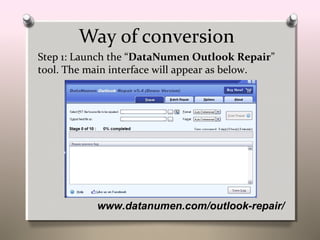
Step 1: Launch the “DataNumen Outlook Repair”
tool. The main interface will appear as below.
www.datanumen.com/outlook-repair/
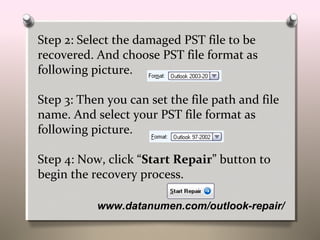
Step 2: Select the damaged PST file to be
recovered. And choose PST file format as
following picture.
Step 3: Then you can set the file path and file
name. And select your PST file format as
following picture.
Step 4: Now, click “Start Repair” button to
begin the recovery process.
www.datanumen.com/outlook-repair/
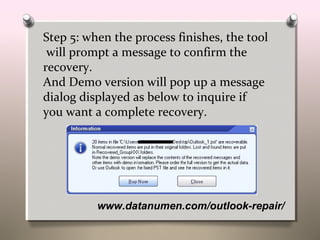
Step 5: when the process finishes, the tool
will prompt a message to confirm the
recovery.
And Demo version will pop up a message
dialog displayed as below to inquire if
you want a complete recovery.
www.datanumen.com/outlook-repair/
Way of split
1. First, perform step 1~2 mentioned
above.
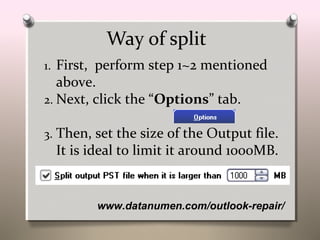
2. Next, click the “Options” tab.
3. Then, set the size of the Output file.
It is ideal to limit it around 1000MB.
www.datanumen.com/outlook-repair/
4. After that, perform foresaid step 3
and keep the format still in
“Outlook 97-2002”.
5. At last, follow the remaining steps
to complete the recovery process.
www.datanumen.com/outlook-repair/

Fix Oversized 2GB Outlook PST File