Gleesborg
Interactive
Lecture 1 start (Introduction)
This presentation is part of the course found at:
https://www.gleesborginteractive.com/p/learn-to-integrate-firebase-and-google-pla
y-games-services-in-unity
Read the blogpost here:
https://www.gleesborginteractive.com/blog/1743217/gettings-started-with-firebase-
authentication-for-unity
Gleesborg
Interactive
This slide is not meant to be consumed stand-alone.
Please follow along using the blog-post:
https://www.gleesborginteractive.com/blog/1743217/gettings-started-with-firebase-
authentication-for-unity
Gleesborg
Interactive
Integrating Firebase
Authentication into Unity
Gleesborg
Interactive
Prerequisites
Basic C# knowledge
Classes
Arrays
Basic types
Basic Unity knowledge
Interface
GameObjects
Gleesborg
Interactive
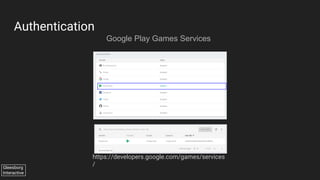
Authentication
Google Play Games Services
SomeName
https://developers.google.com/games/services
/
Gleesborg
Interactive
Lecture 1 end (Introduction)
Gleesborg
Interactive
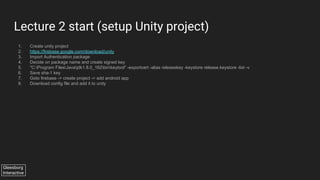
Lecture 2 start (setup Unity project)
1. Create unity project
2. https://firebase.google.com/download/unity
3. Import Authentication package
4. Decide on package name and create signed key
5. "C:Program FilesJavajdk1.8.0_162binkeytool" -exportcert -alias releasekey -keystore release.keystore -list -v
6. Save sha-1 key
7. Goto firebase -> create project -> add android app
8. Download config file and add it to unity
Gleesborg
Interactive
Lecture 2 end
Gleesborg
Interactive
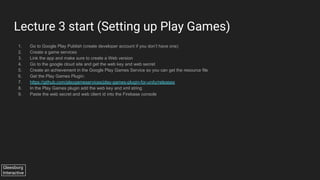
Lecture 3 start (Setting up Play Games)
1. Go to Google Play Publish (create developer account if you don’t have one)
2. Create a game services
3. Link the app and make sure to create a Web version
4. Go to the google cloud site and get the web key and web secret
5. Create an achievement in the Google Play Games Service so you can get the resource file
6. Get the Play Games Plugin:
7. https://github.com/playgameservices/play-games-plugin-for-unity/releases
8. In the Play Games plugin add the web key and xml string
9. Paste the web secret and web client id into the Firebase console
Gleesborg
Interactive
Lecture 3 end
Gleesborg
Interactive
Lecture 4 start (Creating a Login button)
1. Open up unity and create a UI Button
2. Attach a script to it called UserManager
3. Create the code
Gleesborg
Interactive
Lecture 4 end
Gleesborg
Interactive
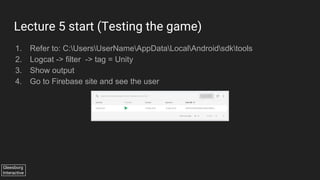
Lecture 5 start (Testing the game)
1. Refer to: C:UsersUserNameAppDataLocalAndroidsdktools
2. Logcat -> filter -> tag = Unity
3. Show output
4. Go to Firebase site and see the user
Gleesborg
Interactive
Lecture 5 end
Gleesborg
Interactive
Lecture 6 (Conclusion)
Thanks for watching this course on how to integrate Firebase into Unity
Gleesborg
Interactive
Using Firebase Database in
Unity
Gleesborg
Interactive
Using Google Play Games
Services
For Achievements

Firebase play-games-services-unity