Finding, Saving and
Evaluating OER using IOER
Intro to IOER: Module 2
10/9/2017 1
ioer.ilsharedlearning.org
#IOER
Objectives
At the end of this module, learners will be able to:
• Search within the system to locate specific OER
• Organize resources using libraries
• Evaluate resources using the IOER tools
10/9/2017 2
Searching
Searching for Resources, Libraries and Learning Lists/Sets
10/9/2017 3
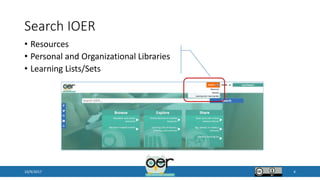
Search IOER
10/9/2017 4
• Resources
• Personal and Organizational Libraries
• Learning Lists/Sets
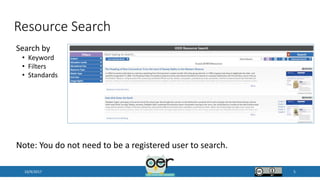
Resource Search
10/9/2017 5
Search by
• Keyword
• Filters
• Standards
Note: You do not need to be a registered user to search.
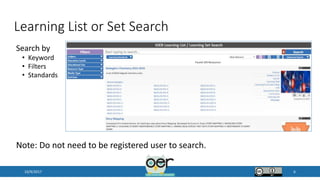
Learning List or Set Search
10/9/2017 6
Note: Do not need to be registered user to search.
Search by
• Keyword
• Filters
• Standards
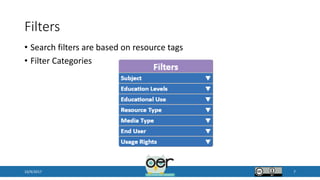
Filters
• Search filters are based on resource tags
• Filter Categories
10/9/2017 7
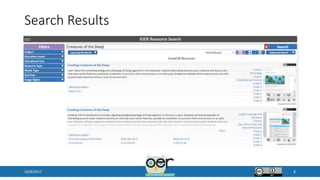
Search Results
10/9/2017 8
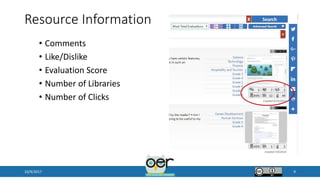
Resource Information
• Comments
• Like/Dislike
• Evaluation Score
• Number of Libraries
• Number of Clicks
10/9/2017 9
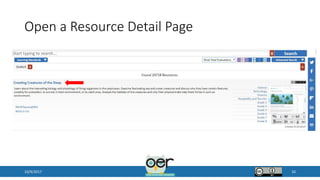
Open a Resource Detail Page
10/9/2017 10
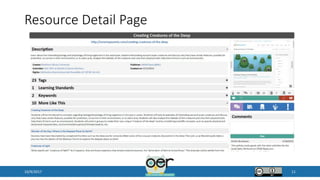
Resource Detail Page
10/9/2017 11
Resource Detail Page
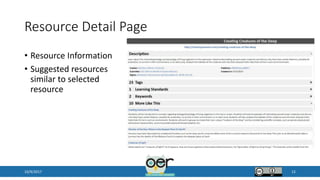
• Resource Information
• Suggested resources
similar to selected
resource
10/9/2017 12
Resource Detail Page
10/9/2017 13
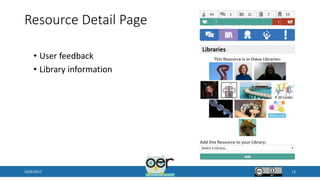
• User feedback
• Library information
Library Search
10/9/2017 14
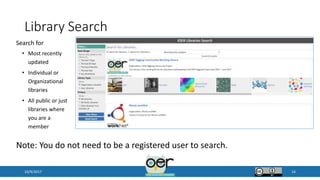
Search for
• Most recently
updated
• Individual or
Organizational
libraries
• All public or just
libraries where
you are a
member
Note: You do not need to be a registered user to search.
Small Group Activity – Searching
• Each group will search for a different topic.
• Search and find three resources about your topic.
• Use at least 2 filters to facilitate the search.
• Highlight three interesting facts about each resource. (i.e.
How many libraries is it saved in? Is it aligned to standards?
What are the usage rights? Does it have an evaluation score? )
• Locate one resource through the “More like this feature.”
10/9/2017 15
Organizing
Creating and Using Libraries and Collections
10/9/2017 16
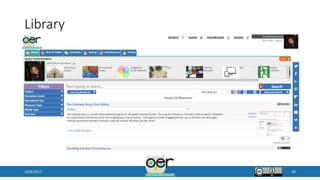
Library
• Collection of resources managed by an organization or individual
registered IOER user
• User created collections to organize content
• Searchable
• User controlled privacy and collaboration settings
10/9/2017 17
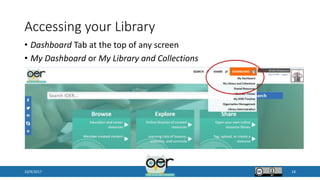
Accessing your Library
• Dashboard Tab at the top of any screen
• My Dashboard or My Library and Collections
10/9/2017 18
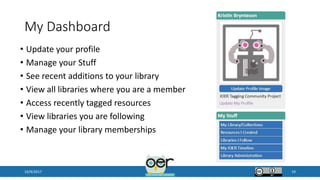
My Dashboard
• Update your profile
• Manage your Stuff
• See recent additions to your library
• View all libraries where you are a member
• Access recently tagged resources
• View libraries you are following
• Manage your library memberships
10/9/2017 19
Library
10/9/2017 20
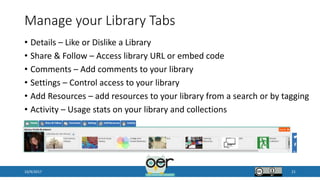
Manage your Library Tabs
• Details – Like or Dislike a Library
• Share & Follow – Access library URL or embed code
• Comments – Add comments to your library
• Settings – Control access to your library
• Add Resources – add resources to your library from a search or by tagging
• Activity – Usage stats on your library and collections
10/9/2017 21
Activity
• Open your Library
• Write a description, upload a new image, and set access for your
library.
• Edit the title, description, image and access of your default collection.
• Create a new collection.
10/9/2017 22
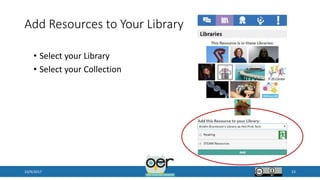
Add Resources to Your Library
10/9/2017 23
• Select your Library
• Select your Collection
Activity
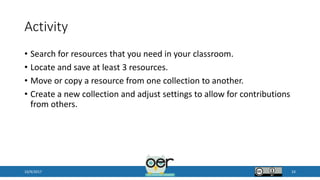
• Search for resources that you need in your classroom.
• Locate and save at least 3 resources.
• Move or copy a resource from one collection to another.
• Create a new collection and adjust settings to allow for contributions
from others.
10/9/2017 24
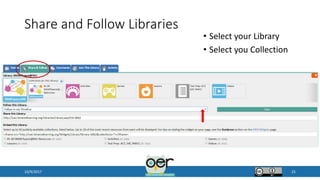
Share and Follow Libraries
10/9/2017 25
• Select your Library
• Select you Collection
Activity
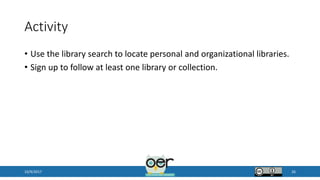
• Use the library search to locate personal and organizational libraries.
• Sign up to follow at least one library or collection.
10/9/2017 26
Evaluating
Providing Feedback through IOER Tools
10/9/2017 27
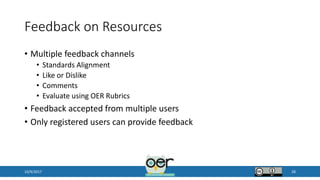
Feedback on Resources
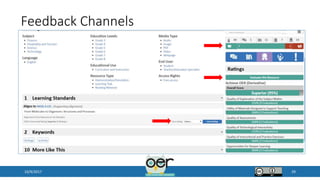
• Multiple feedback channels
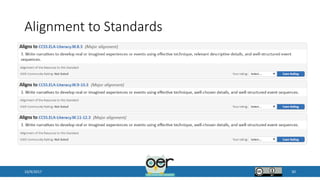
• Standards Alignment
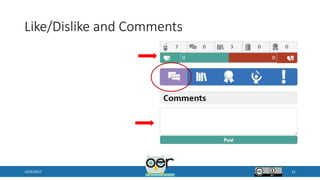
• Like or Dislike
• Comments
• Evaluate using OER Rubrics
• Feedback accepted from multiple users
• Only registered users can provide feedback
10/9/2017 28
Feedback Channels
10/9/2017 29
Alignment to Standards
10/9/2017 30
Like/Dislike and Comments
10/9/2017 31
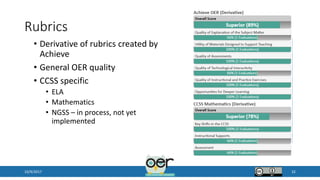
Rubrics
• Derivative of rubrics created by
Achieve
• General OER quality
• CCSS specific
• ELA
• Mathematics
• NGSS – in process, not yet
implemented
10/9/2017 32
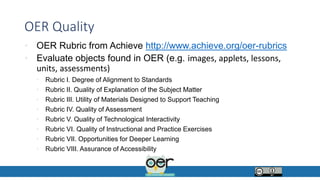
OER Quality
• OER Rubric from Achieve http://www.achieve.org/oer-rubrics
• Evaluate objects found in OER (e.g. images, applets, lessons,
units, assessments)
• Rubric I. Degree of Alignment to Standards
• Rubric II. Quality of Explanation of the Subject Matter
• Rubric III. Utility of Materials Designed to Support Teaching
• Rubric IV. Quality of Assessment
• Rubric V. Quality of Technological Interactivity
• Rubric VI. Quality of Instructional and Practice Exercises
• Rubric VII. Opportunities for Deeper Learning
• Rubric VIII. Assurance of Accessibility
EQuIP Rubric from Achieve
• Information from Achieve…When to use EQuIP
• “Lessons that include instructional activities and assessments aligned to the
CCSS that may extend over a few class periods or days
• Units that include integrated and focused lessons aligned to the CCSS that
extend over a longer period of time
• The rubric is NOT designed to evaluate a single task or activity
• The rubrics do not require a specific template for lesson or unit design”
• Three Rubrics
• Mathematics
• ELA/Literacy
• ELA/Literacy (K-2)
http://www.achieve.org/our-initiatives/equip/rubrics-and-feedback-forms
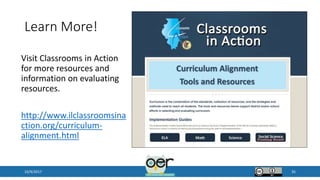
Learn More!
10/9/2017 35
Visit Classrooms in Action
for more resources and
information on evaluating
resources.
http://www.ilclassroomsina
ction.org/curriculum-
alignment.html
Activity
• In groups - open the activity Creatures of the Deep
http://ioer.ilsharedlearning.org/Resource/585503/creating_creatures
_of_deep.
• In small groups review and discuss the activity.
• Rate the alignment to the tagged standards.
• Discuss and evaluate the resource using the Achieve OER (derivative)
rubric. Use the scoring guide to discuss each criteria and determine
the strength of each element.
10/9/2017 36
Activity
• In groups, search for one instructional resource (i.e. lesson plan or unit
plan)
• Discuss and rate the alignment to the tagged standards.
• Discuss and evaluate the resource using the Achieve OER (derivative)
rubric. Use the scoring guide to discuss each criteria and determine
the strength of each element.
10/9/2017 37
Sponsored by:
Illinois Department of Commerce and Economic Opportunity and
Illinois State Board of Education
ioer.ilsharedlearning.org
#IOER
IOER Website and Technical Questions
Email: info@siuccwd.com
Professional Development and Training Questions
Kristin Brynteson kbrynteson@niu.edu

Finding, Saving and Evaluating OER Using IOER

  • 1.
    Finding, Saving and EvaluatingOER using IOER Intro to IOER: Module 2 10/9/2017 1 ioer.ilsharedlearning.org #IOER
  • 2.
    Objectives At the endof this module, learners will be able to: • Search within the system to locate specific OER • Organize resources using libraries • Evaluate resources using the IOER tools 10/9/2017 2
  • 3.
    Searching Searching for Resources,Libraries and Learning Lists/Sets 10/9/2017 3
  • 4.
    Search IOER 10/9/2017 4 •Resources • Personal and Organizational Libraries • Learning Lists/Sets
  • 5.
    Resource Search 10/9/2017 5 Searchby • Keyword • Filters • Standards Note: You do not need to be a registered user to search.
  • 6.
    Learning List orSet Search 10/9/2017 6 Note: Do not need to be registered user to search. Search by • Keyword • Filters • Standards
  • 7.
    Filters • Search filtersare based on resource tags • Filter Categories 10/9/2017 7
  • 8.
  • 9.
    Resource Information • Comments •Like/Dislike • Evaluation Score • Number of Libraries • Number of Clicks 10/9/2017 9
  • 10.
    Open a ResourceDetail Page 10/9/2017 10
  • 11.
  • 12.
    Resource Detail Page •Resource Information • Suggested resources similar to selected resource 10/9/2017 12
  • 13.
    Resource Detail Page 10/9/201713 • User feedback • Library information
  • 14.
    Library Search 10/9/2017 14 Searchfor • Most recently updated • Individual or Organizational libraries • All public or just libraries where you are a member Note: You do not need to be a registered user to search.
  • 15.
    Small Group Activity– Searching • Each group will search for a different topic. • Search and find three resources about your topic. • Use at least 2 filters to facilitate the search. • Highlight three interesting facts about each resource. (i.e. How many libraries is it saved in? Is it aligned to standards? What are the usage rights? Does it have an evaluation score? ) • Locate one resource through the “More like this feature.” 10/9/2017 15
  • 16.
    Organizing Creating and UsingLibraries and Collections 10/9/2017 16
  • 17.
    Library • Collection ofresources managed by an organization or individual registered IOER user • User created collections to organize content • Searchable • User controlled privacy and collaboration settings 10/9/2017 17
  • 18.
    Accessing your Library •Dashboard Tab at the top of any screen • My Dashboard or My Library and Collections 10/9/2017 18
  • 19.
    My Dashboard • Updateyour profile • Manage your Stuff • See recent additions to your library • View all libraries where you are a member • Access recently tagged resources • View libraries you are following • Manage your library memberships 10/9/2017 19
  • 20.
  • 21.
    Manage your LibraryTabs • Details – Like or Dislike a Library • Share & Follow – Access library URL or embed code • Comments – Add comments to your library • Settings – Control access to your library • Add Resources – add resources to your library from a search or by tagging • Activity – Usage stats on your library and collections 10/9/2017 21
  • 22.
    Activity • Open yourLibrary • Write a description, upload a new image, and set access for your library. • Edit the title, description, image and access of your default collection. • Create a new collection. 10/9/2017 22
  • 23.
    Add Resources toYour Library 10/9/2017 23 • Select your Library • Select your Collection
  • 24.
    Activity • Search forresources that you need in your classroom. • Locate and save at least 3 resources. • Move or copy a resource from one collection to another. • Create a new collection and adjust settings to allow for contributions from others. 10/9/2017 24
  • 25.
    Share and FollowLibraries 10/9/2017 25 • Select your Library • Select you Collection
  • 26.
    Activity • Use thelibrary search to locate personal and organizational libraries. • Sign up to follow at least one library or collection. 10/9/2017 26
  • 27.
  • 28.
    Feedback on Resources •Multiple feedback channels • Standards Alignment • Like or Dislike • Comments • Evaluate using OER Rubrics • Feedback accepted from multiple users • Only registered users can provide feedback 10/9/2017 28
  • 29.
  • 30.
  • 31.
  • 32.
    Rubrics • Derivative ofrubrics created by Achieve • General OER quality • CCSS specific • ELA • Mathematics • NGSS – in process, not yet implemented 10/9/2017 32
  • 33.
    OER Quality • OERRubric from Achieve http://www.achieve.org/oer-rubrics • Evaluate objects found in OER (e.g. images, applets, lessons, units, assessments) • Rubric I. Degree of Alignment to Standards • Rubric II. Quality of Explanation of the Subject Matter • Rubric III. Utility of Materials Designed to Support Teaching • Rubric IV. Quality of Assessment • Rubric V. Quality of Technological Interactivity • Rubric VI. Quality of Instructional and Practice Exercises • Rubric VII. Opportunities for Deeper Learning • Rubric VIII. Assurance of Accessibility
  • 34.
    EQuIP Rubric fromAchieve • Information from Achieve…When to use EQuIP • “Lessons that include instructional activities and assessments aligned to the CCSS that may extend over a few class periods or days • Units that include integrated and focused lessons aligned to the CCSS that extend over a longer period of time • The rubric is NOT designed to evaluate a single task or activity • The rubrics do not require a specific template for lesson or unit design” • Three Rubrics • Mathematics • ELA/Literacy • ELA/Literacy (K-2) http://www.achieve.org/our-initiatives/equip/rubrics-and-feedback-forms
  • 35.
    Learn More! 10/9/2017 35 VisitClassrooms in Action for more resources and information on evaluating resources. http://www.ilclassroomsina ction.org/curriculum- alignment.html
  • 36.
    Activity • In groups- open the activity Creatures of the Deep http://ioer.ilsharedlearning.org/Resource/585503/creating_creatures _of_deep. • In small groups review and discuss the activity. • Rate the alignment to the tagged standards. • Discuss and evaluate the resource using the Achieve OER (derivative) rubric. Use the scoring guide to discuss each criteria and determine the strength of each element. 10/9/2017 36
  • 37.
    Activity • In groups,search for one instructional resource (i.e. lesson plan or unit plan) • Discuss and rate the alignment to the tagged standards. • Discuss and evaluate the resource using the Achieve OER (derivative) rubric. Use the scoring guide to discuss each criteria and determine the strength of each element. 10/9/2017 37
  • 38.
    Sponsored by: Illinois Departmentof Commerce and Economic Opportunity and Illinois State Board of Education ioer.ilsharedlearning.org #IOER IOER Website and Technical Questions Email: info@siuccwd.com Professional Development and Training Questions Kristin Brynteson kbrynteson@niu.edu

Editor's Notes

  • #5 Using the search features in IOER one can search for teaching and learning resources, user and organizational libraries, and Learning lists/sets.
  • #11 Select the title of a resource to open the detail page.
  • #12 The detail page provides more information about the resource.
  • #13 The left hand side of the detail page provides more information about the resource. Including all of the tags associated with the resources. At the bottom of the page you will see “10 More Like This”. Here you will find suggested resources that are similar to the one you are looking at.
  • #14 The right hand of the details page provides user feedback on the resource. Navigate through the information by using the tabs. Only registered users can provide feedback. Comment – Add a comment about this resource Library – Add this resource to your personal or organizational library Evaluation – Use the embedded rubrics to evaluate the resource Tools – Add tags to this resources Report – Report a problem with this resource
  • #20 The dashboard provides you with access to all of your IOER. Using the menu on the left you can open your library, view the resources you created, search the libraries you follow and manage your library membership. On the right hand of the screen you see thumbnails of recent resources and direct links to different libraries.
  • #21 Your library is where you organize resources within IOER. Your library allows you to save links to resources so you do not have to search for them every time you come to IOER. You can create collections in your library to help you organize your links further. Both the overall library and each collections is searchable using the filter menu.
  • #22 Use the tabs at the top of your library to manage