Instructor Survey
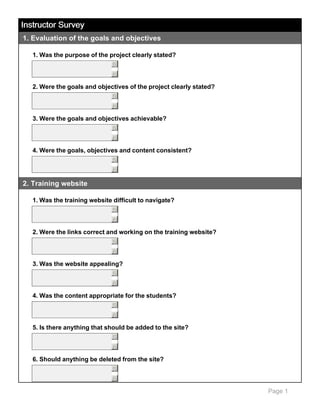
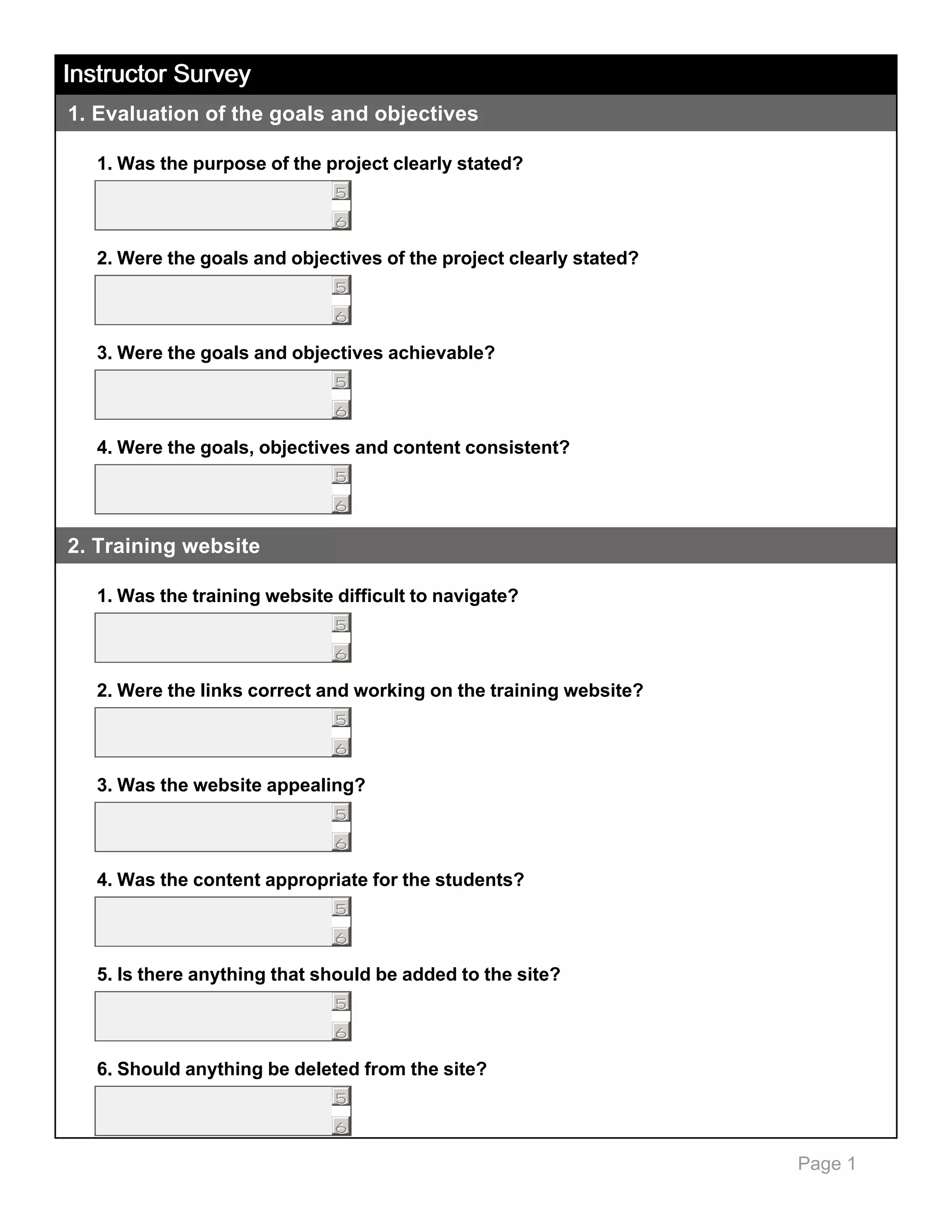
1. Evaluation of the goals and objectives
1. Was the purpose of the project clearly stated?
5
6

2. Were the goals and objectives of the project clearly stated?
5
6

3. Were the goals and objectives achievable?
5
6

4. Were the goals, objectives and content consistent?
5
6

2. Training website
1. Was the training website difficult to navigate?
5
6

2. Were the links correct and working on the training website?
5
6

3. Was the website appealing?
5
6

4. Was the content appropriate for the students?
5
6

5. Is there anything that should be added to the site?
5
6

6. Should anything be deleted from the site?
5
6

Page 1
Instructor Survey
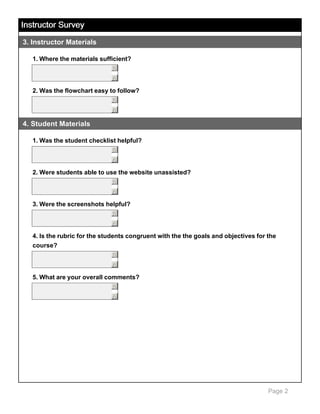
3. Instructor Materials
1. Where the materials sufficient?
5
6

2. Was the flowchart easy to follow?
5
6

4. Student Materials
1. Was the student checklist helpful?
5
6

2. Were students able to use the website unassisted?
5
6

3. Were the screenshots helpful?
5
6

4. Is the rubric for the students congruent with the the goals and objectives for the
course?
5
6

5. What are your overall comments?
5
6

Page 2
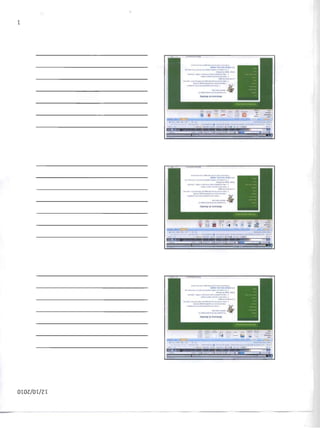
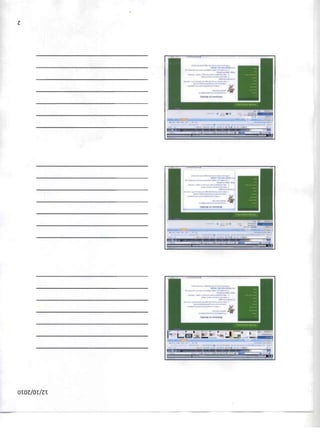
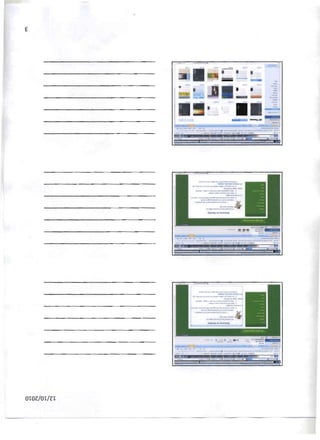
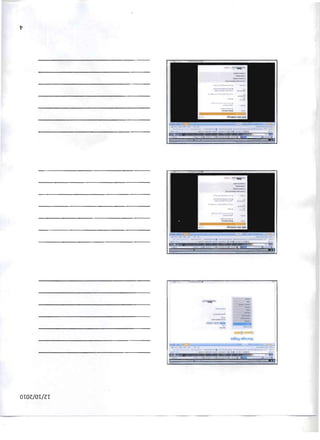
Building a Webpage with Weebly
Learner will access
and locate the
National History
Day Weebly web
development site

When given access
to the Internet
Explorer Browser
the Learner will
locate the National
History Day
Weebly web
development site

Learner will locate
and enter the
Weebly signon
information

Given the Weebly web
signon site the Learner
will locate and enter
his/her new Weebly
username,password

Given the Weebly web
sign on site the Learner
will locate and enter
submit

Learner will create
a Weebly site

Learner will set up
and revise format

Given the Weebly
development site
the Learner will
locate and enter
the create a site
tab

Given the create
a site webpage
the learner will
create a title for
their website

Given the create
a site webpage
the learner will
locate
and enter
"Education" in the
type of site
continue

Given the
Weebly editor the
learner will select
Design options

Given the
Design options
the learner will
select title and
enter a selected
value

Learner will setup
and revise
paragraph title and
text format

Given the
Weebly editor the
learner will select
Design options

Given the Design
options the
learner will select
title and enter a
selected value

Learner will setup
and revise the link
color format

Given the Design
option the learner
will select links

Given the links
the learner will
choose and apply
a selected color

Learner will
select and choose
the Design in the
editor

Given the Design
option the learner
will select links

Given the links
the learner will
choose and apply
a selected color

Learner will
locate and select
elements

Given the
theme the learner
will locate and
select the
elements tab

Given the
elements tab the
learner will locate
and select the
basics tab

Learner will select
the Title Text from
the basics tab

Given the basic
options the
learner will select
the Title text

Given the Title
text the learner
will select the title
text to edit

Given the toolbar
the learner will
design the font or
color of the text

Learner will
create a picture in
the paragraph

Given the
Weebly editor the
learner will create
a picture in the
paragraph

Learner will locate
and select
multimedia tab

Learner will locate
and select the
More tab

Given the
elements tab the
learner will locate
and select the
multimedia ta

Learner will create
pages

Given the More tab
the learner will
choose layout

Given the More
tab the learner
will choose fun

Given the
multimedia tab
the learner will
locate and select
Google maps

Given the
webpage the
learner will insert
the Google map

Given the Weebly
editor the learner
will select the
pages tab

Given the Weebly
editor the learner
select settings

Given the More
tab the learner will
choose forms

Given the Weebly
editor the learner
will select
Publish

recognize they
may be edited

Given the
manage pages
webpage the
learner will create
a page

Given the More
tab the learner
will choose Misc

Learner will
publish the web
page

Learner will select
settings

Given the
manage pages
webpage the
learner will
design the page
through editing a
page

Given the Weebly
editor the learner
locates help and
notes the
information tab

Given the
manage pages
webpage the
learner will select
to reorder the
pages

Given the
manage pages
webpage the
learner will select
save

Buy SmartDraw!- purchased copies print this
document without a watermark .
Visit www.smartdraw.com or call 1-800-768-3729.
OTOZ/OT/n
Z


OWZ/OT/n
010l/01/n
.... 


OWZ/OT/n
s


~"M'"

UGluaA ":ec hQl't1H ..nu UI lqllr.". taU Ill.

IOIptA &UIUt.J~ ilIA Of .unlD, ~}O ewos

DTDZ/DT/lT

Final%20project

  • 1.
    Instructor Survey 1. Evaluationof the goals and objectives 1. Was the purpose of the project clearly stated? 5 6 2. Were the goals and objectives of the project clearly stated? 5 6 3. Were the goals and objectives achievable? 5 6 4. Were the goals, objectives and content consistent? 5 6 2. Training website 1. Was the training website difficult to navigate? 5 6 2. Were the links correct and working on the training website? 5 6 3. Was the website appealing? 5 6 4. Was the content appropriate for the students? 5 6 5. Is there anything that should be added to the site? 5 6 6. Should anything be deleted from the site? 5 6 Page 1
  • 2.
    Instructor Survey 3. InstructorMaterials 1. Where the materials sufficient? 5 6 2. Was the flowchart easy to follow? 5 6 4. Student Materials 1. Was the student checklist helpful? 5 6 2. Were students able to use the website unassisted? 5 6 3. Were the screenshots helpful? 5 6 4. Is the rubric for the students congruent with the the goals and objectives for the course? 5 6 5. What are your overall comments? 5 6 Page 2
  • 3.
    Building a Webpagewith Weebly Learner will access and locate the National History Day Weebly web development site When given access to the Internet Explorer Browser the Learner will locate the National History Day Weebly web development site Learner will locate and enter the Weebly signon information Given the Weebly web signon site the Learner will locate and enter his/her new Weebly username,password Given the Weebly web sign on site the Learner will locate and enter submit Learner will create a Weebly site Learner will set up and revise format Given the Weebly development site the Learner will locate and enter the create a site tab Given the create a site webpage the learner will create a title for their website Given the create a site webpage the learner will locate and enter "Education" in the type of site continue Given the Weebly editor the learner will select Design options Given the Design options the learner will select title and enter a selected value Learner will setup and revise paragraph title and text format Given the Weebly editor the learner will select Design options Given the Design options the learner will select title and enter a selected value Learner will setup and revise the link color format Given the Design option the learner will select links Given the links the learner will choose and apply a selected color Learner will select and choose the Design in the editor Given the Design option the learner will select links Given the links the learner will choose and apply a selected color Learner will locate and select elements Given the theme the learner will locate and select the elements tab Given the elements tab the learner will locate and select the basics tab Learner will select the Title Text from the basics tab Given the basic options the learner will select the Title text Given the Title text the learner will select the title text to edit Given the toolbar the learner will design the font or color of the text Learner will create a picture in the paragraph Given the Weebly editor the learner will create a picture in the paragraph Learner will locate and select multimedia tab Learner will locate and select the More tab Given the elements tab the learner will locate and select the multimedia ta Learner will create pages Given the More tab the learner will choose layout Given the More tab the learner will choose fun Given the multimedia tab the learner will locate and select Google maps Given the webpage the learner will insert the Google map Given the Weebly editor the learner will select the pages tab Given the Weebly editor the learner select settings Given the More tab the learner will choose forms Given the Weebly editor the learner will select Publish recognize they may be edited Given the manage pages webpage the learner will create a page Given the More tab the learner will choose Misc Learner will publish the web page Learner will select settings Given the manage pages webpage the learner will design the page through editing a page Given the Weebly editor the learner locates help and notes the information tab Given the manage pages webpage the learner will select to reorder the pages Given the manage pages webpage the learner will select save Buy SmartDraw!- purchased copies print this document without a watermark . Visit www.smartdraw.com or call 1-800-768-3729.
  • 4.
  • 5.
  • 6.
  • 7.
  • 8.
    s ~"M'" UGluaA ":ec hQl't1H..nu UI lqllr.". taU Ill. IOIptA &UIUt.J~ ilIA Of .unlD, ~}O ewos DTDZ/DT/lT