Welcome to the ExecQDocs Presentation
ExecQDocs is a Workflow enabled Document
Management System (EDMS)
ExecQDocs handles the following types of documents
• Paper documents (Scanning)
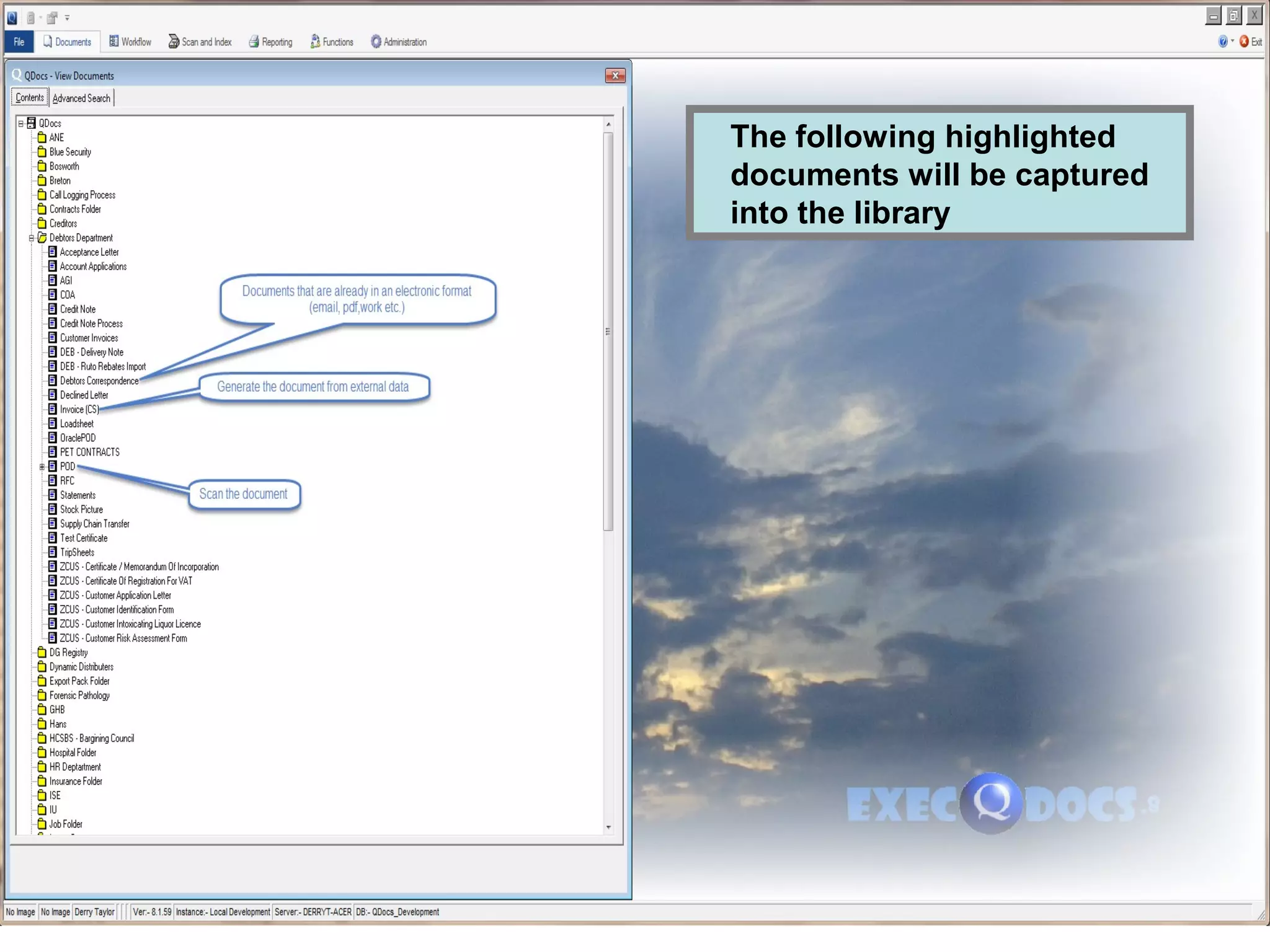
• Documents that are already in an electronic format
(pdf, word, excel, emails etc.)
• Data that needs be turned into a electronic documents
(creating pdf’s)
ExecQDocs will also enable you to create
Workflows to manage the processes in your
business
The following presentation will take you through a
practical example of managing your documents
and integrating these documents into a workflow
The Example relates to a typical Sales Invoice
• We will manage the documents around the Sales
Invoice
• To demonstrate the Workflow we will assume that
a Credit Note has been requested against this
invoice, this we will do by an approval process.
The following highlighted
documents will be captured
into the library
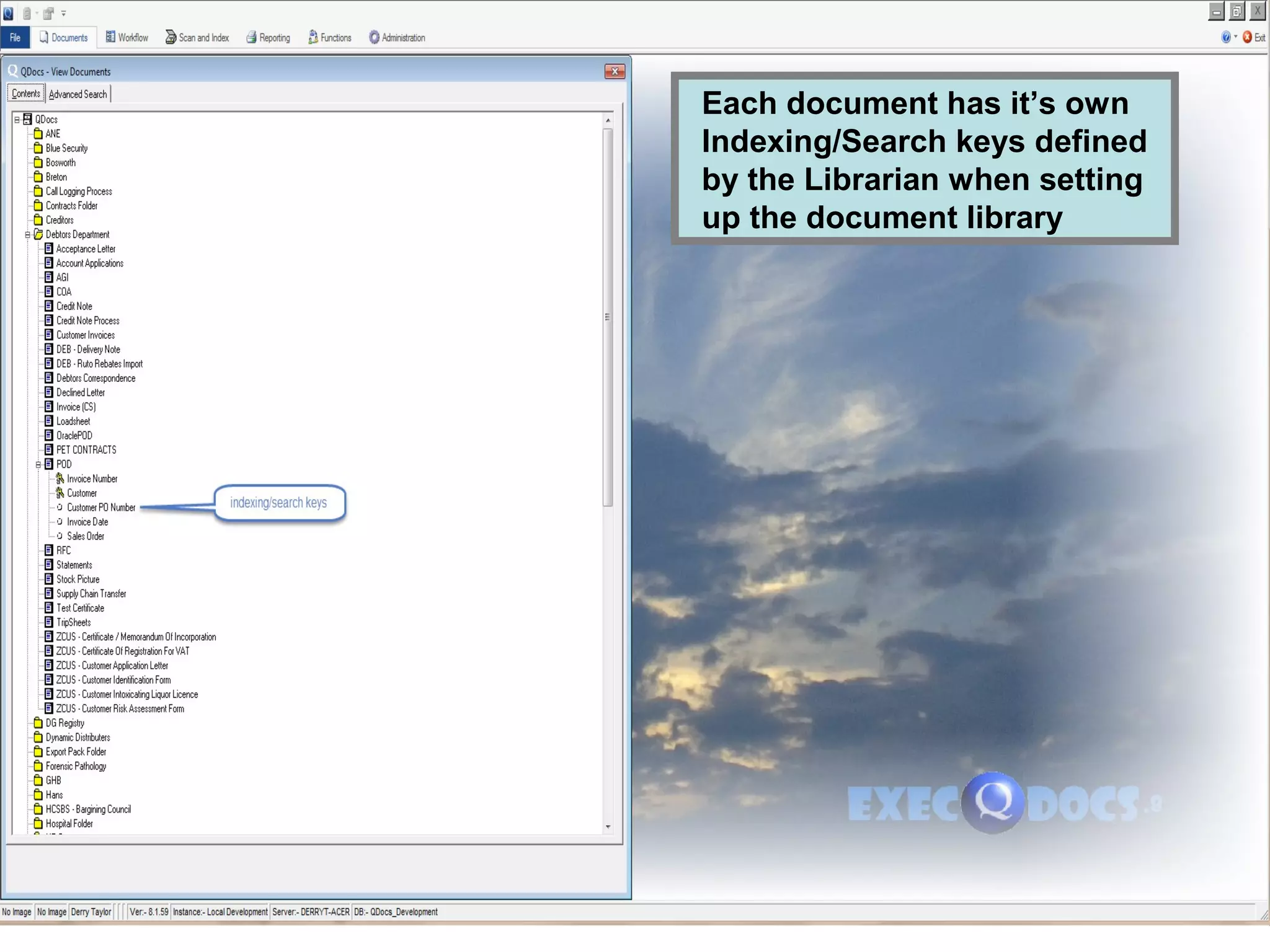
Each document has it’s own
Indexing/Search keys defined
by the Librarian when setting
up the document library
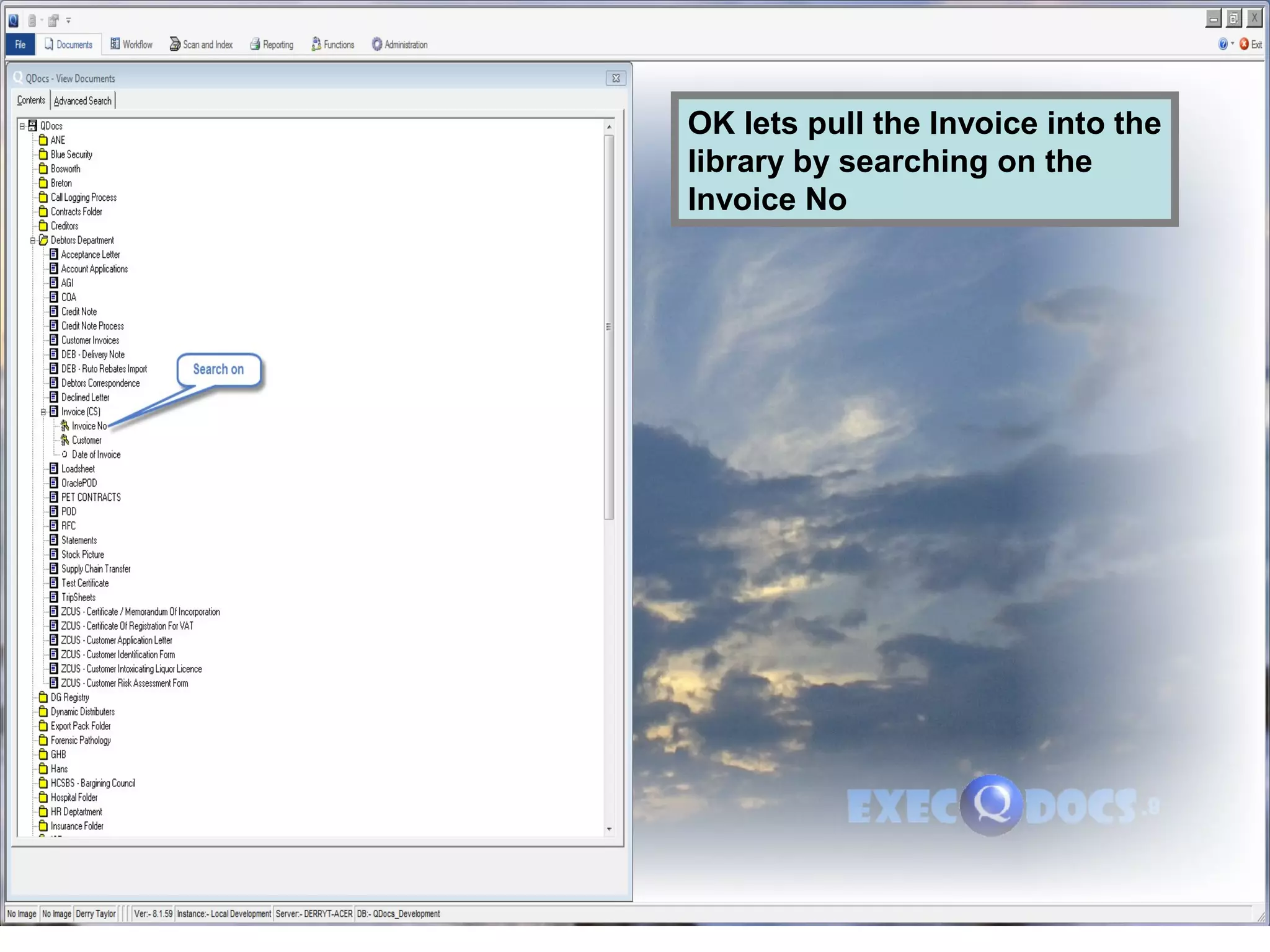
OK lets pull the Invoice into the
library by searching on the
Invoice No
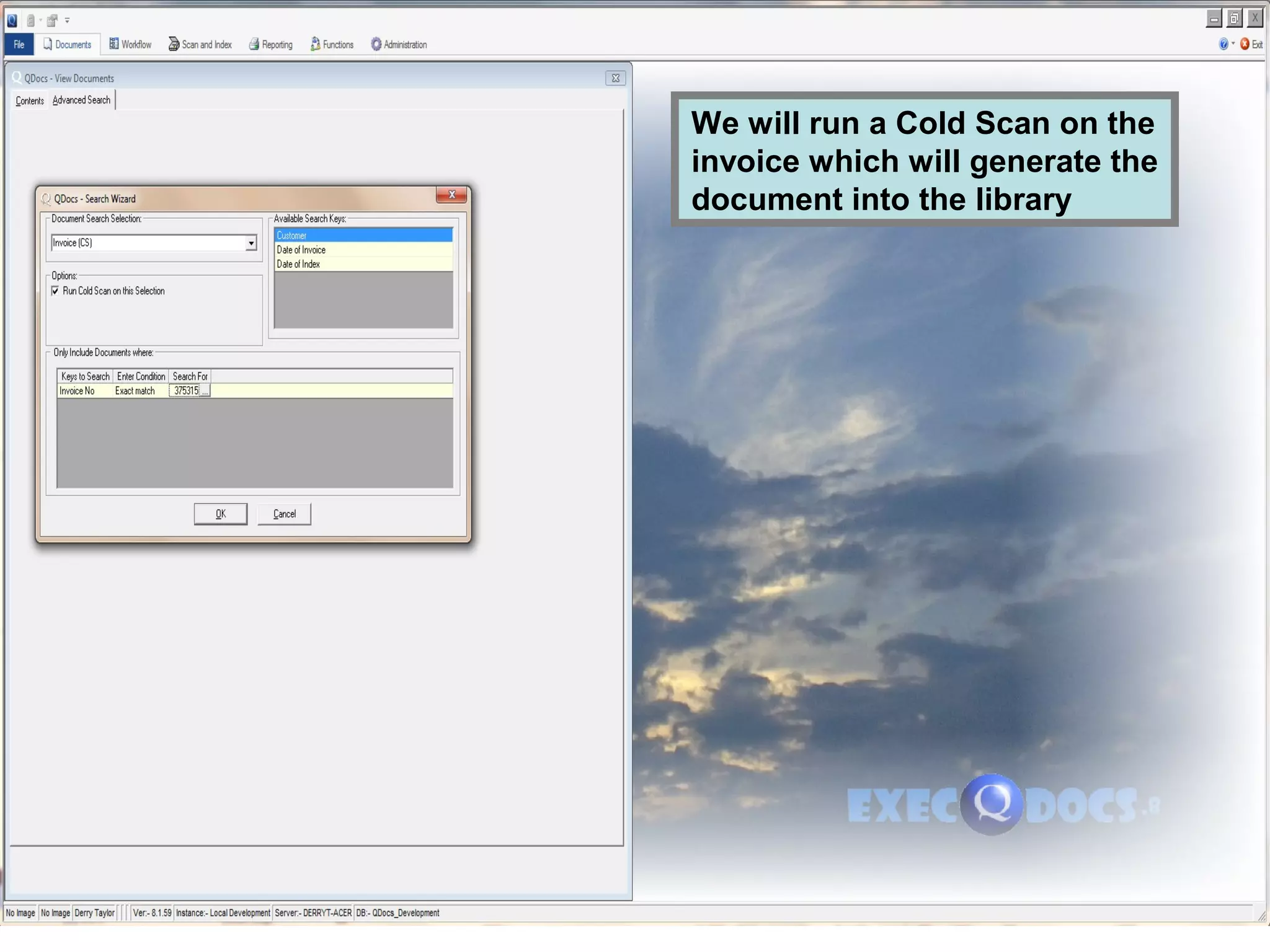
We will run a Cold Scan on the
invoice which will generate the
document into the library
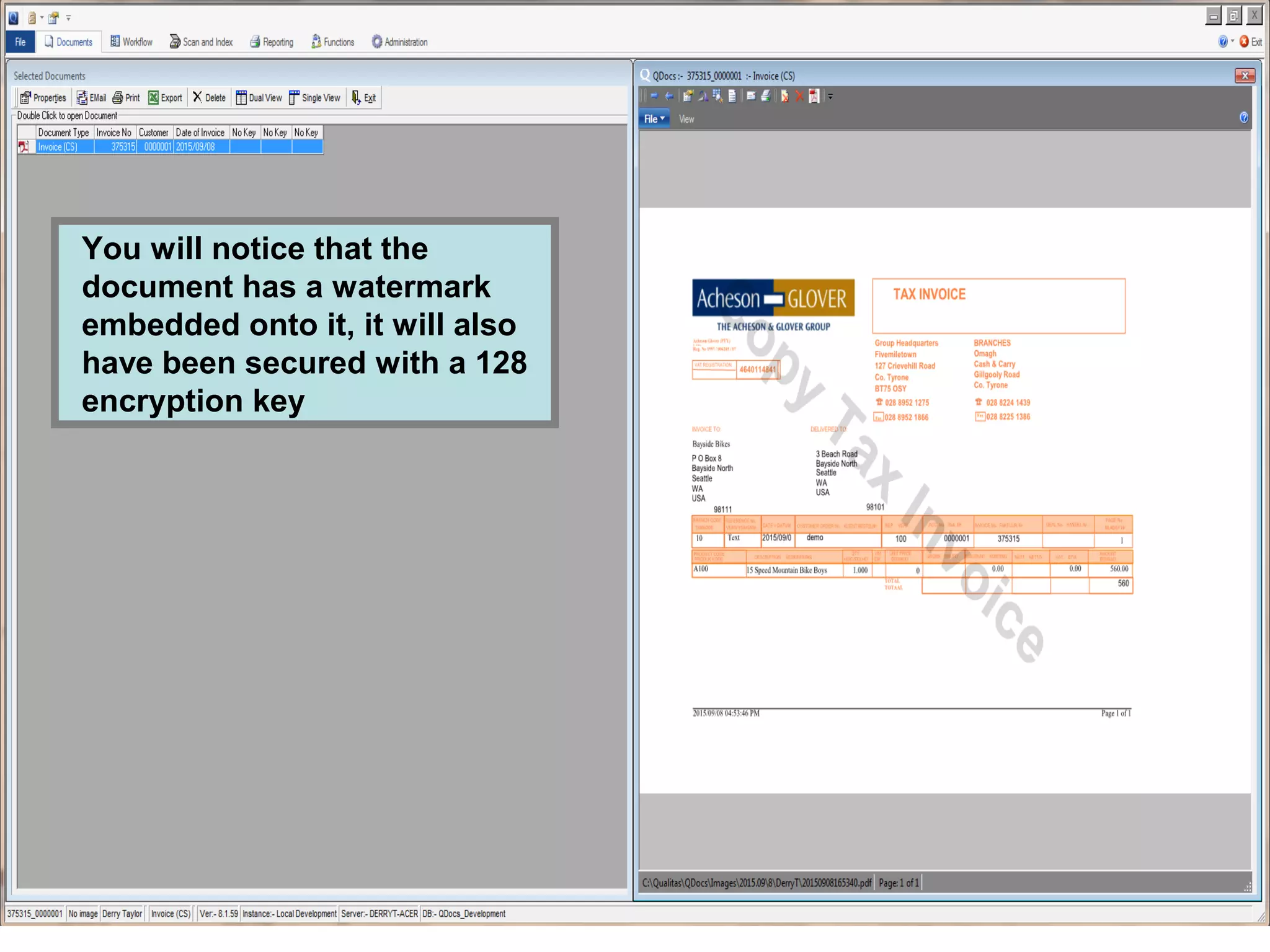
You will notice that the
document has a watermark
embedded onto it, it will also
have been secured with a 128
encryption key
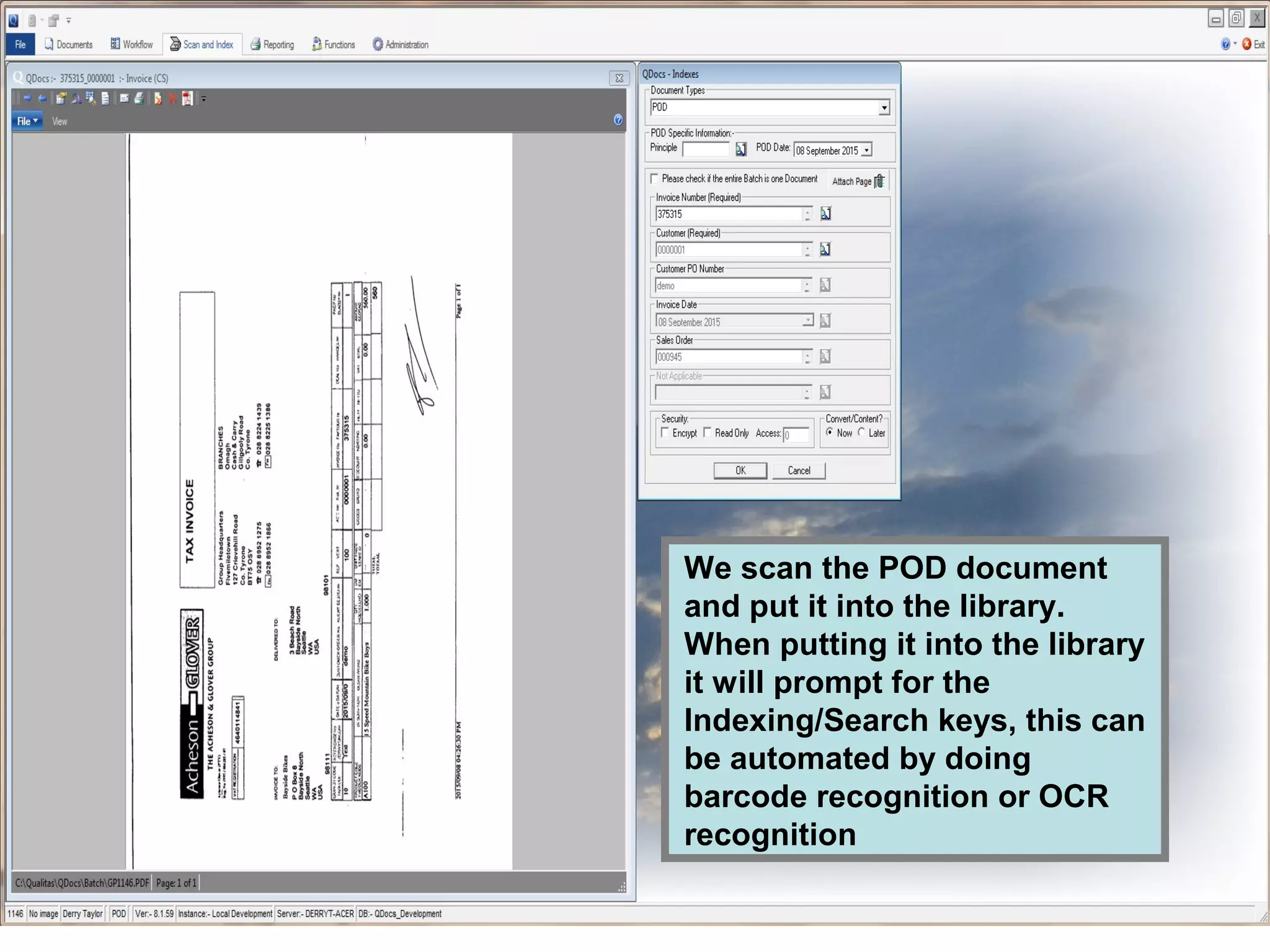
We scan the POD document
and put it into the library.
When putting it into the library
it will prompt for the
Indexing/Search keys, this can
be automated by doing
barcode recognition or OCR
recognition
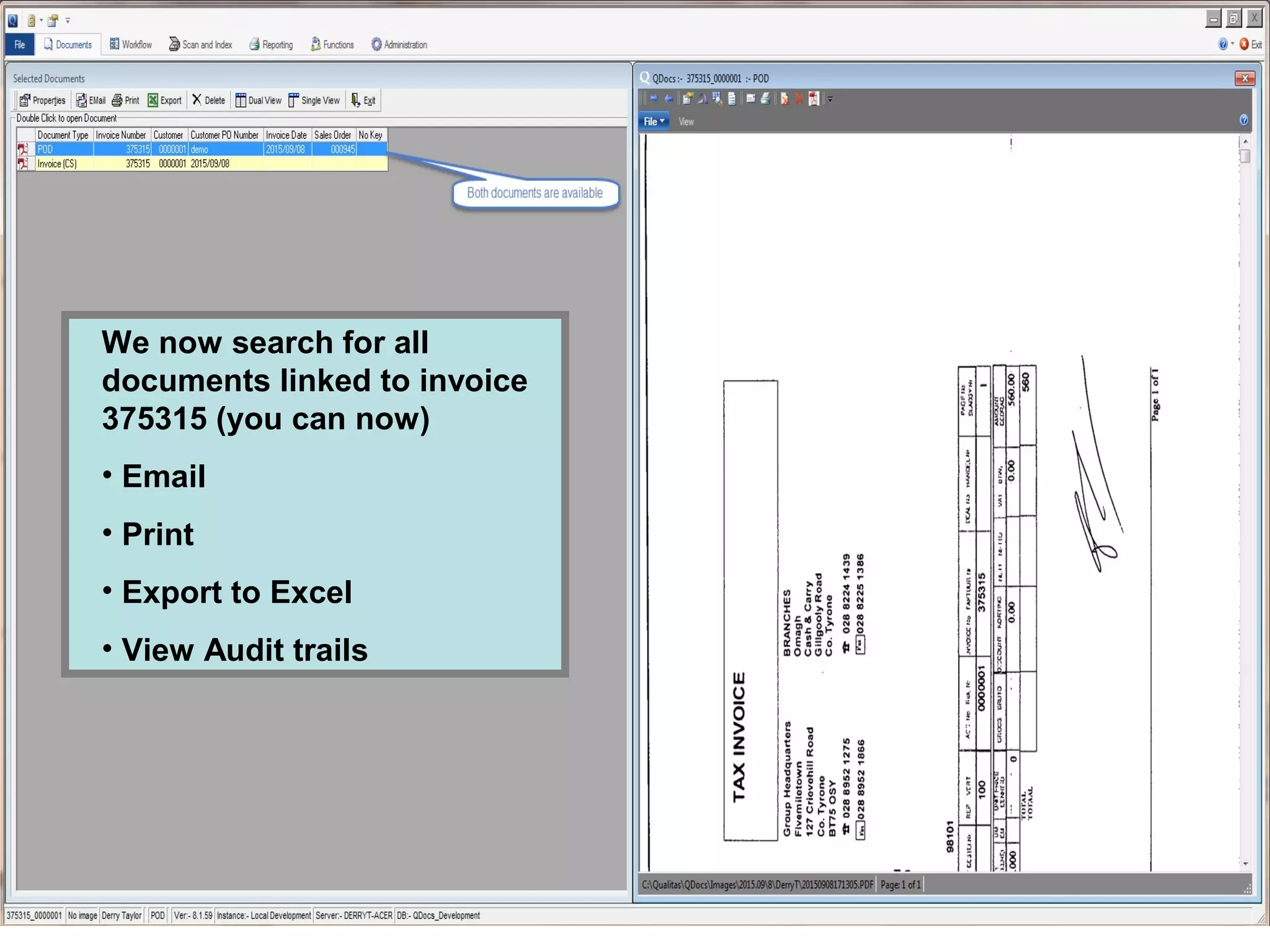
We now search for all
documents linked to invoice
375315 (you can now)
• Email
• Print
• Export to Excel
• View Audit trails
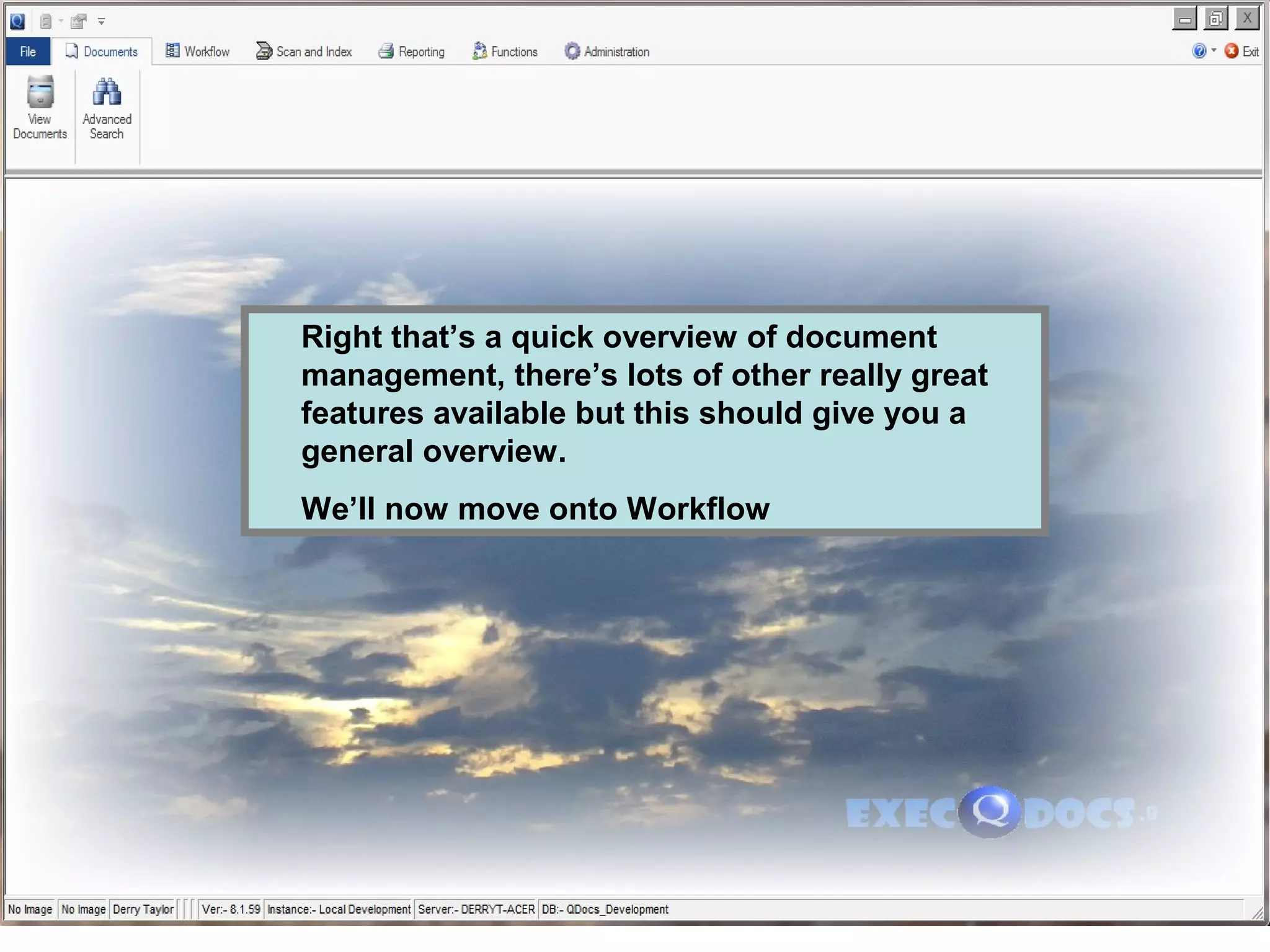
Right that’s a quick overview of document
management, there’s lots of other really great
features available but this should give you a
general overview.
We’ll now move onto Workflow
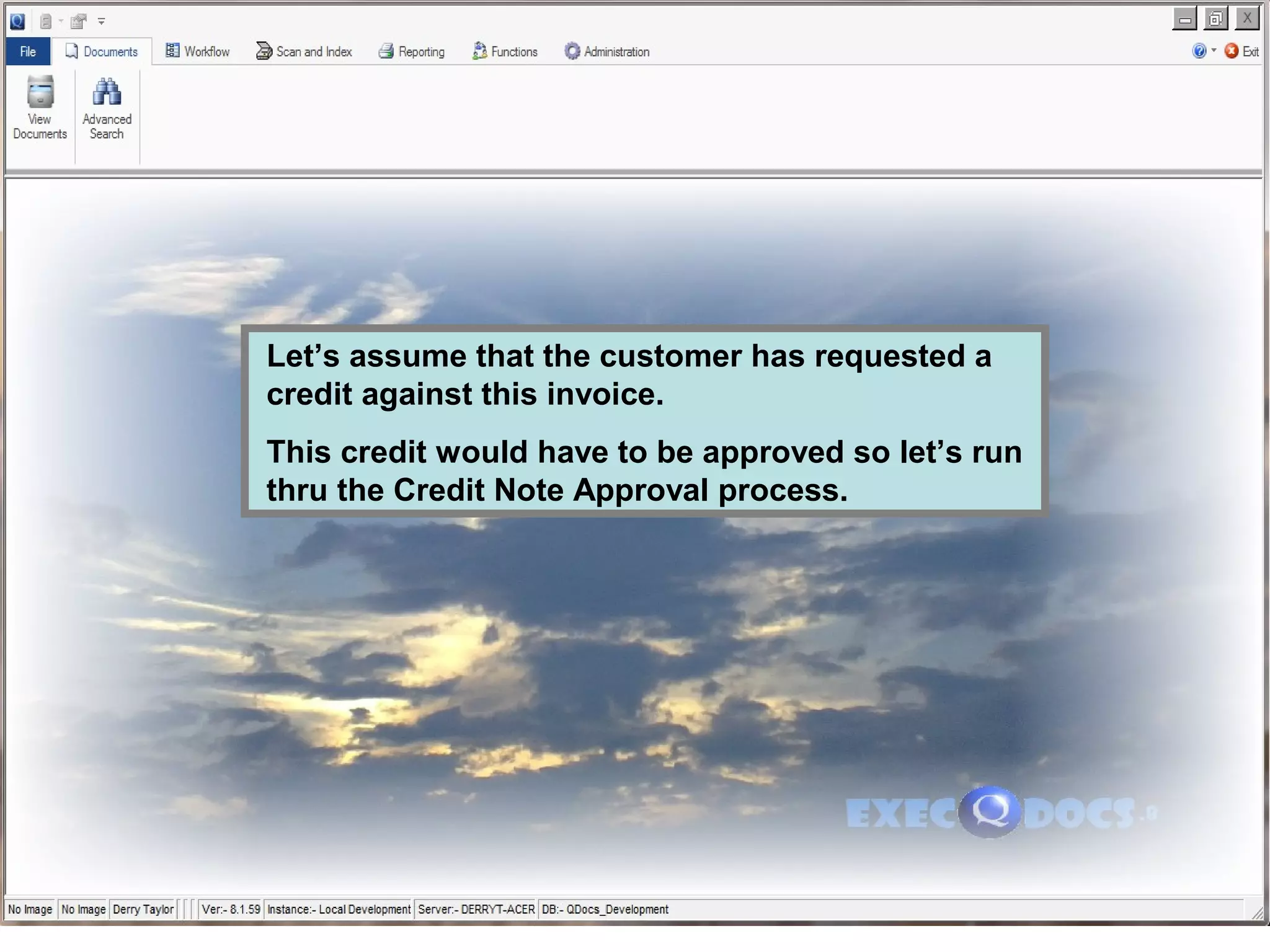
Let’s assume that the customer has requested a
credit against this invoice.
This credit would have to be approved so let’s run
thru the Credit Note Approval process.
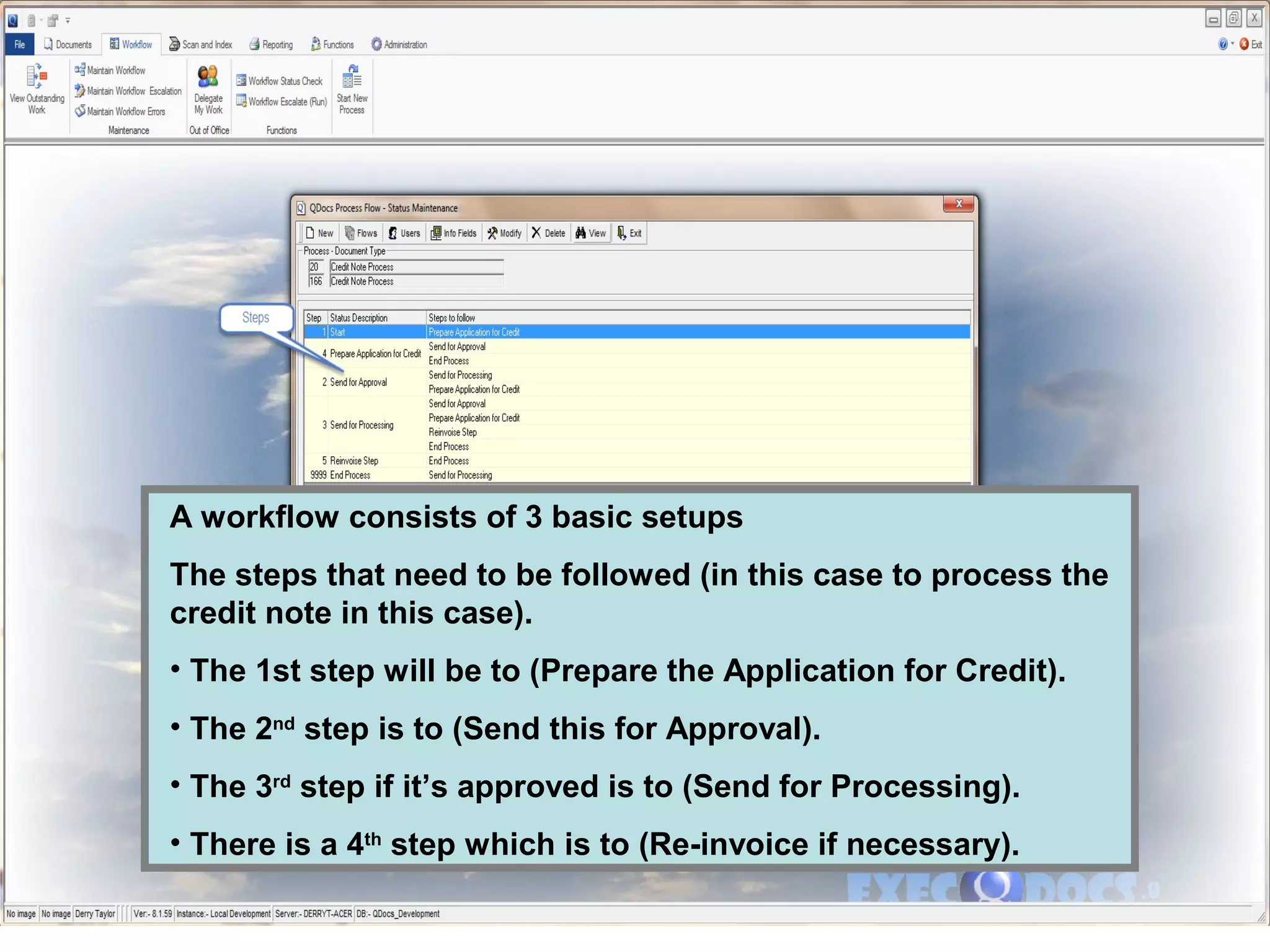
A workflow consists of 3 basic setups
The steps that need to be followed (in this case to process the
credit note in this case).
• The 1st step will be to (Prepare the Application for Credit).
• The 2nd
step is to (Send this for Approval).
• The 3rd
step if it’s approved is to (Send for Processing).
• There is a 4th
step which is to (Re-invoice if necessary).
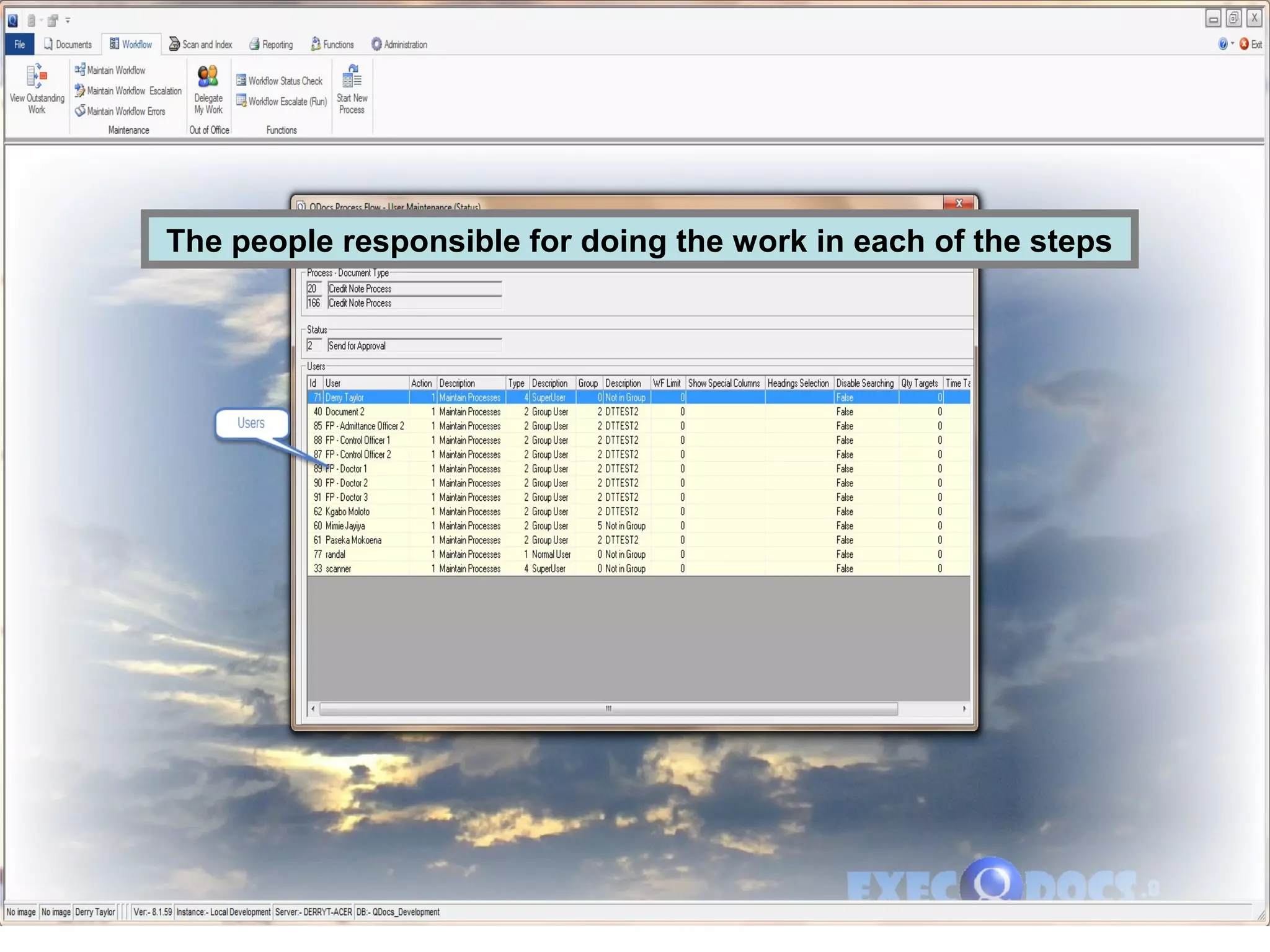
The people responsible for doing the work in each of the steps
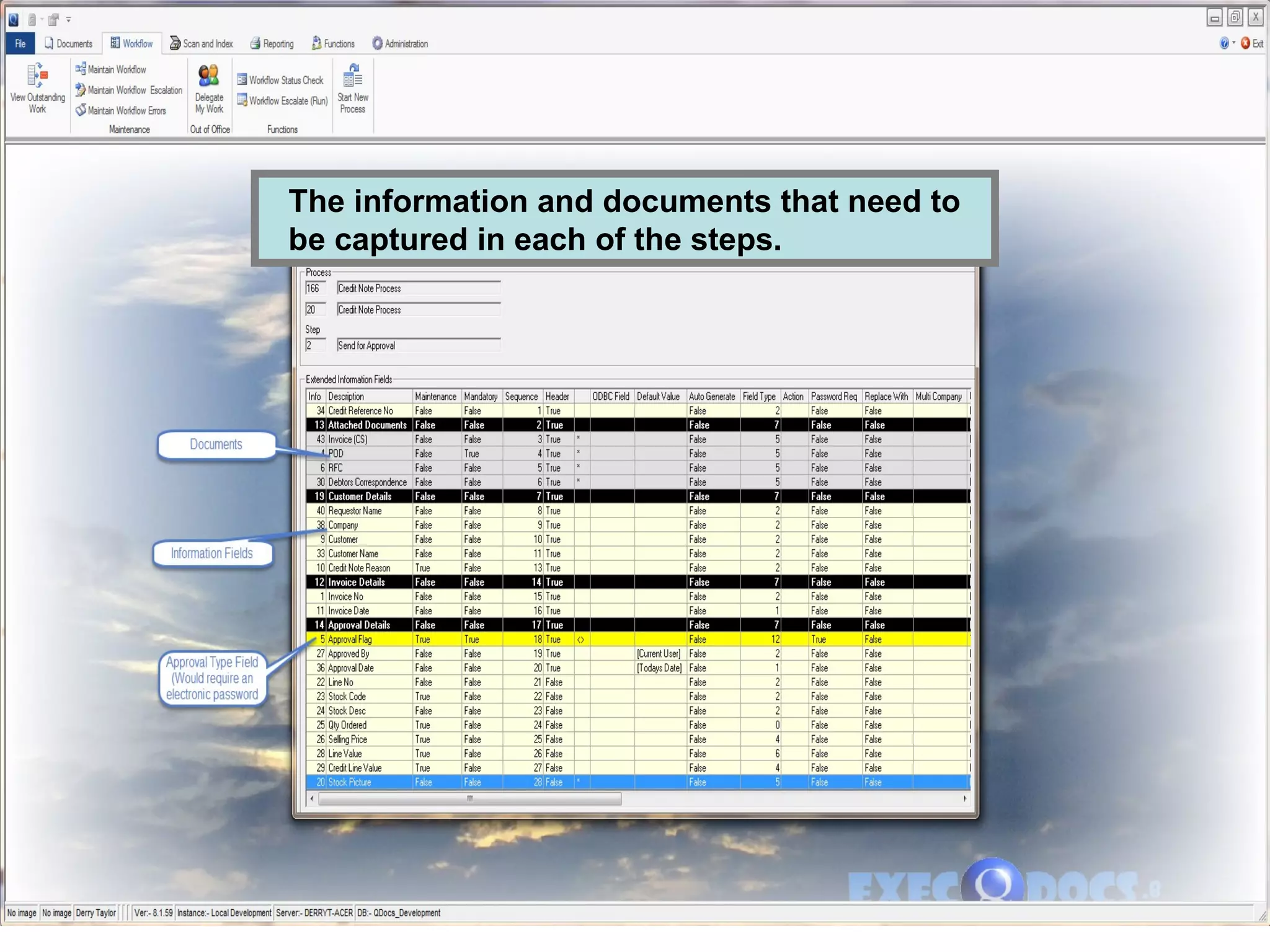
The information and documents that need to
be captured in each of the steps.
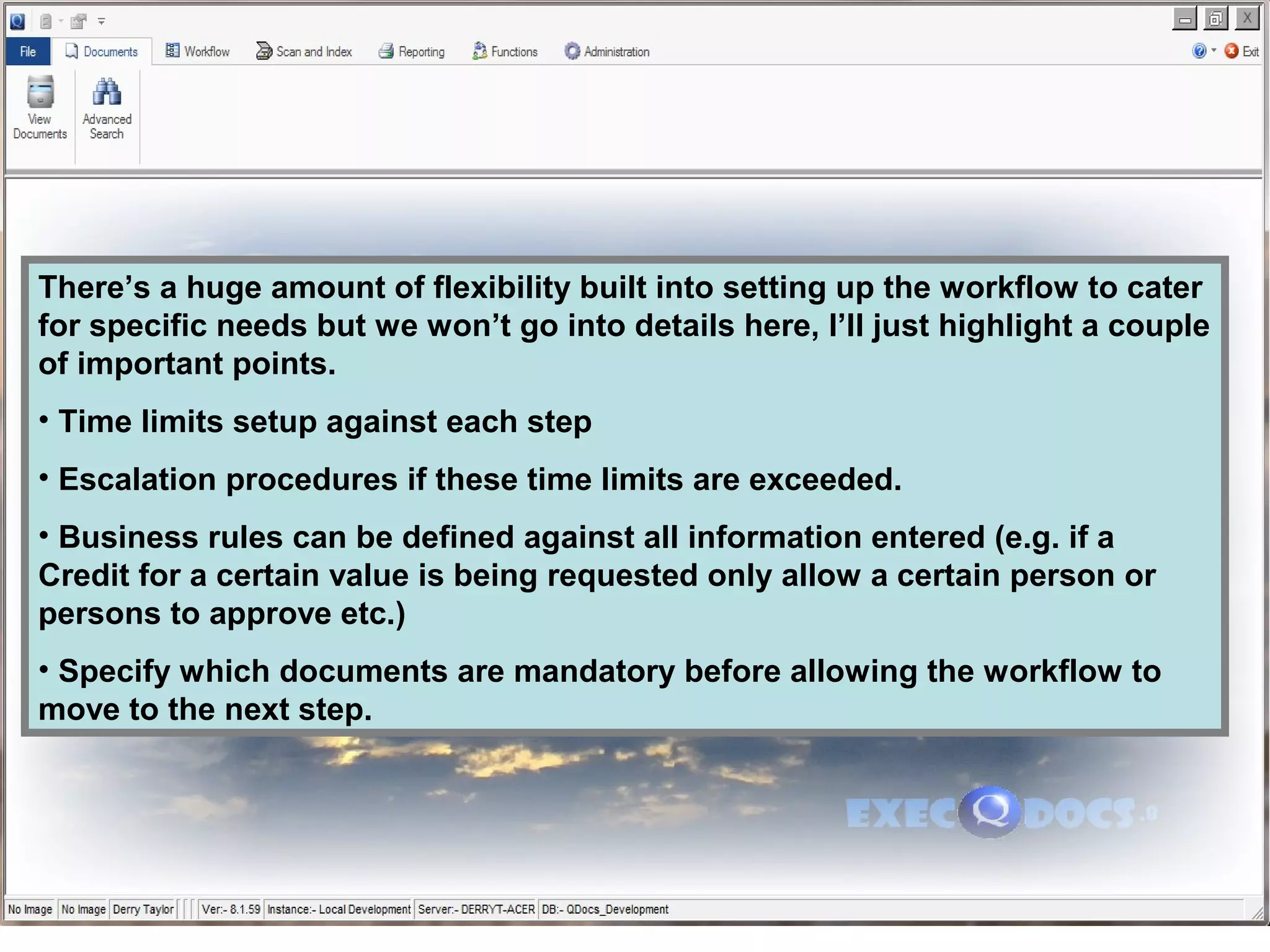
There’s a huge amount of flexibility built into setting up the workflow to cater
for specific needs but we won’t go into details here, I’ll just highlight a couple
of important points.
• Time limits setup against each step
• Escalation procedures if these time limits are exceeded.
• Business rules can be defined against all information entered (e.g. if a
Credit for a certain value is being requested only allow a certain person or
persons to approve etc.)
• Specify which documents are mandatory before allowing the workflow to
move to the next step.
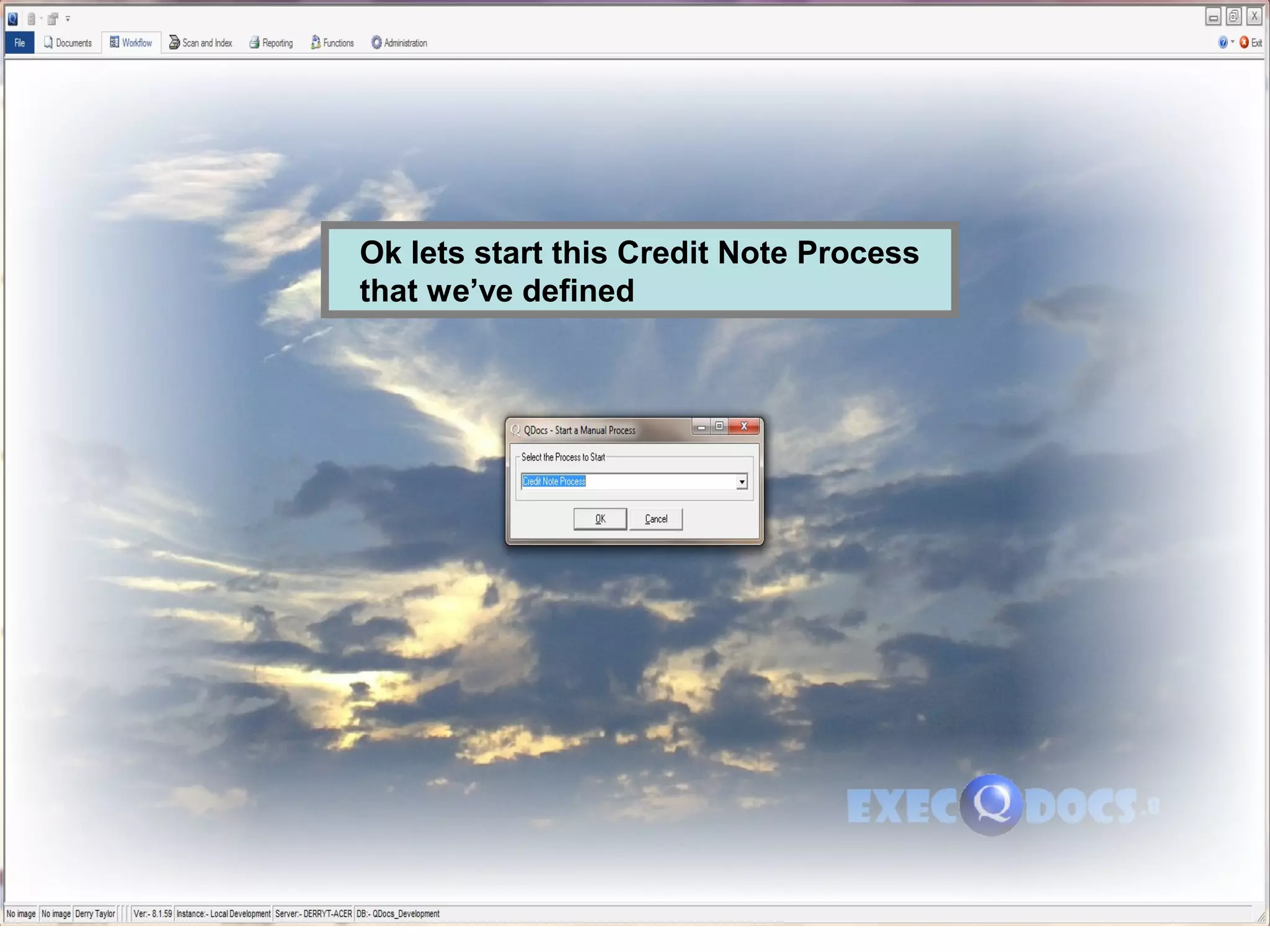
Ok lets start this Credit Note Process
that we’ve defined
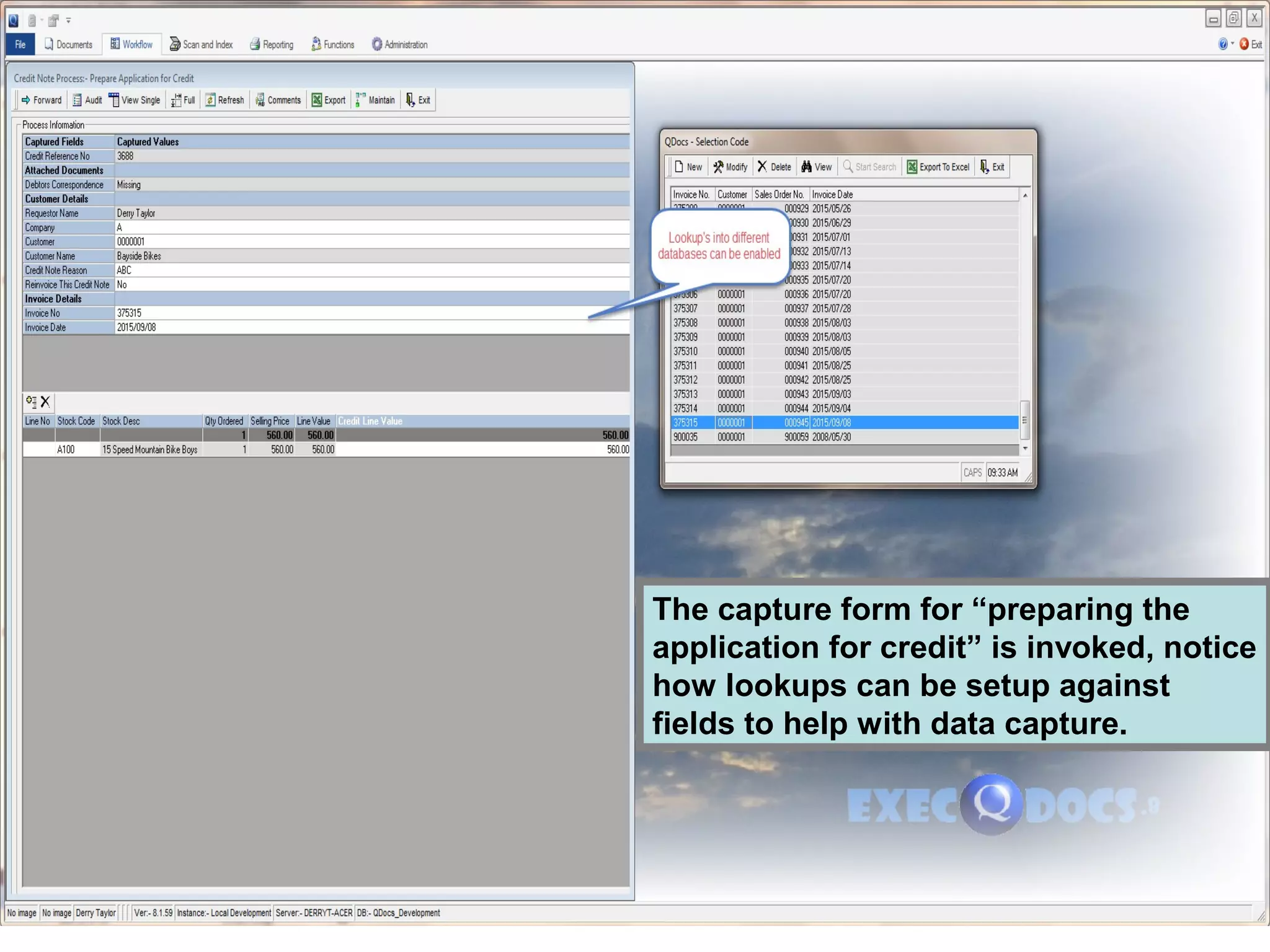
The capture form for “preparing the
application for credit” is invoked, notice
how lookups can be setup against
fields to help with data capture.
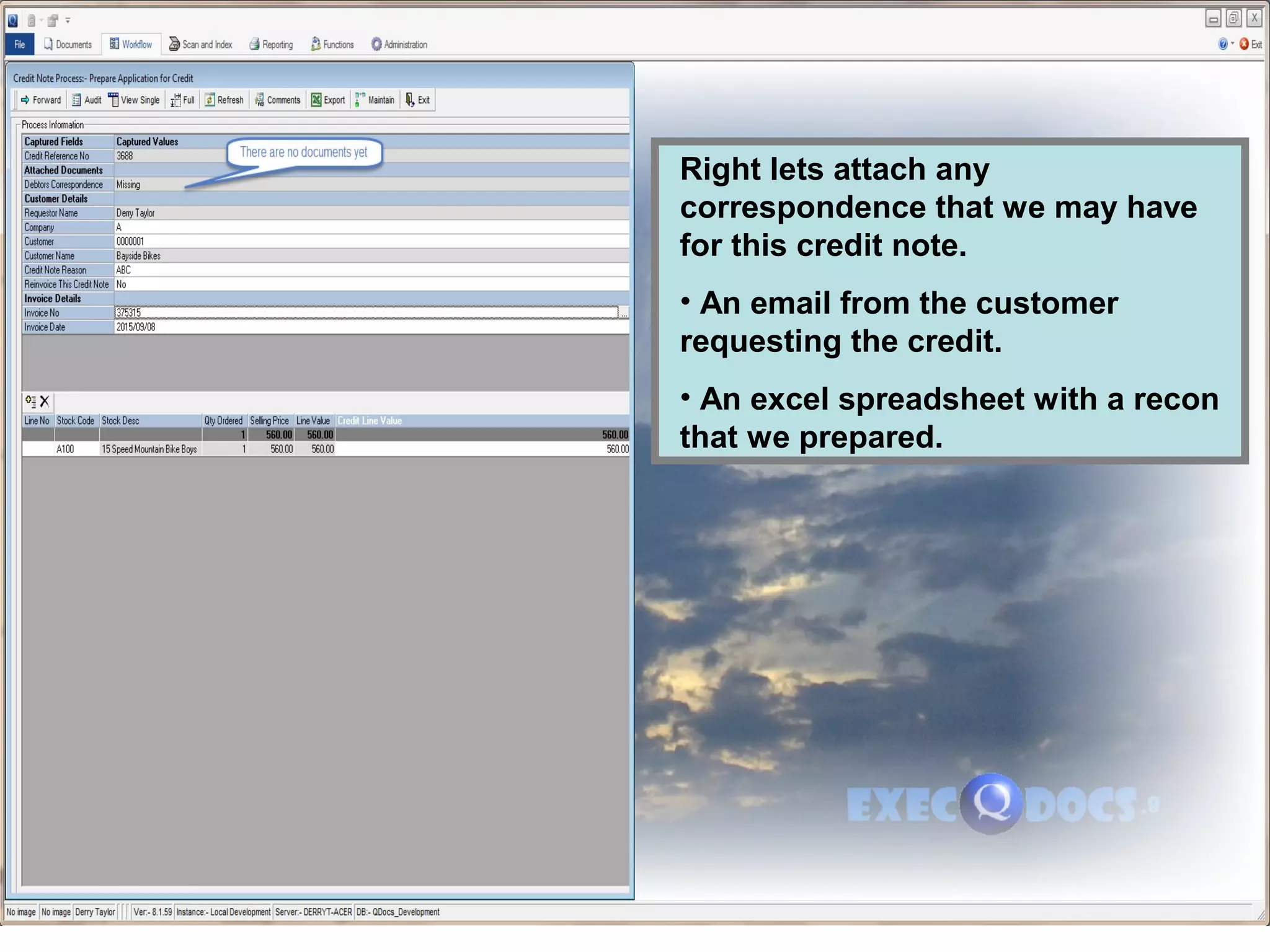
Right lets attach any
correspondence that we may have
for this credit note.
• An email from the customer
requesting the credit.
• An excel spreadsheet with a recon
that we prepared.
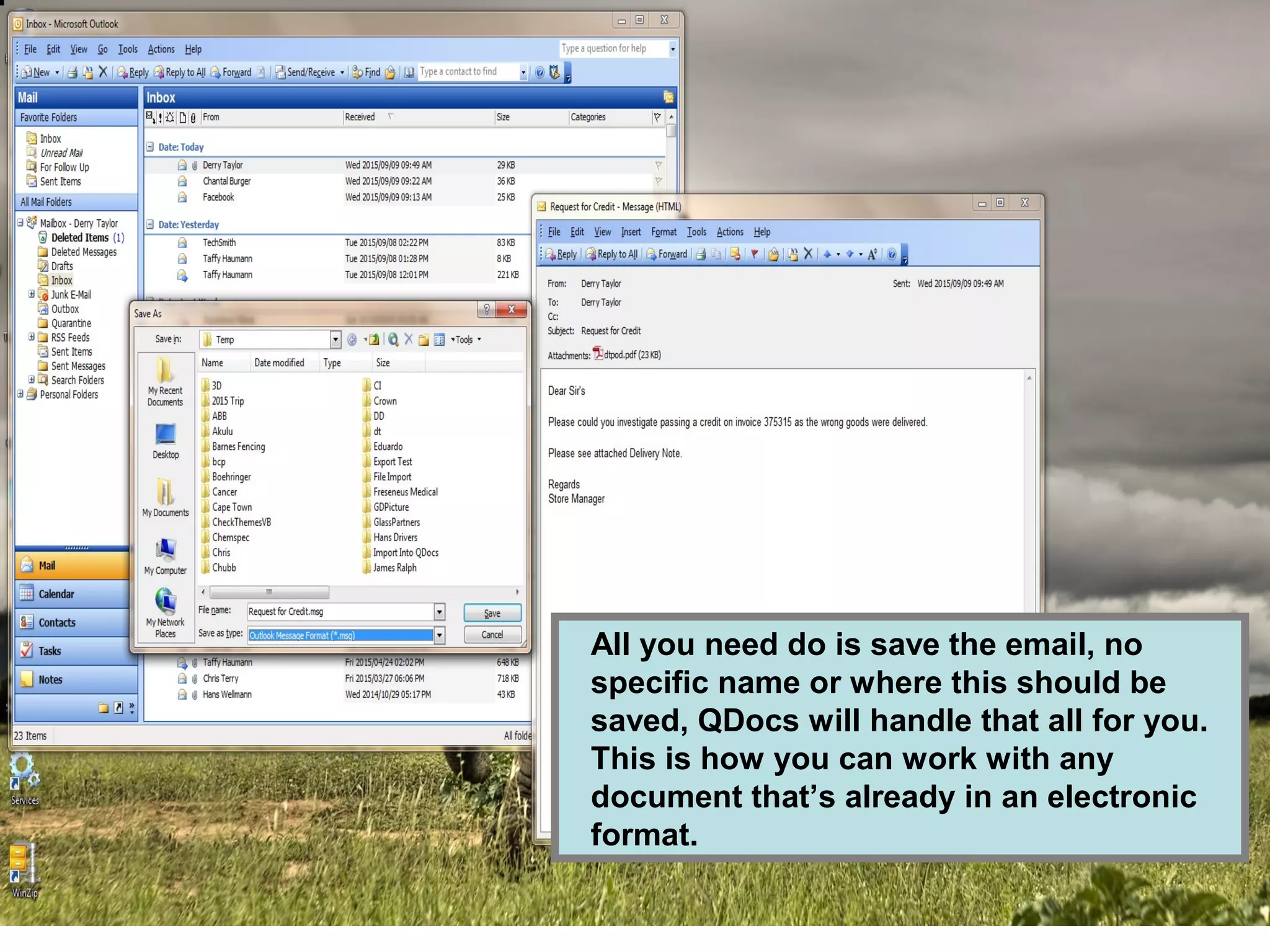
All you need do is save the email, no
specific name or where this should be
saved, QDocs will handle that all for you.
This is how you can work with any
document that’s already in an electronic
format.
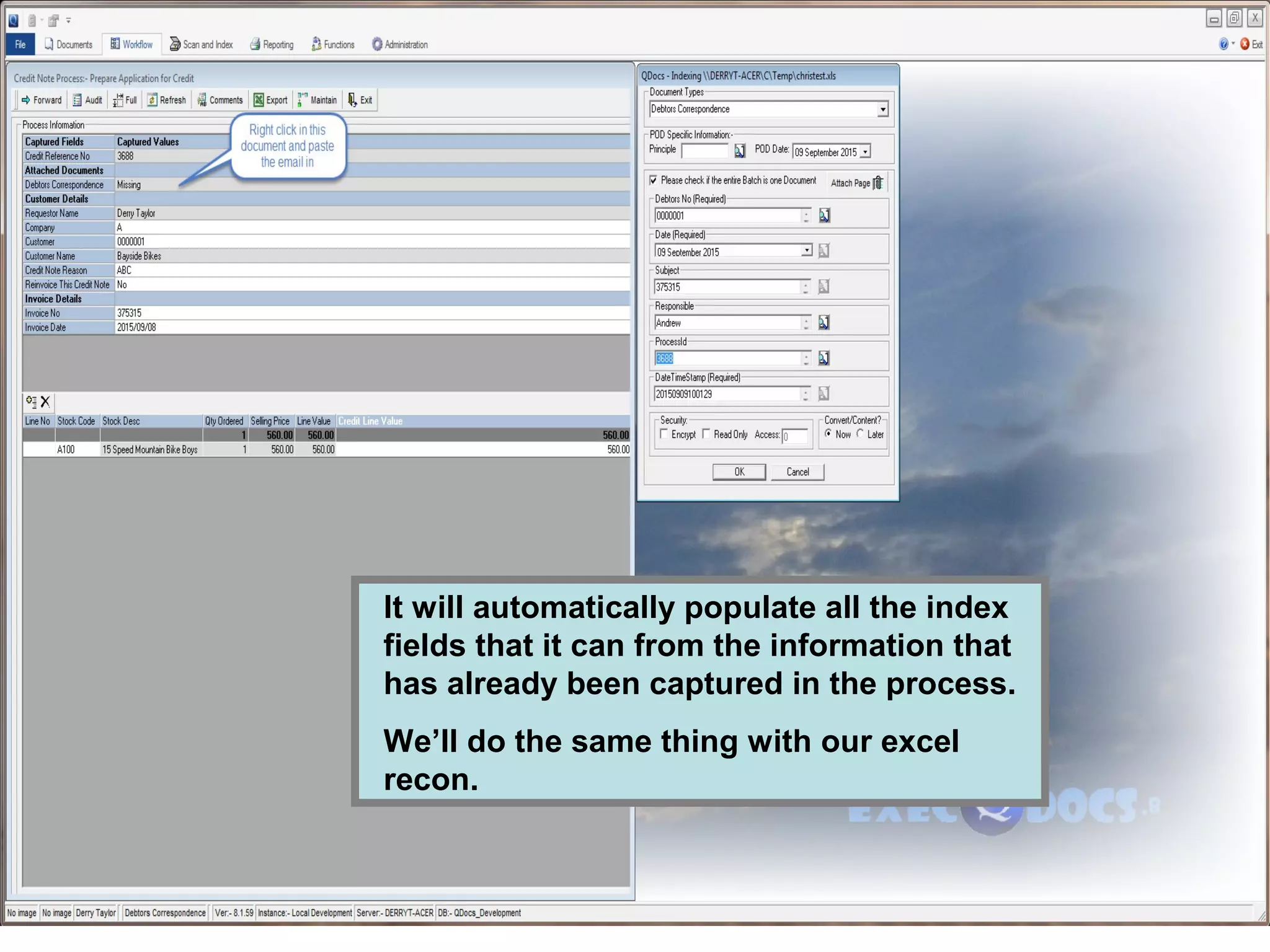
It will automatically populate all the index
fields that it can from the information that
has already been captured in the process.
We’ll do the same thing with our excel
recon.
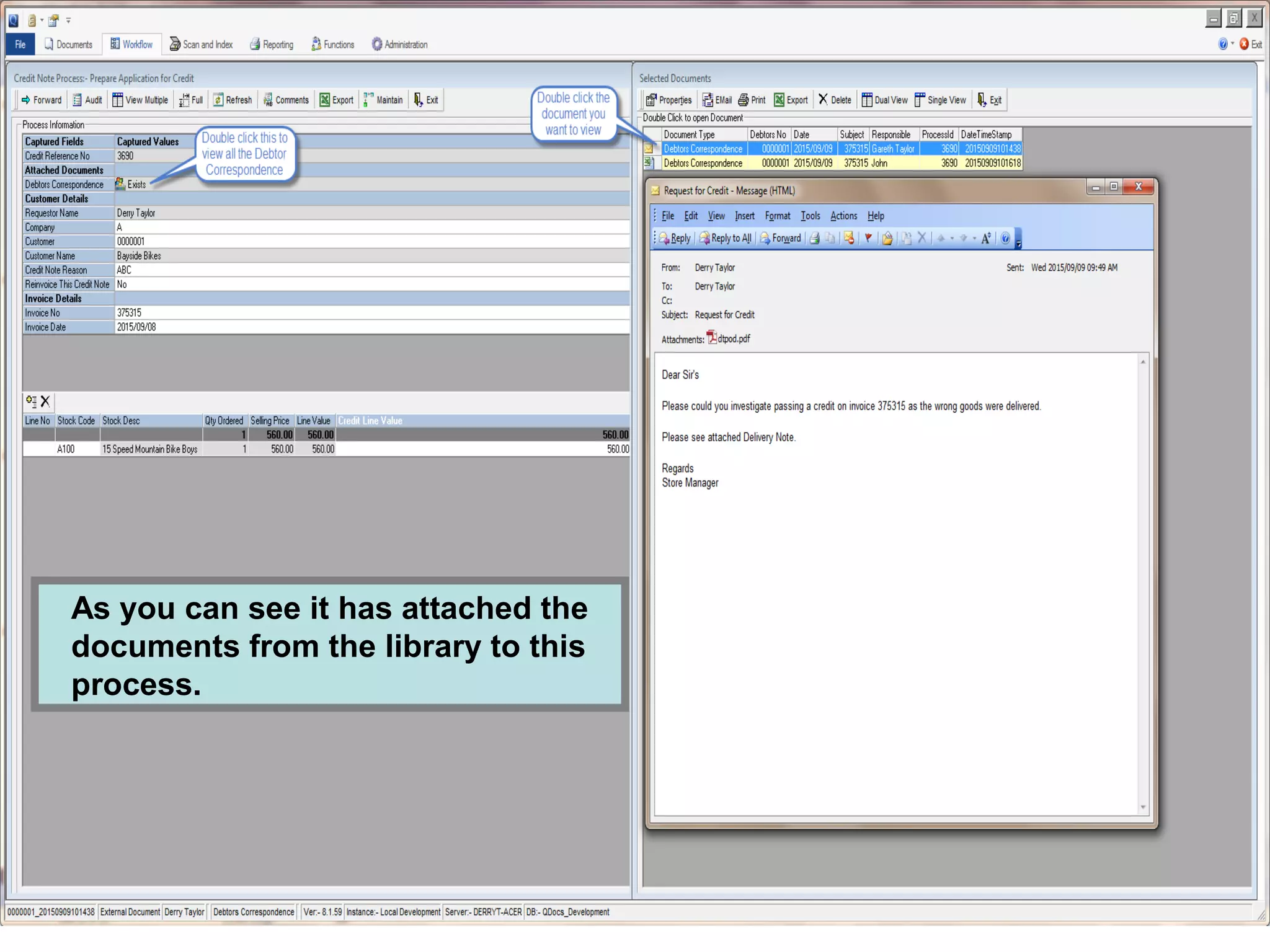
As you can see it has attached the
documents from the library to this
process.
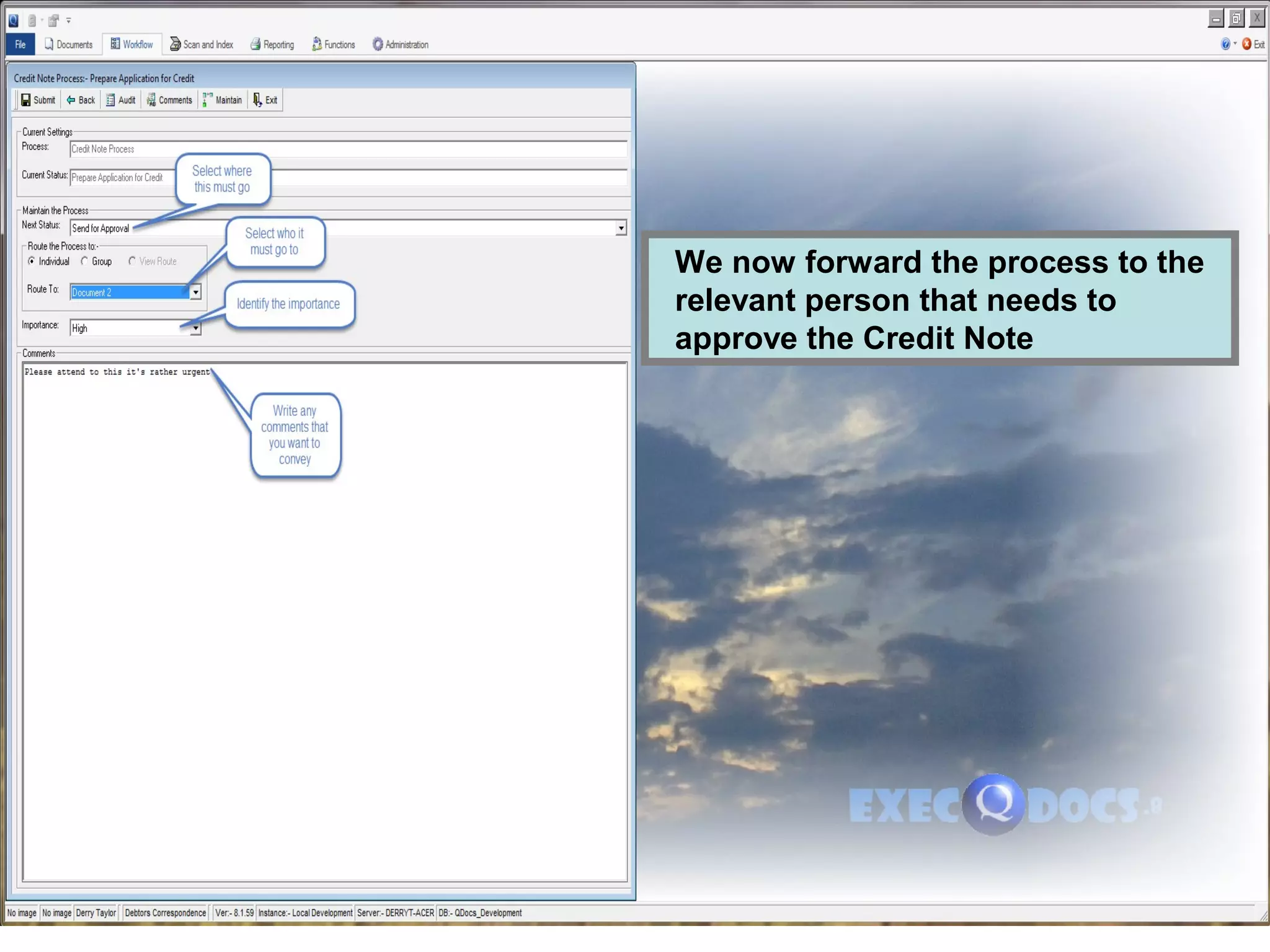
We now forward the process to the
relevant person that needs to
approve the Credit Note
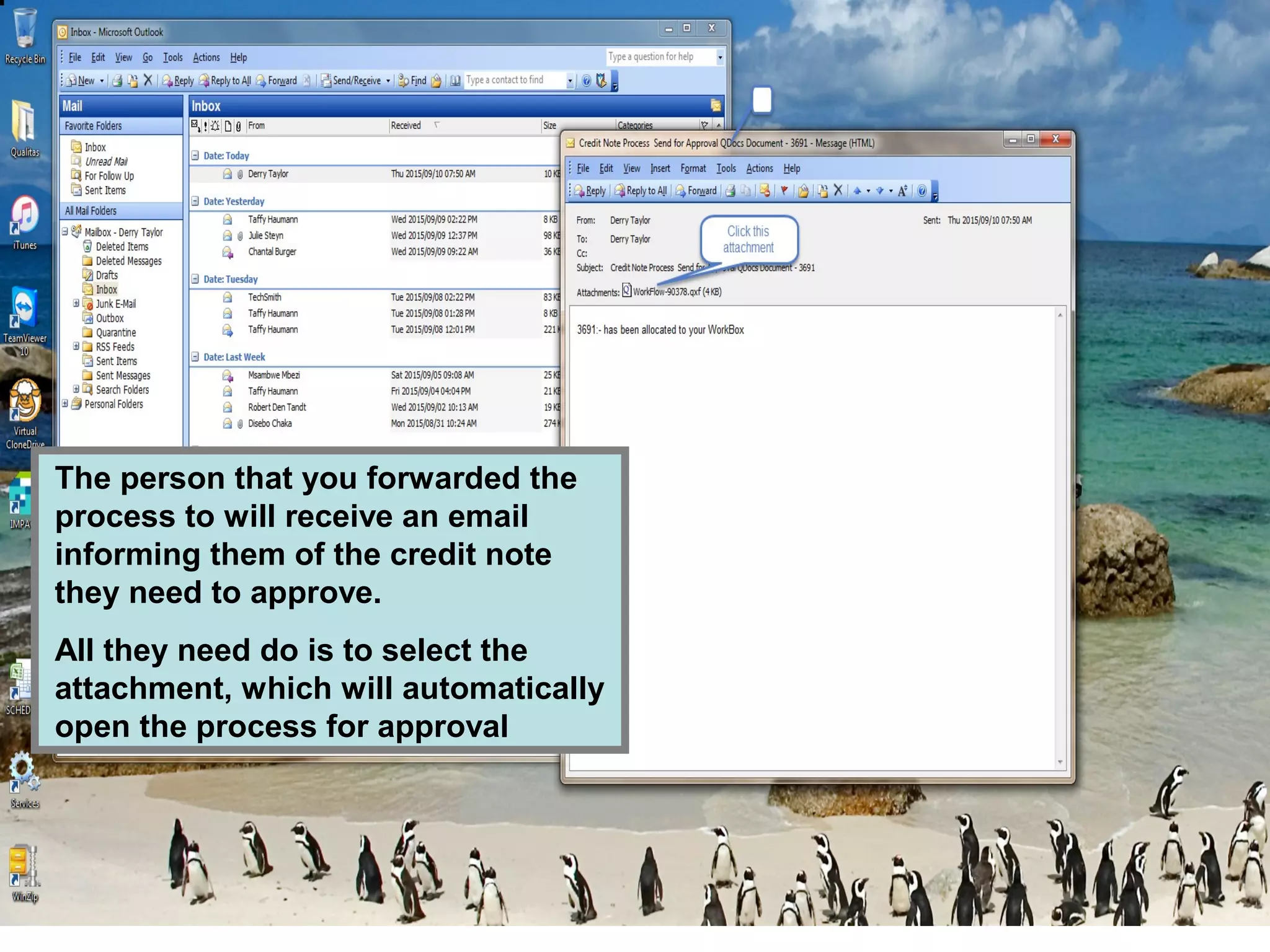
The person that you forwarded the
process to will receive an email
informing them of the credit note
they need to approve.
All they need do is to select the
attachment, which will automatically
open the process for approval
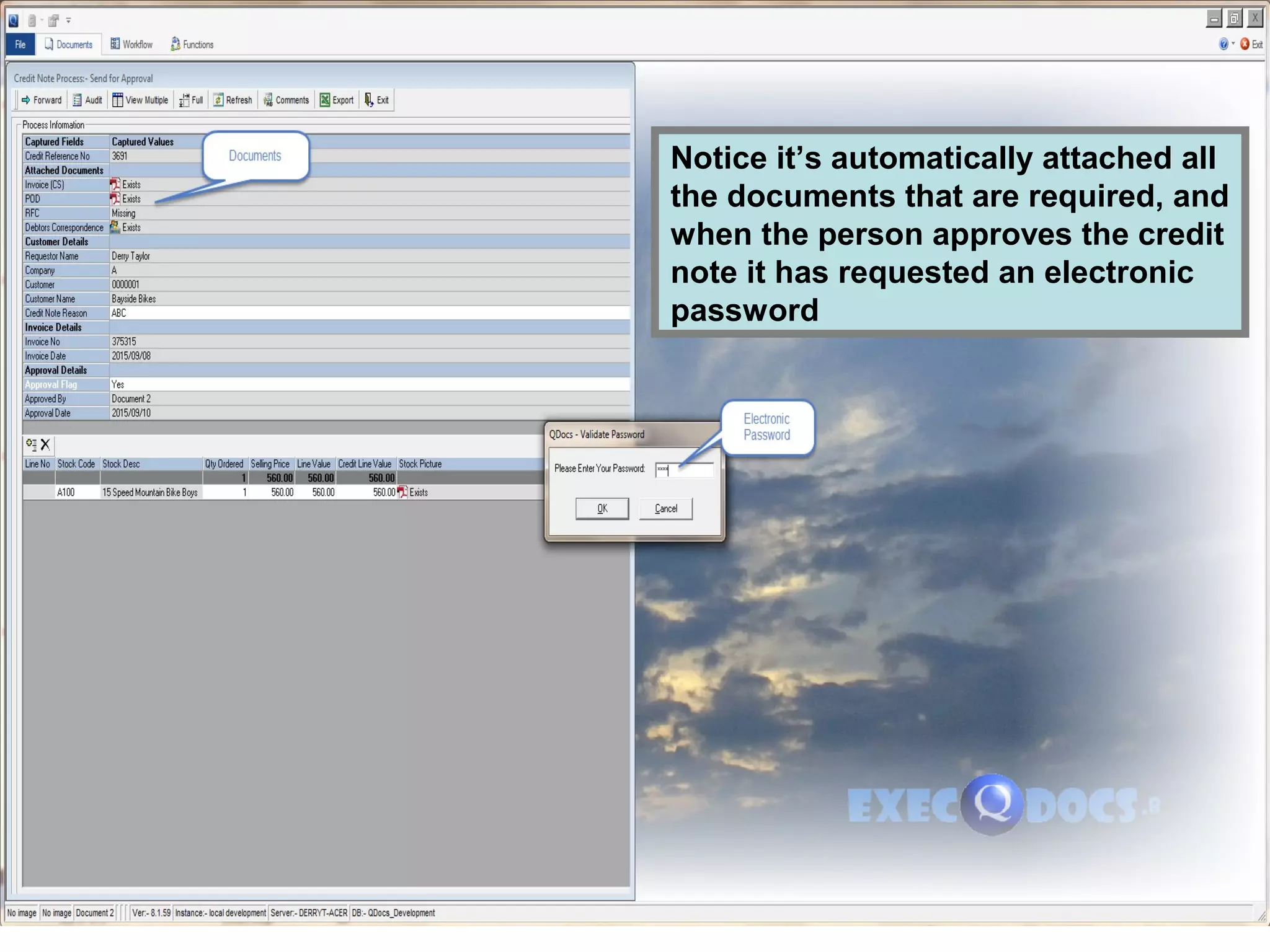
Notice it’s automatically attached all
the documents that are required, and
when the person approves the credit
note it has requested an electronic
password
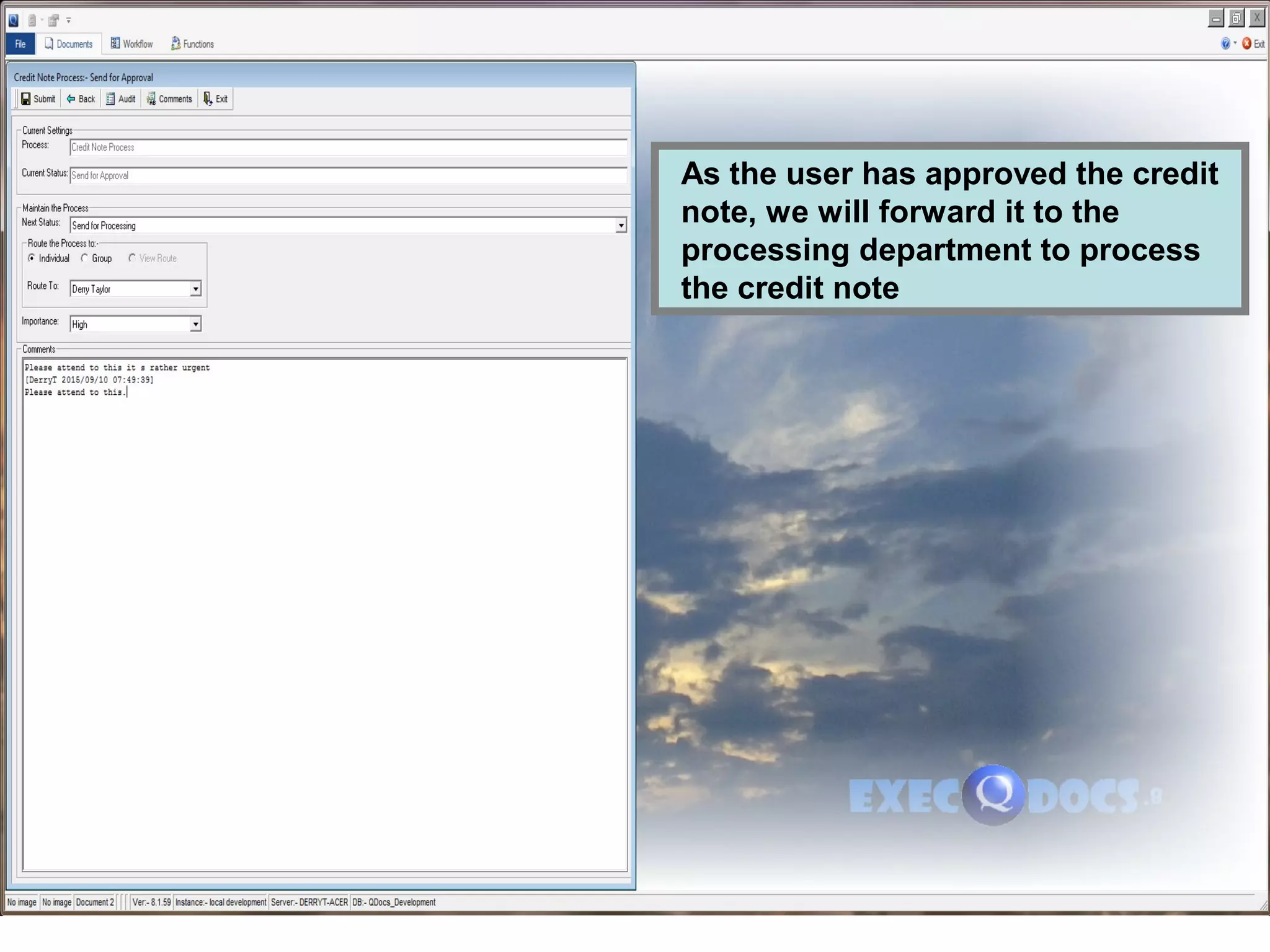
As the user has approved the credit
note, we will forward it to the
processing department to process
the credit note
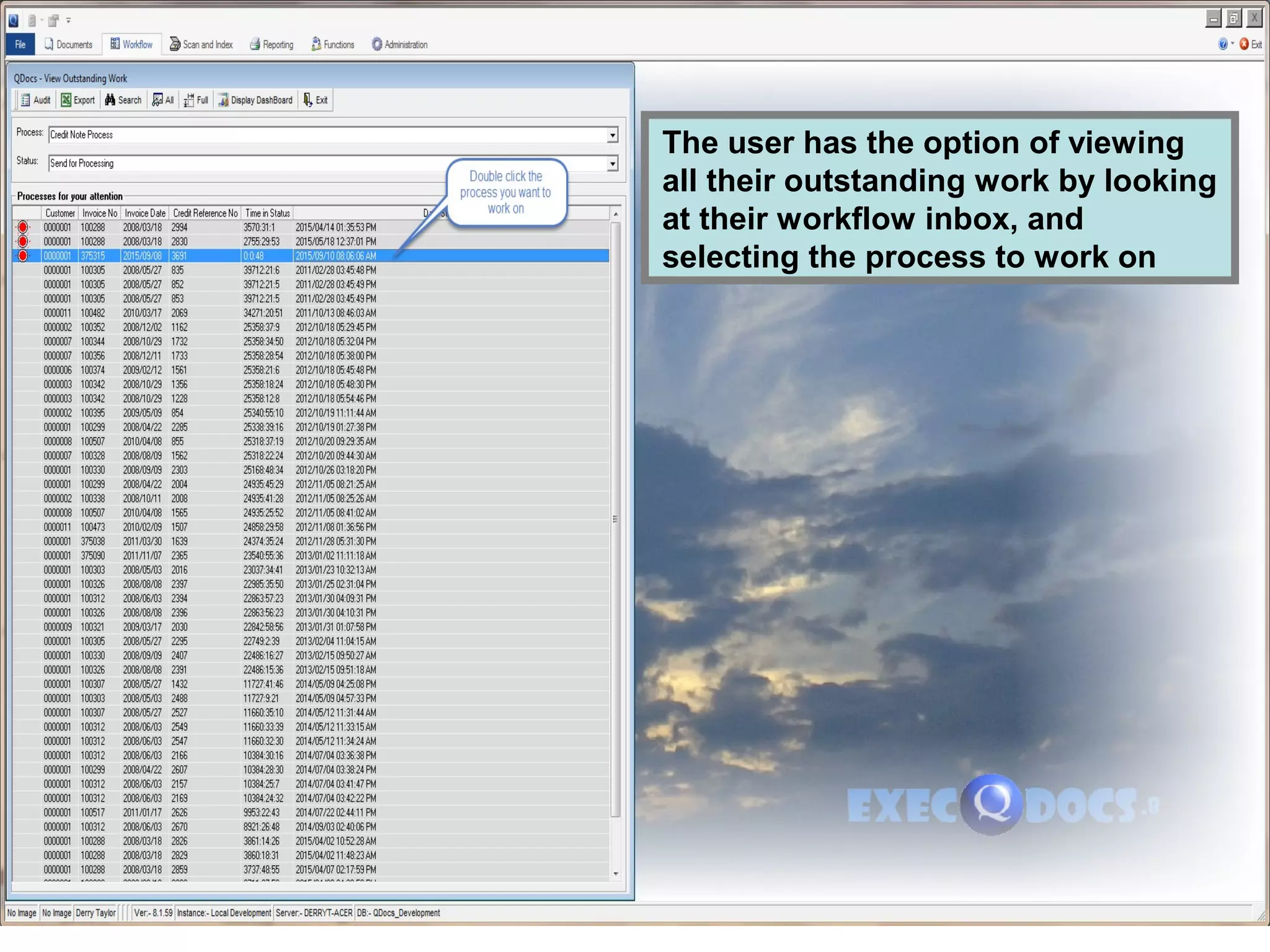
The user has the option of viewing
all their outstanding work by looking
at their workflow inbox, and
selecting the process to work on
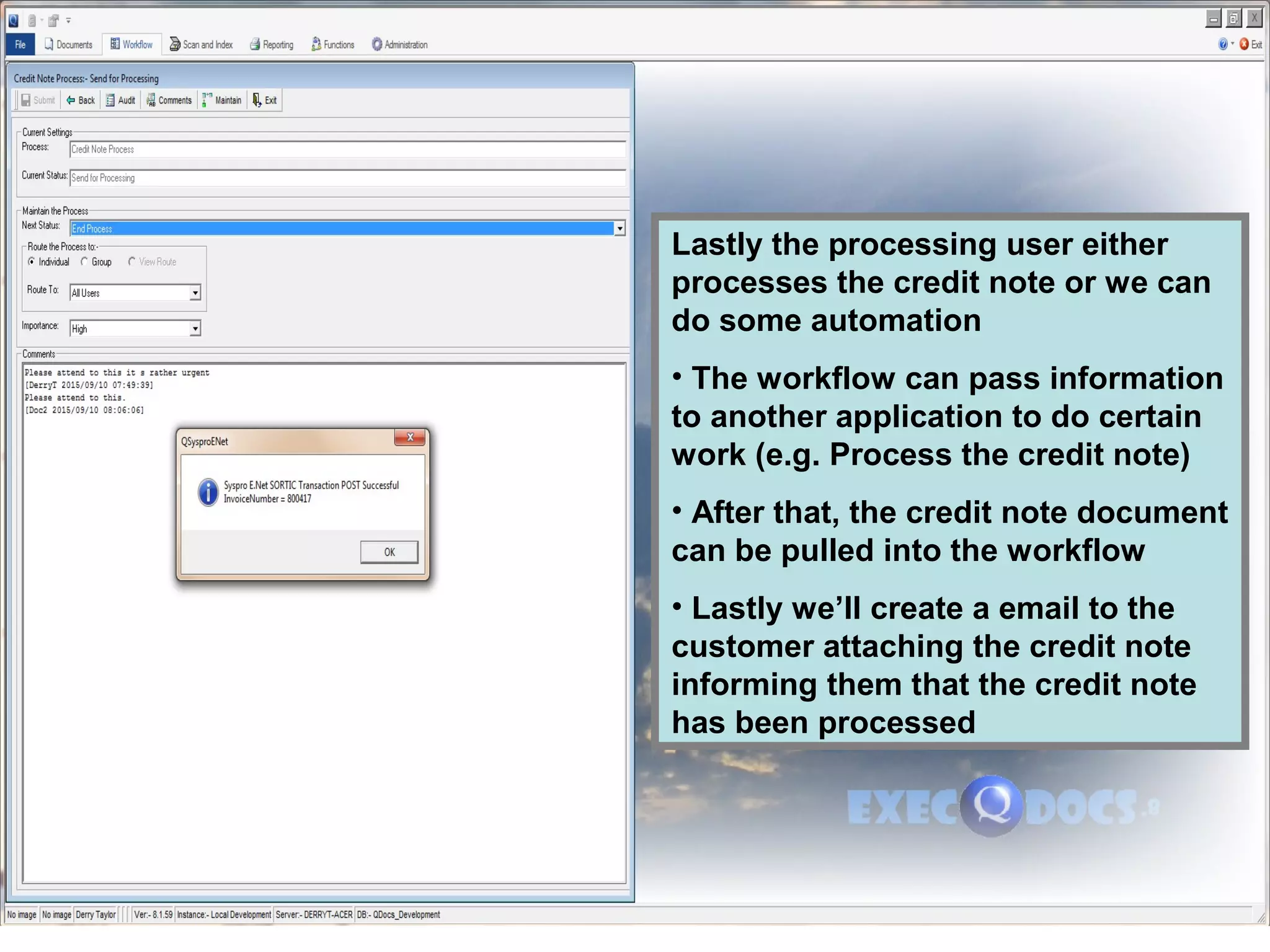
Lastly the processing user either
processes the credit note or we can
do some automation
• The workflow can pass information
to another application to do certain
work (e.g. Process the credit note)
• After that, the credit note document
can be pulled into the workflow
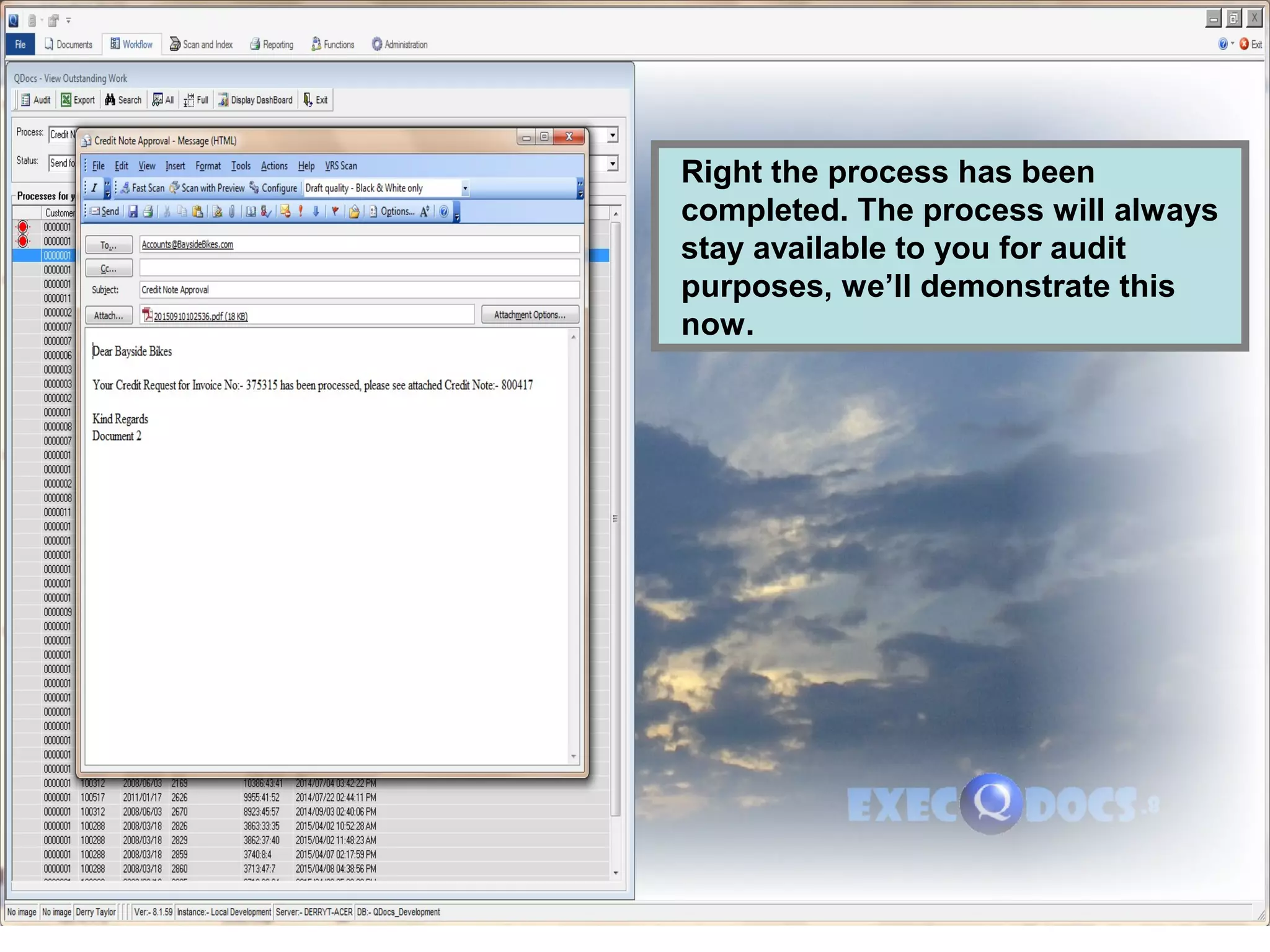
• Lastly we’ll create a email to the
customer attaching the credit note
informing them that the credit note
has been processed
Right the process has been
completed. The process will always
stay available to you for audit
purposes, we’ll demonstrate this
now.
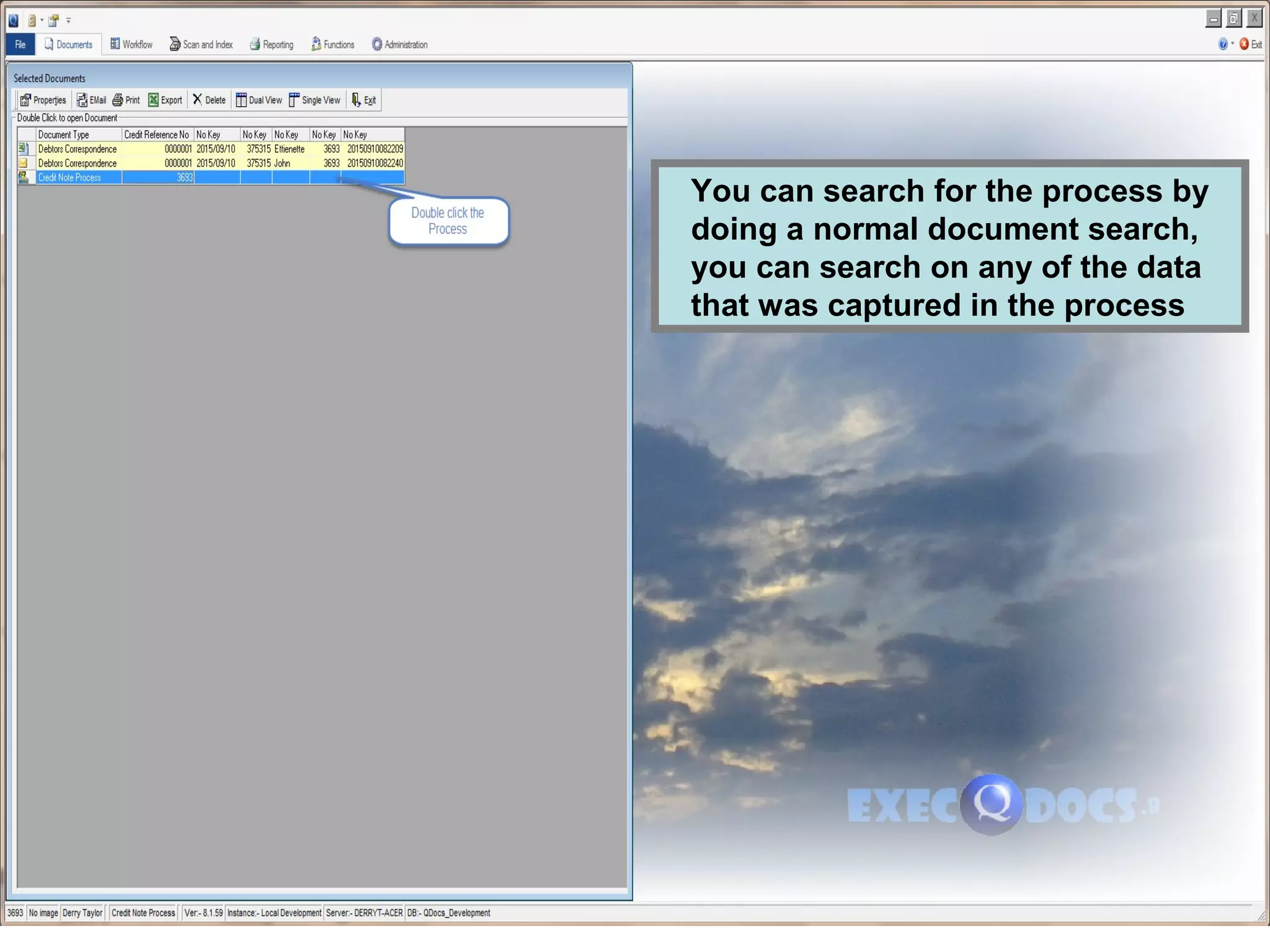
You can search for the process by
doing a normal document search,
you can search on any of the data
that was captured in the process
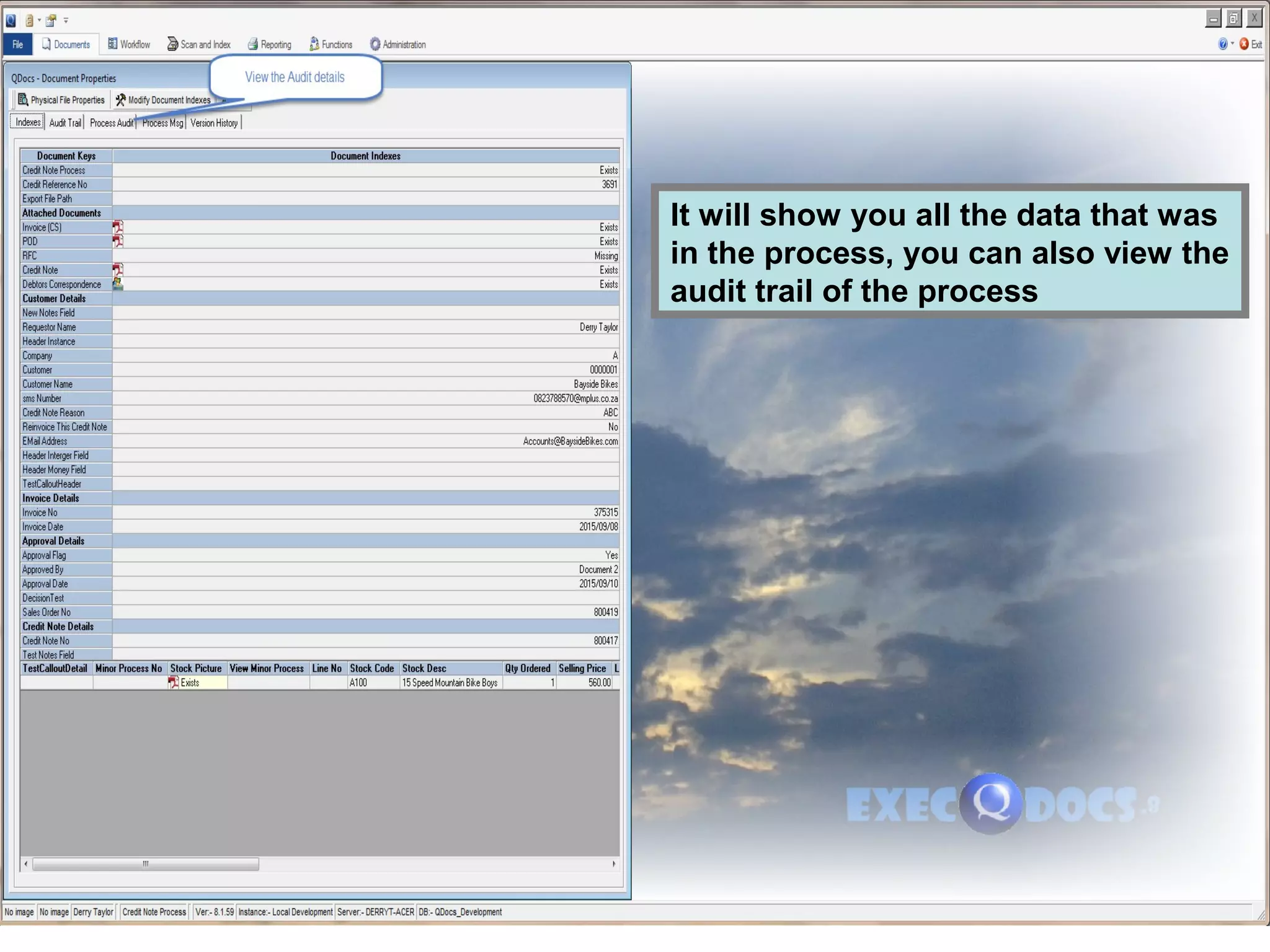
It will show you all the data that was
in the process, you can also view the
audit trail of the process
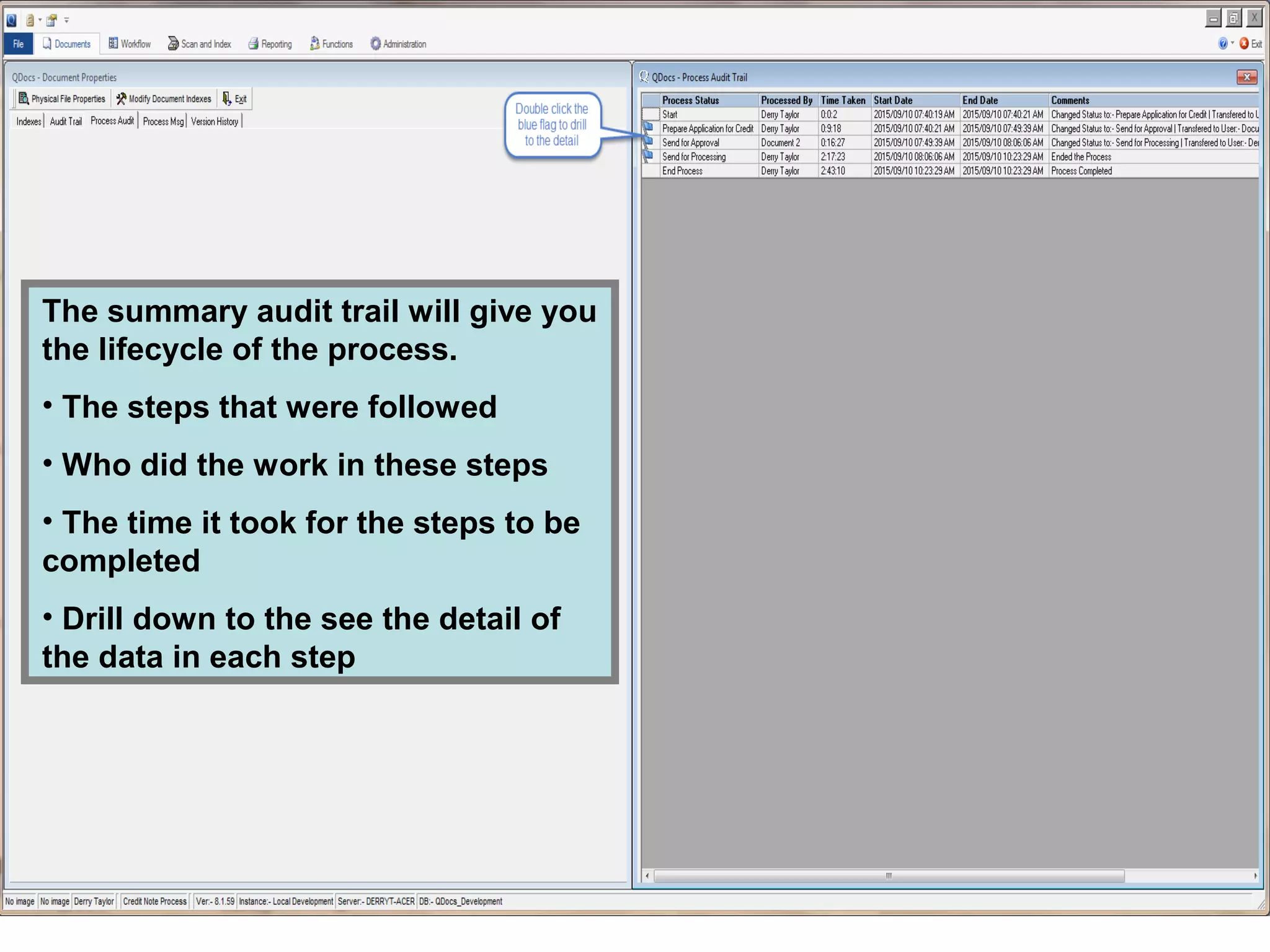
The summary audit trail will give you
the lifecycle of the process.
• The steps that were followed
• Who did the work in these steps
• The time it took for the steps to be
completed
• Drill down to the see the detail of
the data in each step
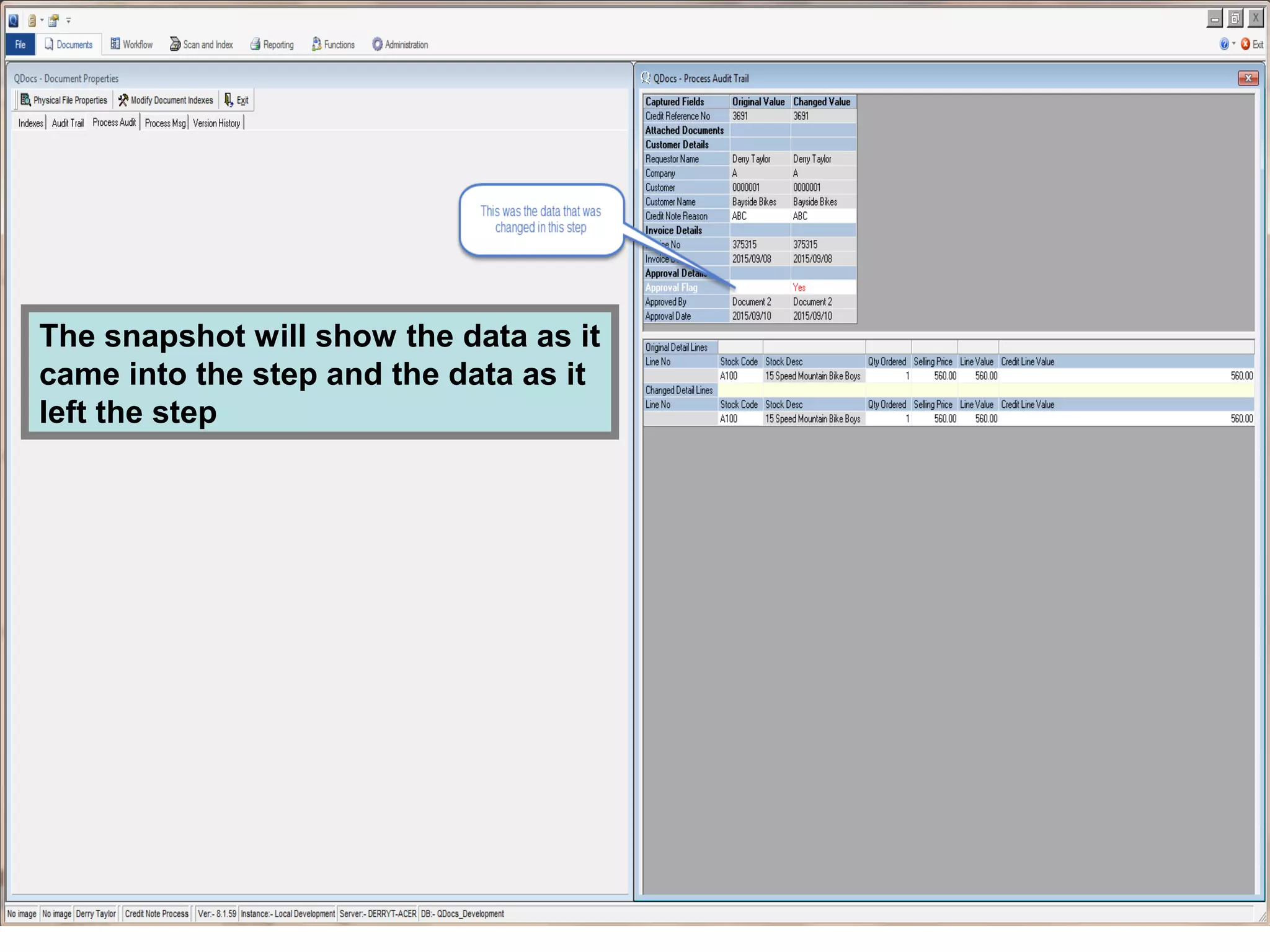
The snapshot will show the data as it
came into the step and the data as it
left the step
We’ve finally come to the end of the presentation.
I hope we’ve been able to present the salient
features of ExecQDocs the workflow enabled
Document Management System

ExecQDocs

  • 1.
    Welcome to theExecQDocs Presentation
  • 2.
    ExecQDocs is aWorkflow enabled Document Management System (EDMS)
  • 3.
    ExecQDocs handles thefollowing types of documents • Paper documents (Scanning) • Documents that are already in an electronic format (pdf, word, excel, emails etc.) • Data that needs be turned into a electronic documents (creating pdf’s)
  • 4.
    ExecQDocs will alsoenable you to create Workflows to manage the processes in your business
  • 5.
    The following presentationwill take you through a practical example of managing your documents and integrating these documents into a workflow
  • 6.
    The Example relatesto a typical Sales Invoice • We will manage the documents around the Sales Invoice • To demonstrate the Workflow we will assume that a Credit Note has been requested against this invoice, this we will do by an approval process.
  • 7.
    The following highlighted documentswill be captured into the library
  • 8.
    Each document hasit’s own Indexing/Search keys defined by the Librarian when setting up the document library
  • 9.
    OK lets pullthe Invoice into the library by searching on the Invoice No
  • 10.
    We will runa Cold Scan on the invoice which will generate the document into the library
  • 11.
    You will noticethat the document has a watermark embedded onto it, it will also have been secured with a 128 encryption key
  • 12.
    We scan thePOD document and put it into the library. When putting it into the library it will prompt for the Indexing/Search keys, this can be automated by doing barcode recognition or OCR recognition
  • 13.
    We now searchfor all documents linked to invoice 375315 (you can now) • Email • Print • Export to Excel • View Audit trails
  • 14.
    Right that’s aquick overview of document management, there’s lots of other really great features available but this should give you a general overview. We’ll now move onto Workflow
  • 15.
    Let’s assume thatthe customer has requested a credit against this invoice. This credit would have to be approved so let’s run thru the Credit Note Approval process.
  • 16.
    A workflow consistsof 3 basic setups The steps that need to be followed (in this case to process the credit note in this case). • The 1st step will be to (Prepare the Application for Credit). • The 2nd step is to (Send this for Approval). • The 3rd step if it’s approved is to (Send for Processing). • There is a 4th step which is to (Re-invoice if necessary).
  • 17.
    The people responsiblefor doing the work in each of the steps
  • 18.
    The information anddocuments that need to be captured in each of the steps.
  • 19.
    There’s a hugeamount of flexibility built into setting up the workflow to cater for specific needs but we won’t go into details here, I’ll just highlight a couple of important points. • Time limits setup against each step • Escalation procedures if these time limits are exceeded. • Business rules can be defined against all information entered (e.g. if a Credit for a certain value is being requested only allow a certain person or persons to approve etc.) • Specify which documents are mandatory before allowing the workflow to move to the next step.
  • 20.
    Ok lets startthis Credit Note Process that we’ve defined
  • 21.
    The capture formfor “preparing the application for credit” is invoked, notice how lookups can be setup against fields to help with data capture.
  • 22.
    Right lets attachany correspondence that we may have for this credit note. • An email from the customer requesting the credit. • An excel spreadsheet with a recon that we prepared.
  • 23.
    All you needdo is save the email, no specific name or where this should be saved, QDocs will handle that all for you. This is how you can work with any document that’s already in an electronic format.
  • 24.
    It will automaticallypopulate all the index fields that it can from the information that has already been captured in the process. We’ll do the same thing with our excel recon.
  • 25.
    As you cansee it has attached the documents from the library to this process.
  • 26.
    We now forwardthe process to the relevant person that needs to approve the Credit Note
  • 27.
    The person thatyou forwarded the process to will receive an email informing them of the credit note they need to approve. All they need do is to select the attachment, which will automatically open the process for approval
  • 28.
    Notice it’s automaticallyattached all the documents that are required, and when the person approves the credit note it has requested an electronic password
  • 29.
    As the userhas approved the credit note, we will forward it to the processing department to process the credit note
  • 30.
    The user hasthe option of viewing all their outstanding work by looking at their workflow inbox, and selecting the process to work on
  • 31.
    Lastly the processinguser either processes the credit note or we can do some automation • The workflow can pass information to another application to do certain work (e.g. Process the credit note) • After that, the credit note document can be pulled into the workflow • Lastly we’ll create a email to the customer attaching the credit note informing them that the credit note has been processed
  • 32.
    Right the processhas been completed. The process will always stay available to you for audit purposes, we’ll demonstrate this now.
  • 33.
    You can searchfor the process by doing a normal document search, you can search on any of the data that was captured in the process
  • 34.
    It will showyou all the data that was in the process, you can also view the audit trail of the process
  • 35.
    The summary audittrail will give you the lifecycle of the process. • The steps that were followed • Who did the work in these steps • The time it took for the steps to be completed • Drill down to the see the detail of the data in each step
  • 36.
    The snapshot willshow the data as it came into the step and the data as it left the step
  • 37.
    We’ve finally cometo the end of the presentation. I hope we’ve been able to present the salient features of ExecQDocs the workflow enabled Document Management System