ROBOTICS
 EV3 is the third platform Lego® has created for
robotics
 Platform 2: NXT can still be used but is no
longer supported by Lego, however it can still
be programmed using the EV3 Mindstorms
software
 Two parts to all robotics; Construction (what
do you want your robot to do) and
Programming (how will your robot do it?)
Robotics promotes and/or supports
 Mathematics - angles
- problem solving
-algebra
-chance and data
 Science - simple machines
- force and motion
 Digital Technologies – Creative thinking
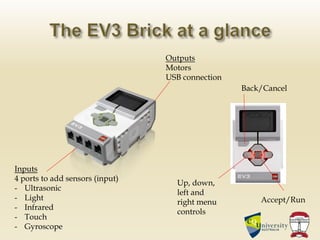
Inputs
4 ports to add sensors (input)
- Ultrasonic
- Light
- Infrared
- Touch
- Gyroscope
Outputs
Motors
USB connection
Back/Cancel
Accept/Run
Up, down,
left and
right menu
controls
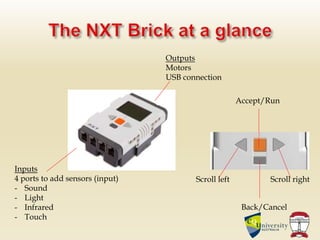
Inputs
4 ports to add sensors (input)
- Sound
- Light
- Infrared
- Touch
Outputs
Motors
USB connection
Back/Cancel
Accept/Run
Scroll left Scroll right
 Whilst allowing students to create a robot is
fun , engaging and interesting, you will get a
multitude of designs that may or may not meet
the intended purpose. When starting out use a
simple design for all students/groups, the
activity will have more purpose and run a lot
smoother.
 For this reason today we are using the basic
design you have prebuilt to allow more hands-
on time
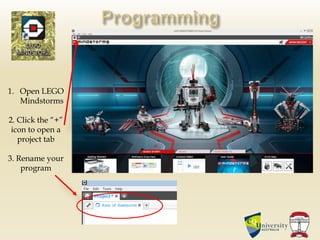
1. Open LEGO
Mindstorms
2. Click the “+”
icon to open a
project tab
3. Rename your
program
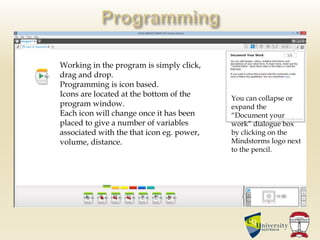
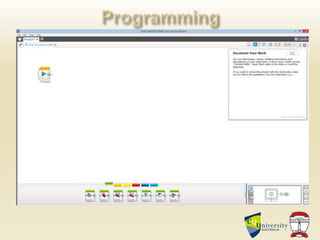
Working in the program is simply click,
drag and drop.
Programming is icon based.
Icons are located at the bottom of the
program window.
Each icon will change once it has been
placed to give a number of variables
associated with the that icon eg. power,
volume, distance.
You can collapse or
expand the
“Document your
work” dialogue box
by clicking on the
Mindstorms logo next
to the pencil.
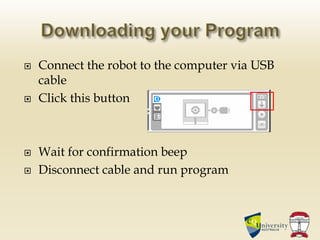
 Connect the robot to the computer via USB
cable
 Click this button
 Wait for confirmation beep
 Disconnect cable and run program
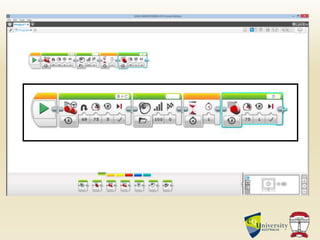
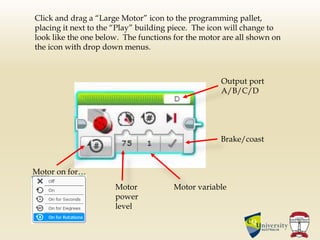
Click and drag a “Large Motor” icon to the programming pallet,
placing it next to the “Play” building piece. The icon will change to
look like the one below. The functions for the motor are all shown on
the icon with drop down menus.
Output port
A/B/C/D
Motor
power
level
Motor variable
Brake/coast
Motor on for…
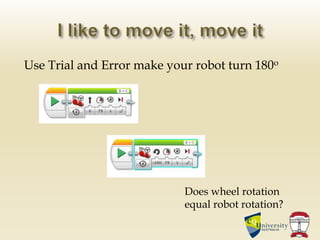
Use Trial and Error make your robot turn 180o
Does wheel rotation
equal robot rotation?
Program your robot to
1. Travel forwards 5 rotations
2. Travel backwards 3 rotations
3. Complete a sharp right-hand turn
4. Complete a slow left-hand turn
5. Travel forward 3 seconds and then backwards
for 2 seconds
6. Turn exactly 90o
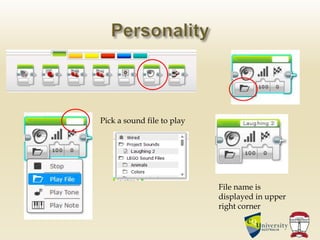
Pick a sound file to play
File name is
displayed in upper
right corner
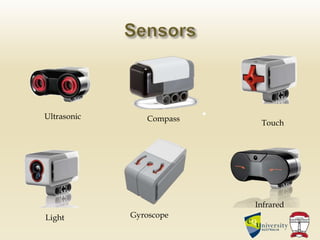
Infrared
Touch
Light
Ultrasonic
Gyroscope
Compass
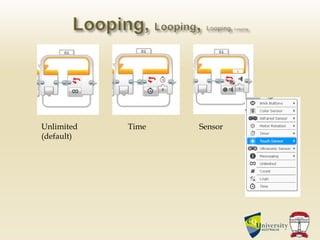
Unlimited
(default)
Time Sensor
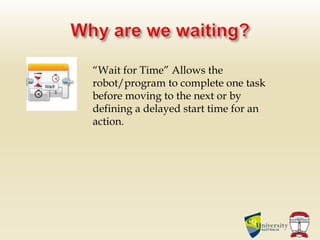
“Wait for Time” Allows the
robot/program to complete one task
before moving to the next or by
defining a delayed start time for an
action.
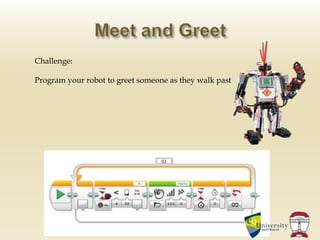
Challenge:
Program your robot to greet someone as they walk past
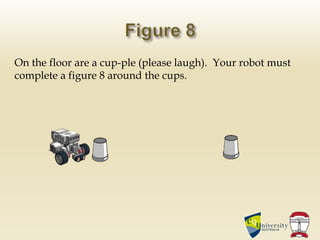
On the floor are a cup-ple (please laugh). Your robot must
complete a figure 8 around the cups.
22 July 2016
CQUniversity Community
Sports Centre
All Welcome
This year’s goal 250+ participants
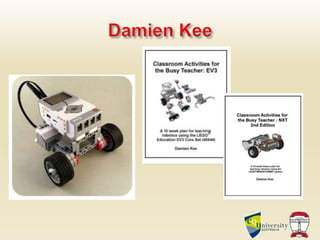
 damienkee.com
 https://www.cqu.edu.au/industry-and-
partnerships/partnerships/community/cq-junior-
robotics-competition/useful-resources
 http://www.ev3lessons.com/
 http://www.robocupjunior.org.au/
 http://www.robocupjunior.org.au/qld
 Mailing List:
cqrobojrbounces@mailman.cqu.edu.au

EV3-CQU-Powerpoint.ppt

  • 1.
  • 2.
     EV3 isthe third platform Lego® has created for robotics  Platform 2: NXT can still be used but is no longer supported by Lego, however it can still be programmed using the EV3 Mindstorms software  Two parts to all robotics; Construction (what do you want your robot to do) and Programming (how will your robot do it?)
  • 3.
    Robotics promotes and/orsupports  Mathematics - angles - problem solving -algebra -chance and data  Science - simple machines - force and motion  Digital Technologies – Creative thinking
  • 4.
    Inputs 4 ports toadd sensors (input) - Ultrasonic - Light - Infrared - Touch - Gyroscope Outputs Motors USB connection Back/Cancel Accept/Run Up, down, left and right menu controls
  • 5.
    Inputs 4 ports toadd sensors (input) - Sound - Light - Infrared - Touch Outputs Motors USB connection Back/Cancel Accept/Run Scroll left Scroll right
  • 7.
     Whilst allowingstudents to create a robot is fun , engaging and interesting, you will get a multitude of designs that may or may not meet the intended purpose. When starting out use a simple design for all students/groups, the activity will have more purpose and run a lot smoother.  For this reason today we are using the basic design you have prebuilt to allow more hands- on time
  • 8.
    1. Open LEGO Mindstorms 2.Click the “+” icon to open a project tab 3. Rename your program
  • 9.
    Working in theprogram is simply click, drag and drop. Programming is icon based. Icons are located at the bottom of the program window. Each icon will change once it has been placed to give a number of variables associated with the that icon eg. power, volume, distance. You can collapse or expand the “Document your work” dialogue box by clicking on the Mindstorms logo next to the pencil.
  • 12.
     Connect therobot to the computer via USB cable  Click this button  Wait for confirmation beep  Disconnect cable and run program
  • 13.
    Click and draga “Large Motor” icon to the programming pallet, placing it next to the “Play” building piece. The icon will change to look like the one below. The functions for the motor are all shown on the icon with drop down menus. Output port A/B/C/D Motor power level Motor variable Brake/coast Motor on for…
  • 14.
    Use Trial andError make your robot turn 180o Does wheel rotation equal robot rotation?
  • 15.
    Program your robotto 1. Travel forwards 5 rotations 2. Travel backwards 3 rotations 3. Complete a sharp right-hand turn 4. Complete a slow left-hand turn 5. Travel forward 3 seconds and then backwards for 2 seconds 6. Turn exactly 90o
  • 16.
    Pick a soundfile to play File name is displayed in upper right corner
  • 17.
  • 18.
  • 19.
    “Wait for Time”Allows the robot/program to complete one task before moving to the next or by defining a delayed start time for an action.
  • 20.
    Challenge: Program your robotto greet someone as they walk past
  • 21.
    On the floorare a cup-ple (please laugh). Your robot must complete a figure 8 around the cups.
  • 23.
    22 July 2016 CQUniversityCommunity Sports Centre All Welcome This year’s goal 250+ participants
  • 24.
     damienkee.com  https://www.cqu.edu.au/industry-and- partnerships/partnerships/community/cq-junior- robotics-competition/useful-resources http://www.ev3lessons.com/  http://www.robocupjunior.org.au/  http://www.robocupjunior.org.au/qld  Mailing List: cqrobojrbounces@mailman.cqu.edu.au