Enabling Good Captioning
1. Log onto United Streaming


2. Find the video you want.

3. Be sure it is already closed-captioned.


4. After you select clip—before you hit play — click the restore
up/down button.


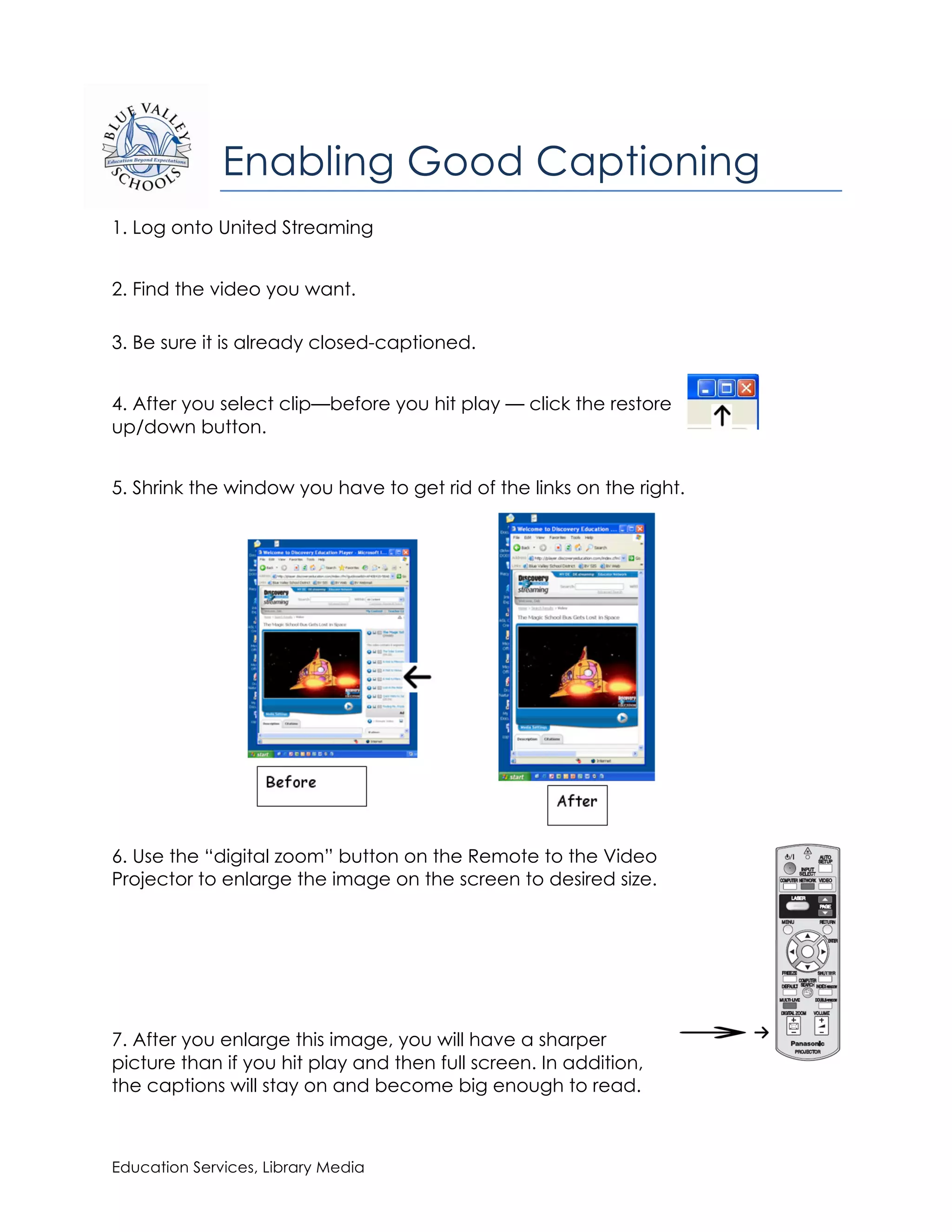
5. Shrink the window you have to get rid of the links on the right.


6. Use the “digital zoom” button on the Remote to the Video
Projector to enlarge the image on the screen to desired size.


7. After you enlarge this image, you will have a sharper
picture than if you hit play and then full screen. In addition,
the captions will stay on and become big enough to read.


Education Services, Library Media

Enabling Good Captions

  • 1.
    Enabling Good Captioning 1.Log onto United Streaming 2. Find the video you want. 3. Be sure it is already closed-captioned. 4. After you select clip—before you hit play — click the restore up/down button. 5. Shrink the window you have to get rid of the links on the right. 6. Use the “digital zoom” button on the Remote to the Video Projector to enlarge the image on the screen to desired size. 7. After you enlarge this image, you will have a sharper picture than if you hit play and then full screen. In addition, the captions will stay on and become big enough to read. Education Services, Library Media